display BMW 1 SERIES 2013 E82 User Guide
[x] Cancel search | Manufacturer: BMW, Model Year: 2013, Model line: 1 SERIES, Model: BMW 1 SERIES 2013 E82Pages: 288, PDF Size: 6.73 MB
Page 28 of 288

23
iDrive
At a glance
Adjusting settings
1.
Select a field.
2. Turn the controller until the desired setting
is displayed.
3. Press the controller to confirm the setting.
Activating/deactivating functions
Some menu items are preceded by a check box.
It indicates whether the fu nction is activated or
deactivated. Selecting the menu item activates
or deactivates the function.
The function is activated.
The function is deactivated.
Example: setting the clock
1. Press the button.
The main menu is displayed.
2. Turn the controller until "Settings" is high-
lighted, and then press the controller.
3. If necessary, move the controller to the left
to display "Time/Date". 4.
Turn the controller until "Time/Date" is
highlighted, and then press the controller.
5. Turn the controller until "Time:" is high-
lighted, and then press the controller.
6. Turn the controller to set the hours and
press the controller.
7. Turn the controller to set the minutes and
press the controller.
Status information
Status box
The status box at the top right displays the
following information:
> Time
> Current entertainment source
> Sound output ON/OFF
> Mobile phone network with strongest
reception
> Telephone status
> Traffic reports reception
00320051004F004C00510048000300280047004C0057004C005200510003
Page 29 of 288
24
At a glanceiDrive
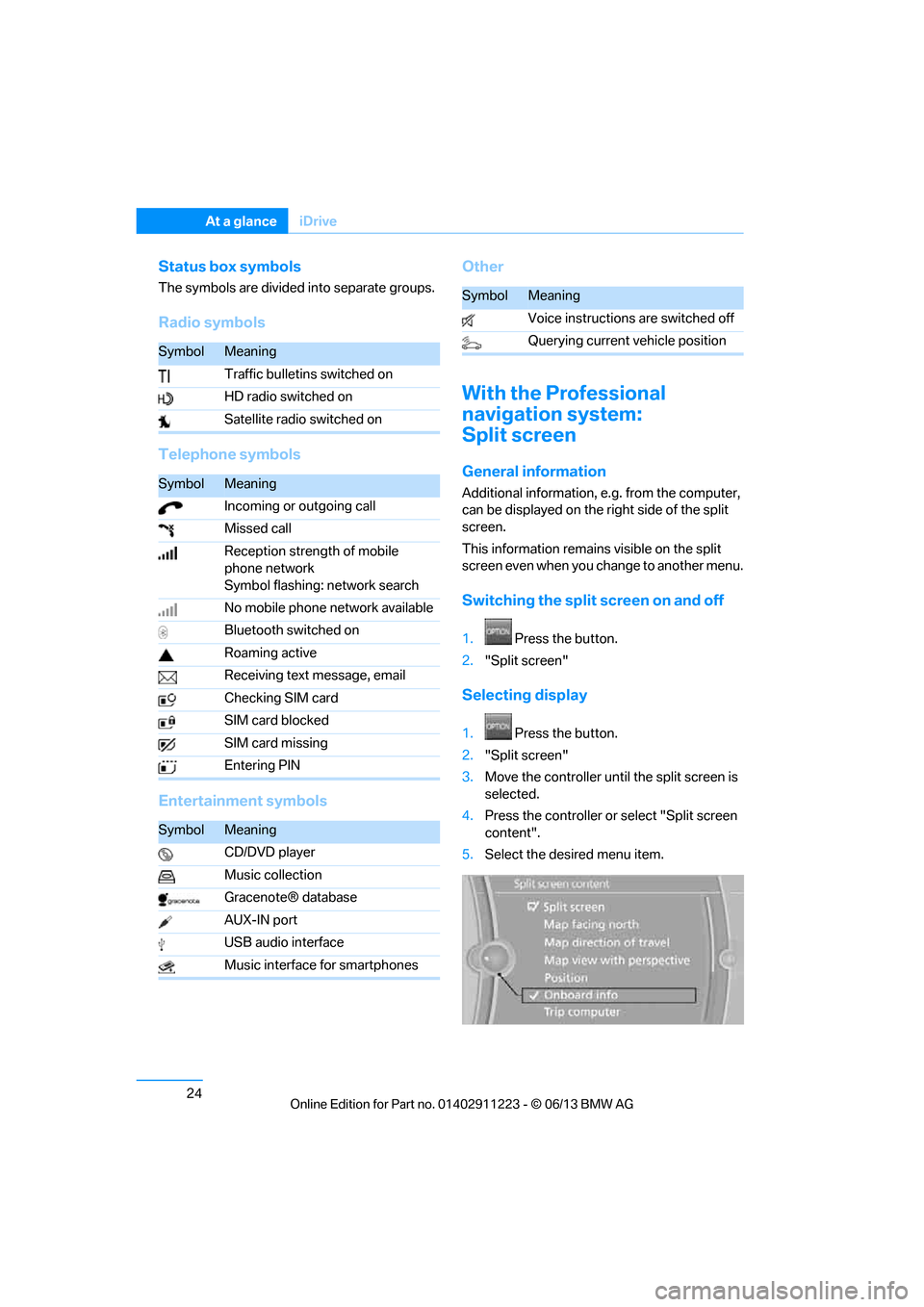
Status box symbols
The symbols are divided into separate groups.
Radio symbols
Telephone symbols
Entertainment symbols Other
With the Professional
navigation system:
Split screen
General information
Additional information, e.g. from the computer,
can be displayed on the right side of the split
screen.
This information remains visible on the split
screen even when you change to another menu.
Switching the split
screen on and off
1.Press the button.
2. "Split screen"
Selecting display
1. Press the button.
2. "Split screen"
3. Move the controller until the split screen is
selected.
4. Press the controller or select "Split screen
content".
5. Select the desired menu item.
SymbolMeaning
Traffic bulletins switched on
HD radio switched on
Satellite radio switched on
SymbolMeaning
Incoming or outgoing call
Missed call
Reception strength of mobile
phone network
Symbol flashing: network search
No mobile phone network available
Bluetooth switched on
Roaming active
Receiving text message, email
Checking SIM card
SIM card blocked
SIM card missing
Entering PIN
SymbolMeaning
CD/DVD player
Music collection
Gracenote® database
AUX-IN port
USB audio interface
Music interface for smartphones
SymbolMeaning
Voice instructions are switched off
Querying current vehicle position
00320051004F004C00510048000300280047004C0057004C005200510003
Page 30 of 288
25
iDrive
At a glance
Programmable memory keys
General information
iDrive functions can be stored on the program-
mable memory keys and called up directly, e.g.
radio stations, navigation destinations, phone
numbers and entry points into the menu.
The settings are stored
for the remote control
currently in use.
Storing functions
1. Highlight the function via the iDrive.
2. ... Press the desired button
for longer than two seconds.
Executing a function
... Press the button.
The function is executed immediately. This
means, for example, that the number is dialed
when a phone number is selected.
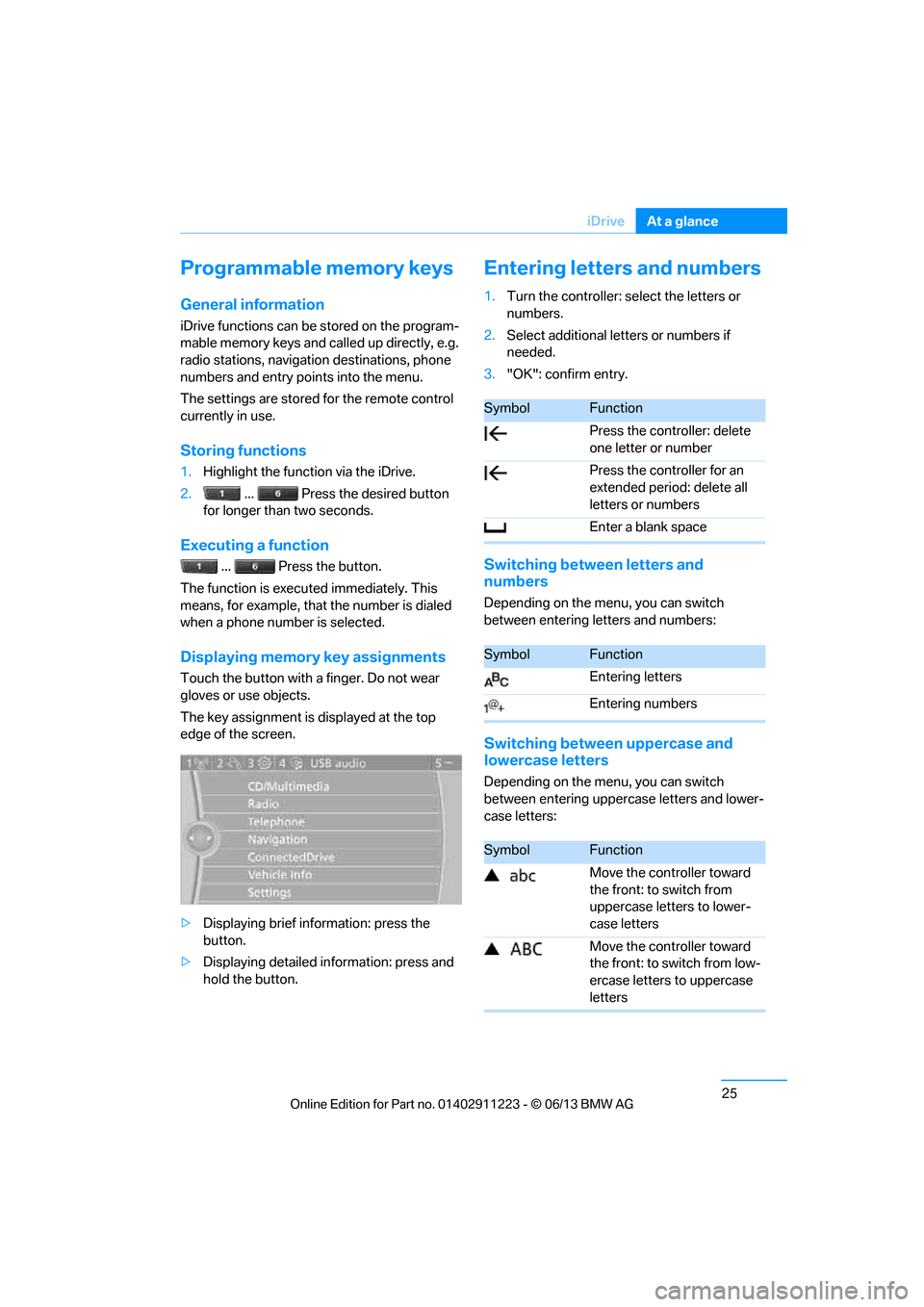
Displaying memory key assignments
Touch the button with a finger. Do not wear
gloves or use objects.
The key assignment is displayed at the top
edge of the screen.
> Displaying brief information: press the
button.
> Displaying detailed in formation: press and
hold the button.
Entering letters and numbers
1. Turn the controller: se lect the letters or
numbers.
2. Select additional letters or numbers if
needed.
3. "OK": confirm entry.
Switching between letters and
numbers
Depending on the menu, you can switch
between entering letters and numbers:
Switching between uppercase and
lowercase letters
Depending on the menu, you can switch
between entering upperc ase letters and lower-
case letters:
SymbolFunction
Press the controller: delete
one letter or number
Press the controller for an
extended period: delete all
letters or numbers
Enter a blank space
SymbolFunction
Entering letters
Entering numbers
SymbolFunction
Move the controller toward
the front: to switch from
uppercase letters to lower-
case letters
Move the controller toward
the front: to switch from low-
ercase letters to uppercase
letters
00320051004F004C00510048000300280047004C0057004C005200510003
Page 31 of 288
26
At a glanceiDrive
Entry comparison
Entry of names and addresses: the selection is
narrowed down every ti me a letter is entered
and letters may be added automatically.
The entries are continuously compared to the
data stored in the vehicle.
> During entry, only letters for which there are
data are offered.
> Destination search: town/city names can be
entered with th e spelling used in any of the
languages available on the Control Display.
00320051004F004C00510048000300280047004C0057004C005200510003
Page 32 of 288
27
Voice activation system
At a glance
Voice activation system
Vehicle equipment
In this chapter, all production, country, and
optional equipment that is offered in the model
range is described. For this reason, descrip-
tions will be given of some equipment that may
not be available in a vehi
cle, for example due to
the special options or national-market version
selected. This also app lies to safety related
functions and systems.
The concept
> The voice activation system can be used
to control most functions by spoken
commands.
> Functions that can only used when the vehi-
cle is stopped cannot be operated using the
voice activation system.
> The system includes a special microphone
on the driver's side.
> In the Owner's Manual, {...} indicates com-
mands for the voice activation system.
> In the Owner's Manual, {{...}} indicates the
answers from the voice activation system.
Prerequisite
On the Control Display, set a language that is
also supported by the vo ice activation system
to permit identification of the commands to be
spoken.
Setting the langua ge, refer to page87.
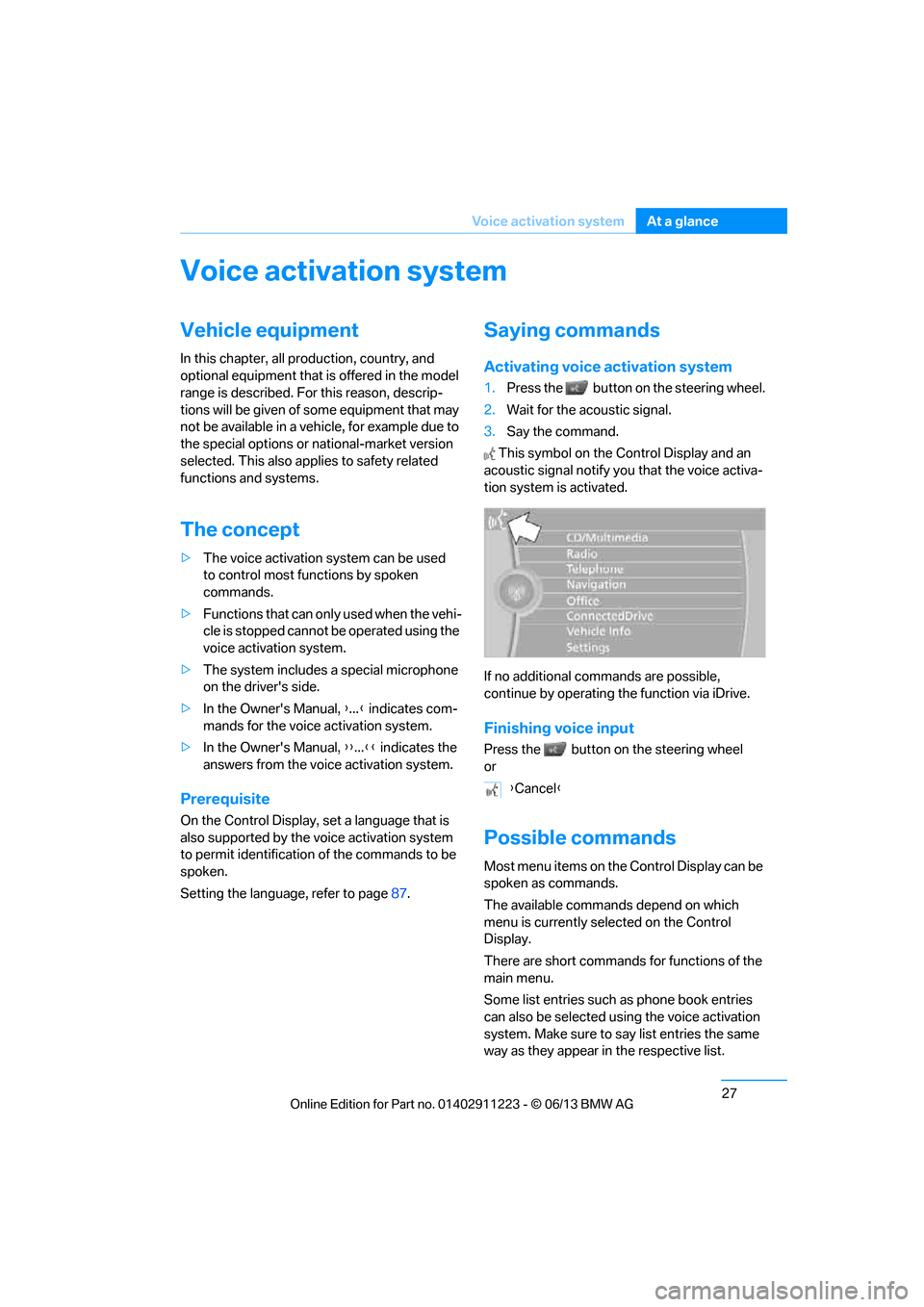
Saying commands
Activating voice activation system
1.Press the button on the steering wheel.
2. Wait for the acoustic signal.
3. Say the command.
This symbol on the Control Display and an
acoustic signal notify yo u that the voice activa-
tion system is activated.
If no additional commands are possible,
continue by operating the function via iDrive.
Finishing voice input
Press the button on the steering wheel
or
Possible commands
Most menu items on the Control Display can be
spoken as commands.
The available commands depend on which
menu is currently selected on the Control
Display.
There are short commands for functions of the
main menu.
Some list entries such as phone book entries
can also be selected using the voice activation
system. Make sure to say list entries the same
way as they appear in the respective list. {
Cancel }
00320051004F004C00510048000300280047004C0057004C005200510003
Page 34 of 288
29
Voice activation system
At a glance
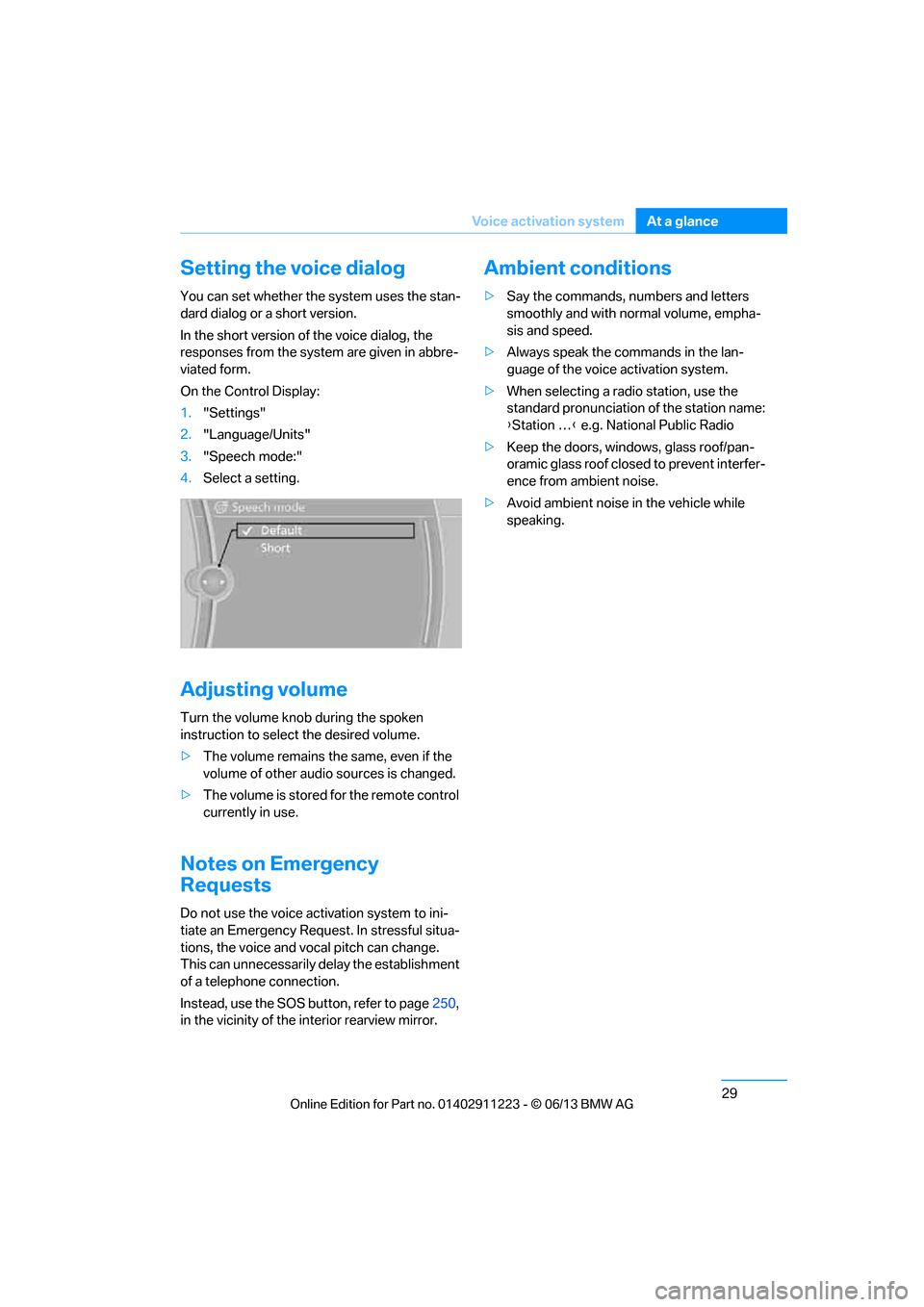
Setting the voice dialog
You can set whether the system uses the stan-
dard dialog or a short version.
In the short version of the voice dialog, the
responses from the system are given in abbre-
viated form.
On the Control Display:
1.
"Settings"
2. "Language/Units"
3. "Speech mode:"
4. Select a setting.
Adjusting volume
Turn the volume knob during the spoken
instruction to select the desired volume.
>The volume remains the same, even if the
volume of other audio sources is changed.
> The volume is stored for the remote control
currently in use.
Notes on Emergency
Requests
Do not use the voice activation system to ini-
tiate an Emergency Request. In stressful situa-
tions, the voice and vocal pitch can change.
This can unnecessarily delay the establishment
of a telephone connection.
Instead, use the SOS button, refer to page 250,
in the vicinity of the interior rearview mirror.
Ambient conditions
> Say the commands, nu mbers and letters
smoothly and with normal volume, empha-
sis and speed.
> Always speak the commands in the lan-
guage of the voice activation system.
> When selecting a radio station, use the
standard pronunciation of the station name:
{Station … } e.g. National Public Radio
> Keep the doors, windows, glass roof/pan-
oramic glass roof closed to prevent interfer-
ence from ambient noise.
> Avoid ambient noise in the vehicle while
speaking.
00320051004F004C00510048000300280047004C0057004C005200510003
Page 38 of 288
33
Opening and closing
Controls
mum of four remote cont
rols. They are stored
for two remote controls if Comfort Access is in
use.
Personal Profile settings
For more information on specific settings, refer
to the specified pages.
> Programming the Programmable memory
keys, refer to page 25
> Response of the central locking system
when the car is unlocked, refer to page 34
> Automatic locking of th e vehicle, refer to
page 37
> Automatic call-up of th e driver's seat posi-
tion, refer to page 54
> Triple turn signal activation, refer to
page 71
> Settings for the display on the Control
Display and in the instrument cluster:
>12h/24h format of the clock, refer to
page 82
> Date format, refer to page 84
> Brightness of the Control Display, refer
to page 87
> Language of the Contro l Display, refer to
page 87
> Units of measure for fuel consumption,
distance covered/remaining distances,
and temperature, refer to page 80
> Show visual warning for Park Distance
Control PDC, refer to page 88
> Light settings:
>Welcome lamps, refer to page 101
> Pathway lighting, refer to page 101
> Daytime running lights, refer to
page 101
> High-beam Assistant, refer to page 102
> Automatic climate control: activating/deac-
tivating AUTO program, air conditioning
and automatic recirculated air control,
setting temperature, air volume and
distribution, refer to page 107 ff>
Entertainment:
>Tone control, refer to page 155
> Speed-dependent volume control, refer
to page 156
Central locking system
The concept
The central locking system functions when the
driver's door is closed.
The system simultaneously engages and
releases the locks on the following:
>Doors
> Trunk lid
> Fuel filler flap
Operating from outside
>Via the remote control
> Using the door lock
> In cars with Comfort Access, via the handles
on the driver's door or the front passenger
door
At the same time as locking and unlocking via
the remote control:
> Welcome lights, the inte rior light, and the
courtesy lighting are switched on or off.
> Alarm system, refer to page 38, is armed or
disarmed.
Operating from inside
By means of the button fo r central locking, refer
to page 37.
In the event of a sufficien tly severe accident, the
central locking system unlocks automatically. In
addition, the hazard warning flashers and inte-
rior lamps come on.
00320051004F004C00510048000300280047004C0057004C005200510003
Page 46 of 288
41
Opening and closing
Controls
Convertible: window and convertible
top operation
With the ignition at radio readiness or beyond,
you can open and close the windows and the
convertible top when a remote control is
located inside the vehicle.
Unlocking the trunk lid separately
Press the button on the ou
tside of the trunk lid.
This corresponds to pressing the button. If the vehicle detects that a remote con-
trol has been accident ally left inside the
locked vehicle after the trunk lid is closed, the
lid will reopen. The haza rd warning flashers
flash and a signal sounds. <
Switching on radio readiness
Pressing the Start/Stop button switches on
radio readiness.
Do not depress the brake or the clutch; other-
wise, the engine will start immediately.
Starting the engine
The engine can be started or the ignition can be
switched on when a remote control is inside the
vehicle. It is not necessa ry to insert a remote
control into the ignition lock, refer to page 61.
Switching off the engine in cars with
automatic transmission
The engine can only be switched off when the
selector lever is in po sition P, refer to page 63.
To switch the engine off when the selector lever
is in position N, the remote control must be in
the ignition lock.
Malfunctions
Local radio waves can in terfere with the func-
tion of Comfort Access, for example when a
mobile phone is in the immediate vicinity of the
remote control or by when a mobile phone is
being charged in the vehicle. If this happens, open and close the vehicle via
the buttons on the remote control or using the
integrated key. To star
t the engine afterward,
insert the remote control into the ignition lock.
Warning lamps
The warning lamp in the instrument
cluster lights up when you attempt to
start the engine: the engine cannot
be started. The remote co ntrol is not inside the
vehicle or is malfunctio ning. Take the remote
control with you inside the vehicle or have it
checked. If necessary, insert another remote
control into the ignition lock.
The warning lamp in the instrument
cluster lights up wh ile the engine is
running: the remote control is no
longer inside the vehicle. After the engine is
switched off, the engine can only be restarted
within approx. 10 seconds.
The indicator lamp in the instrument
cluster comes on and a message
appears on the Control Display:
replace the battery in the remote control.
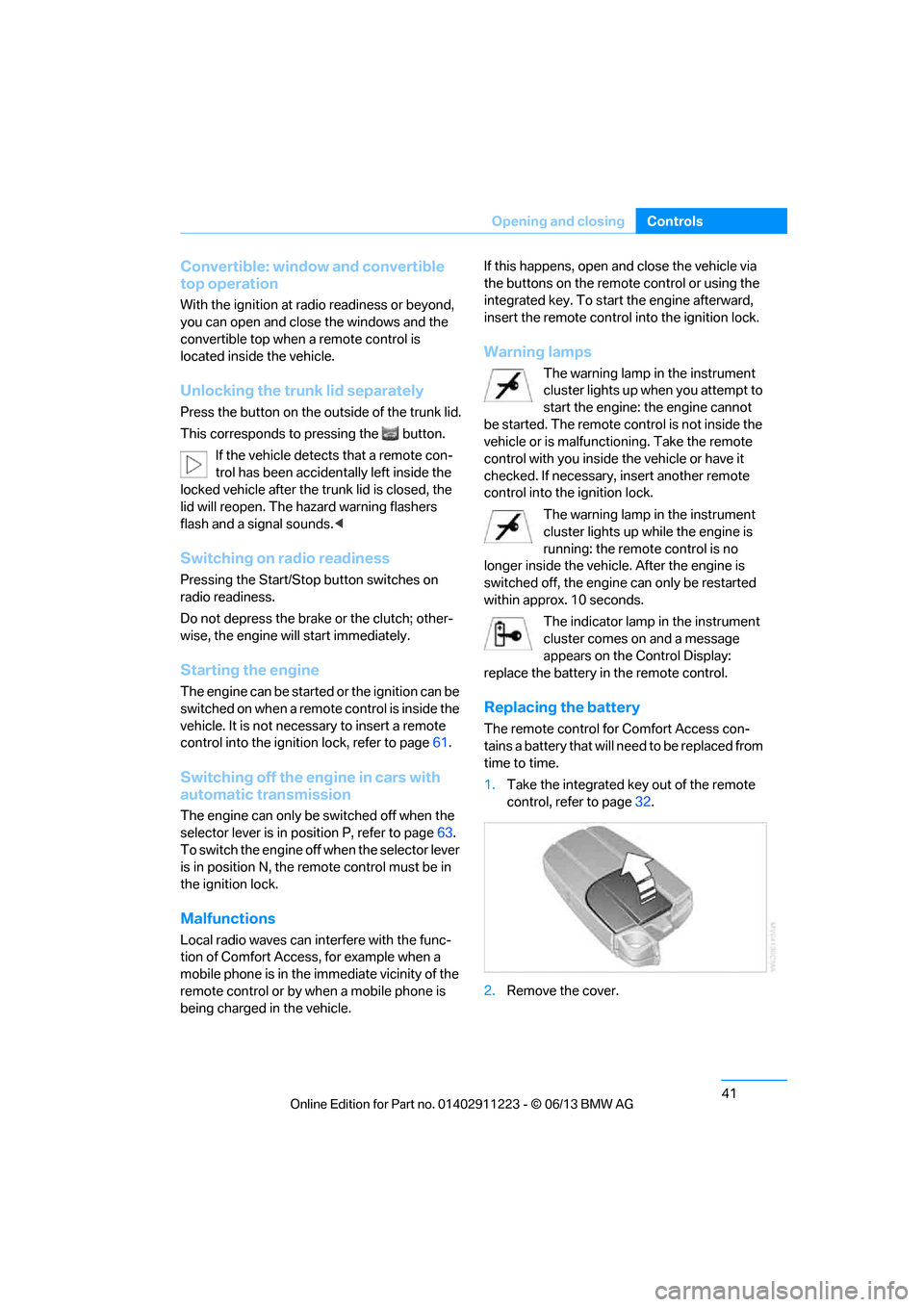
Replacing the battery
The remote control for Comfort Access con-
tains a battery that will need to be replaced from
time to time.
1. Take the integrated ke y out of the remote
control, refer to page 32.
2. Remove the cover.
00320051004F004C00510048000300280047004C0057004C005200510003
Page 50 of 288
45
Opening and closing
Controls
Before opening and closing
>
Comply with the sa fety precautions
described above.
> Ensure that the trunk partition is folded
down and engaged on both sides, refer to
page 118; otherwise, it will not be possible
to open the convertible top.
> Ensure that the cargo does not press
against the trunk partition from below.
> Ensure that the tr unk lid is closed.
Opening and closing
Convertible top operation with Comfort Access,
also refer to page 34.
As of radio readiness, refer to page 61:
To conserve battery power, if possible
operate the convertible top only while the
engine is running.
Prior to closing the conv ertible top, check for
and remove all debris from the windshield
frame; otherwise, the closing of the top may be
hampered. <
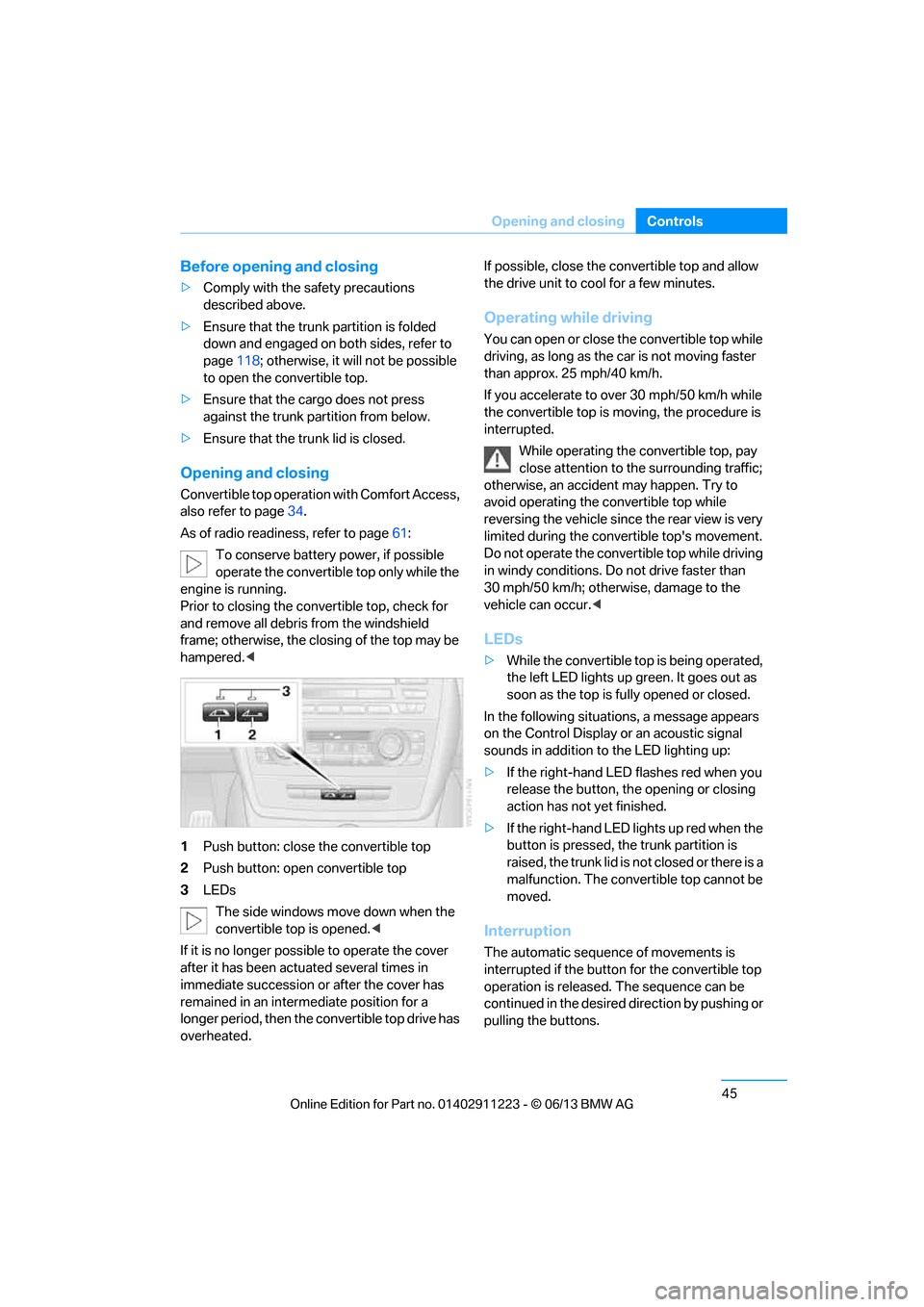
1 Push button: close the convertible top
2 Push button: open convertible top
3 LEDs
The side windows move down when the
convertible top is opened. <
If it is no longer possible to operate the cover
after it has been actuated several times in
immediate succession or after the cover has
remained in an interm ediate position for a
longer period, then the convertible top drive has
overheated. If possible, close the convertible top and allow
the drive unit to cool for a few minutes.
Operating while driving
You can open or close the convertible top while
driving, as long as the car is not moving faster
than approx. 25 mph/40 km/h.
If you accelerate to ov
er 30 mph/50 km/h while
the convertible top is moving, the procedure is
interrupted.
While operating the convertible top, pay
close attention to the surrounding traffic;
otherwise, an accident may happen. Try to
avoid operating the convertible top while
reversing the vehicle since the rear view is very
limited during the convertible top's movement.
Do not operate the convertible top while driving
in windy conditions. Do not drive faster than
30 mph/50 km/h; otherwise, damage to the
vehicle can occur. <
LEDs
>While the convertible top is being operated,
the left LED lights up green. It goes out as
soon as the top is fully opened or closed.
In the following situations, a message appears
on the Control Display or an acoustic signal
sounds in addition to the LED lighting up:
> If the right-hand LED flashes red when you
release the button, th e opening or closing
action has not yet finished.
> If the right-hand LED lights up red when the
button is pressed, the trunk partition is
raised, the trunk lid is not closed or there is a
malfunction. The convertible top cannot be
moved.
Interruption
The automatic sequence of movements is
interrupted if the button for the convertible top
operation is released. The sequence can be
continued in the desired direction by pushing or
pulling the buttons.
00320051004F004C00510048000300280047004C0057004C005200510003
Page 66 of 288
61
Driving
Controls
Driving
Vehicle equipment
In this chapter, all production, country, and
optional equipment that is offered in the model
range is described. For this reason, descrip-
tions will be given of some equipment that may
not be available in a vehi
cle, for example due to
the special options or national-market version
selected. This also app lies to safety related
functions and systems.
Ignition lock
Insert the remote control into the
ignition lock
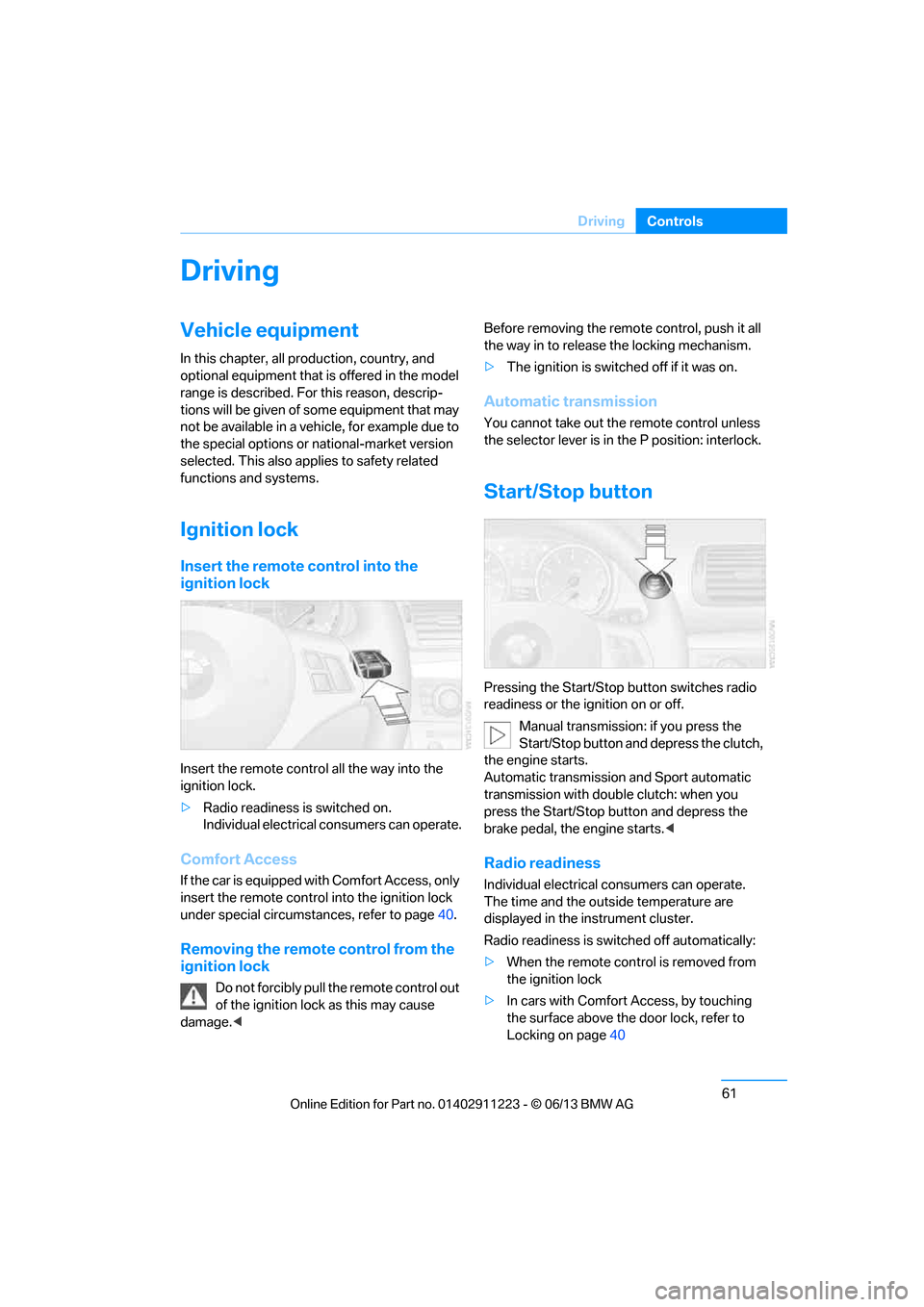
Insert the remote contro l all the way into the
ignition lock.
> Radio readiness is switched on.
Individual electrical consumers can operate.
Comfort Access
If the car is equipped with Comfort Access, only
insert the remote control into the ignition lock
under special circumstances, refer to page 40.
Removing the remote control from the
ignition lock
Do not forcibly pull the remote control out
of the ignition lock as this may cause
damage. < Before removing the remote control, push it all
the way in to release
the locking mechanism.
> The ignition is switched off if it was on.
Automatic transmission
You cannot take out the remote control unless
the selector lever is in the P position: interlock.
Start/Stop button
Pressing the Start/Stop button switches radio
readiness or the ignition on or off.
Manual transmission: if you press the
Start/Stop button and depress the clutch,
the engine starts.
Automatic transmission and Sport automatic
transmission with doub le clutch: when you
press the Start/Stop button and depress the
brake pedal, the engine starts. <
Radio readiness
Individual electrical consumers can operate.
The time and the outside temperature are
displayed in the instrument cluster.
Radio readiness is switched off automatically:
> When the remote control is removed from
the ignition lock
> In cars with Comfort Access, by touching
the surface above the door lock, refer to
Locking on page 40
00320051004F004C00510048000300280047004C0057004C005200510003