key BMW 128I 2012 E88 User Guide
[x] Cancel search | Manufacturer: BMW, Model Year: 2012, Model line: 128I, Model: BMW 128I 2012 E88Pages: 272, PDF Size: 8.49 MB
Page 109 of 272
Controls
107Reference
At a glance
Driving tips
Communications
Navigation
Entertainment
Mobility
Calibrating the digital compass
The digital compass must be calibrated in the
following situations:
>An incorrect compass direction is shown.
>The compass direction shown does not
change although the direction of travel
does.
>Not all compass directions are shown.
Procedure
1.Make sure that no large metal objects or
overhead power lines are in the vicinity of
your vehicle and that you have enough
space to drive in a circle.
2.Set the currently valid compass zone.
3.Convertible: ensure that the convertible top
is fully closed.
4.Press the adjustment button for approx.
6-7 seconds to call up C. Then drive in at
least one full circle at a speed of no more
than 4 mph/7 km/h.
If calibration is successful, the display
changes from C to a compass direction.
5.Convertible: open the convertible top fully
and repeat step 4.
Setting right-hand/left-hand steering
Your digital compass is factory-set to right-
hand or left-hand steering, in accordance with
your vehicle.
Set the language
You can set the language of the display:
Press the adjustment button for approx.
12-13 seconds. Briefly press the adjustment
button again to switch between English, "E",
and German, "O".
The setting is automatically saved after approx.
10 seconds.
Glove compartment
Opening
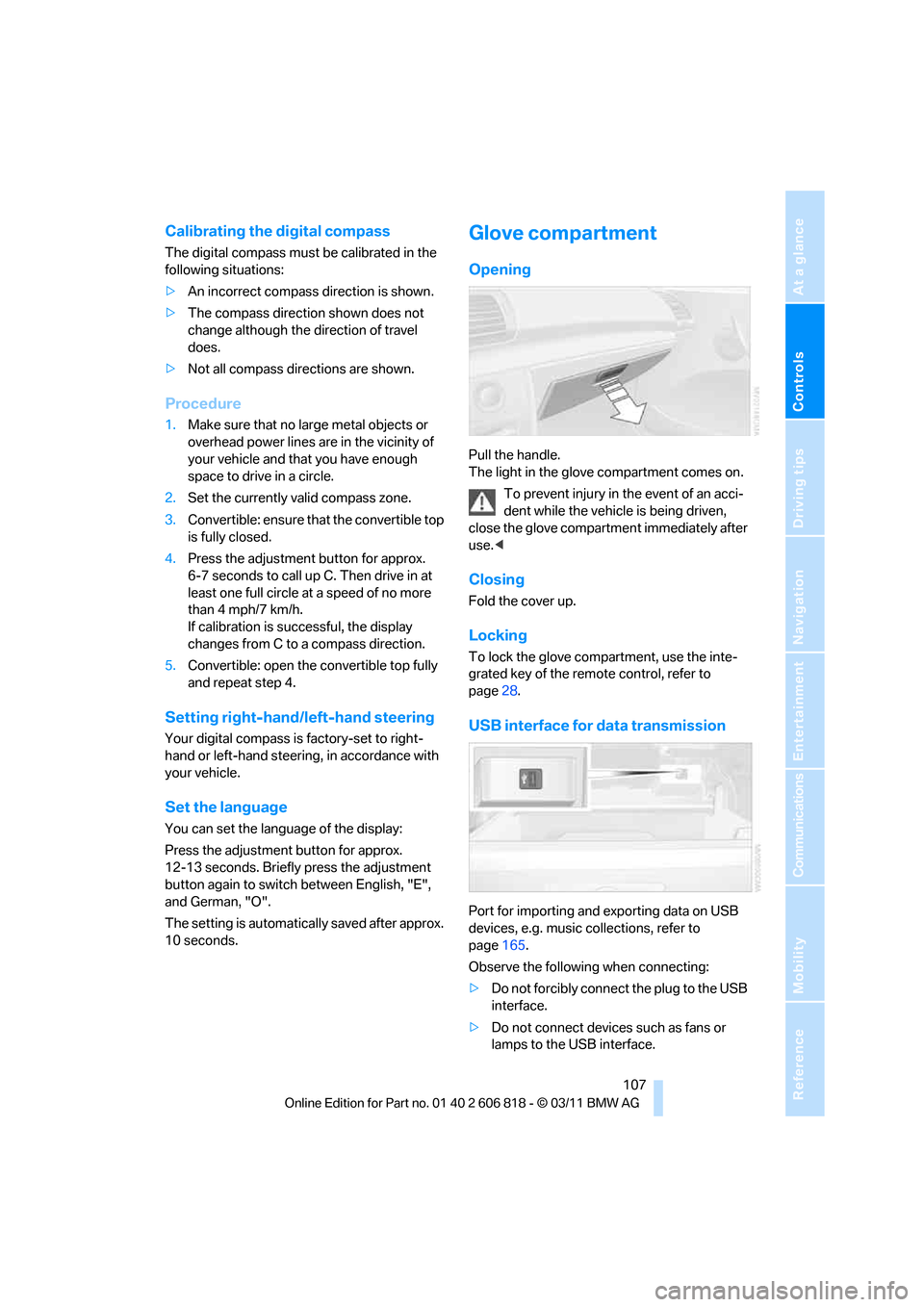
Pull the handle.
The light in the glove compartment comes on.
To prevent injury in the event of an acci-
dent while the vehicle is being driven,
close the glove compartment immediately after
use.<
Closing
Fold the cover up.
Locking
To lock the glove compartment, use the inte-
grated key of the remote control, refer to
page28.
USB interface for data transmission
Port for importing and exporting data on USB
devices, e.g. music collections, refer to
page165.
Observe the following when connecting:
>Do not forcibly connect the plug to the USB
interface.
>Do not connect devices such as fans or
lamps to the USB interface.
Page 127 of 272
Navigation
Driving tips
125Reference
At a glance
Controls
Communications
Entertainment
Mobility
Destination entry
In entering your destination you can select from
the following options:
>Entering a destination manually, see below
>Selecting destination from address book,
refer to page127
>Last destinations, refer to page128
>Special destinations, refer to page128
>Entering a destination on the map, refer to
page130
>Selecting home address, refer to page128
>Destination entry via voice*, refer to
page131
>Destination entry via BMW Assist
*, refer to
page129
You can also store a navigation destination on
the programmable memory keys, refer to
page21.
Entering a destination
manually
To make it easier to enter town/city names and
street names, the system assists you with auto-
matic name completion and entry comparison,
refer to page134. This makes it possible to
enter different spellings and completes your
entry automatically so that stored town/city
names and street names can be accessed
quickly.
1.Press the button.
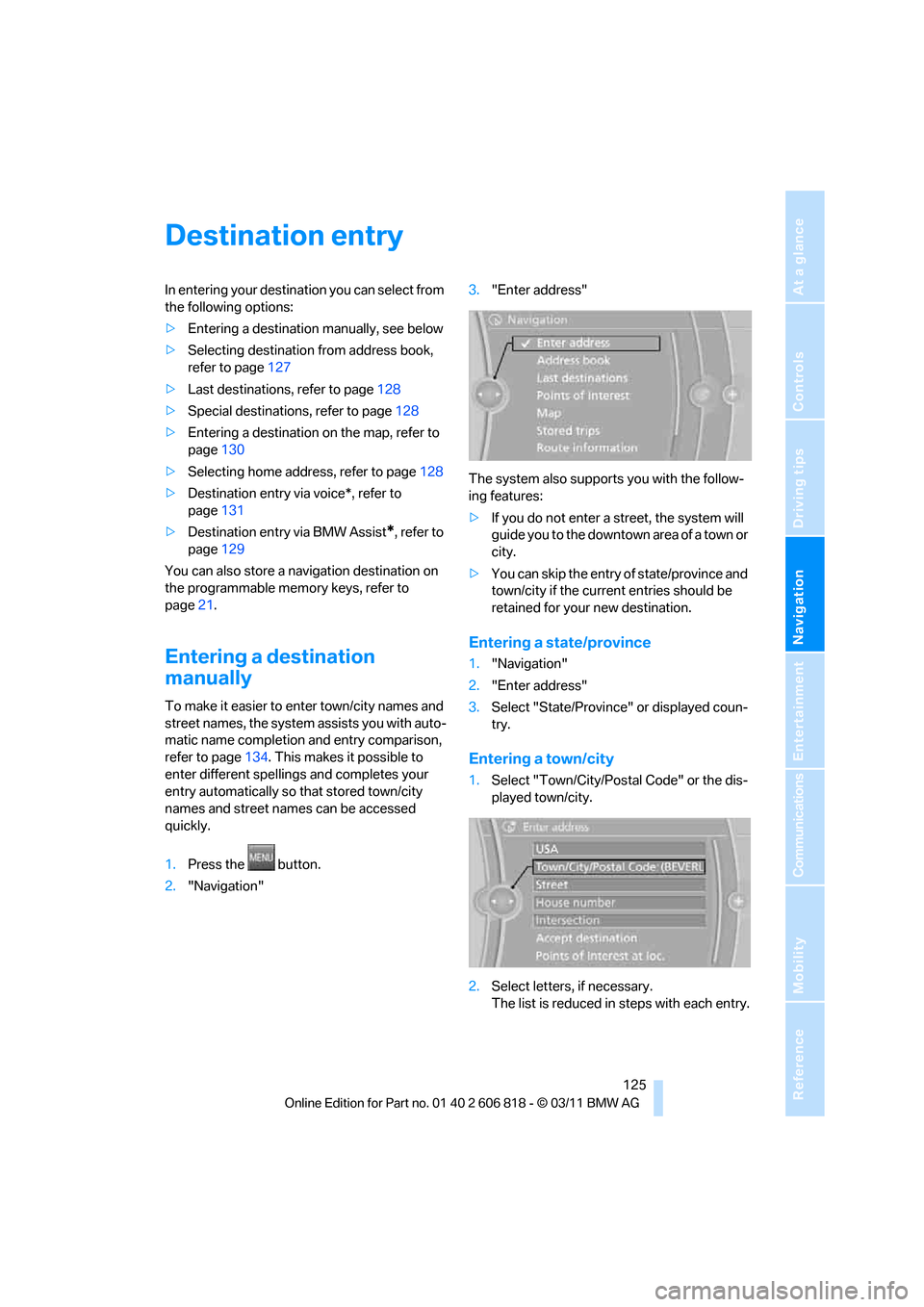
2."Navigation"3."Enter address"
The system also supports you with the follow-
ing features:
>If you do not enter a street, the system will
guide you to the downtown a r e a o f a t o w n o r
city.
>You can skip the entry of state/province and
town/city if the current entries should be
retained for your new destination.
Entering a state/province
1."Navigation"
2."Enter address"
3.Select "State/Province" or displayed coun-
try.
Entering a town/city
1.Select "Town/City/Postal Code" or the dis-
played town/city.
2.Select letters, if necessary.
The list is reduced in steps with each entry.
Page 131 of 272
Navigation
Driving tips
129Reference
At a glance
Controls
Communications
Entertainment
Mobility
>"Along route"
A-Z search
1."A-Z search"
2."Town/City"
3.Select or enter town/city.
4."Category"
5.Select category.
6."Category details"
For some special destinations, it is possible
to select several category details.
Move the controller toward the left to exit
category details.
7."Keyword"
8.Enter keyword.
A list of the special destinations is dis-
played.
9.Select the special destination.
Details are displayed.
If several details are stored, then you can
scroll through the pages.
If a phone number is available, a connection
can be established, if desired.
10.Select the symbol.
11."Start guidance" or "Add as another desti-
nation". Adding destination as another des-
tination, refer to page132.
"Start search": without entering a search term,
the search is repeated with the last stored
search term.
Category search
1."Category search"
2."Town/City"
3.Select or enter town/city.
4."Category"
5.Select category.
6."Category details"
For some special destinations, it is possible
to select several category details.
Move the controller toward the left to exit
category details.7."Start search"
A list of the special destinations is dis-
played.
8.Select the special destination.
Details are displayed.
If several details are stored, then you can
scroll through the pages.
If a phone number is available, a connection
can be established, if desired.
9.Select the symbol.
10."Start guidance" or "Add as another desti-
nation". Adding destination as another des-
tination, refer to page132.
Displaying special destinations
List of special destinations: the special destina-
tions are displayed in order of their distance and
are displayed with a direction arrow pointing
toward the destination.
With the Professional navigation system:
In the split screen, special destinations from the
selected category are displayed as symbols in
the map view. The display depends on the map
scale and the category.
Destination entry via BMW Assist*
A connection to the BMW Concierge service is
established, refer to page199.
1."Navigation"
2."Enter address"
3.Open "Options".
4."BMW Assist dest. entry"
Displaying special destinations in the
map
To display symbols of the special destinations
in the map:
1."Navigation"
2."Map"
3.Open "Options".
Page 138 of 272
Destination guidance
136
Gas station recommendations
The remaining range is calculated and filling
stations along the route are displayed.
1."Navigation"
2."Route information"
3."Recommended refuel"
A list of filling stations is displayed.
4.Select a gas station.
5.Select the symbol.
6."Start guidance": route guidance to the
selected filling station is started.
"Add as another destination": the filling sta-
tion is incorporated into the route.
Destination guidance
through voice instructions
Switching voice instructions on/off
Voice instructions can be switched on or off
during destination guidance.
1."Navigation"
2."Map"
3."Voice instructions"
For rapid access, the feature can be stored on a
programmable memory key, refer to page21.
Repeating a voice instruction
1."Navigation"
2."Map"
3.Highlight the symbol.
4.Press the controller twice.
Adjusting volume for voice instructions
The volume can be adjusted only while a voice
instruction is being issued.
1.Have the last voice instruction repeated, if
necessary.
2.Turn the button during the voice instruction
to select the desired volume.The setting is stored for the remote control cur-
rently in use.
Map view
Displaying the map view
1."Navigation"
2."Map"
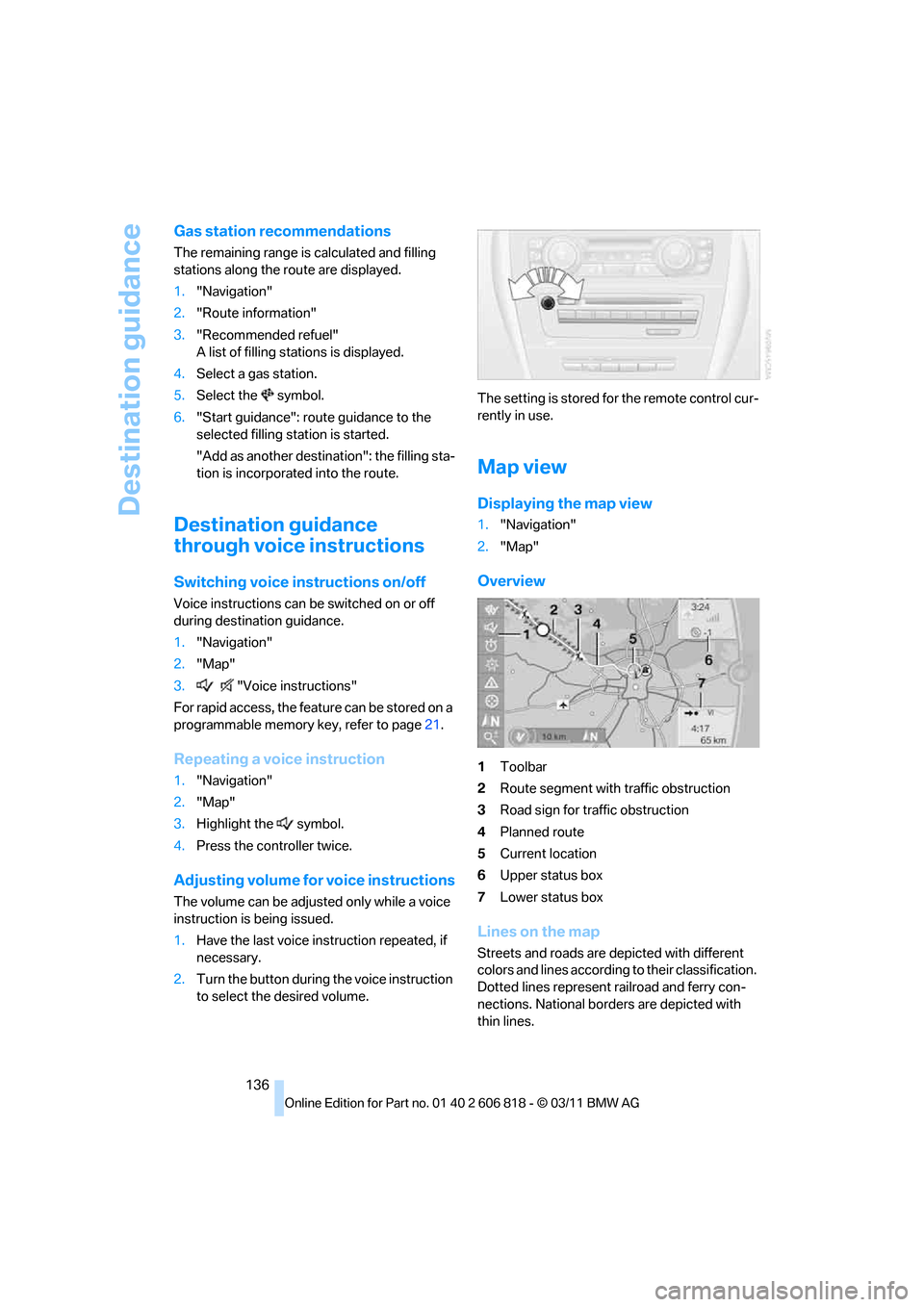
Overview
1Toolbar
2Route segment with traffic obstruction
3Road sign for traffic obstruction
4Planned route
5Current location
6Upper status box
7Lower status box
Lines on the map
Streets and roads are depicted with different
colors and lines according to their classification.
Dotted lines represent railroad and ferry con-
nections. National borders are depicted with
thin lines.
Page 146 of 272
On/off and tone
144
On/off and tone
The following audio and video sources share
the same control elements and adjustments:
>Radio
>CD/DVD player
>CD changer
*
>Video*
>External devices, e.g. MP3 player
Controls
The audio and video sources can be controlled
using the:
>Buttons near the CD/DVD player
>iDrive
>Buttons on the steering wheel, refer to
page10
>Programmable memory keys, refer to
page21
>Voice activation system
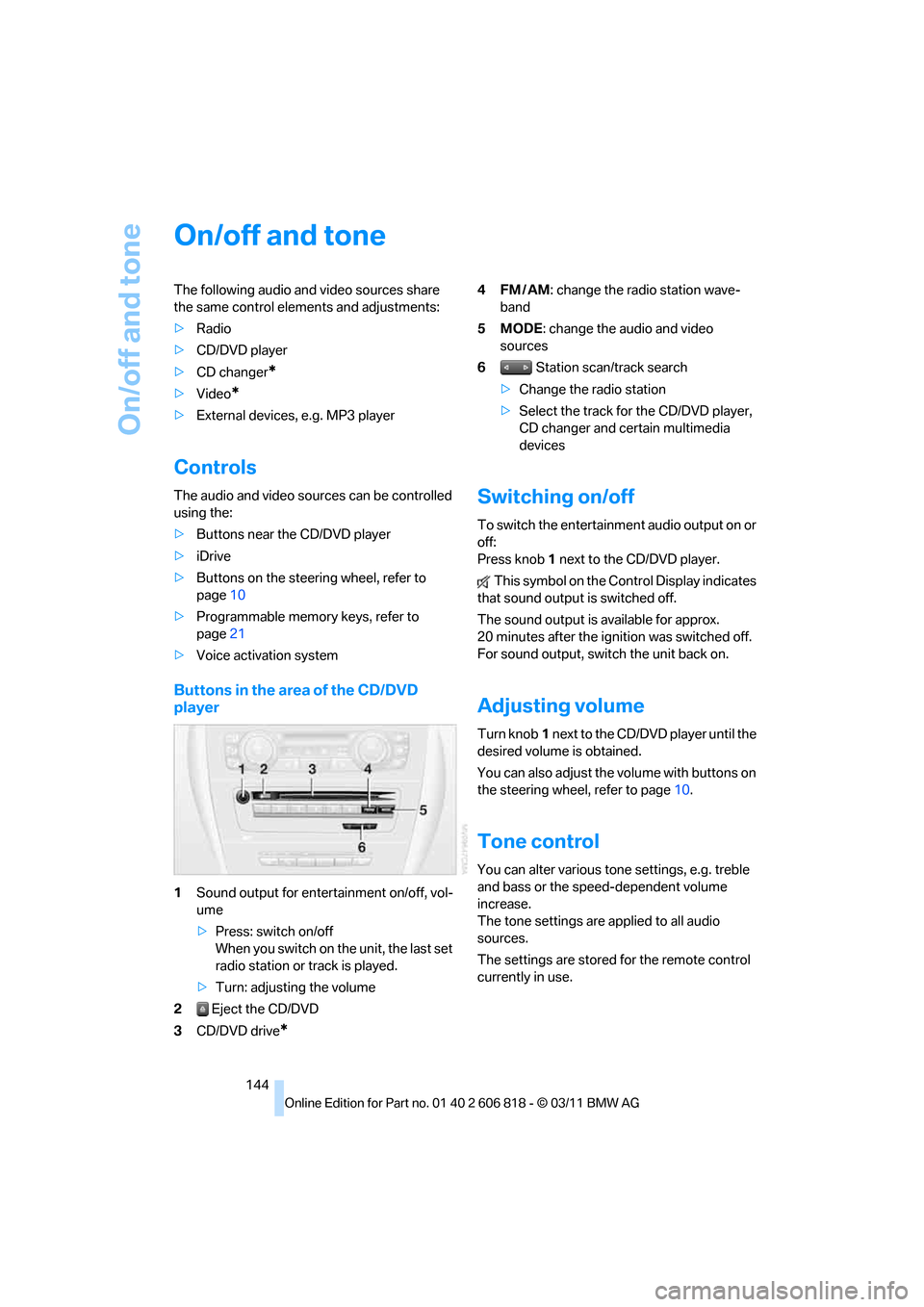
Buttons in the area of the CD/DVD
player
1Sound output for entertainment on/off, vol-
ume
>Press: switch on/off
When you switch on the unit, the last set
radio station or track is played.
>Turn: adjusting the volume
2Eject the CD/DVD
3CD/DVD drive
*
4FM/AM: change the radio station wave-
band
5MODE: change the audio and video
sources
6Station scan/track search
>Change the radio station
>Select the track for the CD/DVD player,
CD changer and certain multimedia
devices
Switching on/off
To switch the entertainment audio output on or
off:
Press knob1 next to the CD/DVD player.
This symbol on the Control Display indicates
that sound output is switched off.
The sound output is available for approx.
20 minutes after the ignition was switched off.
For sound output, switch the unit back on.
Adjusting volume
Turn knob1 next to the CD/DVD player until the
desired volume is obtained.
You can also adjust the volume with buttons on
the steering wheel, refer to page10.
Tone control
You can alter various tone settings, e.g. treble
and bass or the speed-dependent volume
increase.
The tone settings are applied to all audio
sources.
The settings are stored for the remote control
currently in use.
Page 150 of 272
Radio
148 4.Press the controller for an extended period.
5.Select the desired memory location.
The stations are stored for the remote control
currently in use.
Via programmable memory keys
You can store a station on the programmable
memory keys, refer to page21.
1.Select a station.
2.Press and hold the desired button
... .
Radio Data System RDS*
In the FM waveband, additional information is
transmitted via RDS. If the reception conditions
are good, the station names are shown on the
Control Display. Where reception is poor or in
the event of interference, it may take some time
before the station names appear in the display.
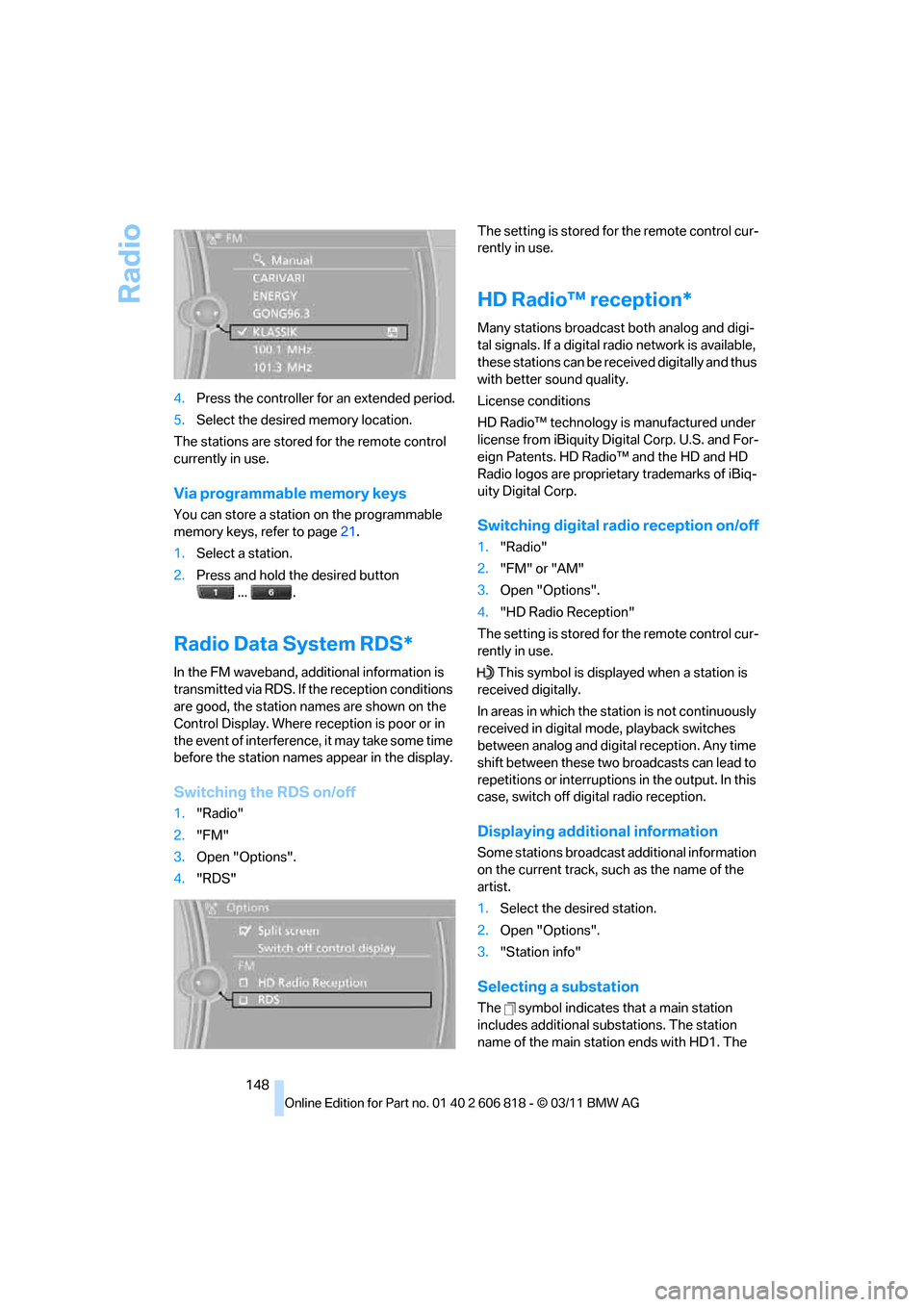
Switching the RDS on/off
1."Radio"
2."FM"
3.Open "Options".
4."RDS"The setting is stored for the remote control cur-
rently in use.
HD Radio™ reception*
Many stations broadcast both analog and digi-
tal signals. If a digital radio network is available,
these stations can be received digitally and thus
with better sound quality.
License conditions
HD Radio™ technology is manufactured under
license from iBiquity Digital Corp. U.S. and For-
eign Patents. HD Radio™ and the HD and HD
Radio logos are proprietary trademarks of iBiq-
uity Digital Corp.
Switching digital radio reception on/off
1."Radio"
2."FM" or "AM"
3.Open "Options".
4."HD Radio Reception"
The setting is stored for the remote control cur-
rently in use.
This symbol is displayed when a station is
received digitally.
In areas in which the station is not continuously
received in digital mode, playback switches
between analog and digital reception. Any time
shift between these two broadcasts can lead to
repetitions or interruptions in the output. In this
case, switch off digital radio reception.
Displaying additional information
Some stations broadcast additional information
on the current track, such as the name of the
artist.
1.Select the desired station.
2.Open "Options".
3."Station info"
Selecting a substation
The symbol indicates that a main station
includes additional substations. The station
name of the main station ends with HD1. The
Page 151 of 272
Navigation
Entertainment
Driving tips
149Reference
At a glance
Controls
Communications
Mobility
station names of the subchannels end with
HD2, HD3, etc.
1.Select the desired station.
2.Press the controller.
3.Select the substation.
In the event of poor reception, the substation is
muted for several seconds. If reception is inter-
rupted for a longer period of time, then the sys-
tem switches back to the main station.
Presets
It is possible to store up to 40 stations.
Calling up a station
1."Radio"
2."Presets"
3.Select the desired station.
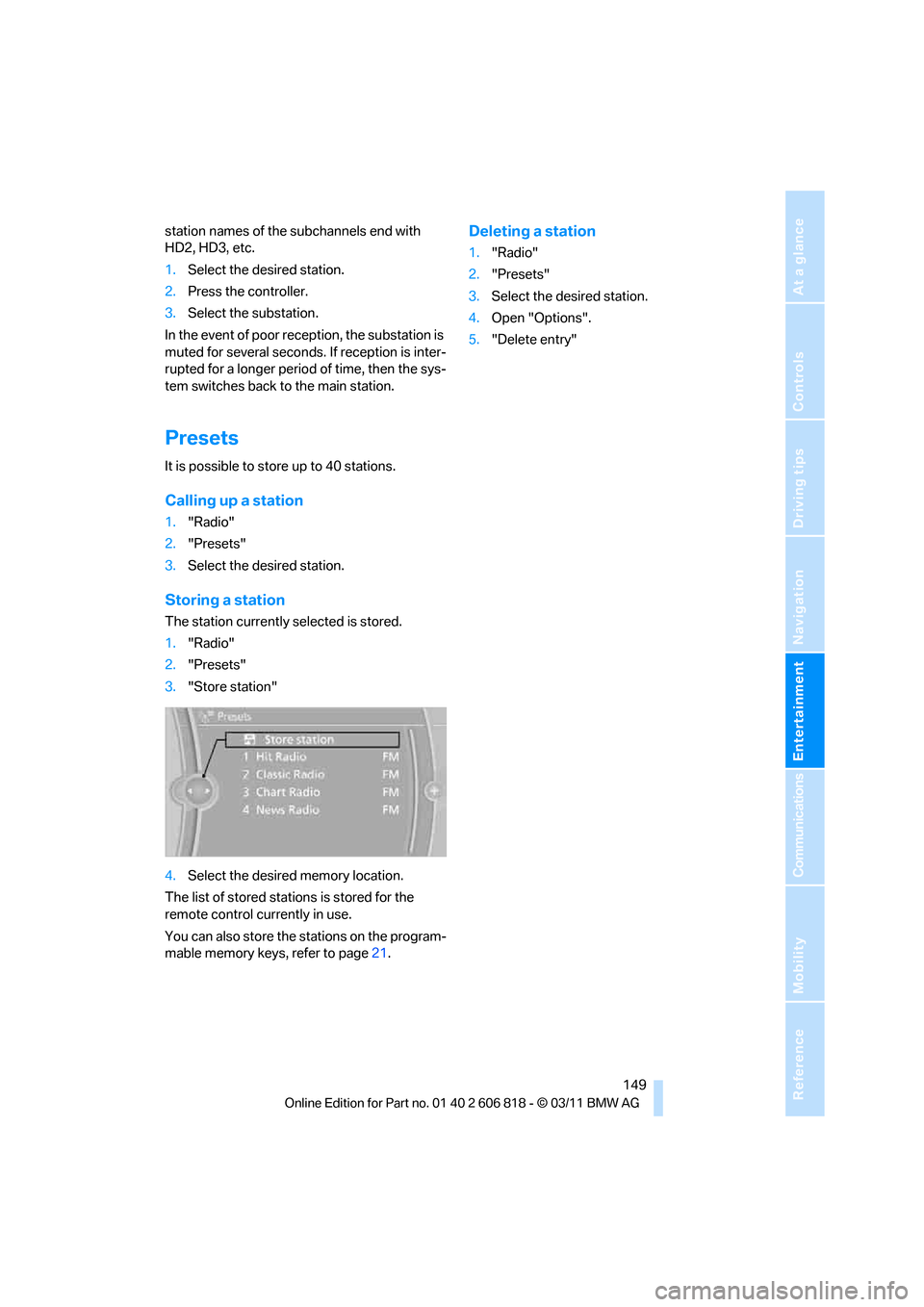
Storing a station
The station currently selected is stored.
1."Radio"
2."Presets"
3."Store station"
4.Select the desired memory location.
The list of stored stations is stored for the
remote control currently in use.
You can also store the stations on the program-
mable memory keys, refer to page21.
Deleting a station
1."Radio"
2."Presets"
3.Select the desired station.
4.Open "Options".
5."Delete entry"
Page 153 of 272
Navigation
Entertainment
Driving tips
151Reference
At a glance
Controls
Communications
Mobility
4."Manage subscription"
The phone number and an electronic serial
number, ESN, are displayed.
5.Call Sirius to unsubscribe from the chan-
nels.
Selecting a channel
You can only listen to enabled channels.
The selected channel is stored for the remote
control currently in use.
Via iDrive
1."Radio"
2."Satellite radio"
3.Select "All channels" or the desired cate-
gory.
4.Select the desired channel.
Via the button in the area of the CD/
DVD player
Press the button for the corresponding
direction.
The next channel is selected.
Via direct channel entry
1."Radio"
2."Satellite radio"
3."Set channel"
4.Turn the controller until the desired channel
is reached and press the controller.
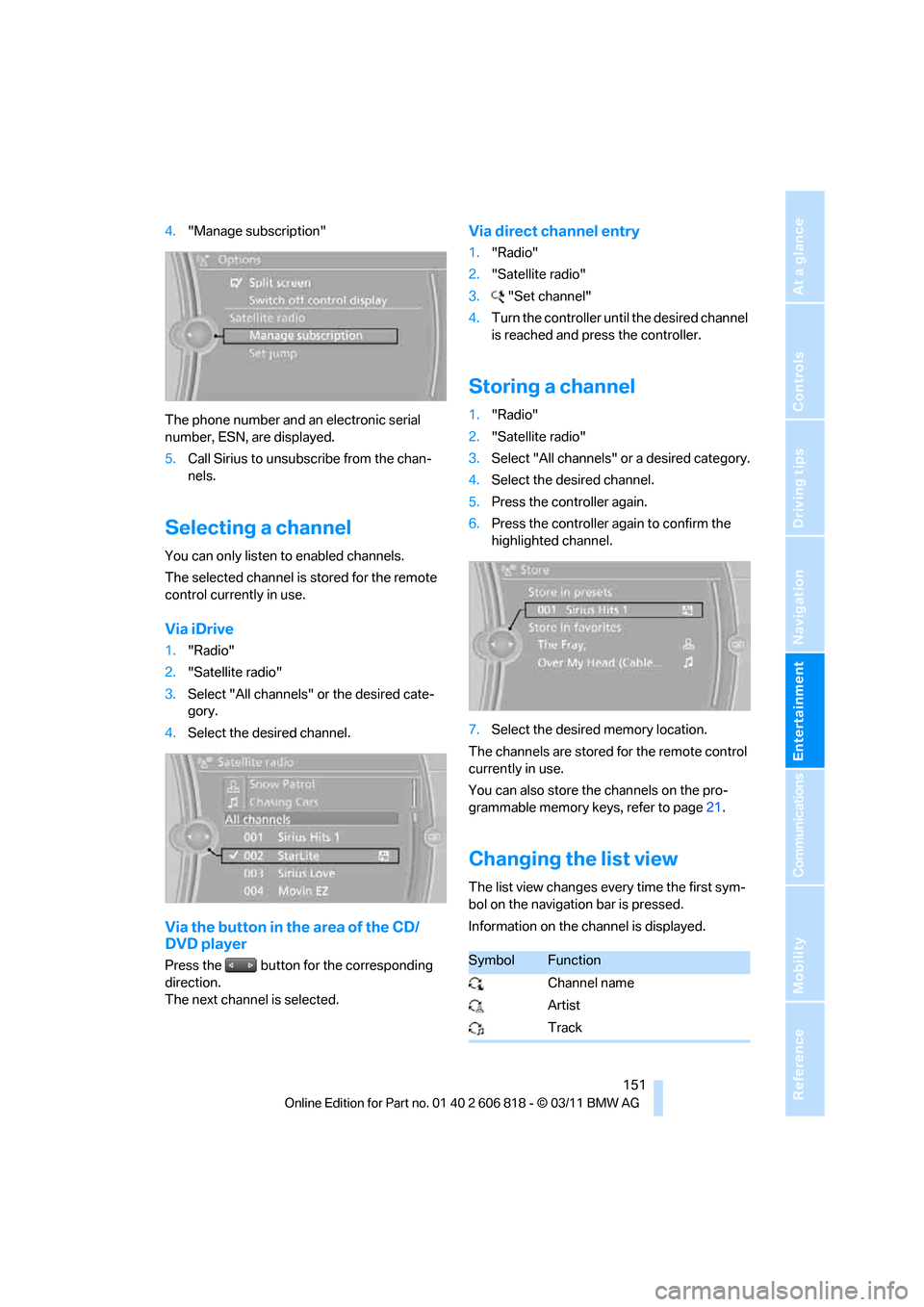
Storing a channel
1."Radio"
2."Satellite radio"
3.Select "All channels" or a desired category.
4.Select the desired channel.
5.Press the controller again.
6.Press the controller again to confirm the
highlighted channel.
7.Select the desired memory location.
The channels are stored for the remote control
currently in use.
You can also store the channels on the pro-
grammable memory keys, refer to page21.
Changing the list view
The list view changes every time the first sym-
bol on the navigation bar is pressed.
Information on the channel is displayed.
SymbolFunction
Channel name
Artist
Track
Page 171 of 272
Navigation
Entertainment
Driving tips
169Reference
At a glance
Controls
Communications
Mobility
1."CD/Multimedia"
2."External devices"
3.Select the symbol.
4."Video"
5.Select the directory, if necessary.
To change to a higher level directory: move
the controller to the left.
6.Select the desired video file to begin play-
back.
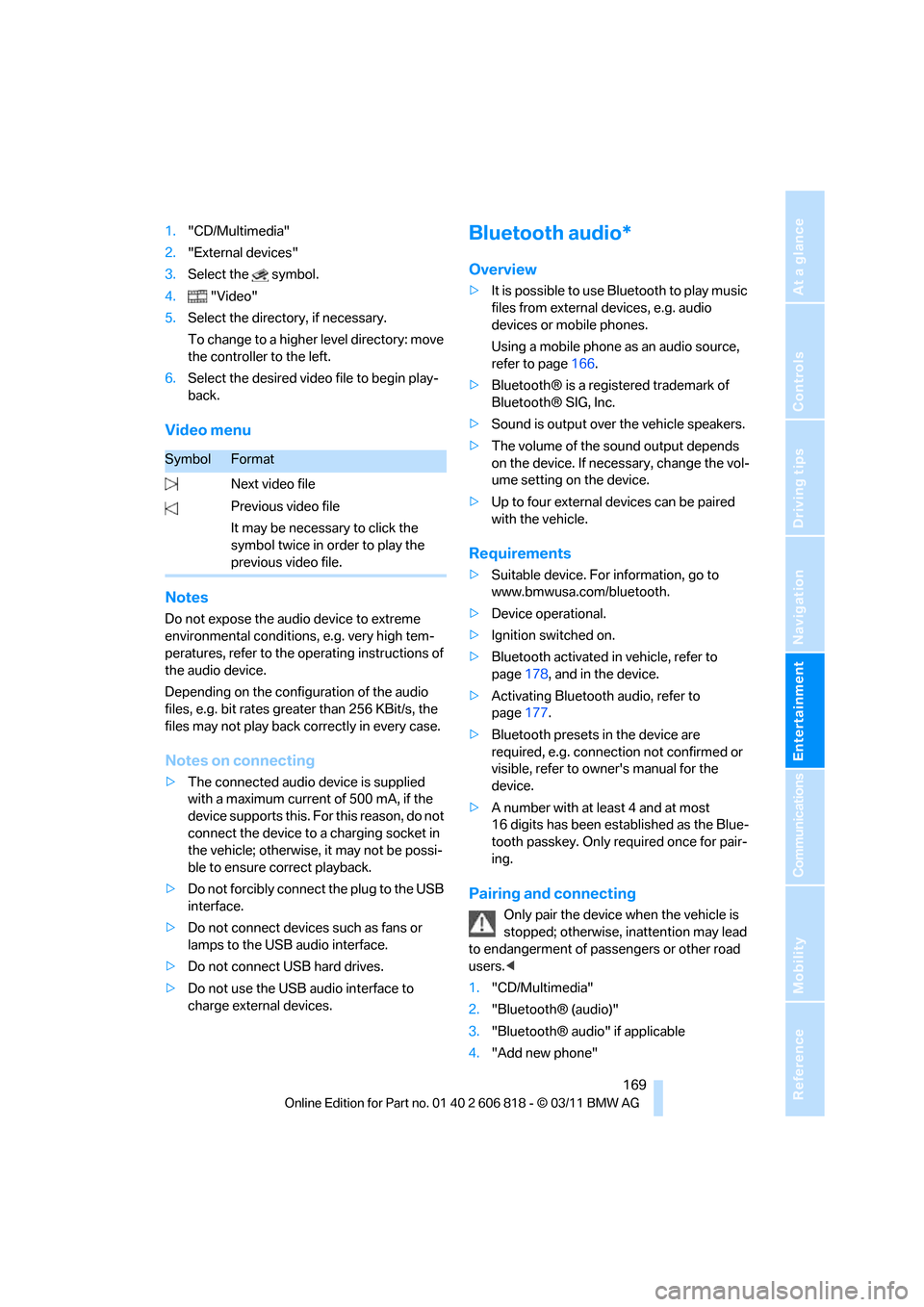
Video menu
Notes
Do not expose the audio device to extreme
environmental conditions, e.g. very high tem-
peratures, refer to the operating instructions of
the audio device.
Depending on the configuration of the audio
files, e.g. bit rates greater than 256 KBit/s, the
files may not play back correctly in every case.
Notes on connecting
>The connected audio device is supplied
with a maximum current of 500 mA, if the
device supports this. For this reason, do not
connect the device to a charging socket in
the vehicle; otherwise, it may not be possi-
ble to ensure correct playback.
>Do not forcibly connect the plug to the USB
interface.
>Do not connect devices such as fans or
lamps to the USB audio interface.
>Do not connect USB hard drives.
>Do not use the USB audio interface to
charge external devices.
Bluetooth audio*
Overview
>It is possible to use Bluetooth to play music
files from external devices, e.g. audio
devices or mobile phones.
Using a mobile phone as an audio source,
refer to page166.
>Bluetooth® is a registered trademark of
Bluetooth® SIG, Inc.
>Sound is output over the vehicle speakers.
>The volume of the sound output depends
on the device. If necessary, change the vol-
ume setting on the device.
>Up to four external devices can be paired
with the vehicle.
Requirements
>Suitable device. For information, go to
www.bmwusa.com/bluetooth.
>Device operational.
>Ignition switched on.
>Bluetooth activated in vehicle, refer to
page178, and in the device.
>Activating Bluetooth audio, refer to
page177.
>Bluetooth presets in the device are
required, e.g. connection not confirmed or
visible, refer to owner's manual for the
device.
>A number with at least 4 and at most
16 digits has been established as the Blue-
tooth passkey. Only required once for pair-
ing.
Pairing and connecting
Only pair the device when the vehicle is
stopped; otherwise, inattention may lead
to endangerment of passengers or other road
users.<
1."CD/Multimedia"
2."Bluetooth® (audio)"
3."Bluetooth® audio" if applicable
4."Add new phone"
SymbolFormat
Next video file
Previous video file
It may be necessary to click the
symbol twice in order to play the
previous video file.
Page 172 of 272
External devices
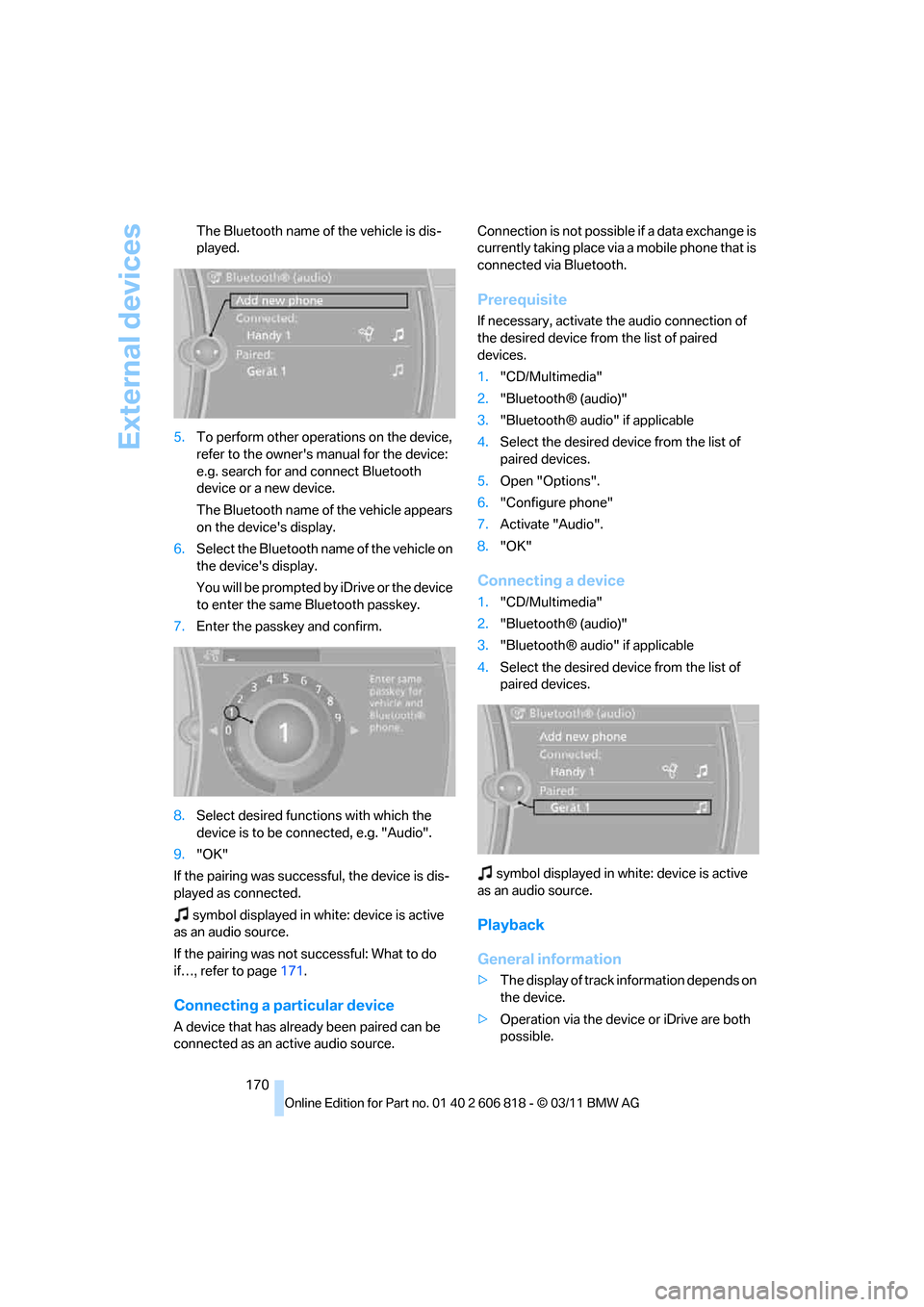
170 The Bluetooth name of the vehicle is dis-
played.
5.To perform other operations on the device,
refer to the owner's manual for the device:
e.g. search for and connect Bluetooth
device or a new device.
The Bluetooth name of the vehicle appears
on the device's display.
6.Select the Bluetooth name of the vehicle on
the device's display.
You will be prompted by iDrive or the device
to enter the same Bluetooth passkey.
7.Enter the passkey and confirm.
8.Select desired functions with which the
device is to be connected, e.g. "Audio".
9."OK"
If the pairing was successful, the device is dis-
played as connected.
symbol displayed in white: device is active
as an audio source.
If the pairing was not successful: What to do
if…, refer to page171.
Connecting a particular device
A device that has already been paired can be
connected as an active audio source.Connection is not possible if a data exchange is
currently taking place via a mobile phone that is
connected via Bluetooth.
Prerequisite
If necessary, activate the audio connection of
the desired device from the list of paired
devices.
1."CD/Multimedia"
2."Bluetooth® (audio)"
3."Bluetooth® audio" if applicable
4.Select the desired device from the list of
paired devices.
5.Open "Options".
6."Configure phone"
7.Activate "Audio".
8."OK"
Connecting a device
1."CD/Multimedia"
2."Bluetooth® (audio)"
3."Bluetooth® audio" if applicable
4.Select the desired device from the list of
paired devices.
symbol displayed in white: device is active
as an audio source.
Playback
General information
>The display of track information depends on
the device.
>Operation via the device or iDrive are both
possible.