key BMW 128I 2012 E88 Owner's Guide
[x] Cancel search | Manufacturer: BMW, Model Year: 2012, Model line: 128I, Model: BMW 128I 2012 E88Pages: 272, PDF Size: 8.49 MB
Page 173 of 272
Navigation
Entertainment
Driving tips
171Reference
At a glance
Controls
Communications
Mobility
>Playback is interrupted if a data exchange is
taking place with a mobile phone that is
connected via Bluetooth.
Starting playback
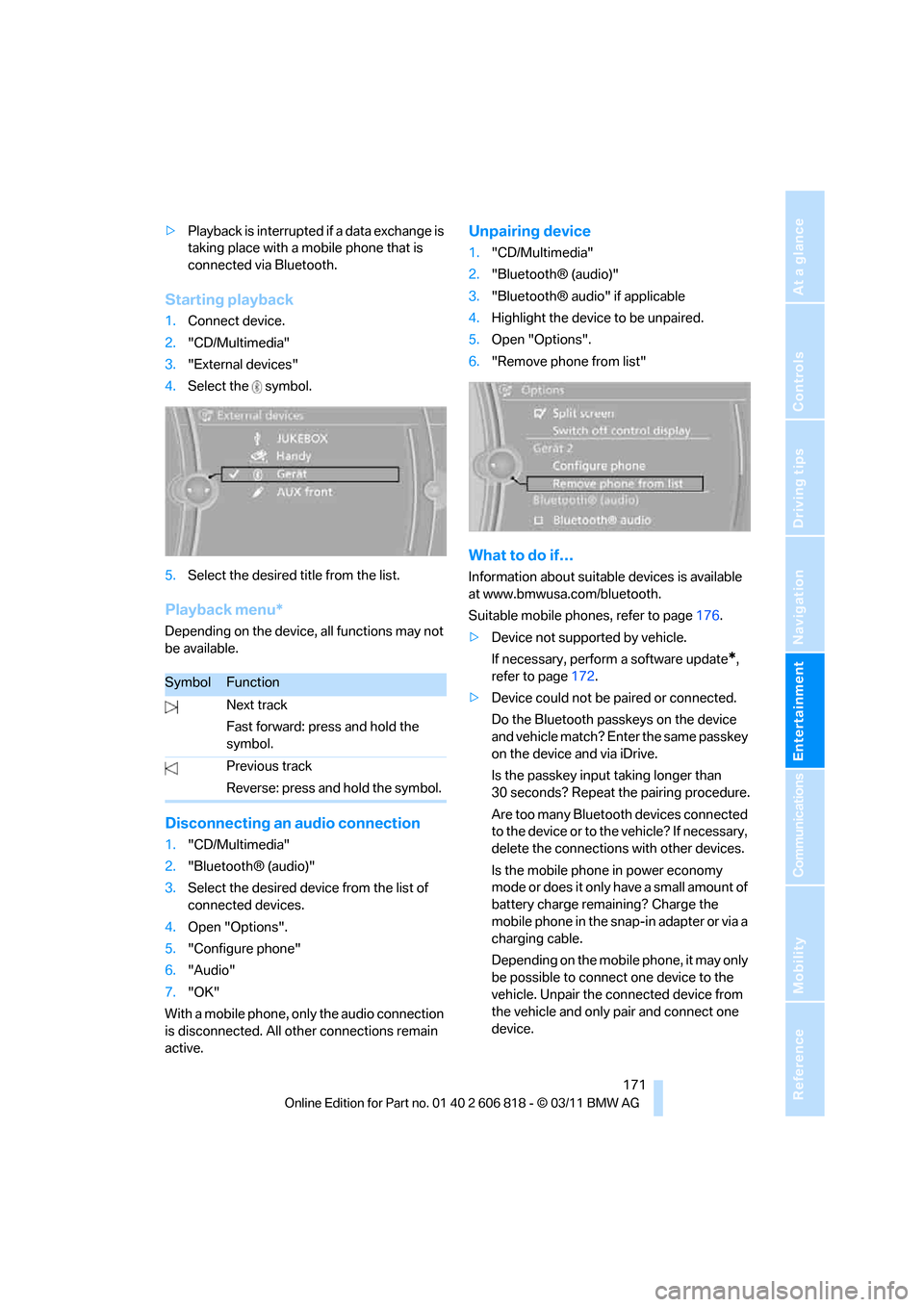
1.Connect device.
2."CD/Multimedia"
3."External devices"
4.Select the symbol.
5.Select the desired title from the list.
Playback menu*
Depending on the device, all functions may not
be available.
Disconnecting an audio connection
1."CD/Multimedia"
2."Bluetooth® (audio)"
3.Select the desired device from the list of
connected devices.
4.Open "Options".
5."Configure phone"
6."Audio"
7."OK"
With a mobile phone, only the audio connection
is disconnected. All other connections remain
active.
Unpairing device
1."CD/Multimedia"
2."Bluetooth® (audio)"
3."Bluetooth® audio" if applicable
4.Highlight the device to be unpaired.
5.Open "Options".
6."Remove phone from list"
What to do if…
Information about suitable devices is available
at www.bmwusa.com/bluetooth.
Suitable mobile phones, refer to page176.
>Device not supported by vehicle.
If necessary, perform a software update
*,
refer to page172.
>Device could not be paired or connected.
Do the Bluetooth passkeys on the device
and vehicle match? Enter the same passkey
on the device and via iDrive.
Is the passkey input taking longer than
30 seconds? Repeat the pairing procedure.
Are too many Bluetooth devices connected
to the device or to the vehicle? If necessary,
delete the connections with other devices.
Is the mobile phone in power economy
mode or does it only have a small amount of
battery charge remaining? Charge the
mobile phone in the snap-in adapter or via a
charging cable.
Depending on the mobile phone, it may only
be possible to connect one device to the
vehicle. Unpair the connected device from
the vehicle and only pair and connect one
device.
SymbolFunction
Next track
Fast forward: press and hold the
symbol.
Previous track
Reverse: press and hold the symbol.
Page 174 of 272
External devices
172 Is the device no longer responding? Switch
the device off and back on again.
Repeat the pairing procedure.
>No music can be played.
Start the program for playing music files on
the device and if necessary, select a track
via the device.
Activate and deactivate the radio mute on
the radio control panel.
>Music files only play quietly.
Adjust volume settings on the device.
>Playback is interrupted by the press of a
button or other messages on the device.
Switch off key tones and other acoustic sig-
nal on the device.
>Playback is interrupted by a phone call or
traffic report and does not automatically
continue.
Activate and deactivate the radio mute on
the radio control panel.
>Playback is not possible when the mobile
phone is connected via Bluetooth audio and
at the same time via the extended connec-
tivity of the music player in the mobile
phone
*.
Disconnect one of the two connections, e.g.
the audio connection, refer to page171,
and start playback again.
If you have gone through all items in the list and
still cannot activate the desired function please
contact Customer Relations or a BMW center.
Software update*
The vehicle supports various external devices,
depending on the software it is currently using.
A software update can enable the vehicle to
support new mobile phones or new external
devices, for example.
Software updates and associated, up-to-date
instructions are available on the web page
www.bmwusa.com/update.
Displaying current version
The currently installed software is displayed.
1."Settings"
2."Software update"
3."Show current version"
Select the desired version
* to display additional
information
*.
Updating software by USB*
The software update can only be performed
when stopped.
1.Save the file for the software update in the
main directory of a USB data storage
device.
2.Connect the USB data storage device to the
USB interface of the USB audio interface in
the center armrest. It is not possible to per-
form the update using the USB interface in
the glove compartment.
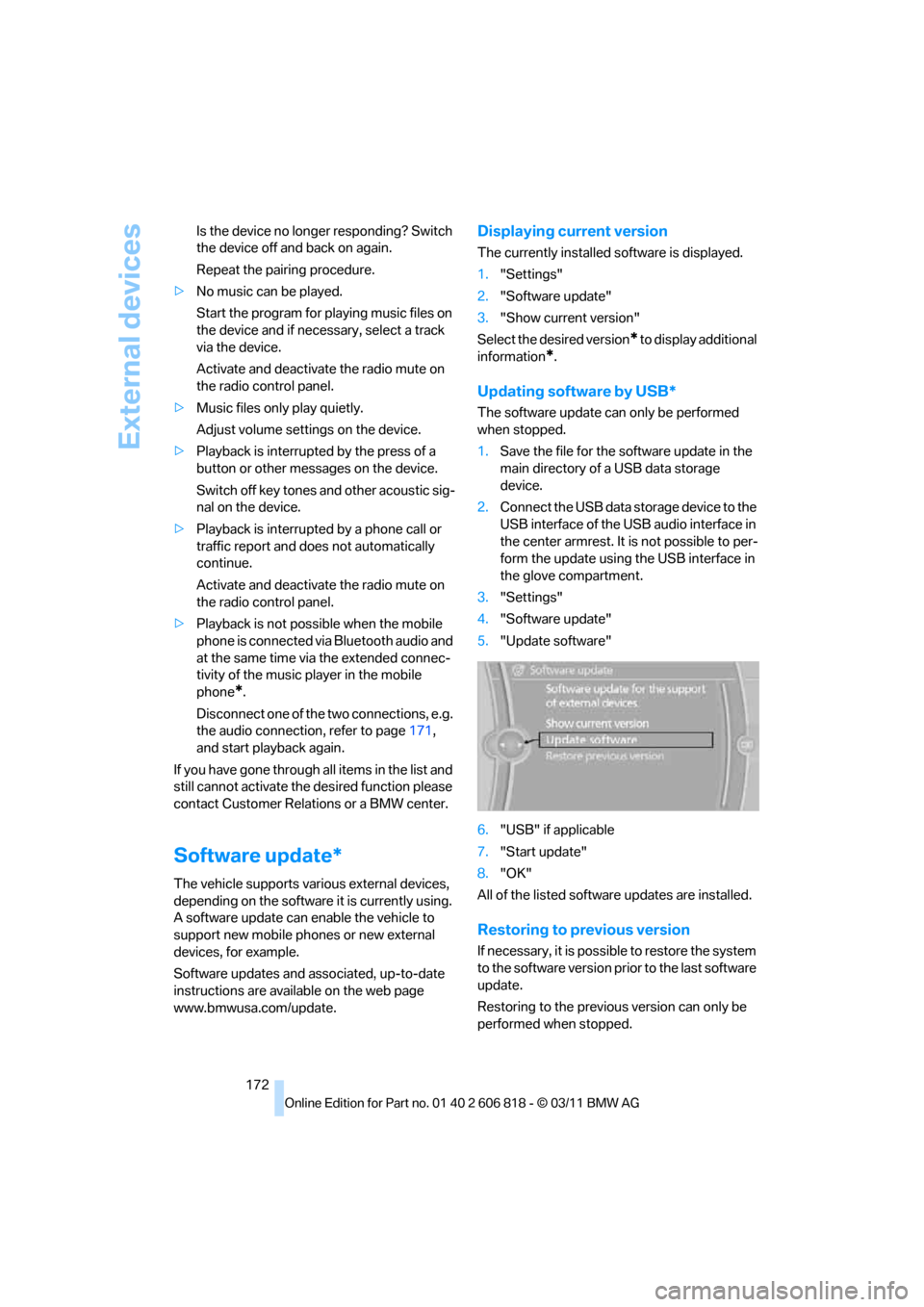
3."Settings"
4."Software update"
5."Update software"
6."USB" if applicable
7."Start update"
8."OK"
All of the listed software updates are installed.
Restoring to previous version
If necessary, it is possible to restore the system
to the software version prior to the last software
update.
Restoring to the previous version can only be
performed when stopped.
Page 178 of 272
Telephone
176
Telephone
At a glance
The concept
Mobile phones or other external devices, e.g.
audio players, can be connected to the vehicle
via Bluetooth.
Bluetooth® is a registered trademark of Blue-
tooth® SIG, Inc.
After being paired once, when the ignition is
switched on, these devices are automatically
detected as soon as they are present in the
vehicle and can be controlled via iDrive, the but-
tons on the steering wheel, and by voice
*.
Depending on whether they are functioning as a
telephone and/or as an audio source, external
devices can be used via the vehicle. The tele-
phone functions will be described below. Oper-
ation of audio functions, refer to page169.
Up to four external devices can be paired.
It may be necessary for some functions to be
activated by the mobile phone provider or ser-
vice provider.
Only make entries when traffic conditions
permit. Do not hold the mobile phone in
your hand while you are driving; use the hands-
free system instead. Otherwise, you may
endanger vehicle occupants and other road
users.<
Snap-in adapter*
The snap-in adapter makes it possible:
>Accommodate the mobile phone.
>Recharge its battery.
>Connect it to an external antenna of the
vehicle.
This assures a better network connection
and constant sound quality.
Suitable mobile phones
For precise information about which mobile
phones and external devices with a Bluetooth interface are supported by the mobile phone
preparation, go to www.bmwusa.com/blue-
tooth.
Displaying vehicle identification
number and software part number
Checking which mobile phones are supported
by the mobile phone preparation requires the
vehicle identification number and software part
number. The software version of the mobile
phone may also be required.
1."Telephone"
2.Open "Options".
3."Bluetooth® info"
4."Display system information"
With a certain software version, these suitable
mobile phones support the vehicle functions
described below.
With other mobile phones or software versions,
malfunctions may occur.
A mobile phone that is connected to the vehicle
should not be operated via the mobile phone
keypad; otherwise, malfunctions may occur.
It is possible to perform a software update, refer
to page172.
Pairing/unpairing mobile
phone
General information
The following functions are available:
>Using the mobile phone as a telephone.
>Using the mobile phone as an auxiliary
phone
*.
>Using the mobile phone as an audio source.
>Using an audio device as an audio source,
refer to page169.
*
Page 179 of 272
177
Entertainment
Reference
At a glance
Controls
Driving tips Communications
Navigation
Mobility
Requirements
>Suitable mobile phone, refer to page176.
>Mobile phone operational.
>Bluetooth activated in vehicle, refer to
page178, and in the mobile phone.
>Bluetooth presets in the mobile phone are
required, e.g. connection not confirmed or
visible, refer to owner's manual for the
mobile phone.
>Deactivating Bluetooth audio, refer to
page177.
>A number with at least 4 and at most
16 digits has been established as the Blue-
tooth passkey. Only required once for pair-
ing.
>Ignition switched on.
Activating/deactivating Bluetooth link
Bluetooth is not permitted everywhere. Comply
with all safety guidelines and regulations.
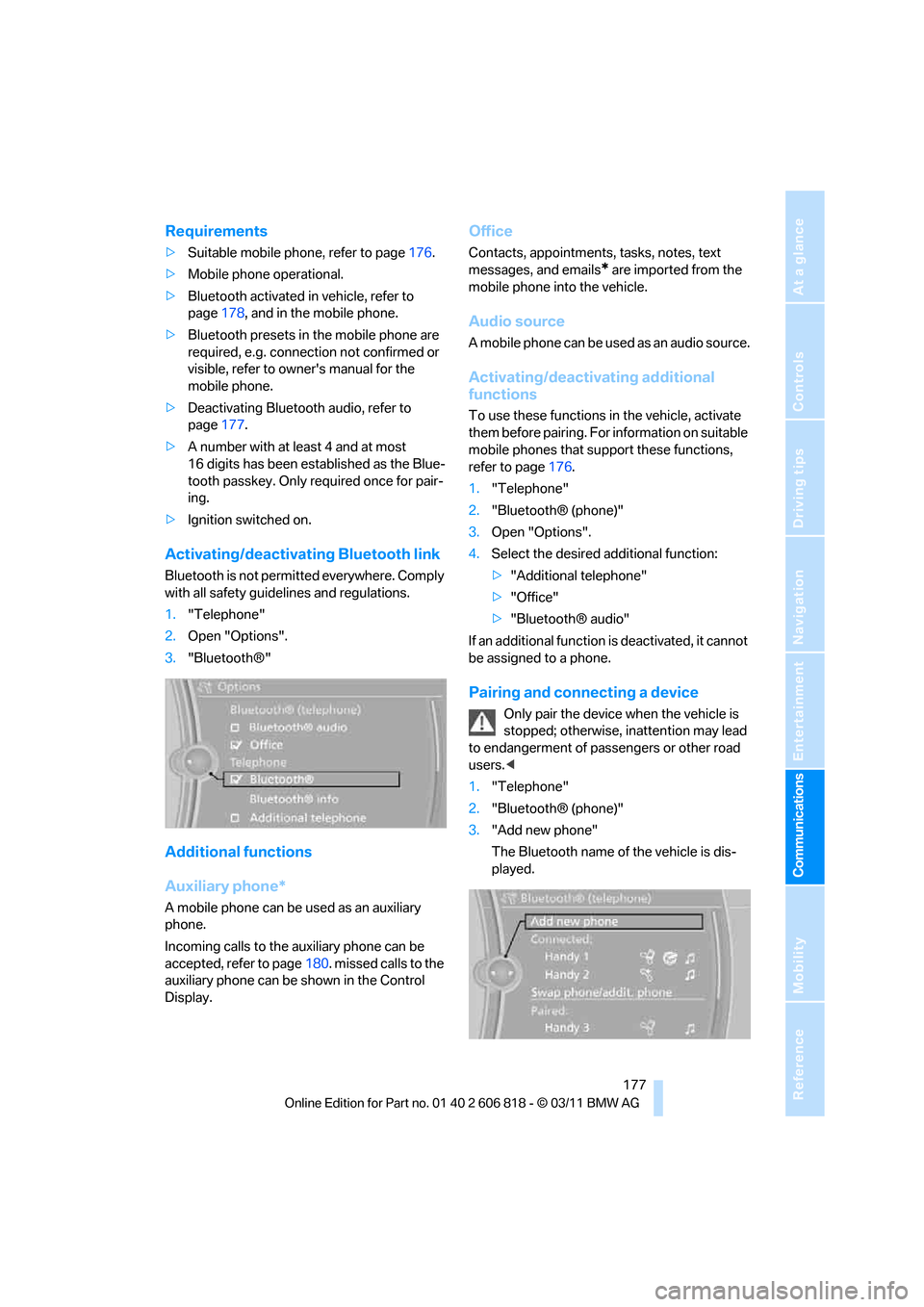
1."Telephone"
2.Open "Options".
3."Bluetooth®"
Additional functions
Auxiliary phone*
A mobile phone can be used as an auxiliary
phone.
Incoming calls to the auxiliary phone can be
accepted, refer to page180. missed calls to the
auxiliary phone can be shown in the Control
Display.
Office
Contacts, appointments, tasks, notes, text
messages, and emails
* are imported from the
mobile phone into the vehicle.
Audio source
A mobile phone can be used as an audio source.
Activating/deactivating additional
functions
To use these functions in the vehicle, activate
them before pairing. For information on suitable
mobile phones that support these functions,
refer to page176.
1."Telephone"
2."Bluetooth® (phone)"
3.Open "Options".
4.Select the desired additional function:
>"Additional telephone"
>"Office"
>"Bluetooth® audio"
If an additional function is deactivated, it cannot
be assigned to a phone.
Pairing and connecting a device
Only pair the device when the vehicle is
stopped; otherwise, inattention may lead
to endangerment of passengers or other road
users.<
1."Telephone"
2."Bluetooth® (phone)"
3."Add new phone"
The Bluetooth name of the vehicle is dis-
played.
Page 180 of 272
Telephone
178 4.To perform other operations on the mobile
phone, refer to the owner's manual for the
device: e.g. search for and connect Blue-
tooth device or a new device.
The Bluetooth name of the vehicle appears
on the mobile phone display.
5.Select the Bluetooth name of the vehicle on
the mobile phone display.
You will be prompted by iDrive or the mobile
phone to enter the same Bluetooth pass-
key.
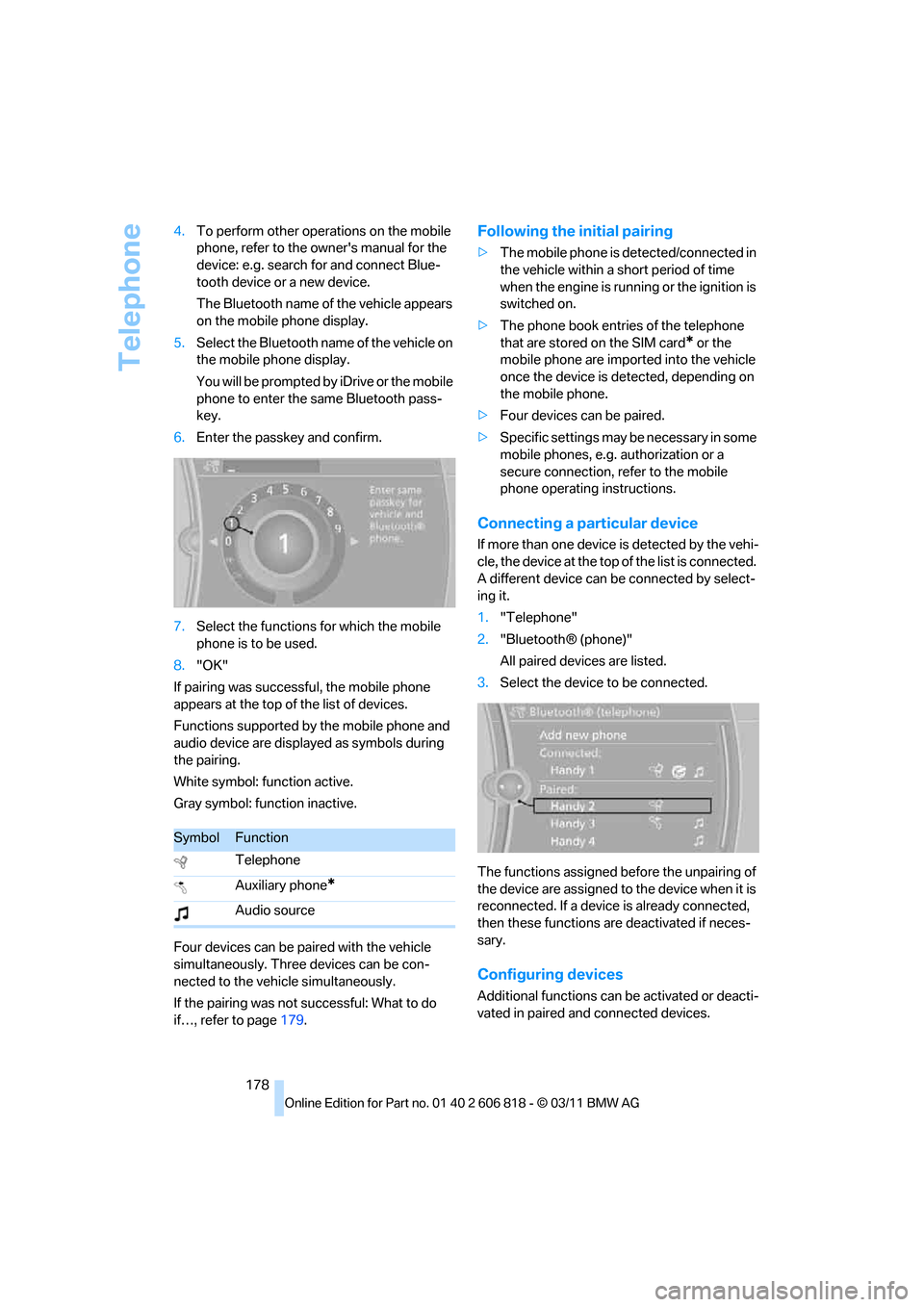
6.Enter the passkey and confirm.
7.Select the functions for which the mobile
phone is to be used.
8."OK"
If pairing was successful, the mobile phone
appears at the top of the list of devices.
Functions supported by the mobile phone and
audio device are displayed as symbols during
the pairing.
White symbol: function active.
Gray symbol: function inactive.
Four devices can be paired with the vehicle
simultaneously. Three devices can be con-
nected to the vehicle simultaneously.
If the pairing was not successful: What to do
if…, refer to page179.
Following the initial pairing
>The mobile phone is detected/connected in
the vehicle within a short period of time
when the engine is running or the ignition is
switched on.
>The phone book entries of the telephone
that are stored on the SIM card
* or the
mobile phone are imported into the vehicle
once the device is detected, depending on
the mobile phone.
>Four devices can be paired.
>Specific settings may be necessary in some
mobile phones, e.g. authorization or a
secure connection, refer to the mobile
phone operating instructions.
Connecting a particular device
If more than one device is detected by the vehi-
cle, the device at the top of the list is connected.
A different device can be connected by select-
ing it.
1."Telephone"
2."Bluetooth® (phone)"
All paired devices are listed.
3.Select the device to be connected.
The functions assigned before the unpairing of
the device are assigned to the device when it is
reconnected. If a device is already connected,
then these functions are deactivated if neces-
sary.
Configuring devices
Additional functions can be activated or deacti-
vated in paired and connected devices.
SymbolFunction
Telephone
Auxiliary phone
*
Audio source
Page 181 of 272
179
Entertainment
Reference
At a glance
Controls
Driving tips Communications
Navigation
Mobility
1."Telephone"
2."Bluetooth® (phone)"
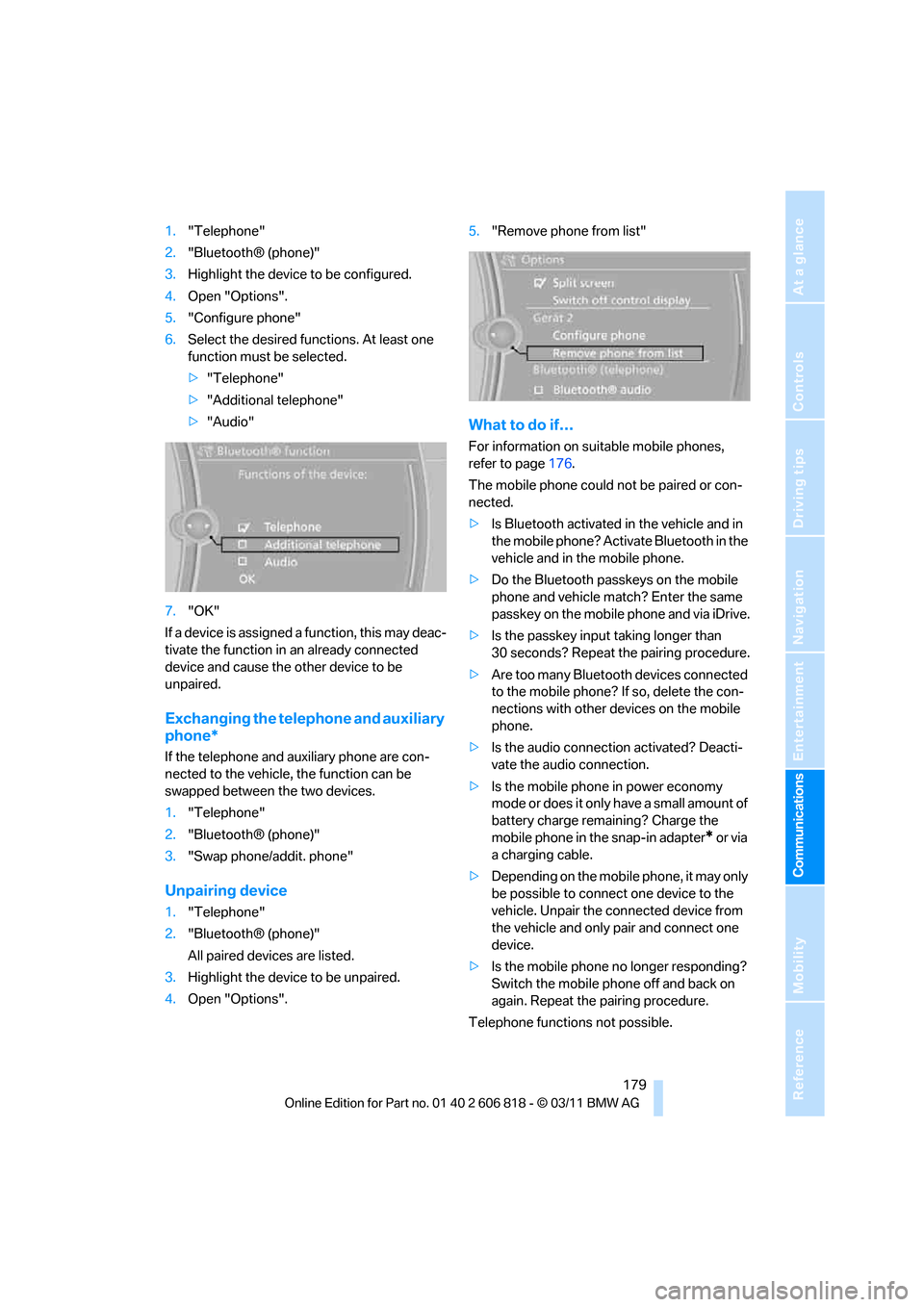
3.Highlight the device to be configured.
4.Open "Options".
5."Configure phone"
6.Select the desired functions. At least one
function must be selected.
>"Telephone"
>"Additional telephone"
>"Audio"
7."OK"
If a device is assigned a function, this may deac-
tivate the function in an already connected
device and cause the other device to be
unpaired.
Exchanging the telephone and auxiliary
phone*
If the telephone and auxiliary phone are con-
nected to the vehicle, the function can be
swapped between the two devices.
1."Telephone"
2."Bluetooth® (phone)"
3."Swap phone/addit. phone"
Unpairing device
1."Telephone"
2."Bluetooth® (phone)"
All paired devices are listed.
3.Highlight the device to be unpaired.
4.Open "Options".5."Remove phone from list"
What to do if…
For information on suitable mobile phones,
refer to page176.
The mobile phone could not be paired or con-
nected.
>Is Bluetooth activated in the vehicle and in
the mobile phone? Activate Bluetooth in the
vehicle and in the mobile phone.
>Do the Bluetooth passkeys on the mobile
phone and vehicle match? Enter the same
passkey on the mobile phone and via iDrive.
>Is the passkey input taking longer than
30 seconds? Repeat the pairing procedure.
>Are too many Bluetooth devices connected
to the mobile phone? If so, delete the con-
nections with other devices on the mobile
phone.
>Is the audio connection activated? Deacti-
vate the audio connection.
>Is the mobile phone in power economy
mode or does it only have a small amount of
battery charge remaining? Charge the
mobile phone in the snap-in adapter
* or via
a charging cable.
>Depending on the mobile phone, it may only
be possible to connect one device to the
vehicle. Unpair the connected device from
the vehicle and only pair and connect one
device.
>Is the mobile phone no longer responding?
Switch the mobile phone off and back on
again. Repeat the pairing procedure.
Telephone functions not possible.
Page 184 of 272
Telephone
182 4.Dia l the ne w pho ne numbe r o r sele c t it from
a list.
"Return"
The call on hold is continued.
Switching between two calls, toggling
Active call: highlighted.
The call on hold is identified with:
"on hold...".
"Swap calls"
The phone switches to the call on hold.
Establishing a conference call
Two calls can be connected to a single tele-
phone conference call.
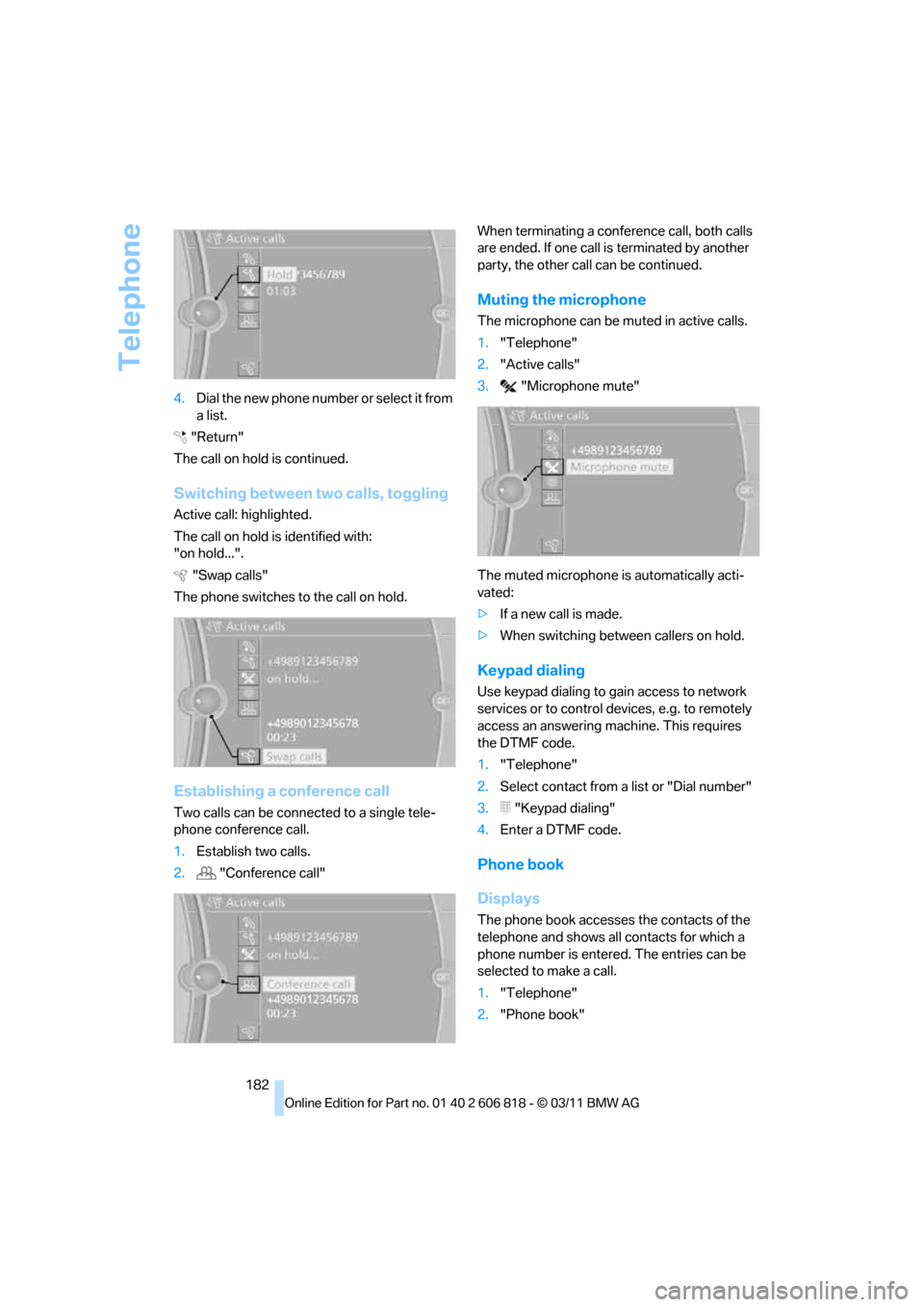
1.Establish two calls.
2."Conference call"When terminating a conference call, both calls
are ended. If one call is terminated by another
party, the other call can be continued.
Muting the microphone
The microphone can be muted in active calls.
1."Telephone"
2."Active calls"
3."Microphone mute"
The muted microphone is automatically acti-
vated:
>If a new call is made.
>When switching between callers on hold.
Keypad dialing
Use keypad dialing to gain access to network
services or to control devices, e.g. to remotely
access an answering machine. This requires
the DTMF code.
1."Telephone"
2.Select contact from a list or "Dial number"
3."Keypad dialing"
4.Enter a DTMF code.
Phone book
Displays
The phone book accesses the contacts of the
telephone and shows all contacts for which a
phone number is entered. The entries can be
selected to make a call.
1."Telephone"
2."Phone book"
Page 258 of 272
Everything from A to Z
256 Cargo area lid, refer to Trunk
lid33
Cargo area net, refer to
Securing cargo120
Cargo loading119
– securing cargo120
– stowing cargo120
– vehicle119
Car jack
– jacking points232
Car key, refer to Integrated
key/remote control28
Car phone
– installation location, refer to
Center armrest108
– refer to separate Owner's
Manual
Car phone, refer to
Telephone176
Car radio, refer to Radio147
Car shampoo224
Car wash223
Catalytic converter, refer to
Hot exhaust system117
CD, audio playback155
CD changer155,159
– controls144
– fast forward/reverse157
– filling or emptying the
magazine159
– random play sequence156
– selecting a track155
– switching on/off144
– tone control144
– volume144
CD player155
– controls144
– fast forward/reverse157
– random order156
– selecting a track155
– switching on/off144
– tone control144
– volume144
Center armrest108
Center brake lamp, replacing
bulb231
Center console, refer to
Around the center
console14Central key, refer to Integrated
key/remote control28
Central locking
– from inside32
– from outside29
Central locking system29
– Comfort Access35
Changes, technical, refer to
For your own safety5
Changing bulbs227
Changing gears64
Changing the language on the
Control Display81
Changing wheels231
Chassis number, refer to
Engine compartment217
Check Control78
Child restraint fixing system
LATCH55
Child restraint systems54
Child seats54
Chrome parts225
Chrome polish225
Cigarette lighter109
Cleaning headlamps67
– washer fluid68
Cleaning your BMW, refer to
Care223
Climate control
– automatic air
distribution100
Clock70
– 12h/24h mode77
– setting the time and date77
– setting time76
Closing
– from inside32
– from outside29
Clothes hooks108
Cold start, refer to Starting the
engine58
Comfort Access35
– replacing the battery37
Comfort access, refer to
Comfort Access35
Comfort area, refer to Around
the center console14Compartment for remote
control, refer to Ignition
lock57
Compass106
Computer71
– displays on Control
Display72
Computer, refer to iDrive16
Concierge service199
Condensation, refer to When
the vehicle is parked119
Condition Based Service
CBS221
Configuring settings, refer to
Personal Profile28
Confirmation signals for
locking/unlocking the
vehicle30
ConnectedDrive198
Connecting vacuum cleaner,
refer to Connecting
electrical appliances109
Consumption, refer to
Average fuel
consumption72
Contacts188
– deleting190,197
– exporting/importing197
– new contact189
Control Center, refer to
iDrive16
Control Display16,17
Control Display, refer to iDrive
– switching on/off17
Controller, refer to iDrive16
Controls and displays10
Convenient opening and
closing
– windows30
– windows with Comfort
Access36
– with Comfort Access36
Convenient start, refer to
Starting the engine58
Convertible
– rollover protection
system92
– top40
– wind deflector43
Page 259 of 272
Reference 257
At a glance
Controls
Driving tips
Communications
Navigation
Entertainment
Mobility
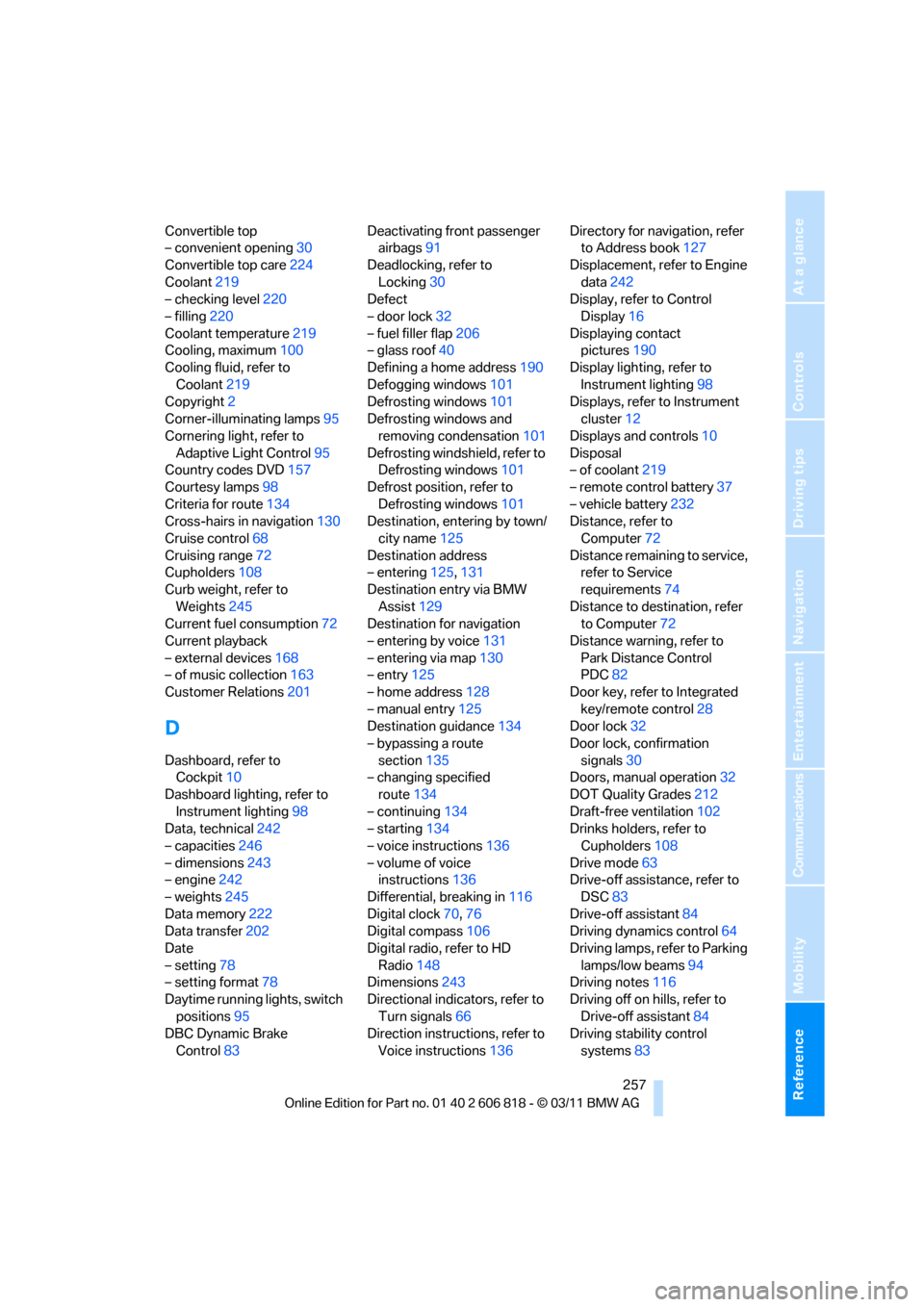
Convertible top
– convenient opening30
Convertible top care224
Coolant219
– checking level220
– filling220
Coolant temperature219
Cooling, maximum100
Cooling fluid, refer to
Coolant219
Copyright2
Corner-illuminating lamps95
Cornering light, refer to
Adaptive Light Control95
Country codes DVD157
Courtesy lamps98
Criteria for route134
Cross-hairs in navigation130
Cruise control68
Cruising range72
Cupholders108
Curb weight, refer to
Weights245
Current fuel consumption72
Current playback
– external devices168
– of music collection163
Customer Relations201
D
Dashboard, refer to
Cockpit10
Dashboard lighting, refer to
Instrument lighting98
Data, technical242
– capacities246
– dimensions243
– engine242
– weights245
Data memory222
Data transfer202
Date
– setting78
– setting format78
Daytime running lights, switch
positions95
DBC Dynamic Brake
Control83Deactivating front passenger
airbags91
Deadlocking, refer to
Locking30
Defect
– door lock32
– fuel filler flap206
– glass roof40
Defining a home address190
Defogging windows101
Defrosting windows101
Defrosting windows and
removing condensation101
Defrosting windshield, refer to
Defrosting windows101
Defrost position, refer to
Defrosting windows101
Destination, entering by town/
city name125
Destination address
– entering125,131
Destination entry via BMW
Assist129
Destination for navigation
– entering by voice131
– entering via map130
– entry125
– home address128
– manual entry125
Destination guidance134
– bypassing a route
section135
– changing specified
route134
– continuing134
– starting134
– voice instructions136
– volume of voice
instructions136
Differential, breaking in116
Digital clock70
,76
Digital compass106
Digital radio, refer to HD
Radio148
Dimensions243
Directional indicators, refer to
Turn signals66
Direction instructions, refer to
Voice instructions136Directory for navigation, refer
to Address book127
Displacement, refer to Engine
data242
Display, refer to Control
Display16
Displaying contact
pictures190
Display lighting, refer to
Instrument lighting98
Displays, refer to Instrument
cluster12
Displays and controls10
Disposal
– of coolant219
– remote control battery37
– vehicle battery232
Distance, refer to
Computer72
Distance remaining to service,
refer to Service
requirements74
Distance to destination, refer
to Computer72
Distance warning, refer to
Park Distance Control
PDC82
Door key, refer to Integrated
key/remote control28
Door lock32
Door lock, confirmation
signals30
Doors, manual operation32
DOT Quality Grades212
Draft-free ventilation102
Drinks holders, refer to
Cupholders108
Drive mode63
Drive-off assistance, refer to
DSC83
Drive-off assistant84
Driving dynamics control64
Driving lamps, refer to Parking
lamps/low beams94
Driving notes116
Driving off on hills, refer to
Drive-off assistant84
Driving stability control
systems83
Page 262 of 272
Everything from A to Z
260
I
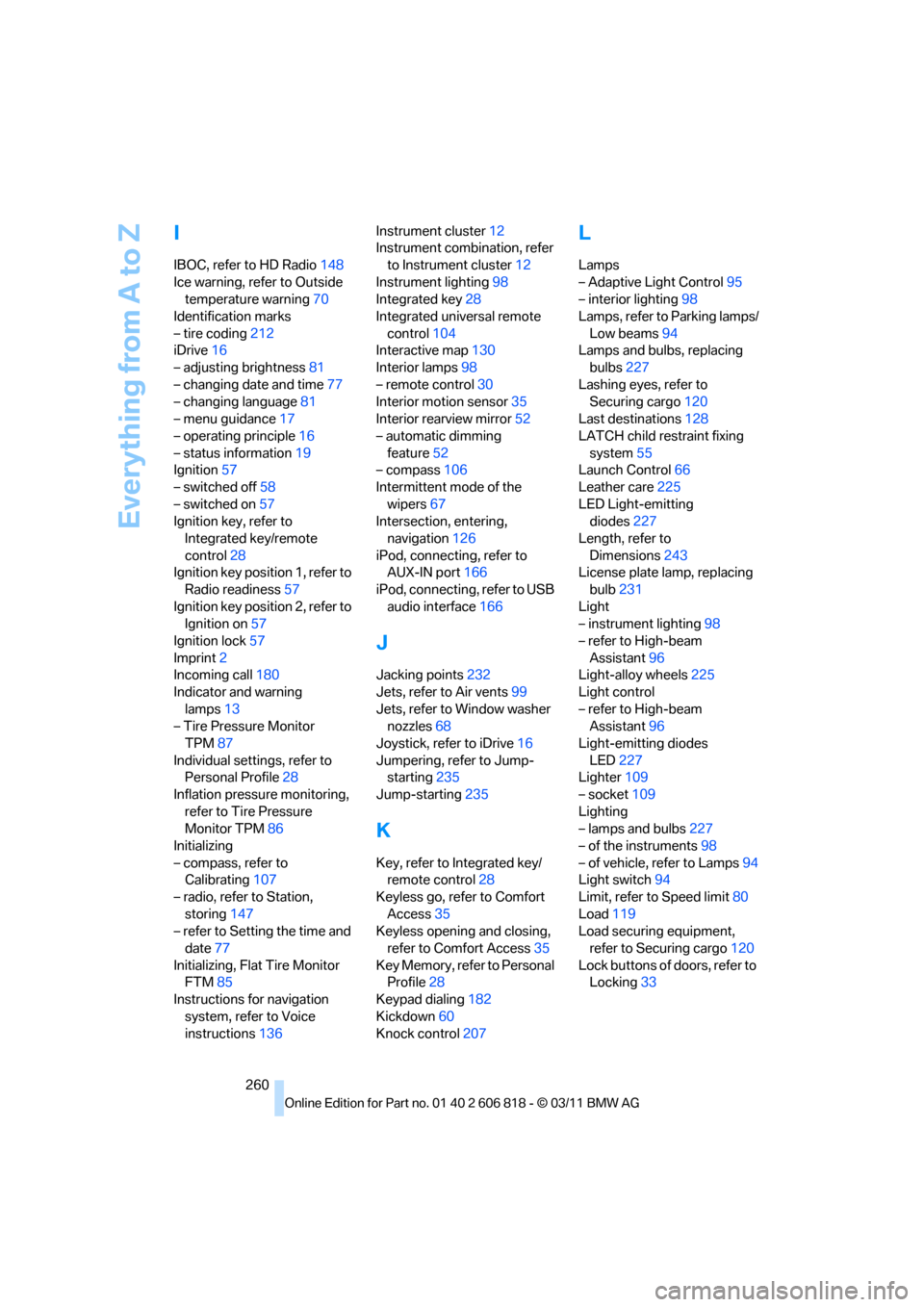
IBOC, refer to HD Radio148
Ice warning, refer to Outside
temperature warning70
Identification marks
– tire coding212
iDrive16
– adjusting brightness81
– changing date and time77
– changing language81
– menu guidance17
– operating principle16
– status information19
Ignition57
– switched off58
– switched on57
Ignition key, refer to
Integrated key/remote
control28
Ignition key position 1, refer to
Radio readiness57
Ignition key position 2, refer to
Ignition on57
Ignition lock57
Imprint2
Incoming call180
Indicator and warning
lamps13
– Tire Pressure Monitor
TPM87
Individual settings, refer to
Personal Profile28
Inflation pressure monitoring,
refer to Tire Pressure
Monitor TPM86
Initializing
– compass, refer to
Calibrating107
– radio, refer to Station,
storing147
– refer to Setting the time and
date77
Initializing, Flat Tire Monitor
FTM85
Instructions for navigation
system, refer to Voice
instructions136Instrument cluster12
Instrument combination, refer
to Instrument cluster12
Instrument lighting98
Integrated key28
Integrated universal remote
control104
Interactive map130
Interior lamps98
– remote control30
Interior motion sensor35
Interior rearview mirror52
– automatic dimming
feature52
– compass106
Intermittent mode of the
wipers67
Intersection, entering,
navigation126
iPod, connecting, refer to
AUX-IN port166
iPod, connecting, refer to USB
audio interface166
J
Jacking points232
Jets, refer to Air vents99
Jets, refer to Window washer
nozzles68
Joystick, refer to iDrive16
Jumpering, refer to Jump-
starting235
Jump-starting235
K
Key, refer to Integrated key/
remote control28
Keyless go, refer to Comfort
Access35
Keyless opening and closing,
refer to Comfort Access35
Key Memory, refer to Personal
Profile28
Keypad dialing182
Kickdown60
Knock control207
L
Lamps
– Adaptive Light Control95
– interior lighting98
Lamps, refer to Parking lamps/
Low beams94
Lamps and bulbs, replacing
bulbs227
Lashing eyes, refer to
Securing cargo120
Last destinations128
LATCH child restraint fixing
system55
Launch Control66
Leather care225
LED Light-emitting
diodes227
Length, refer to
Dimensions243
License plate lamp, replacing
bulb231
Light
– instrument lighting98
– refer to High-beam
Assistant96
Light-alloy wheels225
Light control
– refer to High-beam
Assistant96
Light-emitting diodes
LED227
Lighter109
– socket109
Lighting
– lamps and bulbs227
– of the instruments98
– of vehicle, refer to Lamps94
Light switch94
Limit, refer to Speed limit80
Load119
Load securing equipment,
refer to Securing cargo120
Lock buttons of doors, refer to
Locking33