tow BMW 128I 2013 Owner's Manual
[x] Cancel search | Manufacturer: BMW, Model Year: 2013, Model line: 128I, Model: BMW 128I 2013Pages: 284, PDF Size: 6.93 MB
Page 136 of 284
135
Destination entry
Navigation
2.
Select letters, if necessary.
The list is reduced in steps with each entry.
To delete letters:
> To delete individual letters:
Turn the controller to select , and
then press the controller.
> To delete all letters:
Turn the controller to select , and
then press the controller for an extended
period.
To enter spaces:
> Select the symbol.
The list gradually grow s smaller each time
you enter a new letter.
3. Move the controller to the right.
4. Select the name of the town/city from the
list.
If there are several town s/cities with the same
name:
1. Change to the list of town/city names.
2. Highlight the town/city.
3. Select the town/city.
Entering the postal code
1.Select "Town/City/Postal Code" or the
displayed town/city.
2. Select the symbol.
3. Select the digits.
4. Change to the list of postal codes and
towns/cities.
5. Highlight the entry.
6. Select an entry.
Entering street and intersection
1.Select "Street" or displayed street.
2. Enter the street and cross-street the same
way you entered the town/city.
After you enter the street, you can also enter
the cross street or the house number. If there are several streets with the same name:
1.
Change to the list of street names.
2. Highlight street.
3. Select the street.
Alternative: entering street and house
number
1.Select "Street" or displayed street.
2. Enter the street the same way you entered
the town/city.
3. "House number"
4. Select the digits.
5. Change to the list of house numbers.
6. Select a house number or range of house
numbers.
No such street at the destination
The desired street is not in the entered town/
city because it belongs to another district of the
town/city.
1."Navigation"
2. "Enter address"
3. Select "Street" or displayed street.
4. Change to the list of street names.
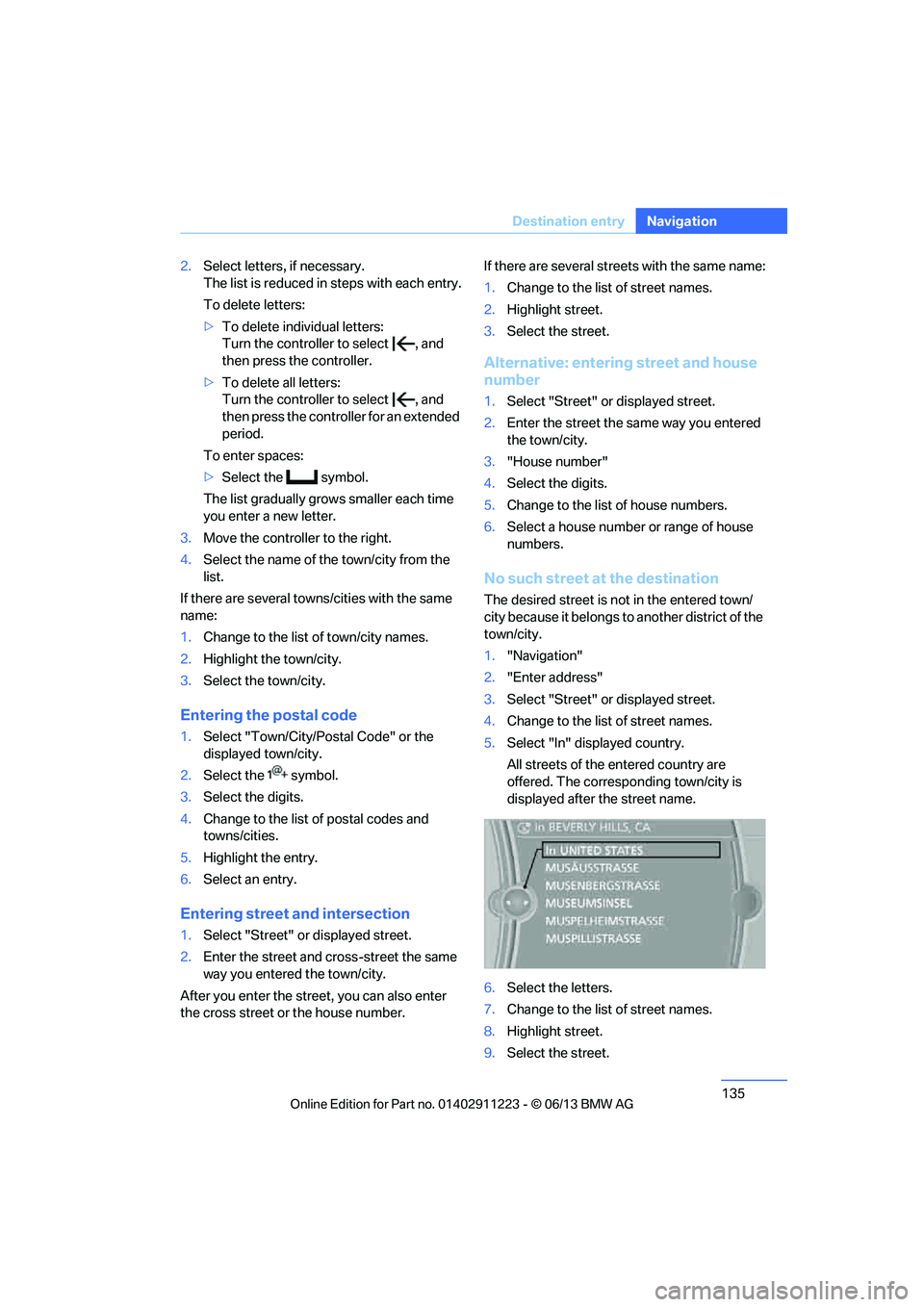
5. Select "In" displayed country.
All streets of the entered country are
offered. The corresponding town/city is
displayed after the street name.
6. Select the letters.
7. Change to the list of street names.
8. Highlight street.
9. Select the street.
00320051004F004C00510048000300280047004C0057004C005200510003
Page 139 of 284
138
NavigationDestination entry
Opening the search for special
destinations
1."Navigation"
2. "Points of Interest"
The search can be narrowed by entering the
location and type of special destination.
Searching online
1. "Google™ Local Search"
2. Select the special destination.
3. Select the symbol.
4. "Start guidance"
Special destination location
As you input the search destination, you can
select from among various options.
>"At current location"
> "At destination"
> "At different location"
> "Along route"
A-Z search
1."A-Z search"
2. "Town/City"
3. Select or enter town/city.
4. "Category"
5. Select category.
6. "Category details"
For some special destinations, it is possible
to select several category details.
Move the controller towa rd the left to exit
category details.
7. "Keyword"
8. Enter keyword.
A list of the special destinations is
displayed.
9. Select the special destination.
Details are displayed.
If several details are stored, then you can
scroll through the pages. If a phone number is available, a connection
can be established, if desired.
10. Select the symbol.
11. "Start guidance" or "Add as another desti-
nation". Adding destination as another
destination, refer to page 141.
"Start search": without entering a search term,
the search is repeated with the last stored
search term.
Category search
1. "Category search"
2. "Town/City"
3. Select or enter town/city.
4. "Category"
5. Select category.
6. "Category details"
For some special destinations, it is possible
to select several category details.
Move the controller towa rd the left to exit
category details.
7. "Start search"
A list of the special destinations is
displayed.
8. Select the special destination.
Details are displayed.
If several details are stored, then you can
scroll through the pages.
If a phone number is available, a connection
can be established, if desired.
9. Select the symbol.
10. "Start guidance" or "Add as another desti-
nation". Adding destination as another
destination, refer to page 141.
Displaying special destinations
List of special destinations: the special destina-
tions are displayed in order of their distance and
are displayed with a direction arrow pointing
toward the destination.
00320051004F004C00510048000300280047004C0057004C005200510003
Page 141 of 284
140
NavigationDestination entry
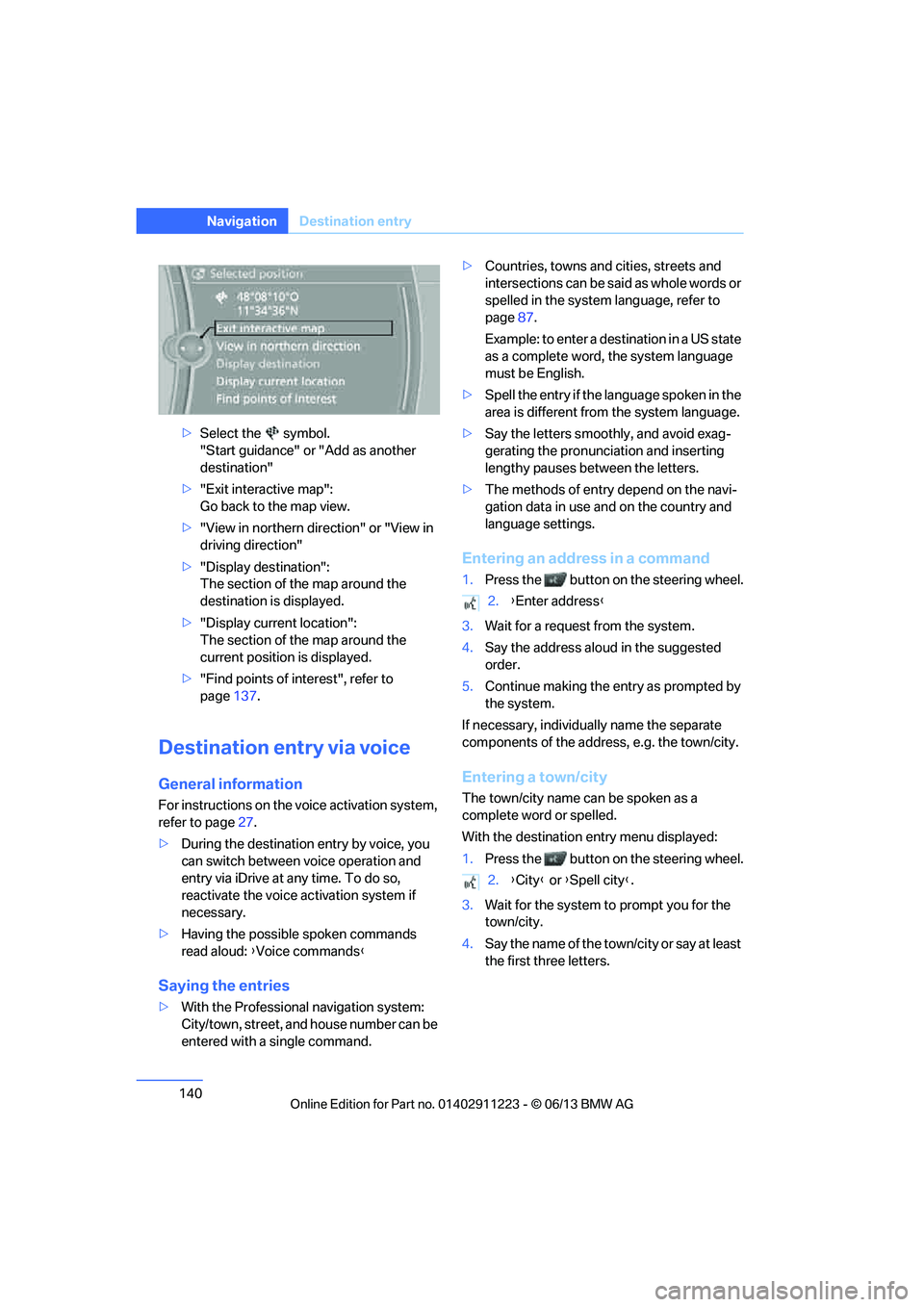
>Select the symbol.
"Start guidance" or "Add as another
destination"
> "Exit interactive map":
Go back to the map view.
> "View in northern direction" or "View in
driving direction"
> "Display destination":
The section of the map around the
destination is displayed.
> "Display current location":
The section of the map around the
current position is displayed.
> "Find points of interest", refer to
page 137.
Destination entry via voice
General information
For instructions on the voice activation system,
refer to page 27.
> During the destination entry by voice, you
can switch between voice operation and
entry via iDrive at any time. To do so,
reactivate the voice ac tivation system if
necessary.
> Having the possible spoken commands
read aloud: {Voice commands }
Saying the entries
>With the Professional navigation system:
City/town, street, and house number can be
entered with a single command. >
Countries, towns and cities, streets and
intersections can be said as whole words or
spelled in the system language, refer to
page 87.
Example: to enter a destination in a US state
as a complete word, the system language
must be English.
> Spell the entry if the language spoken in the
area is different from the system language.
> Say the letters smoothly, and avoid exag-
gerating the pronunciation and inserting
lengthy pauses between the letters.
> The methods of entry depend on the navi-
gation data in use and on the country and
language settings.
Entering an address in a command
1. Press the button on the steering wheel.
3. Wait for a request from the system.
4. Say the address aloud in the suggested
order.
5. Continue making the entry as prompted by
the system.
If necessary, individua lly name the separate
components of the addres s, e.g. the town/city.
Entering a town/city
The town/city name can be spoken as a
complete word or spelled.
With the destination entry menu displayed:
1.Press the button on the steering wheel.
3. Wait for the system to prompt you for the
town/city.
4. Say the name of the tow n/city or say at least
the first three letters.
2. {Enter address }
2. {City } or {Spell city }.
00320051004F004C00510048000300280047004C0057004C005200510003
Page 142 of 284
141
Destination entry
Navigation
Depending on the entry, up to 20 towns/
cities may be suggested.
6. Continue making the entry as prompted by
the system.
If there are several town s/cities with the same
name:
Towns/cities that sound the same are compiled
in a separate list and ar e displayed as one town/
city followed by three dots.
1. Select an entry:
2. Select the desired town/city.
The town/city can also be selected from the list
via iDrive: turn the cont roller until the town/city
is selected and press the controller.
Entering a street or intersection
The street or intersection is entered in the same
manner as the town/city.
Entering a house number
Depending on the data in the navigation sys-
tem, house numbers up to the number 2,000
can be entered:
Starting destination guidance
Destination guidance starts immediately.
Planning a trip with
intermediate destinations
New trip
A trip can be planned using intermediate
destinations.
1. "Navigation"
2. "Map"
3. Move the controller to the left, if necessary.
4. "Guidance"
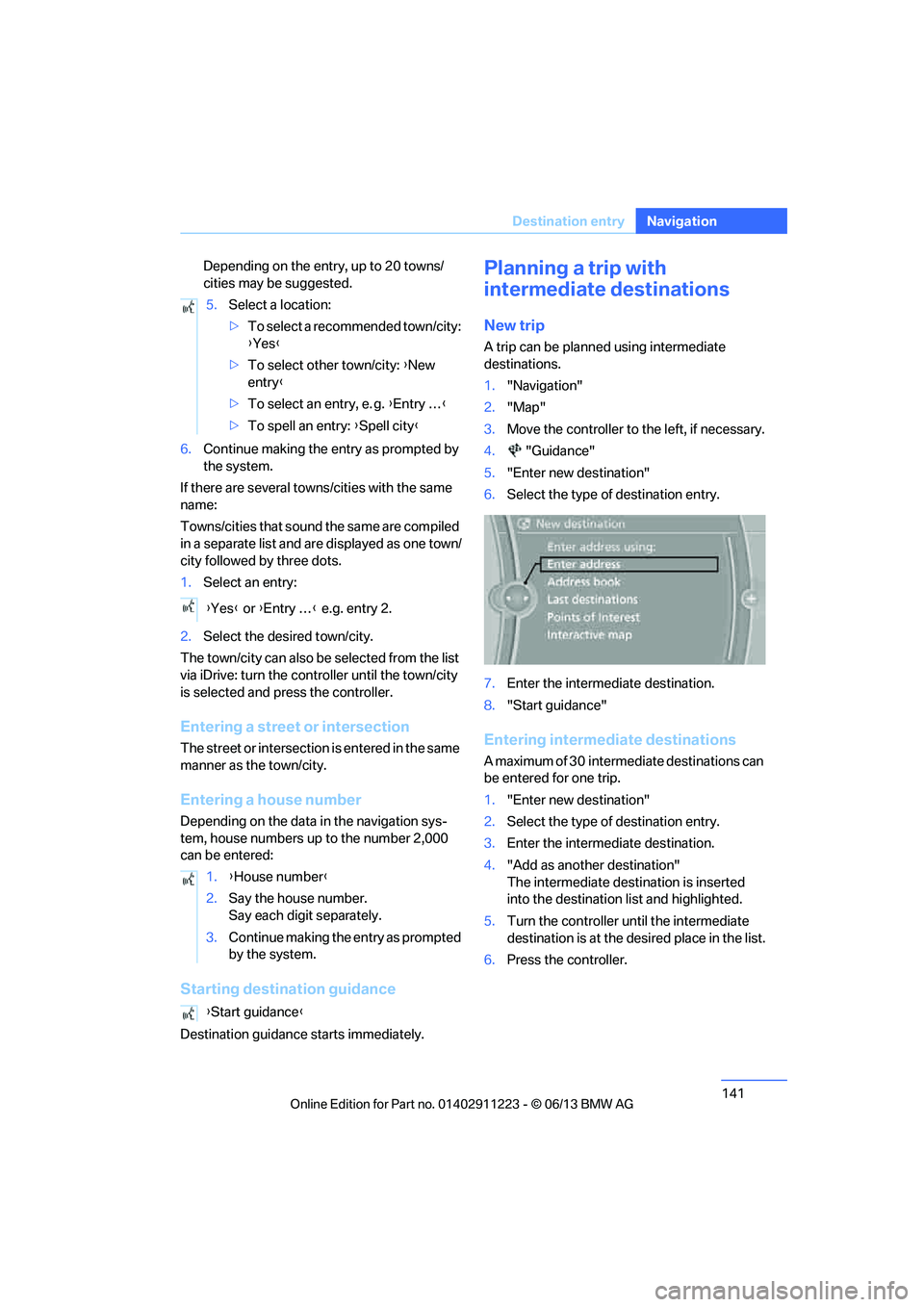
5. "Enter new destination"
6. Select the type of destination entry.
7. Enter the intermediate destination.
8. "Start guidance"
Entering intermediate destinations
A maximum of 30 intermed iate destinations can
be entered for one trip.
1. "Enter new destination"
2. Select the type of destination entry.
3. Enter the intermediate destination.
4. "Add as another destination"
The intermediate dest ination is inserted
into the destination list and highlighted.
5. Turn the controller until the intermediate
destination is at the de sired place in the list.
6. Press the controller.
5.
Select a location:
>To select a recommended town/city:
{Yes }
> To select other town/city: {New
entry }
> To select an entry, e. g. {Entry … }
> To spell an entry: {Spell city }
{ Yes } or {Entry … } e.g. entry 2.
1. {House number }
2. Say the house number.
Say each digit separately.
3. Continue making the entry as prompted
by the system.
{ Start guidance }
00320051004F004C00510048000300280047004C0057004C005200510003
Page 152 of 284
151
What to do if …
Navigation
What to do if …
Vehicle equipment
In this chapter, all production, country, and
optional equipment that is offered in the model
range is described. Equipment is also described
that is not available because of, for example,
selected options or coun
try version. This also
applies to safety related functions and systems.
What to do if…
> The current position cannot be displayed?
The position is in an unrecognized region, in
a poor reception area, or the system is in the
process of determining the position.
Reception is generally available when you
are in the open.
> The destination guidance d o e s n o t a c c e p t a
destination without a street name?
A downtown area canno t be determined for
the town or city that has been entered. Input
any street in the selected town/city and
start destination guidance.
> The destination guidance d o e s n o t a c c e p t a
destination?
The destination data is not contained in the
navigation data. Choo se a destination as
close as possible to the original one.
> The letters for a destination cannot be
selected during destination entry?
The stored data do no t contain the data of
the destination. Select a destination that is
as close as possible to the original.
> The map view is disp layed in grayscale?
"Traffic conditions/gray map" active: the
Control Display changes to a grayscale
display. This enables a better view of the
traffic bulletins.
> Voice instructions are no longer issued
before intersections during destination
guidance? The area has not been fully recorded yet, or
you have left the recommended route and
the system requires a few seconds to calcu-
late a new route suggestion.
00320051004F004C00510048000300280047004C0057004C005200510003
Page 201 of 284
200
CommunicationsTe l e p h o n e
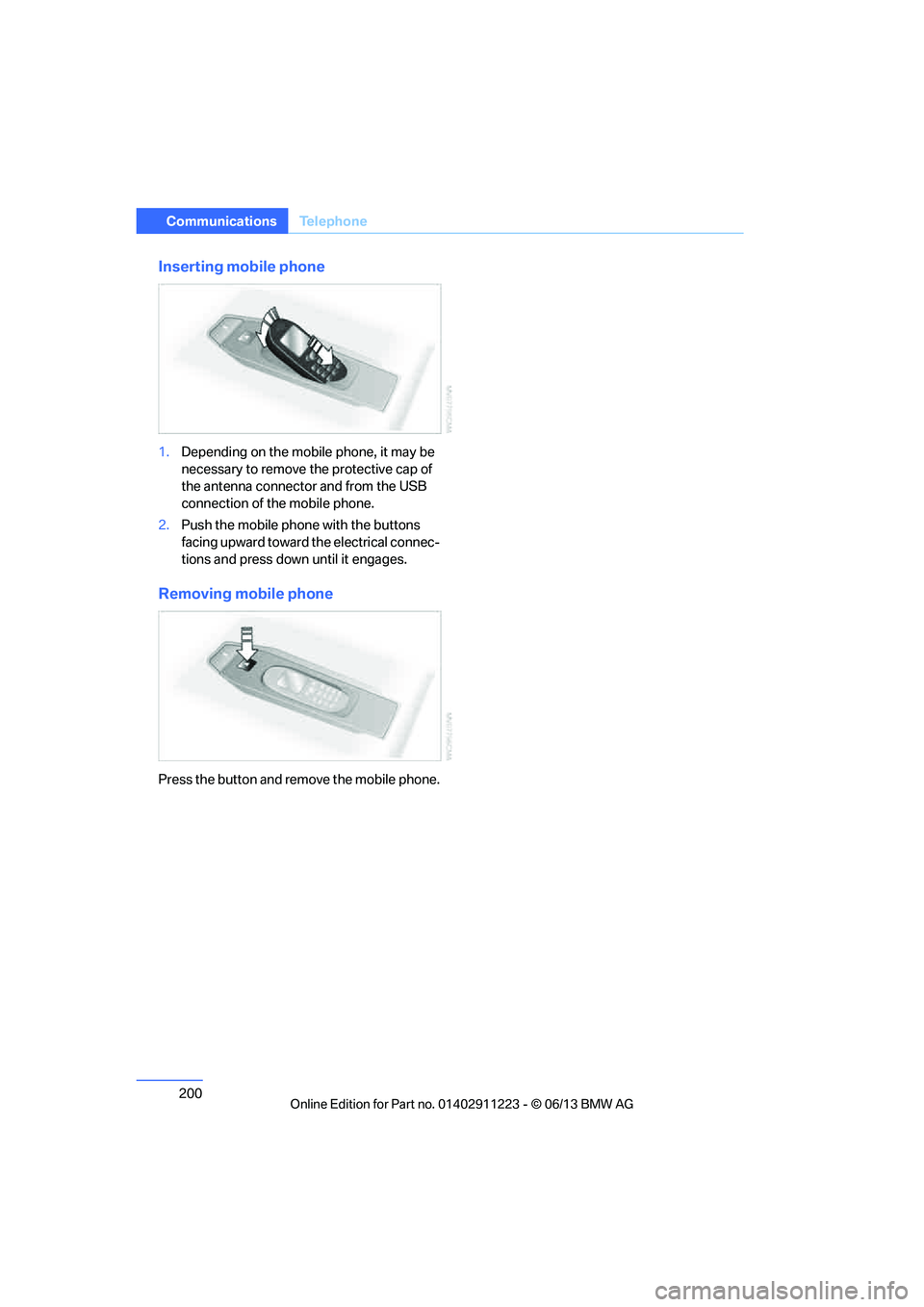
Inserting mobile phone
1.Depending on the mobile phone, it may be
necessary to remove th e protective cap of
the antenna connector and from the USB
connection of the mobile phone.
2. Push the mobile phone with the buttons
facing upward toward the electrical connec-
tions and press down until it engages.
Removing mobile phone
Press the button and remove the mobile phone.
00320051004F004C00510048000300280047004C0057004C005200510003
Page 210 of 284
209
Office
Communications
Storing contact data
1.
"Use contact data"
2. Highlight a phone number or e-mail
address.
3. Open "Options".
4. "Add to existing contac t" or "Store as new
contact"
Reading aloud
Text messages, emails, appointments, tasks,
and notes can be read aloud.
1. Select the desired message, appointment,
task, or note.
2. Select the symbol.
While the message is being read aloud, you
have the following options:
> "Pause"
Interrupt the reading. Select again to
resume the reading.
> "Back to beginning"
Read message again from the beginning.
> Select the symbol.
Skip back one paragraph.
> Select the symbol.
Skip over a paragraph.
> To terminate the reading, move the control-
ler toward the left.
What to do if…
For information on suitable mobile phones,
refer to page 188.
> Appointments, tasks, notes, texts, or emails
from the mobile phone are not displayed?
The mobile phone is not suitable for the
missing function or is not correctly
connected.
The mobile phone has not been assigned
the Office function. The mobile phone is co
nnected as an auxil-
iary phone.
The appointments are older than 20 days
and are more than 50 days in the future.
The tasks have been marked as completed
or are more than 90 days in the future.
Depending on the number of appointments,
tasks, notes, and messages stored in the
mobile phone, not all of them are displayed
in the vehicle.
> Appointments or tasks from the mobile
phone are not being displayed at the correct
time?
The time zone, time, or date is incorrectly
set in the Control Disp lay and in the mobile
phone.
> Texts of entries are not displayed
completely?
Texts are already shortened by the mobile
phone.
Synchronization between the mobile phone
and vehicle can take a few minutes.
> Contact pictures are not being displayed?
Up to max. 200 contact pictures can be
stored in the vehicle.
> If you have gone throug h all items in the list
and still cannot activate the desired func-
tion please contact Customer Relations or a
BMW center.
00320051004F004C00510048000300280047004C0057004C005200510003
Page 231 of 284
230
MobilityWheels and tires
Unusual vibrations encountered during normal
vehicle operation can indicate tire failure or
some other vehicle defect. This can, for exam-
ple, be caused by driving over curbs. The same
applies to any other abnormal road behavior,
such as pulling severely to the right or left.
In these cases, reduce speed immedi-
ately and have wheels and tires thor-
oughly checked. To do so , drive carefully to the
nearest BMW center or tire dealer. If necessary,
have the vehicle towed there.
O t h e r w i s e , t i r e d a m a g e c a n p o s e a l e t h a l h a z a r d
to vehicle occupants and other road users. <
Tire age
For various reasons, such as the development
of brittleness, BMW recommends tire replace-
ment after no more than 6 years, regardless of
the actual wear of the tires.
The manufacturing date of tires is contained in
the tire coding:
DOT ... 1013 means that the tire was manufac-
tured in week 10 of 2013.
New wheels and tires
Have new wheels and tires mounted only
by your BMW center or by a tire dealer. If
this work is not carried out properly, there is a
danger of subsequent damage and related
safety hazards. Make sure that the new wheels
are balanced. <
Retreaded tires
BMW recommends that you do not use
retreaded tires, since driving safety may
be impaired. The causes for this include poten-
tially different tire casing structures and often
wide variations in tire ag e, which can result in a
limited service life. <
Correct wheels and tires
When mounting new tires or changing over
from summer to winter tires and vice versa,
mount run-flat tires for your own safety. In the
event of a flat, no spare wheel is available. Your
BMW center will be glad to advise you.
BMW recommends that you use only
wheel and tire combinations that BMW
has tested and approved for your particular
vehicle. Variations in factors such as manufac-
turing tolerances mean that even wheels and
tires with identical offi cial size ratings could
actually have different dimensions, which could
lead to body contact an d thus to severe acci-
dents. If non-approved wheels and tires are
used, BMW cannot evaluate their suitability,
and therefore cannot guarantee their driving
safety. <
You can inquire about the right wheel/tire
combination at your BMW center.
The correct combination of wheels and tires is
also necessary to ensure reliable operation of
various vehicle systems such as ABS, DSC or
FTM.
To maintain good handling and vehicle
response, use only tires of a single brand and
tread configuration. Af ter a tire has been
damaged, mount the previous wheel and tire
combination again as soon as possible.
Wheels with Tire Pressure Monitor
TPM electronics
When mounting new tires or changing over
from summer to winter tires, or vice versa, only
use wheels with TPM electronics; otherwise,
the Tire Pressure Monito r may not be able to
detect a puncture, refer to page 94. Your BMW
center will be glad to advise you.
00320051004F004C00510048000300280047004C0057004C005200510003
Page 243 of 284
242
MobilityCare
Carpet and floor mats
Keep floor mats, carpet, and other objects
out of the movement range of the pedals;
otherwise, they may inhi bit the function of the
pedals during driving.
Do not place additional floor mats onto an
existing one or onto other objects.
Only use floor mats that have been approved for
the vehicle and can be appropriately fastened.
Make sure that the floo r mats are securely fas-
tened again after they ha ve been removed, e.g.
for cleaning. <
Floor mats can be removed for the cleaning of
the passenger compartment.
When inserting the floor mats, secure them
again to prevent slippage.
When carpets are heavily soiled, clean with a
microfibre cloth and water or textile cleaner.
When doing so, rub back and forth in the direc-
tion of travel; otherwise, the carpet may
become matted.
Sensors/cameras
Use a microfibre cloth moistened with some
glass cleaner for cleani ng sensors or cameras.
Displays/screens
Use an antistatic microfibre cloth for cleaning
displays.
Do not use chemical or abrasive house-
hold cleaning agents. Keep all types of
fluid and moisture away from the device. Other-
wise, surfaces or electrical components may be
corroded or damaged. When cleaning, avoid
excessive pressure and do not use abrasive
materials; otherwise, you may damage them. <
Convertible top care
The appearance and service life of the convert-
ible top largely depends on its proper care and
operation.
Please follow these instructions:
>Never attempt to fold and stow the convert-
ible top in the convertible compartment
when the top is wet or frozen. Otherwise,
water stains, mildew, and chafe marks may
occur.
> If water spots occur on the inside headliner
despite precautions, remove them using a
microfiber cloth and interior cleaner.
> If the vehicle is parked in an enclosed area
for a longer period of time, make sure that
there is sufficient ventilation.
> Remove any bird droppings immediately,
since they have corrosive properties which
will corrode the conver tible top and damage
the rubber seals.
To remove stains from the convertible
top, do not use stain removers, paint thin-
ners, solvents, benzine or similar substances.
These cleaners may damage the rubber seals.
The improper care or cleaning methods may
cause the convertible top and its seams to
leak. <
To remove heavy soiling, use a special convert-
ible top cleaner.
Always read and follow the manufacturer's
instructions.
After washing the convertible top three to five
times, treat it with an impregnating agent.
Vehicle storage
Your BMW center will be happy to advise you on
preparatory steps for parking the vehicle for
more than three months.
00320051004F004C00510048000300280047004C0057004C005200510003
Page 244 of 284
243
Replacing components
Mobility
Replacing components
Vehicle equipment
In this chapter, all production, country, and
optional equipment that is offered in the model
range is described. For this reason, descrip-
tions will be given of some equipment that may
not be available in a vehi
cle, for example due to
the special options or national-market version
selected. This also app lies to safety related
functions and systems.
Onboard vehicle tool kit
The onboard vehicle tool kit is stored below the
floor mat in the trunk.
Wiper blades
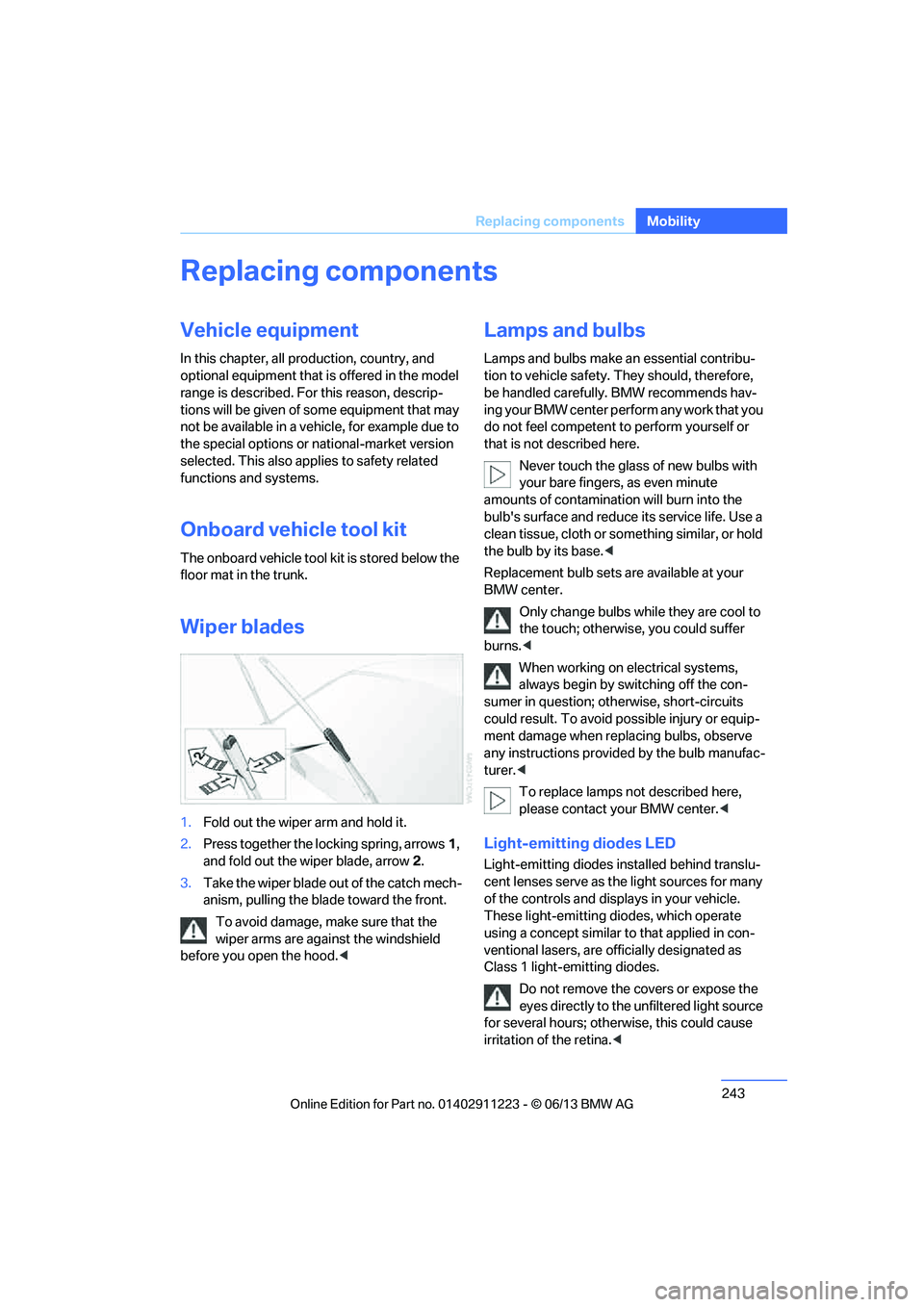
1. Fold out the wiper arm and hold it.
2. Press together the locking spring, arrows 1,
and fold out the wiper blade, arrow 2.
3. Take the wiper blade out of the catch mech-
anism, pulling the blade toward the front.
To avoid damage, make sure that the
wiper arms are against the windshield
before you open the hood. <
Lamps and bulbs
Lamps and bulbs make an essential contribu-
tion to vehicle safety. They should, therefore,
be handled carefully. BMW recommends hav-
ing your BMW center perform any work that you
do not feel competent to perform yourself or
that is not described here.
Never touch the glass of new bulbs with
your bare fingers, as even minute
amounts of contamination will burn into the
bulb's surface and reduce its service life. Use a
clean tissue, cloth or some thing similar, or hold
the bulb by its base. <
Replacement bulb sets are available at your
BMW center.
Only change bulbs while they are cool to
the touch; otherwise, you could suffer
burns. <
When working on electrical systems,
always begin by switching off the con-
sumer in question; otherwise, short-circuits
could result. To avoid possible injury or equip-
ment damage when replacing bulbs, observe
any instructions provided by the bulb manufac-
turer. <
To replace lamps not described here,
please contact your BMW center. <
Light-emitting diodes LED
Light-emitting diodes installed behind translu-
cent lenses serve as the light sources for many
of the controls and displays in your vehicle.
These light-emitting diodes, which operate
using a concept similar to that applied in con-
ventional lasers, are officially designated as
Class 1 light-emitting diodes.
Do not remove the co vers or expose the
eyes directly to the unfiltered light source
for several hours; otherwise, this could cause
irritation of the retina. <
00320051004F004C00510048000300280047004C0057004C005200510003