light BMW 128I 2013 Repair Manual
[x] Cancel search | Manufacturer: BMW, Model Year: 2013, Model line: 128I, Model: BMW 128I 2013Pages: 284, PDF Size: 6.93 MB
Page 148 of 284
147
Destination guidance
Navigation
>
"Day/night mode"
Select and adjust depending on light
conditions.
"Traffic conditions/gray map" active:
Settings are not taken into account.
> "Satellite images"
Depending on the ava ilability and resolu-
tion, satellite images ar e displayed in scales
of approx. 1 mile to 600 miles/2 km to
1,000 km.
> "Perspective view in 3D"
Displays a three-dimensional view. Promi-
nent areas that are contained in the naviga-
tion data are displayed on the map in 3D.
> "Traffic conditions/gray map"
The map is optimized for displaying traffic
bulletins. Symbols for the special destina-
tions are no longer displayed.
Map view for the sp lit screen display
The map view for the split screen can be
selected separately fr om the main screen.
1. Open "Options".
2. "Split screen"
3. Move the controller to the right repeatedly
until the split screen content is selected.
4. Select "Split screen content" or scale.
5. Select the map view:
>"Arrow display"
> "Map facing north"
> "Map direction of travel"
> "Map view with perspective"
> "Position"
> "Exit ramp view"
> "Traffic conditions/gray map"
6. To change the scale: switch to the split
screen and turn the controller.
Traffic bulletins
Overview
>You can display the tr affic bulletins from
radio stations that broadcast the TMC
(Traffic Message Channel) of a traffic infor-
mation service. Bulletins about traffic
obstructions and hazards are continuously
updated.
> Traffic bulletins are in dicated by symbols on
the map.
> Traffic bulletins for th e surrounding area are
stored in a list.
The symbol in the toolbar of the map view
turns red if a traffic bulletin relates to the
calculated route.
Real Time Traffic Information End-User
Provisions
Certain BMW models equi pped with navigation
have the capability to display real-time traffic
information. If your sy stem has this capability
the following additional terms and conditions
apply:
An End-User shall no longer have the right to
use the Traffic Data in the event that the End-
User is in material breach of the terms and
conditions contained herein.
A. Total Traffic Network, a division of Clear
Channel Broadcasting, Inc. ("Total Traffic Net-
work") holds the rights to the traffic incident
data and RDS-TMC network through which it is
delivered. You may not modify, copy, scan or
use any other method to reproduce, duplicate,
republish, transmit or distribute in any way any
portion of traffic incident data. You agree to
indemnify, defend and hold harmless BMW of
North America, LLC. ("BMW NA") and Total
Traffic Network, Inrix, Inc (and their affiliates)
against any and all claims, damages, costs or
other expenses that arise directly or indirectly
out of (a) your unauthor ized use of the traffic
00320051004F004C00510048000300280047004C0057004C005200510003
Page 163 of 284
162
EntertainmentSatellite radio
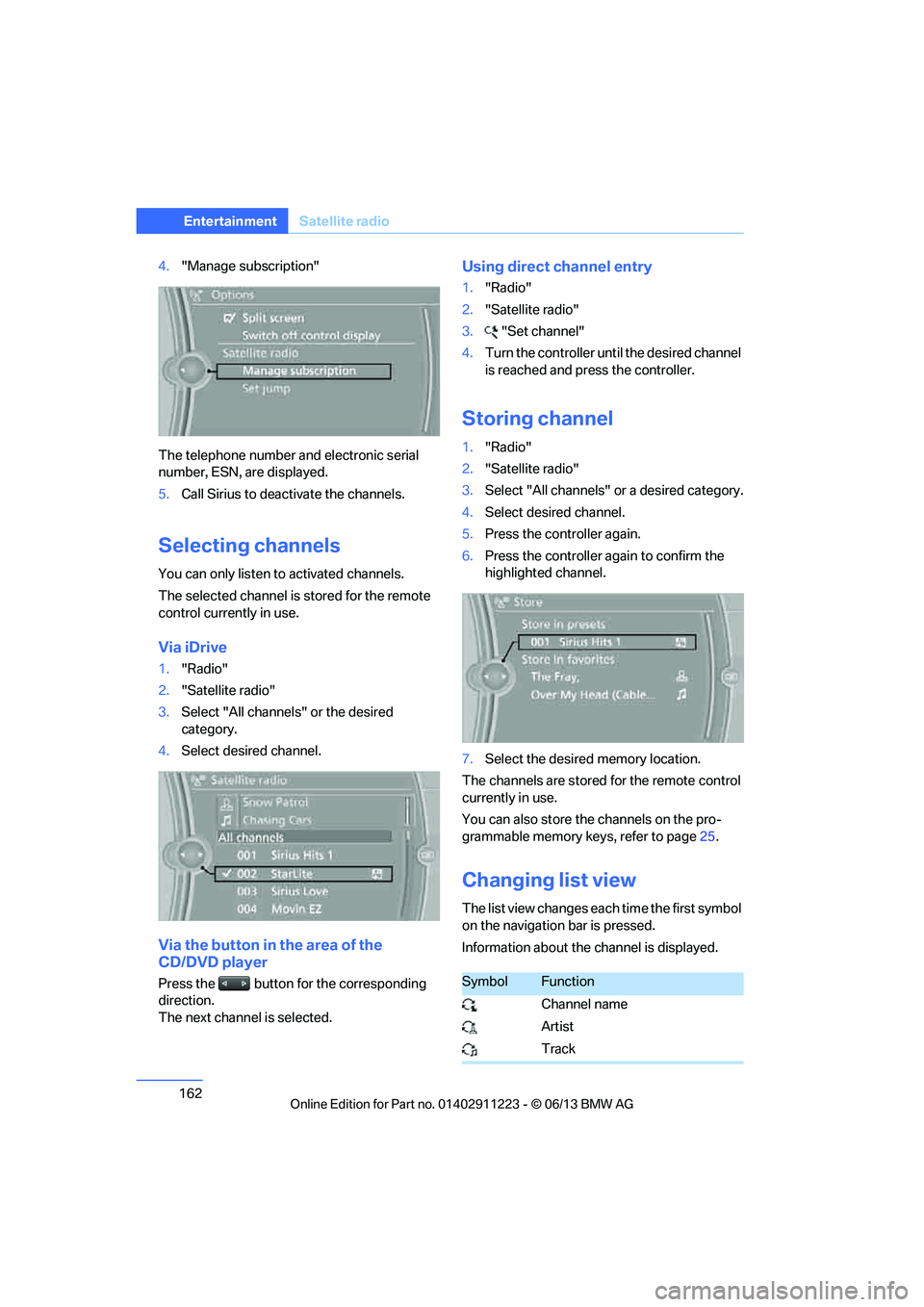
4."Manage subscription"
The telephone number and electronic serial
number, ESN, are displayed.
5. Call Sirius to deacti vate the channels.
Selecting channels
You can only listen to activated channels.
The selected channel is stored for the remote
control currently in use.
Via iDrive
1. "Radio"
2. "Satellite radio"
3. Select "All channels" or the desired
category.
4. Select desired channel.
Via the button in the area of the
CD/DVD player
Press the button for the corresponding
direction.
The next channel is selected.
Using direct channel entry
1."Radio"
2. "Satellite radio"
3. "Set channel"
4. Turn the controller unt il the desired channel
is reached and pr ess the controller.
Storing channel
1."Radio"
2. "Satellite radio"
3. Select "All channels" or a desired category.
4. Select desired channel.
5. Press the controller again.
6. Press the controller again to confirm the
highlighted channel.
7. Select the desired memory location.
The channels are stored for the remote control
currently in use.
You can also store the channels on the pro-
grammable memory ke ys, refer to page25.
Changing list view
The list view changes each time the first symbol
on the navigation bar is pressed.
Information about the channel is displayed.
SymbolFunction
Channel name
Artist
Track
00320051004F004C00510048000300280047004C0057004C005200510003
Page 165 of 284
164
EntertainmentSatellite radio
Storing artist, track, or game
Only current broadcasts can be stored as favor-
ites. The channel information must be available.
1."Radio"
2. "Satellite radio"
3. Select "All channels" or the desired
category.
4. Select desired channel.
5. Press the controller again.
6. Select artist, track, or game.
Storing league or team
Leagues or teams can be added to the favorites
from a selection list.
1. "Radio"
2. "Satellite radio"
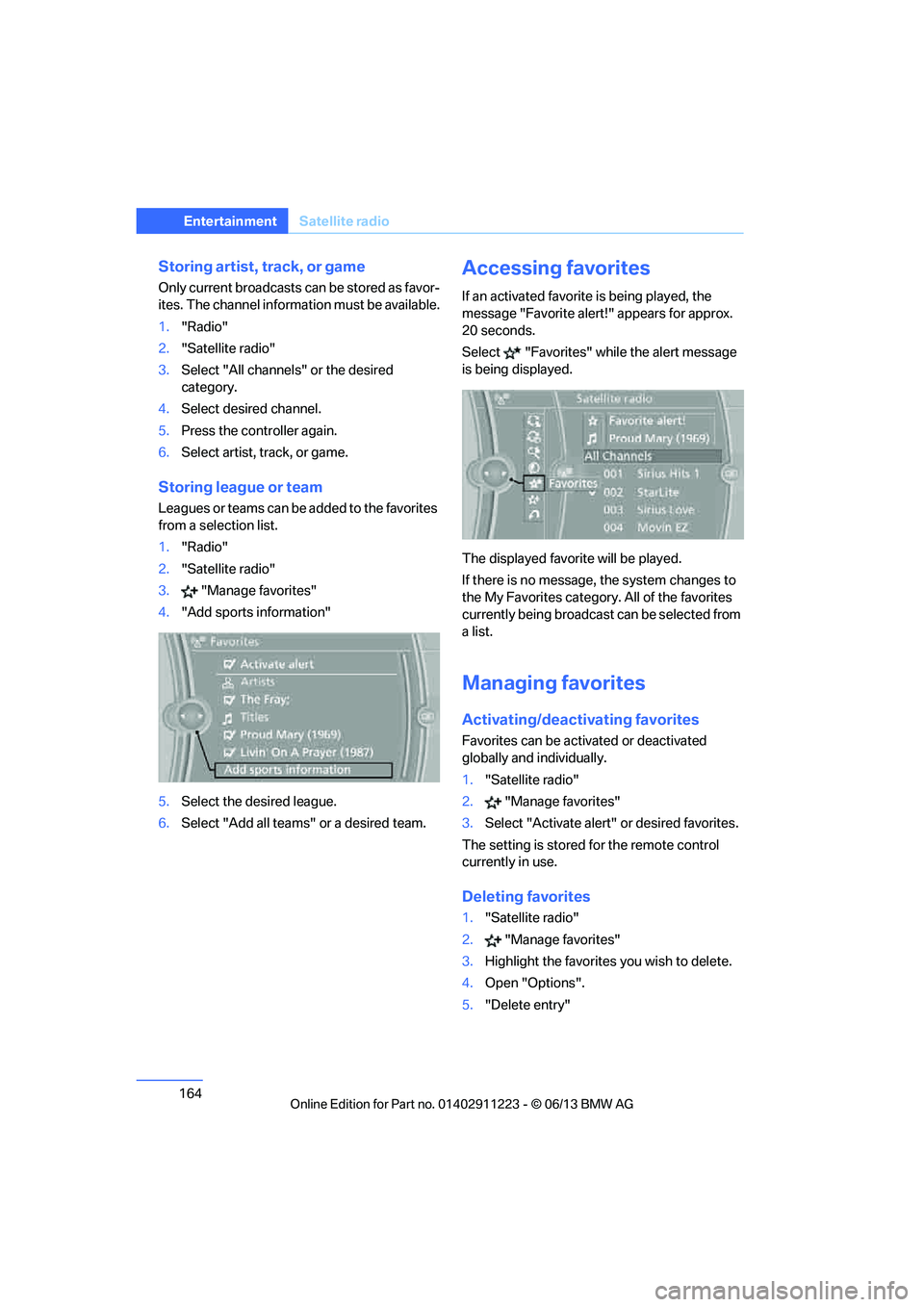
3. "Manage favorites"
4. "Add sports information"
5. Select the desired league.
6. Select "Add all teams" or a desired team.
Accessing favorites
If an activated favorite is being played, the
message "Favorite alert! " appears for approx.
20 seconds.
Select "Favorites" while the alert message
is being displayed.
The displayed favorite will be played.
If there is no message, the system changes to
the My Favorites category. All of the favorites
currently being broadcast can be selected from
a list.
Managing favorites
Activating/deactivating favorites
Favorites can be acti vated or deactivated
globally and individually.
1. "Satellite radio"
2. "Manage favorites"
3. Select "Activate alert" or desired favorites.
The setting is stored for the remote control
currently in use.
Deleting favorites
1. "Satellite radio"
2. "Manage favorites"
3. Highlight the favorites you wish to delete.
4. Open "Options".
5. "Delete entry"
00320051004F004C00510048000300280047004C0057004C005200510003
Page 167 of 284
166
EntertainmentCD/DVD player
CD/DVD player
Vehicle equipment
In this chapter, all pr oduction, country, and
optional equipment that is offered in the model
range is described. Equipment is also described
that is not available because of, for example,
selected options or country version. This also
applies to safety related functions and systems.
CD/DVD playback
Inserting a CD/DVD
Insert the CD/DVD into the drive with the
labeled side facing up. The CD/DVD is drawn in
automatically.
Playback starts automatically if the sound
output is on. For CDs/DVDs with compressed
audio files, it can take se veral minutes to read in
the data, depending on the directory structure.
Playable formats
CD/DVD player
> DVD: DVD-ROM, DVD-R, DVD+R, DVD-
RW, DVD+RW, DVD-R DL, DVD+R DL, DVD
audio (video part only), DVD video
> CD: CD-ROM, CD-R, CD-RW, CD-DA
> Compressed audio files: MP3, WMA, AAC,
M4A
Starting playback
A CD/DVD is in the CD/DVD player.
1."CD/Multimedia"
2. "CD/DVD"
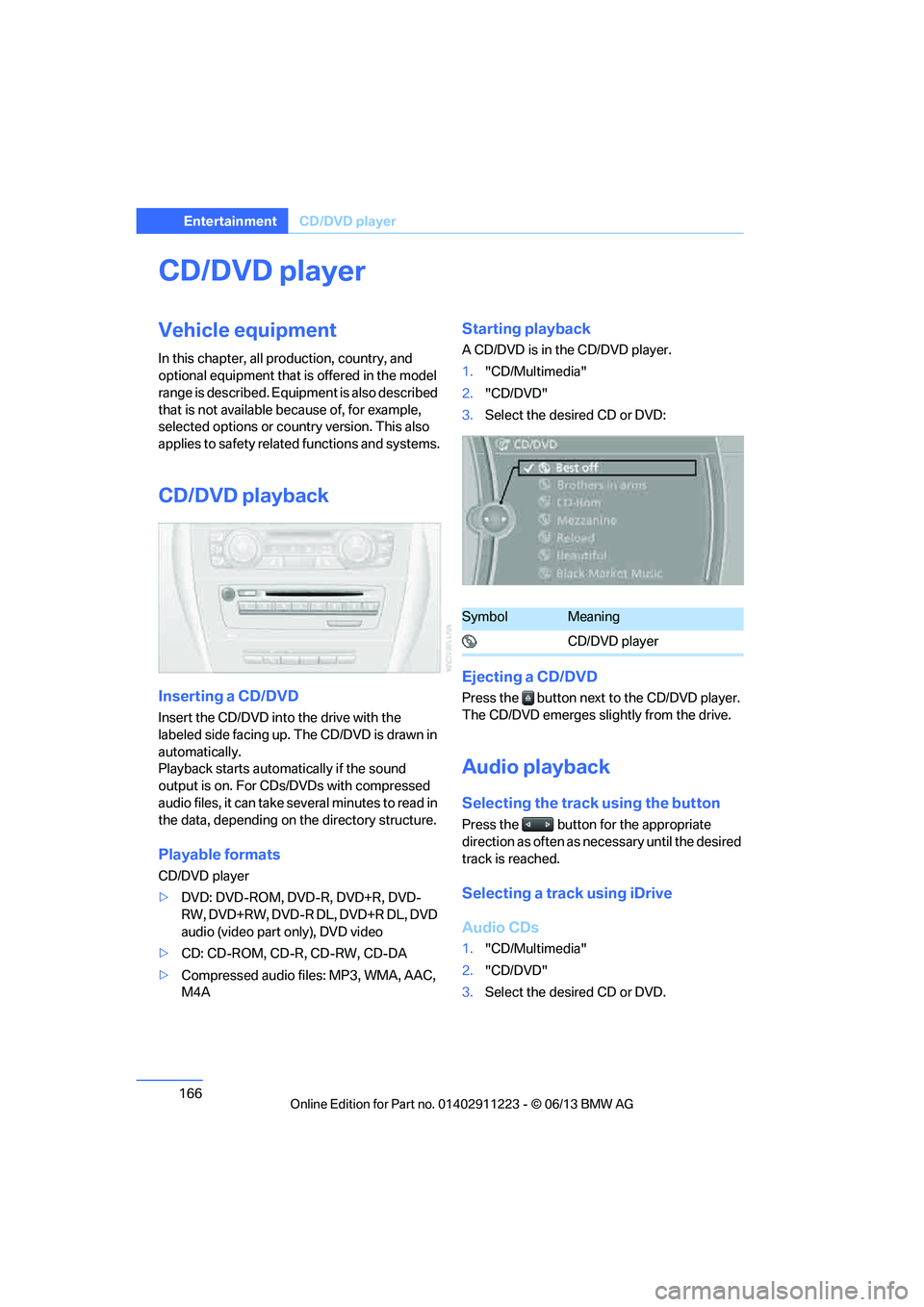
3. Select the desired CD or DVD:
Ejecting a CD/DVD
Press the button next to the CD/DVD player.
The CD/DVD emerges slightly from the drive.
Audio playback
Selecting the track using the button
Press the button for the appropriate
direction as often as necessary until the desired
track is reached.
Selecting a track using iDrive
Audio CDs
1."CD/Multimedia"
2. "CD/DVD"
3. Select the desired CD or DVD.
SymbolMeaning
CD/DVD player
00320051004F004C00510048000300280047004C0057004C005200510003
Page 172 of 284
171
CD/DVD player
Entertainment
Damage
Avoid leaving fingerprints, as well as dust,
scratches or moisture
on the CDs/DVDs.
Keep CDs/DVDs in protective sleeves or cases.
Do not subject CDs/DVDs to temperatures
above 122 7/50 6, nor to high humidity levels
or direct sunlight.
CDs/DVDs with copy protection
CDs/DVDs are often co py-protected by the
manufacturer. This can mean that some CDs/
DVDs cannot be played or can only be played to
a limited extent.
MACROVISION
This product contains copyrighted technology
that is based on multiple registered U.S. pat-
ents and the intellectual property of the Macro-
vision Corporation and other manufacturers.
The use of this copy protection must be
approved by Macrovisio n. Unless otherwise
agreed with Macrovision, media with this pro-
tection may only be used for private purposes.
Copying of this technology is prohibited.
DTS Digital Surround™
Manufactured under license of US
patent numbers: 5,451,942;
5,956,674; 5,974,380; 5,978,762; 6,487,535 &
other patents granted and pending in both the
USA and worldwide. DTS and the logo are reg-
istered trademarks & DTS Digital Surround and
the DTS logos are trademarks of DTS Inc. ©
DTS, Inc. All rights reserved.
00320051004F004C00510048000300280047004C0057004C005200510003
Page 176 of 284
175
Music collection
Entertainment
Top 50
List of the 50 most frequently played tracks.
1.
"CD/Multimedia"
2. "Music collection"
3. "Top 50"
4. Select the desired track, if necessary.
Albums
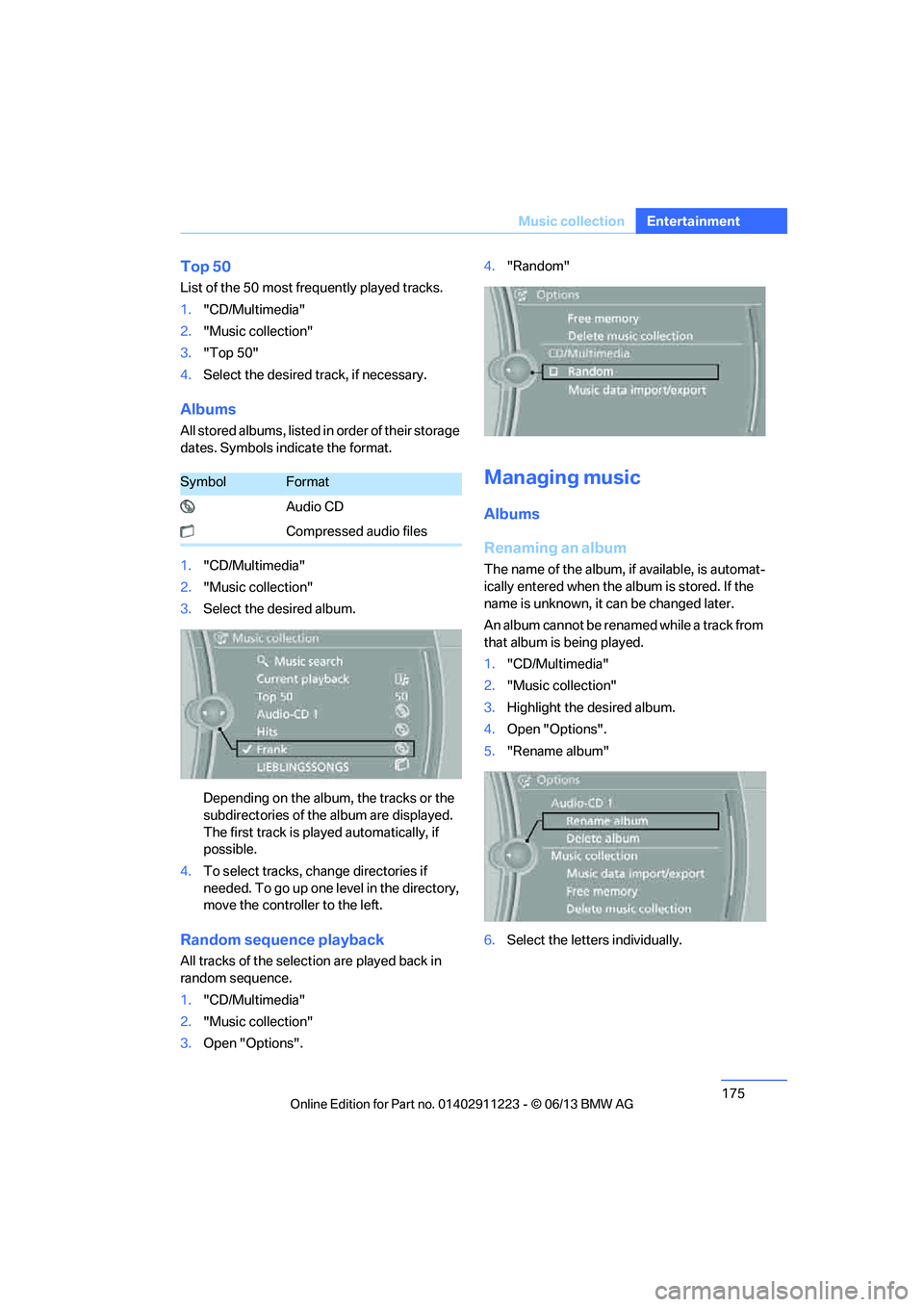
All stored albums, listed in order of their storage
dates. Symbols indicate the format.
1. "CD/Multimedia"
2. "Music collection"
3. Select the desired album.
Depending on the album, the tracks or the
subdirectories of the album are displayed.
The first track is play ed automatically, if
possible.
4. To select tracks, ch ange directories if
needed. To go up one level in the directory,
move the controller to the left.
Random sequence playback
All tracks of the select ion are played back in
random sequence.
1. "CD/Multimedia"
2. "Music collection"
3. Open "Options". 4.
"Random"
Managing music
Albums
Renaming an album
The name of the album, if available, is automat-
ically entered when the album is stored. If the
name is unknown, it can be changed later.
An album cannot be renamed while a track from
that album is being played.
1. "CD/Multimedia"
2. "Music collection"
3. Highlight the desired album.
4. Open "Options".
5. "Rename album"
6. Select the letters individually.
SymbolFormat
Audio CD
Compressed audio files
00320051004F004C00510048000300280047004C0057004C005200510003
Page 177 of 284
176
EntertainmentMusic collection
Deleting an album
An album cannot be deleted while a track from it
is being played.
1."CD/Multimedia"
2. "Music collection"
3. Highlight the desired album.
4. Open "Options".
5. "Delete album"
Deleting a track and directory
A track cannot be delete d while it is being
played.
A directory cannot be deleted while a track from
it is being played.
1. "CD/Multimedia"
2. "Music collection"
3. Highlight the directory or track.
4. Open "Options".
5. "Delete folder" or "Delete track".
Free memory capacity
Display the free memory capacity in the music
collection.
1. "CD/Multimedia"
2. "Music collection"
3. Open "Options".
4. "Free memory"
Music collection
Backing up the music collection
The entire music collection can be stored on a
USB medium. Make sure there is enough free
memory capacity on the USB device.
Depending on the number of tracks, backing up
the music collection may take several hours.
Therefore, it is best to perform the backup
during a long trip.
1. Start the engine.
2. Connect the USB medium to the USB inter-
face in the glove co mpartment, refer to
page 115. 3.
"CD/Multimedia"
4. "Music collection"
5. Open "Options".
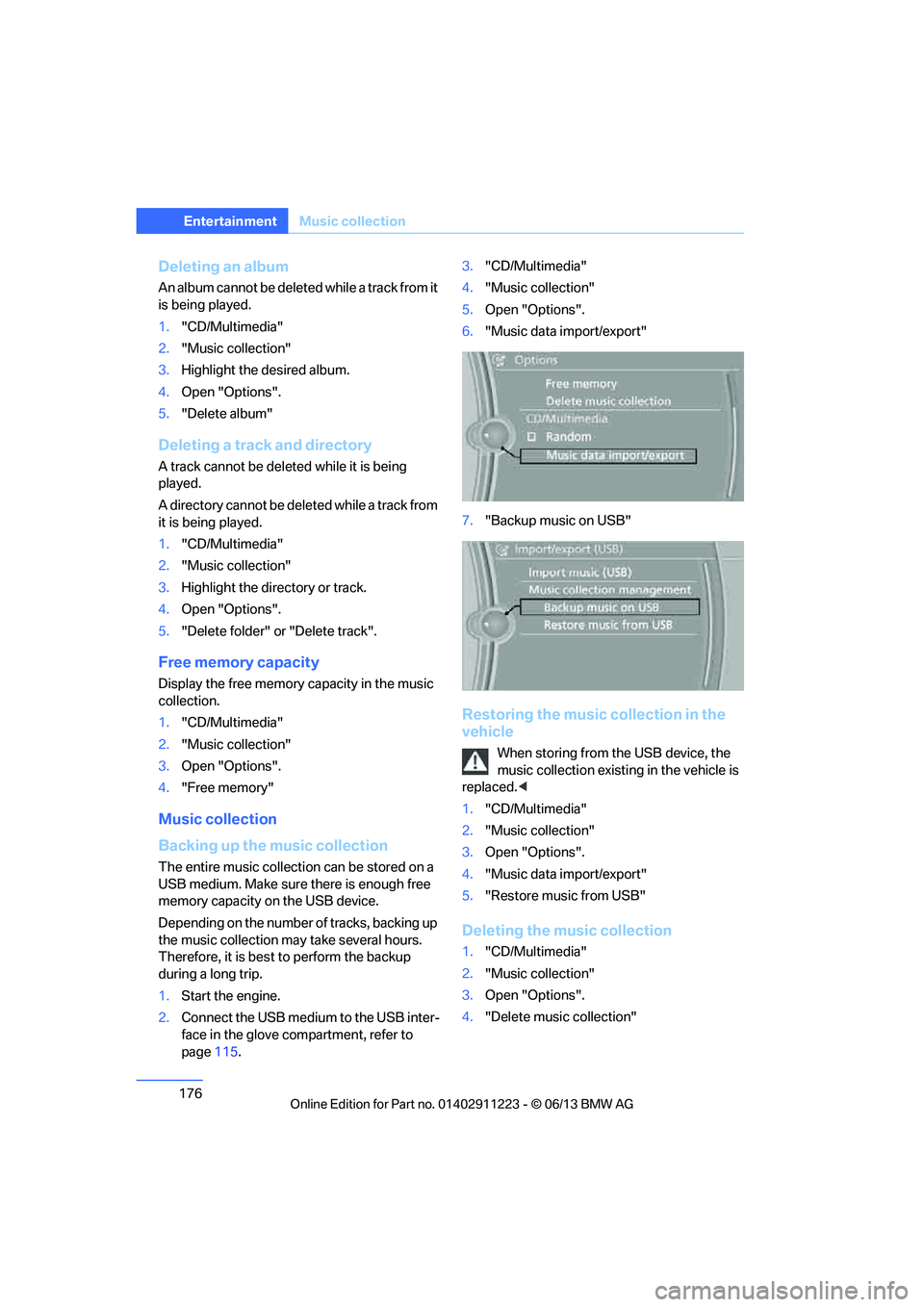
6. "Music data import/export"
7. "Backup music on USB"
Restoring the music collection in the
vehicle
When storing from the USB device, the
music collection existing in the vehicle is
replaced. <
1. "CD/Multimedia"
2. "Music collection"
3. Open "Options".
4. "Music data import/export"
5. "Restore music from USB"
Deleting the music collection
1."CD/Multimedia"
2. "Music collection"
3. Open "Options".
4. "Delete music collection"
00320051004F004C00510048000300280047004C0057004C005200510003
Page 184 of 284
183
External devices
Entertainment
Disconnecting an audio connection
1.
"CD/Multimedia"
2. "Bluetooth® (audio)"
3. Select the desired device from the list of
connected devices.
4. Open "Options".
5. "Configure phone"
6. "Audio"
7. "OK"
With a mobile phone, on ly the audio connection
is disconnected. All ot her connections remain
active.
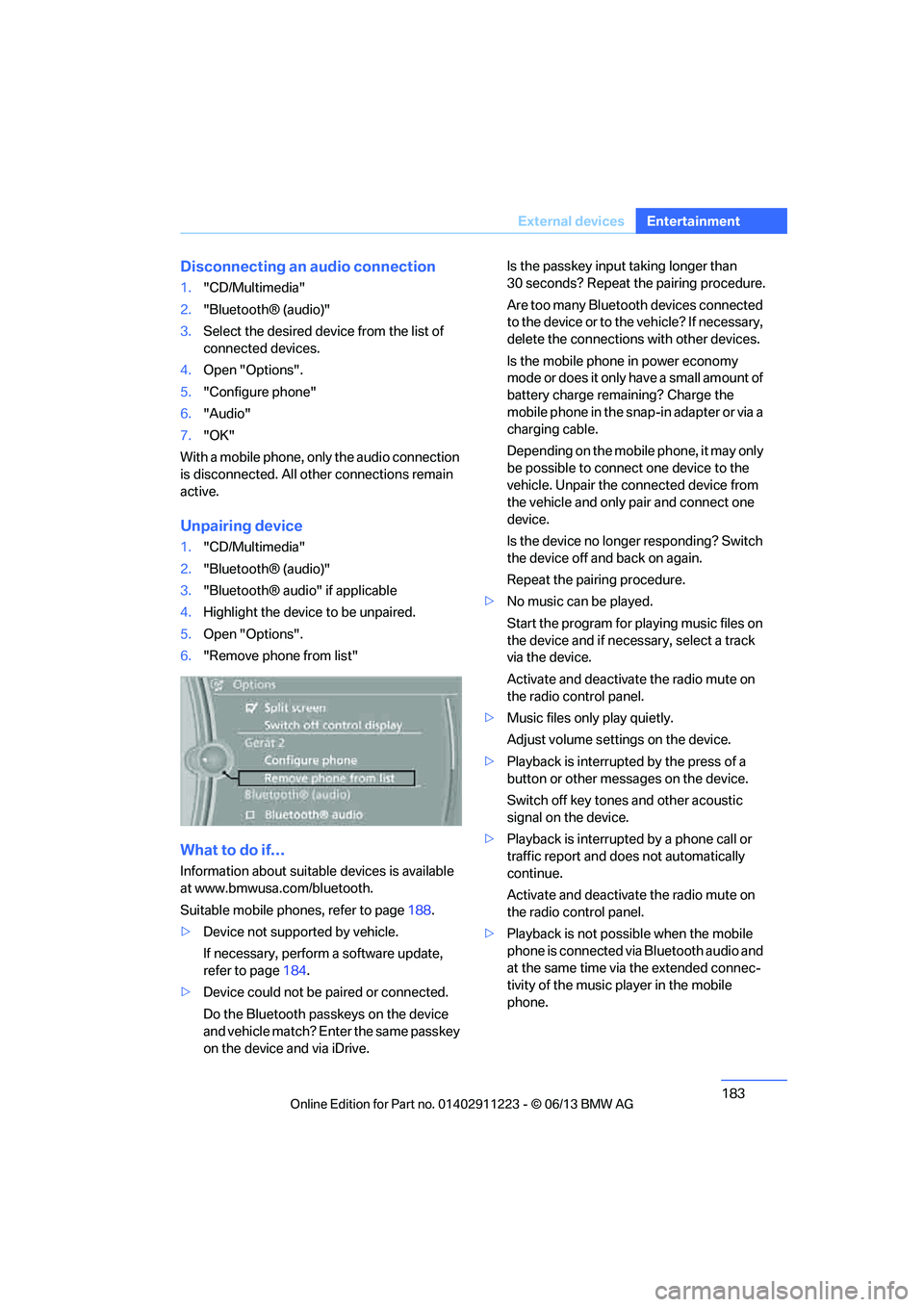
Unpairing device
1. "CD/Multimedia"
2. "Bluetooth® (audio)"
3. "Bluetooth® audio" if applicable
4. Highlight the device to be unpaired.
5. Open "Options".
6. "Remove phone from list"
What to do if…
Information about suitable devices is available
at www.bmwusa.com/bluetooth.
Suitable mobile phones, refer to page 188.
> Device not supported by vehicle.
If necessary, perform a software update,
refer to page 184.
> Device could not be paired or connected.
Do the Bluetooth passk eys on the device
and vehicle match? Enter the same passkey
on the device and via iDrive. Is the passkey input taking longer than
30 seconds? Repeat the pairing procedure.
Are too many Bluetooth devices connected
to the device or to th
e vehicle? If necessary,
delete the connections with other devices.
Is the mobile phone in power economy
mode or does it only have a small amount of
battery charge remaining? Charge the
mobile phone in the snap-in adapter or via a
charging cable.
Depending on the mobile phone, it may only
be possible to connect one device to the
vehicle. Unpair the connected device from
the vehicle and only pair and connect one
device.
Is the device no longer responding? Switch
the device off and back on again.
Repeat the pairing procedure.
> No music can be played.
Start the program for pl aying music files on
the device and if necessary, select a track
via the device.
Activate and deactivate the radio mute on
the radio control panel.
> Music files only play quietly.
Adjust volume settings on the device.
> Playback is interrupted by the press of a
button or other messages on the device.
Switch off key tones and other acoustic
signal on the device.
> Playback is interrupted by a phone call or
traffic report and does not automatically
continue.
Activate and deactivate the radio mute on
the radio control panel.
> Playback is not possible when the mobile
phone is connected via Bluetooth audio and
at the same time via the extended connec-
tivity of the music player in the mobile
phone.
00320051004F004C00510048000300280047004C0057004C005200510003
Page 192 of 284
191
Te l e p h o n e
Communications
Following the initial pairing
>
The mobile phone is detected/connected in
the vehicle within a short period of time
when the engine is running or the ignition is
switched on.
> The phone book entries of the telephone
that are stored on the SIM card or the
mobile phone are imported into the vehicle
once the device is detected, depending on
the mobile phone.
> Four devices can be paired.
> Specific settings may be necessary in some
mobile phones, e.g. authorization or a
secure connection, refer to the Owner's
Manual for the mobile phone.
Connecting a particular device
1."Telephone"
2. "Bluetooth® (phone)"
All paired devices are listed.
3. Select the device to be connected.
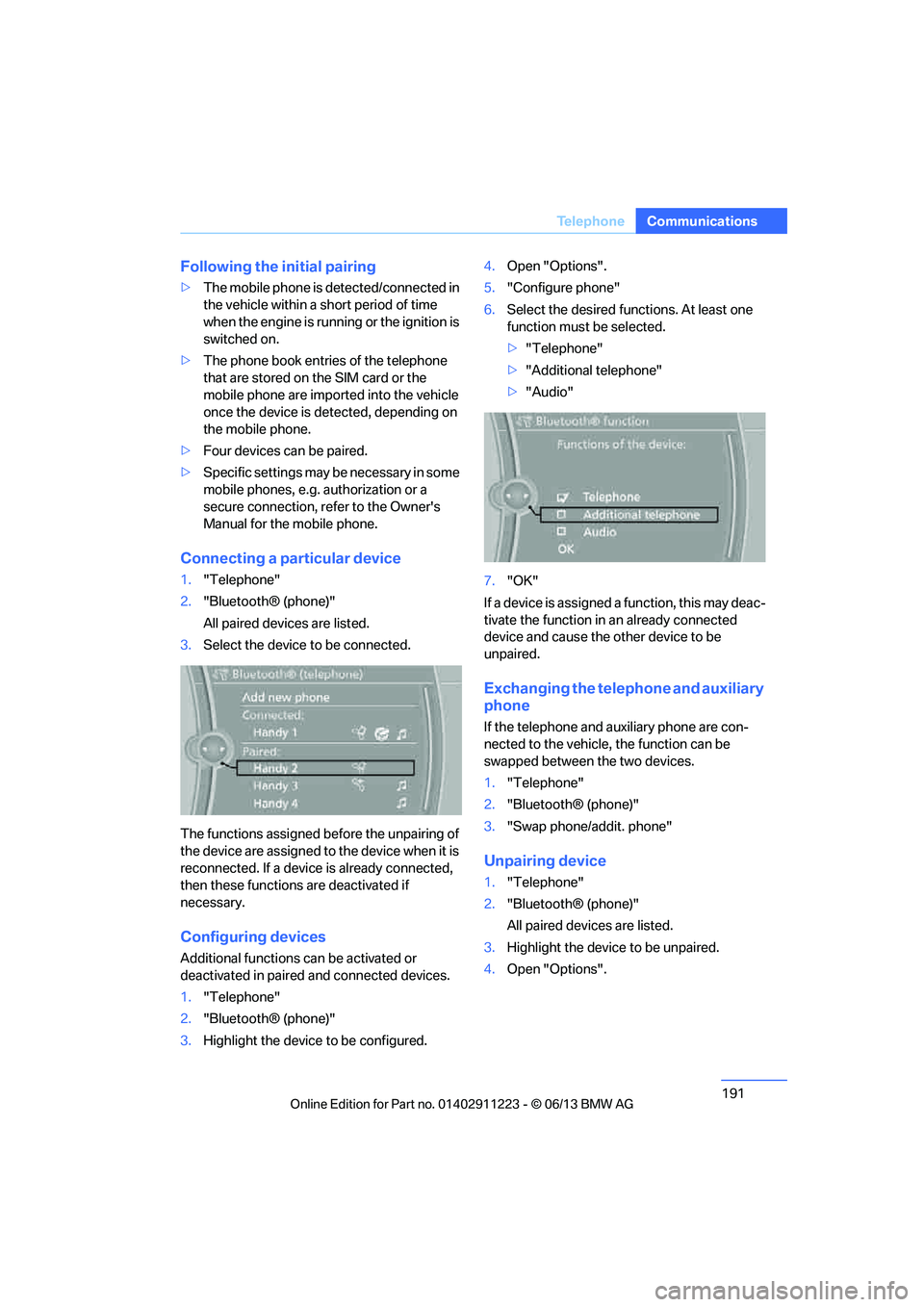
The functions assigned before the unpairing of
the device are assigned to the device when it is
reconnected. If a device is already connected,
then these functions are deactivated if
necessary.
Configuring devices
Additional functions can be activated or
deactivated in paired and connected devices.
1. "Telephone"
2. "Bluetooth® (phone)"
3. Highlight the device to be configured. 4.
Open "Options".
5. "Configure phone"
6. Select the desired functions. At least one
function must be selected.
>"Telephone"
> "Additional telephone"
> "Audio"
7. "OK"
If a device is assigned a function, this may deac-
tivate the function in an already connected
device and cause the other device to be
unpaired.
Exchanging the telephone and auxiliary
phone
If the telephone and auxiliary phone are con-
nected to the vehicle, the function can be
swapped between the two devices.
1. "Telephone"
2. "Bluetooth® (phone)"
3. "Swap phone/addit. phone"
Unpairing device
1."Telephone"
2. "Bluetooth® (phone)"
All paired devices are listed.
3. Highlight the device to be unpaired.
4. Open "Options".
00320051004F004C00510048000300280047004C0057004C005200510003
Page 195 of 284
194
CommunicationsTe l e p h o n e
Entering phone numbers
Dialing a number
1."Telephone"
2. "Dial number"
3. Select the digits individually.
4. Select the symbol.
It is also possible to enter phone numbers by
voice.
Calls with multiple parties
General information
It is possible to switch between two calls or to
connect two calls to establish a conference call.
These functions must be supported by the
mobile phone and by the service provider.
Accepting a call while speaking to
another party
This function may have to be activated by the
service provider and the mobile phone may
need to be set for this.
When a second call comes in during an ongoing
call, a call-waiting signal sounds.
"Accept"
The call is accepted and the existing call is put
on hold.
Establishing a second call
Establish another call during an active call.
1. "Telephone"
2. "Active calls"
3. "Hold"
The existing call is put on hold.
4. Dia l the ne w pho ne numbe r o r sele ct it from
a list.
"Return"
The call on hold is continued.
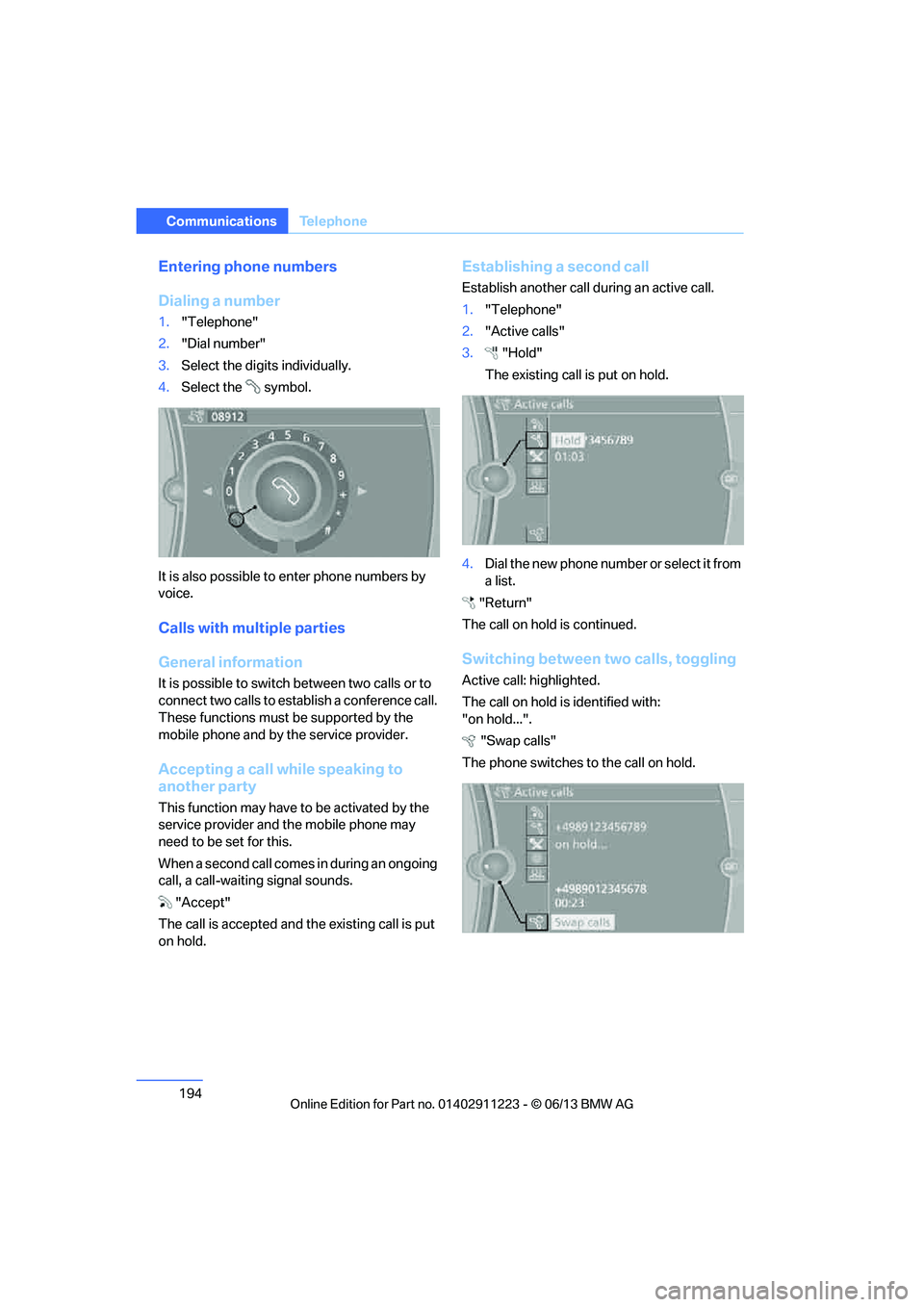
Switching between two calls, toggling
Active call: highlighted.
The call on hold is identified with:
"on hold...". "Swap calls"
The phone switches to the call on hold.
00320051004F004C00510048000300280047004C0057004C005200510003