light BMW 128I 2013 Workshop Manual
[x] Cancel search | Manufacturer: BMW, Model Year: 2013, Model line: 128I, Model: BMW 128I 2013Pages: 284, PDF Size: 6.93 MB
Page 126 of 284
125
Things to remember when driving
Driving tips
Check tire inflation pressure regularly
Check the tire inflation pr
essure at least twice a
month and before embarking on a long journey,
and correct it if necessary.
Low tire inflation pressure causes higher rolling
resistance and thus increases fuel consumption
and tire wear.
Set off immediately
Do not let the engine wa rm up while the car is
still standing, but set off immediately at moder-
ate engine speed. This is the fastest way for the
cold engine to reach its operating temperature.
Drive defensively
Avoid unnecessary acceleration and braking
maneuvers. To do so, keep an adequate dis-
tance between you and th e vehicle in front of
you. A defensive and smooth driving style
keeps fuel consumption down.
Avoid high engine speeds
Use first gear only for dr iving off. In second and
higher gears, accelerate without hesitation or
pauses. When accelerati ng, shift up before
reaching high engine speeds.
When you reach the desi red speed, shift into
the highest applicable ge ar and drive with the
engine speed as low as possible and at a con-
stant speed.
As a rule: driving at low engine speeds lowers
fuel consumption and reduces wear.
Coasting
When approaching a red lig ht, take your foot off
the accelerator and coast to a stop in the high-
est applicable gear.
On a downhill slope, take your foot off the accel-
erator and coast in a suitable gear.
The fuel supply is interrupted when coasting.
Switch off the engine during lengthy
stops
Switch off the engine when stopping for lengthy
periods, e.g. at traffic lights, railroad crossings
or in traffic congestions.
Switch off functions you do not need at
the moment
Functions such as the air conditioner, seat
heating or rear window defroster draw large
amounts of power and consume additional fuel.
Especially in city traffic and in stop-and-go driv-
ing they have a considerable impact. Therefore,
switch these functions off when they are not
really needed.
Have the vehicle serviced
Have the vehicle serviced regularly to achieve
good economy and a long vehicle life. BMW
recommends having the vehicle serviced at
your BMW center. Also note the BMW Mainte-
nance System, refer to page 237.
General driving notes
Close the trunk lid
Only drive with the trunk closed. Failure to
do so may endanger passengers or other
road users or may damage the vehicle in the
event of an accident or a braking and evasive
maneuver. In addition, exhaust gas may flow
into the passenger compartment. <
If special circumstance s make it absolutely
necessary to drive wi th the trunk open:
1. Close all windows and the glass roof.
2. Greatly increase the air volume of the
automatic climate cont rol system, refer to
page 108.
3. Drive cautiously.
00320051004F004C00510048000300280047004C0057004C005200510003
Page 128 of 284
127
Things to remember when driving
Driving tips
Hills
To prevent overheating and the resulting
reduced efficiency of the brake system,
drive long or steep downhill gradients in the
gear in which the least br aking is required. Even
light but consistent brak e pressure can lead to
high temperatures, brake wear and possibly
even brake failure. <
You can increase the engine's braking effect
by shifting down, all the way to first gear if nec-
essary. This strategy helps you avoid placing
excessive loads on the brake system. Down-
shifting in manual mo de of the automatic
transmission, refer to page 65.
Sport automatic transm ission with double
clutch: never drive with the transmission
in neutral or with the en gine switched off; other-
wise, there will be no en gine braking action and
no power assistance to the brakes and steering.
Manual transmission: never drive with the
clutch held down, with the transmission in neu-
tral or with the engine switched off; otherwise,
there will be no engine braking action and no
power assistance to the brakes and steering.
Never allow floor mats, carpets or any other
objects to protrude into the area around the
pedals; otherwise, pedal function could be
impaired. <
Corrosion on brake rotors
When the vehicle is driv en only occasionally,
during extended periods when the vehicle is not
used at all, and in operating conditions where
brake applications are le ss frequent, there is an
increased tendency for corrosion to form on
rotors, while contaminan ts accumulate on the
brake pads. This occurs because the minimum
pressure which must be exerted by the pads
during brake applications to clean the rotors is
not reached.
Should corrosion form on the brake rotors, the
brakes will tend to respond with a pulsating
effect that even extended application will fail to
cure.
When the vehicle is parked
Condensation forms while the automatic
climate control is in operation, and then exits
under the vehicle. Traces of condensed water
under the vehicle are therefore normal.
Cargo loading
To avoid loading the tires beyond their
approved carrying ca pacity, never over-
load the vehicle. Overlo ading can lead to over-
heating and increases the rate at which damage
develops inside the tires. In some situations,
this can result in sudden loss of tire pressure. <
Avoid fluid spills in the trunk as they could
damage the vehicle. <
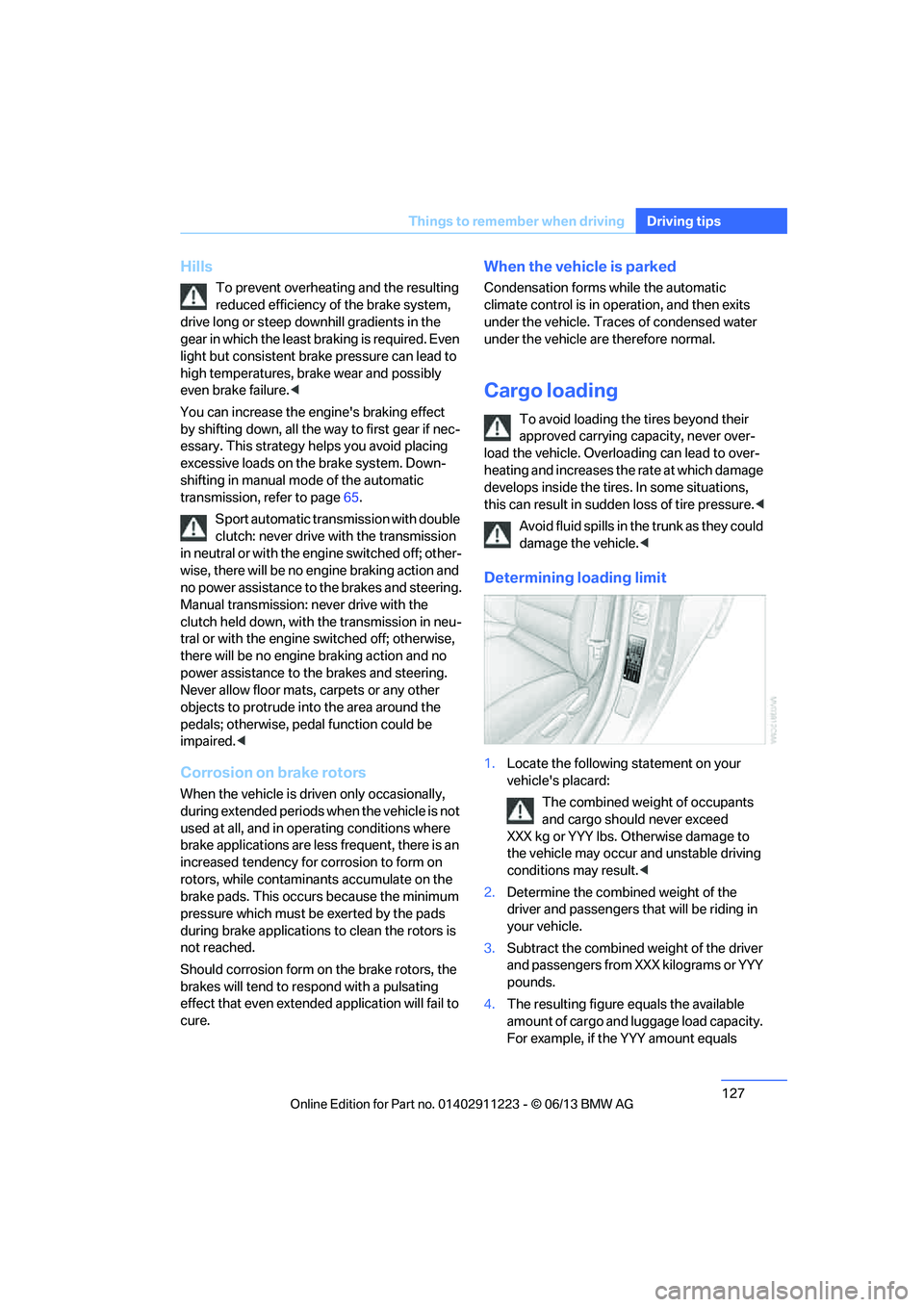
Determining loading limit
1.Locate the following statement on your
vehicle's placard:
The combined weight of occupants
and cargo should never exceed
XXX kg or YYY lbs. Otherwise damage to
the vehicle may occur and unstable driving
conditions may result.<
2. Determine the combined weight of the
driver and passengers that will be riding in
your vehicle.
3. Subtract the combined weight of the driver
and passengers from XXX kilograms or YYY
pounds.
4. The resulting figure equals the available
amount of cargo and luggage load capacity.
For example, if the YYY amount equals
00320051004F004C00510048000300280047004C0057004C005200510003
Page 129 of 284
128
Driving tipsThings to remember when driving
1,400 lbs and there will be five 150-lb
passengers in your vehicle, the amount of
available cargo and lugga ge load capacity is
650 lbs:
1,400 lbs minus 750 lbs = 650 lbs.
5. Determine the combined weight of luggage
and cargo being loaded on the vehicle. That
weight may not safely exceed the available
cargo and luggage load capacity calculated
in step 4.
6. If your vehicle will be towing a trailer, part of
the load from your tra iler will be transferred
to your vehicle. Co nsult the manual for
transporting a trailer to determine how this
may reduce the available cargo and luggage
load capacity of your vehicle.
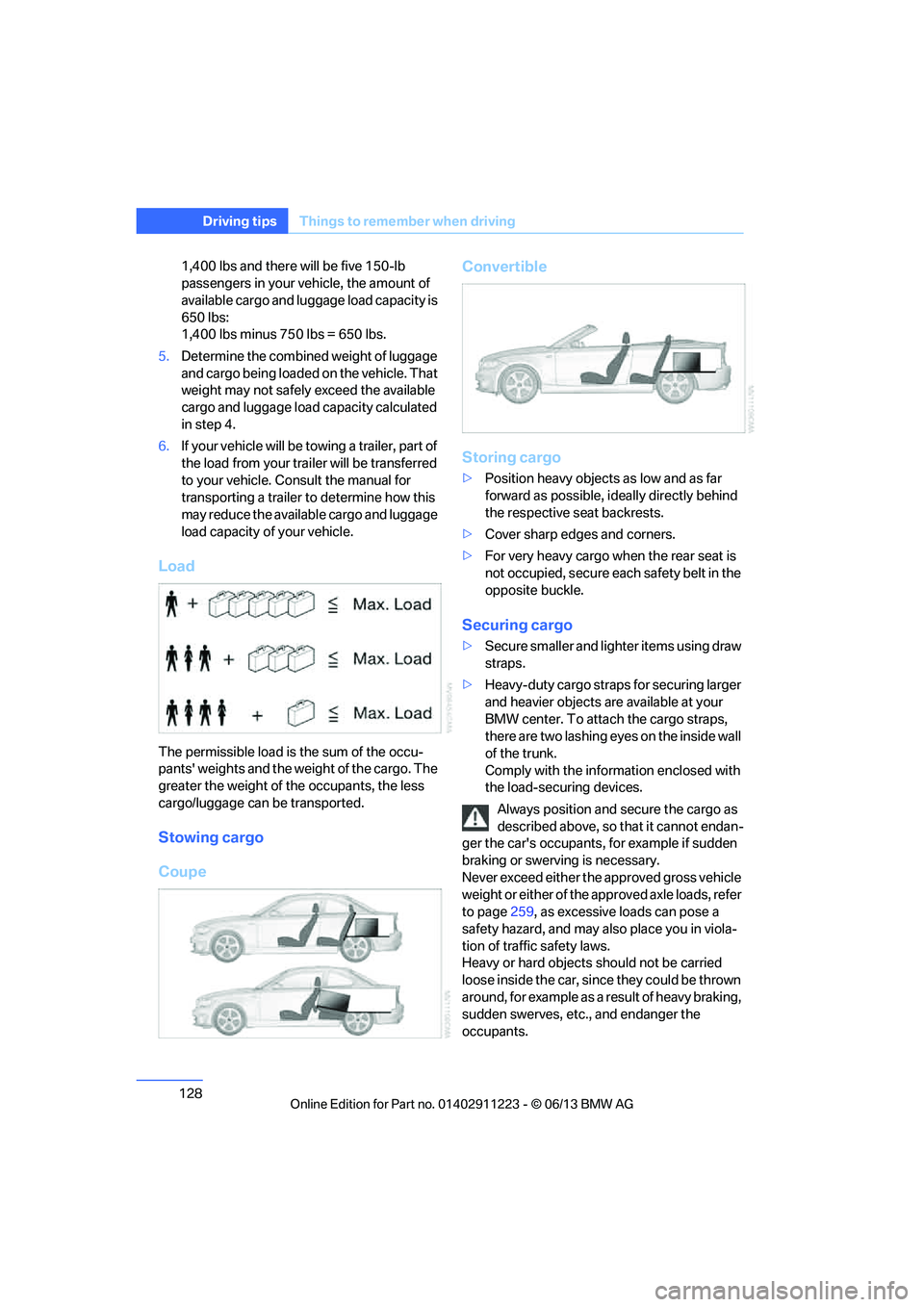
Load
The permissible load is the sum of the occu-
pants' weights and the weight of the cargo. The
greater the weight of the occupants, the less
cargo/luggage can be transported.
Stowing cargo
Coupe Convertible
Storing cargo
>
Position heavy objects as low and as far
forward as possible, ideally directly behind
the respective seat backrests.
> Cover sharp edges and corners.
> For very heavy cargo when the rear seat is
not occupied, secure each safety belt in the
opposite buckle.
Securing cargo
> Secure smaller and lighter items using draw
straps.
> Heavy-duty cargo straps for securing larger
and heavier objects are available at your
BMW center. To attach the cargo straps,
there are two lashing eyes on the inside wall
of the trunk.
Comply with the information enclosed with
the load-securing devices.
Always position and secure the cargo as
described above, so that it cannot endan-
ger the car's occupants, for example if sudden
braking or swerving is necessary.
Never exceed either the approved gross vehicle
weight or either of the a pproved axle loads, refer
to page 259, as excessive loads can pose a
safety hazard, and may al so place you in viola-
tion of traffi c safety laws.
Heavy or hard objects should not be carried
loose inside the car, since they could be thrown
around, for example as a result of heavy braking,
sudden swerves, etc., and endanger the
occupants.
00320051004F004C00510048000300280047004C0057004C005200510003
Page 134 of 284
133
Navigation system
Navigation
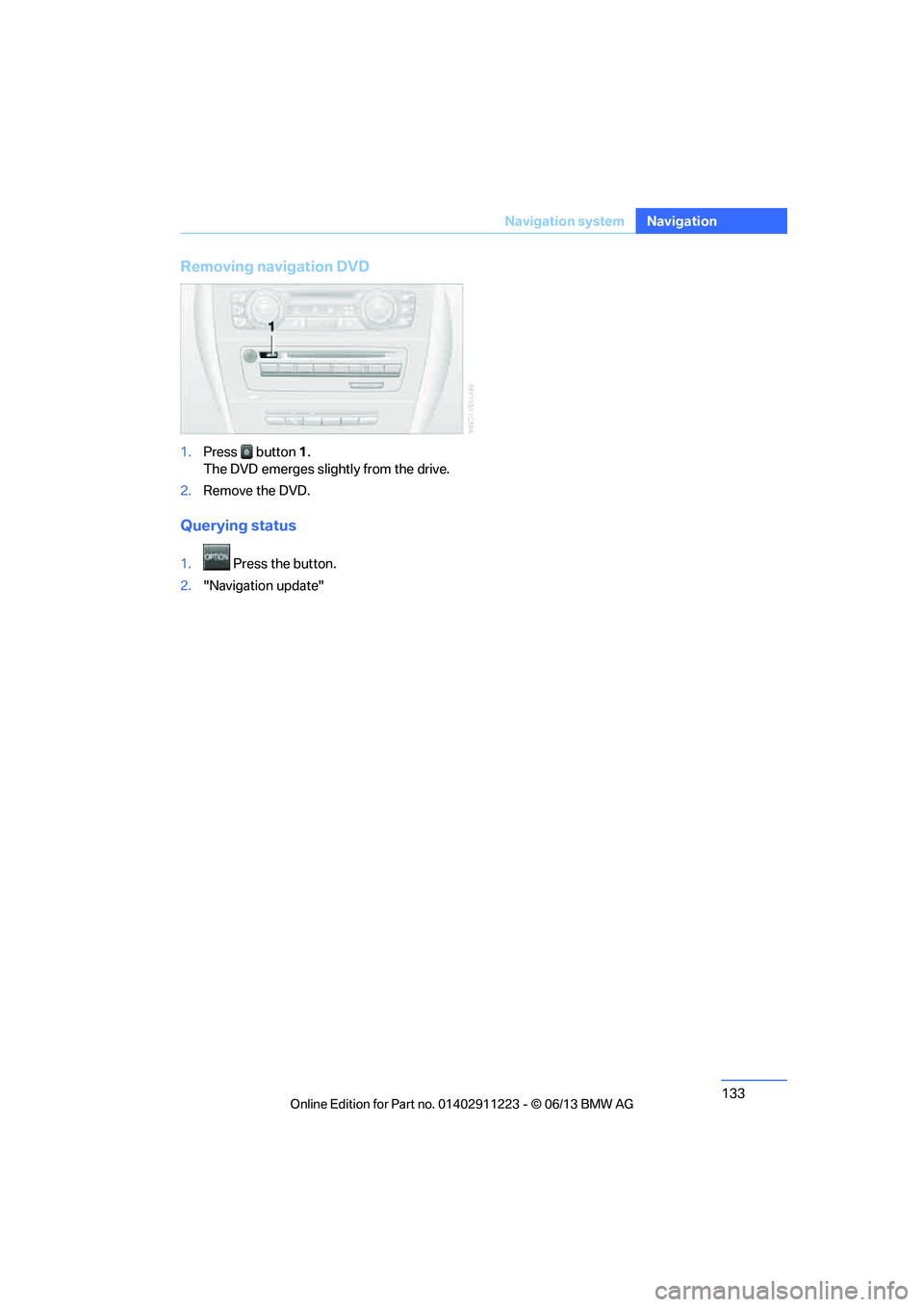
Removing navigation DVD
1.
Press button 1.
The DVD emerges slightly from the drive.
2. Remove the DVD.
Querying status
1. Press the button.
2. "Navigation update"
00320051004F004C00510048000300280047004C0057004C005200510003
Page 136 of 284
135
Destination entry
Navigation
2.
Select letters, if necessary.
The list is reduced in steps with each entry.
To delete letters:
> To delete individual letters:
Turn the controller to select , and
then press the controller.
> To delete all letters:
Turn the controller to select , and
then press the controller for an extended
period.
To enter spaces:
> Select the symbol.
The list gradually grow s smaller each time
you enter a new letter.
3. Move the controller to the right.
4. Select the name of the town/city from the
list.
If there are several town s/cities with the same
name:
1. Change to the list of town/city names.
2. Highlight the town/city.
3. Select the town/city.
Entering the postal code
1.Select "Town/City/Postal Code" or the
displayed town/city.
2. Select the symbol.
3. Select the digits.
4. Change to the list of postal codes and
towns/cities.
5. Highlight the entry.
6. Select an entry.
Entering street and intersection
1.Select "Street" or displayed street.
2. Enter the street and cross-street the same
way you entered the town/city.
After you enter the street, you can also enter
the cross street or the house number. If there are several streets with the same name:
1.
Change to the list of street names.
2. Highlight street.
3. Select the street.
Alternative: entering street and house
number
1.Select "Street" or displayed street.
2. Enter the street the same way you entered
the town/city.
3. "House number"
4. Select the digits.
5. Change to the list of house numbers.
6. Select a house number or range of house
numbers.
No such street at the destination
The desired street is not in the entered town/
city because it belongs to another district of the
town/city.
1."Navigation"
2. "Enter address"
3. Select "Street" or displayed street.
4. Change to the list of street names.
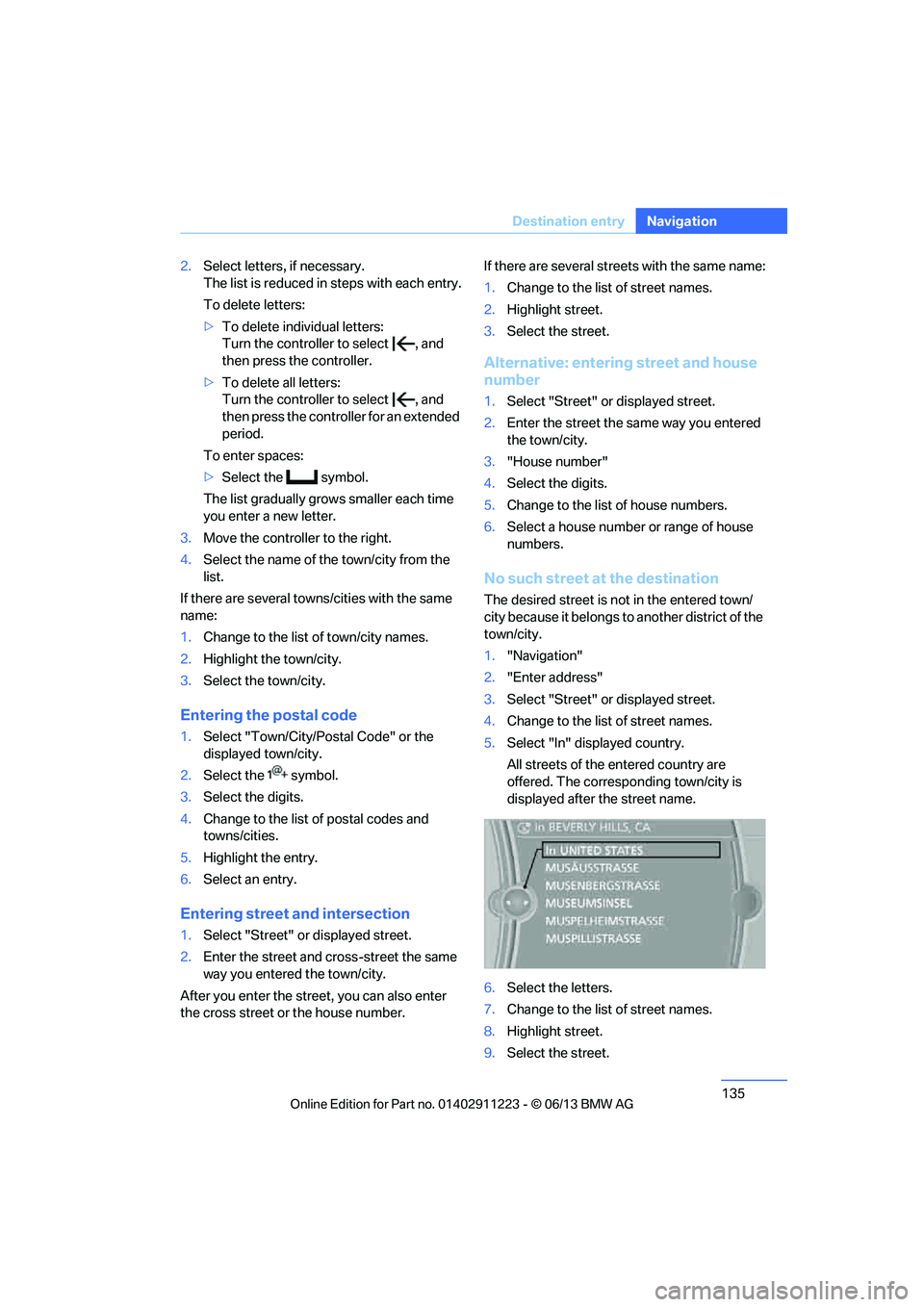
5. Select "In" displayed country.
All streets of the entered country are
offered. The corresponding town/city is
displayed after the street name.
6. Select the letters.
7. Change to the list of street names.
8. Highlight street.
9. Select the street.
00320051004F004C00510048000300280047004C0057004C005200510003
Page 138 of 284
137
Destination entry
Navigation
4.
Depending on the selection, select an exist-
ing contact from the list or the type of
address and enter the last and first name.
5. "Store in vehicle"
Editing or deleting an address
1."Navigation"
2. "Address book"
3. Highlight the entry.
4. Open "Options".
5. "Edit in Contacts" or "Delete entry".
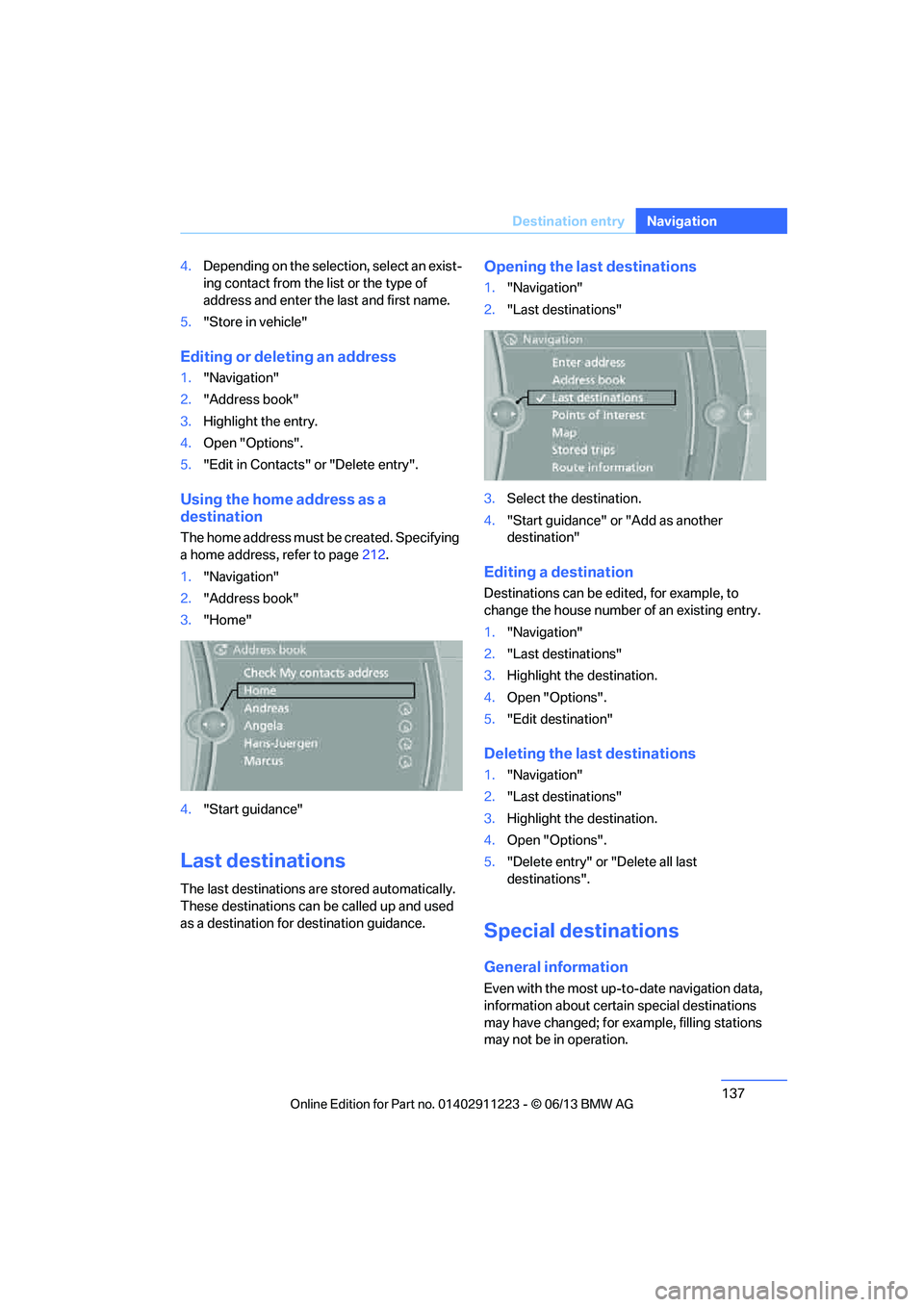
Using the home address as a
destination
The home address must be created. Specifying
a home address, refer to page 212.
1. "Navigation"
2. "Address book"
3. "Home"
4. "Start guidance"
Last destinations
The last destinations ar e stored automatically.
These destinations can be called up and used
as a destination for destination guidance.
Opening the last destinations
1. "Navigation"
2. "Last destinations"
3. Select the destination.
4. "Start guidance" or "Add as another
destination"
Editing a destination
Destinations can be edited, for example, to
change the house number of an existing entry.
1."Navigation"
2. "Last destinations"
3. Highlight the destination.
4. Open "Options".
5. "Edit destination"
Deleting the last destinations
1."Navigation"
2. "Last destinations"
3. Highlight the destination.
4. Open "Options".
5. "Delete entry" or "Delete all last
destinations".
Special destinations
General information
Even with the most up-t o-date navigation data,
information about certain special destinations
may have changed; for ex ample, filling stations
may not be in operation.
00320051004F004C00510048000300280047004C0057004C005200510003
Page 142 of 284
141
Destination entry
Navigation
Depending on the entry, up to 20 towns/
cities may be suggested.
6. Continue making the entry as prompted by
the system.
If there are several town s/cities with the same
name:
Towns/cities that sound the same are compiled
in a separate list and ar e displayed as one town/
city followed by three dots.
1. Select an entry:
2. Select the desired town/city.
The town/city can also be selected from the list
via iDrive: turn the cont roller until the town/city
is selected and press the controller.
Entering a street or intersection
The street or intersection is entered in the same
manner as the town/city.
Entering a house number
Depending on the data in the navigation sys-
tem, house numbers up to the number 2,000
can be entered:
Starting destination guidance
Destination guidance starts immediately.
Planning a trip with
intermediate destinations
New trip
A trip can be planned using intermediate
destinations.
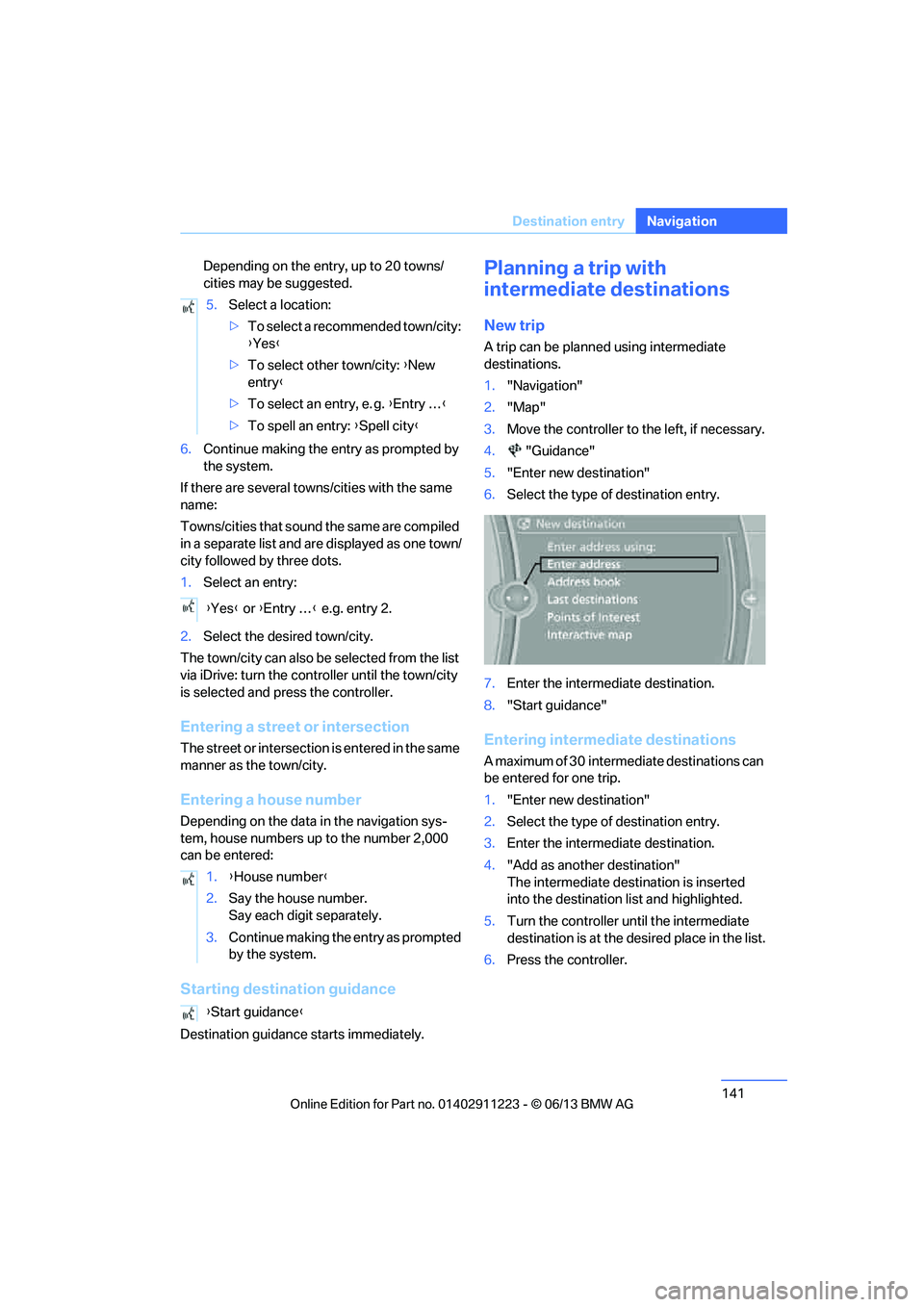
1. "Navigation"
2. "Map"
3. Move the controller to the left, if necessary.
4. "Guidance"
5. "Enter new destination"
6. Select the type of destination entry.
7. Enter the intermediate destination.
8. "Start guidance"
Entering intermediate destinations
A maximum of 30 intermed iate destinations can
be entered for one trip.
1. "Enter new destination"
2. Select the type of destination entry.
3. Enter the intermediate destination.
4. "Add as another destination"
The intermediate dest ination is inserted
into the destination list and highlighted.
5. Turn the controller until the intermediate
destination is at the de sired place in the list.
6. Press the controller.
5.
Select a location:
>To select a recommended town/city:
{Yes }
> To select other town/city: {New
entry }
> To select an entry, e. g. {Entry … }
> To spell an entry: {Spell city }
{ Yes } or {Entry … } e.g. entry 2.
1. {House number }
2. Say the house number.
Say each digit separately.
3. Continue making the entry as prompted
by the system.
{ Start guidance }
00320051004F004C00510048000300280047004C0057004C005200510003
Page 143 of 284
142
NavigationDestination entry
Starting the trip
After entering all inte rmediate destinations,
highlight the first destination and say "Start
guidance"
For example if the second destination is high-
lighted at the start of route guidance, then the
first destination is skipped over.
The symbol indicates the active intermedi-
ate destination.
Storing a trip
Up to 30 trips can be stored in the trip list.
Delete existing trips as necessary to permit you
to store new trips.
1. Open "Options".
2. "Store trip"
3. Enter a name.
4. "OK"
The trip is stored in the trip list under the
entered name.
Selecting a stored trip
1. "Navigation"
2. "Stored trips"
3. Select the desired trip.
4. "Start guidance"
Trips, changing
Changing the trip direction
Intermediate destinatio ns are displayed in
reverse order in the list.
1. "Map"
2. "Guidance"
3. Open "Options".
4. "Reverse order of trip dest."
Options for intermediate destinations
1."Map"
2. "Guidance"
3. "Display all trip destinations"
4. Select an intermed iate destination.
> "Edit destination"
> "Reposition dest. in the trip": move the
intermediate destination within the list.
> "Delete dest. in the trip"
> "Go to next dest. in the trip"
Some options are not possible for some trips.
Deleting a stored trip
1. "Navigation"
2. "Stored trips"
3. Select the desired trip.
4. Open "Options".
5. "Delete all trips" or "Delete trip".
Selecting last trip
1."Navigation"
2. "Stored trips"
3. "Last trip"
4. "Start guidance"
00320051004F004C00510048000300280047004C0057004C005200510003
Page 145 of 284
144
NavigationDestination guidance
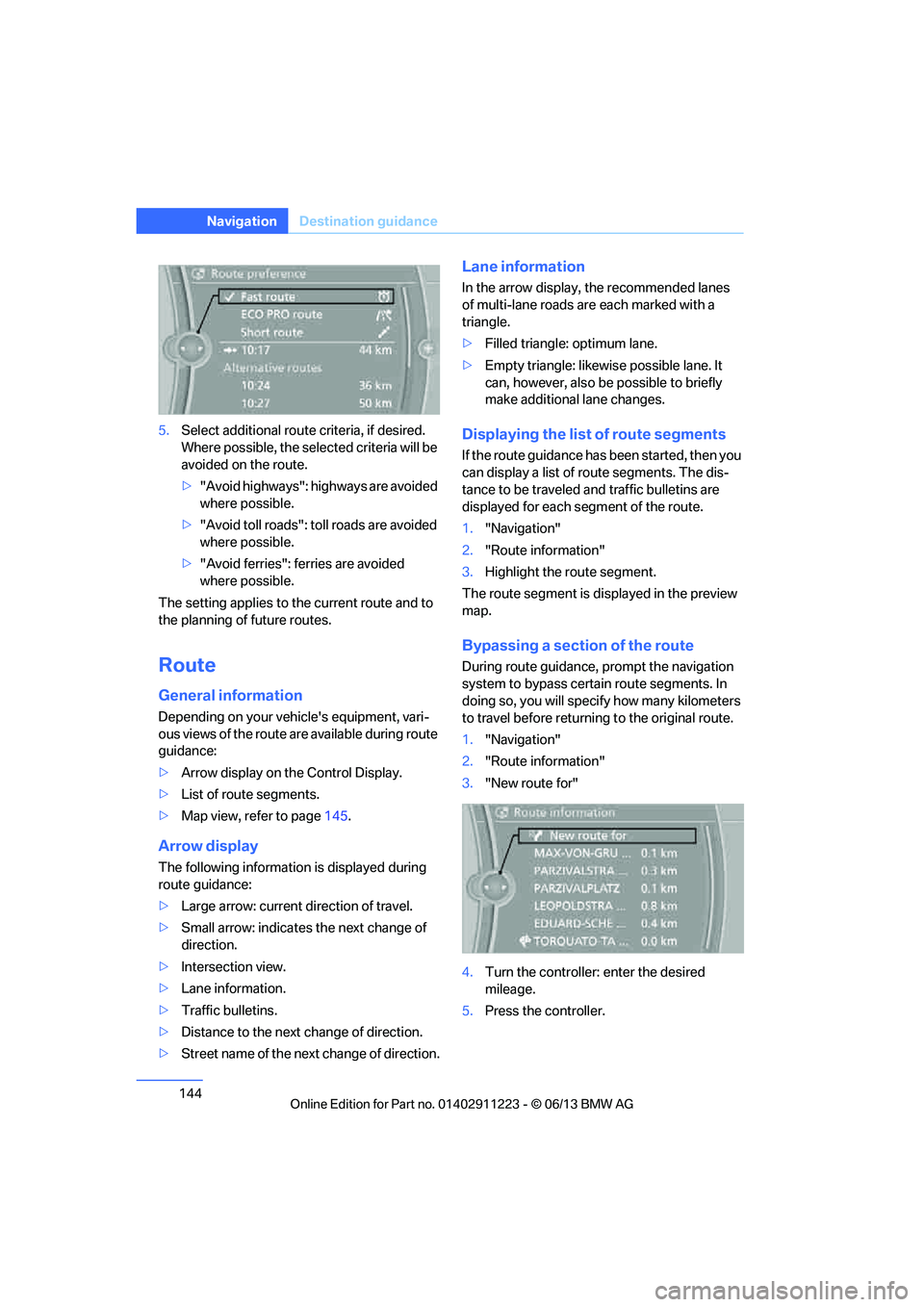
5.Select additional route criteria, if desired.
Where possible, the select ed criteria will be
avoided on the route.
> "Avoid highways": highways are avoided
where possible.
> "Avoid toll roads": toll roads are avoided
where possible.
> "Avoid ferries": ferries are avoided
where possible.
The setting applies to the current route and to
the planning of future routes.
Route
General information
Depending on your vehi cle's equipment, vari-
ous views of the route are available during route
guidance:
> Arrow display on the Control Display.
> List of route segments.
> Map view, refer to page 145.
Arrow display
The following informatio n is displayed during
route guidance:
> Large arrow: current direction of travel.
> Small arrow: indicates the next change of
direction.
> Intersection view.
> Lane information.
> Traffic bulletins.
> Distance to the next change of direction.
> Street name of the next change of direction.
Lane information
In the arrow display, the recommended lanes
of multi-lane roads are each marked with a
triangle.
> Filled triangle: optimum lane.
> Empty triangle: likewise possible lane. It
can, however, also be possible to briefly
make additional lane changes.
Displaying the list of route segments
If the route guidance has been started, then you
can display a list of route segments. The dis-
tance to be traveled and traffic bulletins are
displayed for each segment of the route.
1."Navigation"
2. "Route information"
3. Highlight the route segment.
The route segment is di splayed in the preview
map.
Bypassing a section of the route
During route guidance, prompt the navigation
system to bypass certain route segments. In
doing so, you will specify how many kilometers
to travel before returnin g to the original route.
1. "Navigation"
2. "Route information"
3. "New route for"
4. Turn the controller: enter the desired
mileage.
5. Press the controller.
00320051004F004C00510048000300280047004C0057004C005200510003
Page 146 of 284
145
Destination guidance
Navigation
Resuming the original route
If the route section should no longer be
bypassed:
1.
"Navigation"
2. "Route information"
3. "New route for"
4. "Remove blocking"
Gas station re commendations
The remaining range is calculated and filling
stations along the route are displayed.
Even with the most up-t o-date navigation data,
information about certain special destinations
may have changed; for ex ample, filling stations
may not be in operation.
1. "Navigation"
2. "Route information"
3. "Recommended refuel"
A list of filling stations is displayed.
4. Select a gas station.
5. Select the symbol.
6. "Start guidance": route guidance to the
selected filling station is started.
"Add as another destination": the filling sta-
tion is incorporated into the route.
Destination guidance
through voice instructions
Switching voice instructions on/off
Voice instructions can be switched on or off
during destination guidance.
1. "Navigation"
2. "Map"
3. "Voice instructions"
For rapid access, the feature can be stored on a
programmable memory key, refer to page25.
Repeating a voice instruction
1."Navigation"
2. "Map"
3. Highlight the symbol.
4. Press the controller twice.
Adjusting volume for voice instructions
The volume can be adjusted only while a voice
instruction is being issued.
1.Have the last voice instruction repeated, if
necessary.
2. Turn the button during the voice instruction
to select the desired volume.
The setting is stored fo r the remote control cur-
rently in use.
Map view
Displaying the map view
1. "Navigation"
2. "Map"
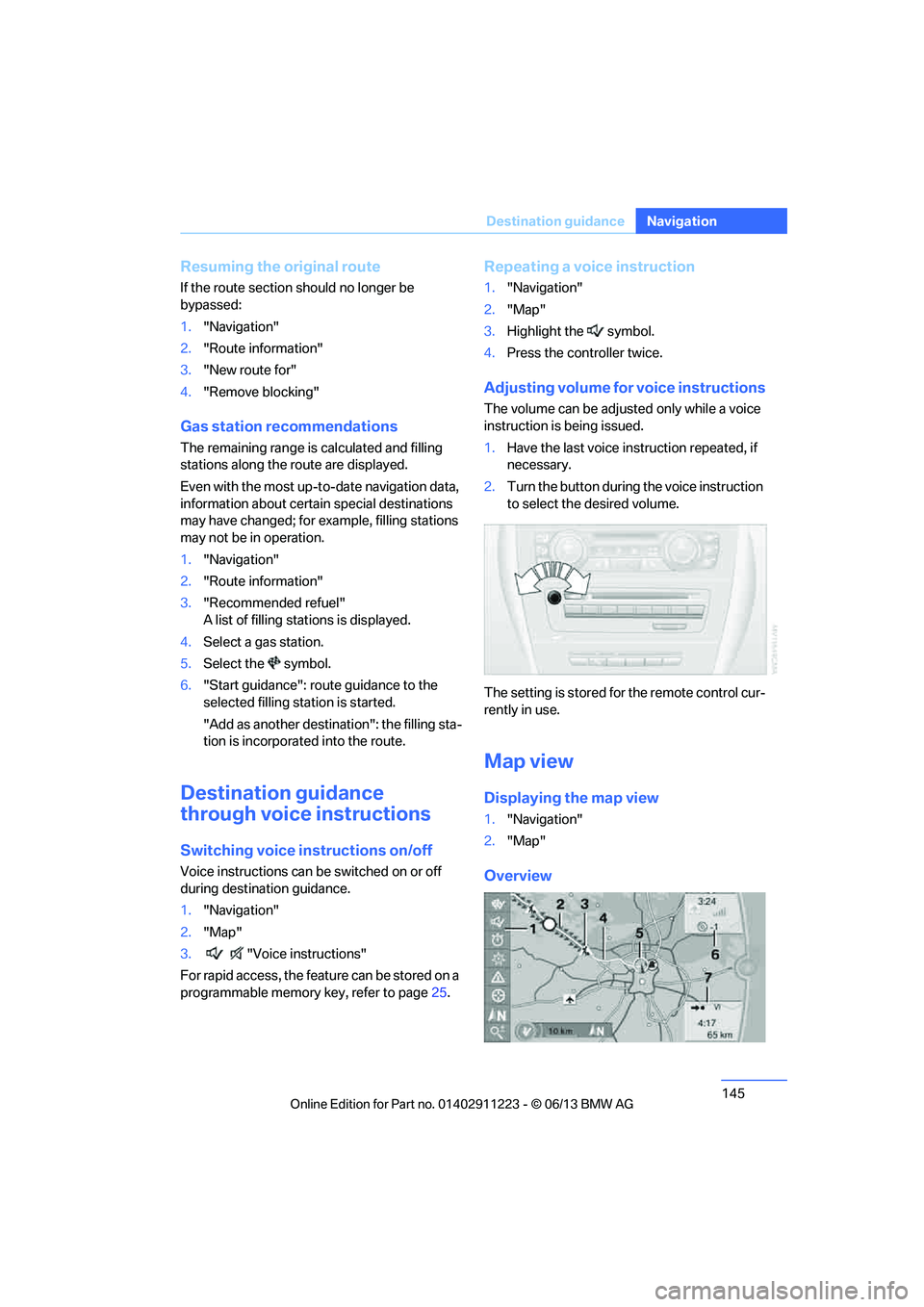
Overview
00320051004F004C00510048000300280047004C0057004C005200510003