phone BMW 128I CONVERTIBLE 2013 User Guide
[x] Cancel search | Manufacturer: BMW, Model Year: 2013, Model line: 128I CONVERTIBLE, Model: BMW 128I CONVERTIBLE 2013Pages: 284, PDF Size: 6.93 MB
Page 28 of 284
27
Voice activation system
At a glance
Voice activation system
Vehicle equipment
In this chapter, all production, country, and
optional equipment that is offered in the model
range is described. For this reason, descrip-
tions will be given of some equipment that may
not be available in a vehi
cle, for example due to
the special options or national-market version
selected. This also app lies to safety related
functions and systems.
The concept
> The voice activation system can be used
to control most functions by spoken
commands.
> Functions that can only used when the vehi-
cle is stopped cannot be operated using the
voice activation system.
> The system includes a special microphone
on the driver's side.
> In the Owner's Manual, {...} indicates com-
mands for the voice activation system.
> In the Owner's Manual, {{...}} indicates the
answers from the voice activation system.
Prerequisite
On the Control Display, set a language that is
also supported by the vo ice activation system
to permit identification of the commands to be
spoken.
Setting the langua ge, refer to page87.
Saying commands
Activating voice activation system
1.Press the button on the steering wheel.
2. Wait for the acoustic signal.
3. Say the command.
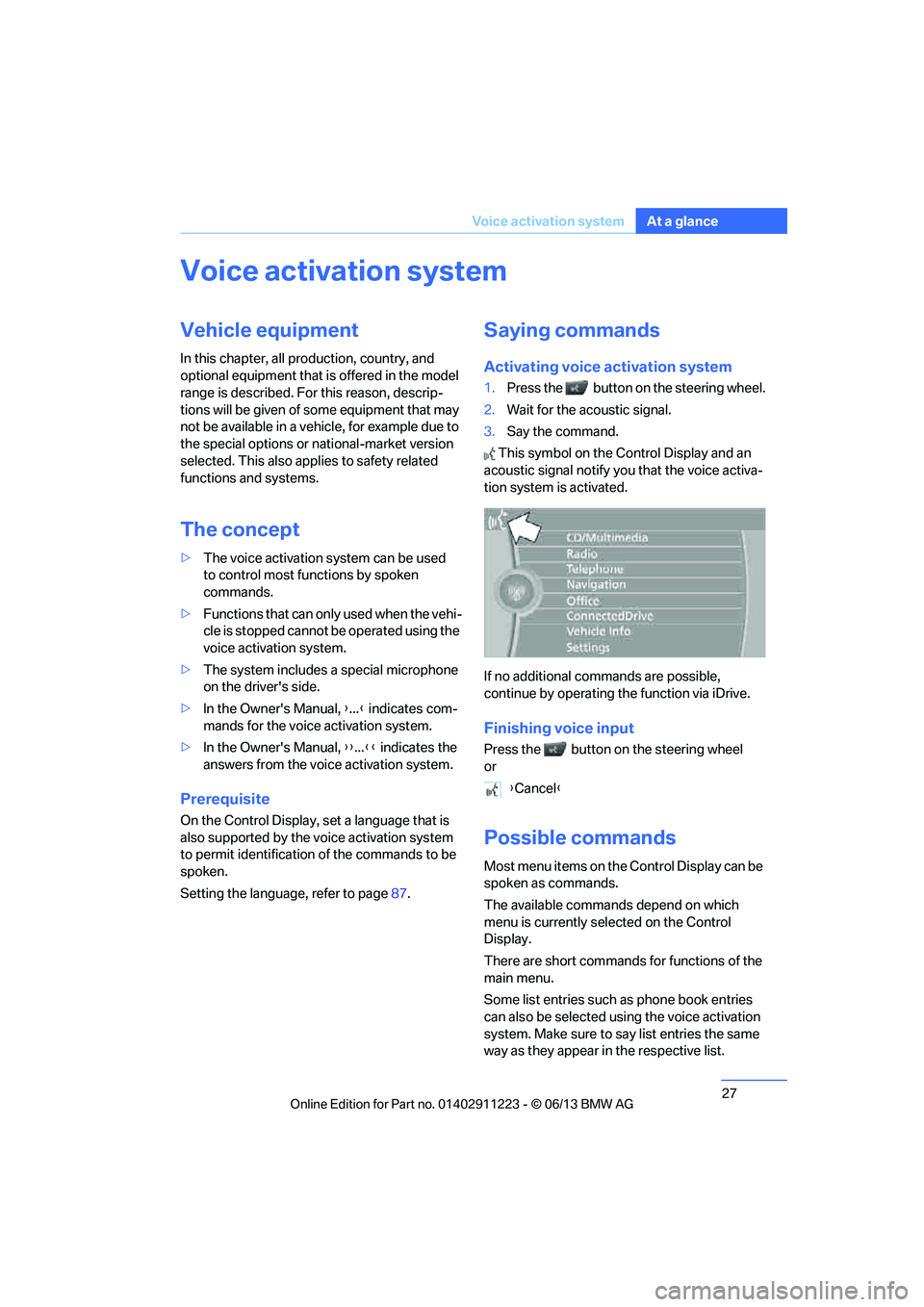
This symbol on the Control Display and an
acoustic signal notify yo u that the voice activa-
tion system is activated.
If no additional commands are possible,
continue by operating the function via iDrive.
Finishing voice input
Press the button on the steering wheel
or
Possible commands
Most menu items on the Control Display can be
spoken as commands.
The available commands depend on which
menu is currently selected on the Control
Display.
There are short commands for functions of the
main menu.
Some list entries such as phone book entries
can also be selected using the voice activation
system. Make sure to say list entries the same
way as they appear in the respective list. {
Cancel }
00320051004F004C00510048000300280047004C0057004C005200510003
Page 30 of 284
29
Voice activation system
At a glance
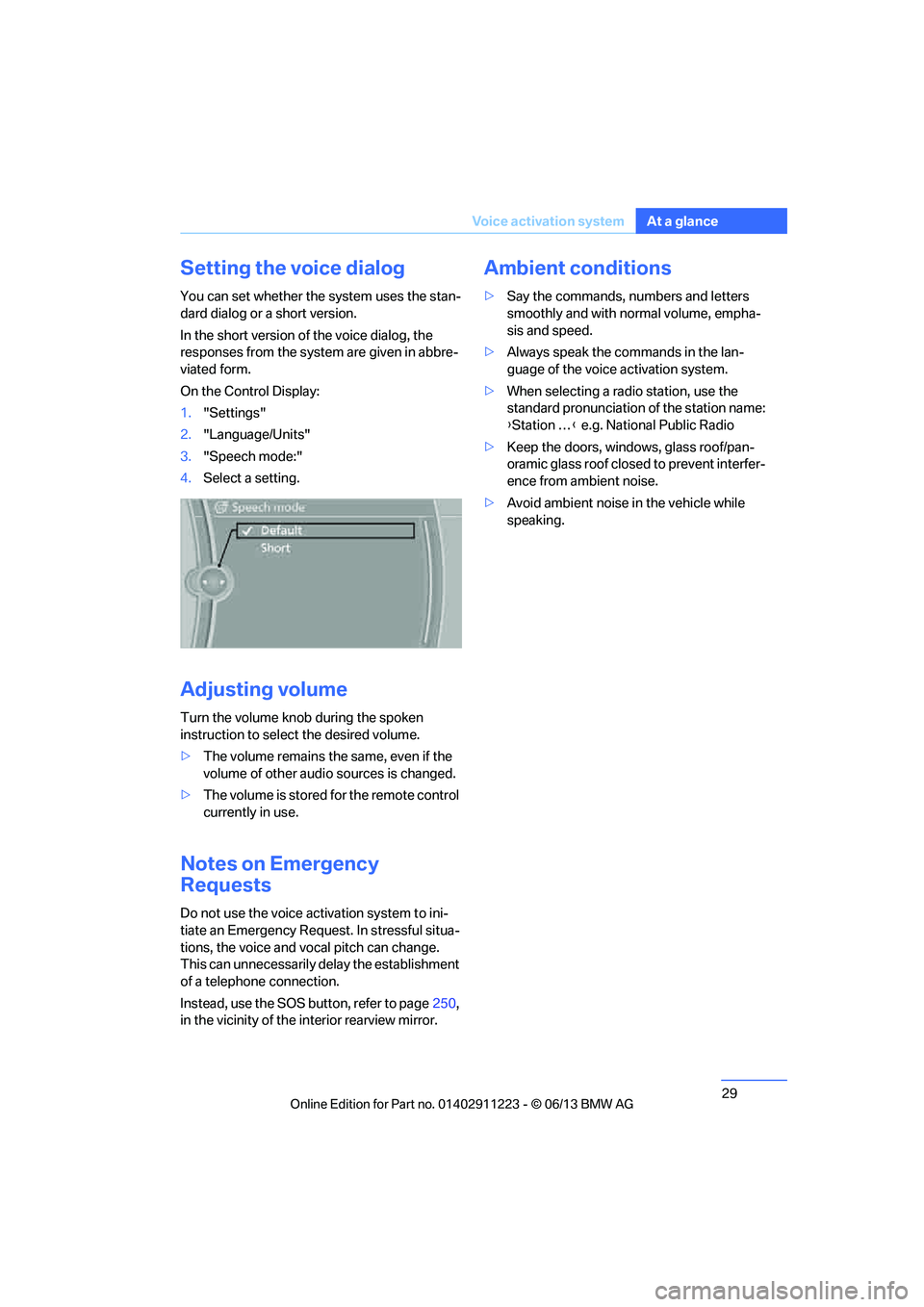
Setting the voice dialog
You can set whether the system uses the stan-
dard dialog or a short version.
In the short version of the voice dialog, the
responses from the system are given in abbre-
viated form.
On the Control Display:
1.
"Settings"
2. "Language/Units"
3. "Speech mode:"
4. Select a setting.
Adjusting volume
Turn the volume knob during the spoken
instruction to select the desired volume.
>The volume remains the same, even if the
volume of other audio sources is changed.
> The volume is stored for the remote control
currently in use.
Notes on Emergency
Requests
Do not use the voice activation system to ini-
tiate an Emergency Request. In stressful situa-
tions, the voice and vocal pitch can change.
This can unnecessarily delay the establishment
of a telephone connection.
Instead, use the SOS button, refer to page 250,
in the vicinity of the interior rearview mirror.
Ambient conditions
> Say the commands, nu mbers and letters
smoothly and with normal volume, empha-
sis and speed.
> Always speak the commands in the lan-
guage of the voice activation system.
> When selecting a radio station, use the
standard pronunciation of the station name:
{Station … } e.g. National Public Radio
> Keep the doors, windows, glass roof/pan-
oramic glass roof closed to prevent interfer-
ence from ambient noise.
> Avoid ambient noise in the vehicle while
speaking.
00320051004F004C00510048000300280047004C0057004C005200510003
Page 42 of 284
41
Opening and closing
Controls
Convertible: window and convertible
top operation
With the ignition at radio readiness or beyond,
you can open and close the windows and the
convertible top when a remote control is
located inside the vehicle.
Unlocking the trunk lid separately
Press the button on the ou
tside of the trunk lid.
This corresponds to pressing the button. If the vehicle detects that a remote con-
trol has been accident ally left inside the
locked vehicle after the trunk lid is closed, the
lid will reopen. The haza rd warning flashers
flash and a signal sounds. <
Switching on radio readiness
Pressing the Start/Stop button switches on
radio readiness.
Do not depress the brake or the clutch; other-
wise, the engine will start immediately.
Starting the engine
The engine can be started or the ignition can be
switched on when a remote control is inside the
vehicle. It is not necessa ry to insert a remote
control into the ignition lock, refer to page 61.
Switching off the engine in cars with
automatic transmission
The engine can only be switched off when the
selector lever is in po sition P, refer to page 63.
To switch the engine off when the selector lever
is in position N, the remote control must be in
the ignition lock.
Malfunctions
Local radio waves can in terfere with the func-
tion of Comfort Access, for example when a
mobile phone is in the immediate vicinity of the
remote control or by when a mobile phone is
being charged in the vehicle. If this happens, open and close the vehicle via
the buttons on the remote control or using the
integrated key. To star
t the engine afterward,
insert the remote control into the ignition lock.
Warning lamps
The warning lamp in the instrument
cluster lights up when you attempt to
start the engine: the engine cannot
be started. The remote co ntrol is not inside the
vehicle or is malfunctio ning. Take the remote
control with you inside the vehicle or have it
checked. If necessary, insert another remote
control into the ignition lock.
The warning lamp in the instrument
cluster lights up wh ile the engine is
running: the remote control is no
longer inside the vehicle. After the engine is
switched off, the engine can only be restarted
within approx. 10 seconds.
The indicator lamp in the instrument
cluster comes on and a message
appears on the Control Display:
replace the battery in the remote control.
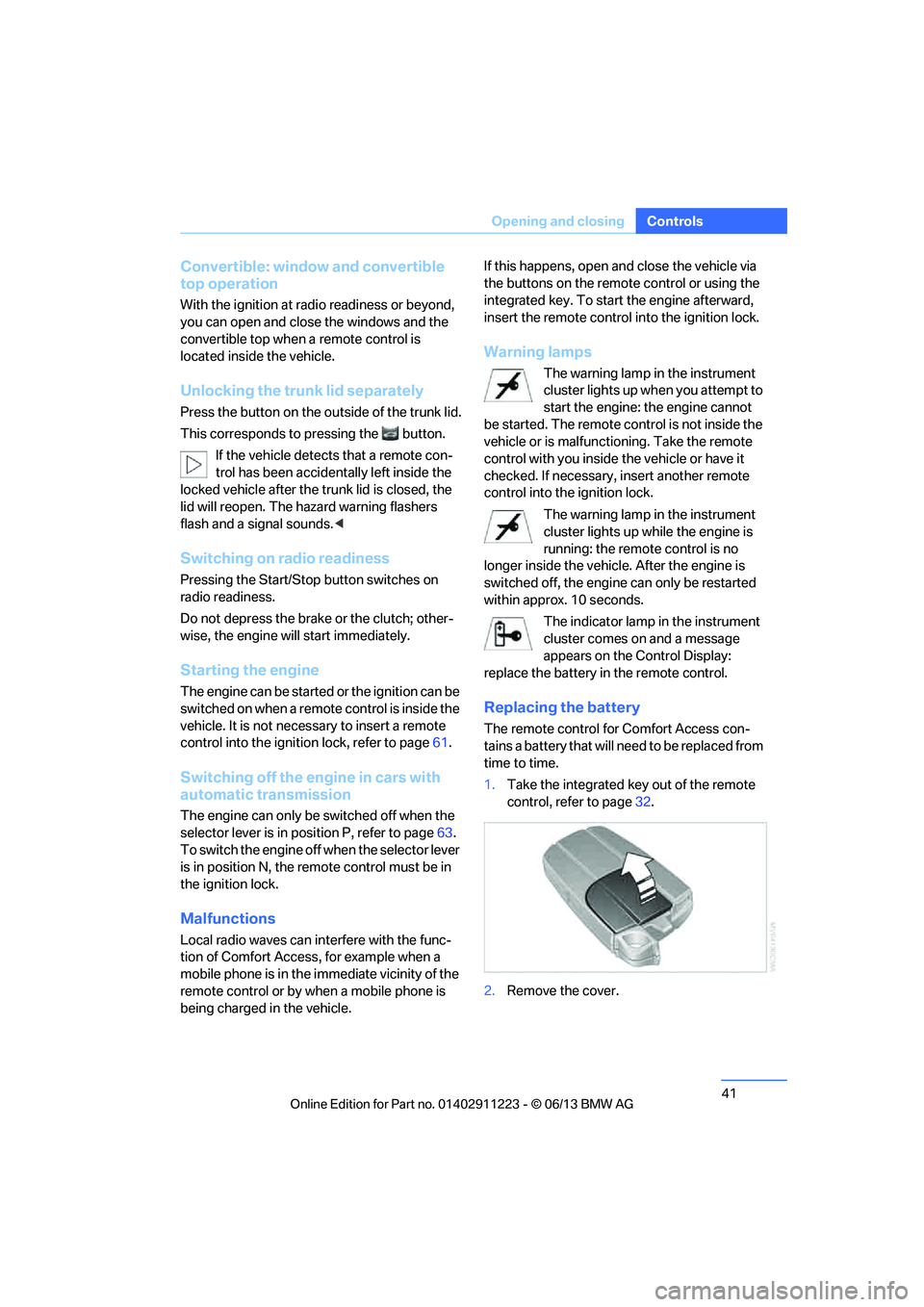
Replacing the battery
The remote control for Comfort Access con-
tains a battery that will need to be replaced from
time to time.
1. Take the integrated ke y out of the remote
control, refer to page 32.
2. Remove the cover.
00320051004F004C00510048000300280047004C0057004C005200510003
Page 98 of 284
97
Technology for driving comfort and safety
Controls
Airbags
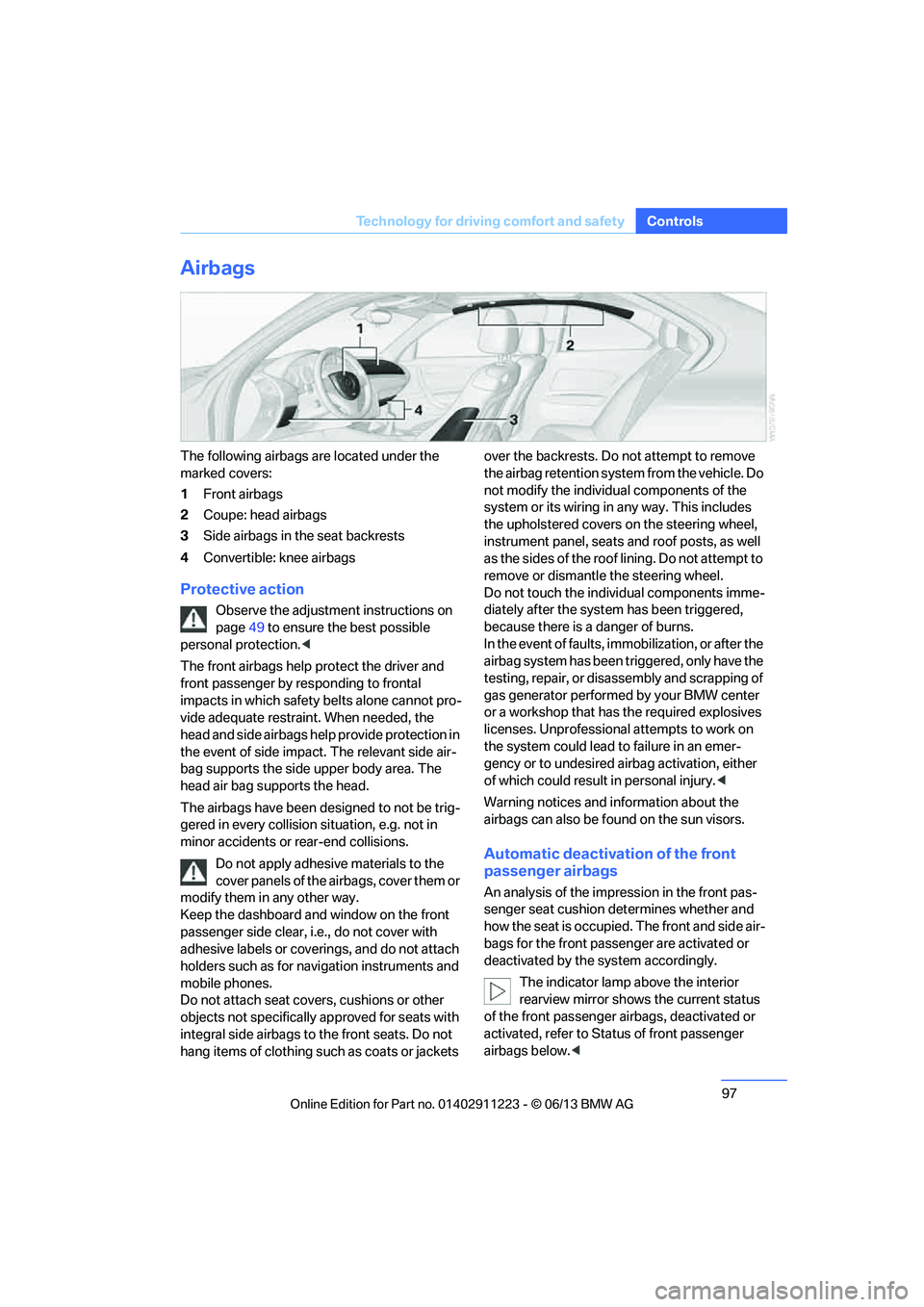
The following airbags are located under the
marked covers:
1
Front airbags
2 Coupe: head airbags
3 Side airbags in the seat backrests
4 Convertible: knee airbags
Protective action
Observe the adjustment instructions on
page 49 to ensure the best possible
personal protection. <
The front airbags help protect the driver and
front passenger by responding to frontal
impacts in which safety belts alone cannot pro-
vide adequate restrain t. When needed, the
head and side airbags help provide protection in
the event of side impact. The relevant side air-
bag supports the side upper body area. The
head air bag supports the head.
The airbags have been designed to not be trig-
gered in every collision si tuation, e.g. not in
minor accidents or rear-end collisions.
Do not apply adhesive materials to the
cover panels of the airbags, cover them or
modify them in any other way.
Keep the dashboard and window on the front
passenger side clear, i. e., do not cover with
adhesive labels or coveri ngs, and do not attach
holders such as for navigation instruments and
mobile phones.
Do not attach seat cove rs, cushions or other
objects not specifically approved for seats with
integral side airbags to the front seats. Do not
hang items of clothing su ch as coats or jackets over the backrests. Do
not attempt to remove
the airbag retention system from the vehicle. Do
not modify the individu al components of the
system or its wiring in any way. This includes
the upholstered covers on the steering wheel,
instrument panel, seats and roof posts, as well
as the sides of the roof lining. Do not attempt to
remove or dismantle the steering wheel.
Do not touch the individual components imme-
diately after the system has been triggered,
because there is a danger of burns.
In the event of faults, immobilization, or after the
airbag system has been triggered, only have the
testing, repair, or disa ssembly and scrapping of
gas generator performed by your BMW center
or a workshop that has the required explosives
licenses. Unprofessional attempts to work on
the system could lead to failure in an emer-
gency or to undesired ai rbag activation, either
of which could result in personal injury. <
Warning notices and information about the
airbags can also be found on the sun visors.
Automatic deactivation of the front
passenger airbags
An analysis of the impr ession in the front pas-
senger seat cushion determines whether and
how the seat is occupied. The front and side air-
bags for the front passe nger are activated or
deactivated by the system accordingly.
The indicator lamp above the interior
rearview mirror shows the current status
of the front passenger ai rbags, deactivated or
activated, refer to Sta tus of front passenger
airbags below. <
00320051004F004C00510048000300280047004C0057004C005200510003
Page 116 of 284
115
Practical interior accessories
Controls
Glove compartment
Opening
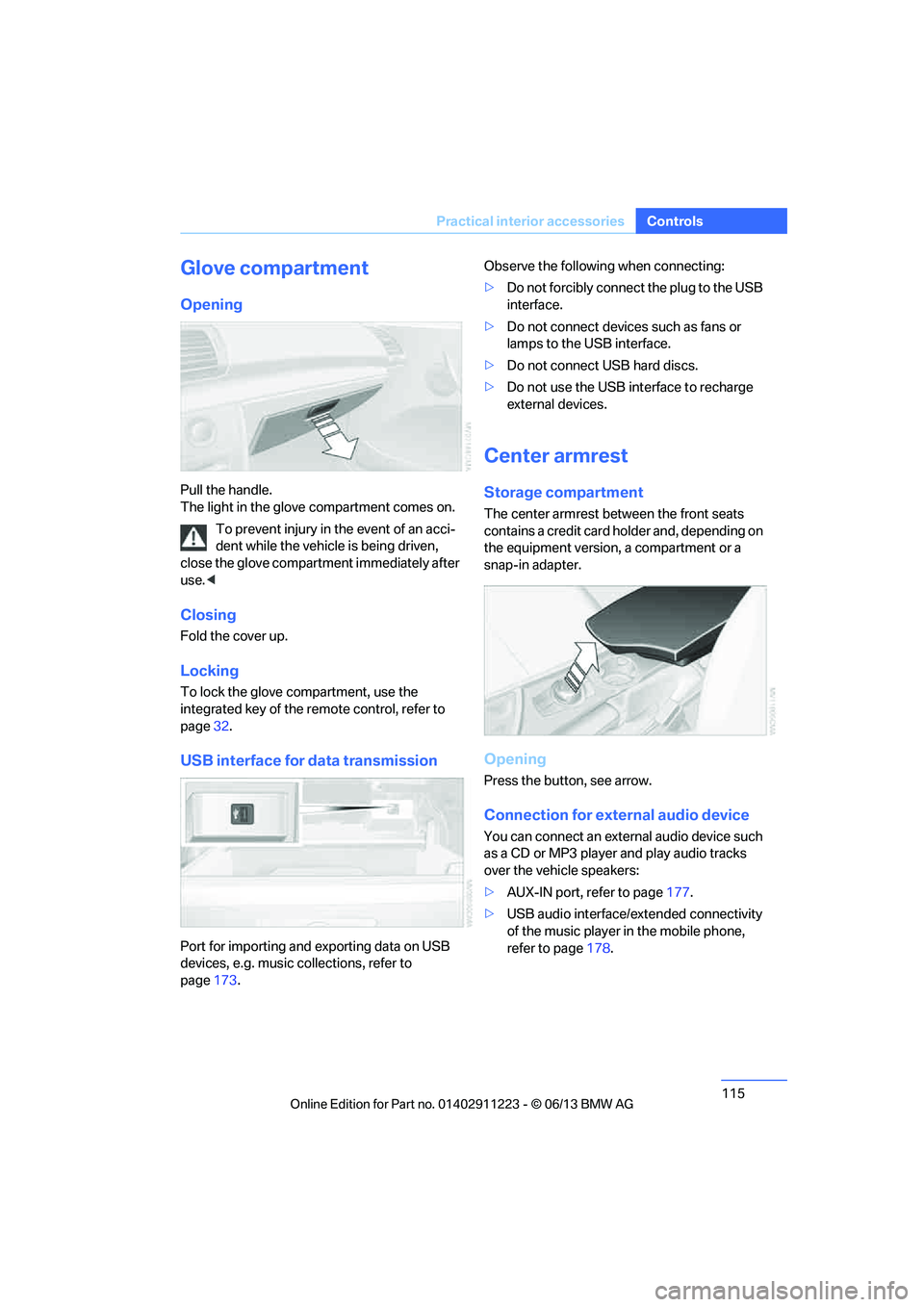
Pull the handle.
The light in the glove compartment comes on.
To prevent injury in the event of an acci-
dent while the vehicle is being driven,
close the glove compartment immediately after
use. <
Closing
Fold the cover up.
Locking
To lock the glove compartment, use the
integrated key of the re mote control, refer to
page 32.
USB interface for data transmission
Port for importing and exporting data on USB
devices, e.g. music collections, refer to
page 173. Observe the following when connecting:
>
Do not forcibly connect the plug to the USB
interface.
> Do not connect devices such as fans or
lamps to the USB interface.
> Do not connect USB hard discs.
> Do not use the USB interface to recharge
external devices.
Center armrest
Storage compartment
The center armrest between the front seats
contains a credit card holder and, depending on
the equipment version, a compartment or a
snap-in adapter.
Opening
Press the button, see arrow.
Connection for external audio device
You can connect an external audio device such
as a CD or MP3 player and play audio tracks
over the vehicle speakers:
>AUX-IN port, refer to page 177.
> USB audio interface/extended connectivity
of the music player in the mobile phone,
refer to page 178.
00320051004F004C00510048000300280047004C0057004C005200510003
Page 127 of 284
126
Driving tipsThings to remember when driving
Hot exhaust system
In all vehicles, extremely high tempera-
tures are generated in the exhaust sys-
tem. Do not remove the he at shields installed in
its vicinity, and never apply undercoating to
them. When driving, standing at idle and while
parking, take care to avoid possible contact
between the hot exhaust system and any highly
flammable materials such as hay, leaves, grass,
etc. Such contact could le ad to a fire, with the
risk of serious personal injuries and property
damage. Do not touch hot exhaust tail pipes.
Otherwise, there is a risk of burns. <
Mobile phones in the vehicle
It is not advisable to use wireless devices
such as mobile phones inside the vehicle
without a direct connection to an external aerial.
Otherwise, it is not poss ible to exclude the pos-
sibility of a reciprocal interference occurring
between the vehicle electronics and the wire-
less device. Otherwise, there is no assurance
that the radiation genera ted by the radio trans-
mission will be conveyed out of the passenger
compartment.<
Hydroplaning
When driving on wet or slushy roads,
reduce road speed. If you do not, a wedge
of water can form between tires and road sur-
face. This situation, known as hydroplaning,
means that the tire can completely lose contact
with the road surface, so that neither the car can
be steered nor the brak e be properly applied.<
The risk of hydropla ning increases with
declining tread depth on th e tires, refer also to
Minimum tread depth on page 229.
Driving through water
Drive through water on the road only if it is
not deeper than 1 ft/30 cm, and then only
at walking speed at the most. Otherwise, the
vehicle's engine, the electrical systems and the
transmission may be damaged. <
Use the parking brake on inclines
On inclines, do not hold the vehicle for a
lengthy period using the clutch; use the
parking brake instead. Otherwise, greater
clutch wear will result. <
For more information about the drive-off
assistant, refer to page 90.
Braking safely
Your BMW is equipped with ABS as a standard
feature. Applying the brakes fully is the most
effective way of braking in situations in which
this is necessary. Sinc e the vehicle maintains
steering responsiveness, you can still avoid
possible obstacles with a minimum of steering
effort.
Pulsation of the brake pedal, combined with
sounds from the hydraulic circuits, indicate that
ABS is in its active mode.
Objects in the movement range of the
pedals
Keep floor mats, carpet, and other objects
out of the movement range of the pedals;
otherwise, they may inhi bit the function of the
pedals during driving.
Do not place additional floor mats onto an
existing one or onto other objects.
Only use floor mats that have been approved for
the vehicle and can be appropriately fastened.
Make sure that the fl oor mats are securely
fastened again after they have been removed,
e.g. for cleaning. <
Driving in wet conditions
When roads are wet or there is heavy rain,
briefly exert gentle pre ssure on the brake pedal
every few miles. Monitor traffic conditions to
ensure that this maneuver does not endanger
other road users. The heat generated in this
process helps dry the pads and rotors. Full
braking efficiency will th en be available when
you need it.
00320051004F004C00510048000300280047004C0057004C005200510003
Page 137 of 284
136
NavigationDestination entry
Starting destination guidance after
entering the destination
1."Accept destination"
2. "Start guidance" or "Add as another desti-
nation", refer to page 141.
> Setting "Route pref erence", refer to
page 143.
> Search for "Points of Interest at loc.", refer
to page 137.
Address book
To create contacts, refer to page 212.
Selecting a destination from the
address book
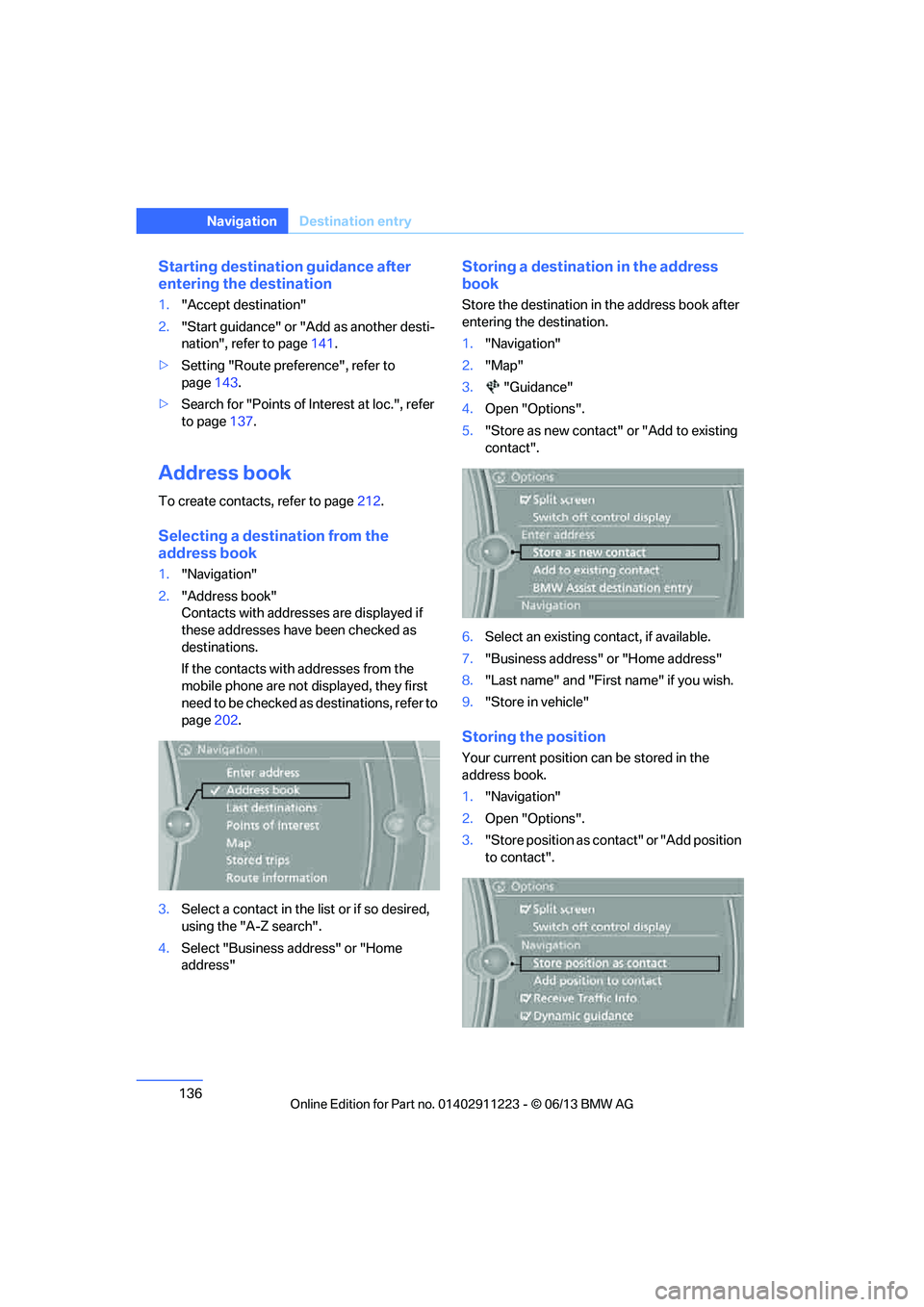
1."Navigation"
2. "Address book"
Contacts with addresses are displayed if
these addresses have been checked as
destinations.
If the contacts with addresses from the
mobile phone are not displayed, they first
n e e d t o b e c h e c k e d a s d e s t i n a t i o n s , r e f e r t o
page 202.
3. Select a contact in the list or if so desired,
using the "A-Z search".
4. Select "Business address" or "Home
address"
Storing a destination in the address
book
Store the destination in the address book after
entering the destination.
1."Navigation"
2. "Map"
3. "Guidance"
4. Open "Options".
5. "Store as new contact" or "Add to existing
contact".
6. Select an existing contact, if available.
7. "Business address" or "Home address"
8. "Last name" and "First name" if you wish.
9. "Store in vehicle"
Storing the position
Your current position can be stored in the
address book.
1."Navigation"
2. Open "Options".
3. "Store position as cont act" or "Add position
to contact".
00320051004F004C00510048000300280047004C0057004C005200510003
Page 139 of 284
138
NavigationDestination entry
Opening the search for special
destinations
1."Navigation"
2. "Points of Interest"
The search can be narrowed by entering the
location and type of special destination.
Searching online
1. "Google™ Local Search"
2. Select the special destination.
3. Select the symbol.
4. "Start guidance"
Special destination location
As you input the search destination, you can
select from among various options.
>"At current location"
> "At destination"
> "At different location"
> "Along route"
A-Z search
1."A-Z search"
2. "Town/City"
3. Select or enter town/city.
4. "Category"
5. Select category.
6. "Category details"
For some special destinations, it is possible
to select several category details.
Move the controller towa rd the left to exit
category details.
7. "Keyword"
8. Enter keyword.
A list of the special destinations is
displayed.
9. Select the special destination.
Details are displayed.
If several details are stored, then you can
scroll through the pages. If a phone number is available, a connection
can be established, if desired.
10. Select the symbol.
11. "Start guidance" or "Add as another desti-
nation". Adding destination as another
destination, refer to page 141.
"Start search": without entering a search term,
the search is repeated with the last stored
search term.
Category search
1. "Category search"
2. "Town/City"
3. Select or enter town/city.
4. "Category"
5. Select category.
6. "Category details"
For some special destinations, it is possible
to select several category details.
Move the controller towa rd the left to exit
category details.
7. "Start search"
A list of the special destinations is
displayed.
8. Select the special destination.
Details are displayed.
If several details are stored, then you can
scroll through the pages.
If a phone number is available, a connection
can be established, if desired.
9. Select the symbol.
10. "Start guidance" or "Add as another desti-
nation". Adding destination as another
destination, refer to page 141.
Displaying special destinations
List of special destinations: the special destina-
tions are displayed in order of their distance and
are displayed with a direction arrow pointing
toward the destination.
00320051004F004C00510048000300280047004C0057004C005200510003
Page 147 of 284
146
NavigationDestination guidance
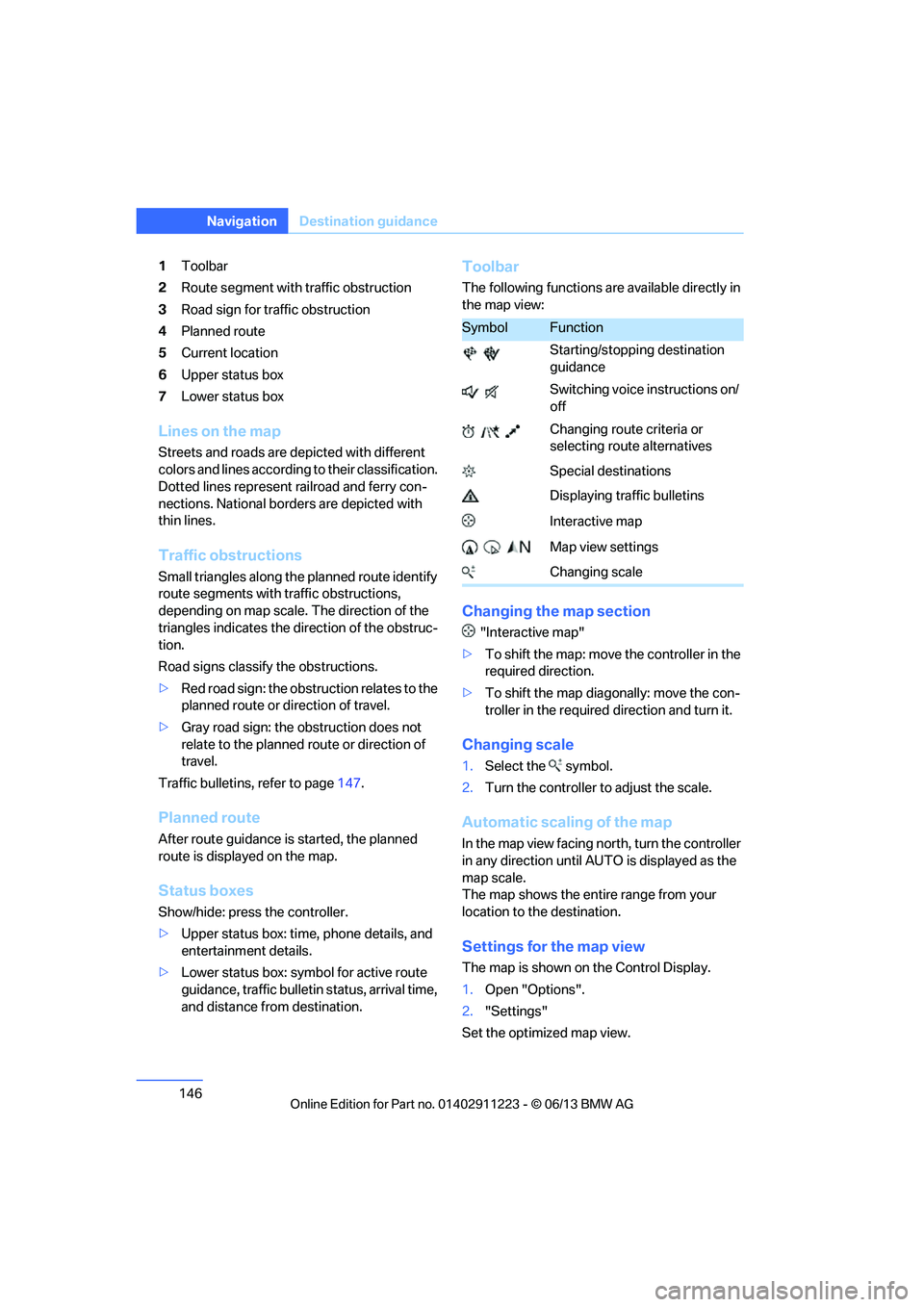
1Toolbar
2 Route segment with traffic obstruction
3 Road sign for traffic obstruction
4 Planned route
5 Current location
6 Upper status box
7 Lower status box
Lines on the map
Streets and roads are depicted with different
colors and lines according to their classification.
Dotted lines represent railroad and ferry con-
nections. National borders are depicted with
thin lines.
Traffic obstructions
Small triangles along the planned route identify
route segments with traffic obstructions,
depending on map scale. The direction of the
triangles indicates the di rection of the obstruc-
tion.
Road signs classify the obstructions.
> Red road sign: the obstruction relates to the
planned route or direction of travel.
> Gray road sign: the obstruction does not
relate to the planned route or direction of
travel.
Traffic bulletins, refer to page 147.
Planned route
After route guidance is started, the planned
route is displa yed on the map.
Status boxes
Show/hide: press the controller.
>Upper status box: time, phone details, and
entertainment details.
> Lower status box: symbol for active route
guidance, traffic bulletin status, arrival time,
and distance from destination.
Toolbar
The following functions are available directly in
the map view:
Changing the map section
"Interactive map"
> To shift the map: move the controller in the
required direction.
> To shift the map diag onally: move the con-
troller in the required direction and turn it.
Changing scale
1.Select the symbol.
2. Turn the controller to adjust the scale.
Automatic scaling of the map
In the map view facing no rth, turn the controller
in any direction until AUTO is displayed as the
map scale.
The map shows the entire range from your
location to the destination.
Settings for the map view
The map is shown on the Control Display.
1. Open "Options".
2. "Settings"
Set the optimized map view.
SymbolFunction
Starting/stopping destination
guidance
Switching voice instructions on/
off
Changing route criteria or
selecting route alternatives
Special destinations
Displaying traffic bulletins
Interactive map
Map view settings
Changing scale
00320051004F004C00510048000300280047004C0057004C005200510003
Page 157 of 284
156
EntertainmentOn/off and tone
Multi-channel playback, surround
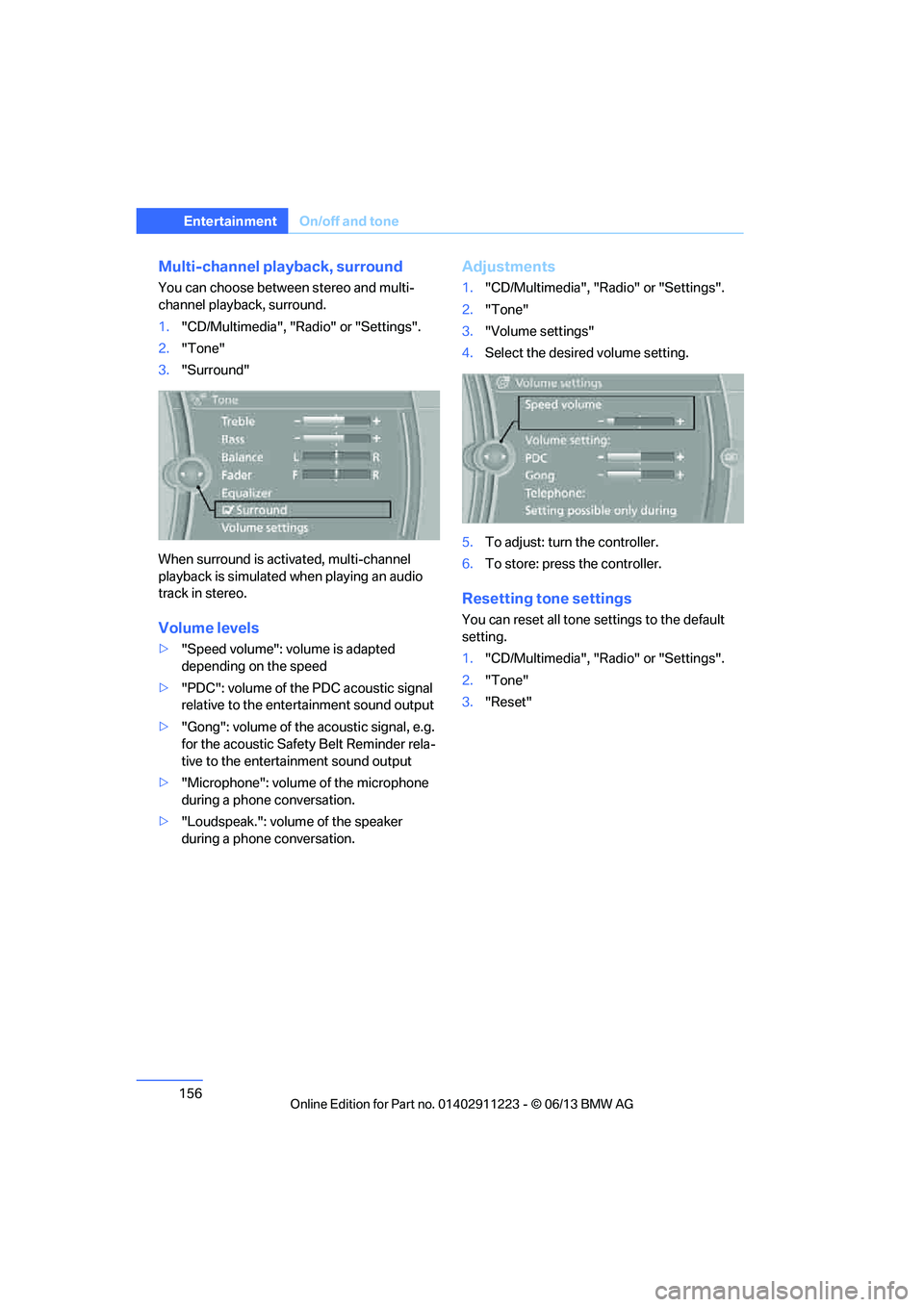
You can choose between stereo and multi-
channel playback, surround.
1."CD/Multimedia", "Radio" or "Settings".
2. "Tone"
3. "Surround"
When surround is acti vated, multi-channel
playback is simulated when playing an audio
track in stereo.
Volume levels
> "Speed volume": volume is adapted
depending on the speed
> "PDC": volume of the PDC acoustic signal
relative to the ente rtainment sound output
> "Gong": volume of the acoustic signal, e.g.
for the acoustic Safety Belt Reminder rela-
tive to the entertainment sound output
> "Microphone": volume of the microphone
during a phone conversation.
> "Loudspeak.": volume of the speaker
during a phone conversation.
Adjustments
1."CD/Multimedia", "Radio" or "Settings".
2. "Tone"
3. "Volume settings"
4. Select the desired volume setting.
5. To adjust: turn the controller.
6. To store: press the controller.
Resetting tone settings
You can reset all tone settings to the default
setting.
1. "CD/Multimedia", "Radio" or "Settings".
2. "Tone"
3. "Reset"
00320051004F004C00510048000300280047004C0057004C005200510003