navigation BMW 128I COUPE 2012 Owners Manual
[x] Cancel search | Manufacturer: BMW, Model Year: 2012, Model line: 128I COUPE, Model: BMW 128I COUPE 2012Pages: 272, PDF Size: 8.49 MB
Page 169 of 272
Navigation
Entertainment
Driving tips
167Reference
At a glance
Controls
Communications
Mobility
USB flash drive, or mobile phones that are
supported by the USB audio interface.
>Connection via the snap-in adapter
*, when
equipped with extended connectivity of the
music player in the mobile phone: Apple
iPhone or mobile phones. Playback may
only be possible when no device is con-
nected to the AUX-IN port.
Because of the large number of audio devices
available on the market, an operation via the
vehicle cannot be guaranteed for every audio
device/mobile phone.
Ask a BMW center for suitable audio devices/
mobile phones.
Audio files
Playback of standard audio files is possible:
>MP3
>WMA
>WAV (PCM)
>AAC
*, M4A*
>Playback lists: M3U, WPL, PLS
Connecting via the USB audio interface
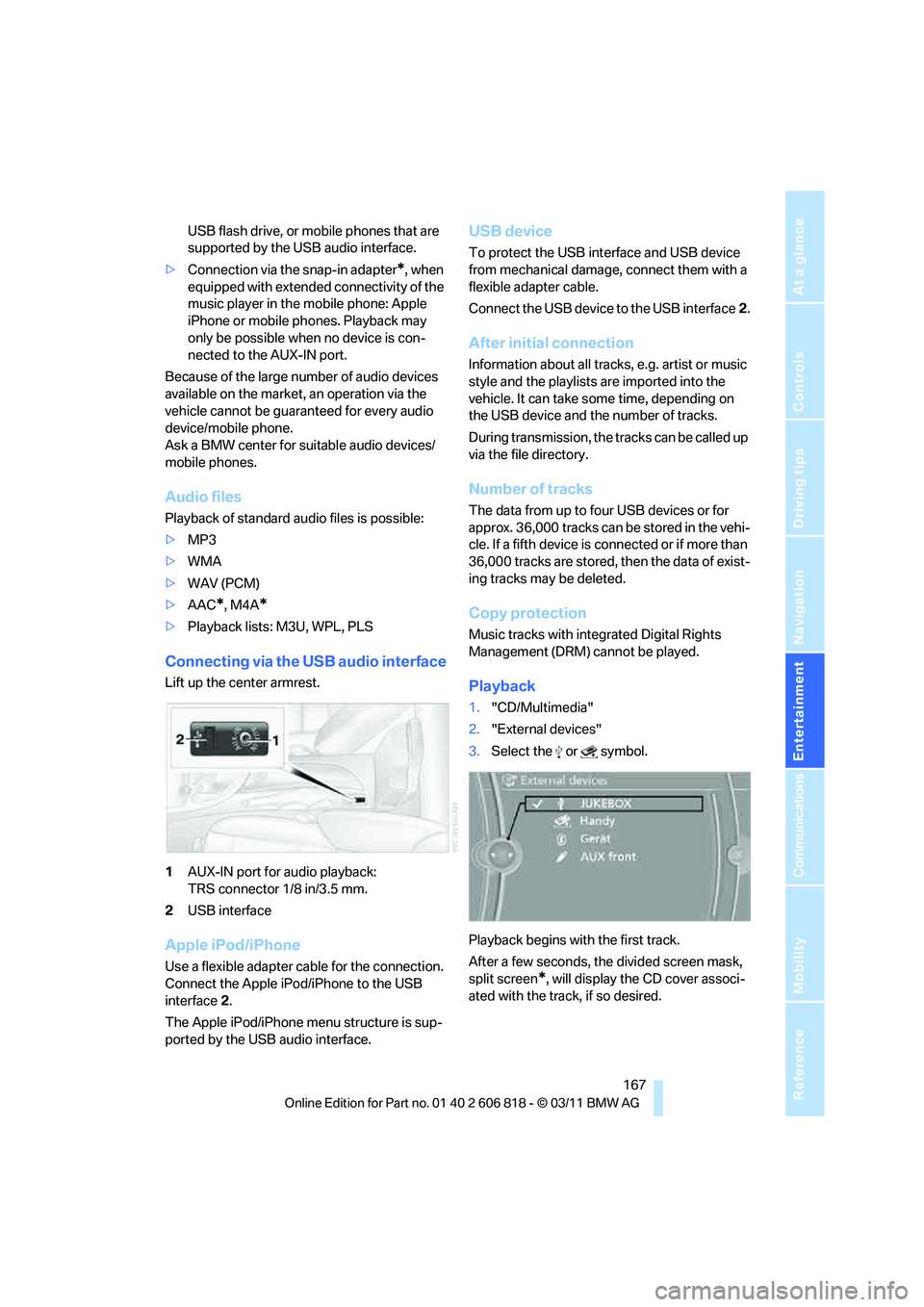
Lift up the center armrest.
1AUX-IN port for audio playback:
TRS connector 1/8 in/3.5 mm.
2USB interface
Apple iPod/iPhone
Use a flexible adapter cable for the connection.
Connect the Apple iPod/iPhone to the USB
interface2.
The Apple iPod/iPhone menu structure is sup-
ported by the USB audio interface.
USB device
To protect the USB interface and USB device
from mechanical damage, connect them with a
flexible adapter cable.
Connect the USB device to the USB interface2.
After initial connection
Information about all tracks, e.g. artist or music
style and the playlists are imported into the
vehicle. It can take some time, depending on
the USB device and the number of tracks.
During transmission, the tracks can be called up
via the file directory.
Number of tracks
The data from up to four USB devices or for
approx. 36,000 tracks can be stored in the vehi-
cle. If a fifth device is connected or if more than
36,000 tracks are stored, then the data of exist-
ing tracks may be deleted.
Copy protection
Music tracks with integrated Digital Rights
Management (DRM) cannot be played.
Playback
1."CD/Multimedia"
2."External devices"
3.Select the or symbol.
Playback begins with the first track.
After a few seconds, the divided screen mask,
split screen
*, will display the CD cover associ-
ated with the track, if so desired.
Page 171 of 272
Navigation
Entertainment
Driving tips
169Reference
At a glance
Controls
Communications
Mobility
1."CD/Multimedia"
2."External devices"
3.Select the symbol.
4."Video"
5.Select the directory, if necessary.
To change to a higher level directory: move
the controller to the left.
6.Select the desired video file to begin play-
back.
Video menu
Notes
Do not expose the audio device to extreme
environmental conditions, e.g. very high tem-
peratures, refer to the operating instructions of
the audio device.
Depending on the configuration of the audio
files, e.g. bit rates greater than 256 KBit/s, the
files may not play back correctly in every case.
Notes on connecting
>The connected audio device is supplied
with a maximum current of 500 mA, if the
device supports this. For this reason, do not
connect the device to a charging socket in
the vehicle; otherwise, it may not be possi-
ble to ensure correct playback.
>Do not forcibly connect the plug to the USB
interface.
>Do not connect devices such as fans or
lamps to the USB audio interface.
>Do not connect USB hard drives.
>Do not use the USB audio interface to
charge external devices.
Bluetooth audio*
Overview
>It is possible to use Bluetooth to play music
files from external devices, e.g. audio
devices or mobile phones.
Using a mobile phone as an audio source,
refer to page166.
>Bluetooth® is a registered trademark of
Bluetooth® SIG, Inc.
>Sound is output over the vehicle speakers.
>The volume of the sound output depends
on the device. If necessary, change the vol-
ume setting on the device.
>Up to four external devices can be paired
with the vehicle.
Requirements
>Suitable device. For information, go to
www.bmwusa.com/bluetooth.
>Device operational.
>Ignition switched on.
>Bluetooth activated in vehicle, refer to
page178, and in the device.
>Activating Bluetooth audio, refer to
page177.
>Bluetooth presets in the device are
required, e.g. connection not confirmed or
visible, refer to owner's manual for the
device.
>A number with at least 4 and at most
16 digits has been established as the Blue-
tooth passkey. Only required once for pair-
ing.
Pairing and connecting
Only pair the device when the vehicle is
stopped; otherwise, inattention may lead
to endangerment of passengers or other road
users.<
1."CD/Multimedia"
2."Bluetooth® (audio)"
3."Bluetooth® audio" if applicable
4."Add new phone"
SymbolFormat
Next video file
Previous video file
It may be necessary to click the
symbol twice in order to play the
previous video file.
Page 173 of 272
Navigation
Entertainment
Driving tips
171Reference
At a glance
Controls
Communications
Mobility
>Playback is interrupted if a data exchange is
taking place with a mobile phone that is
connected via Bluetooth.
Starting playback
1.Connect device.
2."CD/Multimedia"
3."External devices"
4.Select the symbol.
5.Select the desired title from the list.
Playback menu*
Depending on the device, all functions may not
be available.
Disconnecting an audio connection
1."CD/Multimedia"
2."Bluetooth® (audio)"
3.Select the desired device from the list of
connected devices.
4.Open "Options".
5."Configure phone"
6."Audio"
7."OK"
With a mobile phone, only the audio connection
is disconnected. All other connections remain
active.
Unpairing device
1."CD/Multimedia"
2."Bluetooth® (audio)"
3."Bluetooth® audio" if applicable
4.Highlight the device to be unpaired.
5.Open "Options".
6."Remove phone from list"
What to do if…
Information about suitable devices is available
at www.bmwusa.com/bluetooth.
Suitable mobile phones, refer to page176.
>Device not supported by vehicle.
If necessary, perform a software update
*,
refer to page172.
>Device could not be paired or connected.
Do the Bluetooth passkeys on the device
and vehicle match? Enter the same passkey
on the device and via iDrive.
Is the passkey input taking longer than
30 seconds? Repeat the pairing procedure.
Are too many Bluetooth devices connected
to the device or to the vehicle? If necessary,
delete the connections with other devices.
Is the mobile phone in power economy
mode or does it only have a small amount of
battery charge remaining? Charge the
mobile phone in the snap-in adapter or via a
charging cable.
Depending on the mobile phone, it may only
be possible to connect one device to the
vehicle. Unpair the connected device from
the vehicle and only pair and connect one
device.
SymbolFunction
Next track
Fast forward: press and hold the
symbol.
Previous track
Reverse: press and hold the symbol.
Page 175 of 272
Navigation
Entertainment
Driving tips
173Reference
At a glance
Controls
Communications
Mobility
1."Settings"
2."Software update"
3."Restore previous version"
4.Click "OK" twice.
All of the listed software updates are removed.
Note
BMW Assist*, Office functions, and connected
devices may be temporarily unavailable during a
software update or while restoring to the previ-
ous version. Wait a few minutes until the func-
tions are available once more.
Page 179 of 272
177
Entertainment
Reference
At a glance
Controls
Driving tips Communications
Navigation
Mobility
Requirements
>Suitable mobile phone, refer to page176.
>Mobile phone operational.
>Bluetooth activated in vehicle, refer to
page178, and in the mobile phone.
>Bluetooth presets in the mobile phone are
required, e.g. connection not confirmed or
visible, refer to owner's manual for the
mobile phone.
>Deactivating Bluetooth audio, refer to
page177.
>A number with at least 4 and at most
16 digits has been established as the Blue-
tooth passkey. Only required once for pair-
ing.
>Ignition switched on.
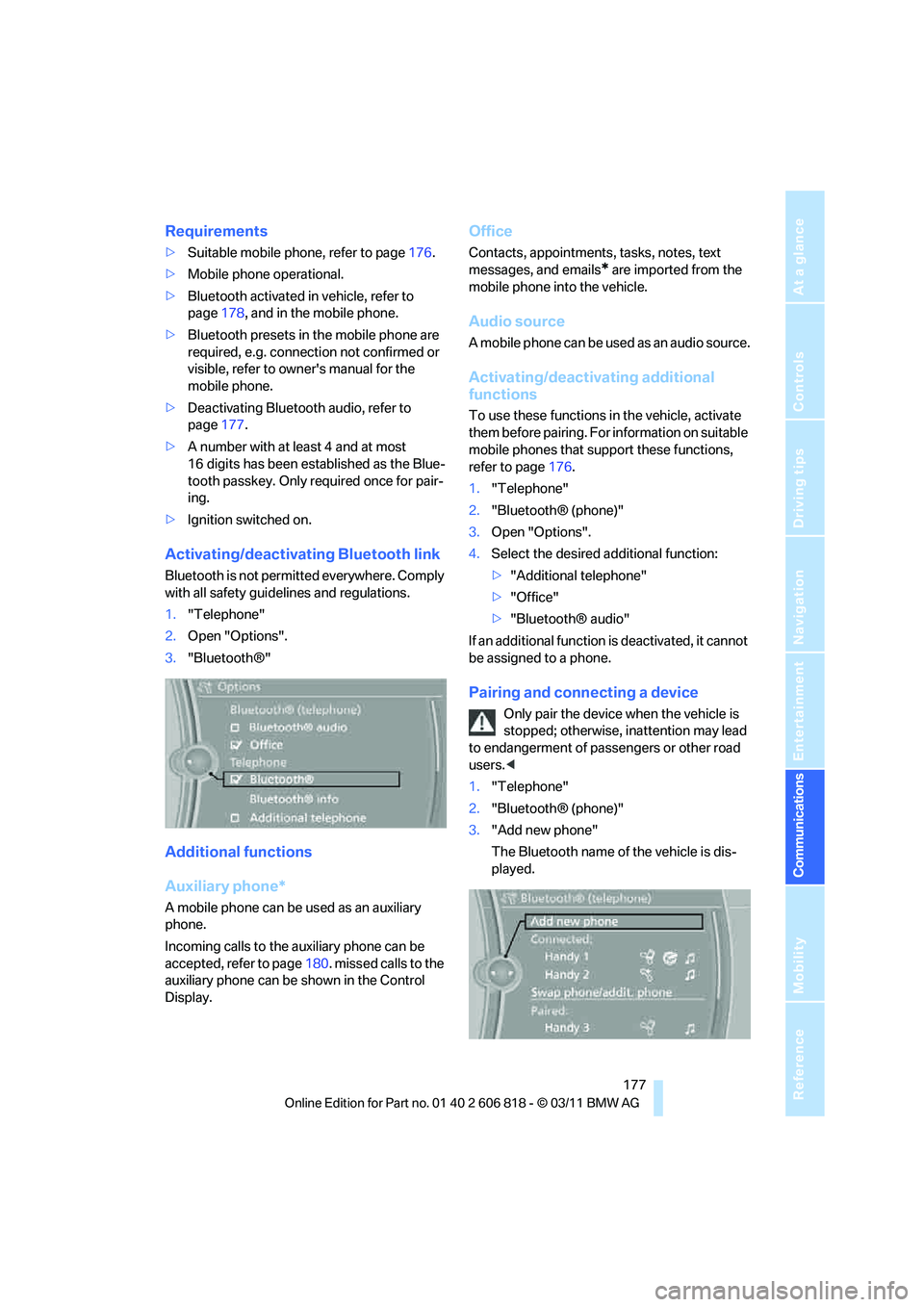
Activating/deactivating Bluetooth link
Bluetooth is not permitted everywhere. Comply
with all safety guidelines and regulations.
1."Telephone"
2.Open "Options".
3."Bluetooth®"
Additional functions
Auxiliary phone*
A mobile phone can be used as an auxiliary
phone.
Incoming calls to the auxiliary phone can be
accepted, refer to page180. missed calls to the
auxiliary phone can be shown in the Control
Display.
Office
Contacts, appointments, tasks, notes, text
messages, and emails
* are imported from the
mobile phone into the vehicle.
Audio source
A mobile phone can be used as an audio source.
Activating/deactivating additional
functions
To use these functions in the vehicle, activate
them before pairing. For information on suitable
mobile phones that support these functions,
refer to page176.
1."Telephone"
2."Bluetooth® (phone)"
3.Open "Options".
4.Select the desired additional function:
>"Additional telephone"
>"Office"
>"Bluetooth® audio"
If an additional function is deactivated, it cannot
be assigned to a phone.
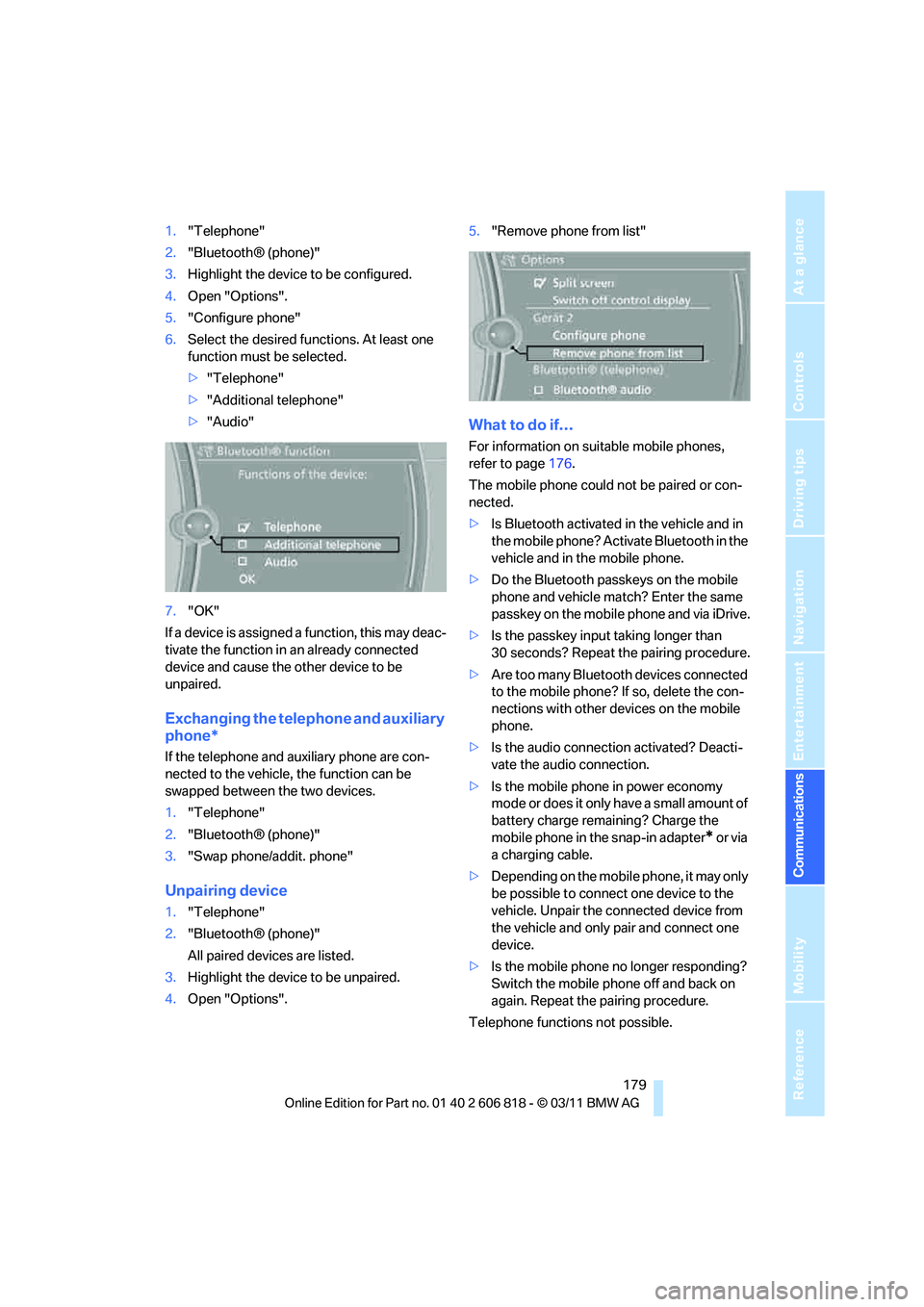
Pairing and connecting a device
Only pair the device when the vehicle is
stopped; otherwise, inattention may lead
to endangerment of passengers or other road
users.<
1."Telephone"
2."Bluetooth® (phone)"
3."Add new phone"
The Bluetooth name of the vehicle is dis-
played.
Page 181 of 272
179
Entertainment
Reference
At a glance
Controls
Driving tips Communications
Navigation
Mobility
1."Telephone"
2."Bluetooth® (phone)"
3.Highlight the device to be configured.
4.Open "Options".
5."Configure phone"
6.Select the desired functions. At least one
function must be selected.
>"Telephone"
>"Additional telephone"
>"Audio"
7."OK"
If a device is assigned a function, this may deac-
tivate the function in an already connected
device and cause the other device to be
unpaired.
Exchanging the telephone and auxiliary
phone*
If the telephone and auxiliary phone are con-
nected to the vehicle, the function can be
swapped between the two devices.
1."Telephone"
2."Bluetooth® (phone)"
3."Swap phone/addit. phone"
Unpairing device
1."Telephone"
2."Bluetooth® (phone)"
All paired devices are listed.
3.Highlight the device to be unpaired.
4.Open "Options".5."Remove phone from list"
What to do if…
For information on suitable mobile phones,
refer to page176.
The mobile phone could not be paired or con-
nected.
>Is Bluetooth activated in the vehicle and in
the mobile phone? Activate Bluetooth in the
vehicle and in the mobile phone.
>Do the Bluetooth passkeys on the mobile
phone and vehicle match? Enter the same
passkey on the mobile phone and via iDrive.
>Is the passkey input taking longer than
30 seconds? Repeat the pairing procedure.
>Are too many Bluetooth devices connected
to the mobile phone? If so, delete the con-
nections with other devices on the mobile
phone.
>Is the audio connection activated? Deacti-
vate the audio connection.
>Is the mobile phone in power economy
mode or does it only have a small amount of
battery charge remaining? Charge the
mobile phone in the snap-in adapter
* or via
a charging cable.
>Depending on the mobile phone, it may only
be possible to connect one device to the
vehicle. Unpair the connected device from
the vehicle and only pair and connect one
device.
>Is the mobile phone no longer responding?
Switch the mobile phone off and back on
again. Repeat the pairing procedure.
Telephone functions not possible.
Page 183 of 272
181
Entertainment
Reference
At a glance
Controls
Driving tips Communications
Navigation
Mobility
With calls to the auxiliary phone*, only the num-
ber is displayed if it is transmitted by the net-
work.
An incoming call to the auxiliary phone is auto-
matically rejected if a call with the phone is cur-
rently active.
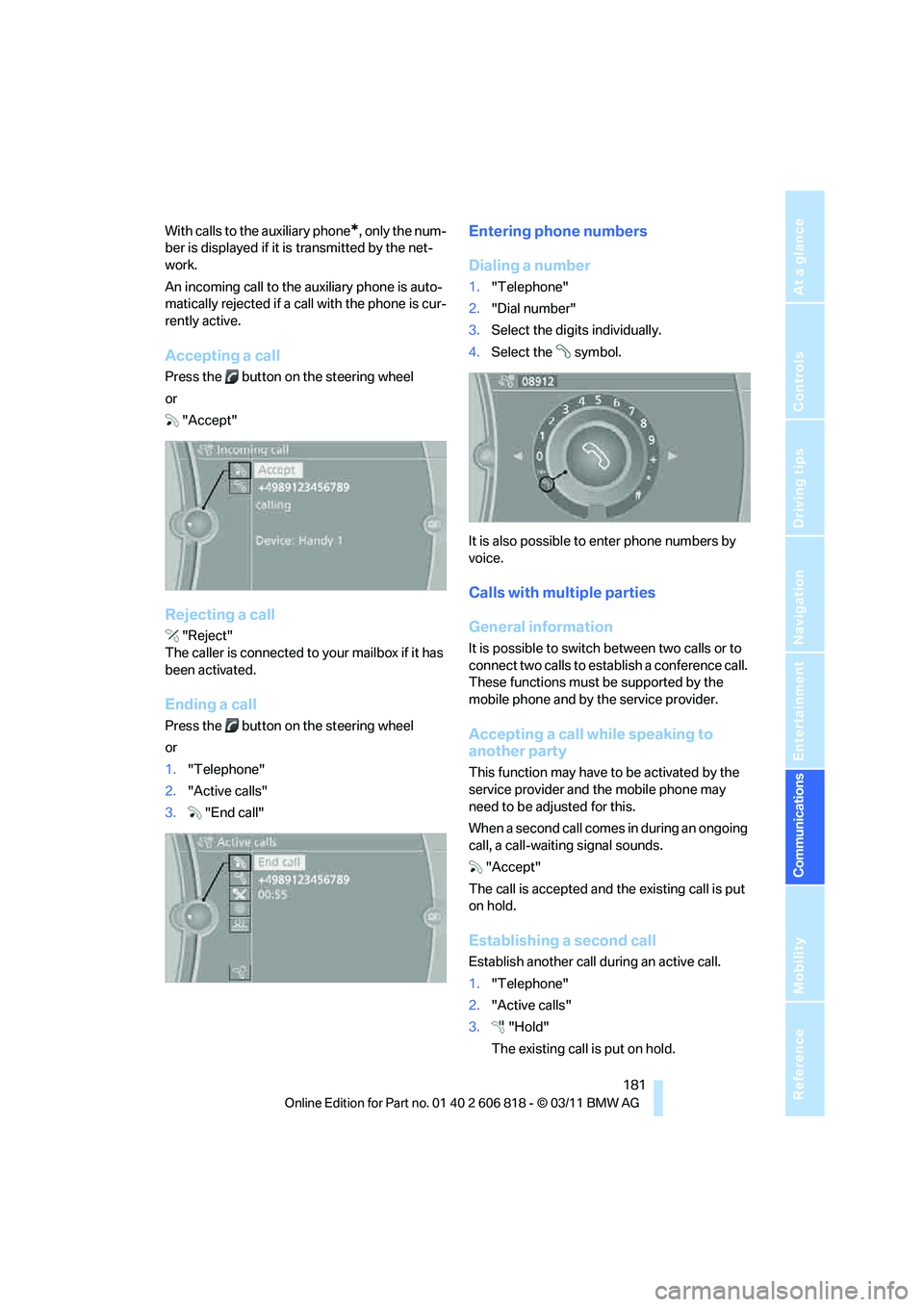
Accepting a call
Press the button on the steering wheel
or
"Accept"
Rejecting a call
"Reject"
The caller is connected to your mailbox if it has
been activated.
Ending a call
Press the button on the steering wheel
or
1."Telephone"
2."Active calls"
3."End call"
Entering phone numbers
Dialing a number
1."Telephone"
2."Dial number"
3.Select the digits individually.
4.Select the symbol.
It is also possible to enter phone numbers by
voice.
Calls with multiple parties
General information
It is possible to switch between two calls or to
connect two calls to establish a conference call.
These functions must be supported by the
mobile phone and by the service provider.
Accepting a call while speaking to
another party
This function may have to be activated by the
service provider and the mobile phone may
need to be adjusted for this.
When a second call comes in during an ongoing
call, a call-waiting signal sounds.
"Accept"
The call is accepted and the existing call is put
on hold.
Establishing a second call
Establish another call during an active call.
1."Telephone"
2."Active calls"
3."Hold"
The existing call is put on hold.
Page 185 of 272
183
Entertainment
Reference
At a glance
Controls
Driving tips Communications
Navigation
Mobility
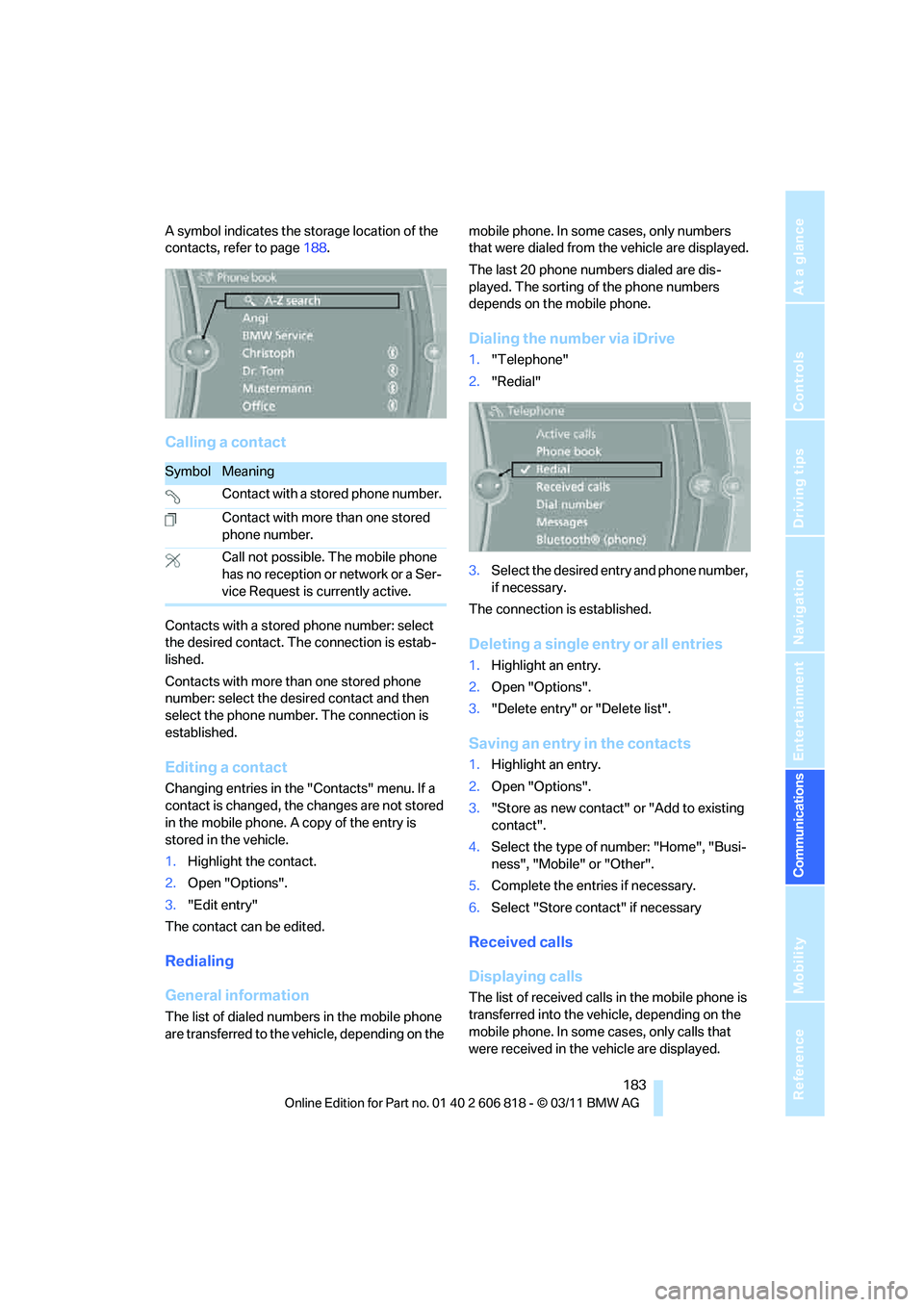
A symbol indicates the storage location of the
contacts, refer to page188.
Calling a contact
Contacts with a stored phone number: select
the desired contact. The connection is estab-
lished.
Contacts with more than one stored phone
number: select the desired contact and then
select the phone number. The connection is
established.
Editing a contact
Changing entries in the "Contacts" menu. If a
contact is changed, the changes are not stored
in the mobile phone. A copy of the entry is
stored in the vehicle.
1.Highlight the contact.
2.Open "Options".
3."Edit entry"
The contact can be edited.
Redialing
General information
The list of dialed numbers in the mobile phone
are transferred to the vehicle, depending on the mobile phone. In some cases, only numbers
that were dialed from the vehicle are displayed.
The last 20 phone numbers dialed are dis-
played. The sorting of the phone numbers
depends on the mobile phone.
Dialing the number via iDrive
1."Telephone"
2."Redial"
3.Select the desired entry and phone number,
if necessary.
The connection is established.
Deleting a single entry or all entries
1.Highlight an entry.
2.Open "Options".
3."Delete entry" or "Delete list".
Saving an entry in the contacts
1.Highlight an entry.
2.Open "Options".
3."Store as new contact" or "Add to existing
contact".
4.Select the type of number: "Home", "Busi-
ness", "Mobile" or "Other".
5.Complete the entries if necessary.
6.Select "Store contact" if necessary
Received calls
Displaying calls
The list of received calls in the mobile phone is
transferred into the vehicle, depending on the
mobile phone. In some cases, only calls that
were received in the vehicle are displayed.
SymbolMeaning
Contact with a stored phone number.
Contact with more than one stored
phone number.
Call not possible. The mobile phone
has no reception or network or a Ser-
vice Request is currently active.
Page 187 of 272
185
Entertainment
Reference
At a glance
Controls
Driving tips Communications
Navigation
Mobility
Saying commands
Activating voice activation system
1.Briefly press the button on the steering
wheel.
2.Say the command.
Finishing voice input
Press the button on the steering wheel
briefly
or
Possible commands
Having the possible commands read
aloud
The system understands default commands
that must be spoken word for word.
Possible commands are read aloud.
Digits from zero to nine are recognized.
Each digit can be spoken individually or com-
bined into a sequence to accelerate the entry
process.
Using alternative commands
Often there is more than a single command to
run a function, e.g.:
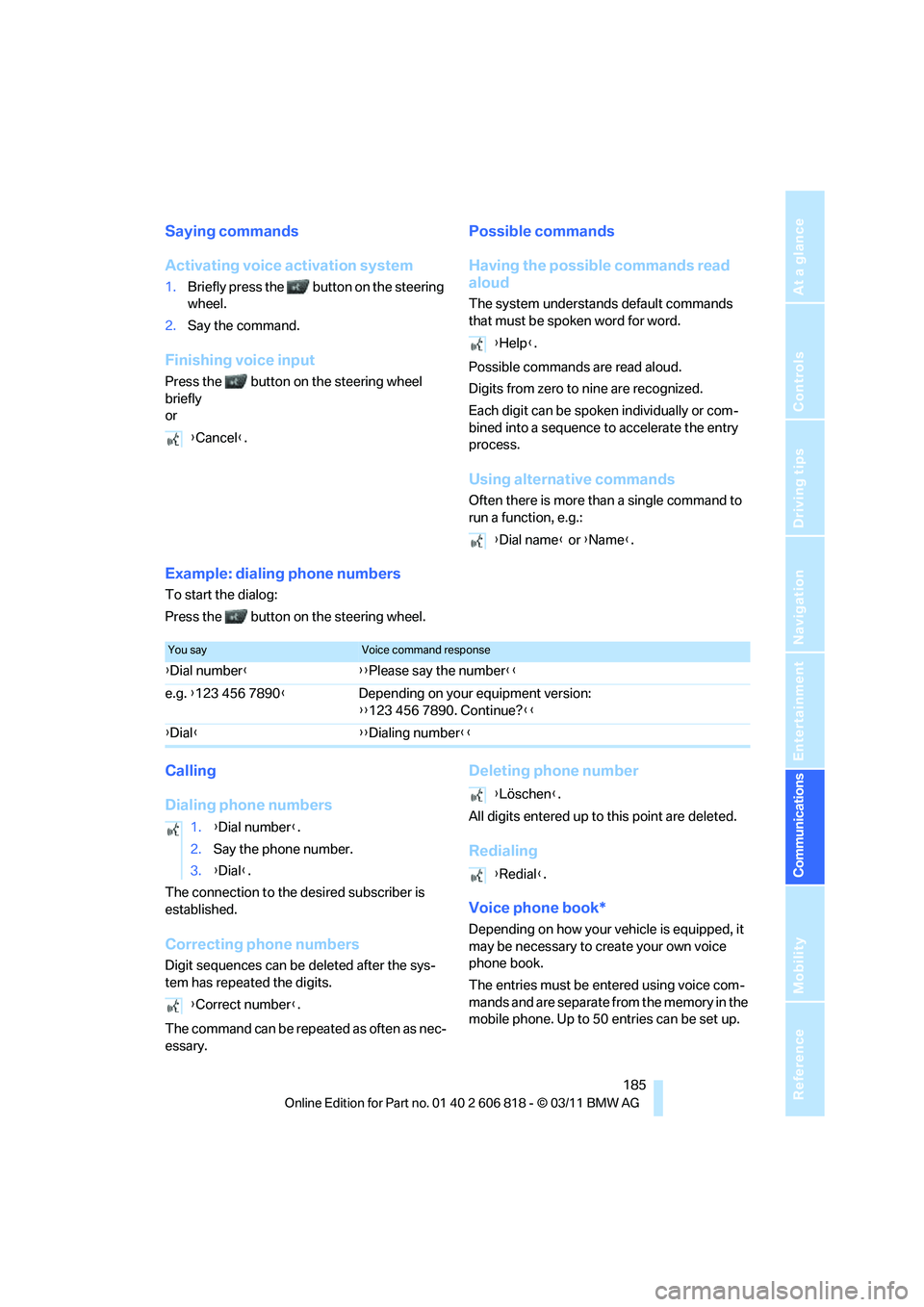
Example: dialing phone numbers
To start the dialog:
Press the button on the steering wheel.
Calling
Dialing phone numbers
The connection to the desired subscriber is
established.
Correcting phone numbers
Digit sequences can be deleted after the sys-
tem has repeated the digits.
The command can be repeated as often as nec-
essary.
Deleting phone number
All digits entered up to this point are deleted.
Redialing
Voice phone book*
Depending on how your vehicle is equipped, it
may be necessary to create your own voice
phone book.
The entries must be entered using voice com-
mands and are separate from the memory in the
mobile phone. Up to 50 entries can be set up. {Cancel}.
{Help}.
{Dial name} or {Name}.
You sayVoice command response
{Dial number}{{Please say the number}}
e.g. {123 456 7890}Depending on your equipment version:
{{123 456 7890. Continue?}}
{Dial}{{Dialing number}}
1.{Dial number}.
2.Say the phone number.
3.{Dial}.
{Correct number}.
{Löschen}.
{Redial}.
Page 189 of 272
187
Entertainment
Reference
At a glance
Controls
Driving tips Communications
Navigation
Mobility
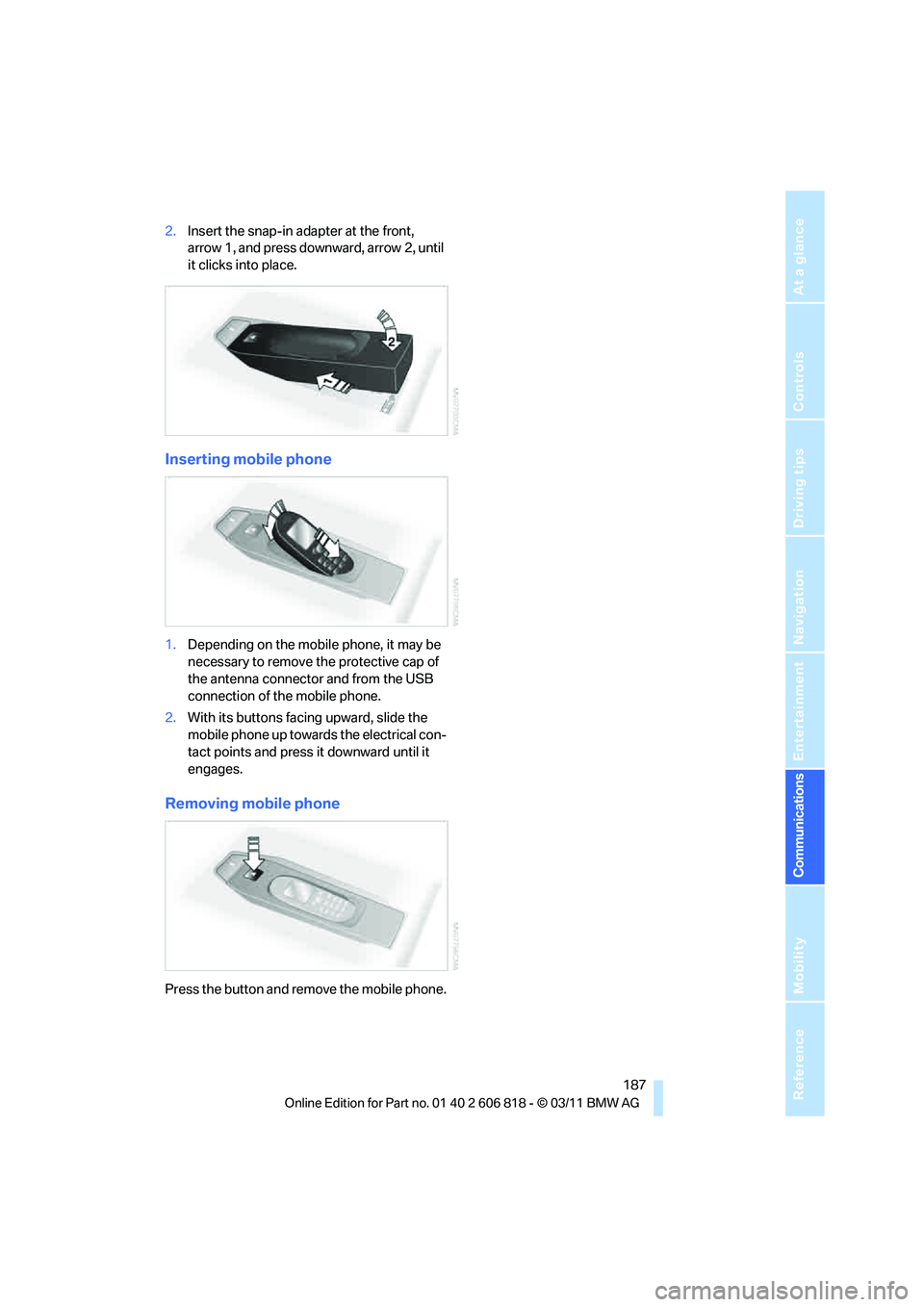
2.Insert the snap-in adapter at the front,
arrow 1, and press downward, arrow 2, until
it clicks into place.
Inserting mobile phone
1.Depending on the mobile phone, it may be
necessary to remove the protective cap of
the antenna connector and from the USB
connection of the mobile phone.
2.With its buttons facing upward, slide the
mobile phone up towards the electrical con-
tact points and press it downward until it
engages.
Removing mobile phone
Press the button and remove the mobile phone.