Back light BMW 135I COUPE 2008 E82 User Guide
[x] Cancel search | Manufacturer: BMW, Model Year: 2008, Model line: 135I COUPE, Model: BMW 135I COUPE 2008 E82Pages: 260, PDF Size: 8.61 MB
Page 109 of 260
Controls
107Reference
At a glance
Driving tips
Communications
Navigation
Entertainment
Mobility
Ashtray*
Opening
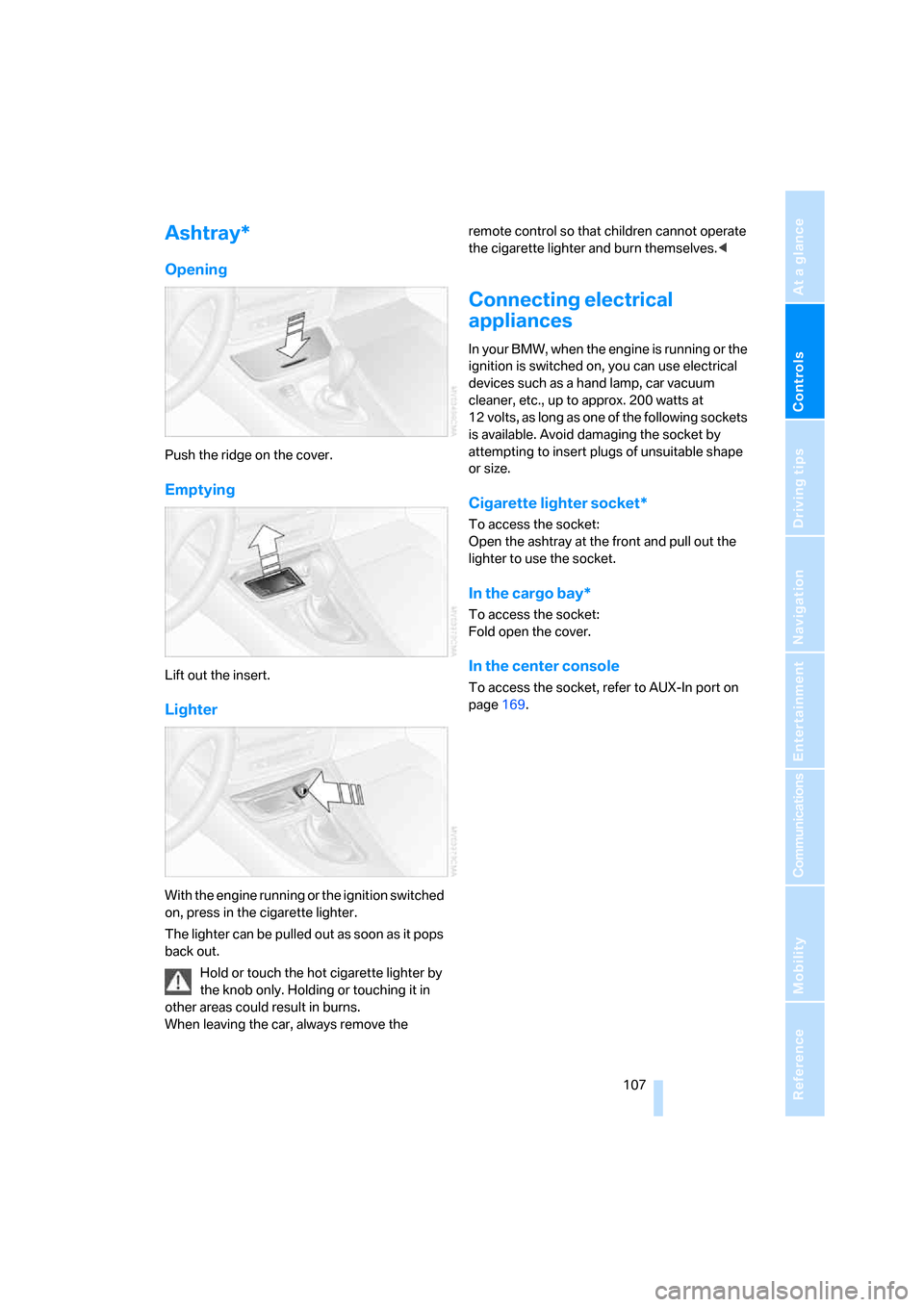
Push the ridge on the cover.
Emptying
Lift out the insert.
Lighter
With the engine running or the ignition switched
on, press in the cigarette lighter.
The lighter can be pulled out as soon as it pops
back out.
Hold or touch the hot cigarette lighter by
the knob only. Holding or touching it in
other areas could result in burns.
When leaving the car, always remove the remote control so that children cannot operate
the cigarette lighter and burn themselves.<
Connecting electrical
appliances
In yo ur BMW, when the engine is running o r the
ignition is switched on, you can use electrical
devices such as a hand lamp, car vacuum
cleaner, etc., up to approx. 200 watts at
12 volts, as long as one of the following sockets
is available. Avoid damaging the socket by
attempting to insert plugs of unsuitable shape
or size.
Cigarette lighter socket*
To access the socket:
Open the ashtray at the front and pull out the
lighter to use the socket.
In the cargo bay*
To access the socket:
Fold open the cover.
In the center console
To access the socket, refer to AUX-In port on
page169.
Page 110 of 260
Practical interior accessories
108
Coupe: through-loading
system
Opening
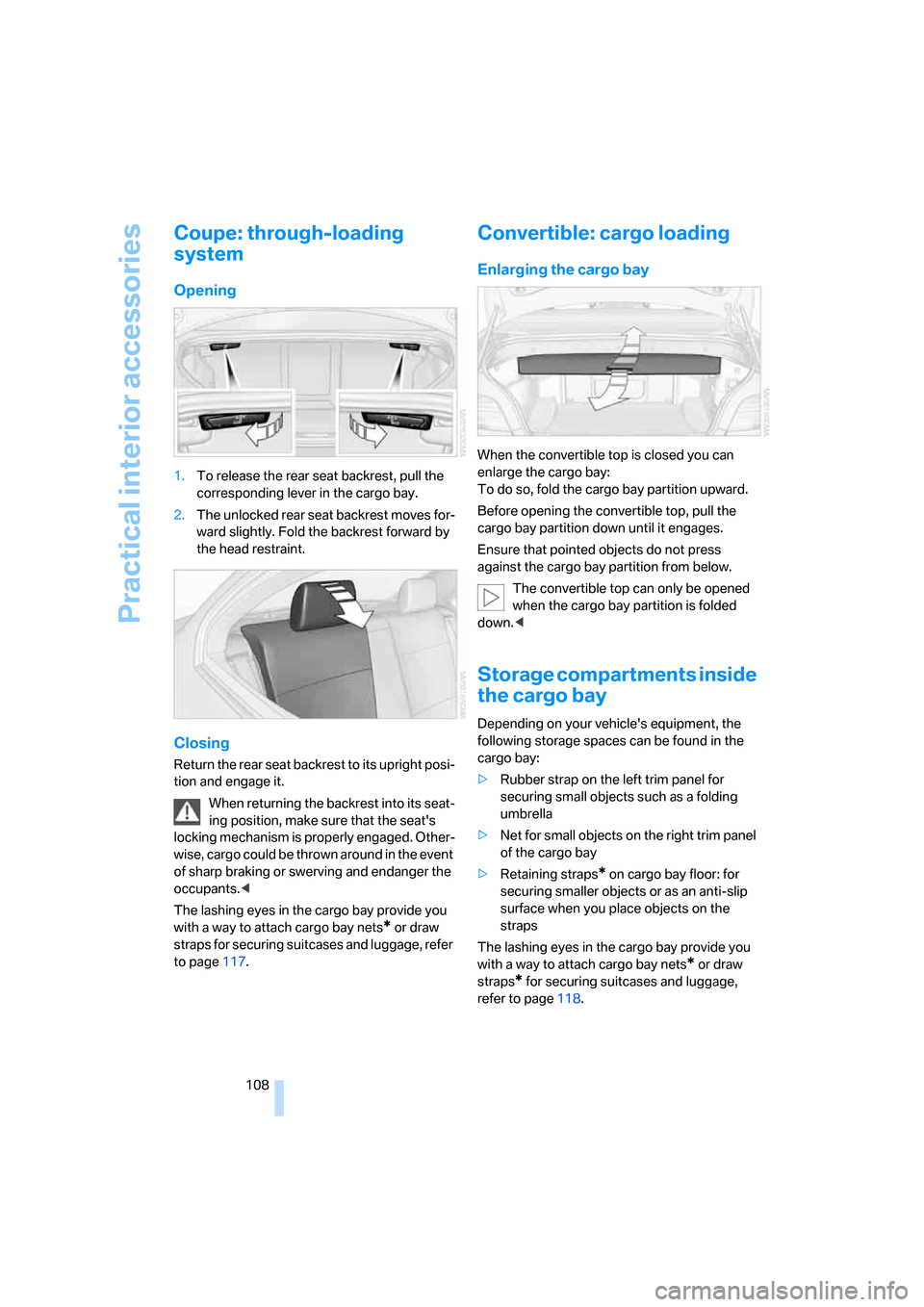
1.To release the rear seat backrest, pull the
corresponding lever in the cargo bay.
2.The unlocked rear seat backrest moves for-
ward slightly. Fold the backrest forward by
the head restraint.
Closing
Return the rear seat backrest to its upright posi-
tion and engage it.
When returning the backrest into its seat-
ing position, make sure that the seat's
locking mechanism is properly engaged. Other-
wise, cargo could be thrown around in the event
of sharp braking or swerving and endanger the
occupants.<
The lashing eyes in the cargo bay provide you
with a way to attach cargo bay nets
* or draw
straps for securing suitcases and luggage, refer
to page117.
Convertible: cargo loading
Enlarging the cargo bay
When the convertible top is closed you can
enlarge the cargo bay:
To do so, fold the cargo bay partition upward.
Before opening the convertible top, pull the
cargo bay partition down until it engages.
Ensure that pointed objects do not press
against the cargo bay partition from below.
The convertible top can only be opened
when the cargo bay partition is folded
down.<
Storage compartments inside
the cargo bay
Depending on your vehicle's equipment, the
following storage spaces can be found in the
cargo bay:
>Rubber strap on the left trim panel for
securing small objects such as a folding
umbrella
>Net for small objects on the right trim panel
of the cargo bay
>Retaining straps
* on cargo bay floor: for
securing smaller objects or as an anti-slip
surface when you place objects on the
straps
The lashing eyes in the cargo bay provide you
with a way to attach cargo bay nets
* or draw
straps
* for securing suitcases and luggage,
refer to page118.
Page 120 of 260
Things to remember when driving
118
Convertible
>Position heavy objects as low and as far for-
ward as possible, ideally directly behind the
respective seat backrests.
>Cover sharp edges and corners.
>For very heavy cargo when the rear seat is
not occupied, secure each safety belt in the
opposite buckle.
Securing cargo
>Secure smaller and lighter items using
retaining straps, a cargo bay net
* or draw
straps
*.
>Heavy-duty cargo straps
* for securing
larger and heavier objects are available at
your BMW center. To attach the cargo
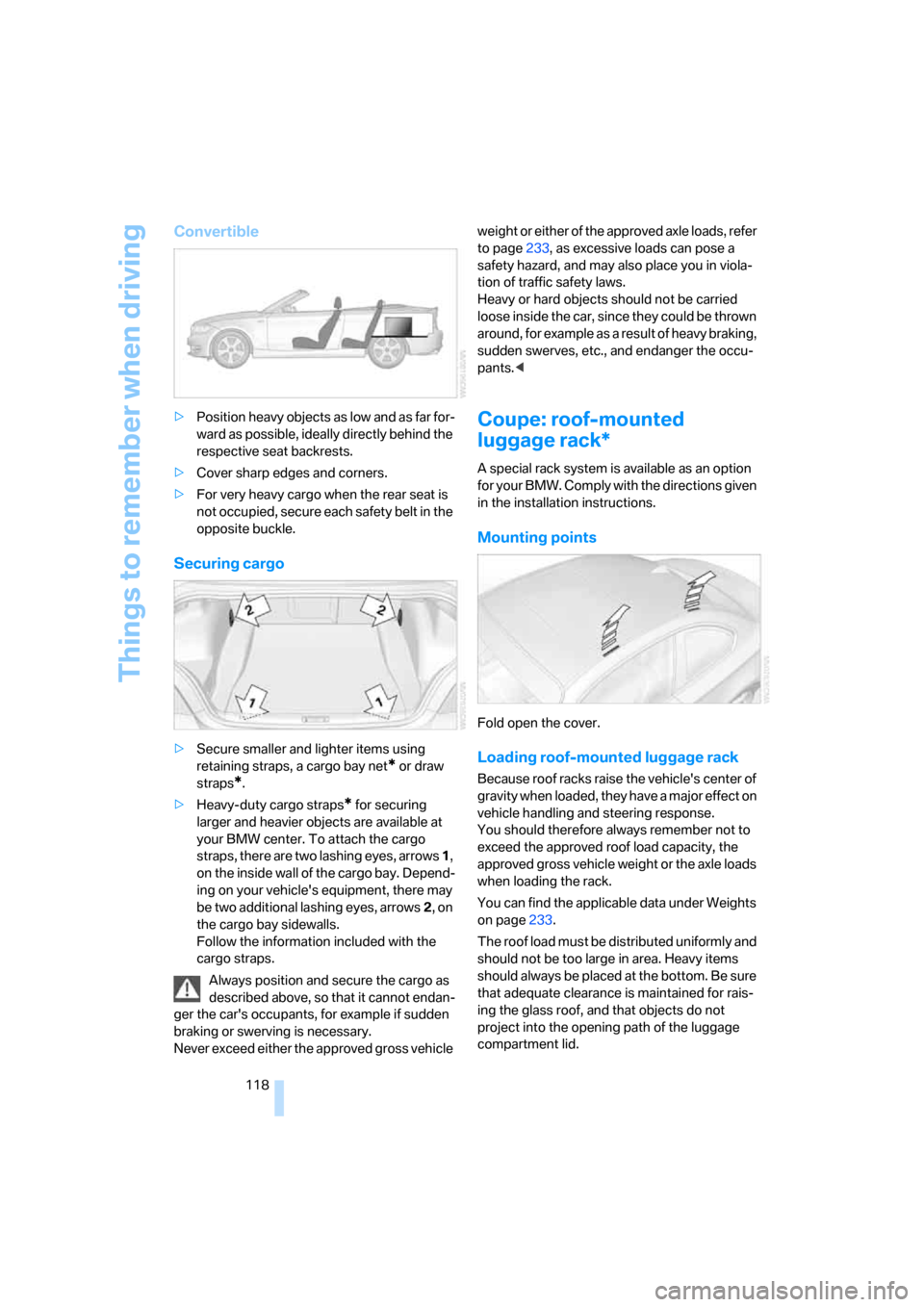
straps, there are two lashing eyes, arrows 1,
on the inside wall of the cargo bay. Depend-
ing on your vehicle's equipment, there may
be two additional lashing eyes, arrows2, on
the cargo bay sidewalls.
Follow the information included with the
cargo straps.
Always position and secure the cargo as
described above, so that it cannot endan-
ger the car's occupants, for example if sudden
braking or swerving is necessary.
Never exceed either the approved gross vehicle weight or either of the approved axle loads, refer
to page233, as excessive loads can pose a
safety hazard, and may also place you in viola-
tion of traffic safety laws.
Heavy or hard objects should not be carried
loose inside the car, since they could be thrown
around, for example as a result of heavy braking,
sudden swerves, etc., and endanger the occu-
pants.<
Coupe: roof-mounted
luggage rack*
A special rack system is available as an option
f o r y o u r B M W . C o m p l y w i t h t h e d i r e c t i o n s g i v e n
in the installation instructions.
Mounting points
Fold open the cover.
Loading roof-mounted luggage rack
Because roof racks raise the vehicle's center of
gravity when loaded, they have a major effect on
vehicle handling and steering response.
You should therefore always remember not to
exceed the approved roof load capacity, the
approved gross vehicle weight or the axle loads
when loading the rack.
You can find the applicable data under Weights
on page233.
The roof load must be distributed uniformly and
should not be too large in area. Heavy items
should always be placed at the bottom. Be sure
that adequate clearance is maintained for rais-
ing the glass roof, and that objects do not
project into the opening path of the luggage
compartment lid.
Page 145 of 260
Navigation
Driving tips
143Reference
At a glance
Controls
Communications
Entertainment
Mobility
Displaying traffic information in map
display
The traffic information icons are shown in the
map display up to a scale of 100 miles/200 km.
The highlighting of the stretch corresponding
to the traffic report and the icons for the type of
event as described below are displayed and
hidden. This depends on the selected scale.
Displaying detailed traffic information
Select a traffic information item from the list and
press the controller.
To exit from the menu:
Select the arrow and press the controller.
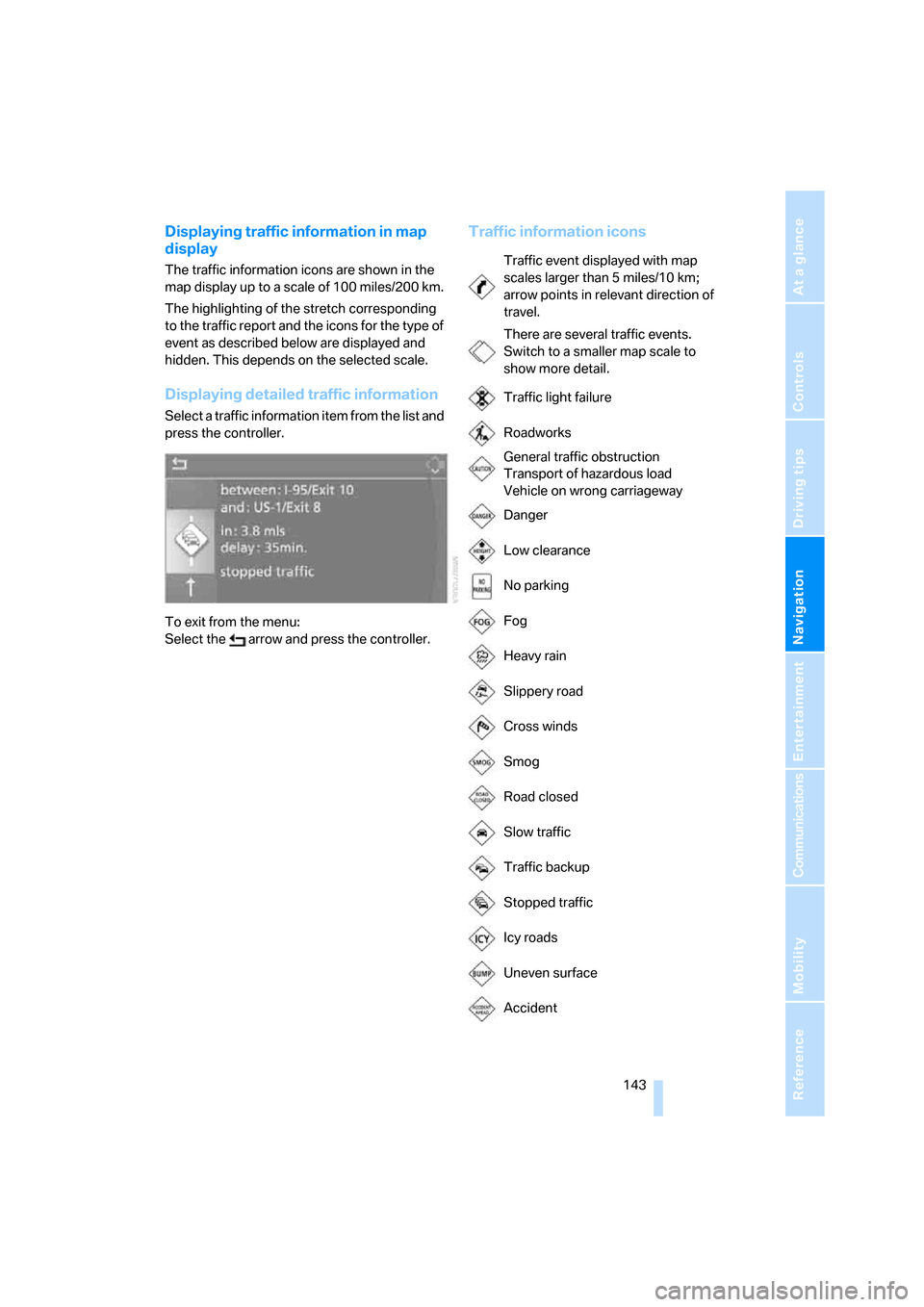
Traffic information icons
Traffic event displayed with map
scales larger than 5 miles/10 km;
arrow points in relevant direction of
travel.
There are several traffic events.
Switch to a smaller map scale to
show more detail.
Traffic light failure
Roadworks
General traffic obstruction
Transport of hazardous load
Vehicle on wrong carriageway
Danger
Low clearance
No parking
Fog
Heavy rain
Slippery road
Cross winds
Smog
Road closed
Slow traffic
Traffic backup
Stopped traffic
Icy roads
Uneven surface
Accident
Page 156 of 260
Radio
154
Radio
Your radio provides reception of the FM and AM
wavebands.
Listening to the radio
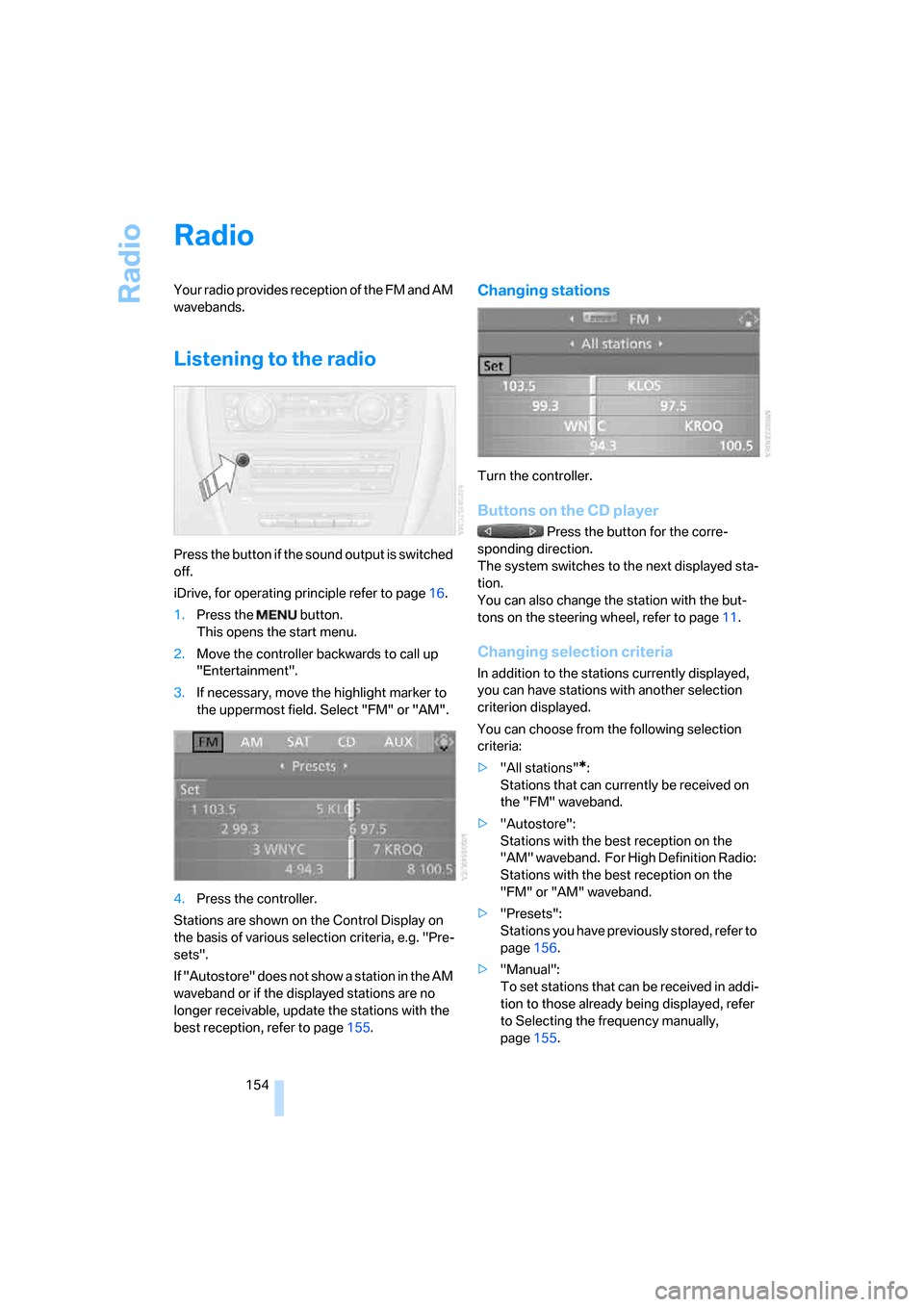
Press the button if the sound output is switched
off.
iDrive, for operating principle refer to page16.
1.Press the button.
This opens the start menu.
2.Move the controller backwards to call up
"Entertainment".
3.If necessary, move the highlight marker to
the uppermost field. Select "FM" or "AM".
4.Press the controller.
Stations are shown on the Control Display on
the basis of various selection criteria, e.g. "Pre-
sets".
If "Autostore" does not show a station in the AM
waveband or if the displayed stations are no
longer receivable, update the stations with the
best reception, refer to page155.
Changing stations
Turn the controller.
Buttons on the CD player
Press the button for the corre-
sponding direction.
The system switches to the next displayed sta-
tion.
You can also change the station with the but-
tons on the steering wheel, refer to page11.
Changing selection criteria
In addition to the stations currently displayed,
you can have stations with another selection
criterion displayed.
You can choose from the following selection
criteria:
>"All stations"
*:
Stations that can currently be received on
the "FM" waveband.
>"Autostore":
Stations with the best reception on the
"AM" waveband. For High Definition Radio:
Stations with the best reception on the
"FM" or "AM" waveband.
>"Presets":
Stations you have previously stored, refer to
page156.
>"Manual":
To set stations that can be received in addi-
tion to those already being displayed, refer
to Selecting the frequency manually,
page155.
Page 165 of 260
Navigation
Entertainment
Driving tips
163Reference
At a glance
Controls
Communications
Mobility
CD player and CD changer
Listening to CDs
Compressed audio files
CDs with compressed audio files, MP3s, can be
played by the CD player and CD changer.
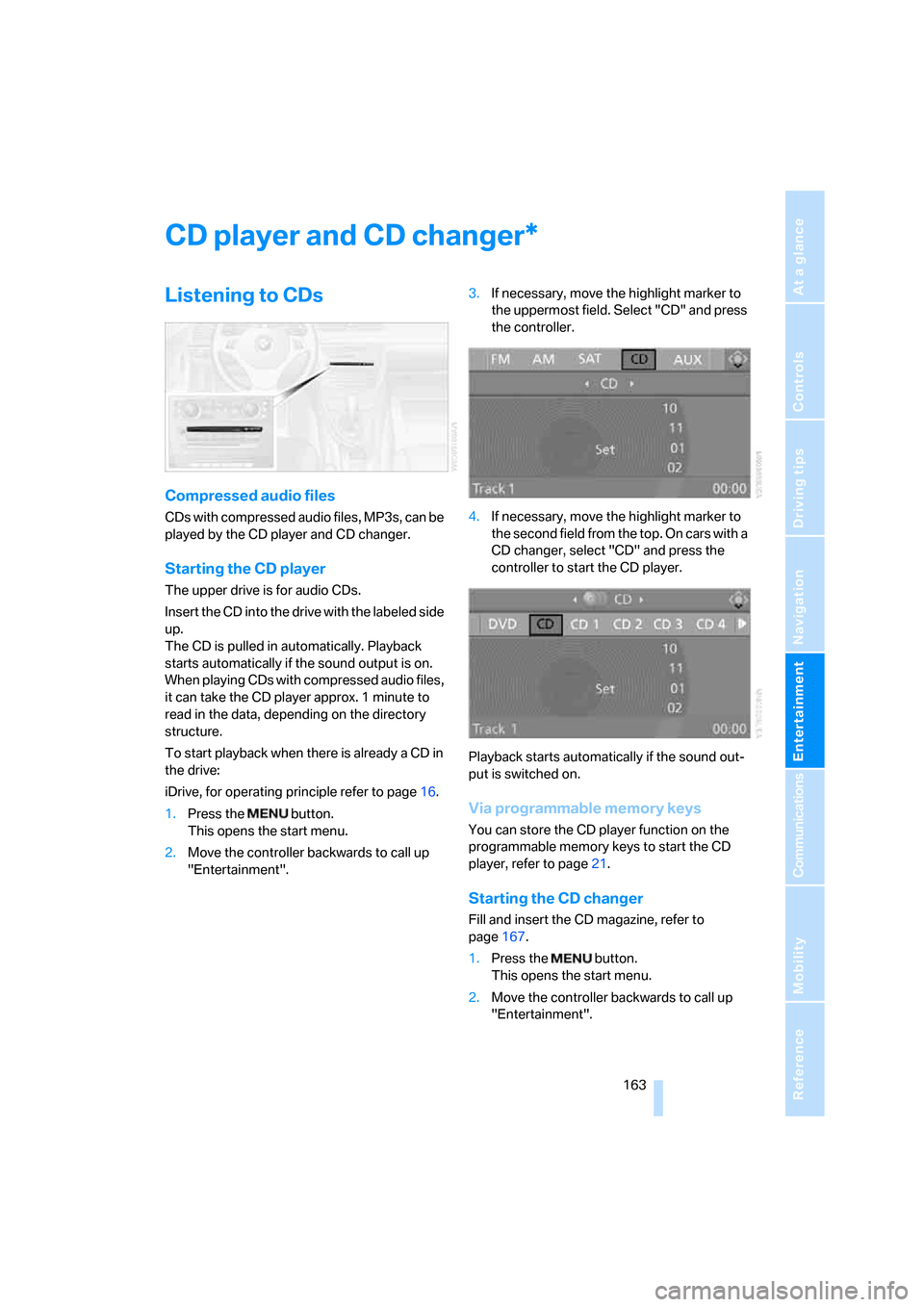
Starting the CD player
The upper drive is for audio CDs.
Insert the CD into the drive with the labeled side
up.
The CD is pulled in automatically. Playback
starts automatically if the sound output is on.
When playing CDs with compressed audio files,
it can take the CD player approx. 1 minute to
read in the data, depending on the directory
structure.
To start playback when there is already a CD in
the drive:
iDrive, for operating principle refer to page16.
1.Press the button.
This opens the start menu.
2.Move the controller backwards to call up
"Entertainment".3.If necessary, move the highlight marker to
the uppermost field. Select "CD" and press
the controller.
4.If necessary, move the highlight marker to
the second field from the top. On cars with a
CD changer, select "CD" and press the
controller to start the CD player.
Playback starts automatically if the sound out-
put is switched on.
Via programmable memory keys
You can store the CD player function on the
programmable memory keys to start the CD
player, refer to page21.
Starting the CD changer
Fill and insert the CD magazine, refer to
page167.
1.Press the button.
This opens the start menu.
2.Move the controller backwards to call up
"Entertainment".
*
Page 166 of 260
CD player and CD changer
164 3.If necessary, move the highlight marker to
the uppermost field. Select "CD" and press
the controller.
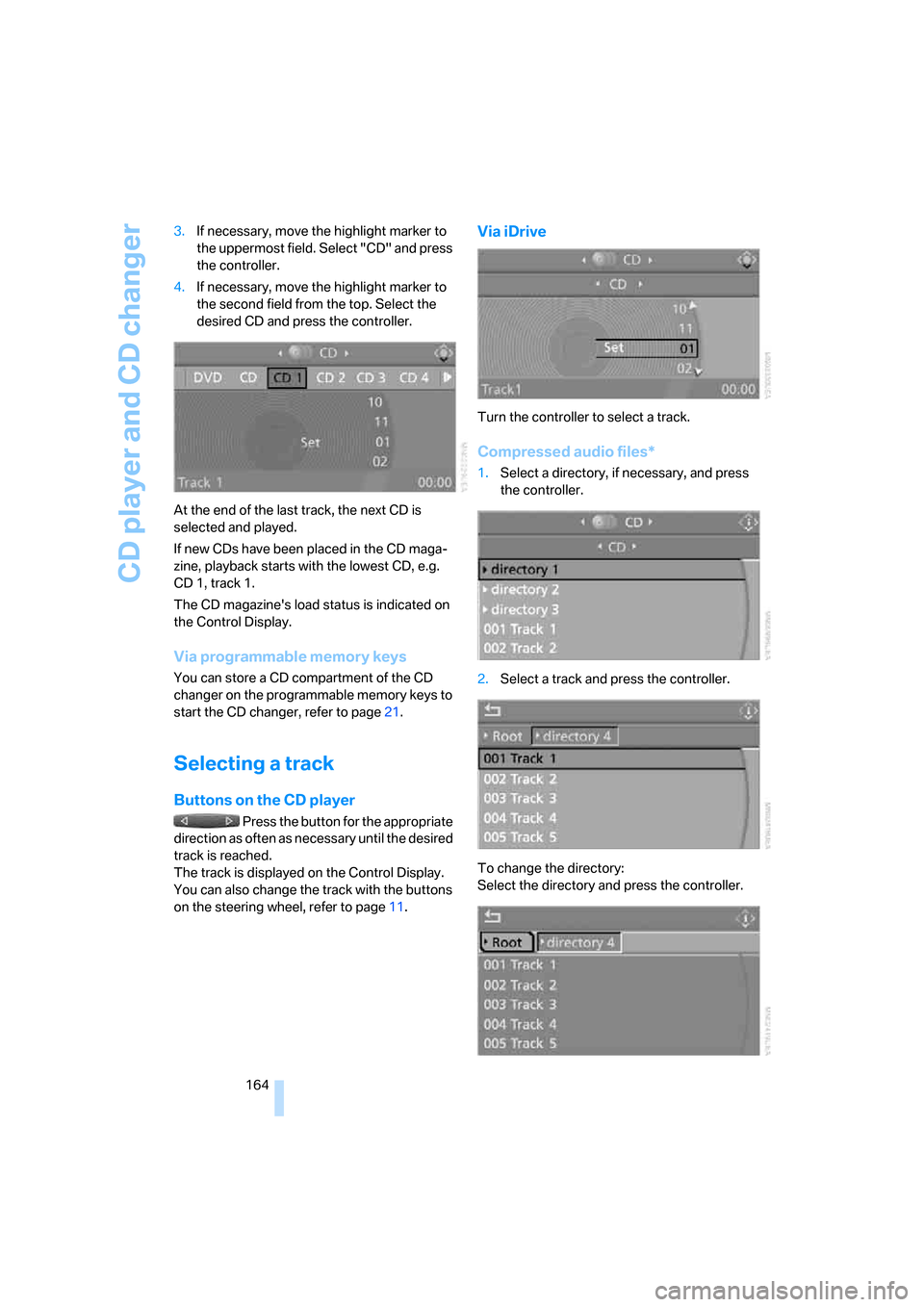
4.If necessary, move the highlight marker to
the second field from the top. Select the
desired CD and press the controller.
At the end of the last track, the next CD is
selected and played.
If new CDs have been placed in the CD maga-
zine, playback starts with the lowest CD, e.g.
CD 1, track 1.
The CD magazine's load status is indicated on
the Control Display.
Via programmable memory keys
You can store a CD compartment of the CD
changer on the programmable memory keys to
start the CD changer, refer to page21.
Selecting a track
Buttons on the CD player
Press the button for the appropriate
direction as often as necessary until the desired
track is reached.
The track is displayed on the Control Display.
You can also change the track with the buttons
on the steering wheel, refer to page11.
Via iDrive
Turn the controller to select a track.
Compressed audio files*
1.Select a directory, if necessary, and press
the controller.
2.Select a track and press the controller.
To change the directory:
Select the directory and press the controller.
Page 170 of 260
CD player and CD changer
168
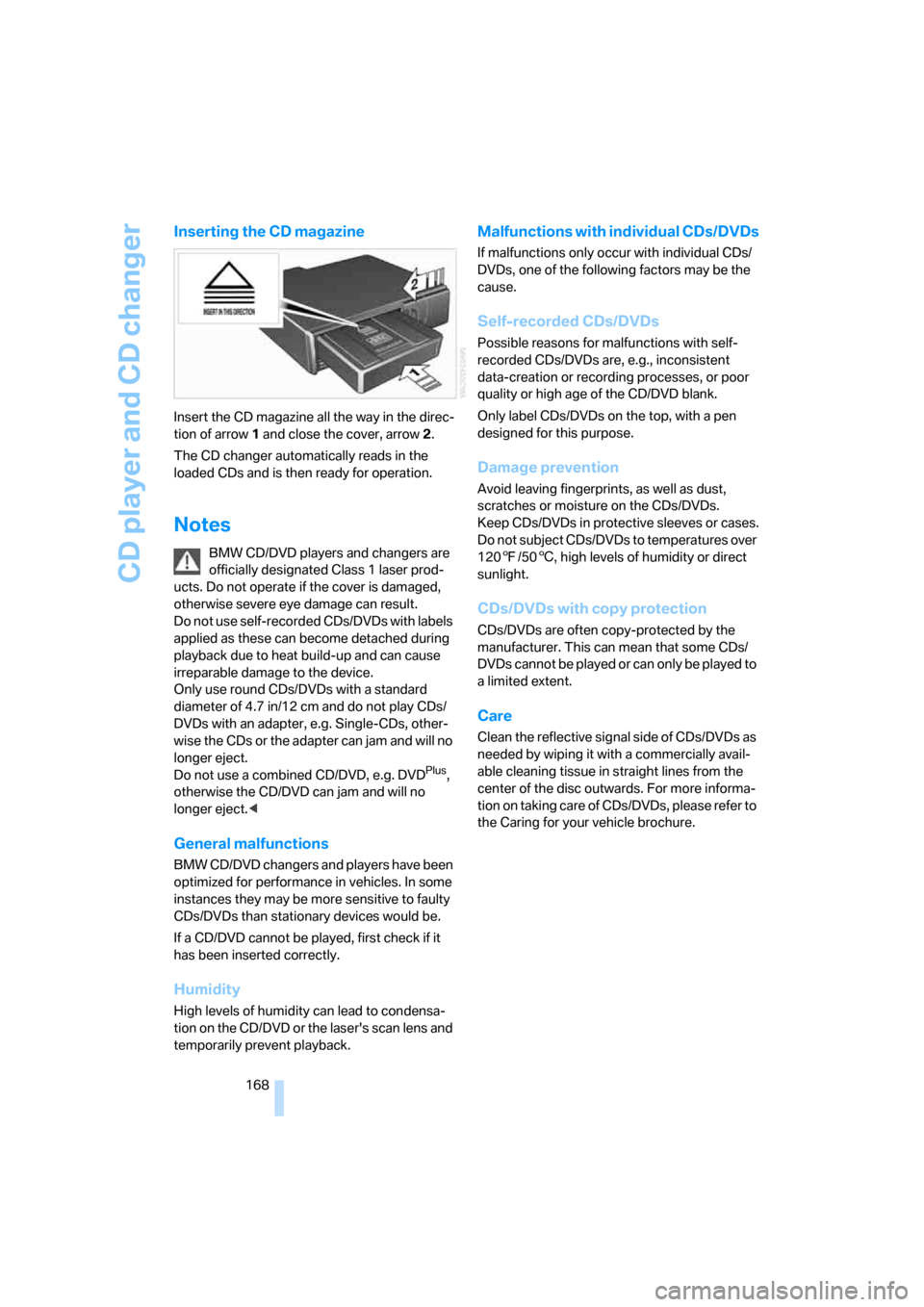
Inserting the CD magazine
Insert the CD magazine all the way in the direc-
tion of arrow 1 and close the cover, arrow 2.
The CD changer automatically reads in the
loaded CDs and is then ready for operation.
Notes
BMW CD/DVD players and changers are
officially designated Class 1 laser prod-
ucts. Do not operate if the cover is damaged,
otherwise severe eye damage can result.
Do not use self-recorded CDs/DVDs with labels
applied as these can become detached during
playback due to heat build-up and can cause
irreparable damage to the device.
Only use round CDs/DVDs with a standard
diameter of 4.7 in/12 cm and do not play CDs/
DVDs with an adapter, e.g. Single-CDs, other-
wise the CDs or the adapter can jam and will no
longer eject.
Do not use a combined CD/DVD, e.g. DVD
Plus,
otherwise the CD/DVD can jam and will no
longer eject.<
General malfunctions
BMW CD/DVD changers and players have been
optimized for performance in vehicles. In some
instances they may be more sensitive to faulty
CDs/DVDs than stationary devices would be.
If a CD/DVD cannot be played, first check if it
has been inserted correctly.
Humidity
High levels of humidity can lead to condensa-
tion on the CD/DVD or the laser's scan lens and
temporarily prevent playback.
Malfunctions with individual CDs/DVDs
If malfunctions only occur with individual CDs/
DVDs, one of the following factors may be the
cause.
Self-recorded CDs/DVDs
Possible reasons for malfunctions with self-
recorded CDs/DVDs are, e.g., inconsistent
data-creation or recording processes, or poor
quality or high age of the CD/DVD blank.
Only label CDs/DVDs on the top, with a pen
designed for this purpose.
Damage prevention
Avoid leaving fingerprints, as well as dust,
scratches or moisture on the CDs/DVDs.
Keep CDs/DVDs in protective sleeves or cases.
Do not subject CDs/DVDs to temperatures over
1207/506, high levels of humidity or direct
sunlight.
CDs/DVDs with copy protection
CDs/DVDs are often copy-protected by the
manufacturer. This can mean that some CDs/
DVDs cannot be played or can only be played to
a limited extent.
Care
Clean the reflective signal side of CDs/DVDs as
needed by wiping it with a commercially avail-
able cleaning tissue in straight lines from the
center of the disc outwards. For more informa-
tion on taking care of CDs/DVDs, please refer to
the Caring for your vehicle brochure.
Page 171 of 260
Navigation
Entertainment
Driving tips
169Reference
At a glance
Controls
Communications
Mobility
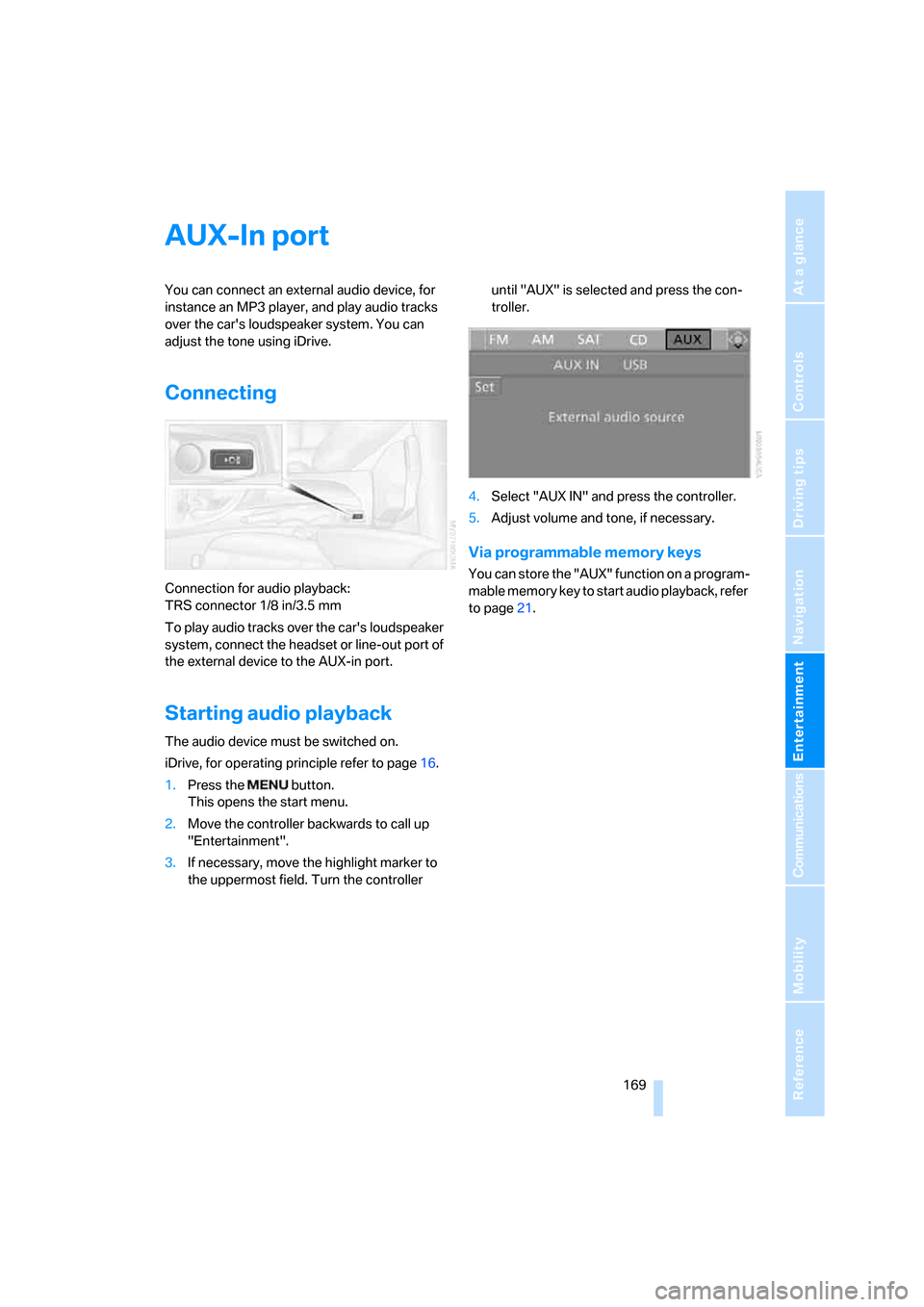
AUX-In port
You can connect an external audio device, for
instance an MP3 player, and play audio tracks
over the car's loudspeaker system. You can
adjust the tone using iDrive.
Connecting
Connection for audio playback:
TRS connector 1/8 in/3.5 mm
To play audio tracks over the car's loudspeaker
system, connect the headset or line-out port of
the external device to the AUX-in port.
Starting audio playback
The audio device must be switched on.
iDrive, for operating principle refer to page16.
1.Press the button.
This opens the start menu.
2.Move the controller backwards to call up
"Entertainment".
3.If necessary, move the highlight marker to
the uppermost field. Turn the controller until "AUX" is selected and press the con-
troller.
4.Select "AUX IN" and press the controller.
5.Adjust volume and tone, if necessary.
Via programmable memory keys
You can store the "AUX" function on a program-
mable memory key to start audio playback, refer
to page21.
Page 173 of 260
Navigation
Entertainment
Driving tips
171Reference
At a glance
Controls
Communications
Mobility
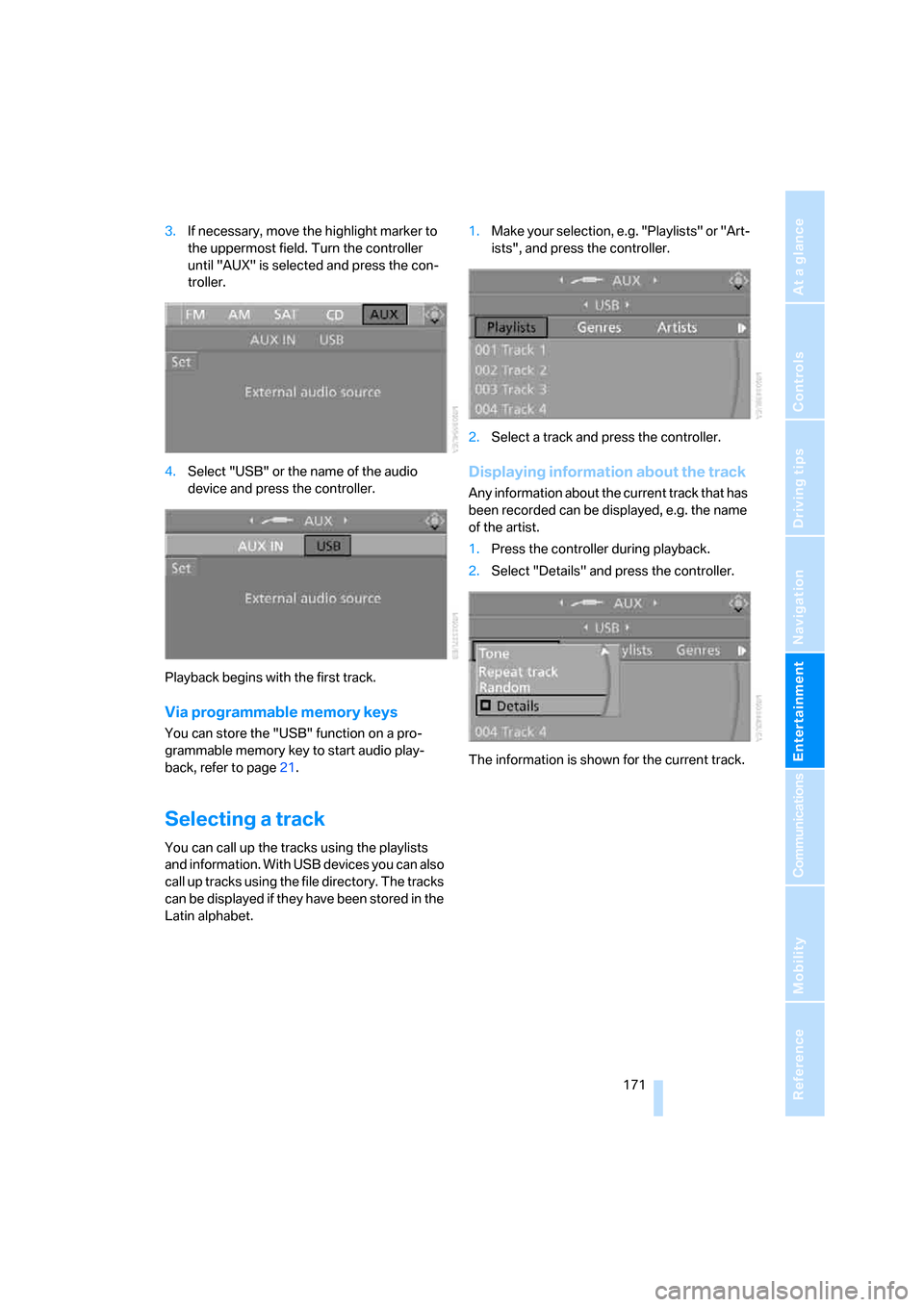
3.If necessary, move the highlight marker to
the uppermost field. Turn the controller
until "AUX" is selected and press the con-
troller.
4.Select "USB" or the name of the audio
device and press the controller.
Playback begins with the first track.
Via programmable memory keys
You can store the "USB" function on a pro-
grammable memory key to start audio play-
back, refer to page21.
Selecting a track
You can call up the tracks using the playlists
and information. With USB devices you can also
call up tracks using the file directory. The tracks
can be displayed if they have been stored in the
Latin alphabet.1.Make your selection, e.g. "Playlists" or "Art-
ists", and press the controller.
2.Select a track and press the controller.
Displaying information about the track
Any information about the current track that has
been recorded can be displayed, e.g. the name
of the artist.
1.Press the controller during playback.
2.Select "Details" and press the controller.
The information is shown for the current track.