update BMW 135I COUPE 2012 Owners Manual
[x] Cancel search | Manufacturer: BMW, Model Year: 2012, Model line: 135I COUPE, Model: BMW 135I COUPE 2012Pages: 272, PDF Size: 8.49 MB
Page 126 of 272
Navigation system
124
Navigation system
General information
The navigation system can determine the pre-
cise position of the vehicle, with the aid of satel-
lites and vehicle sensors, and can reliably guide
you to every entered destination.
Enter data only with the vehicle station-
ary, and always give priority to the appli-
cable traffic regulations in the event of any con-
tradiction between traffic and road conditions
and the instructions issued by the navigation
system. Failure to take to this precaution can
place you in violation of the law and put vehicle
occupants and other road users in danger.<
Navigation data
General information
Navigation data and authorization codes are
available from your BMW center. Navigation
data are stored in the vehicle and can be
updated.
>Depending on the data volume, a data
update may take several hours.
>Update data while driving to reduce the
drain on the battery.
>Only the main functions of the navigation
system are available during updating.
The update is resumed automatically when a
trip is continued after an interruption.
>You can inquire as to the status of the
update.
>The data are stored in the vehicle.
>After the update, the system restarts.
>The medium that holds the navigation data
can be removed after the update is com-
pleted.
Information about navigation data
1."Navigation"
2.Open "Options".
3."Navigation system version":
Information about the data version is dis-
played.
Updating the navigation data
Inserting navigation DVD
1.Insert the navigation DVD into the DVD
player with the labeled side facing up.
2.Follow the instructions on the Control Dis-
play.
3.Enter the authorization code of the naviga-
tion DVD and change the DVD if needed.
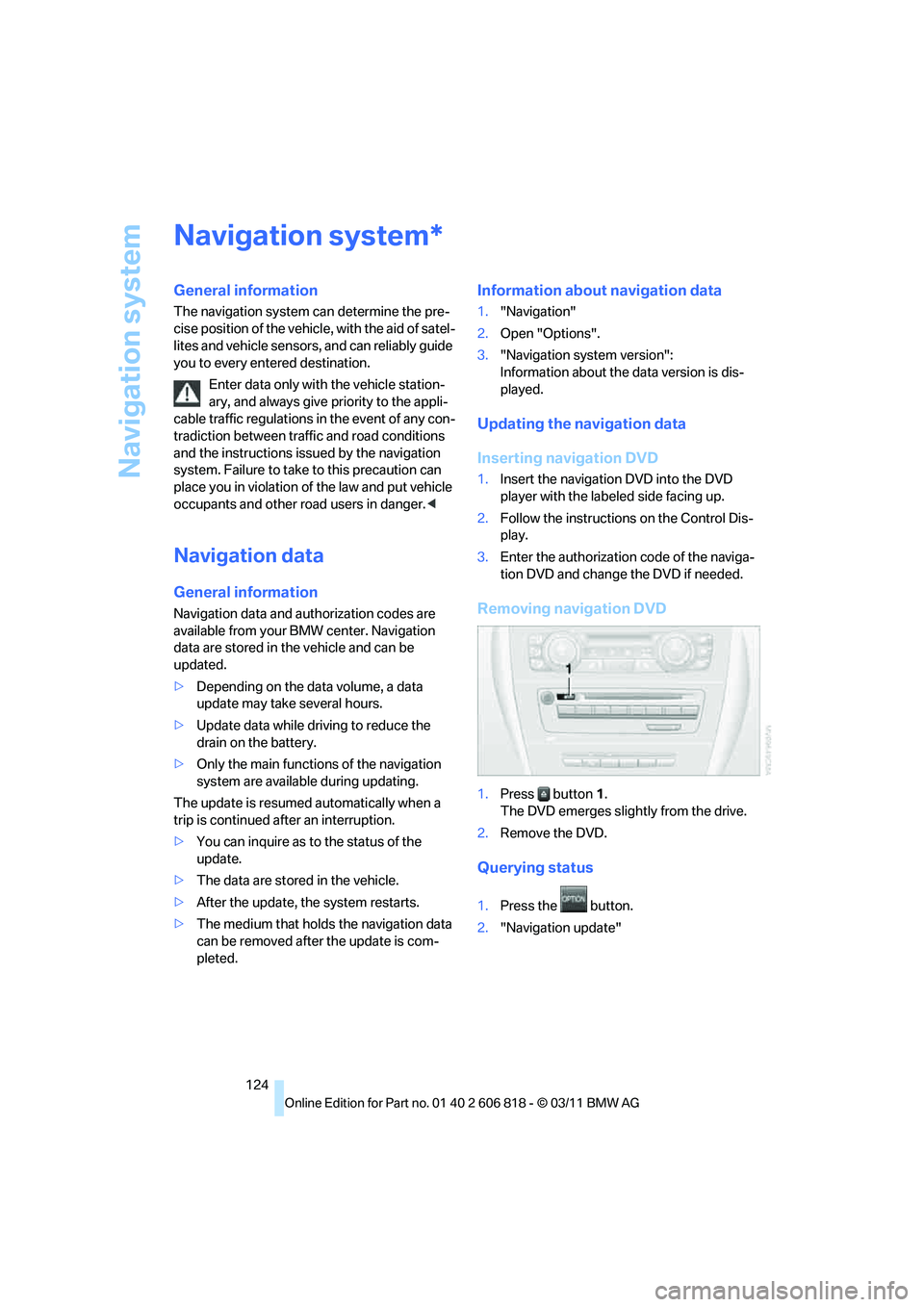
Removing navigation DVD
1.Press button1.
The DVD emerges slightly from the drive.
2.Remove the DVD.
Querying status
1.Press the button.
2."Navigation update"
*
Page 140 of 272
Destination guidance
138
Map view for the split screen display
The map view for the split screen can be
selected separately from the main screen.
1.Open "Options".
2."Split screen"
3.Move the controller to the right repeatedly
until the split screen content is selected.
4.Select "Split screen content" or scale.
5.Select the map view:
>"Arrow display"
>"Map facing north"
>"Map direction of travel"
>"Map view with perspective"
>"Position"
>"Exit ramp view"
>"Traffic conditions/gray map"
6.To change the scale: switch to the split
screen and turn the controller.
Traffic bulletins*
Overview
>You can display the traffic bulletins from
radio stations that broadcast the TMC
(Traffic Message Channel) of a traffic infor-
mation service. Bulletins about traffic
obstructions and hazards are continuously
updated.
>Traffic bulletins are indicated by symbols on
the map.
>Traffic bulletins for the surrounding area are
stored in a list.
The symbol in the toolbar of the map view
turns red if a traffic bulletin relates to the calcu-
lated route.
Real Time Traffic Information End-User
Provisions
Certain BMW models equipped with navigation
have the capability to display real-time traffic
information. If your system has this capability the following additional terms and conditions
apply:
An End-User shall no longer have the right to
use the Traffic Data in the event that the End-
User is in material breach of the terms and con-
ditions contained herein.
A. Total Traffic Network, a division of Clear
Channel Broadcasting, Inc. ("Total Traffic Net-
work") holds the rights to the traffic incident
data and RDS-TMC network through which it is
delivered. You may not modify, copy, scan or
use any other method to reproduce, duplicate,
republish, transmit or distribute in any way any
portion of traffic incident data. You agree to
indemnify, defend and hold harmless BMW of
North America, LLC. ("BMW NA") and Total
Traffic Network, Inrix, Inc (and their affiliates)
against any and all claims, damages, costs or
other expenses that arise directly or indirectly
out of (a) your unauthorized use of the traffic
incident data or the RDS-TMC network, (b) your
violation of this directive and/or (c) any unautho-
rized or unlawful activities by you in connection
herewith.
B. Total Traffic Network traffic data is informa-
tional only. User assumes all risk of use. Total
Traffic Network, BMW NA, and their suppliers
make no representations about content, traffic
and road conditions, route usability, or speed.
C. The licensed material is provided to license
"as is," and "where is". Total Traffic Network,
including, but not limited to, any and all third
party providers of any of the licensed material,
expressly disclaims, to the fullest extent permit-
ted by law, all warranties or representations
with respect to the licensed material (including,
without limitation, that the licensed material will
be error-free, will operate without interruption
or that the traffic data will be accurate), express,
implied or statutory, including, without limita-
tion, the implied warranties of merchantability,
non-infringement fitness for a particular pur-
pose, or those arising from a course of dealing
or usage of trade.
D. Neither Total Traffic Network, Inrix, Inc. nor
BMW NA will be liable to you for any indirect,
special, consequential, exemplary, or incidental
Page 156 of 272
Satellite radio
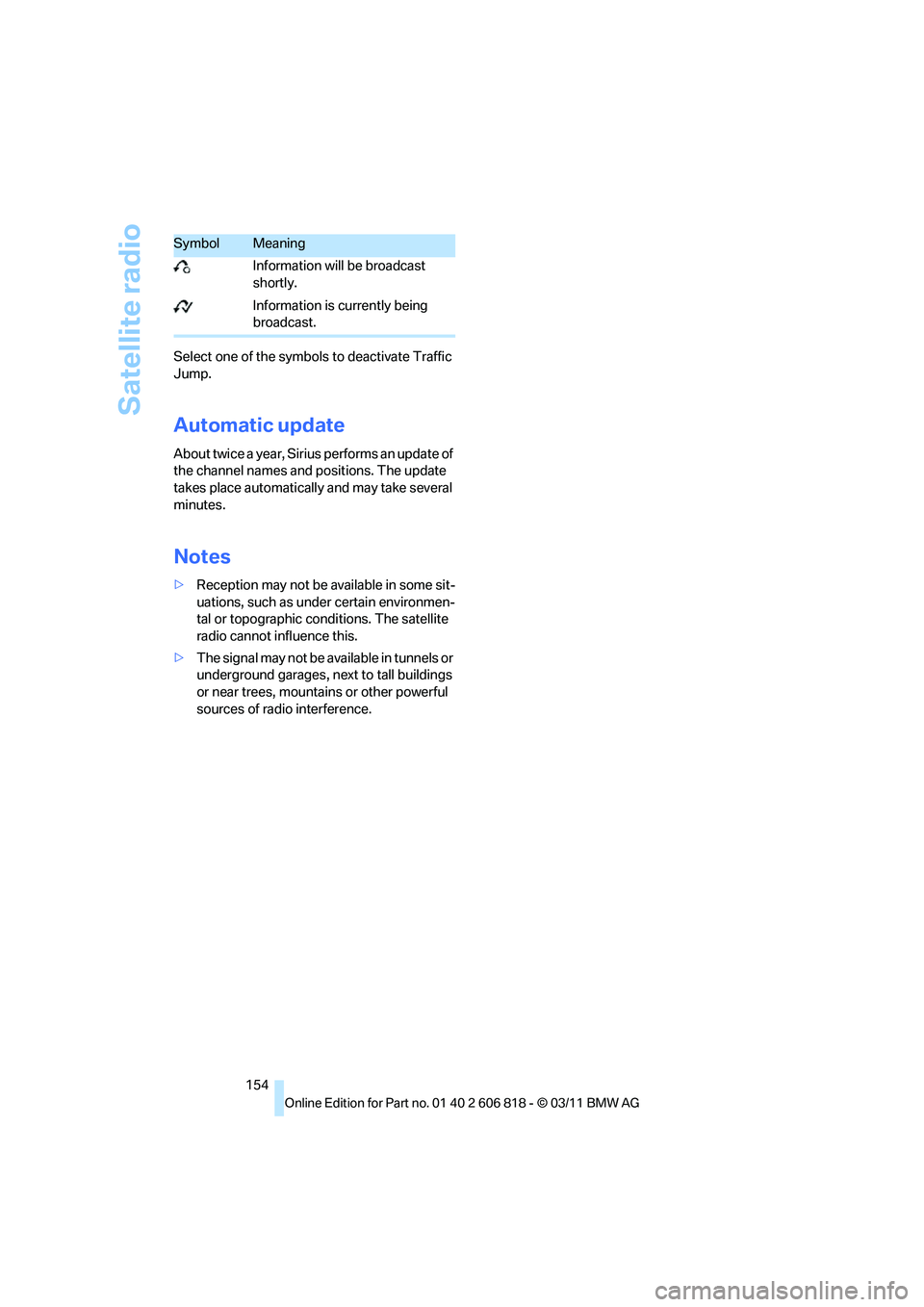
154 Select one of the symbols to deactivate Traffic
Jump.
Automatic update
About twice a year, Sirius performs an update of
the channel names and positions. The update
takes place automatically and may take several
minutes.
Notes
>Reception may not be available in some sit-
uations, such as under certain environmen-
tal or topographic conditions. The satellite
radio cannot influence this.
>The signal may not be available in tunnels or
underground garages, next to tall buildings
or near trees, mountains or other powerful
sources of radio interference.
SymbolMeaning
Information will be broadcast
shortly.
Information is currently being
broadcast.
Page 164 of 272
Music collection
162 3."Storing..."
4."Cancel storing"
The storage process is interrupted and can be
continued at any time.
Continuing the storage process
1."CD/Multimedia"
2."CD/DVD"
3.Select the symbol for the CD/DVD
player.
4."Continue storing"
The storing of the CD/DVD continues at the
beginning of the track at which storing was
interrupted.
Album information
During storage, information such as the name
of the artist is stored with the track, if this infor-
mation is available in the vehicle database or on
the CD.
To update the database, contact your service
center.
Storing from a USB device
To store music, a suitable device must be con-
nected to the USB interface in the glove com-
partment.
>Suitable devices: USB mass storage
devices, such as USB flash drives or MP3
players with a USB interface.
>Unsuitable devices: USB hard drive, USB
hubs, USB memory card readers with multi-
ple inserts, Apple iPod/iPhone.
Music from Apple iPods/iPhones can be
played via the USB audio interface in the
center armrest.Music from a USB device can be stored
only via the USB interface in the glove
compartment.<
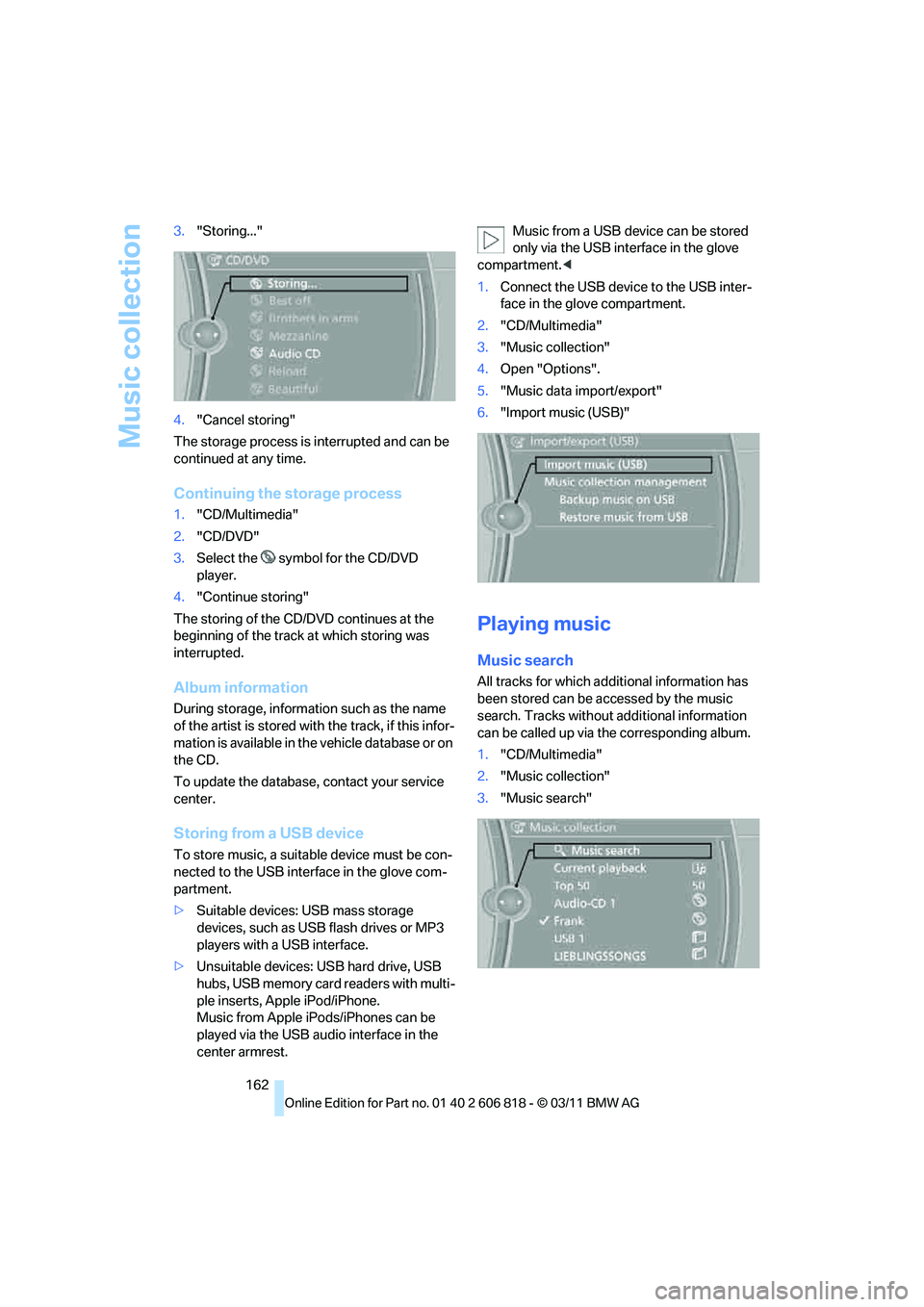
1.Connect the USB device to the USB inter-
face in the glove compartment.
2."CD/Multimedia"
3."Music collection"
4.Open "Options".
5."Music data import/export"
6."Import music (USB)"
Playing music
Music search
All tracks for which additional information has
been stored can be accessed by the music
search. Tracks without additional information
can be called up via the corresponding album.
1."CD/Multimedia"
2."Music collection"
3."Music search"
Page 173 of 272
Navigation
Entertainment
Driving tips
171Reference
At a glance
Controls
Communications
Mobility
>Playback is interrupted if a data exchange is
taking place with a mobile phone that is
connected via Bluetooth.
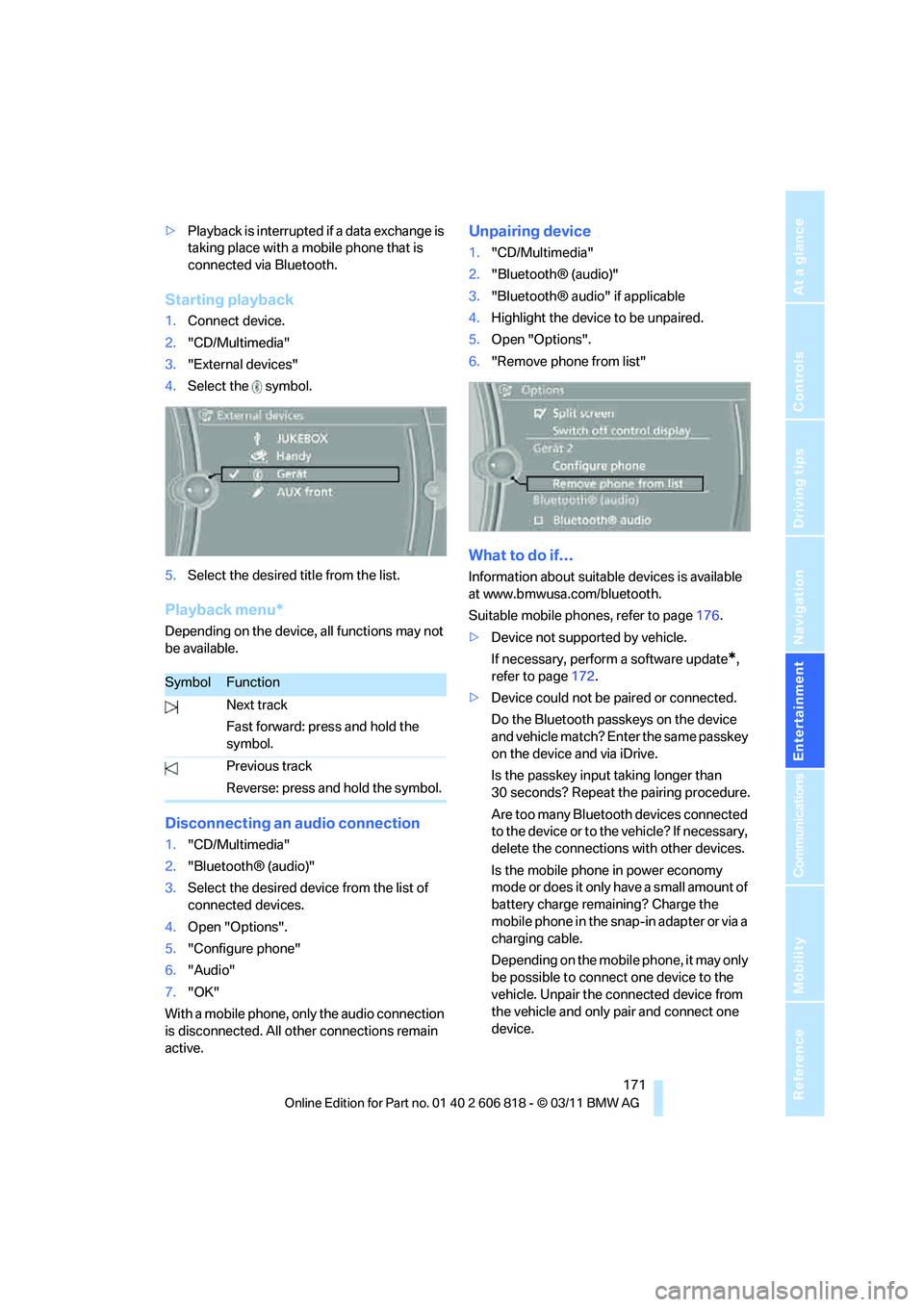
Starting playback
1.Connect device.
2."CD/Multimedia"
3."External devices"
4.Select the symbol.
5.Select the desired title from the list.
Playback menu*
Depending on the device, all functions may not
be available.
Disconnecting an audio connection
1."CD/Multimedia"
2."Bluetooth® (audio)"
3.Select the desired device from the list of
connected devices.
4.Open "Options".
5."Configure phone"
6."Audio"
7."OK"
With a mobile phone, only the audio connection
is disconnected. All other connections remain
active.
Unpairing device
1."CD/Multimedia"
2."Bluetooth® (audio)"
3."Bluetooth® audio" if applicable
4.Highlight the device to be unpaired.
5.Open "Options".
6."Remove phone from list"
What to do if…
Information about suitable devices is available
at www.bmwusa.com/bluetooth.
Suitable mobile phones, refer to page176.
>Device not supported by vehicle.
If necessary, perform a software update
*,
refer to page172.
>Device could not be paired or connected.
Do the Bluetooth passkeys on the device
and vehicle match? Enter the same passkey
on the device and via iDrive.
Is the passkey input taking longer than
30 seconds? Repeat the pairing procedure.
Are too many Bluetooth devices connected
to the device or to the vehicle? If necessary,
delete the connections with other devices.
Is the mobile phone in power economy
mode or does it only have a small amount of
battery charge remaining? Charge the
mobile phone in the snap-in adapter or via a
charging cable.
Depending on the mobile phone, it may only
be possible to connect one device to the
vehicle. Unpair the connected device from
the vehicle and only pair and connect one
device.
SymbolFunction
Next track
Fast forward: press and hold the
symbol.
Previous track
Reverse: press and hold the symbol.
Page 174 of 272
External devices
172 Is the device no longer responding? Switch
the device off and back on again.
Repeat the pairing procedure.
>No music can be played.
Start the program for playing music files on
the device and if necessary, select a track
via the device.
Activate and deactivate the radio mute on
the radio control panel.
>Music files only play quietly.
Adjust volume settings on the device.
>Playback is interrupted by the press of a
button or other messages on the device.
Switch off key tones and other acoustic sig-
nal on the device.
>Playback is interrupted by a phone call or
traffic report and does not automatically
continue.
Activate and deactivate the radio mute on
the radio control panel.
>Playback is not possible when the mobile
phone is connected via Bluetooth audio and
at the same time via the extended connec-
tivity of the music player in the mobile
phone
*.
Disconnect one of the two connections, e.g.
the audio connection, refer to page171,
and start playback again.
If you have gone through all items in the list and
still cannot activate the desired function please
contact Customer Relations or a BMW center.
Software update*
The vehicle supports various external devices,
depending on the software it is currently using.
A software update can enable the vehicle to
support new mobile phones or new external
devices, for example.
Software updates and associated, up-to-date
instructions are available on the web page
www.bmwusa.com/update.
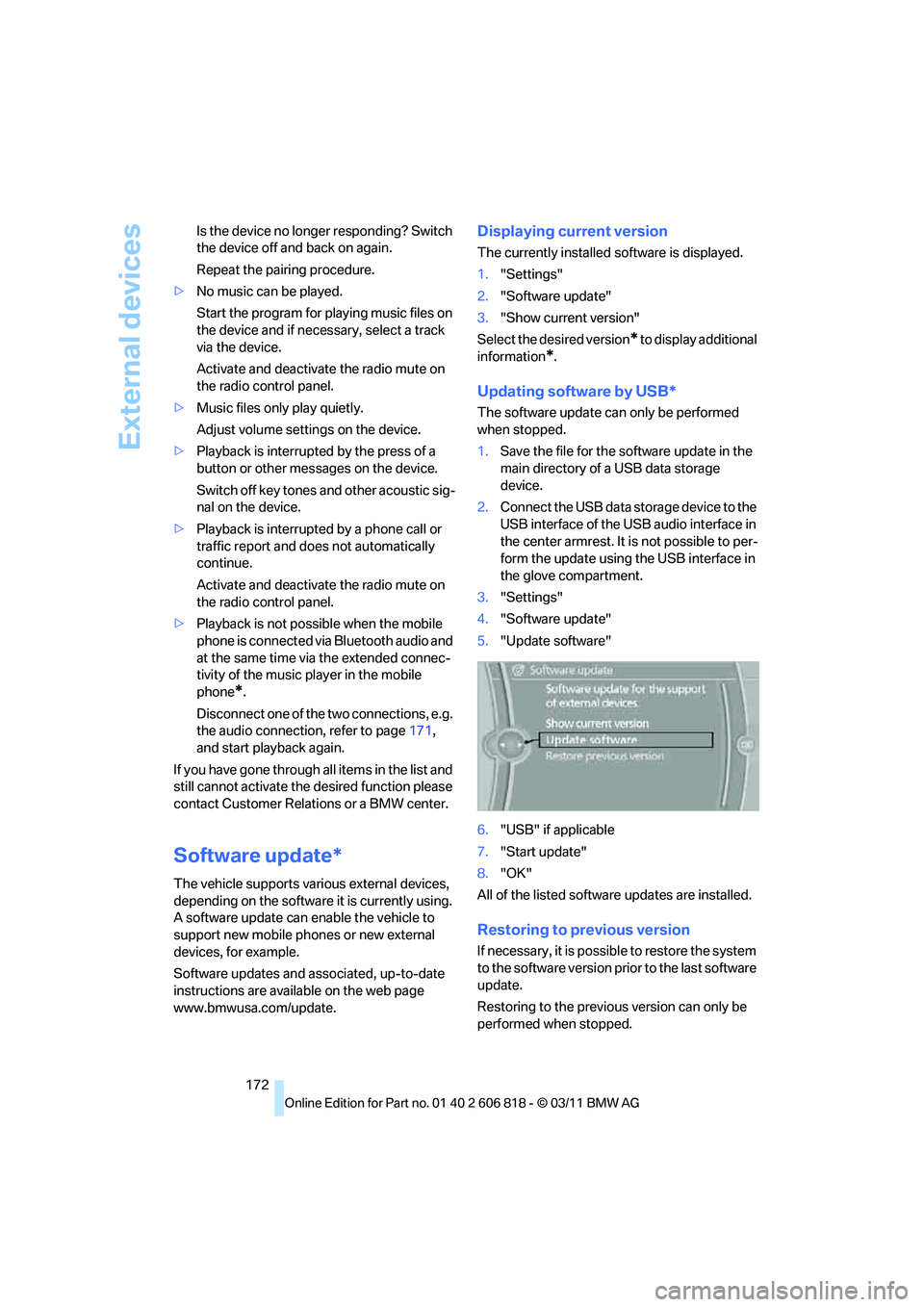
Displaying current version
The currently installed software is displayed.
1."Settings"
2."Software update"
3."Show current version"
Select the desired version
* to display additional
information
*.
Updating software by USB*
The software update can only be performed
when stopped.
1.Save the file for the software update in the
main directory of a USB data storage
device.
2.Connect the USB data storage device to the
USB interface of the USB audio interface in
the center armrest. It is not possible to per-
form the update using the USB interface in
the glove compartment.
3."Settings"
4."Software update"
5."Update software"
6."USB" if applicable
7."Start update"
8."OK"
All of the listed software updates are installed.
Restoring to previous version
If necessary, it is possible to restore the system
to the software version prior to the last software
update.
Restoring to the previous version can only be
performed when stopped.
Page 175 of 272
Navigation
Entertainment
Driving tips
173Reference
At a glance
Controls
Communications
Mobility
1."Settings"
2."Software update"
3."Restore previous version"
4.Click "OK" twice.
All of the listed software updates are removed.
Note
BMW Assist*, Office functions, and connected
devices may be temporarily unavailable during a
software update or while restoring to the previ-
ous version. Wait a few minutes until the func-
tions are available once more.
Page 178 of 272
Telephone
176
Telephone
At a glance
The concept
Mobile phones or other external devices, e.g.
audio players, can be connected to the vehicle
via Bluetooth.
Bluetooth® is a registered trademark of Blue-
tooth® SIG, Inc.
After being paired once, when the ignition is
switched on, these devices are automatically
detected as soon as they are present in the
vehicle and can be controlled via iDrive, the but-
tons on the steering wheel, and by voice
*.
Depending on whether they are functioning as a
telephone and/or as an audio source, external
devices can be used via the vehicle. The tele-
phone functions will be described below. Oper-
ation of audio functions, refer to page169.
Up to four external devices can be paired.
It may be necessary for some functions to be
activated by the mobile phone provider or ser-
vice provider.
Only make entries when traffic conditions
permit. Do not hold the mobile phone in
your hand while you are driving; use the hands-
free system instead. Otherwise, you may
endanger vehicle occupants and other road
users.<
Snap-in adapter*
The snap-in adapter makes it possible:
>Accommodate the mobile phone.
>Recharge its battery.
>Connect it to an external antenna of the
vehicle.
This assures a better network connection
and constant sound quality.
Suitable mobile phones
For precise information about which mobile
phones and external devices with a Bluetooth interface are supported by the mobile phone
preparation, go to www.bmwusa.com/blue-
tooth.
Displaying vehicle identification
number and software part number
Checking which mobile phones are supported
by the mobile phone preparation requires the
vehicle identification number and software part
number. The software version of the mobile
phone may also be required.
1."Telephone"
2.Open "Options".
3."Bluetooth® info"
4."Display system information"
With a certain software version, these suitable
mobile phones support the vehicle functions
described below.
With other mobile phones or software versions,
malfunctions may occur.
A mobile phone that is connected to the vehicle
should not be operated via the mobile phone
keypad; otherwise, malfunctions may occur.
It is possible to perform a software update, refer
to page172.
Pairing/unpairing mobile
phone
General information
The following functions are available:
>Using the mobile phone as a telephone.
>Using the mobile phone as an auxiliary
phone
*.
>Using the mobile phone as an audio source.
>Using an audio device as an audio source,
refer to page169.
*
Page 190 of 272
Office
188
Office
At a glance
General information
Contacts, appointments, tasks, notes, text
messages, and emails
* can be displayed using
the Control Display if the mobile phone compat-
ibly supports these functions and the required
Bluetooth radio standards.
For information about which mobile phones and
functions support the functions of Office, go to
www.bmwusa.com/bluetooth.
A limited number of compatible mobile phones
are available for Office.
Contents are only displayed completely when
the vehicle is stopped.
Only read access to the mobile phone is possi-
ble.
Do not use Office while driving. Make
entries only when traffic and road condi-
tions permit; otherwise, you may endanger
vehicle occupants and other road users by
being distracted.<
Requirements
>A suitable mobile phone is paired with the
vehicle and connected. In some mobile
phones, the data access to the mobile
phone must be confirmed.
>Time zone, time, and date, refer to page76,
are correctly set on the Control Display and
on the mobile phone in order, for example,
to correctly display appointments.
>Office is activated, refer to page177.
Updating
Data are updated each time the mobile phone is
connected to the vehicle. Appointments, tasks,
notes, and reminders can be updated sepa-
rately.
1."Office"
2."Current office", "Calendar", "Tasks",
"Notes" or "Reminders"3.Open "Options".
4."Update data"
Data from the portable phone are transmit-
ted to the vehicle again.
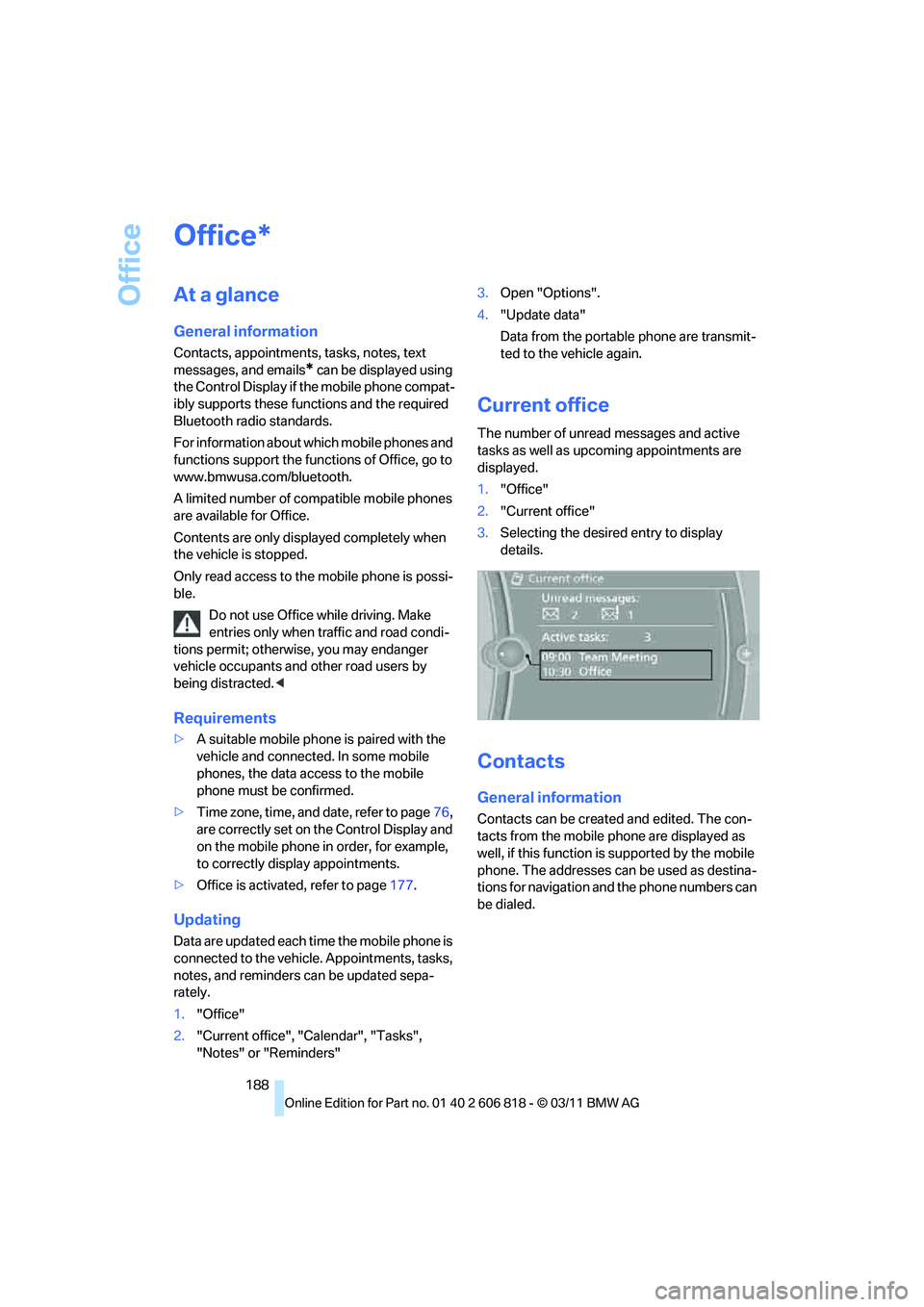
Current office
The number of unread messages and active
tasks as well as upcoming appointments are
displayed.
1."Office"
2."Current office"
3.Selecting the desired entry to display
details.
Contacts
General information
Contacts can be created and edited. The con-
tacts from the mobile phone are displayed as
well, if this function is supported by the mobile
phone. The addresses can be used as destina-
tions for navigation and the phone numbers can
be dialed.
*
Page 200 of 272
ConnectedDrive
198
ConnectedDrive
BMW Assist*
General information
BMW Assist provides a number of different ser-
vices. For example, the position data of the
vehicle can be transmitted to the BMW Assist
Response Center when an Emergency
Request
* is sent.
Many BMW Assist services depend on the con-
tract individually agreed upon.
After the contract has expired, the BMW Assist
system will be deactivated by the BMW Assist
Response Center without you having to visit a
BMW center. After the BMW Assist system has
been deactivated, no BMW Assist services will
be available. The BMW Assist system can be
reactivated by a BMW center after a new con-
tract has been signed.
Requirements
>The installed BMW Assist system is logged
into a mobile phone network. This network
must be capable of transmitting the ser-
vices.
>To transmit position data, the vehicle must
be able to determine its current position.
>To activate and update BMW Assist, a GPS
signal must be available.
>The BMW Assist service contract was
signed with your BMW center or with the
BMW Assist Response Center. The service
must have been fully enabled.
>BMW Assist is activated.
Services offered
>Emergency Request: when you press the
SOS button, a connection to the BMW
Assist Response Center is established. The
BMW Assist Response Center then speaks
with you and takes further steps to help you.>Automatic Emergency Request: under cer-
tain conditions, a connection to the BMW
Assist Response Center is established after
a serious accident. If possible, the BMW
Assist Response Center then speaks with
you and takes further steps to help you.
>Enhanced Roadside Assistance: BMW
Roadside Assistance
* can be contacted if
assistance is needed in the event of a
breakdown. If possible, the vehicle data and
position data are transmitted during this
call.
>Customer Relations: connection to Cus-
tomer Relations for information on all
aspects of your vehicle.
>TeleServices: data on your vehicle's service
status or required inspections are transmit-
ted to your BMW center, either automati-
cally before a service due date or when you
request a BMW service appointment.
>Remote Door Unlock: the BMW Assist
Response Center provides assistance if, for
example, the remote control is not available
and the vehicle needs to be opened.
>Stolen Vehicle Recovery: after you report to
the police that your vehicle was stolen, the
BMW Assist Response Center can deter-
mine its position.
>In addition, the optional Convenience Plan
offers Concierge service and information on
route planning, the traffic situation and
weather. Using Critical Calling, a limited
number of calls can be made via the BMW
Assist Response Center, for example if the
mobile phone is not available or discharged.
Press the SOS button to contact the BMW
Assist Response Center.
*