I drive BMW 3 SERIES 2009 Owner's Guide
[x] Cancel search | Manufacturer: BMW, Model Year: 2009, Model line: 3 SERIES, Model: BMW 3 SERIES 2009Pages: 268, PDF Size: 11.52 MB
Page 64 of 268

Driving
62
Manual transmission
You can shift gears while cruise control is acti-
vated. An indicator lamp notifies you that you
should shift gears when you drive for an
extended period at very high or very low engine
speeds, or the system is deactivated.
Range of applications
The minimum desired speed is 20 mph or
30 km/h, the maximum desired speed is
110 mph or 180 km/h.
As with conventional cruise control sys-
tems, active cruise control in no way
diminishes or substitutes for the driver’s own
personal responsibility, alertness and aware-
ness in adjusting speed, braking or otherwise
controlling the vehicle. The driver should
decide when to use the system on the basis of
road, traffic, visibility, and weather conditions.
Active cruise control is intended for use on
highway-type roadways where traffic is moving
relatively smoothly. Do not use this system in
city driving; heavy traffic such as during rush
hour; on curvy, winding roads, slippery roads or
roads with sharp curves such as highway off-
ramps; during inclement weather such as snow,
strong rain or fog; or when entering inter-
changes, service/parkin g areas or toll booths.
It is also important to regulate your vehicle's
speed and distance setting within applicable
legal limits. Always be re ady to take action or
apply the brakes if nece ssary, especially when
the system is actively fo llowing a vehicle in front
of you. Otherwise driving situations could result
that pose the risk of accidents. <
One lever for all functions
1Store and increase desired speed
2 Store and decrease desired speed
3 Deactivate system, refer to page 63
4 Resume stored desired speed and dis-
tance, refer to page 64
5 Select distance to vehicle driving ahead,
refer to page 63
Storing current speed
Briefly press the lever, arrow 1, or briefly pull it,
arrow 2, at a driving speed of more than approx.
20 mph or 30 km/h.
The car's current speed is stored. It is displayed
on the speedometer and briefly in the instru-
ment cluster.
Increasing desired speed
Press or tap the lever to the resistance point or
beyond, arrow 1, until the desired speed is dis-
played.
> Each time the lever is tapped to the resis-
tance point, the desired speed is increased
by approx. 1 mph or 1 km/h.
> Each time the lever is tapped beyond the
resistance point, the desired speed is
increased by up to 5 mph or 10 km/h until
ba8_E9091_cic.book Seite 62 Mittwoch, 29. Oktober 2008 2:59 14
Page 66 of 268
Driving
64
Warning lamp
The warning lamp comes on when
active cruise control has been auto-
matically deactivated due to a driving
speed below 20 mph or 30 km/h, an application
of the parking brake or a DSC intervention. A
message appears on the Control Display.
Resuming stored desired speed and
distance
Briefly press th e button, arrow 4.
The stored speed and distance are regained
and maintained.
In the following instances, the stored speed is
deleted and can no longer be resumed:
> When driving stability control systems are
intervening
> In cars with a manual transmission: when
you switch gears very slowly or shift to neu-
tral
> In cars with an automatic transmission:
when you engage selector lever position N
> When the ignition is switched off
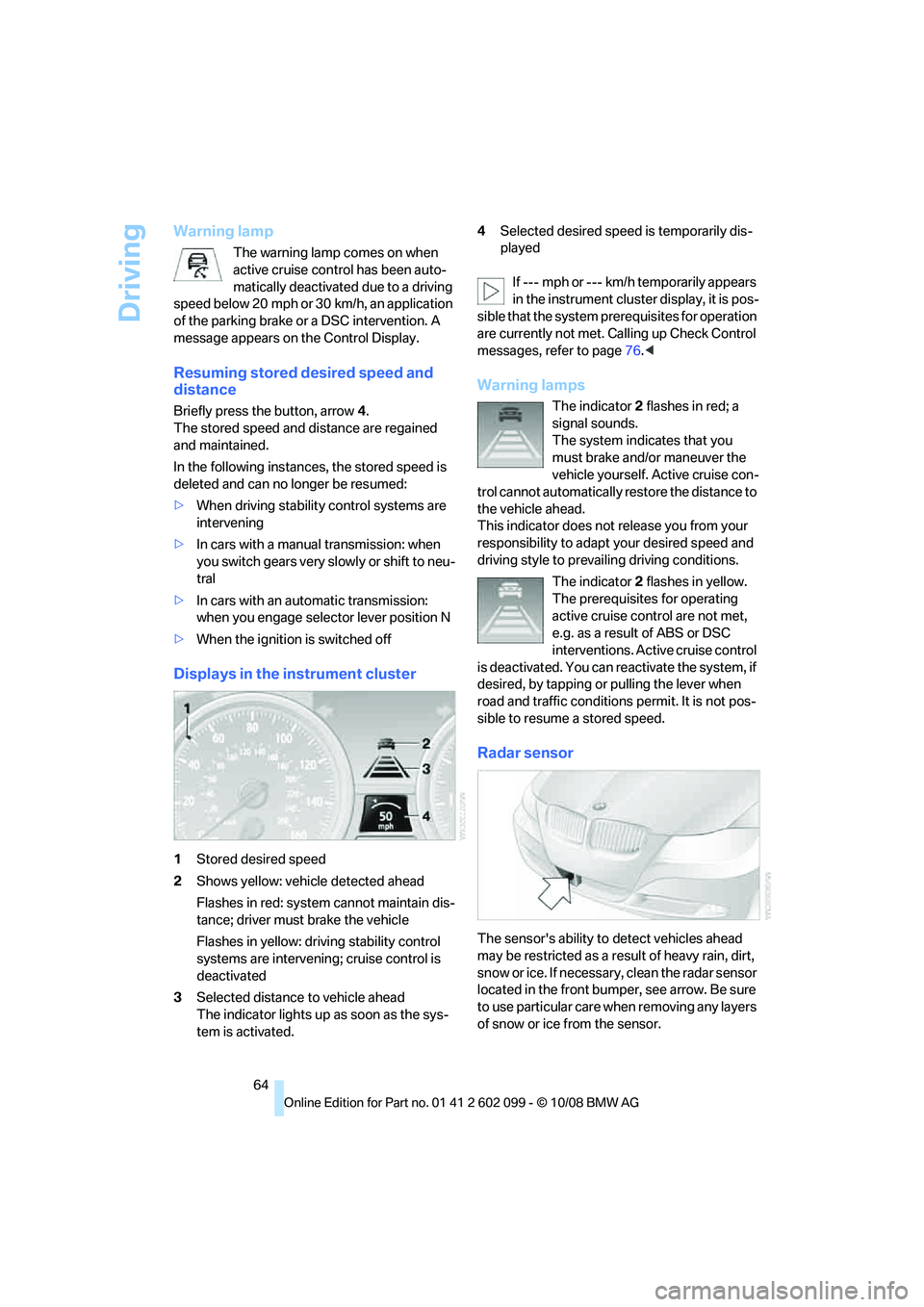
Displays in the instrument cluster
1Stored desired speed
2 Shows yellow: vehicle detected ahead
Flashes in red: system cannot maintain dis-
tance; driver must brake the vehicle
Flashes in yellow: driving stability control
systems are intervening; cruise control is
deactivated
3 Selected distance to vehicle ahead
The indicator lights up as soon as the sys-
tem is activated. 4
Selected desired spee d is temporarily dis-
played
If --- mph or --- km/h temporarily appears
in the instrument cluster display, it is pos-
sible that the system prerequisites for operation
are currently not met. Calling up Check Control
messages, refer to page 76.<
Warning lamps
The indicator 2 flashes in red; a
signal sounds.
The system indicates that you
must brake and/or maneuver the
vehicle yourself. Active cruise con-
trol cannot automatically restore the distance to
the vehicle ahead.
This indicator does not release you from your
responsibility to adapt your desired speed and
driving style to prevailing driving conditions.
The indicator 2 flashes in yellow.
The prerequisites for operating
active cruise control are not met,
e.g. as a result of ABS or DSC
interventions. Active cruise control
is deactivated. You can re activate the system, if
desired, by tapping or pulling the lever when
road and traffic conditions permit. It is not pos-
sible to resume a stored speed.
Radar sensor
The sensor's ability to detect vehicles ahead
may be restricted as a result of heavy rain, dirt,
snow or ice. If necessary, clean the radar sensor
located in the front bump er, see arrow. Be sure
to use particular care when removing any layers
of snow or ice from the sensor.
ba8_E9091_cic.book Seite 64 Mittwoch, 29. Oktober 2008 2:59 14
Page 68 of 268

Driving
66
Swerving vehicles
When a vehicle moves from an adjacent lane
into your lane, active cruise control will not rec-
ognize this vehicle until it is fully in your lane
ahead of your vehicle.
When a vehicle ahead suddenly swerves
into your lane, the system may not be able
to maintain the selected distance automatically.
This also applies to gr eat differences in speed
between you and vehicles ahead, e.g. when
quickly approaching a truck. There is a risk of
collision. Once the system has established that
a vehicle is indeed in fron t of you, it will indicate
that you must brake and/or maneuver the vehi-
cle yourself. Take acti on yourself, otherwise
there is a risk of an accident. <
Behavior in curves
Because of the limited range of the system, it is
possible that in curves or on the peaks and val-
leys of hilly roads, a vehicle ahead may be rec-
ognized late, or not at all. Therefore, it is up to
the driver to select a sp eed that is prudent in
view of the curves and terrain of the roadway. In approaching a curve, it is possible that active
cruise control would react briefly to a vehicle in
the adjacent lane. In a
ddition, the system can
sense if your vehicle is in a curve and may not
accelerate. If your vehicl e decelerates in either
case, you can choose to overcome the deceler-
ation by briefly pressing the accelerator pedal.
Your responsibility
Your actions have priority at all times. When you
press the accelerator pe dal while driving with
active cruise control, the automatic braking
function will be temporar ily interrupted. Once
you release the accelera tor pedal, the desired
speed or the selected distance to the vehicle
ahead is achieved again.
Do not leave your foot on the accelerator
pedal and make sure that no objects such
as floor mats are lying on the accelerator pedal.
Otherwise the system may not be able to brake
the vehicle.<
ba8_E9091_cic.book Seite 66 Mittwoch, 29. Oktober 2008 2:59 14
Page 71 of 268
Controls
69Reference
At a glance
Driving tips
Communications
Navigation
Entertainment
Mobility
Computer
Displays in the instrument cluster
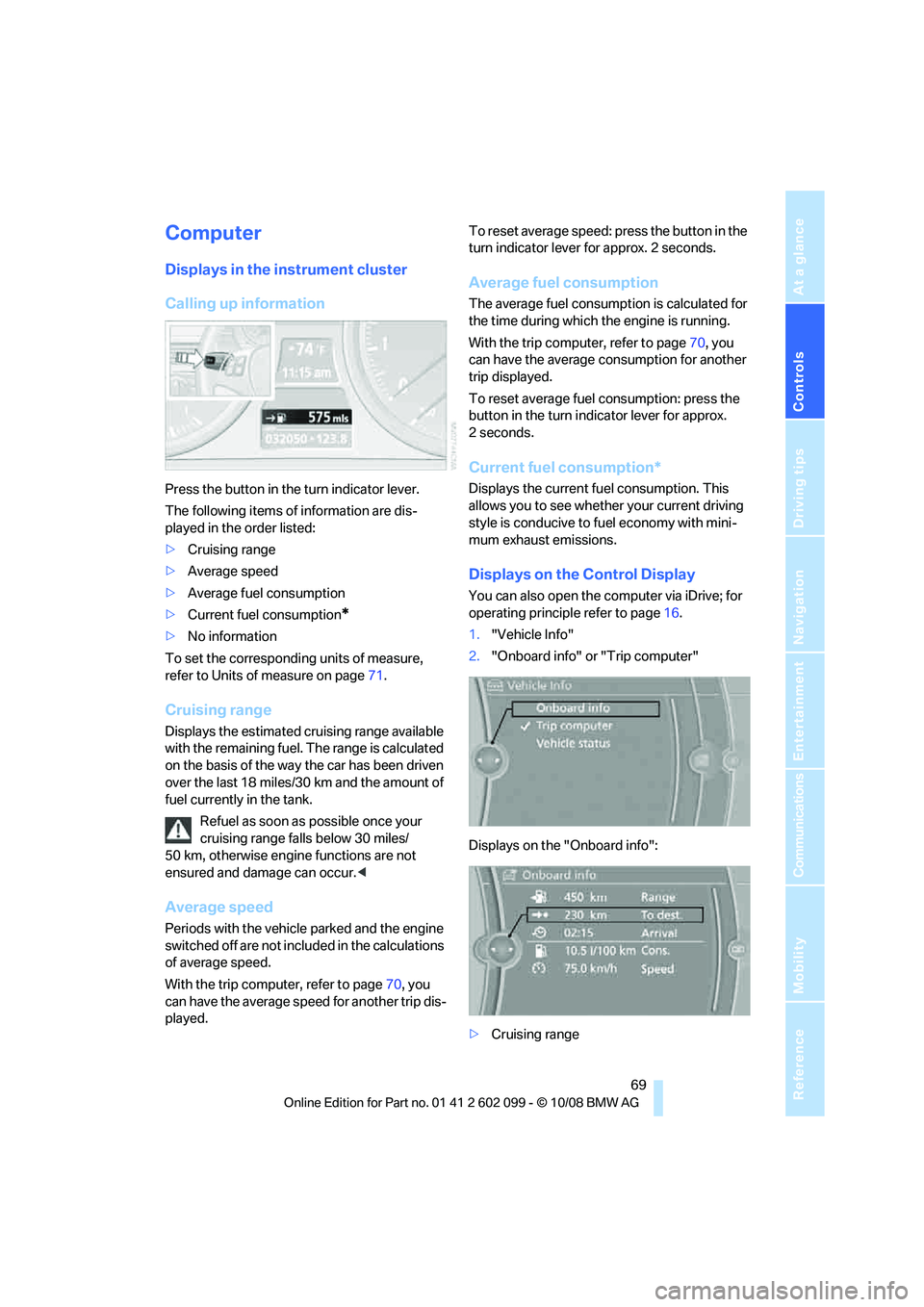
Calling up information
Press the button in the turn indicator lever.
The following items of information are dis-
played in the order listed:
>Cruising range
> Average speed
> Average fuel consumption
> Current fuel consumption
*
>No information
To set the corresponding units of measure,
refer to Units of measure on page 71.
Cruising range
Displays the estimated cr uising range available
with the remaining fuel. The range is calculated
on the basis of the way the car has been driven
over the last 18 miles/30 km and the amount of
fuel currently in the tank.
Refuel as soon as possible once your
cruising range falls below 30 miles/
50 km, otherwise engine functions are not
ensured and damage can occur. <
Average speed
Periods with the vehicle parked and the engine
switched off are not included in the calculations
of average speed.
With the trip computer, refer to page 70, you
can have the average speed for another trip dis-
played. To reset average speed: press the button in the
turn indicator lever for approx. 2 seconds.
Average fuel consumption
The average fuel consumption is calculated for
the time during which the engine is running.
With the trip computer, refer to page
70, you
can have the average consumption for another
trip displayed.
To reset average fuel consumption: press the
button in the turn indi cator lever for approx.
2seconds.
Current fuel consumption*
Displays the current fuel consumption. This
allows you to see whethe r your current driving
style is conducive to fuel economy with mini-
mum exhaust emissions.
Displays on the Control Display
You can also open the co mputer via iDrive; for
operating principle refer to page 16.
1. "Vehicle Info"
2. "Onboard info" or "Trip computer"
Displays on the "Onboard info":
> Cruising range
ba8_E9091_cic.book Seite 69 Mittwoch, 29. Oktober 2008 2:59 14
Page 73 of 268
Controls
71Reference
At a glance
Driving tips
Communications
Navigation
Entertainment
Mobility
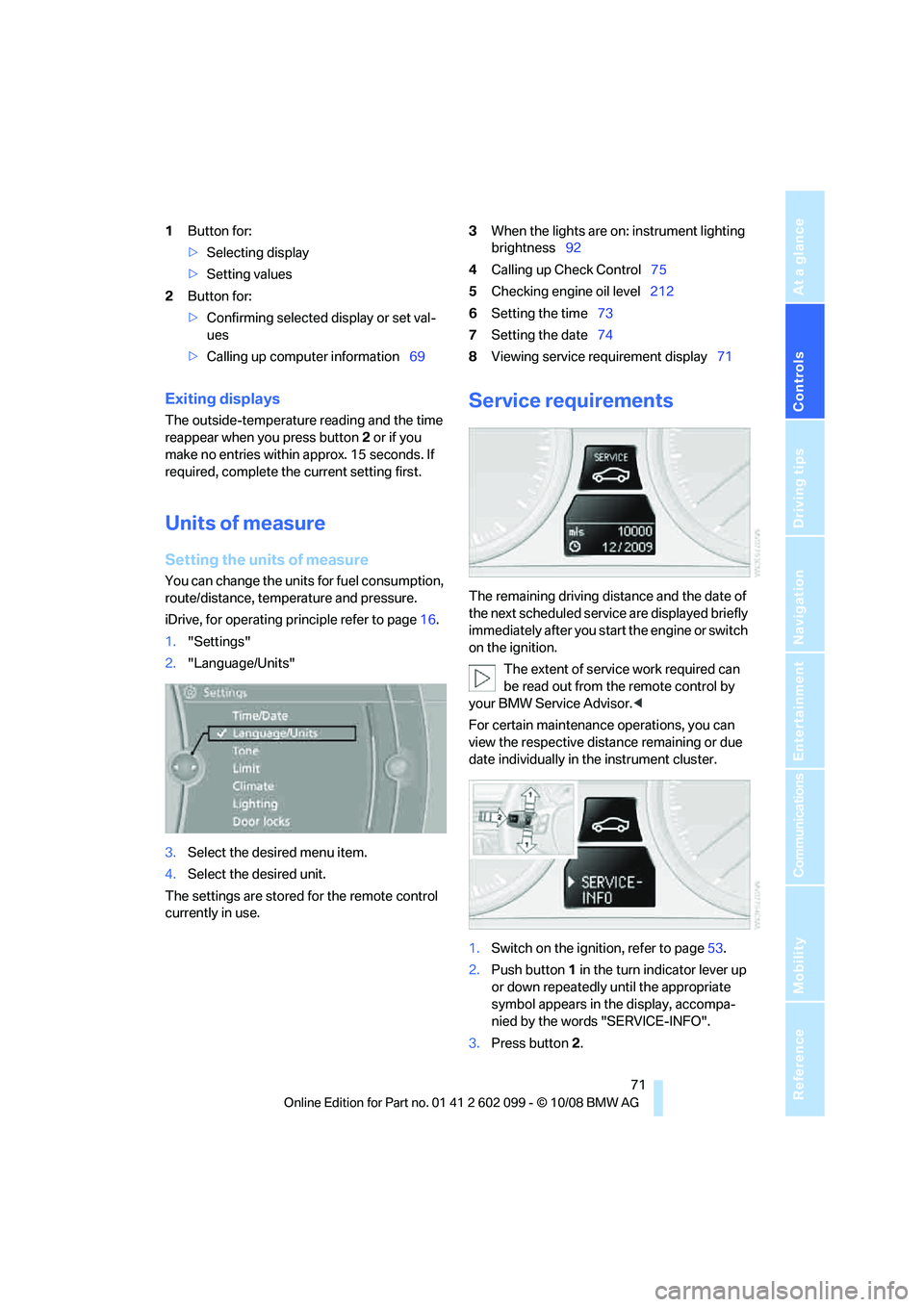
1Button for:
>Selecting display
> Setting values
2 Button for:
>Confirming selected display or set val-
ues
> Calling up computer information 693
When the lights are on: instrument lighting
brightness 92
4 Calling up Check Control 75
5 Checking engine oil level 212
6 Setting the time 73
7 Setting the date 74
8 Viewing service requirement display 71
Exiting displays
The outside-temperature reading and the time
reappear when you press button 2 or if you
make no entries within approx. 15 seconds. If
required, complete the current setting first.
Units of measure
Setting the units of measure
You can change the units for fuel consumption,
route/distance, temperature and pressure.
iDrive, for operating principle refer to page 16.
1. "Settings"
2. "Language/Units"
3. Select the desired menu item.
4. Select the desired unit.
The settings are stored for the remote control
currently in use.
Service requirements
The remaining driving dist ance and the date of
the next scheduled service are displayed briefly
immediately after you start the engine or switch
on the ignition.
The extent of service work required can
be read out from th e remote control by
your BMW Service Advisor. <
For certain maintenance operations, you can
view the respective distance remaining or due
date individually in the instrument cluster.
1. Switch on the ignition, refer to page 53.
2. Push button 1 in the turn indicator lever up
or down repeatedly until the appropriate
symbol appears in the display, accompa-
nied by the words "SERVICE-INFO".
3. Press button 2.
ba8_E9091_cic.book Seite 71 Mittwoch, 29. Oktober 2008 2:59 14
Page 74 of 268
Everything under control
72
4.
Use button 1 to scroll through the individual
service items.
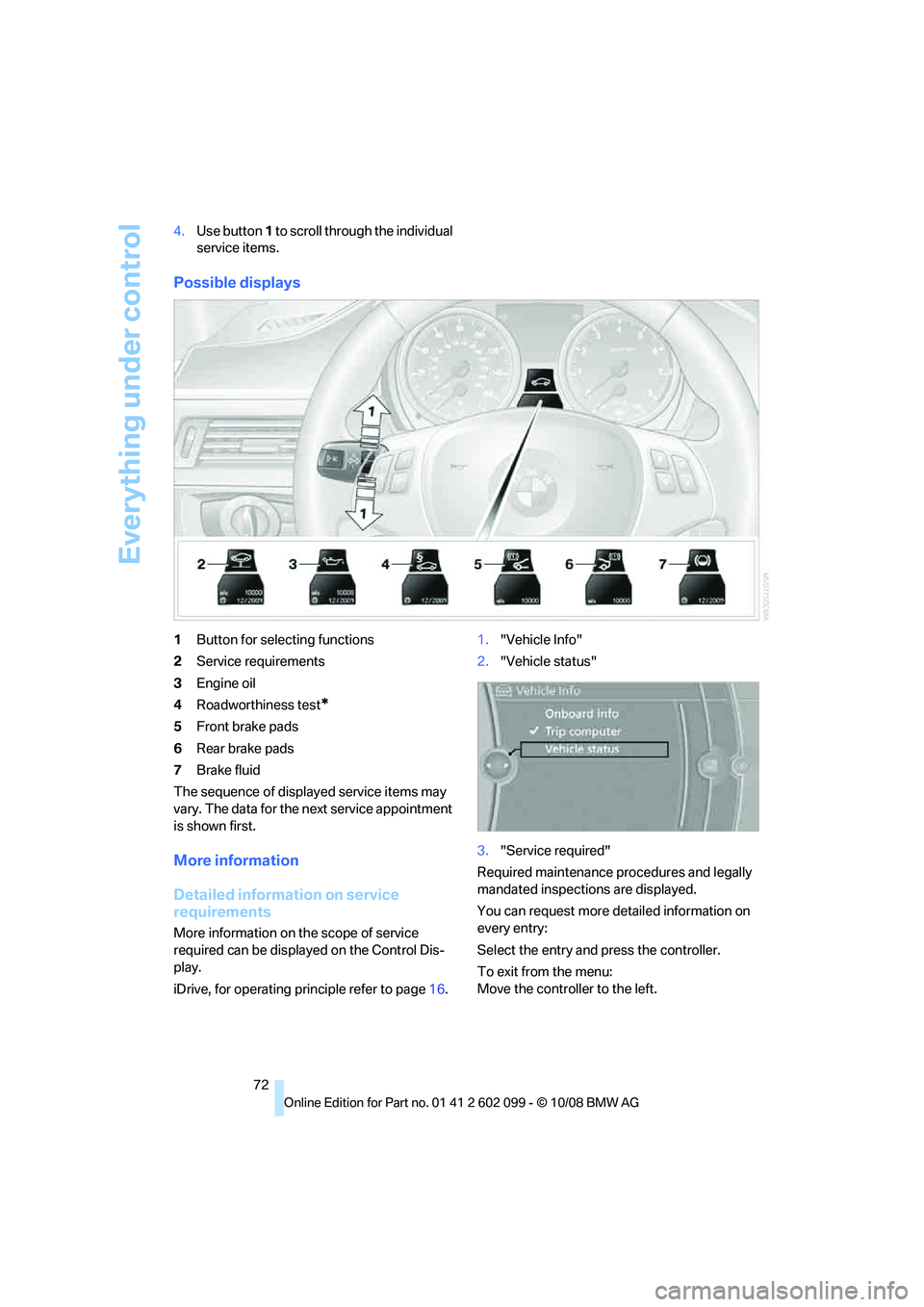
Possible displays
1 Button for selecting functions
2 Service requirements
3 Engine oil
4 Roadworthiness test
*
5Front brake pads
6 Rear brake pads
7 Brake fluid
The sequence of displayed service items may
vary. The data for the ne xt service appointment
is shown first.
More information
Detailed information on service
requirements
More information on the scope of service
required can be displa yed on the Control Dis-
play.
iDrive, for operating pr inciple refer to page16. 1.
"Vehicle Info"
2. "Vehicle status"
3. "Service required"
Required maintenance procedures and legally
mandated inspections are displayed.
You can request more detailed information on
every entry:
Select the entry and press the controller.
To exit from the menu:
Move the controller to the left.
ba8_E9091_cic.book Seite 72 Mittwoch, 29. Oktober 2008 2:59 14
Page 75 of 268
Controls
73Reference
At a glance
Driving tips
Communications
Navigation
Entertainment
Mobility
Symbols
No service is currently required.
The deadline for service or a legally man-
dated inspection is approaching. Please
schedule a service appointment.
The service deadline has already passed.
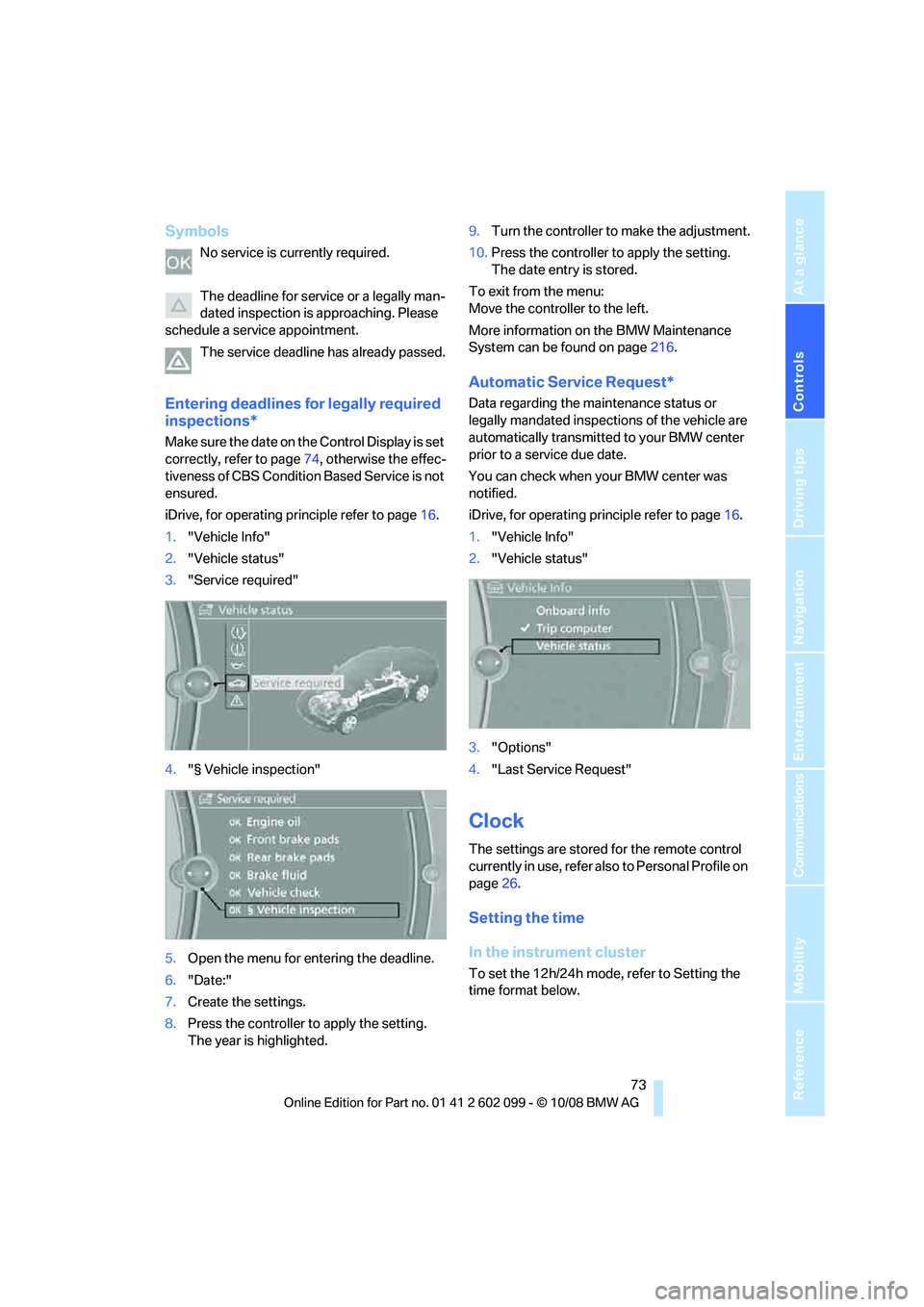
Entering deadlines for legally required
inspections*
Make sure the date on th e Control Display is set
correctly, refer to page 74, otherwise the effec-
tiveness of CBS Conditio n Based Service is not
ensured.
iDrive, for operating principle refer to page 16.
1. "Vehicle Info"
2. "Vehicle status"
3. "Service required"
4. "§ Vehicle inspection"
5. Open the menu for entering the deadline.
6. "Date:"
7. Create the settings.
8. Press the controller to apply the setting.
The year is highlighted. 9.
Turn the controller to make the adjustment.
10. Press the controller to apply the setting.
The date entry is stored.
To exit from the menu:
Move the controller to the left.
More information on the BMW Maintenance
System can be found on page 216.
Automatic Service Request*
Data regarding the maintenance status or
legally mandated inspecti ons of the vehicle are
automatically transmitted to your BMW center
prior to a service due date.
You can check when your BMW center was
notified.
iDrive, for operating pr inciple refer to page16.
1. "Vehicle Info"
2. "Vehicle status"
3. "Options"
4. "Last Service Request"
Clock
The settings are stored for the remote control
currently in use, refer also to Personal Profile on
page 26.
Setting the time
In the instrument cluster
To set the 12h/24h mode, refer to Setting the
time format below.
ba8_E9091_cic.book Seite 73 Mittwoch, 29. Oktober 2008 2:59 14
Page 76 of 268
Everything under control
74
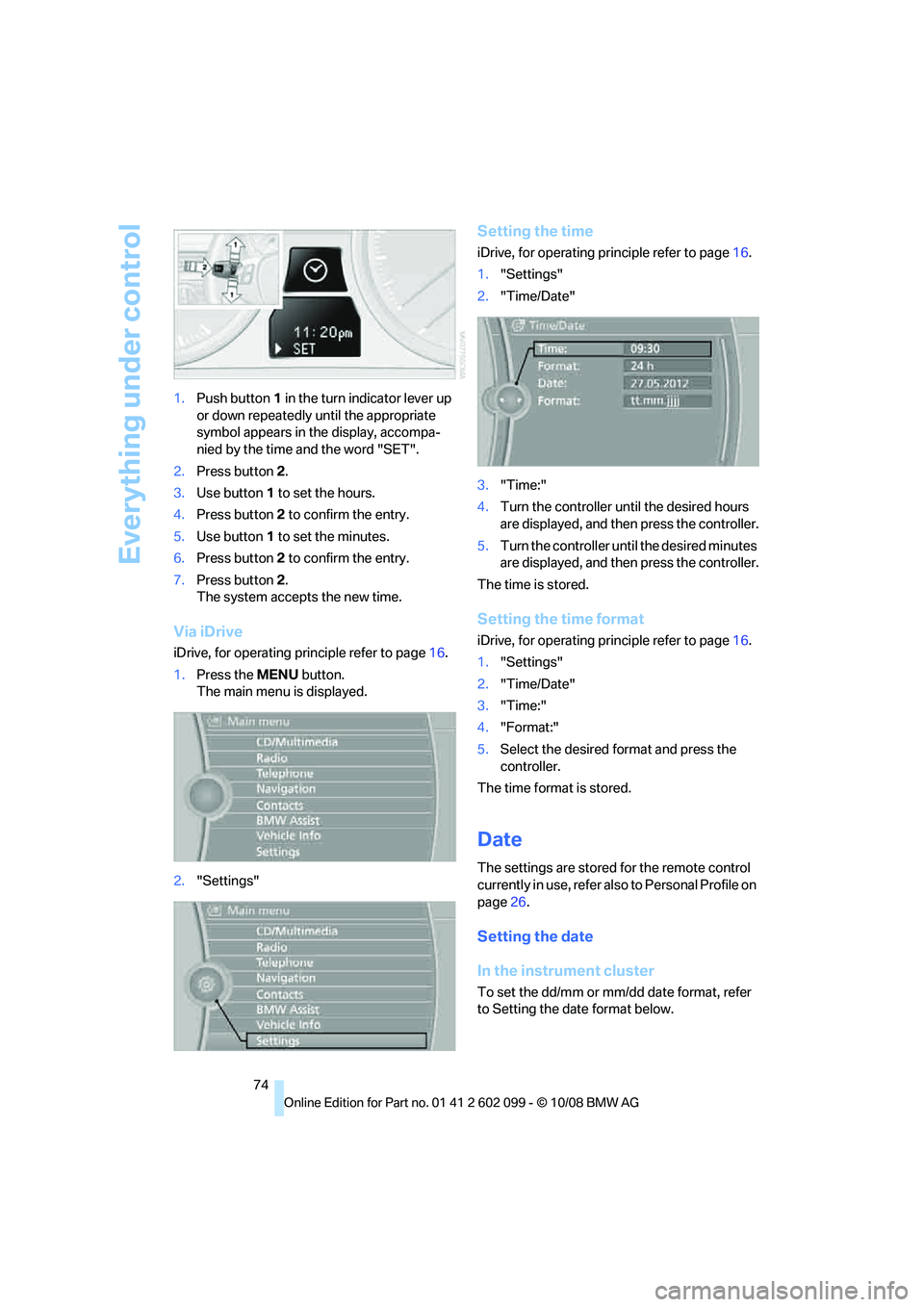
1.
Push button 1 in the turn indicator lever up
or down repeatedly until the appropriate
symbol appears in the display, accompa-
nied by the time and the word "SET".
2. Press button 2.
3. Use button 1 to set the hours.
4. Press button 2 to confirm the entry.
5. Use button 1 to set the minutes.
6. Press button 2 to confirm the entry.
7. Press button 2.
The system accepts the new time.
Via iDrive
iDrive, for operating pr inciple refer to page16.
1. Press the MENU button.
The main menu is displayed.
2. "Settings"
Setting the time
iDrive, for operating pr inciple refer to page16.
1. "Settings"
2. "Time/Date"
3. "Time:"
4. Turn the controller until the desired hours
are displayed, and then press the controller.
5. Turn the controller unt il the desired minutes
are displayed, and then press the controller.
The time is stored.
Setting the time format
iDrive, for operating pr inciple refer to page16.
1. "Settings"
2. "Time/Date"
3. "Time:"
4. "Format:"
5. Select the desired format and press the
controller.
The time format is stored.
Date
The settings are stored for the remote control
currently in use, refer also to Personal Profile on
page 26.
Setting the date
In the instrument cluster
To set the dd/mm or mm/dd date format, refer
to Setting the date format below.
ba8_E9091_cic.book Seite 74 Mittwoch, 29. Oktober 2008 2:59 14
Page 77 of 268
Controls
75Reference
At a glance
Driving tips
Communications
Navigation
Entertainment
Mobility
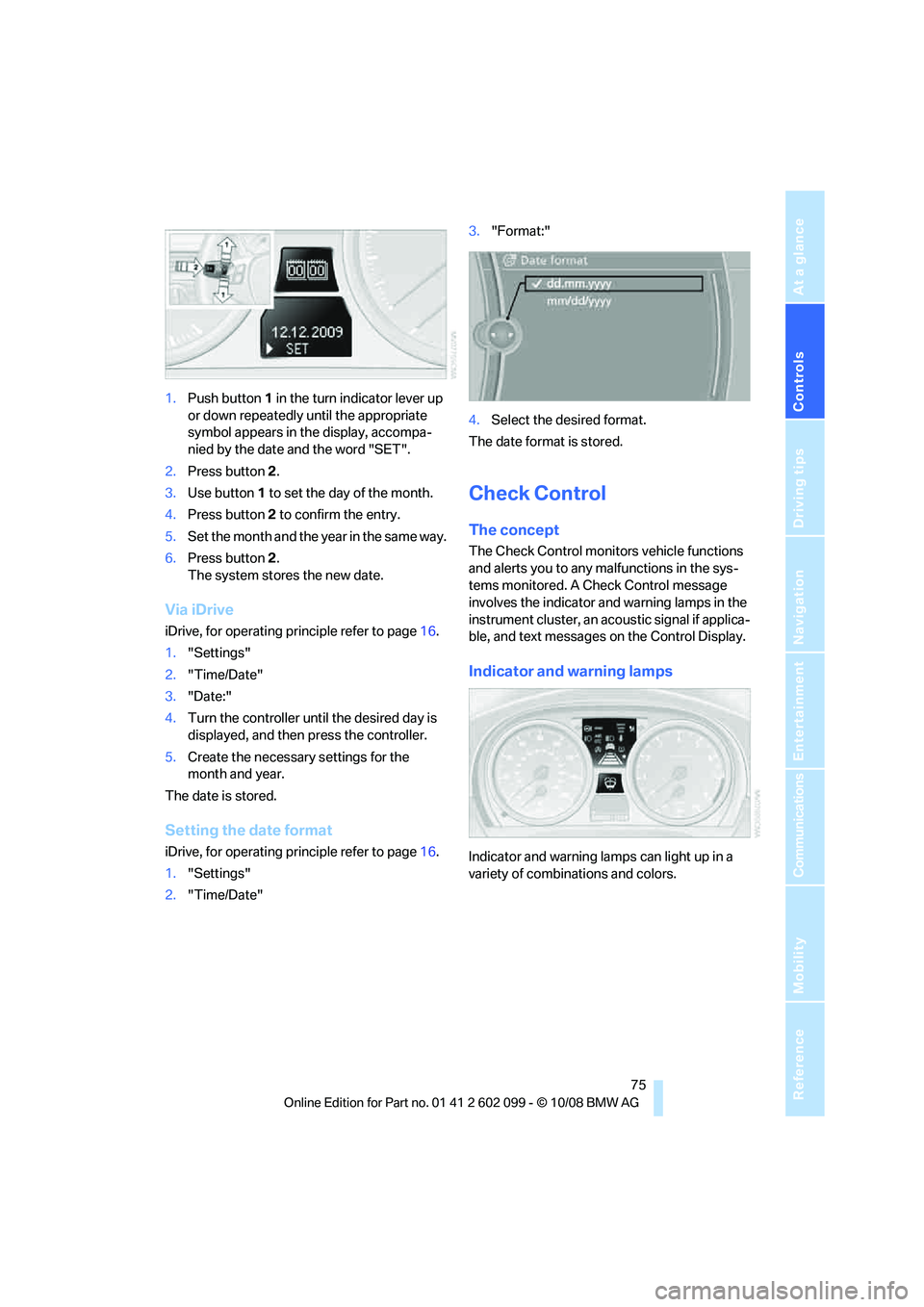
1.Push button 1 in the turn indicator lever up
or down repeatedly until the appropriate
symbol appears in the display, accompa-
nied by the date and the word "SET".
2. Press button 2.
3. Use button 1 to set the day of the month.
4. Press button 2 to confirm the entry.
5. Set the month and the ye a r i n t h e s a m e w a y .
6. Press button 2.
The system stores the new date.
Via iDrive
iDrive, for operating principle refer to page 16.
1. "Settings"
2. "Time/Date"
3. "Date:"
4. Turn the controller unt il the desired day is
displayed, and then press the controller.
5. Create the necessary settings for the
month and year.
The date is stored.
Setting the date format
iDrive, for operating principle refer to page 16.
1. "Settings"
2. "Time/Date" 3.
"Format:"
4. Select the desired format.
The date format is stored.
Check Control
The concept
The Check Control monitors vehicle functions
and alerts you to any malfunctions in the sys-
tems monitored. A Ch eck Control message
involves the indicator and warning lamps in the
instrument cluster, an ac oustic signal if applica-
ble, and text messages on the Control Display.
Indicator and warning lamps
Indicator and warning la mps can light up in a
variety of combinations and colors.
ba8_E9091_cic.book Seite 75 Mittwoch, 29. Oktober 2008 2:59 14
Page 78 of 268
Everything under control
76
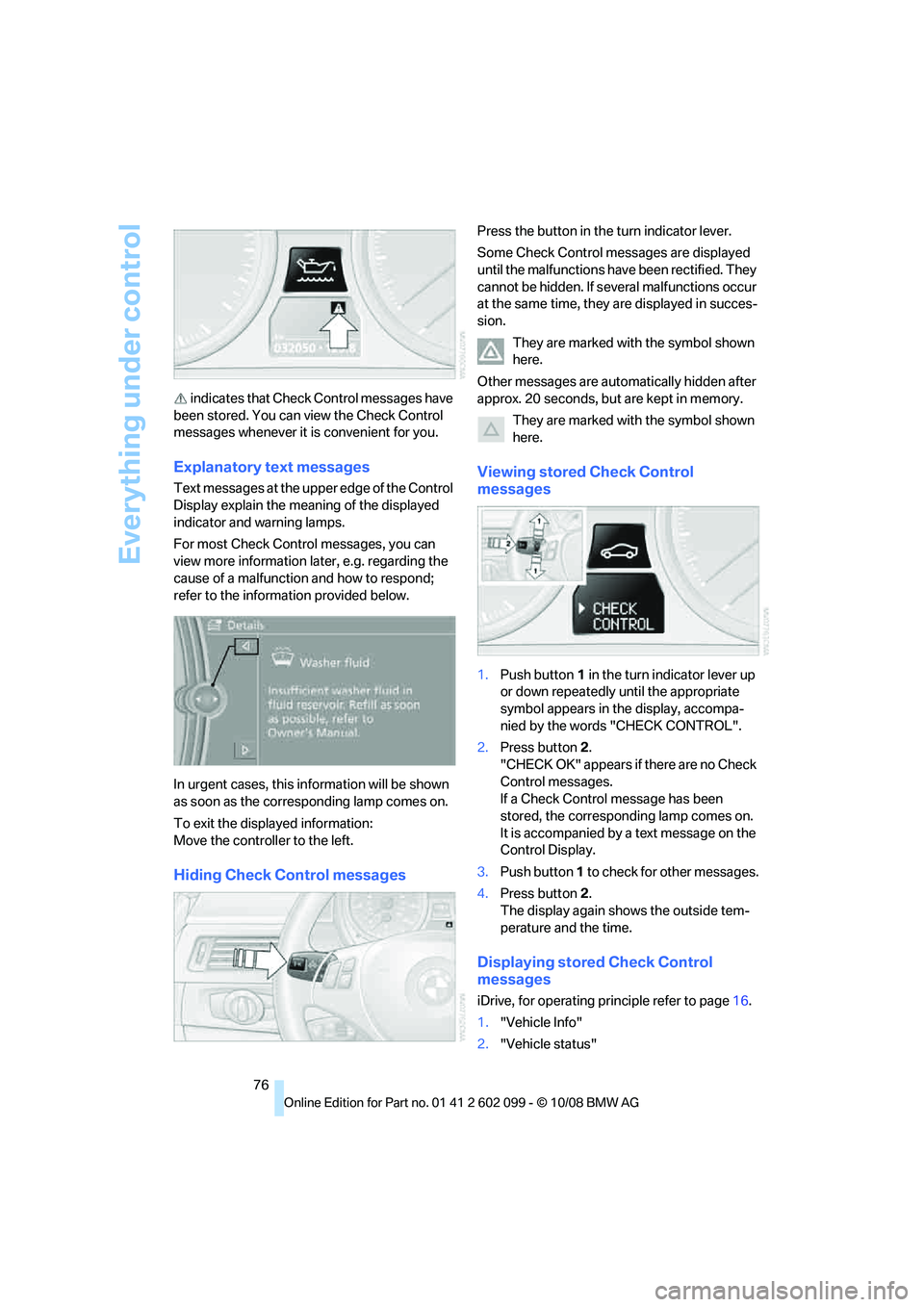
indicates that Check Control messages have
been stored. You can view the Check Control
messages whenever it is convenient for you.
Explanatory text messages
Text messages at the u pper edge of the Control
Display explain the meaning of the displayed
indicator and warning lamps.
For most Check Control messages, you can
view more information later, e.g. regarding the
cause of a malfunction and how to respond;
refer to the information provided below.
In urgent cases, this information will be shown
as soon as the corresponding lamp comes on.
To exit the displayed information:
Move the controller to the left.
Hiding Check Control messages
Press the button in th e turn indicator lever.
Some Check Control messages are displayed
until the malfunctions have been rectified. They
cannot be hidden. If seve ral malfunctions occur
at the same time, they are displayed in succes-
sion.
They are marked with the symbol shown
here.
Other messages are automatically hidden after
approx. 20 seconds, but are kept in memory. They are marked with the symbol shown
here.
Viewing stored Check Control
messages
1.Push button 1 in the turn indicator lever up
or down repeatedly until the appropriate
symbol appears in the display, accompa-
nied by the words "CHECK CONTROL".
2. Press button 2.
"CHECK OK" appears if there are no Check
Control messages.
If a Check Control message has been
stored, the corresponding lamp comes on.
It is accompanied by a text message on the
Control Display.
3. Push button 1 to check for other messages.
4. Press button 2.
The display again shows the outside tem-
perature and the time.
Displaying stored Check Control
messages
iDrive, for operating pr inciple refer to page16.
1. "Vehicle Info"
2. "Vehicle status"
ba8_E9091_cic.book Seite 76 Mittwoch, 29. Oktober 2008 2:59 14