display BMW 3 SERIES 2011 Owners Manual
[x] Cancel search | Manufacturer: BMW, Model Year: 2011, Model line: 3 SERIES, Model: BMW 3 SERIES 2011Pages: 325, PDF Size: 12.94 MB
Page 200 of 325
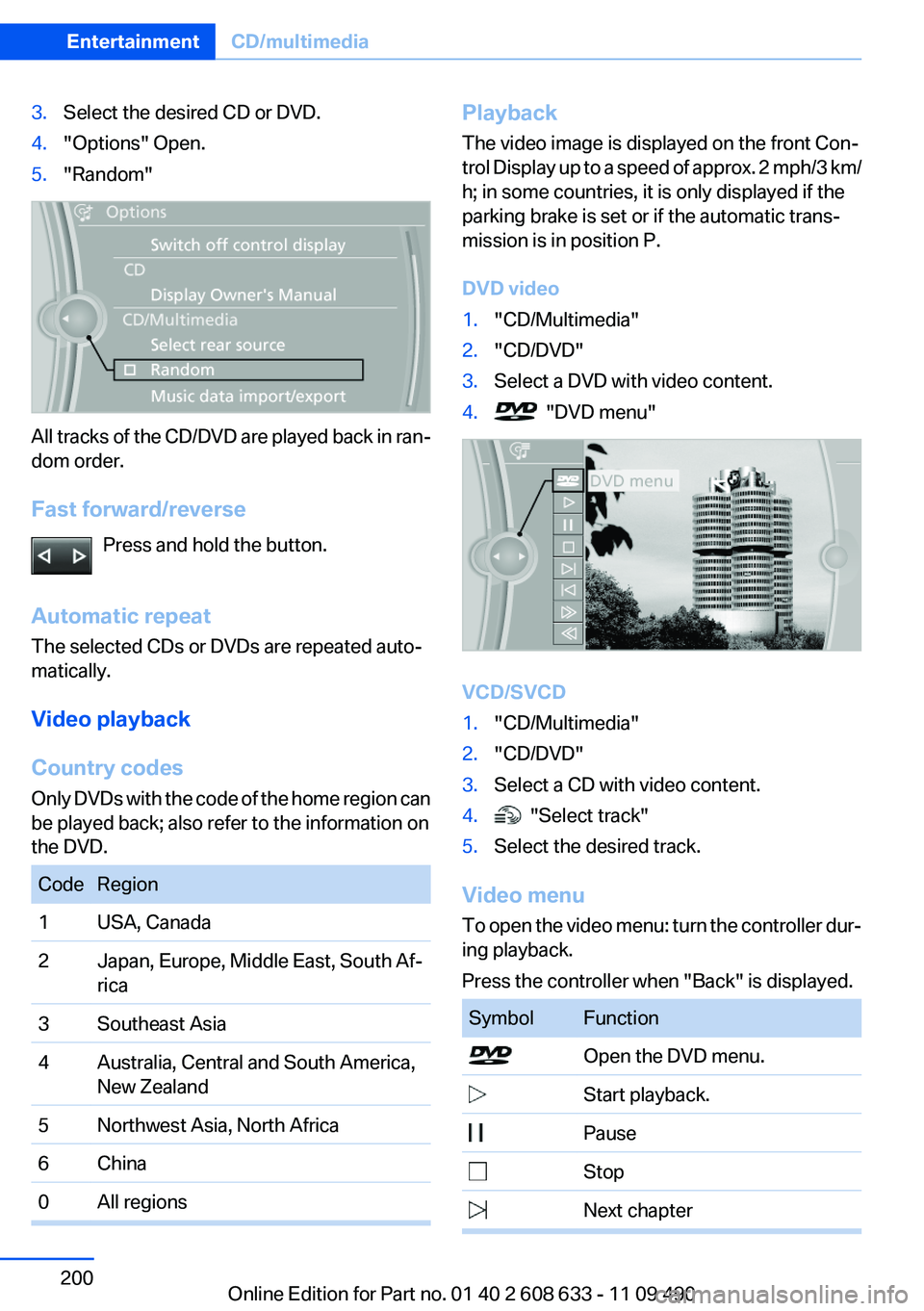
3.Select the desired CD or DVD.
4."Options" Open.
5."Random"
All tracks of the CD/DVD are played back in ran‐
dom order.
Fast forward/reverse
Press and hold the button.
Automatic repeat
The selected CDs or DVDs are repeated auto‐
matically.
Video playback
Country codes
Only DVDs with the code of the home region can
be played back; also refer to the information on
the DVD.
Code Region
1 USA, Canada
2 Japan, Europe, Middle East, South Af‐
rica
3 Southeast Asia
4 Australia, Central and South America,
New Zealand
5 Northwest Asia, North Africa
6 China
0 All regions
Playback
The video image is displayed on the front Con‐
trol Display up to a speed of approx. 2 mph/3 km/
h; in some countries, it is only displayed if the
parking brake is set or if the automatic trans‐
mission is in position P.
DVD video
1."CD/Multimedia"
2."CD/DVD"
3.Select a DVD with video content.
4. "DVD menu"
VCD/SVCD
1."CD/Multimedia"
2."CD/DVD"
3.Select a CD with video content.
4. "Select track"
5.Select the desired track.
Video menu
To open the video menu: turn the controller dur‐
ing playback.
Press the controller when "Back" is displayed.
Symbol Function
Open the DVD menu.
Start playback.
Pause
Stop
Next chapter
Seite 200
EntertainmentCD/multimedia
200Online Edition for Part no. 01 40 2 608 633 - 11 09 490
Page 201 of 325
Symbol Function
Previous chapter
Fast forward
Reverse
In fast forward/reverse: the speed increases ev‐
ery time the controller is pressed. To stop, start
playback.
DVD menu
1.If necessary, turn the controller to open the
video menu.
2. "DVD menu"
The DVD menu is displayed. The display de‐
pends on the contents of the DVD.
3.To select menu items: move the controller
and press it.
To change to the video menu: turn the controller
and press it.
DVD/VCD settings
For some DVDs, settings can only be made via
the DVD menu; refer also to the information on
the DVD.
Selecting the language
The languages that are available depend on the
DVD.
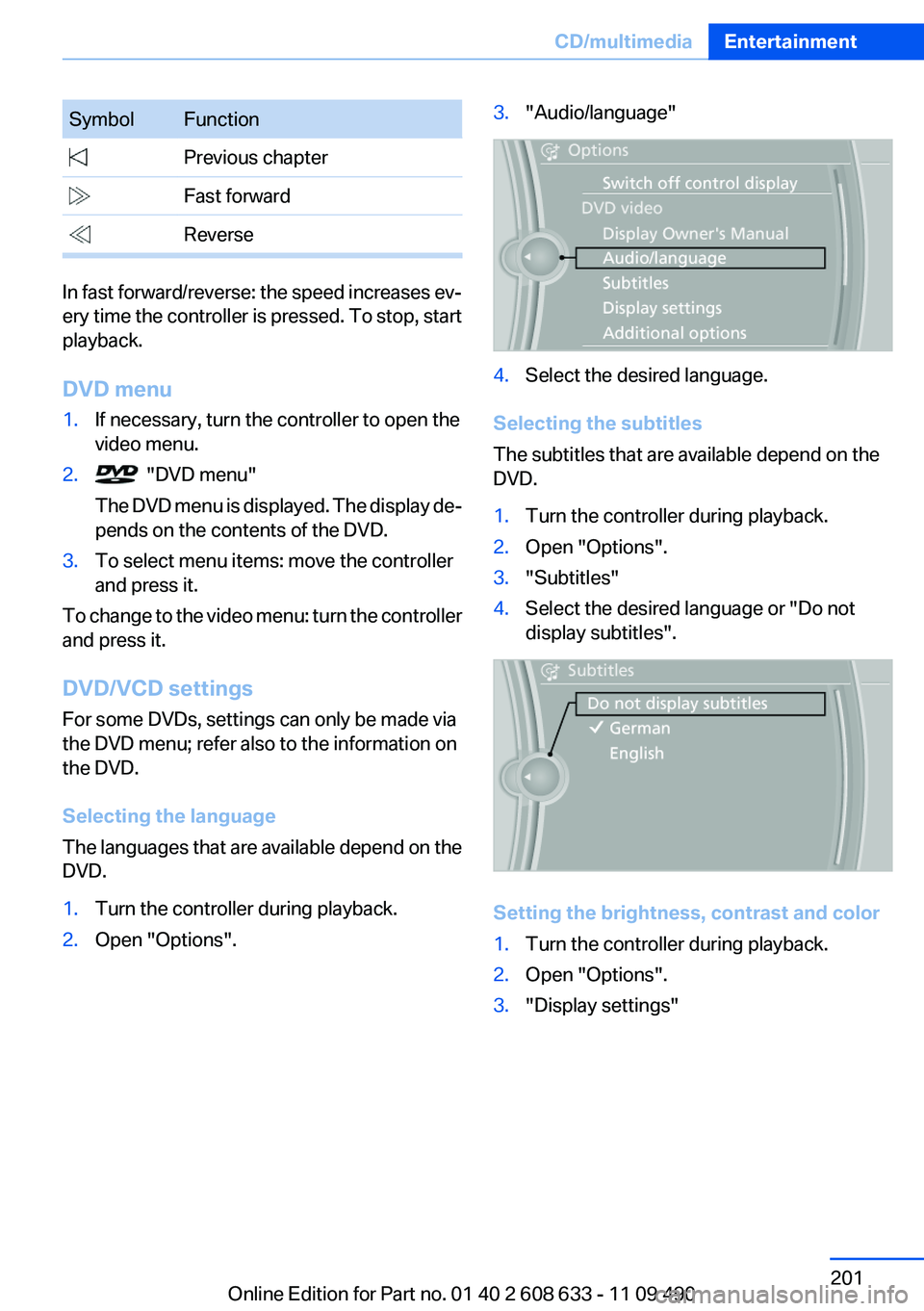
1.Turn the controller during playback.
2.Open "Options".
3."Audio/language"
4.Select the desired language.
Selecting the subtitles
The subtitles that are available depend on the
DVD.
1.Turn the controller during playback.
2.Open "Options".
3."Subtitles"
4.Select the desired language or "Do not
display subtitles".
Setting the brightness, contrast and color
1.Turn the controller during playback.
2.Open "Options".
3."Display settings"
Seite 201
CD/multimediaEntertainment
201Online Edition for Part no. 01 40 2 608 633 - 11 09 490
Page 202 of 325
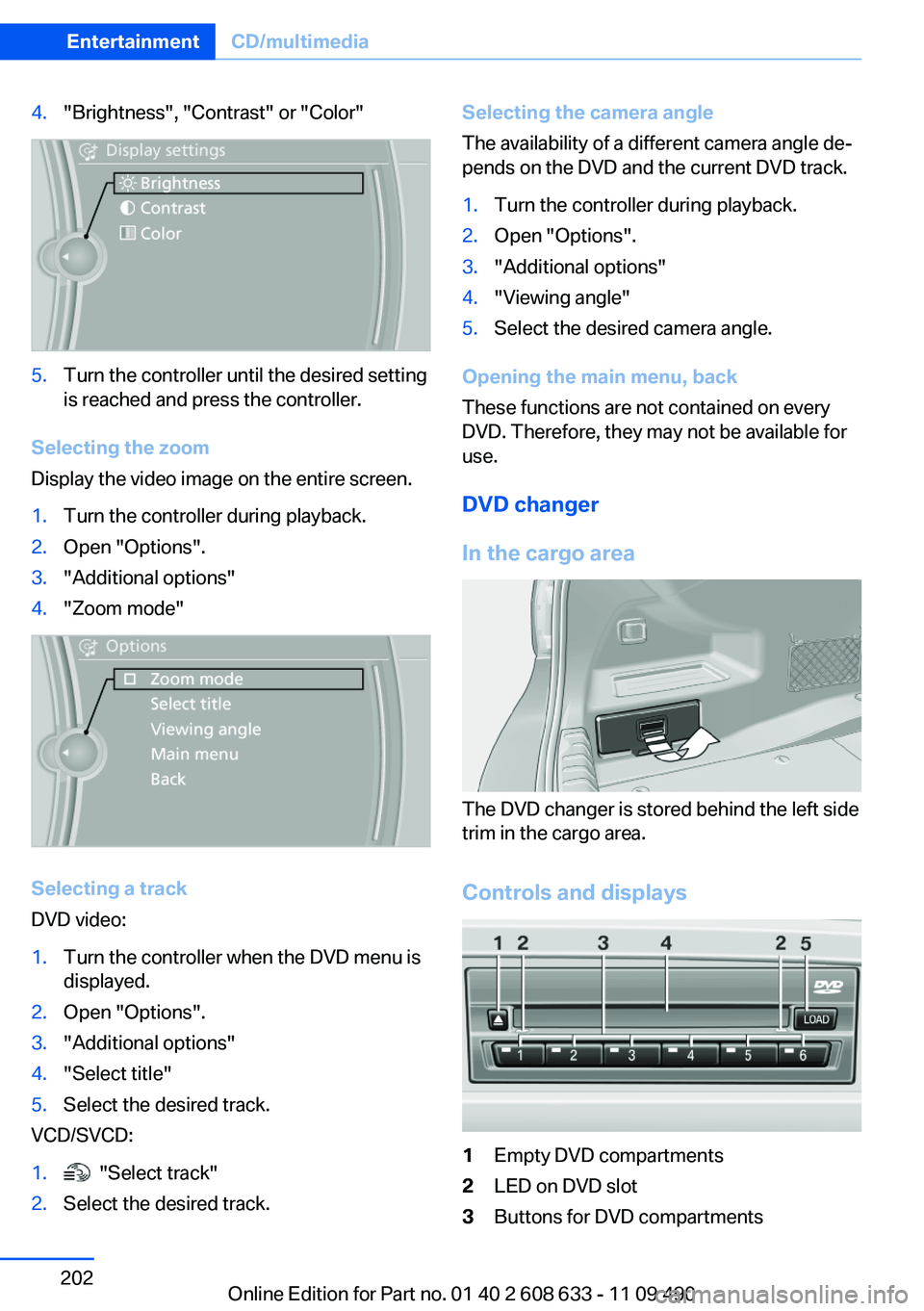
4."Brightness", "Contrast" or "Color"
5.Turn the controller until the desired setting
is reached and press the controller.
Selecting the zoom
Display the video image on the entire screen.
1.Turn the controller during playback.
2.Open "Options".
3."Additional options"
4."Zoom mode"
Selecting a track
DVD video:
1.Turn the controller when the DVD menu is
displayed.
2.Open "Options".
3."Additional options"
4."Select title"
5.Select the desired track.
VCD/SVCD:
1. "Select track"
2.Select the desired track.
Selecting the camera angle
The availability of a different camera angle de‐
pends on the DVD and the current DVD track.
1.Turn the controller during playback.
2.Open "Options".
3."Additional options"
4."Viewing angle"
5.Select the desired camera angle.
Opening the main menu, back
These functions are not contained on every
DVD. Therefore, they may not be available for
use.
DVD changer
In the cargo area
The DVD changer is stored behind the left side
trim in the cargo area.
Controls and displays
1Empty DVD compartments
2LED on DVD slot
3Buttons for DVD compartments
Seite 202
EntertainmentCD/multimedia
202Online Edition for Part no. 01 40 2 608 633 - 11 09 490
Page 206 of 325
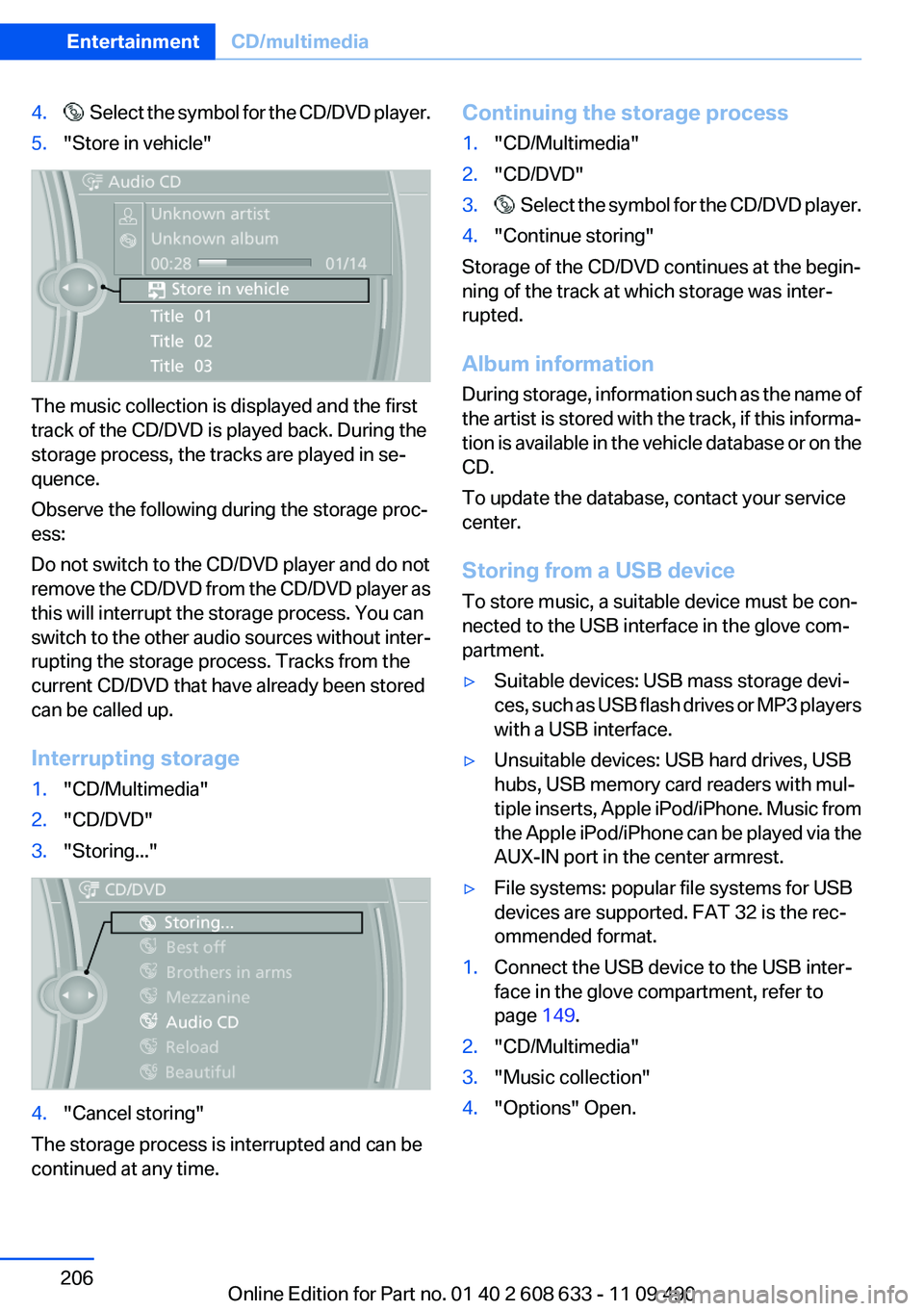
4. Select the symbol for the CD/DVD player.
5."Store in vehicle"
The music collection is displayed and the first
track of the CD/DVD is played back. During the
storage process, the tracks are played in se‐
quence.
Observe the following during the storage proc‐
ess:
Do not switch to the CD/DVD player and do not
remove the CD/DVD from the CD/DVD player as
this will interrupt the storage process. You can
switch to the other audio sources without inter‐
rupting the storage process. Tracks from the
current CD/DVD that have already been stored
can be called up.
Interrupting storage
1."CD/Multimedia"
2."CD/DVD"
3."Storing..."
4."Cancel storing"
The storage process is interrupted and can be
continued at any time.
Continuing the storage process
1."CD/Multimedia"
2."CD/DVD"
3. Select the symbol for the CD/DVD player.
4."Continue storing"
Storage of the CD/DVD continues at the begin‐
ning of the track at which storage was inter‐
rupted.
Album information
During storage, information such as the name of
the artist is stored with the track, if this informa‐
tion is available in the vehicle database or on the
CD.
To update the database, contact your service
center.
Storing from a USB device
To store music, a suitable device must be con‐
nected to the USB interface in the glove com‐
partment.
▷Suitable devices: USB mass storage devi‐
ces, such as USB flash drives or MP3 players
with a USB interface.
▷Unsuitable devices: USB hard drives, USB
hubs, USB memory card readers with mul‐
tiple inserts, Apple iPod/iPhone. Music from
the Apple iPod/iPhone can be played via the
AUX-IN port in the center armrest.
▷File systems: popular file systems for USB
devices are supported. FAT 32 is the rec‐
ommended format.
1.Connect the USB device to the USB inter‐
face in the glove compartment, refer to
page 149.
2."CD/Multimedia"
3."Music collection"
4."Options" Open.
Seite 206
EntertainmentCD/multimedia
206Online Edition for Part no. 01 40 2 608 633 - 11 09 490
Page 207 of 325
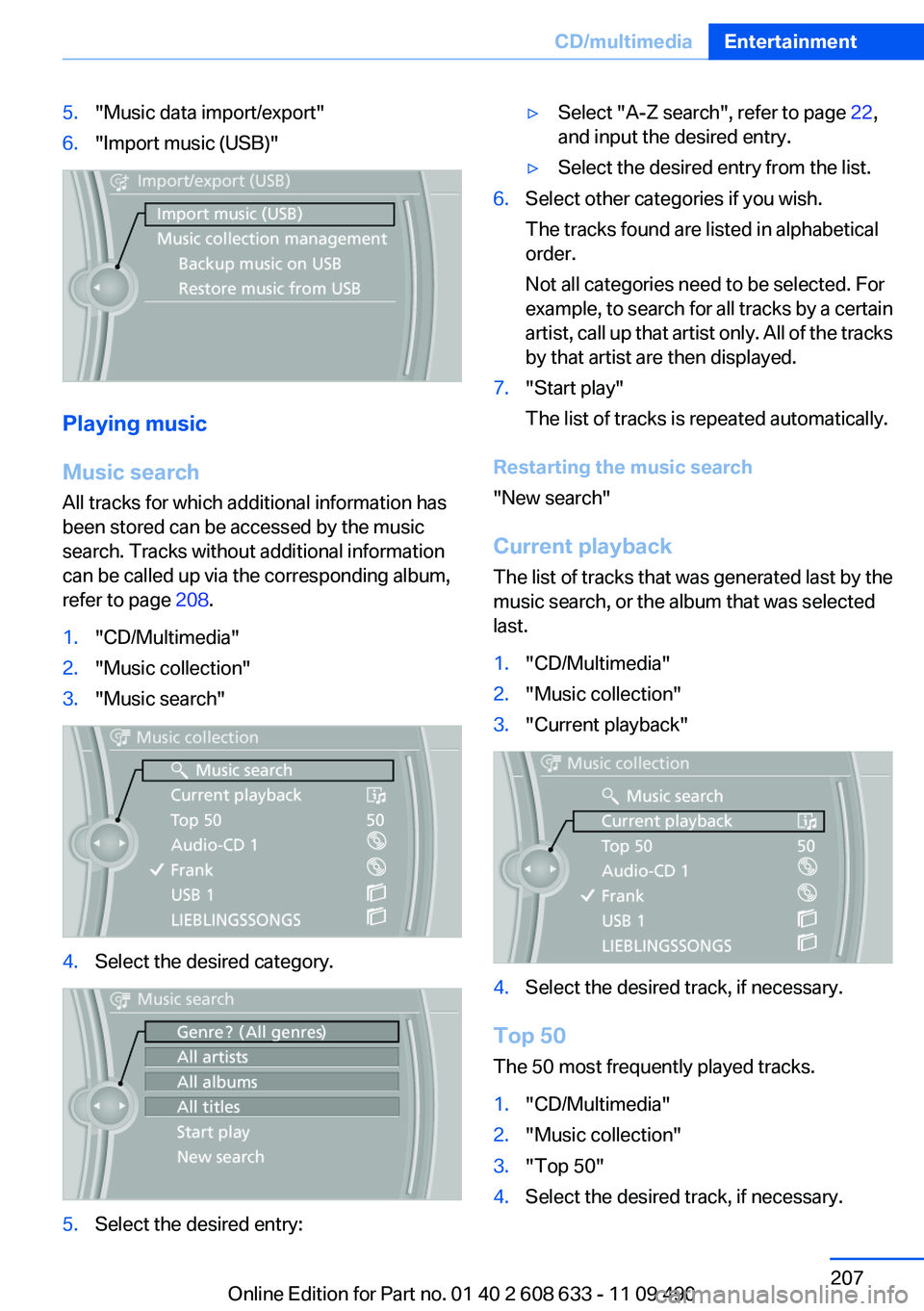
5."Music data import/export"
6."Import music (USB)"
Playing music
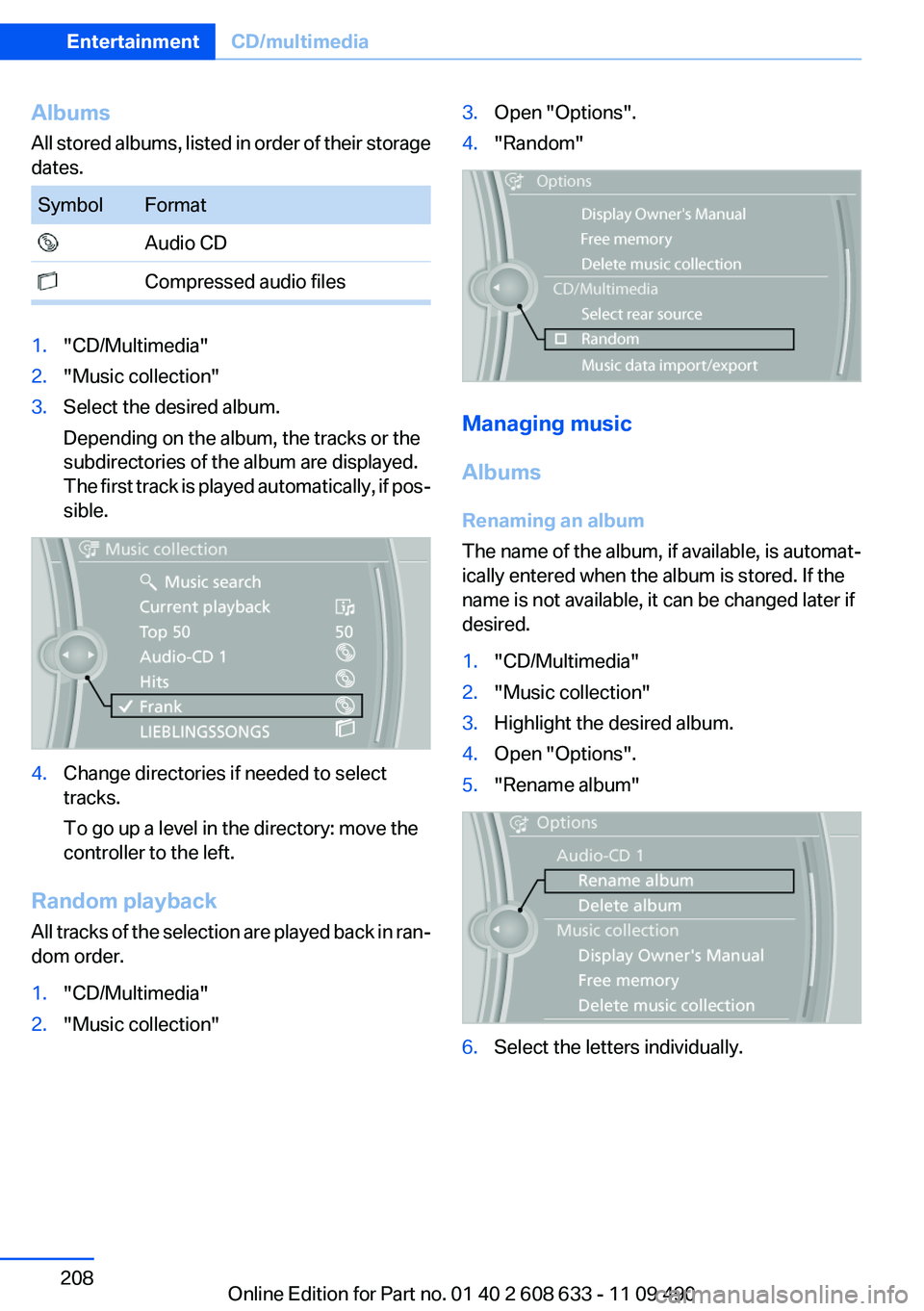
Music search
All tracks for which additional information has
been stored can be accessed by the music
search. Tracks without additional information
can be called up via the corresponding album,
refer to page 208.
1."CD/Multimedia"
2."Music collection"
3."Music search"
4.Select the desired category.
5.Select the desired entry:
▷Select "A-Z search", refer to page 22,
and input the desired entry.
▷Select the desired entry from the list.
6.Select other categories if you wish.
The tracks found are listed in alphabetical
order.
Not all categories need to be selected. For
example, to search for all tracks by a certain
artist, call up that artist only. All of the tracks
by that artist are then displayed.
7."Start play"
The list of tracks is repeated automatically.
Restarting the music search
"New search"
Current playback
The list of tracks that was generated last by the
music search, or the album that was selected
last.
1."CD/Multimedia"
2."Music collection"
3."Current playback"
4.Select the desired track, if necessary.
Top 50
The 50 most frequently played tracks.
1."CD/Multimedia"
2."Music collection"
3."Top 50"
4.Select the desired track, if necessary.
Seite 207
CD/multimediaEntertainment
207Online Edition for Part no. 01 40 2 608 633 - 11 09 490
Page 208 of 325
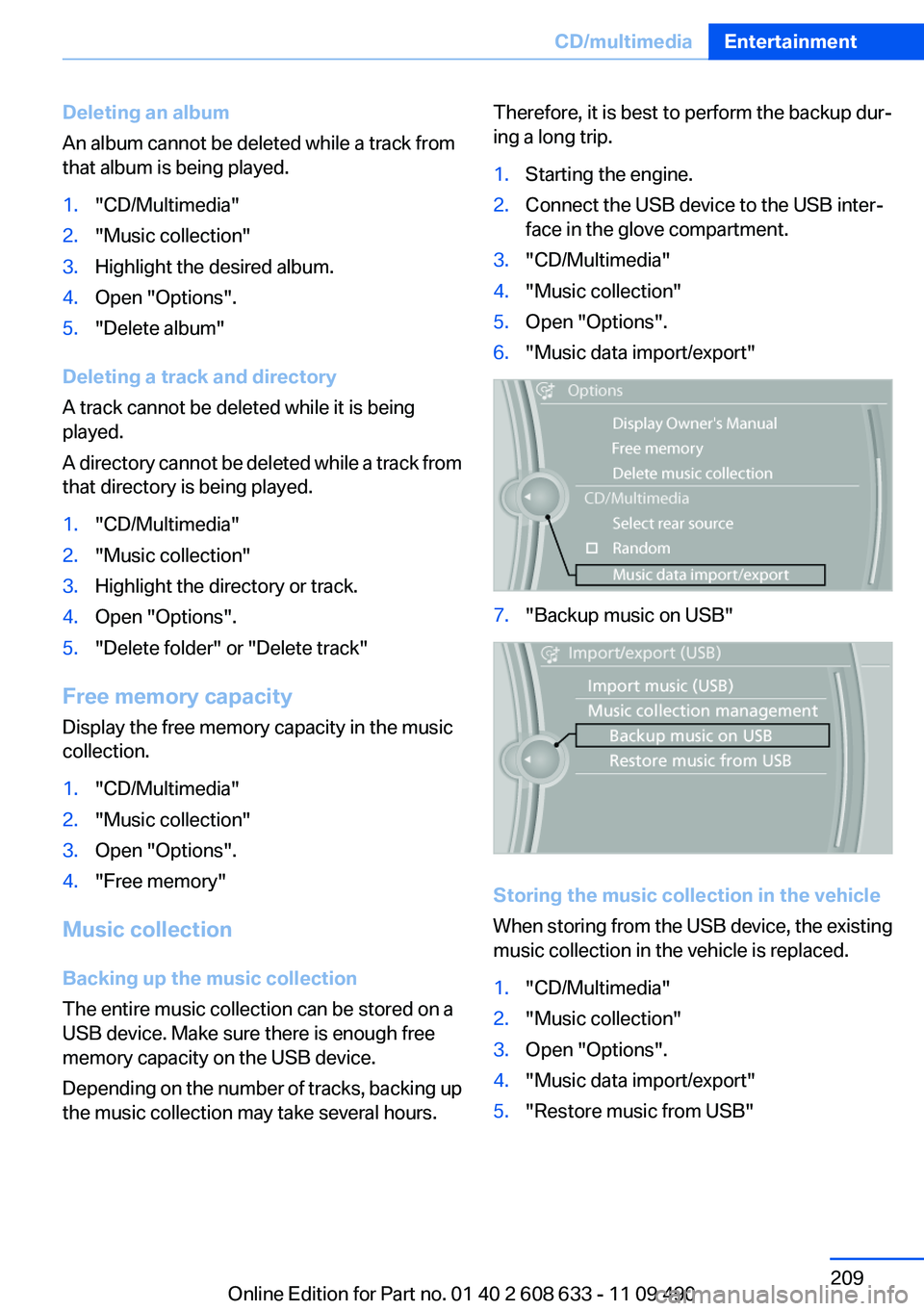
Albums
All stored albums, listed in order of their storage
dates.
Symbol Format
Audio CD
Compressed audio files
1."CD/Multimedia"
2."Music collection"
3.Select the desired album.
Depending on the album, the tracks or the
subdirectories of the album are displayed.
The first track is played automatically, if pos‐
sible.
4.Change directories if needed to select
tracks.
To go up a level in the directory: move the
controller to the left.
Random playback
All tracks of the selection are played back in ran‐
dom order.
1."CD/Multimedia"
2."Music collection"
3.Open "Options".
4."Random"
Managing music
Albums
Renaming an album
The name of the album, if available, is automat‐
ically entered when the album is stored. If the
name is not available, it can be changed later if
desired.
1."CD/Multimedia"
2."Music collection"
3.Highlight the desired album.
4.Open "Options".
5."Rename album"
6.Select the letters individually.
Seite 208
EntertainmentCD/multimedia
208Online Edition for Part no. 01 40 2 608 633 - 11 09 490
Page 209 of 325
Deleting an album
An album cannot be deleted while a track from
that album is being played.
1."CD/Multimedia"
2."Music collection"
3.Highlight the desired album.
4.Open "Options".
5."Delete album"
Deleting a track and directory
A track cannot be deleted while it is being
played.
A directory cannot be deleted while a track from
that directory is being played.
1."CD/Multimedia"
2."Music collection"
3.Highlight the directory or track.
4.Open "Options".
5."Delete folder" or "Delete track"
Free memory capacity
Display the free memory capacity in the music
collection.
1."CD/Multimedia"
2."Music collection"
3.Open "Options".
4."Free memory"
Music collection
Backing up the music collection
The entire music collection can be stored on a
USB device. Make sure there is enough free
memory capacity on the USB device.
Depending on the number of tracks, backing up
the music collection may take several hours.
Therefore, it is best to perform the backup dur‐
ing a long trip.
1.Starting the engine.
2.Connect the USB device to the USB inter‐
face in the glove compartment.
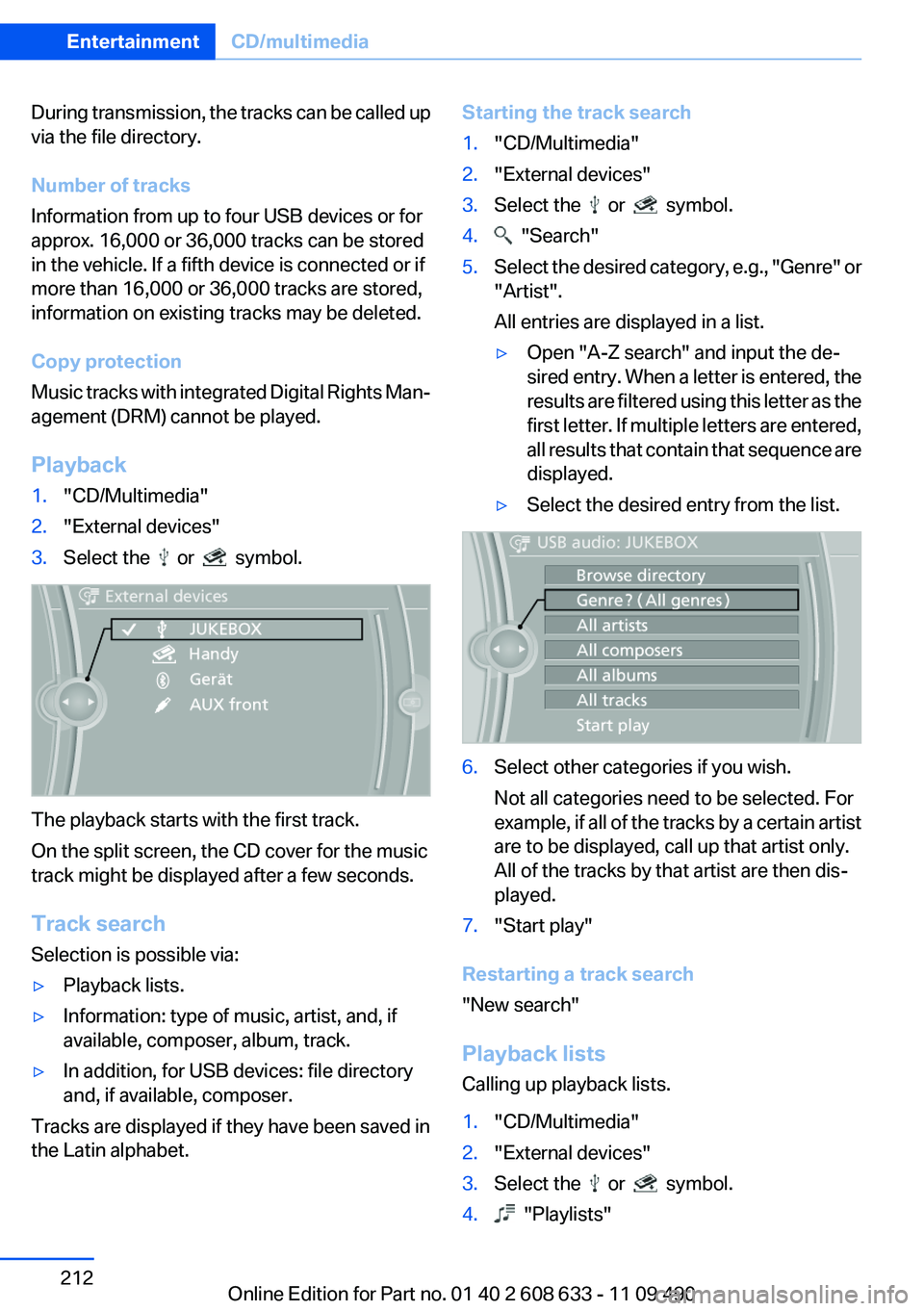
3."CD/Multimedia"
4."Music collection"
5.Open "Options".
6."Music data import/export"
7."Backup music on USB"
Storing the music collection in the vehicle
When storing from the USB device, the existing
music collection in the vehicle is replaced.
1."CD/Multimedia"
2."Music collection"
3.Open "Options".
4."Music data import/export"
5."Restore music from USB"
Seite 209
CD/multimediaEntertainment
209Online Edition for Part no. 01 40 2 608 633 - 11 09 490
Page 212 of 325
During transmission, the tracks can be called up
via the file directory.
Number of tracks
Information from up to four USB devices or for
approx. 16,000 or 36,000 tracks can be stored
in the vehicle. If a fifth device is connected or if
more than 16,000 or 36,000 tracks are stored,
information on existing tracks may be deleted.
Copy protection
Music tracks with integrated Digital Rights Man‐
agement (DRM) cannot be played.
Playback
1."CD/Multimedia"
2."External devices"
3.Select the or symbol.
The playback starts with the first track.
On the split screen, the CD cover for the music
track might be displayed after a few seconds.
Track search
Selection is possible via:
▷Playback lists.
▷Information: type of music, artist, and, if
available, composer, album, track.
▷In addition, for USB devices: file directory
and, if available, composer.
Tracks are displayed if they have been saved in
the Latin alphabet.
Starting the track search
1."CD/Multimedia"
2."External devices"
3.Select the or symbol.
4. "Search"
5.Select the desired category, e.g., "Genre" or
"Artist".
All entries are displayed in a list.
▷Open "A-Z search" and input the de‐
sired entry. When a letter is entered, the
results are filtered using this letter as the
first letter. If multiple letters are entered,
all results that contain that sequence are
displayed.
▷Select the desired entry from the list.
6.Select other categories if you wish.
Not all categories need to be selected. For
example, if all of the tracks by a certain artist
are to be displayed, call up that artist only.
All of the tracks by that artist are then dis‐
played.
7."Start play"
Restarting a track search
"New search"
Playback lists
Calling up playback lists.
1."CD/Multimedia"
2."External devices"
3.Select the or symbol.
4. "Playlists"
Seite 212
EntertainmentCD/multimedia
212Online Edition for Part no. 01 40 2 608 633 - 11 09 490
Page 213 of 325
Current playback
List of tracks currently being played.
1."CD/Multimedia"
2."External devices"
3.Select the or symbol.
4. "Current playback"
Random playback
The current list of tracks is played back in ran‐
dom order.
1."CD/Multimedia"
2."External devices"
3."Options" Open.
4."Random"
Fast forward/reverse
Press and hold the button.
Video playback
At a glance
Video playback via snap-in adapter is possible.
Operation can be performed via iDrive. The
sound is output on the vehicle loudspeakers.
Playback
The video image is displayed on the front Con‐
trol Display up to a speed of approx. 2 mph/3 km/
h; in some countries, it is only displayed if the
parking brake is set or if the automatic trans‐
mission is in position P.
1."CD/Multimedia"
2."External devices"
3. Select the symbol.
4. "Video"
5.Select the directory if necessary.
To go up a level in the directory: move the
controller to the left.
6.Select the desired video file to begin play‐
back.
Video menu
Symbol Function
Next video file
Previous video file
Double-click on an icon to play back
previous video file.
Notes
Do not expose the audio device to extreme en‐
vironmental conditions, such as very high tem‐
peratures; refer to the audio device operating
instructions.
Depending on the configuration of the audio
files, e.g., bit rates greater than 256 kbit/s, the
files may not play back correctly in each case.
Information on connection
▷The connected audio device is supplied with
a max. power of 500 mA if supported by the
device. Therefore, do not additionally con‐
nect the device to a socket in the vehicle;
otherwise, playback may be compromised.
▷Do not use force when plugging the con‐
nector into the USB interface.
▷Do not connect devices such as fans or
lamps to the USB audio interface.
▷Do not connect USB hard drives.
▷Do not use the USB audio interface to re‐
charge external devices.
Bluetooth audio
At a glance
▷Music files on external devices such as audio
devices or mobile phones can be played
back via Bluetooth.
Seite 213
CD/multimediaEntertainment
213Online Edition for Part no. 01 40 2 608 633 - 11 09 490
Page 214 of 325
Use of a mobile phone as an audio source,
refer to page 229.
▷The sound is output on the vehicle loud‐
speakers.
▷The volume of the sound output is depend‐
ent on the device. If necessary, adjust the
volume on the device.
▷Up to four external devices can be paired
with the vehicle.
Requirements
▷The device is suitable. Information under
www.bmwusa.com/bluetooth.
▷The device is ready for operation.
▷The ignition is switched on.
▷Bluetooth is activated on the vehicle, refer to
page 229, and on the device.
▷Bluetooth presettings must be made on the
device, such as for a connection without
confirmation or visibility; refer to the device
operating instructions.
▷A number with at least four and a maximum
of 16 digits is defined as the Bluetooth pass‐
key. It is only required once for pairing.
Pairing and connecting
Pairing a device
To avoid becoming distracted and posing
an unnecessary hazard both to your own vehi‐
cle's occupants and to other road users, only
pair the device while the vehicle is stationary.◀
1."CD/Multimedia"
2."Bluetooth® (audio)"
3.If necessary, "Bluetooth® audio".
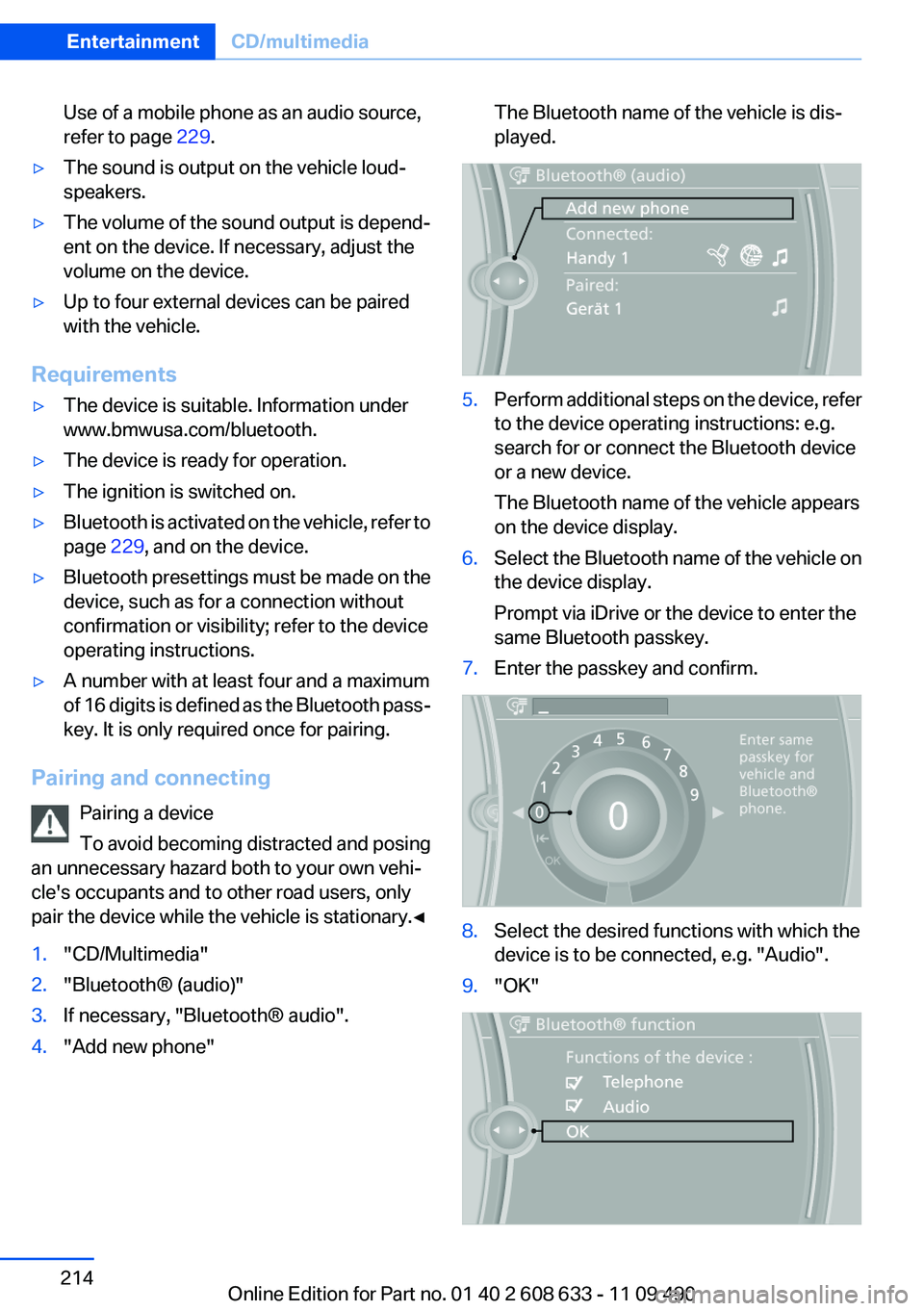
4."Add new phone"
The Bluetooth name of the vehicle is dis‐
played.
5.Perform additional steps on the device, refer
to the device operating instructions: e.g.
search for or connect the Bluetooth device
or a new device.
The Bluetooth name of the vehicle appears
on the device display.
6.Select the Bluetooth name of the vehicle on
the device display.
Prompt via iDrive or the device to enter the
same Bluetooth passkey.
7.Enter the passkey and confirm.
8.Select the desired functions with which the
device is to be connected, e.g. "Audio".
9."OK"
Seite 214
EntertainmentCD/multimedia
214Online Edition for Part no. 01 40 2 608 633 - 11 09 490