menu BMW 3 SERIES 2011 User Guide
[x] Cancel search | Manufacturer: BMW, Model Year: 2011, Model line: 3 SERIES, Model: BMW 3 SERIES 2011Pages: 325, PDF Size: 12.94 MB
Page 174 of 325
spelled in the language of the system. Set
the language, refer to page 84.
Example: to enter a town/city in a US state
as a whole word, the language of the system
must be English.
▷Spell the entry if the spoken language and
the language of the system differ.
▷Say the letters smoothly, and avoid exag‐
gerating the pronunciation and inserting
lengthy pauses between the letters.
▷The options available for entering data de‐
pend on the navigation data and the country
and language settings.
Entering an address in a command
1. Press the button on the steering
wheel.
2.›Enter address‹
3.Wait for a request from the system.
4.Say the address in the suggested order.
5.Continue making the entry as prompted by
the system.
If necessary, individually name the separate
components of the address, e.g., the town/city.
Entering a town/city separately
The name of the town/city can be said as a
word or spelled out.
With the destination entry menu displayed:
1. Press the button on the steering
wheel.
2.›City‹ or ›Spell city‹.
3.Wait for the system to prompt you for the
town/city.
4.Say the name of the town/city, or say at least
the first three letters.
Depending on the entry, up to 20 towns/cit‐
ies may be suggested.
5.Select the town/city.
▷To select a recommended town/
city: ›Yes‹
▷To select a different town/city: ›New
entry‹
▷Select an entry: ›Entry ...‹ e.g., entry 2
▷To spell an entry: ›Spell city‹
6.Continue making the entry as prompted by
the system.
If there are several towns/cities with the same
name:
Towns/cities of the same name are grouped in a
list and displayed as one location followed by an
ellipsis.
1.Select an entry: ›Yes‹ or ›Entry ...‹ e.g., en‐
try 2.
2.Select the desired town/city.
Entering a street or intersection
separately
Enter a street and intersection in the same way
as you would enter a town/city.
Entering a house number separately
Depending on the data in the navigation system,
house numbers up to number 2,000 can be en‐
tered.
1.›House number‹
2.Say the house number.
Say each digit separately.
3.Continue making the entry as prompted by
the system.
Planning a trip with intermediate
destinations
New trip
A trip can be planned with several intermediate
destinations.
1."Navigation"
2."Map"
Seite 174
NavigationNavigation system
174Online Edition for Part no. 01 40 2 608 633 - 11 09 490
Page 195 of 325
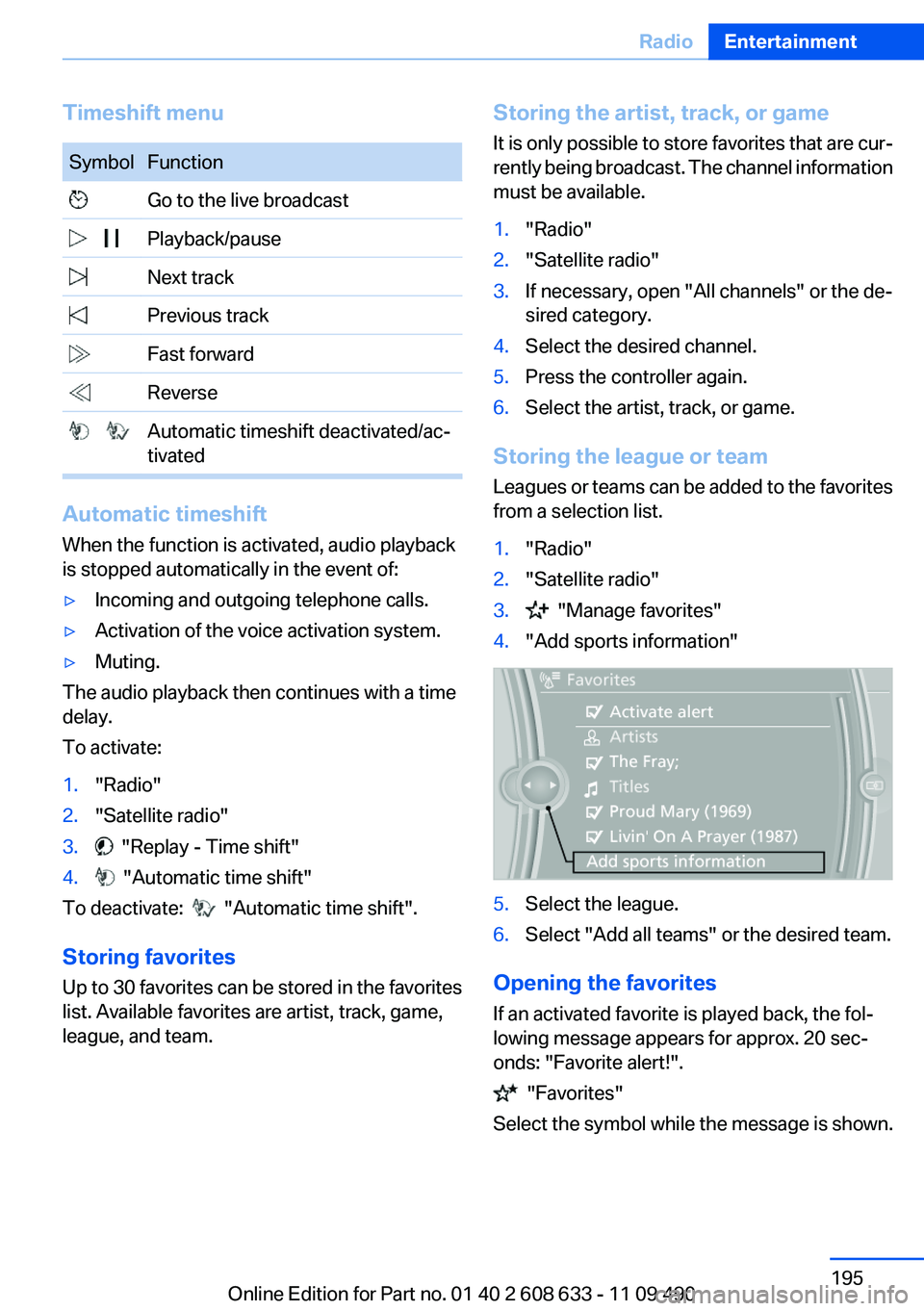
Timeshift menu
Symbol Function
Go to the live broadcast
Playback/pause
Next track
Previous track
Fast forward
Reverse
Automatic timeshift deactivated/ac‐
tivated
Automatic timeshift
When the function is activated, audio playback
is stopped automatically in the event of:
▷Incoming and outgoing telephone calls.
▷Activation of the voice activation system.
▷Muting.
The audio playback then continues with a time
delay.
To activate:
1."Radio"
2."Satellite radio"
3. "Replay - Time shift"
4. "Automatic time shift"
To deactivate: "Automatic time shift".
Storing favorites
Up to 30 favorites can be stored in the favorites
list. Available favorites are artist, track, game,
league, and team.
Storing the artist, track, or game
It is only possible to store favorites that are cur‐
rently being broadcast. The channel information
must be available.
1."Radio"
2."Satellite radio"
3.If necessary, open "All channels" or the de‐
sired category.
4.Select the desired channel.
5.Press the controller again.
6.Select the artist, track, or game.
Storing the league or team
Leagues or teams can be added to the favorites
from a selection list.
1."Radio"
2."Satellite radio"
3. "Manage favorites"
4."Add sports information"
5.Select the league.
6.Select "Add all teams" or the desired team.
Opening the favorites
If an activated favorite is played back, the fol‐
lowing message appears for approx. 20 sec‐
onds: "Favorite alert!".
"Favorites"
Select the symbol while the message is shown.
Seite 195
RadioEntertainment
195Online Edition for Part no. 01 40 2 608 633 - 11 09 490
Page 200 of 325
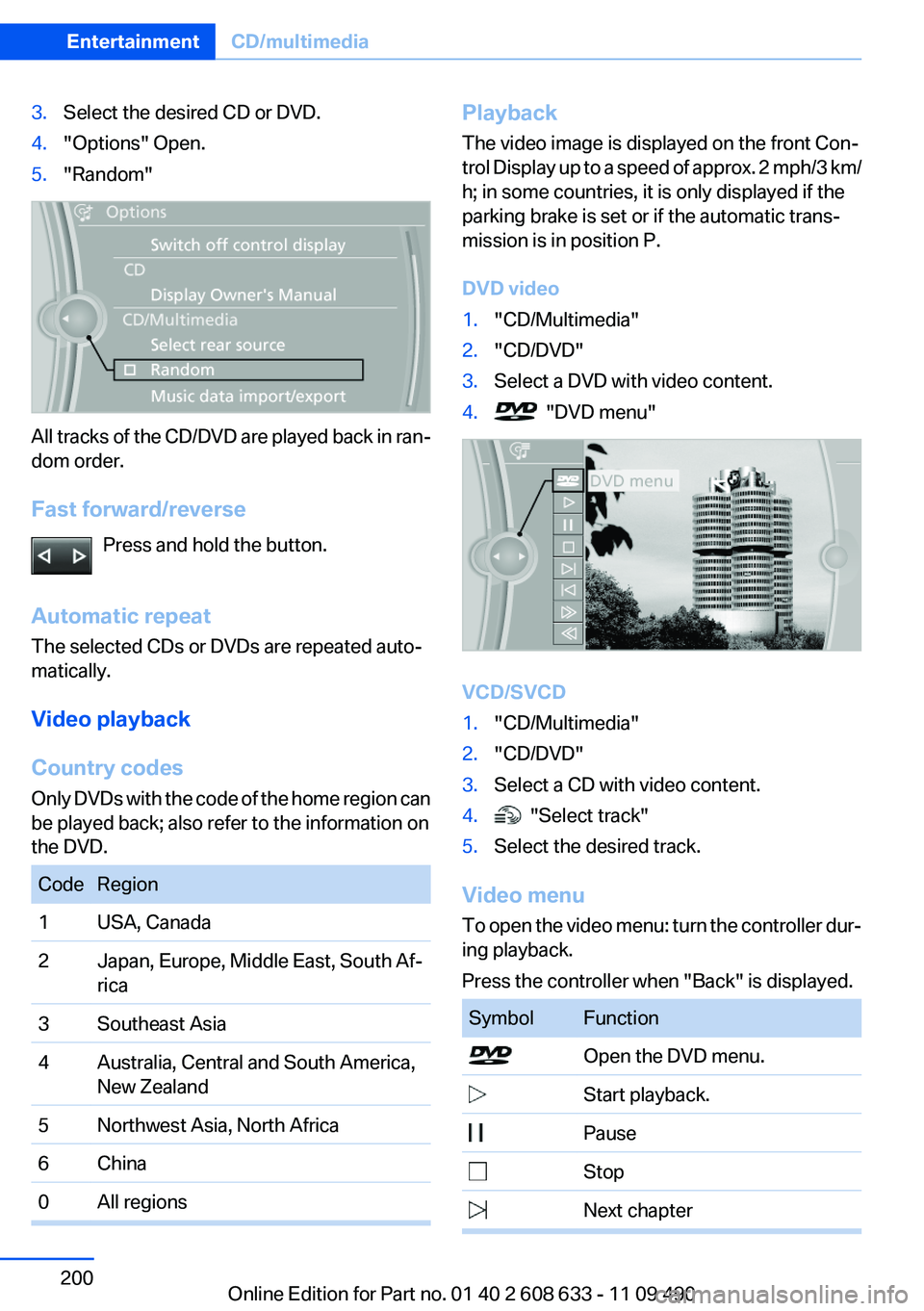
3.Select the desired CD or DVD.
4."Options" Open.
5."Random"
All tracks of the CD/DVD are played back in ran‐
dom order.
Fast forward/reverse
Press and hold the button.
Automatic repeat
The selected CDs or DVDs are repeated auto‐
matically.
Video playback
Country codes
Only DVDs with the code of the home region can
be played back; also refer to the information on
the DVD.
Code Region
1 USA, Canada
2 Japan, Europe, Middle East, South Af‐
rica
3 Southeast Asia
4 Australia, Central and South America,
New Zealand
5 Northwest Asia, North Africa
6 China
0 All regions
Playback
The video image is displayed on the front Con‐
trol Display up to a speed of approx. 2 mph/3 km/
h; in some countries, it is only displayed if the
parking brake is set or if the automatic trans‐
mission is in position P.
DVD video
1."CD/Multimedia"
2."CD/DVD"
3.Select a DVD with video content.
4. "DVD menu"
VCD/SVCD
1."CD/Multimedia"
2."CD/DVD"
3.Select a CD with video content.
4. "Select track"
5.Select the desired track.
Video menu
To open the video menu: turn the controller dur‐
ing playback.
Press the controller when "Back" is displayed.
Symbol Function
Open the DVD menu.
Start playback.
Pause
Stop
Next chapter
Seite 200
EntertainmentCD/multimedia
200Online Edition for Part no. 01 40 2 608 633 - 11 09 490
Page 201 of 325
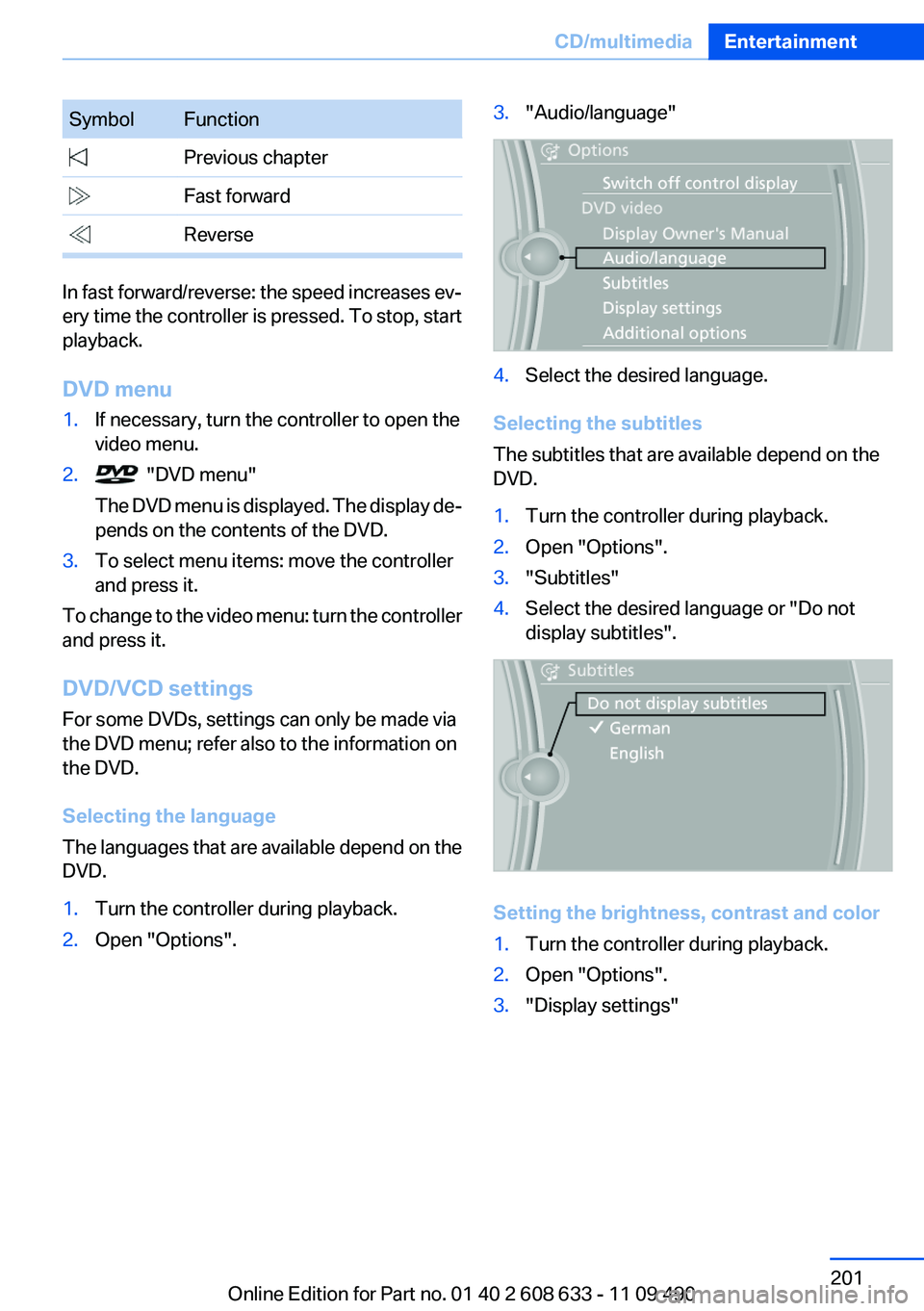
Symbol Function
Previous chapter
Fast forward
Reverse
In fast forward/reverse: the speed increases ev‐
ery time the controller is pressed. To stop, start
playback.
DVD menu
1.If necessary, turn the controller to open the
video menu.
2. "DVD menu"
The DVD menu is displayed. The display de‐
pends on the contents of the DVD.
3.To select menu items: move the controller
and press it.
To change to the video menu: turn the controller
and press it.
DVD/VCD settings
For some DVDs, settings can only be made via
the DVD menu; refer also to the information on
the DVD.
Selecting the language
The languages that are available depend on the
DVD.
1.Turn the controller during playback.
2.Open "Options".
3."Audio/language"
4.Select the desired language.
Selecting the subtitles
The subtitles that are available depend on the
DVD.
1.Turn the controller during playback.
2.Open "Options".
3."Subtitles"
4.Select the desired language or "Do not
display subtitles".
Setting the brightness, contrast and color
1.Turn the controller during playback.
2.Open "Options".
3."Display settings"
Seite 201
CD/multimediaEntertainment
201Online Edition for Part no. 01 40 2 608 633 - 11 09 490
Page 202 of 325
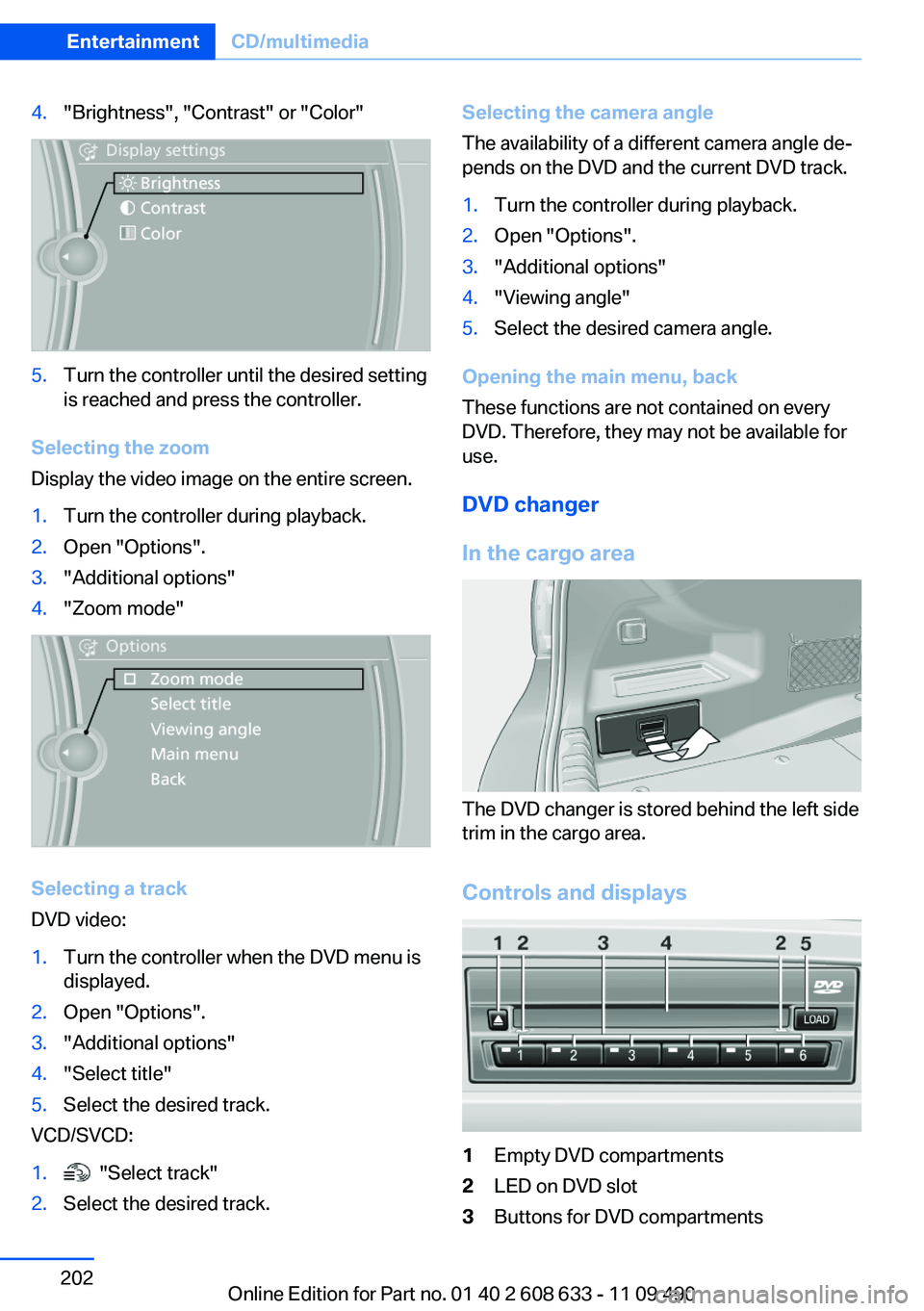
4."Brightness", "Contrast" or "Color"
5.Turn the controller until the desired setting
is reached and press the controller.
Selecting the zoom
Display the video image on the entire screen.
1.Turn the controller during playback.
2.Open "Options".
3."Additional options"
4."Zoom mode"
Selecting a track
DVD video:
1.Turn the controller when the DVD menu is
displayed.
2.Open "Options".
3."Additional options"
4."Select title"
5.Select the desired track.
VCD/SVCD:
1. "Select track"
2.Select the desired track.
Selecting the camera angle
The availability of a different camera angle de‐
pends on the DVD and the current DVD track.
1.Turn the controller during playback.
2.Open "Options".
3."Additional options"
4."Viewing angle"
5.Select the desired camera angle.
Opening the main menu, back
These functions are not contained on every
DVD. Therefore, they may not be available for
use.
DVD changer
In the cargo area
The DVD changer is stored behind the left side
trim in the cargo area.
Controls and displays
1Empty DVD compartments
2LED on DVD slot
3Buttons for DVD compartments
Seite 202
EntertainmentCD/multimedia
202Online Edition for Part no. 01 40 2 608 633 - 11 09 490
Page 211 of 325
Connectors for external devices
▷Connection via USB audio interface: Apple
iPod/iPhone, USB devices, e.g., MP3 play‐
ers, USB flash drives, or mobile phones that
are supported by the USB audio interface.
▷Connection via snap-in adapter when equip‐
ped with extended connectivity of the music
player in the mobile phone: Apple iPhone or
mobile phones.
Playback is only possible when there is no
audio device attached to the AUX-IN port.
Due to the large number of different audio devi‐
ces available on the market, it cannot be ensured
that every audio device/mobile phone is opera‐
ble on the vehicle.
Ask your service center about suitable audio de‐
vices/mobile phones.
Audio files
Standard audio files can be played back:
▷MP3.
▷WMA.
▷WAV (PCM).
▷AAC, M4A.
▷Playback lists: M3U, WPL, PLS.
File systems
Popular file systems for USB devices are sup‐
ported. FAT 32 is the recommended format.
Connection of Apple iPod/iPhone via
USB audio interface
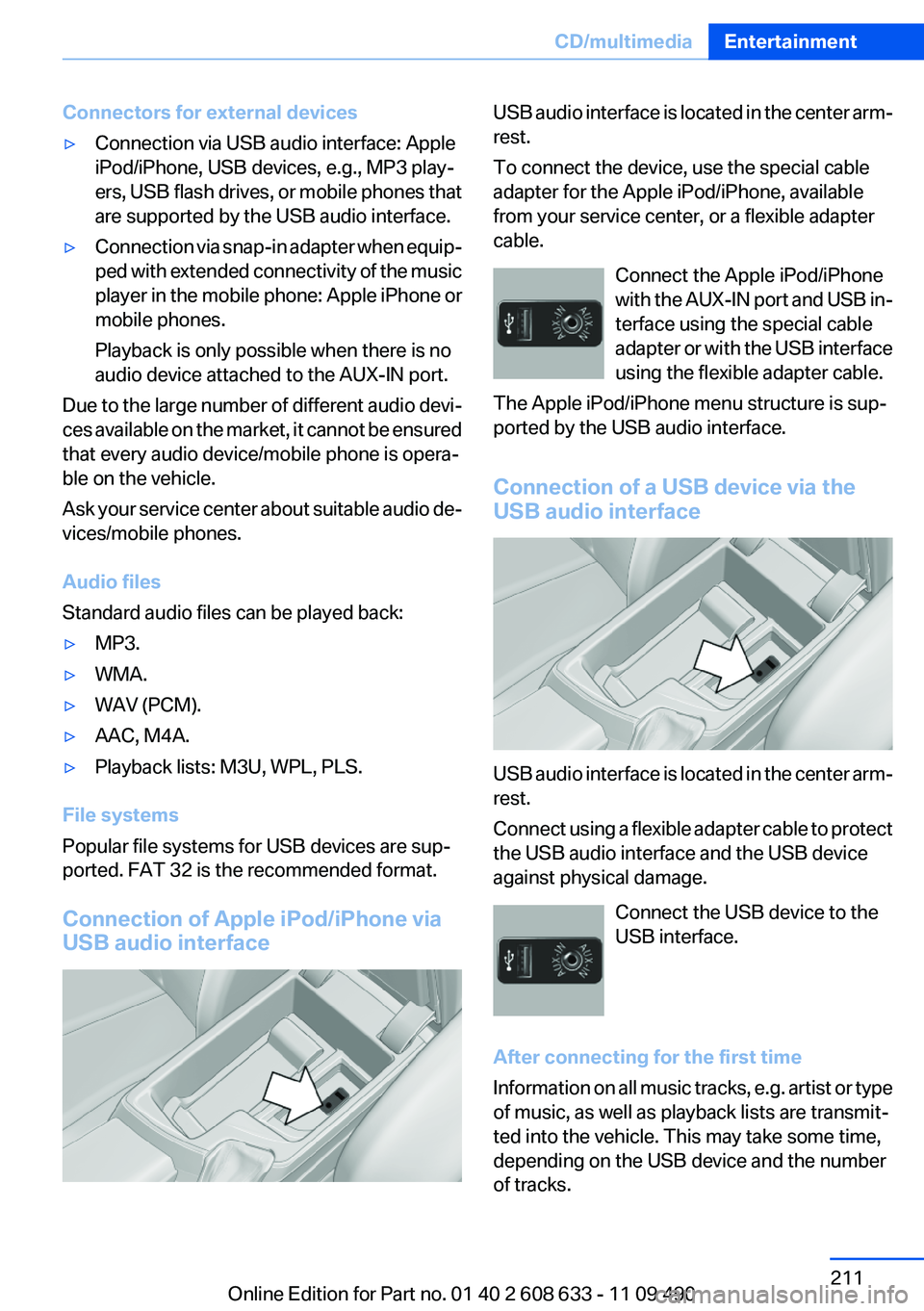
USB audio interface is located in the center arm‐
rest.
To connect the device, use the special cable
adapter for the Apple iPod/iPhone, available
from your service center, or a flexible adapter
cable.
Connect the Apple iPod/iPhone
with the AUX-IN port and USB in‐
terface using the special cable
adapter or with the USB interface
using the flexible adapter cable.
The Apple iPod/iPhone menu structure is sup‐
ported by the USB audio interface.
Connection of a USB device via the
USB audio interface
USB audio interface is located in the center arm‐
rest.
Connect using a flexible adapter cable to protect
the USB audio interface and the USB device
against physical damage.
Connect the USB device to the
USB interface.
After connecting for the first time
Information on all music tracks, e.g. artist or type
of music, as well as playback lists are transmit‐
ted into the vehicle. This may take some time,
depending on the USB device and the number
of tracks.
Seite 211
CD/multimediaEntertainment
211Online Edition for Part no. 01 40 2 608 633 - 11 09 490
Page 213 of 325
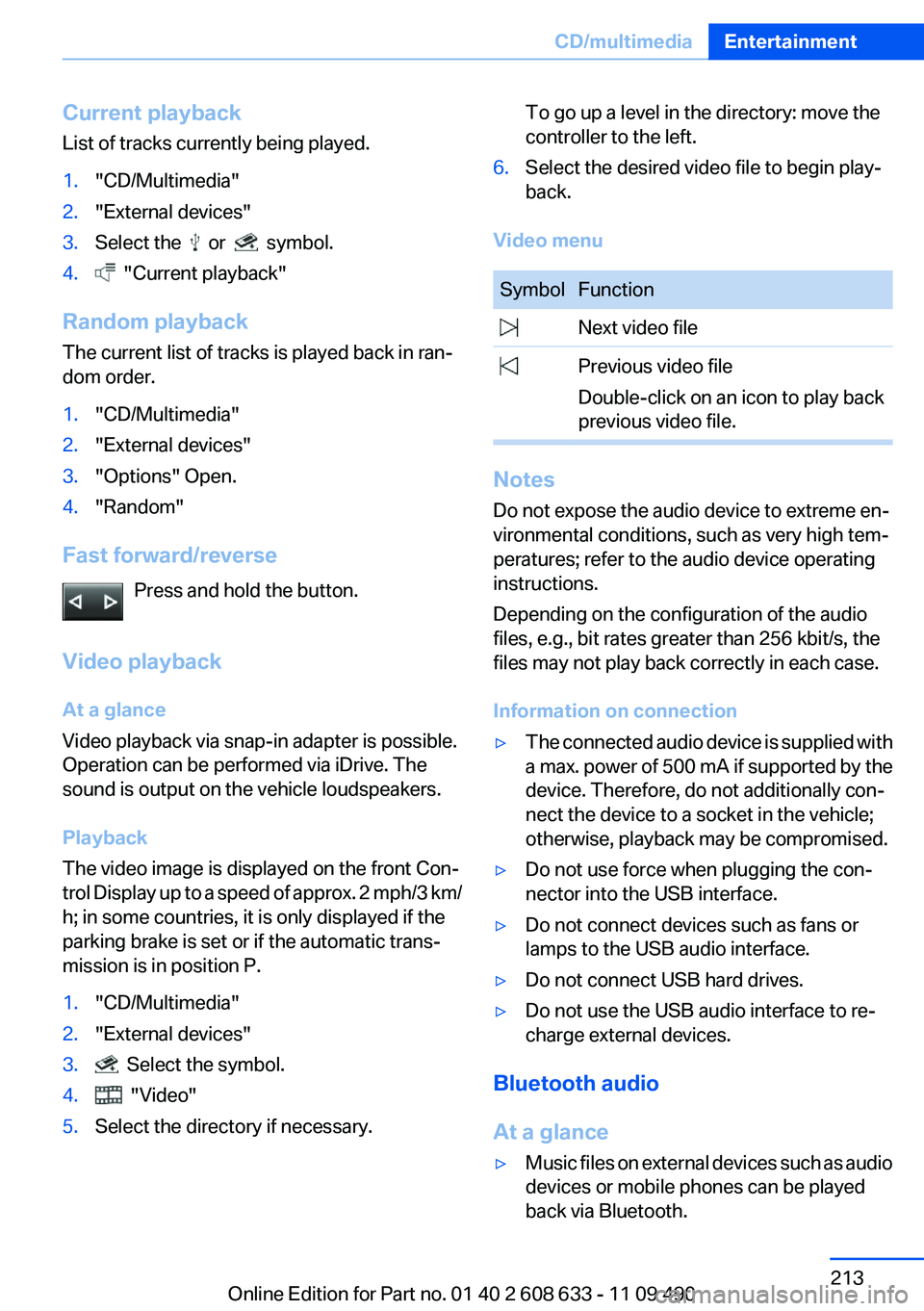
Current playback
List of tracks currently being played.
1."CD/Multimedia"
2."External devices"
3.Select the or symbol.
4. "Current playback"
Random playback
The current list of tracks is played back in ran‐
dom order.
1."CD/Multimedia"
2."External devices"
3."Options" Open.
4."Random"
Fast forward/reverse
Press and hold the button.
Video playback
At a glance
Video playback via snap-in adapter is possible.
Operation can be performed via iDrive. The
sound is output on the vehicle loudspeakers.
Playback
The video image is displayed on the front Con‐
trol Display up to a speed of approx. 2 mph/3 km/
h; in some countries, it is only displayed if the
parking brake is set or if the automatic trans‐
mission is in position P.
1."CD/Multimedia"
2."External devices"
3. Select the symbol.
4. "Video"
5.Select the directory if necessary.
To go up a level in the directory: move the
controller to the left.
6.Select the desired video file to begin play‐
back.
Video menu
Symbol Function
Next video file
Previous video file
Double-click on an icon to play back
previous video file.
Notes
Do not expose the audio device to extreme en‐
vironmental conditions, such as very high tem‐
peratures; refer to the audio device operating
instructions.
Depending on the configuration of the audio
files, e.g., bit rates greater than 256 kbit/s, the
files may not play back correctly in each case.
Information on connection
▷The connected audio device is supplied with
a max. power of 500 mA if supported by the
device. Therefore, do not additionally con‐
nect the device to a socket in the vehicle;
otherwise, playback may be compromised.
▷Do not use force when plugging the con‐
nector into the USB interface.
▷Do not connect devices such as fans or
lamps to the USB audio interface.
▷Do not connect USB hard drives.
▷Do not use the USB audio interface to re‐
charge external devices.
Bluetooth audio
At a glance
▷Music files on external devices such as audio
devices or mobile phones can be played
back via Bluetooth.
Seite 213
CD/multimediaEntertainment
213Online Edition for Part no. 01 40 2 608 633 - 11 09 490
Page 216 of 325
Playback menu
Depending on the particular device, some of the
functions may not be available.
Symbol Function
Next track
Fast forward: press and hold the
symbol.
Previous music track
Reverse: press and hold the symbol.
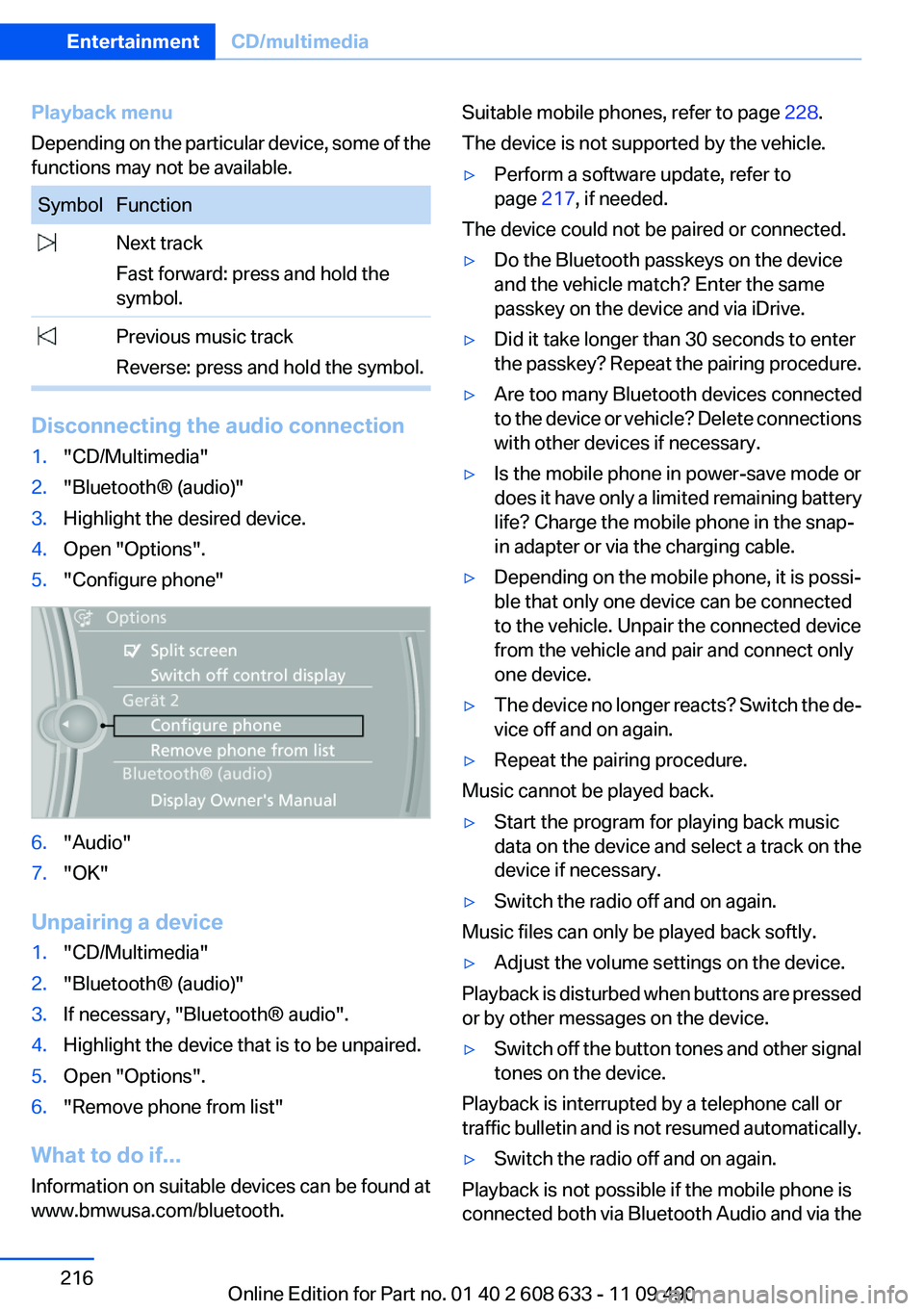
Disconnecting the audio connection
1."CD/Multimedia"
2."Bluetooth® (audio)"
3.Highlight the desired device.
4.Open "Options".
5."Configure phone"
6."Audio"
7."OK"
Unpairing a device
1."CD/Multimedia"
2."Bluetooth® (audio)"
3.If necessary, "Bluetooth® audio".
4.Highlight the device that is to be unpaired.
5.Open "Options".
6."Remove phone from list"
What to do if...
Information on suitable devices can be found at
www.bmwusa.com/bluetooth.
Suitable mobile phones, refer to page 228.
The device is not supported by the vehicle.
▷Perform a software update, refer to
page 217, if needed.
The device could not be paired or connected.
▷Do the Bluetooth passkeys on the device
and the vehicle match? Enter the same
passkey on the device and via iDrive.
▷Did it take longer than 30 seconds to enter
the passkey? Repeat the pairing procedure.
▷Are too many Bluetooth devices connected
to the device or vehicle? Delete connections
with other devices if necessary.
▷Is the mobile phone in power-save mode or
does it have only a limited remaining battery
life? Charge the mobile phone in the snap-
in adapter or via the charging cable.
▷Depending on the mobile phone, it is possi‐
ble that only one device can be connected
to the vehicle. Unpair the connected device
from the vehicle and pair and connect only
one device.
▷The device no longer reacts? Switch the de‐
vice off and on again.
▷Repeat the pairing procedure.
Music cannot be played back.
▷Start the program for playing back music
data on the device and select a track on the
device if necessary.
▷Switch the radio off and on again.
Music files can only be played back softly.
▷Adjust the volume settings on the device.
Playback is disturbed when buttons are pressed
or by other messages on the device.
▷Switch off the button tones and other signal
tones on the device.
Playback is interrupted by a telephone call or
traffic bulletin and is not resumed automatically.
▷Switch the radio off and on again.
Playback is not possible if the mobile phone is
connected both via Bluetooth Audio and via the
Seite 216
EntertainmentCD/multimedia
216Online Edition for Part no. 01 40 2 608 633 - 11 09 490
Page 255 of 325
"Update BMW Assist"
Data transfer
During the updating of BMW services, display
the status of the data transfer.
1."BMW Assist" or "ConnectedDrive"
2."Options" Open.
3."Data transfer"
Apps
At a glance
Certain software applications of a suitable cell
phone can be integrated in the vehicle. These
software applications are displayed on the Con‐
trol Display.
Operation can be performed via iDrive.
Requirements
▷The mobile phone is suitable.
▷The cell phone operating system supports
the software applications of Apps.
▷Software applications are installed on the
cell phone and ready to use.
▷Corresponding mobile wireless contract.
Any additionally incurred costs are not a part
of Apps.
▷Use only BMW approved software applica‐
tions; otherwise, it may result in malfunc‐
tions.
Information about suitable cell phones, available
software applications and their installation can
be found at www.bmw.com/connectivity or at
the service center.
Create the entries.
Make entries only when traffic and road
conditions allow. Otherwise, the vehicle occu‐
pants and other road users may be put in danger
because of the distraction from driving.
For reasons of safety, some software applica‐
tions are usable only while the vehicle is station‐
ary.◀
Use apps
1.Connect the cell phone via the snap-in
adapter or via the USB audio interface.
2."ConnectedDrive"
3.Select the desired software application.
Displaying status
Information about the currently available soft‐
ware applications can be displayed.
1."ConnectedDrive"
2."BMW apps"
PlugIn
Selected functions of the cell phone are dis‐
played on the Control Display. Operation can be
performed via iDrive.
1.Connect cell phone via the snap-in adapter.
2."ConnectedDrive"
3."PlugIn"
4."Activate PlugIn"
5.Navigate to the displayed functions via the
controller and select, for example, a desired
category or track.
Press button to switch within the cell
phone functions to a higher level or back.
Press button twice to switch back to the
main menu.
Notes
▷The ranges of Apps that can be displayed on
the Control Display depend on the range of
installed software applications on the cell
phone.
▷The data transmission of the software ap‐
plications from the cell phone to the vehicle
can last some time. Some software applica‐
Seite 255
ConnectedDriveCommunication
255Online Edition for Part no. 01 40 2 608 633 - 11 09 490
Page 306 of 325
Short commands of the voice activation
system
Vehicle equipment
All standard, country-specific and optional
equipment that is offered in the model series is
described in this chapter. Therefore, equipment
is also described that is not available in a vehicle,
e. g., because of the selected optional equip‐
ment or country variant. This also applies for
safety-related functions and systems.
General information
Instructions for voice activation system, refer to
page 23.
To have the available spoken instructions read
out loud: ›Voice commands‹
Adjusting
Vehicle
FunctionCommand
Open the main menu.›Main menu‹
Open the options.›Options‹
Open the settings.›Settings‹
Info display of the instrument cluster.›Info Display‹
Settings on the Control Display.›Control display‹
Open the time and date.›Time and date‹
Open the language and units.›Language and units‹
Open the speed limit.›Speed‹
Open the light.›Lighting‹
Open the door lock.›Door locks‹
Open the profiles.›Profiles‹
Open the Driving Mode menu.›Driving mode‹
Open the ECO PRO menu.›ECO PRO mode‹
Seite 306
ReferenceShort commands of the voice activation system
306Online Edition for Part no. 01 40 2 608 633 - 11 09 490