Control BMW 3 SERIES CONVERTIBLE 2013 E93 Owner's Manual
[x] Cancel search | Manufacturer: BMW, Model Year: 2013, Model line: 3 SERIES CONVERTIBLE, Model: BMW 3 SERIES CONVERTIBLE 2013 E93Pages: 311, PDF Size: 7.05 MB
Page 158 of 311
153
Destination entry
Navigation
4.
Say the name of the town /city or say at least
the first three letters.
Depending on the entry, up to 20 towns/
cities may be suggested.
6. Continue making the entry as prompted by
the system.
If there are several town s/cities with the same
name:
Towns/cities that sound the same are compiled
in a separate list and ar e displayed as one town/
city followed by three dots.
1. Select an entry:
2. Select the desired town/city.
The town/city can also be selected from the list
via iDrive: turn the cont roller until the town/city
is selected and press the controller.
Entering a street or intersection
The street or intersection is entered in the same
manner as the town/city.
Entering a house number
Depending on the data in the navigation sys-
tem, house numbers up to the number 2,000
can be entered:
Starting destination guidance
Destination guidance starts immediately.
Planning a trip with
intermediate destinations
New trip
A trip can be planned using intermediate
destinations.
1."Navigation"
2. "Map"
3. Move the controller to the left, if necessary.
4. "Guidance"
5. "Enter new destination"
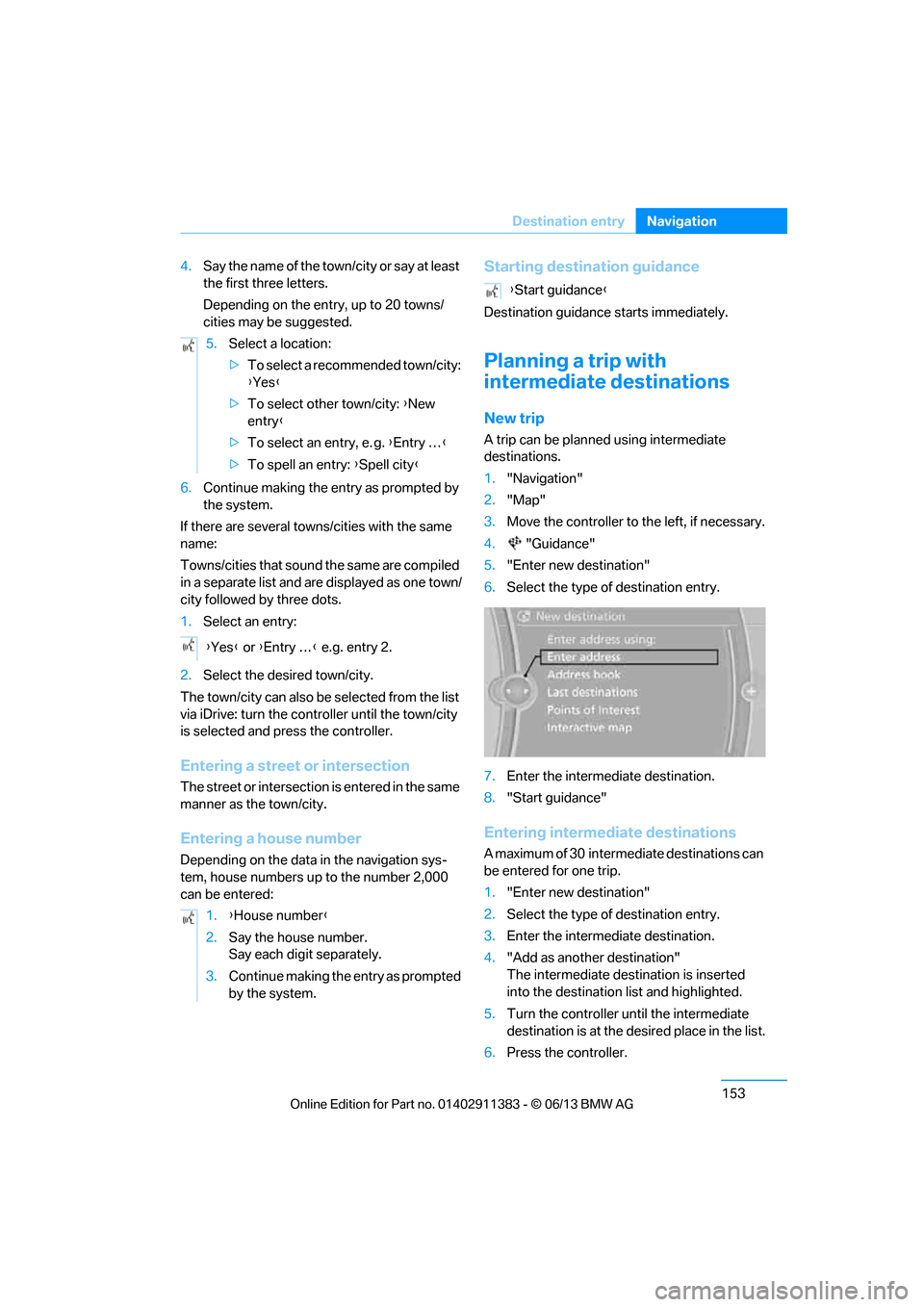
6. Select the type of destination entry.
7. Enter the intermediate destination.
8. "Start guidance"
Entering intermediate destinations
A maximum of 30 intermed iate destinations can
be entered for one trip.
1. "Enter new destination"
2. Select the type of destination entry.
3. Enter the intermediate destination.
4. "Add as another destination"
The intermediate dest ination is inserted
into the destination list and highlighted.
5. Turn the controller until the intermediate
destination is at the de sired place in the list.
6. Press the controller.
5.
Select a location:
>To select a recommended town/city:
{Yes }
> To select other town/city: {New
entry }
> To select an entry, e. g. {Entry … }
> To spell an entry: {Spell city }
{ Yes } or {Entry … } e.g. entry 2.
1. {House number }
2. Say the house number.
Say each digit separately.
3. Continue making the entry as prompted
by the system.
{Start guidance }
00320051004F004C00510048000300280047004C0057004C005200510003
Page 160 of 311
155
Destination guidance
Navigation
Destination guidance
Vehicle equipment
In this chapter, all production, country, and
optional equipment that is offered in the model
range is described. Equipment is also described
that is not available because of, for example,
selected options or coun
try version. This also
applies to safety related functions and systems.
Starting destination
guidance
1. "Navigation"
2. Entering a destination, refer to page 146.
3. "Accept destination"
4. "Start guidance"
The route is displayed on the Control Display
after it is calculated.
In the map view, the distance to the destination/
intermediate destinat ion and the estimated
time of arrival are displayed.
The arrow display appears on the Control
Display, if so desired.
Terminating destination
guidance
1. "Navigation"
2. "Map"
3. "Guidance".
4. "Stop guidance"
Continuing destination
guidance
If the destination was not reached during the
last trip, destination gu idance can be resumed.
"Resume guidance"
Route criteria
General information
> You can influence the calculated route by
selecting certain trip criteria.
> Route criteria can be changed during desti-
nation entry and during route guidance.
> Street types are part of the navigation data
and are taken into account in route plan-
ning, e.g. avoiding highways.
> The proposed route can differ from
personal experience.
> The settings are stored for the remote
control currently in use.
> Route guidance with traffic bulletins, refer
to page 161.
Changing route criteria
1."Navigation"
2. "Map"
3. "Route preference"
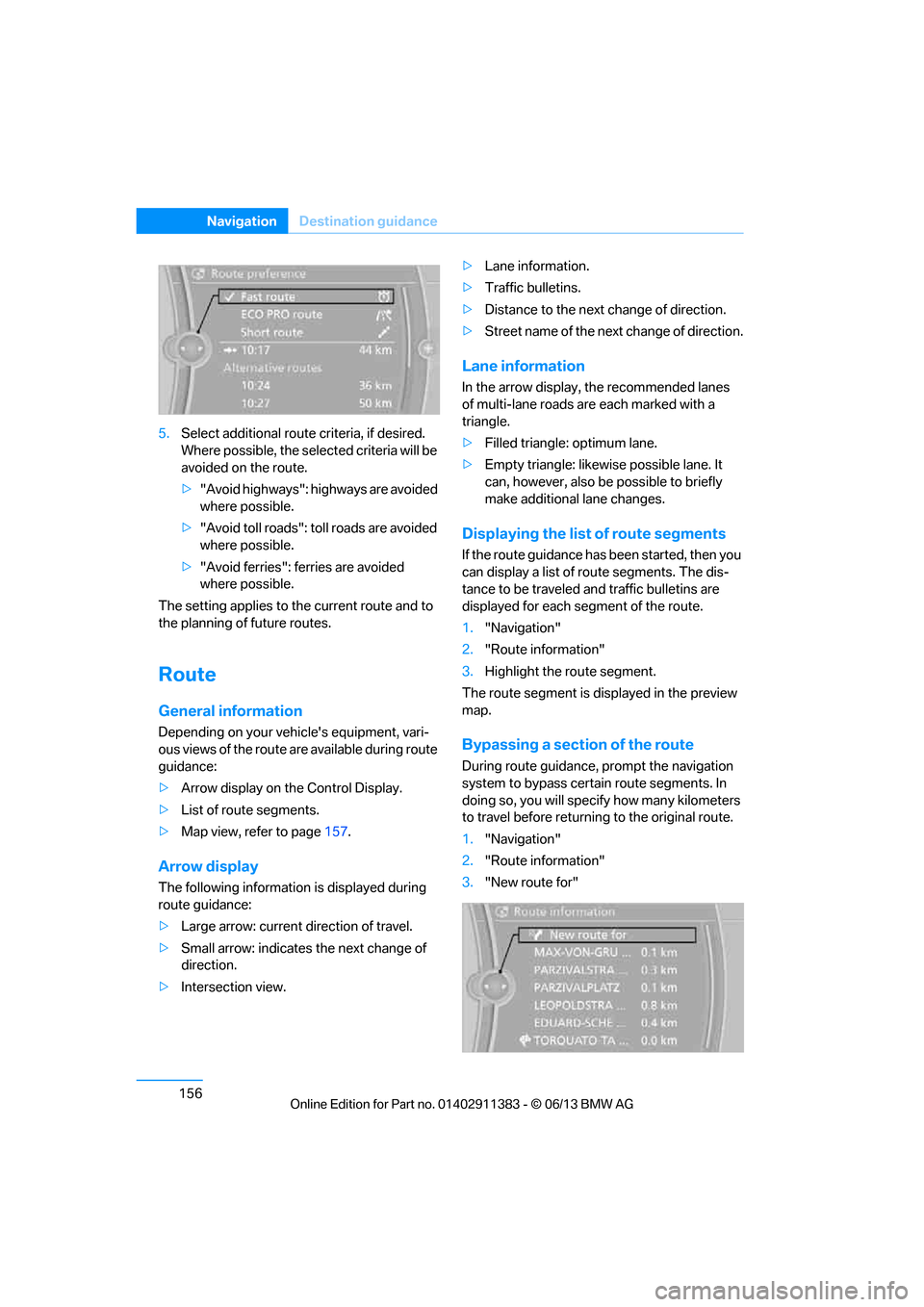
4. Selecting a criterion:
> "Fast route": time-optimized route
through a combination of the least pos-
sible distance and stretches of road that
allow rapid driving.
> "ECO PRO route": optimized combi-
nation of the fastest and shortest possi-
ble route.
> "Short route": short distance without
taking time into account.
> "Alternative routes": are suggested,
where possible, during active route
guidance.
The individual suggestions are labeled in
color.
00320051004F004C00510048000300280047004C0057004C005200510003
Page 161 of 311
156
NavigationDestination guidance
5.Select additional route criteria, if desired.
Where possible, the select ed criteria will be
avoided on the route.
> "Avoid highways": highways are avoided
where possible.
> "Avoid toll roads": toll roads are avoided
where possible.
> "Avoid ferries": ferries are avoided
where possible.
The setting applies to the current route and to
the planning of future routes.
Route
General information
Depending on your vehi cle's equipment, vari-
ous views of the route are available during route
guidance:
> Arrow display on the Control Display.
> List of route segments.
> Map view, refer to page 157.
Arrow display
The following informatio n is displayed during
route guidance:
> Large arrow: current direction of travel.
> Small arrow: indicates the next change of
direction.
> Intersection view. >
Lane information.
> Traffic bulletins.
> Distance to the next change of direction.
> Street name of the next change of direction.
Lane information
In the arrow display, the recommended lanes
of multi-lane roads are each marked with a
triangle.
> Filled triangle: optimum lane.
> Empty triangle: likewise possible lane. It
can, however, also be possible to briefly
make additional lane changes.
Displaying the list of route segments
If the route guidance has been started, then you
can display a list of route segments. The dis-
tance to be traveled and traffic bulletins are
displayed for each segment of the route.
1."Navigation"
2. "Route information"
3. Highlight the route segment.
The route segment is di splayed in the preview
map.
Bypassing a section of the route
During route guidance, prompt the navigation
system to bypass certain route segments. In
doing so, you will specify how many kilometers
to travel before returnin g to the original route.
1. "Navigation"
2. "Route information"
3. "New route for"
00320051004F004C00510048000300280047004C0057004C005200510003
Page 162 of 311
157
Destination guidance
Navigation
4.
Turn the controller: enter the desired
mileage.
5. Press the controller.
Resuming the original route
If the route section should no longer be
bypassed:
1."Navigation"
2. "Route information"
3. "New route for"
4. "Remove blocking"
Gas station re commendations
The remaining range is calculated and filling
stations along the route are displayed.
Even with the most up-t o-date navigation data,
information about certain special destinations
may have changed; for ex ample, filling stations
may not be in operation.
1. "Navigation"
2. "Route information"
3. "Recommended refuel"
A list of filling stations is displayed.
4. Select a gas station.
5. Select the symbol.
6. "Start guidance": route guidance to the
selected filling station is started.
"Add as another dest ination": the filling
station is incorporated into the route.
Destination guidance
through voice instructions
Switching voice instructions on/off
Voice instructions can be switched on or off
during destination guidance.
1. "Navigation"
2. "Map"
3. "Voice instructions"
For rapid access, the feature can be stored on a
programmable memory key, refer to page25.
Repeating a voice instruction
1."Navigation"
2. "Map"
3. Highlight the symbol.
4. Press the controller twice.
Adjusting volume for voice instructions
The volume can be adjusted only while a voice
instruction is being issued.
1.Have the last voice instruction repeated, if
necessary.
2. Turn the button during the voice instruction
to select the desired volume.
The setting is stored for the remote control
currently in use.
Map view
Displaying the map view
1. "Navigation"
2. "Map"
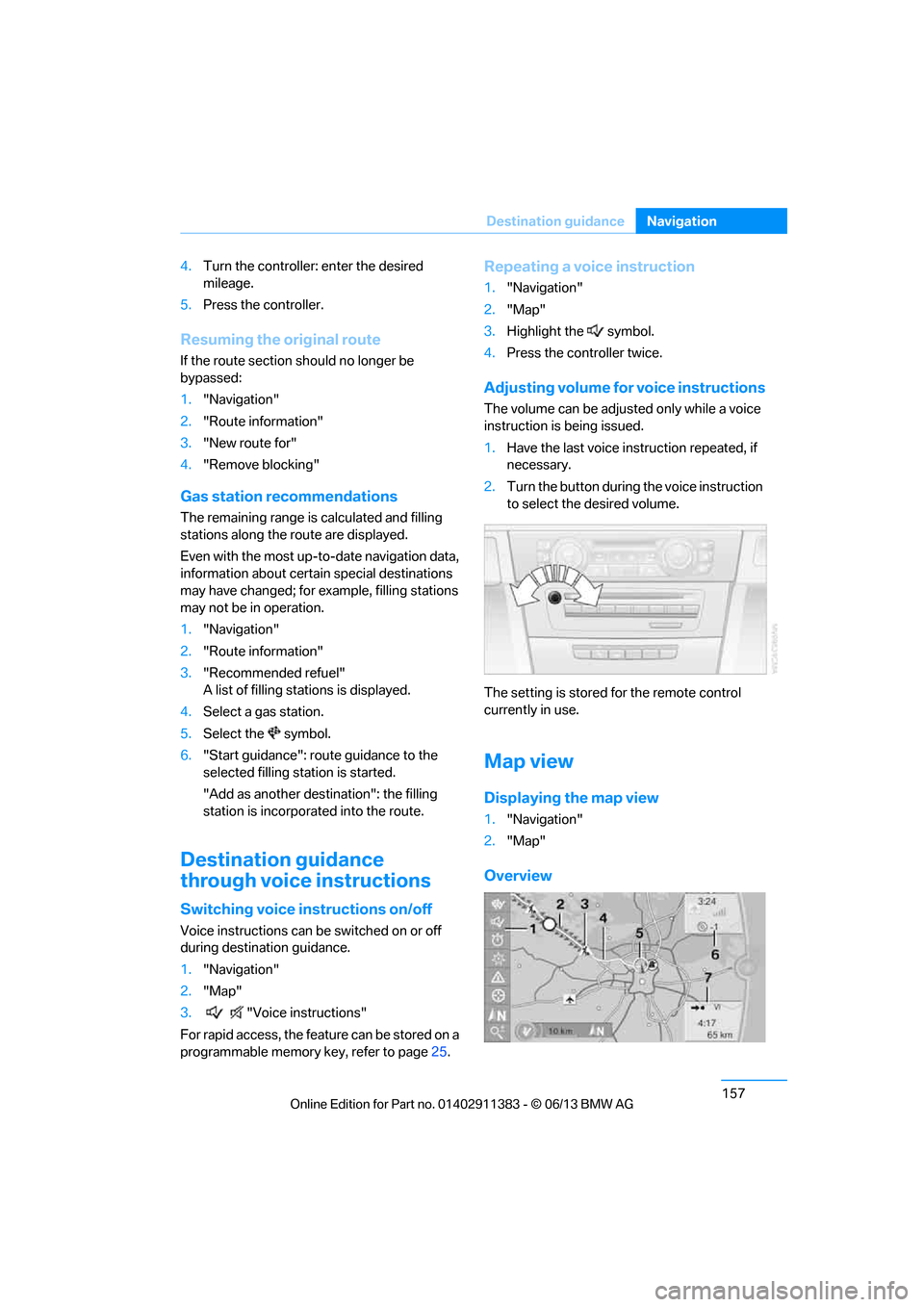
Overview
00320051004F004C00510048000300280047004C0057004C005200510003
Page 163 of 311
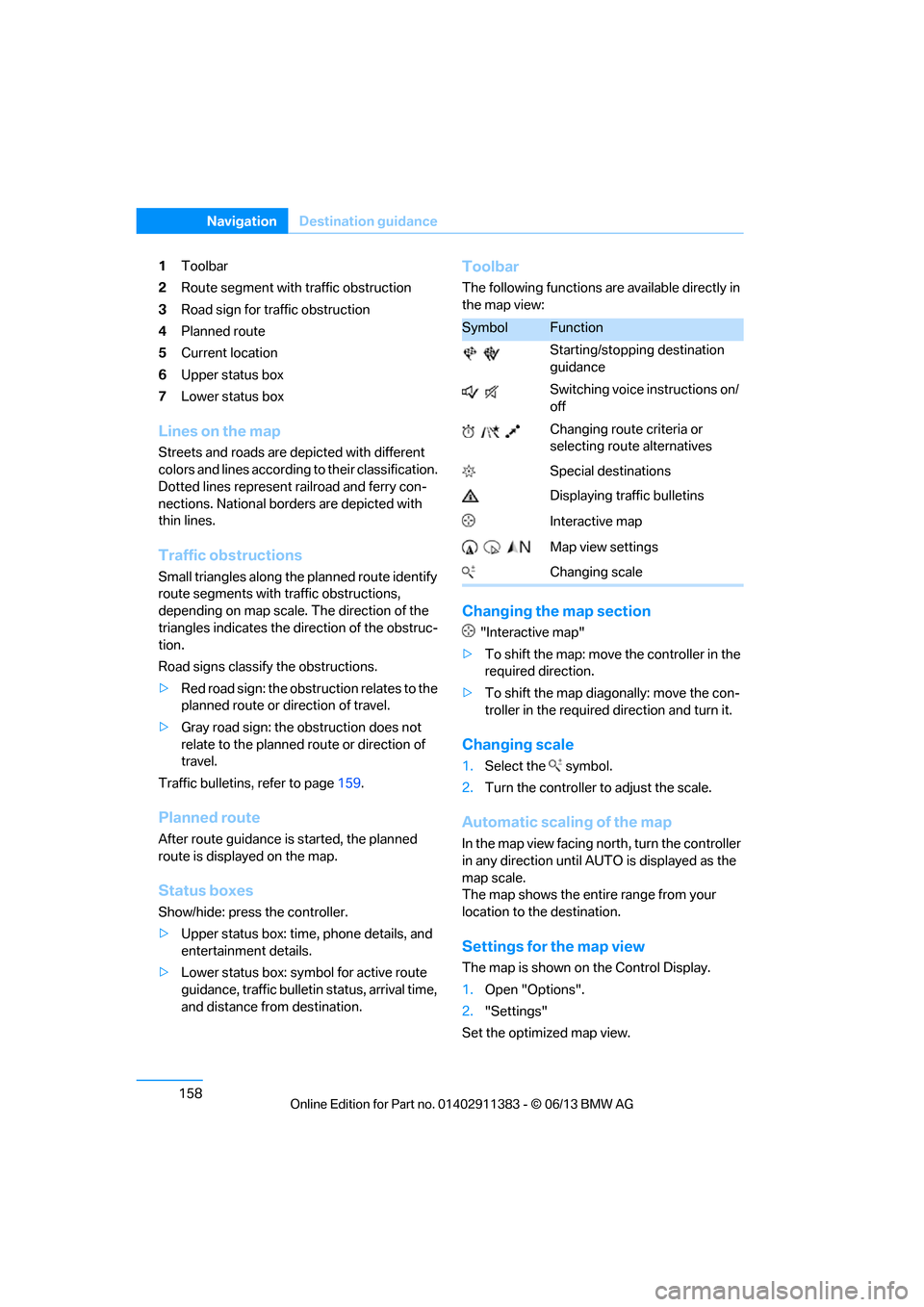
158
NavigationDestination guidance
1Toolbar
2 Route segment with traffic obstruction
3 Road sign for traffic obstruction
4 Planned route
5 Current location
6 Upper status box
7 Lower status box
Lines on the map
Streets and roads are depicted with different
colors and lines according to their classification.
Dotted lines represent railroad and ferry con-
nections. National borders are depicted with
thin lines.
Traffic obstructions
Small triangles along the planned route identify
route segments with traffic obstructions,
depending on map scale. The direction of the
triangles indicates the di rection of the obstruc-
tion.
Road signs classify the obstructions.
> Red road sign: the obstruction relates to the
planned route or direction of travel.
> Gray road sign: the obstruction does not
relate to the planned route or direction of
travel.
Traffic bulletins, refer to page 159.
Planned route
After route guidance is started, the planned
route is displa yed on the map.
Status boxes
Show/hide: press the controller.
>Upper status box: time, phone details, and
entertainment details.
> Lower status box: symbol for active route
guidance, traffic bulletin status, arrival time,
and distance from destination.
Toolbar
The following functions are available directly in
the map view:
Changing the map section
"Interactive map"
> To shift the map: move the controller in the
required direction.
> To shift the map diag onally: move the con-
troller in the required direction and turn it.
Changing scale
1.Select the symbol.
2. Turn the controller to adjust the scale.
Automatic scaling of the map
In the map view facing no rth, turn the controller
in any direction until AUTO is displayed as the
map scale.
The map shows the entire range from your
location to the destination.
Settings for the map view
The map is shown on the Control Display.
1. Open "Options".
2. "Settings"
Set the optimized map view.
SymbolFunction
Starting/stopping destination
guidance
Switching voice instructions on/
off
Changing route criteria or
selecting route alternatives
Special destinations
Displaying traffic bulletins
Interactive map
Map view settings
Changing scale
00320051004F004C00510048000300280047004C0057004C005200510003
Page 164 of 311
159
Destination guidance
Navigation
>
"Day/night mode"
Select and adjust depending on light
conditions.
"Traffic conditions/gray map" active:
Settings are not taken into account.
> "Satellite images"
Depending on the ava ilability and resolu-
tion, satellite images ar e displayed in scales
of approx. 1 mile to 600 miles/2 km to
1,000 km.
> "Perspective view in 3D"
Displays a three-dimensional view. Promi-
nent areas that are contained in the naviga-
tion data are displayed on the map in 3D.
> "Traffic conditions/gray map"
The map is optimized for displaying traffic
bulletins. Symbols for the special destina-
tions are no longer displayed.
Map view for the sp lit screen display
The map view for the split screen can be
selected separately fr om the main screen.
1. Open "Options".
2. "Split screen"
3. Move the controller to the right repeatedly
until the split screen content is selected.
4. Select "Split screen content" or scale.
5. Select the map view:
>"Arrow display"
> "Map facing north"
> "Map direction of travel"
> "Map view with perspective"
> "Position"
> "Exit ramp view"
> "Traffic conditions/gray map"
6. To change the scale: switch to the split
screen and turn the controller.
Traffic bulletins
Overview
>You can display the tr affic bulletins from
radio stations that broadcast the TMC
(Traffic Message Channel) of a traffic infor-
mation service. Bulletins about traffic
obstructions and hazards are continuously
updated.
> Traffic bulletins are in dicated by symbols on
the map.
> Traffic bulletins for th e surrounding area are
stored in a list.
The symbol in the toolbar of the map view
turns red if a traffic bulletin relates to the
calculated route.
Real Time Traffic Information End-User
Provisions
Certain BMW models equi pped with navigation
have the capability to display real-time traffic
information. If your sy stem has this capability
the following additional terms and conditions
apply:
An End-User shall no longer have the right to
use the Traffic Data in the event that the End-
User is in material breach of the terms and
conditions contained herein.
A. Total Traffic Network, a division of Clear
Channel Broadcasting, Inc. ("Total Traffic Net-
work") holds the rights to the traffic incident
data and RDS-TMC network through which it is
delivered. You may not modify, copy, scan or
use any other method to reproduce, duplicate,
republish, transmit or distribute in any way any
portion of traffic incident data. You agree to
indemnify, defend and hold harmless BMW of
North America, LLC. ("BMW NA") and Total
Traffic Network, Inrix, Inc (and their affiliates)
against any and all claims, damages, costs or
other expenses that arise directly or indirectly
out of (a) your unauthor ized use of the traffic
incident data or the RD S-TMC network, (b) your
00320051004F004C00510048000300280047004C0057004C005200510003
Page 168 of 311
163
What to do if …
Navigation
What to do if …
Vehicle equipment
In this chapter, all production, country, and
optional equipment that is offered in the model
range is described. Equipment is also described
that is not available because of, for example,
selected options or coun
try version. This also
applies to safety related functions and systems.
What to do if…
> The current position cannot be displayed?
The position is in an unrecognized region, in
a poor reception area, or the system is in the
process of determining the position.
Reception is generally available when you
are in the open.
> The destination guidance d o e s n o t a c c e p t a
destination without a street name?
A downtown area canno t be determined for
the town or city that has been entered. Input
any street in the selected town/city and
start destination guidance.
> The destination guidance d o e s n o t a c c e p t a
destination?
The destination data is not contained in the
navigation data. Choo se a destination as
close as possible to the original one.
> The letters for a destination cannot be
selected during destination entry?
The stored data do no t contain the data of
the destination. Select a destination that is
as close as possible to the original.
> The map view is disp layed in grayscale?
"Traffic conditions/gray map" active: the
Control Display changes to a grayscale
display. This enables a better view of the
traffic bulletins.
> Voice instructions are no longer issued
before intersections during destination
guidance? The area has not been fully recorded yet, or
you have left the recommended route and
the system requires a few seconds to calcu-
late a new route suggestion.
00320051004F004C00510048000300280047004C0057004C005200510003
Page 171 of 311
166
EntertainmentOn/off and tone
On/off and tone
Vehicle equipment
In this chapter, all pr oduction, country, and
optional equipment that is offered in the model
range is described. Equipment is also described
that is not available because of, for example,
selected options or country version. This also
applies to safety related functions and systems.
General information
The following audio and video sources share
the same control elements and adjustments:
> Radio
> CD/DVD player
> Video
> External devices, e.g. MP3 player
Controls
The audio and video sources can be controlled
using the:
>Buttons near th e CD/DVD player
> iDrive
> Buttons on the steering wheel, refer to
page 13
> Programmable memory keys, refer to
page 25
> Voice activation system
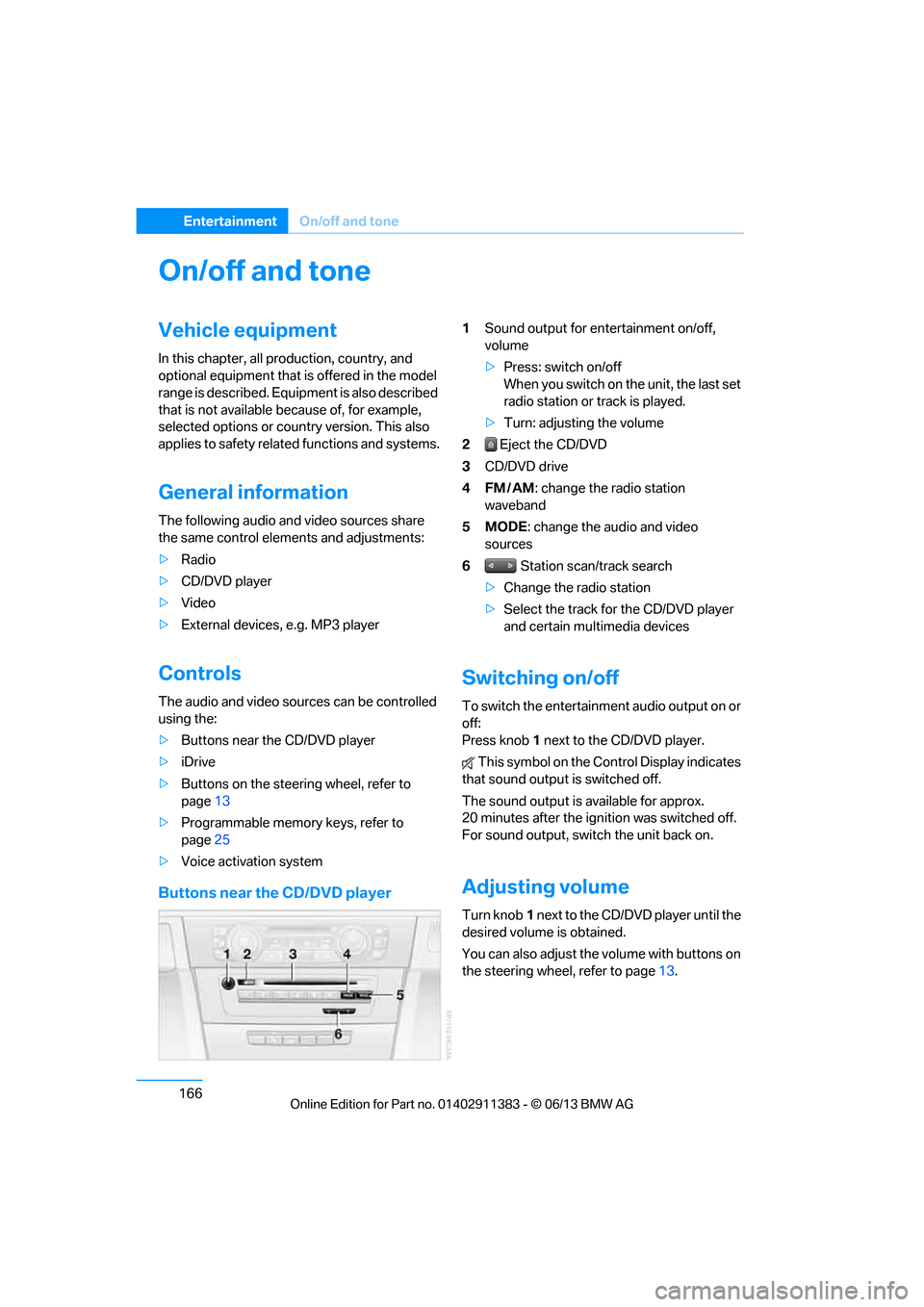
Buttons near the CD/DVD player
1Sound output for entertainment on/off,
volume
>Press: switch on/off
When you switch on the unit, the last set
radio station or track is played.
> Turn: adjusting the volume
2 Eject the CD/DVD
3 CD/DVD drive
4FM/AM : change the radio station
waveband
5MODE : change the audio and video
sources
6 Station scan/track search
> Change the radio station
> Select the track for the CD/DVD player
and certain multimedia devices
Switching on/off
To switch the entertainment audio output on or
off:
Press knob 1 next to the CD/DVD player.
This symbol on the Co ntrol Display indicates
that sound output is switched off.
The sound output is available for approx.
20 minutes after the ignition was switched off.
For sound output, switch the unit back on.
Adjusting volume
Turn knob 1 next to the CD/DVD player until the
desired volume is obtained.
You can also adjust the volume with buttons on
the steering wheel, refer to page 13.
00320051004F004C00510048000300280047004C0057004C005200510003
Page 172 of 311
167
On/off and tone
Entertainment
Setting tone controls
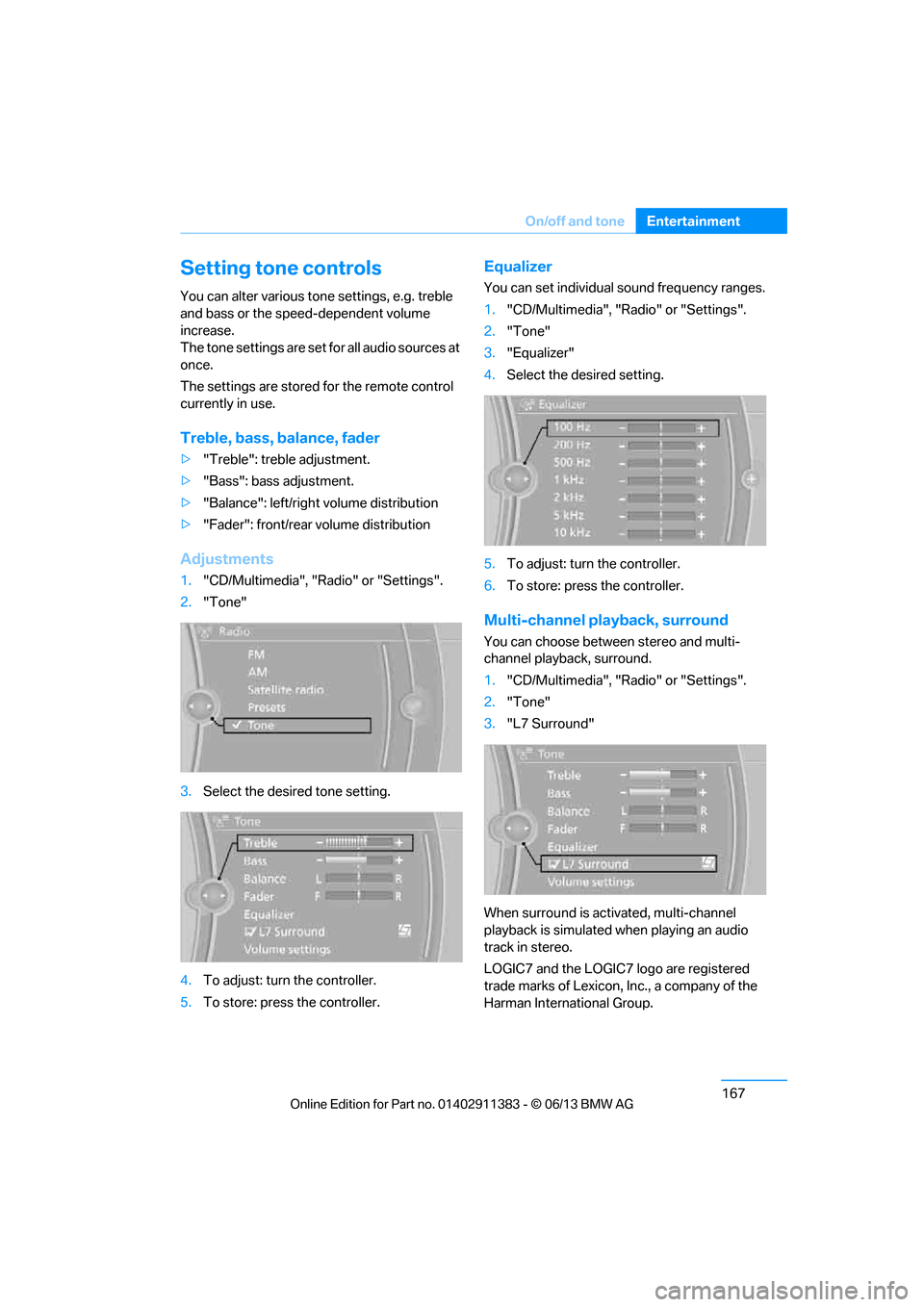
You can alter various tone settings, e.g. treble
and bass or the speed-dependent volume
increase.
The tone settings are set for all audio sources at
once.
The settings are stored
for the remote control
currently in use.
Treble, bass, balance, fader
> "Treble": treble adjustment.
> "Bass": bass adjustment.
> "Balance": left/right volume distribution
> "Fader": front/rear volume distribution
Adjustments
1."CD/Multimedia", "Radio" or "Settings".
2. "Tone"
3. Select the desired tone setting.
4. To adjust: turn the controller.
5. To store: press the controller.
Equalizer
You can set individual sound frequency ranges.
1."CD/Multimedia", "Radio" or "Settings".
2. "Tone"
3. "Equalizer"
4. Select the desired setting.
5. To adjust: turn the controller.
6. To store: press the controller.
Multi-channel playback, surround
You can choose between stereo and multi-
channel playback, surround.
1."CD/Multimedia", "Radio" or "Settings".
2. "Tone"
3. "L7 Surround"
When surround is activated, multi-channel
playback is simulated when playing an audio
track in stereo.
LOGIC7 and the LOGIC7 logo are registered
trade marks of Lexicon, Inc., a company of the
Harman International Group.
00320051004F004C00510048000300280047004C0057004C005200510003
Page 173 of 311
168
EntertainmentOn/off and tone
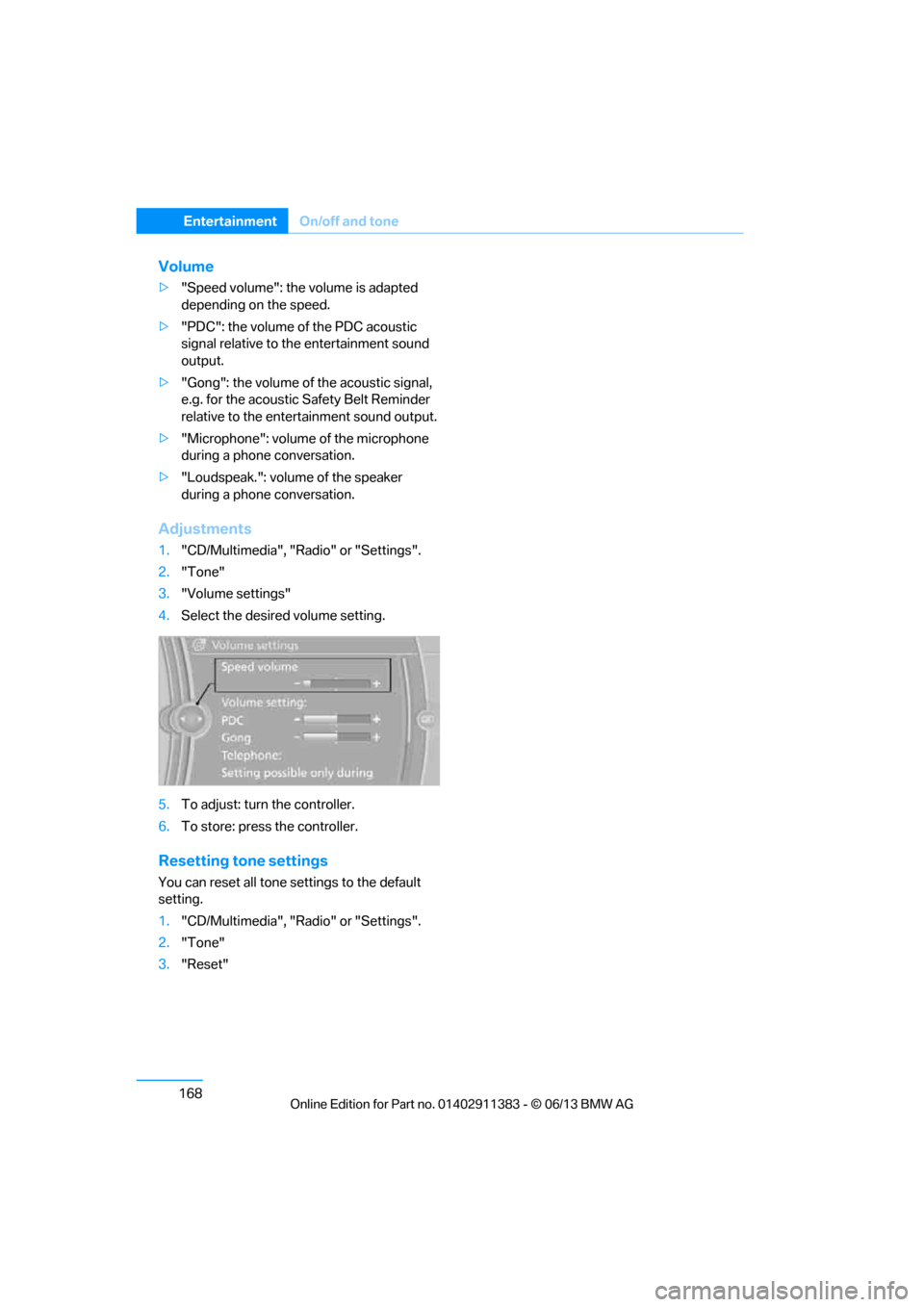
Volume
>"Speed volume": the volume is adapted
depending on the speed.
> "PDC": the volume of the PDC acoustic
signal relative to the entertainment sound
output.
> "Gong": the volume of the acoustic signal,
e.g. for the acoustic Safety Belt Reminder
relative to the entert ainment sound output.
> "Microphone": volume of the microphone
during a phone conversation.
> "Loudspeak.": volume of the speaker
during a phone conversation.
Adjustments
1."CD/Multimedia", "Radio" or "Settings".
2. "Tone"
3. "Volume settings"
4. Select the desired volume setting.
5. To adjust: turn the controller.
6. To store: press the controller.
Resetting tone settings
You can reset all tone settings to the default
setting.
1."CD/Multimedia", "Radio" or "Settings".
2. "Tone"
3. "Reset"
00320051004F004C00510048000300280047004C0057004C005200510003