Control BMW 3 SERIES CONVERTIBLE 2013 E93 Owner's Manual
[x] Cancel search | Manufacturer: BMW, Model Year: 2013, Model line: 3 SERIES CONVERTIBLE, Model: BMW 3 SERIES CONVERTIBLE 2013 E93Pages: 311, PDF Size: 7.05 MB
Page 174 of 311
169
Radio
Entertainment
Radio
Vehicle equipment
In this chapter, all production, country, and
optional equipment that is offered in the model
range is described. Equipment is also described
that is not available because of, for example,
selected options or coun
try version. This also
applies to safety related functions and systems.
General information
Your radio is designed for reception of the
following stations:
> FM and AM
> HD Radio
> Satellite radio
Selecting a station
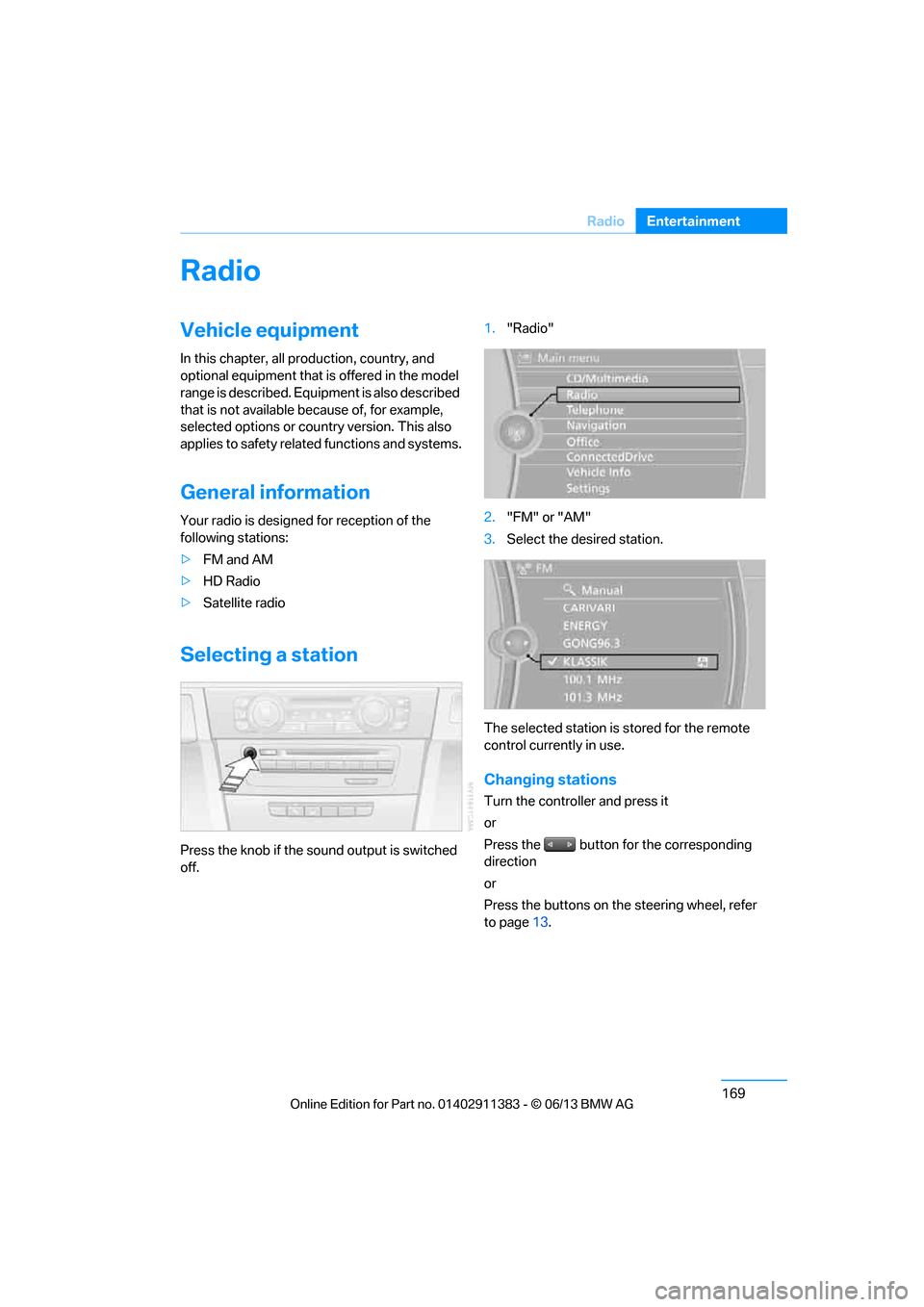
Press the knob if the sound output is switched
off. 1.
"Radio"
2. "FM" or "AM"
3. Select the desired station.
The selected station is stored for the remote
control currently in use.
Changing stations
Turn the controller and press it
or
Press the button for the corresponding
direction
or
Press the buttons on the steering wheel, refer
to page 13.
00320051004F004C00510048000300280047004C0057004C005200510003
Page 175 of 311
170
EntertainmentRadio
Selecting a station manually
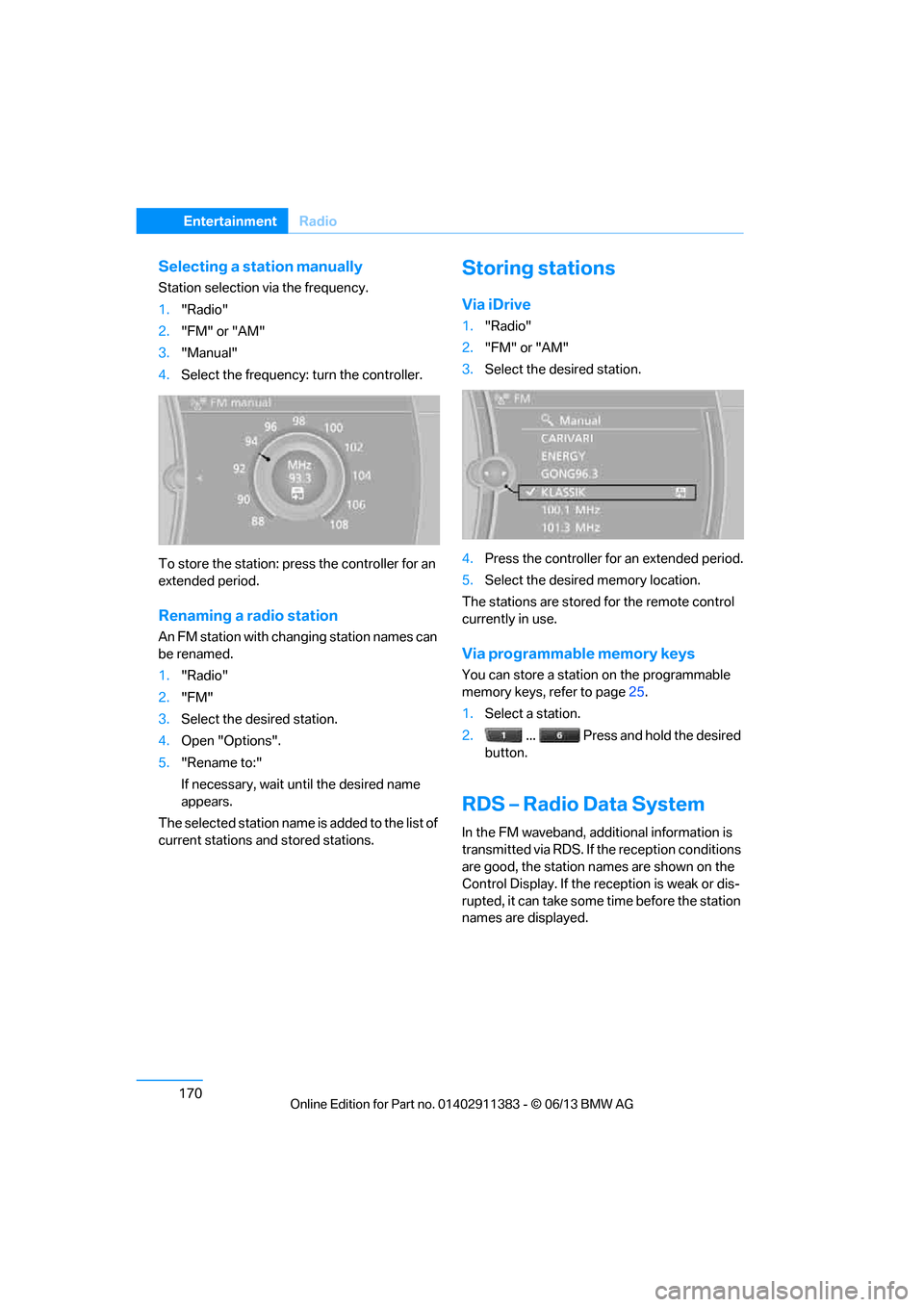
Station selection via the frequency.
1."Radio"
2. "FM" or "AM"
3. "Manual"
4. Select the frequency: turn the controller.
To store the station: press the controller for an
extended period.
Renaming a radio station
An FM station with changing station names can
be renamed.
1. "Radio"
2. "FM"
3. Select the desired station.
4. Open "Options".
5. "Rename to:"
If necessary, wait un til the desired name
appears.
The selected station name is added to the list of
current stations and stored stations.
Storing stations
Via iDrive
1. "Radio"
2. "FM" or "AM"
3. Select the desired station.
4. Press the controller for an extended period.
5. Select the desired memory location.
The stations are stored for the remote control
currently in use.
Via programmable memory keys
You can store a station on the programmable
memory keys, refer to page 25.
1. Select a station.
2. ... Press and hold the desired
button.
RDS – Radio Data System
In the FM waveband, addi tional information is
transmitted via RDS. If the reception conditions
are good, the station names are shown on the
Control Display. If the reception is weak or dis-
rupted, it can take some time before the station
names are displayed.
00320051004F004C00510048000300280047004C0057004C005200510003
Page 176 of 311
171
Radio
Entertainment
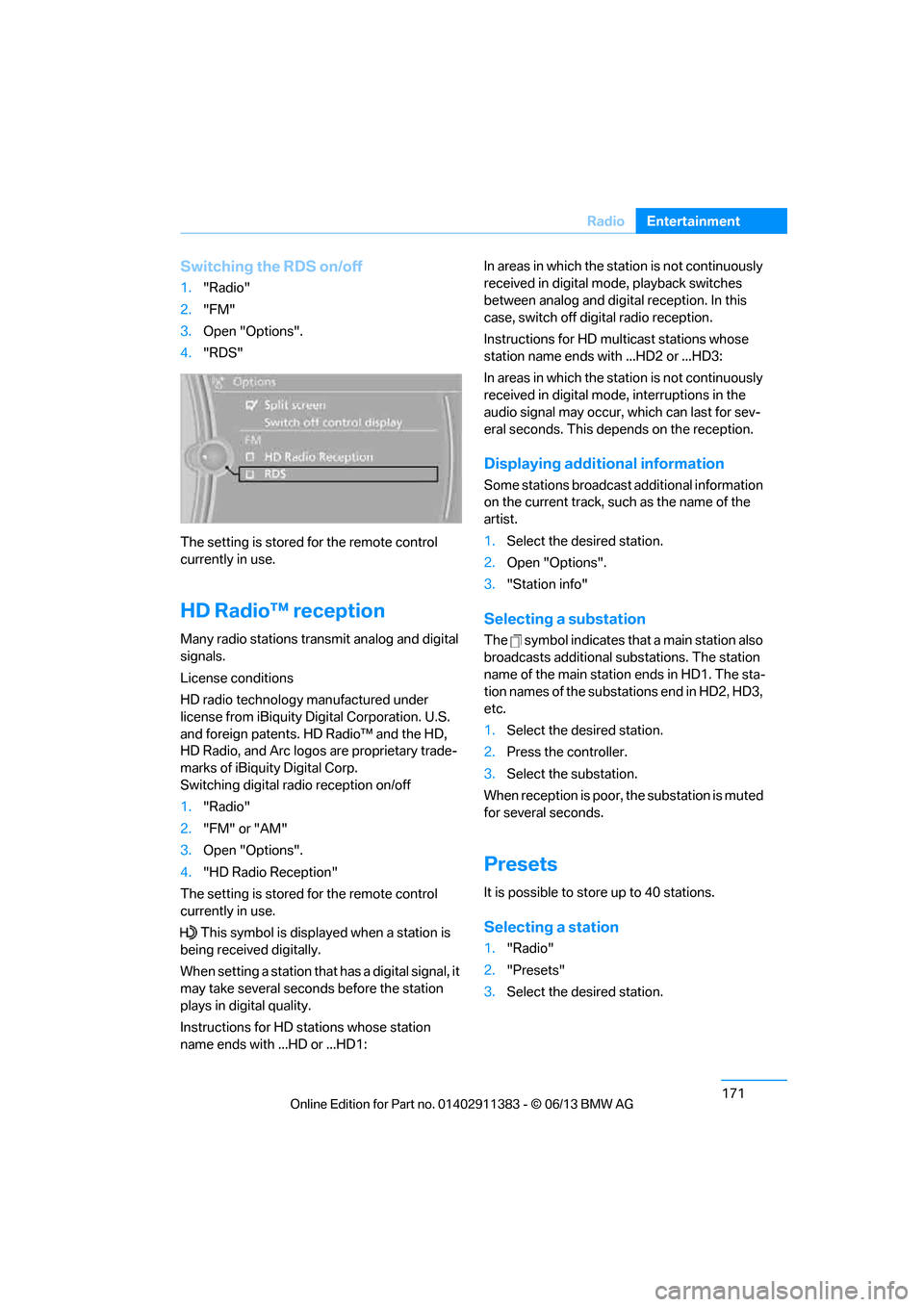
Switching the RDS on/off
1.
"Radio"
2. "FM"
3. Open "Options".
4. "RDS"
The setting is stored for the remote control
currently in use.
HD Radio™ reception
Many radio stations transmit analog and digital
signals.
License conditions
HD radio technology manufactured under
license from iBiquity Di gital Corporation. U.S.
and foreign patents. HD Radio™ and the HD,
HD Radio, and Arc logos are proprietary trade-
marks of iBiquity Digital Corp.
Switching digital radio reception on/off
1. "Radio"
2. "FM" or "AM"
3. Open "Options".
4. "HD Radio Reception"
The setting is stored for the remote control
currently in use.
This symbol is displa yed when a station is
being received digitally.
When setting a station that has a digital signal, it
may take several second s before the station
plays in digital quality.
Instructions for HD stations whose station
name ends with ...HD or ...HD1: In areas in which the station is not continuously
received in digital mode, playback switches
between analog and digital reception. In this
case, switch off digital radio reception.
Instructions for HD multicast stations whose
station name ends with ...HD2 or ...HD3:
In areas in which the station is not continuously
received in digital mode, interruptions in the
audio signal may occur, which can last for sev-
eral seconds. This depends on the reception.
Displaying additional information
Some stations broadcast additional information
on the current track, such as the name of the
artist.
1.
Select the desired station.
2. Open "Options".
3. "Station info"
Selecting a substation
The symbol indicates that a main station also
broadcasts additional substations. The station
name of the main station ends in HD1. The sta-
tion names of the substations end in HD2, HD3,
etc.
1.Select the desired station.
2. Press the controller.
3. Select the substation.
When reception is poor, the substation is muted
for several seconds.
Presets
It is possible to store up to 40 stations.
Selecting a station
1. "Radio"
2. "Presets"
3. Select the desired station.
00320051004F004C00510048000300280047004C0057004C005200510003
Page 177 of 311

172
EntertainmentRadio
Storing stations
The station currently selected is stored.
1."Radio"
2. "Presets"
3. "Store station"
4. Select the desired memory location.
The list of stored stations is stored for the
remote control currently in use.
You can also store the stations on the program-
mable memory keys, refer to page 25.
Deleting a station
1."Radio"
2. "Presets"
3. Select the desired station.
4. Open "Options".
5. "Delete entry"
00320051004F004C00510048000300280047004C0057004C005200510003
Page 179 of 311
174
EntertainmentSatellite radio
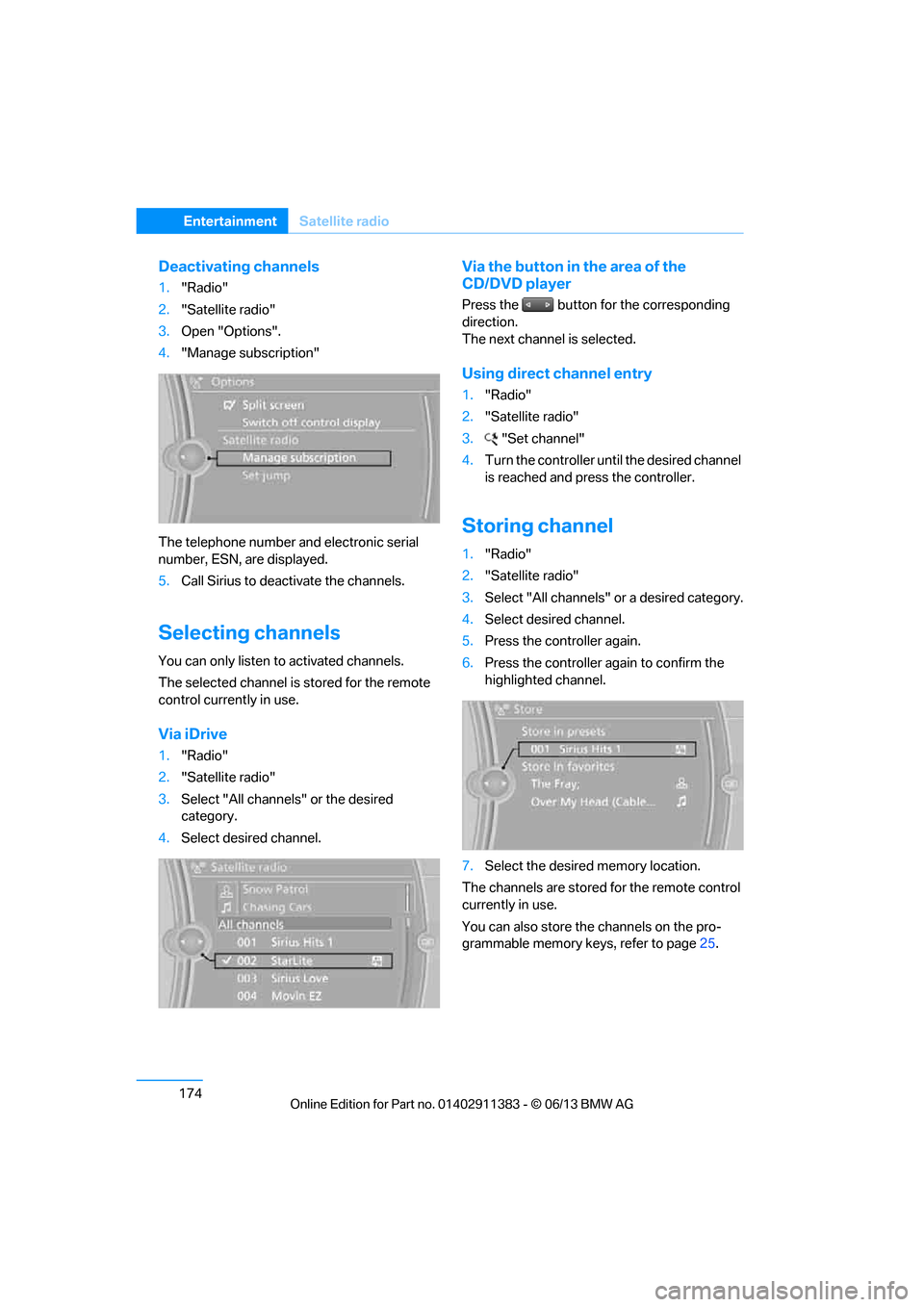
Deactivating channels
1."Radio"
2. "Satellite radio"
3. Open "Options".
4. "Manage subscription"
The telephone number and electronic serial
number, ESN, are displayed.
5. Call Sirius to deacti vate the channels.
Selecting channels
You can only listen to activated channels.
The selected channel is stored for the remote
control currently in use.
Via iDrive
1. "Radio"
2. "Satellite radio"
3. Select "All channels" or the desired
category.
4. Select desired channel.
Via the button in the area of the
CD/DVD player
Press the button for the corresponding
direction.
The next channel is selected.
Using direct channel entry
1."Radio"
2. "Satellite radio"
3. "Set channel"
4. Turn the controller unt il the desired channel
is reached and pr ess the controller.
Storing channel
1."Radio"
2. "Satellite radio"
3. Select "All channels" or a desired category.
4. Select desired channel.
5. Press the controller again.
6. Press the controller again to confirm the
highlighted channel.
7. Select the desired memory location.
The channels are stored for the remote control
currently in use.
You can also store the channels on the pro-
grammable memory ke ys, refer to page25.
00320051004F004C00510048000300280047004C0057004C005200510003
Page 181 of 311
176
EntertainmentSatellite radio
Activating
1."Radio"
2. "Satellite radio"
3. "Replay - Time shift"
4. "Automatic time shift"
Deactivating
"Automatic time shift"
Storing favorites
Up to 30 favorites can be stored in the favorites
list. Possible favorites include artist, track,
game, league, and team.
Storing artist, track, or game
Only current broadcasts can be stored as favor-
ites. The channel information must be available.
1. "Radio"
2. "Satellite radio"
3. Select "All channels" or the desired
category.
4. Select desired channel.
5. Press the controller again.
6. Select artist, track, or game.
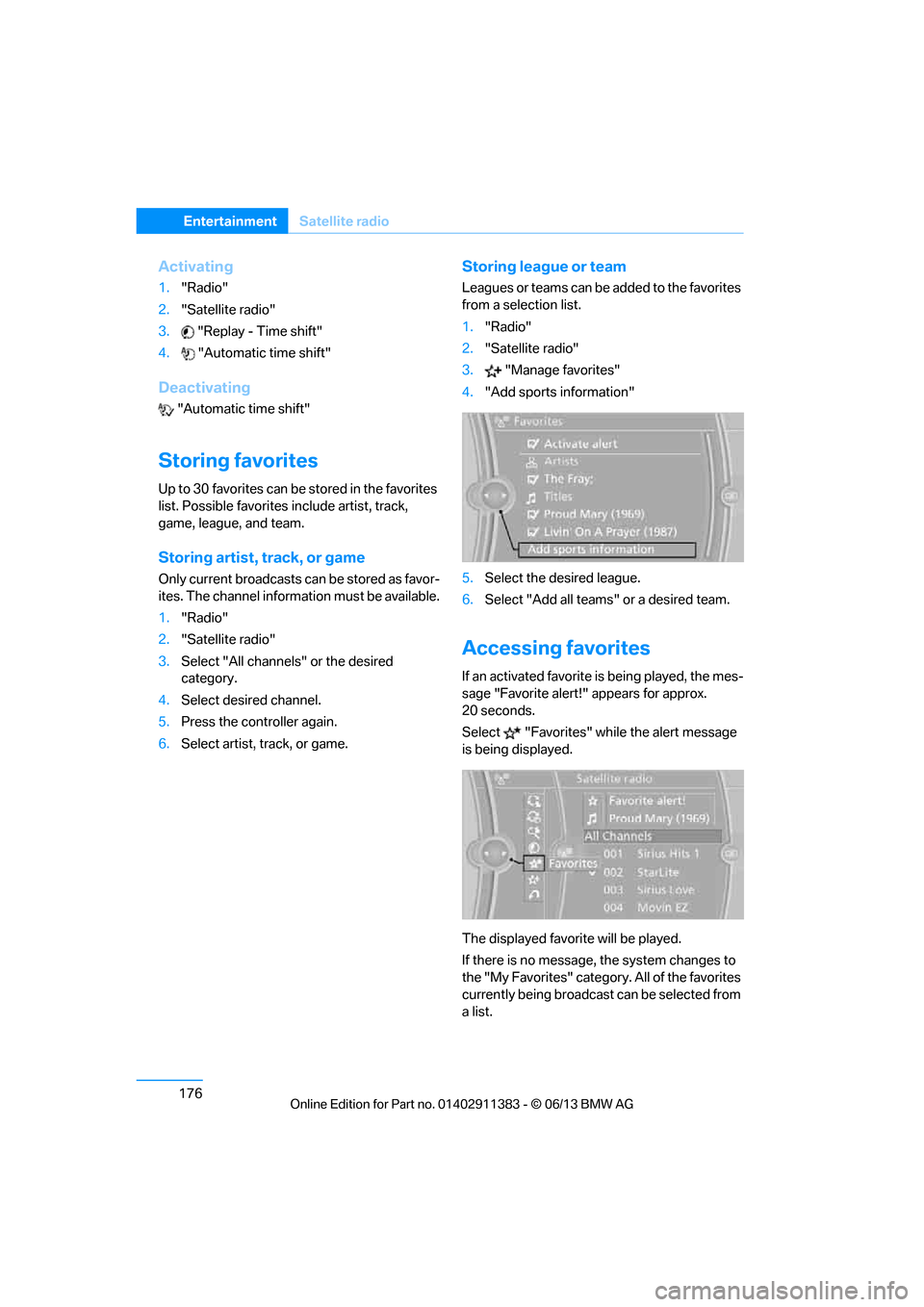
Storing league or team
Leagues or teams can be added to the favorites
from a selection list.
1. "Radio"
2. "Satellite radio"
3. "Manage favorites"
4. "Add sports information"
5. Select the desired league.
6. Select "Add all teams" or a desired team.
Accessing favorites
If an activated favorite is being played, the mes-
sage "Favorite alert! " appears for approx.
20 seconds.
Select "Favorites" while the alert message
is being displayed.
The displayed favorite will be played.
If there is no message, the system changes to
the "My Favorites" catego ry. All of the favorites
currently being broadcast can be selected from
a list.
00320051004F004C00510048000300280047004C0057004C005200510003
Page 182 of 311
177
Satellite radio
Entertainment
Managing favorites
Activating/deactivating favorites
Favorites can be activated or deactivated
globally and individually.
1.
"Satellite radio"
2. "Manage favorites"
3. Select "Activate alert" or desired favorites.
The setting is stored for the remote control
currently in use.
Deleting favorites
1. "Satellite radio"
2. "Manage favorites"
3. Highlight the favorites you wish to delete.
4. Open "Options".
5. "Delete entry"
Traffic Jump
Traffic and weather information for a selected
region are broadcast at intervals of a few
minutes.
Selecting region
1."Radio"
2. "Satellite radio"
3. Open "Options".
4. "Set jump"
5. Select the desired region.
The region is stored for the remote control
currently in use.
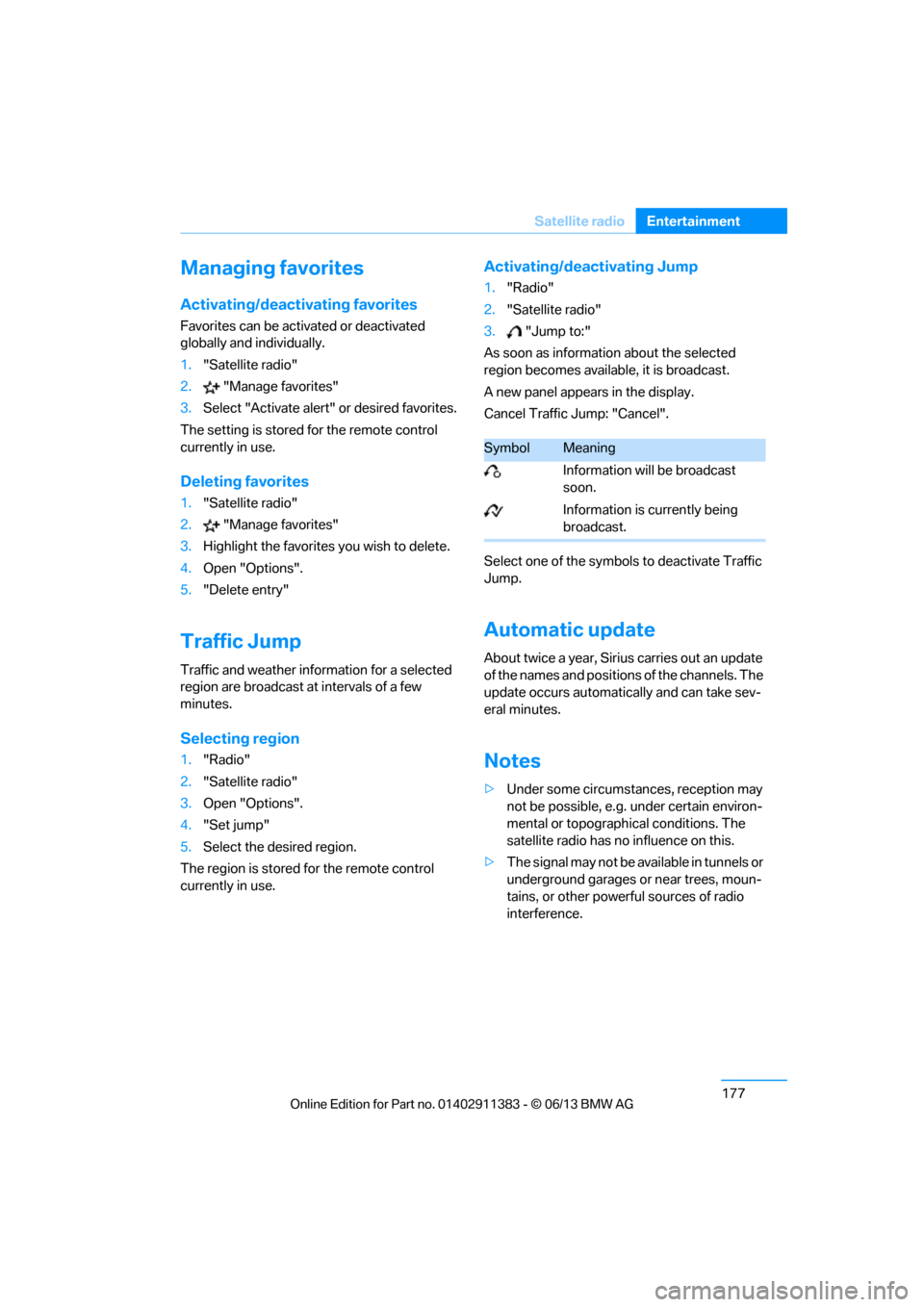
Activating/deactivating Jump
1. "Radio"
2. "Satellite radio"
3. "Jump to:"
As soon as information about the selected
region becomes availabl e, it is broadcast.
A new panel appears in the display.
Cancel Traffic Jump: "Cancel".
Select one of the symbol s to deactivate Traffic
Jump.
Automatic update
About twice a year, Sirius carries out an update
of the names and positions of the channels. The
update occurs automati cally and can take sev-
eral minutes.
Notes
> Under some circumstances, reception may
not be possible, e.g. under certain environ-
mental or topographical conditions. The
satellite radio has no influence on this.
> The signal may not be available in tunnels or
underground garages or near trees, moun-
tains, or other powerful sources of radio
interference.
SymbolMeaning
Information will be broadcast
soon.
Information is currently being
broadcast.
00320051004F004C00510048000300280047004C0057004C005200510003
Page 184 of 311
179
CD/DVD player
Entertainment
4.
Select the desired trac k to begin playback.
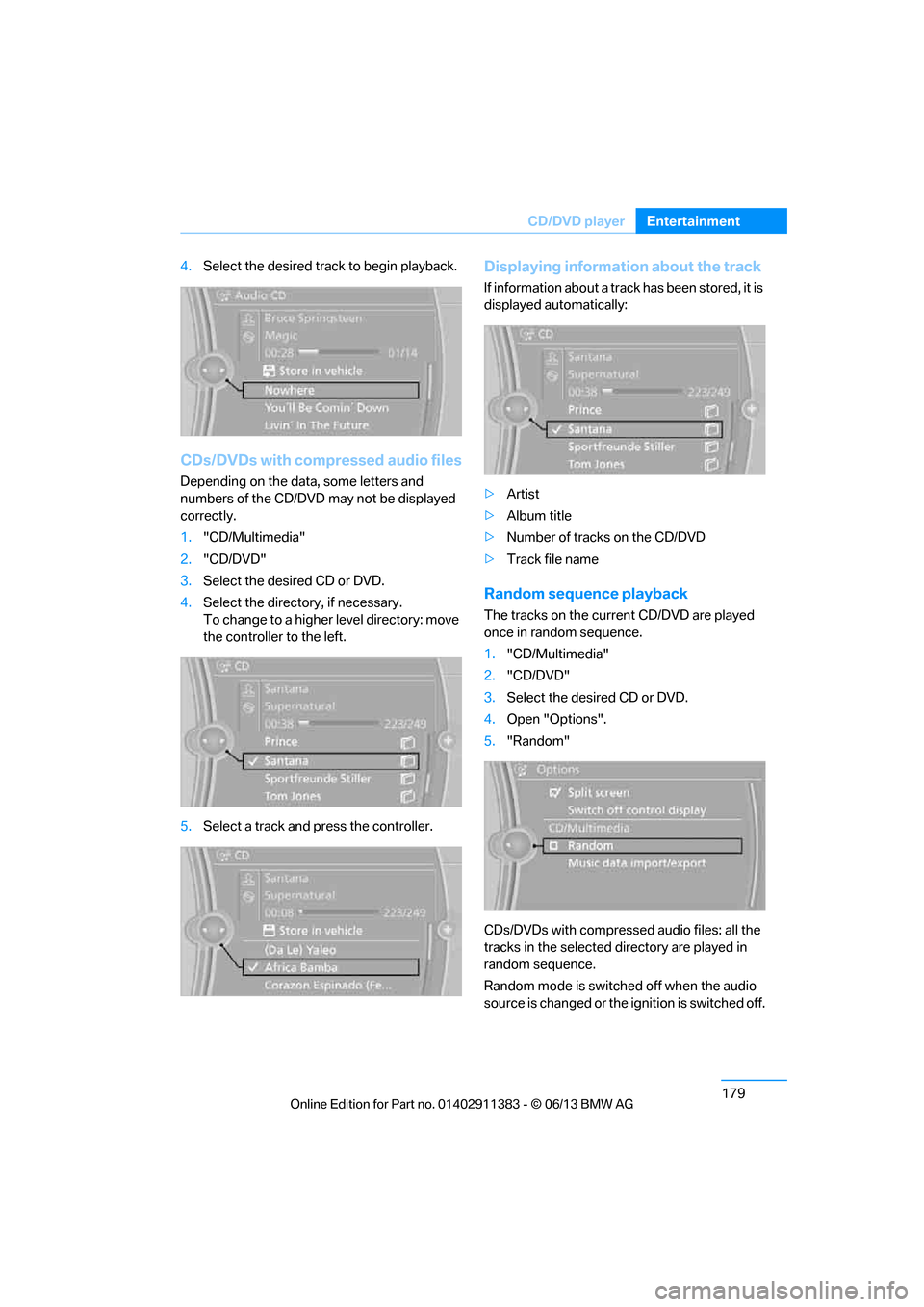
CDs/DVDs with compressed audio files
Depending on the data , some letters and
numbers of the CD/DVD may not be displayed
correctly.
1. "CD/Multimedia"
2. "CD/DVD"
3. Select the desired CD or DVD.
4. Select the directory, if necessary.
To change to a higher level directory: move
the controller to the left.
5. Select a track and press the controller.
Displaying information about the track
If information about a track has been stored, it is
displayed automatically:
>Artist
> Album title
> Number of tracks on the CD/DVD
> Track file name
Random sequence playback
The tracks on the curr ent CD/DVD are played
once in random sequence.
1. "CD/Multimedia"
2. "CD/DVD"
3. Select the desired CD or DVD.
4. Open "Options".
5. "Random"
CDs/DVDs with compressed audio files: all the
tracks in the selected directory are played in
random sequence.
Random mode is switched off when the audio
source is changed or the ignition is switched off.
00320051004F004C00510048000300280047004C0057004C005200510003
Page 185 of 311
180
EntertainmentCD/DVD player
Fast forward/reverse
Press and hold the button for the
corresponding direction.
Video playback
Country codes
Only DVDs with the code of the home region
can be played back; also refer to the information
on your DVD.
Starting playback
For your own safety, the video image is only dis-
played up to approx. 2 mph/3 km/h and in some
market-specific versions, only with the parking
brake engaged or the selector lever of the auto-
matic transmission is in the park position.
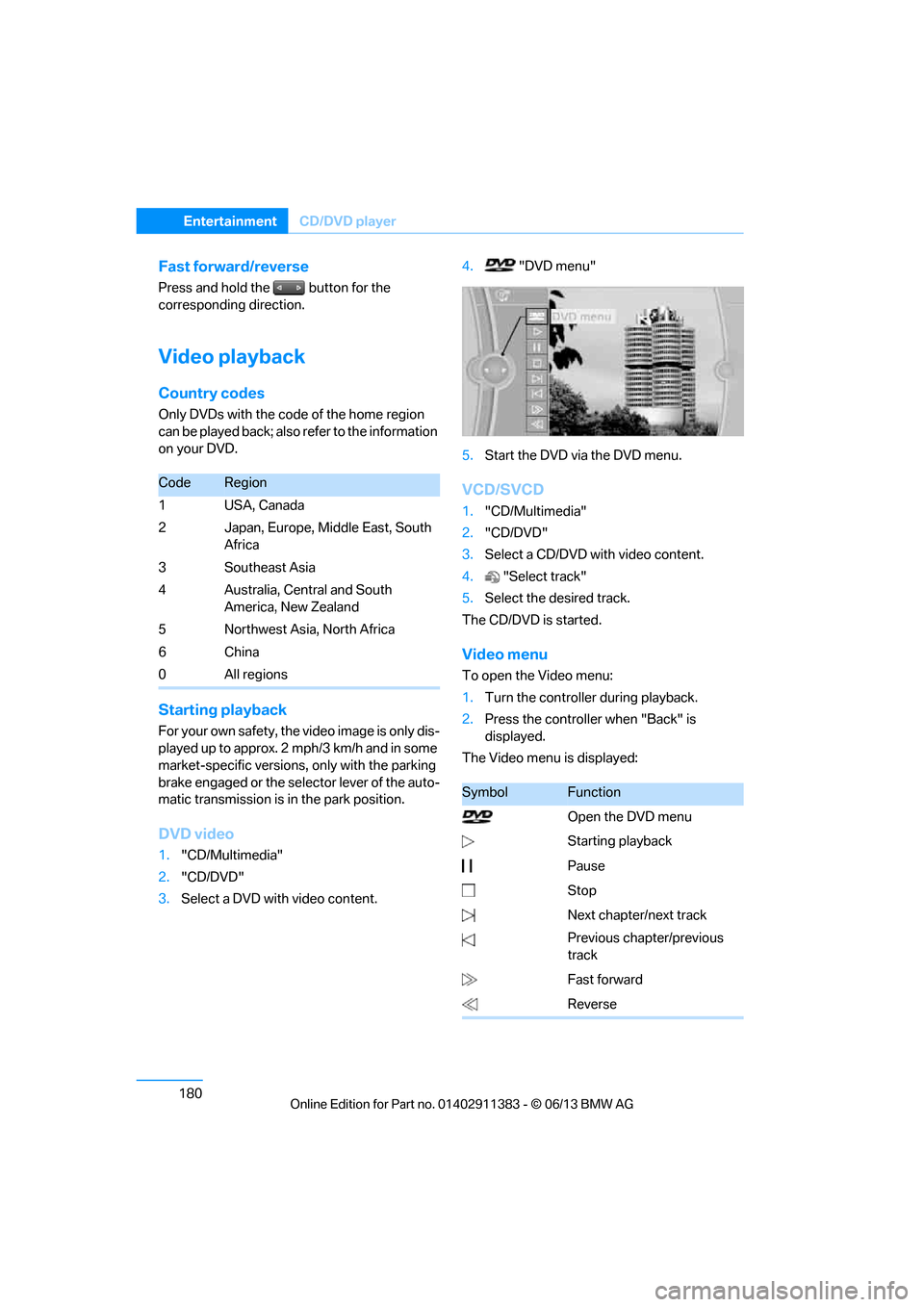
DVD video
1. "CD/Multimedia"
2. "CD/DVD"
3. Select a DVD with video content. 4.
"DVD menu"
5. Start the DVD via the DVD menu.
VCD/SVCD
1."CD/Multimedia"
2. "CD/DVD"
3. Select a CD/DVD with video content.
4. "Select track"
5. Select the desired track.
The CD/DVD is started.
Video menu
To open the Video menu:
1. Turn the controller during playback.
2. Press the controller when "Back" is
displayed.
The Video menu is displayed:
CodeRegion
1USA, Canada
2 Japan, Europe, Middle East, South Africa
3Southeast Asia
4 Australia, Central and South America, New Zealand
5 Northwest Asia, North Africa
6China
0 All regions
SymbolFunction
Open the DVD menu
Starting playback
Pause
Stop
Next chapter/next track
Previous chapter/previous
track
Fast forward
Reverse
00320051004F004C00510048000300280047004C0057004C005200510003
Page 186 of 311
181
CD/DVD player
Entertainment
In fast forward/reverse: the speed increases
every time the controller is pressed. To stop,
start playback.
DVD menu
1.
If necessary, turn the controller to open the
Video menu.
2. "DVD menu"
The DVD menu is displayed. The display
depends on the contents of the DVD.
> To select menu items: move and press the
controller.
> To change to the Video menu: turn the
controller and select "Back".
DVD/VCD settings
For some DVDs, settings can only be made via
the DVD menu; also refer to the information on
your DVD.
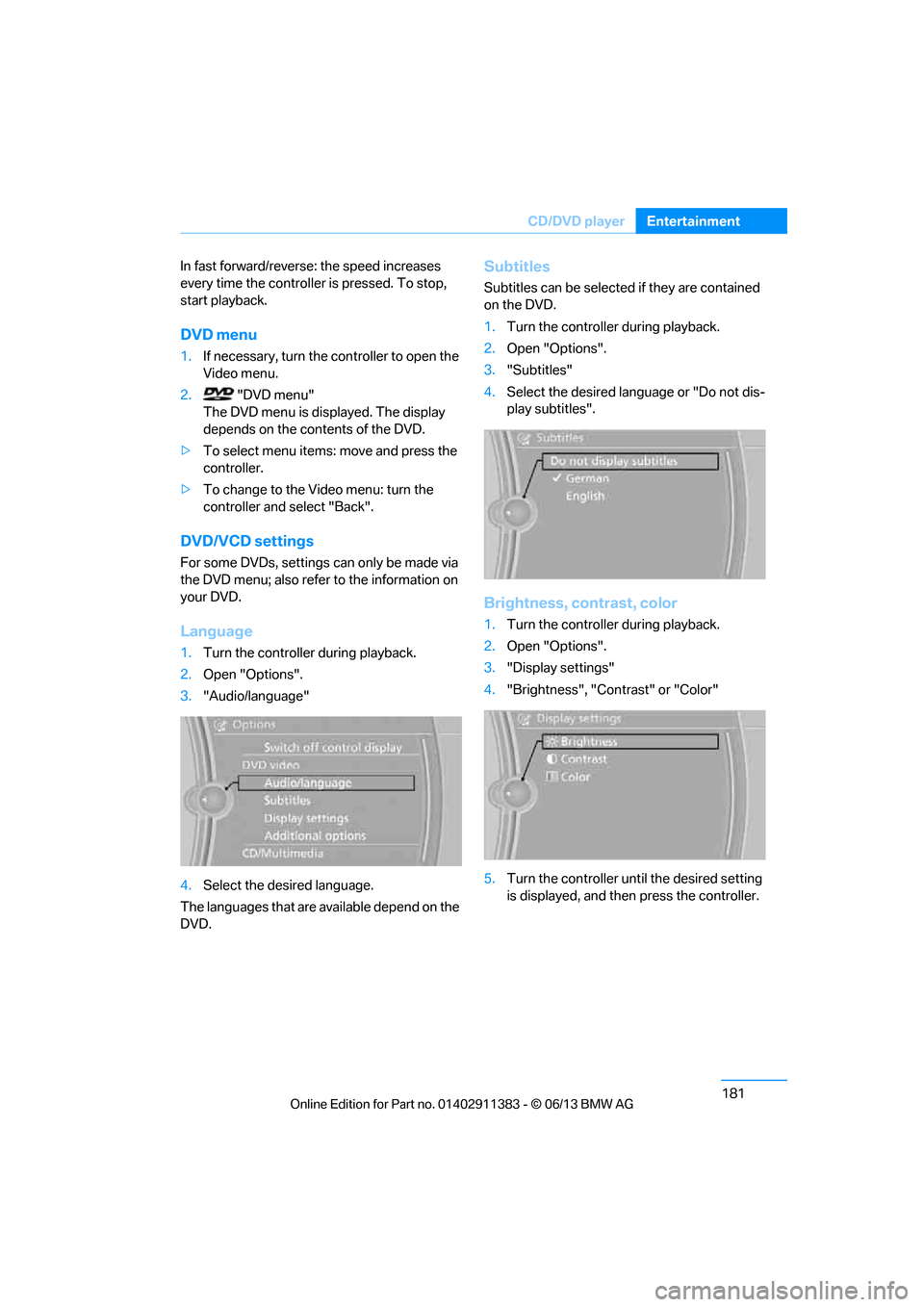
Language
1.Turn the controller during playback.
2. Open "Options".
3. "Audio/language"
4. Select the desired language.
The languages that are available depend on the
DVD.
Subtitles
Subtitles can be selected if they are contained
on the DVD.
1. Turn the controller during playback.
2. Open "Options".
3. "Subtitles"
4. Select the desired language or "Do not dis-
play subtitles".
Brightness, contrast, color
1.Turn the controller during playback.
2. Open "Options".
3. "Display settings"
4. "Brightness", "Contrast" or "Color"
5. Turn the controller unt il the desired setting
is displayed, and then press the controller.
00320051004F004C00510048000300280047004C0057004C005200510003