open top BMW 3 SERIES CONVERTIBLE 2013 E93 Owner's Guide
[x] Cancel search | Manufacturer: BMW, Model Year: 2013, Model line: 3 SERIES CONVERTIBLE, Model: BMW 3 SERIES CONVERTIBLE 2013 E93Pages: 311, PDF Size: 7.05 MB
Page 122 of 311
117
Climate
Controls
Pressing the AUTO
button automatically
switches on the air conditioning.
At the same time, a condensation sensor
controls the program so as to prevent window
condensation as much as possible.
The program is switched off when the air distri-
bution is set manually or the button is pressed
again.
Intensity of the AUTO program
With the AUTO program switched on, auto-
matic control of the air volume and air distribu-
tion can be adjusted:
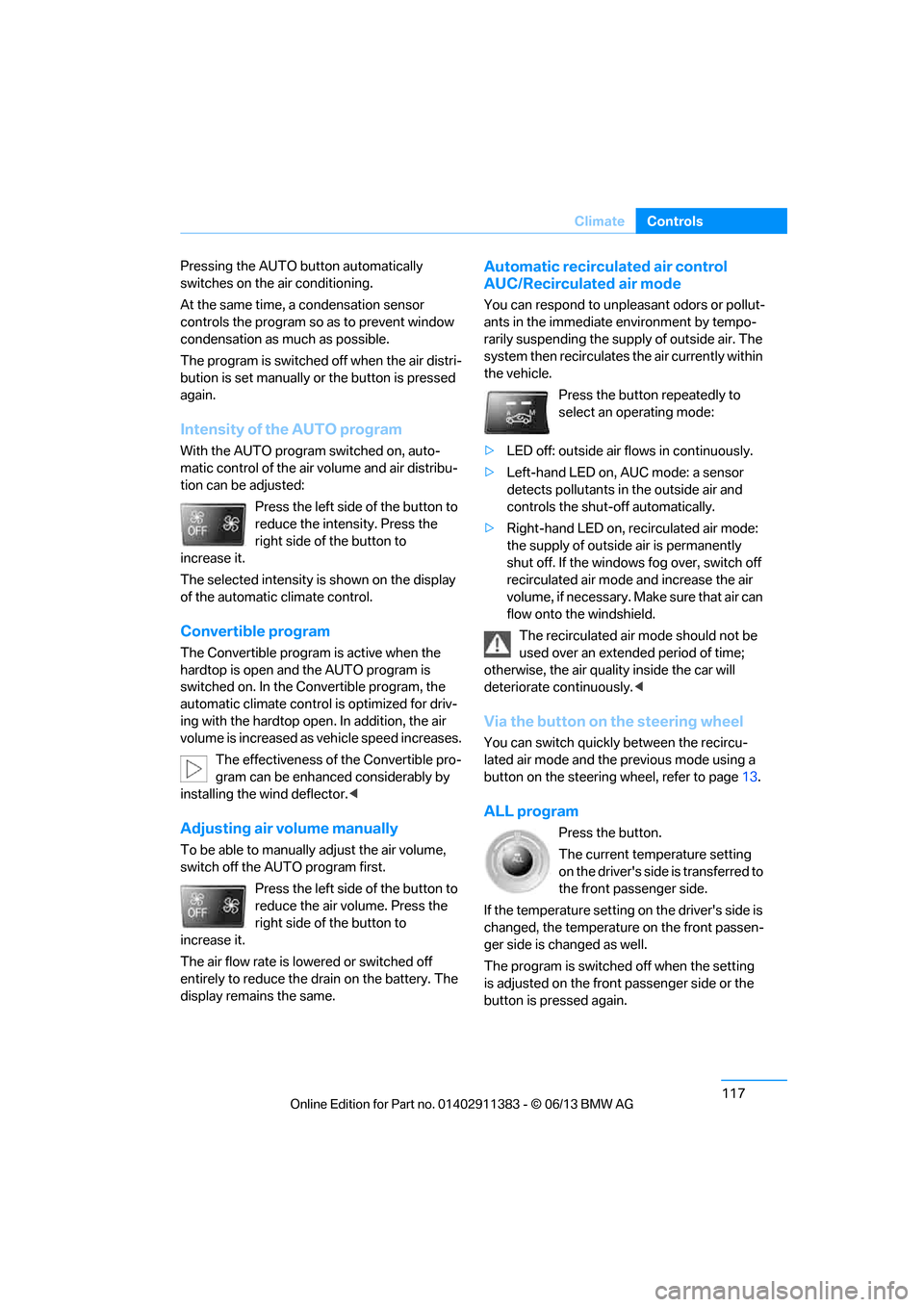
Press the left side of the button to
reduce the intensity. Press the
right side of the button to
increase it.
The selected intensity is shown on the display
of the automatic climate control.
Convertible program
The Convertible program is active when the
hardtop is open and the AUTO program is
switched on. In the Convertible program, the
automatic climate control is optimized for driv-
ing with the hardtop open . In addition, the air
volume is increased as vehicle speed increases.
The effectiveness of the Convertible pro-
gram can be enhanced considerably by
installing the wind deflector. <
Adjusting air volume manually
To be able to manually adjust the air volume,
switch off the AUTO program first.
Press the left side of the button to
reduce the air volume. Press the
right side of the button to
increase it.
The air flow rate is lowered or switched off
entirely to reduce the drain on the battery. The
display remains the same.
Automatic recirculated air control
AUC/Recirculated air mode
You can respond to unpl easant odors or pollut-
ants in the immediate environment by tempo-
rarily suspending the supply of outside air. The
system then recirculates the air currently within
the vehicle.
Press the button repeatedly to
select an operating mode:
> LED off: outside air flows in continuously.
> Left-hand LED on, AUC mode: a sensor
detects pollutants in the outside air and
controls the shut-off automatically.
> Right-hand LED on, re circulated air mode:
the supply of outside air is permanently
shut off. If the windows fog over, switch off
recirculated air mode and increase the air
volume, if necessary. Make sure that air can
flow onto the windshield.
The recirculated air mode should not be
used over an extended period of time;
otherwise, the air quality inside the car will
deteriorate continuously. <
Via the button on the steering wheel
You can switch quickly between the recircu-
lated air mode and the previous mode using a
button on the steering wheel, refer to page 13.
ALL program
Press the button.
The current temperature setting
on the driver's side is transferred to
the front passenger side.
If the temperature setting on the driver's side is
changed, the temperature on the front passen-
ger side is changed as well.
The program is switched off when the setting
is adjusted on the front passenger side or the
button is pressed again.
00320051004F004C00510048000300280047004C0057004C005200510003
Page 128 of 311
123
Practical interior accessories
Controls
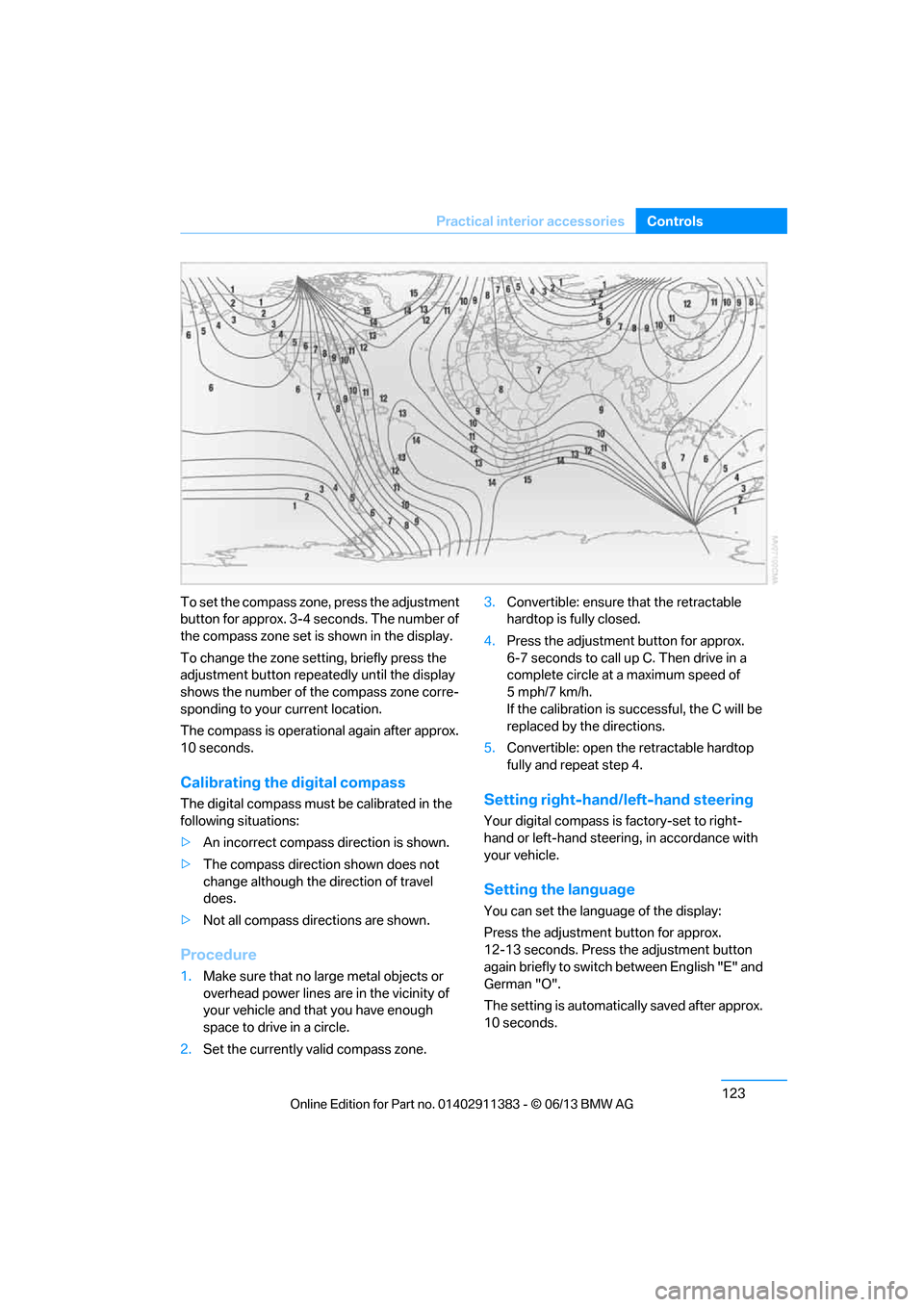
To set the compass zone, press the adjustment
button for approx. 3-4 seconds. The number of
the compass zone set is shown in the display.
To change the zone se
tting, briefly press the
adjustment button repeat edly until the display
shows the number of the compass zone corre-
sponding to your current location.
The compass is operational again after approx.
10 seconds.
Calibrating the digital compass
The digital compass must be calibrated in the
following situations:
> An incorrect compass direction is shown.
> The compass direction shown does not
change although the direction of travel
does.
> Not all compass directions are shown.
Procedure
1.Make sure that no large metal objects or
overhead power lines are in the vicinity of
your vehicle and that you have enough
space to drive in a circle.
2. Set the currently va lid compass zone. 3.
Convertible: ensure that the retractable
hardtop is fully closed.
4. Press the adjustment button for approx.
6-7 seconds to call up C. Then drive in a
complete circle at a maximum speed of
5mph/7km/h.
If the calibration is successful, the C will be
replaced by the directions.
5. Convertible: open the retractable hardtop
fully and repeat step 4.
Setting right-hand/left-hand steering
Your digital compass is factory-set to right-
hand or left-hand steering, in accordance with
your vehicle.
Setting the language
You can set the language of the display:
Press the adjustment button for approx.
12-13 seconds. Press the adjustment button
again briefly to switch between English "E" and
German "O".
The setting is automatica lly saved after approx.
10 seconds.
00320051004F004C00510048000300280047004C0057004C005200510003
Page 133 of 311
128
ControlsPractical interior accessories
Closing
Return the rear seat backrest to its upright
position and engage it.
When returning the backrest to its seating
position, make sure th at the seat's lock-
ing mechanism engages properly. Otherwise,
cargo could be thrown around in the event of
sharp braking or swervi ng and endanger the
occupants. <
The lashing eyes in the trunk provide you with a
way to attach trunk nets or draw straps for
securing suitcases an d luggage, refer to
page 140.
Convertible:
Cargo loading
Hardtop closed
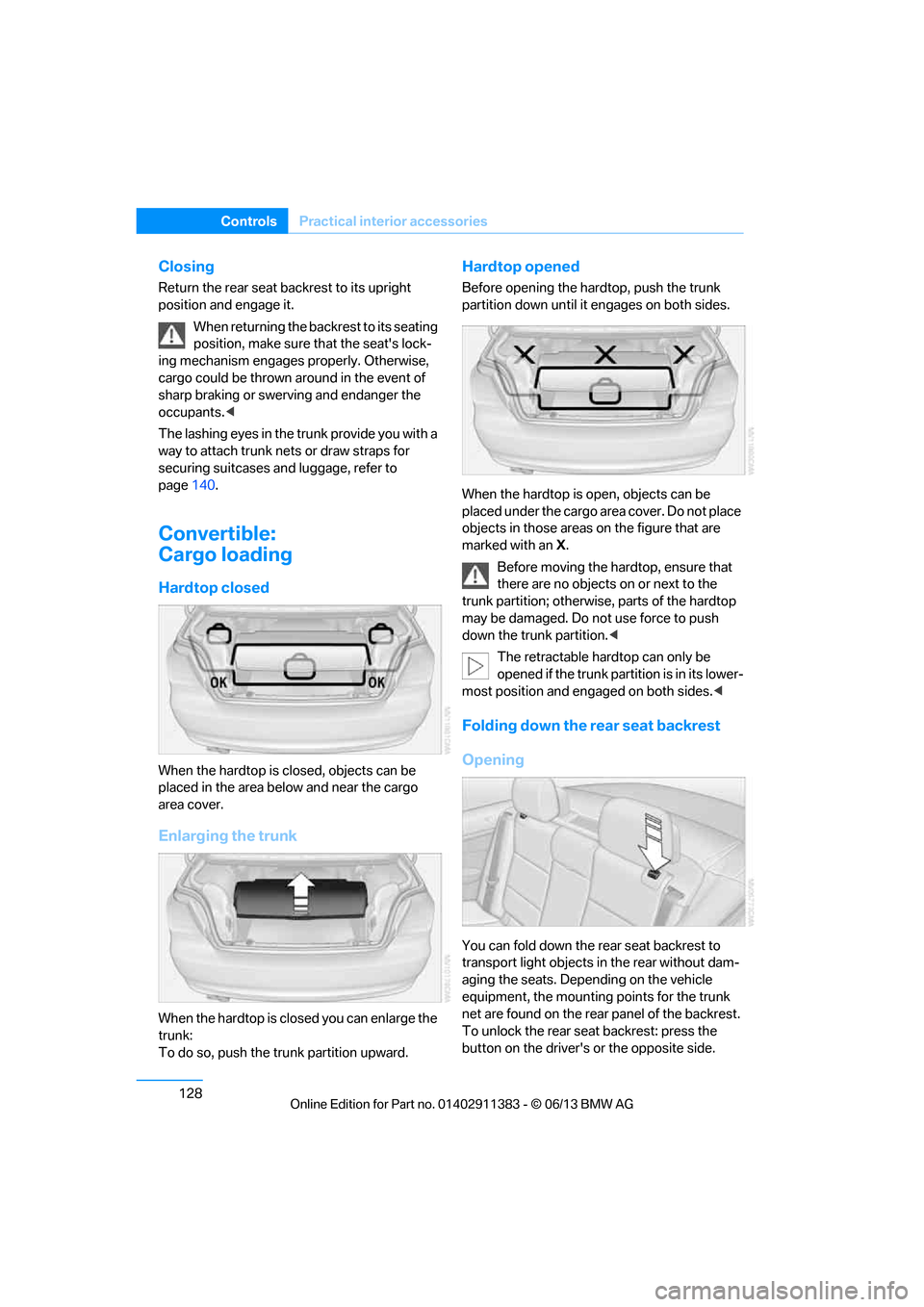
When the hardtop is closed, objects can be
placed in the area below and near the cargo
area cover.
Enlarging the trunk
When the hardtop is closed you can enlarge the
trunk:
To do so, push the trunk partition upward.
Hardtop opened
Before opening the hard top, push the trunk
partition down until it engages on both sides.
When the hardtop is open, objects can be
placed under the cargo area cover. Do not place
objects in those areas on the figure that are
marked with an X.
Before moving the ha rdtop, ensure that
there are no objects on or next to the
trunk partition; otherwise, parts of the hardtop
may be damaged. Do not use force to push
down the trunk partition. <
The retractable hard top can only be
opened if the trunk partition is in its lower-
most position and engaged on both sides. <
Folding down the rear seat backrest
Opening
You can fold down the rear seat backrest to
transport light objects in the rear without dam-
aging the seats. Depending on the vehicle
equipment, the mounting points for the trunk
net are found on the rear panel of the backrest.
To unlock the rear seat backrest: press the
button on the driver's or the opposite side.
00320051004F004C00510048000300280047004C0057004C005200510003
Page 142 of 311
137
Things to remember when driving
Driving tips
Check tire inflation pressure regularly
Check the tire inflation pr
essure at least twice a
month and before embarking on a long journey,
and correct it if necessary.
Low tire inflation pressure causes higher rolling
resistance and thus increases fuel consumption
and tire wear.
Set off immediately
Do not let the engine wa rm up while the car is
still standing, but set off immediately at moder-
ate engine speed. This is the fastest way for the
cold engine to reach its operating temperature.
Drive defensively
Avoid unnecessary acceleration and braking
maneuvers. To do so, keep an adequate dis-
tance between you and th e vehicle in front of
you. A defensive and smooth driving style
keeps fuel consumption down.
Avoid high engine speeds
Only use first gear when setting off. In second
and higher gears, accele rate without hesitation
or pauses. When accelera ting, shift up before
reaching high engine speeds.
When you reach the desi red speed, shift into
the highest applicable ge ar and drive with the
engine speed as low as possible and at a
constant speed.
As a rule: driving at low engine speeds lowers
fuel consumption and reduces wear.
Coasting
When approaching a red lig ht, take your foot off
the accelerator and coast to a stop in the high-
est applicable gear.
On a downhill slope, take your foot off the
accelerator and coast in a suitable gear.
The fuel supply is interrupted when coasting.
Switch off the engine during lengthy
stops
Switch off the engine when stopping for lengthy
periods, e.g. at traffic lights, railroad crossings
or in traffic congestions.
Switch off functions you do not need at
the moment
Functions such as the air conditioner, seat
heating or rear window defroster draw large
amounts of power and consume additional fuel.
Especially in city traffic and in stop-and-go driv-
ing they have a considerable impact. Therefore,
switch these functions off when they are not
really needed.
Have the vehicle serviced
Have the vehicle serviced regularly to achieve
good economy and a long vehicle life. BMW
recommends having the vehicle serviced at
your BMW center. Also note the BMW Mainte-
nance System, refer to page 260.
General driving notes
Close the trunk lid
Only drive with the trunk closed. Failure to
do so may endanger passengers or other
road users or may damage the vehicle in the
event of an accident or a braking and evasive
maneuver. In addition, exhaust gas may flow
into the passenger compartment. <
If special circumstance s make it absolutely
necessary to drive wi th the trunk open:
1. Close all windows and the glass roof.
2. Greatly increase the air volume of the
automatic climate cont rol system, refer to
page 117.
3. Drive cautiously.
00320051004F004C00510048000300280047004C0057004C005200510003
Page 146 of 311
141
Things to remember when driving
Driving tips
Securing cargo
>
Secure smaller and lighter items using
retaining straps, a trunk net, or draw straps.
> Heavy-duty cargo straps for securing larger
and heavier objects are available at your
BMW center. Four lashing eyes are pro-
vided for attaching the cargo straps. Two
are located on the side walls of the trunk 1
and two additional ones are located on the
inside wall of the trunk 2.
Comply with the information enclosed with
the load-securing devices.
Convertible: before opening the hardtop,
fold down the trunk pa rtition. Make sure
the trunk is loaded corre ctly; otherwise parts of
the hardtop can be damaged, refer to
page 128.<
Always position and secure the cargo as
described above, so that it cannot endan-
ger the car's occupants, for example if sudden
braking or swerving is necessary.
Never exceed either the approved gross vehicle
weight or either of the approved axle loads, refer
to page 281, as excessive loads can pose a
safety hazard, and may also place you in viola-
tion of traffic safety laws.
Heavy or hard objects should not be carried
loose inside the car, sinc e they could be thrown
around, for example as a result of heavy braking,
sudden swerves, etc., and endanger the
occupants.
Only attach the cargo st raps using the lashing
eyes shown in the illust ration. Do not secure
cargo with the anchors fo r tether straps, refer
to page 60, ; otherwise, these could be
damaged. <
Coupe: roof-mounted
luggage rack
A special rack system is available as an option
f o r y o u r B M W . C o m p l y w i t h t h e d i r e c t i o n s g i v e n
in the installation instructions.
Mounting points
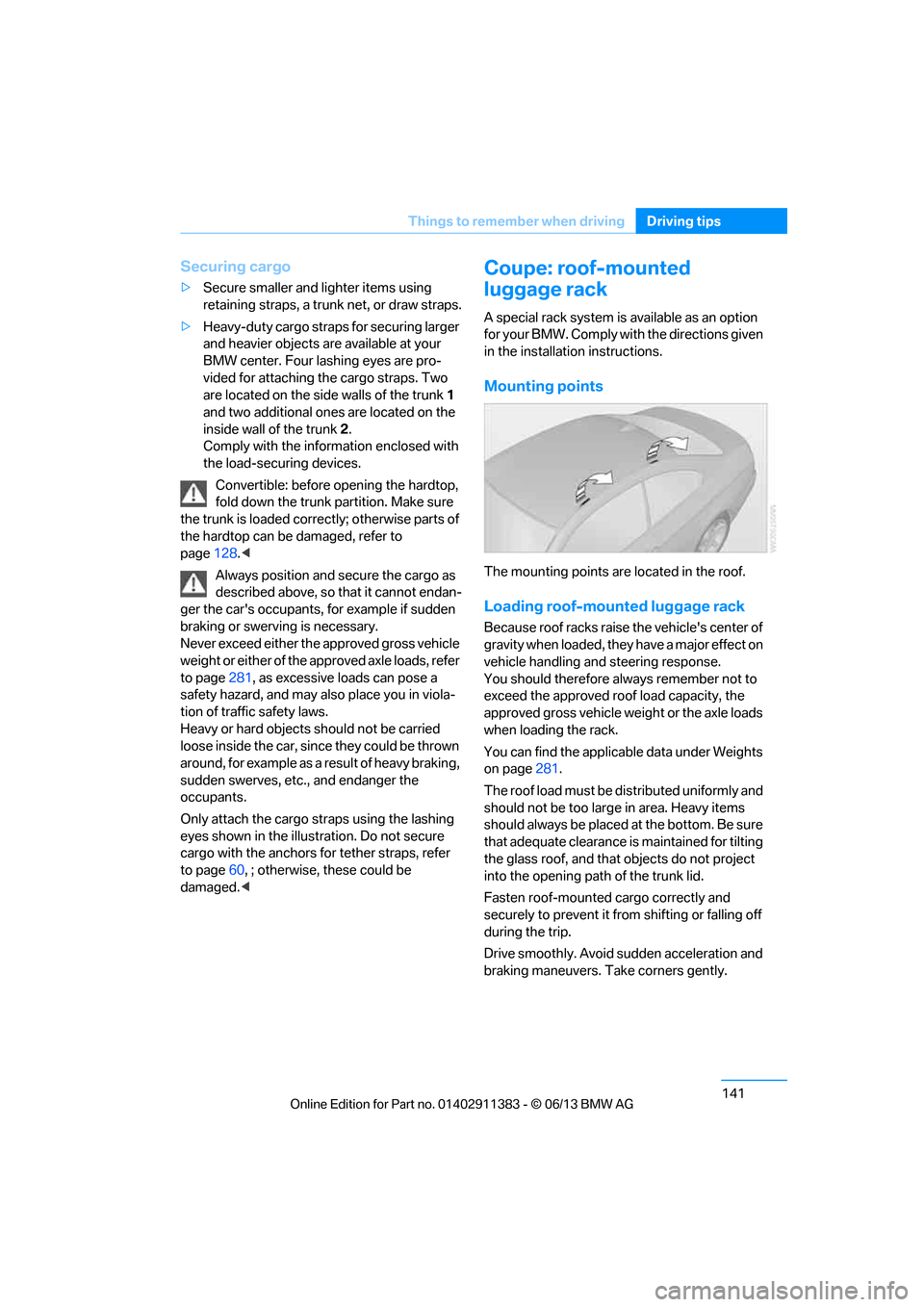
The mounting points are located in the roof.
Loading roof-mounted luggage rack
Because roof racks raise the vehicle's center of
gravity when loaded, they have a major effect on
vehicle handling and steering response.
You should therefore always remember not to
exceed the approved roof load capacity, the
approved gross vehicle we ight or the axle loads
when loading the rack.
You can find the applicable data under Weights
on page 281.
The roof load must be distributed uniformly and
should not be too larg e in area. Heavy items
should always be placed at the bottom. Be sure
that adequate clearance is maintained for tilting
the glass roof, and that objects do not project
into the opening path of the trunk lid.
Fasten roof-mounted cargo correctly and
securely to prevent it fr om shifting or falling off
during the trip.
Drive smoothly. Avoid sudden acceleration and
braking maneuvers. Take corners gently.
00320051004F004C00510048000300280047004C0057004C005200510003
Page 163 of 311
158
NavigationDestination guidance
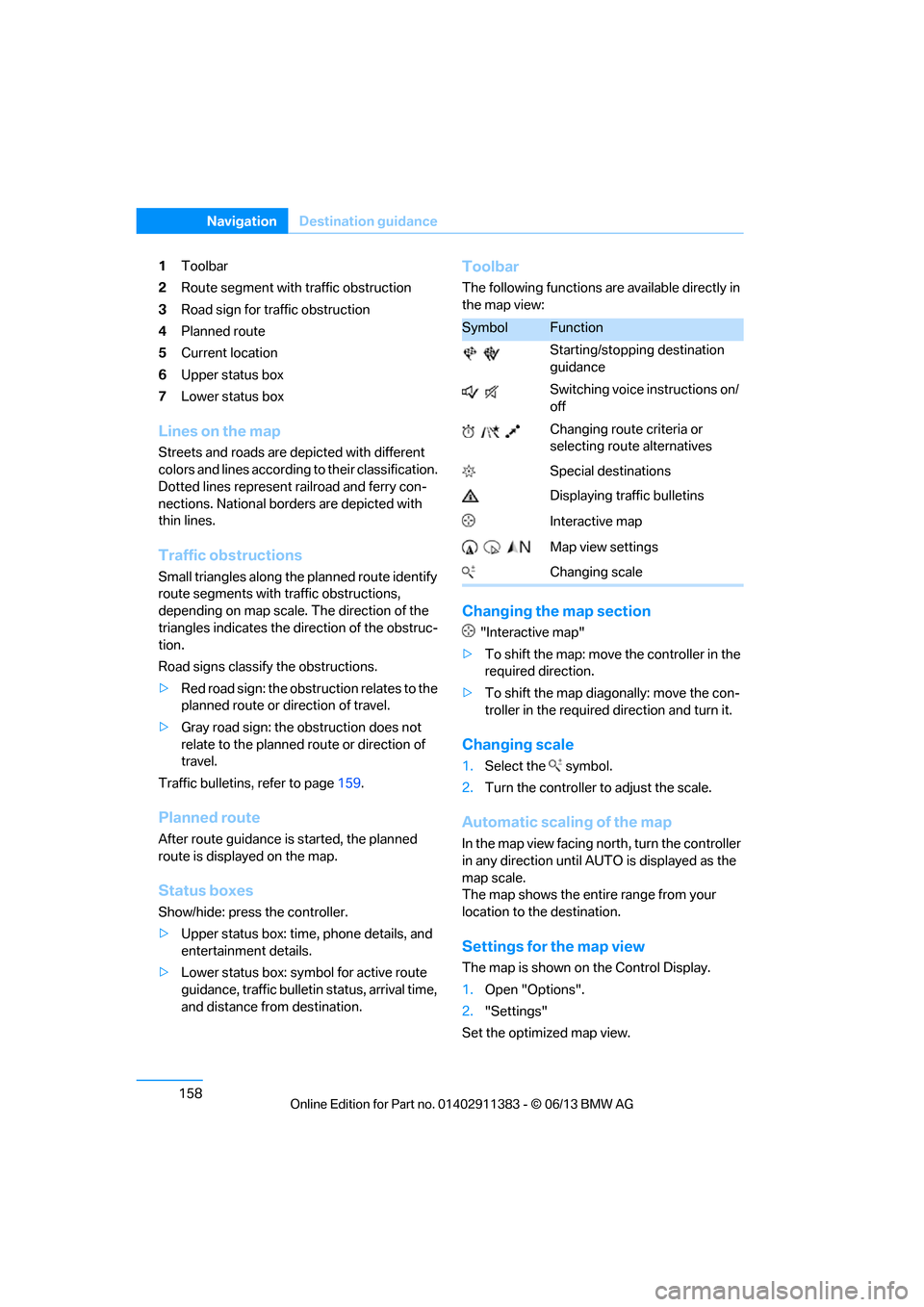
1Toolbar
2 Route segment with traffic obstruction
3 Road sign for traffic obstruction
4 Planned route
5 Current location
6 Upper status box
7 Lower status box
Lines on the map
Streets and roads are depicted with different
colors and lines according to their classification.
Dotted lines represent railroad and ferry con-
nections. National borders are depicted with
thin lines.
Traffic obstructions
Small triangles along the planned route identify
route segments with traffic obstructions,
depending on map scale. The direction of the
triangles indicates the di rection of the obstruc-
tion.
Road signs classify the obstructions.
> Red road sign: the obstruction relates to the
planned route or direction of travel.
> Gray road sign: the obstruction does not
relate to the planned route or direction of
travel.
Traffic bulletins, refer to page 159.
Planned route
After route guidance is started, the planned
route is displa yed on the map.
Status boxes
Show/hide: press the controller.
>Upper status box: time, phone details, and
entertainment details.
> Lower status box: symbol for active route
guidance, traffic bulletin status, arrival time,
and distance from destination.
Toolbar
The following functions are available directly in
the map view:
Changing the map section
"Interactive map"
> To shift the map: move the controller in the
required direction.
> To shift the map diag onally: move the con-
troller in the required direction and turn it.
Changing scale
1.Select the symbol.
2. Turn the controller to adjust the scale.
Automatic scaling of the map
In the map view facing no rth, turn the controller
in any direction until AUTO is displayed as the
map scale.
The map shows the entire range from your
location to the destination.
Settings for the map view
The map is shown on the Control Display.
1. Open "Options".
2. "Settings"
Set the optimized map view.
SymbolFunction
Starting/stopping destination
guidance
Switching voice instructions on/
off
Changing route criteria or
selecting route alternatives
Special destinations
Displaying traffic bulletins
Interactive map
Map view settings
Changing scale
00320051004F004C00510048000300280047004C0057004C005200510003
Page 166 of 311
161
Destination guidance
Navigation
Additional information in the map view
Depending on the map scale, a traffic obstruc-
tion's length, direction
and impact are displayed
on the map using triangles or gray bars along
the calculated route.
> Red: traffic congestion
> Orange: stop-and-go traffic
> Yellow: heavy traffic
> Green: clear roads
> Gray: general traffic information, e.g.
construction zone
The bulletins displayed depend in the respec-
tive traffic information service.
Filtering traffic bulletins
Set which traffic bulletins are displayed on the
map.
1. "Navigation"
2. "Map"
3. Open "Options".
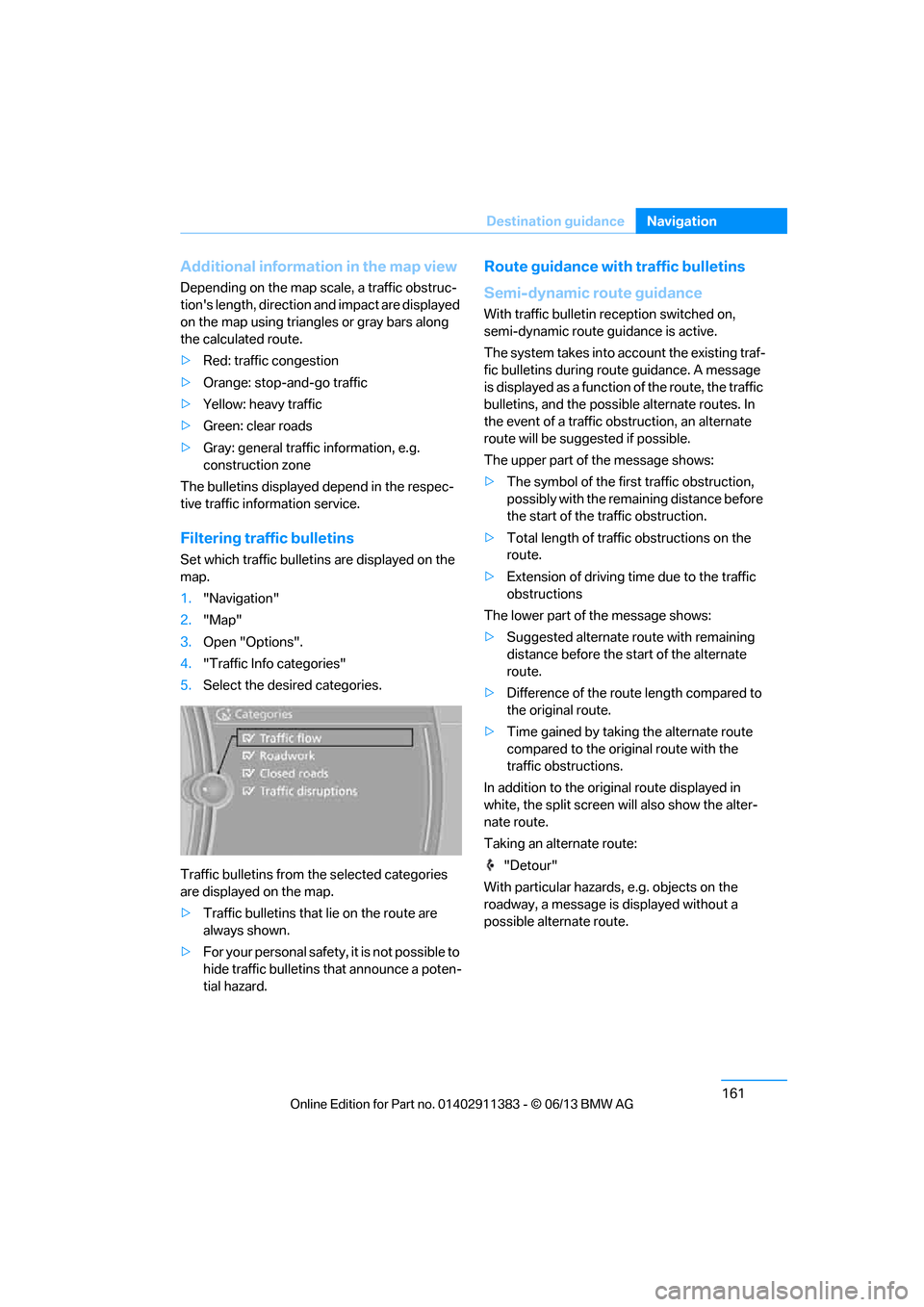
4. "Traffic Info categories"
5. Select the desired categories.
Traffic bulletins from th e selected categories
are displayed on the map.
> Traffic bulletins that lie on the route are
always shown.
> For your personal safety, it is not possible to
hide traffic bulletins that announce a poten-
tial hazard.
Route guidance with traffic bulletins
Semi-dynamic route guidance
With traffic bulletin re ception switched on,
semi-dynamic route guidance is active.
The system takes into ac count the existing traf-
fic bulletins during route guidance. A message
is displayed as a function of the route, the traffic
bulletins, and the possible alternate routes. In
the event of a traffic obstruction, an alternate
route will be suggested if possible.
The upper part of the message shows:
> The symbol of the first traffic obstruction,
possibly with the remaining distance before
the start of the traffic obstruction.
> Total length of traffic obstructions on the
route.
> Extension of driving ti me due to the traffic
obstructions
The lower part of the message shows:
> Suggested alternate route with remaining
distance before the st art of the alternate
route.
> Difference of the route length compared to
the original route.
> Time gained by taking the alternate route
compared to the original route with the
traffic obstructions.
In addition to the original route displayed in
white, the split screen will also show the alter-
nate route.
Taking an alternate route:
"Detour"
With particular hazards, e.g. objects on the
roadway, a message is displayed without a
possible alternate route.
00320051004F004C00510048000300280047004C0057004C005200510003
Page 182 of 311
177
Satellite radio
Entertainment
Managing favorites
Activating/deactivating favorites
Favorites can be activated or deactivated
globally and individually.
1.
"Satellite radio"
2. "Manage favorites"
3. Select "Activate alert" or desired favorites.
The setting is stored for the remote control
currently in use.
Deleting favorites
1. "Satellite radio"
2. "Manage favorites"
3. Highlight the favorites you wish to delete.
4. Open "Options".
5. "Delete entry"
Traffic Jump
Traffic and weather information for a selected
region are broadcast at intervals of a few
minutes.
Selecting region
1."Radio"
2. "Satellite radio"
3. Open "Options".
4. "Set jump"
5. Select the desired region.
The region is stored for the remote control
currently in use.
Activating/deactivating Jump
1. "Radio"
2. "Satellite radio"
3. "Jump to:"
As soon as information about the selected
region becomes availabl e, it is broadcast.
A new panel appears in the display.
Cancel Traffic Jump: "Cancel".
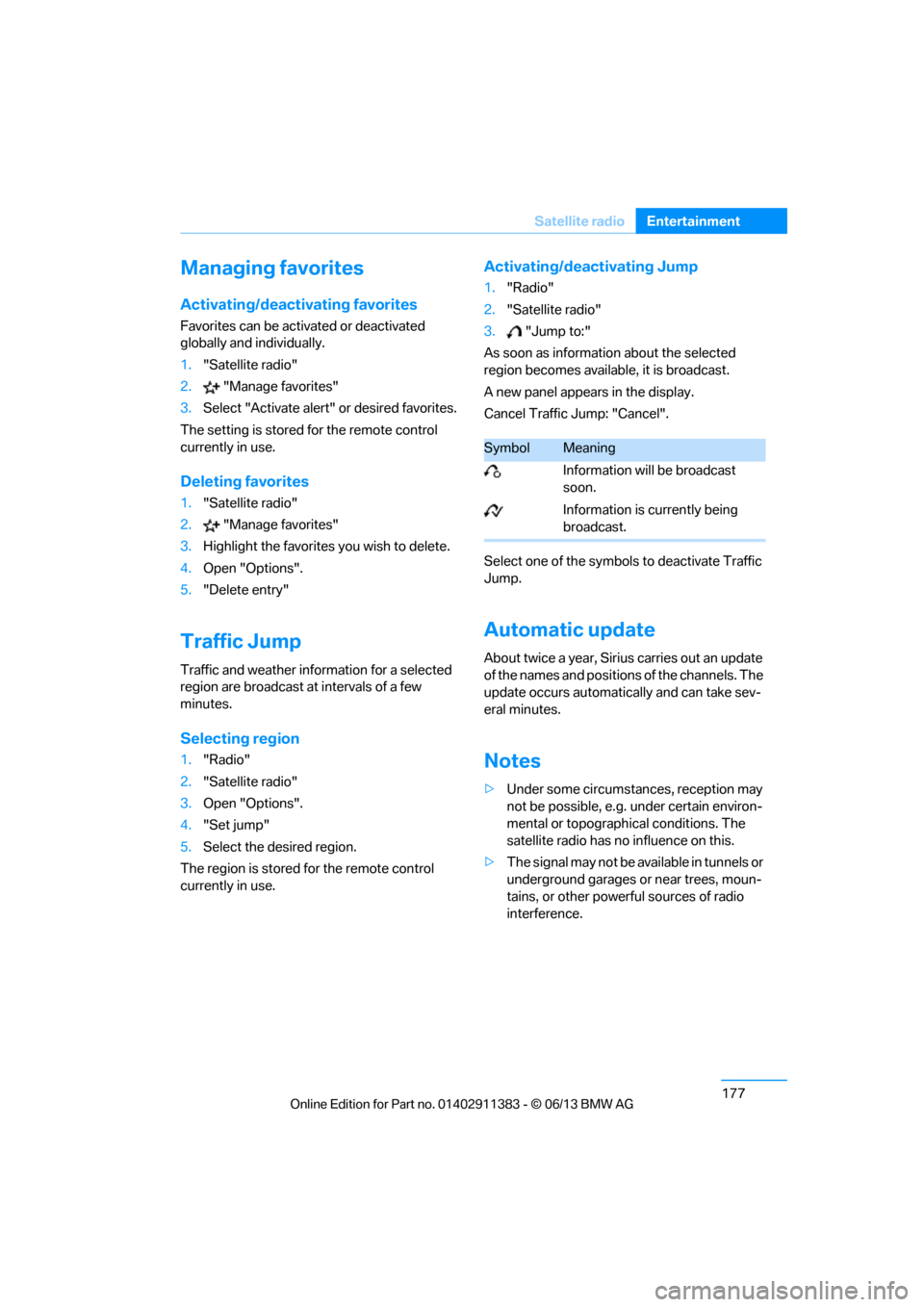
Select one of the symbol s to deactivate Traffic
Jump.
Automatic update
About twice a year, Sirius carries out an update
of the names and positions of the channels. The
update occurs automati cally and can take sev-
eral minutes.
Notes
> Under some circumstances, reception may
not be possible, e.g. under certain environ-
mental or topographical conditions. The
satellite radio has no influence on this.
> The signal may not be available in tunnels or
underground garages or near trees, moun-
tains, or other powerful sources of radio
interference.
SymbolMeaning
Information will be broadcast
soon.
Information is currently being
broadcast.
00320051004F004C00510048000300280047004C0057004C005200510003
Page 185 of 311
180
EntertainmentCD/DVD player
Fast forward/reverse
Press and hold the button for the
corresponding direction.
Video playback
Country codes
Only DVDs with the code of the home region
can be played back; also refer to the information
on your DVD.
Starting playback
For your own safety, the video image is only dis-
played up to approx. 2 mph/3 km/h and in some
market-specific versions, only with the parking
brake engaged or the selector lever of the auto-
matic transmission is in the park position.
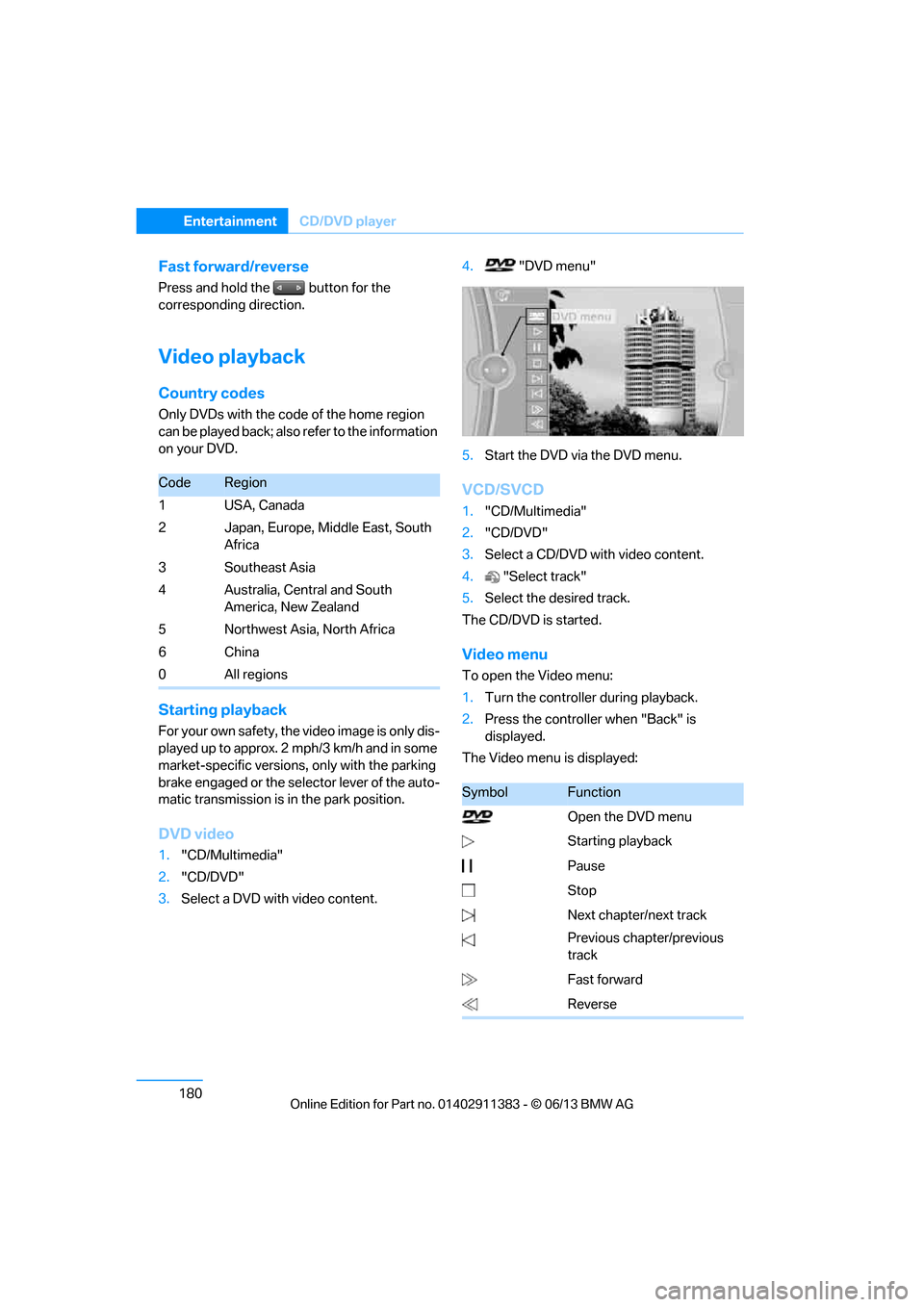
DVD video
1. "CD/Multimedia"
2. "CD/DVD"
3. Select a DVD with video content. 4.
"DVD menu"
5. Start the DVD via the DVD menu.
VCD/SVCD
1."CD/Multimedia"
2. "CD/DVD"
3. Select a CD/DVD with video content.
4. "Select track"
5. Select the desired track.
The CD/DVD is started.
Video menu
To open the Video menu:
1. Turn the controller during playback.
2. Press the controller when "Back" is
displayed.
The Video menu is displayed:
CodeRegion
1USA, Canada
2 Japan, Europe, Middle East, South Africa
3Southeast Asia
4 Australia, Central and South America, New Zealand
5 Northwest Asia, North Africa
6China
0 All regions
SymbolFunction
Open the DVD menu
Starting playback
Pause
Stop
Next chapter/next track
Previous chapter/previous
track
Fast forward
Reverse
00320051004F004C00510048000300280047004C0057004C005200510003
Page 186 of 311
181
CD/DVD player
Entertainment
In fast forward/reverse: the speed increases
every time the controller is pressed. To stop,
start playback.
DVD menu
1.
If necessary, turn the controller to open the
Video menu.
2. "DVD menu"
The DVD menu is displayed. The display
depends on the contents of the DVD.
> To select menu items: move and press the
controller.
> To change to the Video menu: turn the
controller and select "Back".
DVD/VCD settings
For some DVDs, settings can only be made via
the DVD menu; also refer to the information on
your DVD.
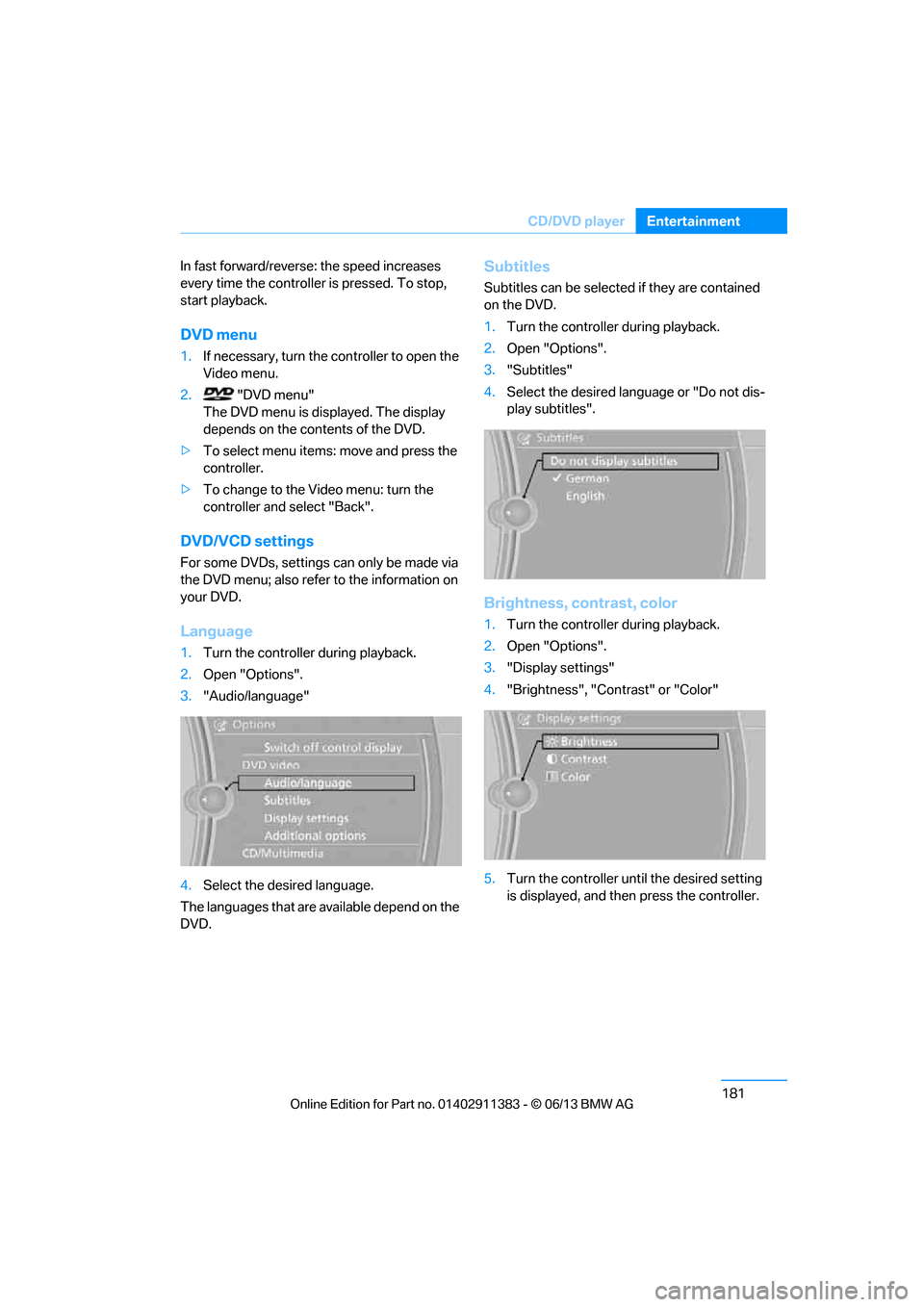
Language
1.Turn the controller during playback.
2. Open "Options".
3. "Audio/language"
4. Select the desired language.
The languages that are available depend on the
DVD.
Subtitles
Subtitles can be selected if they are contained
on the DVD.
1. Turn the controller during playback.
2. Open "Options".
3. "Subtitles"
4. Select the desired language or "Do not dis-
play subtitles".
Brightness, contrast, color
1.Turn the controller during playback.
2. Open "Options".
3. "Display settings"
4. "Brightness", "Contrast" or "Color"
5. Turn the controller unt il the desired setting
is displayed, and then press the controller.
00320051004F004C00510048000300280047004C0057004C005200510003