start BMW 3 SERIES CONVERTIBLE 2013 E93 Workshop Manual
[x] Cancel search | Manufacturer: BMW, Model Year: 2013, Model line: 3 SERIES CONVERTIBLE, Model: BMW 3 SERIES CONVERTIBLE 2013 E93Pages: 311, PDF Size: 7.05 MB
Page 219 of 311
214
CommunicationsOffice
Contacts
General information
Contacts can be created and edited. The con-
tacts from the mobile phone are displayed as
well if this function is supported by the mobile
phone. The addresses can be used as destina-
tions for navigation and the phone numbers can
be dialed.
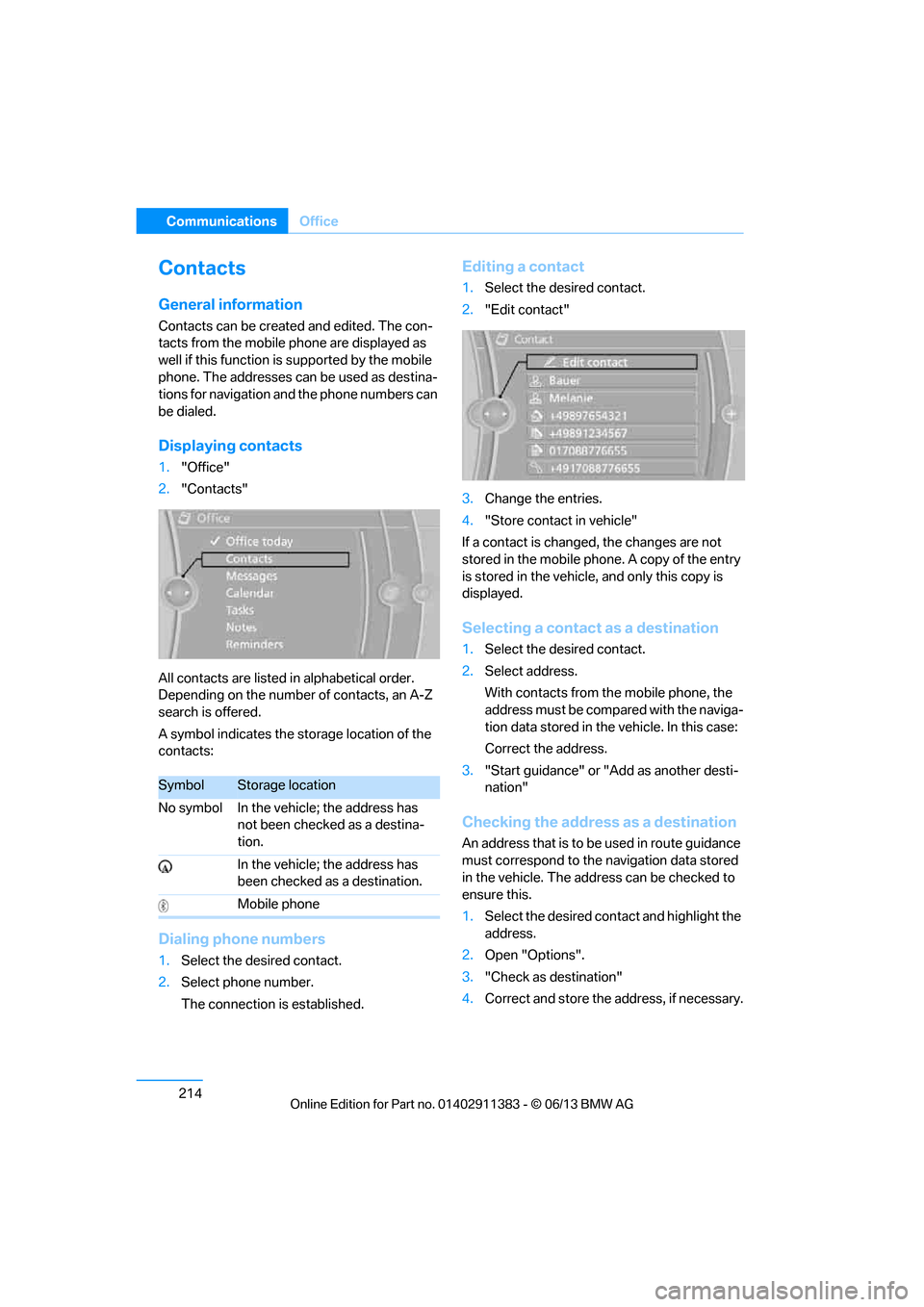
Displaying contacts
1. "Office"
2. "Contacts"
All contacts are listed in alphabetical order.
Depending on the number of contacts, an A-Z
search is offered.
A symbol indicates the storage location of the
contacts:
Dialing phone numbers
1. Select the desired contact.
2. Select phone number.
The connection is established.
Editing a contact
1.Select the desired contact.
2. "Edit contact"
3. Change the entries.
4. "Store contact in vehicle"
If a contact is changed, the changes are not
stored in the mobile phone. A copy of the entry
is stored in the vehicle, and only this copy is
displayed.
Selecting a contact as a destination
1. Select the desired contact.
2. Select address.
With contacts from the mobile phone, the
address must be compared with the naviga-
tion data stored in the vehicle. In this case:
Correct the address.
3. "Start guidance" or "Add as another desti-
nation"
Checking the address as a destination
An address that is to be used in route guidance
must correspond to the navigation data stored
in the vehicle. The address can be checked to
ensure this.
1. Select the desired contact and highlight the
address.
2. Open "Options".
3. "Check as destination"
4. Correct and store the address, if necessary.
SymbolStorage location
No symbol In the vehicle; the address has not been checked as a destina-
tion.
In the vehicle; the address has
been checked as a destination.
Mobile phone
00320051004F004C00510048000300280047004C0057004C005200510003
Page 222 of 311
217
Office
Communications
Deleting messages
Messages from the Concierge service, My Info,
BMW Info, and BMW Online can be deleted.
To delete a message:
1.
"Office"
2. "Messages"
3. Select the desired message.
4. Open "Options".
5. Open "Delete message".
To delete all messages:
1. "Office"
2. "Messages"
3. Open "Options".
4. "Delete all messages"
Text message
Calling a text message sender
1.Select the desired message.
2. Select the symbol.
Saving sender in the contacts
1.Highlight the desired message.
2. Open "Options".
3. "Store as new contact" or "Add to existing
contact"
Using contact data
Contact data from de adlines, tasks, text
messages, e-mails and no tes can be stored or
selected, see page 220.
Reading text messages aloud
Having text messages read aloud, refer to
page221.
My Info
Selecting additional functions
Additional functions are available when a
message is selected.
Messages from the Concierge service
Saving an address
1. Select the desired message.
2. Open "Options".
3. "Store contact in vehicle"
Selecting additional functions
Additional functions are available when a
message is selected.
SymbolFunction
"Start guidance" or "Add as another
destination"
"Call"
If the message contains a number, a
telephone connection is estab-
lished.
"Select phone number"
If the message contains more than
one number, select the desired
number from the list. A telephone
connection is established.
SymbolFunction
"Start guidance" or "Add as another
destination"
"Call"
If the message contains a number, a
telephone connection is estab-
lished.
00320051004F004C00510048000300280047004C0057004C005200510003
Page 223 of 311
218
CommunicationsOffice
BMW Info
General information
Messages from BMW about technical
campaigns and news from BMW.
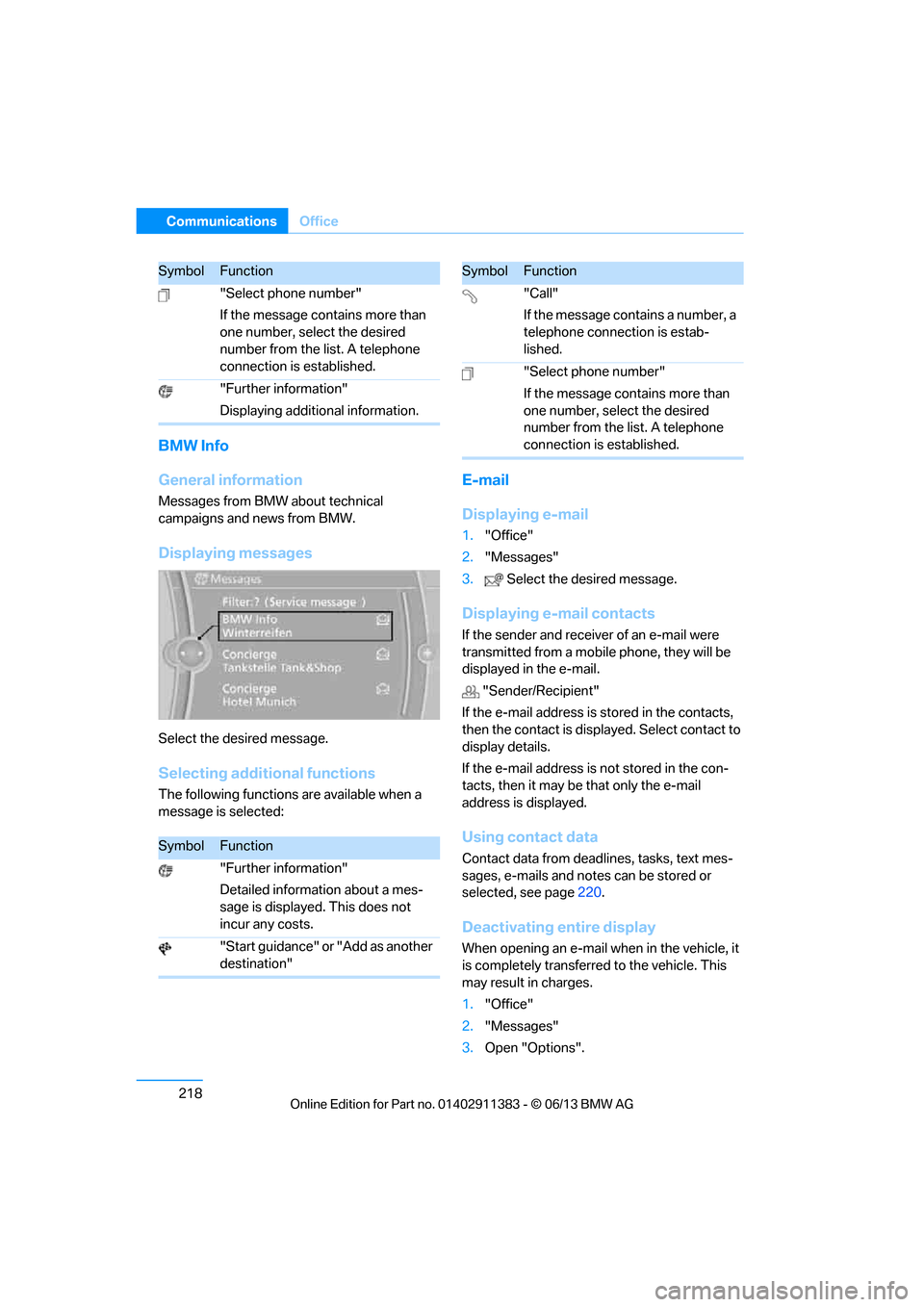
Displaying messages
Select the desired message.
Selecting additional functions
The following functions are available when a
message is selected:
E-mail
Displaying e-mail
1."Office"
2. "Messages"
3. Select the desired message.
Displaying e-mail contacts
If the sender and receiv er of an e-mail were
transmitted from a mobile phone, they will be
displayed in the e-mail.
"Sender/Recipient"
If the e-mail address is stored in the contacts,
then the contact is displa yed. Select contact to
display details.
If the e-mail address is not stored in the con-
tacts, then it may be that only the e-mail
address is displayed.
Using contact data
Contact data from dead lines, tasks, text mes-
sages, e-mails and notes can be stored or
selected, see page 220.
Deactivating entire display
When opening an e-mail when in the vehicle, it
is completely transferred to the vehicle. This
may result in charges.
1."Office"
2. "Messages"
3. Open "Options".
"Select phone number"
If the message contains more than
one number, select the desired
number from the list. A telephone
connection is established.
"Further information"
Displaying additional information.
SymbolFunction
"Further information"
Detailed information about a mes-
sage is displayed. This does not
incur any costs.
"Start guidance" or "Add as another
destination"
SymbolFunction
"Call"
If the message contains a number, a
telephone connection is estab-
lished.
"Select phone number"
If the message contains more than
one number, select the desired
number from the list. A telephone
connection is established.
SymbolFunction
00320051004F004C00510048000300280047004C0057004C005200510003
Page 228 of 311
223
Contacts
Communications
Displaying contacts
1.
"Contacts"
2. "My contacts"
All contacts are listed in alphabetical order.
Depending on the number of contacts, an A-Z
search is offered.
A symbol indicates the storage location of the
contacts:
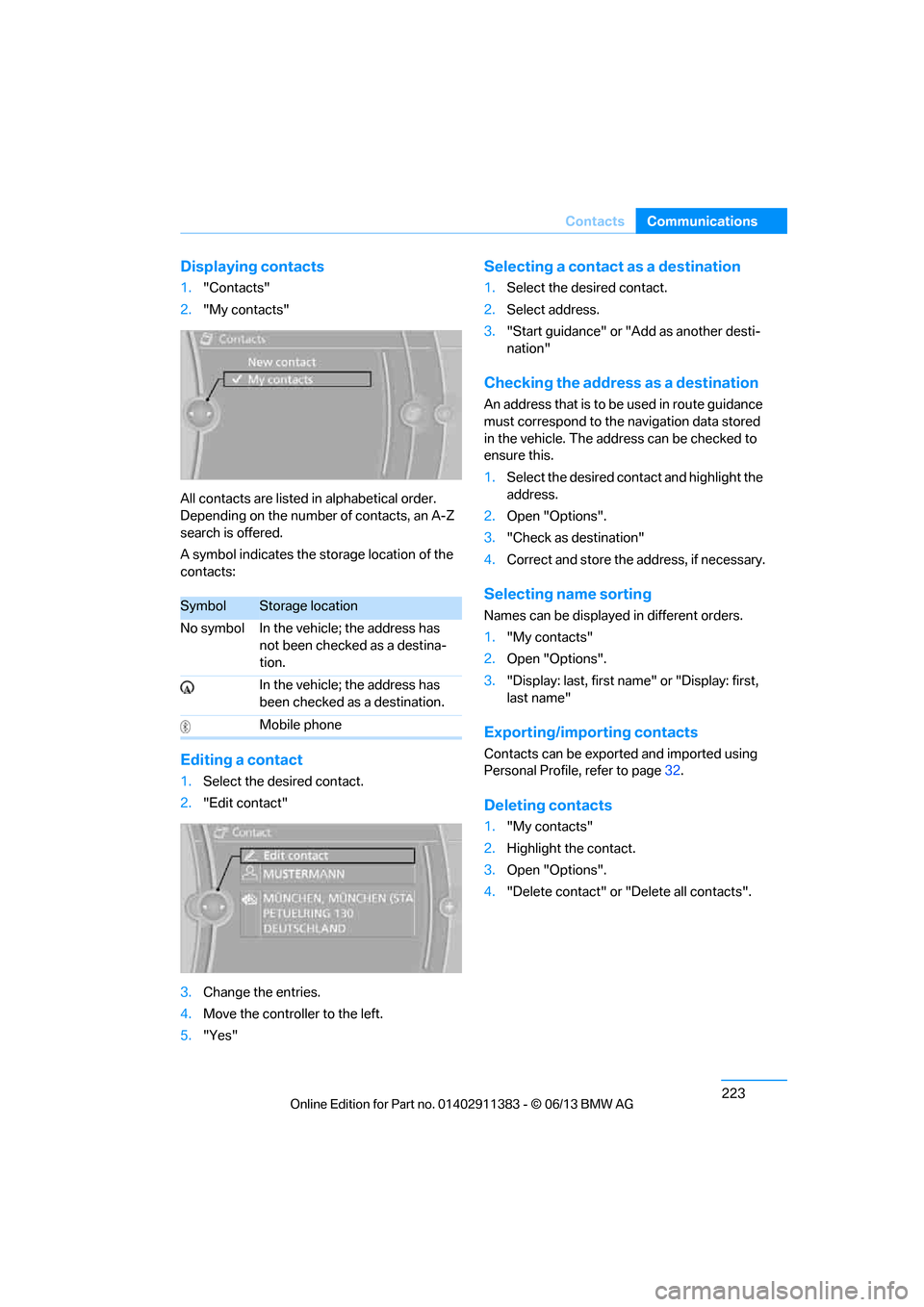
Editing a contact
1. Select the desired contact.
2. "Edit contact"
3. Change the entries.
4. Move the controller to the left.
5. "Yes"
Selecting a contact as a destination
1.Select the desired contact.
2. Select address.
3. "Start guidance" or "Add as another desti-
nation"
Checking the address as a destination
An address that is to be used in route guidance
must correspond to the na vigation data stored
in the vehicle. The address can be checked to
ensure this.
1. Select the desired contact and highlight the
address.
2. Open "Options".
3. "Check as destination"
4. Correct and store the address, if necessary.
Selecting name sorting
Names can be displayed in different orders.
1."My contacts"
2. Open "Options".
3. "Display: last, first name " or "Display: first,
last name"
Exporting/importing contacts
Contacts can be exported and imported using
Personal Profile, refer to page 32.
Deleting contacts
1."My contacts"
2. Highlight the contact.
3. Open "Options".
4. "Delete contact" or "Delete all contacts".
SymbolStorage location
No symbol In the vehicle; the address has not been checked as a destina-
tion.
In the vehicle; the address has
been checked as a destination.
Mobile phone
00320051004F004C00510048000300280047004C0057004C005200510003
Page 230 of 311
225
ConnectedDrive
Communications
>
In addition, the optional Convenience Plan
offers Concierge servic e and information on
route planning, the traffic situation and
weather. Using Critical Calling, a limited
number of calls can be made via the BMW
Assist Response Center, for example if the
mobile phone is not available or discharged.
Press the SOS button to contact the BMW
Assist Response Center.
TeleService
General information
TeleService supports comm unication with your
BMW center.
> Data on the vehicle's service requirements
can be sent directly to the BMW center. In
this way, the BMW center can plan its work
in advance. This shor tens the duration of
the service appointment.
> In the event of a breakdown, data on the
vehicle's condition can be sent directly to
Roadside Assistance.
> The service varies by country.
> Connection may incur charges.
> Services may be restricted abroad.
Requirements
>BMW Assist is activated.
> Wireless reception is available.
> Ignition switched on.
Using TeleService
Generally, TeleService is activated in the
vehicle.
If TeleService is not activated, it is possible to
establish a voice contact to the BMW Group
Mobile Service.
For additional uses or to deactivate the ser-
vices, consult your BMW center or contact
Customer Relations.
Concierge service
General information
The Concierge service of BMW Assist will
inform you, for example, about upcoming
events, filling station, or hotels and supplies you
with their phone numbers and addresses. Many
hotels can be booked directly through the BMW
Assist Concierge service. Use of the Concierge
service requires an additi onal activation by the
BMW Assist Response Center.
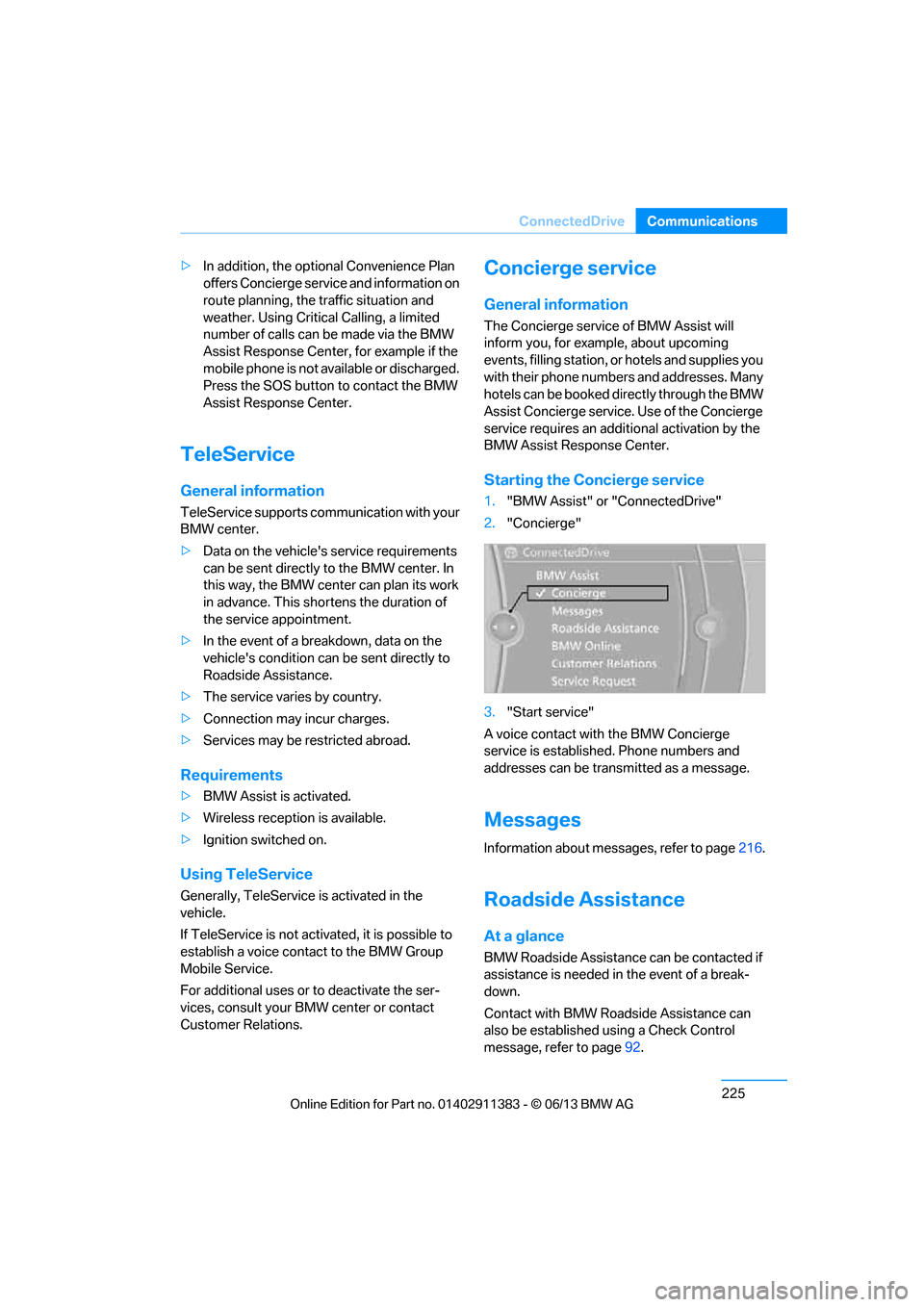
Starting the Concierge service
1. "BMW Assist" or "ConnectedDrive"
2. "Concierge"
3. "Start service"
A voice contact with the BMW Concierge
service is established. Phone numbers and
addresses can be transmitted as a message.
Messages
Information about messages, refer to page 216.
Roadside Assistance
At a glance
BMW Roadside Assistance can be contacted if
assistance is needed in the event of a break-
down.
Contact with BMW Roadside Assistance can
also be established using a Check Control
message, refer to page92.
00320051004F004C00510048000300280047004C0057004C005200510003
Page 231 of 311
226
CommunicationsConnectedDrive
Starting BMW Roadside Assistance
without BMW Assist or TeleService
1."BMW Assist" or "ConnectedDrive"
2. "Roadside Assistance"
The Roadside Assistance number is
displayed. If a mobile phone is paired, a
connection to BMW Roadside Assistance is
established.
Starting BMW Road side Assistance
with BMW Assist or TeleService
In a vehicle with TeleServ ice, assistance is first
offered through the TeleService Diagnosis and
then if necessary, th rough the TeleService
Help.
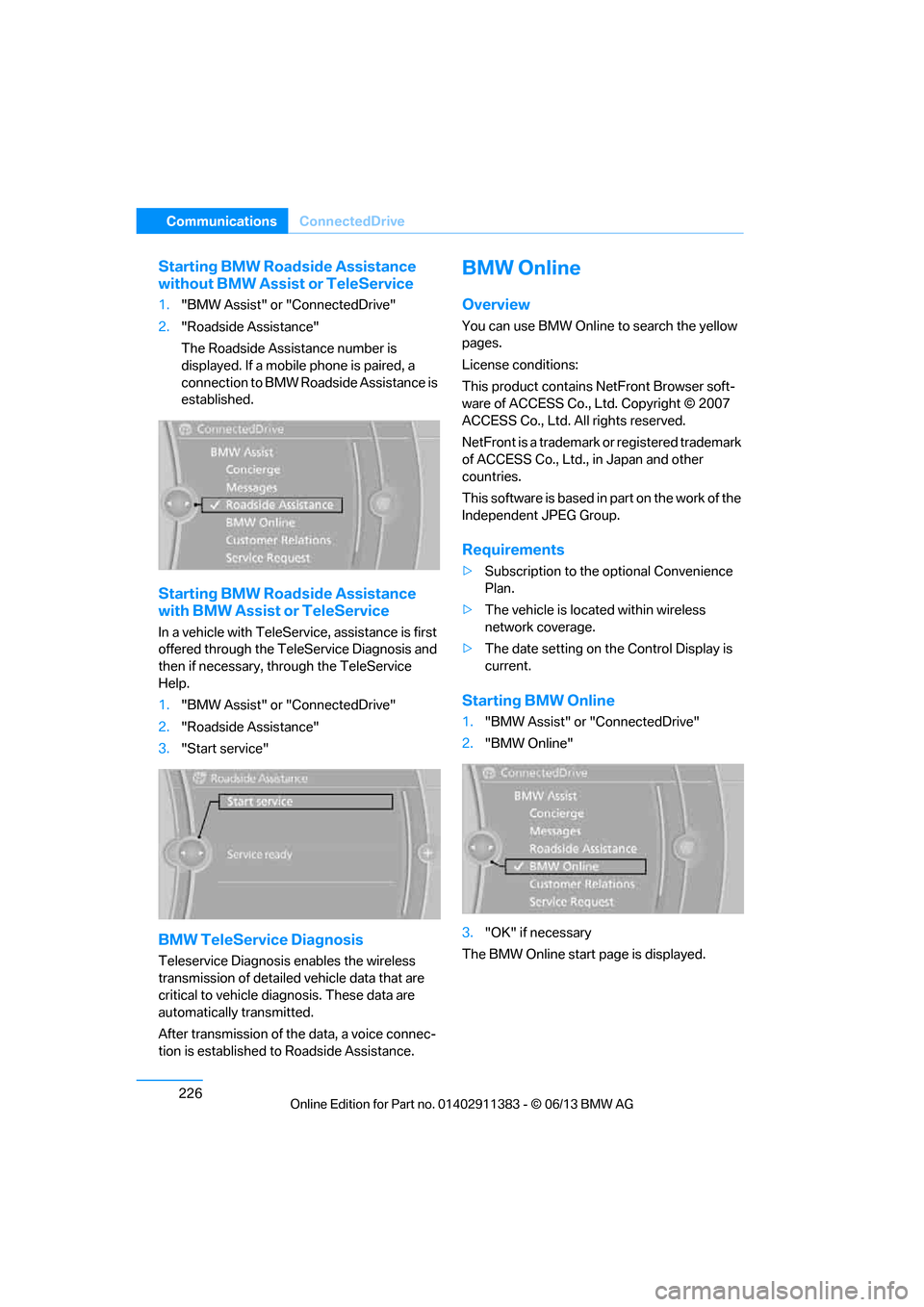
1. "BMW Assist" or "ConnectedDrive"
2. "Roadside Assistance"
3. "Start service"
BMW TeleService Diagnosis
Teleservice Diagnosis enables the wireless
transmission of detailed vehicle data that are
critical to vehicle diag nosis. These data are
automatically transmitted.
After transmission of the data, a voice connec-
tion is established to Roadside Assistance.
BMW Online
Overview
You can use BMW Online to search the yellow
pages.
License conditions:
This product contains NetFront Browser soft-
ware of ACCESS Co., Ltd. Copyright © 2007
ACCESS Co., Ltd. All rights reserved.
NetFront is a trademark or registered trademark
of ACCESS Co., Ltd., in Japan and other
countries.
T h i s s o f t w a r e i s b a s e d i n p a r t o n t h e w o r k o f t h e
Independent JPEG Group.
Requirements
> Subscription to the optional Convenience
Plan.
> The vehicle is located within wireless
network coverage.
> The date setting on th e Control Display is
current.
Starting BMW Online
1. "BMW Assist" or "ConnectedDrive"
2. "BMW Online"
3. "OK" if necessary
The BMW Online start page is displayed.
00320051004F004C00510048000300280047004C0057004C005200510003
Page 232 of 311
227
ConnectedDrive
Communications
Using BMW Online
To select and display content:
>
Turn the controller to highlight an element.
> Press the controller to display an element.
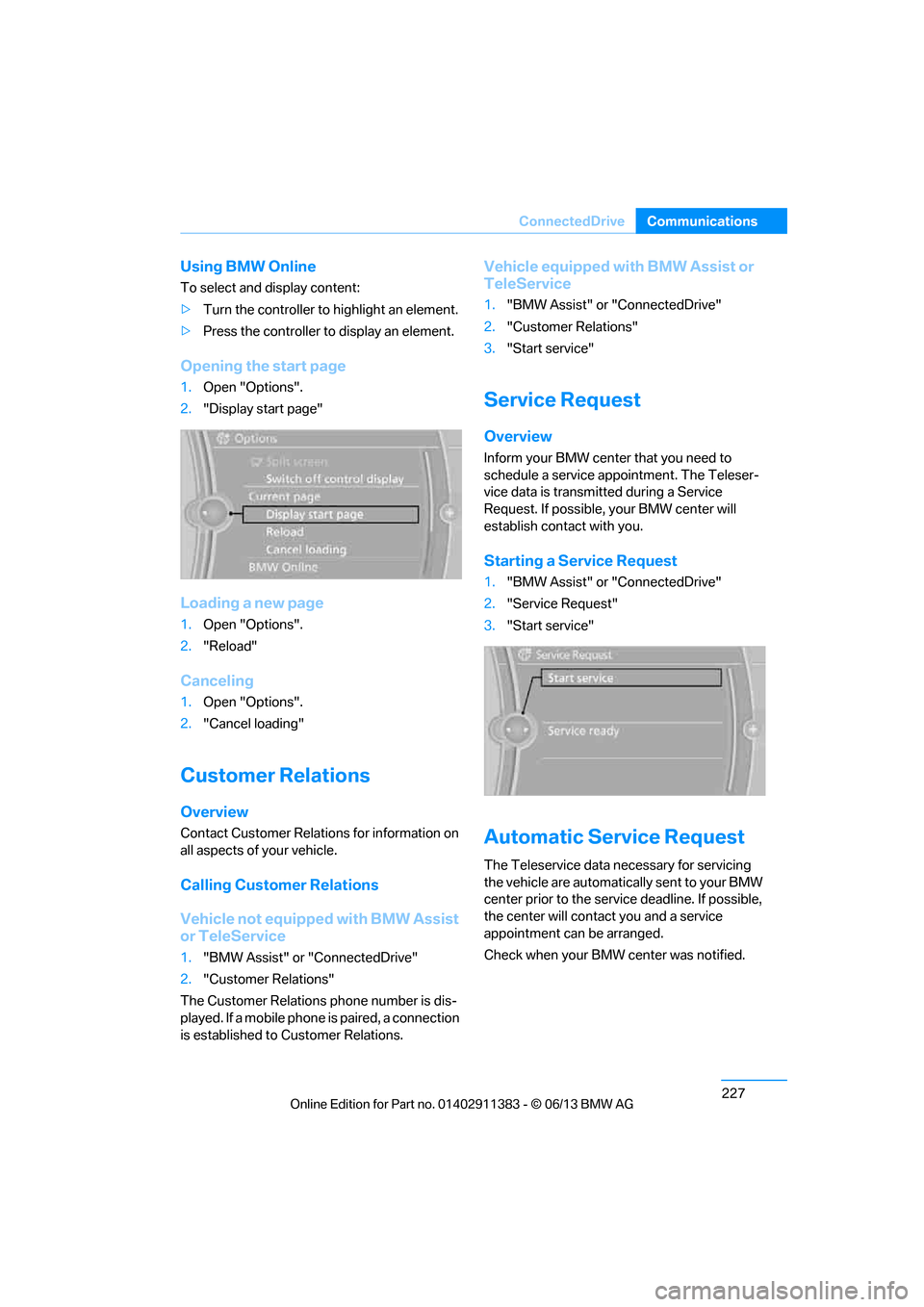
Opening the start page
1.Open "Options".
2. "Display start page"
Loading a new page
1.Open "Options".
2. "Reload"
Canceling
1.Open "Options".
2. "Cancel loading"
Customer Relations
Overview
Contact Customer Relations for information on
all aspects of your vehicle.
Calling Customer Relations
Vehicle not equipped with BMW Assist
or TeleService
1."BMW Assist" or "ConnectedDrive"
2. "Customer Relations"
The Customer Relations phone number is dis-
played. If a mobile phone is paired, a connection
is established to Customer Relations.
Vehicle equipped with BMW Assist or
TeleService
1."BMW Assist" or "ConnectedDrive"
2. "Customer Relations"
3. "Start service"
Service Request
Overview
Inform your BMW center that you need to
schedule a service appointment. The Teleser-
vice data is transmitted during a Service
Request. If possible, your BMW center will
establish contact with you.
Starting a Service Request
1."BMW Assist" or "ConnectedDrive"
2. "Service Request"
3. "Start service"
Automatic Serv ice Request
The Teleservice data ne cessary for servicing
the vehicle are automatica lly sent to your BMW
center prior to the servic e deadline. If possible,
the center will contac t you and a service
appointment can be arranged.
Check when your BMW center was notified.
00320051004F004C00510048000300280047004C0057004C005200510003
Page 234 of 311
229
ConnectedDrive
Communications
Plugin
Selected functions of the mobile phone are
displayed on the Control
Display. They can be
operated via iDrive.
1. Connect the mobile phone using the snap-
in adapter.
2. "ConnectedDrive"
3. "PlugIn"
4. "Activate PlugIn"
5. Use the controller to navigate in the dis-
played functions and select the desired
category or track, for example.
Press the button to move one level up or
back within the func tions of the mobile
phone.
Press the button twice to return back to
the main menu.
Notes
>The range of apps that are displayed in the
Control Display depends on the range of
software applications installed on the
mobile phone.
> The data transfer of the software applica-
tions from the mobile phone to the vehicle
may take some time. Some software appli-
cations are dependent on the speed of the
available Internet connection of the mobile
phone.
> Certain versions of the mobile phone used
and the software they use may not permit
apps to be used at the same time as the
Bluetooth hands-free system.
If necessary, restart the software applica-
tion on the mobile phone after completing a
call.
00320051004F004C00510048000300280047004C0057004C005200510003
Page 239 of 311
234
MobilityRefueling
Minimum fuel grade
BMW recommends AKI 89.
Do not use gasoline below the indicated
minimum fuel grade; otherwise, proper
engine function is not ensured. <
If you use gasoline with this minimum AKI rat-
ing, the engine may produce knocking sounds
when starting at high outside temperatures.
This has no effect on the engine life.
The use of poor-quality fuels may result in
harmful engine deposits or damage.
Additionally, problems re lating to drivability,
starting and stalling may occur, especially
under certain environmental conditions such as
high ambient temperatur e and high altitude.
If drivability problems are encountered, we rec-
ommend switching to a high quality gasoline
brand and a higher octane grade — AKI number
— for a few tank fills. To avoid harmful engine
deposits, we highly recommend purchasing
gasoline from BP or Top Tier retailers.
Failure to comply with these recommendations
may result in th e need for unscheduled mainte-
nance. <
00320051004F004C00510048000300280047004C0057004C005200510003
Page 240 of 311
235
Wheels and tires
Mobility
Wheels and tires
Vehicle equipment
In this chapter, all production, country, and
optional equipment that is offered in the model
range is described. For this reason, descrip-
tions will be given of some equipment that may
not be available in a vehi
cle, for example due to
the special options or national-market version
selected. This also app lies to safety related
functions and systems.
Tire inflation pressures
Information for your safety
It is not merely the tire s' service life, but also
driving comfort and, to a great extent, driving
safety that depend on th e condition of the tires
and the maintenance of the specified tire
pressure.
Check the tire inflation pressure regularly
and correct it, if nece ssary: at least twice a
month and before starting long trips. If you fail
to observe this precaution you may be driving
on tires with incorrect tire pressures, a condi-
tion that can not only compromise your vehi-
cle's driving stability, but also lead to tire dam-
age and the risk of an accident. Do not drive
with deflated, i.e. flat tires, except when using
run-flat tires. A flat tire will seriously impair your
vehicle's handling and braking response.
Attempts to drive on a flat tire can lead to loss of
control over the vehicle. <
Checking pressure
Only check tire inflation pressure when the
tires are cold. This means after a maximum of
1.25 miles/2 km driving or when the vehicle has
been parked for at least 2 hours. When tires are
warm, the tire inflation pressure is higher.
After correcting the tire inflation pressure,
reset the Tire Pressure Monitor, refer to
page 103, or reinitialize the Flat Tire Monitor,
refer to page 100.<
Inflation pressure specifications
The tables below provide all the correct inflation
pressures for the specified tire sizes at ambient
temperature.
The inflation pressure s apply to the tire
sizes approved and tire brands recom-
mended by BMW; a list of these is available
from your BMW center. <
For correct identificati on of the right tire
inflation pressures, observe the following:
> Tire sizes for your vehicle
> Maximum allowable driving speed
00320051004F004C00510048000300280047004C0057004C005200510003