ds mode BMW 3 SERIES COUPE 2013 E92 Workshop Manual
[x] Cancel search | Manufacturer: BMW, Model Year: 2013, Model line: 3 SERIES COUPE, Model: BMW 3 SERIES COUPE 2013 E92Pages: 311, PDF Size: 7.05 MB
Page 187 of 311
182
EntertainmentCD/DVD player
Zoom
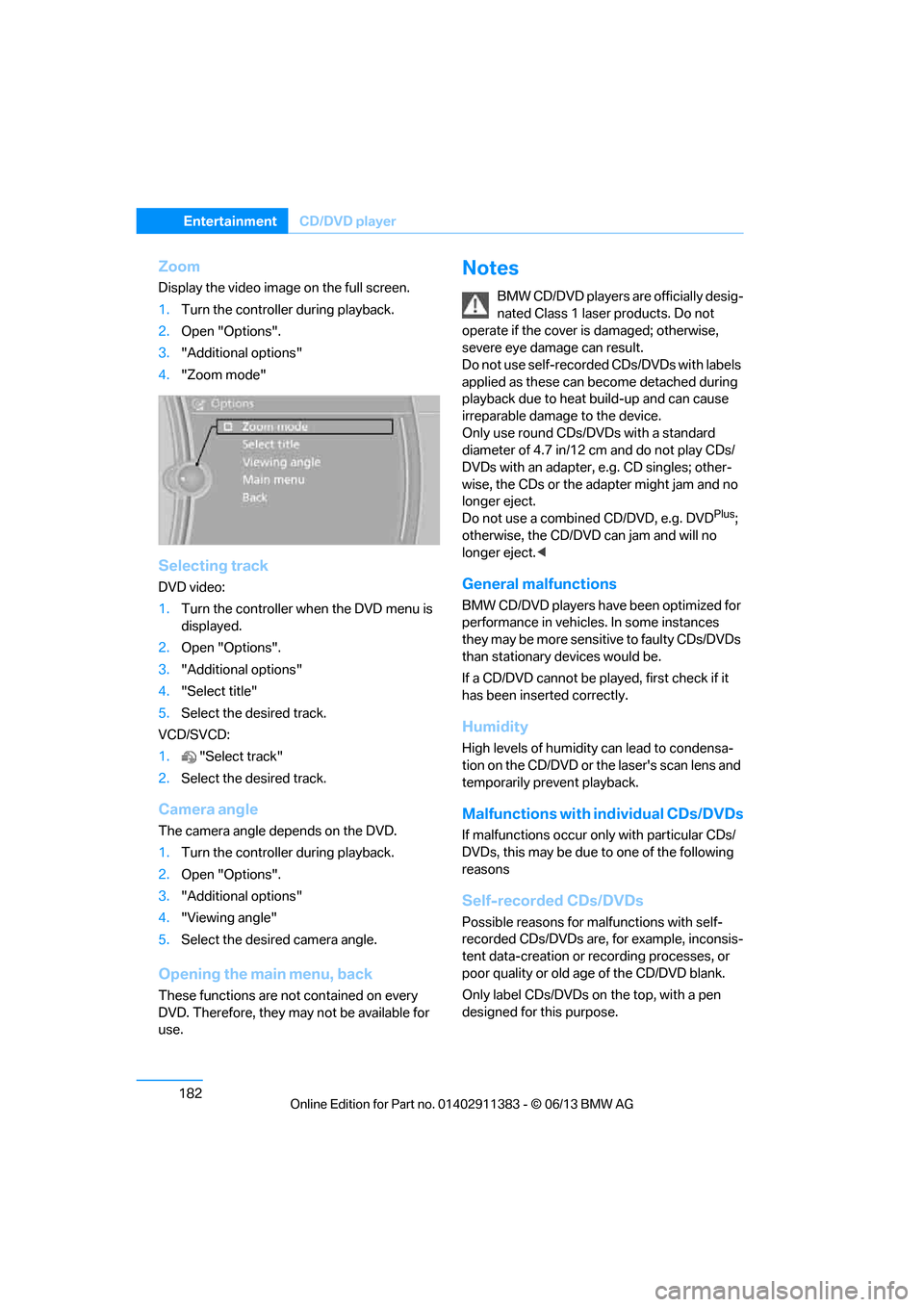
Display the video image on the full screen.
1.Turn the controller during playback.
2. Open "Options".
3. "Additional options"
4. "Zoom mode"
Selecting track
DVD video:
1.Turn the controller wh en the DVD menu is
displayed.
2. Open "Options".
3. "Additional options"
4. "Select title"
5. Select the desired track.
VCD/SVCD:
1. "Select track"
2. Select the desired track.
Camera angle
The camera angle depends on the DVD.
1.Turn the controller during playback.
2. Open "Options".
3. "Additional options"
4. "Viewing angle"
5. Select the desired camera angle.
Opening the ma in menu, back
These functions are not contained on every
DVD. Therefore, they may not be available for
use.
Notes
BMW CD/DVD players ar e officially desig-
nated Class 1 laser products. Do not
operate if the cover is damaged; otherwise,
severe eye damage can result.
Do not use self-recorded CDs/DVDs with labels
applied as these can become detached during
playback due to heat build-up and can cause
irreparable damage to the device.
Only use round CDs/DVDs with a standard
diameter of 4.7 in/12 cm and do not play CDs/
DVDs with an adapter, e.g. CD singles; other-
wise, the CDs or the ad apter might jam and no
longer eject.
Do not use a combined CD/DVD, e.g. DVD
Plus;
otherwise, the CD/DVD can jam and will no
longer eject. <
General malfunctions
BMW CD/DVD players have been optimized for
performance in vehicles. In some instances
they may be more sensitive to faulty CDs/DVDs
than stationary devices would be.
If a CD/DVD cannot be pl ayed, first check if it
has been inserted correctly.
Humidity
High levels of humidity can lead to condensa-
tion on the CD/DVD or th e laser's scan lens and
temporarily prevent playback.
Malfunctions with individual CDs/DVDs
If malfunctions occur on ly with particular CDs/
DVDs, this may be due to one of the following
reasons
Self-recorded CDs/DVDs
Possible reasons for malfunctions with self-
recorded CDs/DVDs are, for example, inconsis-
tent data-creation or recording processes, or
poor quality or old age of the CD/DVD blank.
Only label CDs/DVDs on the top, with a pen
designed for this purpose.
00320051004F004C00510048000300280047004C0057004C005200510003
Page 189 of 311
184
EntertainmentMusic collection
Music collection
Vehicle equipment
In this chapter, all pr oduction, country, and
optional equipment that is offered in the model
range is described. Equipment is also described
that is not available because of, for example,
selected options or country version. This also
applies to safety related functions and systems.
Storing music
The music tracks from CDs, DVDs and USB
devices can be stored in the music collection in
the vehicle and played from there.
> Audio CD: tracks are converted into a com-
pressed audio format when they are stored.
If available, information on the album, such
as the artist, is stored as well.
> CD/DVD or USB device with compressed
audio files: the entire content of the CD/
DVD or the USB device is stored in the vehi-
cle as an album. After storing, the tracks and
directories can be dele ted individually. Files
are only stored in the WMA, MP3, M4A, and
AAC formats.
Tracks with DRM copy protection can be
stored in the vehicle but cannot be played
back.
Regularly back up the music data; other-
wise, it could be lost if there is a fault on
the hard disc.<
Music recognition technology and
related data are provided by
Gracenote®. Gracenote® is the industry
standard in music reco gnition technology and
related content delivery. For more information,
please visit www.gracenote.com.
CD and music-related data from Gracenote,
Inc., copyright © 2000-2009 Gracenote.
Gracenote Software, copyright © 2000-2009
Gracenote. This product and service may prac- tice one or more of the
following U.S. Patents:
5.987.525, 6.061.680, 6.154.773, 6.161.132,
6.230.192, 6.230.207, 6.240.459 and
6.330.593 as well as other granted or pending
patents. Some services supplied under license
from Open Globe, Inc. for U.S. Patent:
6.304.523.
Gracenote and CDDB are registered trade-
marks of Gracenote. The Gracenote logo and
logotype, and the "Powered by Gracenote"
logo are trademarks of Gracenote.Storing files from CDs/DVDs
CDs/DVDs can only be stored from the CD/DVD
player.
1. Insert a CD/DVD into the CD/DVD player.
2. "CD/Multimedia"
3. "CD/DVD"
4. Select the symbol for the CD/DVD
player.
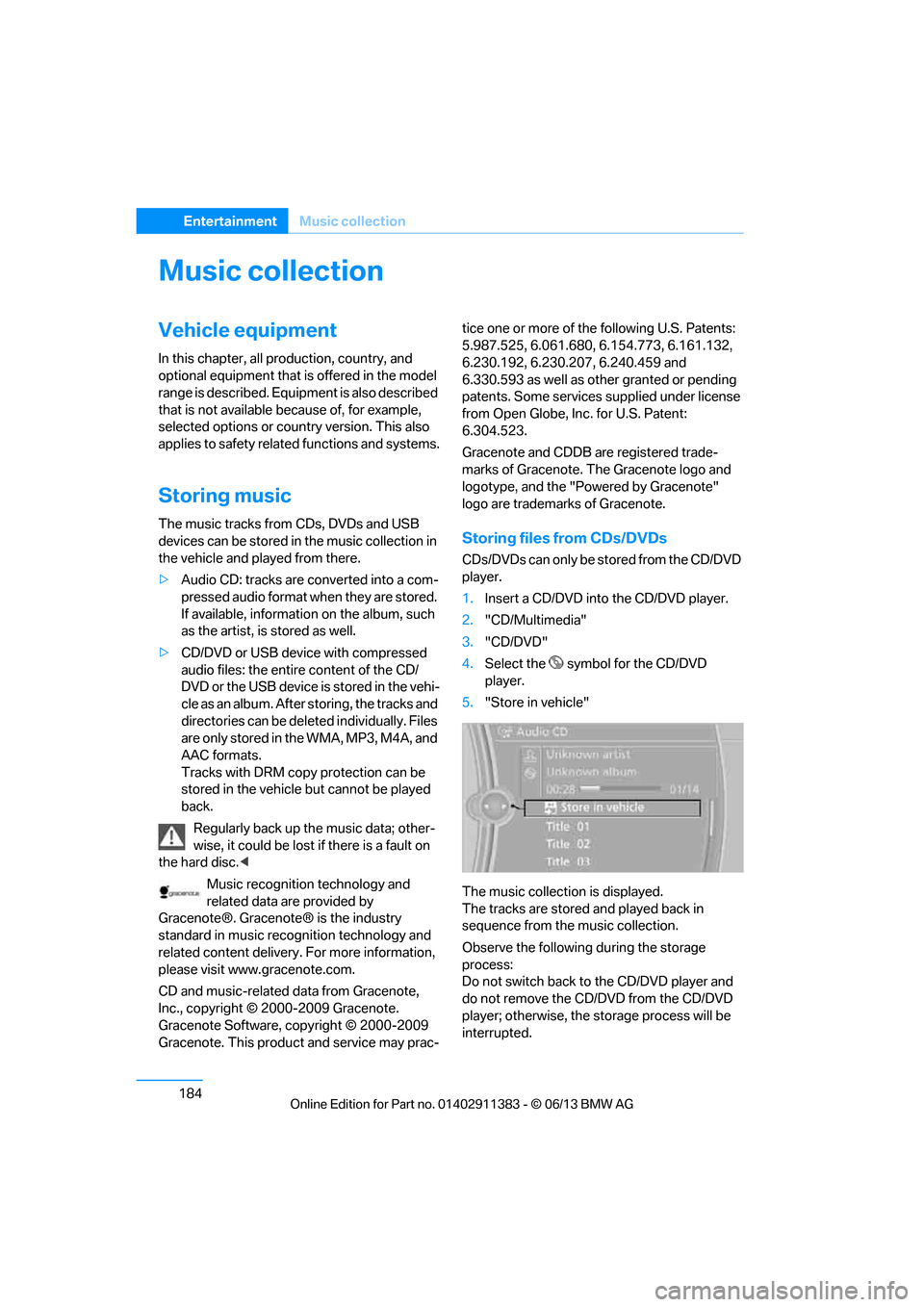
5. "Store in vehicle"
The music collection is displayed.
The tracks are stored and played back in
sequence from the music collection.
Observe the following during the storage
process:
Do not switch back to the CD/DVD player and
do not remove the CD/D VD from the CD/DVD
player; otherwise, the storage process will be
interrupted.
00320051004F004C00510048000300280047004C0057004C005200510003
Page 194 of 311
189
External devices
Entertainment
External devices
Vehicle equipment
In this chapter, all production, country, and
optional equipment that is offered in the model
range is described. Equipment is also described
that is not available because of, for example,
selected options or coun
try version. This also
applies to safety related functions and systems.
Overview
AUX-IN port
Overview
> It is possible to connect audio devices, e.g.
MP3 players. Sound is output over the
vehicle speakers.
> Recommended settings: mid-level tone and
volume settings on th e audio device. Tone
may depend on the quality of the audio files.
Connecting
Lift up the center armrest.
Connection for audio playback:
TRS connector 1/8 in/3.5 mm The AUX-In connection is in the center armrest.
Connect the headphone connection or line-out
connection of the device to the jack plug.
Playback
1.
Connect the audio device, switch it on, and
using the audio device, select a track.
2. "CD/Multimedia"
3. "External devices" if applicable
4. "AUX front"
Sound is output over the vehicle speakers.
Volume
The volume of the sound output depends on
the audio device. If this volume differs markedly
from the volume of the ot her audio sources, it is
advisable to adjust the volumes.
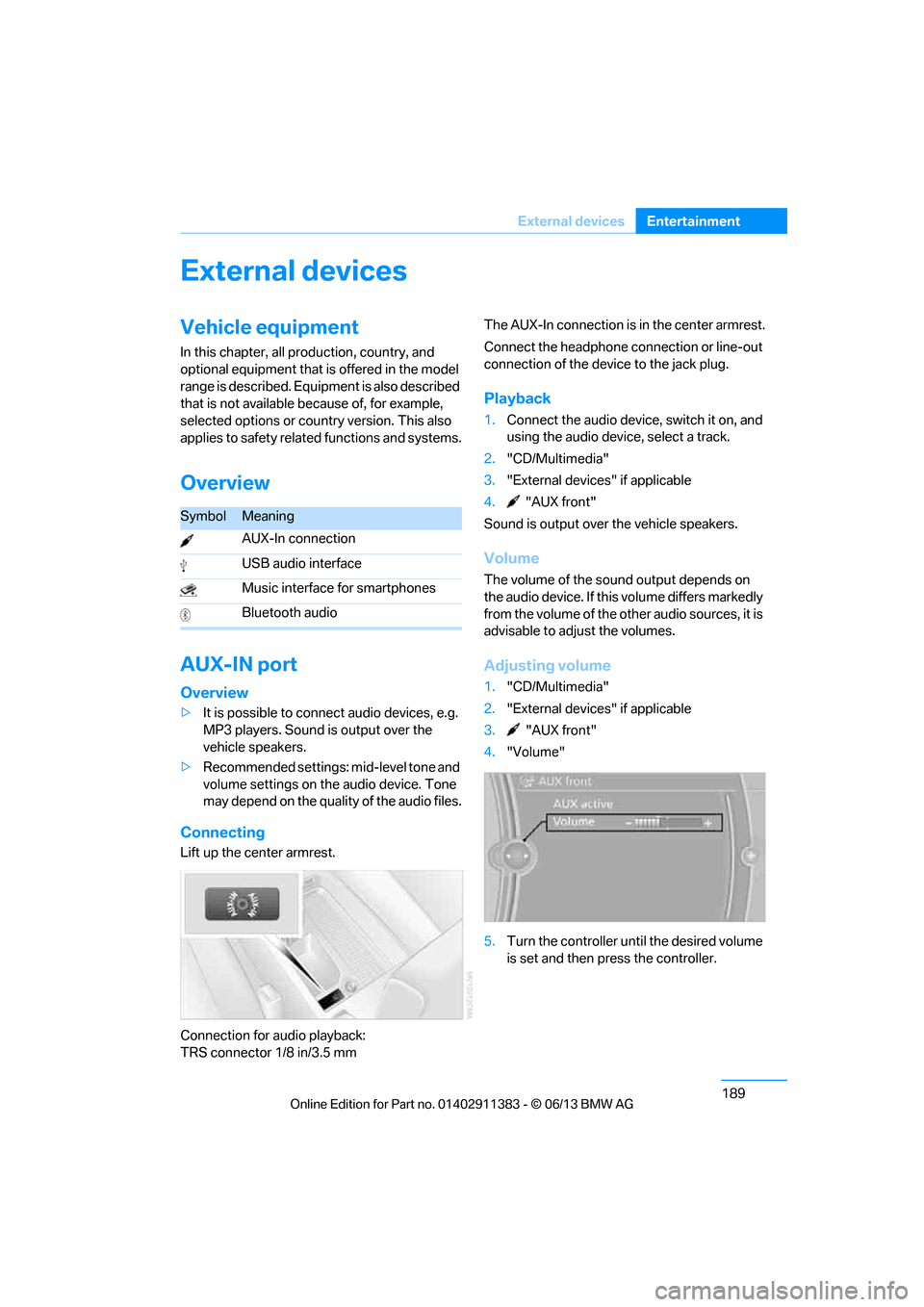
Adjusting volume
1. "CD/Multimedia"
2. "External devices" if applicable
3. "AUX front"
4. "Volume"
5. Turn the controller until the desired volume
is set and then press the controller.
SymbolMeaning
AUX-In connection
USB audio interface
Music interface for smartphones
Bluetooth audio
00320051004F004C00510048000300280047004C0057004C005200510003
Page 200 of 311
195
External devices
Entertainment
Disconnecting an audio connection
1.
"CD/Multimedia"
2. "Bluetooth® (audio)"
3. Select the desired device from the list of
connected devices.
4. Open "Options".
5. "Configure phone"
6. "Audio"
7. "OK"
With a mobile phone, on ly the audio connection
is disconnected. All ot her connections remain
active.
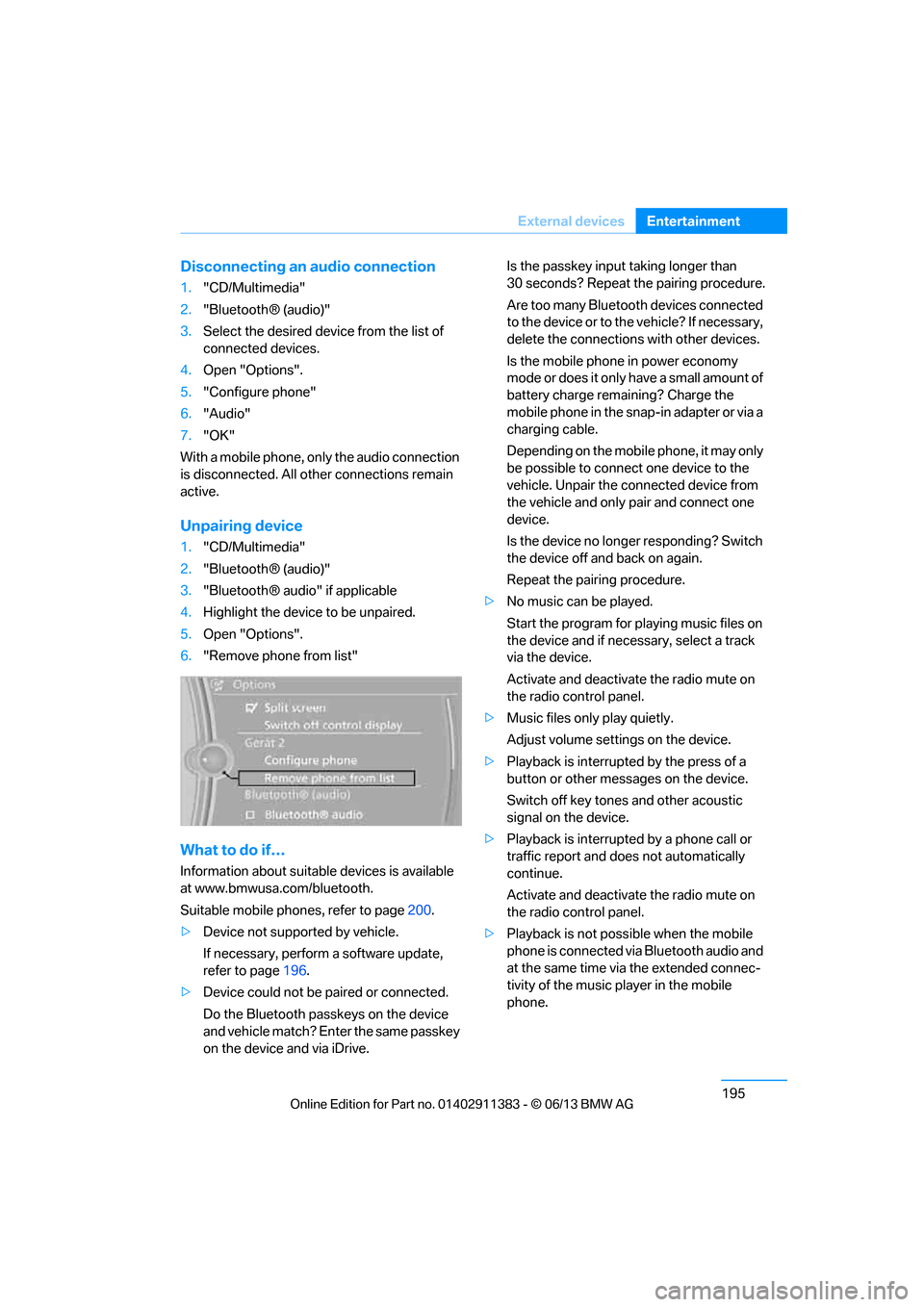
Unpairing device
1. "CD/Multimedia"
2. "Bluetooth® (audio)"
3. "Bluetooth® audio" if applicable
4. Highlight the device to be unpaired.
5. Open "Options".
6. "Remove phone from list"
What to do if…
Information about suitable devices is available
at www.bmwusa.com/bluetooth.
Suitable mobile phones, refer to page 200.
> Device not supported by vehicle.
If necessary, perform a software update,
refer to page 196.
> Device could not be paired or connected.
Do the Bluetooth passk eys on the device
and vehicle match? Enter the same passkey
on the device and via iDrive. Is the passkey input taking longer than
30 seconds? Repeat the pairing procedure.
Are too many Bluetooth devices connected
to the device or to th
e vehicle? If necessary,
delete the connections with other devices.
Is the mobile phone in power economy
mode or does it only have a small amount of
battery charge remaining? Charge the
mobile phone in the snap-in adapter or via a
charging cable.
Depending on the mobile phone, it may only
be possible to connect one device to the
vehicle. Unpair the connected device from
the vehicle and only pair and connect one
device.
Is the device no longer responding? Switch
the device off and back on again.
Repeat the pairing procedure.
> No music can be played.
Start the program for pl aying music files on
the device and if necessary, select a track
via the device.
Activate and deactivate the radio mute on
the radio control panel.
> Music files only play quietly.
Adjust volume settings on the device.
> Playback is interrupted by the press of a
button or other messages on the device.
Switch off key tones and other acoustic
signal on the device.
> Playback is interrupted by a phone call or
traffic report and does not automatically
continue.
Activate and deactivate the radio mute on
the radio control panel.
> Playback is not possible when the mobile
phone is connected via Bluetooth audio and
at the same time via the extended connec-
tivity of the music player in the mobile
phone.
00320051004F004C00510048000300280047004C0057004C005200510003
Page 205 of 311
200
CommunicationsTe l e p h o n e
Telephone
Vehicle equipment
In this chapter, all production, country, and
optional equipment that is offered in the model
range is described. Equipment is also described
that is not available because of, for example,
selected options or country version. This also
applies to safety related functions and systems.
Overview
The concept
Mobile phones or other external devices, e.g.
audio players, can be connected to the vehicle
via Bluetooth.
Bluetooth® is a registered trademark of
Bluetooth® SIG, Inc.
After being paired once, when the ignition is
switched on, these devices are automatically
detected as soon as they are present in the
vehicle and can be controlled via iDrive, by the
buttons on the steering wheel, and by voice.
Depending on whether they are functioning as a
telephone and/or as an audio source, external
devices can be used via the vehicle. The tele-
phone functions will be described below. Oper-
ation of audio functions, refer to page 192.
Up to four external devices can be paired.
It may be necessary for some functions to be
activated by the mobile phone provider or ser-
vice provider. Only make entries when traffic conditions
permit. Do not hold the mobile phone in
your hand while you are driving; use the hands-
free system instead. Otherwise, you may
endanger vehicle occupants and other road
users. <
Snap-in adapter
The snap-in adapter makes it possible:
>Accommodate the mobile phone.
> Recharge its battery.
> Connect it to an external antenna of the
vehicle.
This assures a better network connection
and constant sound quality.
Suitable mobile phones
For precise information about which mobile
phones and external devices with a Bluetooth
interface are supported by the mobile phone
preparation, go to www.bmwusa.com/
bluetooth.
Displaying vehicl e identification
number and software part number
Checking which mobile phones are supported
by the mobile phone pr eparation requires the
vehicle identification number and software part
number. The software ve rsion of the mobile
phone may also be required.
1. "Telephone"
2. Open "Options".
3. "Bluetooth® info"
4. "Display system information"
With a certain software version, these suitable
mobile phones support the vehicle functions
described below.
With other mobile phones or software versions,
malfunctions may occur.
A mobile phone that is connected to the vehicle
should not be operated via the mobile phone
keypad; otherwise, ma lfunctions may occur.
It is possible to perform a software update, refer
to page 196.
00320051004F004C00510048000300280047004C0057004C005200510003
Page 209 of 311
204
CommunicationsTe l e p h o n e
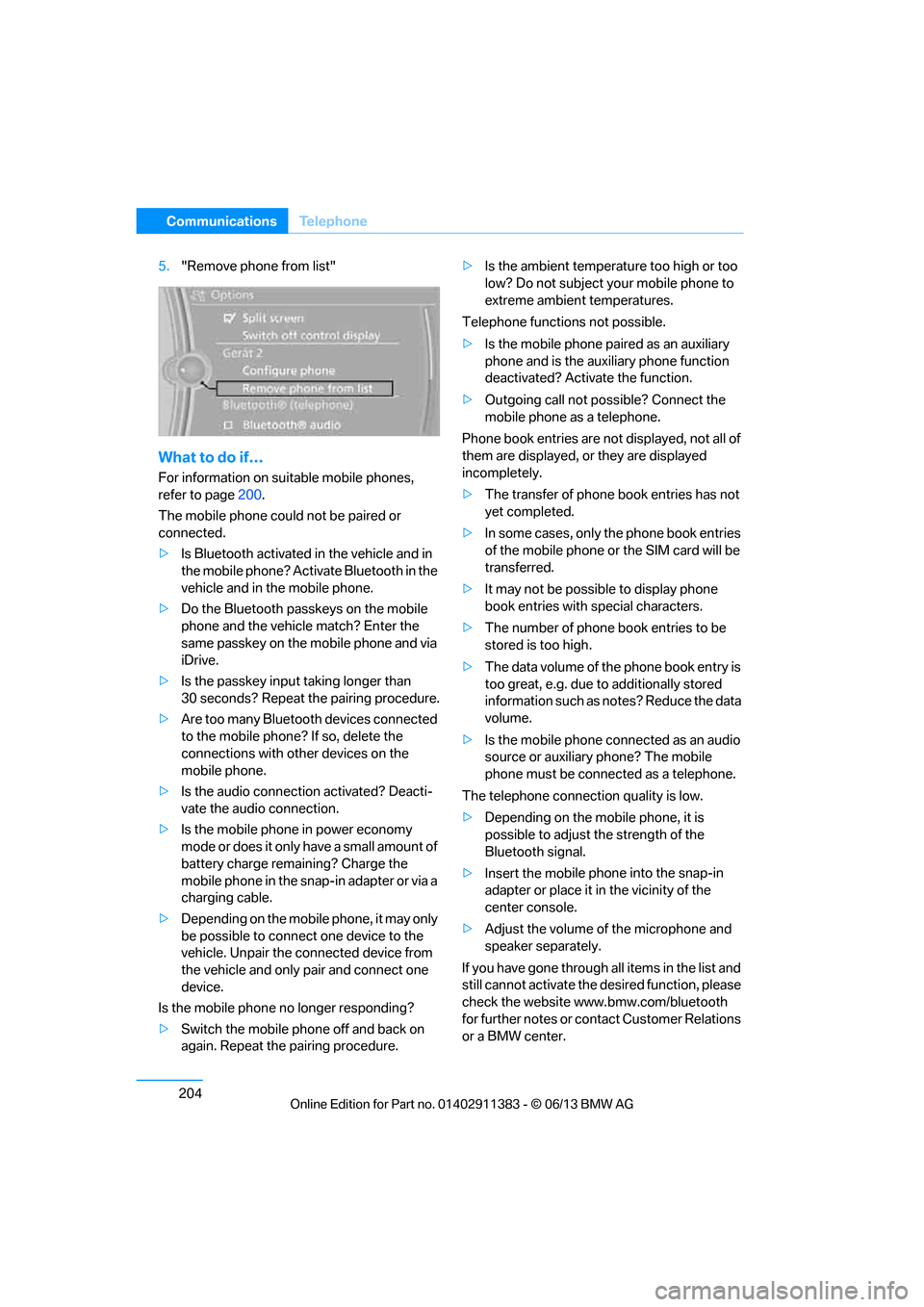
5."Remove phone from list"
What to do if…
For information on suitable mobile phones,
refer to page 200.
The mobile phone coul d not be paired or
connected.
> Is Bluetooth activated in the vehicle and in
the mobile phone? Acti vate Bluetooth in the
vehicle and in the mobile phone.
> Do the Bluetooth passkeys on the mobile
phone and the vehicl e match? Enter the
same passkey on the mobile phone and via
iDrive.
> Is the passkey input taking longer than
30 seconds? Repeat the pairing procedure.
> Are too many Bluetooth devices connected
to the mobile phone? If so, delete the
connections with other devices on the
mobile phone.
> Is the audio connection activated? Deacti-
vate the audio connection.
> Is the mobile phone in power economy
mode or does it only have a small amount of
battery charge remaining? Charge the
mobile phone in the snap-in adapter or via a
charging cable.
> Depending on the mobile phone, it may only
be possible to connect one device to the
vehicle. Unpair the connected device from
the vehicle and only pair and connect one
device.
Is the mobile phone no longer responding?
> Switch the mobile phone off and back on
again. Repeat the pairing procedure. >
Is the ambient temperature too high or too
low? Do not subject yo ur mobile phone to
extreme ambient temperatures.
Telephone functions not possible.
> Is the mobile phone pa ired as an auxiliary
phone and is the aux iliary phone function
deactivated? Activa te the function.
> Outgoing call not po ssible? Connect the
mobile phone as a telephone.
Phone book entries are not displayed, not all of
them are displayed, or they are displayed
incompletely.
> The transfer of phone book entries has not
yet completed.
> In some cases, only the phone book entries
of the mobile phone or the SIM card will be
transferred.
> It may not be possible to display phone
book entries with special characters.
> The number of phone book entries to be
stored is too high.
> The data volume of th e phone book entry is
too great, e.g. due to additionally stored
information such as no tes? Reduce the data
volume.
> Is the mobile phone connected as an audio
source or auxiliary phone? The mobile
phone must be connected as a telephone.
The telephone connecti on quality is low.
> Depending on the mob ile phone, it is
possible to adjust the strength of the
Bluetooth signal.
> Insert the mo bile ph
one into the snap-in
adapter or place it in the vicinity of the
center console.
> Adjust the volume of the microphone and
speaker separately.
If you have gone through all items in the list and
still cannot activate the de sired function, please
check the website www.bmw.com/bluetooth
for further notes or contact Customer Relations
or a BMW center.
00320051004F004C00510048000300280047004C0057004C005200510003
Page 214 of 311
209
Te l e p h o n e
Communications
Saving an entry in the contacts
1.
Highlight the entry.
2. Open "Options".
3. "Store as new contact" or "Add to existing
contact".
4. Select contact if necessary.
5. Select the type of number: "Home",
"Business", "Mobile" or "Other".
6. Complete the entr ies if necessary.
7. "Store contact"
Hands-free system
General information
Calls being conducted using the hands-free
system can be continued using the mobile
phone and vice versa.
From the mobile phone to the hands-
free system
Calls that have been in itiated from outside the
Bluetooth range of the vehicle can be continued
using the hands-free system if the ignition is
switched on.
Depending on the mobile phone, the call is
automatically switched to hands-free mode.
If the switch does not occur automatically, then
follow the instructions that appear on the
display of the mobile ph one, also refer to the
Owner's Manual for the mobile phone.
From hands-free system to mobile
phone
Calls being conducted using the hands-free
system can also be continued using the mobile
phone if so desired, depending on the mobile
phone.
At this point, follow the instructions that appear
on the display of the mobile phone, also refer to
the Owner's Manual for the mobile phone.
Operation by voice
With voice activation system:
Operation, refer to page 27.
Without voice acti vation system:
Depending upon the equipment, the mobile
phone can be voice-operated as described
below.
The list of short commands in the Owner's
Manual does not apply to this type of voice
operation.
The concept
> The mobile phone can be operated without
removing your hand from the steering
wheel.
> In many cases, the entry process is sup-
ported by means of announcements or
questions.
> {...} Verbal instructions to use with the voice
operation system.
Voice commands
Activating voice activation system
1. Press the button on the steering wheel.
2. Say the command.
Finishing voice input
Press the button on the steering wheel
or
Possible commands
Having possible commands read aloud
The system understands default commands
that must be spoken word for word.
Possible commands are read aloud.
Digits from zero to nine are recognized. {
Cancel }.
{ Help }.
00320051004F004C00510048000300280047004C0057004C005200510003
Page 218 of 311
213
Office
Communications
Office
Vehicle equipment
In this chapter, all production, country, and
optional equipment that is offered in the model
range is described. Equipment is also described
that is not available because of, for example,
selected options or coun
try version. This also
applies to safety related functions and systems.
Overview
General information
Contacts, appointments, tasks, notes, text
messages and mobile phone e-mails can be
displayed using the Control Display if the
mobile phone compatibly supports these
functions and the requ ired Bluetooth radio
standards.
For information about which mobile phones and
functions support the functions of Office, go to
www.bmwusa.com/bluetooth.
A limited number of compatible mobile phones
are available for Office.
Contents are only displayed completely when
the vehicle is stopped.
Only read access to the mobile phone is
possible.
Do not use Office while driving. Make
entries only when tr affic and road condi-
tions permit; otherwise, you may endanger
vehicle occupants and other road users by
being distracted. <
Requirements
>A suitable mobile phone is paired with the
vehicle and connected. In some mobile
phones, the data acce ss to the mobile
phone must be confirmed. >
Time zone, time, and date, refer to page90,
are correctly set on the Control Display and
on the mobile phone in order, for example,
to correctly display appointments.
> Office is activate d, refer to page201.
Updating
Every time that the mob ile phone is connected
to the vehicle, data are updated. Appointments,
tasks, notes and reminders can be updated
separately.
1. "Office"
2. "Current office", "Calendar", "Tasks",
"Notes" or "Reminders"
3. Open "Options".
4. "Update data"
Data from the mobile phone are again
transferred to the vehicle.
Current office
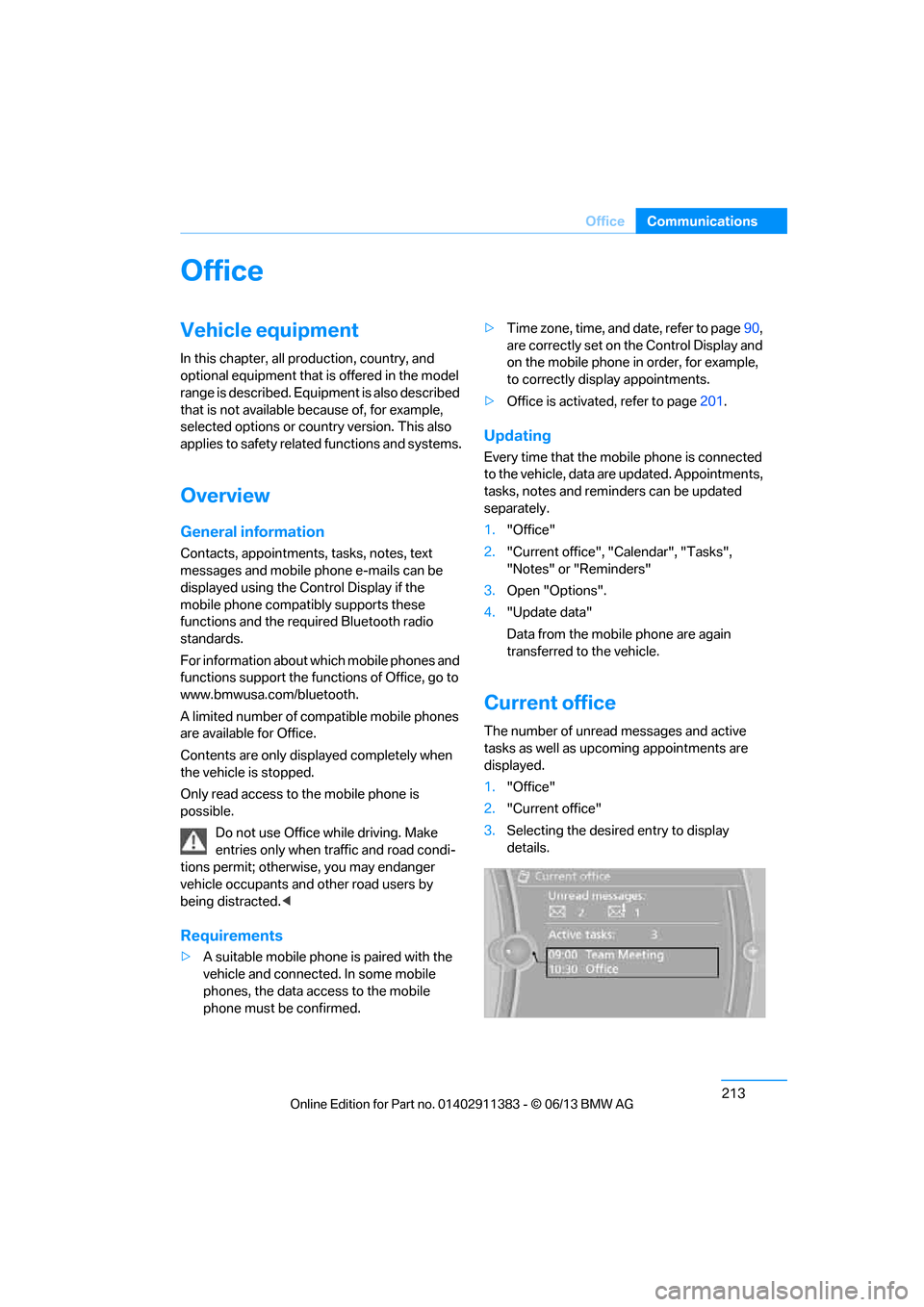
The number of unread messages and active
tasks as well as upcoming appointments are
displayed.
1."Office"
2. "Current office"
3. Selecting the desired entry to display
details.
00320051004F004C00510048000300280047004C0057004C005200510003
Page 227 of 311
222
CommunicationsContacts
Contacts
Vehicle equipment
In this chapter, all production, country, and
optional equipment that is offered in the model
range is described. Equipment is also described
that is not available because of, for example,
selected options or country version. This also
applies to safety related functions and systems.
Note
In equipment packages without mobile phone
preparation.
General information
Contacts can be created and edited. The
addresses can be used as destinations for
navigation.
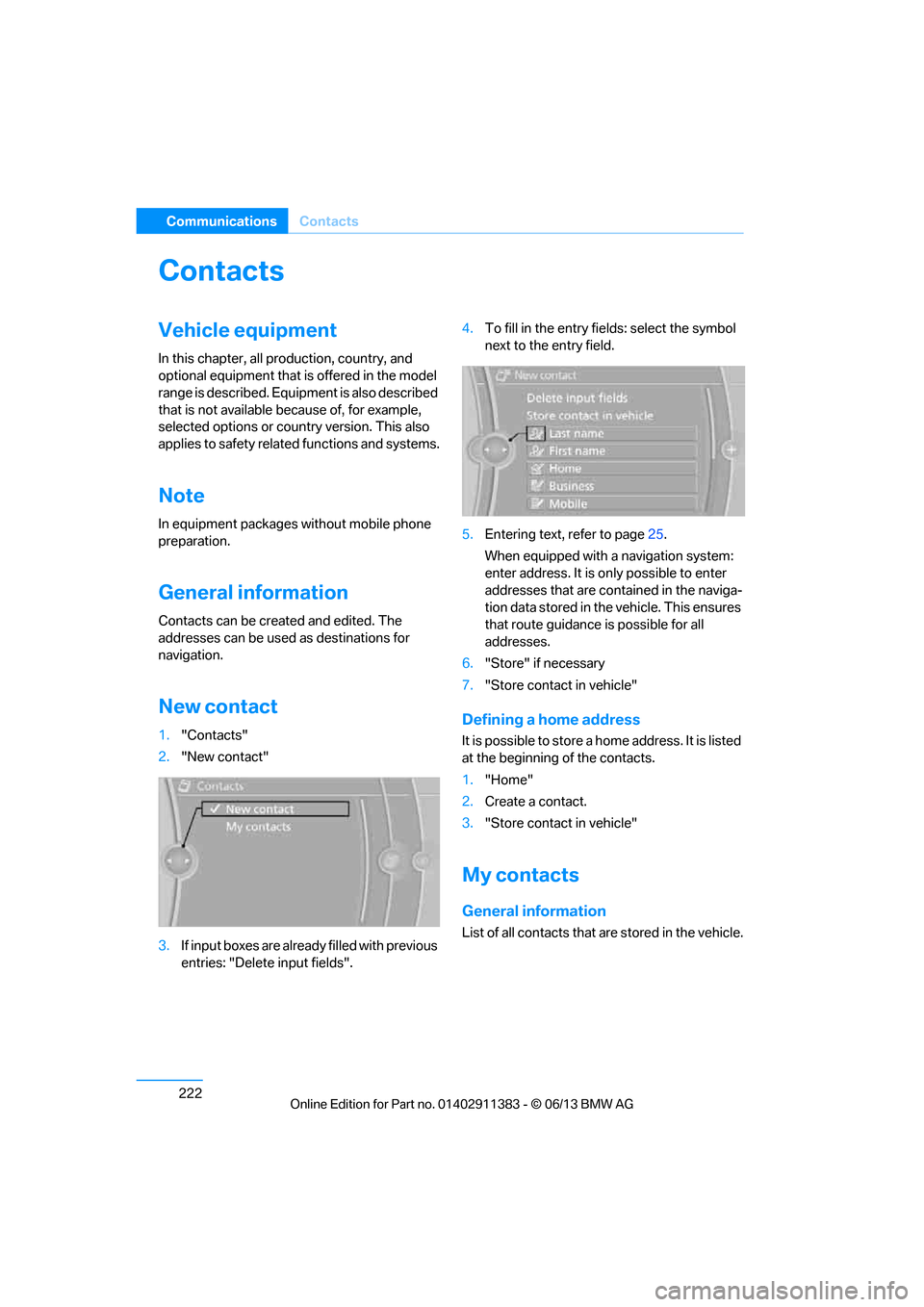
New contact
1. "Contacts"
2. "New contact"
3. If input boxes are already filled with previous
entries: "Delete input fields". 4.
To fill in the entry fields: select the symbol
next to the entry field.
5. Entering text, refer to page 25.
When equipped with a navigation system:
enter address. It is only possible to enter
addresses that are cont ained in the naviga-
tion data stored in th e vehicle. This ensures
that route guidance is possible for all
addresses.
6. "Store" if necessary
7. "Store contact in vehicle"Defining a home address
It is possible to store a home address. It is listed
at the beginning of the contacts.
1."Home"
2. Create a contact.
3. "Store contact in vehicle"
My contacts
General information
List of all contacts that are stored in the vehicle.
00320051004F004C00510048000300280047004C0057004C005200510003
Page 229 of 311
224
CommunicationsConnectedDrive
ConnectedDrive
Vehicle equipment
In this chapter, all production, country, and
optional equipment that is offered in the model
range is described. Equipment is also described
that is not available because of, for example,
selected options or country version. This also
applies to safety related functions and systems.
BMW Assist
General information
BMW Assist provides a number of different ser-
vices. For example, the position data of the
vehicle can be transmitted to the BMW Assist
Response Center when an Emergency Request
is sent.
Many BMW Assist services depend on the
contract individually agreed upon.
After the contract has expired, the BMW Assist
system will be deactivated by the BMW Assist
Response Center without you having to visit a
BMW center. After the BMW Assist system has
been deactivated, no BM W Assist services will
be available. The BMW Assist system can be
reactivated by a BMW center after a new
contract has been signed.
Requirements
> The installed BMW Assist system is logged
into a mobile phone network. This network
must be capable of transmitting the
services.
> To transmit position data, the vehicle must
be able to determine its current position.
> To activate and update BMW Assist, a GPS
signal must be available. >
The BMW Assist service contract was
signed with your BMW center or with the
BMW Assist Response Center. The service
must have been fully enabled.
> BMW Assist is activated.
Services offered
>Emergency Request: when you press the
SOS button, a connection to the BMW
Assist Response Center is established. The
BMW Assist Response Center then speaks
with you and takes further steps to help you.
> Automatic Emergency Request: under cer-
tain conditions, a connection to the BMW
Assist Response Center is established after
a serious accident. If possible, the BMW
Assist Response Center then speaks with
you and takes further steps to help you.
> Enhanced Roadside Assistance: BMW
Roadside Assistance can be contacted if
assistance is needed in the event of a
breakdown. If possible, the vehicle data and
position data are tran smitted during this
call.
> Customer Relations: connection to Cus-
tomer Relations for information on all
aspects of your vehicle.
> BMW TeleService: the data on your vehi-
cle's service status or required inspections
are transmitted to your BMW center, either
automatically before a service due date or
when you request a service appointment.
> Remote Door Unlock: the BMW Assist
Response Center provides assistance if, for
example, the remote control is not available
and the vehicle needs to be opened.
> Stolen Vehicle Recovery: after you report to
the police that your vehicle was stolen, the
BMW Assist Response Center can deter-
mine its position.
00320051004F004C00510048000300280047004C0057004C005200510003