ds mode BMW 3 SERIES COUPE 2013 E92 Service Manual
[x] Cancel search | Manufacturer: BMW, Model Year: 2013, Model line: 3 SERIES COUPE, Model: BMW 3 SERIES COUPE 2013 E92Pages: 311, PDF Size: 7.05 MB
Page 160 of 311
155
Destination guidance
Navigation
Destination guidance
Vehicle equipment
In this chapter, all production, country, and
optional equipment that is offered in the model
range is described. Equipment is also described
that is not available because of, for example,
selected options or coun
try version. This also
applies to safety related functions and systems.
Starting destination
guidance
1. "Navigation"
2. Entering a destination, refer to page 146.
3. "Accept destination"
4. "Start guidance"
The route is displayed on the Control Display
after it is calculated.
In the map view, the distance to the destination/
intermediate destinat ion and the estimated
time of arrival are displayed.
The arrow display appears on the Control
Display, if so desired.
Terminating destination
guidance
1. "Navigation"
2. "Map"
3. "Guidance".
4. "Stop guidance"
Continuing destination
guidance
If the destination was not reached during the
last trip, destination gu idance can be resumed.
"Resume guidance"
Route criteria
General information
> You can influence the calculated route by
selecting certain trip criteria.
> Route criteria can be changed during desti-
nation entry and during route guidance.
> Street types are part of the navigation data
and are taken into account in route plan-
ning, e.g. avoiding highways.
> The proposed route can differ from
personal experience.
> The settings are stored for the remote
control currently in use.
> Route guidance with traffic bulletins, refer
to page 161.
Changing route criteria
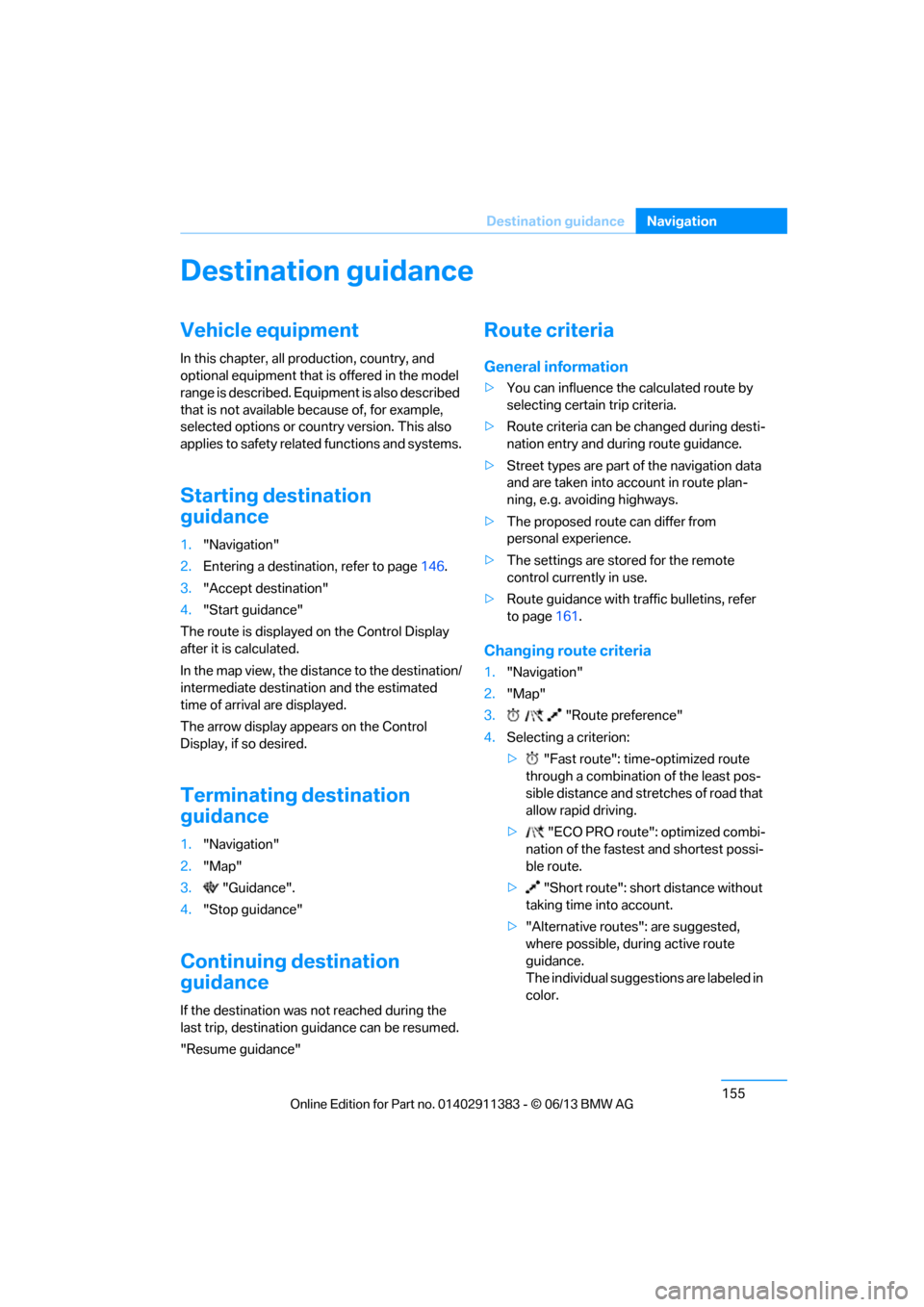
1."Navigation"
2. "Map"
3. "Route preference"
4. Selecting a criterion:
> "Fast route": time-optimized route
through a combination of the least pos-
sible distance and stretches of road that
allow rapid driving.
> "ECO PRO route": optimized combi-
nation of the fastest and shortest possi-
ble route.
> "Short route": short distance without
taking time into account.
> "Alternative routes": are suggested,
where possible, during active route
guidance.
The individual suggestions are labeled in
color.
00320051004F004C00510048000300280047004C0057004C005200510003
Page 164 of 311
159
Destination guidance
Navigation
>
"Day/night mode"
Select and adjust depending on light
conditions.
"Traffic conditions/gray map" active:
Settings are not taken into account.
> "Satellite images"
Depending on the ava ilability and resolu-
tion, satellite images ar e displayed in scales
of approx. 1 mile to 600 miles/2 km to
1,000 km.
> "Perspective view in 3D"
Displays a three-dimensional view. Promi-
nent areas that are contained in the naviga-
tion data are displayed on the map in 3D.
> "Traffic conditions/gray map"
The map is optimized for displaying traffic
bulletins. Symbols for the special destina-
tions are no longer displayed.
Map view for the sp lit screen display
The map view for the split screen can be
selected separately fr om the main screen.
1. Open "Options".
2. "Split screen"
3. Move the controller to the right repeatedly
until the split screen content is selected.
4. Select "Split screen content" or scale.
5. Select the map view:
>"Arrow display"
> "Map facing north"
> "Map direction of travel"
> "Map view with perspective"
> "Position"
> "Exit ramp view"
> "Traffic conditions/gray map"
6. To change the scale: switch to the split
screen and turn the controller.
Traffic bulletins
Overview
>You can display the tr affic bulletins from
radio stations that broadcast the TMC
(Traffic Message Channel) of a traffic infor-
mation service. Bulletins about traffic
obstructions and hazards are continuously
updated.
> Traffic bulletins are in dicated by symbols on
the map.
> Traffic bulletins for th e surrounding area are
stored in a list.
The symbol in the toolbar of the map view
turns red if a traffic bulletin relates to the
calculated route.
Real Time Traffic Information End-User
Provisions
Certain BMW models equi pped with navigation
have the capability to display real-time traffic
information. If your sy stem has this capability
the following additional terms and conditions
apply:
An End-User shall no longer have the right to
use the Traffic Data in the event that the End-
User is in material breach of the terms and
conditions contained herein.
A. Total Traffic Network, a division of Clear
Channel Broadcasting, Inc. ("Total Traffic Net-
work") holds the rights to the traffic incident
data and RDS-TMC network through which it is
delivered. You may not modify, copy, scan or
use any other method to reproduce, duplicate,
republish, transmit or distribute in any way any
portion of traffic incident data. You agree to
indemnify, defend and hold harmless BMW of
North America, LLC. ("BMW NA") and Total
Traffic Network, Inrix, Inc (and their affiliates)
against any and all claims, damages, costs or
other expenses that arise directly or indirectly
out of (a) your unauthor ized use of the traffic
incident data or the RD S-TMC network, (b) your
00320051004F004C00510048000300280047004C0057004C005200510003
Page 165 of 311

160
NavigationDestination guidance
violation of this directive and/or (c) any unautho-
rized or unlawful activiti es by you in connection
herewith.
B. Total Traffic Network traffic data is informa-
tional only. User assumes all risk of use. Total
Traffic Network, BMW NA, and their suppliers
make no representations about content, traffic
and road conditions, route usability, or speed.
C. The licensed material is provided to license
"as is," and "where is". Total Traffic Network,
including, but not limited to, any and all third
party providers of any of the licensed material,
expressly disclaims, to the fullest extent permit-
ted by law, all warranti es or representations
with respect to the licen sed material (including,
without limitation, that the licensed material will
be error-free, will operate without interruption
or that the traffic data w ill be accurate), express,
implied or statutory, including, without limita-
tion, the implied warranties of merchantability,
non-infringement fitnes s for a particular pur-
pose, or those arising from a course of dealing
or usage of trade.
D. Neither Total Traffic Network, Inrix, Inc. nor
BMW NA will be liable to you for any indirect,
special, consequential, exemplary, or incidental
damages (including, without limitation, lost rev-
enues, anticipated revenues, or profits relating
to the same) arising from any claim relating
directly or indirectly to use of the traffic data,
and even if Total Traffic Network, Inrix, Inc., or
BMW NA are aware of the possibility of such
damages. These limitations apply to all claims,
including, without limitation, claims in contract
and tort (such as negligence, product liability
and strict liability). Some states do not allow the
exclusion or limitation of incidental or conse-
quential damages, so those particular limita-
tions may not apply to you.
Activating/deactivating reception
1. "Navigation"
2. Open "Options".
3. "Receive Traffic Info"
Accessing traffic bulletins
1."Navigation"
2. "Map"
3. "Traffic Info"
First, the traffic bulletins for the calculated
route are displayed.
The traffic bulletins are sorted in the order
of their distance from the current vehicle
position.
4. Select a traffic bulletin.
"More information":
Display additional information.
5. Scroll to the next or previous traffic bulletin
if desired.
Traffic bulletins on the map
"Traffic conditions/gray map" active: the Con-
trol Display changes to a grayscale display. This
enables a better view of the traffic bulletins. The
day/night mode is disregarded in this setting.
Symbols or special destinations are no longer
displayed.
1. "Navigation"
2. "Map"
3. Open "Options".
4. "Settings"
5. "Traffic conditions/gray map"
Symbols in the map view
Depending on the scale of the map and the
location of the traffi c obstruction along the
route, the symbols for th e traffic obstructions
are displayed.
00320051004F004C00510048000300280047004C0057004C005200510003
Page 168 of 311
163
What to do if …
Navigation
What to do if …
Vehicle equipment
In this chapter, all production, country, and
optional equipment that is offered in the model
range is described. Equipment is also described
that is not available because of, for example,
selected options or coun
try version. This also
applies to safety related functions and systems.
What to do if…
> The current position cannot be displayed?
The position is in an unrecognized region, in
a poor reception area, or the system is in the
process of determining the position.
Reception is generally available when you
are in the open.
> The destination guidance d o e s n o t a c c e p t a
destination without a street name?
A downtown area canno t be determined for
the town or city that has been entered. Input
any street in the selected town/city and
start destination guidance.
> The destination guidance d o e s n o t a c c e p t a
destination?
The destination data is not contained in the
navigation data. Choo se a destination as
close as possible to the original one.
> The letters for a destination cannot be
selected during destination entry?
The stored data do no t contain the data of
the destination. Select a destination that is
as close as possible to the original.
> The map view is disp layed in grayscale?
"Traffic conditions/gray map" active: the
Control Display changes to a grayscale
display. This enables a better view of the
traffic bulletins.
> Voice instructions are no longer issued
before intersections during destination
guidance? The area has not been fully recorded yet, or
you have left the recommended route and
the system requires a few seconds to calcu-
late a new route suggestion.
00320051004F004C00510048000300280047004C0057004C005200510003
Page 171 of 311
166
EntertainmentOn/off and tone
On/off and tone
Vehicle equipment
In this chapter, all pr oduction, country, and
optional equipment that is offered in the model
range is described. Equipment is also described
that is not available because of, for example,
selected options or country version. This also
applies to safety related functions and systems.
General information
The following audio and video sources share
the same control elements and adjustments:
> Radio
> CD/DVD player
> Video
> External devices, e.g. MP3 player
Controls
The audio and video sources can be controlled
using the:
>Buttons near th e CD/DVD player
> iDrive
> Buttons on the steering wheel, refer to
page 13
> Programmable memory keys, refer to
page 25
> Voice activation system
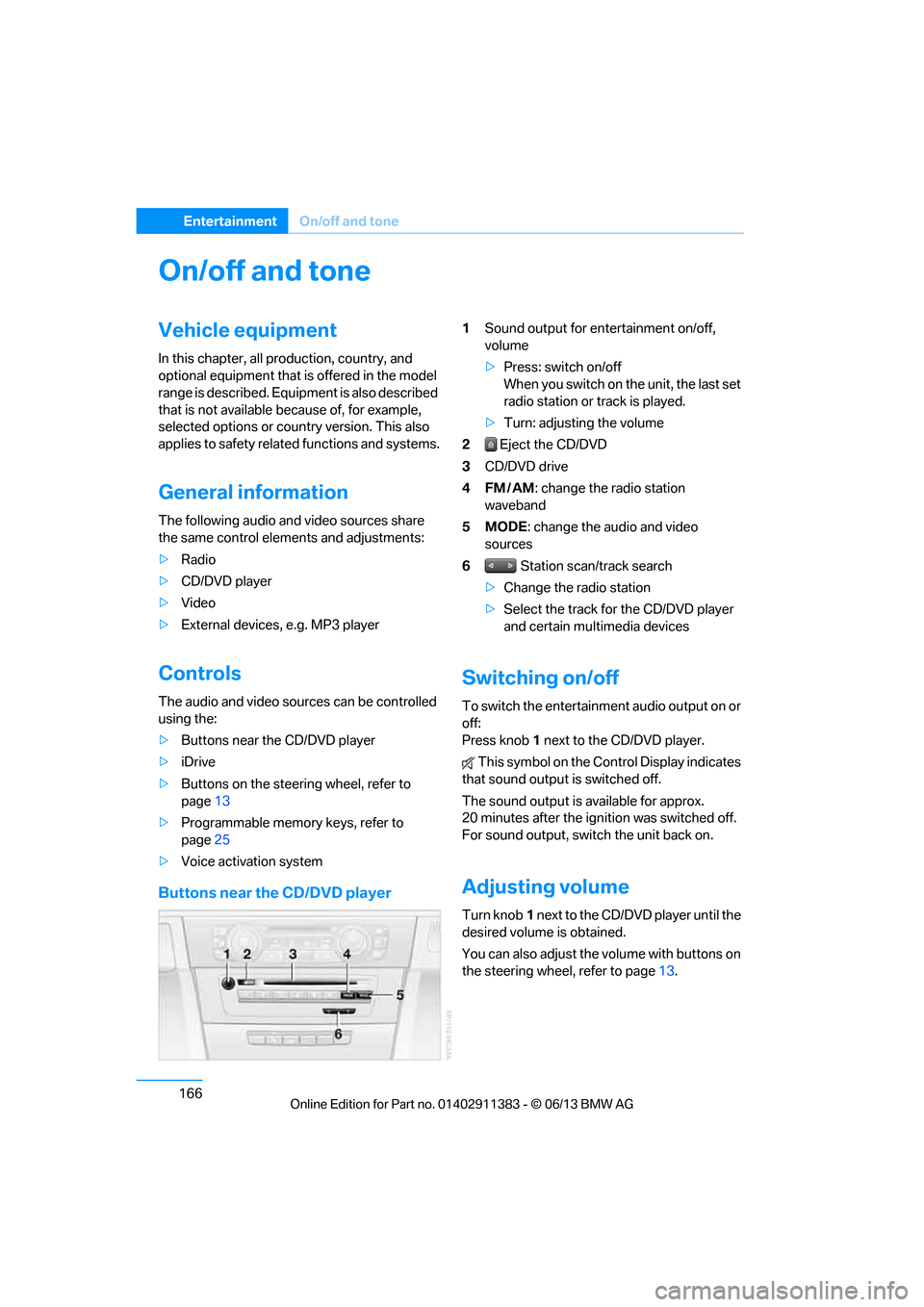
Buttons near the CD/DVD player
1Sound output for entertainment on/off,
volume
>Press: switch on/off
When you switch on the unit, the last set
radio station or track is played.
> Turn: adjusting the volume
2 Eject the CD/DVD
3 CD/DVD drive
4FM/AM : change the radio station
waveband
5MODE : change the audio and video
sources
6 Station scan/track search
> Change the radio station
> Select the track for the CD/DVD player
and certain multimedia devices
Switching on/off
To switch the entertainment audio output on or
off:
Press knob 1 next to the CD/DVD player.
This symbol on the Co ntrol Display indicates
that sound output is switched off.
The sound output is available for approx.
20 minutes after the ignition was switched off.
For sound output, switch the unit back on.
Adjusting volume
Turn knob 1 next to the CD/DVD player until the
desired volume is obtained.
You can also adjust the volume with buttons on
the steering wheel, refer to page 13.
00320051004F004C00510048000300280047004C0057004C005200510003
Page 174 of 311
169
Radio
Entertainment
Radio
Vehicle equipment
In this chapter, all production, country, and
optional equipment that is offered in the model
range is described. Equipment is also described
that is not available because of, for example,
selected options or coun
try version. This also
applies to safety related functions and systems.
General information
Your radio is designed for reception of the
following stations:
> FM and AM
> HD Radio
> Satellite radio
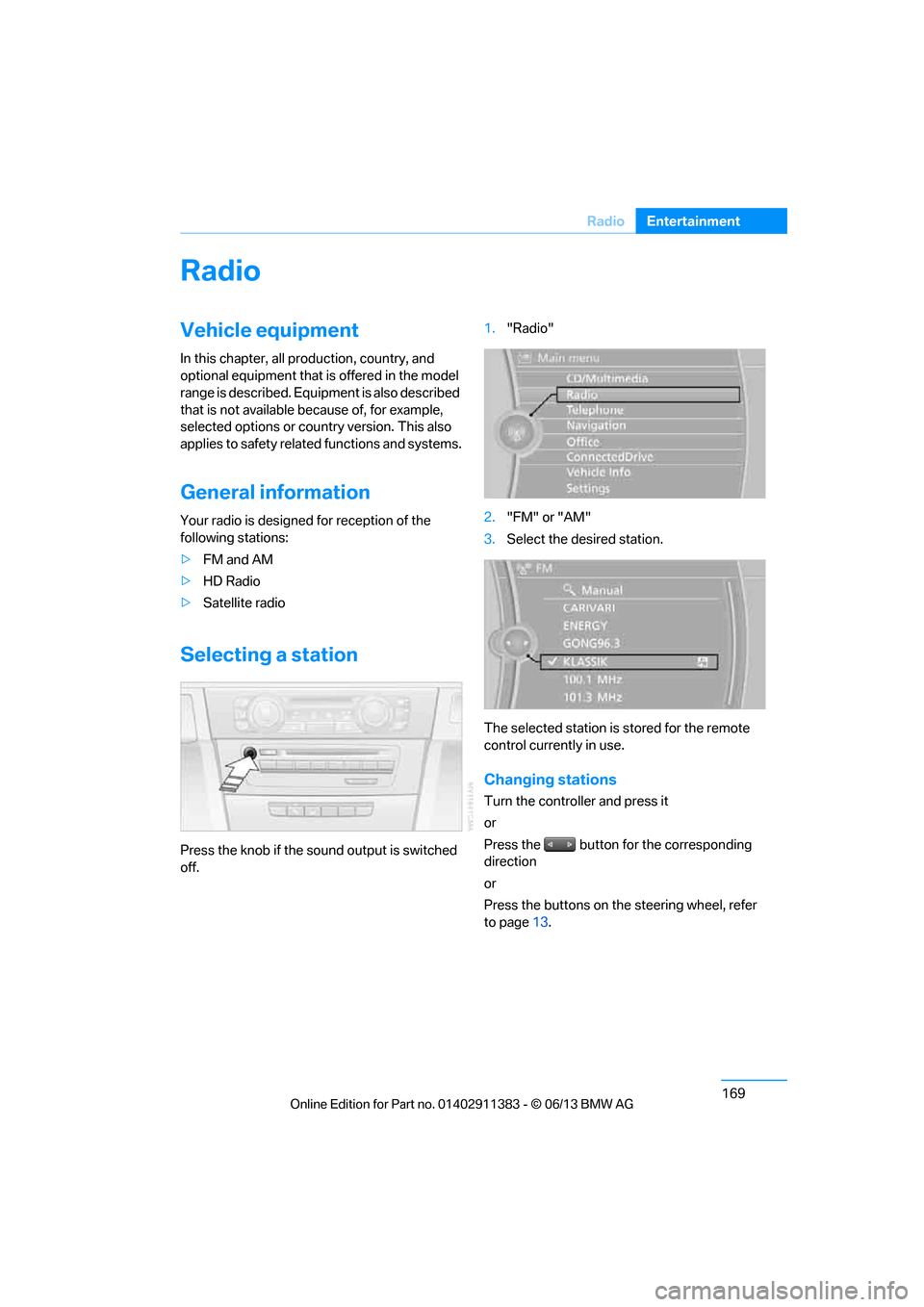
Selecting a station
Press the knob if the sound output is switched
off. 1.
"Radio"
2. "FM" or "AM"
3. Select the desired station.
The selected station is stored for the remote
control currently in use.
Changing stations
Turn the controller and press it
or
Press the button for the corresponding
direction
or
Press the buttons on the steering wheel, refer
to page 13.
00320051004F004C00510048000300280047004C0057004C005200510003
Page 176 of 311
171
Radio
Entertainment
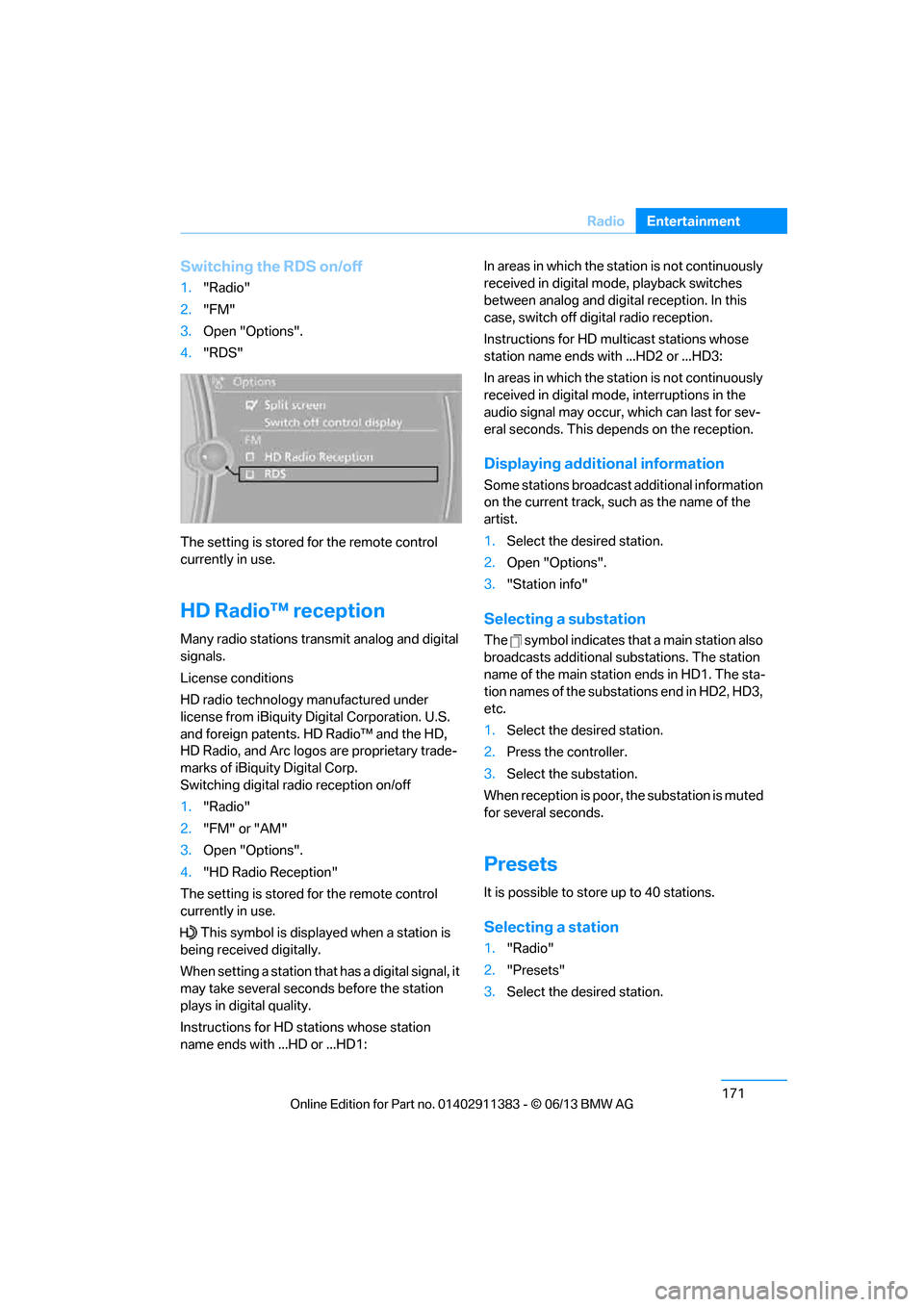
Switching the RDS on/off
1.
"Radio"
2. "FM"
3. Open "Options".
4. "RDS"
The setting is stored for the remote control
currently in use.
HD Radio™ reception
Many radio stations transmit analog and digital
signals.
License conditions
HD radio technology manufactured under
license from iBiquity Di gital Corporation. U.S.
and foreign patents. HD Radio™ and the HD,
HD Radio, and Arc logos are proprietary trade-
marks of iBiquity Digital Corp.
Switching digital radio reception on/off
1. "Radio"
2. "FM" or "AM"
3. Open "Options".
4. "HD Radio Reception"
The setting is stored for the remote control
currently in use.
This symbol is displa yed when a station is
being received digitally.
When setting a station that has a digital signal, it
may take several second s before the station
plays in digital quality.
Instructions for HD stations whose station
name ends with ...HD or ...HD1: In areas in which the station is not continuously
received in digital mode, playback switches
between analog and digital reception. In this
case, switch off digital radio reception.
Instructions for HD multicast stations whose
station name ends with ...HD2 or ...HD3:
In areas in which the station is not continuously
received in digital mode, interruptions in the
audio signal may occur, which can last for sev-
eral seconds. This depends on the reception.
Displaying additional information
Some stations broadcast additional information
on the current track, such as the name of the
artist.
1.
Select the desired station.
2. Open "Options".
3. "Station info"
Selecting a substation
The symbol indicates that a main station also
broadcasts additional substations. The station
name of the main station ends in HD1. The sta-
tion names of the substations end in HD2, HD3,
etc.
1.Select the desired station.
2. Press the controller.
3. Select the substation.
When reception is poor, the substation is muted
for several seconds.
Presets
It is possible to store up to 40 stations.
Selecting a station
1. "Radio"
2. "Presets"
3. Select the desired station.
00320051004F004C00510048000300280047004C0057004C005200510003
Page 178 of 311
173
Satellite radio
Entertainment
Satellite radio
Vehicle equipment
In this chapter, all production, country, and
optional equipment that is offered in the model
range is described. Equipment is also described
that is not available because of, for example,
selected options or coun
try version. This also
applies to safety related functions and systems.
General information
The channels are offered in fixed packages.
Packages must be ac tivated by telephone.
Navigation bar
The functions of the navigation bar symbols can
also be stored on the programmable memory
buttons, refer to page 25.
Managing subscription
Clear reception is required for activating and
deactivating channels. Re ception is best when
you have an unobstructed view to the sky. The
channel name is displayed in the status line.
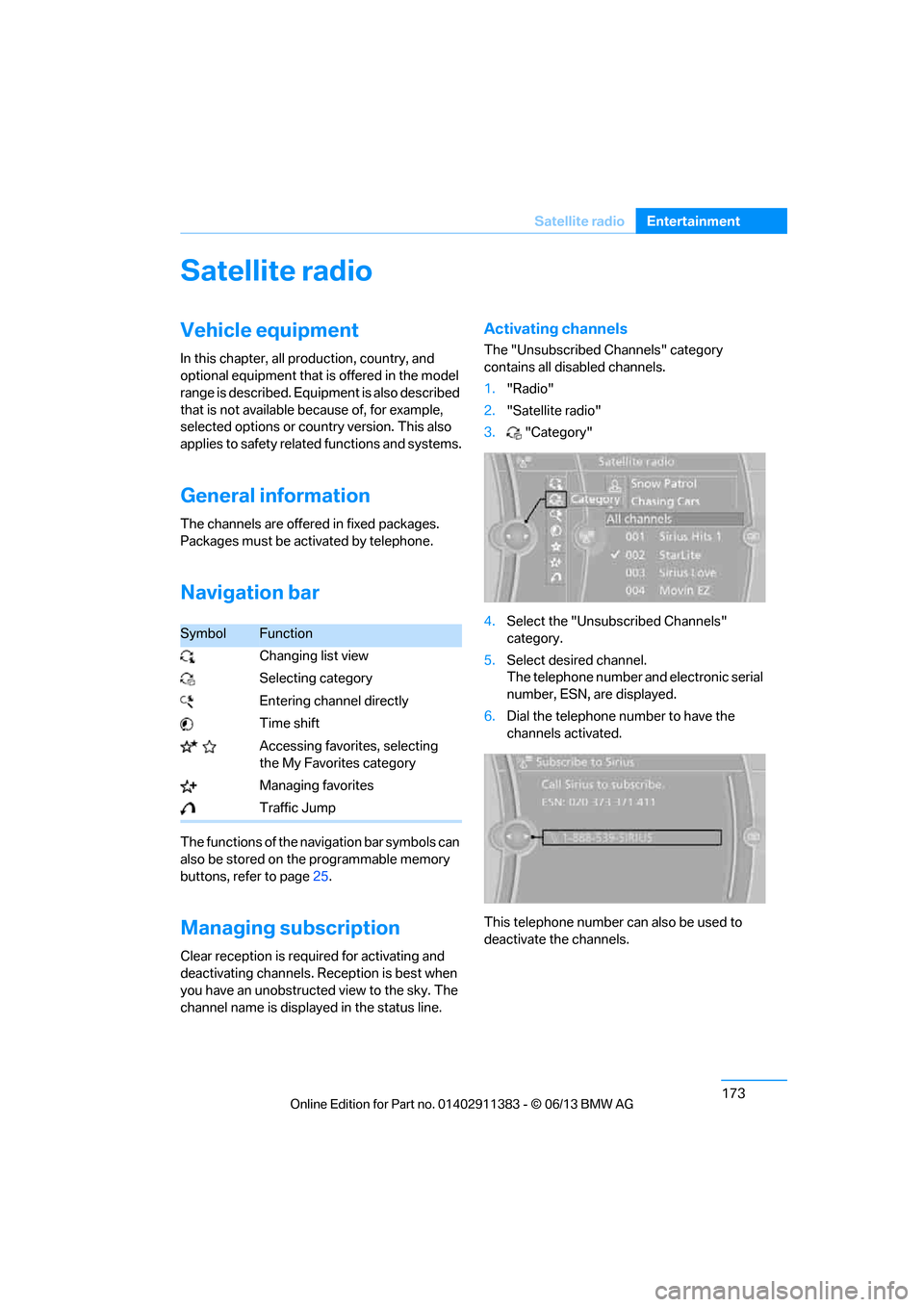
Activating channels
The "Unsubscribed Channels" category
contains all disabled channels.
1. "Radio"
2. "Satellite radio"
3. "Category"
4. Select the "Unsubscribed Channels"
category.
5. Select desired channel.
The telephone number and electronic serial
number, ESN, are displayed.
6. Dial the telephone number to have the
channels activated.
This telephone number can also be used to
deactivate the channels.
SymbolFunction
Changing list view
Selecting category
Entering channel directly
Time shift
Accessing favorites, selecting the My Favorites category
Managing favorites
Traffic Jump
00320051004F004C00510048000300280047004C0057004C005200510003
Page 183 of 311
178
EntertainmentCD/DVD player
CD/DVD player
Vehicle equipment
In this chapter, all pr oduction, country, and
optional equipment that is offered in the model
range is described. Equipment is also described
that is not available because of, for example,
selected options or country version. This also
applies to safety related functions and systems.
CD/DVD playback
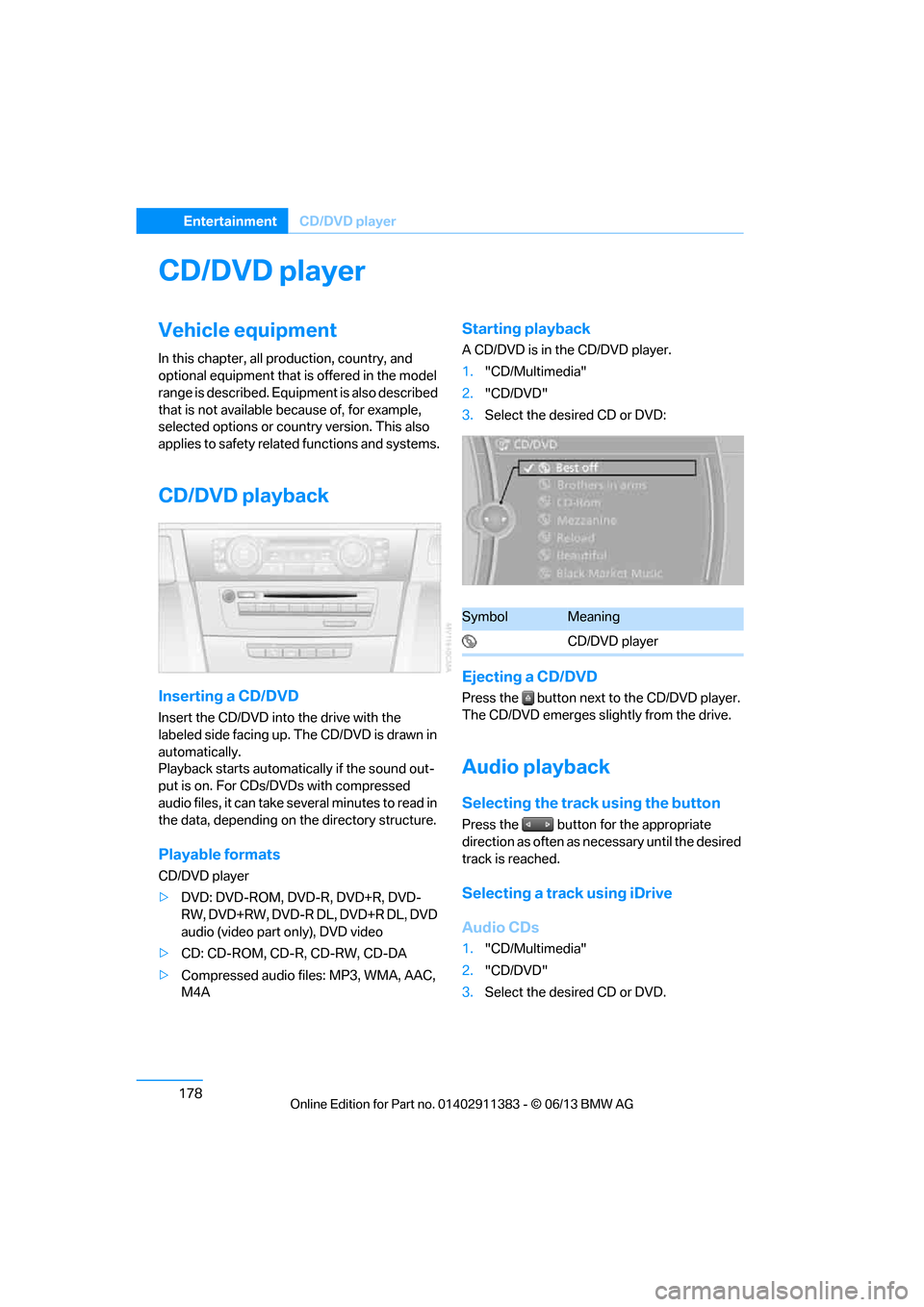
Inserting a CD/DVD
Insert the CD/DVD into the drive with the
labeled side facing up. The CD/DVD is drawn in
automatically.
Playback starts automatically if the sound out-
put is on. For CDs/DVDs with compressed
audio files, it can take se veral minutes to read in
the data, depending on the directory structure.
Playable formats
CD/DVD player
> DVD: DVD-ROM, DVD-R, DVD+R, DVD-
RW, DVD+RW, DVD-R DL, DVD+R DL, DVD
audio (video part only), DVD video
> CD: CD-ROM, CD-R, CD-RW, CD-DA
> Compressed audio files: MP3, WMA, AAC,
M4A
Starting playback
A CD/DVD is in the CD/DVD player.
1."CD/Multimedia"
2. "CD/DVD"
3. Select the desired CD or DVD:
Ejecting a CD/DVD
Press the button next to the CD/DVD player.
The CD/DVD emerges slightly from the drive.
Audio playback
Selecting the track using the button
Press the button for the appropriate
direction as often as necessary until the desired
track is reached.
Selecting a track using iDrive
Audio CDs
1."CD/Multimedia"
2. "CD/DVD"
3. Select the desired CD or DVD.
SymbolMeaning
CD/DVD player
00320051004F004C00510048000300280047004C0057004C005200510003
Page 184 of 311
179
CD/DVD player
Entertainment
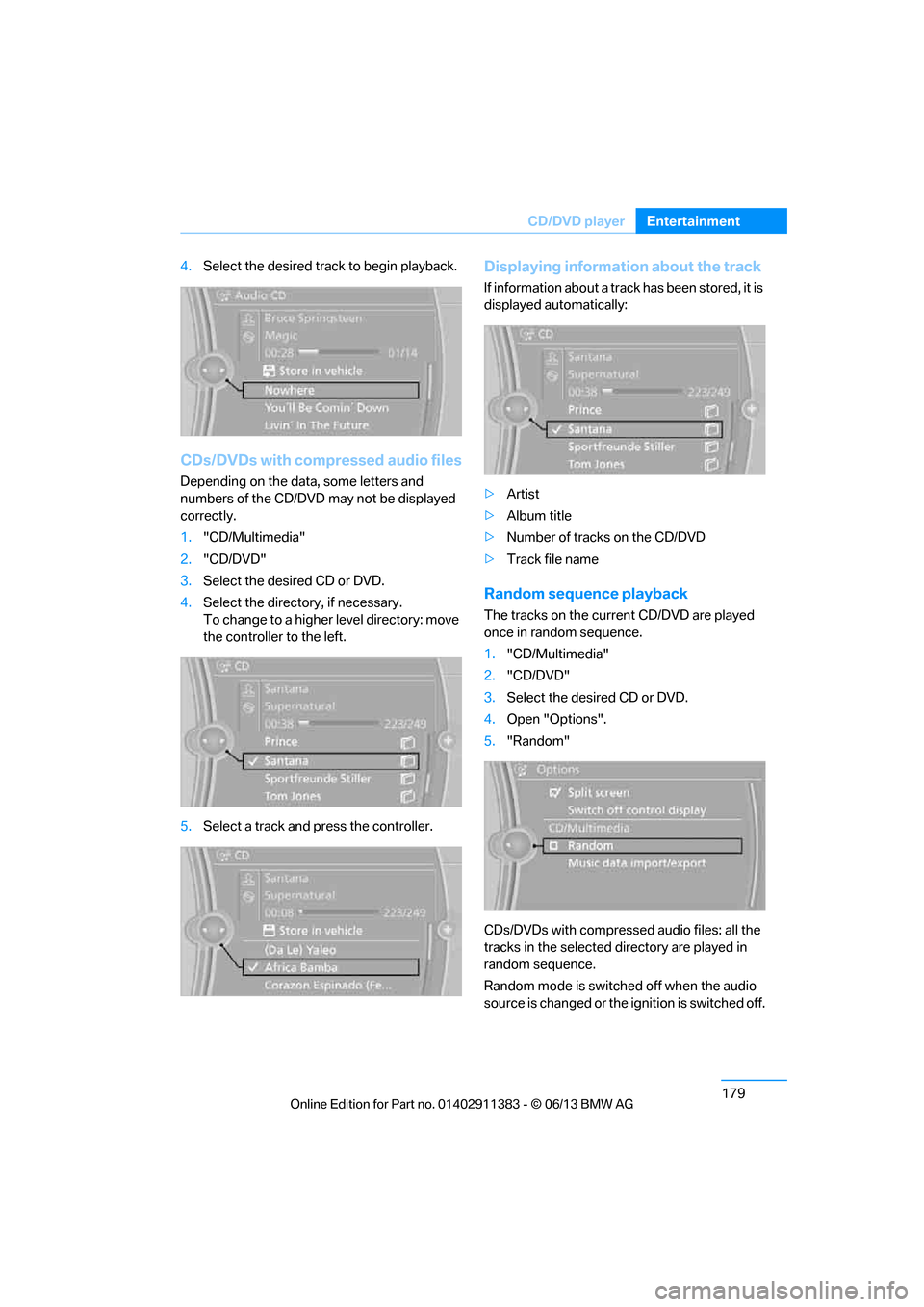
4.
Select the desired trac k to begin playback.
CDs/DVDs with compressed audio files
Depending on the data , some letters and
numbers of the CD/DVD may not be displayed
correctly.
1. "CD/Multimedia"
2. "CD/DVD"
3. Select the desired CD or DVD.
4. Select the directory, if necessary.
To change to a higher level directory: move
the controller to the left.
5. Select a track and press the controller.
Displaying information about the track
If information about a track has been stored, it is
displayed automatically:
>Artist
> Album title
> Number of tracks on the CD/DVD
> Track file name
Random sequence playback
The tracks on the curr ent CD/DVD are played
once in random sequence.
1. "CD/Multimedia"
2. "CD/DVD"
3. Select the desired CD or DVD.
4. Open "Options".
5. "Random"
CDs/DVDs with compressed audio files: all the
tracks in the selected directory are played in
random sequence.
Random mode is switched off when the audio
source is changed or the ignition is switched off.
00320051004F004C00510048000300280047004C0057004C005200510003