Time BMW 323I 2011 E90 Repair Manual
[x] Cancel search | Manufacturer: BMW, Model Year: 2011, Model line: 323I, Model: BMW 323I 2011 E90Pages: 286, PDF Size: 8.25 MB
Page 157 of 286
Navigation
Entertainment
Driving tips
155Reference
At a glance
Controls
Communications
Mobility
Displaying additional information
Some stations broadcast additional information
on the current track, such as the name of the
artist.
1.Select the desired station.
2.Open "Options".
3."Station info"
Selecting a substation
This symbol indicates that a main station
includes additional subchannels. The station
name of the main station ends with HD1. The
station names of the subchannels end with
HD2, HD3, etc.
1.Select the desired station.
2.Press the controller.
3.Select the substation.
In the event of poor reception, the substation is
muted for several seconds. If reception is inter-
rupted for a longer period of time, then the sys-
tem switches back to the main station.
Presets
It is possible to store up to 40 stations.
Calling up a station
1."Radio"
2."Presets"
3.Select the desired station.
Storing a station
The station currently selected is stored.
1."Radio"
2."Presets"
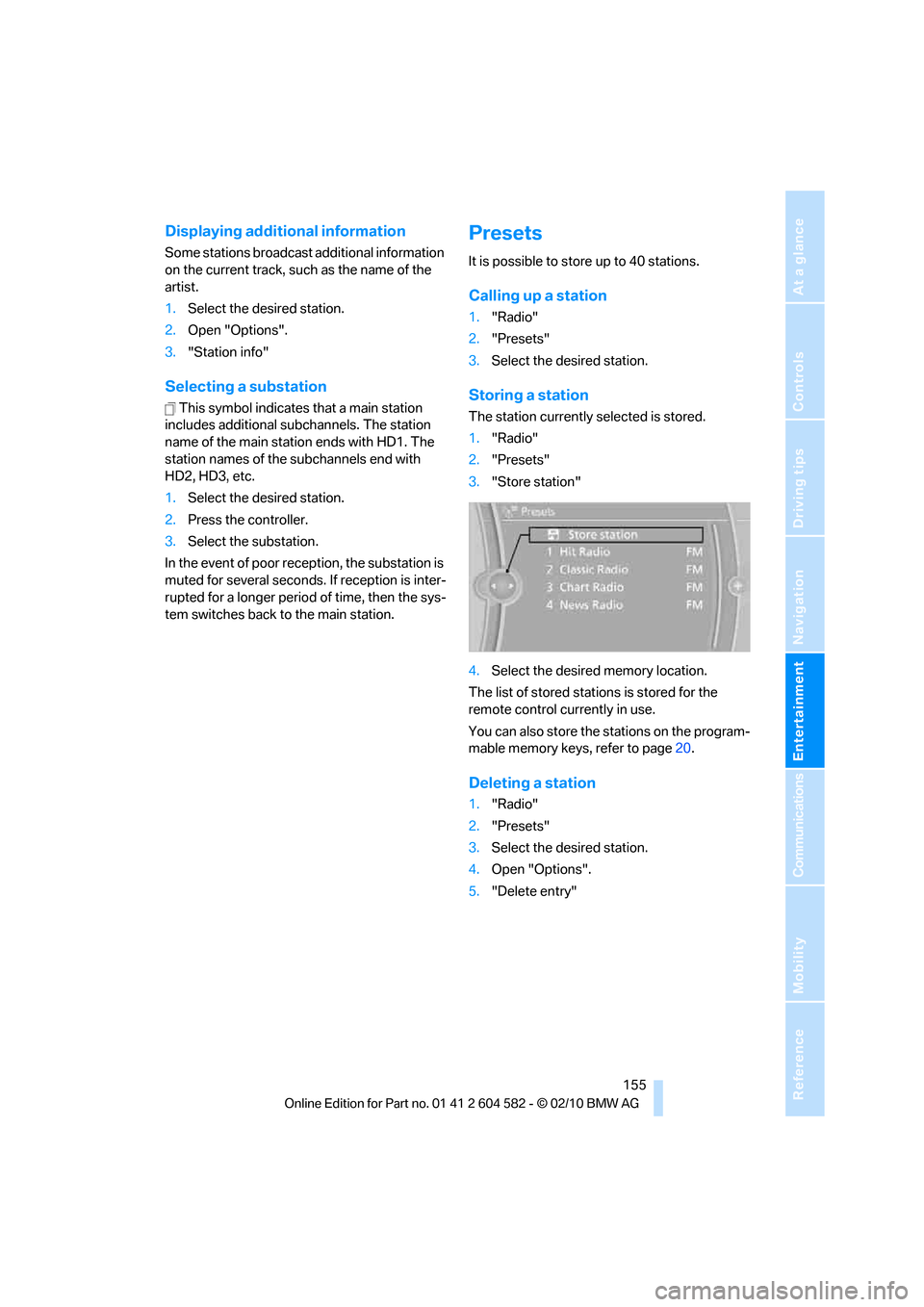
3."Store station"
4.Select the desired memory location.
The list of stored stations is stored for the
remote control currently in use.
You can also store the stations on the program-
mable memory keys, refer to page20.
Deleting a station
1."Radio"
2."Presets"
3.Select the desired station.
4.Open "Options".
5."Delete entry"
Page 158 of 286
Satellite radio
156
Satellite radio
General information
The channels are offered in predefined pack-
ages. The packages must be enabled by tele-
phone.
Navigation bar overview
The functions of the navigation bar symbols can
also be stored on the programmable memory
buttons, refer to page20.
Managing a subscription
To be able to enable or unsubscribe from the
channels, you must have reception. It is usually
at its best when you have an unobstructed view
of the sky. The channel name is displayed in the
status line.
Enabling the channels
The Unsubscribed Channels category contains
all disabled channels.
1."Radio"
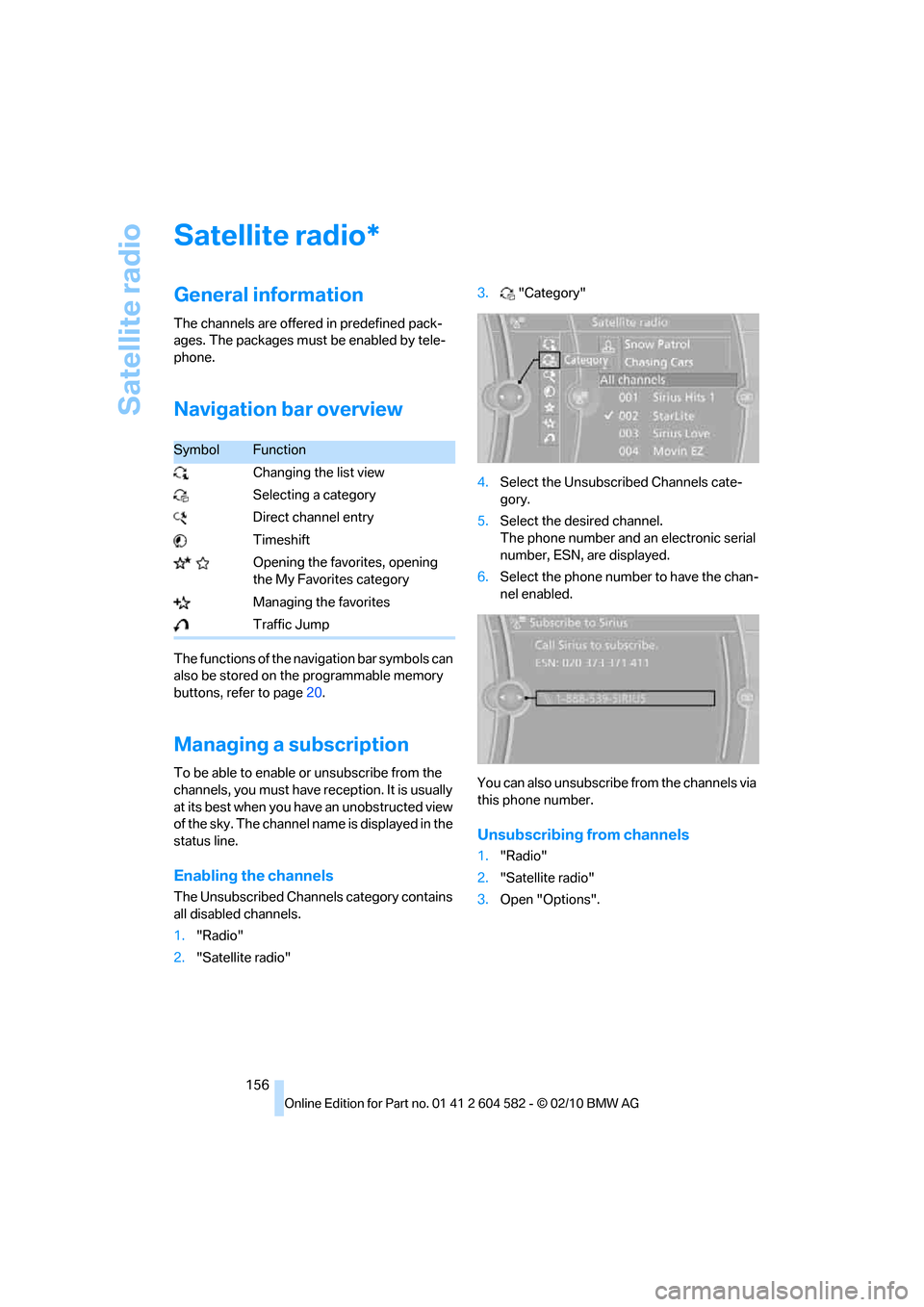
2."Satellite radio"3."Category"
4.Select the Unsubscribed Channels cate-
gory.
5.Select the desired channel.
The phone number and an electronic serial
number, ESN, are displayed.
6.Select the phone number to have the chan-
nel enabled.
You can also unsubscribe from the channels via
this phone number.
Unsubscribing from channels
1."Radio"
2."Satellite radio"
3.Open "Options".
*
SymbolFunction
Changing the list view
Selecting a category
Direct channel entry
Timeshift
Opening the favorites, opening
the My Favorites category
Managing the favorites
Traffic Jump
Page 160 of 286
Satellite radio
158
Changing the list view
The list view changes every time the first sym-
bol on the navigation bar is pressed.
Information on the channel is displayed.
Selecting a category
1."Radio"
2."Satellite radio"
3."Category"
4.Select the desired category.
Timeshift
Approx. one hour of the program being broad-
cast on the channel currently being listened to
is stored in a buffer. Prerequisite: the signal
must be available.
The stored audio track can be played with a
delay following the live broadcast. When the
buffer is full, the older tracks are overwritten.
The buffer is cleared when a new channel is
selected.
Opening the timeshift function
1."Radio"
2."Satellite radio"
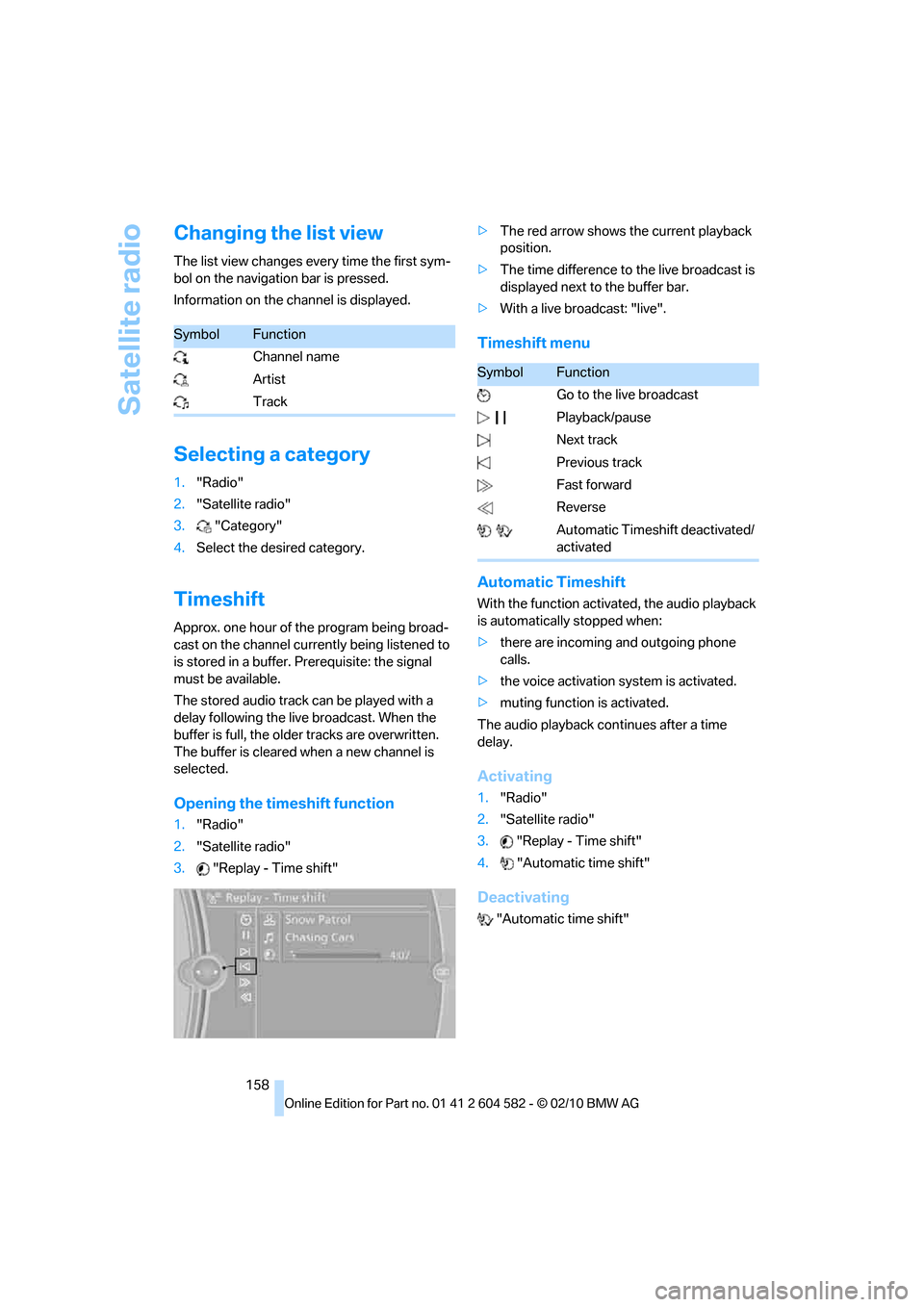
3."Replay - Time shift">The red arrow shows the current playback
position.
>The time difference to the live broadcast is
displayed next to the buffer bar.
>With a live broadcast: "live".
Timeshift menu
Automatic Timeshift
With the function activated, the audio playback
is automatically stopped when:
>there are incoming and outgoing phone
calls.
>the voice activation system is activated.
>muting function is activated.
The audio playback continues after a time
delay.
Activating
1."Radio"
2."Satellite radio"
3."Replay - Time shift"
4."Automatic time shift"
Deactivating
"Automatic time shift"
SymbolFunction
Channel name
Artist
Track
SymbolFunction
Go to the live broadcast
Playback/pause
Next track
Previous track
Fast forward
Reverse
Automatic Timeshift deactivated/
activated
Page 163 of 286
Navigation
Entertainment
Driving tips
161Reference
At a glance
Controls
Communications
Mobility
CD/DVD player and CD changer
CD/DVD playback
Inserting a CD/DVD
Insert the CD/DVD into the drive with the
labeled side facing up. The CD/DVD is drawn in
automatically.
Playback starts automatically if the sound out-
put is on. For CDs/DVDs with compressed
audio files, it can take several minutes to read in
the data, depending on the directory structure.
Playable formats
CD/DVD player
>DVD: DVD-ROM, DVD-R, DVD+R, DVD-
RW, DVD+RW, DVD-R DL, DVD+R DL, DVD
audio (video part only), DVD video
>CD: CD-ROM, CD-R, CD-RW, CD-DA,
VCD, SVCD
>Compressed audio files: MP3, WMA, AAC
CD changer
*
>CD: CD-ROM, CD-R, CD-RW, CD-DA
Starting playback
Via iDrive
Fill the CD/DVD magazine and insert it, refer to
page166.To start playback if a CD is already located in
the player or changer:
1."CD/Multimedia"
2."CD/DVD"
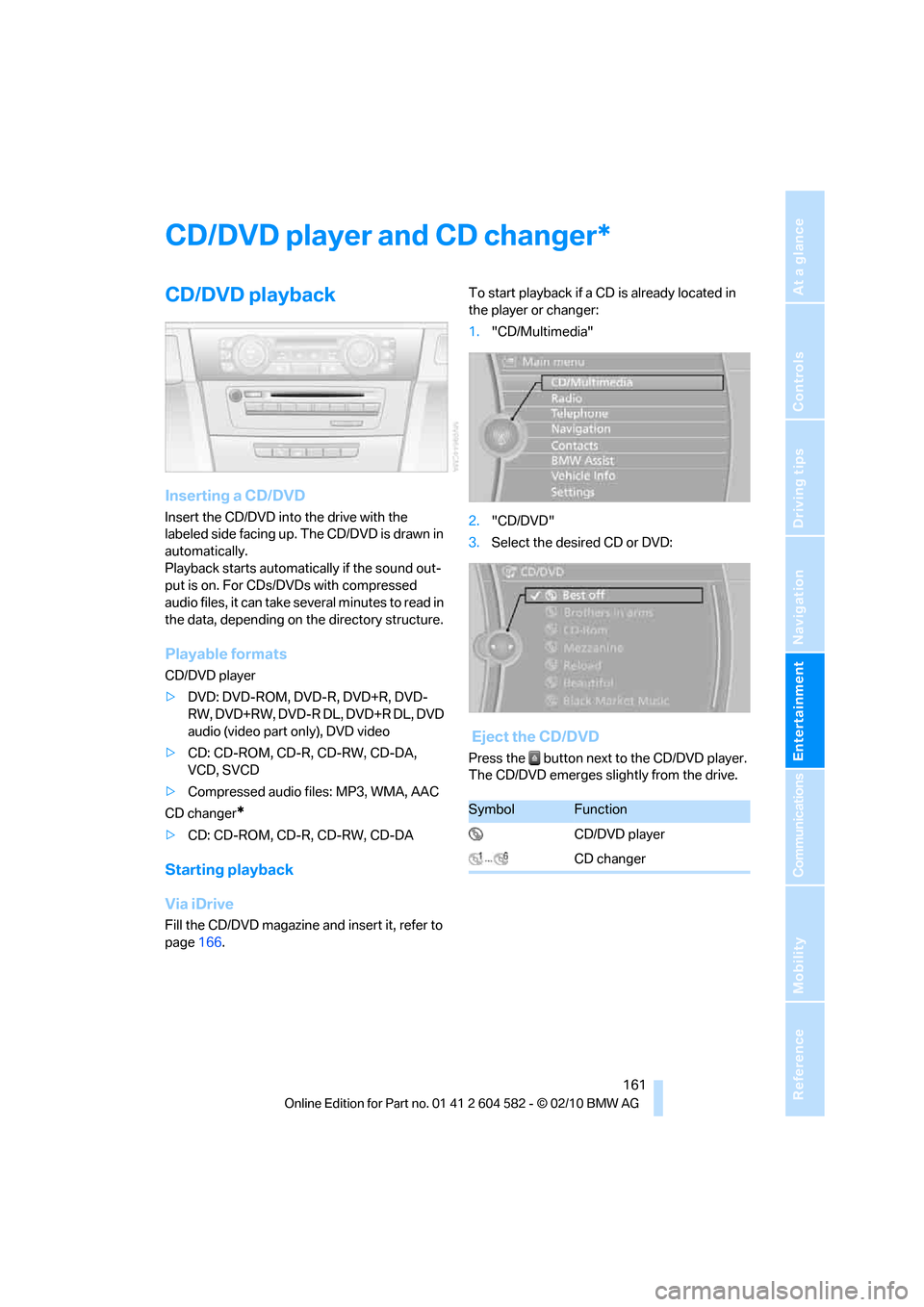
3.Select the desired CD or DVD:
Eject the CD/DVD
Press the button next to the CD/DVD player.
The CD/DVD emerges slightly from the drive.
*
SymbolFunction
CD/DVD player
CD changer
Page 164 of 286
CD/DVD player and CD changer
162
Audio playback
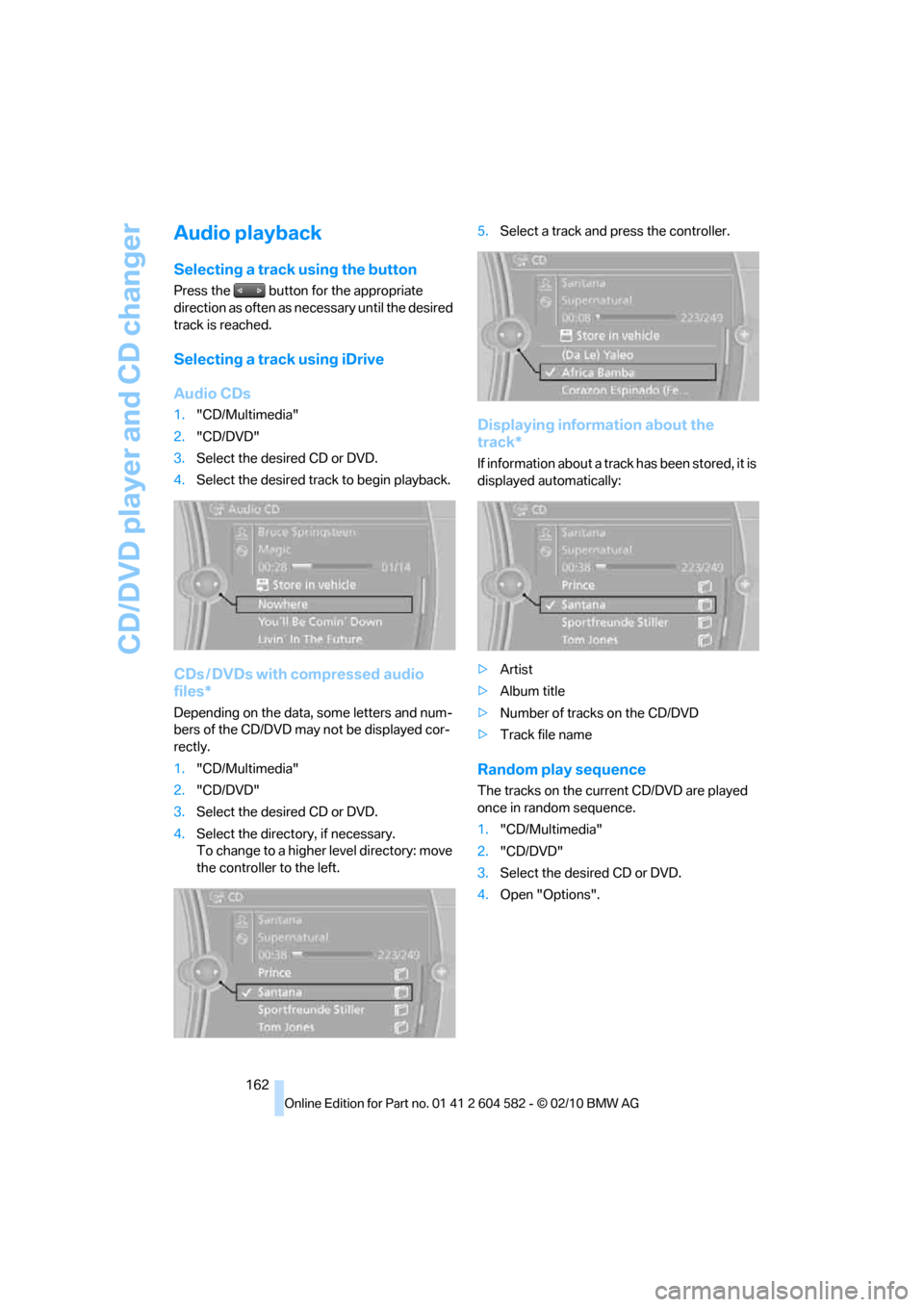
Selecting a track using the button
Press the button for the appropriate
direction as often as necessary until the desired
track is reached.
Selecting a track using iDrive
Audio CDs
1."CD/Multimedia"
2."CD/DVD"
3.Select the desired CD or DVD.
4.Select the desired track to begin playback.
CDs / DVDs with compressed audio
files*
Depending on the data, some letters and num-
bers of the CD/DVD may not be displayed cor-
rectly.
1."CD/Multimedia"
2."CD/DVD"
3.Select the desired CD or DVD.
4.Select the directory, if necessary.
To change to a higher level directory: move
the controller to the left.5.Select a track and press the controller.
Displaying information about the
track*
If information about a track has been stored, it is
displayed automatically:
>Artist
>Album title
>Number of tracks on the CD/DVD
>Track file name
Random play sequence
The tracks on the current CD/DVD are played
once in random sequence.
1."CD/Multimedia"
2."CD/DVD"
3.Select the desired CD or DVD.
4.Open "Options".
Page 165 of 286
Navigation
Entertainment
Driving tips
163Reference
At a glance
Controls
Communications
Mobility
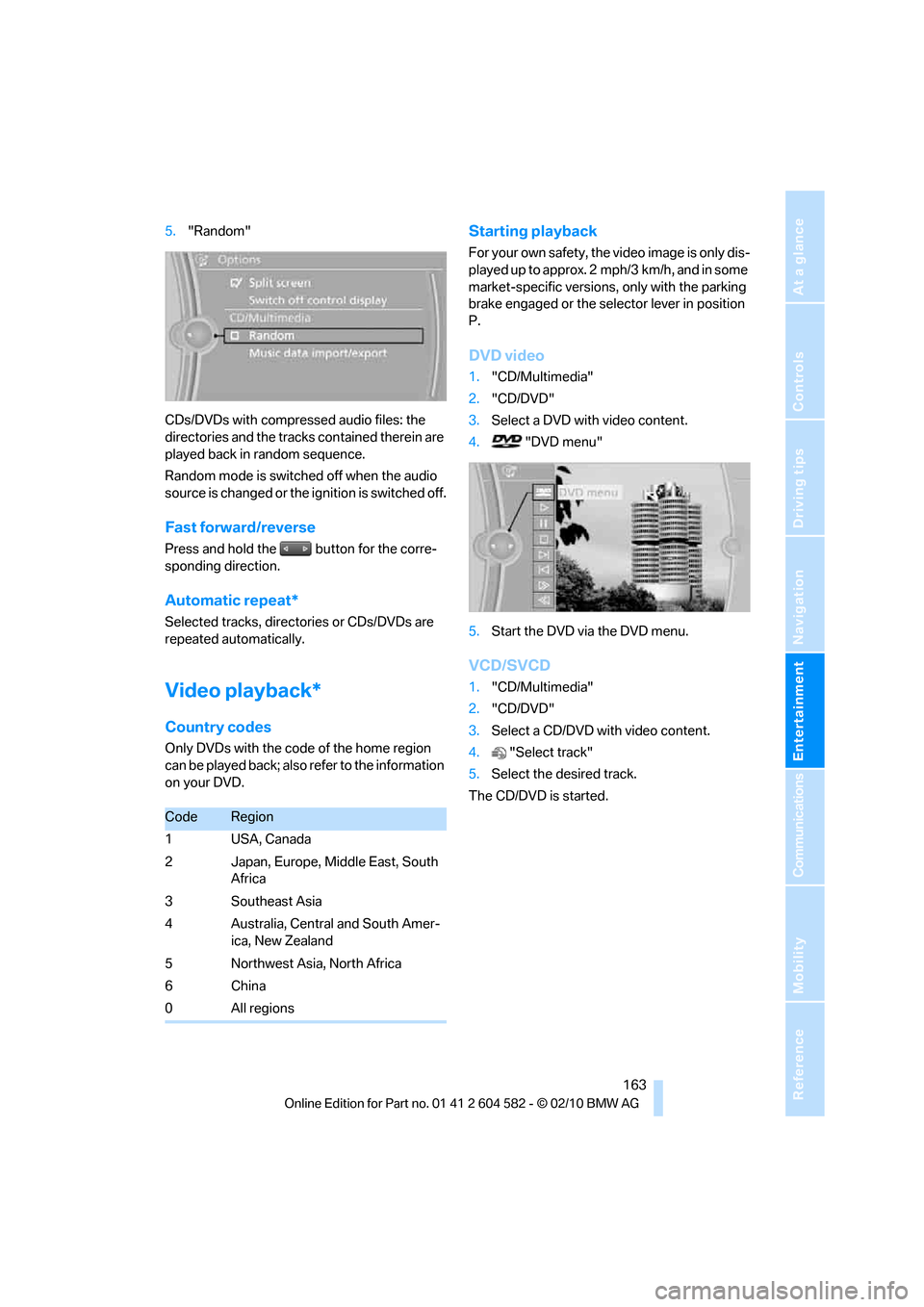
5."Random"
CDs/DVDs with compressed audio files: the
directories and the tracks contained therein are
played back in random sequence.
Random mode is switched off when the audio
source is changed or the ignition is switched off.
Fast forward/reverse
Press and hold the button for the corre-
sponding direction.
Automatic repeat*
Selected tracks, directories or CDs/DVDs are
repeated automatically.
Video playback*
Country codes
Only DVDs with the code of the home region
can be played back; also refer to the information
on your DVD.
Starting playback
For your own safety, the video image is only dis-
played up to approx. 2 mph/3 km/h, and in some
market-specific versions, only with the parking
brake engaged or the selector lever in position
P.
DVD video
1."CD/Multimedia"
2."CD/DVD"
3.Select a DVD with video content.
4. "DVD menu"
5.Start the DVD via the DVD menu.
VCD/SVCD
1."CD/Multimedia"
2."CD/DVD"
3.Select a CD/DVD with video content.
4."Select track"
5.Select the desired track.
The CD/DVD is started.
CodeRegion
1USA, Canada
2 Japan, Europe, Middle East, South
Africa
3 Southeast Asia
4 Australia, Central and South Amer-
ica, New Zealand
5 Northwest Asia, North Africa
6China
0 All regions
Page 166 of 286
CD/DVD player and CD changer
164
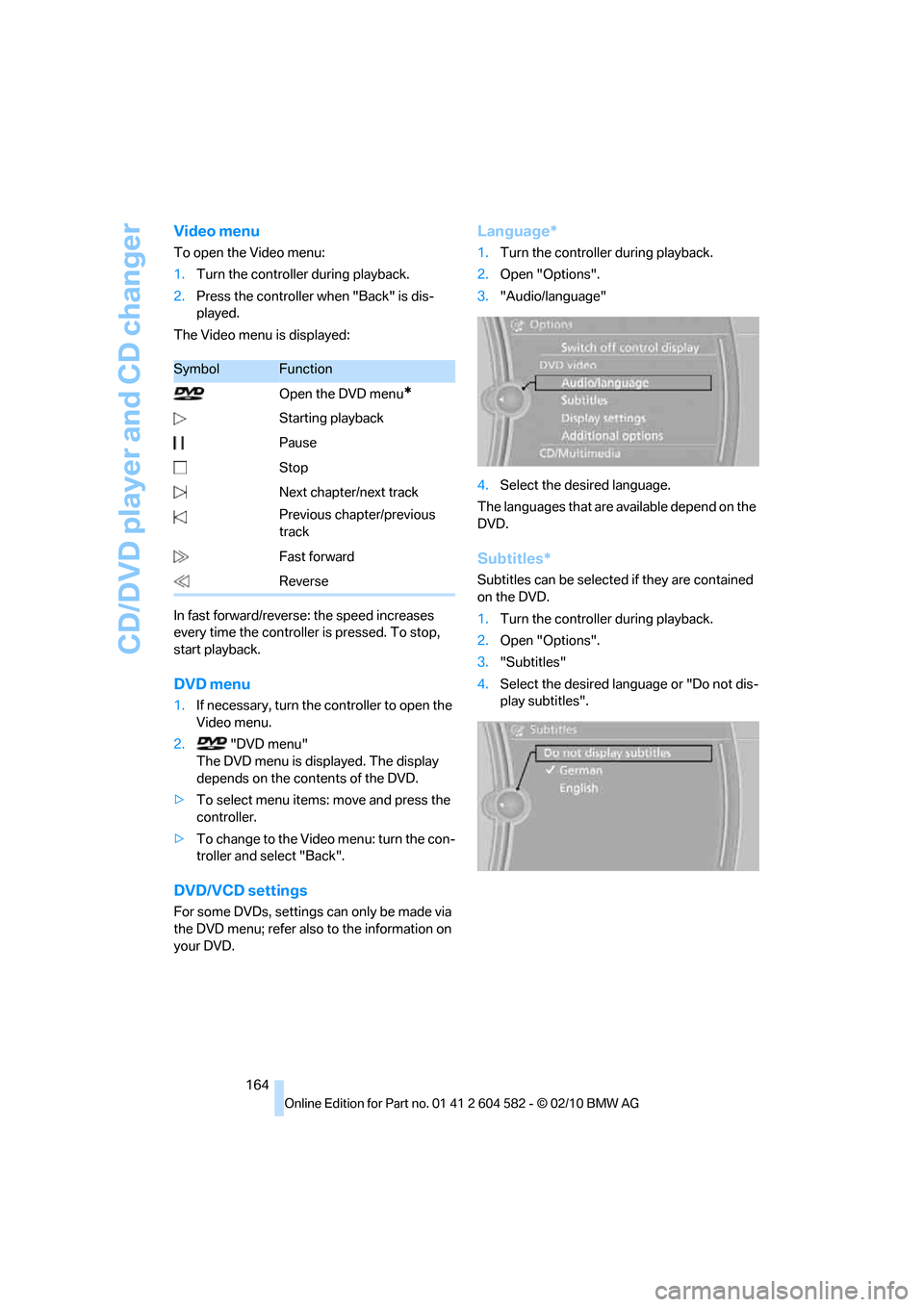
Video menu
To open the Video menu:
1.Turn the controller during playback.
2.Press the controller when "Back" is dis-
played.
The Video menu is displayed:
In fast forward/reverse: the speed increases
every time the controller is pressed. To stop,
start playback.
DVD menu
1.If necessary, turn the controller to open the
Video menu.
2. "DVD menu"
The DVD menu is displayed. The display
depends on the contents of the DVD.
>To select menu items: move and press the
controller.
>To change to the Video menu: turn the con-
troller and select "Back".
DVD/VCD settings
For some DVDs, settings can only be made via
the DVD menu; refer also to the information on
your DVD.
Language*
1.Turn the controller during playback.
2.Open "Options".
3."Audio/language"
4.Select the desired language.
The languages that are available depend on the
DVD.
Subtitles*
Subtitles can be selected if they are contained
on the DVD.
1.Turn the controller during playback.
2.Open "Options".
3."Subtitles"
4.Select the desired language or "Do not dis-
play subtitles".
SymbolFunction
Open the DVD menu
*
Starting playback
Pause
Stop
Next chapter/next track
Previous chapter/previous
track
Fast forward
Reverse
Page 170 of 286
Music collection
168
Music collection
Storing music
The music tracks from CDs, DVDs and USB
devices can be stored in the music collection in
the vehicle and played from there.
>Audio CD: tracks are converted into a com-
pressed audio format when they are stored.
If available, information on the album, such
as the artist, is stored as well.
>CD/DVD or USB device with compressed
audio files: the entire content of the CD/
DVD or the USB device is stored in the vehi-
cle as an album. After storing, the tracks and
directories can be deleted individually. Files
are only stored in the WMA, MP3, and AAC
formats.
Tracks with DRM copy protection can be
stored in the vehicle but cannot be played
back.
Regularly back up the music data; other-
wise, it could be lost if there is a fault on
the hard drive.<
Music recognition technology and
related data are provided by
Gracenote®. Gracenote® is the industry stan-
dard in music recognition technology and
related content delivery. For more information,
please visit www.gracenote.com.
CD and music-related data from Gracenote,
Inc., copyright © 2000-2009 Gracenote.
Gracenote Software, copyright © 2000-2009
Gracenote. This product and service may prac-
tice one or more of the following U.S. Patents:
#5,987,525; #6,061,680; #6,154,773;
#6,161,132; #6,230,192; #6,230,207;
#6,240,459; #6,330,593; and other patents
issued or pending. Some services supplied
under license from Open Globe, Inc. for U.S.
Patent: #6,304,523.
Gracenote and CDDB are registered trade-
marks of Gracenote. The Gracenote logo and
logotype, and the "Powered by Gracenote"
logo are trademarks of Gracenote.
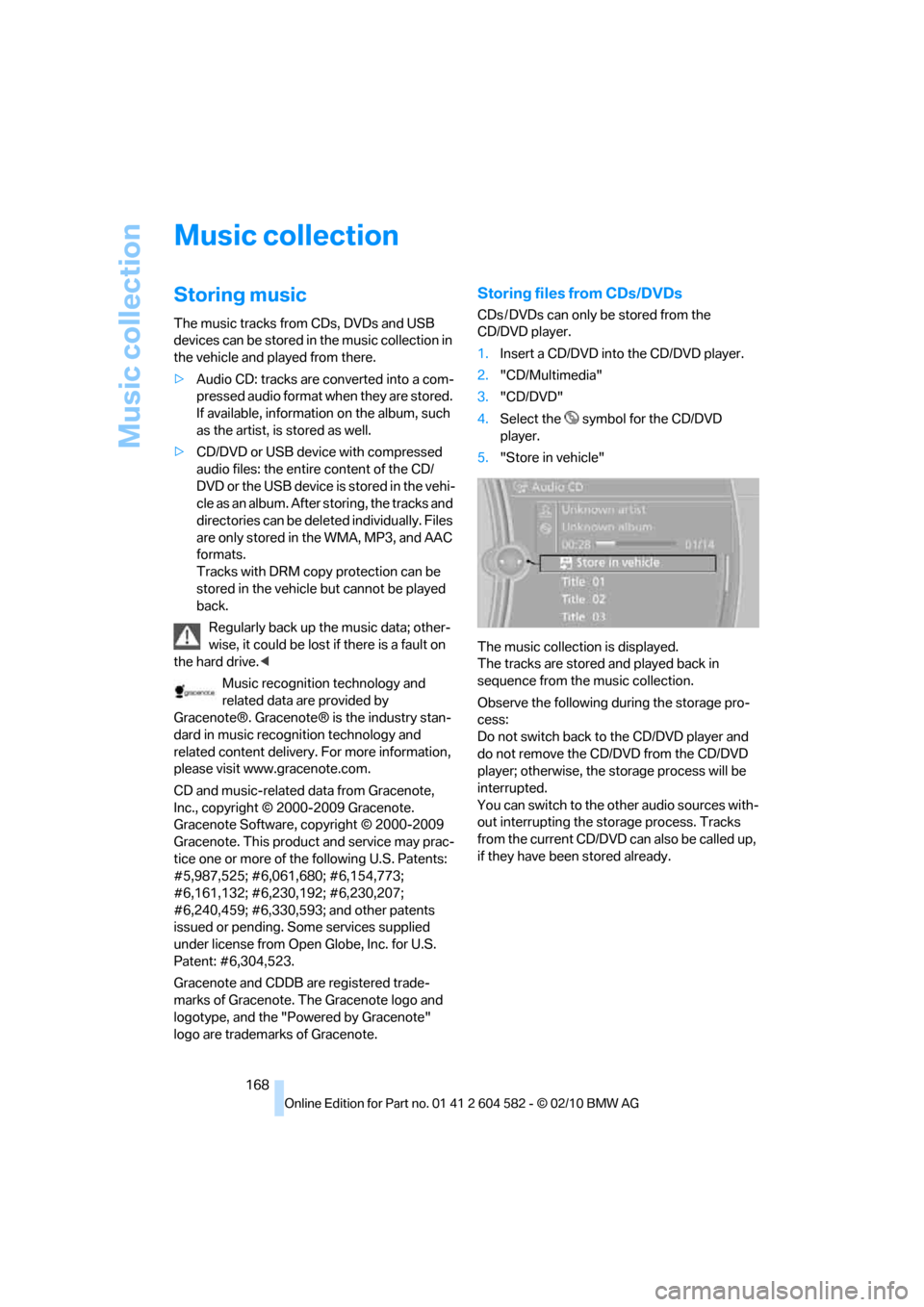
Storing files from CDs/DVDs
CDs / DVDs can only be stored from the
CD/DVD player.
1.Insert a CD/DVD into the CD/DVD player.
2."CD/Multimedia"
3."CD/DVD"
4.Select the symbol for the CD/DVD
player.
5."Store in vehicle"
The music collection is displayed.
The tracks are stored and played back in
sequence from the music collection.
Observe the following during the storage pro-
cess:
Do not switch back to the CD/DVD player and
do not remove the CD/DVD from the CD/DVD
player; otherwise, the storage process will be
interrupted.
You can switch to the other audio sources with-
out interrupting the storage process. Tracks
from the current CD/DVD can also be called up,
if they have been stored already.
Page 171 of 286
Navigation
Entertainment
Driving tips
169Reference
At a glance
Controls
Communications
Mobility
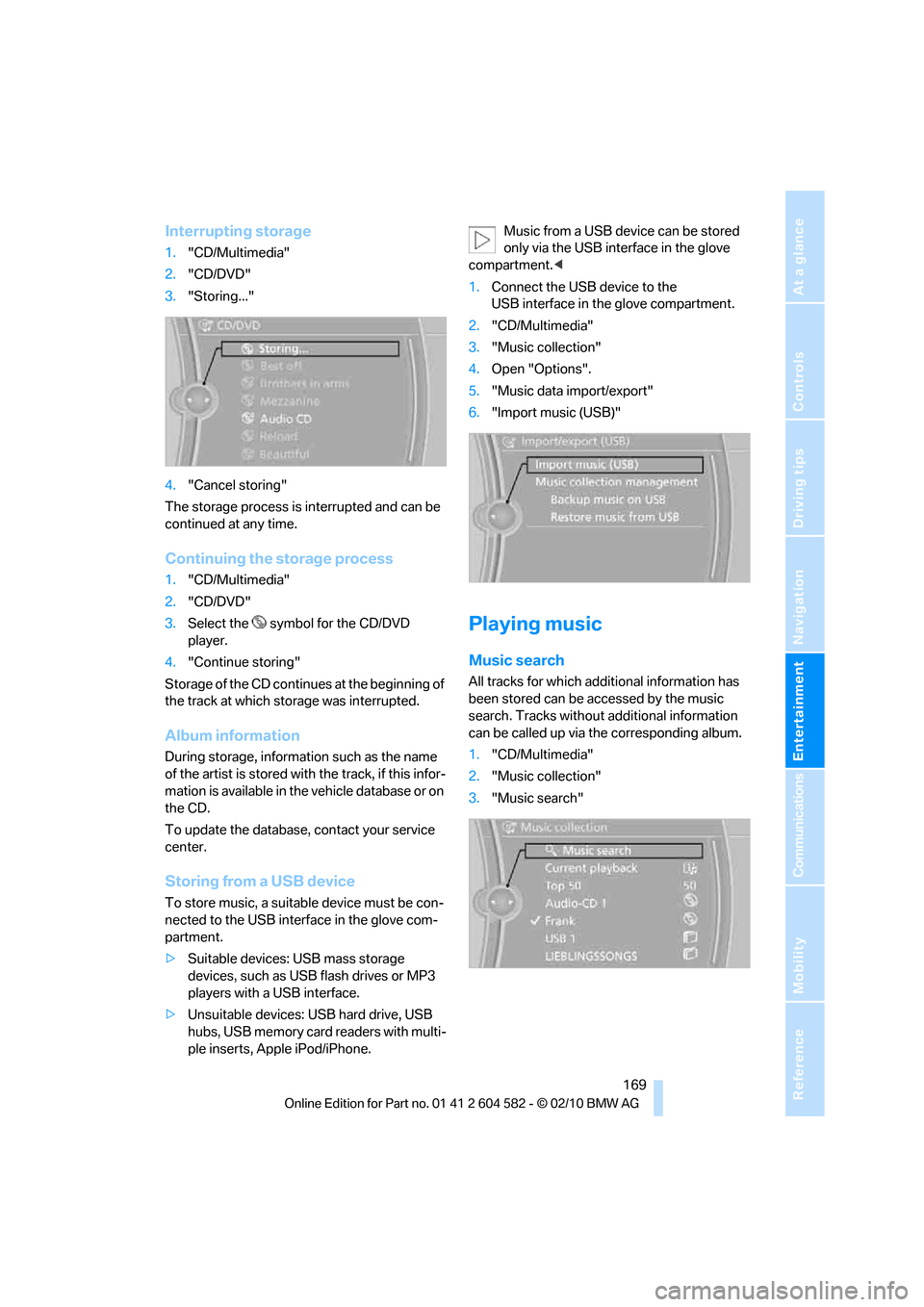
Interrupting storage
1."CD/Multimedia"
2."CD/DVD"
3."Storing..."
4."Cancel storing"
The storage process is interrupted and can be
continued at any time.
Continuing the storage process
1."CD/Multimedia"
2."CD/DVD"
3.Select the symbol for the CD/DVD
player.
4."Continue storing"
Storage of the CD continues at the beginning of
the track at which storage was interrupted.
Album information
During storage, information such as the name
of the artist is stored with the track, if this infor-
mation is available in the vehicle database or on
the CD.
To update the database, contact your service
center.
Storing from a USB device
To store music, a suitable device must be con-
nected to the USB interface in the glove com-
partment.
>Suitable devices: USB mass storage
devices, such as USB flash drives or MP3
players with a USB interface.
>Unsuitable devices: USB hard drive, USB
hubs, USB memory card readers with multi-
ple inserts, Apple iPod/iPhone.Music from a USB device can be stored
only via the USB interface in the glove
compartment.<
1.Connect the USB device to the
USB interface in the glove compartment.
2."CD/Multimedia"
3."Music collection"
4.Open "Options".
5."Music data import/export"
6."Import music (USB)"
Playing music
Music search
All tracks for which additional information has
been stored can be accessed by the music
search. Tracks without additional information
can be called up via the corresponding album.
1."CD/Multimedia"
2."Music collection"
3."Music search"
Page 172 of 286
Music collection
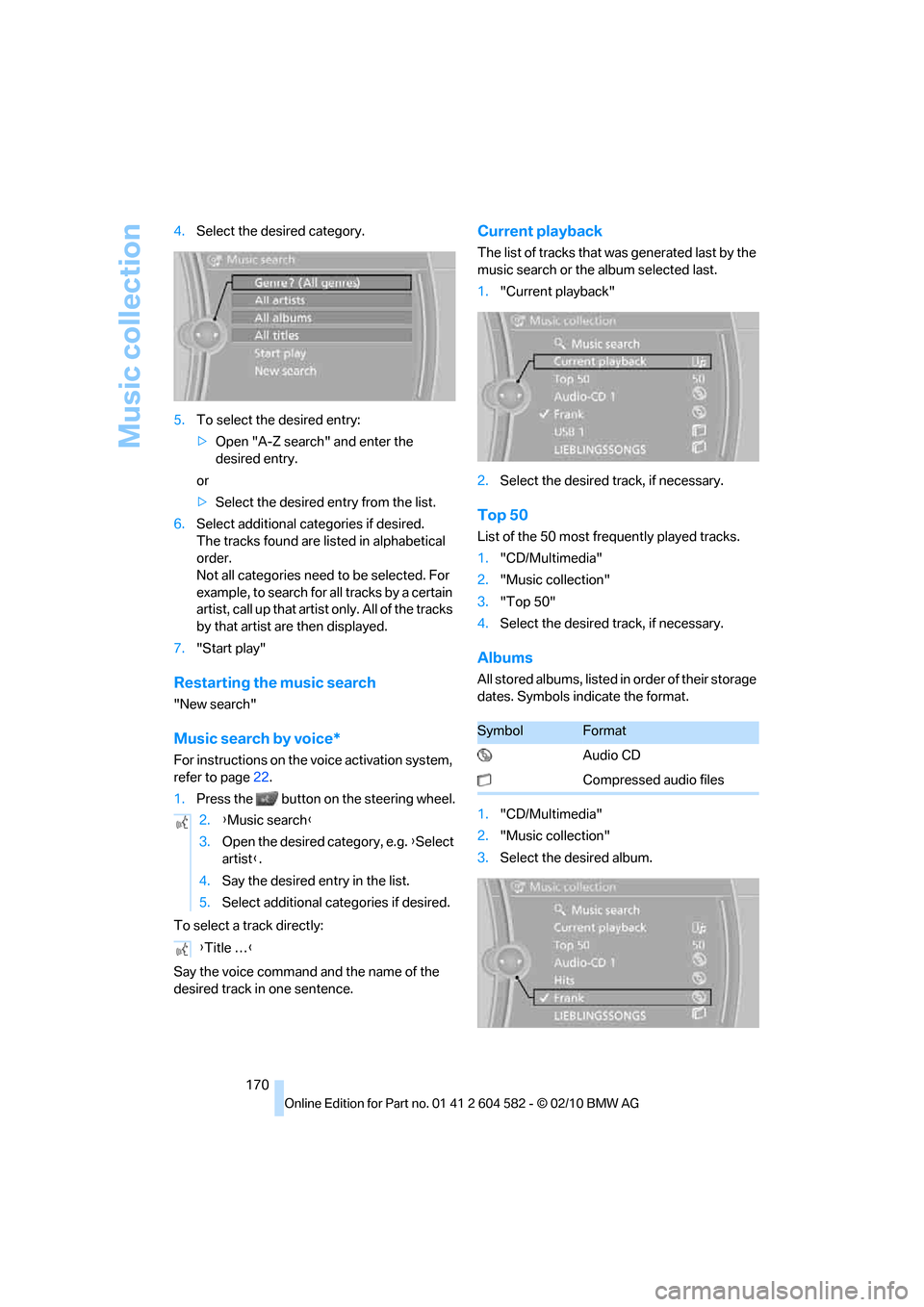
170 4.Select the desired category.
5.To select the desired entry:
>Open "A-Z search" and enter the
desired entry.
or
>Select the desired entry from the list.
6.Select additional categories if desired.
The tracks found are listed in alphabetical
order.
Not all categories need to be selected. For
example, to search for all tracks by a certain
artist, call up that artist only. All of the tracks
by that artist are then displayed.
7."Start play"
Restarting the music search
"New search"
Music search by voice*
For instructions on the voice activation system,
refer to page22.
1.Press the button on the steering wheel.
To select a track directly:
Say the voice command and the name of the
desired track in one sentence.
Current playback
The list of tracks that was generated last by the
music search or the album selected last.
1."Current playback"
2.Select the desired track, if necessary.
Top 50
List of the 50 most frequently played tracks.
1."CD/Multimedia"
2."Music collection"
3."Top 50"
4.Select the desired track, if necessary.
Albums
All stored albums, listed in order of their storage
dates. Symbols indicate the format.
1."CD/Multimedia"
2."Music collection"
3.Select the desired album. 2.{Music search}
3.Open the desired category, e.g. {Select
artist}.
4.Say the desired entry in the list.
5.Select additional categories if desired.
{Title …}
SymbolFormat
Audio CD
Compressed audio files