navigation system BMW 325XI SPORTS WAGON 2006 Owners Manual
[x] Cancel search | Manufacturer: BMW, Model Year: 2006, Model line: 325XI SPORTS WAGON, Model: BMW 325XI SPORTS WAGON 2006Pages: 236, PDF Size: 8.56 MB
Page 4 of 236
Reference
At a glance
Controls
Driving tips
Communications
Navigation
Entertainment
Mobility
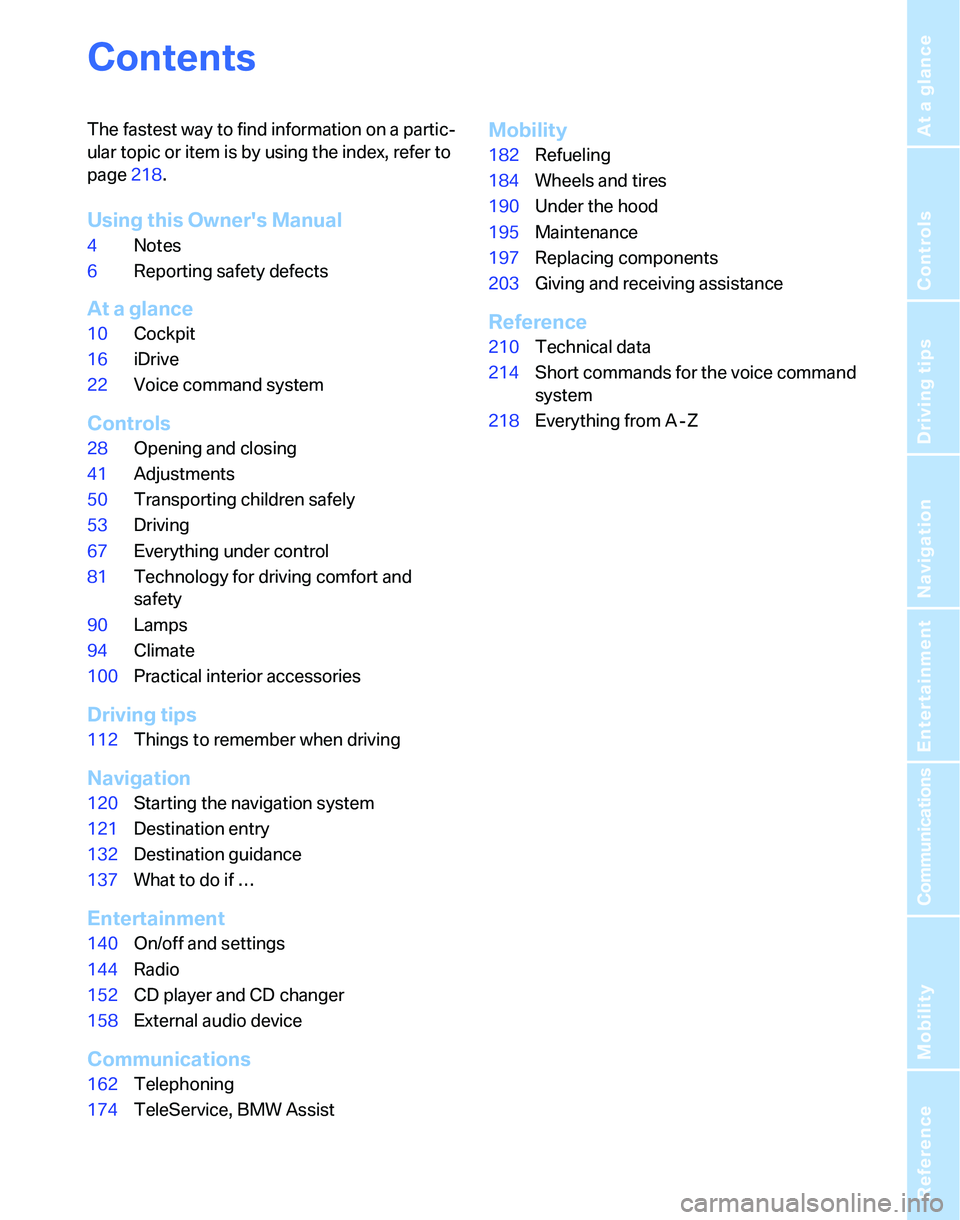
Contents
The fastest way to find information on a partic-
ular topic or item is by using the index, refer to
page218.
Using this Owner's Manual
4Notes
6Reporting safety defects
At a glance
10Cockpit
16iDrive
22Voice command system
Controls
28Opening and closing
41Adjustments
50Transporting children safely
53Driving
67Everything under control
81Technology for driving comfort and
safety
90Lamps
94Climate
100Practical interior accessories
Driving tips
112Things to remember when driving
Navigation
120Starting the navigation system
121Destination entry
132Destination guidance
137What to do if …
Entertainment
140On/off and settings
144Radio
152CD player and CD changer
158External audio device
Communications
162Telephoning
174TeleService, BMW Assist
Mobility
182Refueling
184Wheels and tires
190Under the hood
195Maintenance
197Replacing components
203Giving and receiving assistance
Reference
210Technical data
214Short commands for the voice command
system
218Everything from A - Z
Page 12 of 236
At a glance
11Reference
Controls
Driving tips
Communications
Navigation
Entertainment
Mobility
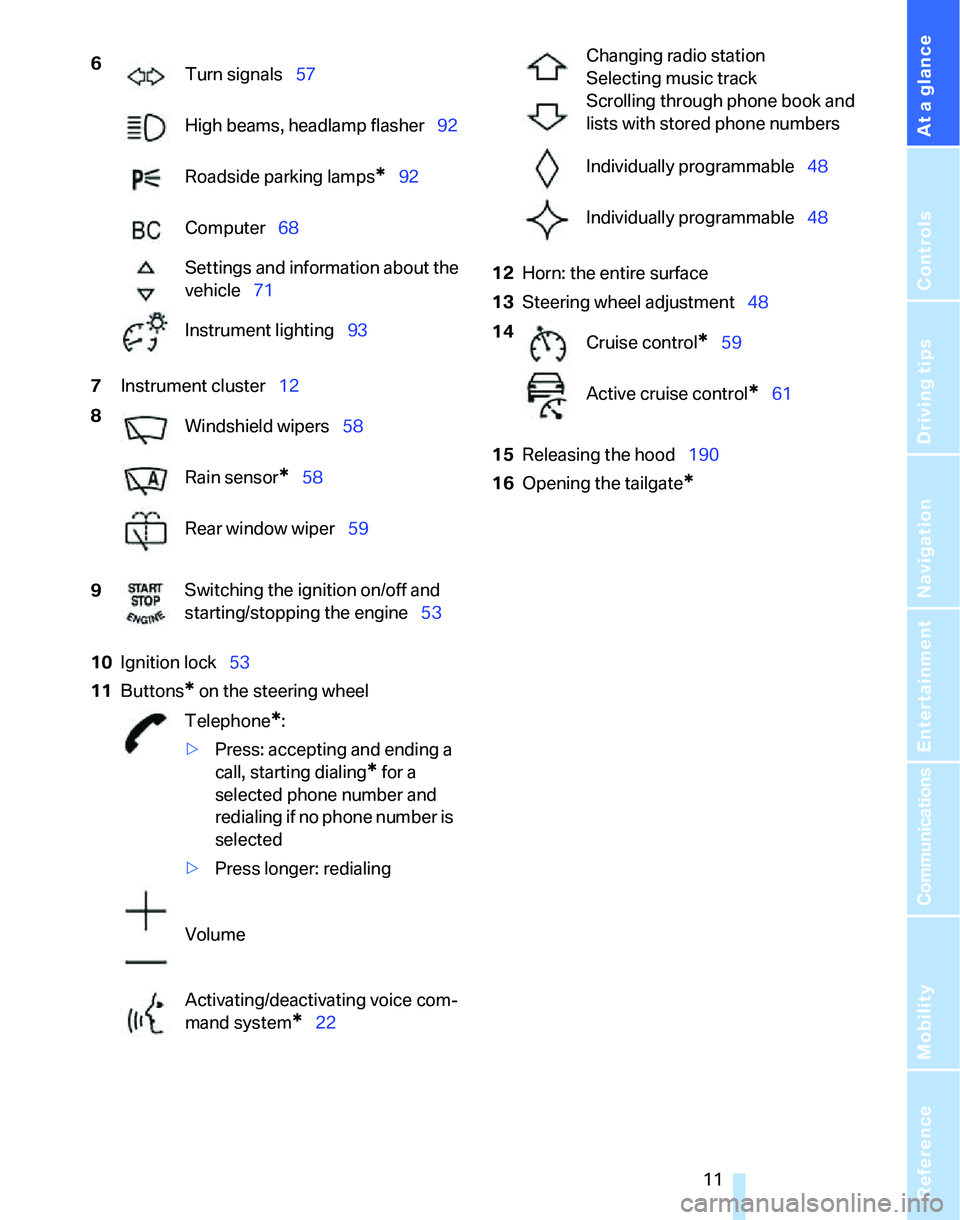
7Instrument cluster12
10Ignition lock53
11Buttons
* on the steering wheel12Horn: the entire surface
13Steering wheel adjustment48
15Releasing the hood190
16Opening the tailgate
*
6
Turn signals57
High beams, headlamp flasher92
Roadside parking lamps
*92
Computer68
Settings and information about the
vehicle71
Instrument lighting93
8
Windshield wipers58
Rain sensor
*58
Rear window wiper59
9Switching the ignition on/off and
starting/stopping the engine53
Telephone
*:
>Press: accepting and ending a
call, starting dialing
* for a
selected phone number and
redialing if no phone number is
selected
>Press longer: redialing
Volume
Activating/deactivating voice com-
mand system
*22
Changing radio station
Selecting music track
Scrolling through phone book and
lists with stored phone numbers
Individually programmable48
Individually programmable48
14
Cruise control
*59
Active cruise control
*61
Page 16 of 236
At a glance
15Reference
Controls
Driving tips
Communications
Navigation
Entertainment
Mobility
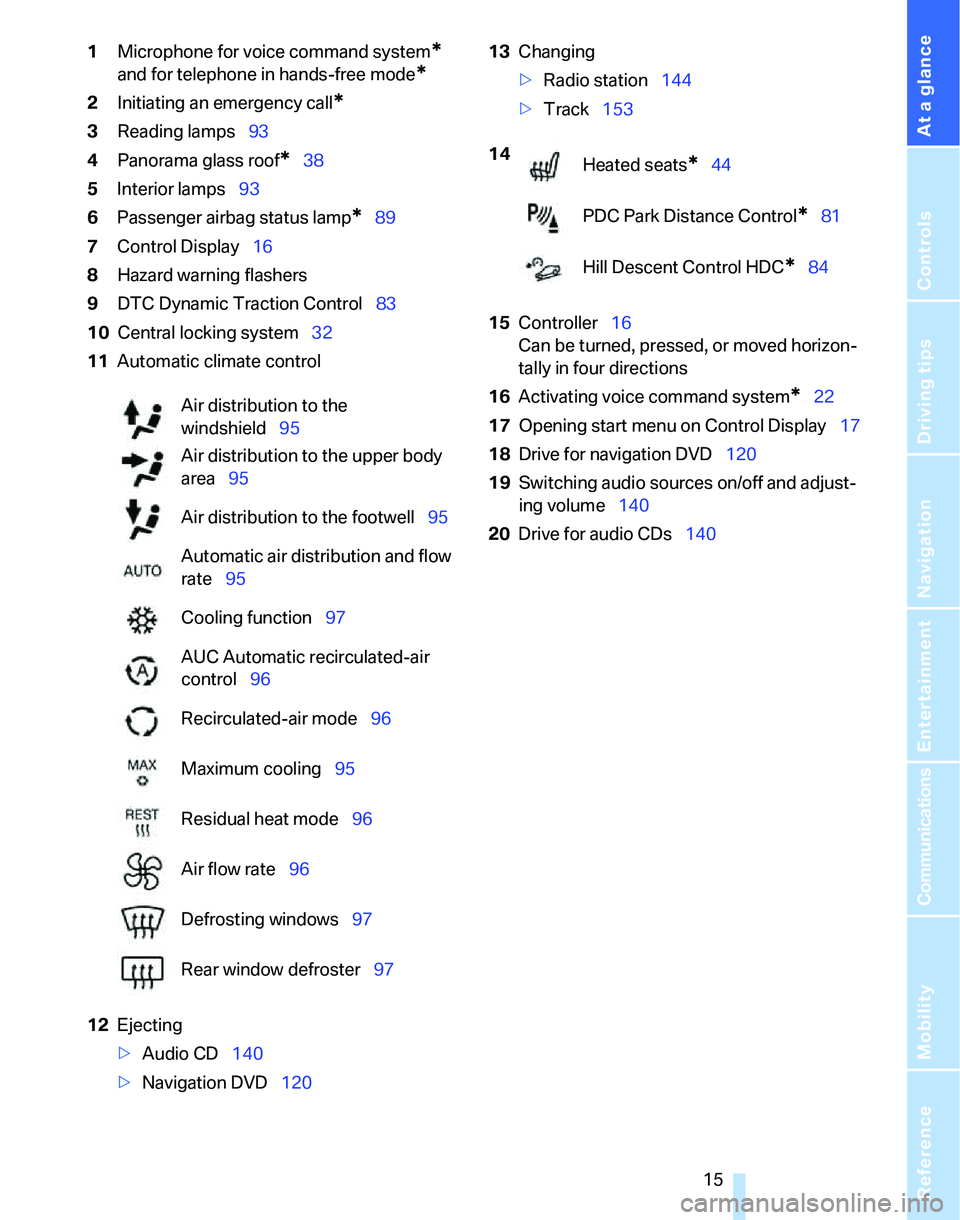
1Microphone for voice command system*
and for telephone in hands-free mode*
2Initiating an emergency call*
3Reading lamps93
4Panorama glass roof
*38
5Interior lamps93
6Passenger airbag status lamp
*89
7Control Display16
8Hazard warning flashers
9DTC Dynamic Traction Control83
10Central locking system32
11Automatic climate control
12Ejecting
>Audio CD140
>Navigation DVD12013Changing
>Radio station144
>Track153
15Controller16
Can be turned, pressed, or moved horizon-
tally in four directions
16Activating voice command system
*22
17Opening start menu on Control Display17
18Drive for navigation DVD120
19Switching audio sources on/off and adjust-
ing volume140
20Drive for audio CDs140 Air distribution to the
windshield95
Air distribution to the upper body
area95
Air distribution to the footwell95
Automatic air distribution and flow
rate95
Cooling function97
AUC Automatic recirculated-air
control96
Recirculated-air mode96
Maximum cooling95
Residual heat mode96
Air flow rate96
Defrosting windows97
Rear window defroster97
14
Heated seats*44
PDC Park Distance Control
*81
Hill Descent Control HDC
*84
Page 18 of 236
At a glance
17Reference
Controls
Driving tips
Communications
Navigation
Entertainment
Mobility
Menu overview
Communication
>Telephone*
>BMW Assist* or TeleService*
Navigation
>Navigation system
>Onboard information, e.g. for displaying the
average fuel consumption.
Entertainment
>Radio
>CD player and CD changer
*
>External audio device
Climate
>Air distribution
>Automatic program
>Parked car ventilation
menu
>Switching off Control Display
>Tone and display settings
>Settings for your vehicle, e.g. for the central
locking system
>Display of service requirements and dates
for statutory emissions and vehicle inspec-
tions
>Settings for telephone
Operating principle
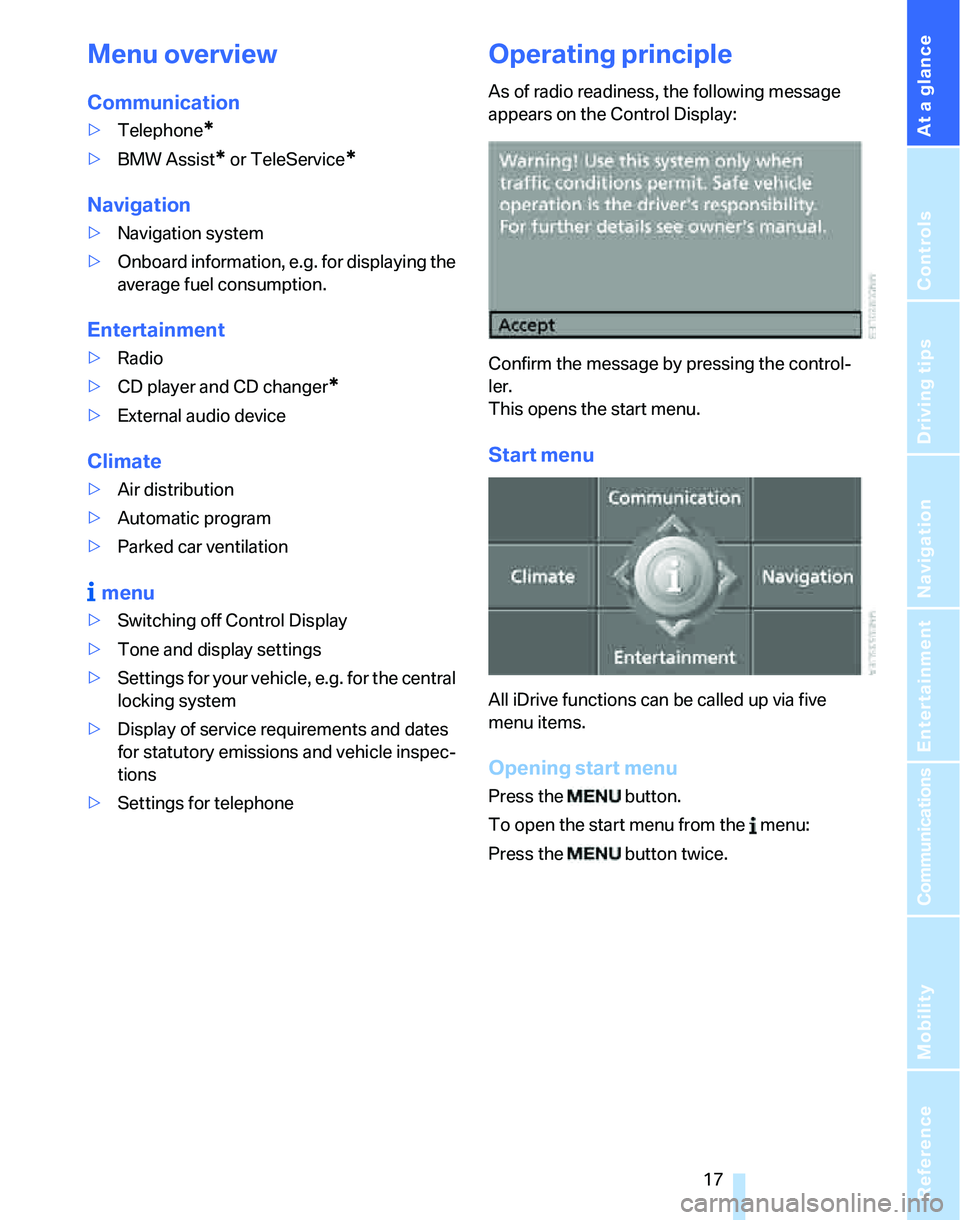
As of radio readiness, the following message
appears on the Control Display:
Confirm the message by pressing the control-
ler.
This opens the start menu.
Start menu
All iDrive functions can be called up via five
menu items.
Opening start menu
Press the button.
To open the start menu from the menu:
Press the button twice.
Page 24 of 236
At a glance
23Reference
Controls
Driving tips
Communications
Navigation
Entertainment
Mobility
If no further commands are possible, continue
by operating the item of equipment via iDrive.
Terminating or canceling voice
command system
Press the button on the steering wheel or in
the center console
or
Commands
Having the possible commands read
aloud
You can have the system read aloud the possi-
ble commands related to the selected menu
item on the Control Display.
To have the possible commands read out to
you:
For instance, if you have selected "CD", the
commands available for operating the CD
player and CD changer are read out.
Opening help
Using alternative commands
There are often a number of commands to run a
function, e.g.:
Calling up functions immediately via
short commands
Short commands enable you to perform certain
functions immediately, irrespective of which
menu item is selected, refer to page214.
Opening the start menu
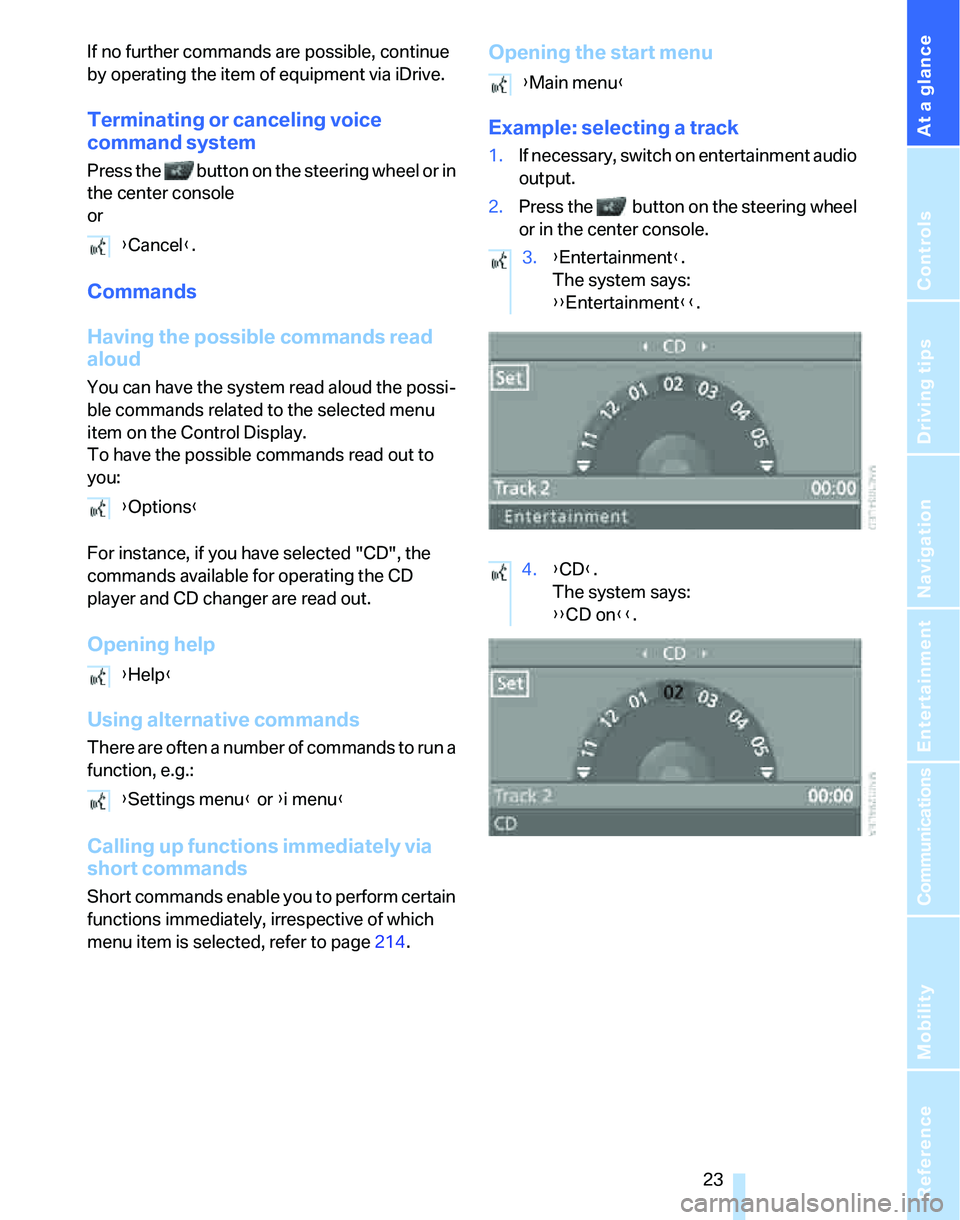
Example: selecting a track
1.If necessary, switch on entertainment audio
output.
2.Press the button on the steering wheel
or in the center console.
{Cancel}.
{Options}
{Help}
{Settings menu} or {i menu}
{Main menu}
3.{Entertainment}.
The system says:
{{Entertainment}}.
4.{CD}.
The system says:
{{CD on}}.
Page 25 of 236
Voice command system
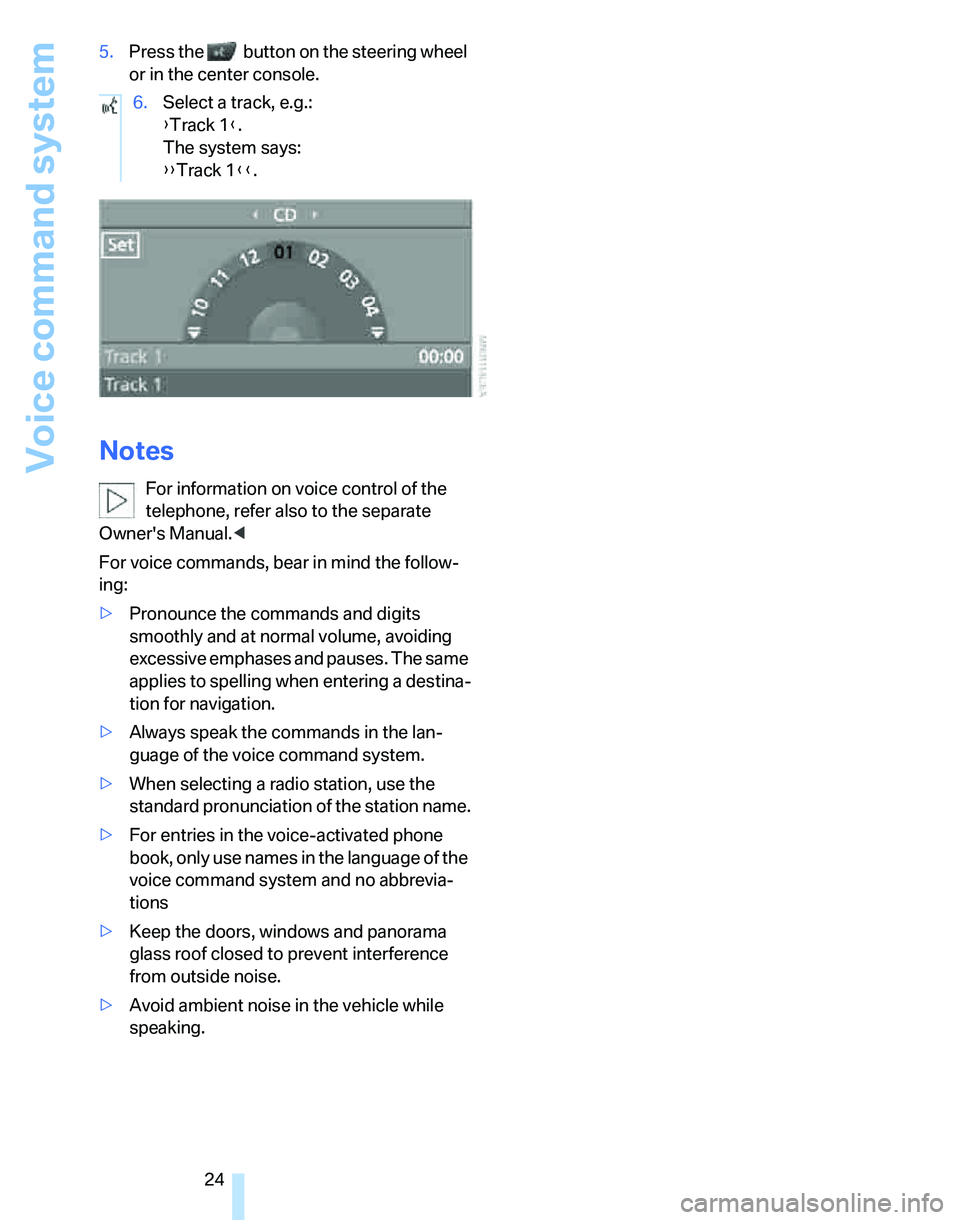
24 5.Press the button on the steering wheel
or in the center console.
Notes
For information on voice control of the
telephone, refer also to the separate
Owner's Manual.<
For voice commands, bear in mind the follow-
ing:
>Pronounce the commands and digits
smoothly and at normal volume, avoiding
excessive emphases and pauses. The same
applies to spelling when entering a destina-
tion for navigation.
>Always speak the commands in the lan-
guage of the voice command system.
>When selecting a radio station, use the
standard pronunciation of the station name.
>For entries in the voice-activated phone
book, only use names in the language of the
voice command system and no abbrevia-
tions
>Keep the doors, windows and panorama
glass roof closed to prevent interference
from outside noise.
>Avoid ambient noise in the vehicle while
speaking.6.Select a track, e.g.:
{Track 1}.
The system says:
{{Track 1}}.
Page 30 of 236
Controls
29Reference
At a glance
Driving tips
Communications
Navigation
Entertainment
Mobility
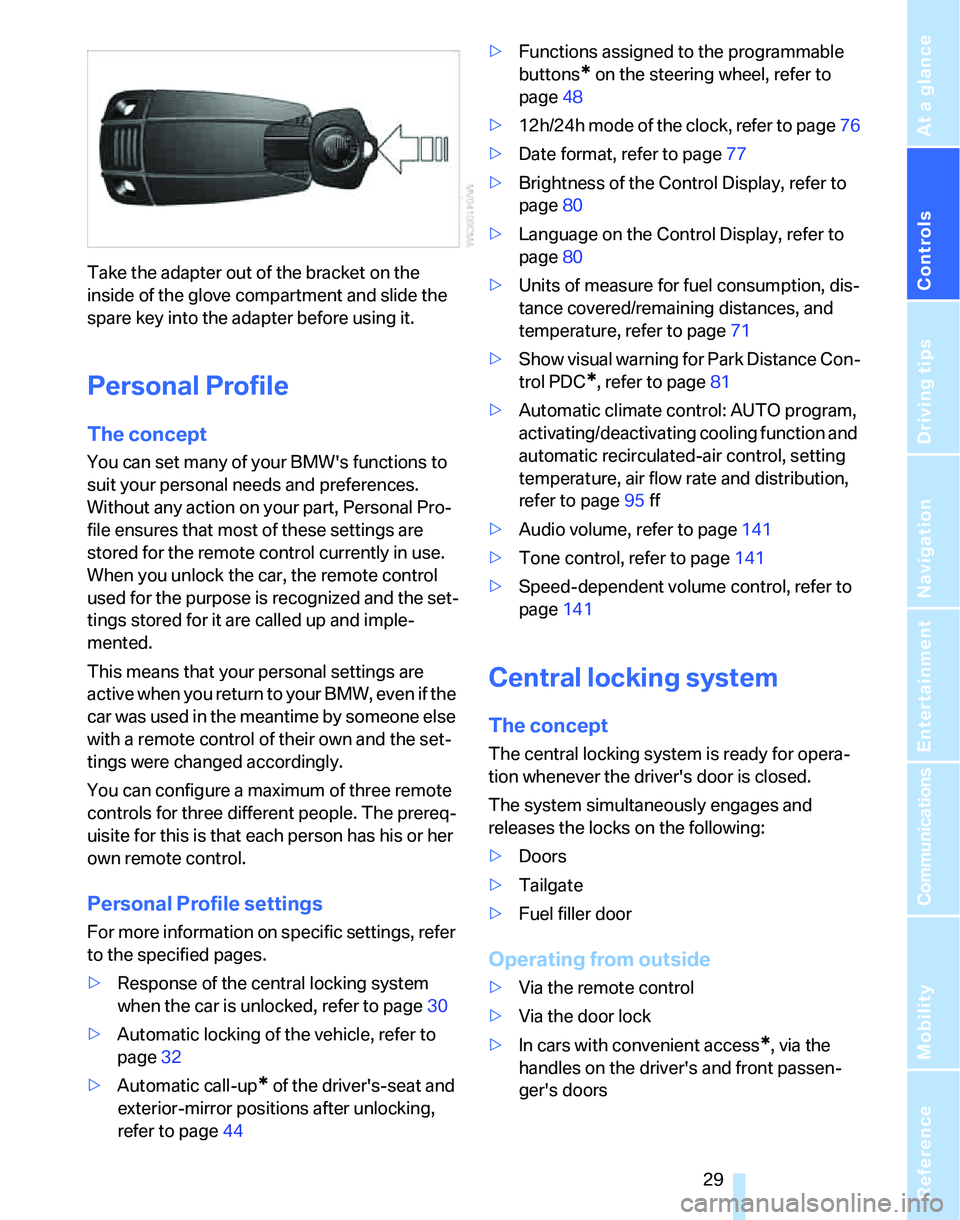
Take the adapter out of the bracket on the
inside of the glove compartment and slide the
spare key into the adapter before using it.
Personal Profile
The concept
You can set many of your BMW's functions to
suit your personal needs and preferences.
Without any action on your part, Personal Pro-
file ensures that most of these settings are
stored for the remote control currently in use.
When you unlock the car, the remote control
used for the purpose is recognized and the set-
tings stored for it are called up and imple-
mented.
This means that your personal settings are
active when you return to your BMW, even if the
car was used in the meantime by someone else
with a remote control of their own and the set-
tings were changed accordingly.
You can configure a maximum of three remote
controls for three different people. The prereq-
uisite for this is that each person has his or her
own remote control.
Personal Profile settings
For more information on specific settings, refer
to the specified pages.
>Response of the central locking system
when the car is unlocked, refer to page30
>Automatic locking of the vehicle, refer to
page32
>Automatic call-up
* of the driver's-seat and
exterior-mirror positions after unlocking,
refer to page44>Functions assigned to the programmable
buttons
* on the steering wheel, refer to
page48
>12h/24h mode of the clock, refer to page76
>Date format, refer to page77
>Brightness of the Control Display, refer to
page80
>Language on the Control Display, refer to
page80
>Units of measure for fuel consumption, dis-
tance covered/remaining distances, and
temperature, refer to page71
>Show visual warning for Park Distance Con-
trol PDC
*, refer to page81
>Automatic climate control: AUTO program,
activating/deactivating cooling function and
automatic recirculated-air control, setting
temperature, air flow rate and distribution,
refer to page95 ff
>Audio volume, refer to page141
>Tone control, refer to page141
>Speed-dependent volume control, refer to
page141
Central locking system
The concept
The central locking system is ready for opera-
tion whenever the driver's door is closed.
The system simultaneously engages and
releases the locks on the following:
>Doors
>Tailgate
>Fuel filler door
Operating from outside
>Via the remote control
>Via the door lock
>In cars with convenient access
*, via the
handles on the driver's and front passen-
ger's doors
Page 32 of 236
Controls
31Reference
At a glance
Driving tips
Communications
Navigation
Entertainment
Mobility
You can also use this function to locate your
vehicle in parking garages etc.
Panic mode*
You can also trigger the alarm system if you find
yourself in a dangerous situation:
Press the button for at least three seconds.
To switch off the alarm: press any button.
Unlocking the tailgate
Press the button for a longer period.
The tailgate opens a short distance, regardless
of whether it was locked or unlocked.
If you press the button on the remote
control a second time for a longer period
within three seconds, the cargo area cover is
raised
*. Before closing the tailgate, press the
cover downward until it engages.<
In order to avoid damage, make sure there
is sufficient clearance in all directions
before opening the tailgate.
A previously locked tailgate is locked again after
closing.
Before and after each trip, check that the tail-
gate has not been inadvertently unlocked.<
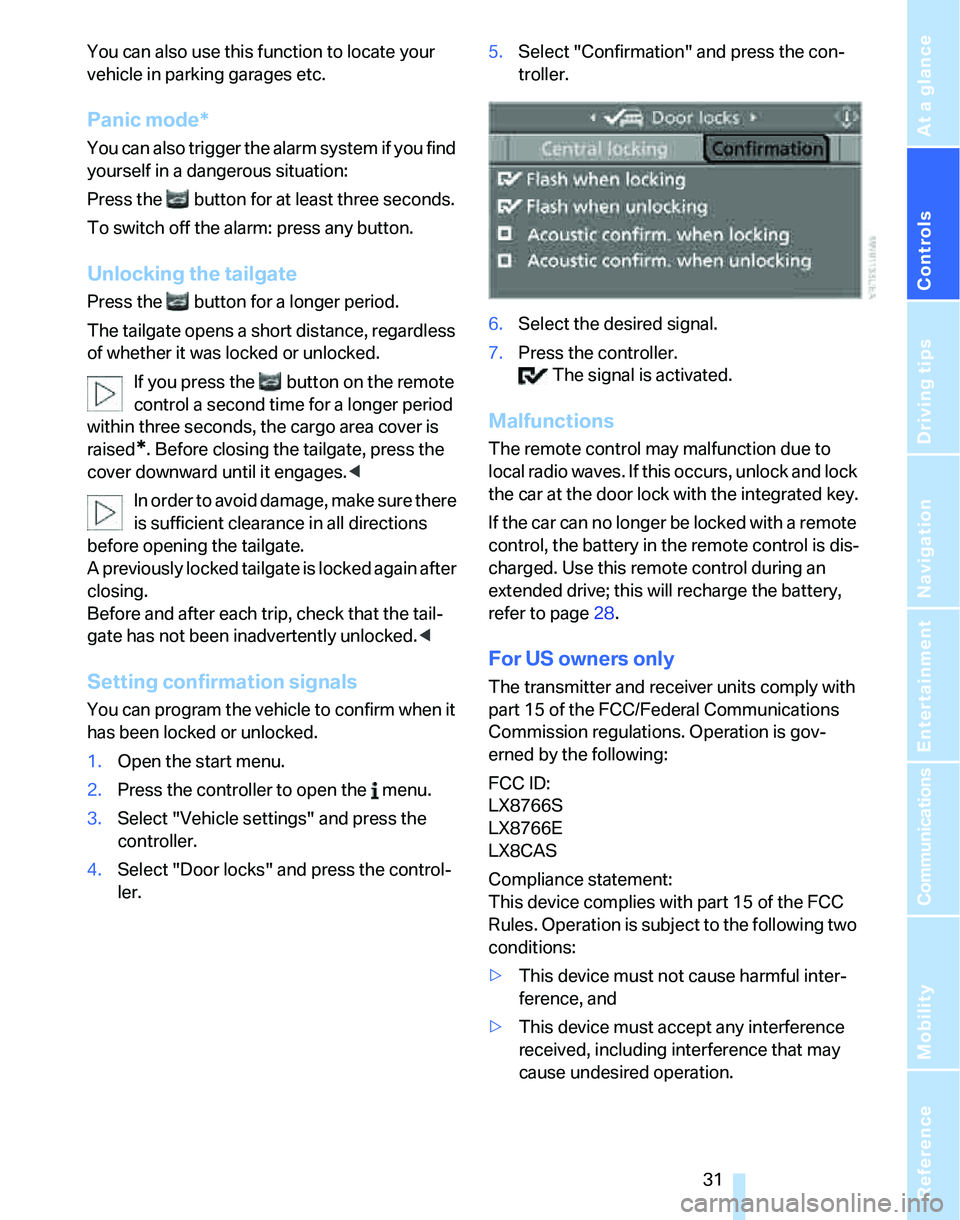
Setting confirmation signals
You can program the vehicle to confirm when it
has been locked or unlocked.
1.Open the start menu.
2.Press the controller to open the menu.
3.Select "Vehicle settings" and press the
controller.
4.Select "Door locks" and press the control-
ler.5.Select "Confirmation" and press the con-
troller.
6.Select the desired signal.
7.Press the controller.
The signal is activated.
Malfunctions
The remote control may malfunction due to
local radio waves. If this occurs, unlock and lock
the car at the door lock with the integrated key.
If the car can no longer be locked with a remote
control, the battery in the remote control is dis-
charged. Use this remote control during an
extended drive; this will recharge the battery,
refer to page28.
For US owners only
The transmitter and receiver units comply with
part 15 of the FCC/Federal Communications
Commission regulations. Operation is gov-
erned by the following:
FCC ID:
LX8766S
LX8766E
LX8CAS
Compliance statement:
This device complies with part 15 of the FCC
Rules. Operation is subject to the following two
conditions:
>This device must not cause harmful inter-
ference, and
>This device must accept any interference
received, including interference that may
cause undesired operation.
Page 34 of 236
Controls
33Reference
At a glance
Driving tips
Communications
Navigation
Entertainment
Mobility
cally locks the vehicle as soon as you
start to drive.
7.Press the controller.
The setting is selected.
The setting is stored for the remote control cur-
rently in use.
Unlocking and opening doors
>Either unlock the doors together using the
button for the central locking system and
then pull the door handle above the armrest
or
>pull on the door handle of each door twice:
the first time unlocks the door, the second
time opens it.
Locking
>Use the central locking button to lock all of
the doors simultaneously, or
>press down the safety lock button of a door.
To prevent you from being locked out, the
open driver's door cannot be locked using
the lock button.
Persons or animals in a parked vehicle
could lock the doors from the inside. You
should therefore take the remote control with
you so that the car can be opened from the out-
side.<
Tailgate
In order to avoid damage, make sure there
is sufficient clearance in all directions
before opening the tailgate.<
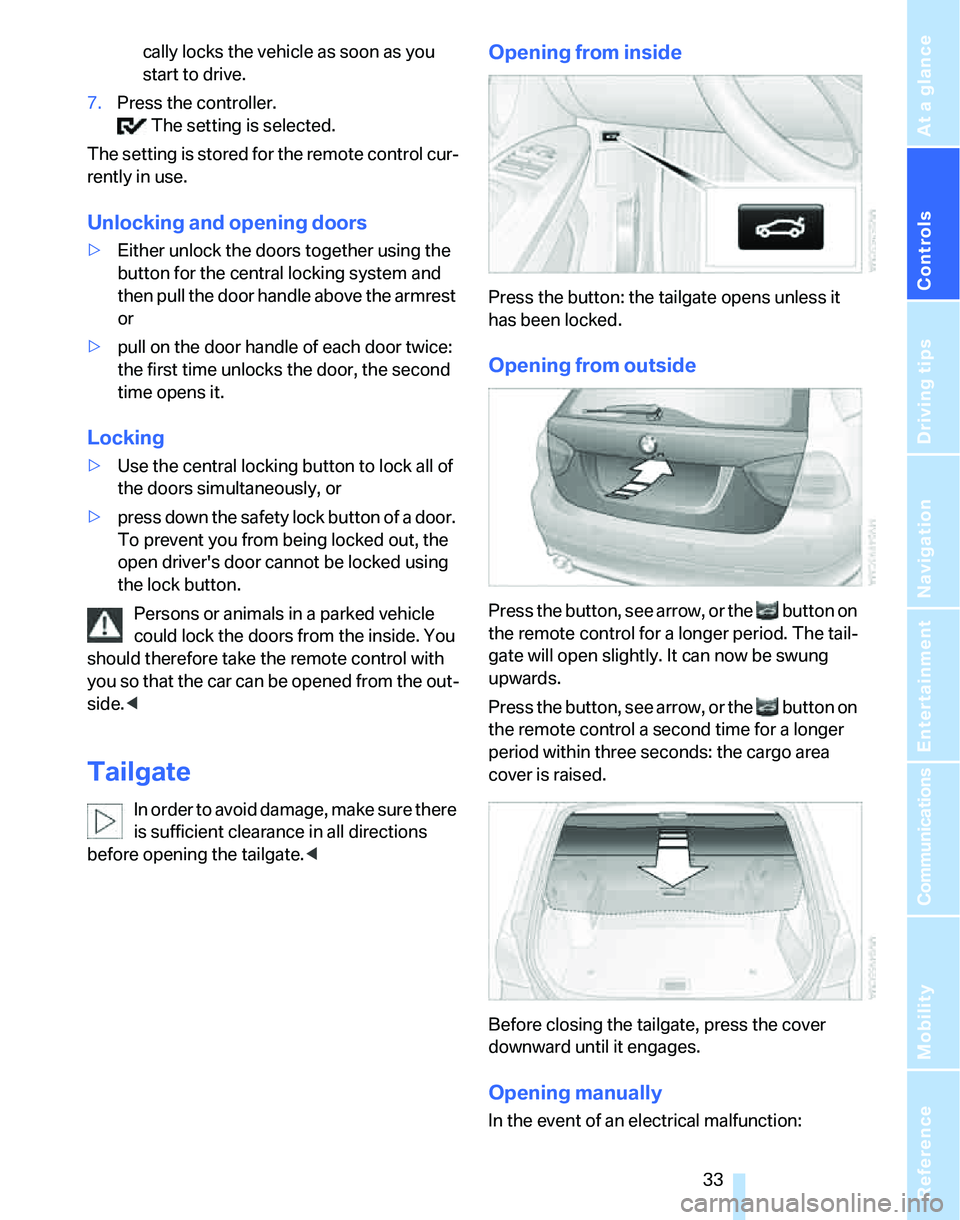
Opening from inside
Press the button: the tailgate opens unless it
has been locked.
Opening from outside
Press the button, see arrow, or the button on
the remote control for a longer period. The tail-
gate will open slightly. It can now be swung
upwards.
Press the button, see arrow, or the button on
the remote control a second time for a longer
period within three seconds: the cargo area
cover is raised.
Before closing the tailgate, press the cover
downward until it engages.
Opening manually
In the event of an electrical malfunction:
Page 36 of 236
Controls
35Reference
At a glance
Driving tips
Communications
Navigation
Entertainment
Mobility
>An acoustic alarm
>Switching on the hazard warning flashers
>Flashing the high beams
Arming and disarming
When you lock or unlock the vehicle, either with
the remote control or at the door lock, the alarm
system is armed or disarmed at the same time.
Even when the alarm system is armed, you can
open the tailgate by means of the button on
the remote control, refer to page31. When you
subsequently close the tailgate it is again
locked and monitored.
Switching off an alarm
>Unlock the car with the remote control, refer
to page30, or
>insert the remote control all the way into the
ignition lock.
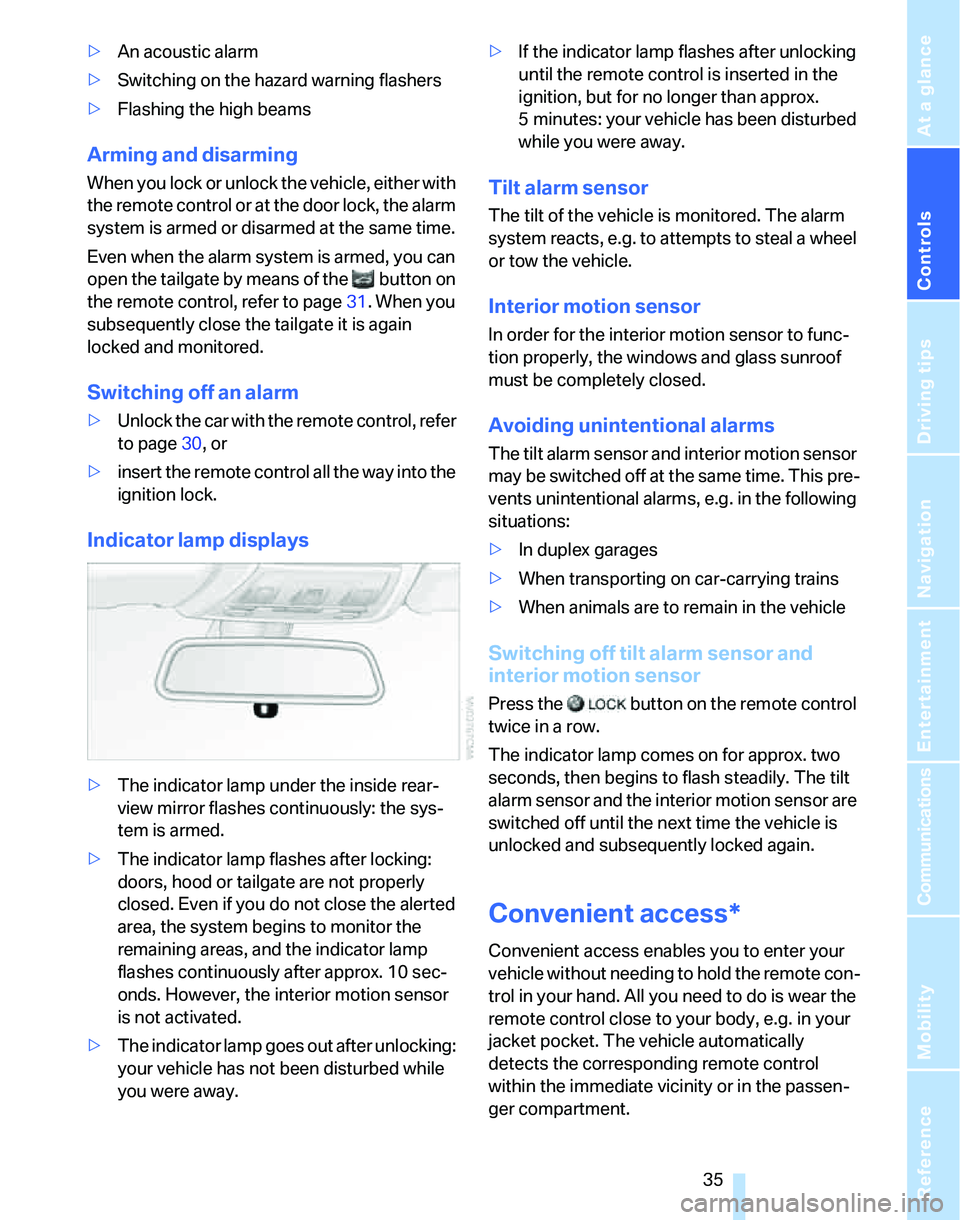
Indicator lamp displays
>The indicator lamp under the inside rear-
view mirror flashes continuously: the sys-
tem is armed.
>The indicator lamp flashes after locking:
doors, hood or tailgate are not properly
closed. Even if you do not close the alerted
area, the system begins to monitor the
remaining areas, and the indicator lamp
flashes continuously after approx. 10 sec-
onds. However, the interior motion sensor
is not activated.
>The indicator lamp goes out after unlocking:
your vehicle has not been disturbed while
you were away.>If the indicator lamp flashes after unlocking
until the remote control is inserted in the
ignition, but for no longer than approx.
5 minutes: your vehicle has been disturbed
while you were away.
Tilt alarm sensor
The tilt of the vehicle is monitored. The alarm
system reacts, e.g. to attempts to steal a wheel
or tow the vehicle.
Interior motion sensor
In order for the interior motion sensor to func-
tion properly, the windows and glass sunroof
must be completely closed.
Avoiding unintentional alarms
The tilt alarm sensor and interior motion sensor
may be switched off at the same time. This pre-
vents unintentional alarms, e.g. in the following
situations:
>In duplex garages
>When transporting on car-carrying trains
>When animals are to remain in the vehicle
Switching off tilt alarm sensor and
interior motion sensor
Press the button on the remote control
twice in a row.
The indicator lamp comes on for approx. two
seconds, then begins to flash steadily. The tilt
alarm sensor and the interior motion sensor are
switched off until the next time the vehicle is
unlocked and subsequently locked again.
Convenient access*
Convenient access enables you to enter your
vehicle without needing to hold the remote con-
trol in your hand. All you need to do is wear the
remote control close to your body, e.g. in your
jacket pocket. The vehicle automatically
detects the corresponding remote control
within the immediate vicinity or in the passen-
ger compartment.