navigation BMW 328I 2012 Owners Manual
[x] Cancel search | Manufacturer: BMW, Model Year: 2012, Model line: 328I, Model: BMW 328I 2012Pages: 268, PDF Size: 8.8 MB
Page 179 of 268
177
Entertainment
Reference
At a glance
Controls
Driving tips Communications
Navigation
Mobility
Making phone calls with the
BMW Assist system*: BMW Assist
calls
You can use the BMW Assist System via the
hands-free unit for BMW Assist calls.
When the status information "BMW Assist" or
"BMW Service" is displayed in "Communica-
tion", only BMW Assist calls are possible.
It may not be possible to establish a telephone
connection using the mobile phone while a con-
nection is being established to BMW Assist or
while a call to BMW Assist is already in
progress. If this happens, you must unpair the
mobile phone and the vehicle if you wish to
place a call with the mobile phone.
Start-up
Pairing the mobile phone with the
vehicle
The following prerequisites must be met:
>The mobile phone is ready to operate
>The Bluetooth link in the vehicle, refer to
page180, and in the mobile phone are acti-
vated
>Depending on the mobile phone, some
default settings may be necessary for the
mobile phone: e.g. via the menu item Blue-
tooth switched on or the menu item Con-
nection without confirmation.
>For pairing purposes, define any number as
the Bluetooth passkey, e.g. 1. This Blue-
tooth passkey is no longer required after
pairing has been successful.
>The ignition is switched on.
Pair the mobile phone with the vehicle
only when the car is stationary, to avoid
endangering the car's occupants and other
road users by being distracted.<
Switch on ignition
1.Insert remote control all the way into the
ignition lock.
2.Switch on ignition without operating the
brake or clutch or pressing the start/stop
button.
Preparation via iDrive
iDrive, for operating principle refer to page16.
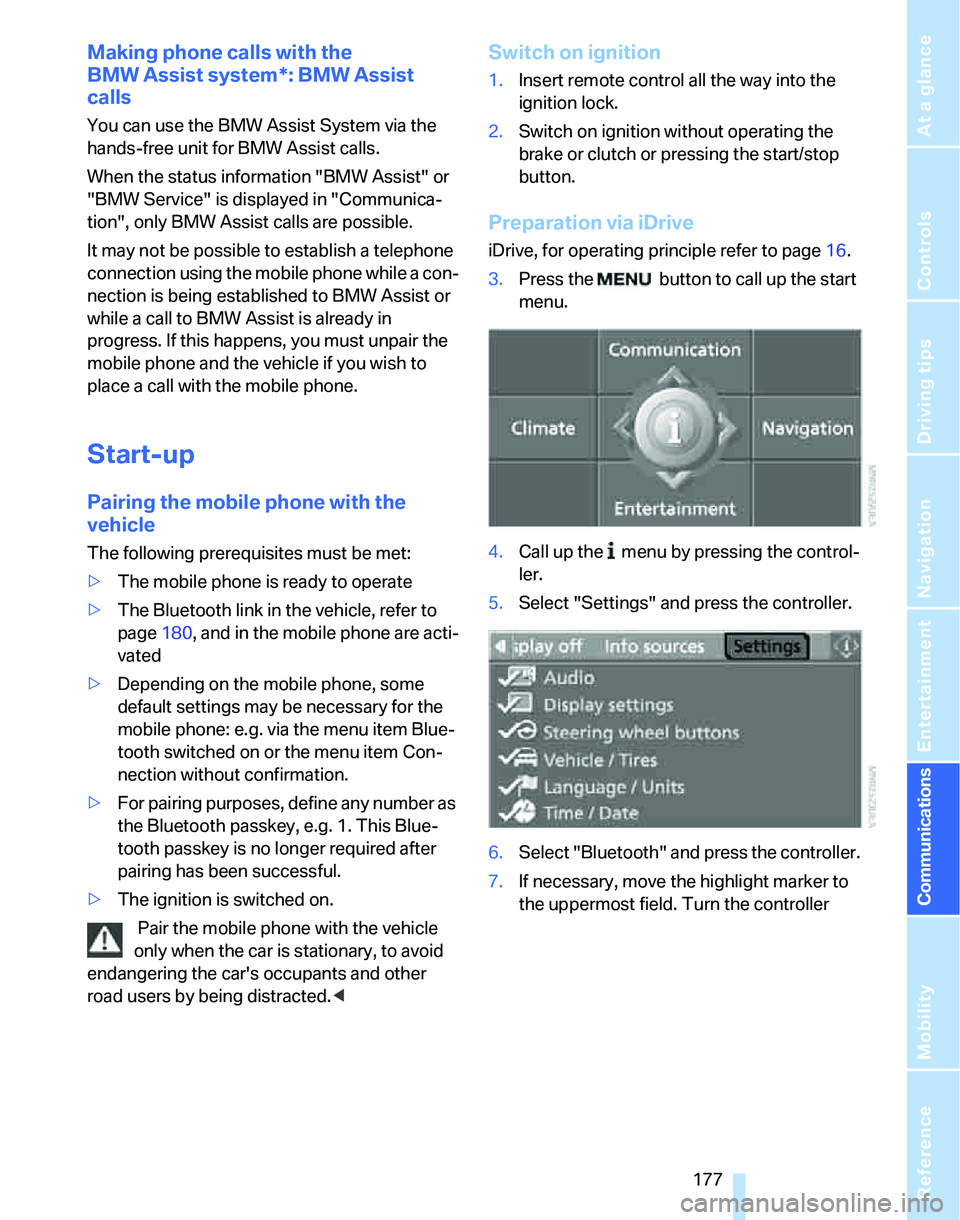
3.Press the button to call up the start
menu.
4.Call up the menu by pressing the control-
ler.
5.Select "Settings" and press the controller.
6.Select "Bluetooth" and press the controller.
7.If necessary, move the highlight marker to
the uppermost field. Turn the controller
Page 181 of 268
179
Entertainment
Reference
At a glance
Controls
Driving tips Communications
Navigation
Mobility
refer to your mobile phone's operating instruc-
tions, if necessary.
Up to four mobile phones can be paired, one
after the other. If a fifth mobile phone is paired,
the pairing data for the last mobile phone on the
list is deleted, refer also to the information
below.
List of paired mobile phones
All mobile phones with pairing data stored by
the vehicle can be displayed. If several mobile
phones are detected by the vehicle at the same
time, the mobile phone at the top of the list can
be operated via the vehicle.
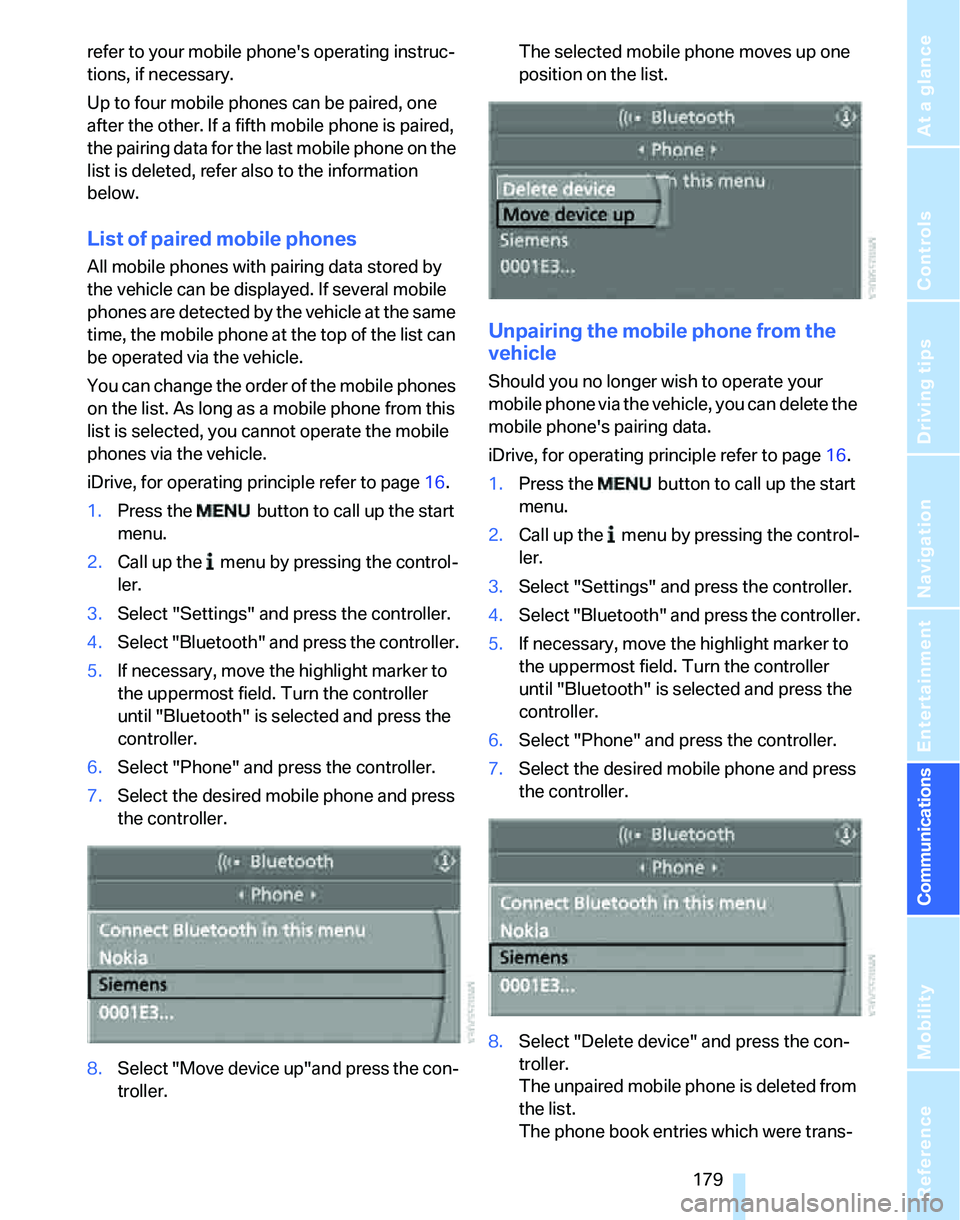
You can change the order of the mobile phones
on the list. As long as a mobile phone from this
list is selected, you cannot operate the mobile
phones via the vehicle.
iDrive, for operating principle refer to page16.
1.Press the
button to call up the start
menu.
2.Call up the menu by pressing the control-
ler.
3.Select "Settings" and press the controller.
4.Select "Bluetooth" and press the controller.
5.If necessary, move the highlight marker to
the uppermost field. Turn the controller
until "Bluetooth" is selected and press the
controller.
6.Select "Phone" and press the controller.
7.Select the desired mobile phone and press
the controller.
8.Select "Move device up"and press the con-
troller.The selected mobile phone moves up one
position on the list.
Unpairing the mobile phone from the
vehicle
Should you no longer wish to operate your
mobile phone via the vehicle, you can delete the
mobile phone's pairing data.
iDrive, for operating principle refer to page16.
1.Press the button to call up the start
menu.
2.Call up the menu by pressing the control-
ler.
3.Select "Settings" and press the controller.
4.Select "Bluetooth" and press the controller.
5.If necessary, move the highlight marker to
the uppermost field. Turn the controller
until "Bluetooth" is selected and press the
controller.
6.Select "Phone" and press the controller.
7.Select the desired mobile phone and press
the controller.
8.Select "Delete device" and press the con-
troller.
The unpaired mobile phone is deleted from
the list.
The phone book entries which were trans-
Page 183 of 268
181
Entertainment
Reference
At a glance
Controls
Driving tips Communications
Navigation
Mobility
Operation via iDrive
You can operate the following functions using
iDrive:
>dialing phone numbers
>Selecting phone numbers from the phone
book
>Selecting stored phone numbers, e.g. from
the list of accepted calls
>Ending a call
When the ignition and radio readiness are
switched off, e.g. after taking the remote control
out of the ignition switch, you can continue an
ongoing call via the hands-free system for no
more than 25 minutes.
Requirements
The mobile phone's pairing data are stored by
the vehicle and the mobile phone is operational.
The engine is running or the ignition is switched
on.
The mobile phone is recognized by the vehicle.
iDrive, for operating principle refer to page16.
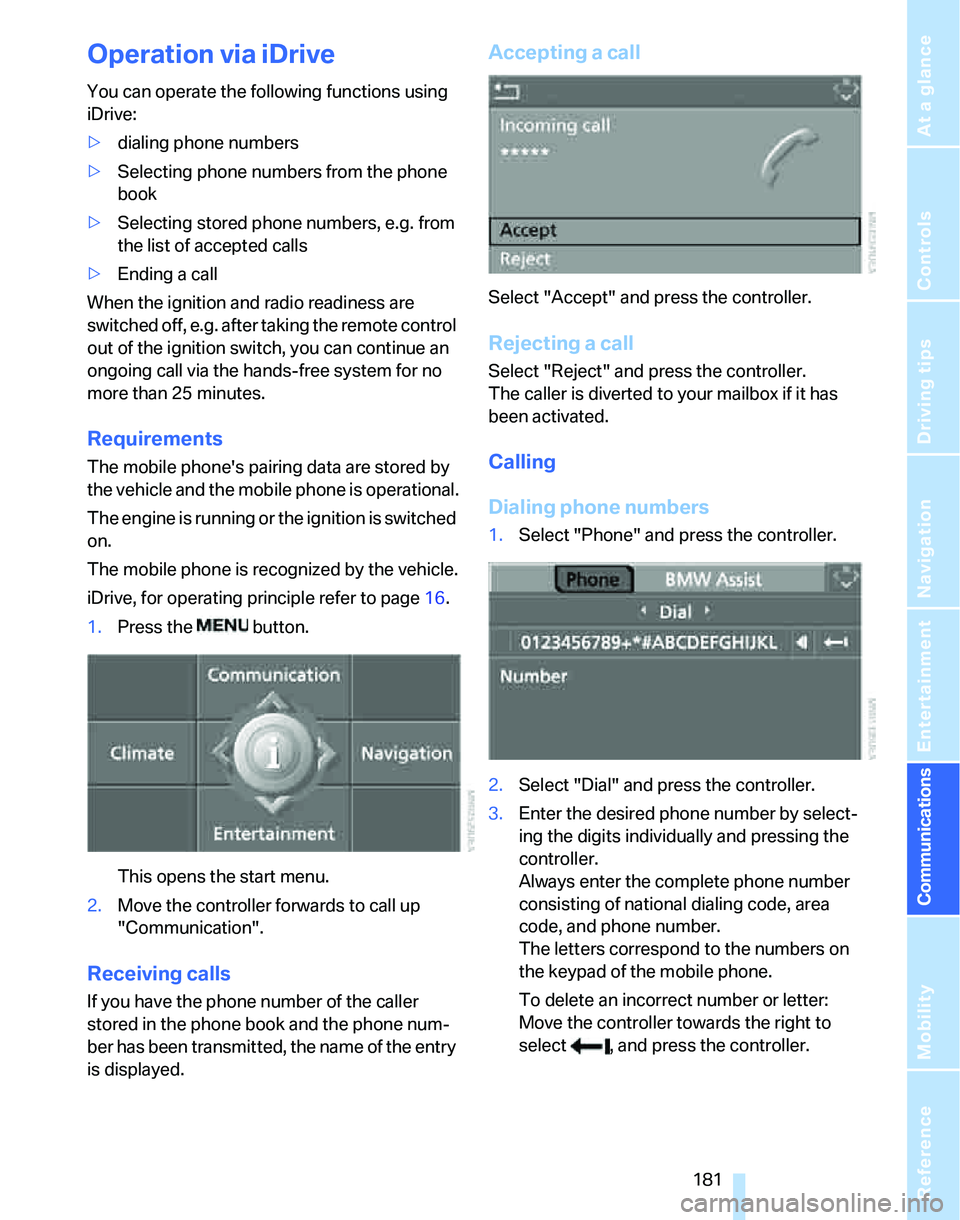
1.Press the button.
This opens the start menu.
2.Move the controller forwards to call up
"Communication".
Receiving calls
If you have the phone number of the caller
stored in the phone book and the phone num-
ber has been transmitted, the name of the entry
is displayed.
Accepting a call
Select "Accept" and press the controller.
Rejecting a call
Select "Reject" and press the controller.
The caller is diverted to your mailbox if it has
been activated.
Calling
Dialing phone numbers
1.Select "Phone" and press the controller.
2.Select "Dial" and press the controller.
3.Enter the desired phone number by select-
ing the digits individually and pressing the
controller.
Always enter the complete phone number
consisting of national dialing code, area
code, and phone number.
The letters correspond to the numbers on
the keypad of the mobile phone.
To delete an incorrect number or letter:
Move the controller towards the right to
select , and press the controller.
Page 185 of 268
183
Entertainment
Reference
At a glance
Controls
Driving tips Communications
Navigation
Mobility
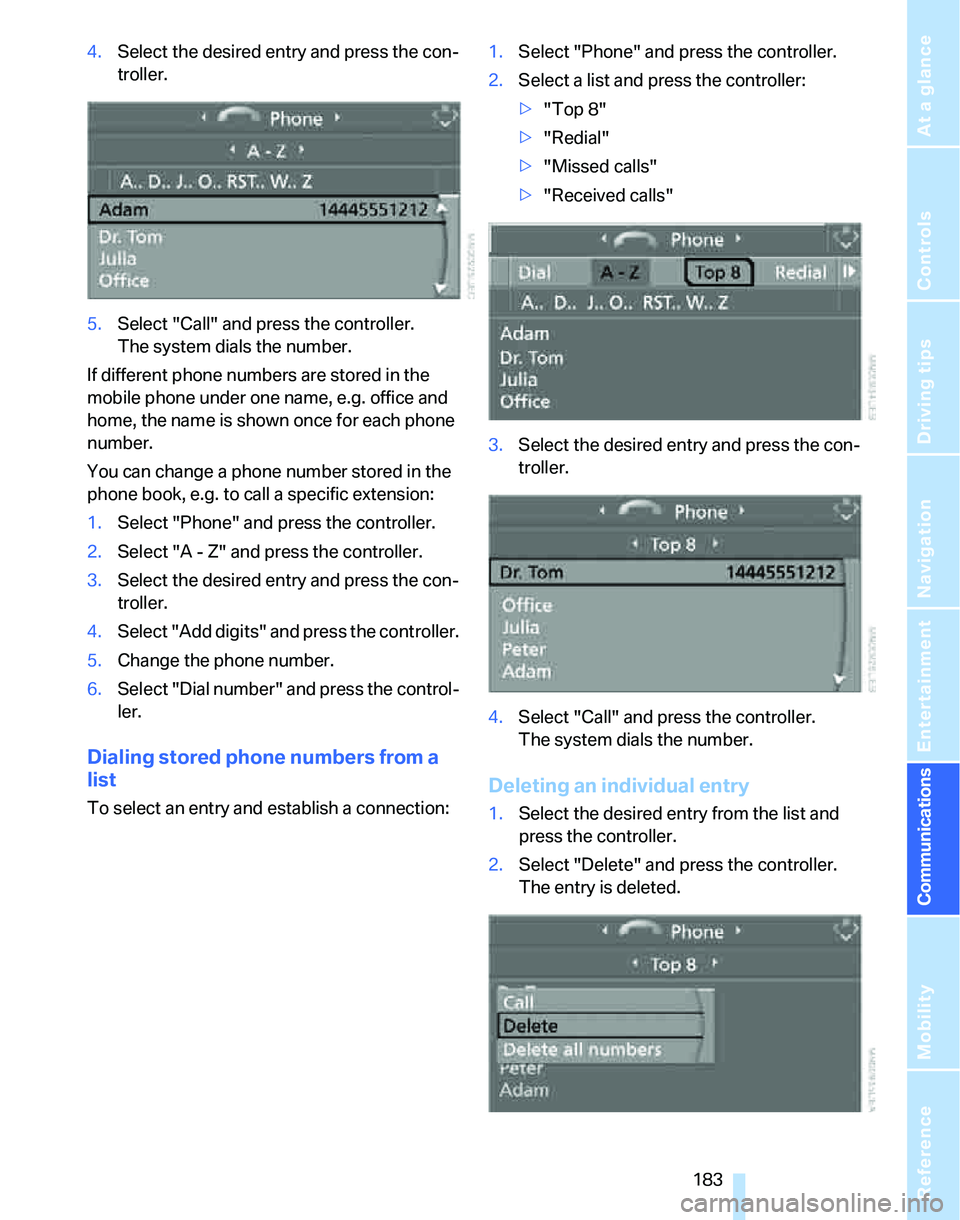
4.Select the desired entry and press the con-
troller.
5.Select "Call" and press the controller.
The system dials the number.
If different phone numbers are stored in the
mobile phone under one name, e.g. office and
home, the name is shown once for each phone
number.
You can change a phone number stored in the
phone book, e.g. to call a specific extension:
1.Select "Phone" and press the controller.
2.Select "A - Z" and press the controller.
3.Select the desired entry and press the con-
troller.
4.Select "Add digits" and press the controller.
5.Change the phone number.
6.Select "Dial number" and press the control-
ler.
Dialing stored phone numbers from a
list
To select an entry and establish a connection:1.Select "Phone" and press the controller.
2.Select a list and press the controller:
>"Top 8"
>"Redial"
>"Missed calls"
>"Received calls"
3.Select the desired entry and press the con-
troller.
4.Select "Call" and press the controller.
The system dials the number.
Deleting an individual entry
1.Select the desired entry from the list and
press the controller.
2.Select "Delete" and press the controller.
The entry is deleted.
Page 187 of 268
185
Entertainment
Reference
At a glance
Controls
Driving tips Communications
Navigation
Mobility
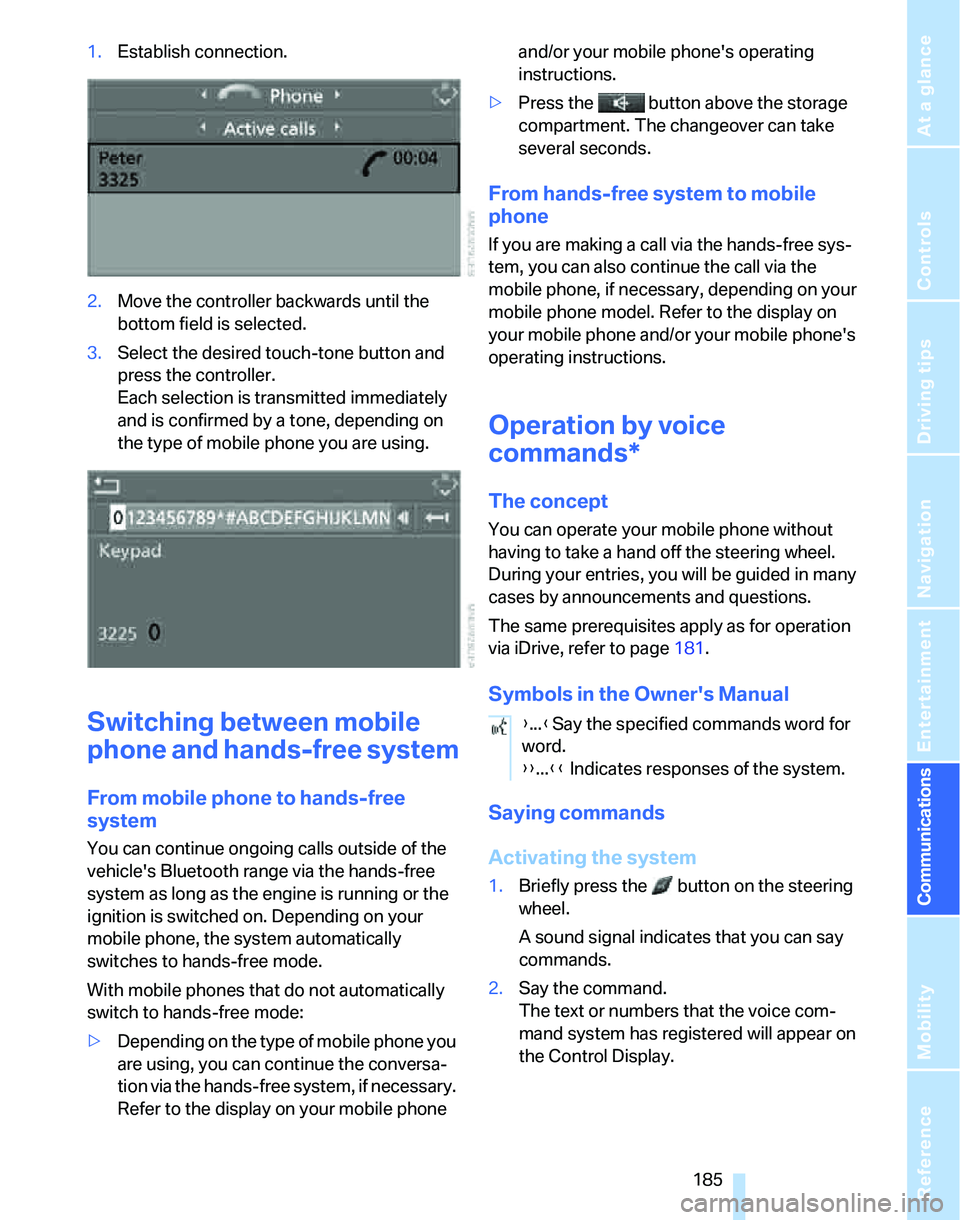
1.Establish connection.
2.Move the controller backwards until the
bottom field is selected.
3.Select the desired touch-tone button
and
press the controller.
Each selection is transmitted immediately
and is confirmed by a tone, depending on
the type of mobile phone you are using.
Switching between mobile
phone and hands-free system
From mobile phone to hands-free
system
You can continue ongoing calls outside of the
vehicle's Bluetooth range via the hands-free
system as long as the engine is running or the
ignition is switched on. Depending on your
mobile phone, the system automatically
switches to hands-free mode.
With mobile phones that do not automatically
switch to hands-free mode:
>Depending on the type of mobile phone you
are using, you can continue the conversa-
tion via the hands-free system, if necessary.
Refer to the display on your mobile phone and/or your mobile phone's operating
instructions.
>Press the button above the storage
compartment. The changeover can take
several seconds.
From hands-free system to mobile
phone
If you are making a call via the hands-free sys-
tem, you can also continue the call via the
mobile phone, if necessary, depending on your
mobile phone model. Refer to the display on
your mobile phone and/or your mobile phone's
operating instructions.
Operation by voice
commands*
The concept
You can operate your mobile phone without
having to take a hand off the steering wheel.
During your entries, you will be guided in many
cases by announcements and questions.
The same prerequisites apply as for operation
via iDrive, refer to page181.
Symbols in the Owner's Manual
Saying commands
Activating the system
1.Briefly press the button on the steering
wheel.
A sound signal indicates that you can say
commands.
2.Say the command.
The text or numbers that the voice com-
mand system has registered will appear on
the Control Display.
{...}Say the specified commands word for
word.
{{...}} Indicates responses of the system.
Page 189 of 268
187
Entertainment
Reference
At a glance
Controls
Driving tips Communications
Navigation
Mobility
Example: dialing phone numbers
Start the dialog:
Press the button on the steering wheel.
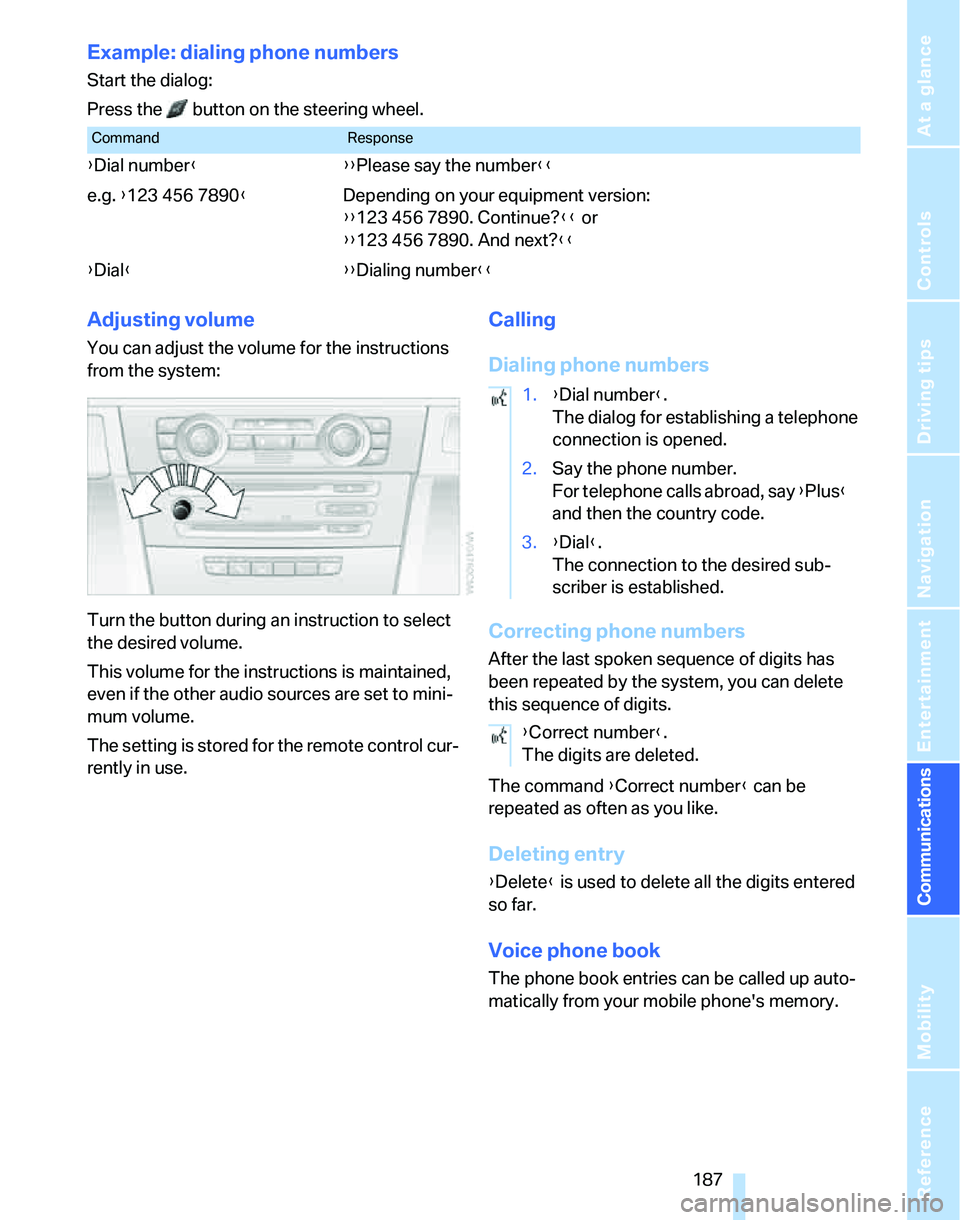
Adjusting volume
You can adjust the volume for the instructions
from the system:
Turn the button during an instruction to select
the desired volume.
This volume for the instructions is maintained,
even if the other audio sources are set to mini-
mum volume.
The setting is stored for the remote control cur-
rently in use.
Calling
Dialing phone numbers
Correcting phone numbers
After the last spoken sequence of digits has
been repeated by the system, you can delete
this sequence of digits.
The command {Correct number} can be
repeated as often as you like.
Deleting entry
{Delete} is used to delete all the digits entered
so far.
Voice phone book
The phone book entries can be called up auto-
matically from your mobile phone's memory.
CommandResponse
{Dial number}{{Please say the number}}
e.g. {123 456 7890}Depending on your equipment version:
{{123 456 7890. Continue?}} or
{{123 456 7890. And next?}}
{Dial}{{Dialing number}}
1.{Dial number}.
The dialog for establishing a telephone
connection is opened.
2.Say the phone number.
For telephone calls abroad, say {Plus}
and then the country code.
3.{Dial}.
The connection to the desired sub-
scriber is established.
{Correct number}.
The digits are deleted.
Page 191 of 268
189
Entertainment
Reference
At a glance
Controls
Driving tips Communications
Navigation
Mobility
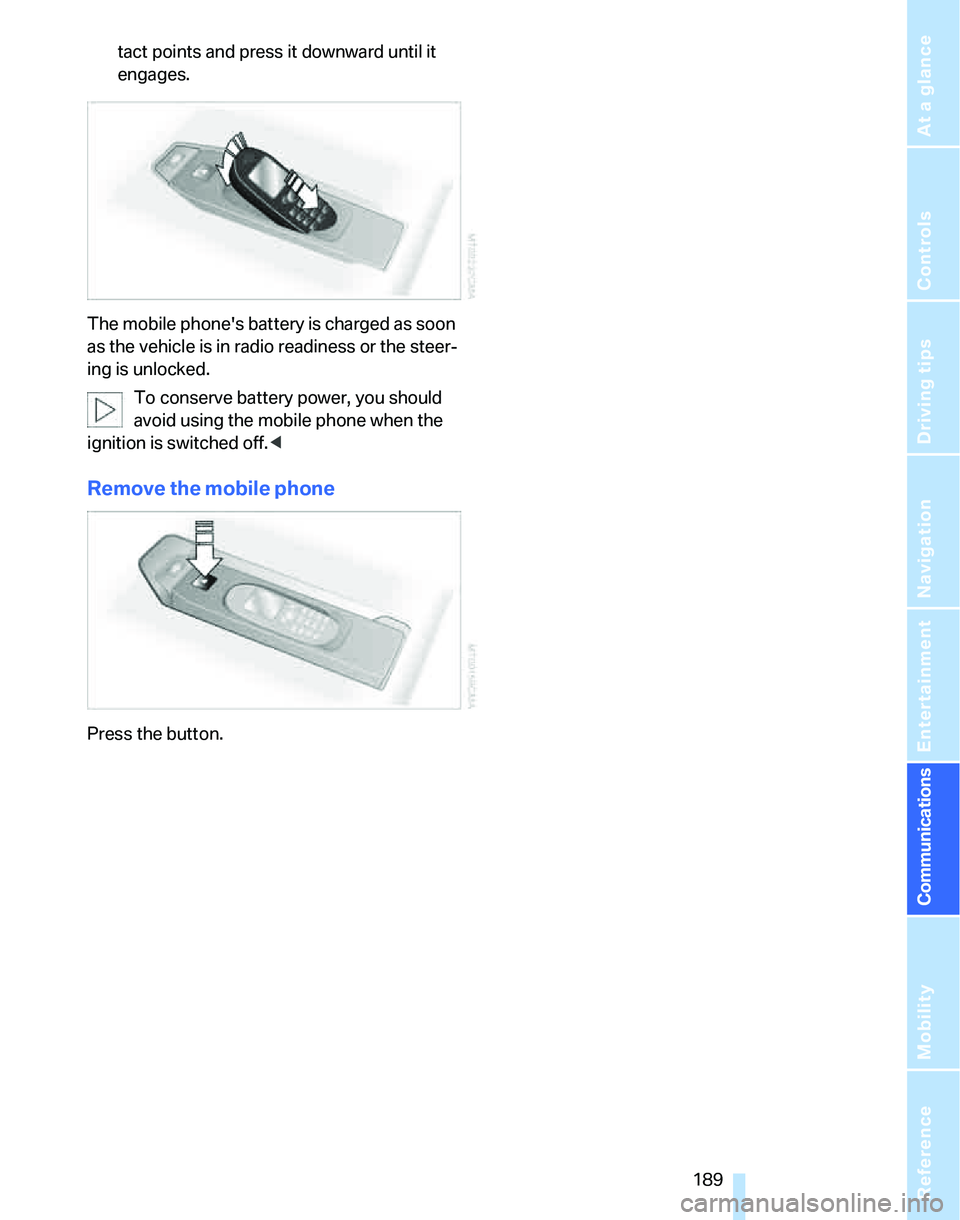
tact points and press it downward until it
engages.
The mobile phone's battery is charged as soon
as the vehicle is in radio readiness or the steer-
ing is unlocked.
To conserve battery power, you should
avoid using the mobile phone when the
ignition is switched off.<
Remove the mobile phone
Press the button.
Page 193 of 268
191
Entertainment
Reference
At a glance
Controls
Driving tips Communications
Navigation
Mobility
Characteristics of the offered services
The following characteristics apply to the ser-
vices:
>The services offered are country-specific.
>Voice contact is established or data are
transferred, depending on the equipment
and the country. In some countries, it is
possible to do both.
>The data transmitted can be vehicle data,
for example, your current position, or the
Condition Based Service CBS data.
Using services
Contacting the BMW Assist Response
Center
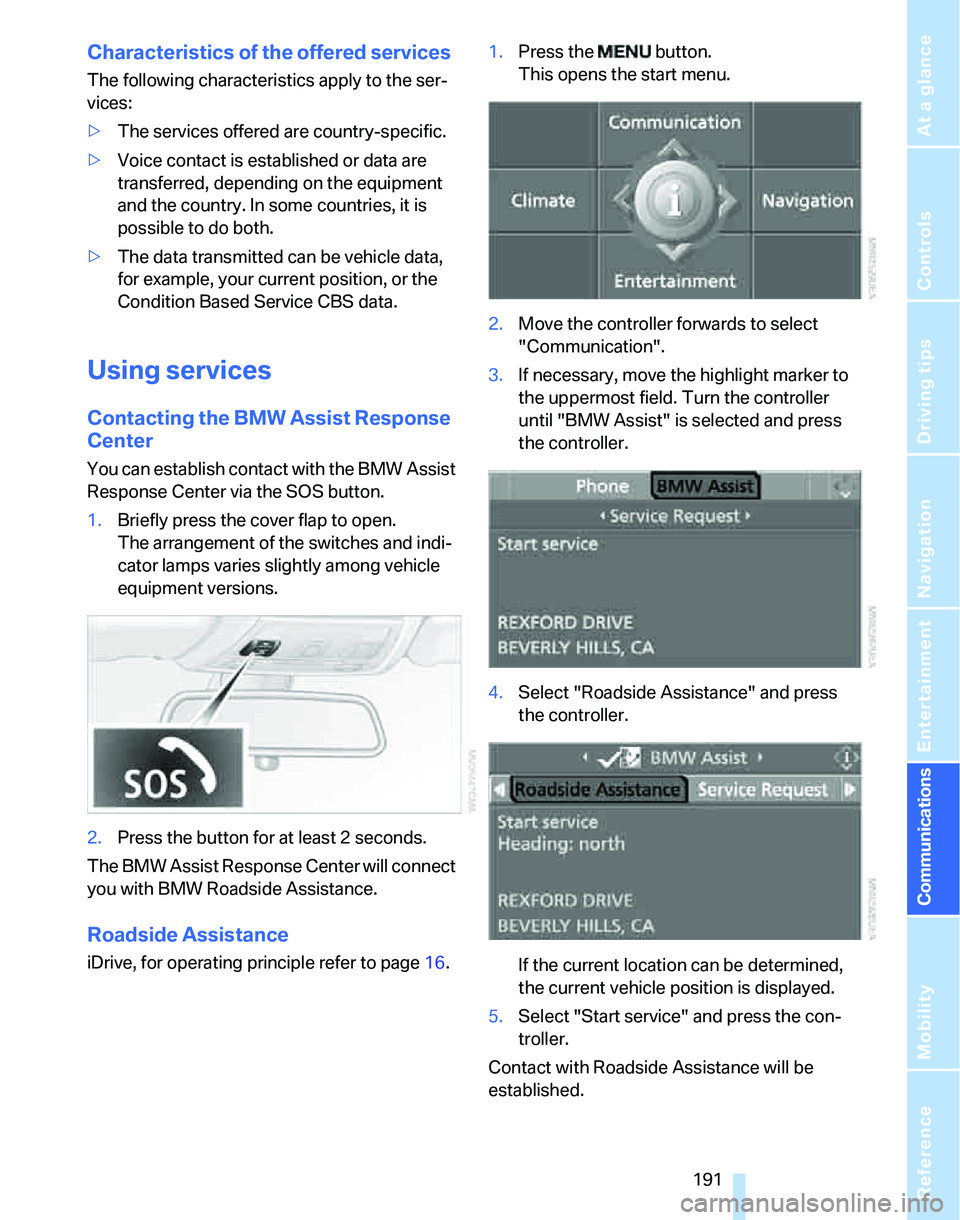
You can establish contact with the BMW Assist
Response Center via the SOS button.
1.Briefly press the cover flap to open.
The arrangement of the switches and indi-
cator lamps varies slightly among vehicle
equipment versions.
2.Press the button for at least 2 seconds.
The BMW Assist Response Center will connect
you with BMW Roadside Assistance.
Roadside Assistance
iDrive, for operating principle refer to page16.1.Press the button.
This opens the start menu.
2.Move the controller forwards to select
"Communication".
3.If necessary, move the highlight marker to
the uppermost field. Turn the controller
until "BMW Assist" is selected and press
the controller.
4.Select "Roadside Assistance" and press
the controller.
If the current location can be determined,
the current vehicle position is displayed.
5.Select "Start service" and press the con-
troller.
Contact with Roadside Assistance will be
established.
Page 195 of 268
193
Entertainment
Reference
At a glance
Controls
Driving tips Communications
Navigation
Mobility
6.Select "Start service" and press the con-
troller.
The service-relevant data are transmitted. Your
BMW center will contact you to arrange a ser-
vice appointment.
Contacting BMW Customer Relations
For all information related to your vehicle you
can call BMW Customer Relations.
1.Press the button.
This opens the start menu.
2.Move the controller forwards to select
"Communication".
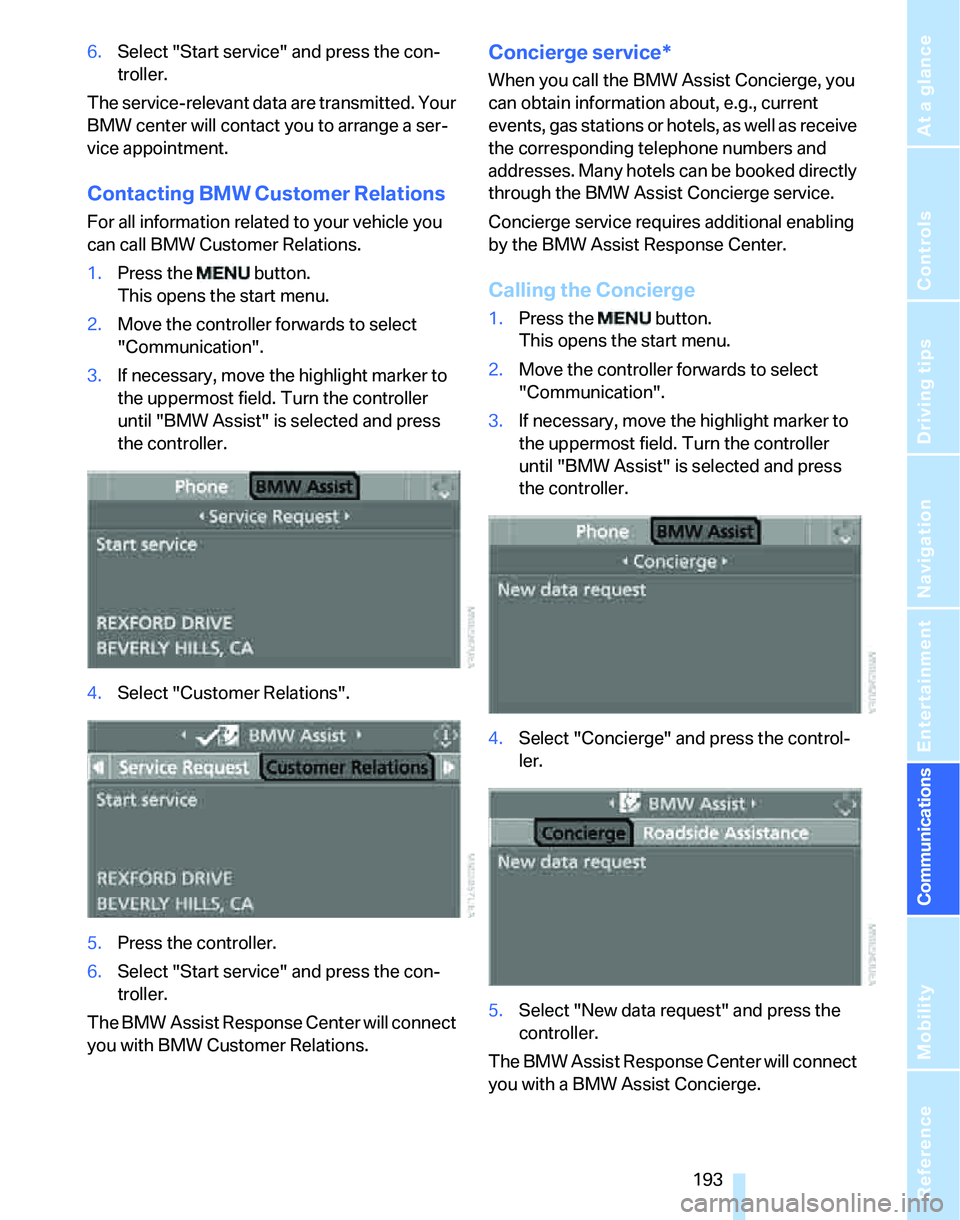
3.If necessary, move the highlight marker to
the uppermost field. Turn the controller
until "BMW Assist" is selected and press
the controller.
4.Select "Customer Relations".
5.Press the controller.
6.Select "Start service" and press the con-
troller.
The BMW Assist Response Center will connect
you with BMW Customer Relations.
Concierge service*
When you call the BMW Assist Concierge, you
can obtain information about, e.g., current
events, gas stations or hotels, as well as receive
the corresponding telephone numbers and
addresses. Many hotels can be booked directly
through the BMW Assist Concierge service.
Concierge service requires additional enabling
by the BMW Assist Response Center.
Calling the Concierge
1.Press the button.
This opens the start menu.
2.Move the controller forwards to select
"Communication".
3.If necessary, move the highlight marker to
the uppermost field. Turn the controller
until "BMW Assist" is selected and press
the controller.
4.Select "Concierge" and press the control-
ler.
5.Select "New data request" and press the
controller.
The BMW Assist Response Center will connect
you with a BMW Assist Concierge.
Page 196 of 268
BMW Assist
194
Displaying transmitted data
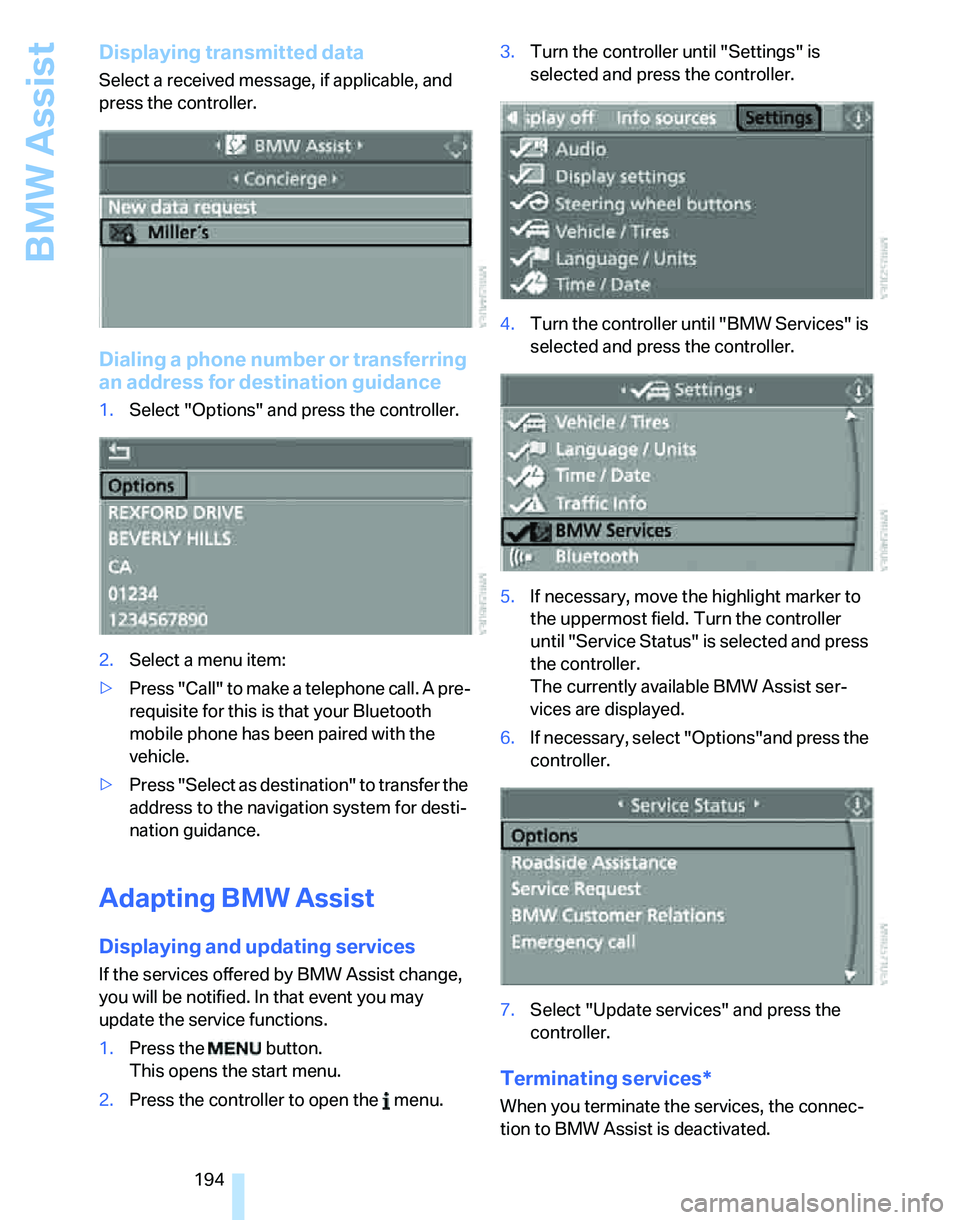
Select a received message, if applicable, and
press the controller.
Dialing a phone number or transferring
an address for destination guidance
1.Select "Options" and press the controller.
2.Select a menu item:
>Press "Call" to make a telephone call. A pre-
requisite for this is that your Bluetooth
mobile phone has been paired with the
vehicle.
>Press "Select as destination" to transfer the
address to the navigation system for desti-
nation guidance.
Adapting BMW Assist
Displaying and updating services
If the services offered by BMW Assist change,
you will be notified. In that event you may
update the service functions.
1.Press the button.
This opens the start menu.
2.Press the controller to open the menu.3.Turn the controller until "Settings" is
selected and press the controller.
4.Turn the controller until "BMW Services" is
selected and press the controller.
5.If necessary, move the highlight marker to
the uppermost field. Turn the controller
until "Service Status" is selected and press
the controller.
The currently available BMW Assist ser-
vices are displayed.
6.If necessary, select "Options"and press the
controller.
7.Select "Update services" and press the
controller.
Terminating services*
When you terminate the services, the connec-
tion to BMW Assist is deactivated.