Controller BMW 328I CONVERTIBLE 2007 E93 Repair Manual
[x] Cancel search | Manufacturer: BMW, Model Year: 2007, Model line: 328I CONVERTIBLE, Model: BMW 328I CONVERTIBLE 2007 E93Pages: 272, PDF Size: 8.97 MB
Page 153 of 272
Navigation
Driving tips
151Reference
At a glance
Controls
Communications
Entertainment
Mobility
Repeating or canceling voice
instructions
With the programmable buttons on the steering
wheel, you can also execute the following func-
tions, refer to page54:
>Repeat the voice instruction:
Press the button.
>Switch voice instructions on/off:
Press the button for a longer period.
Adjusting volume for voice instructions
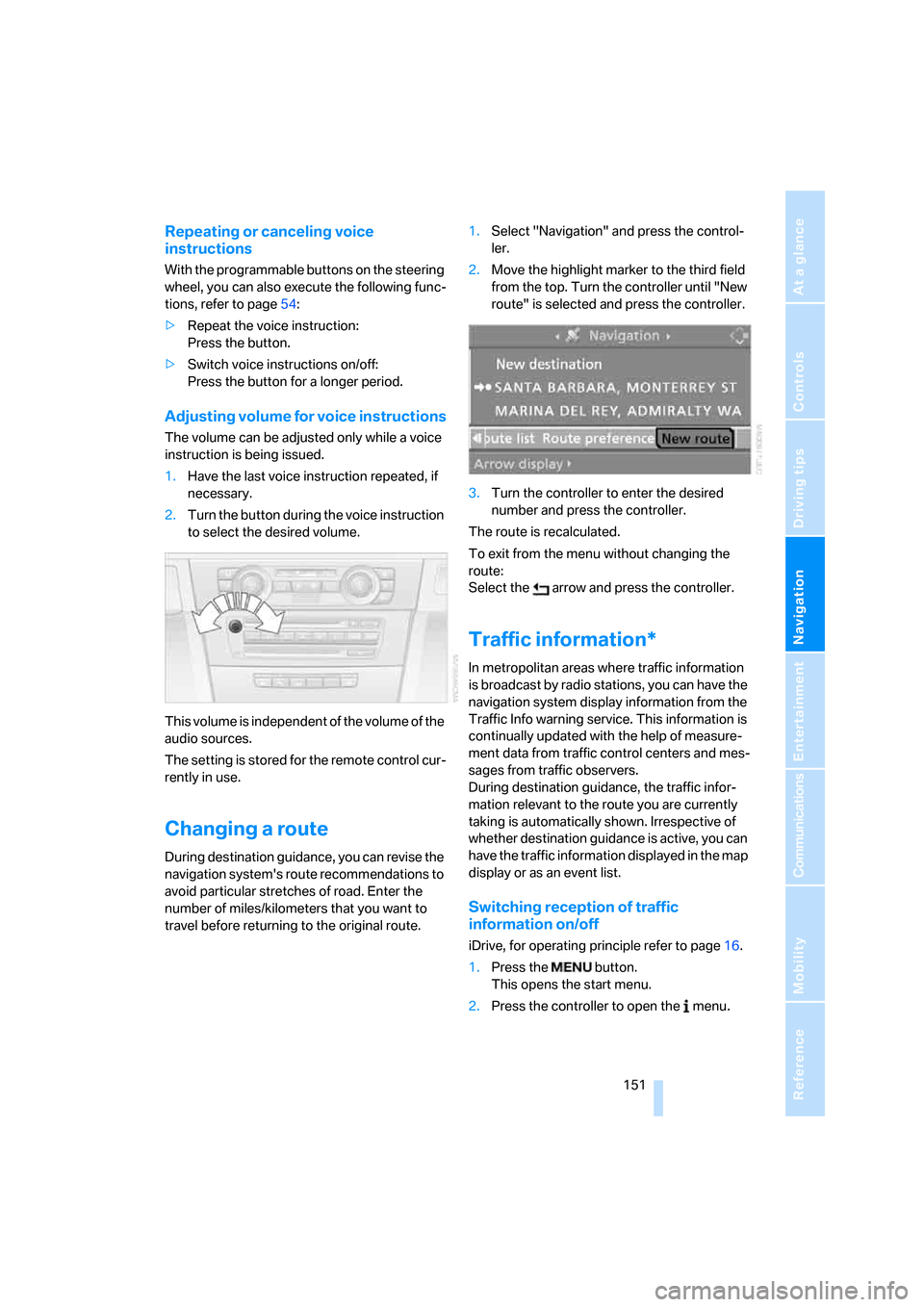
The volume can be adjusted only while a voice
instruction is being issued.
1.Have the last voice instruction repeated, if
necessary.
2.Turn the button during the voice instruction
to select the desired volume.
This volume is independent of the volume of the
audio sources.
The setting is stored for the remote control cur-
rently in use.
Changing a route
During destination guidance, you can revise the
navigation system's route recommendations to
avoid particular stretches of road. Enter the
number of miles/kilometers that you want to
travel before returning to the original route.1.Select "Navigation" and press the control-
ler.
2.Move the highlight marker to the third field
from the top. Turn the controller until "New
route" is selected and press the controller.
3.Turn the controller to enter the desired
number and press the controller.
The route is recalculated.
To exit from the menu without changing the
route:
Select the arrow and press the controller.
Traffic information*
In metropolitan areas where traffic information
is broadcast by radio stations, you can have the
navigation system display information from the
Traffic Info warning service. This information is
continually updated with the help of measure-
ment data from traffic control centers and mes-
sages from traffic observers.
During destination guidance, the traffic infor-
mation relevant to the route you are currently
taking is automatically shown. Irrespective of
whether destination guidance is active, you can
have the traffic information displayed in the map
display or as an event list.
Switching reception of traffic
information on/off
iDrive, for operating principle refer to page16.
1.Press the button.
This opens the start menu.
2.Press the controller to open the menu.
Page 154 of 272
Destination guidance
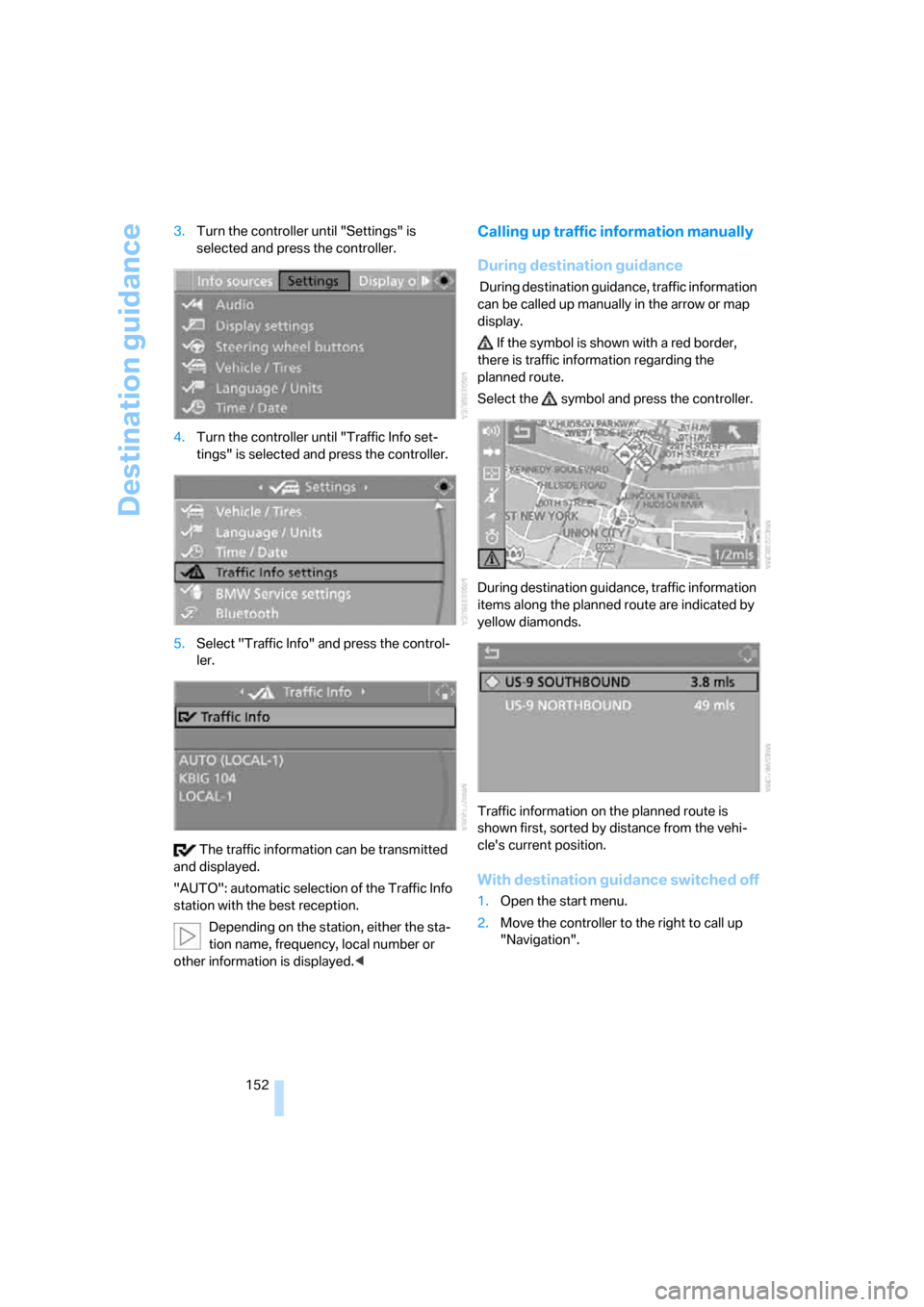
152 3.Turn the controller until "Settings" is
selected and press the controller.
4.Turn the controller until "Traffic Info set-
tings" is selected and press the controller.
5.Select "Traffic Info" and press the control-
ler.
The traffic information can be transmitted
and displayed.
"AUTO": automatic selection of the Traffic Info
station with the best reception.
Depending on the station, either the sta-
tion name, frequency, local number or
other information is displayed.<
Calling up traffic information manually
During destination guidance
During destination guidance, traffic information
can be called up manually in the arrow or map
display.
If the symbol is shown with a red border,
there is traffic information regarding the
planned route.
Select the symbol and press the controller.
During destination guidance, traffic information
items along the planned route are indicated by
yellow diamonds.
Traffic information on the planned route is
shown first, sorted by distance from the vehi-
cle's current position.
With destination guidance switched off
1.Open the start menu.
2.Move the controller to the right to call up
"Navigation".
Page 155 of 272
Navigation
Driving tips
153Reference
At a glance
Controls
Communications
Entertainment
Mobility
3.Select "Traffic Info" and press the control-
ler.
Traffic information on the planned route is
shown first, sorted by distance from the vehi-
cle's current position.
Displaying detailed traffic information
Select a traffic information item from the list and
press the controller.
To exit from the menu:
Select the arrow and press the controller.
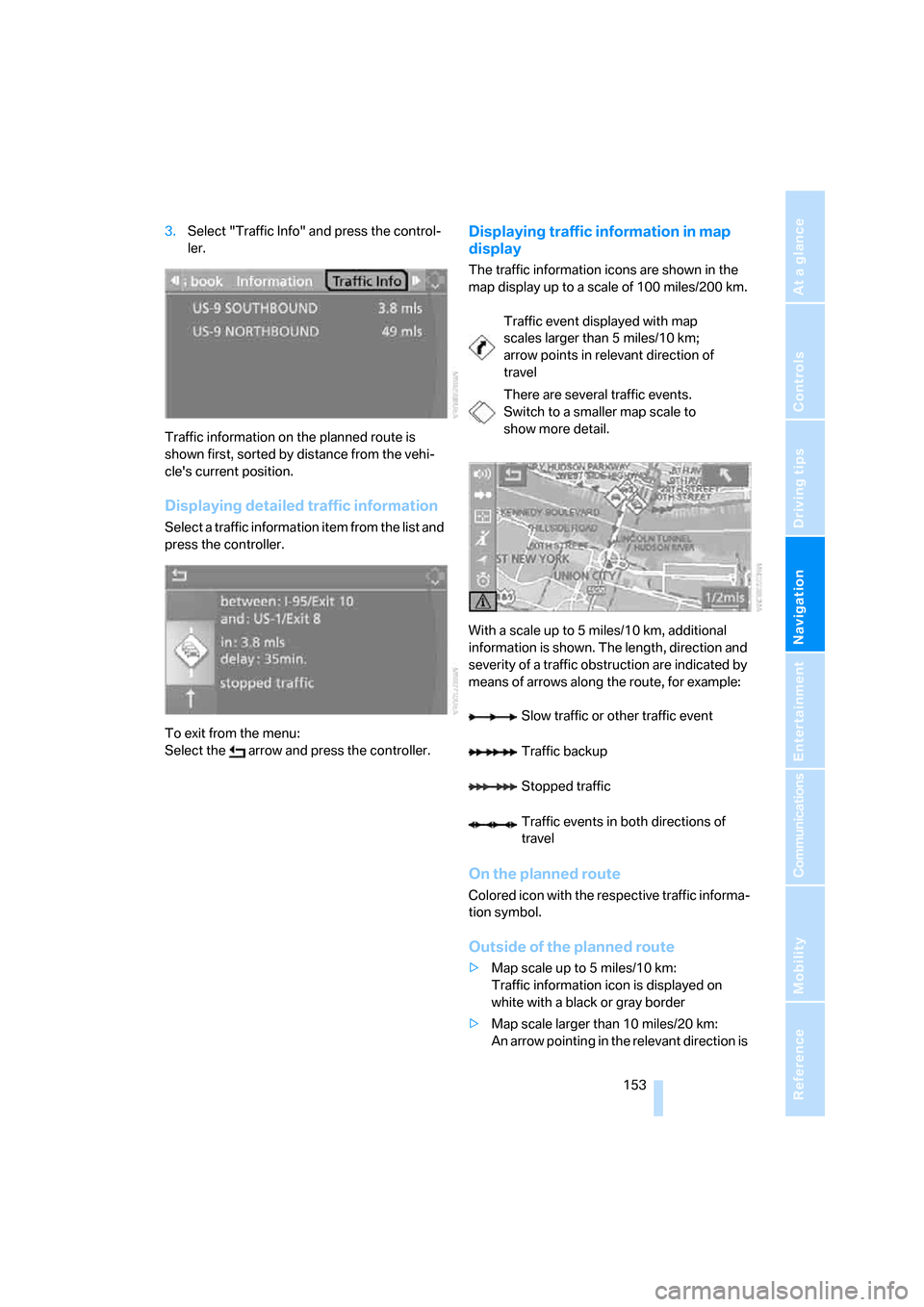
Displaying traffic information in map
display
The traffic information icons are shown in the
map display up to a scale of 100 miles/200 km.
With a scale up to 5 miles/10 km, additional
information is shown. The length, direction and
severity of a traffic obstruction are indicated by
means of arrows along the route, for example:
On the planned route
Colored icon with the respective traffic informa-
tion symbol.
Outside of the planned route
>Map scale up to 5 miles/10 km:
Traffic information icon is displayed on
white with a black or gray border
>Map scale larger than 10 miles/20 km:
An arrow pointing in the relevant direction is
Traffic event displayed with map
scales larger than 5 miles/10 km;
arrow points in relevant direction of
travel
There are several traffic events.
Switch to a smaller map scale to
show more detail.
Slow traffic or other traffic event
Traffic backup
Stopped traffic
Traffic events in both directions of
travel
Page 156 of 272
Destination guidance
154 displayed on white with a black or gray bor-
der
Traffic information during destination
guidance
System response varies depending on whether
or not "Dynamic route" is selected, refer to
page145.
Displaying traffic obstructions
When the navigation system receives a traffic
obstruction message and "Dynamic route" is
not selected, you receive certain information,
such as the length of the traffic congestion,
when you are approx. 25 miles/40 km away
from the traffic obstruction.
The last possible detour exit is indicated just
before you reach it.
Select "Detour" and press the controller.
The navigation system calculates a new route
to avoid the congestion.
This information is displayed even if you have
called up another application on the Control
Display.
Hiding the display of traffic
obstructions
If "Dynamic route" is selected, the route is auto-
matically changed in the event of a traffic
obstruction. The system does not point out
traffic obstructions on the original route.
Depending on road type and the kind and extent
of the traffic obstruction, the guided route may
lead through the traffic obstruction.
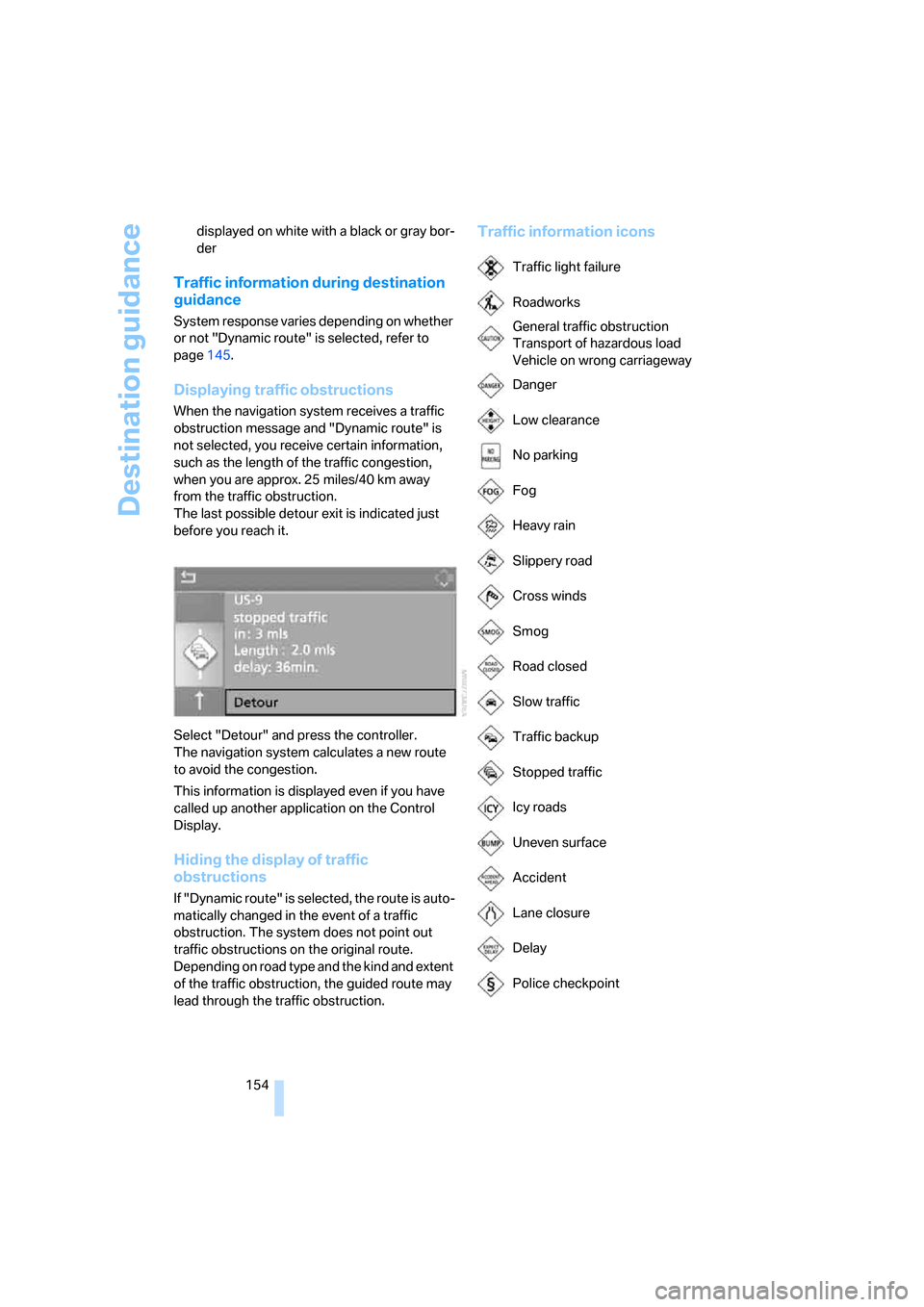
Traffic information icons
Traffic light failure
Roadworks
General traffic obstruction
Transport of hazardous load
Vehicle on wrong carriageway
Danger
Low clearance
No parking
Fog
Heavy rain
Slippery road
Cross winds
Smog
Road closed
Slow traffic
Traffic backup
Stopped traffic
Icy roads
Uneven surface
Accident
Lane closure
Delay
Police checkpoint
Page 157 of 272
Navigation
Driving tips
155Reference
At a glance
Controls
Communications
Entertainment
Mobility
Displaying current position
You can have your current position displayed
even when the destination guidance is
switched off.
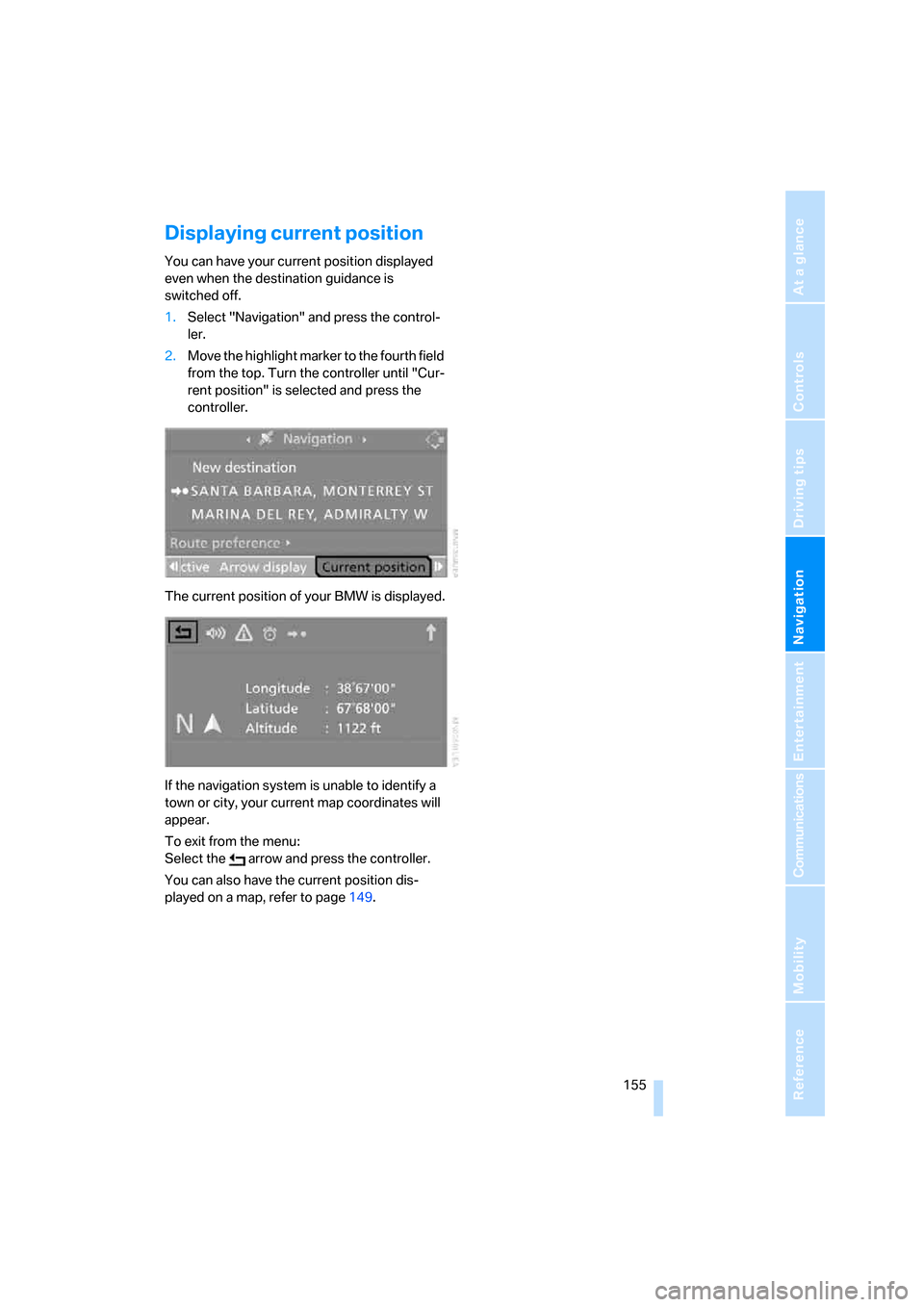
1.Select "Navigation" and press the control-
ler.
2.Move the highlight marker to the fourth field
from the top. Turn the controller until "Cur-
rent position" is selected and press the
controller.
The current position of your BMW is displayed.
If the navigation system is unable to identify a
town or city, your current map coordinates will
appear.
To exit from the menu:
Select the arrow and press the controller.
You can also have the current position dis-
played on a map, refer to page149.
Page 162 of 272
On/off and settings
160
On/off and settings
The following audio sources have shared con-
trols and setting options:
>Radio
>CD player
>CD changer
*
Controls
The audio sources can be operated using:
>Buttons near the CD player
>iDrive
>Buttons
on the steering wheel, refer to
page11
>Programmable memory keys, refer to
page21
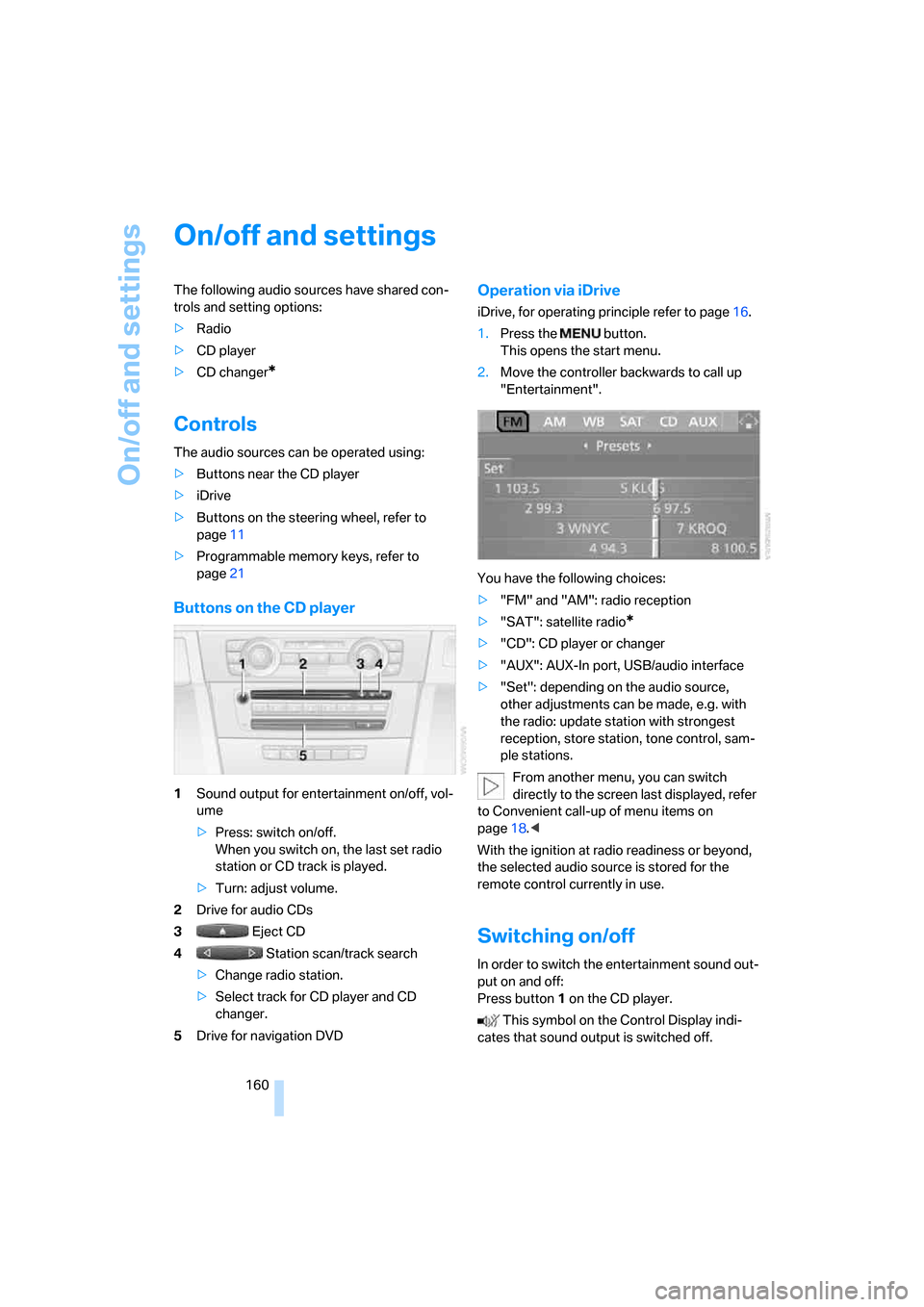
Buttons on the CD player
1Sound output for entertainment on/off, vol-
ume
>Press: switch on/off.
When you switch on, the last set radio
station or CD track is played.
>Turn: adjust volume.
2Drive for audio CDs
3 Eject CD
4 Station scan/track search
>Change radio station.
>Select track for CD player and CD
changer.
5Drive for navigation DVD
Operation via iDrive
iDrive, for operating principle refer to page16.
1.Press the button.
This opens the start menu.
2.Move the controller backwards to call up
"Entertainment".
You have the following choices:
>"FM" and "AM": radio reception
>"SAT": satellite radio
*
>"CD": CD player or changer
>"AUX": AUX-In port, USB/audio interface
>"Set": depending on the audio source,
other adjustments can be made, e.g. with
the radio: update station with strongest
reception, store station, tone control, sam-
ple stations.
From another menu, you can switch
directly to the screen last displayed, refer
to Convenient call-up of menu items on
page18.<
With the ignition at radio readiness or beyond,
the selected audio source is stored for the
remote control currently in use.
Switching on/off
In order to switch the entertainment sound out-
put on and off:
Press button1 on the CD player.
This symbol on the Control Display indi-
cates that sound output is switched off.
Page 163 of 272
Navigation
Entertainment
Driving tips
161Reference
At a glance
Controls
Communications
Mobility
Adjusting volume
Turn knob1 on the CD player until the desired
volume is obtained.
You can also adjust the volume with buttons on
the steering wheel, refer to page11.
With the ignition at radio readiness or beyond,
the setting is stored for the remote control cur-
rently in use.
Tone control
You can alter various tone settings, e.g. treble
and bass or the speed-dependent volume
increase.
The tone settings are applied to all audio
sources.
With the ignition at radio readiness or beyond,
the settings are stored for the remote control
currently in use.
Changing tone settings
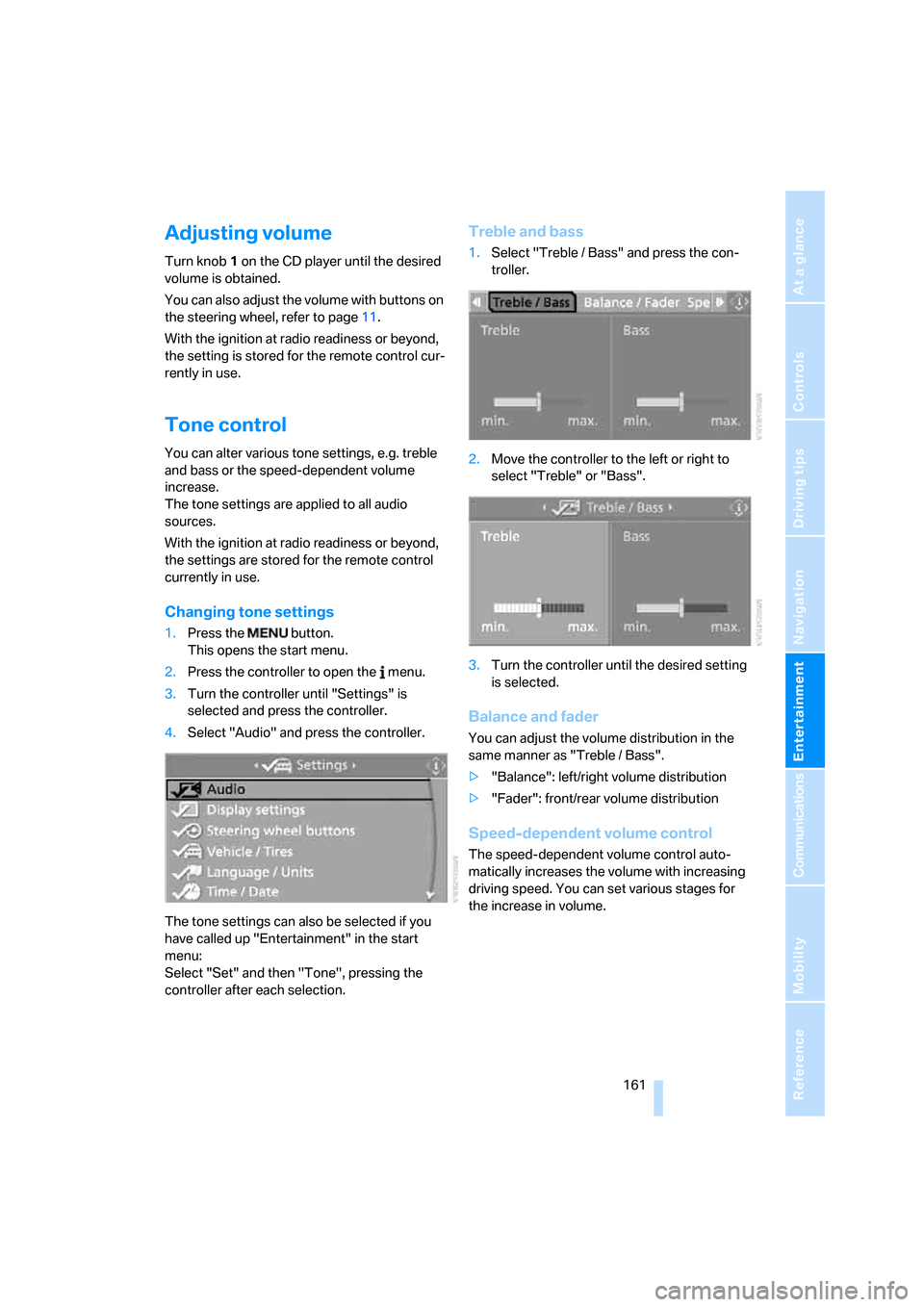
1.Press the button.
This opens the start menu.
2.Press the controller to open the menu.
3.Turn the controller until "Settings" is
selected and press the controller.
4.Select "Audio" and press the controller.
The tone settings can also be selected if you
have called up "Entertainment" in the start
menu:
Select "Set" and then "Tone", pressing the
controller after each selection.
Treble and bass
1.Select "Treble / Bass" and press the con-
troller.
2.Move the controller to the left or right to
select "Treble" or "Bass".
3.Turn the controller until the desired setting
is selected.
Balance and fader
You can adjust the volume distribution in the
same manner as "Treble / Bass".
>"Balance": left/right volume distribution
>"Fader": front/rear volume distribution
Speed-dependent volume control
The speed-dependent volume control auto-
matically increases the volume with increasing
driving speed. You can set various stages for
the increase in volume.
Page 164 of 272
On/off and settings
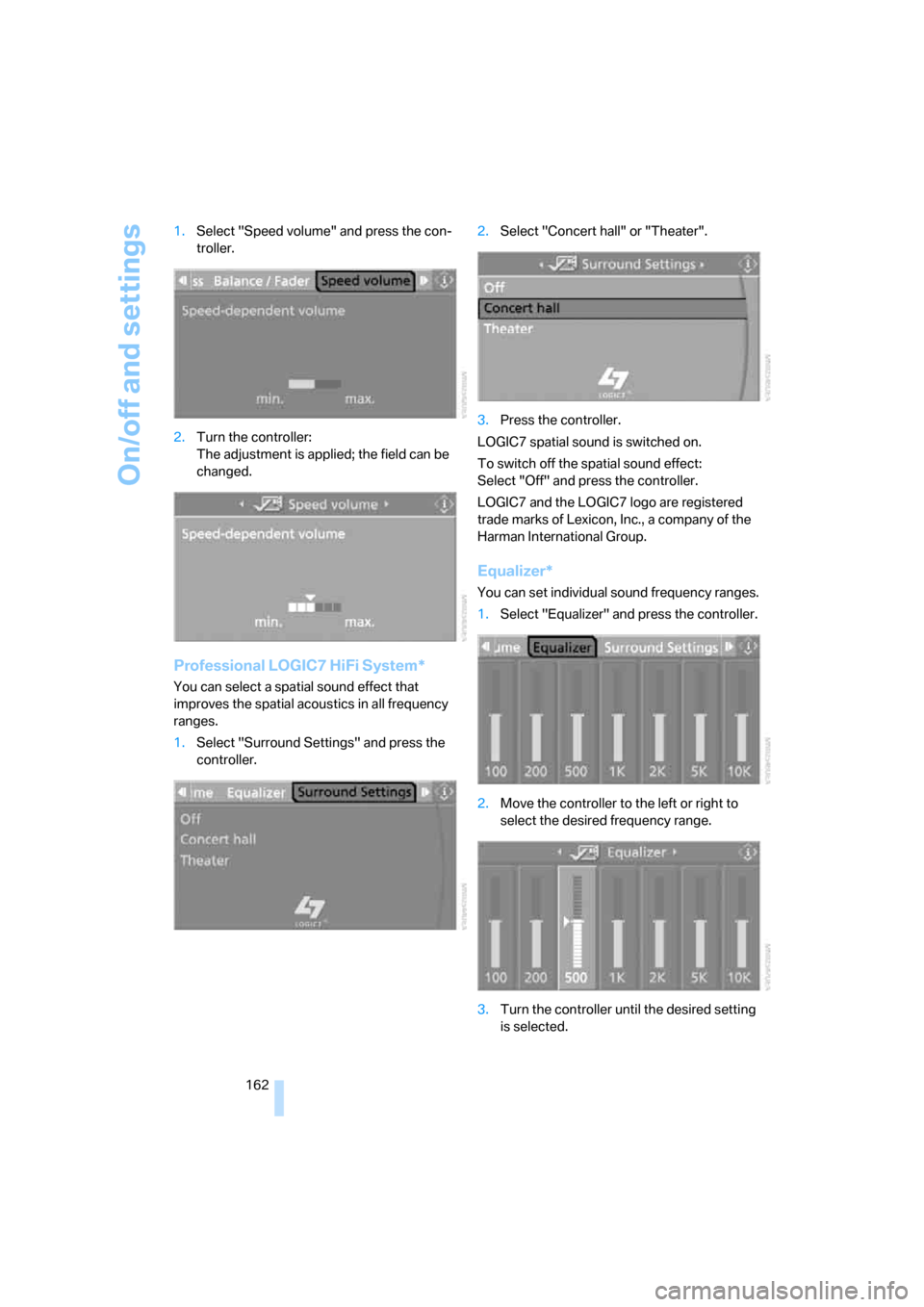
162 1.Select "Speed volume" and press the con-
troller.
2.Turn the controller:
The adjustment is applied; the field can be
changed.
Professional LOGIC7 HiFi System*
You can select a spatial sound effect that
improves the spatial acoustics in all frequency
ranges.
1.Select "Surround Settings" and press the
controller.2.Select "Concert hall" or "Theater".
3.Press the controller.
LOGIC7 spatial sound is switched on.
To switch off the spatial sound effect:
Select "Off" and press the controller.
LOGIC7 and the LOGIC7 logo are registered
trade marks of Lexicon, Inc., a company of the
Harman International Group.
Equalizer*
You can set individual sound frequency ranges.
1.Select "Equalizer" and press the controller.
2.Move the controller to the left or right to
select the desired frequency range.
3.Turn the controller until the desired setting
is selected.
Page 165 of 272
Navigation
Entertainment
Driving tips
163Reference
At a glance
Controls
Communications
Mobility
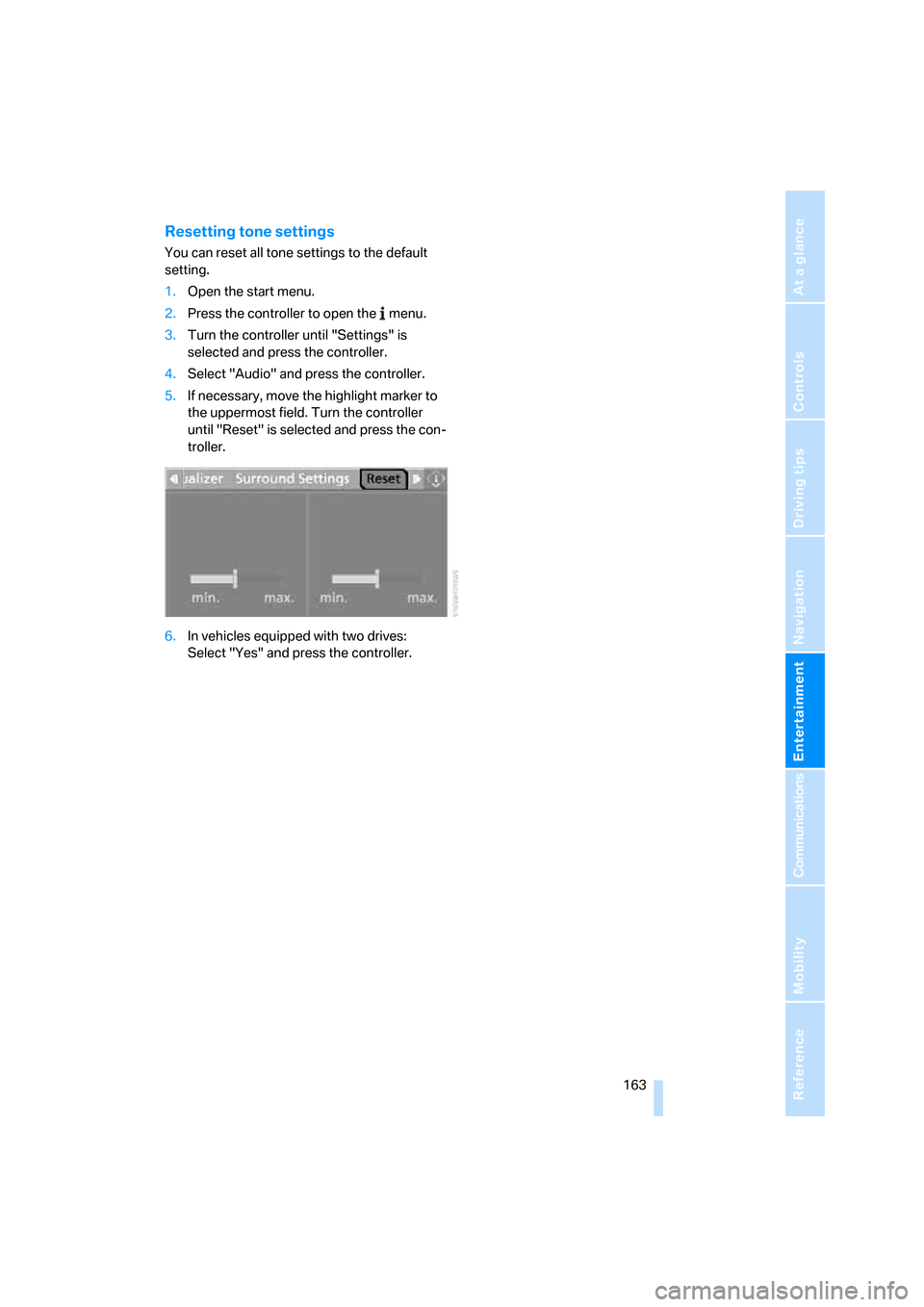
Resetting tone settings
You can reset all tone settings to the default
setting.
1.Open the start menu.
2.Press the controller to open the menu.
3.Turn the controller until "Settings" is
selected and press the controller.
4.Select "Audio" and press the controller.
5.If necessary, move the highlight marker to
the uppermost field. Turn the controller
until "Reset" is selected and press the con-
troller.
6.In vehicles equipped with two drives:
Select "Yes" and press the controller.
Page 166 of 272
Radio
164
Radio
Your radio provides reception of the FM and AM
wavebands.
Listening to the radio
Press the button if the sound output is switched
off.
iDrive, for operating principle refer to page16.
1.Press the button.
This opens the start menu.
2.Move the controller backwards to call up
"Entertainment".
3.If necessary, move the highlight marker to
the uppermost field. Select "FM" or "AM".
4.Press the controller.
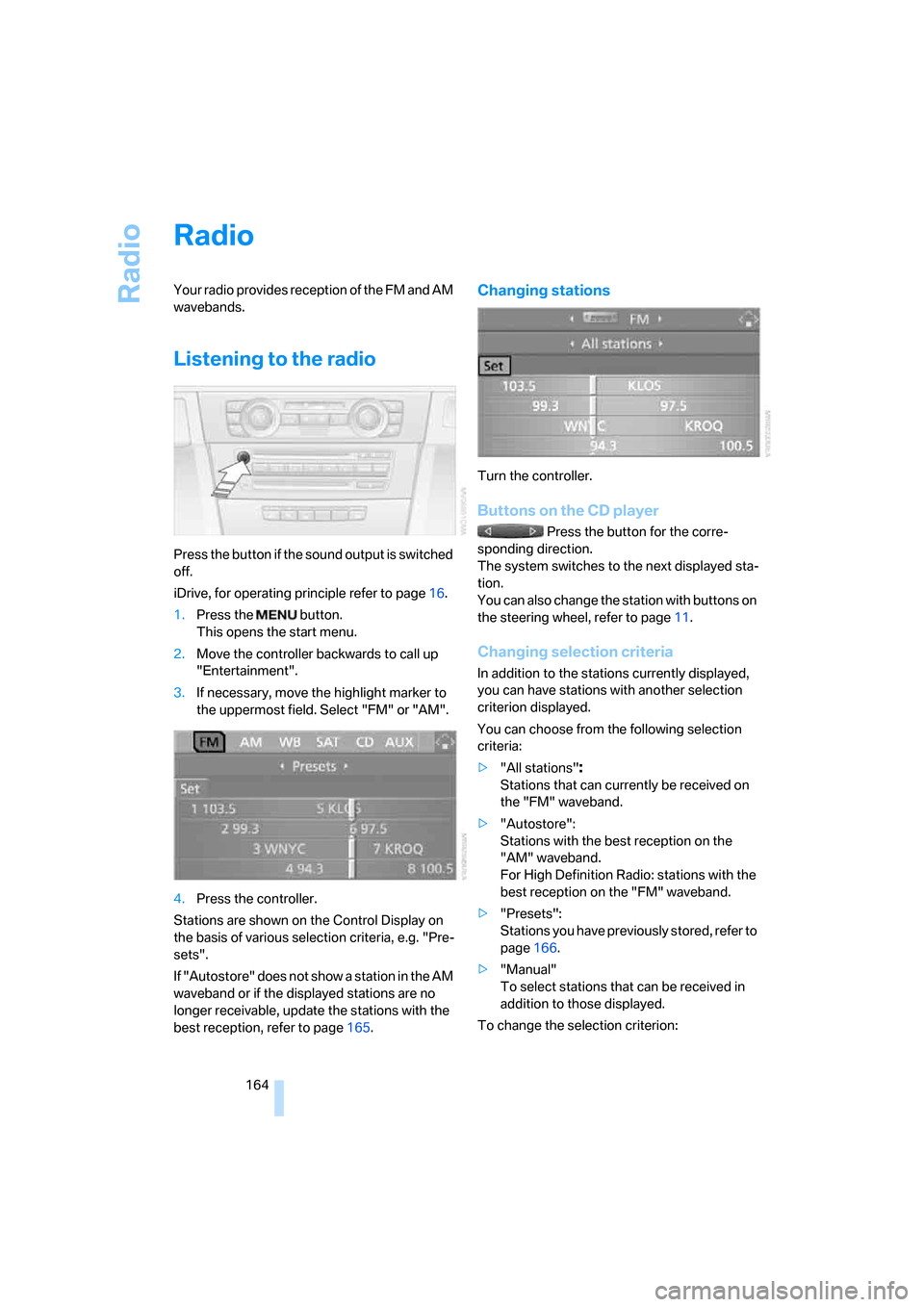
Stations are shown on the Control Display on
the basis of various selection criteria, e.g. "Pre-
sets".
If "Autostore" does not show a station in the AM
waveband or if the displayed stations are no
longer receivable, update the stations with the
best reception, refer to page165.
Changing stations
Turn the controller.
Buttons on the CD player
Press the button for the corre-
sponding direction.
The system switches to the next displayed sta-
tion.
You can also change the station with buttons on
the steering wheel, refer to page11.
Changing selection criteria
In addition to the stations currently displayed,
you can have stations with another selection
criterion displayed.
You can choose from the following selection
criteria:
>"All stations"
:
Stations that can currently be received on
the "FM" waveband.
>"Autostore":
Stations with the best reception on the
"AM" waveband.
For High Definition Radio: stations with the
best reception on the "FM" waveband.
>"Presets":
Stations you have previously stored, refer to
page166.
>"Manual"
To select stations that can be received in
addition to those displayed.
To change the selection criterion: