Start BMW 328I SEDAN 2008 E90 Workshop Manual
[x] Cancel search | Manufacturer: BMW, Model Year: 2008, Model line: 328I SEDAN, Model: BMW 328I SEDAN 2008 E90Pages: 274, PDF Size: 8.88 MB
Page 106 of 274
Climate
104
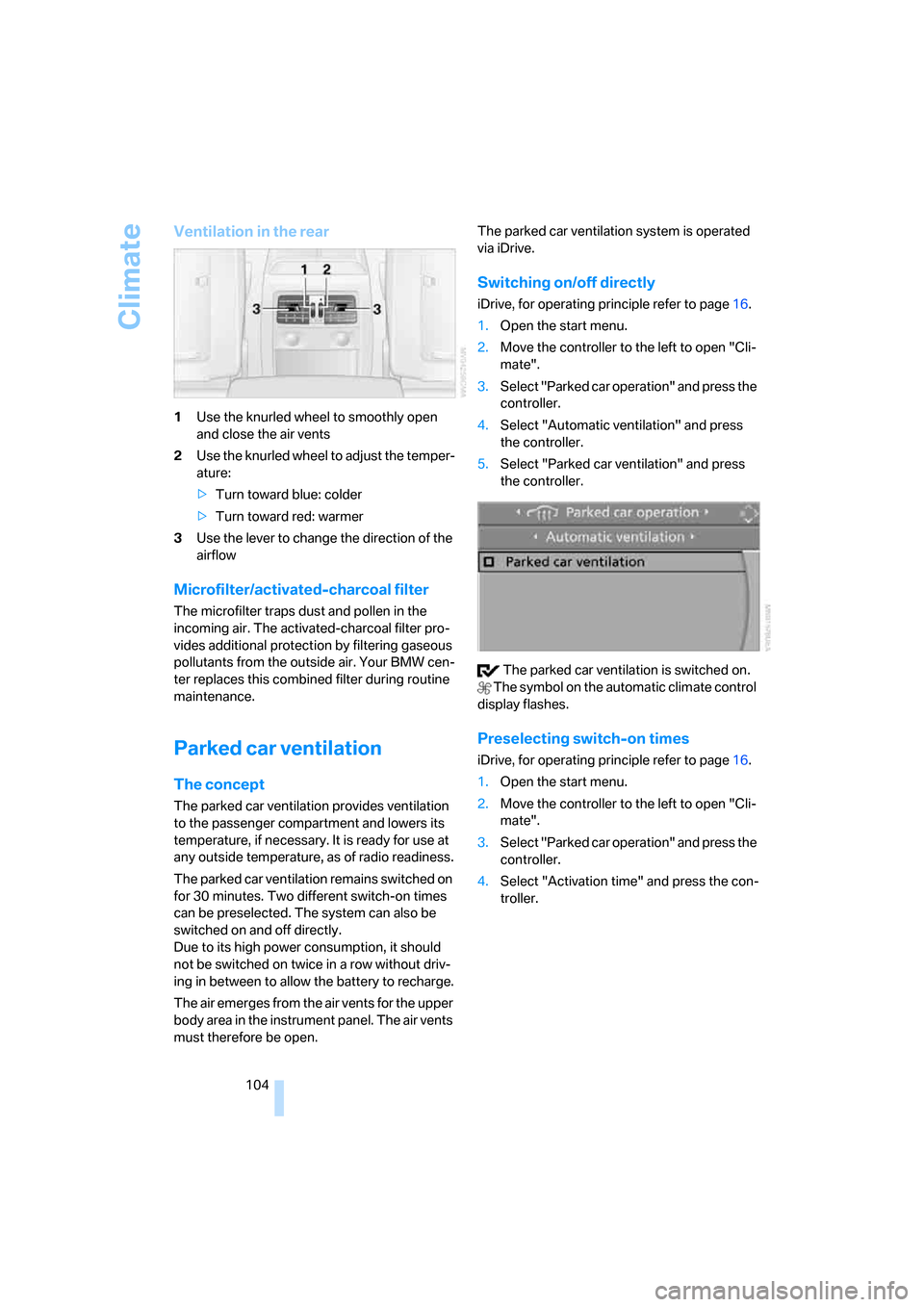
Ventilation in the rear
1Use the knurled wheel to smoothly open
and close the air vents
2Use the knurled wheel to adjust the temper-
ature:
>Turn toward blue: colder
>Turn toward red: warmer
3Use the lever to change the direction of the
airflow
Microfilter/activated-charcoal filter
The microfilter traps dust and pollen in the
incoming air. The activated-charcoal filter pro-
vides additional protection by filtering gaseous
pollutants from the outside air. Your BMW cen-
ter replaces this combined filter during routine
maintenance.
Parked car ventilation
The concept
The parked car ventilation provides ventilation
to the passenger compartment and lowers its
temperature, if necessary. It is ready for use at
any outside temperature, as of radio readiness.
The parked car ventilation remains switched on
for 30 minutes. Two different switch-on times
can be preselected. The system can also be
switched on and off directly.
Due to its high power consumption, it should
not be switched on twice in a row without driv-
ing in between to allow the battery to recharge.
The air emerges from the air vents for the upper
body area in the instrument panel. The air vents
must therefore be open.The parked car ventilation system is operated
via iDrive.
Switching on/off directly
iDrive, for operating principle refer to page16.
1.Open the start menu.
2.Move the controller to the left to open "Cli-
mate".
3.Select "Parked car operation" and press the
controller.
4.Select "Automatic ventilation" and press
the controller.
5.Select "Parked car ventilation" and press
the controller.
The parked car ventilation is switched on.
The symbol on the automatic climate control
display flashes.
Preselecting switch-on times
iDrive, for operating principle refer to page16.
1.Open the start menu.
2.Move the controller to the left to open "Cli-
mate".
3.Select "Parked car operation" and press the
controller.
4.Select "Activation time" and press the con-
troller.
Page 108 of 274
Practical interior accessories
106
Practical interior accessories
Integrated universal remote
control*
The concept
The integrated universal remote control can
replace as many as three hand-held transmit-
ters for various remote-controlled devices,
such as garage doors and gates or lighting sys-
tems. The integrated universal remote control
registers and stores signals from the original
hand-held transmitters.
The signal of an original hand-held transmitter
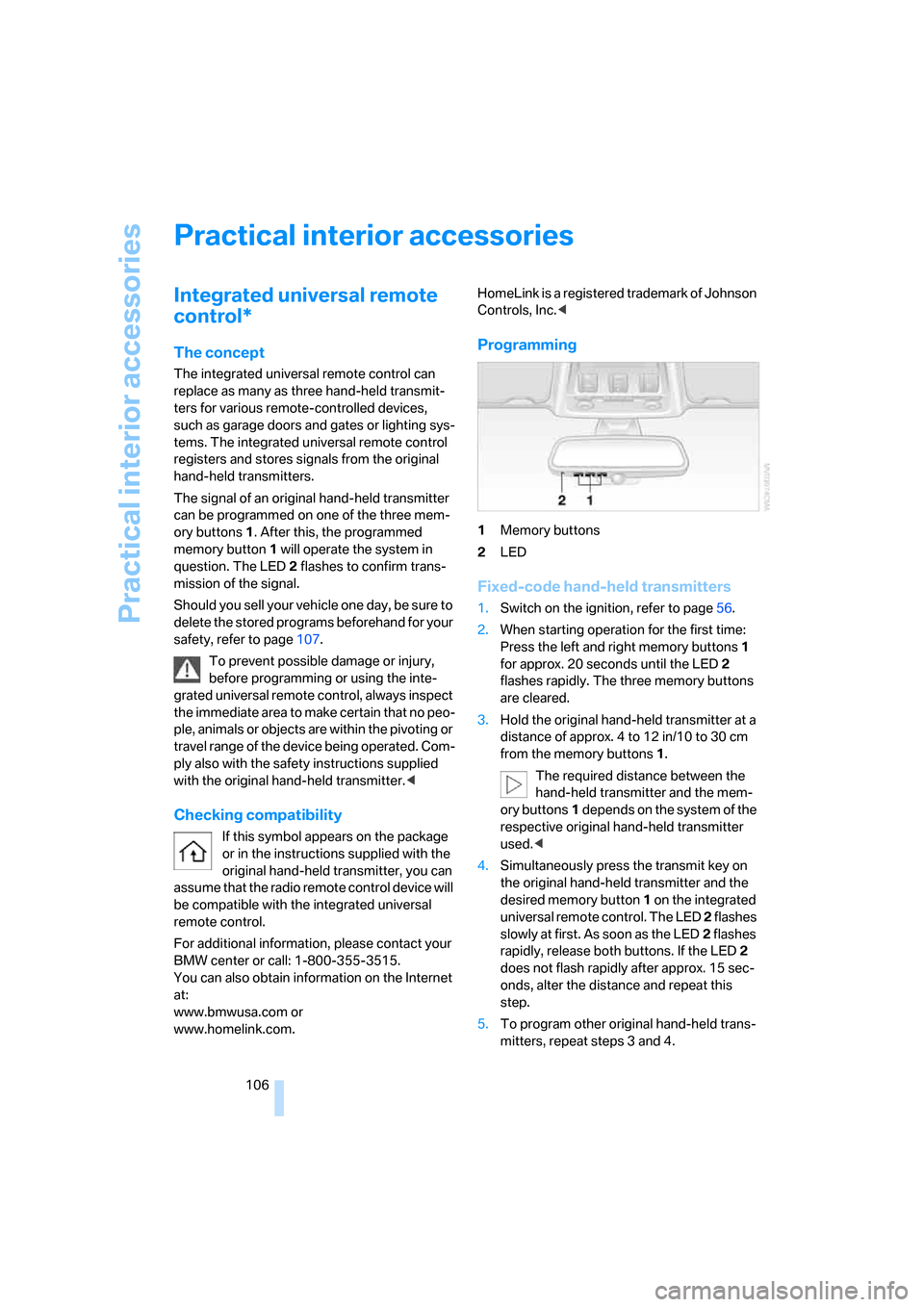
can be programmed on one of the three mem-
ory buttons1. After this, the programmed
memory button1 will operate the system in
question. The LED2 flashes to confirm trans-
mission of the signal.
Should you sell your vehicle one day, be sure to
delete the stored programs beforehand for your
safety, refer to page107.
To prevent possible damage or injury,
before programming or using the inte-
grated universal remote control, always inspect
the immediate area to make certain that no peo-
ple, animals or objects are within the pivoting or
travel range of the device being operated. Com-
ply also with the safety instructions supplied
with the original hand-held transmitter.<
Checking compatibility
If this symbol appears on the package
or in the instructions supplied with the
original hand-held transmitter, you can
assume that the radio remote control device will
be compatible with the integrated universal
remote control.
For additional information, please contact your
BMW center or call: 1-800-355-3515.
You can also obtain information on the Internet
at:
www.bmwusa.com or
www.homelink.com. HomeLink is a registered trademark of Johnson
Controls, Inc.<
Programming
1Memory buttons
2LED
Fixed-code hand-held transmitters
1.Switch on the ignition, refer to page56.
2.When starting operation for the first time:
Press the left and right memory buttons1
for approx. 20 seconds until the LED2
flashes rapidly. The three memory buttons
are cleared.
3.Hold the original hand-held transmitter at a
distance of approx. 4 to 12 in/10 to 30 cm
from the memory buttons1.
The required distance between the
hand-held transmitter and the mem-
ory buttons1 depends on the system of the
respective original hand-held transmitter
used.<
4.Simultaneously press the transmit key on
the original hand-held transmitter and the
desired memory button 1 on the integrated
universal remote control. The LED 2 flashes
slowly at first. As soon as the LED2 flashes
rapidly, release both buttons. If the LED2
does not flash rapidly after approx. 15 sec-
onds, alter the distance and repeat this
step.
5.To program other original hand-held trans-
mitters, repeat steps 3 and 4.
Page 130 of 274
Starting the navigation system
128
Starting the navigation system
Your navigation system can use satellites to
ascertain the precise position of your vehicle
and guide you reliably to any destination you
enter.
Navigation DVD
The navigation system requires a special navi-
gation DVD. You can obtain the latest version at
your BMW center.
Inserting navigation DVD
Use the lower drive for navigation DVDs.
1.Insert the navigation DVD with the labeled
side up.
The navigation DVD is pulled in automati-
cally.
2.Wait for several seconds to allow the con-
tents of the DVD to be read in.
Removing navigation DVD
1. Press button 1.
The DVD emerges slightly from the drive.
2.Remove the DVD.
If the DVD is not ejected, the drive may be
blocked. In this case, a message will appear on
the Control Display.
Display in the assistance
window
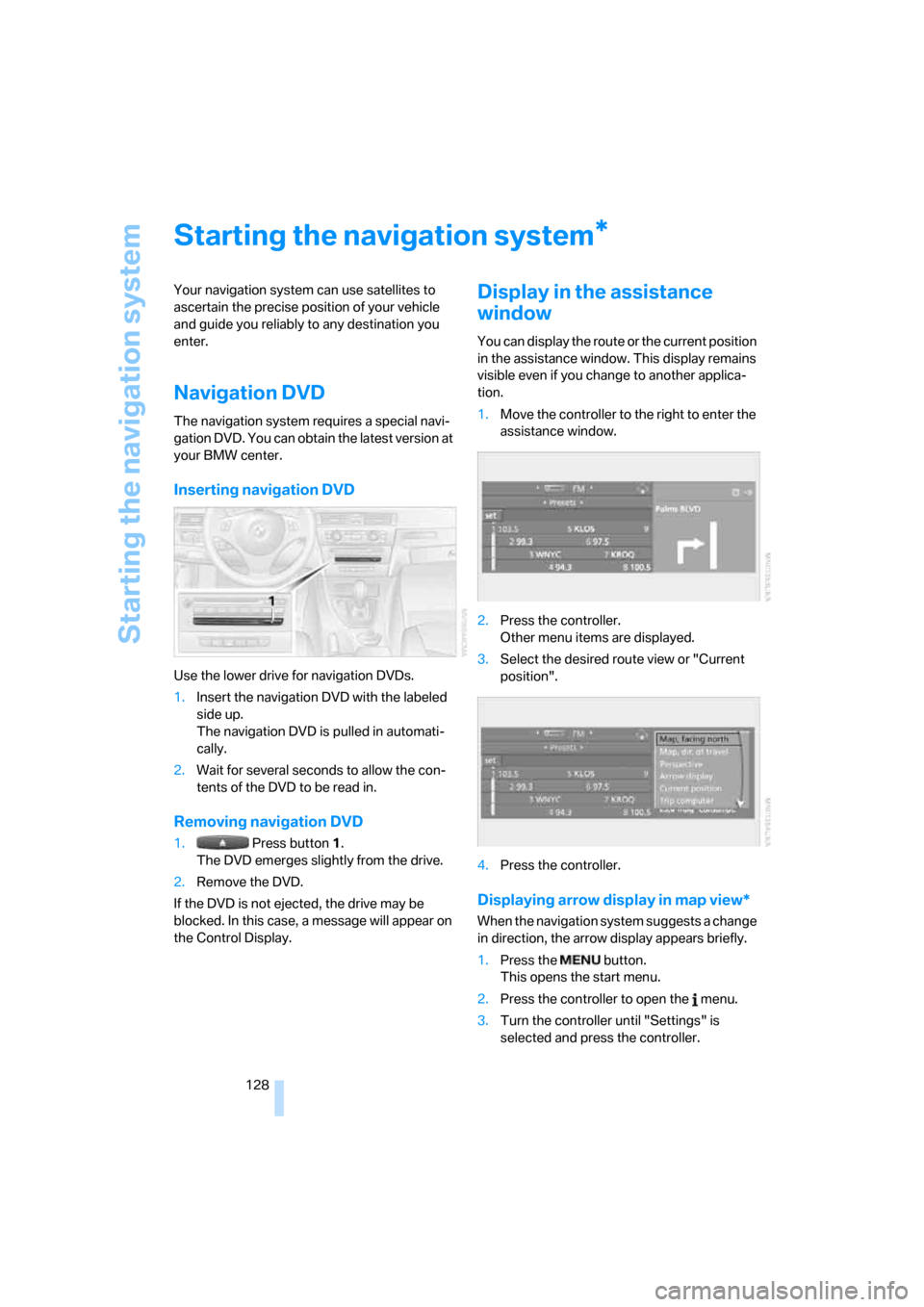
You can display the route or the current position
in the assistance window. This display remains
visible even if you change to another applica-
tion.
1.Move the controller to the right to enter the
assistance window.
2.Press the controller.
Other menu items are displayed.
3.Select the desired route view or "Current
position".
4.Press the controller.
Displaying arrow display in map view*
When the navigation system suggests a change
in direction, the arrow display appears briefly.
1.Press the button.
This opens the start menu.
2.Press the controller to open the menu.
3.Turn the controller until "Settings" is
selected and press the controller.
*
Page 132 of 274
Destination entry
130
Destination entry
In entering your destination you can select from
the following options:
>Entering a destination manually, see below
>Entering a destination by voice com-
mands*, refer to page134
>Selecting destination using information,
refer to page136
>Selecting destination from a list, refer to
Destination list, page137
>Selecting destination from address book,
refer to page138
>Selecting home address, refer to page140
After selecting your destination you can pro-
ceed to start the destination guidance, refer to
page143.
You can also store a navigation destination on
the programmable memory keys, refer to
page21.
Enter data only when the vehicle is sta-
tionary, and always give priority to the
applicable traffic regulations in the event of any
contradiction between traffic and road condi-
tions and the instructions issued by the naviga-
tion system. Otherwise, vehicle occupants and
other road users may be endangered.<
Opening navigation
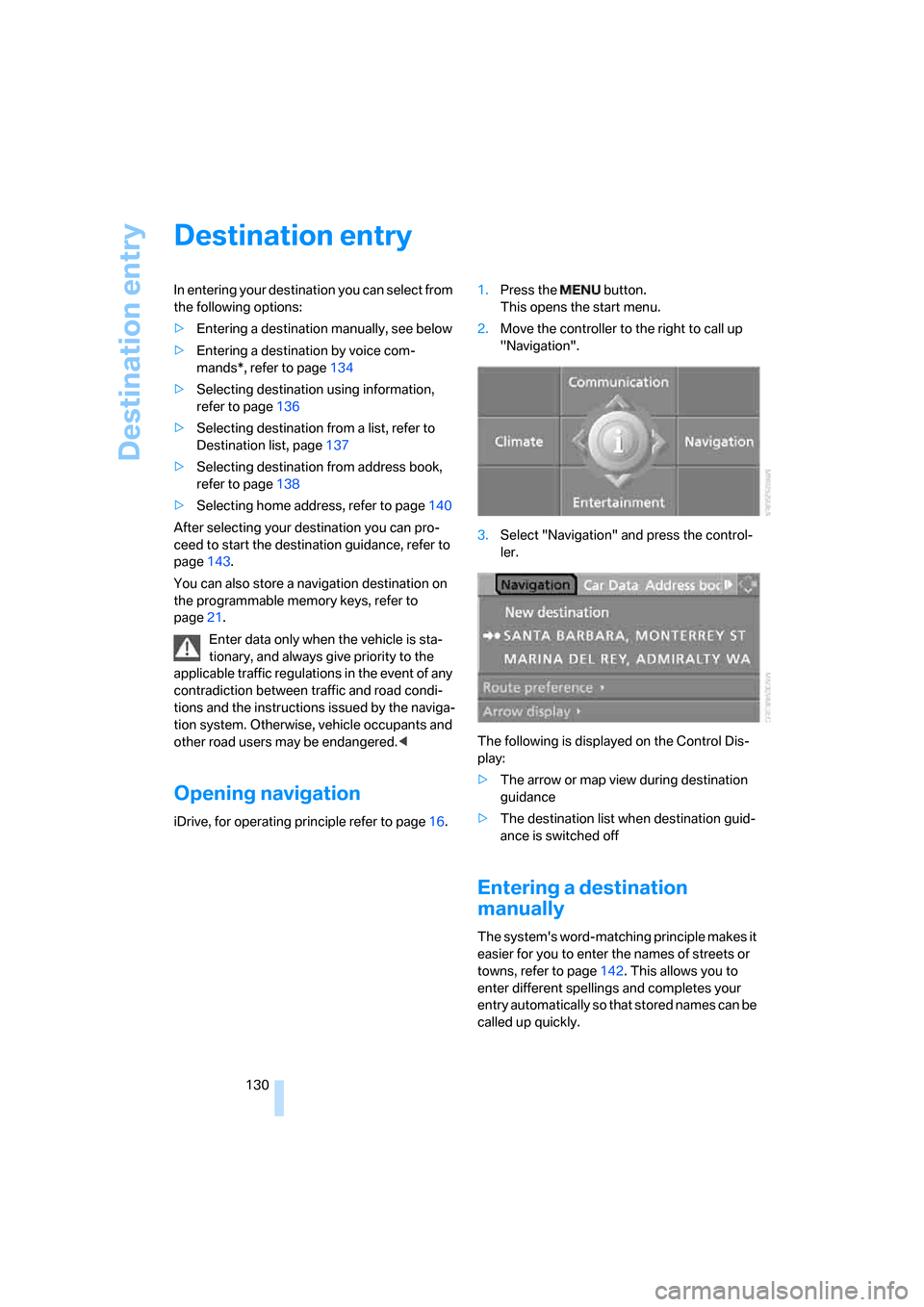
iDrive, for operating principle refer to page16.1.Press the button.
This opens the start menu.
2.Move the controller to the right to call up
"Navigation".
3.Select "Navigation" and press the control-
ler.
The following is displayed on the Control Dis-
play:
>The arrow or map view during destination
guidance
>The destination list when destination guid-
ance is switched off
Entering a destination
manually
The system's word-matching principle makes it
easier for you to enter the names of streets or
towns, refer to page142. This allows you to
enter different spellings and completes your
entry automatically so that stored names can be
called up quickly.
Page 133 of 274
Navigation
Driving tips
131Reference
At a glance
Controls
Communications
Entertainment
Mobility
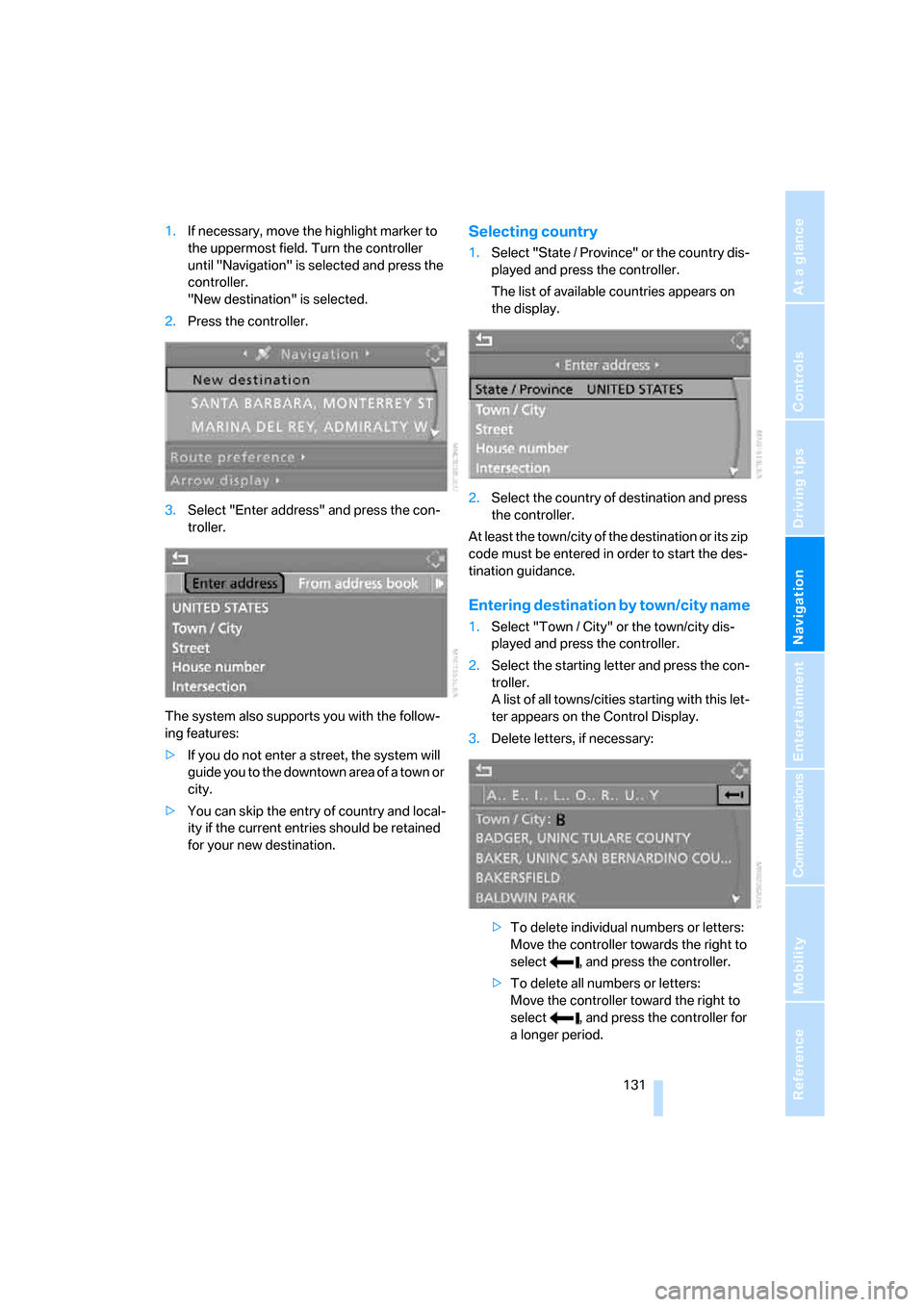
1.If necessary, move the highlight marker to
the uppermost field. Turn the controller
until "Navigation" is selected and press the
controller.
"New destination" is selected.
2.Press the controller.
3.Select "Enter address" and press the con-
troller.
The system also supports you with the follow-
ing features:
>If you do not enter a street, the system will
guide you to the downtown area of a town or
city.
>You can skip the entry of country and local-
ity if the current entries should be retained
for your new destination.Selecting country
1.Select "State / Province" or the country dis-
played and press the controller.
The list of available countries appears on
the display.
2.Select the country of destination and press
the controller.
At least the town/city of the destination or its zip
code must be entered in order to start the des-
tination guidance.
Entering destination by town/city name
1.Select "Town / City" or the town/city dis-
played and press the controller.
2.Select the starting letter and press the con-
troller.
A list of all towns/cities starting with this let-
ter appears on the Control Display.
3.Delete letters, if necessary:
>To delete individual numbers or letters:
Move the controller towards the right to
select , and press the controller.
>To delete all numbers or letters:
Move the controller toward the right to
select , and press the controller for
a longer period.
Page 135 of 274
Navigation
Driving tips
133Reference
At a glance
Controls
Communications
Entertainment
Mobility
Entering street and intersection
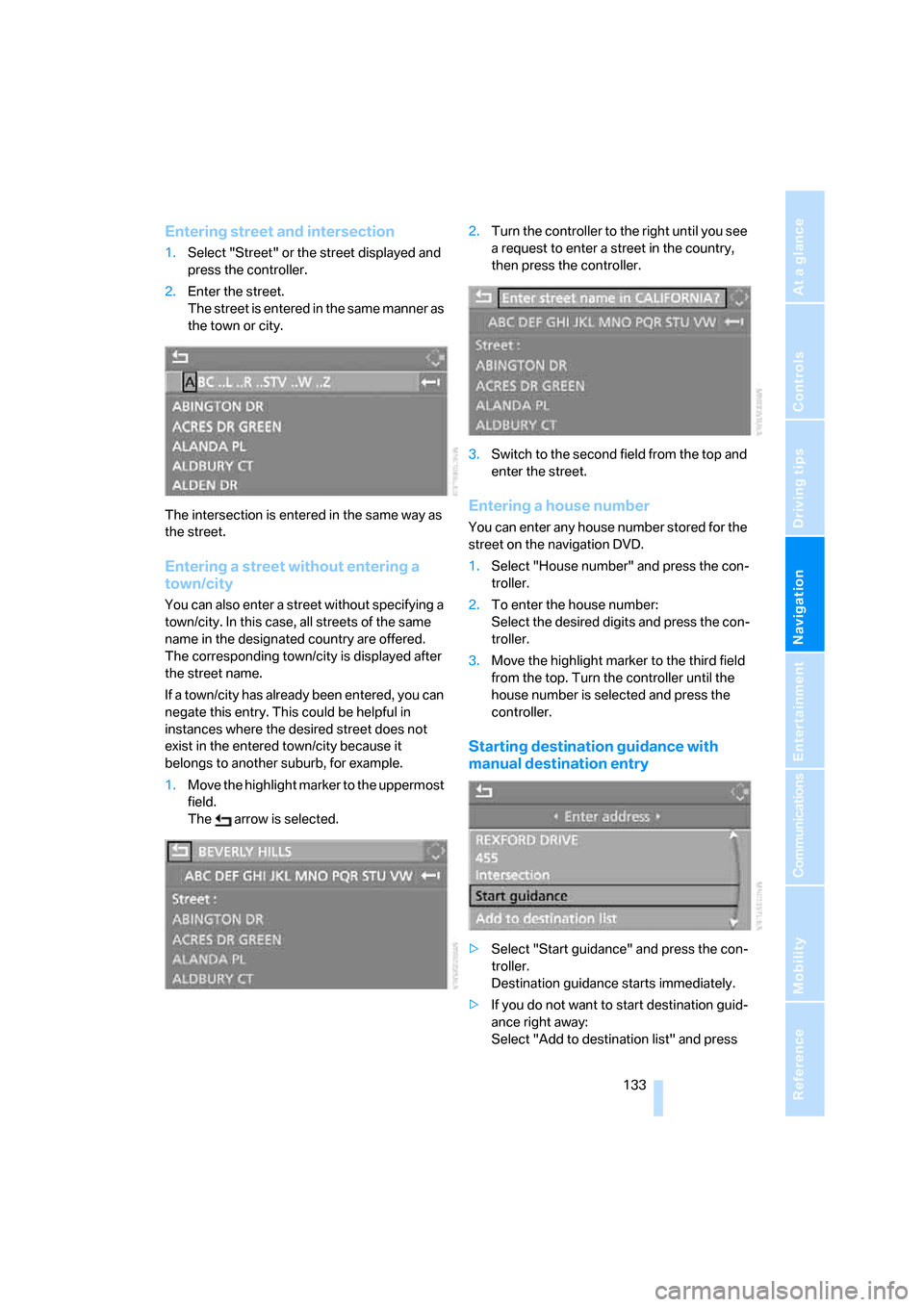
1.Select "Street" or the street displayed and
press the controller.
2.Enter the street.
The street is entered in the same manner as
the town or city.
The intersection is entered in the same way as
the street.
Entering a street without entering a
town/city
You can also enter a street without specifying a
town/city. In this case, all streets of the same
name in the designated country are offered.
The corresponding town/city is displayed after
the street name.
If a town/city has already been entered, you can
negate this entry. This could be helpful in
instances where the desired street does not
exist in the entered town/city because it
belongs to another suburb, for example.
1.Move the highlight marker to the uppermost
field.
The arrow is selected.2.Turn the controller to the right until you see
a request to enter a street in the country,
then press the controller.
3.Switch to the second field from the top and
enter the street.
Entering a house number
You can enter any house number stored for the
street on the navigation DVD.
1.Select "House number" and press the con-
troller.
2.To enter the house number:
Select the desired digits and press the con-
troller.
3.Move the highlight marker to the third field
from the top. Turn the controller until the
house number is selected and press the
controller.
Starting destination guidance with
manual destination entry
>Select "Start guidance" and press the con-
troller.
Destination guidance starts immediately.
>If you do not want to start destination guid-
ance right away:
Select "Add to destination list" and press
Page 137 of 274
Navigation
Driving tips
135Reference
At a glance
Controls
Communications
Entertainment
Mobility
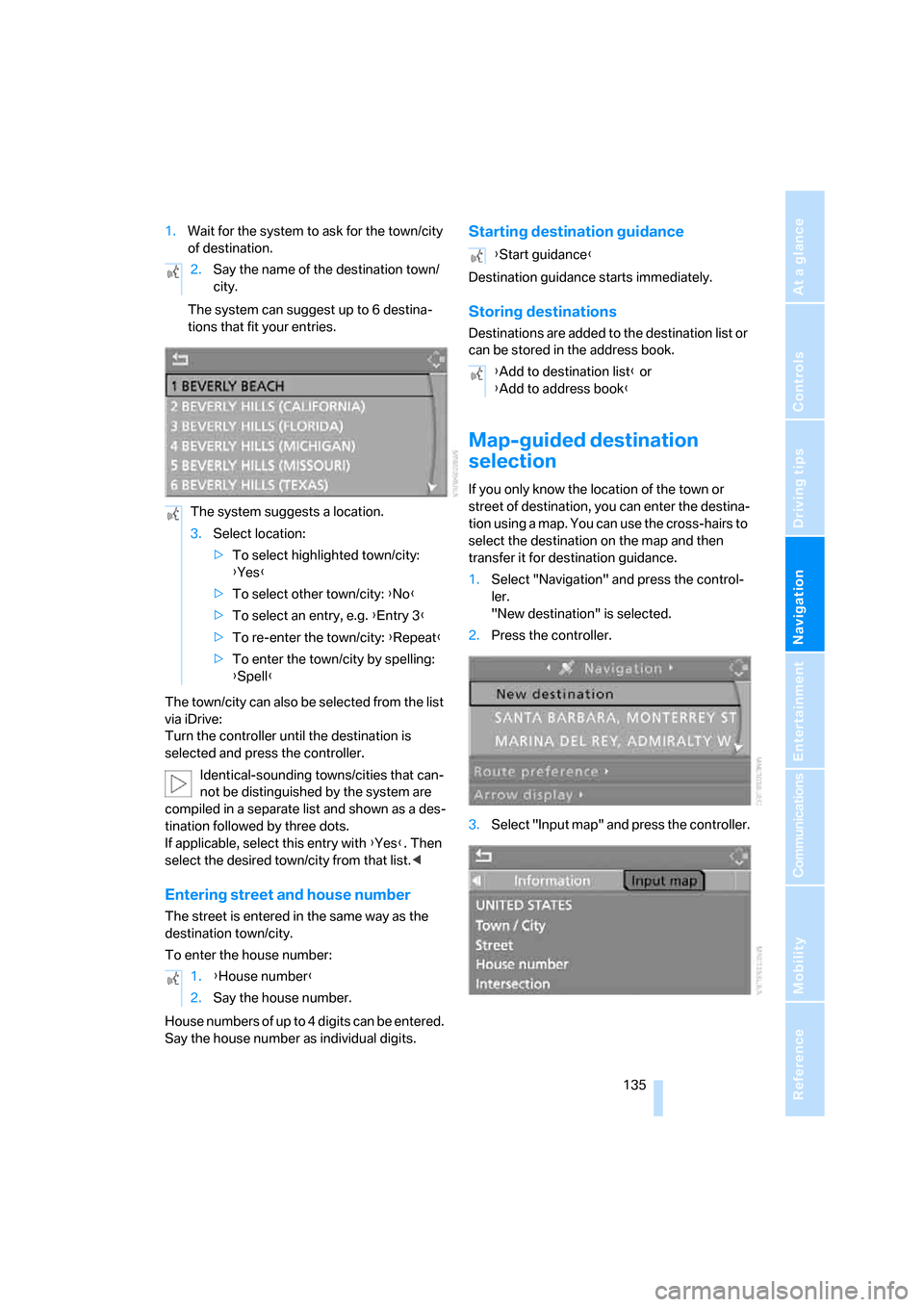
1.Wait for the system to ask for the town/city
of destination.
The system can suggest up to 6 destina-
tions that fit your entries.
The town/city can also be selected from the list
via iDrive:
Turn the controller until the destination is
selected and press the controller.
Identical-sounding towns/cities that can-
not be distinguished by the system are
compiled in a separate list and shown as a des-
tination followed by three dots.
If applicable, select this entry with {Yes}. Then
select the desired town/city from that list.<
Entering street and house number
The street is entered in the same way as the
destination town/city.
To enter the house number:
House numbers of up to 4 digits can be entered.
Say the house number as individual digits.
Starting destination guidance
Destination guidance starts immediately.
Storing destinations
Destinations are added to the destination list or
can be stored in the address book.
Map-guided destination
selection
If you only know the location of the town or
street of destination, you can enter the destina-
tion using a map. You can use the cross-hairs to
select the destination on the map and then
transfer it for destination guidance.
1.Select "Navigation" and press the control-
ler.
"New destination" is selected.
2.Press the controller.
3.Select "Input map" and press the controller. 2.Say the name of the destination town/
city.
The system suggests a location.
3.Select location:
>To select highlighted town/city:
{Yes}
>To select other town/city: {No}
>To select an entry, e.g. {Entry 3}
>To re-enter the town/city: {Repeat}
>To enter the town/city by spelling:
{Spell}
1.{House number}
2.Say the house number.
{Start guidance}
{Add to destination list} or
{Add to address book}
Page 138 of 274
Destination entry
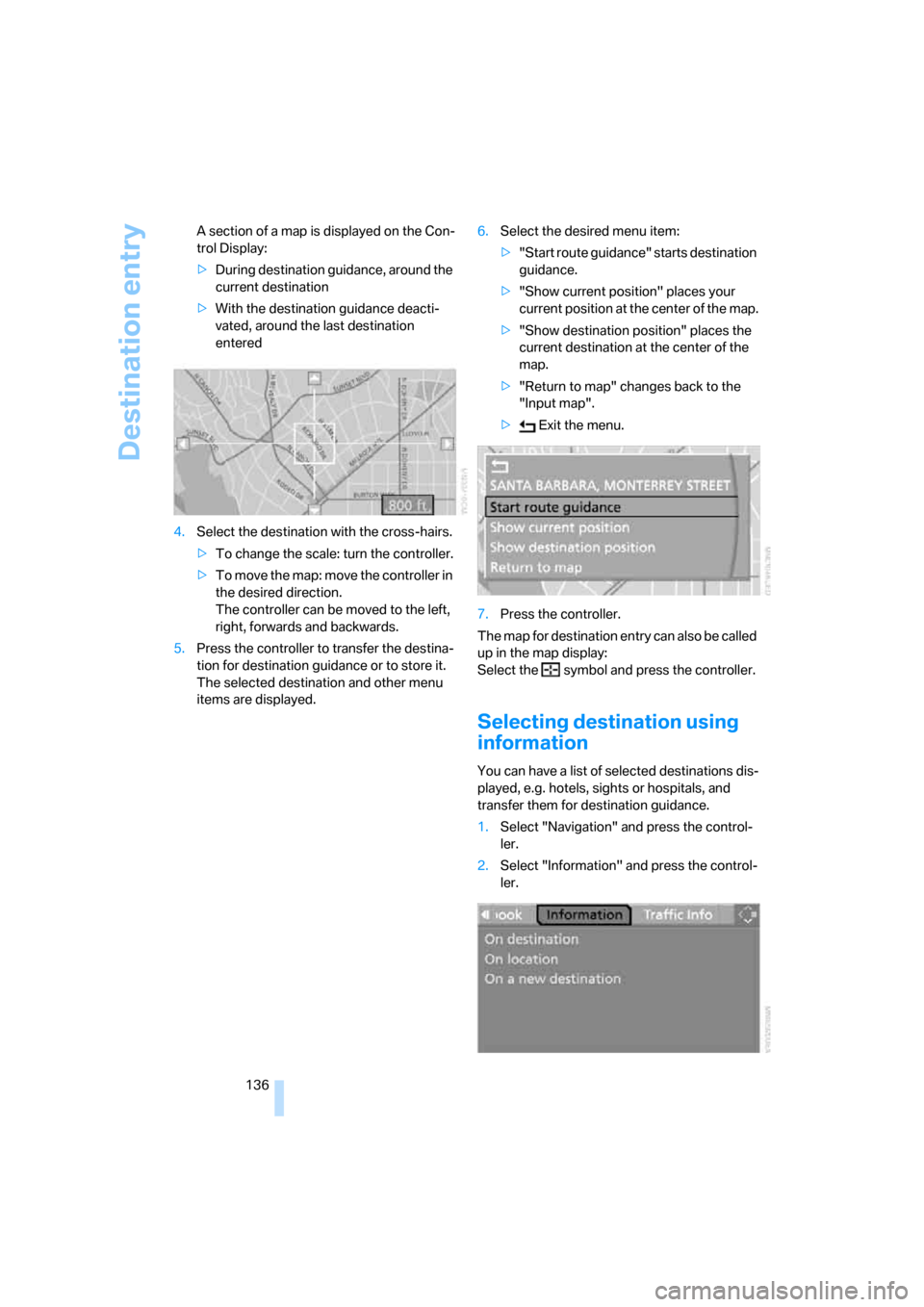
136 A section of a map is displayed on the Con-
trol Display:
>During destination guidance, around the
current destination
>With the destination guidance deacti-
vated, around the last destination
entered
4.Select the destination with the cross-hairs.
>To change the scale: turn the controller.
>To move the map: move the controller in
the desired direction.
The controller can be moved to the left,
right, forwards and backwards.
5.Press the controller to transfer the destina-
tion for destination guidance or to store it.
The selected destination and other menu
items are displayed.6.Select the desired menu item:
>"Start route guidance" starts destination
guidance.
>"Show current position" places your
current position at the center of the map.
>"Show destination position" places the
current destination at the center of the
map.
>"Return to map" changes back to the
"Input map".
> Exit the menu.
7.Press the controller.
The map for destination entry can also be called
up in the map display:
Select the symbol and press the controller.
Selecting destination using
information
You can have a list of selected destinations dis-
played, e.g. hotels, sights or hospitals, and
transfer them for destination guidance.
1.Select "Navigation" and press the control-
ler.
2.Select "Information" and press the control-
ler.
Page 139 of 274
Navigation
Driving tips
137Reference
At a glance
Controls
Communications
Entertainment
Mobility
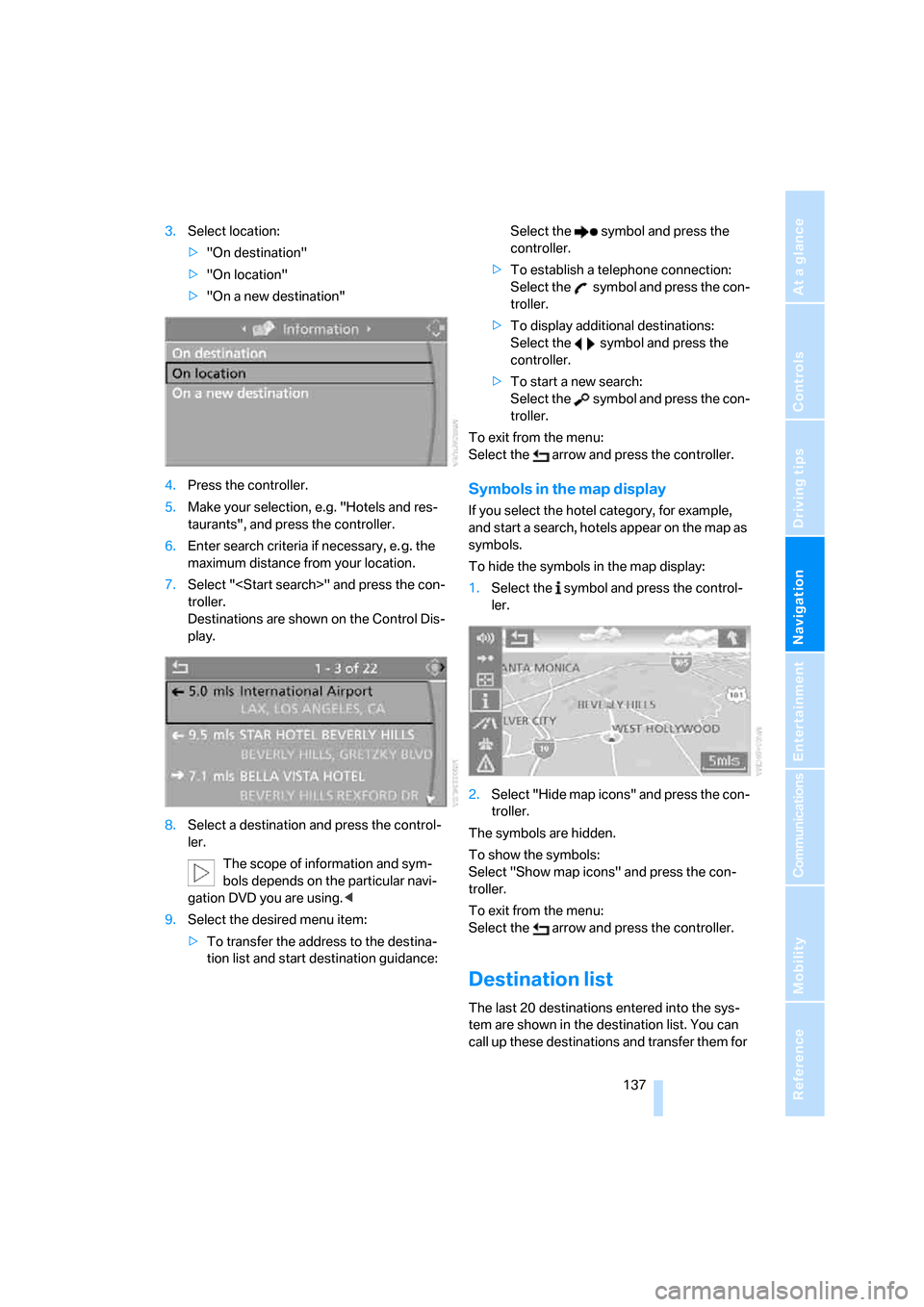
3.Select location:
>"On destination"
>"On location"
>"On a new destination"
4.Press the controller.
5.Make your selection, e.g. "Hotels and res-
taurants", and press the controller.
6.Enter search criteria if necessary, e. g. the
maximum distance from your location.
7.Select "
troller.
Destinations are shown on the Control Dis-
play.
8.Select a destination and press the control-
ler.
The scope of information and sym-
bols depends on the particular navi-
gation DVD you are using.<
9.Select the desired menu item:
>To transfer the address to the destina-
tion list and start destination guidance:Select the symbol and press the
controller.
>To establish a telephone connection:
Select the symbol and press the con-
troller.
>To display additional destinations:
Select the symbol and press the
controller.
>To start a new search:
Select the symbol and press the con-
troller.
To exit from the menu:
Select the arrow and press the controller.
Symbols in the map display
If you select the hotel category, for example,
and start a search, hotels appear on the map as
symbols.
To hide the symbols in the map display:
1.Select the symbol and press the control-
ler.
2.Select "Hide map icons" and press the con-
troller.
The symbols are hidden.
To show the symbols:
Select "Show map icons" and press the con-
troller.
To exit from the menu:
Select the arrow and press the controller.
Destination list
The last 20 destinations entered into the sys-
tem are shown in the destination list. You can
call up these destinations and transfer them for
Page 140 of 274
Destination entry
138 destination guidance.
If you are planning a longer journey, for exam-
ple, you can store all the destinations you wish
to drive to in the destination list in advance,
refer to Entering a destination manually on
page130.
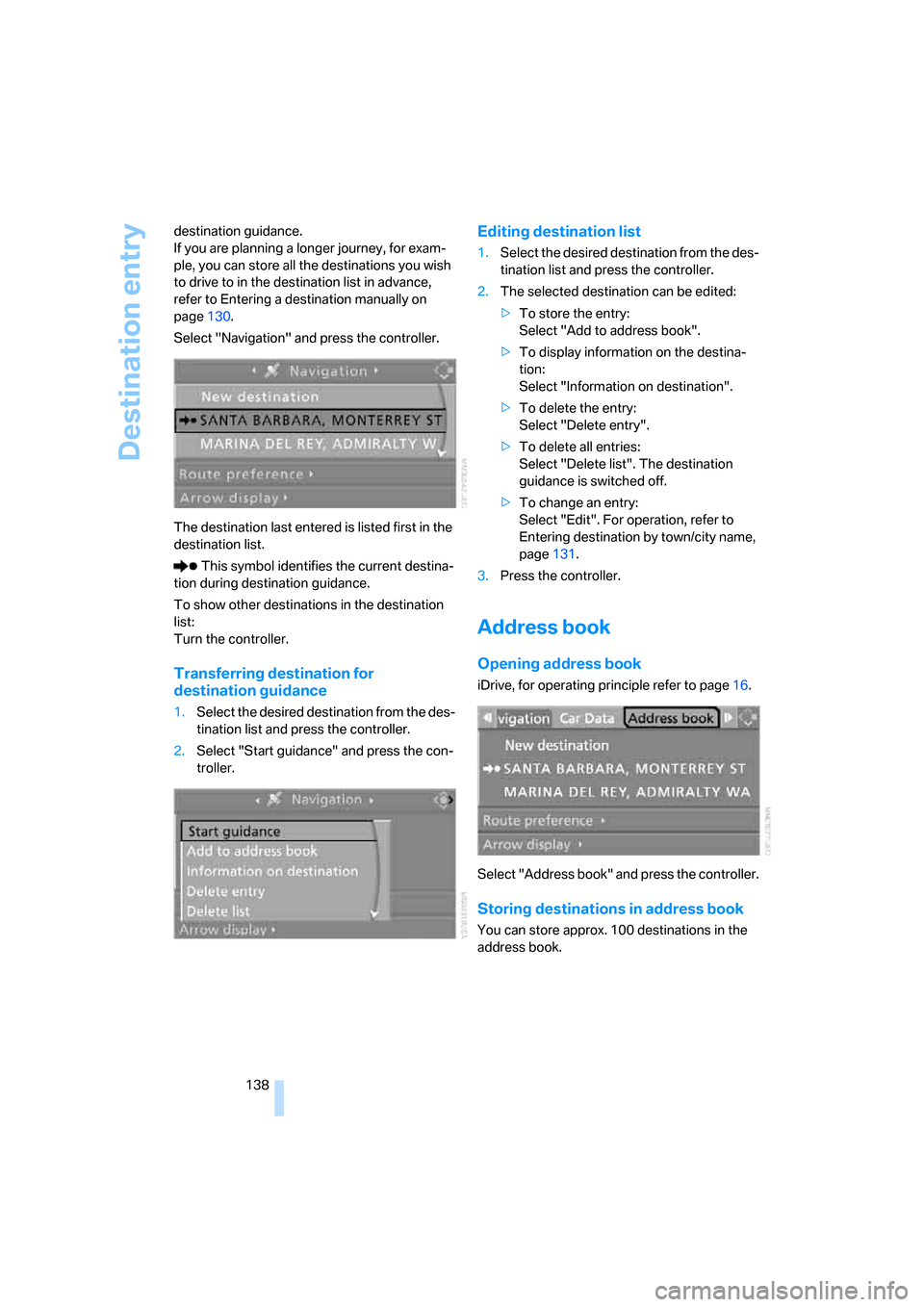
Select "Navigation" and press the controller.
The destination last entered is listed first in the
destination list.
This symbol identifies the current destina-
tion during destination guidance.
To show other destinations in the destination
list:
Turn the controller.
Transferring destination for
destination guidance
1.Select the desired destination from the des-
tination list and press the controller.
2.Select "Start guidance" and press the con-
troller.
Editing destination list
1.Select the desired destination from the des-
tination list and press the controller.
2.The selected destination can be edited:
>To store the entry:
Select "Add to address book".
>To display information on the destina-
tion:
Select "Information on destination".
>To delete the entry:
Select "Delete entry".
>To delete all entries:
Select "Delete list". The destination
guidance is switched off.
>To change an entry:
Select "Edit". For operation, refer to
Entering destination by town/city name,
page131.
3.Press the controller.
Address book
Opening address book
iDrive, for operating principle refer to page16.
Select "Address book" and press the controller.
Storing destinations in address book
You can store approx. 100 destinations in the
address book.