Start BMW 328I SEDAN 2008 E90 Manual Online
[x] Cancel search | Manufacturer: BMW, Model Year: 2008, Model line: 328I SEDAN, Model: BMW 328I SEDAN 2008 E90Pages: 274, PDF Size: 8.88 MB
Page 179 of 274
Navigation
Entertainment
Driving tips
177Reference
At a glance
Controls
Communications
Mobility
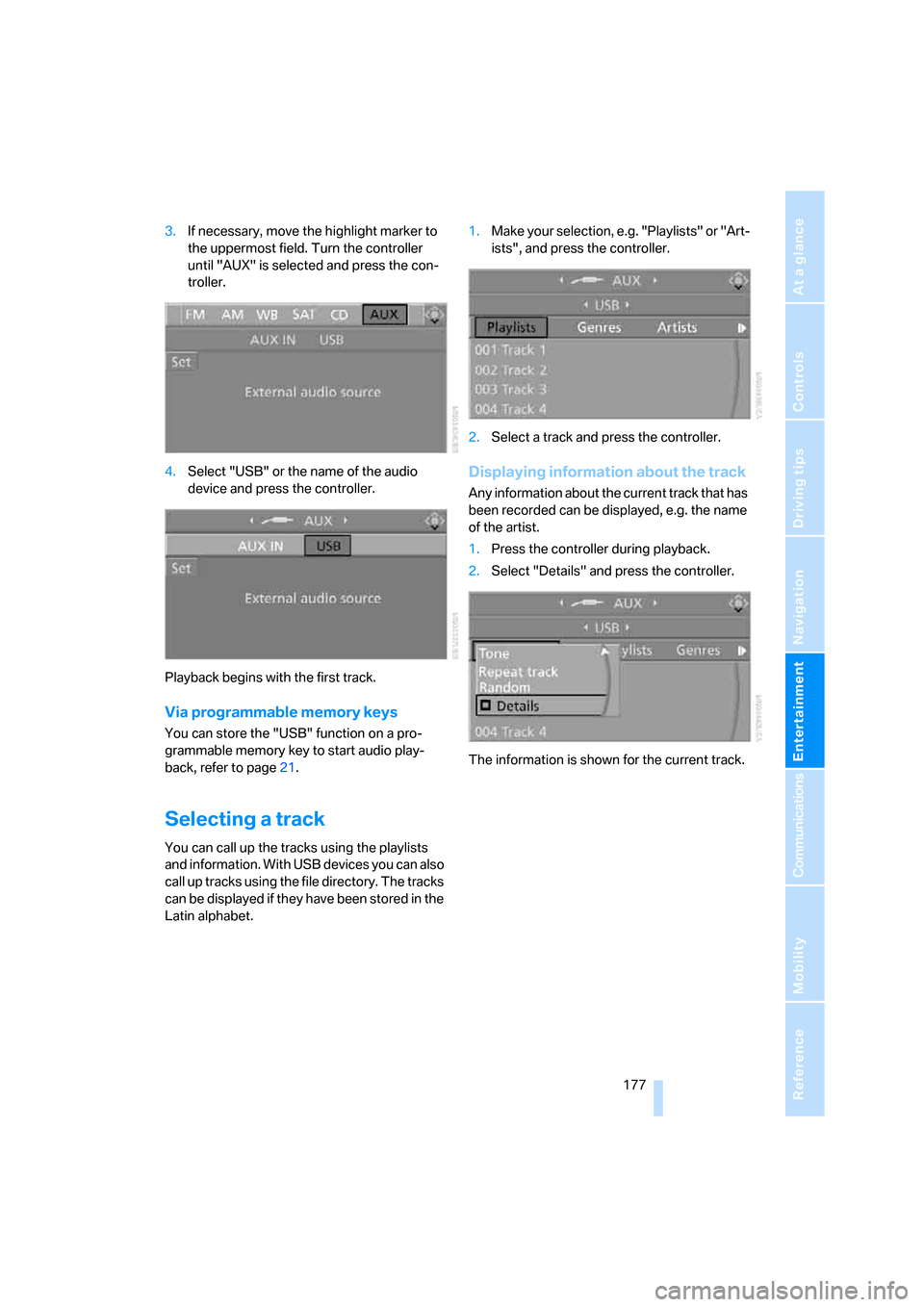
3.If necessary, move the highlight marker to
the uppermost field. Turn the controller
until "AUX" is selected and press the con-
troller.
4.Select "USB" or the name of the audio
device and press the controller.
Playback begins with the first track.
Via programmable memory keys
You can store the "USB" function on a pro-
grammable memory key to start audio play-
back, refer to page21.
Selecting a track
You can call up the tracks using the playlists
and information. With USB devices you can also
call up tracks using the file directory. The tracks
can be displayed if they have been stored in the
Latin alphabet.1.Make your selection, e.g. "Playlists" or "Art-
ists", and press the controller.
2.Select a track and press the controller.
Displaying information about the track
Any information about the current track that has
been recorded can be displayed, e.g. the name
of the artist.
1.Press the controller during playback.
2.Select "Details" and press the controller.
The information is shown for the current track.
Page 185 of 274
183
Entertainment
Reference
At a glance
Controls
Driving tips Communications
Navigation
Mobility
When the status information "BMW Assist" or
"BMW Service" is displayed in "Communica-
tion", only BMW Assist calls are possible.
It may not be possible to establish a telephone
connection using the mobile phone while a con-
nection is being established to BMW Assist or
while a call to BMW Assist is already in
progress. If this happens, you must unpair the
mobile phone and the vehicle if you wish to
place a call with the mobile phone.
Start-up
Pairing the mobile phone with the
vehicle
The following prerequisites must be met:
>Compatible mobile phone: the mobile
phone is supported by the full preparation
package mobile phone. You can obtain
information on the Internet at:
www.bmw.com
>The mobile phone is ready to operate.
>The Bluetooth link is activated in the vehi-
cle, refer to page187, and in the mobile
phone.
>Depending on the mobile phone, some
default settings may be necessary for the
mobile phone: e. g. using the following
menu items:
>Bluetooth switched on
>Connection without confirmation
>Reconnection
>Depending on the mobile phone type, the
power-saving mode setting, for example,
may result in a paired mobile phone not
being detected by the vehicle.
>For pairing purposes, define any number as
the Bluetooth passkey, e.g. 1. This Blue-
tooth passkey is no longer required after
pairing has been successful.
>The ignition is switched on.
Pair the mobile phone with the vehicle
only when the car is stationary, to avoid endangering the car's occupants and other
road users by being distracted.<
Switch on ignition
1.Insert remote control all the way into the
ignition lock.
2.Switch on ignition without operating the
brake or clutch or pressing the start/stop
button.
Preparation via iDrive
iDrive, for operating principle refer to page16.
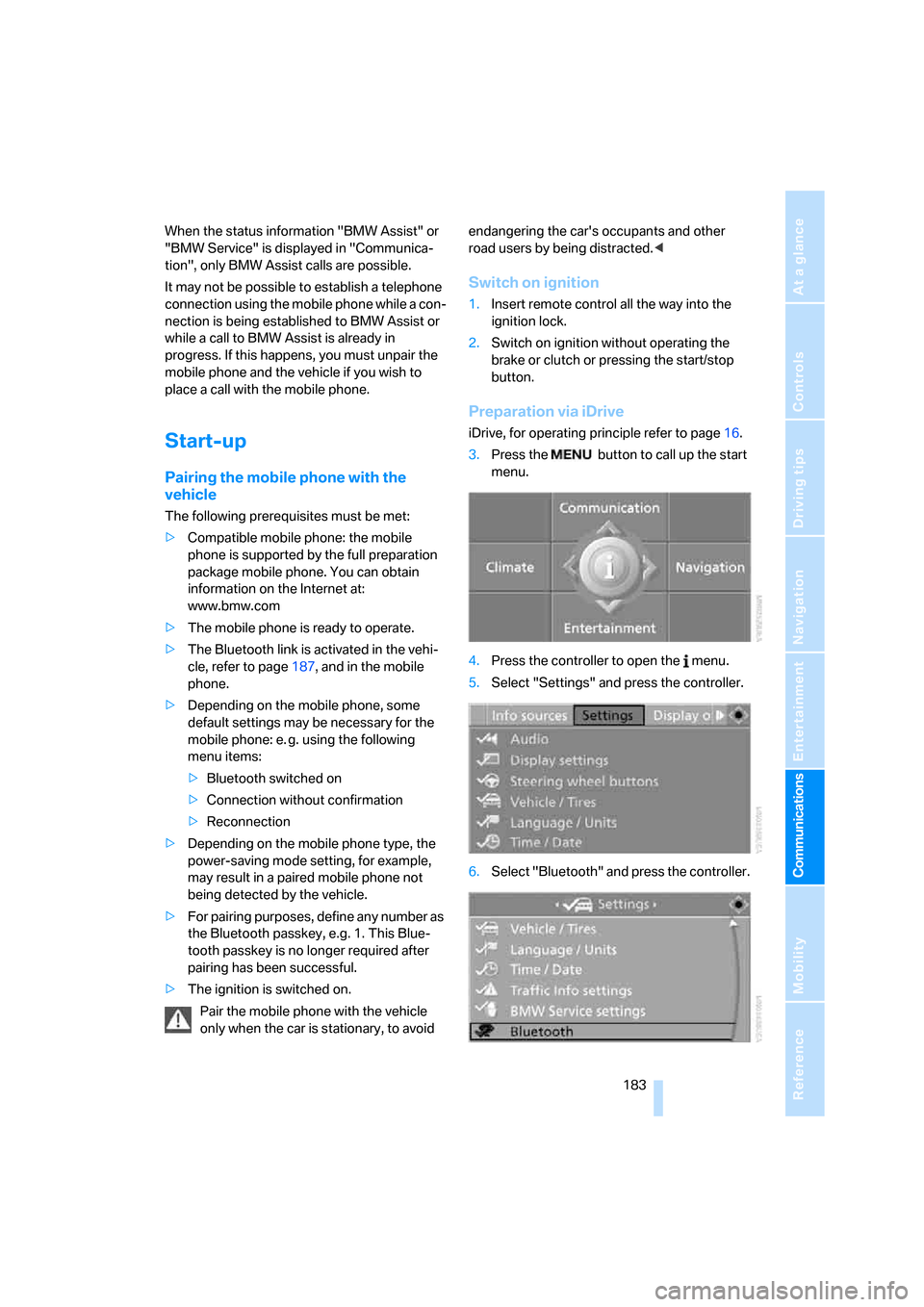
3.Press the button to call up the start
menu.
4.Press the controller to open the menu.
5.Select "Settings" and press the controller.
6.Select "Bluetooth" and press the controller.
Page 186 of 274
Telephoning
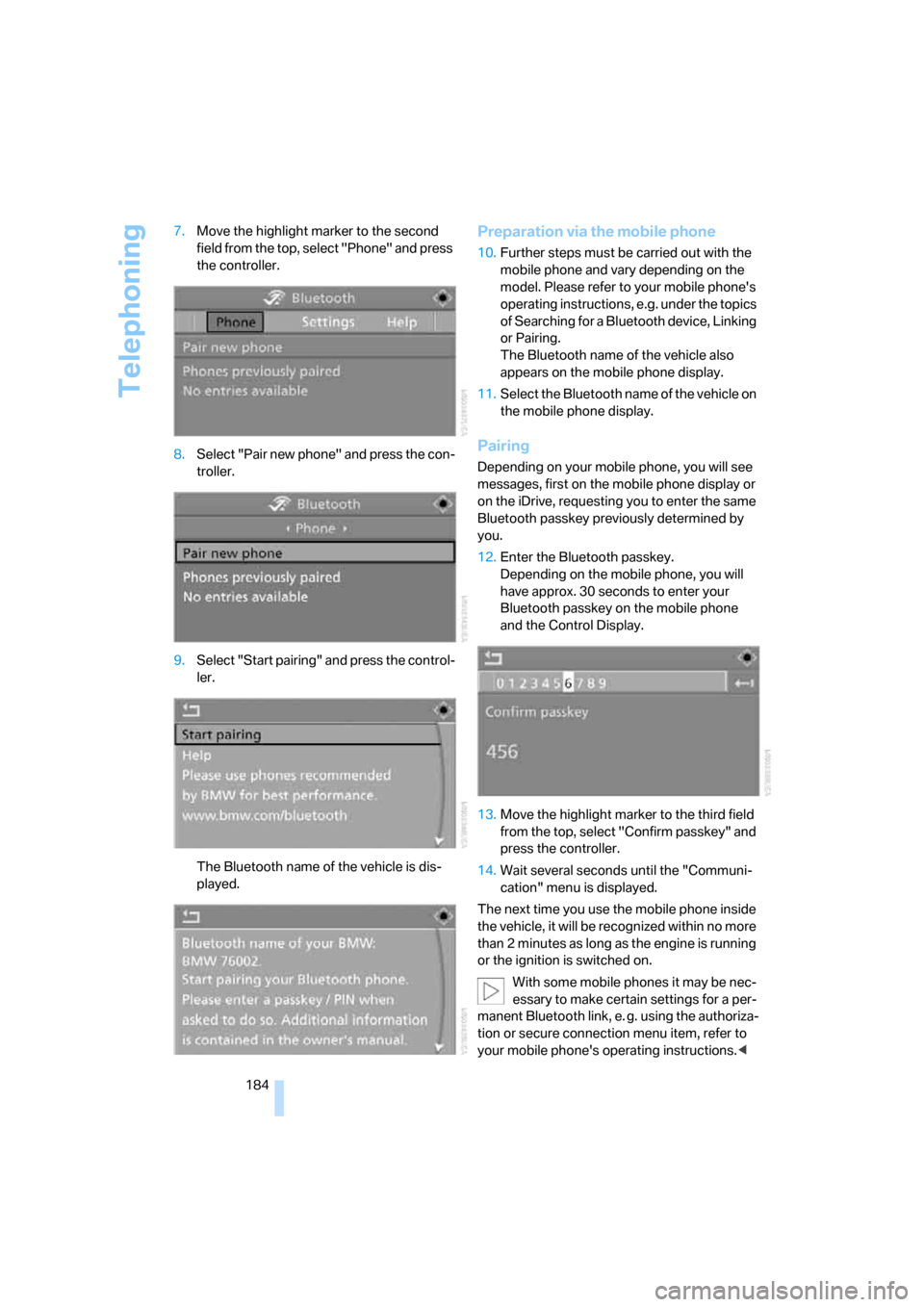
184 7.Move the highlight marker to the second
field from the top, select "Phone" and press
the controller.
8.Select "Pair new phone" and press the con-
troller.
9.Select "Start pairing" and press the control-
ler.
The Bluetooth name of the vehicle is dis-
played.
Preparation via the mobile phone
10.Further steps must be carried out with the
mobile phone and vary depending on the
model. Please refer to your mobile phone's
operating instructions, e.g. under the topics
of Searching for a Bluetooth device, Linking
or Pairing.
The Bluetooth name of the vehicle also
appears on the mobile phone display.
11.Select the Bluetooth name of the vehicle on
the mobile phone display.
Pairing
Depending on your mobile phone, you will see
messages, first on the mobile phone display or
on the iDrive, requesting you to enter the same
Bluetooth passkey previously determined by
you.
12.Enter the Bluetooth passkey.
Depending on the mobile phone, you will
have approx. 30 seconds to enter your
Bluetooth passkey on the mobile phone
and the Control Display.
13.Move the highlight marker to the third field
from the top, select "Confirm passkey" and
press the controller.
14.Wait several seconds until the "Communi-
cation" menu is displayed.
The next time you use the mobile phone inside
the vehicle, it will be recognized within no more
than 2 minutes as long as the engine is running
or the ignition is switched on.
With some mobile phones it may be nec-
essary to make certain settings for a per-
manent Bluetooth link, e. g. using the authoriza-
tion or secure connection menu item, refer to
your mobile phone's operating instructions.<
Page 187 of 274
185
Entertainment
Reference
At a glance
Controls
Driving tips Communications
Navigation
Mobility
As soon as a mobile phone is detected by the
vehicle, the phone book entries stored on the
SIM card or on your mobile phone are transmit-
ted to the vehicle. This data transfer depends
on your mobile phone and can take several min-
utes; please refer to your mobile phone's oper-
ating instructions, if necessary.
If not all phone book entries are displayed:
>Transfer all phone book entries from the
SIM card to the mobile phone, if necessary.
>Phone book entries with special characters
may not be displayed.
Up to four mobile phones can be paired, one
after the other. If a fifth mobile phone is paired,
the pairing data for the mobile phone whose
pairing data was first stored on the vehicle is
deleted.
Checks to perform if pairing is
unsuccessful
>Is the mobile phone supported by the
mobile phone preparation package? You
can obtain information on the Internet at:
www.bmw.com.
>Do the Bluetooth passkeys on the mobile
phone and vehicle match? The same Blue-
tooth passkey must be entered on the
mobile phone's display and via iDrive.
>Did it take you more than 30 seconds to
enter the Bluetooth passkey?
>Only a limited number of devices can be
connected with the mobile phone. If neces-
sary, delete connections with other devices.
>Is the mobile phone no longer responding?
Switch the mobile phone off and on or
briefly disconnect the power supply.
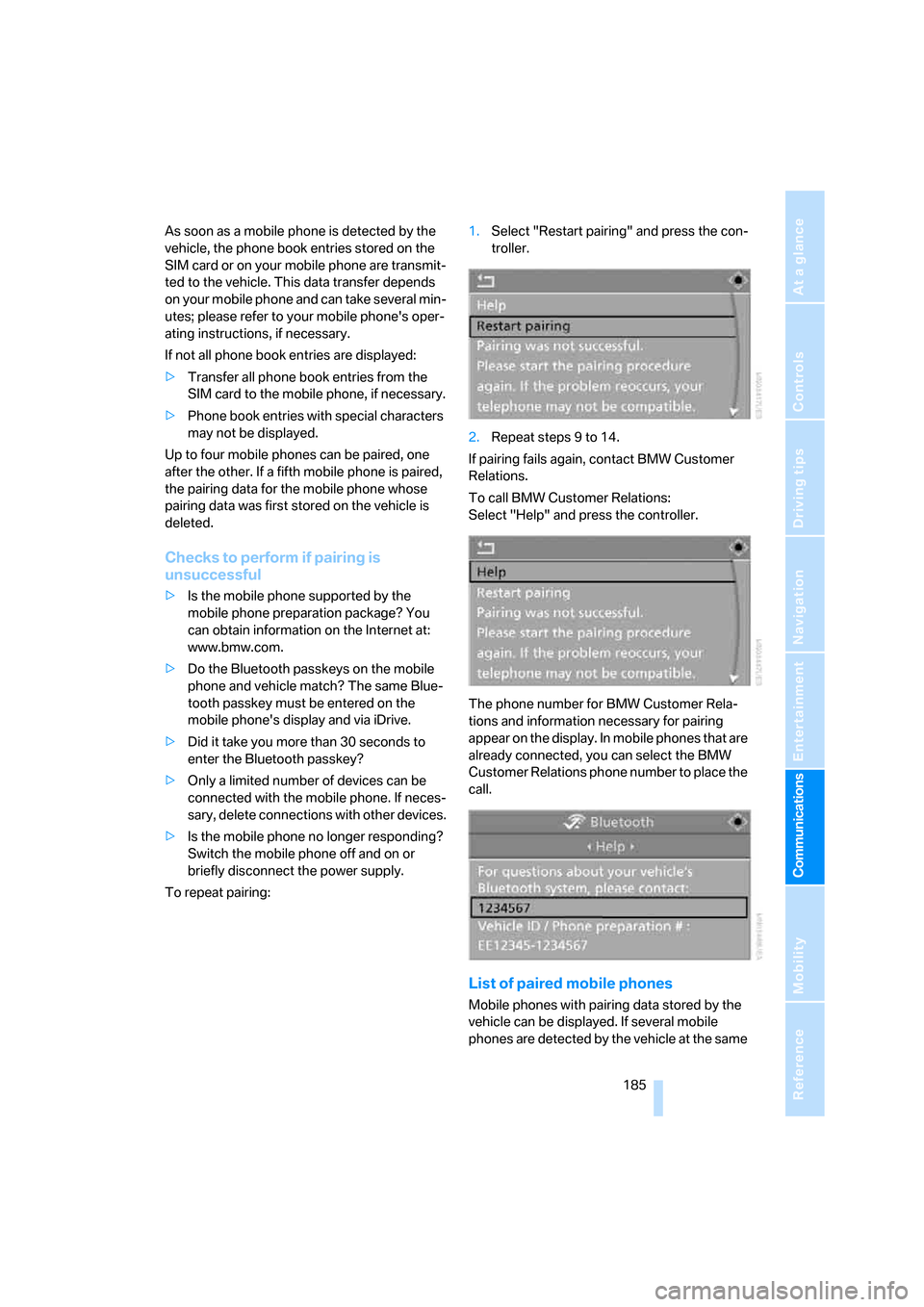
To repeat pairing:1.Select "Restart pairing" and press the con-
troller.
2.Repeat steps 9 to 14.
If pairing fails again, contact BMW Customer
Relations.
To call BMW Customer Relations:
Select "Help" and press the controller.
The phone number for BMW Customer Rela-
tions and information necessary for pairing
appear on the display. In mobile phones that are
already connected, you can select the BMW
Customer Relations phone number to place the
call.
List of paired mobile phones
Mobile phones with pairing data stored by the
vehicle can be displayed. If several mobile
phones are detected by the vehicle at the same
Page 188 of 274
Telephoning
186 time, the mobile phone at the top of the list can
be operated via the vehicle.
You can change the order of the mobile phones
on the list. As long as a mobile phone from this
list is selected, you cannot operate the mobile
phones via the vehicle.
iDrive, for operating principle refer to page16.
1.Press the button to call up the start
menu.
2.Press the controller to open the menu.
3.Select "Settings" and press the controller.
4.Select "Bluetooth" and press the controller.
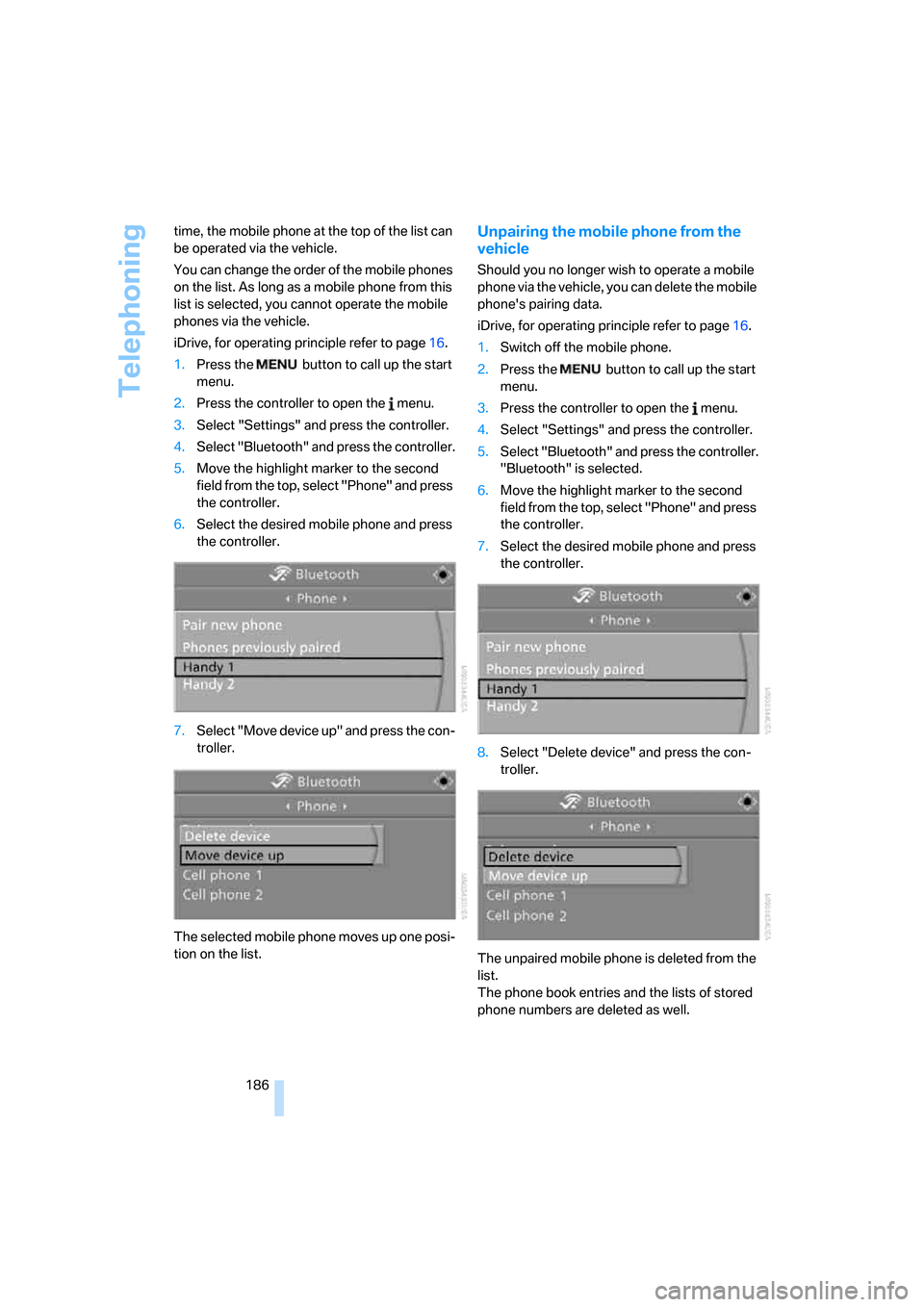
5.Move the highlight marker to the second
field from the top, select "Phone" and press
the controller.
6.Select the desired mobile phone and press
the controller.
7.Select "Move device up" and press the con-
troller.
The selected mobile phone moves up one posi-
tion on the list.
Unpairing the mobile phone from the
vehicle
Should you no longer wish to operate a mobile
phone via the vehicle, you can delete the mobile
phone's pairing data.
iDrive, for operating principle refer to page16.
1.Switch off the mobile phone.
2.Press the button to call up the start
menu.
3.Press the controller to open the menu.
4.Select "Settings" and press the controller.
5.Select "Bluetooth" and press the controller.
"Bluetooth" is selected.
6.Move the highlight marker to the second
field from the top, select "Phone" and press
the controller.
7.Select the desired mobile phone and press
the controller.
8.Select "Delete device" and press the con-
troller.
The unpaired mobile phone is deleted from the
list.
The phone book entries and the lists of stored
phone numbers are deleted as well.
Page 189 of 274
187
Entertainment
Reference
At a glance
Controls
Driving tips Communications
Navigation
Mobility
Activating/deactivating the Bluetooth
link
The use of Bluetooth technology is not
permitted in all countries. Observe all
applicable local regulations. Temporarily deac-
tivate the Bluetooth link between the vehicle
and the mobile phone, if necessary.
If the Bluetooth link is deactivated, you can no
longer operate the mobile phone via the vehicle,
and other devices with a Bluetooth interface
can be used in combination with the mobile
phone, e.g. a laptop.<
To temporarily deactivate the Bluetooth link
between the vehicle and your mobile phone:
1.Press the button to call up the start
menu.
2.Press the controller to open the menu.
3.Select "Settings" and press the controller.
4.Select "Bluetooth" and press the controller.
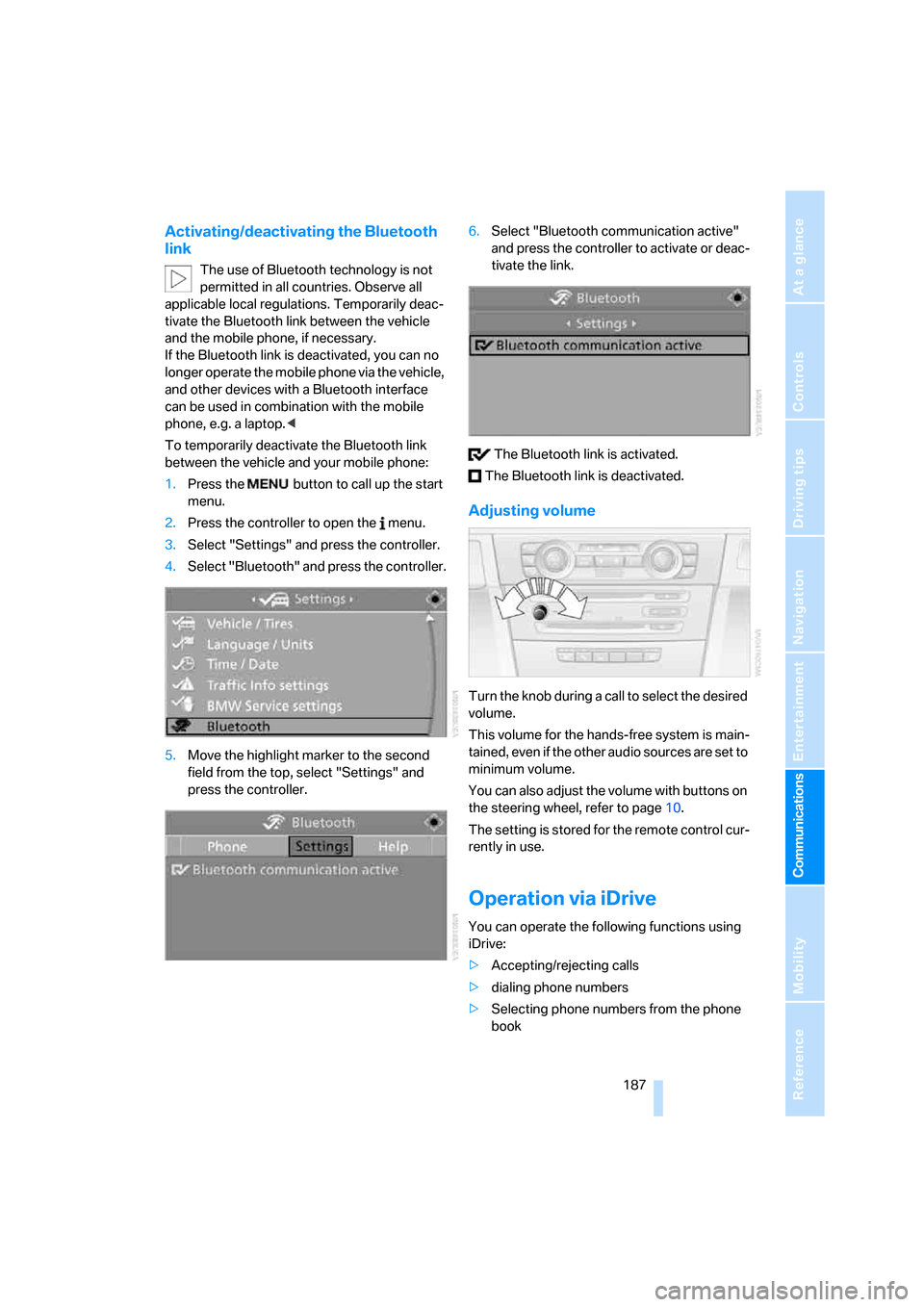
5.Move the highlight marker to the second
field from the top, select "Settings" and
press the controller.6.Select "Bluetooth communication active"
and press the controller to activate or deac-
tivate the link.
The Bluetooth link is activated.
The Bluetooth link is deactivated.
Adjusting volume
Turn the knob during a call to select the desired
volume.
This volume for the hands-free system is main-
tained, even if the other audio sources are set to
minimum volume.
You can also adjust the volume with buttons on
the steering wheel, refer to page10.
The setting is stored for the remote control cur-
rently in use.
Operation via iDrive
You can operate the following functions using
iDrive:
>Accepting/rejecting calls
>dialing phone numbers
>Selecting phone numbers from the phone
book
Page 190 of 274
Telephoning
188 >Selecting stored phone numbers, e.g. from
the list of accepted calls
>Ending a call
When the ignition and radio readiness are
switched off, e.g. after taking the remote control
out of the ignition switch, you can continue an
ongoing call via the hands-free system for no
more than 25 minutes.
Voice quality
If the person you are talking to is having difficul-
ties understanding you, this may be due to
excessive background noise. The full mobile
phone preparation package can compensate
for these noises to a certain extent. To optimize
voice quality during a call, we recommend that
you:
>Reduce background noise, e.g. by closing
the windows, reducing air flow from the
automatic climate control or by pointing the
open front air vents downward
>Reduce the volume of the hands-free sys-
tem
Requirements
>The mobile phone's pairing data are stored
by the vehicle and the mobile phone is oper-
ational.
>The engine is running or the ignition is
switched on.
>The mobile phone is recognized by the
vehicle.
Calling up communication
Many of the functions described below are con-
trolled using the "Communication" menu.
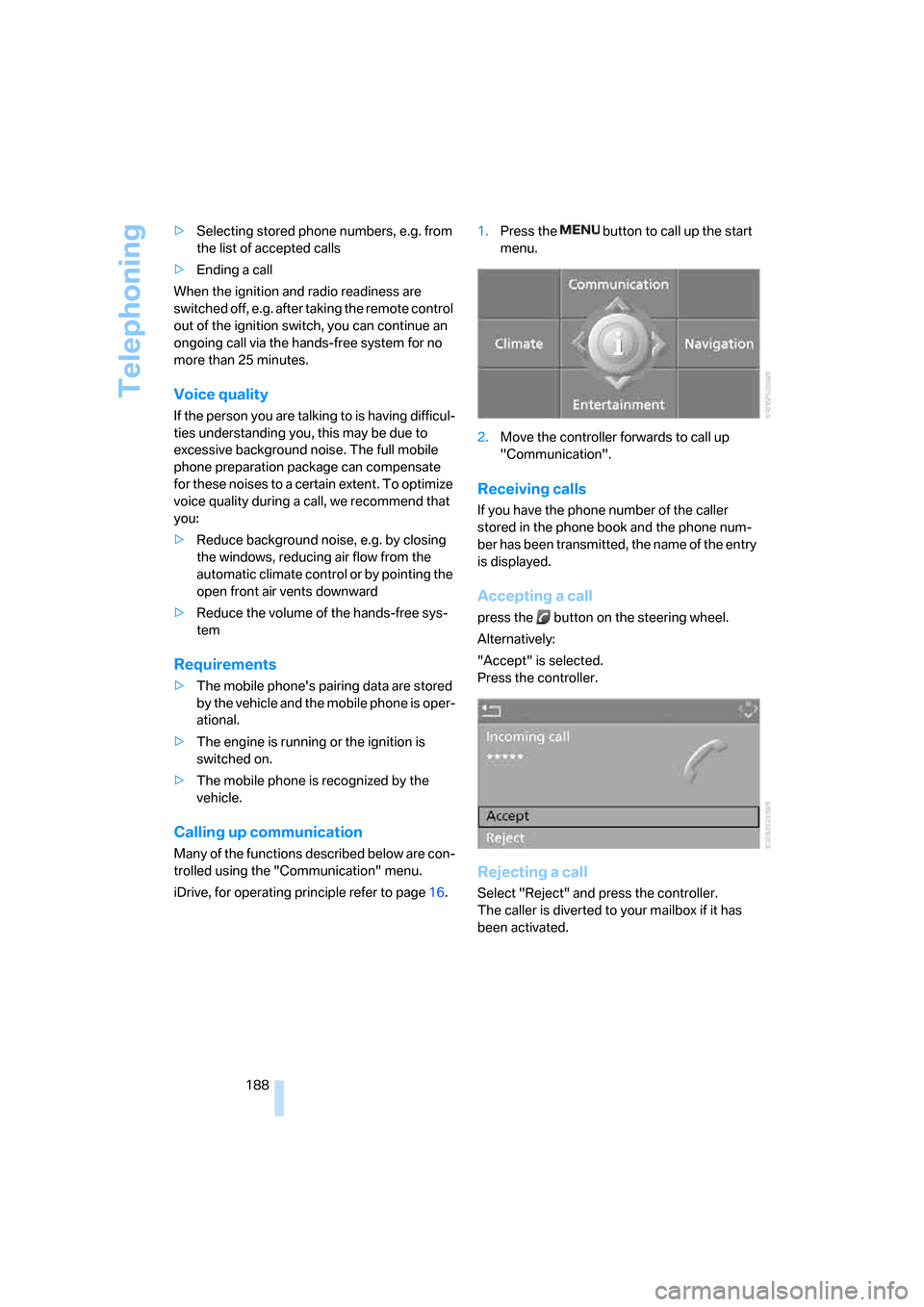
iDrive, for operating principle refer to page16.1.Press the button to call up the start
menu.
2.Move the controller forwards to call up
"Communication".
Receiving calls
If you have the phone number of the caller
stored in the phone book and the phone num-
ber has been transmitted, the name of the entry
is displayed.
Accepting a call
press the button on the steering wheel.
Alternatively:
"Accept" is selected.
Press the controller.
Rejecting a call
Select "Reject" and press the controller.
The caller is diverted to your mailbox if it has
been activated.
Page 193 of 274
191
Entertainment
Reference
At a glance
Controls
Driving tips Communications
Navigation
Mobility
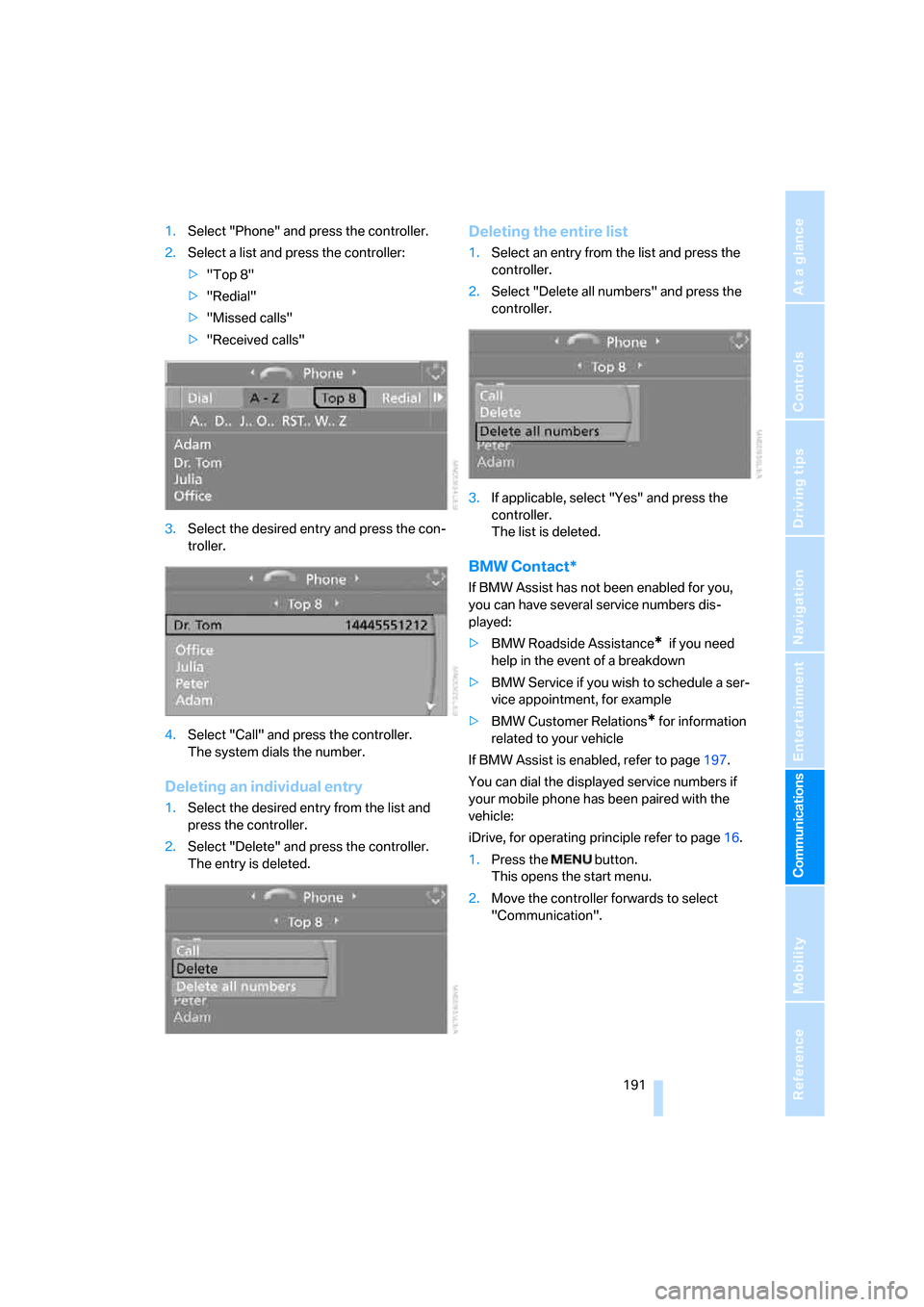
1.Select "Phone" and press the controller.
2.Select a list and press the controller:
>"Top 8"
>"Redial"
>"Missed calls"
>"Received calls"
3.Select the desired entry and press the con-
troller.
4.Select "Call" and press the controller.
The system dials the number.
Deleting an individual entry
1.Select the desired entry from the list and
press the controller.
2.Select "Delete" and press the controller.
The entry is deleted.
Deleting the entire list
1.Select an entry from the list and press the
controller.
2.Select "Delete all numbers" and press the
controller.
3.If applicable, select "Yes" and press the
controller.
The list is deleted.
BMW Contact*
If BMW Assist has not been enabled for you,
you can have several service numbers dis-
played:
>BMW Roadside Assistance
* if you need
help in the event of a breakdown
>BMW Service if you wish to schedule a ser-
vice appointment, for example
>BMW Customer Relations
* for information
related to your vehicle
If BMW Assist is enabled, refer to page197.
You can dial the displayed service numbers if
your mobile phone has been paired with the
vehicle:
iDrive, for operating principle refer to page16.
1.Press the button.
This opens the start menu.
2.Move the controller forwards to select
"Communication".
Page 196 of 274
Telephoning
194
Example: dialing phone numbers
Start the dialog:
Press the button on the steering wheel.
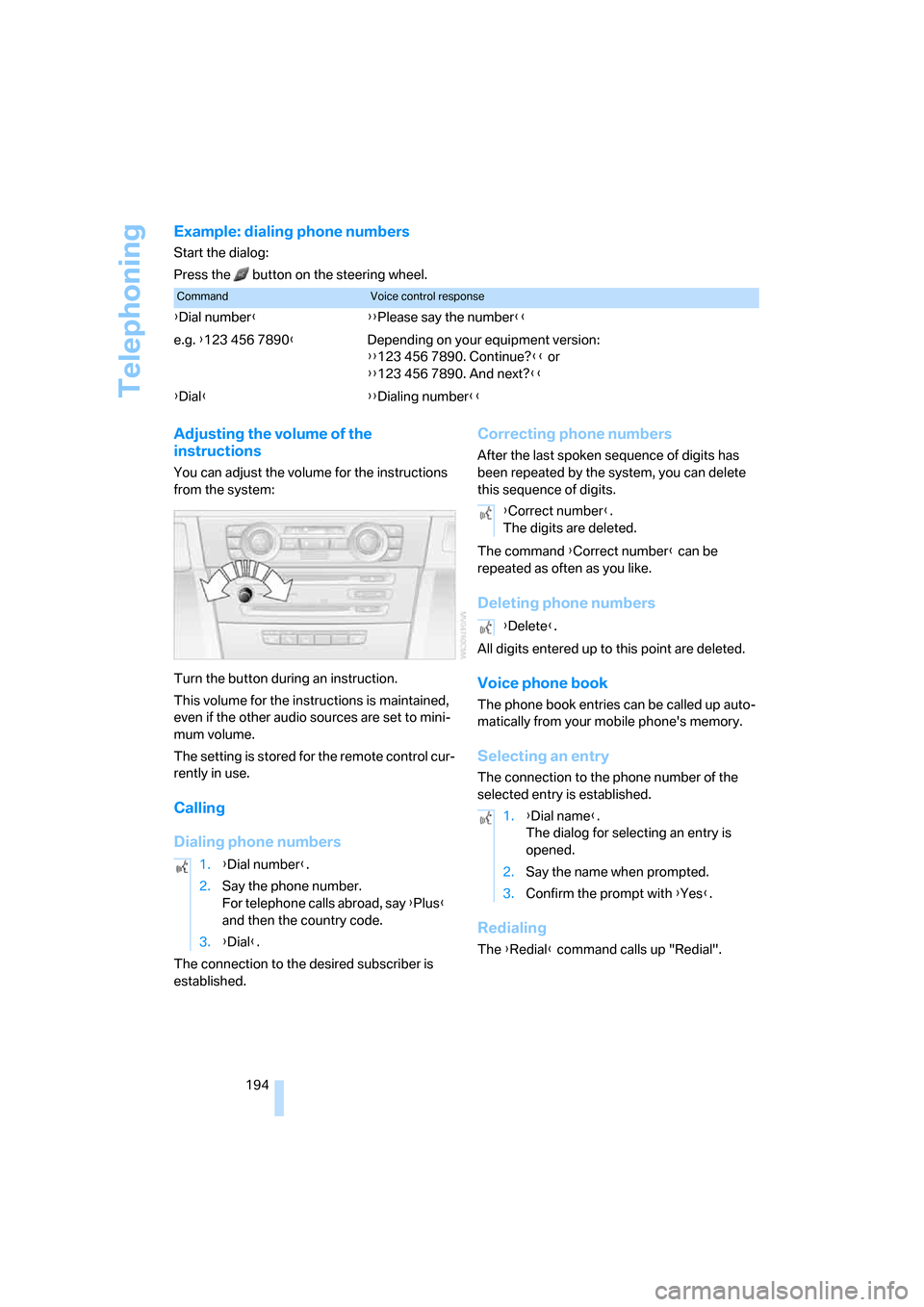
Adjusting the volume of the
instructions
You can adjust the volume for the instructions
from the system:
Turn the button during an instruction.
This volume for the instructions is maintained,
even if the other audio sources are set to mini-
mum volume.
The setting is stored for the remote control cur-
rently in use.
Calling
Dialing phone numbers
The connection to the desired subscriber is
established.
Correcting phone numbers
After the last spoken sequence of digits has
been repeated by the system, you can delete
this sequence of digits.
The command {Correct number} can be
repeated as often as you like.
Deleting phone numbers
All digits entered up to this point are deleted.
Voice phone book
The phone book entries can be called up auto-
matically from your mobile phone's memory.
Selecting an entry
The connection to the phone number of the
selected entry is established.
Redialing
The {Redial} command calls up "Redial".
CommandVoice control response
{Dial number}{{Please say the number}}
e.g. {123 456 7890}Depending on your equipment version:
{{123 456 7890. Continue?}} or
{{123 456 7890. And next?}}
{Dial}{{Dialing number}}
1.{Dial number}.
2.Say the phone number.
For telephone calls abroad, say {Plus}
and then the country code.
3.{Dial}.
{Correct number}.
The digits are deleted.
{Delete}.
1.{Dial name}.
The dialog for selecting an entry is
opened.
2.Say the name when prompted.
3.Confirm the prompt with {Yes}.
Page 200 of 274
BMW Assist
198 You can also access BMW Assist Concierge
services via the Internet.
Characteristics of the offered services
The following characteristics apply to the ser-
vices:
>The services offered are country-specific.
>Voice contact is established or data are
transferred, depending on the equipment
and the country. In some countries, it is
possible to do both.
>The data transmitted can be vehicle data,
for example, your current position or the
Condition Based Service CBS data.
Using services
Contacting the BMW Assist Response
Center
You can contact the BMW Assist Response
Center via the SOS button.
1.Briefly press the cover flap to open.
The arrangement of the switches and indi-
cator lamps varies slightly among vehicle
equipment versions.
2.Press the button for at least 2 seconds.
The BMW Assist Response Center will connect
you with BMW Roadside Assistance.
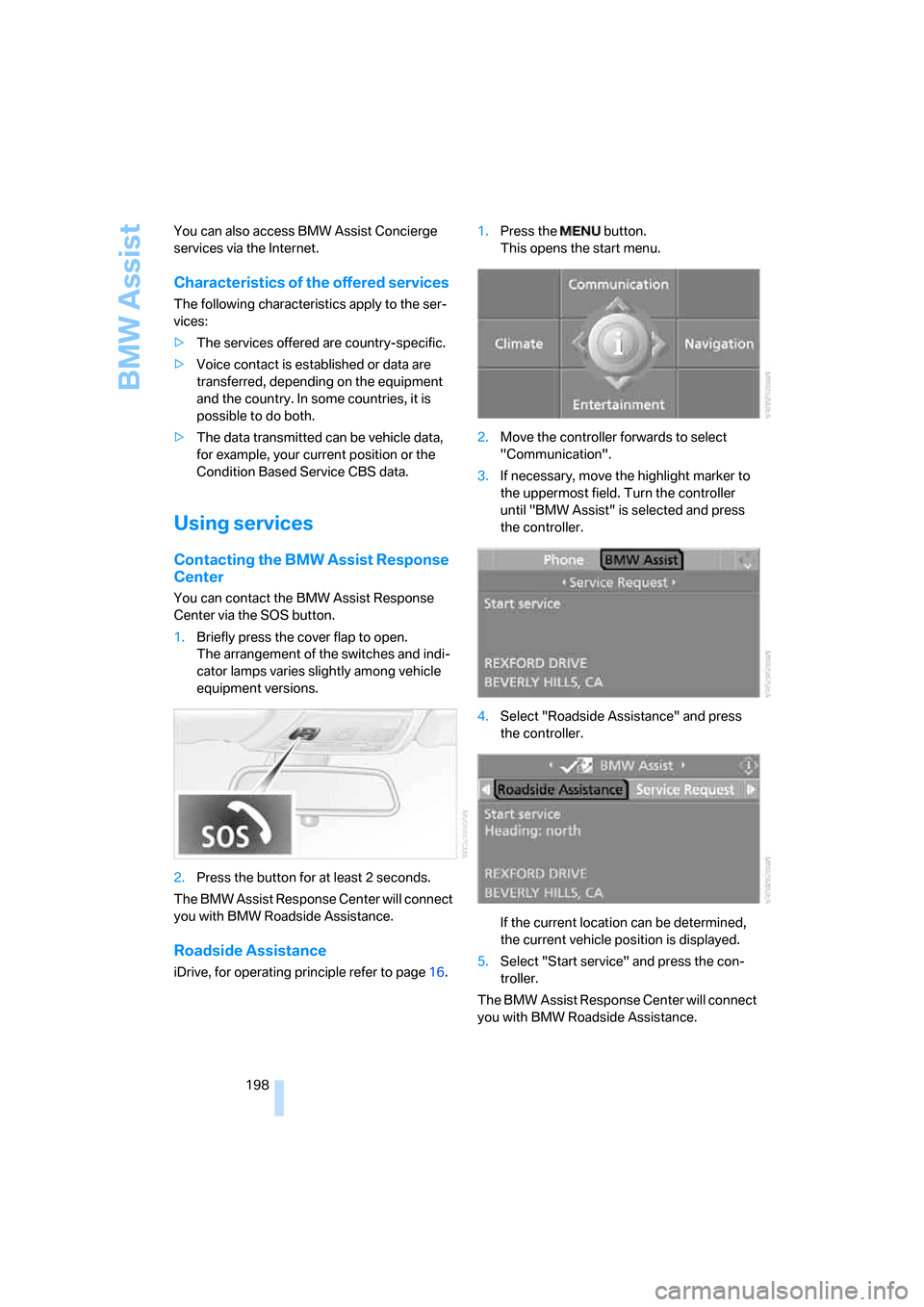
Roadside Assistance
iDrive, for operating principle refer to page16.1.Press the button.
This opens the start menu.
2.Move the controller forwards to select
"Communication".
3.If necessary, move the highlight marker to
the uppermost field. Turn the controller
until "BMW Assist" is selected and press
the controller.
4.Select "Roadside Assistance" and press
the controller.
If the current location can be determined,
the current vehicle position is displayed.
5.Select "Start service" and press the con-
troller.
The BMW Assist Response Center will connect
you with BMW Roadside Assistance.