light BMW 335I 2012 Owners Manual
[x] Cancel search | Manufacturer: BMW, Model Year: 2012, Model line: 335I, Model: BMW 335I 2012Pages: 325, PDF Size: 12.26 MB
Page 236 of 325
6.Complete the entries if necessary.7."Store contact"
Received calls
Displaying calls
The 20 calls that were last received are dis‐
played.
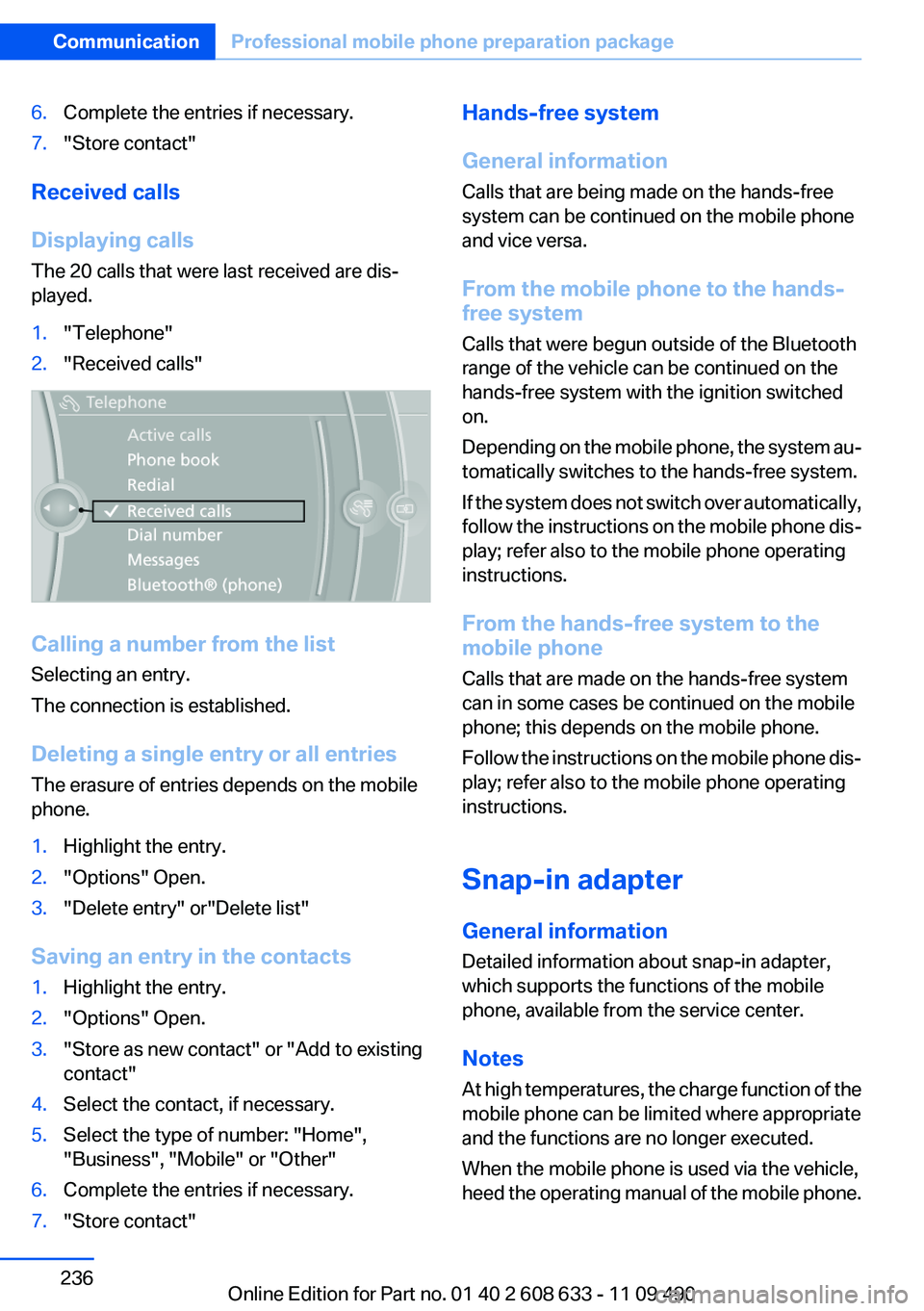
1."Telephone"2."Received calls"
Calling a number from the list
Selecting an entry.
The connection is established.
Deleting a single entry or all entries
The erasure of entries depends on the mobile
phone.
1.Highlight the entry.2."Options" Open.3."Delete entry" or"Delete list"
Saving an entry in the contacts
1.Highlight the entry.2."Options" Open.3."Store as new contact" or "Add to existing
contact"4.Select the contact, if necessary.5.Select the type of number: "Home",
"Business", "Mobile" or "Other"6.Complete the entries if necessary.7."Store contact"Hands-free system
General information
Calls that are being made on the hands-free
system can be continued on the mobile phone
and vice versa.
From the mobile phone to the hands-
free system
Calls that were begun outside of the Bluetooth
range of the vehicle can be continued on the
hands-free system with the ignition switched
on.
Depending on the mobile phone, the system au‐
tomatically switches to the hands-free system.
If the system does not switch over automatically,
follow the instructions on the mobile phone dis‐
play; refer also to the mobile phone operating
instructions.
From the hands-free system to the
mobile phone
Calls that are made on the hands-free system
can in some cases be continued on the mobile
phone; this depends on the mobile phone.
Follow the instructions on the mobile phone dis‐
play; refer also to the mobile phone operating
instructions.
Snap-in adapter
General information
Detailed information about snap-in adapter,
which supports the functions of the mobile
phone, available from the service center.
Notes
At high temperatures, the charge function of the
mobile phone can be limited where appropriate
and the functions are no longer executed.
When the mobile phone is used via the vehicle,
heed the operating manual of the mobile phone.Seite 236CommunicationProfessional mobile phone preparation package236
Online Edition for Part no. 01 40 2 608 633 - 11 09 490
Page 240 of 325
3."Start guidance" or "Add as another
destination"
Checking the address as a destination
An address that is to be used for destination
guidance must match the navigation data con‐
tained in the vehicle. The address can be
checked for this purpose.
1.Select the desired contact and highlight the
address.2.Open "Options".3."Check as destination"4.Correct and store the address if necessary.
If the address is corrected and stored, a copy of
it is stored in the vehicle. The address is not
changed on the mobile phone.
New contact
General information
A contact can have up to 8 phone numbers,
2 addresses, 3 e-mail addresses and one Inter‐
net address.
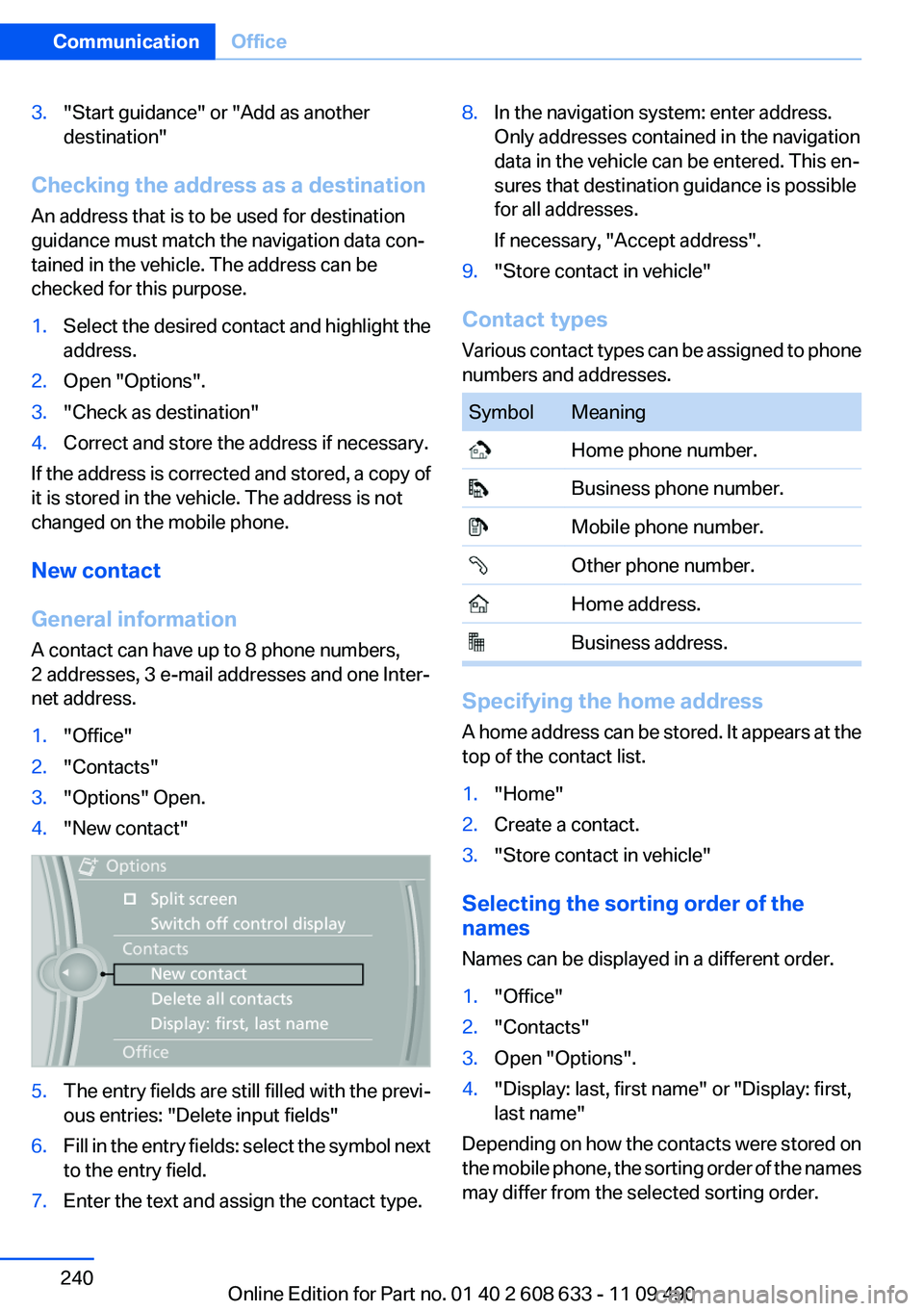
1."Office"2."Contacts"3."Options" Open.4."New contact"5.The entry fields are still filled with the previ‐
ous entries: "Delete input fields"6.Fill in the entry fields: select the symbol next
to the entry field.7.Enter the text and assign the contact type.8.In the navigation system: enter address.
Only addresses contained in the navigation
data in the vehicle can be entered. This en‐
sures that destination guidance is possible
for all addresses.
If necessary, "Accept address".9."Store contact in vehicle"
Contact types
Various contact types can be assigned to phone
numbers and addresses.
SymbolMeaning Home phone number. Business phone number. Mobile phone number. Other phone number. Home address. Business address.
Specifying the home address
A home address can be stored. It appears at the
top of the contact list.
1."Home"2.Create a contact.3."Store contact in vehicle"
Selecting the sorting order of the
names
Names can be displayed in a different order.
1."Office"2."Contacts"3.Open "Options".4."Display: last, first name" or "Display: first,
last name"
Depending on how the contacts were stored on
the mobile phone, the sorting order of the names
may differ from the selected sorting order.
Seite 240CommunicationOffice240
Online Edition for Part no. 01 40 2 608 633 - 11 09 490
Page 241 of 325
Show contact pictures
Pictures stored with the contacts are stored in
the vehicle when the mobile phone is connected
to the vehicle. The number of transmitted pic‐
tures depends on the mobile phone. The mobile
phone must support this function.1."Office"2."Contacts"3."Options" Open.4."Configure Bluetooth®"5."Show images"
Display of all contact pictures is activated or de‐
activated.
Exporting/importing contacts
Contacts can be exported and imported via the
Personal Profile, refer to page 31. The contacts
stored in the vehicle are exported, but not those
from the mobile phone.
Deleting contacts
Only contacts that are stored in the vehicle are
deleted. The contacts on the mobile phone can‐
not be deleted.
1."Office"2."Contacts"3.Highlight the contact.4.Open "Options".5."Delete contact"or "Delete all contacts".6.If necessary "Yes"
Messages
General information
Whether or not text messages and e-mails from
the mobile phone are displayed depends on
whether transmission from the mobile phone to
the vehicle is supported. Text messages and e-
mails may not be supported by the service pro‐
vider, or the function may need to be enabled
separately. After the mobile phone is first paired,
transmission may take several minutes. Mes‐
sages are only displayed in full length when the
vehicle is stationary. Messages from the addi‐
tional telephone are not transmitted.
Displaying messages1."Office"2."Messages"
A symbol identifies the type of message.
SymbolMessage type Text messages. My Info Message from the Concierge serv‐
ice. Message from BMW Info. E-mail from mobile phone.
Filtering the message list
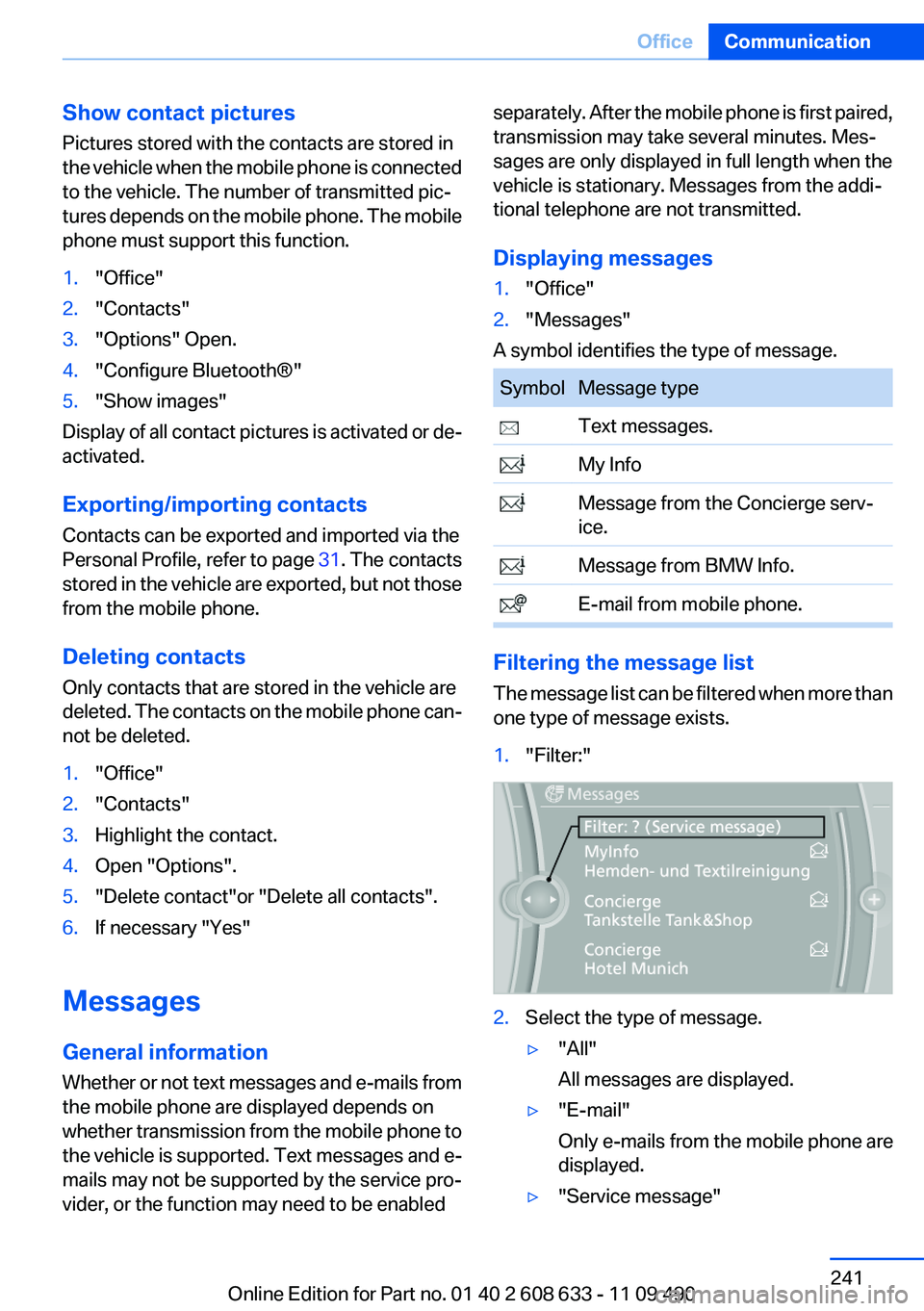
The message list can be filtered when more than
one type of message exists.
1."Filter:"2.Select the type of message.▷"All"
All messages are displayed.▷"E-mail"
Only e-mails from the mobile phone are
displayed.▷"Service message"Seite 241OfficeCommunication241
Online Edition for Part no. 01 40 2 608 633 - 11 09 490
Page 242 of 325
Only messages from the BMW Assist
Concierge service, My Info and BMW
Info are displayed.▷"Text message"
Only text messages from the mobile
phone are displayed.
Deleting messages
Messages from the Concierge service, My Info,
and BMW Info can be deleted.
Delete a message:
1."Office"2."Messages"3.Select the desired message.4."Options" Open.5."Delete message"
Delete all messages:
1."Office"2."Messages"3."Options" Open.4."Delete all messages"
Text messages
Calling the sender of a text message
1.Select the desired message.2. Select the symbol.
Saving the sender in the contacts
1.Highlight the desired message.2.Open "Options".3."Store as new contact" or "Add to existing
contact"
Using contact data
Contact data from appointments, tasks, text
messages, e-mails and notes can be saved or
selected, refer to page 245.
Reading the text message out loud
Read the text message out loud, refer to
page 245.
My Info
Selecting additional functions
Additional functions are available when a mes‐
sage is selected:SymbolFunction "Start guidance" or "Add as another
destination" "Call"
If the message contains a number,
the connection is established. "Select phone number"
If the message contains more than
one number, select the desired num‐
ber from the list. The connection is
established.
Message from the Concierge service
Storing an address
1.Select the desired message.2."Options" Open.3."Store contact in vehicle"
Selecting additional functions
Additional functions are available when a mes‐
sage is selected:
SymbolFunction "Start guidance" or "Add as another
destination" "Call"
If the message contains a number,
the connection is established.Seite 242CommunicationOffice242
Online Edition for Part no. 01 40 2 608 633 - 11 09 490
Page 245 of 325
Notes
Displaying notes1."Office"2."Notes"
All notes are displayed.
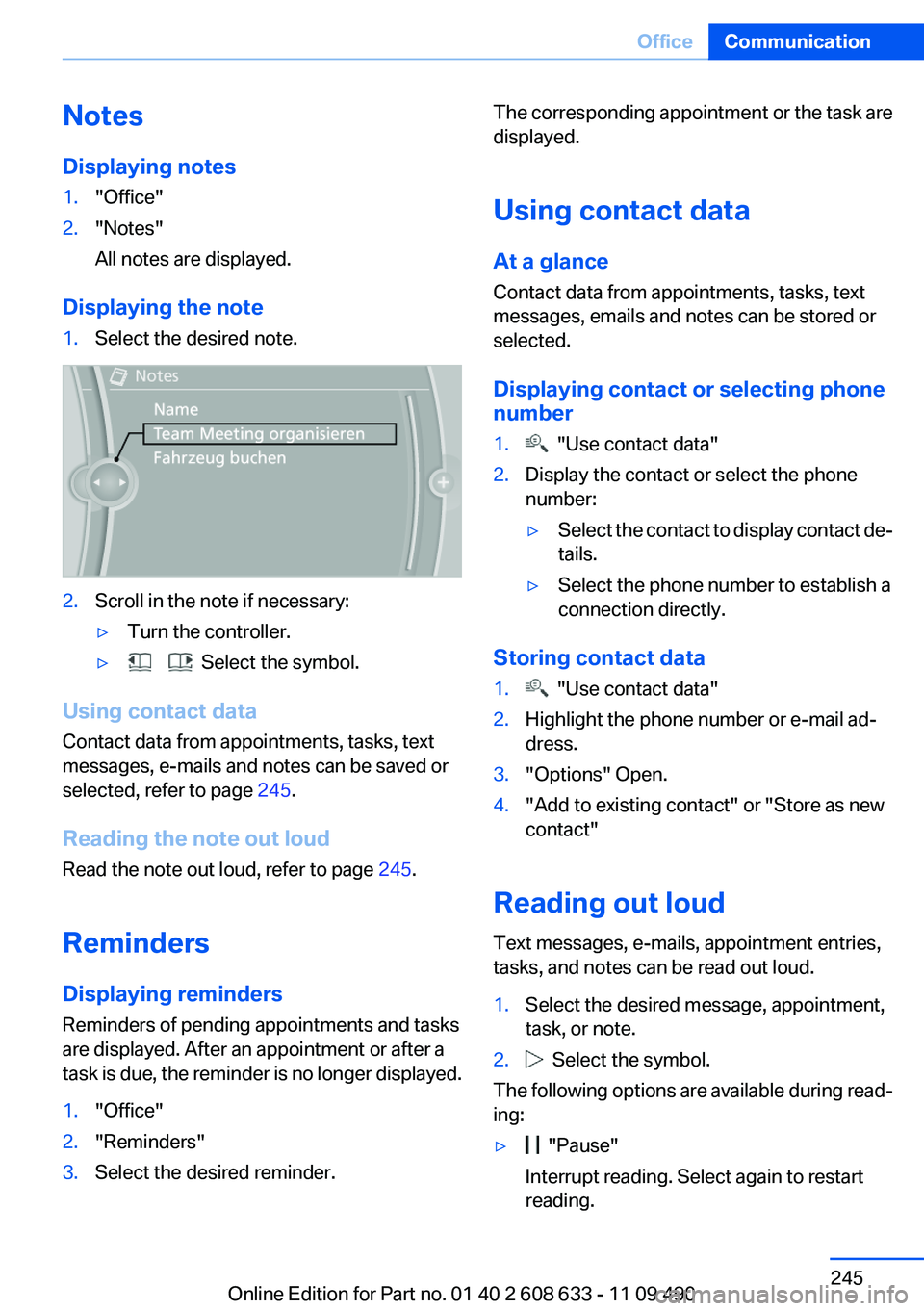
Displaying the note
1.Select the desired note.2.Scroll in the note if necessary:▷Turn the controller.▷ Select the symbol.
Using contact data
Contact data from appointments, tasks, text
messages, e-mails and notes can be saved or
selected, refer to page 245.
Reading the note out loud
Read the note out loud, refer to page 245.
Reminders
Displaying reminders
Reminders of pending appointments and tasks
are displayed. After an appointment or after a
task is due, the reminder is no longer displayed.
1."Office"2."Reminders"3.Select the desired reminder.The corresponding appointment or the task are
displayed.
Using contact data
At a glance
Contact data from appointments, tasks, text
messages, emails and notes can be stored or
selected.
Displaying contact or selecting phone
number1. "Use contact data"2.Display the contact or select the phone
number:▷Select the contact to display contact de‐
tails.▷Select the phone number to establish a
connection directly.
Storing contact data
1. "Use contact data"2.Highlight the phone number or e-mail ad‐
dress.3."Options" Open.4."Add to existing contact" or "Store as new
contact"
Reading out loud
Text messages, e-mails, appointment entries,
tasks, and notes can be read out loud.
1.Select the desired message, appointment,
task, or note.2. Select the symbol.
The following options are available during read‐
ing:
▷ "Pause"
Interrupt reading. Select again to restart
reading.Seite 245OfficeCommunication245
Online Edition for Part no. 01 40 2 608 633 - 11 09 490
Page 248 of 325
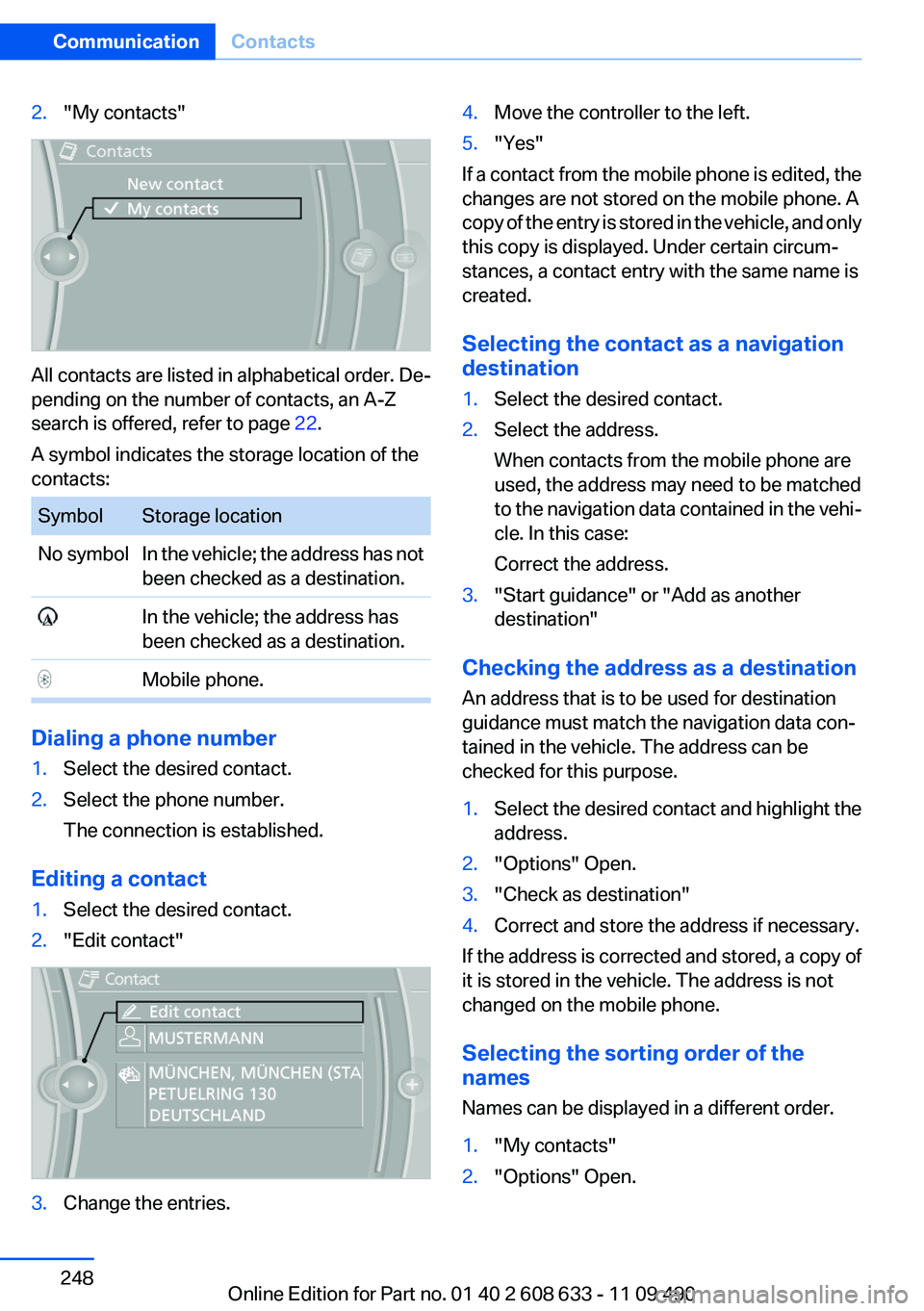
2."My contacts"
All contacts are listed in alphabetical order. De‐
pending on the number of contacts, an A-Z
search is offered, refer to page 22.
A symbol indicates the storage location of the
contacts:
SymbolStorage locationNo symbolIn the vehicle; the address has not
been checked as a destination. In the vehicle; the address has
been checked as a destination. Mobile phone.
Dialing a phone number
1.Select the desired contact.2.Select the phone number.
The connection is established.
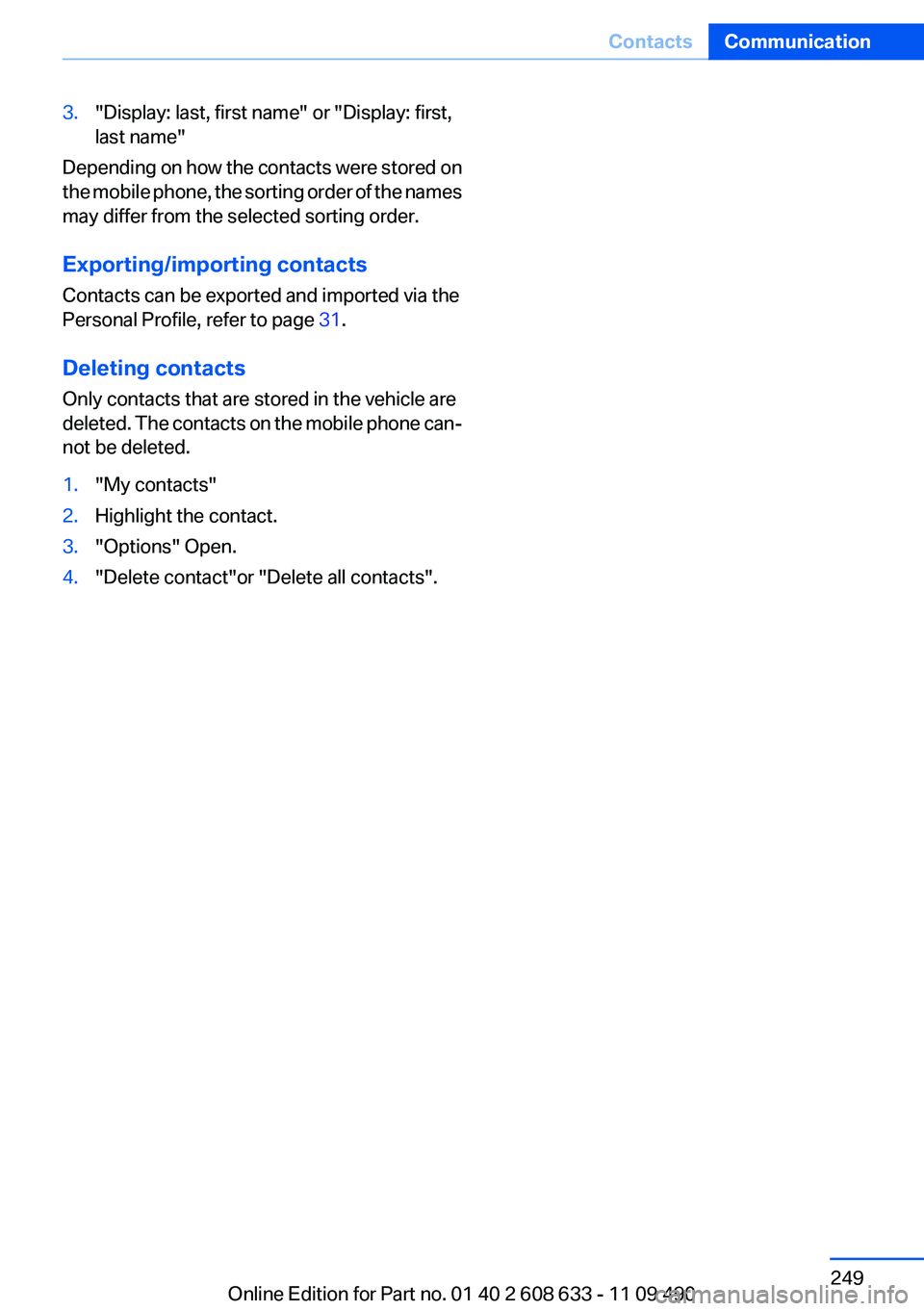
Editing a contact
1.Select the desired contact.2."Edit contact"3.Change the entries.4.Move the controller to the left.5."Yes"
If a contact from the mobile phone is edited, the
changes are not stored on the mobile phone. A
copy of the entry is stored in the vehicle, and only
this copy is displayed. Under certain circum‐
stances, a contact entry with the same name is
created.
Selecting the contact as a navigation
destination
1.Select the desired contact.2.Select the address.
When contacts from the mobile phone are
used, the address may need to be matched
to the navigation data contained in the vehi‐
cle. In this case:
Correct the address.3."Start guidance" or "Add as another
destination"
Checking the address as a destination
An address that is to be used for destination
guidance must match the navigation data con‐
tained in the vehicle. The address can be
checked for this purpose.
1.Select the desired contact and highlight the
address.2."Options" Open.3."Check as destination"4.Correct and store the address if necessary.
If the address is corrected and stored, a copy of
it is stored in the vehicle. The address is not
changed on the mobile phone.
Selecting the sorting order of the
names
Names can be displayed in a different order.
1."My contacts"2."Options" Open.Seite 248CommunicationContacts248
Online Edition for Part no. 01 40 2 608 633 - 11 09 490
Page 249 of 325
3."Display: last, first name" or "Display: first,
last name"
Depending on how the contacts were stored on
the mobile phone, the sorting order of the names
may differ from the selected sorting order.
Exporting/importing contacts
Contacts can be exported and imported via the
Personal Profile, refer to page 31.
Deleting contacts
Only contacts that are stored in the vehicle are
deleted. The contacts on the mobile phone can‐
not be deleted.
1."My contacts"2.Highlight the contact.3."Options" Open.4."Delete contact"or "Delete all contacts".Seite 249ContactsCommunication249
Online Edition for Part no. 01 40 2 608 633 - 11 09 490
Page 252 of 325
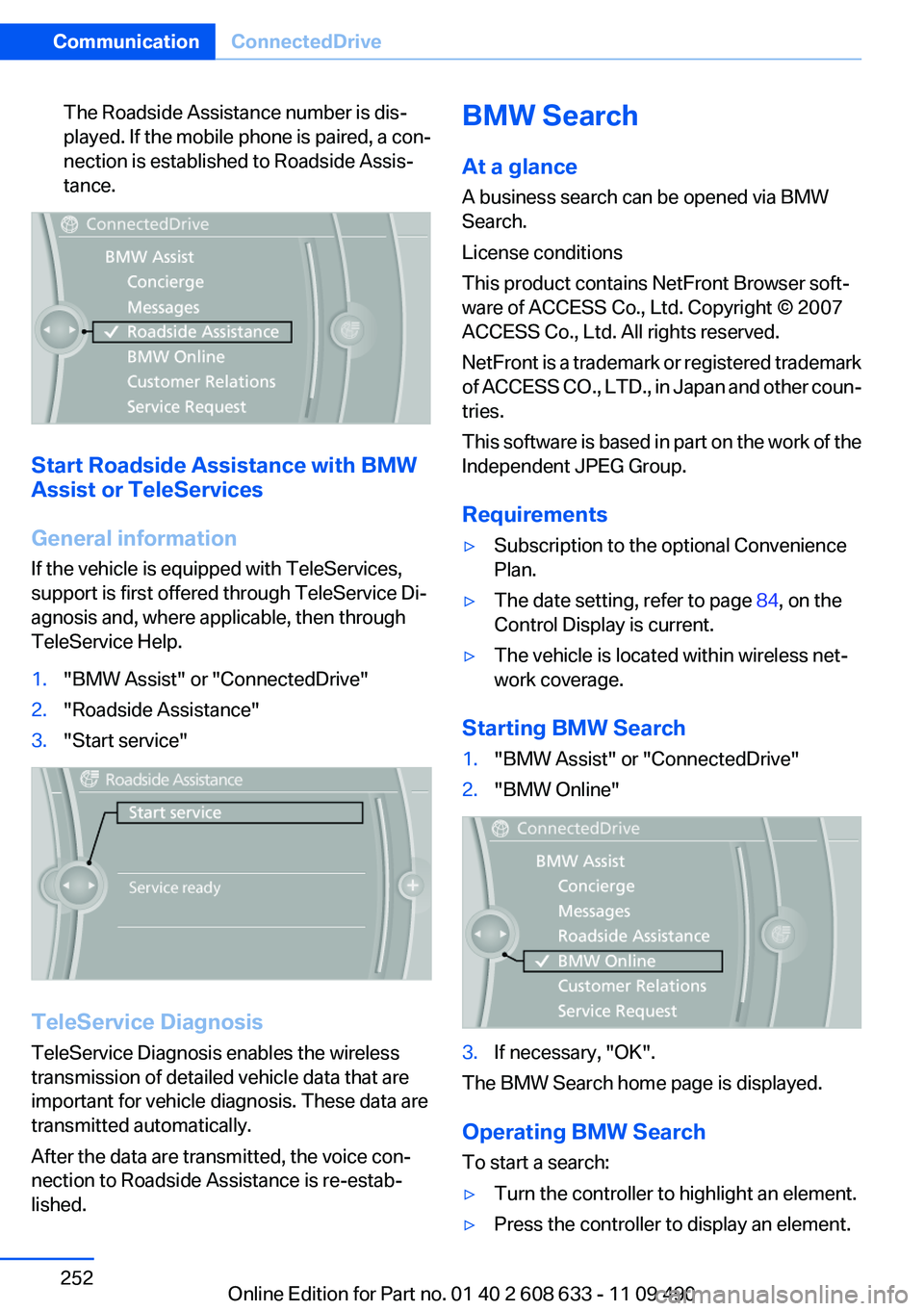
The Roadside Assistance number is dis‐
played. If the mobile phone is paired, a con‐
nection is established to Roadside Assis‐
tance.
Start Roadside Assistance with BMW
Assist or TeleServices
General information
If the vehicle is equipped with TeleServices,
support is first offered through TeleService Di‐
agnosis and, where applicable, then through
TeleService Help.
1."BMW Assist" or "ConnectedDrive"2."Roadside Assistance"3."Start service"
TeleService Diagnosis
TeleService Diagnosis enables the wireless
transmission of detailed vehicle data that are
important for vehicle diagnosis. These data are
transmitted automatically.
After the data are transmitted, the voice con‐
nection to Roadside Assistance is re-estab‐
lished.
BMW Search
At a glance
A business search can be opened via BMW
Search.
License conditions
This product contains NetFront Browser soft‐
ware of ACCESS Co., Ltd. Copyright © 2007
ACCESS Co., Ltd. All rights reserved.
NetFront is a trademark or registered trademark
of ACCESS CO., LTD., in Japan and other coun‐
tries.
This software is based in part on the work of the
Independent JPEG Group.
Requirements▷Subscription to the optional Convenience
Plan.▷The date setting, refer to page 84, on the
Control Display is current.▷The vehicle is located within wireless net‐
work coverage.
Starting BMW Search
1."BMW Assist" or "ConnectedDrive"2."BMW Online"3.If necessary, "OK".
The BMW Search home page is displayed.
Operating BMW Search
To start a search:
▷Turn the controller to highlight an element.▷Press the controller to display an element.Seite 252CommunicationConnectedDrive252
Online Edition for Part no. 01 40 2 608 633 - 11 09 490
Page 270 of 325
Approved wheels and tires
The manufacturer of your vehicle recom‐
mends that you use only wheels and tires that
have been approved for your particular vehicle
model.
For example, despite having the same official
size ratings, variations can lead to body contact
and with it, the risk of severe accidents.
The manufacturer of your vehicle cannot evalu‐
ate non-approved wheels and tires to determine
if they are suited for use, and therefore cannot
ensure the operating safety of the vehicle if they
are mounted.◀
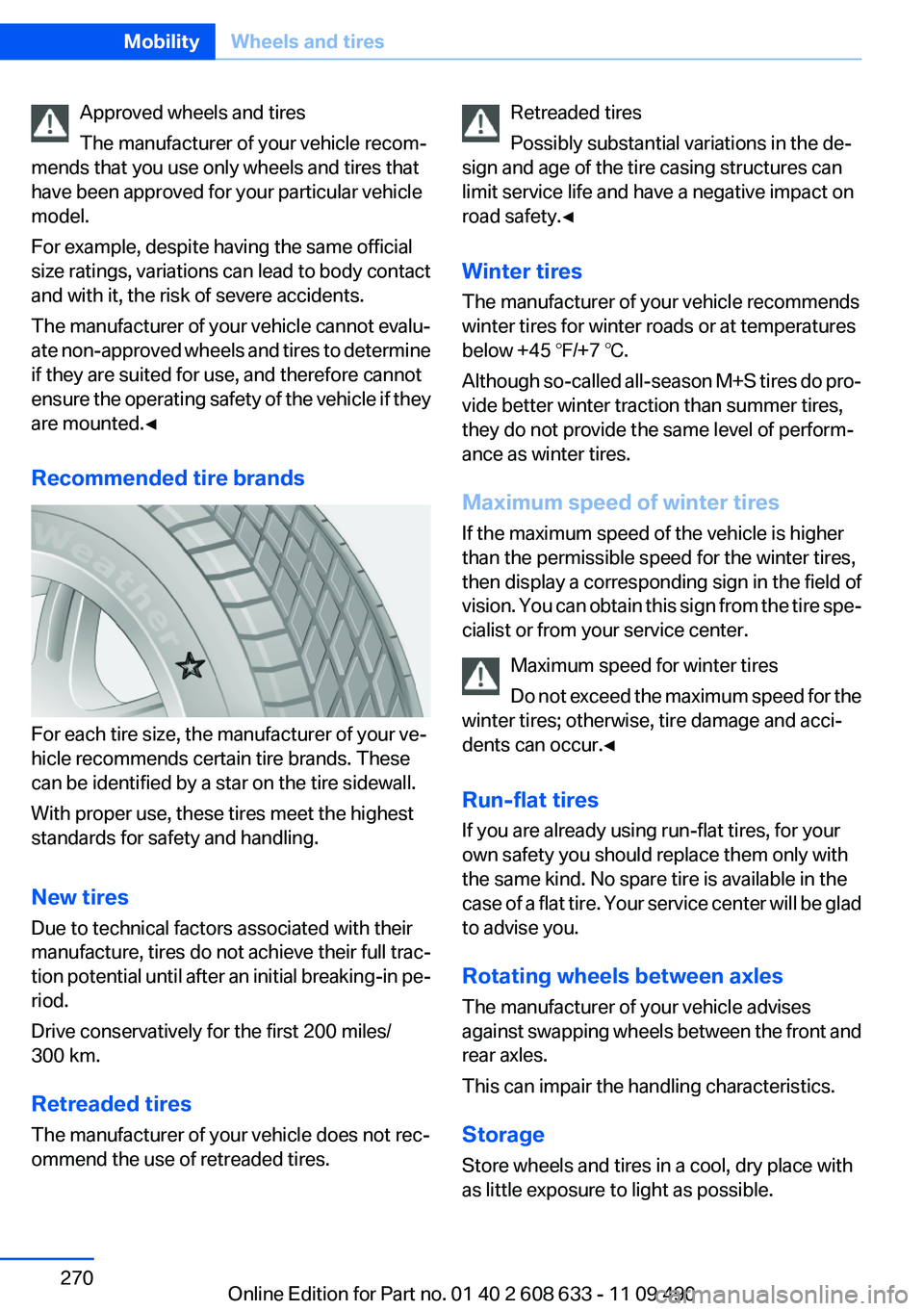
Recommended tire brands
For each tire size, the manufacturer of your ve‐
hicle recommends certain tire brands. These
can be identified by a star on the tire sidewall.
With proper use, these tires meet the highest
standards for safety and handling.
New tires
Due to technical factors associated with their
manufacture, tires do not achieve their full trac‐
tion potential until after an initial breaking-in pe‐
riod.
Drive conservatively for the first 200 miles/
300 km.
Retreaded tires
The manufacturer of your vehicle does not rec‐
ommend the use of retreaded tires.
Retreaded tires
Possibly substantial variations in the de‐
sign and age of the tire casing structures can
limit service life and have a negative impact on
road safety.◀
Winter tires
The manufacturer of your vehicle recommends
winter tires for winter roads or at temperatures
below +45 ℉/+7 ℃.
Although so-called all-season M+S tires do pro‐
vide better winter traction than summer tires,
they do not provide the same level of perform‐
ance as winter tires.
Maximum speed of winter tires
If the maximum speed of the vehicle is higher
than the permissible speed for the winter tires,
then display a corresponding sign in the field of
vision. You can obtain this sign from the tire spe‐
cialist or from your service center.
Maximum speed for winter tires
Do not exceed the maximum speed for the
winter tires; otherwise, tire damage and acci‐
dents can occur.◀
Run-flat tires
If you are already using run-flat tires, for your
own safety you should replace them only with
the same kind. No spare tire is available in the
case of a flat tire. Your service center will be glad
to advise you.
Rotating wheels between axles
The manufacturer of your vehicle advises
against swapping wheels between the front and
rear axles.
This can impair the handling characteristics.
Storage
Store wheels and tires in a cool, dry place with
as little exposure to light as possible.Seite 270MobilityWheels and tires270
Online Edition for Part no. 01 40 2 608 633 - 11 09 490
Page 274 of 325
Engine oilVehicle equipment
All standard, country-specific and optional
equipment that is offered in the model series is
described in this chapter. Therefore, equipment
is also described that is not available in a vehicle,
e. g., because of the selected optional equip‐
ment or country variant. This also applies for
safety-related functions and systems.
General information
The engine oil consumption is dependent on the
driving style and driving conditions.
Therefore, regularly check the engine oil level
after refueling.
Check oil level
The concept
The oil level is monitored electronically during
driving and shown on the Control Display.
If the oil level reaches the minimum level, a
check control message is displayed.
Displaying the oil level1."Vehicle Info"2."Vehicle status"3. "Engine oil level"
Possible messages
▷"Engine oil level OK"▷"Engine oil at minimum. Add 1 quart of
engine oil!"
Within the next 125 miles/200 km, a maxi‐
mum of 1 US quart/liter oil.▷"Engine oil level below minimum. Add 1
quart!"
Immediately add 1 US quart/liter of oil.Detailed measurement
Requirements:▷Vehicle is on a level road and the engine is
running at operating temperature.▷Manual transmission: Shift lever in neutral
position clutch and gas pedal not de‐
pressed.▷Automatic transmission: Selector lever in
transmission position N or P and gas pedal
not depressed.
In order to perform a detailed measurement of
the engine oil level:
1."Vehicle Info"2."Vehicle status"3. "Measure engine oil level"4."Start measurement"
The oil level is checked and displayed via a scale.
During the detailed measurement, the idle
speed is increased somewhat.
Duration: approx. 1 minute.
Adding engine oil
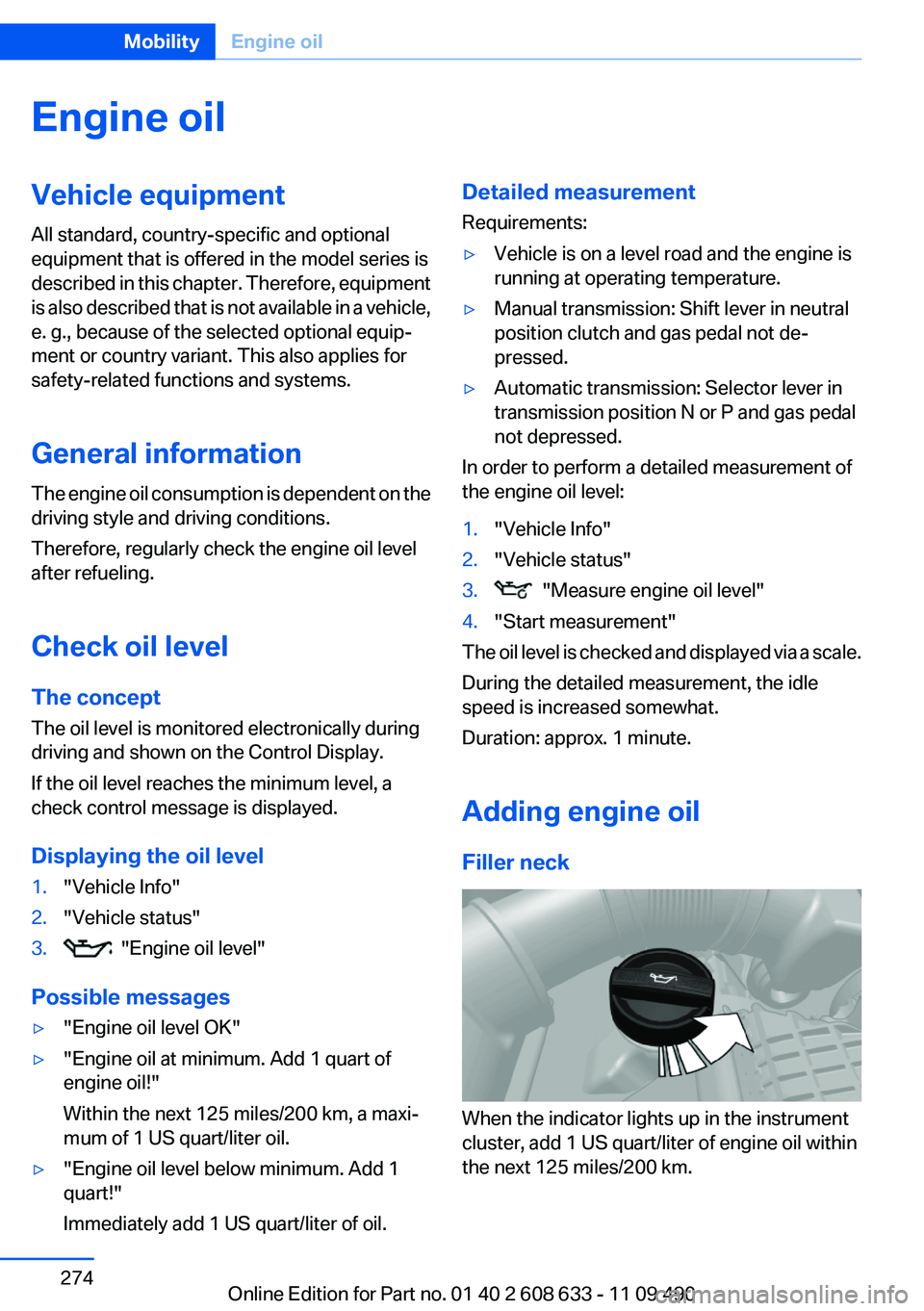
Filler neck
When the indicator lights up in the instrument
cluster, add 1 US quart/liter of engine oil within
the next 125 miles/200 km.
Seite 274MobilityEngine oil274
Online Edition for Part no. 01 40 2 608 633 - 11 09 490