key BMW 335I COUPE 2009 E92 User Guide
[x] Cancel search | Manufacturer: BMW, Model Year: 2009, Model line: 335I COUPE, Model: BMW 335I COUPE 2009 E92Pages: 260, PDF Size: 7.95 MB
Page 127 of 260
Navigation
Driving tips
125Reference
At a glance
Controls
Communications
Entertainment
Mobility
Destination entry
In entering your destination you can select from
the following options:
>Entering a destination manually, see below
>Selecting destination from the address
book, refer to page127
>Last destinations, refer to Last destinations,
page128
>Special destinations, refer to page128
>Entering a destination on the map, refer to
page130
>Selecting a home address, refer to
page128
>Entering a destination by voice com-
mands*, refer to page131
You can also store a navigation destination on
the programmable memory keys, refer to
page20.
Enter data only when the vehicle is sta-
tionary, and always give priority to the
applicable traffic regulations in the event of any
contradiction between traffic and road condi-
tions and the instructions issued by the naviga-
tion system. Otherwise, vehicle occupants and
other road users may be endangered.<
Entering a destination
manually
The system's word-matching principle makes it
easier for you to enter the names of towns or
streets. This allows you to enter different spell-
ings and completes your entry automatically so
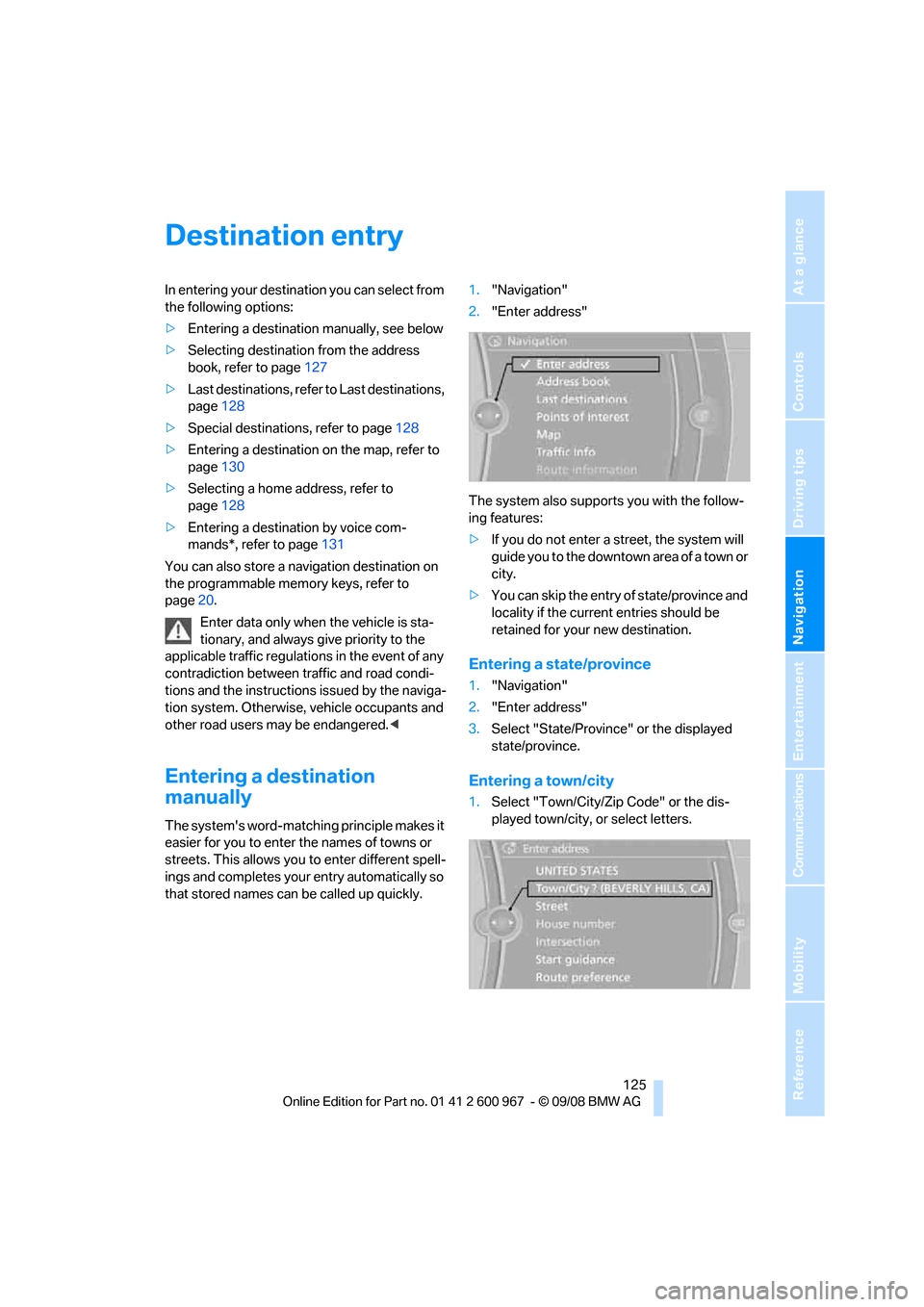
that stored names can be called up quickly.1."Navigation"
2."Enter address"
The system also supports you with the follow-
ing features:
>If you do not enter a street, the system will
guide you to the downtown a r e a o f a t o w n o r
city.
>You can skip the entry of state/province and
locality if the current entries should be
retained for your new destination.
Entering a state/province
1."Navigation"
2."Enter address"
3.Select "State/Province" or the displayed
state/province.
Entering a town/city
1.Select "Town/City/Zip Code" or the dis-
played town/city, or select letters.
Page 139 of 260
Navigation
Driving tips
137Reference
At a glance
Controls
Communications
Entertainment
Mobility
1."Navigation"
2."Map"
3.Select the symbol
The voice instructions are switched on.
For rapid access, the feature can be stored on a
programmable memory key, refer to page20.
Repeating a voice instruction
1."Navigation"
2."Map"
3.Select the symbol twice.
Adjusting volume for voice instructions
The volume can be adjusted only while a voice
instruction is being issued.
1.Have the last voice instruction repeated, if
necessary.
2.Turn the button during the voice instruction
to select the desired volume.
The setting is stored for the remote control cur-
rently in use.
Map display
Map display
You can have your current position displayed on
a map. After starting the destination guidance,
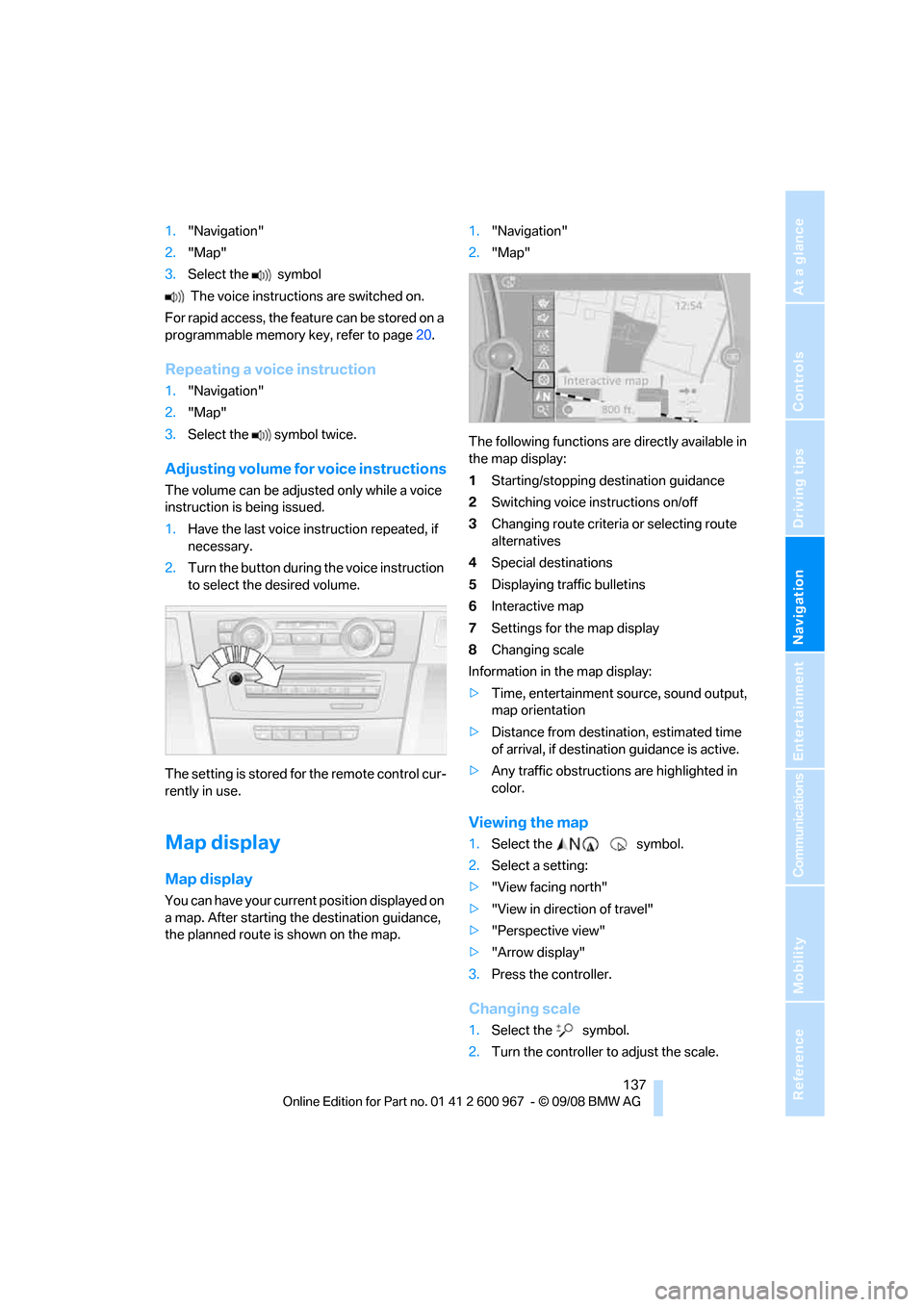
the planned route is shown on the map.1."Navigation"
2."Map"
The following functions are directly available in
the map display:
1Starting/stopping destination guidance
2Switching voice instructions on/off
3Changing route criteria or selecting route
alternatives
4Special destinations
5Displaying traffic bulletins
6Interactive map
7Settings for the map display
8Changing scale
Information in the map display:
>Time, entertainment source, sound output,
map orientation
>Distance from destination, estimated time
of arrival, if destination guidance is active.
>Any traffic obstructions are highlighted in
color.
Viewing the map
1.Select the symbol.
2.Select a setting:
>"View facing north"
>"View in direction of travel"
>"Perspective view"
>"Arrow display"
3.Press the controller.
Changing scale
1.Select the symbol.
2.Turn the controller to adjust the scale.
Page 146 of 260
On/off and tone
144
On/off and tone
The following audio and video sources share
the same control elements and adjustments:
>Radio
>CD player
>CD changer
*
>Video
>External devices, e.g. MP3 player
Controls
The audio and video sources can be controlled
using the:
>Buttons near the CD player
>iDrive
>Buttons on the steering wheel, refer to
page11
>Programmable memory keys, refer to
page20
>Voice activation system
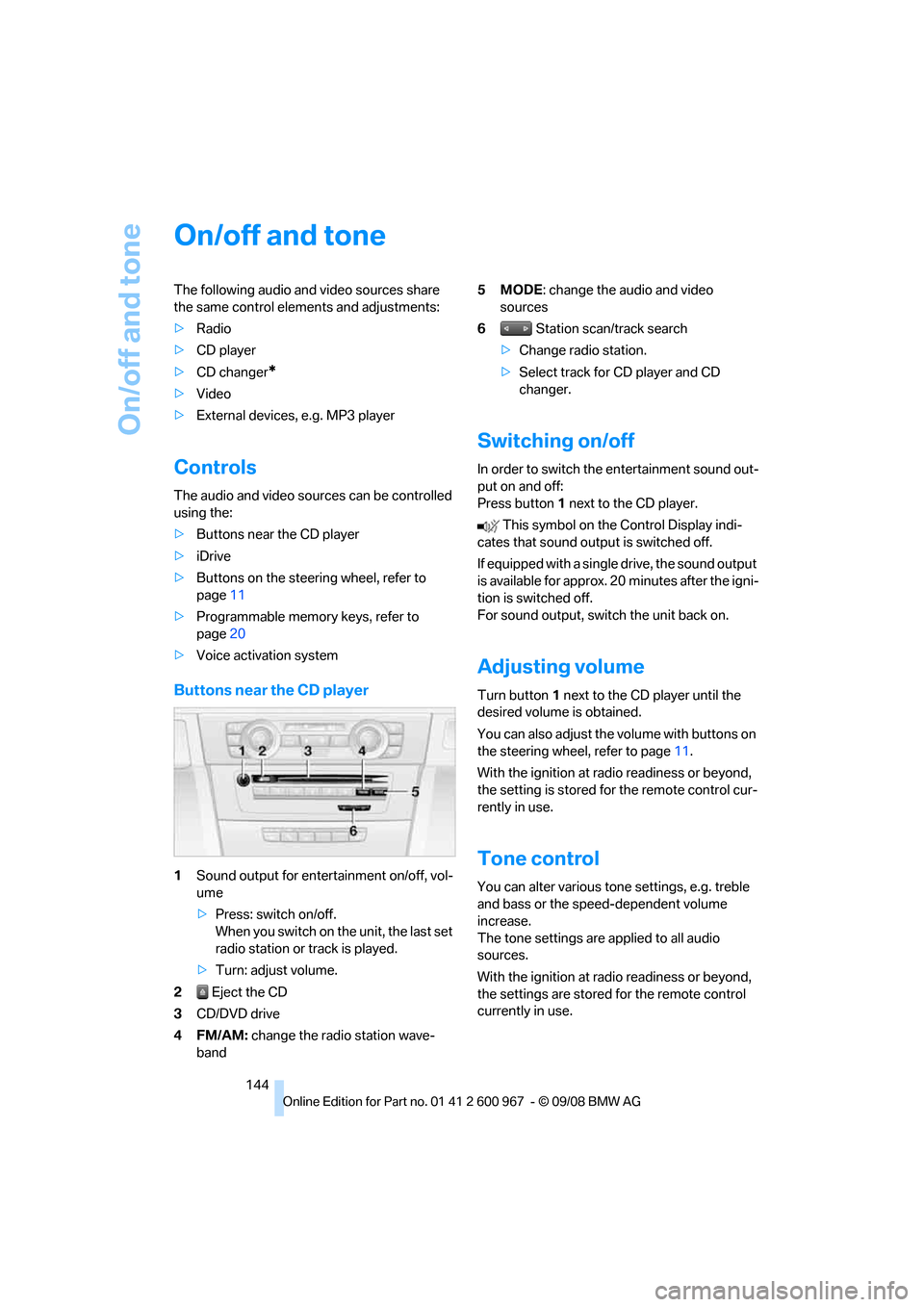
Buttons near the CD player
1Sound output for entertainment on/off, vol-
ume
>Press: switch on/off.
When you switch on the unit, the last set
radio station or track is played.
>Turn: adjust volume.
2 Eject the CD
3CD/DVD drive
4FM/AM: change the radio station wave-
band5MODE: change the audio and video
sources
6 Station scan/track search
>Change radio station.
>Select track for CD player and CD
changer.
Switching on/off
In order to switch the entertainment sound out-
put on and off:
Press button1 next to the CD player.
This symbol on the Control Display indi-
cates that sound output is switched off.
If equipped with a single drive, the sound output
is available for approx. 20 minutes after the igni-
tion is switched off.
For sound output, switch the unit back on.
Adjusting volume
Turn button1 next to the CD player until the
desired volume is obtained.
You can also adjust the volume with buttons on
the steering wheel, refer to page11.
With the ignition at radio readiness or beyond,
the setting is stored for the remote control cur-
rently in use.
Tone control
You can alter various tone settings, e.g. treble
and bass or the speed-dependent volume
increase.
The tone settings are applied to all audio
sources.
With the ignition at radio readiness or beyond,
the settings are stored for the remote control
currently in use.
Page 150 of 260
Radio
148 4.Select the desired memory location.
The station is stored.
The stations are stored for the remote control
currently in use.
Via programmable memory keys
You can store a station on the programmable
memory keys, refer also to page20.
1.Select a station.
2. ... Press the desired button
for a longer period.
Radio Data System RDS
On the FM waveband, additional information is
broadcast via RDS. If the reception conditions
are good, the station names are shown on the
Control Display. Where reception is poor or in
the event of interference, it may take some time
before the station names will appear in the dis-
play.
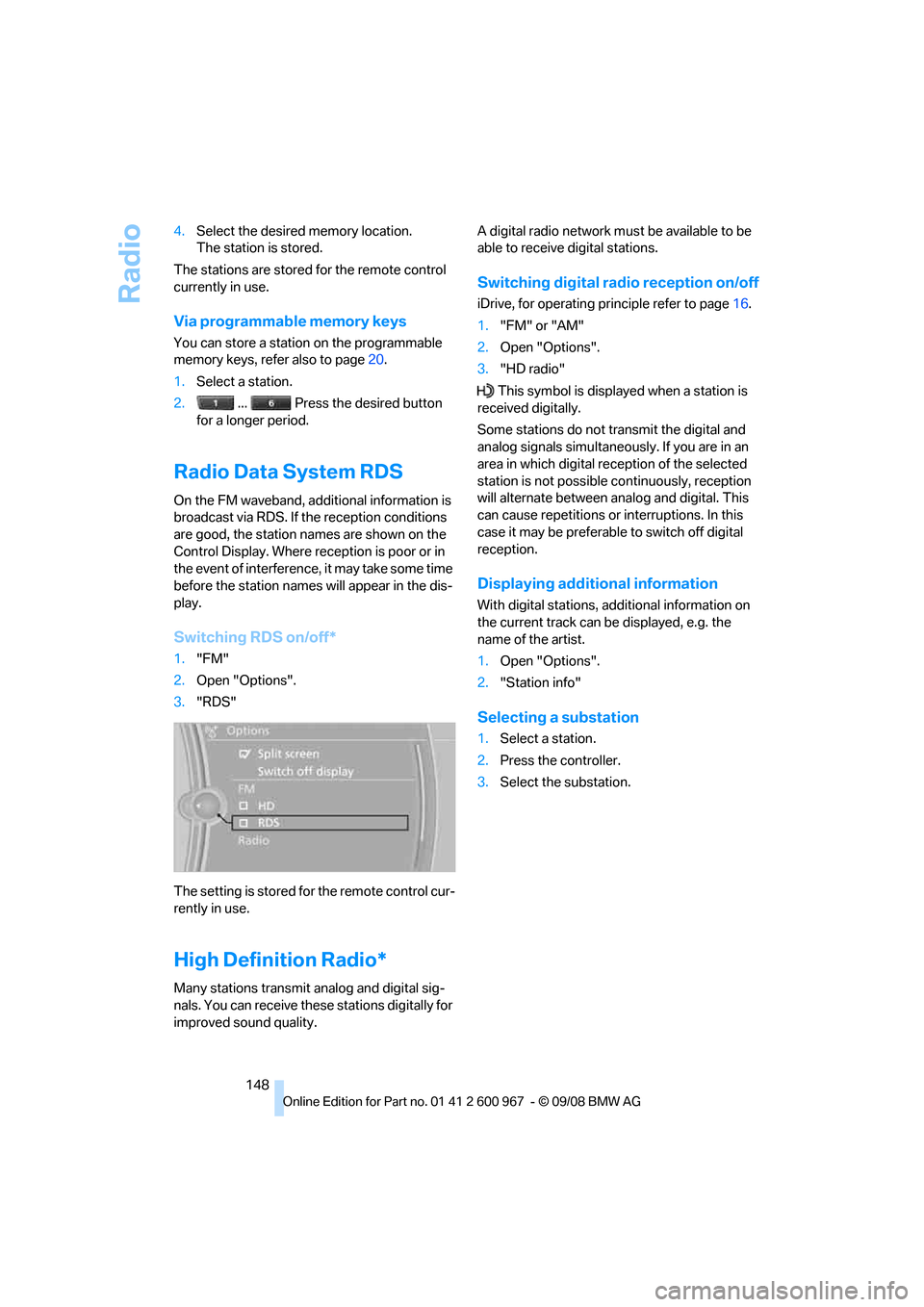
Switching RDS on/off*
1."FM"
2.Open "Options".
3."RDS"
The setting is stored for the remote control cur-
rently in use.
High Definition Radio*
Many stations transmit analog and digital sig-
nals. You can receive these stations digitally for
improved sound quality.A digital radio network must be available to be
able to receive digital stations.
Switching digital radio reception on/off
iDrive, for operating principle refer to page16.
1."FM" or "AM"
2.Open "Options".
3."HD radio"
This symbol is displayed when a station is
received digitally.
Some stations do not transmit the digital and
analog signals simultaneously. If you are in an
area in which digital reception of the selected
station is not possible continuously, reception
will alternate between analog and digital. This
can cause repetitions or interruptions. In this
case it may be preferable to switch off digital
reception.
Displaying additional information
With digital stations, additional information on
the current track can be displayed, e.g. the
name of the artist.
1.Open "Options".
2."Station info"
Selecting a substation
1.Select a station.
2.Press the controller.
3.Select the substation.
Page 172 of 260
Telephone
170
Telephone
The concept
Your BMW is equipped with a full mobile phone
preparation package. After pairing a suitable
mobile phone with the vehicle once, you can
operate the mobile phone via iDrive, the buttons
on the steering wheel or via voice commands.
Once a mobile phone has been paired with your
vehicle, it is automatically recognized as soon
as it is inside the vehicle while the engine is run-
ning or the ignition is switched on. You can
store the pairing data for up to four mobile
phones simultaneously. If several mobile
phones are detected at the same time, the
mobile phone last paired can be operated via
the vehicle.
Using the telephone inside
the vehicle
Using the snap-in adapter*
The so-called snap-in adapter, a holder for
mobile phones, allows you to charge the mobile
phone's battery and connect the mobile phone
to your vehicle's outside antenna. This ensures
better network reception and consistent repro-
duction quality. Please contact your
BMW center to find out for which mobile
phones there are snap-in adapters available.
For your safety
A car phone makes life more convenient in
many ways, and can even save lives in an emer-
gency. While you should consult your mobile
phone's separate operating instructions for a
detailed description of safety precautions and
information, we request that you direct your
particular attention to the following:
Only make entries when the traffic situa-
tion allows you to do so. Do not hold the
mobile phone in your hand while you are driving;
use the hands-free system instead. If you do
not observe this precaution, your being dis-tracted can endanger vehicle occupants and
other road users.<
Suitable mobile phones
Please ask your BMW center which mobile
phones with Bluetooth interface are supported
by the mobile phone preparation package and
which mobile phones are compatible with the
snap-in adapter. By virtue of their particular
software versions, these mobile phones sup-
port the functions described in this Owner's
Manual. Malfunctions may occur with other
mobile phones.
Operating options
You can operate the mobile phone* using:
>Buttons on the steering wheel, refer to
page10
>iDrive, refer to page16
>Voice commands, refer to page177
>Programmable memory keys, refer to
page20
Avoid operating a mobile phone recognized by
the vehicle via the mobile phone's keypad, oth-
erwise malfunctions may result.
Start-up
Pairing the mobile phone with the
vehicle
The following prerequisites must be met:
>Compatible mobile phone: the mobile
phone is supported by the mobile phone full
preparation package. You can obtain infor-
mation on the Internet at: www.bmw.com
>The mobile phone is ready to operate.
>Bluetooth is activated in the vehicle, refer to
page172, and on the mobile phone.
*
Page 173 of 260
171
Entertainment
Reference
At a glance
Controls
Driving tips Communications
Navigation
Mobility
>Certain presettings may be necessary on
some mobile phones: e.g. using the follow-
ing menu items:
>Bluetooth switched on
>Connection must be allowed without
requiring further confirmation
>Reconnection
>Depending on the mobile phone type, the
power-saving mode setting, for example,
may result in a paired mobile phone not
being detected by the vehicle.
>For pairing purposes, define any 4 to 16-
digit number as a Bluetooth passkey,
e.g. 25081107. A long and complex number
offers the best protection against unautho-
rized access. This Bluetooth passkey is no
longer required after pairing has been suc-
cessful.
>The ignition is switched on.
Pair the mobile phone with the vehicle
only when the car is stationary, to avoid
endangering the car's occupants and other
road users by being distracted.<
Switch on ignition
1.Insert remote control all the way into the
ignition lock.
2.Switch on ignition without operating the
brake or clutch or pressing the start/stop
button.
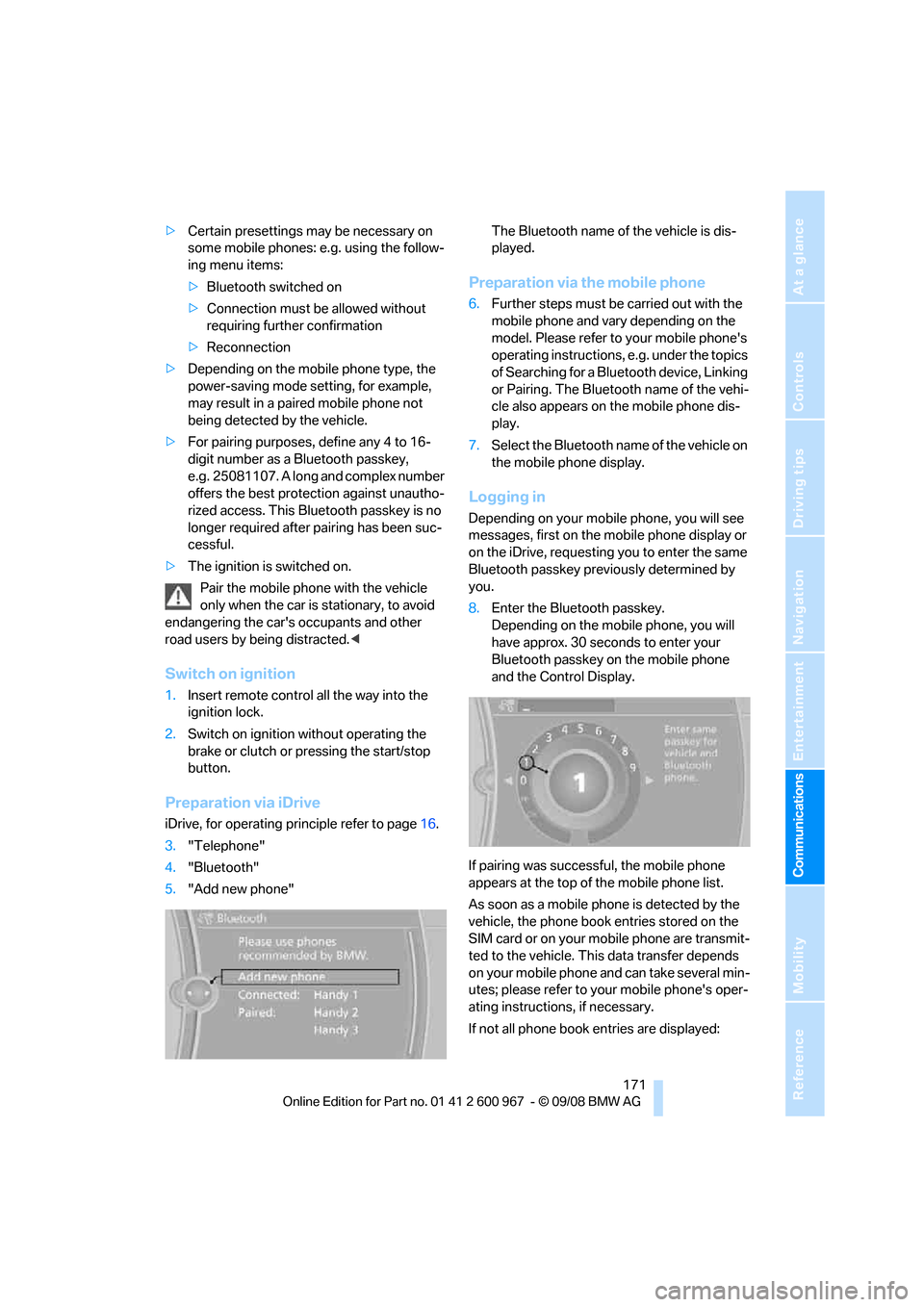
Preparation via iDrive
iDrive, for operating principle refer to page16.
3."Telephone"
4."Bluetooth"
5."Add new phone"The Bluetooth name of the vehicle is dis-
played.
Preparation via the mobile phone
6.Further steps must be carried out with the
mobile phone and vary depending on the
model. Please refer to your mobile phone's
operating instructions, e.g. under the topics
of Searching for a Bluetooth device, Linking
or Pairing. The Bluetooth name of the vehi-
cle also appears on the mobile phone dis-
play.
7.Select the Bluetooth name of the vehicle on
the mobile phone display.
Logging in
Depending on your mobile phone, you will see
messages, first on the mobile phone display or
on the iDrive, requesting you to enter the same
Bluetooth passkey previously determined by
you.
8.Enter the Bluetooth passkey.
Depending on the mobile phone, you will
have approx. 30 seconds to enter your
Bluetooth passkey on the mobile phone
and the Control Display.
If pairing was successful, the mobile phone
appears at the top of the mobile phone list.
As soon as a mobile phone is detected by the
vehicle, the phone book entries stored on the
SIM card or on your mobile phone are transmit-
ted to the vehicle. This data transfer depends
on your mobile phone and can take several min-
utes; please refer to your mobile phone's oper-
ating instructions, if necessary.
If not all phone book entries are displayed:
Page 174 of 260
Telephone
172 >Transfer all phone book entries from the
SIM card to the mobile phone, if necessary.
>Phone book entries with special characters
may not be displayed.
Checks to perform if pairing is
unsuccessful
>Is the mobile phone supported by the
mobile phone preparation package? You
can obtain information on the Internet at:
www.bmw.com.
>Do the Bluetooth passkeys on the mobile
phone and vehicle match? The same Blue-
tooth passkey must be entered on the
mobile phone's display and via iDrive.
>Did it take you more than 30 seconds to
enter the Bluetooth passkey? Then repeat
the pairing procedure.
>Only a limited number of devices can be
connected with the mobile phone. If neces-
sary, delete connections with other devices.
>Is the mobile phone no longer responding?
Switch the mobile phone off and on or
briefly disconnect the power supply.
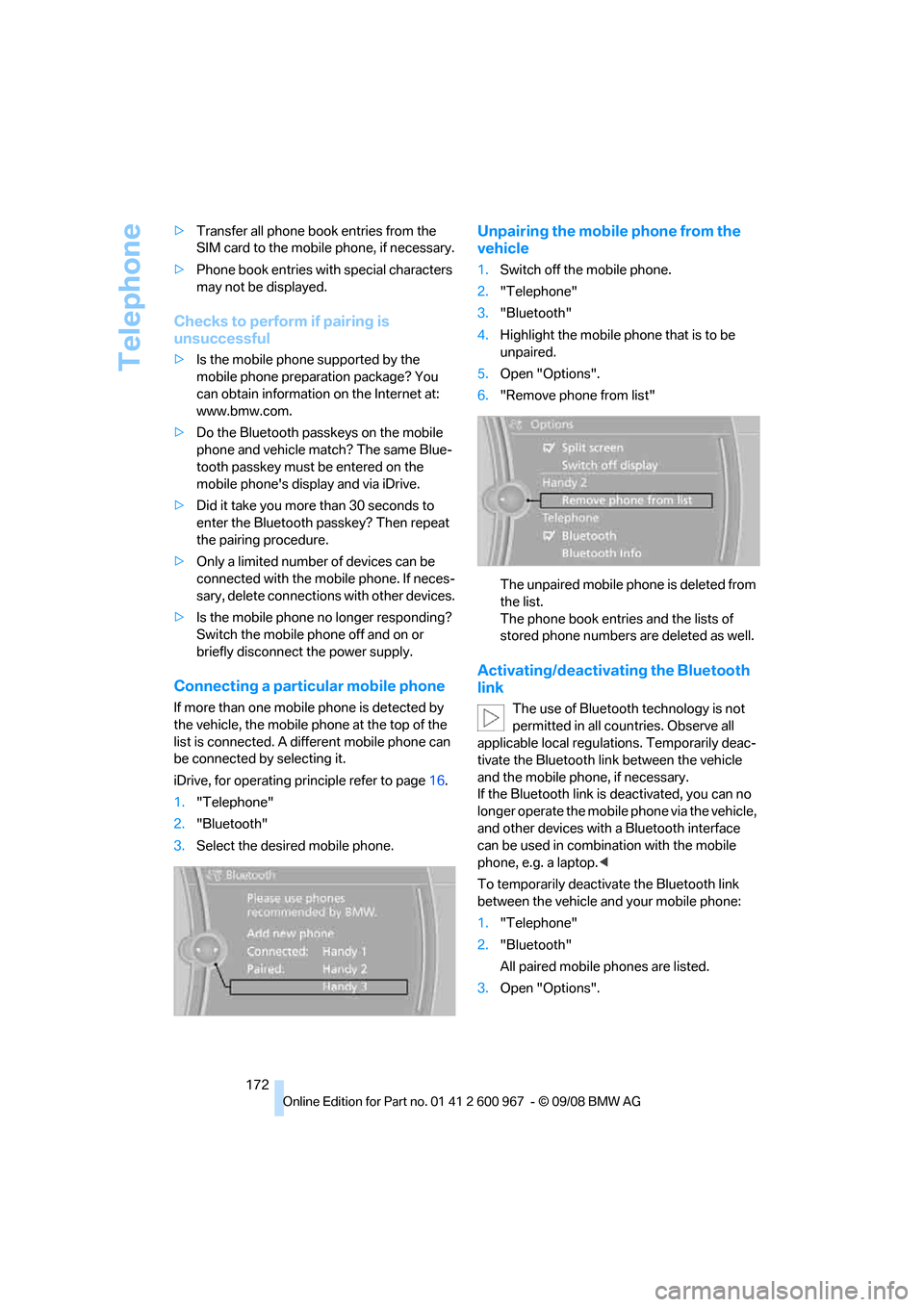
Connecting a particular mobile phone
If more than one mobile phone is detected by
the vehicle, the mobile phone at the top of the
list is connected. A different mobile phone can
be connected by selecting it.
iDrive, for operating principle refer to page16.
1."Telephone"
2."Bluetooth"
3.Select the desired mobile phone.
Unpairing the mobile phone from the
vehicle
1.Switch off the mobile phone.
2."Telephone"
3."Bluetooth"
4.Highlight the mobile phone that is to be
unpaired.
5.Open "Options".
6."Remove phone from list"
The unpaired mobile phone is deleted from
the list.
The phone book entries and the lists of
stored phone numbers are deleted as well.
Activating/deactivating the Bluetooth
link
The use of Bluetooth technology is not
permitted in all countries. Observe all
applicable local regulations. Temporarily deac-
tivate the Bluetooth link between the vehicle
and the mobile phone, if necessary.
If the Bluetooth link is deactivated, you can no
longer operate the mobile phone via the vehicle,
and other devices with a Bluetooth interface
can be used in combination with the mobile
phone, e.g. a laptop.<
To temporarily deactivate the Bluetooth link
between the vehicle and your mobile phone:
1."Telephone"
2."Bluetooth"
All paired mobile phones are listed.
3.Open "Options".
Page 246 of 260
Everything from A - Z
244 Care213
– automatic car washes213
– care products213
– carpets215
– CD/DVD drives216
– chrome parts214
– displays215
– exterior213
– fine wood parts215
– headlamps214
– high-pressure washer213
– interior215
– leather215
– light-alloy wheels215
– paintwork214
– plastic parts215
– retractable hardtop214
– rubber seals214
– safety belts215
– sensors and cameras215
– upholstery and cloth
trim215
– washing the car
manually214
– windows214
– wiper blades214
Cargo, securing120
Cargo bay
– capacity235
– convenient access34
– folding up the floor
panel111
– lamp, refer to Interior
lamps96
– opening from inside31
– opening from outside31
Cargo loading119
– securing cargo120
– stowing cargo119
– vehicle119
Car jack
– jacking points222
Car key, refer to Integrated
key/remote control26
Car phone
– installation location, refer to
Center armrest106
– refer to separate Owner's
ManualCar phone, refer to
Telephone170
Car radio, refer to Radio147
Car shampoo215
Car wash118
Catalytic converter, refer to
Hot exhaust system117
CBS Condition Based
Service
211
CD, audio playback152
CD changer152
– controls144
– fast forward/reverse154
– installation location156
– random play sequence153
– selecting a track152
– switching on/off144
– tone control144
– volume144
CD player152
– controls144
– fast forward/reverse154
– random play sequence153
– selecting a track152
– switching on/off144
– tone control144
– volume144
Center armrest106
Center brake lamp
– replacing bulb222
Center console, refer to
Around the center
console14
Central locking
– from inside30
– from outside27
Central locking system27
– convenient access34
– hotel function31
– setting unlocking
characteristics27
Changes, technical, refer to
For your own safety5
Changing bulbs, refer to
Lamps and bulbs218
Changing the measurement
units on the Control
Display72
Changing wheels222Chassis number, refer to
Engine compartment207
Check Control77
Child-restraint fixing system
LATCH53
Child-restraint systems52
Child seats, refer to
Transporting children
safely52
Chrome parts215
Chrome polish215
Cigarette lighter, refer to
Lighter108
Cleaning headlamps60
– washer fluid61
Cleaning your BMW, refer to
Care213
Clock
69
– 12h/24h mode76
– setting the time and date76
– setting time75
Closing
– from inside30
– from outside27
Clothes hooks107
Cockpit10
Cold start, refer to Starting the
engine55
Combined instrument, refer to
Instrument cluster12
Comfort access, refer to
Convenient access34
Comfort area, refer to Around
the center console14
Compartment for remote
control, refer to Ignition
lock55
Compass104
Computer70
– displays on Control
Display71
Computer, refer to iDrive16
Concierge service183
Condensation, refer to When
the vehicle is parked118
Condition Based Service
CBS211
Configuring settings, refer to
Personal Profile26
Page 248 of 260
Everything from A - Z
246 Displays
– on the Control Display16
Displays, refer to Instrument
cluster12
Displays and controls10
Disposal
– coolant209
– remote control battery35
– vehicle battery222
Distance control, refer to
Active cruise control63
Distance remaining to service,
refer to Service
requirements73
Distance warning, refer to
Park Distance Control
PDC82
Door key, refer to Remote
control with integrated
key26
Door lock29
Doors, emergency
operation30
DOT Quality Grades202
Draft-free ventilation100
Drinks holders, refer to Cup
holders107
Drive-off assistance, refer to
Dynamic Stability Control
DSC83
Drive-off assistant85
Driving lamps, refer to Parking
lamps/low beams93
Driving notes116
Driving off on hills, refer to
Drive-off assistant85
Driving stability control
systems83
Driving through water118
Driving tips, refer to Driving
notes116
Dry air, refer to Cooling
function100
DSC Dynamic Stability
Control83
DTC Dynamic Traction
Control83
– indicator/warning lamp83DVD
– country codes154
– settings155
– video playback154
DVD menu155
DVD video154
Dynamic Brake Control
DBC83
Dynamic Stability Control
DSC
– indicator/warning lamp83
Dynamic Traction Control
DTC
– indicator/warning lamp84
E
Eject button, refer to Buttons
on the CD player144
Electrical malfunction
– door lock30
– driver's door30
– fuel filler door192
– glass roof38
Electric seat adjustment43
Electric steering wheel lock
– with convenient access34
Electronic brake-force
distribution EBV83
Electronic oil level check207
Electronic Stability Program
ESP, refer to Dynamic
Stability Control DSC83
Emergency actuation,
automatic transmission,
refer to Overriding selector
lever lock59
Emergency operation
– fuel filler door, manual
release192
Emergency operation, refer to
Closing manually
– glass roof38
Emergency operation, refer to
Manual operation
– door lock30
Emergency release
– luggage compartment lid
from inside32Emergency Request224
Emergency services, refer to
Roadside Assistance224
Energy, saving
– saving fuel116
Engine
– breaking in116
– data232
– overheated, refer to Coolant
temperature70
– speed232
– starting55
– starting, convenient
access34
– switching off56
Engine compartment207
Engine coolant, refer to
Coolant209
Engine oil
– adding209
– BMW Maintenance
System211
– capacity235
– checking level207
– intervals between changes,
refer to Service
requirements73
Engine output, refer to Engine
data232
Engine speed, refer to Engine
data232
Engine starting, refer to
Starting the engine55
Entry lamps, refer to Interior
lamps
96
Entry map for destination130
Equalizer, tone setting145
Error messages, refer to
Check Control77
Event data recorders212
Exhaust system, refer to Hot
exhaust system117
Exterior mirrors49
– adjusting49
– automatic dimming
feature50
– automatic heating50
– folding in and out49
External audio device106
Page 250 of 260
Everything from A - Z
248 Heating
– mirrors50
– rear window100
– residual heat99
– seats47
– steering wheel51
Heating and ventilation, refer
to Climate97
Heating while at a standstill,
refer to Using residual
heat99
Heavy loads, refer to Stowing
cargo119
Height, refer to
Dimensions233
Height adjustment
– seats43
– steering wheel50
High beams95
– headlamp flasher95
– indicator lamp13
High Definition Radio148
High-pressure
washer213,214
High water, refer to Driving
through water118
Highways, refer to Route
criteria135
Hill Descent Control HDC84
Hills118
Holders for cups107
Homepage BMW4
Hood206
Hooks for shopping bags110
Horn10,11
Hotel function, refer to
Locking or unlocking
separately31
Hot exhaust system117
Hydraulic brake assist, refer to
Dynamic Brake Control
DBC83
Hydroplaning117
I
IBOC, refer to High Definition
Radio148Ice warning, refer to Outside
temperature
warning69
ID3 tag, refer to Information
about the track153
Identification marks
– Run-Flat Tires204
– tire coding202
iDrive16
– adjusting brightness80
– changing language80
– changing settings80
– changing units of measure
and display format72
– controls16
– menu guidance17
– operating principle16
– overview16
– setting the date and time76
– start menu17
– status information19
iDrive operating principle16
Ignition55
– switched off55
– switched on55
Ignition key, refer to Remote
control with integrated
key26
Ignition key position 1, refer to
Radio readiness55
Ignition key position 2, refer to
Ignition on55
Ignition lock55
Imprint2
Indicator and warning
lamps13
– Tire Pressure Monitor
TPM88
Inflation pressure, refer to Tire
inflation pressure194
Inflation pressure monitoring,
refer to Tire Pressure
Monitor TPM86Initializing
– after power failure222
– compass, refer to
Calibrating104
– Flat Tire Monitor FTM85
– glass roof37
– radio, refer to Station,
storing147
– refer to Setting the time and
date76
Installation location
– CD changer156
– navigation DVD drive124
– telephone106
Instructions for navigation
system, refer to Voice
instructions
136
Instrument cluster12
Instrument lighting95
Instrument panel, refer to
Cockpit10
Integrated key26
Integrated universal remote
control102
Interior lamps96
– remote control28
Interior motion sensor33
Interior rearview mirror50
– automatic dimming
feature50
– compass104
Interlock, refer to Disengaging
the remote control57
Intermittent mode of the
wipers60
Intersection, entering,
navigation126
iPod, connecting, refer to
AUX-IN port163
iPod, connecting, refer to
USB-audio interface164
J
Jacking points222
Joystick, refer to iDrive16
Jumpering, refer to Jump
starting225
Jump starting225