symbols BMW 335I COUPE 2009 E92 Owner's Manual
[x] Cancel search | Manufacturer: BMW, Model Year: 2009, Model line: 335I COUPE, Model: BMW 335I COUPE 2009 E92Pages: 260, PDF Size: 7.95 MB
Page 6 of 260
Notes
4
Notes
Using this Owner's Manual
We have tried to make all the information in this
Owner's Manual easy to find. The fastest way to
find specific topics is to refer to the detailed
index at the back of the manual. If you wish to
gain an initial overview of your vehicle, you will
find this in the first chapter.
Should you sell your BMW some day, please
remember to hand over the Owner's Manual as
well; it is an important component of your vehi-
cle.
Additional sources of information
Should you have any other questions, your
BMW center will be glad to advise you at any
time.
Information on BMW, e.g. on technical aspects,
can also be found on the Internet at
www.bmwusa.com.
Symbols used
Indicates precautions that must be fol-
lowed precisely in order to avoid the pos-
sibility of personal injury and serious damage to
the vehicle.<
Indicates information that will assist you
in gaining the optimum benefit from your
vehicle and enable you to care more effectively
for your vehicle.<
Refers to measures that can be taken to
help protect the environment.<
*Indicates special equipment, country-spe-
cific equipment and optional accessories, as
well as equipment and functions not yet avail-
able at the time of printing.
"..." Identifies Control Display texts used to
select individual functions.
{...} Verbal instructions to use with the voice
activation system.
{{...}} Identifies the answers generated by the
voice activation system.
Symbols on vehicle components
Indicates that you should consult the rel-
evant section of this Owner's Manual for
information on a particular part or assembly.
Page 24 of 260
Voice activation system
22
Voice activation system
The concept
The voice activation system allows you to con-
trol operation of various vehicle systems with-
out removing your hands from the steering
wheel.
Individual menu items on the Control Display
can be spoken as commands. It is not neces-
sary to use the controller.
The voice activation system transforms your
oral commands into control signals for the
selected systems and provides support in the
form of instructions or questions.
Coupe: the voice activation system uses a spe-
cial microphone located in the area of the inte-
rior rearview mirror, refer to page14.
Convertible: the voice activation system uses a
special microphone located in the area of the
steering column.
Precondition
Via iDrive, select the language in which the
voice activation system is operating, so that the
spoken commands can be identified. Selecting
the language for iDrive, refer to page80.
Symbols in the Owner's Manual
Saying commands
Activating voice activation system
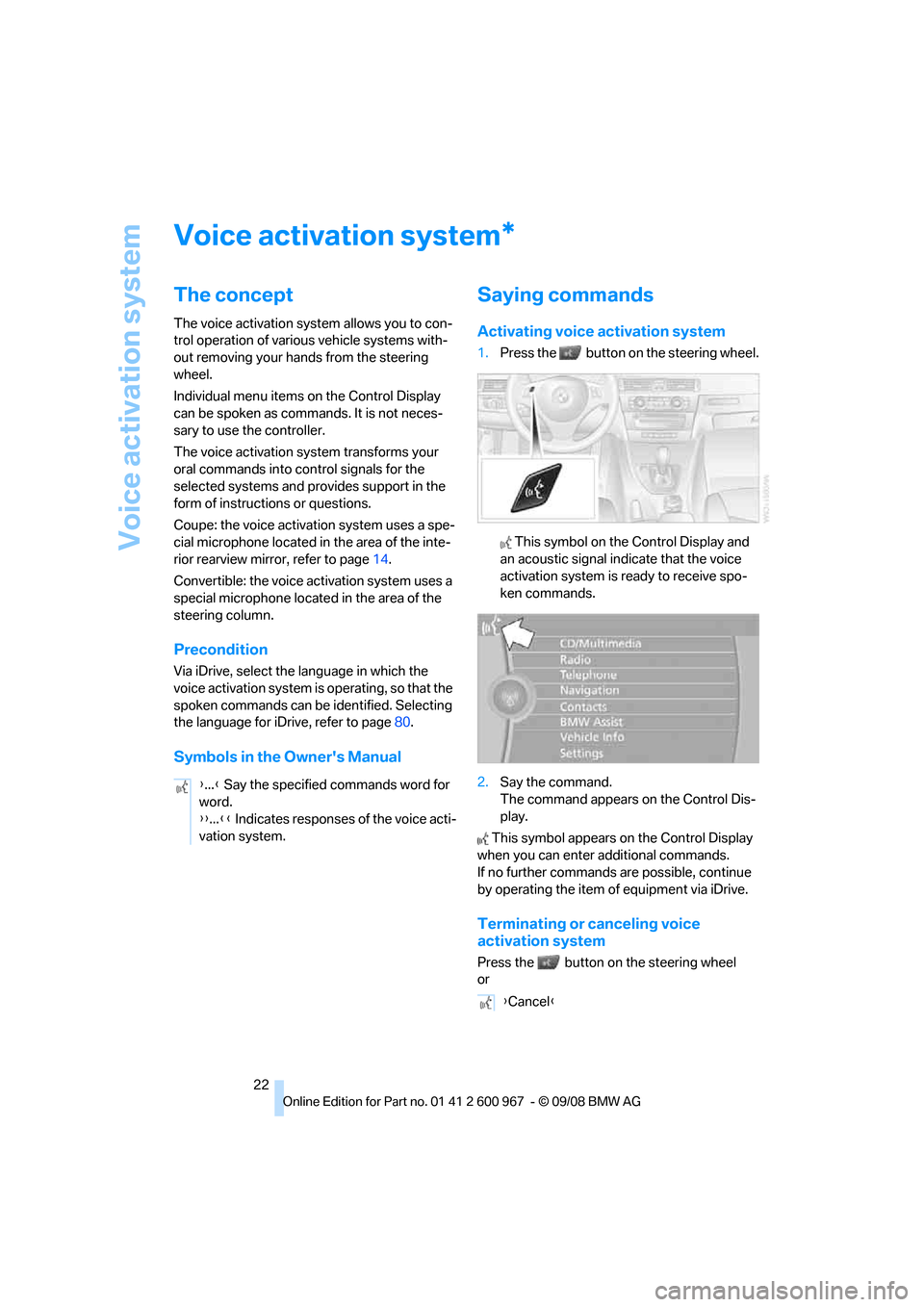
1.Press the button on the steering wheel.
This symbol on the Control Display and
an acoustic signal indicate that the voice
activation system is ready to receive spo-
ken commands.
2.Say the command.
The command appears on the Control Dis-
play.
This symbol appears on the Control Display
when you can enter additional commands.
If no further commands are possible, continue
by operating the item of equipment via iDrive.
Terminating or canceling voice
activation system
Press the button on the steering wheel
or
*
{...} Say the specified commands word for
word.
{{...}} Indicates responses of the voice acti-
vation system.
{Cancel}
Page 42 of 260
Opening and closing
40
Interruption
The automatic sequence of movements is
interrupted if the switch for hardtop operation is
released. The sequence can be continued in
the desired direction by pushing or pulling the
switch.
A hardtop that is not fully opened or
closed is a safety hazard.
Do not interrupt and resume the closing proce-
dure several times in close succession as this
could damage the mechanism.<
If the hardtop is not fully opened or
closed, the luggage compartment lid can-
not be opened and the windows cannot be
moved.<
Convenient operation with remote
control or via door lock
Refer to pages28 and30.
Wind deflector*
The wind deflector keeps air movements in the
passenger compartment to a minimum when
the hardtop is open and provides an even more
comfortable ride, particularly at high speeds.
Installation
The wind deflector is stored in a protective
cover in the cargo bay. Brief instructions for
operation can be found on the protective cover.
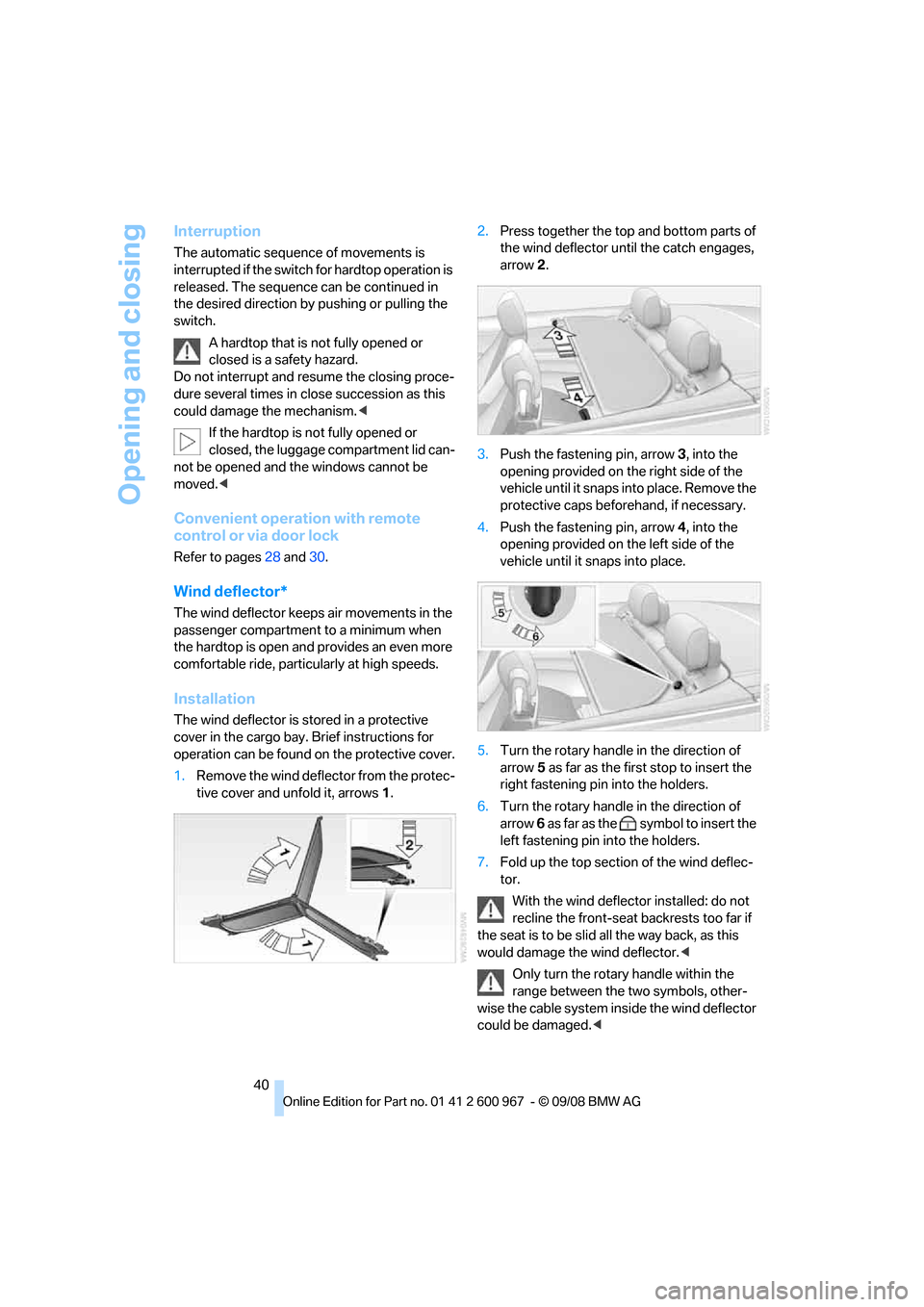
1.Remove the wind deflector from the protec-
tive cover and unfold it, arrows 1.2.Press together the top and bottom parts of
the wind deflector until the catch engages,
arrow 2.
3.Push the fastening pin, arrow 3, into the
opening provided on the right side of the
vehicle until it snaps into place. Remove the
protective caps beforehand, if necessary.
4.Push the fastening pin, arrow 4, into the
opening provided on the left side of the
vehicle until it snaps into place.
5.Turn the rotary handle in the direction of
arrow 5 as far as the first stop to insert the
right fastening pin into the holders.
6.Turn the rotary handle in the direction of
arrow 6 as far as the symbol to insert the
left fastening pin into the holders.
7.Fold up the top section of the wind deflec-
tor.
With the wind deflector installed: do not
recline the front-seat backrests too far if
the seat is to be slid all the way back, as this
would damage the wind deflector.<
Only turn the rotary handle within the
range between the two symbols, other-
wise the cable system inside the wind deflector
could be damaged.<
Page 76 of 260
Everything under control
74
Possible displays
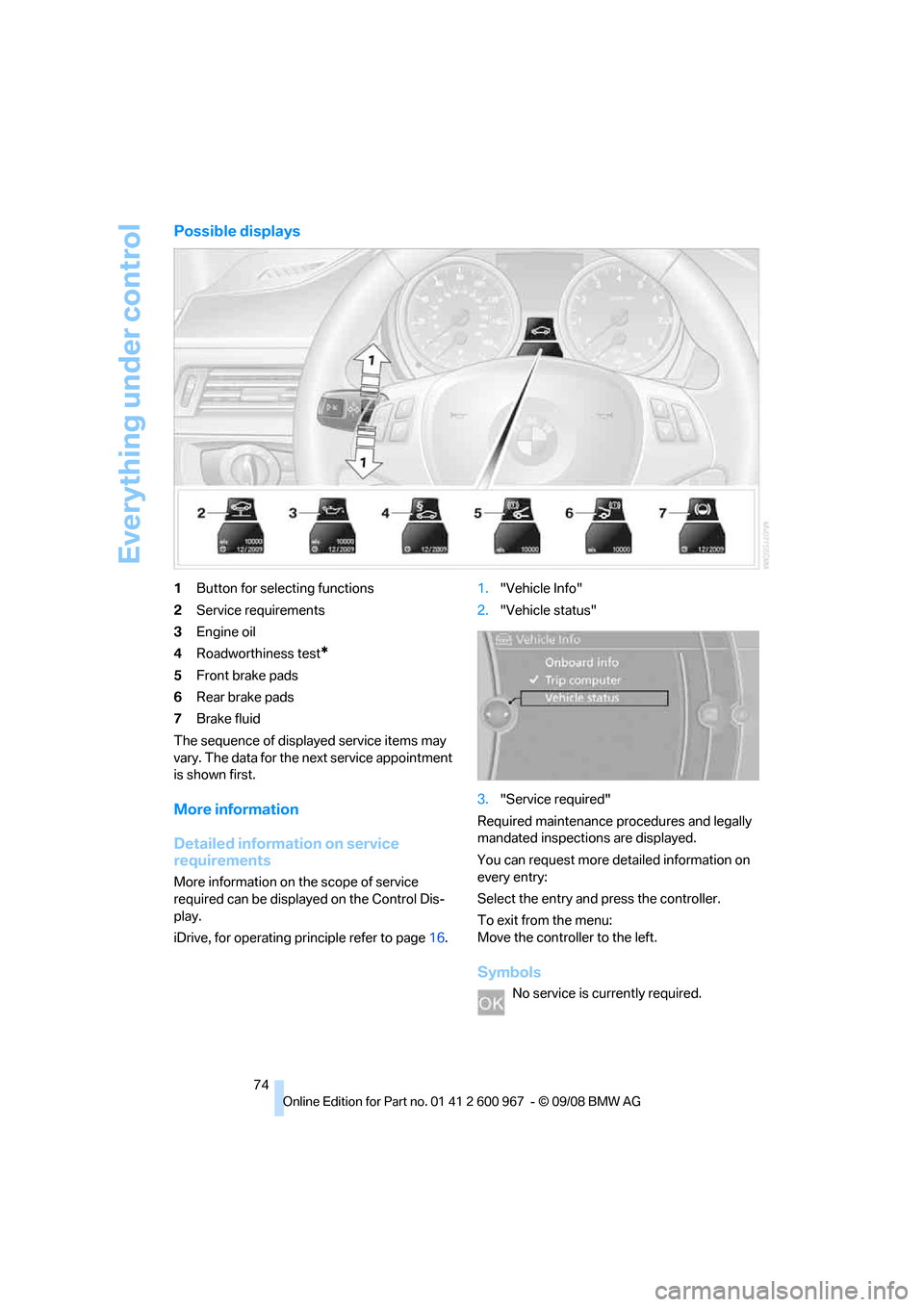
1Button for selecting functions
2Service requirements
3Engine oil
4Roadworthiness test
*
5Front brake pads
6Rear brake pads
7Brake fluid
The sequence of displayed service items may
vary. The data for the next service appointment
is shown first.
More information
Detailed information on service
requirements
More information on the scope of service
required can be displayed on the Control Dis-
play.
iDrive, for operating principle refer to page16.1."Vehicle Info"
2."Vehicle status"
3."Service required"
Required maintenance procedures and legally
mandated inspections are displayed.
You can request more detailed information on
every entry:
Select the entry and press the controller.
To exit from the menu:
Move the controller to the left.
Symbols
No service is currently required.
Page 131 of 260
Navigation
Driving tips
129Reference
At a glance
Controls
Communications
Entertainment
Mobility
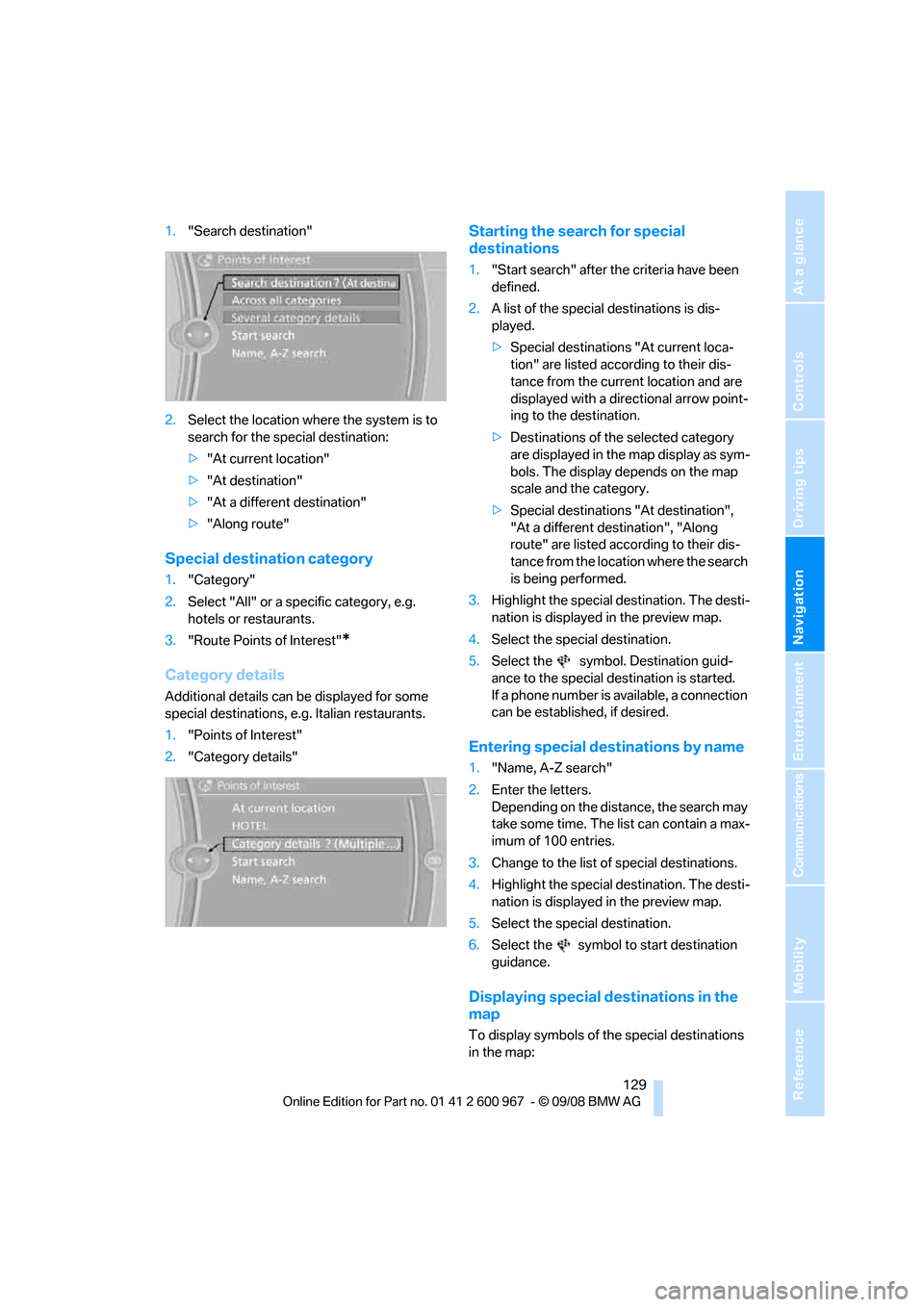
1."Search destination"
2.Select the location where the system is to
search for the special destination:
>"At current location"
>"At destination"
>"At a different destination"
>"Along route"
Special destination category
1."Category"
2.Select "All" or a specific category, e.g.
hotels or restaurants.
3."Route Points of Interest"
*
Category details
Additional details can be displayed for some
special destinations, e.g. Italian restaurants.
1."Points of Interest"
2."Category details"
Starting the search for special
destinations
1."Start search" after the criteria have been
defined.
2.A list of the special destinations is dis-
played.
>Special destinations "At current loca-
tion" are listed according to their dis-
tance from the current location and are
displayed with a directional arrow point-
ing to the destination.
>Destinations of the selected category
are displayed in the map display as sym-
bols. The display depends on the map
scale and the category.
>Special destinations "At destination",
"At a different destination", "Along
route" are listed according to their dis-
tance from the location where the search
is being performed.
3.Highlight the special destination. The desti-
nation is displayed in the preview map.
4.Select the special destination.
5.Select the symbol. Destination guid-
ance to the special destination is started.
If a phone number is available, a connection
can be established, if desired.
Entering special destinations by name
1."Name, A-Z search"
2.Enter the letters.
Depending on the distance, the search may
take some time. The list can contain a max-
imum of 100 entries.
3.Change to the list of special destinations.
4.Highlight the special destination. The desti-
nation is displayed in the preview map.
5.Select the special destination.
6.Select the symbol to start destination
guidance.
Displaying special destinations in the
map
To display symbols of the special destinations
in the map:
Page 141 of 260
Navigation
Driving tips
139Reference
At a glance
Controls
Communications
Entertainment
Mobility
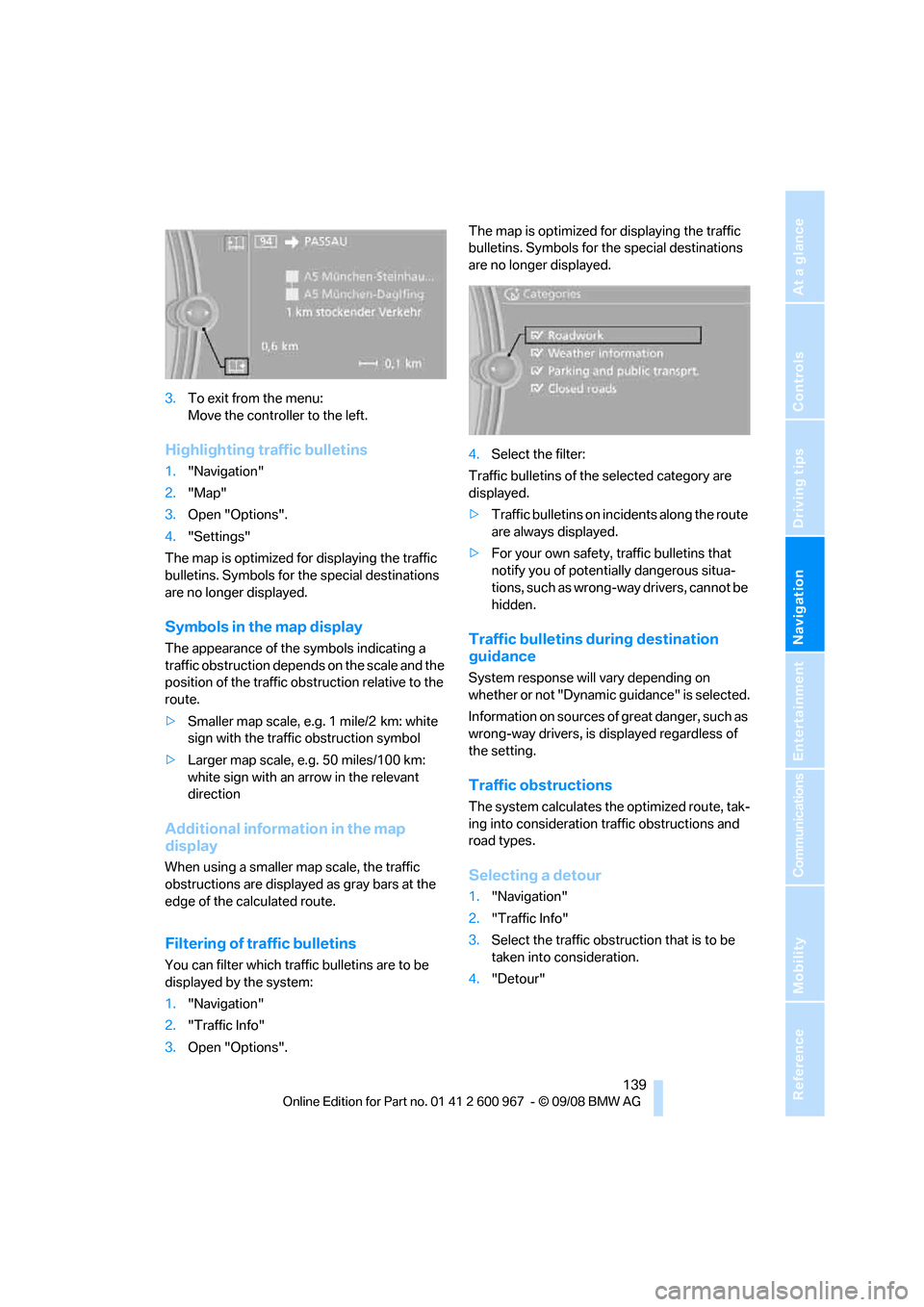
3.To exit from the menu:
Move the controller to the left.
Highlighting traffic bulletins
1."Navigation"
2."Map"
3.Open "Options".
4."Settings"
The map is optimized for displaying the traffic
bulletins. Symbols for the special destinations
are no longer displayed.
Symbols in the map display
The appearance of the symbols indicating a
traffic obstruction depends on the scale and the
position of the traffic obstruction relative to the
route.
>Smaller map scale, e.g. 1 mile/2 km: white
sign with the traffic obstruction symbol
>Larger map scale, e.g. 50 miles/100 km:
white sign with an arrow in the relevant
direction
Additional information in the map
display
When using a smaller map scale, the traffic
obstructions are displayed as gray bars at the
edge of the calculated route.
Filtering of traffic bulletins
You can filter which traffic bulletins are to be
displayed by the system:
1."Navigation"
2."Traffic Info"
3.Open "Options".The map is optimized for displaying the traffic
bulletins. Symbols for the special destinations
are no longer displayed.
4.Select the filter:
Traffic bulletins of the selected category are
displayed.
>Traffic bulletins on incidents along the route
are always displayed.
>For your own safety, traffic bulletins that
notify you of potentially dangerous situa-
tions, such as wrong-way drivers, cannot be
hidden.
Traffic bulletins during destination
guidance
System response will vary depending on
whether or not "Dynamic guidance" is selected.
Information on sources of great danger, such as
wrong-way drivers, is displayed regardless of
the setting.
Traffic obstructions
The system calculates the optimized route, tak-
ing into consideration traffic obstructions and
road types.
Selecting a detour
1."Navigation"
2."Traffic Info"
3.Select the traffic obstruction that is to be
taken into consideration.
4."Detour"
Page 163 of 260
Navigation
Entertainment
Driving tips
161Reference
At a glance
Controls
Communications
Mobility
Top 50
List of the 50 most frequently played tracks.
1."Top 50"
2.Select the desired track, if necessary.
Albums
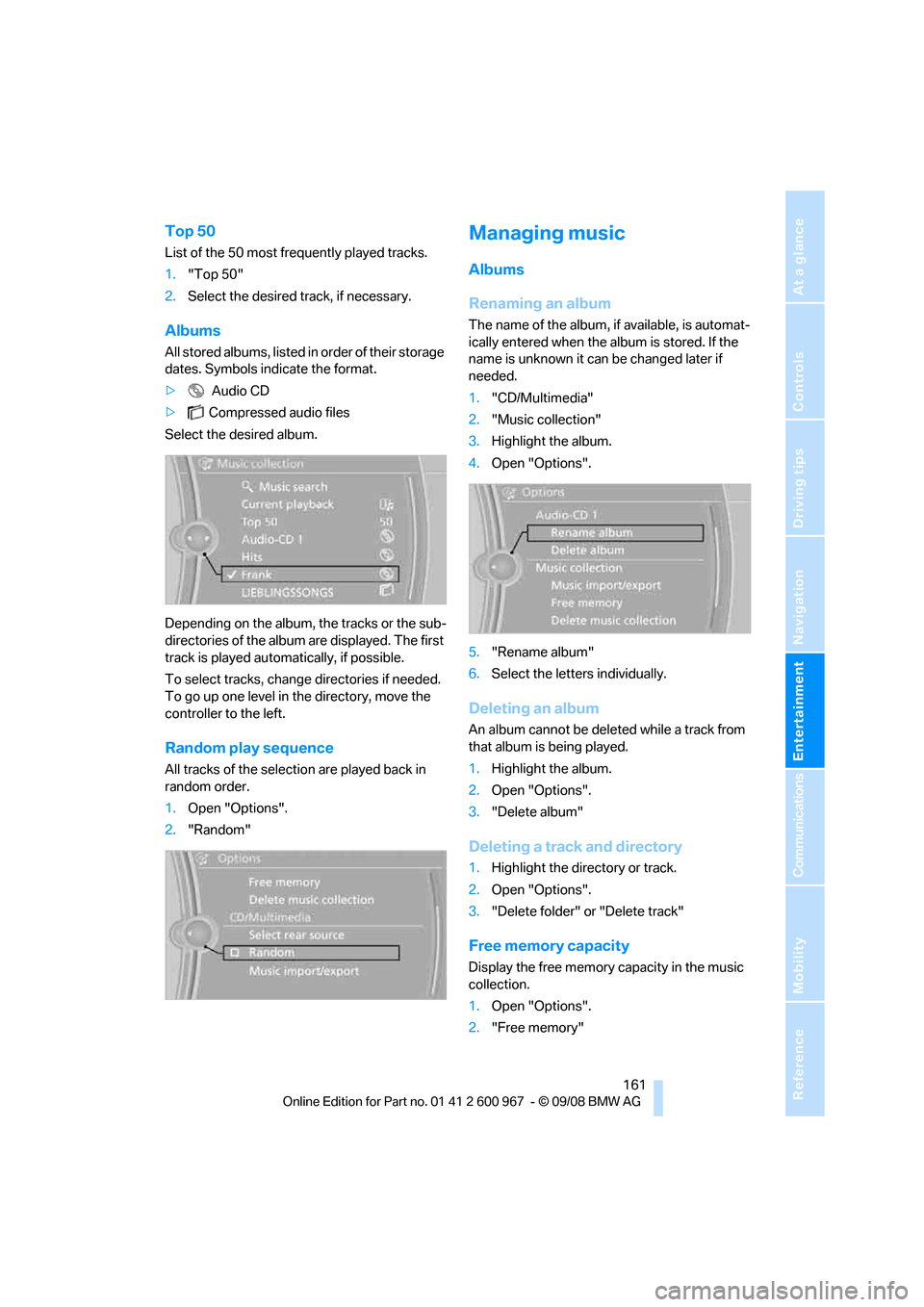
All stored albums, listed in order of their storage
dates. Symbols indicate the format.
> Audio CD
>Compressed audio files
Select the desired album.
Depending on the album, the tracks or the sub-
directories of the album are displayed. The first
track is played automatically, if possible.
To select tracks, change directories if needed.
To go up one level in the directory, move the
controller to the left.
Random play sequence
All tracks of the selection are played back in
random order.
1.Open "Options".
2."Random"
Managing music
Albums
Renaming an album
The name of the album, if available, is automat-
ically entered when the album is stored. If the
name is unknown it can be changed later if
needed.
1."CD/Multimedia"
2."Music collection"
3.Highlight the album.
4.Open "Options".
5."Rename album"
6.Select the letters individually.
Deleting an album
An album cannot be deleted while a track from
that album is being played.
1.Highlight the album.
2.Open "Options".
3."Delete album"
Deleting a track and directory
1.Highlight the directory or track.
2.Open "Options".
3."Delete folder" or "Delete track"
Free memory capacity
Display the free memory capacity in the music
collection.
1.Open "Options".
2."Free memory"
Page 177 of 260
175
Entertainment
Reference
At a glance
Controls
Driving tips Communications
Navigation
Mobility
>Call on hold: indicated by a green handset
To switch to the call on hold, select this hand-
set.
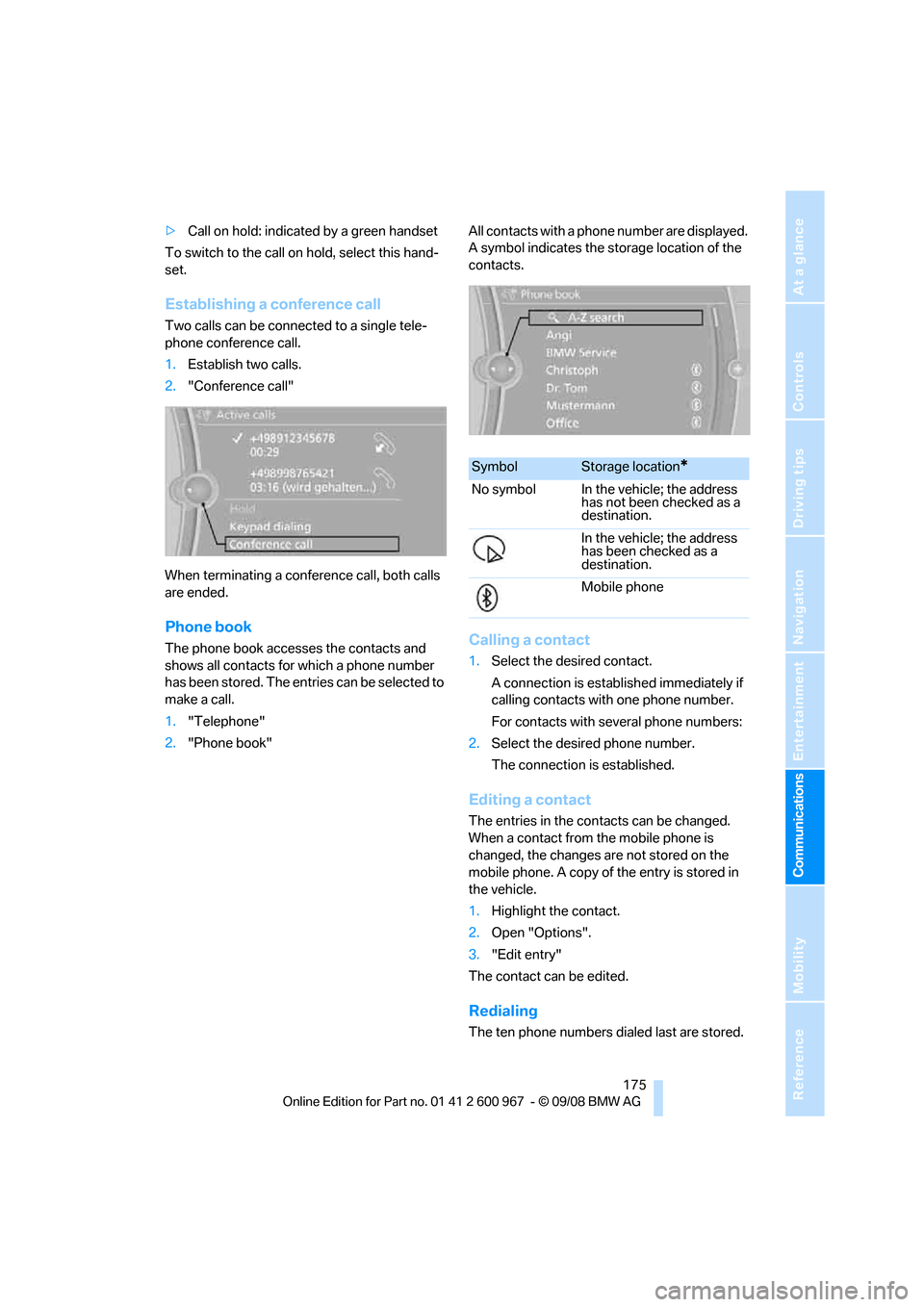
Establishing a conference call
Two calls can be connected to a single tele-
phone conference call.
1.Establish two calls.
2."Conference call"
When terminating a conference call, both calls
are ended.
Phone book
The phone book accesses the contacts and
shows all contacts for which a phone number
has been stored. The entries can be selected to
make a call.
1."Telephone"
2."Phone book"All contacts with a phone number are displayed.
A symbol indicates the storage location of the
contacts.Calling a contact
1.Select the desired contact.
A connection is established immediately if
calling contacts with one phone number.
For contacts with several phone numbers:
2.Select the desired phone number.
The connection is established.
Editing a contact
The entries in the contacts can be changed.
When a contact from the mobile phone is
changed, the changes are not stored on the
mobile phone. A copy of the entry is stored in
the vehicle.
1.Highlight the contact.
2.Open "Options".
3."Edit entry"
The contact can be edited.
Redialing
The ten phone numbers dialed last are stored.
SymbolStorage location*
No symbol In the vehicle; the address
has not been checked as a
destination.
In the vehicle; the address
has been checked as a
destination.
Mobile phone
Page 184 of 260
Contacts
182 search is offered. A symbol indicates the stor-
age location of the contacts:
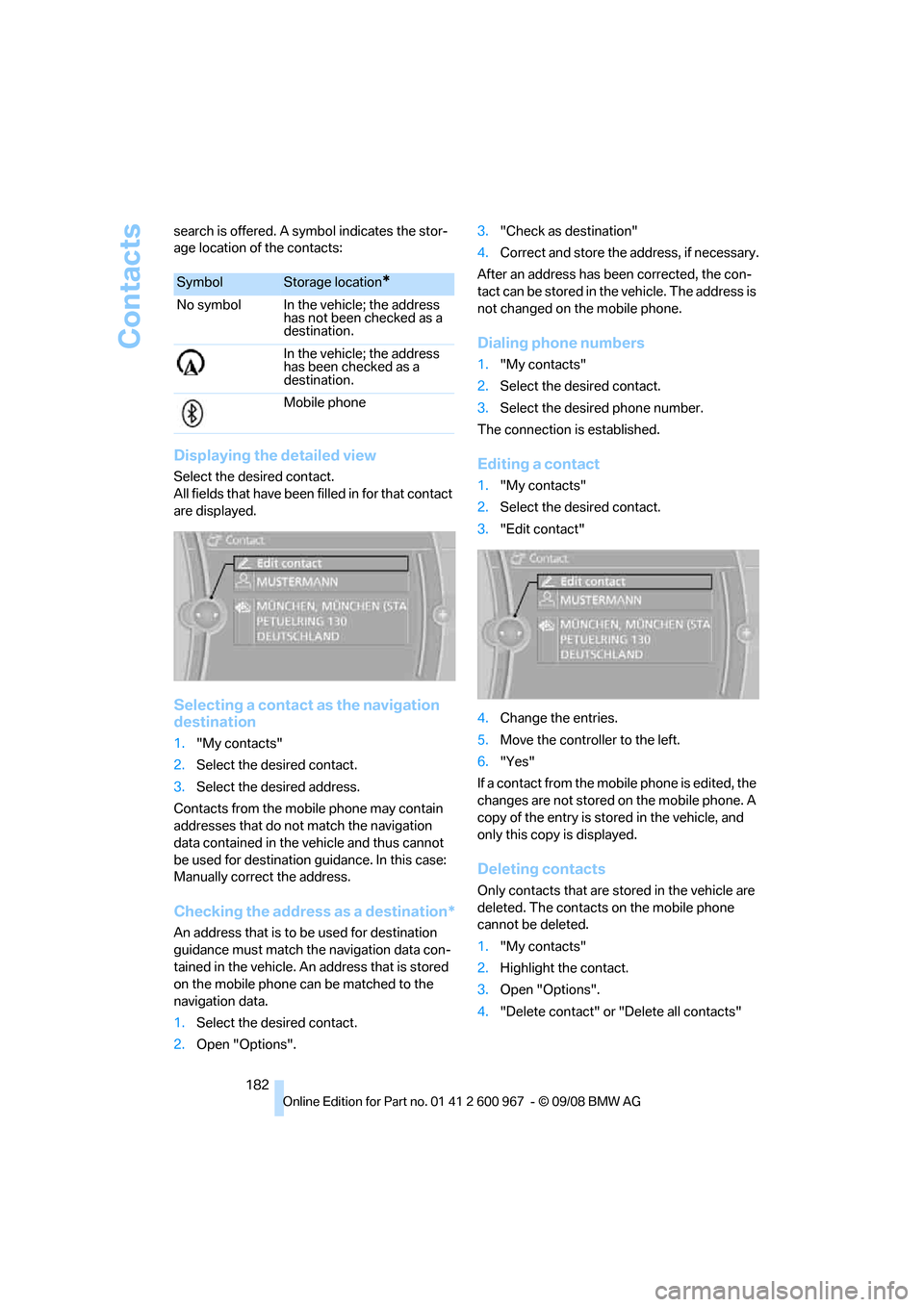
Displaying the detailed view
Select the desired contact.
All fields that have been filled in for that contact
are displayed.
Selecting a contact as the navigation
destination
1."My contacts"
2.Select the desired contact.
3.Select the desired address.
Contacts from the mobile phone may contain
addresses that do not match the navigation
data contained in the vehicle and thus cannot
be used for destination guidance. In this case:
Manually correct the address.
Checking the address as a destination*
An address that is to be used for destination
guidance must match the navigation data con-
tained in the vehicle. An address that is stored
on the mobile phone can be matched to the
navigation data.
1.Select the desired contact.
2.Open "Options".3."Check as destination"
4.Correct and store the address, if necessary.
After an address has been corrected, the con-
tact can be stored in the vehicle. The address is
not changed on the mobile phone.
Dialing phone numbers
1."My contacts"
2.Select the desired contact.
3.Select the desired phone number.
The connection is established.
Editing a contact
1."My contacts"
2.Select the desired contact.
3."Edit contact"
4.Change the entries.
5.Move the controller to the left.
6."Yes"
If a contact from the mobile phone is edited, the
changes are not stored on the mobile phone. A
copy of the entry is stored in the vehicle, and
only this copy is displayed.
Deleting contacts
Only contacts that are stored in the vehicle are
deleted. The contacts on the mobile phone
cannot be deleted.
1."My contacts"
2.Highlight the contact.
3.Open "Options".
4."Delete contact" or "Delete all contacts"
SymbolStorage location*
No symbol In the vehicle; the address
has not been checked as a
destination.
In the vehicle; the address
has been checked as a
destination.
Mobile phone
Page 256 of 260
Everything from A - Z
254 Switch-on times of parked car
ventilation, preselecting101
Symbols4
– status information19
– traffic bulletins for navigation
system138
T
Tachometer69
Tailgate, refer to Luggage
compartment lid31
Tail lamp
– replacing bulb222
Tail lamps220
– replacing bulb220,221
Tank contents, refer to
Capacities235
Technical data232
– capacities235
– dimensions233
Technical modifications, refer
to For your own safety5
Telephone170
– installation location, refer to
Center armrest106
– refer to separate Owner's
Manual
TeleService, activating187
TeleService Diagnosis184
TeleService Help184
Temperature
– automatic climate control98
– changing unit of measure72
– coolant, refer to Coolant
temperature70
Temperature display
– outside temperature69
– outside temperature
warning69
– setting the units72
Tempomat, refer to Cruise
control61
Tensioning straps, refer to
Securing cargo120
The individual vehicle5
Third brake lamp, refer to
Center brake lamp222Through-loading opening with
integrated transport
bag112
Through-loading system109
Tilt alarm sensor33
Tilt function, passenger-side
mirror50
Timer, refer to Preselecting
switch-on times101
Tire inflation pressure194
– loss86,87
Tire pressure monitoring,
refer to Flat Tire Monitor85
Tire Pressure Monitor
TPM86
– resetting the system87
– system limitations87
– warning lamp88
Tire puncture, refer to Flat Tire
Monitor86
Tire Quality Grading202Tires
– age202,203
– air loss88
– breaking in116
– changing, refer to Changing
wheels222
– condition203
– damage203
– inflation pressure194
– labels202
– minimum tread depth203
– new wheels and tires204
– pressure monitoring, refer to
Flat Tire Monitor85
– pressure monitoring, refer to
Tire Pressure Monitor
TPM86
– puncture86
– replacing204
– Run-Flat204
– size202
– storage205
– tread depth203
– wear indicators, refer to
Minimum tread depth203
– wheel/tire combination, refer
to Correct wheels and
tires204
– winter tires205
TMC station, refer to
Traffic bulletins138
Tone
– control144
– middle setting146
Tools, refer to Onboard tool
kit217
Top, refer to Retractable
hardtop38
Top 50 of music
collection161
Torque, refer to Engine
data232
Tow bar227
Tow fitting227
– screw thread227
Tow fittings for tow-starting
and towing away227