Music collection BMW 335I COUPE 2010 E93 Owner's Manual
[x] Cancel search | Manufacturer: BMW, Model Year: 2010, Model line: 335I COUPE, Model: BMW 335I COUPE 2010 E93Pages: 266, PDF Size: 8.6 MB
Page 5 of 266
Reference
At a glance
Controls
Driving tips
Communications
Navigation
Entertainment
Mobility
Contents
The fastest way to find information on a partic-
ular topic or item is by using the index, refer to
page248.
Using this Owner's Manual
4Notes
6Reporting safety defects
At a glance
10Cockpit
16iDrive
21Letters and numbers
22Voice activation system
Controls
26Opening and closing
42Adjustments
52Transporting children safely
55Driving
69Controls overview
81Technology for driving comfort and
safety
93Lamps
98Climate
103Practical interior accessories
Driving tips
118Things to remember when driving
Navigation
126Navigation system
127Destination entry
136Destination guidance
142What to do if …
Entertainment
146On/off and tone
149Radio
152Satellite radio
157CD/DVD player and CD changer
164Music collection
169External devices
Communications
176Telephone
188Contacts
190BMW Assist
Mobility
198Refueling
200Wheels and tires
212Under the hood
217Maintenance
219Care
223Replacing components
230Giving and receiving assistance
Reference
238Technical data
242Short commands for the voice activation
system
248Everything from A - Z
Page 109 of 266
Controls
107Reference
At a glance
Driving tips
Communications
Navigation
Entertainment
Mobility
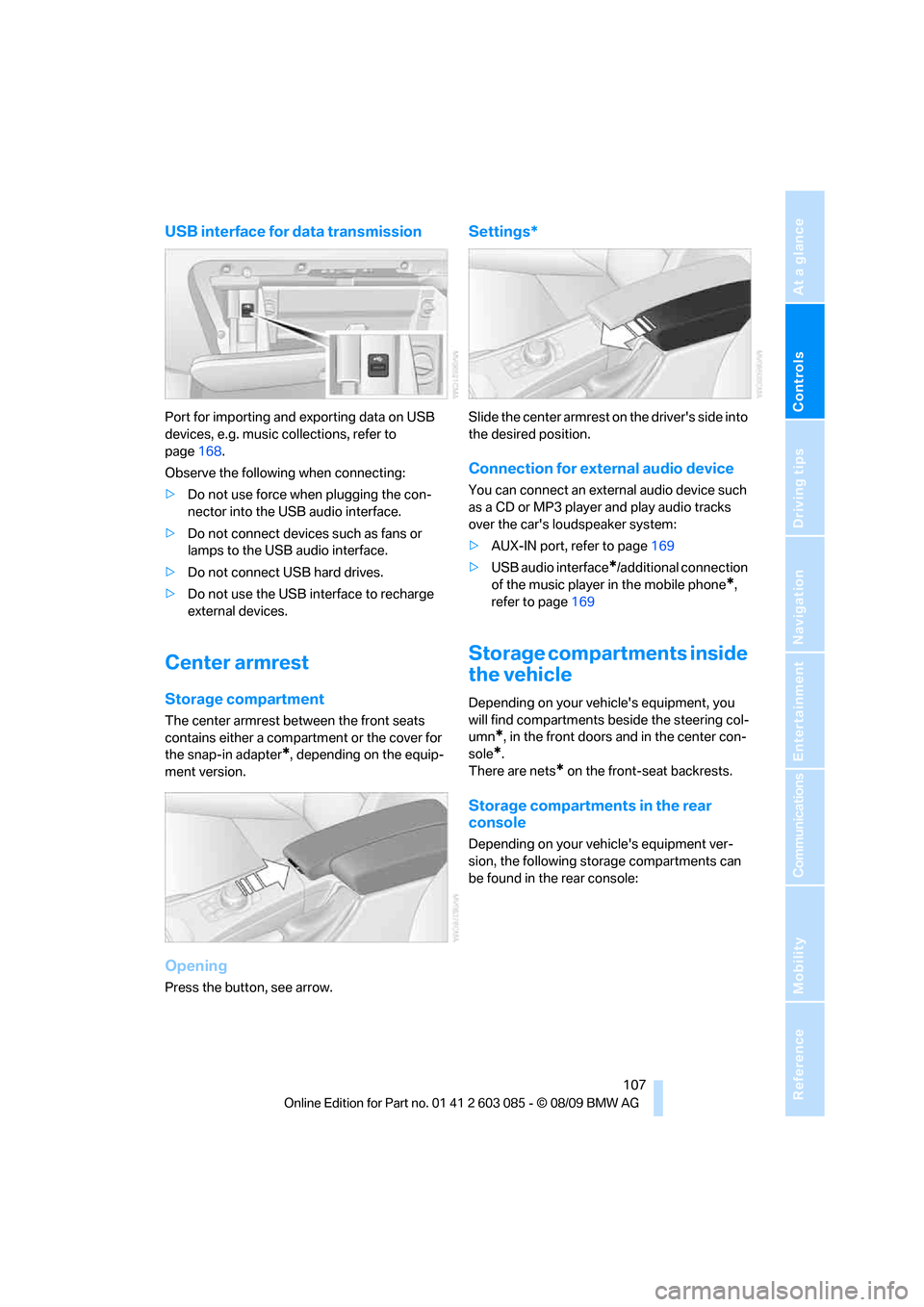
USB interface for data transmission
Port for importing and exporting data on USB
devices, e.g. music collections, refer to
page168.
Observe the following when connecting:
>Do not use force when plugging the con-
nector into the USB audio interface.
>Do not connect devices such as fans or
lamps to the USB audio interface.
>Do not connect USB hard drives.
>Do not use the USB interface to recharge
external devices.
Center armrest
Storage compartment
The center armrest between the front seats
contains either a compartment or the cover for
the snap-in adapter
*, depending on the equip-
ment version.
Opening
Press the button, see arrow.
Settings*
Slide the center armrest on the driver's side into
the desired position.
Connection for external audio device
You can connect an external audio device such
as a CD or MP3 player and play audio tracks
over the car's loudspeaker system:
>AUX-IN port, refer to page169
>USB audio interface
*/additional connection
of the music player in the mobile phone
*,
refer to page169
Storage compartments inside
the vehicle
Depending on your vehicle's equipment, you
will find compartments beside the steering col-
umn
*, in the front doors and in the center con-
sole
*.
There are nets
* on the front-seat backrests.
Storage compartments in the rear
console
Depending on your vehicle's equipment ver-
sion, the following storage compartments can
be found in the rear console:
Page 166 of 266
Music collection
164
Music collection
Storing music
The music tracks from CDs, DVDs and USB
devices can be stored in the music collection in
the vehicle and played from there.
>Audio CD: tracks are converted into a com-
pressed audio format when they are stored.
If available, information on the album, such
as the artist, is stored as well.
>CD/DVD or USB device with compressed
audio files: the entire content of the CD/
DVD or the USB device is stored in the vehi-
cle as an album. After storing, the tracks and
directories can be deleted individually. Files
are only stored in the WMA, MP3, and AAC
formats.
Tracks with DRM copy protection can be
stored in the vehicle but cannot be played
back.
Regularly back up the music data; other-
wise, it could be lost if there is a fault on
the hard drive.<
Music recognition technology and
related data are provided by
Gracenote®. Gracenote® is the industry stan-
dard in music recognition technology and
related content delivery. For more information,
please visit www.gracenote.com.
CD and music-related data from Gracenote,
Inc., copyright © 2000-2009 Gracenote.
Gracenote Software, copyright © 2000-2009
Gracenote. This product and service may prac-
tice one or more of the following U.S. Patents:
#5,987,525; #6,061,680; #6,154,773;
#6,161,132; #6,230,192; #6,230,207;
#6,240,459; #6,330,593; and other patents
issued or pending. Some services supplied
under license from Open Globe, Inc. for U.S.
Patent: #6,304,523.
Gracenote and CDDB are registered trade-
marks of Gracenote. The Gracenote logo and
logotype, and the "Powered by Gracenote"
logo are trademarks of Gracenote.
Storing files from CDs/DVDs
CDs / DVDs can only be stored from the CD/
DVD player.
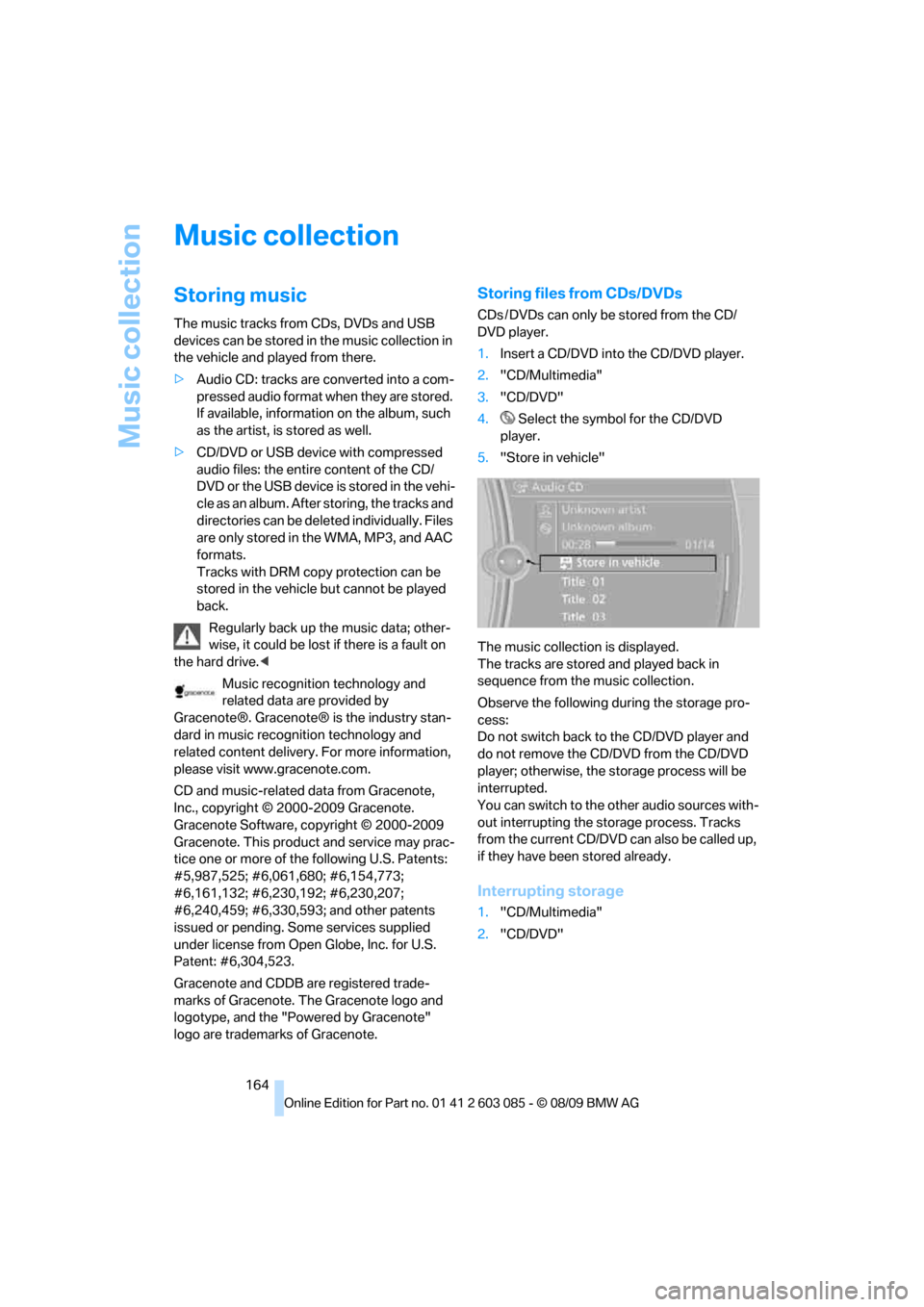
1.Insert a CD/DVD into the CD/DVD player.
2."CD/Multimedia"
3."CD/DVD"
4. Select the symbol for the CD/DVD
player.
5."Store in vehicle"
The music collection is displayed.
The tracks are stored and played back in
sequence from the music collection.
Observe the following during the storage pro-
cess:
Do not switch back to the CD/DVD player and
do not remove the CD/DVD from the CD/DVD
player; otherwise, the storage process will be
interrupted.
You can switch to the other audio sources with-
out interrupting the storage process. Tracks
from the current CD/DVD can also be called up,
if they have been stored already.
Interrupting storage
1."CD/Multimedia"
2."CD/DVD"
Page 167 of 266
Navigation
Entertainment
Driving tips
165Reference
At a glance
Controls
Communications
Mobility
3."Storing..."
4."Cancel storing"
The storage process is interrupted and can be
continued at any time.
Continuing the storage process
1."CD/Multimedia"
2."CD/DVD"
3. Select the symbol for the CD/DVD
player.
4."Continue storing"
Storage of the CD continues at the beginning of
the track at which storage was interrupted.
Album information
During storage, information such as the name
of the artist is stored with the track, if this infor-
mation is available in the vehicle database or on
the CD.
To update the database, contact your service
center.
Storing from a USB device
To store music, a suitable device must be con-
nected to the USB interface in the glove com-
partment.
>Suitable devices: USB mass storage
devices, such as USB flash drives or MP3
players with a USB interface.
>Unsuitable devices: USB hard drive, USB
hubs, USB memory card readers with multi-
ple inserts, Apple iPod/iPhone.
Music from a USB device can be stored
only via the USB interface in the glove
compartment.<1.Connect the USB device to the USB inter-
face in the glove compartment.
2."CD/Multimedia"
3."Music collection"
4.Open "Options".
5."Music data import/export"
6."Import music (USB)"
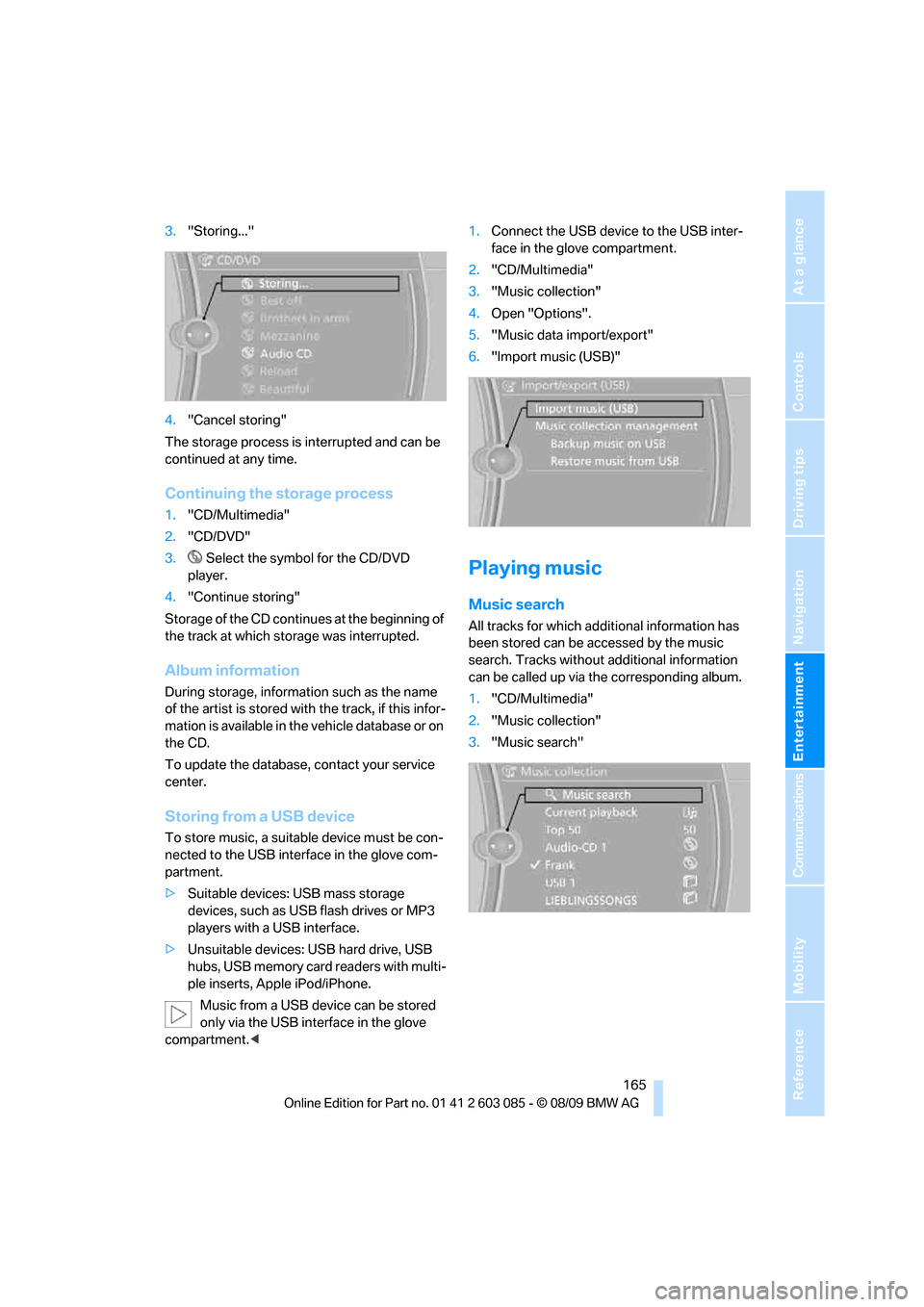
Playing music
Music search
All tracks for which additional information has
been stored can be accessed by the music
search. Tracks without additional information
can be called up via the corresponding album.
1."CD/Multimedia"
2."Music collection"
3."Music search"
Page 168 of 266
Music collection
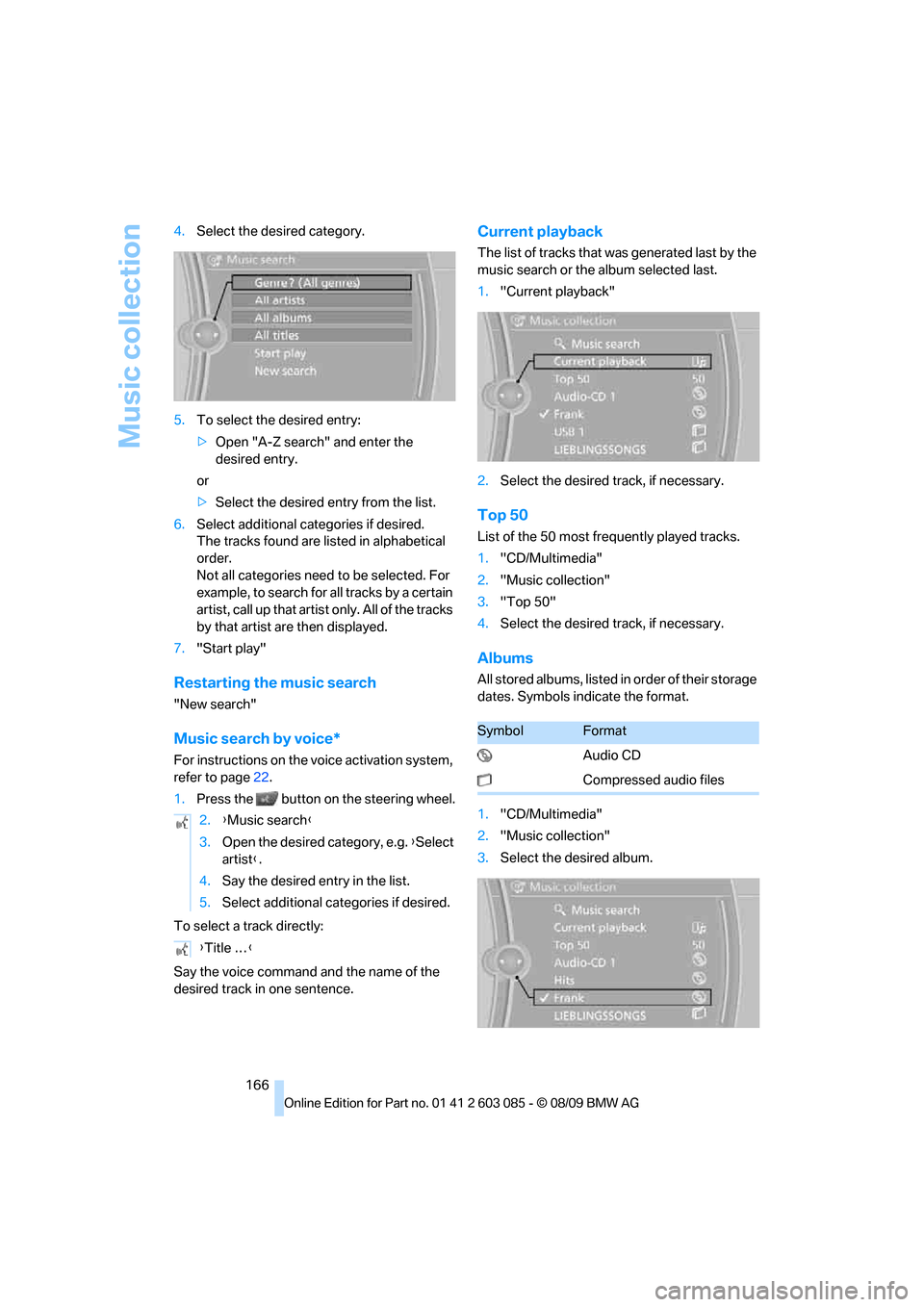
166 4.Select the desired category.
5.To select the desired entry:
>Open "A-Z search" and enter the
desired entry.
or
>Select the desired entry from the list.
6.Select additional categories if desired.
The tracks found are listed in alphabetical
order.
Not all categories need to be selected. For
example, to search for all tracks by a certain
artist, call up that artist only. All of the tracks
by that artist are then displayed.
7."Start play"
Restarting the music search
"New search"
Music search by voice*
For instructions on the voice activation system,
refer to page22.
1.Press the button on the steering wheel.
To select a track directly:
Say the voice command and the name of the
desired track in one sentence.
Current playback
The list of tracks that was generated last by the
music search or the album selected last.
1."Current playback"
2.Select the desired track, if necessary.
Top 50
List of the 50 most frequently played tracks.
1."CD/Multimedia"
2."Music collection"
3."Top 50"
4.Select the desired track, if necessary.
Albums
All stored albums, listed in order of their storage
dates. Symbols indicate the format.
1."CD/Multimedia"
2."Music collection"
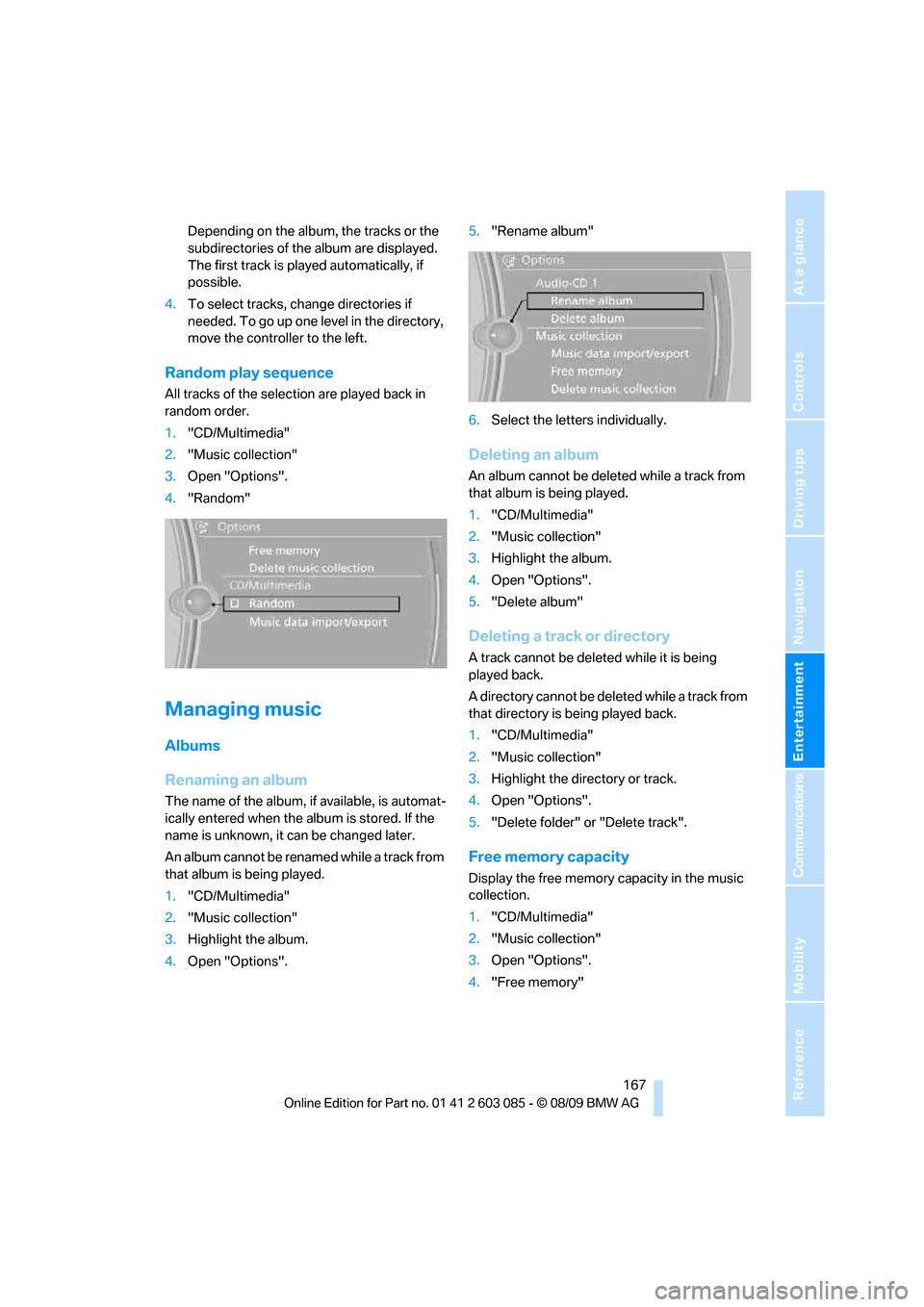
3.Select the desired album. 2.{Music search}
3.Open the desired category, e.g. {Select
artist}.
4.Say the desired entry in the list.
5.Select additional categories if desired.
{Title …}
SymbolFormat
Audio CD
Compressed audio files
Page 169 of 266
Navigation
Entertainment
Driving tips
167Reference
At a glance
Controls
Communications
Mobility
Depending on the album, the tracks or the
subdirectories of the album are displayed.
The first track is played automatically, if
possible.
4.To select tracks, change directories if
needed. To go up one level in the directory,
move the controller to the left.
Random play sequence
All tracks of the selection are played back in
random order.
1."CD/Multimedia"
2."Music collection"
3.Open "Options".
4."Random"
Managing music
Albums
Renaming an album
The name of the album, if available, is automat-
ically entered when the album is stored. If the
name is unknown, it can be changed later.
An album cannot be renamed while a track from
that album is being played.
1."CD/Multimedia"
2."Music collection"
3.Highlight the album.
4.Open "Options".5."Rename album"
6.Select the letters individually.
Deleting an album
An album cannot be deleted while a track from
that album is being played.
1."CD/Multimedia"
2."Music collection"
3.Highlight the album.
4.Open "Options".
5."Delete album"
Deleting a track or directory
A track cannot be deleted while it is being
played back.
A directory cannot be deleted while a track from
that directory is being played back.
1."CD/Multimedia"
2."Music collection"
3.Highlight the directory or track.
4.Open "Options".
5."Delete folder" or "Delete track".
Free memory capacity
Display the free memory capacity in the music
collection.
1."CD/Multimedia"
2."Music collection"
3.Open "Options".
4."Free memory"
Page 170 of 266
Music collection
168
Music collection
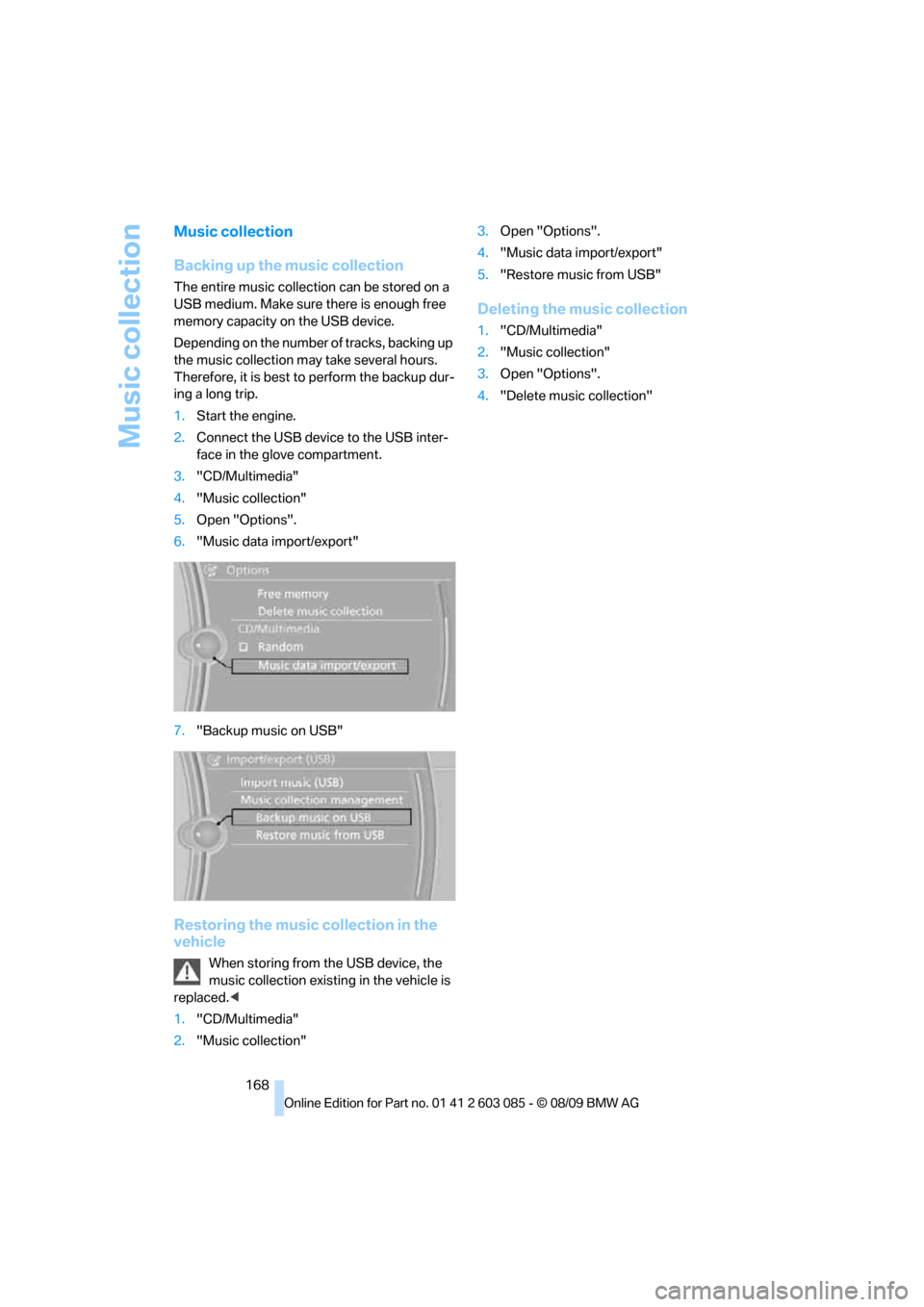
Backing up the music collection
The entire music collection can be stored on a
USB medium. Make sure there is enough free
memory capacity on the USB device.
Depending on the number of tracks, backing up
the music collection may take several hours.
Therefore, it is best to perform the backup dur-
ing a long trip.
1.Start the engine.
2.Connect the USB device to the USB inter-
face in the glove compartment.
3."CD/Multimedia"
4."Music collection"
5.Open "Options".
6."Music data import/export"
7."Backup music on USB"
Restoring the music collection in the
vehicle
When storing from the USB device, the
music collection existing in the vehicle is
replaced.<
1."CD/Multimedia"
2."Music collection"3.Open "Options".
4."Music data import/export"
5."Restore music from USB"
Deleting the music collection
1."CD/Multimedia"
2."Music collection"
3.Open "Options".
4."Delete music collection"
Page 244 of 266
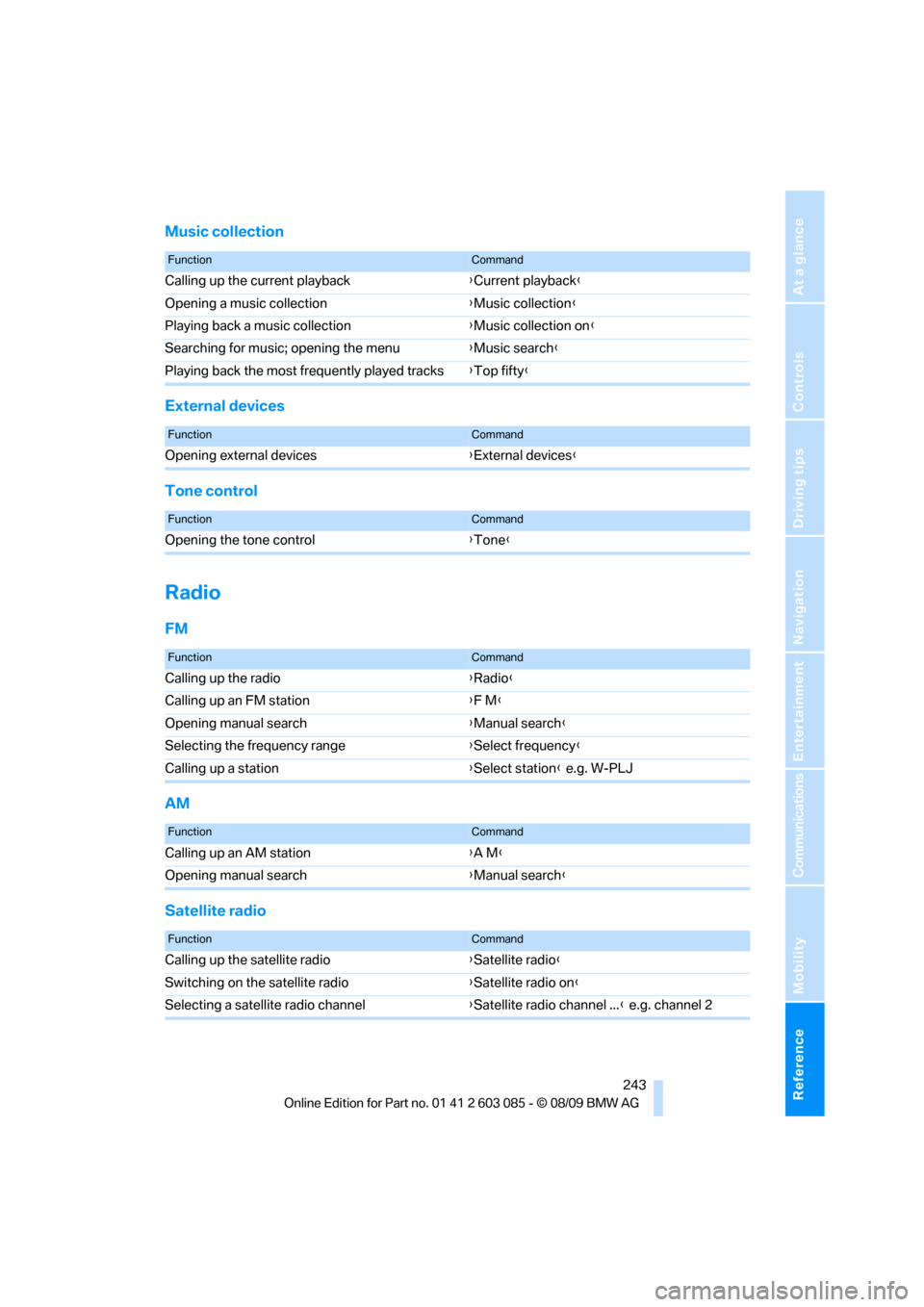
Short commands for the voice activation system
242
Short commands for the voice activation
system
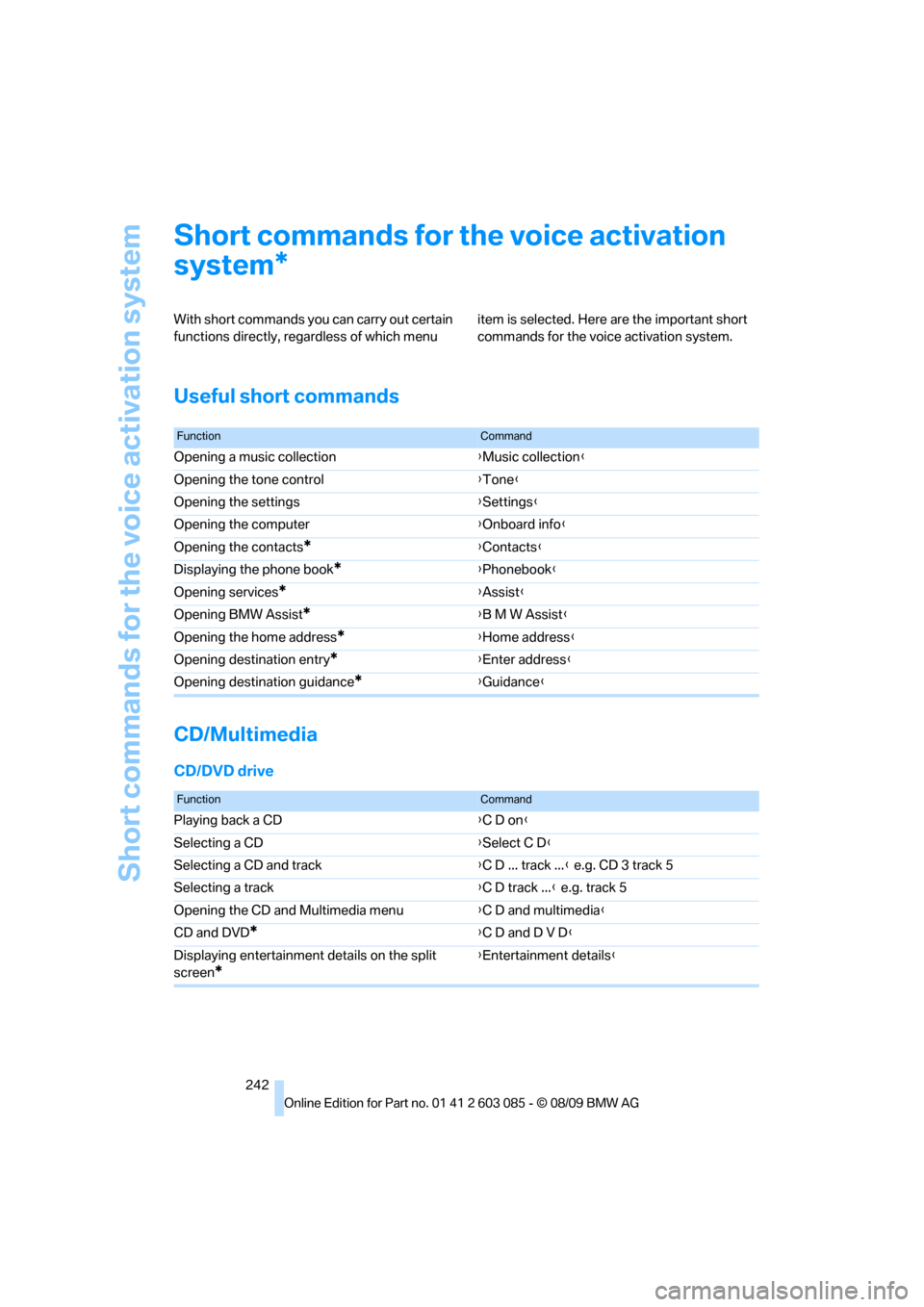
With short commands you can carry out certain
functions directly, regardless of which menu item is selected. Here are the important short
commands for the voice activation system.
Useful short commands
CD/Multimedia
CD/DVD drive
*
FunctionCommand
Opening a music collection{Music collection}
Opening the tone control{Tone}
Opening the settings{Settings}
Opening the computer{Onboard info}
Opening the contacts
*{Contacts}
Displaying the phone book
*{Phonebook}
Opening services
*{Assist}
Opening BMW Assist
*{B M W Assist}
Opening the home address
*{Home address}
Opening destination entry
*{Enter address}
Opening destination guidance
*{Guidance}
FunctionCommand
Playing back a CD{C D on}
Selecting a CD{Select C D}
Selecting a CD and track{C D ... track ...} e.g. CD 3 track 5
Selecting a track{C D track ...} e.g. track 5
Opening the CD and Multimedia menu{C D and multimedia}
CD and DVD
*{C D and D V D}
Displaying entertainment details on the split
screen
*
{Entertainment details}
Page 245 of 266
Reference 243
At a glance
Controls
Driving tips
Communications
Navigation
Entertainment
Mobility
Music collection
External devices
Tone control
Radio
FM
AM
Satellite radio
FunctionCommand
Calling up the current playback{Current playback}
Opening a music collection{Music collection}
Playing back a music collection{Music collection on}
Searching for music; opening the menu{Music search}
Playing back the most frequently played tracks{Top fifty}
FunctionCommand
Opening external devices{External devices}
FunctionCommand
Opening the tone control{Tone}
FunctionCommand
Calling up the radio{Radio}
Calling up an FM station{F M}
Opening manual search{Manual search}
Selecting the frequency range{Select frequency}
Calling up a station{Select station} e.g. W-PLJ
FunctionCommand
Calling up an AM station{A M}
Opening manual search{Manual search}
FunctionCommand
Calling up the satellite radio{Satellite radio}
Switching on the satellite radio{Satellite radio on}
Selecting a satellite radio channel{Satellite radio channel ...} e.g. channel 2
Page 250 of 266
Everything from A - Z
248
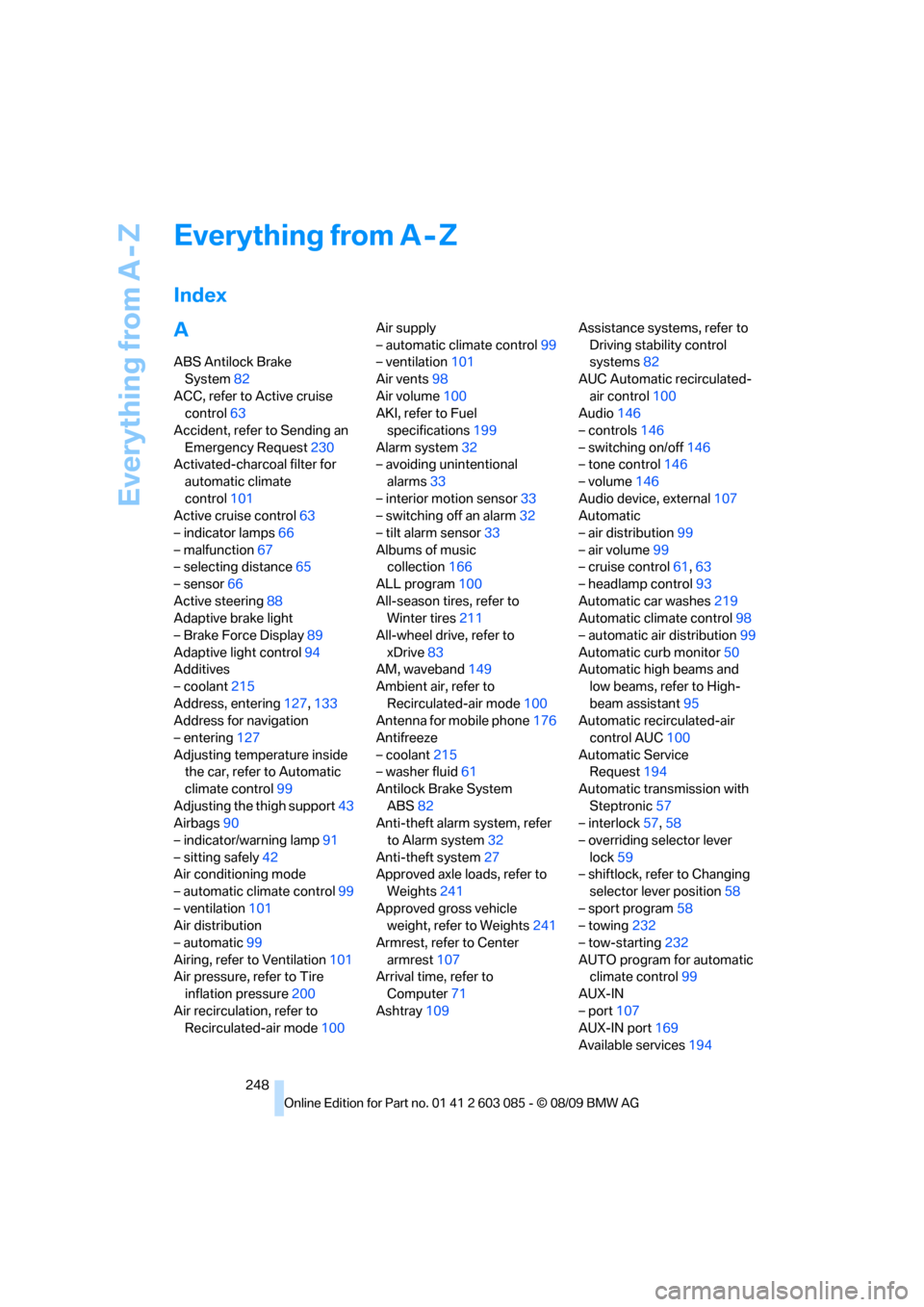
Everything from A - Z
Index
A
ABS Antilock Brake
System82
ACC, refer to Active cruise
control63
Accident, refer to Sending an
Emergency Request230
Activated-charcoal filter for
automatic climate
control101
Active cruise control63
– indicator lamps66
– malfunction67
– selecting distance65
– sensor66
Active steering88
Adaptive brake light
– Brake Force Display89
Adaptive light control94
Additives
– coolant215
Address, entering127,133
Address for navigation
– entering127
Adjusting temperature inside
the car, refer to Automatic
climate control99
Adjusting the thigh support43
Airbags90
– indicator/warning lamp91
– sitting safely42
Air conditioning mode
– automatic climate control99
– ventilation101
Air distribution
– automatic99
Airing, refer to Ventilation101
Air pressure, refer to Tire
inflation pressure200
Air recirculation, refer to
Recirculated-air mode100Air supply
– automatic climate control99
– ventilation101
Air vents98
Air volume100
AKI, refer to Fuel
specifications199
Alarm system32
– avoiding unintentional
alarms33
– interior motion sensor33
– switching off an alarm32
– tilt alarm sensor33
Albums of music
collection166
ALL program100
All-season tires, refer to
Winter tires211
All-wheel drive, refer to
xDrive83
AM, waveband149
Ambient air, refer to
Recirculated-air mode100
Antenna for mobile phone176
Antifreeze
– coolant215
– washer fluid61
Antilock Brake System
ABS82
Anti-theft alarm system, refer
to Alarm system32
Anti-theft system27
Approved axle loads, refer to
Weights241
Approved gross vehicle
weight, refer to Weights241
Armrest, refer to Center
armrest107
Arrival time, refer to
Computer71
Ashtray109Assistance systems, refer to
Driving stability control
systems82
AUC Automatic recirculated-
air control100
Audio146
– controls146
– switching on/off146
– tone control146
– volume146
Audio device, external107
Automatic
– air distribution99
– air volume99
– cruise control61,63
– headlamp control93
Automatic car washes219
Automatic climate control98
– automatic air distribution99
Automatic curb monitor50
Automatic high beams and
low beams, refer to High-
beam assistant95
Automatic recirculated-air
control AUC100
Automatic Service
Request194
Automatic transmission with
Steptronic57
– interlock57,58
– overriding selector lever
lock59
– shiftlock, refer to Changing
selector lever position58
– sport program58
– towing232
– tow-starting232
AUTO program for automatic
climate control
99
AUX-IN
– port107
AUX-IN port169
Available services194