run BMW 335I XDRIVE SEDAN 2011 Owner's Guide
[x] Cancel search | Manufacturer: BMW, Model Year: 2011, Model line: 335I XDRIVE SEDAN, Model: BMW 335I XDRIVE SEDAN 2011Pages: 286, PDF Size: 8.25 MB
Page 141 of 286
Navigation
Driving tips
139Reference
At a glance
Controls
Communications
Entertainment
Mobility
Starting the trip
After all intermediate destinations have been
entered:
"Start guidance"
Storing a trip
Up to 30 created trips can be stored in the trip
list.
1.Open "Options".
2."Store trip"
3.Enter the letters.
4."OK"
The trip is stored in the trip list under the
entered name.
Starting a stored trip
1."Navigation"
2."Stored trips"
3.Select the desired trip.
4."Start guidance"
Trips, changing
Changing the trip direction
Intermediate destinations can be displayed in
reverse order after destination guidance is
started.
1."Map"
2."Guidance"
3.Open "Options".
4."Reverse order of trip dest."
Rearranging the intermediate
destinations
1."Map"
2."Guidance"
3."Display all trip destinations"
4.Select an intermediate destination.
5."Reposition dest. in the trip"
Deleting an intermediate destination
1."Map"
2."Guidance"
3."Display all trip destinations"
4.Select an intermediate destination.
5."Delete dest. in the trip"
Deleting a trip
1."Navigation"
2."Stored trips"
3.Select the desired trip.
4.Open "Options".
5."Delete all trips" or "Delete trip".
Word-matching principle
The system's word-matching principle makes it
easier for you to enter the names of towns or
streets. The system runs ongoing checks, com-
paring your destination entries with the data
stored in the vehicle as the basis for instant
response. The benefits for you include:
>Names of towns entered may differ from the
official versions if you are using a spelling
that is customary in another country.
Example:
Instead of the German spelling "München"
you can also enter the English spelling
"Munich" or the Italian spelling "Monaco".
>When you are entering the names of towns
and streets the system will complete them
automatically as soon as enough letters are
available to ensure unambiguous identifica-
tion.
>The system offers only those letters for
selection of name entries that are stored in
the vehicle. Thus, entry of erroneous or
unregistered names is impossible.
Page 182 of 286
Telephone
180
Telephone
The concept
Your BMW is equipped with a full preparation
package mobile phone. After pairing a suitable
mobile phone with the vehicle once, you can
operate the mobile phone via the iDrive, the
buttons on the steering wheel or using voice
commands
*.
Once a mobile phone has been paired with your
vehicle, it is automatically recognized as soon
as it is inside the vehicle while the engine is run-
ning or the ignition is switched on. You can
store the pairing data for up to four mobile
phones simultaneously. If several mobile
phones are detected at the same time, the
mobile phone last paired can be operated via
the vehicle.
Using the telephone inside
the vehicle
Using the snap-in adapter*
The so-called snap-in adapter, a holder for
mobile phones, allows you to charge the mobile
phone's battery and connect the mobile phone
to your vehicle's outside antenna. This ensures
better network reception and consistent repro-
duction quality. Please contact your
BMW center to find out for which mobile
phones there are snap-in adapters available.
For your safety
A car phone makes life more convenient in
many ways, and can even save lives in an emer-
gency. While you should consult your mobile
phone's separate operating instructions for a
detailed description of safety precautions and
information, we request that you direct your
particular attention to the following:
Only make entries when the traffic situa-
tion allows you to do so. Do not hold the
mobile phone in your hand while you are driving;
use the hands-free system instead. If you do
not observe this precaution, your being dis-
tracted can endanger vehicle occupants and
other road users.<
Suitable mobile phones
Please ask your BMW center which mobile
phones with Bluetooth interface are supported
by the mobile phone preparation package and
which mobile phones are compatible with the
snap-in adapter. By virtue of their particular
software versions, these mobile phones sup-
port the functions described in this Owner's
Manual. Malfunctions may occur with other
mobile phones.
Operating options
You can operate the mobile phone using:
>Buttons on the steering wheel, refer to
page10
>iDrive, refer to page16
>Voice commands
*, refer to page189
>Programmable memory keys, refer to
page20
Avoid operating a mobile phone recognized
by the vehicle via the mobile phone's keypad;
otherwise, malfunctions may result.
*
Page 184 of 286
Telephone
182
Pairing
Depending on your mobile phone, you will see
messages, first on the mobile phone display or
on the iDrive, requesting you to enter the same
Bluetooth passkey previously determined by
you.
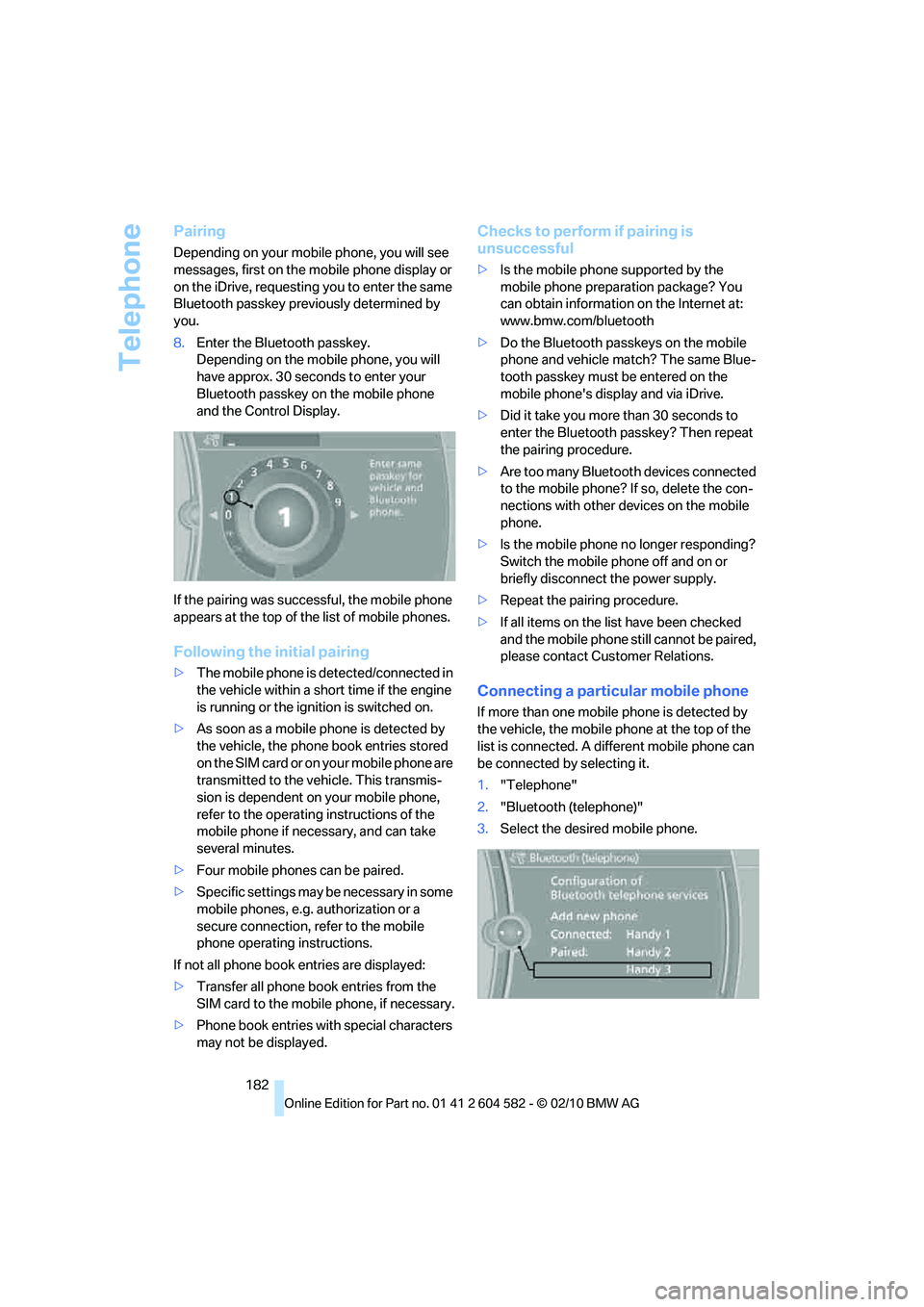
8.Enter the Bluetooth passkey.
Depending on the mobile phone, you will
have approx. 30 seconds to enter your
Bluetooth passkey on the mobile phone
and the Control Display.
If the pairing was successful, the mobile phone
appears at the top of the list of mobile phones.
Following the initial pairing
>The mobile phone is detected/connected in
the vehicle within a short time if the engine
is running or the ignition is switched on.
>As soon as a mobile phone is detected by
the vehicle, the phone book entries stored
on the SIM card or on your mobile phone are
transmitted to the vehicle. This transmis-
sion is dependent on your mobile phone,
refer to the operating instructions of the
mobile phone if necessary, and can take
several minutes.
>Four mobile phones can be paired.
>Specific settings may be necessary in some
mobile phones, e.g. authorization or a
secure connection, refer to the mobile
phone operating instructions.
If not all phone book entries are displayed:
>Transfer all phone book entries from the
SIM card to the mobile phone, if necessary.
>Phone book entries with special characters
may not be displayed.
Checks to perform if pairing is
unsuccessful
>Is the mobile phone supported by the
mobile phone preparation package? You
can obtain information on the Internet at:
www.bmw.com/bluetooth
>Do the Bluetooth passkeys on the mobile
phone and vehicle match? The same Blue-
tooth passkey must be entered on the
mobile phone's display and via iDrive.
>Did it take you more than 30 seconds to
enter the Bluetooth passkey? Then repeat
the pairing procedure.
>Are too many Bluetooth devices connected
to the mobile phone? If so, delete the con-
nections with other devices on the mobile
phone.
>Is the mobile phone no longer responding?
Switch the mobile phone off and on or
briefly disconnect the power supply.
>Repeat the pairing procedure.
>If all items on the list have been checked
and the mobile phone still cannot be paired,
please contact Customer Relations.
Connecting a particular mobile phone
If more than one mobile phone is detected by
the vehicle, the mobile phone at the top of the
list is connected. A different mobile phone can
be connected by selecting it.
1."Telephone"
2."Bluetooth (telephone)"
3.Select the desired mobile phone.
Page 186 of 286
Telephone
184
Operation via iDrive
You can operate the following functions using
iDrive:
>Accepting/rejecting calls
>dialing phone numbers
>Selecting phone numbers from the phone
book
>Selecting stored phone numbers, e.g. from
the list of received calls
>Ending a call
When the ignition is switched off or in radio
readiness, e.g. after taking the remote control
out of the ignition lock, you can continue an
ongoing call via the hands-free system for sev-
eral minutes.
Voice quality
If the person you are talking to is having difficul-
ties understanding you, this may be due to
excessive background noise. The full prepara-
tion package mobile phone can compensate for
these noises to a certain extent. To optimize
voice quality during a call, we recommend that
you:
>Reduce background noise, e.g. by closing
the windows, reducing air flow from the
automatic climate control or pointing the
open front air vents downward.
>Reduce the volume of the hands-free sys-
tem.
Requirements
>The mobile phone's pairing data are stored
by the vehicle and the mobile phone is oper-
ational.
>The engine is running or the ignition is
switched on.
>The mobile phone is recognized by the
vehicle.
Receiving calls
If you have the phone number of the caller
stored in the phone book and the phone num-
ber has been transmitted, the name of the entry
is displayed.
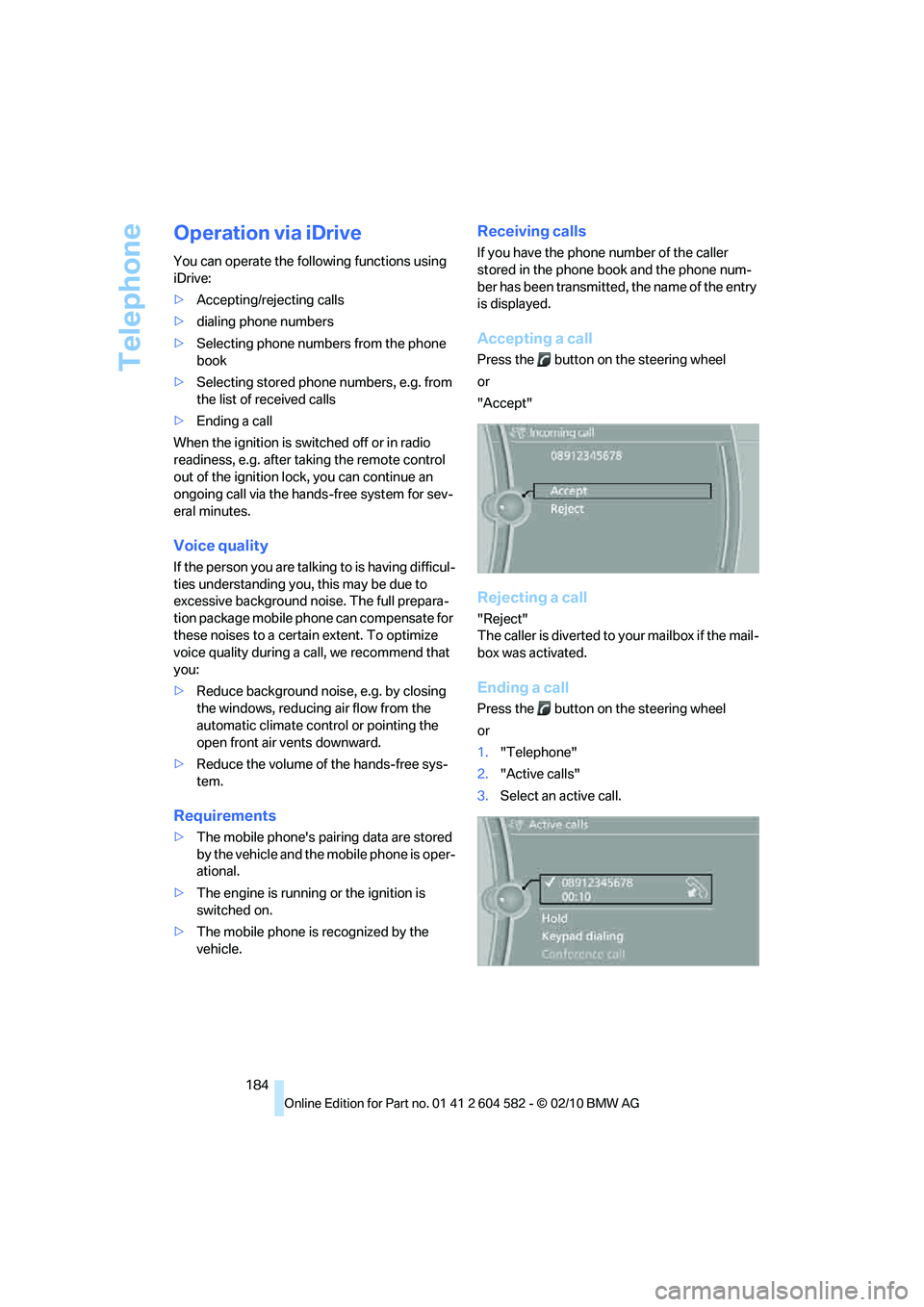
Accepting a call
Press the button on the steering wheel
or
"Accept"
Rejecting a call
"Reject"
The caller is diverted to your mailbox if the mail-
box was activated.
Ending a call
Press the button on the steering wheel
or
1."Telephone"
2."Active calls"
3.Select an active call.
Page 190 of 286
Telephone
188
Displaying messages
1."Telephone"
2."Messages"
3.Select the desired message.
My Info
To start destination guidance:
1.Select the message that contains the
desired destination.
2. "Start guidance" or "Add as another
dest.".
To dial the number in the message:
1.Select the message that contains the
desired number.
2. "Call"
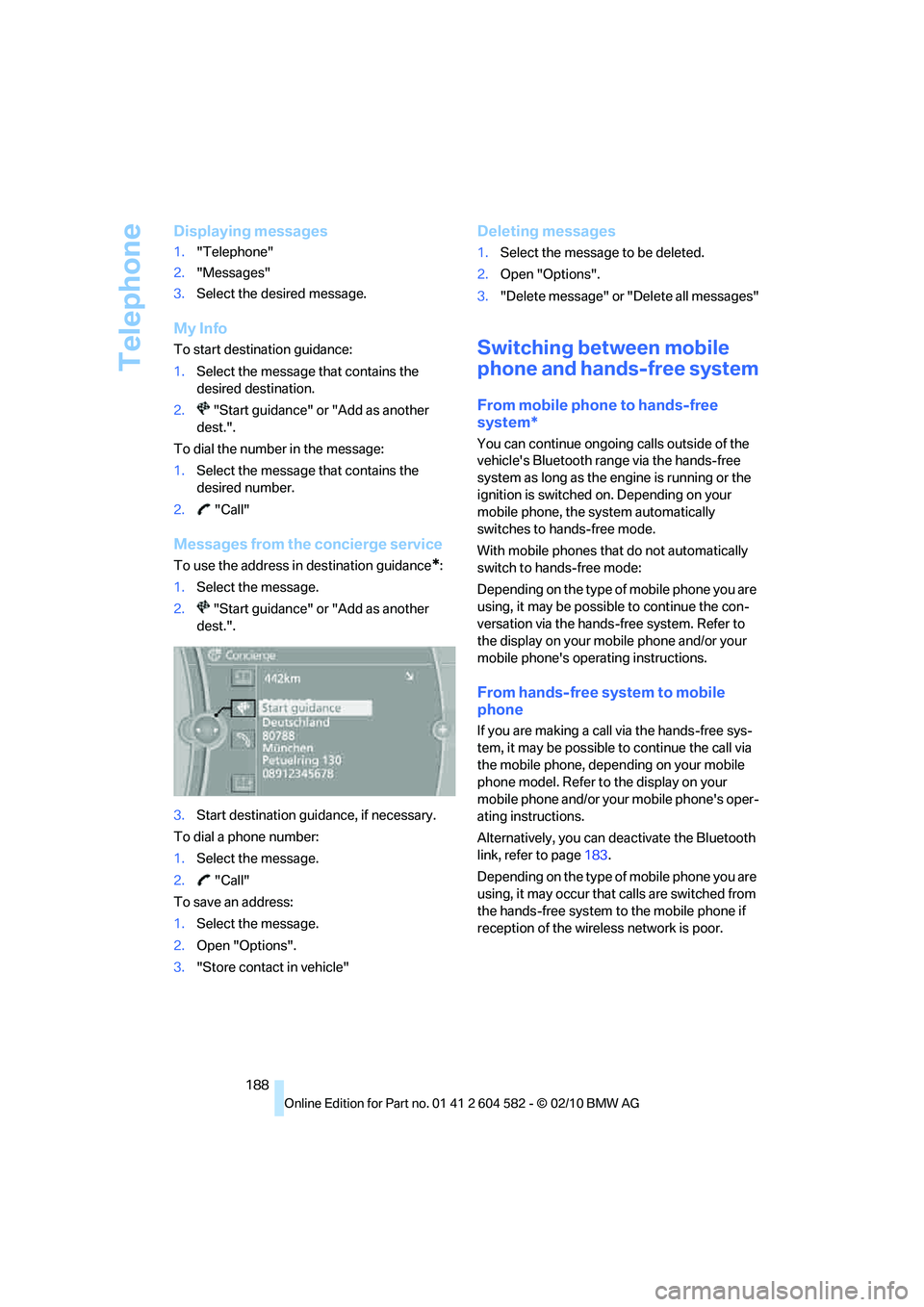
Messages from the concierge service
To use the address in destination guidance*:
1.Select the message.
2. "Start guidance" or "Add as another
dest.".
3.Start destination guidance, if necessary.
To dial a phone number:
1.Select the message.
2. "Call"
To save an address:
1.Select the message.
2.Open "Options".
3."Store contact in vehicle"
Deleting messages
1.Select the message to be deleted.
2.Open "Options".
3."Delete message" or "Delete all messages"
Switching between mobile
phone and hands-free system
From mobile phone to hands-free
system*
You can continue ongoing calls outside of the
vehicle's Bluetooth range via the hands-free
system as long as the engine is running or the
ignition is switched on. Depending on your
mobile phone, the system automatically
switches to hands-free mode.
With mobile phones that do not automatically
switch to hands-free mode:
Depending on the type of mobile phone you are
using, it may be possible to continue the con-
versation via the hands-free system. Refer to
the display on your mobile phone and/or your
mobile phone's operating instructions.
From hands-free system to mobile
phone
If you are making a call via the hands-free sys-
tem, it may be possible to continue the call via
the mobile phone, depending on your mobile
phone model. Refer to the display on your
mobile phone and/or your mobile phone's oper-
ating instructions.
Alternatively, you can deactivate the Bluetooth
link, refer to page183.
Depending on the type of mobile phone you are
using, it may occur that calls are switched from
the hands-free system to the mobile phone if
reception of the wireless network is poor.
Page 191 of 286
189
Entertainment
Reference
At a glance
Controls
Driving tips Communications
Navigation
Mobility
Operation by voice
commands*
The concept
>You can operate your mobile phone without
having to take a hand off the steering wheel.
>{...} Verbal instructions to use with the voice
activation system.
Requirements
The same prerequisites apply as for operation
via iDrive, refer to page184.
Saying commands
Activating voice activation system
1.Briefly press the button on the steering
wheel.
A sound signal indicates that you can say
commands.
2.Say the command.
Ending/canceling operation by voice
commands
Briefly press the button on the steering
wheel or
In dialogs not involving voice commands, i.e.
when you are speaking only text, e.g. a name,
canceling is possible only via the button on the
steering wheel.
Having the possible commands read
aloud
The system recognizes specific commands
that must be pronounced exactly word for word.
You can have the possible commands for any
function read aloud to you:
Digits from zero to nine are recognized.
You can say each digit individually or group
them into a sequence to accelerate the input.
Using alternative commands
Often there is more than a single command to
run a function, e.g.:
Example: dialing phone numbers
To start the dialog:
Press the button on the steering wheel.
{Cancel}.
{Help}.
{Dial name} or {Name}.
You sayVoice command response
{Dial number}{{Please say the number}}
e.g. {123 456 7890}Depending on your equipment version:
{{123 456 7890. Continue ?}}
{Dial}The system dials the displayed phone number.
Page 198 of 286
BMW Assist
196
TeleService*
TeleService supports communication with your
BMW center.
>Data on the vehicle's service requirements
can be sent directly to the BMW center. In
this way, the BMW center can plan its work
in advance. This shortens the duration of
the service appointment.
>In the event of a breakdown, data on the
vehicle's condition can be sent directly to
Roadside Assistance
*.
>The service varies by country.
>Connection may incur charges.
>Services may be restricted abroad.
Requirements
>BMW Assist is activated.
>Wireless reception is available.
>The engine is running.
Concierge service*
When you call the BMW Assist Concierge ser-
vice, you can obtain information about, for
example, restaurants, emergency pharmacy
services, gas stations or hotels, as well as
receive the corresponding telephone numbers
and addresses.
You can then dial a phone number directly or
use an address for destination guidance
*.
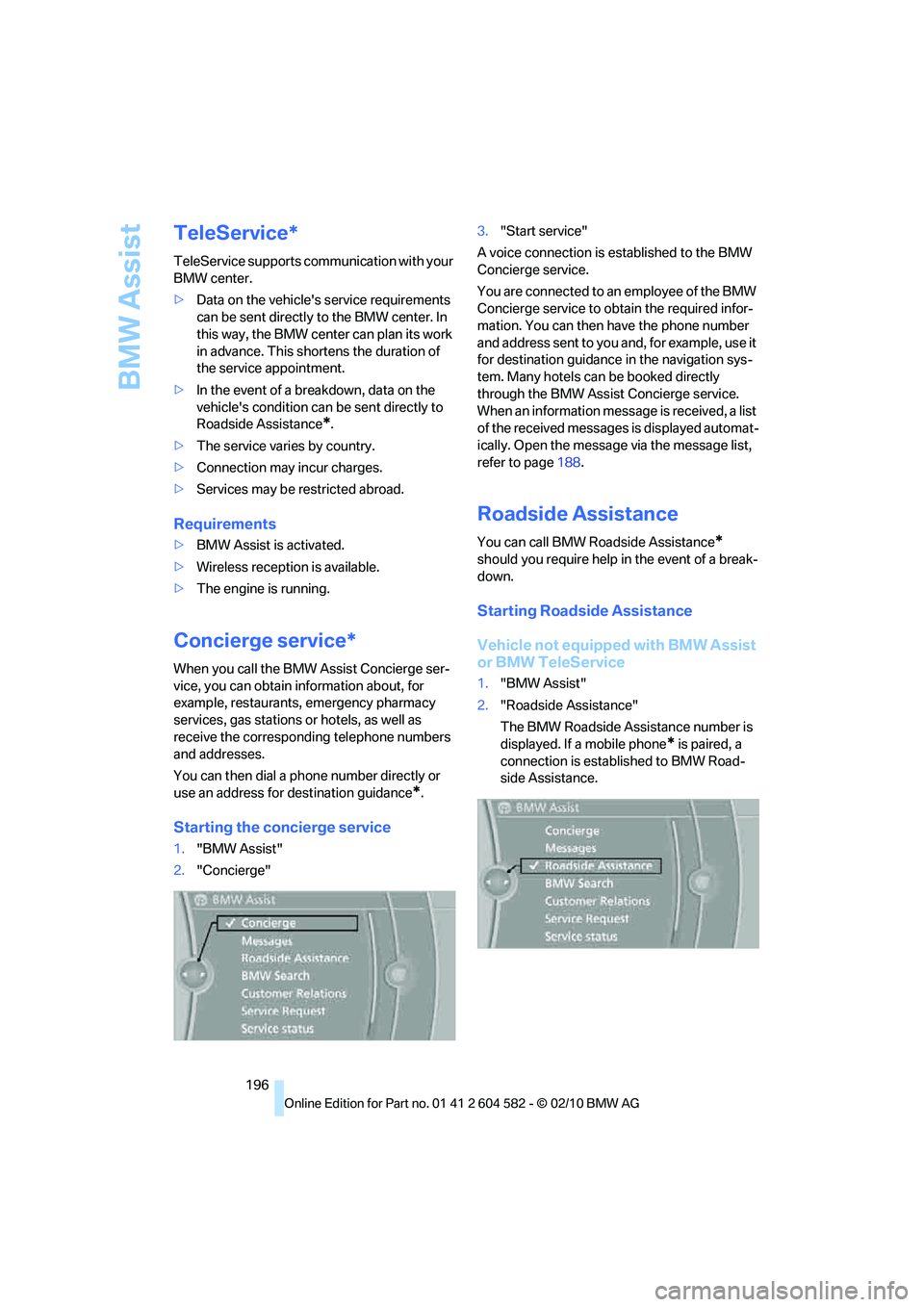
Starting the concierge service
1."BMW Assist"
2."Concierge"3."Start service"
A voice connection is established to the BMW
Concierge service.
You are connected to an employee of the BMW
Concierge service to obtain the required infor-
mation. You can then have the phone number
and address sent to you and, for example, use it
for destination guidance in the navigation sys-
tem. Many hotels can be booked directly
through the BMW Assist Concierge service.
When an information message is received, a list
of the received messages is displayed automat-
ically. Open the message via the message list,
refer to page188.
Roadside Assistance
You can call BMW Roadside Assistance*
should you require help in the event of a break-
down.
Starting Roadside Assistance
Vehicle not equipped with BMW Assist
or BMW TeleService
1."BMW Assist"
2."Roadside Assistance"
The BMW Roadside Assistance number is
displayed. If a mobile phone
* is paired, a
connection is established to BMW Road-
side Assistance.
Page 199 of 286
197
Entertainment
Reference
At a glance
Controls
Driving tips Communications
Navigation
Mobility
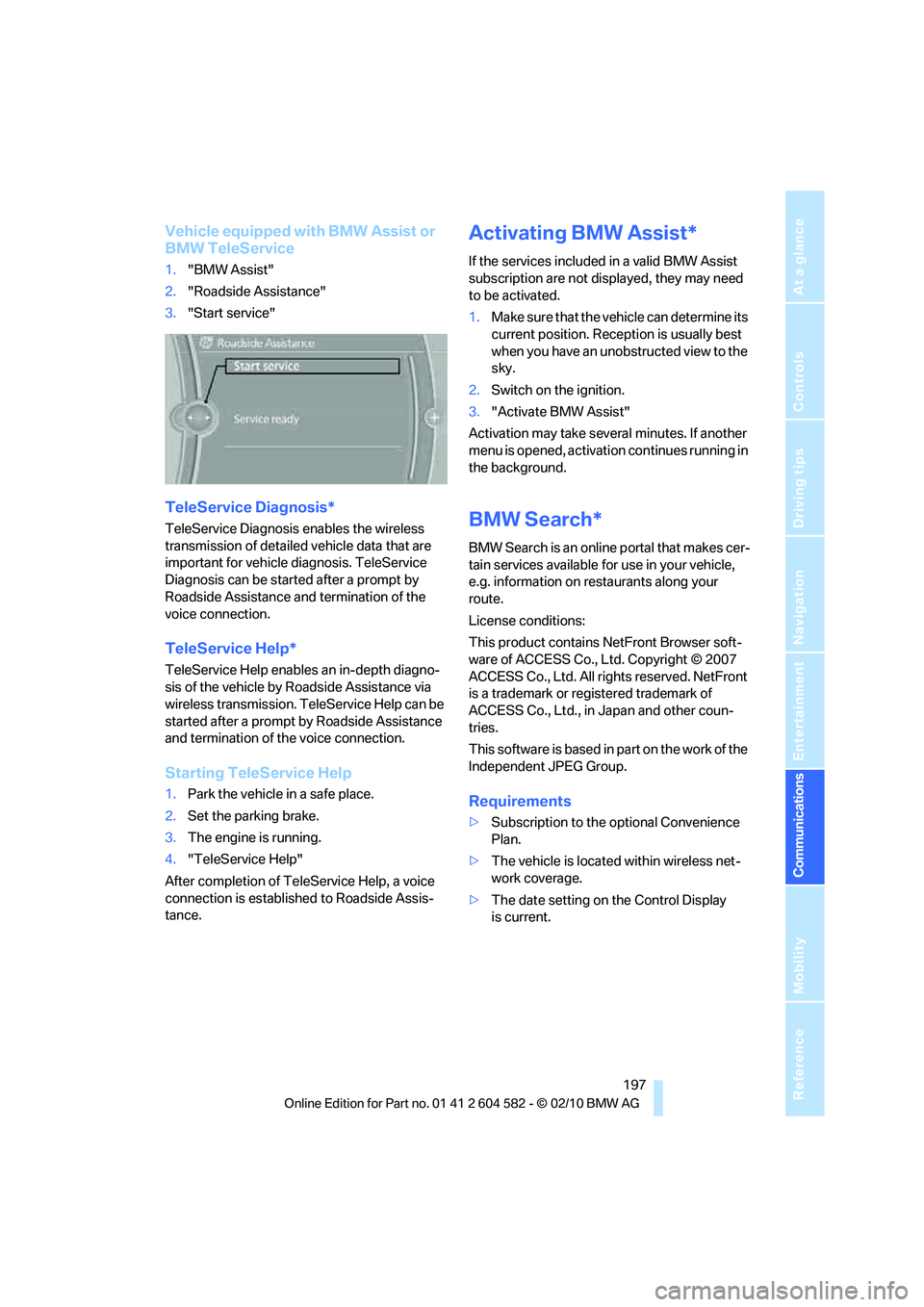
Vehicle equipped with BMW Assist or
BMW TeleService
1."BMW Assist"
2."Roadside Assistance"
3."Start service"
TeleService Diagnosis*
TeleService Diagnosis enables the wireless
transmission of detailed vehicle data that are
important for vehicle diagnosis. TeleService
Diagnosis can be started after a prompt by
Roadside Assistance and termination of the
voice connection.
TeleService Help*
TeleService Help enables an in-depth diagno-
sis of the vehicle by Roadside Assistance via
wireless transmission. TeleService Help can be
started after a prompt by Roadside Assistance
and termination of the voice connection.
Starting TeleService Help
1.Park the vehicle in a safe place.
2.Set the parking brake.
3.The engine is running.
4."TeleService Help"
After completion of TeleService Help, a voice
connection is established to Roadside Assis-
tance.
Activating BMW Assist*
If the services included in a valid BMW Assist
subscription are not displayed, they may need
to be activated.
1.Make sure that the vehicle can determine its
current position. Reception is usually best
when you have an unobstructed view to the
sky.
2.Switch on the ignition.
3."Activate BMW Assist"
Activation may take several minutes. If another
menu is opened, activation continues running in
the background.
BMW Search*
BMW Search is an online portal that makes cer-
tain services available for use in your vehicle,
e.g. information on restaurants along your
route.
License conditions:
This product contains NetFront Browser soft-
ware of ACCESS Co., Ltd. Copyright © 2007
ACCESS Co., Ltd. All rights reserved. NetFront
is a trademark or registered trademark of
ACCESS Co., Ltd., in Japan and other coun-
tries.
T hi s s o f t wa r e i s b a s e d i n p a r t o n t h e w o r k o f t he
Independent JPEG Group.
Requirements
>Subscription to the optional Convenience
Plan.
>The vehicle is located within wireless net-
work coverage.
>The date setting on the Control Display
is current.
Page 207 of 286
Mobility
205Reference
At a glance
Controls
Driving tips
Communications
Navigation
Entertainment
Diesel exhaust fluid at the
minimum level
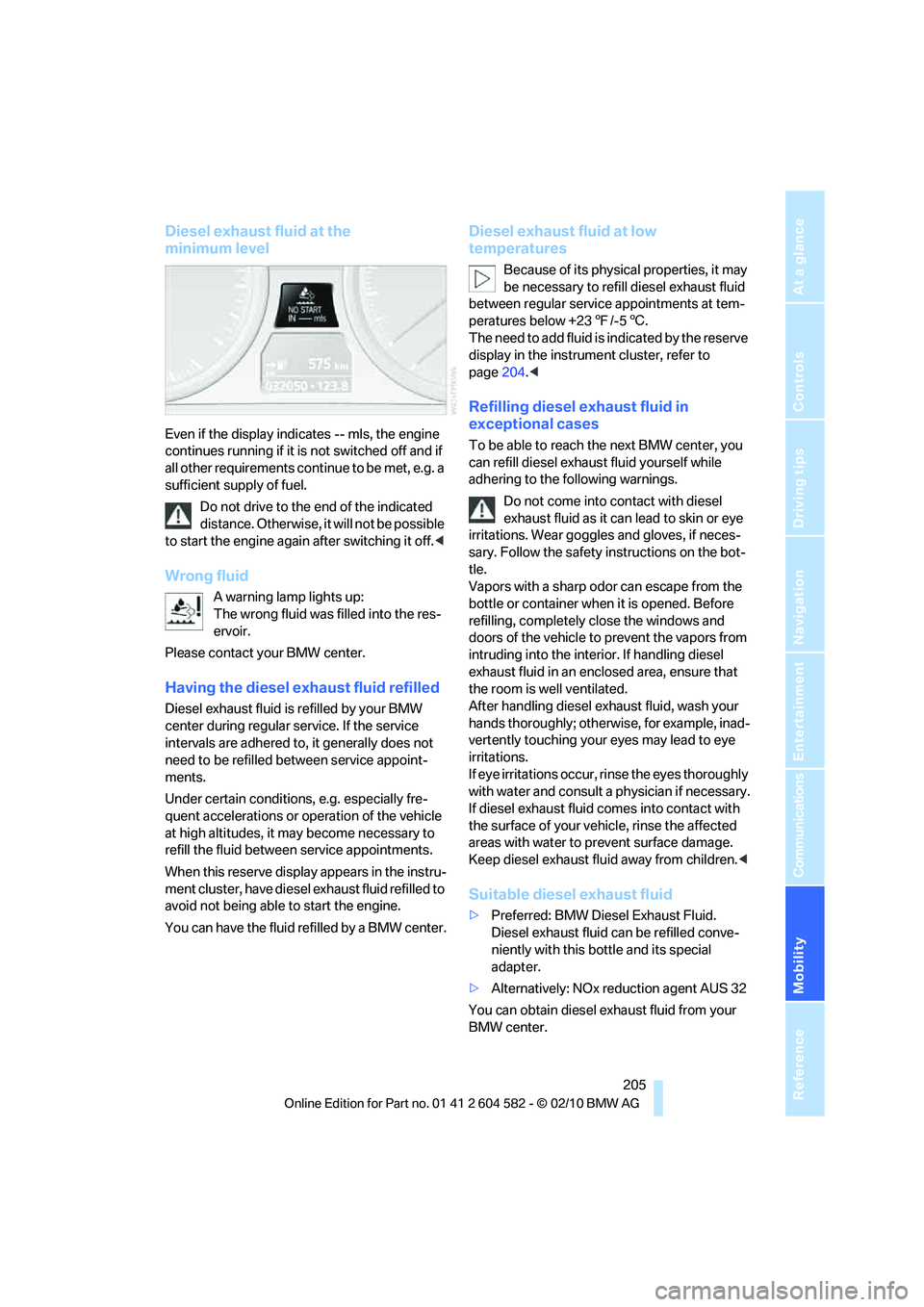
Even if the display indicates -- mls, the engine
continues running if it is not switched off and if
all other requirements continue to be met, e.g. a
sufficient supply of fuel.
Do not drive to the end of the indicated
distance. Otherwise, it will not be possible
to start the engine again after switching it off.<
Wrong fluid
A warning lamp lights up:
The wrong fluid was filled into the res-
ervoir.
Please contact your BMW center.
Having the diesel exhaust fluid refilled
Diesel exhaust fluid is refilled by your BMW
center during regular service. If the service
intervals are adhered to, it generally does not
need to be refilled between service appoint-
ments.
Under certain conditions, e.g. especially fre-
quent accelerations or operation of the vehicle
at high altitudes, it may become necessary to
refill the fluid between service appointments.
When this reserve display appears in the instru-
ment cluster, have diesel exhaust fluid refilled to
avoid not being able to start the engine.
You can have the fluid refilled by a BMW center.
Diesel exhaust fluid at low
temperatures
Because of its physical properties, it may
be necessary to refill diesel exhaust fluid
between regular service appointments at tem-
peratures below +237/-56.
The need to add fluid is indicated by the reserve
display in the instrument cluster, refer to
page204.<
Refilling diesel exhaust fluid in
exceptional cases
To be able to reach the next BMW center, you
can refill diesel exhaust fluid yourself while
adhering to the following warnings.
Do not come into contact with diesel
exhaust fluid as it can lead to skin or eye
irritations. Wear goggles and gloves, if neces-
sary. Follow the safety instructions on the bot-
tle.
Vapors with a sharp odor can escape from the
bottle or container when it is opened. Before
refilling, completely close the windows and
doors of the vehicle to prevent the vapors from
intruding into the interior. If handling diesel
exhaust fluid in an enclosed area, ensure that
the room is well ventilated.
After handling diesel exhaust fluid, wash your
hands thoroughly; otherwise, for example, inad-
vertently touching your eyes may lead to eye
irritations.
If eye irritations occur, rinse the eyes thoroughly
with water and consult a physician if necessary.
If diesel exhaust fluid comes into contact with
the surface of your vehicle, rinse the affected
areas with water to prevent surface damage.
Keep diesel exhaust fluid away from children.<
Suitable diesel exhaust fluid
>Preferred: BMW Diesel Exhaust Fluid.
Diesel exhaust fluid can be refilled conve-
niently with this bottle and its special
adapter.
>Alternatively: NOx reduction agent AUS 32
You can obtain diesel exhaust fluid from your
BMW center.
Page 210 of 286
Wheels and tires
208
Wheels and tires
Tire inflation pressures
Information for your safety
It is not merely the tires' service life, but also
driving comfort and, to a great extent, driving
safety that depend on the condition of the tires
and the maintenance of the specified tire pres-
sure.
Check the tire inflation pressure regularly
and correct it, if necessary: at least twice a
month and before starting long trips. If you fail
to observe this precaution you may be driving
on tires with incorrect tire pressures, a condi-
tion that can not only compromise your vehi-
cle's driving stability, but also lead to tire dam-
age and the risk of an accident. Do not drive
with deflated, i.e. flat tires, except when using
run-flat tires. A flat tire will seriously impair your
vehicle's handling and braking response.
Attempts to drive on a flat tire can lead to loss of
control over the vehicle.<
Checking pressure
Only check tire inflation pressure when the
tires are cold. This means after a maximum of
1.25 miles/2 km driving or when the vehicle has
been parked for at least 2 hours. When tires are
warm, the tire inflation pressure is higher.
After correcting the tire inflation pressure,
reset the Tire Pressure Monitor, refer to
page90, or reinitialize the Flat Tire Monitor,
refer to page88.<
Inflation pressure specifications
The tables below provide all the correct inflation
pressures for the specified tire sizes at ambient
temperature.
The inflation pressures apply to the tire
sizes approved and tire brands recom-
mended by BMW; a list of these is available
from your BMW center.<
For correct identification of the right tire infla-
tion pressures, observe the following:>Tire sizes for your vehicle
>Load conditions
>Maximum allowable driving speed
Tire inflation pressures for driving up
to 100 mph or 160 km/h
For normal driving up to 100 mph or 160 km/h
and to achieve optimum driving comfort, adjust
pressures to the respective tire inflation pres-
sures listed on the following pages in the col-
umns for traveling speeds up to a maximum of
100 mph or 160 km/h.
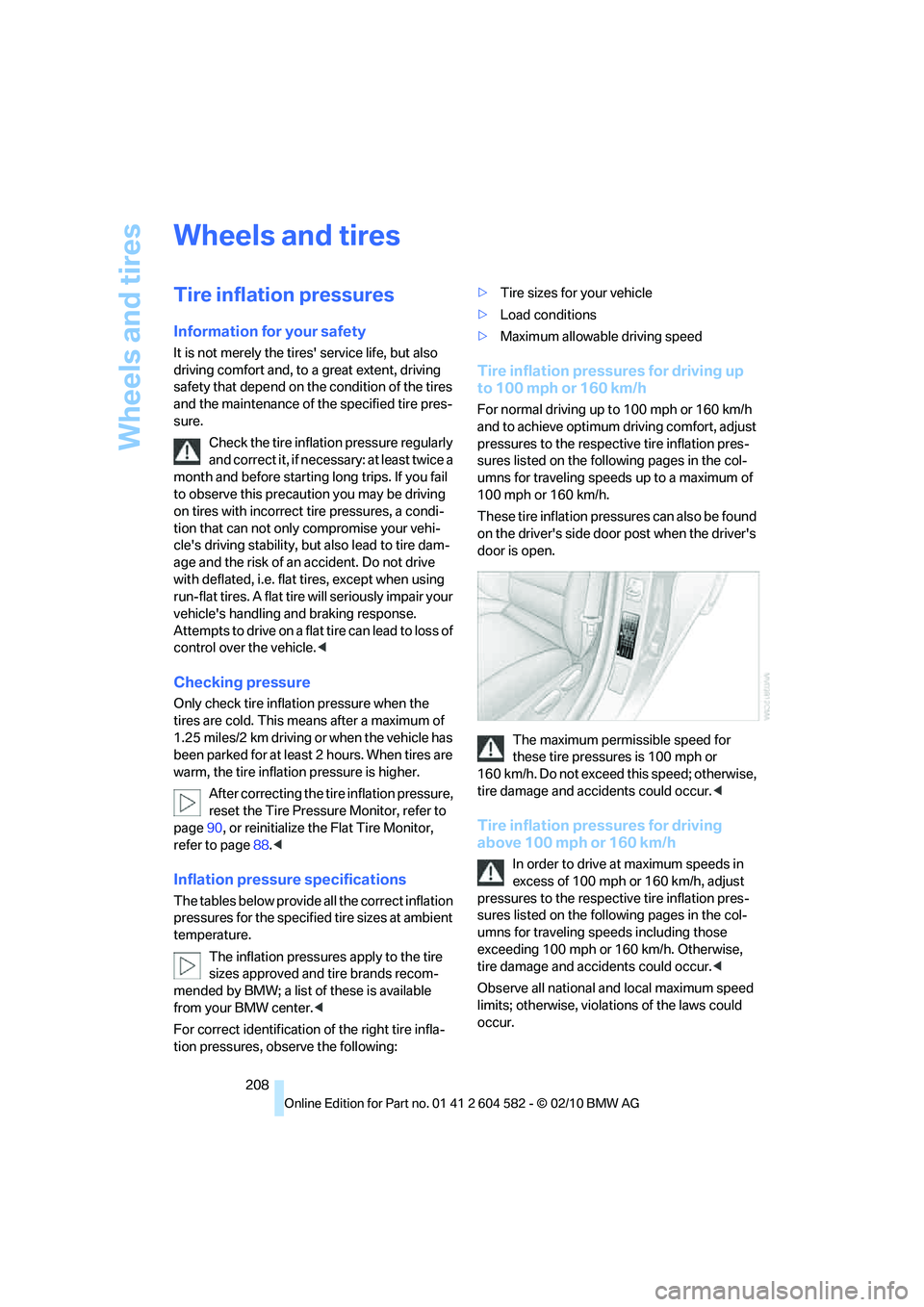
These tire inflation pressures can also be found
on the driver's side door post when the driver's
door is open.
The maximum permissible speed for
these tire pressures is 100 mph or
160 km/h. Do not exceed this speed; otherwise,
tire damage and accidents could occur.<
Tire inflation pressures for driving
above 100 mph or 160 km/h
In order to drive at maximum speeds in
excess of 100 mph or 160 km/h, adjust
pressures to the respective tire inflation pres-
sures listed on the following pages in the col-
umns for traveling speeds including those
exceeding 100 mph or 160 km/h. Otherwise,
tire damage and accidents could occur.<
Observe all national and local maximum speed
limits; otherwise, violations of the laws could
occur.