buttons BMW 335IS COUPE 2013 User Guide
[x] Cancel search | Manufacturer: BMW, Model Year: 2013, Model line: 335IS COUPE, Model: BMW 335IS COUPE 2013Pages: 308, PDF Size: 5.65 MB
Page 122 of 308
121
Practical interior accessories
Controls
3.
Hold the hand-held transmitter of the
device to be controlled approx. 1 in/2.5 cm
to 3 in/8 cm away from the buttons on the
inside mirror.
The required distance depends on the
hand-held transmitter.
4. Simultaneously press and hold the button
of the desired function on the hand-held
transmitter and the button to be pro-
grammed on the inside mirror.
The LED on the inside mirror will flash
slowly at first.
5. As soon as the LED flashes rapidly, release
both buttons. The rapid flashing indicates
that the button on the inside mirror has
been programmed.
If the LED does not flash rapidly within
60 seconds, change the distance between
the inside mirror and the hand-held trans-
mitter and repeat this step. This may
require several attempts. Allow at least
15 seconds between attempts.
6. To program additional functions on the
other buttons of the inside mirror, repeat
steps 3 through 5.
The buttons on the inside mirro r can be used to
operate the devices if the ignition is switched
on.
Special procedure with alternating-
code systems
If the device fails to function even after repeated
programming, check whether the device to be
controlled uses an alternating-code system.
To do so, either read the instructions for the
device or hold down the programmed button on
the inside mirror. If the LED on the inside mirror
flashes quickly at first and then remains lit for
2 seconds, the device uses an alternating-code
system. The LED flashes and lights up repeat-
edly for approx. 20 seconds.
In devices with an alternating-code system, the
Integrated universal remote control and the
device must also be synchronized. For information about synchronizing can also
be found in the operating instructions for the
device to be set.
Programming will be easier with the aid of a
second person.
Synchronizing:
1.
Park your vehicle within the range of the
remote-controlled device.
2. Program the Integrated universal remote
control as described above.
3. Locate and press the synchronization but-
ton on the device to be set. You have
approx. 30 seconds to perform the next
step.
4. Hold down the programmed button on the
inside mirror for approx. 3 seconds and then
release it. Repeat this operation, up to three
times if necessary, to complete the syn-
chronization. If the synchronization has
succeeded, the programmed function is
performed.
Reprogramming individual buttons
1.Switch on the ignition.
2. Hold the hand-held transmitter of the
device to be controlled approx. 1 in/2.5 cm
to 3 in/8 cm away from the buttons on the
inside mirror.
The required distance depends on the
hand-held transmitter.
3. Press the desired button on the inside mir-
ror.
4. If the LED on the inside mirror flashes
slowly after approx. 20 seconds, press the
transmit key of the hand-held transmitter.
5. As soon as the LED flashes rapidly, release
both buttons.
If the LED does not flash rapidly after
approx. 60 seconds, alter the distance and
repeat the step.
Canada: if the LED does not flash rapidly
after approx. 60 seconds, alter the distance
and repeat this step or, if the programming
00320051004F004C00510048000300280047004C0057004C005200510003
Page 123 of 308
122
ControlsPractical interior accessories
by means of the hand-held transmitter was
interrupted, hold down the button on the
inside mirror and then press and release the
button on the hand-held transmitter several
times, holding it down for 2 seconds each
time.
Operation
To prevent possible damage or injury,
before programming or using the inte-
grated universal remote control to operate a
device, always inspect the immediate area to
make certain that no people, animals or objects
are within the pivoting or travel range of the
device being operated.
Also follow the safety instructions supplied with
the hand-held transmitter.
door, if the engine is running or the ignition is
switched on. To do so, within the reception
range of the device, press the button of the
device until the function is triggered. The LED
on the inside mirror remains lit during transmis-
sion of the radio signal.Deleting stored functions
Simultaneously hold down the right and left
buttons on the inside mirror for approx. 20 sec-
onds until the LED on the inside mirror flashes
rapidly. All stored functions are deleted. The
functions cannot be deleted individually.
Digital compass
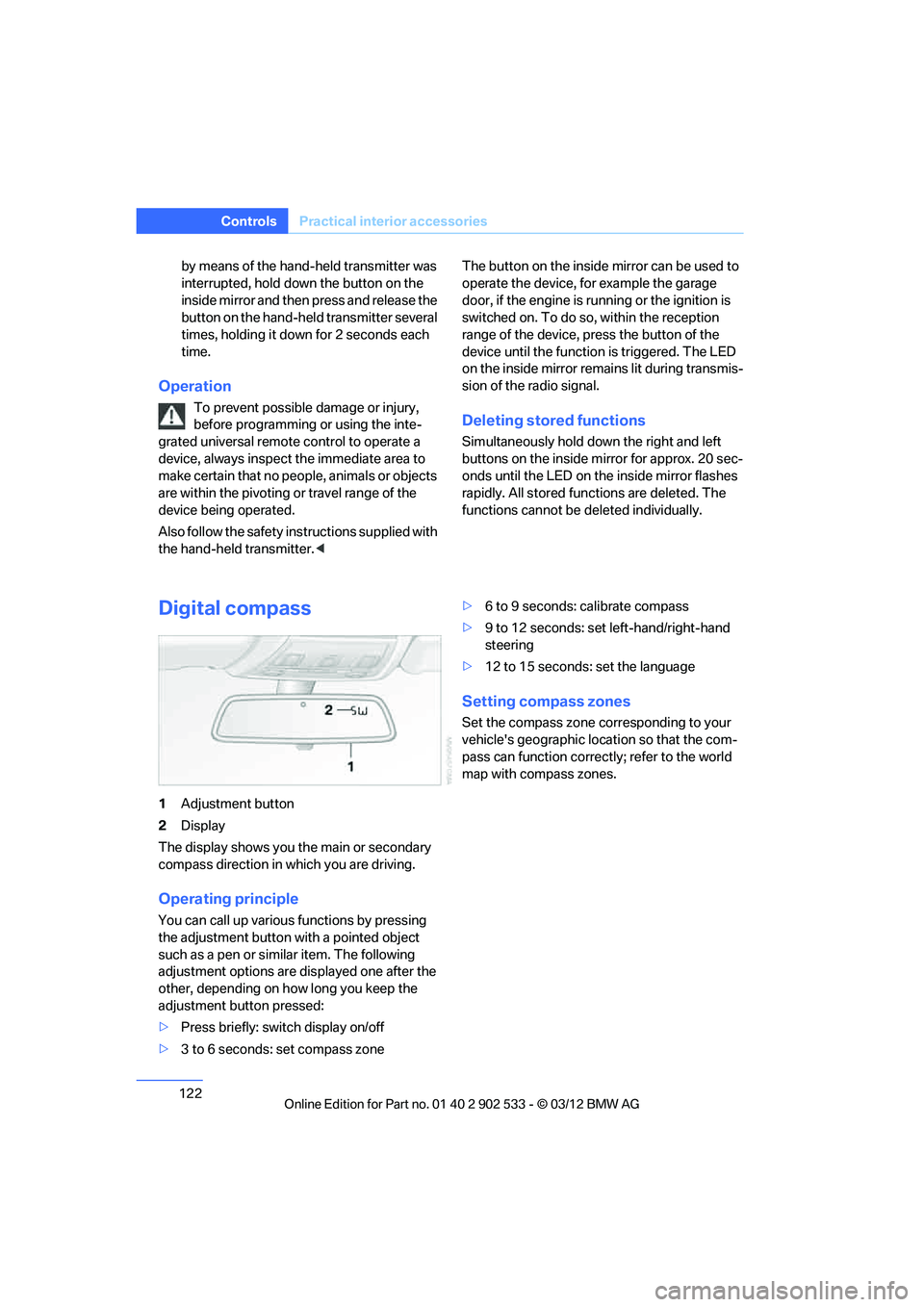
1
Adjustment button
2 Display
The display shows you the main or secondary
compass direction in which you are driving.
Operating principle
You can call up various functions by pressing
the adjustment button with a pointed object
such as a pen or similar item. The following
adjustment options are displayed one after the
other, depending on how long you keep the
adjustment button pressed:
> Press briefly: switch display on/off
> 3 to 6 seconds: set compass zone >
6 to 9 seconds: calibrate compass
> 9 to 12 seconds: set left-hand/right-hand
steering
> 12 to 15 seconds: set the language
Setting compass zones
Set the compass zone corresponding to your
vehicle's geographic location so that the com-
pass can function correctly; refer to the world
map with compass zones.
00320051004F004C00510048000300280047004C0057004C005200510003
Page 167 of 308
166
EntertainmentOn/off and tone
On/off and tone
Vehicle equipment
In this chapter, all production, country, and
optional equipment that is offered in the model
range is described. Equipment is also described
that is not available because of, for example,
selected options or country version. This also
applies to safety related functions and systems.
General information
The following audio and video sources share
the same control elements and adjustments:
>Radio
> CD/DVD player
> CD changer
> Video
> External devices, e.g. MP3 player
Controls
The audio and video sources can be controlled
using the:
>Buttons near the CD/DVD player
> iDrive
> Buttons on the steering wheel, refer to
page 11
> Programmable memory keys, refer to
page 23
> Voice activation system
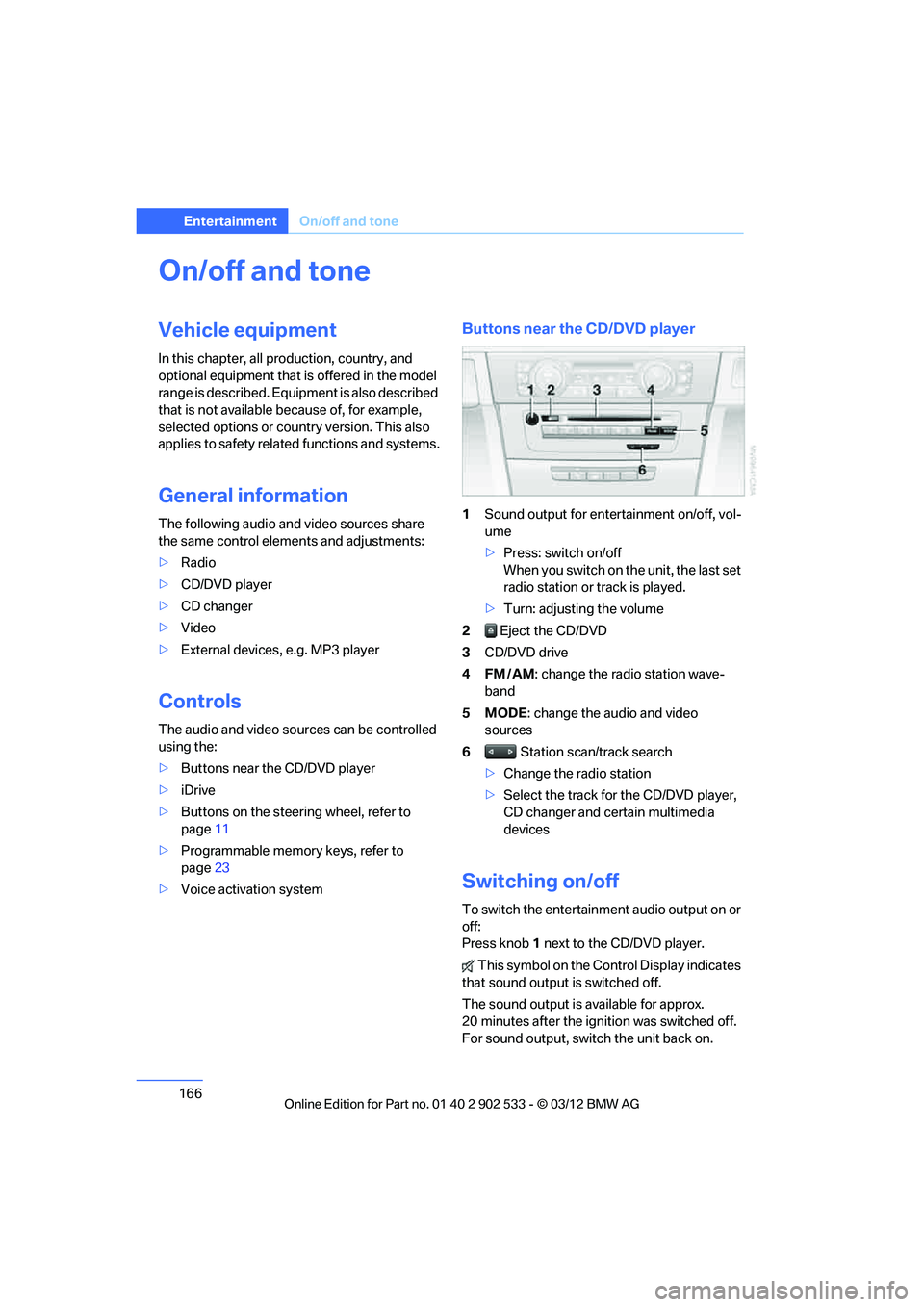
Buttons near the CD/DVD player
1Sound output for entertainment on/off, vol-
ume
>Press: switch on/off
When you switch on the unit, the last set
radio station or track is played.
> Turn: adjusting the volume
2 Eject the CD/DVD
3 CD/DVD drive
4FM/AM : change the radio station wave-
band
5MODE : change the audio and video
sources
6 Station scan/track search
> Change the radio station
> Select the track for the CD/DVD player,
CD changer and certain multimedia
devices
Switching on/off
To switch the entertainment audio output on or
off:
Press knob 1 next to the CD/DVD player.
This symbol on the Control Display indicates
that sound output is switched off.
The sound output is available for approx.
20 minutes after the ignition was switched off.
For sound output, switch the unit back on.
00320051004F004C00510048000300280047004C0057004C005200510003
Page 168 of 308
167
On/off and tone
Entertainment
Adjusting volume
Turn knob
1 next to the CD/DVD player until the
desired volume is obtained.
You can also adjust the volume with buttons on
the steering wheel, refer to page 11.
Setting tone controls
You can alter various tone settings, e.g. treble
and bass or the speed-dependent volume
increase.
The tone settings are set for all audio sources at
once.
The settings are stored for the remote control
currently in use.
Treble, bass, balance, fader
> "Treble": treble adjustment.
> "Bass": bass adjustment.
> "Balance": left/right volume distribution
> "Fader": front/rear volume distribution
Adjustments
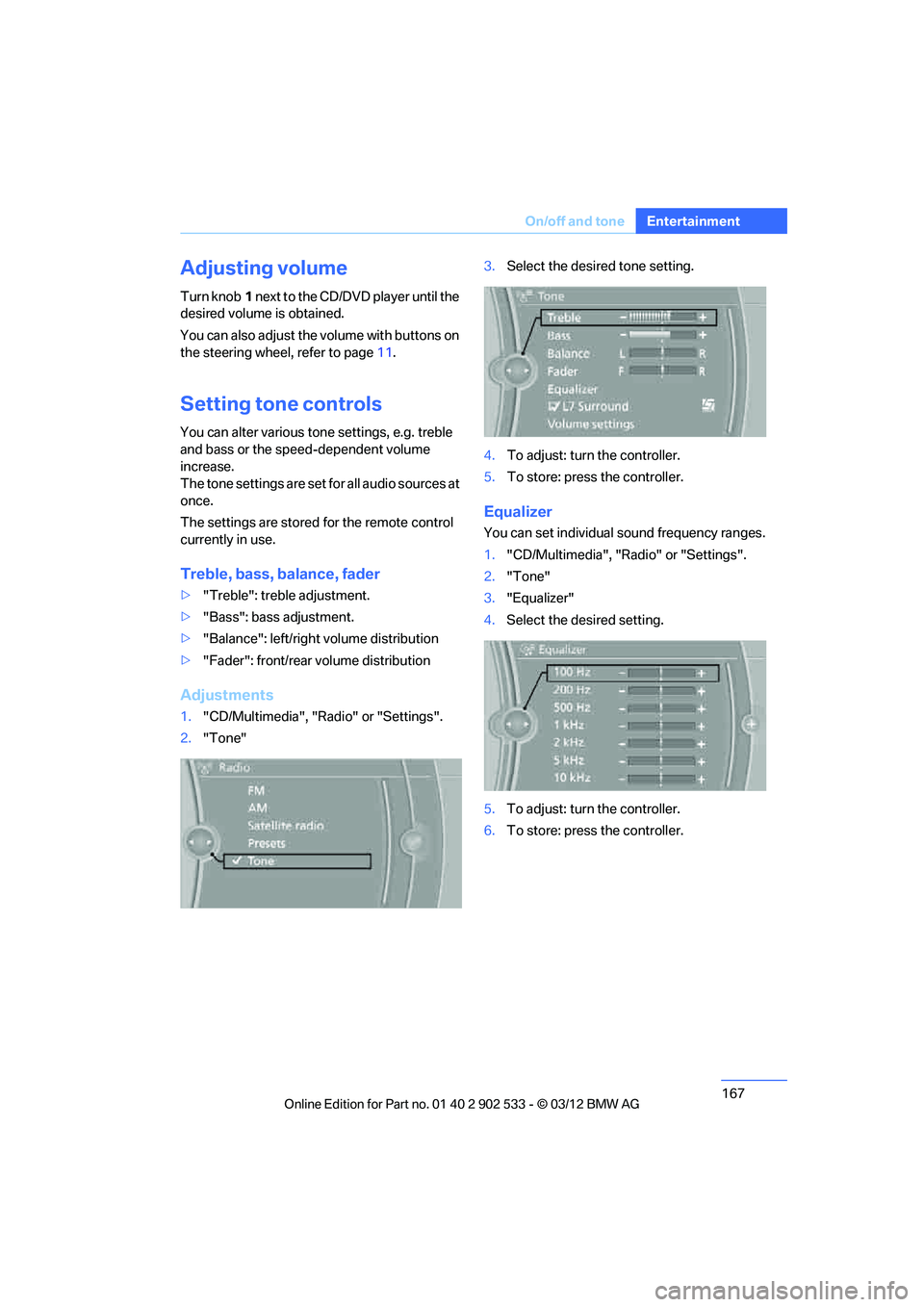
1."CD/Multimedia", "Radio" or "Settings".
2. "Tone" 3.
Select the desired tone setting.
4. To adjust: turn the controller.
5. To store: press the controller.
Equalizer
You can set individual sound frequency ranges.
1."CD/Multimedia", "Radio" or "Settings".
2. "Tone"
3. "Equalizer"
4. Select the desired setting.
5. To adjust: turn the controller.
6. To store: press the controller.
00320051004F004C00510048000300280047004C0057004C005200510003
Page 170 of 308
169
Radio
Entertainment
Radio
Vehicle equipment
In this chapter, all production, country, and
optional equipment that is offered in the model
range is described. Equipment is also described
that is not available because of, for example,
selected options or country version. This also
applies to safety related functions and systems.
General information
Your radio is designed for reception of the fol-
lowing stations:
>
FM and AM
> HD Radio
> Satellite radio
Selecting a station
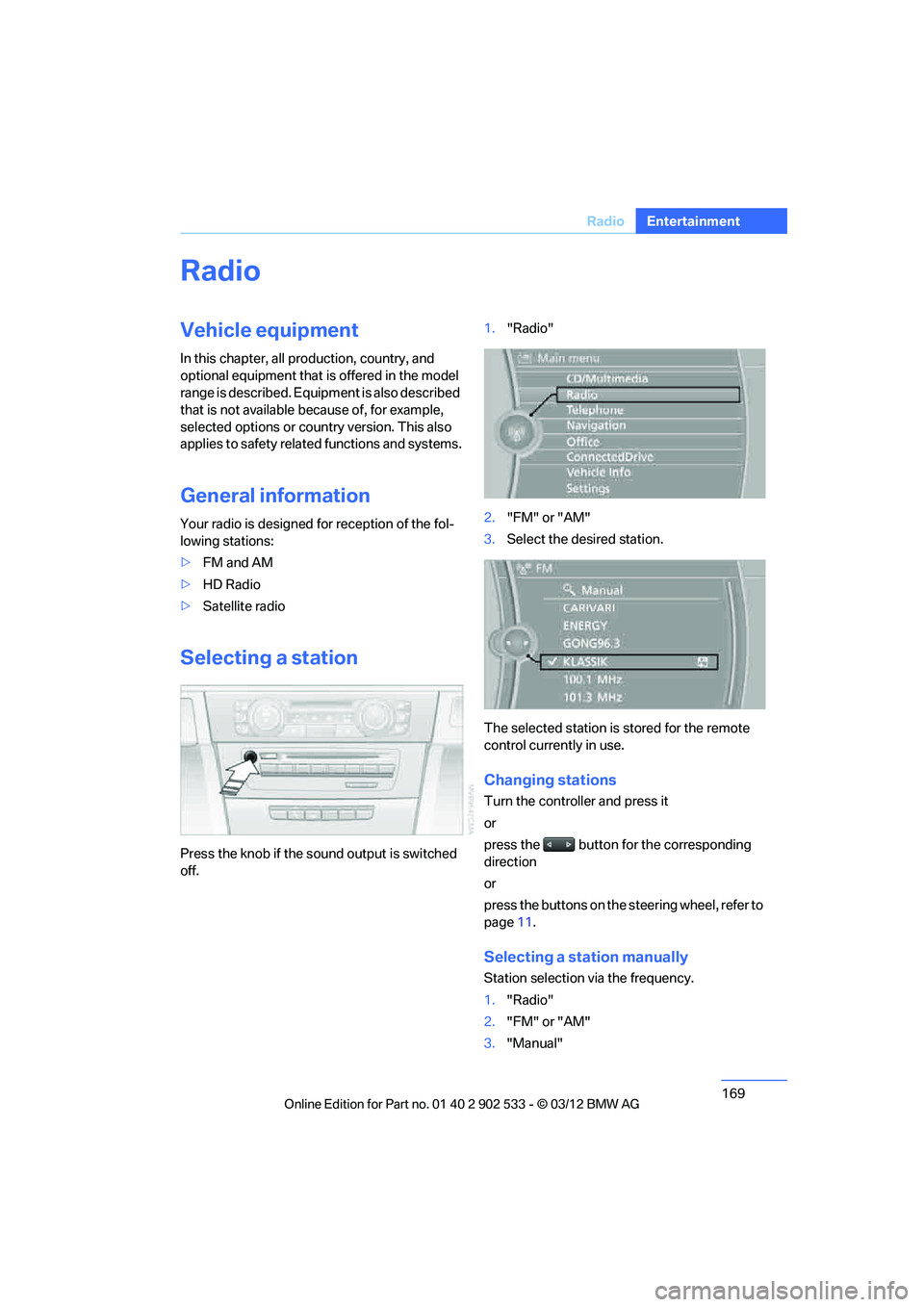
Press the knob if the sound output is switched
off. 1.
"Radio"
2. "FM" or "AM"
3. Select the desired station.
The selected station is stored for the remote
control currently in use.
Changing stations
Turn the controller and press it
or
press the button for the corresponding
direction
or
press the buttons on the steering wheel, refer to
page 11.
Selecting a station manually
Station selection via the frequency.
1. "Radio"
2. "FM" or "AM"
3. "Manual"
00320051004F004C00510048000300280047004C0057004C005200510003
Page 173 of 308
172
EntertainmentSatellite radio
Satellite radio
Vehicle equipment
In this chapter, all production, country, and
optional equipment that is offered in the model
range is described. Equipment is also described
that is not available because of, for example,
selected options or country version. This also
applies to safety related functions and systems.
General information
The channels are offered in fixed packages.
Packages must be activated by telephone.
Navigation bar
The functions of the navigation bar symbols can
also be stored on the programmable memory
buttons, refer to page 23.
Managing subscription
Clear reception is required for activating and
deactivating channels. Reception is best when
you have an unobstructed view to the sky. The
channel name is displayed in the status line.
Activating channels
The Unsubscribed Channels category contains
all disabled channels.
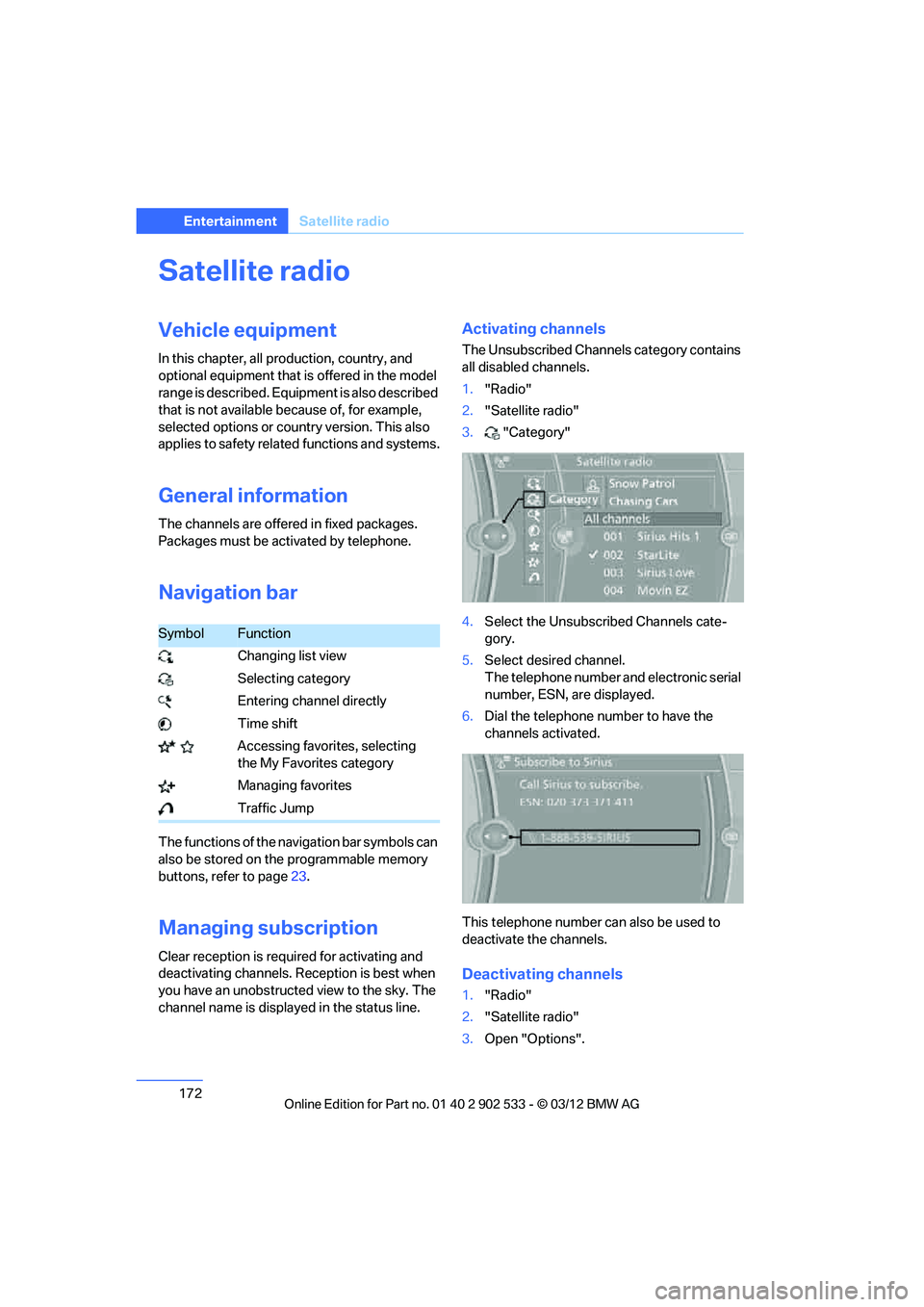
1. "Radio"
2. "Satellite radio"
3. "Category"
4. Select the Unsubscribed Channels cate-
gory.
5. Select desired channel.
The telephone number and electronic serial
number, ESN, are displayed.
6. Dial the telephone number to have the
channels activated.
This telephone number can also be used to
deactivate the channels.
Deactivating channels
1. "Radio"
2. "Satellite radio"
3. Open "Options".
SymbolFunction
Changing list view
Selecting category
Entering channel directly
Time shift
Accessing favorites, selecting the My Favorites category
Managing favorites
Traffic Jump
00320051004F004C00510048000300280047004C0057004C005200510003
Page 201 of 308
200
CommunicationsTe l e p h o n e
Telephone
Vehicle equipment
In this chapter, all production, country, and
optional equipment that is offered in the model
range is described. Equipment is also described
that is not available because of, for example,
selected options or country version. This also
applies to safety related functions and systems.
Overview
The concept
Mobile phones or other external devices, e.g.
audio players, can be connected to the vehicle
via Bluetooth.
Bluetooth® is a registered trademark of Blue-
tooth® SIG, Inc.
After being paired once, when the ignition is
switched on, these devices are automatically
detected as soon as they are present in the
vehicle and can be controlled via iDrive, by the
buttons on the steering wheel, and by voice.
Depending on whether they are functioning as a
telephone and/or as an audio source, external
devices can be used via the vehicle. The tele-
phone functions will be described below. Oper-
ation of audio functions, refer to page 192.
Up to four external devices can be paired.
It may be necessary for some functions to be
activated by the mobile phone provider or ser-
vice provider. Only make entries when traffic conditions
permit. Do not hold the mobile phone in
your hand while you are driving; use the hands-
free system instead. Otherwise, you may
endanger vehicle occupants and other road
users. <
Snap-in adapter
The snap-in adapter makes it possible:
>Accommodate the mobile phone.
> Recharge its battery.
> Connect it to an external antenna of the
vehicle.
This assures a better network connection
and constant sound quality.
Suitable mobile phones
For precise information about which mobile
phones and external devices with a Bluetooth
interface are supported by the mobile phone
preparation, go to www.bmwusa.com/blue-
tooth.
Displaying vehicle identification
number and software part number
Checking which mobile phones are supported
by the mobile phone preparation requires the
vehicle identification number and software part
number. The software version of the mobile
phone may also be required.
1."Telephone"
2. Open "Options".
3. "Bluetooth® info"
4. "Display system information"
With a certain software version, these suitable
mobile phones support the vehicle functions
described below.
With other mobile phones or software versions,
malfunctions may occur.
A mobile phone that is connected to the vehicle
should not be operated via the mobile phone
keypad; otherwise, malfunctions may occur.
It is possible to perform a software update, refer
to page 196.
00320051004F004C00510048000300280047004C0057004C005200510003
Page 213 of 308
212
CommunicationsTe l e p h o n e
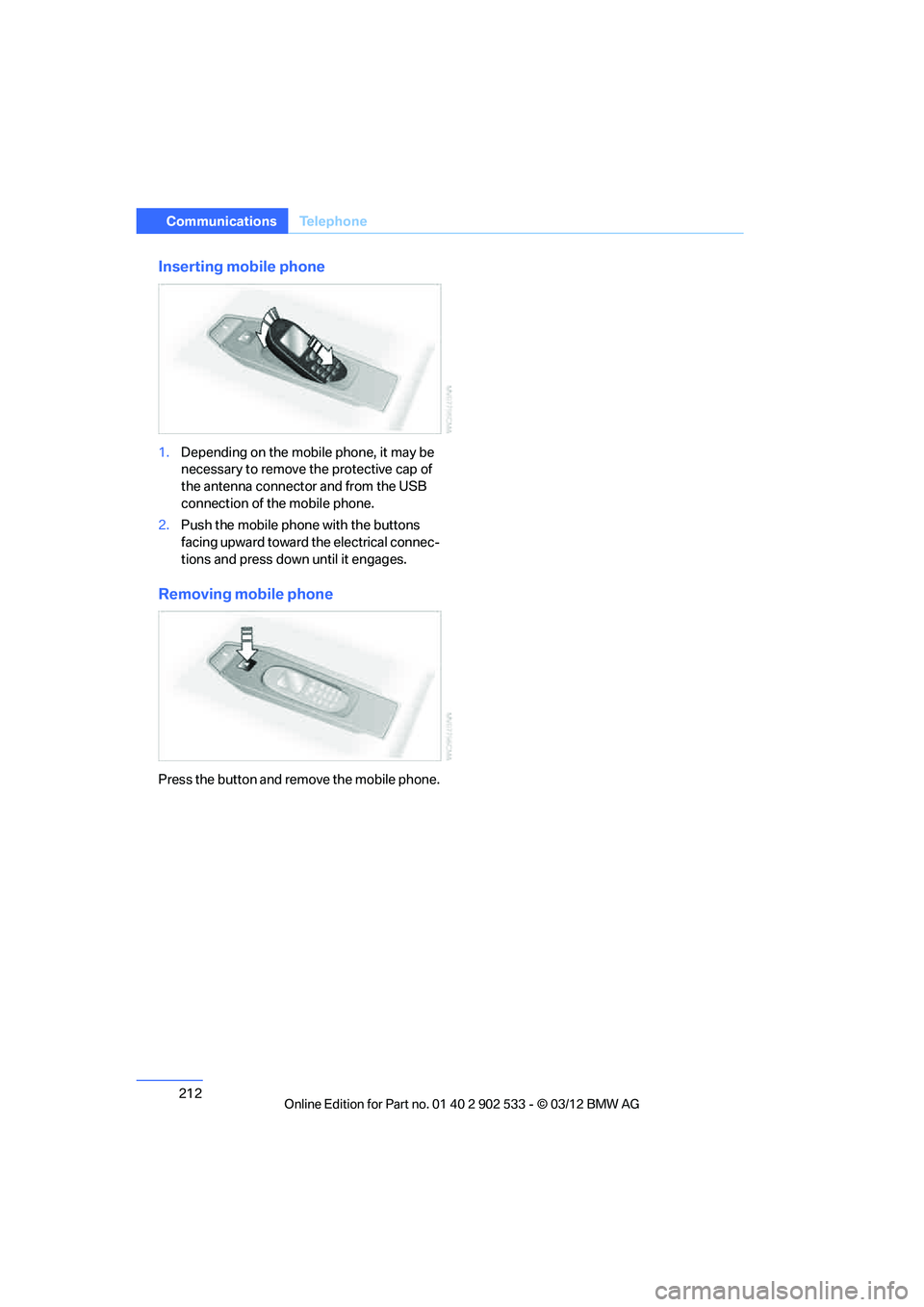
Inserting mobile phone
1.Depending on the mobile phone, it may be
necessary to remove the protective cap of
the antenna connector and from the USB
connection of the mobile phone.
2. Push the mobile phone with the buttons
facing upward toward the electrical connec-
tions and press down until it engages.
Removing mobile phone
Press the button and remove the mobile phone.
00320051004F004C00510048000300280047004C0057004C005200510003
Page 294 of 308
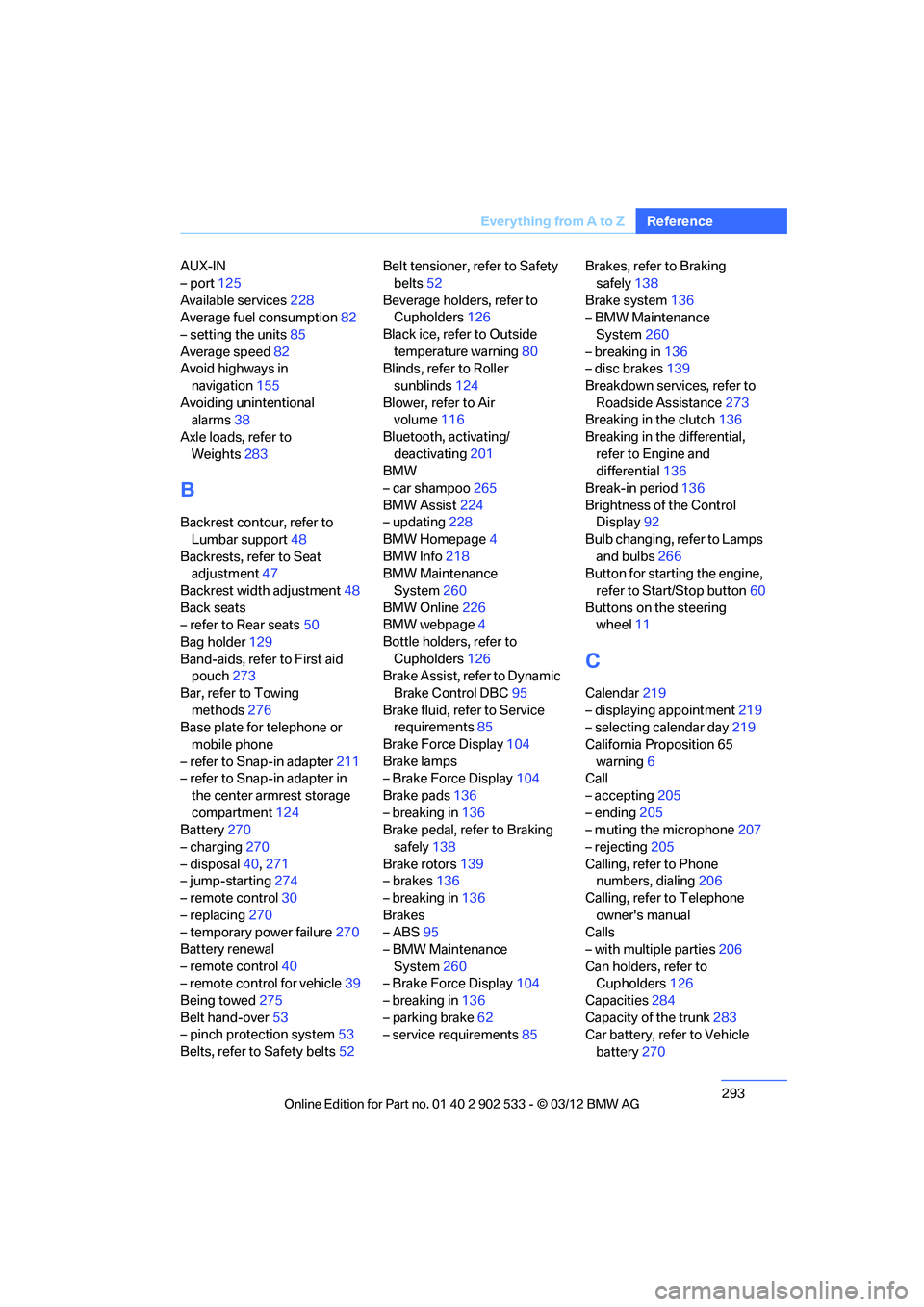
293
Everything from A to Z
Reference
AUX-IN
– port
125
Available services 228
Average fuel consumption 82
– setting the units 85
Average speed 82
Avoid highways in
navigation 155
Avoiding unintentional alarms 38
Axle loads, refer to Weights 283
B
Backrest contour, refer to
Lumbar support 48
Backrests, refer to Seat adjustment 47
Backrest width adjustment 48
Back seats
– refer to Rear seats 50
Bag holder 129
Band-aids, refer to First aid pouch 273
Bar, refer to Towing methods 276
Base plate for telephone or
mobile phone
– refer to Snap-in adapter 211
– refer to Snap-in adapter in
the center armrest storage
compartment 124
Battery 270
– charging 270
– disposal 40,271
– jump-starting 274
– remote control 30
– replacing 270
– temporary power failure 270
Battery renewal
– remote control 40
– remote control for vehicle 39
Being towed 275
Belt hand-over 53
– pinch protection system 53
Belts, refer to Safety belts 52Belt tensioner, refer to Safety
belts 52
Beverage holders, refer to Cupholders 126
Black ice, refer to Outside temperature warning 80
Blinds, refer to Roller
sunblinds 124
Blower, refer to Air volume 116
Bluetooth, activating/ deactivating 201
BMW
– car shampoo 265
BMW Assist 224
– updating 228
BMW Homepage 4
BMW Info 218
BMW Maintenance
System 260
BMW Online 226
BMW webpage 4
Bottle holders, refer to Cupholders 126
Brake Assist, refer to Dynamic
Brake Control DBC 95
Brake fluid, refer to Service requirements 85
Brake Force Display 104
Brake lamps
– B ra
ke Force Display 104
Brake pads 136
– breaking in 136
Brake pedal, refer to Braking
safely 138
Brake rotors 139
– brakes 136
– breaking in 136
Brakes
– ABS 95
– BMW Maintenance System 260
– Brake Force Display 104
– breaking in 136
– parking brake 62
– service requirements 85Brakes, refer to Braking
safely 138
Brake system 136
– BMW Maintenance
System 260
– breaking in 136
– disc brakes 139
Breakdown services, refer to Roadside Assistance 273
Breaking in the clutch 136
Breaking in the differential, refer to Engine and
differential 136
Break-in period 136
Brightness of the Control Display 92
Bulb changing, refer to Lamps and bulbs 266
Button for starting the engine,
refer to Start/Stop button 60
Buttons on the steering wheel 11
C
Calendar 219
– displaying appointment 219
– selecting calendar day 219
California Proposition 65 warning 6
Call
– accepting 205
– ending 205
– muting the microphone 207
– rejecting 205
Calling, refer to Phone numbers, dialing 206
Calling, refer to Telephone owner's manual
Calls
– with multiple parties 206
Can holders, refer to Cupholders 126
Capacities 284
Capacity of the trunk 283
Car battery, refer to Vehicle
battery 270
00320051004F004C00510048000300280047004C0057004C005200510003
Page 300 of 308
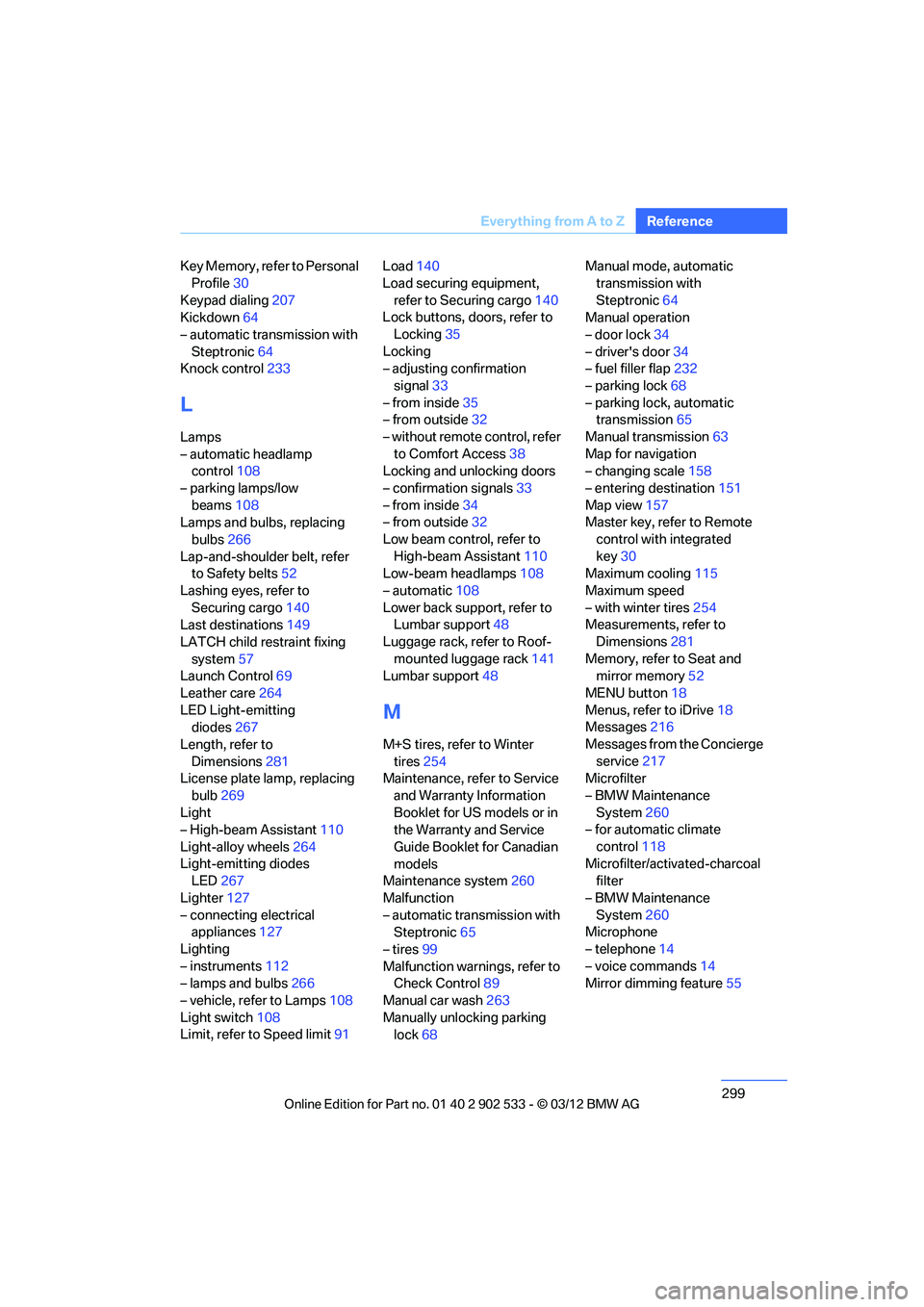
299
Everything from A to Z
Reference
Key Memory, refer to Personal
Profile 30
Keypad dialing 207
Kickdown 64
– automatic transmission with Steptronic 64
Knock control 233
L
Lamps
– automatic headlamp
control 108
– parking lamps/low beams 108
Lamps and bulbs, replacing
bulbs 266
Lap-and-shoulder belt, refer to Safety belts 52
Lashing eyes, refer to Securing cargo 140
Last destinations 149
LATCH child restraint fixing system 57
Launch Control 69
Leather care 264
LED Light-emitting diodes 267
Length, refer to Dimensions 281
License plate lamp, replacing
bulb 269
Light
– High-beam Assistant 110
Light-alloy wheels 264
Light-emitting diodes LED 267
Lighter 127
– connecting electrical appliances 127
Lighting
– instruments 112
– lamps and bulbs 266
– vehicle, refer to Lamps 108
Light switch 108
Limit, refer to Speed limit 91Load
140
Load securing equipment, refer to Securing cargo 140
Lock buttons, doors, refer to
Locking 35
Locking
– adjusting confirmation signal 33
– from inside 35
– from outside 32
– without remote control, refer to Comfort Access 38
Locking and unlocking doors
– confirmation signals 33
– from inside 34
– from outside 32
Low beam control, refer to High-beam Assistant 110
Low-beam headlamps 108
– automatic 108
Lower back support, refer to Lumbar support 48
Luggage rack, refer to Roof- mounted luggage rack 141
Lumbar support 48
M
M+S tires, refer to Winter
tires 254
Maintenance, refer to Service
and Warranty Information
Booklet for US models or in
the Warranty and Service
Guide Booklet for Canadian
models
Maintenance system 260
Malfunction
– automatic transmission with Steptronic 65
– tires 99
Malfunction warnings, refer to Check Control 89
Manual car wash 263
Manually unlocking parking lock 68 Manual mode, automatic
transmission with
Steptronic 64
Manual operation
– door lock 34
– driver's door 34
– fuel filler flap 232
– parking lock 68
– parking lock, automatic transmission 65
Manual transmission 63
Map for navigation
– changing scale 158
– entering destination 151
Map view 157
Master key, refer to Remote
control with integrated
key 30
Maximum cooling 115
Maximum speed
– with winter tires 254
Measurements, refer to
Dimensions 281
Memory, refer to Seat and mirror memory 52
MENU button 18
Menus, refer to iDrive 18
Messages 216
Messages from the Concierge service 217
Microfilter
– BMW Maintenance
System 260
– for automatic climate
control 118
Microfilter/activated-charcoal filter
– BMW Maintenance System 260
Microphone
– telephone 14
– voice commands 14
Mirror dimming feature 55
00320051004F004C00510048000300280047004C0057004C005200510003