navigation system BMW 335IS COUPE 2013 User Guide
[x] Cancel search | Manufacturer: BMW, Model Year: 2013, Model line: 335IS COUPE, Model: BMW 335IS COUPE 2013Pages: 308, PDF Size: 5.65 MB
Page 156 of 308
155
Destination guidance
Navigation
Destination guidance
Vehicle equipment
In this chapter, all production, country, and
optional equipment that is offered in the model
range is described. Equipment is also described
that is not available because of, for example,
selected options or country version. This also
applies to safety related functions and systems.
Starting destination
guidance
1.
"Navigation"
2. Entering a destination, refer to page 146.
3. "Accept destination"
4. "Start guidance"
The route is displayed on the Control Display
after it is calculated.
In the map view, the distance to the destination/
intermediate destination and the estimated
time of arrival are displayed.
The arrow display appears on the Control Dis-
play, if so desired.
Terminating destination
guidance
1. "Navigation"
2. "Map"
3. "Guidance".
4. "Stop guidance"
Continuing destination
guidance
If the destination was not reached during the
last trip, destination guidance can be resumed.
"Resume guidance"
Route criteria
General information
>You can influence the calculated route by
selecting certain trip criteria.
> Route criteria can be changed during desti-
nation entry and during route guidance.
> Street types are part of the navigation data
and are taken into account in route plan-
ning, e.g. avoiding highways.
> The proposed route can differ from per-
sonal experience.
> The settings are stored for the remote con-
trol currently in use.
> Route guidance with traffic bulletins, refer
to page 161.
Changing route criteria
1."Navigation"
2. "Map"
3. "Route preference"
4. Selecting a criterion:
> "Fast route": time-optimized route
through a combination of the least pos-
sible distance and stretches of road that
allow rapid driving.
> "ECO PRO route": optimized combi-
nation of the fastest and shortest possi-
ble route.
> "Short route": short distance without
taking time into account.
> "Alternative routes": are suggested,
where possible, during active route
guidance.
00320051004F004C00510048000300280047004C0057004C005200510003
Page 157 of 308
156
NavigationDestination guidance
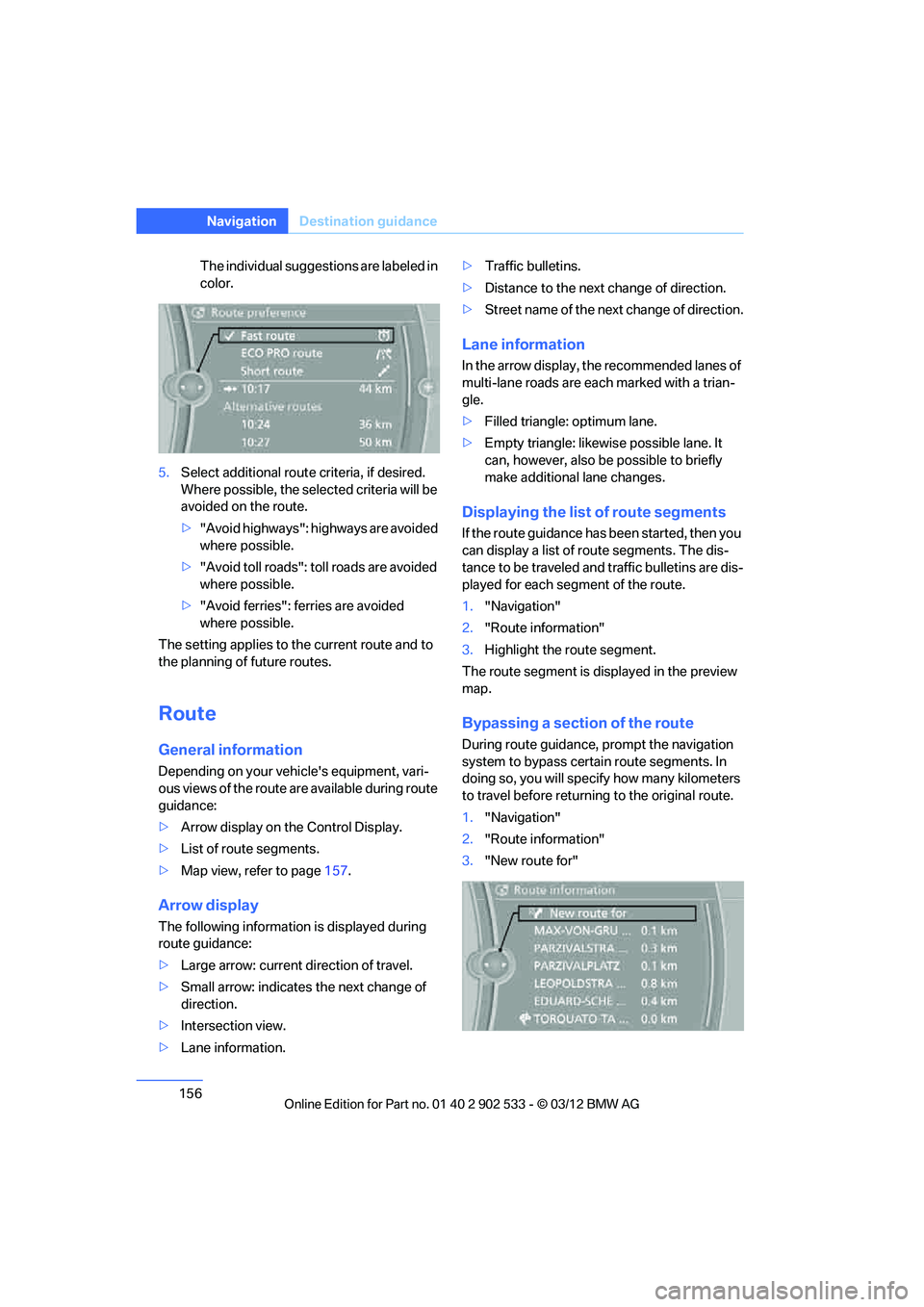
The individual suggestions are labeled in
color.
5. Select additional route criteria, if desired.
Where possible, the selected criteria will be
avoided on the route.
>"Avoid highways": highways are avoided
where possible.
> "Avoid toll roads": toll roads are avoided
where possible.
> "Avoid ferries": ferries are avoided
where possible.
The setting applies to the current route and to
the planning of future routes.
Route
General information
Depending on your vehicle's equipment, vari-
ous views of the route are available during route
guidance:
> Arrow display on the Control Display.
> List of route segments.
> Map view, refer to page 157.
Arrow display
The following information is displayed during
route guidance:
>Large arrow: current direction of travel.
> Small arrow: indicates the next change of
direction.
> Intersection view.
> Lane information. >
Traffic bulletins.
> Distance to the next change of direction.
> Street name o f the next change of direction.
Lane information
In the arrow display, the recommended lanes of
multi-lane roads are each marked with a trian-
gle.
>Filled triangle: optimum lane.
> Empty triangle: likewise possible lane. It
can, however, also be possible to briefly
make additional lane changes.
Displaying the list of route segments
If the route guidance has been started, then you
can display a list of route segments. The dis-
tance to be traveled and traffic bulletins are dis-
played for each segment of the route.
1."Navigation"
2. "Route information"
3. Highlight the route segment.
The route segment is displayed in the preview
map.
Bypassing a section of the route
During route guidance, prompt the navigation
system to bypass certain route segments. In
doing so, you will specify how many kilometers
to travel before returning to the original route.
1. "Navigation"
2. "Route information"
3. "New route for"
00320051004F004C00510048000300280047004C0057004C005200510003
Page 160 of 308
159
Destination guidance
Navigation
Automatic scaling of the map
In the map view facing north, turn the controller
in any direction until AUTO is displayed as the
map scale.
The map shows the entire range from your loca-
tion to the destination.
Settings for the map view
The map is shown on the Control Display.
1.
Open "Options".
2. "Settings"
Set the optimized map view.
> "Day/night mode"
Select and adjust depending on light condi-
tions.
"Traffic conditions/gray map" active:
Settings are not taken into account.
> "Satellite images"
Depending on the availability and resolu-
tion, satellite images are displayed in scales
of approx. 1 mile to 600 miles/2 km to
1,000 km.
> "Perspective view in 3D"
Displays a three-dimensional view. Promi-
nent areas that are contained in the naviga-
tion data are displayed on the map in 3D.
> "Traffic conditions/gray map"
The map is optimized for displaying traffic
bulletins. Symbols for the special destina-
tions are no longer displayed.
Map view for the split screen display
The map view for the split screen can be
selected separately from the main screen.
1.Open "Options".
2. "Split screen"
3. Move the controller to the right repeatedly
until the split screen content is selected.
4. Select "Split screen content" or scale. 5.
Select the map view:
>"Arrow display"
> "Map facing north"
> "Map direction of travel"
> "Map view with perspective"
> "Position"
> "Exit ramp view"
> "Traffic conditions/gray map"
6. To change the scale: switch to the split
screen and turn the controller.
Traffic bulletins
Overview
>You can display the traffic bulletins from
radio stations that broadcast the TMC
(Traffic Message Channel) of a traffic infor-
mation service. Bulletins about traffic
obstructions and hazards are continuously
updated.
> Traffic bulletins are indicated by symbols on
the map.
> Traffic bulletins for the surrounding area are
stored in a list.
The symbol in the toolbar of the map view
turns red if a traffic bulletin relates to the calcu-
lated route.
Real Time Traffic Information End-User
Provisions
Certain BMW models equipped with navigation
have the capability to display real-time traffic
information. If your system has this capability
the following additional terms and conditions
apply:
An End-User shall no longer have the right to
use the Traffic Data in the event that the End-
User is in material breach of the terms and con-
ditions contained herein.
A. Total Traffic Network, a division of Clear
Channel Broadcasting, In c. ("Total Traffic Net-
00320051004F004C00510048000300280047004C0057004C005200510003
Page 162 of 308
161
Destination guidance
Navigation
Symbols in the map view
Depending on the scale of the map and the
location of the traffic obstruction along the
route, the symbols for the traffic obstructions
are displayed.
Additional information in the map view
Depending on the map scale, a traffic obstruc-
tion's length, direction and impact are displayed
on the map using triangles or gray bars along
the calculated route.
>
Red: traffic congestion
> Orange: stop-and-go traffic
> Yellow: heavy traffic
> Green: clear roads
> Gray: general traffic in formation, e.g. con-
struction zone
The bulletins displayed depend in the respec-
tive traffic information service.
Filtering traffic bulletins
Set which traffic bulletins are displayed on the
map.
1. "Navigation"
2. "Map"
3. Open "Options".
4. "Traffic Info categories"
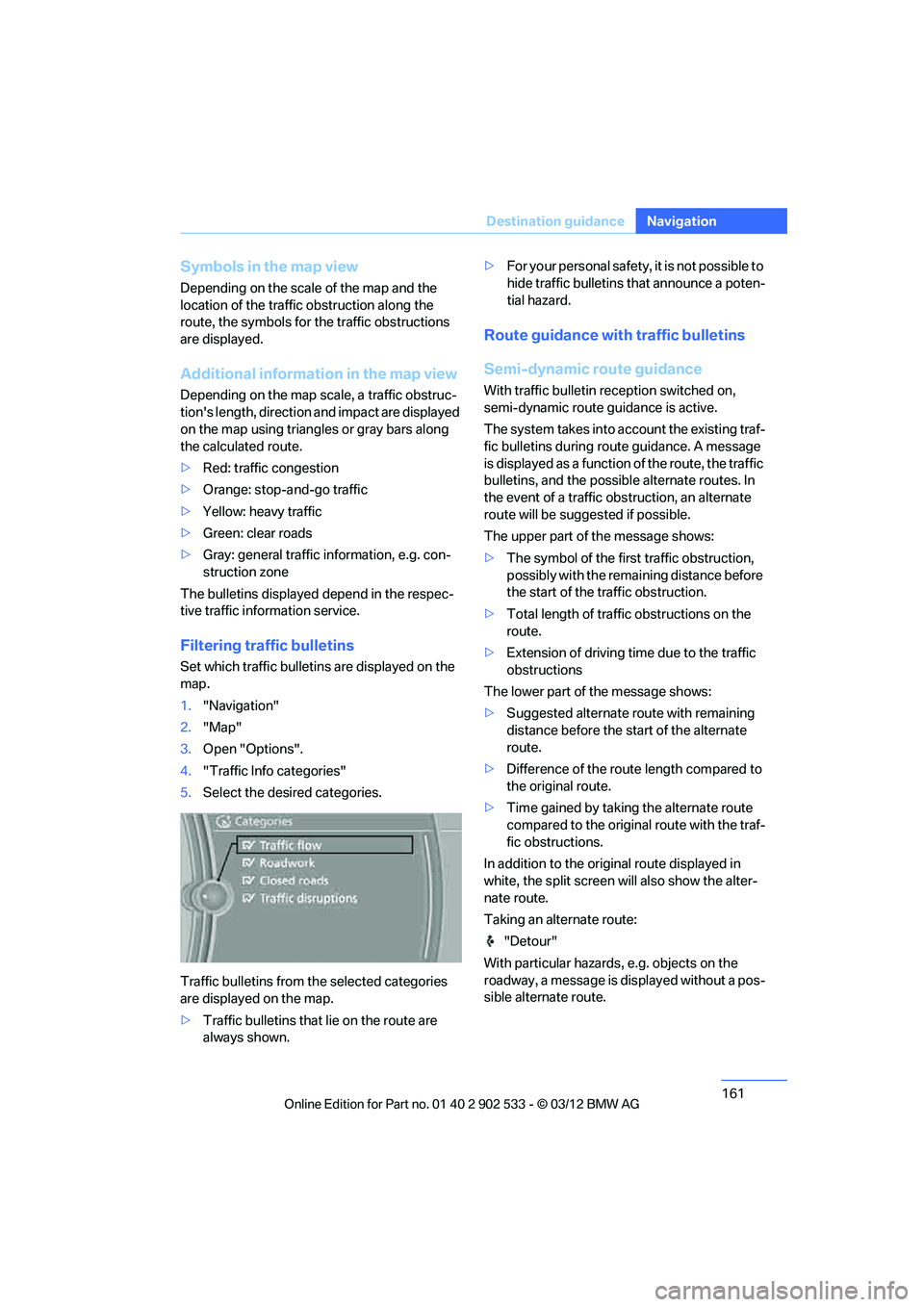
5. Select the desired categories.
Traffic bulletins from the selected categories
are displayed on the map.
> Traffic bulletins that lie on the route are
always shown. >
For your personal safety, it is not possible to
hide traffic bulletins that announce a poten-
tial hazard.
Route guidance with traffic bulletins
Semi-dynamic route guidance
With traffic bulletin reception switched on,
semi-dynamic route guidance is active.
The system takes into account the existing traf-
fic bulletins during route guidance. A message
is displayed as a function of the route, the traffic
bulletins, and the possible alternate routes. In
the event of a traffic obstruction, an alternate
route will be suggested if possible.
The upper part of the message shows:
>The symbol of the first traffic obstruction,
possibly with the remaining distance before
the start of the traffic obstruction.
> Total length of traffic obstructions on the
route.
> Extension of driving time due to the traffic
obstructions
The lower part of the message shows:
> Suggested alternate route with remaining
distance before the start of the alternate
route.
> Difference of the route length compared to
the original route.
> Time gained by taking the alternate route
compared to the original route with the traf-
fic obstructions.
In addition to the original route displayed in
white, the split screen will also show the alter-
nate route.
Taking an alternate route: "Detour"
With particular hazards, e.g. objects on the
roadway, a message is displayed without a pos-
sible alternate route.
00320051004F004C00510048000300280047004C0057004C005200510003
Page 163 of 308
162
NavigationDestination guidance
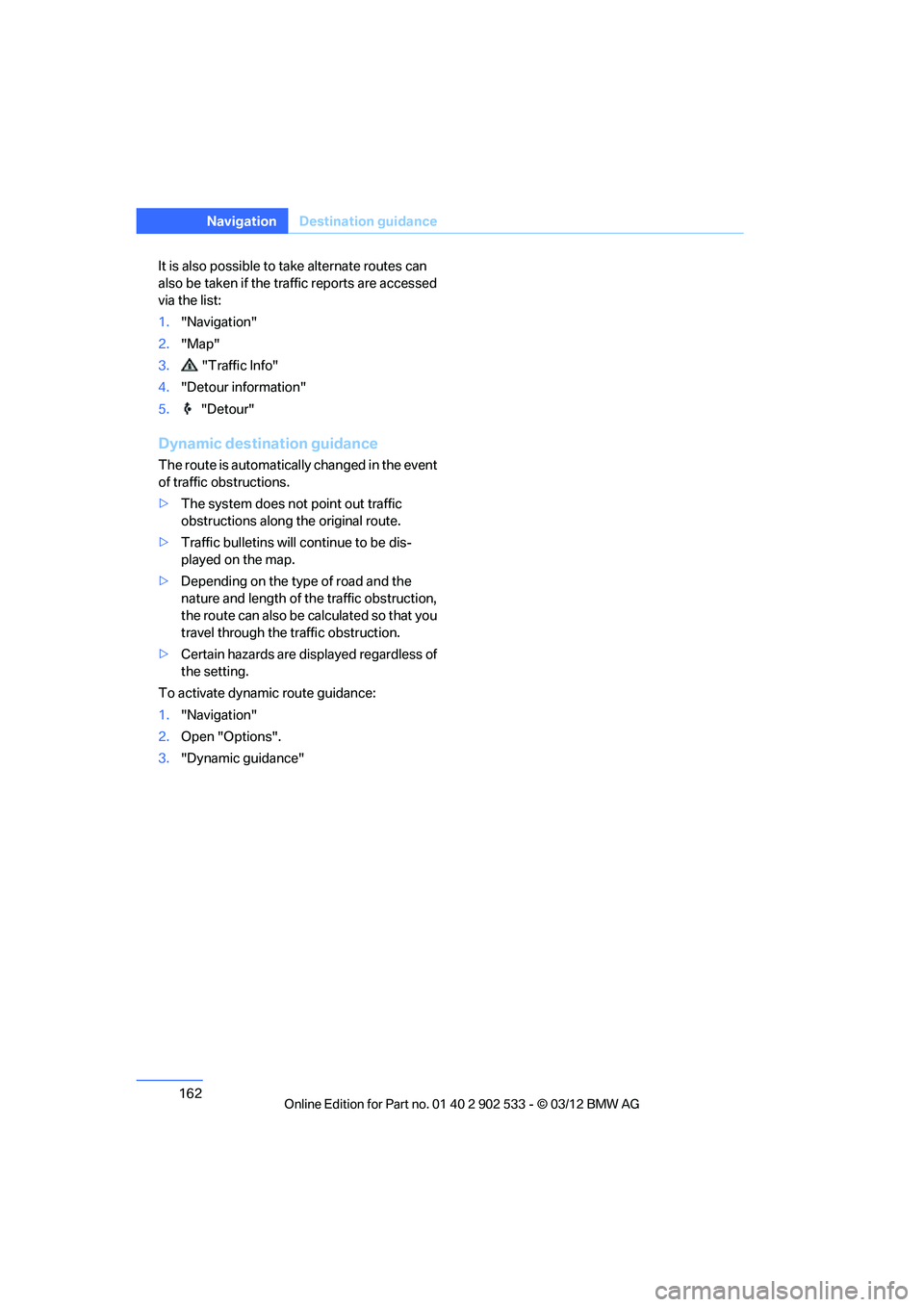
It is also possible to take alternate routes can
also be taken if the traffic reports are accessed
via the list:
1."Navigation"
2. "Map"
3. "Traffic Info"
4. "Detour information"
5. "Detour"
Dynamic destination guidance
The route is automatically changed in the event
of traffic obstructions.
>The system does not point out traffic
obstructions along the original route.
> Traffic bulletins will continue to be dis-
played on the map.
> Depending on the type of road and the
nature and length of the traffic obstruction,
the route can also be calculated so that you
travel through the traffic obstruction.
> Certain hazards are displayed regardless of
the setting.
To activate dynamic route guidance:
1. "Navigation"
2. Open "Options".
3. "Dynamic guidance"
00320051004F004C00510048000300280047004C0057004C005200510003
Page 164 of 308
163
What to do if …
Navigation
What to do if …
Vehicle equipment
In this chapter, all production, country, and
optional equipment that is offered in the model
range is described. Equipment is also described
that is not available because of, for example,
selected options or country version. This also
applies to safety related functions and systems.
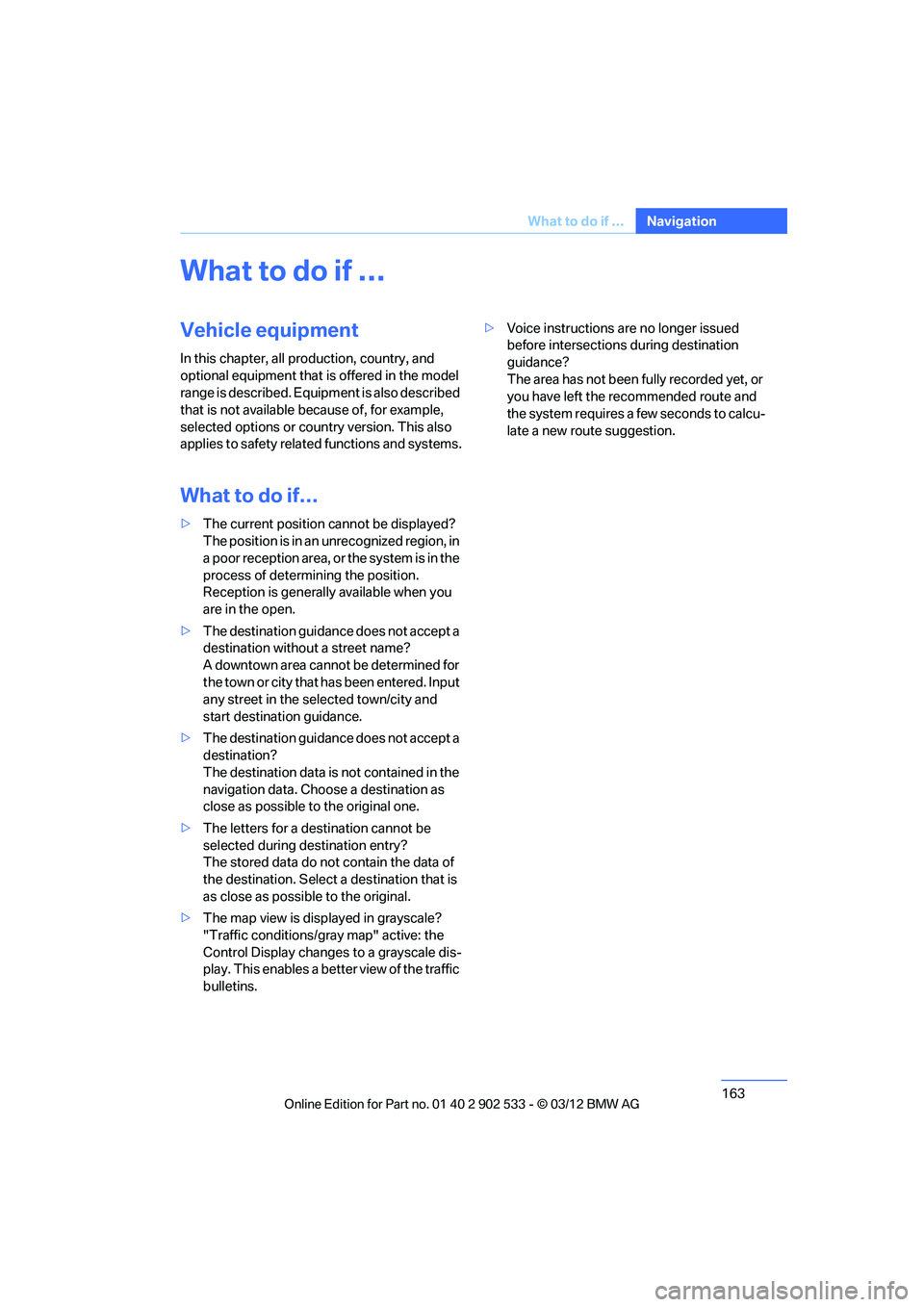
What to do if…
>
The current position cannot be displayed?
The position is in an unrecognized region, in
a poor reception area, or the system is in the
process of determining the position.
Reception is generally available when you
are in the open.
> The destination guidance does not accept a
destination without a street name?
A downtown area cannot be determined for
the town or city that has been entered. Input
any street in the selected town/city and
start destination guidance.
> The destination guidance does not accept a
destination?
The destination data is not contained in the
navigation data. Choose a destination as
close as possible to the original one.
> The letters for a destination cannot be
selected during destination entry?
The stored data do not contain the data of
the destination. Select a destination that is
as close as possible to the original.
> The map view is displayed in grayscale?
"Traffic conditions/gray map" active: the
Control Display changes to a grayscale dis-
play. This enables a better view of the traffic
bulletins. >
Voice instructions are no longer issued
before intersections during destination
guidance?
The area has not been fully recorded yet, or
you have left the recommended route and
the system requires a few seconds to calcu-
late a new route suggestion.
00320051004F004C00510048000300280047004C0057004C005200510003
Page 173 of 308
172
EntertainmentSatellite radio
Satellite radio
Vehicle equipment
In this chapter, all production, country, and
optional equipment that is offered in the model
range is described. Equipment is also described
that is not available because of, for example,
selected options or country version. This also
applies to safety related functions and systems.
General information
The channels are offered in fixed packages.
Packages must be activated by telephone.
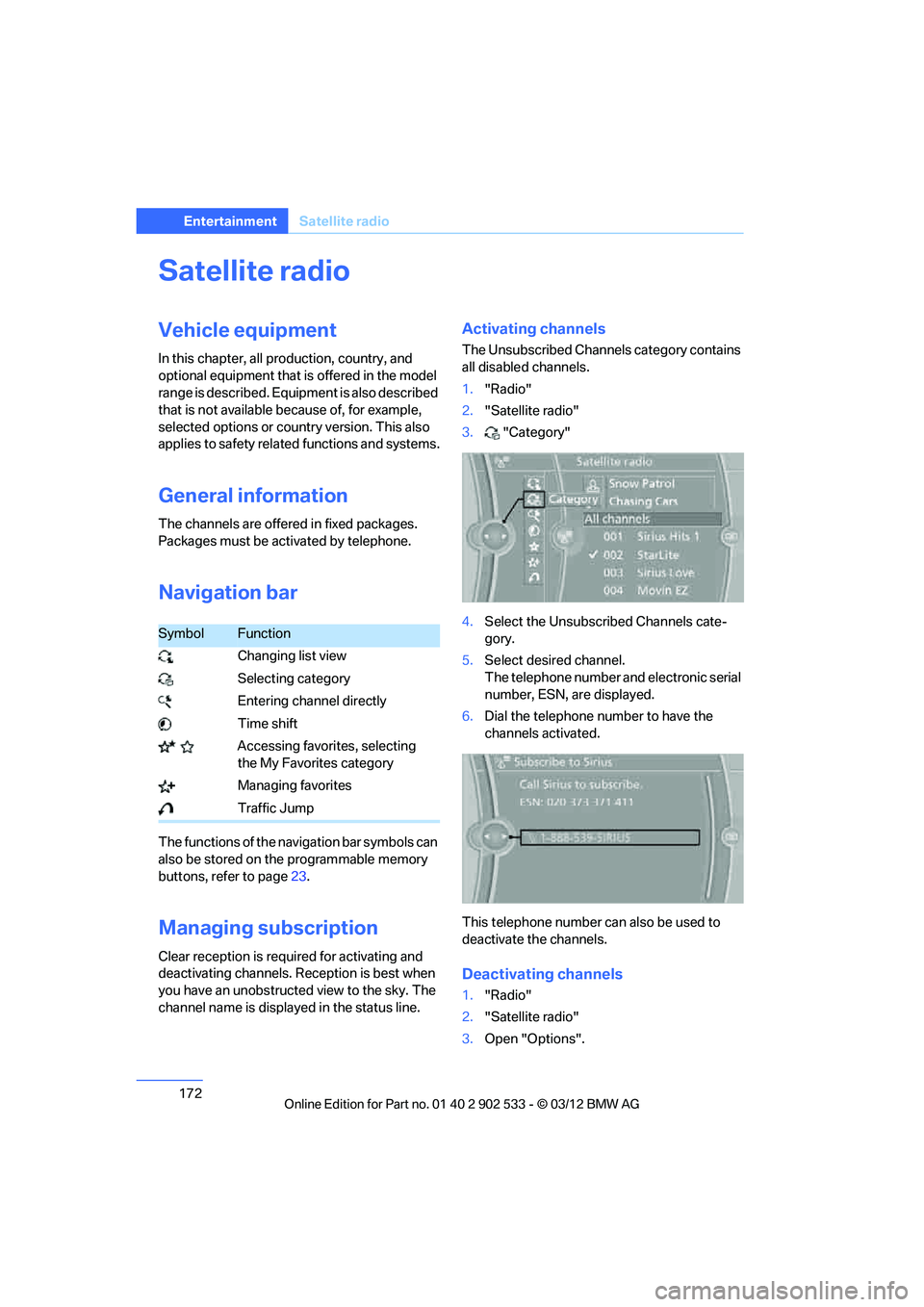
Navigation bar
The functions of the navigation bar symbols can
also be stored on the programmable memory
buttons, refer to page 23.
Managing subscription
Clear reception is required for activating and
deactivating channels. Reception is best when
you have an unobstructed view to the sky. The
channel name is displayed in the status line.
Activating channels
The Unsubscribed Channels category contains
all disabled channels.
1. "Radio"
2. "Satellite radio"
3. "Category"
4. Select the Unsubscribed Channels cate-
gory.
5. Select desired channel.
The telephone number and electronic serial
number, ESN, are displayed.
6. Dial the telephone number to have the
channels activated.
This telephone number can also be used to
deactivate the channels.
Deactivating channels
1. "Radio"
2. "Satellite radio"
3. Open "Options".
SymbolFunction
Changing list view
Selecting category
Entering channel directly
Time shift
Accessing favorites, selecting the My Favorites category
Managing favorites
Traffic Jump
00320051004F004C00510048000300280047004C0057004C005200510003
Page 216 of 308
215
Office
Communications
If the address is corrected and stored, then a
copy is established in the vehicle. The address
is not changed on the mobile phone.
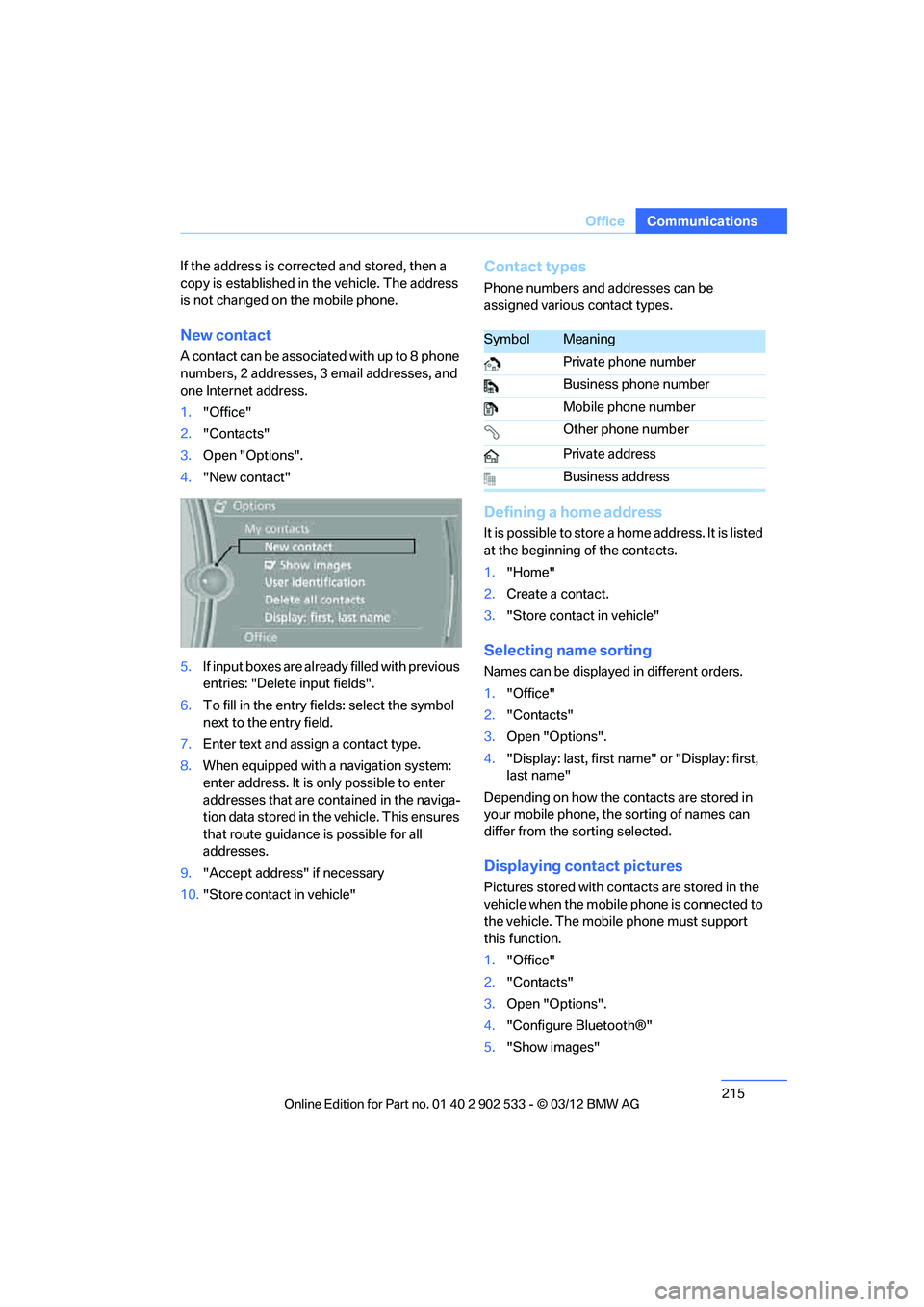
New contact
A contact can be associated with up to 8 phone
numbers, 2 addresses, 3 email addresses, and
one Internet address.
1.
"Office"
2. "Contacts"
3. Open "Options".
4. "New contact"
5. If input boxes are already filled with previous
entries: "Delete input fields".
6. To fill in the entry fields: select the symbol
next to the entry field.
7. Enter text and assign a contact type.
8. When equipped with a navigation system:
enter address. It is only possible to enter
addresses that are contained in the naviga-
tion data stored in the vehicle. This ensures
that route guidance is possible for all
addresses.
9. "Accept address" if necessary
10. "Store contact in vehicle"
Contact types
Phone numbers and addresses can be
assigned various contact types.
Defining a home address
It is possible to store a home address. It is listed
at the beginning of the contacts.
1."Home"
2. Create a contact.
3. "Store contact in vehicle"
Selecting name sorting
Names can be displayed in different orders.
1."Office"
2. "Contacts"
3. Open "Options".
4. "Display: last, first name" or "Display: first,
last name"
Depending on how the contacts are stored in
your mobile phone, the sorting of names can
differ from the sorting selected.
Displaying contact pictures
Pictures stored with contacts are stored in the
vehicle when the mobile phone is connected to
the vehicle. The mobile phone must support
this function.
1. "Office"
2. "Contacts"
3. Open "Options".
4. "Configure Bluetooth®"
5. "Show images"
SymbolMeaning
Private phone number
Business phone number
Mobile phone number
Other phone number
Private address
Business address
00320051004F004C00510048000300280047004C0057004C005200510003
Page 223 of 308
222
CommunicationsContacts
Contacts
Vehicle equipment
In this chapter, all production, country, and
optional equipment that is offered in the model
range is described. Equipment is also described
that is not available because of, for example,
selected options or country version. This also
applies to safety related functions and systems.
Note
In equipment packages without mobile phone
preparation.
General information
Contacts can be created and edited. The
addresses can be used as destinations for nav-
igation.
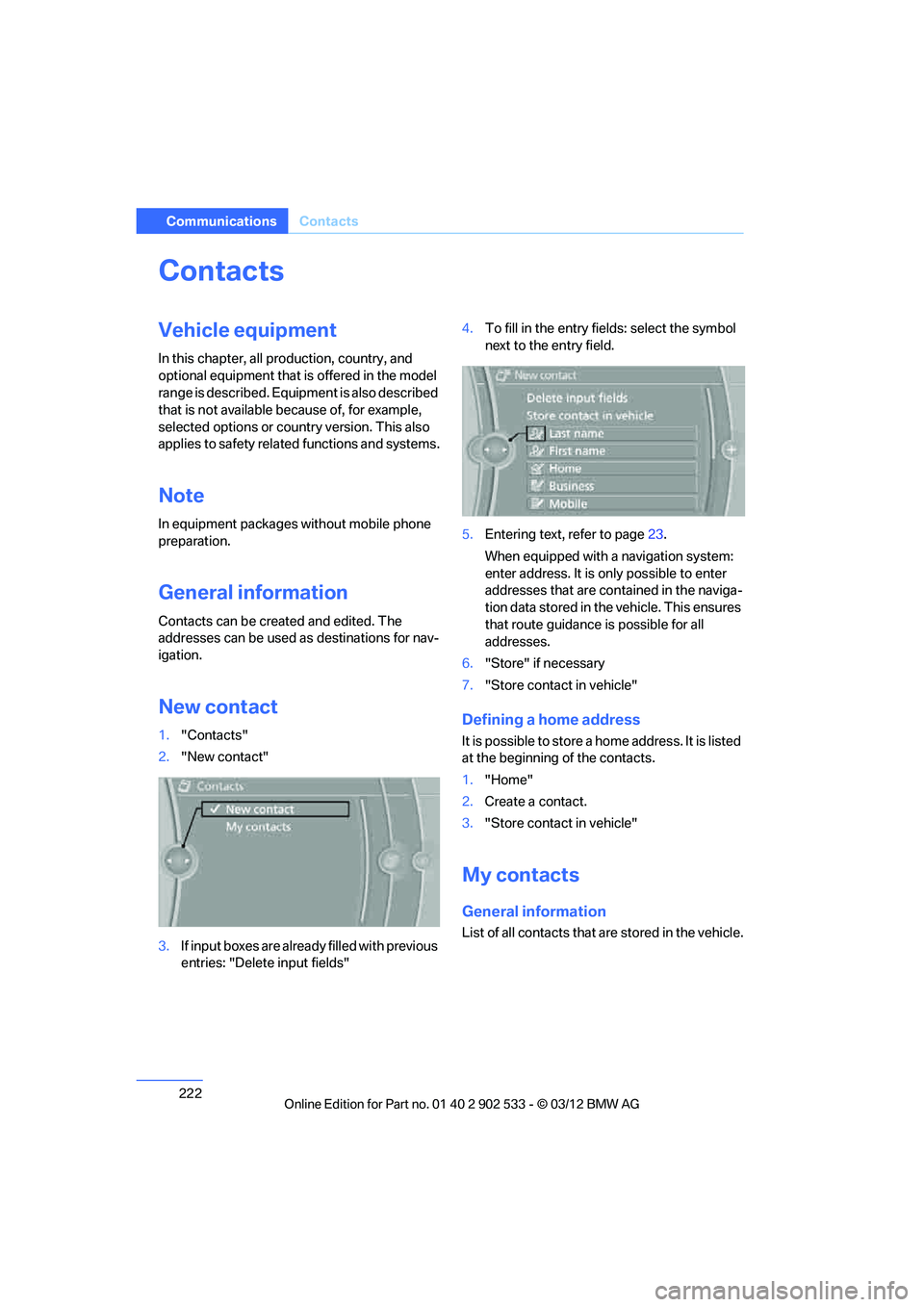
New contact
1."Contacts"
2. "New contact"
3. If input boxes are already filled with previous
entries: "Delete input fields" 4.
To fill in the entry fields: select the symbol
next to the entry field.
5. Entering text, refer to page 23.
When equipped with a navigation system:
enter address. It is only possible to enter
addresses that are contained in the naviga-
tion data stored in the vehicle. This ensures
that route guidance is possible for all
addresses.
6. "Store" if necessary
7. "Store contact in vehicle"Defining a home address
It is possible to store a home address. It is listed
at the beginning of the contacts.
1."Home"
2. Create a contact.
3. "Store contact in vehicle"
My contacts
General information
List of all contacts that are stored in the vehicle.
00320051004F004C00510048000300280047004C0057004C005200510003
Page 271 of 308
270
MobilityReplacin g compon ents
event of a flat, no spare wheel is available. Your
BMW center will be glad to advise you. Refer
also to New wheels and tires, page 253.
The tools for changing wheels are avail-
able as optional accessories from your
BMW center. <
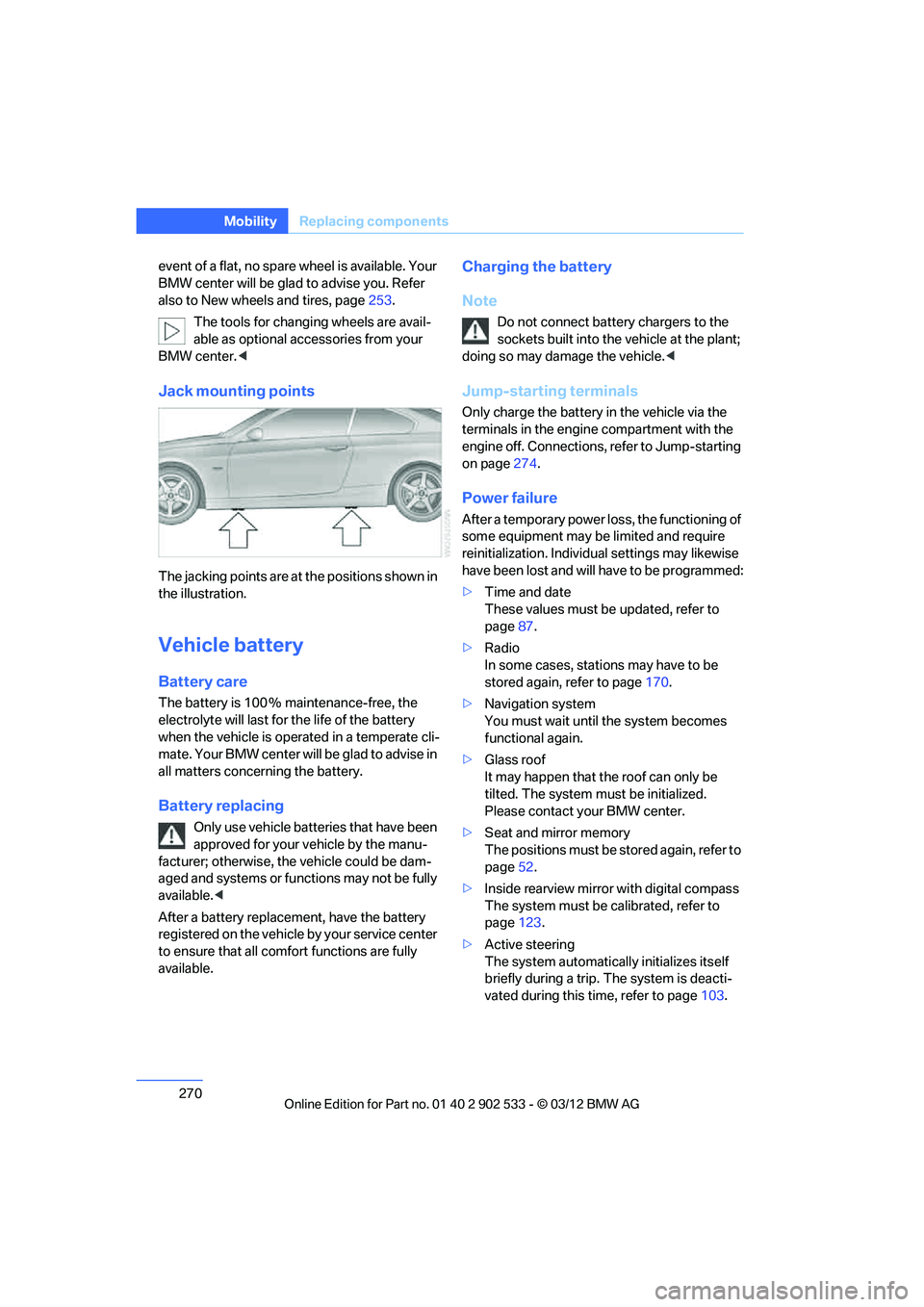
Jack mounting points
The jacking points are at the positions shown in
the illustration.
Vehicle battery
Battery care
The battery is 100 % maintenance-free, the
electrolyte will last for the life of the battery
when the vehicle is operated in a temperate cli-
mate. Your BMW center will be glad to advis e in
all matters concerning the battery.
Battery replacing
Only use vehicle batteries that have been
approved for your vehicle by the manu-
facturer; otherwise, the vehicle could be dam-
aged and systems or functions may not be fully
available. <
After a battery replacement, have the battery
registered on the vehicle by your service center
to ensure that all comf ort functions are fully
available.
Charging the battery
Note
Do not connect battery chargers to the
sockets built into the vehicle at the plant;
doing so may damage the vehicle. <
Jump-starting terminals
Only charge the battery in the vehicle via the
terminals in the engine compartment with the
engine off. Connections, refer to Jump-starting
on page274.
Power failure
After a temporary power loss, the functioning of
some equipment may be limited and require
reinitialization. Individual settings may likewise
have been lost and will have to be programmed:
>Time and date
These values must be updated, refer to
page 87.
> Radio
In some cases, stations may have to be
stored again, refer to page 170.
> Navigation system
You must wait until the system becomes
functional again.
> Glass roof
It may happen that the roof can only be
tilted. The system must be initialized.
Please contact your BMW center.
> Seat and mirror memory
The positions must be stored again, refer to
page 52.
> Inside rearview mirror with digital compass
The system must be calibrated, refer to
page 123.
> Active steering
The system automatically initializes itself
briefly during a trip. The system is deacti-
vated during this time, refer to page 103.
00320051004F004C00510048000300280047004C0057004C005200510003