phone BMW 335XI 2007 Owner's Manual
[x] Cancel search | Manufacturer: BMW, Model Year: 2007, Model line: 335XI, Model: BMW 335XI 2007Pages: 268, PDF Size: 8.8 MB
Page 184 of 268
Telephoning
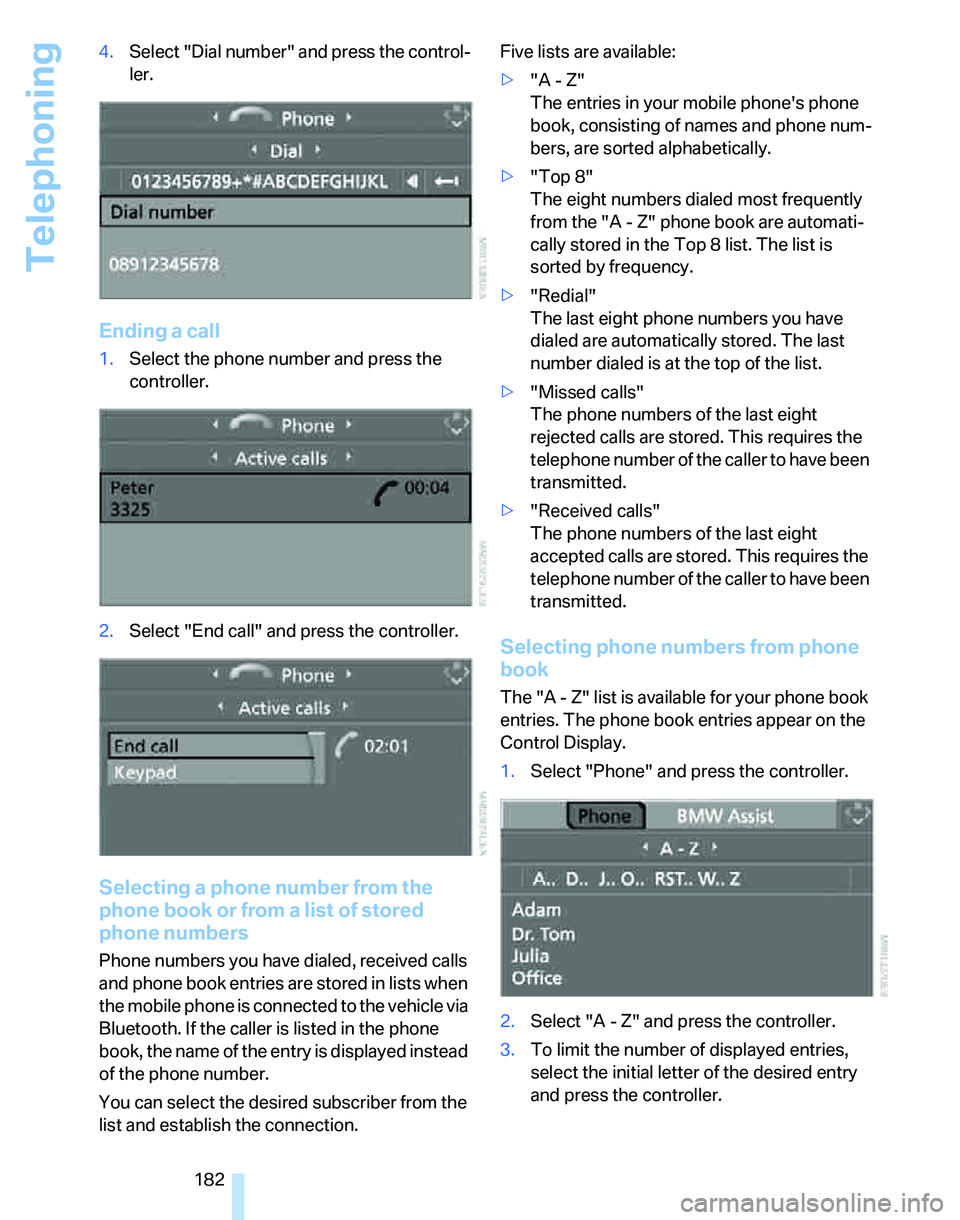
182 4.Select "Dial number" and press the control-
ler.
Ending a call
1.Select the phone number and press the
controller.
2.Select "End call" and press the controller.
Selecting a phone number from the
phone book or from a list of stored
phone numbers
Phone numbers you have dialed, received calls
and phone book entries are stored in lists when
the mobile phone is connected to the vehicle via
Bluetooth. If the caller is listed in the phone
book, the name of the entry is displayed instead
of the phone number.
You can select the desired subscriber from the
list and establish the connection.Five lists are available:
>"A - Z"
The entries in your mobile phone's phone
book, consisting of names and phone num-
bers, are sorted alphabetically.
>"Top 8"
The eight numbers dialed most frequently
from the "A - Z" phone book are automati-
cally stored in the Top 8 list. The list is
sorted by frequency.
>"Redial"
The last eight phone numbers you have
dialed are automatically stored. The last
number dialed is at the top of the list.
>"Missed calls"
The phone numbers of the last eight
rejected calls are stored. This requires the
telephone number of the caller to have been
transmitted.
>"Received calls"
The phone numbers of the last eight
accepted calls are stored. This requires the
telephone number of the caller to have been
transmitted.
Selecting phone numbers from phone
book
The "A - Z" list is available for your phone book
entries. The phone book entries appear on the
Control Display.
1.Select "Phone" and press the controller.
2.Select "A - Z" and press the controller.
3.To limit the number of displayed entries,
select the initial letter of the desired entry
and press the controller.
Page 185 of 268
183
Entertainment
Reference
At a glance
Controls
Driving tips Communications
Navigation
Mobility
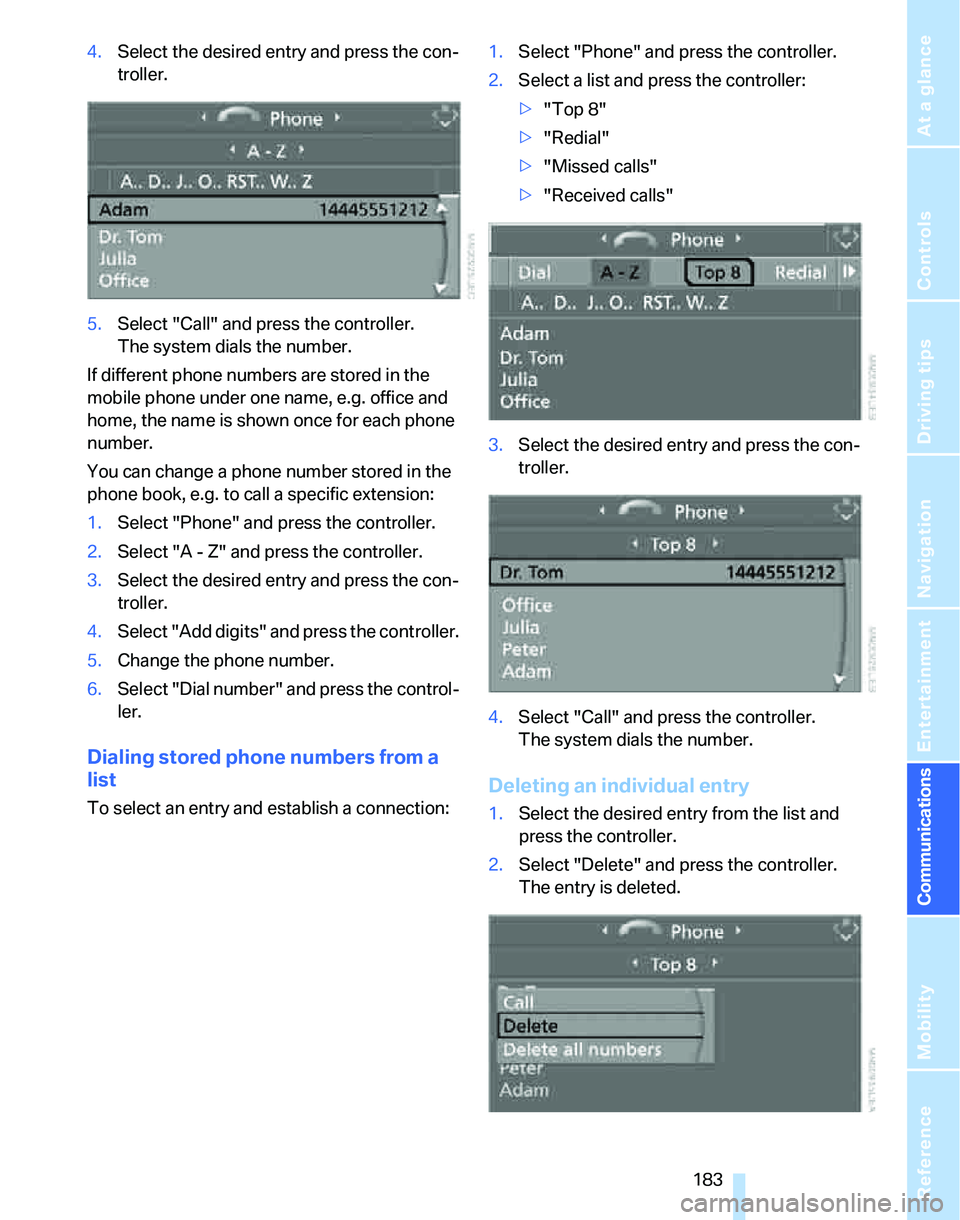
4.Select the desired entry and press the con-
troller.
5.Select "Call" and press the controller.
The system dials the number.
If different phone numbers are stored in the
mobile phone under one name, e.g. office and
home, the name is shown once for each phone
number.
You can change a phone number stored in the
phone book, e.g. to call a specific extension:
1.Select "Phone" and press the controller.
2.Select "A - Z" and press the controller.
3.Select the desired entry and press the con-
troller.
4.Select "Add digits" and press the controller.
5.Change the phone number.
6.Select "Dial number" and press the control-
ler.
Dialing stored phone numbers from a
list
To select an entry and establish a connection:1.Select "Phone" and press the controller.
2.Select a list and press the controller:
>"Top 8"
>"Redial"
>"Missed calls"
>"Received calls"
3.Select the desired entry and press the con-
troller.
4.Select "Call" and press the controller.
The system dials the number.
Deleting an individual entry
1.Select the desired entry from the list and
press the controller.
2.Select "Delete" and press the controller.
The entry is deleted.
Page 186 of 268
Telephoning
184
Deleting the entire list
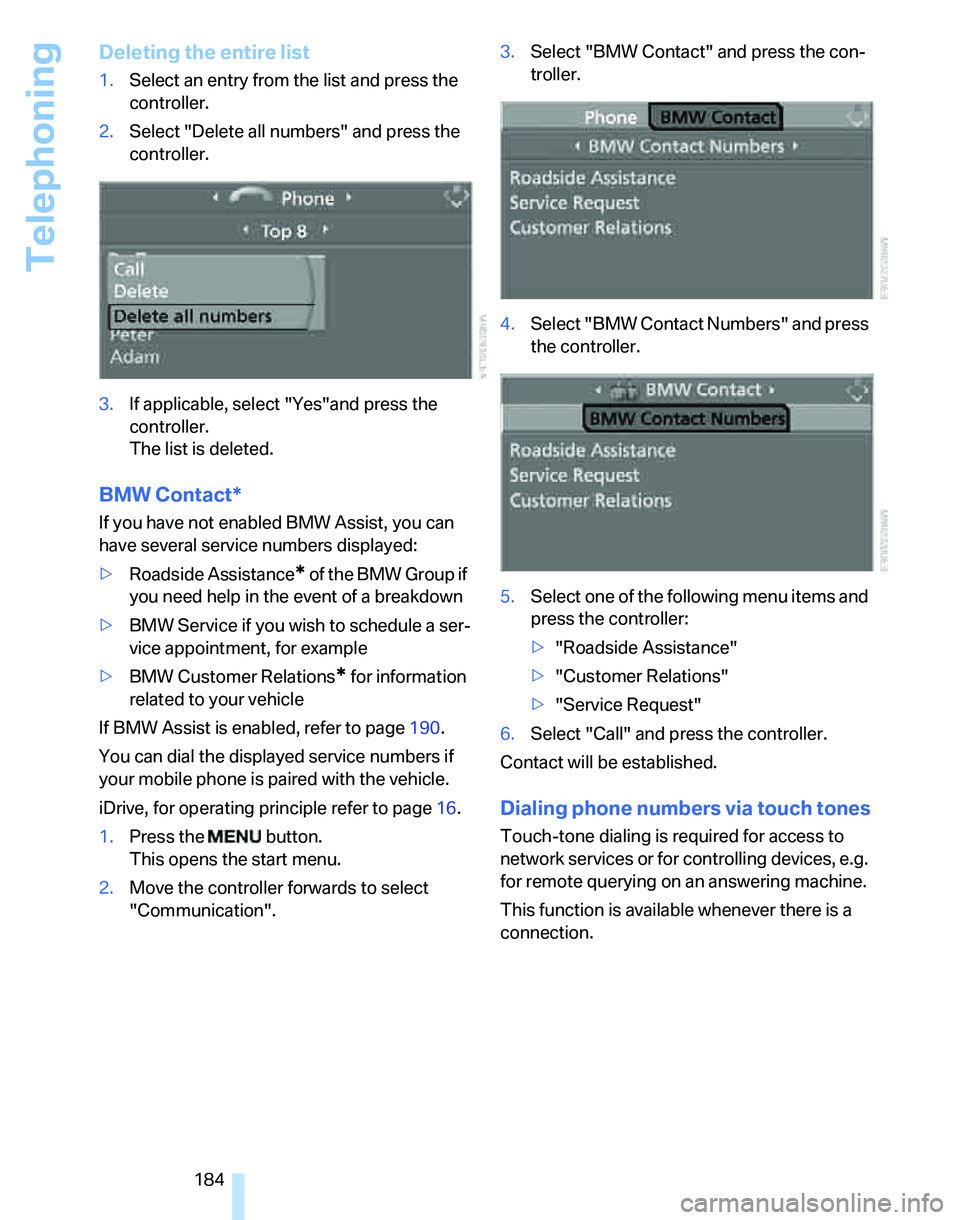
1.Select an entry from the list and press the
controller.
2.Select "Delete all numbers" and press the
controller.
3.If applicable, select "Yes"and press the
controller.
The list is deleted.
BMW Contact*
If you have not enabled BMW Assist, you can
have several service numbers displayed:
>Roadside Assistance
* of the BMW Group if
you need help in the event of a breakdown
>BMW Service if you wish to schedule a ser-
vice appointment, for example
>BMW Customer Relations
* for information
related to your vehicle
If BMW Assist is enabled, refer to page190.
You can dial the displayed service numbers if
your mobile phone is paired with the vehicle.
iDrive, for operating principle refer to page16.
1.Press the button.
This opens the start menu.
2.Move the controller forwards to select
"Communication".3.Select "BMW Contact" and press the con-
troller.
4.Select "BMW Contact Numbers" and press
the controller.
5.Select one of the following menu items and
press the controller:
>"Roadside Assistance"
>"Customer Relations"
>"Service Request"
6.Select "Call" and press the controller.
Contact will be established.
Dialing phone numbers via touch tones
Touch-tone dialing is required for access to
network services or for controlling devices, e.g.
for remote querying on an answering machine.
This function is available whenever there is a
connection.
Page 187 of 268
185
Entertainment
Reference
At a glance
Controls
Driving tips Communications
Navigation
Mobility
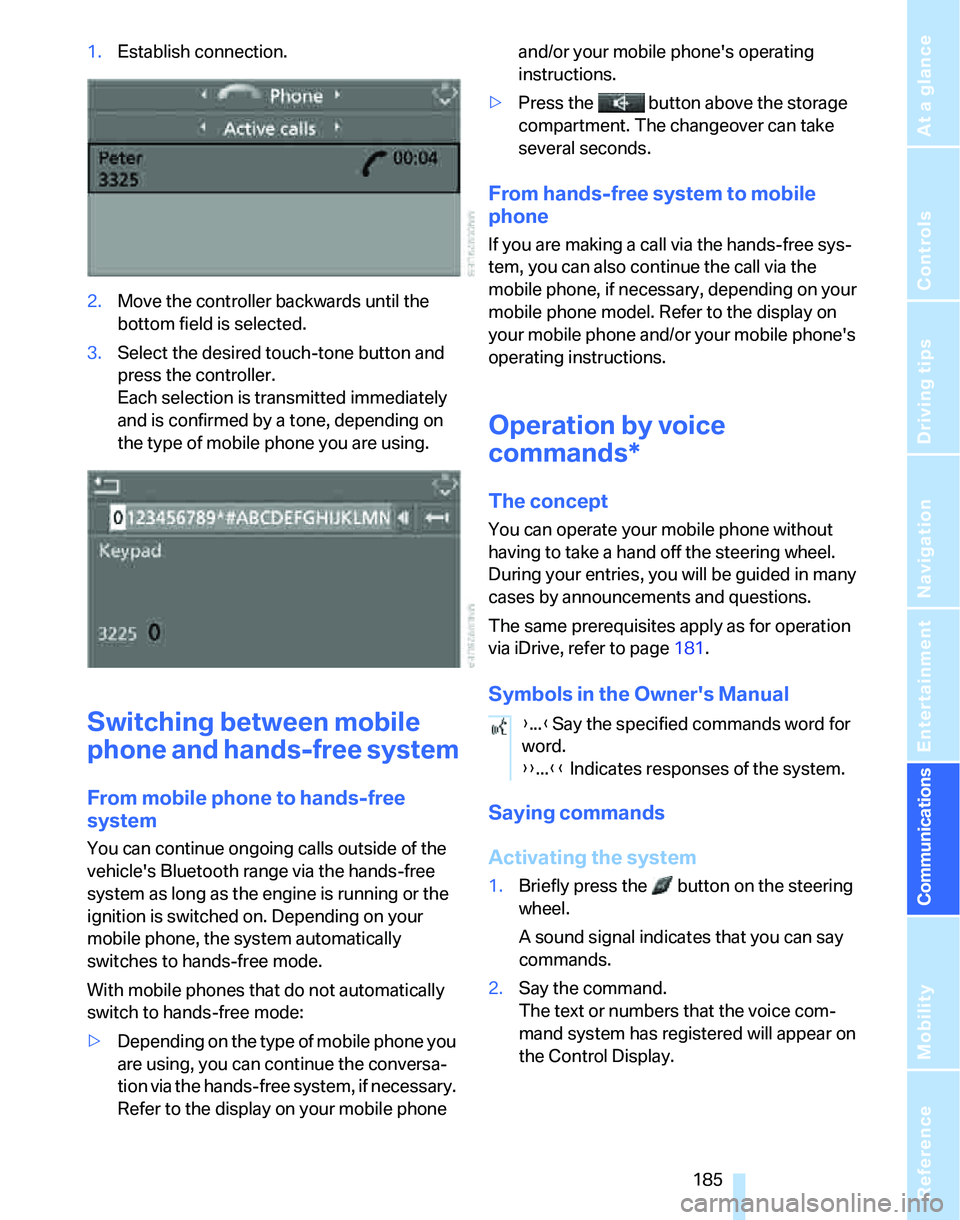
1.Establish connection.
2.Move the controller backwards until the
bottom field is selected.
3.Select the desired touch-tone button
and
press the controller.
Each selection is transmitted immediately
and is confirmed by a tone, depending on
the type of mobile phone you are using.
Switching between mobile
phone and hands-free system
From mobile phone to hands-free
system
You can continue ongoing calls outside of the
vehicle's Bluetooth range via the hands-free
system as long as the engine is running or the
ignition is switched on. Depending on your
mobile phone, the system automatically
switches to hands-free mode.
With mobile phones that do not automatically
switch to hands-free mode:
>Depending on the type of mobile phone you
are using, you can continue the conversa-
tion via the hands-free system, if necessary.
Refer to the display on your mobile phone and/or your mobile phone's operating
instructions.
>Press the button above the storage
compartment. The changeover can take
several seconds.
From hands-free system to mobile
phone
If you are making a call via the hands-free sys-
tem, you can also continue the call via the
mobile phone, if necessary, depending on your
mobile phone model. Refer to the display on
your mobile phone and/or your mobile phone's
operating instructions.
Operation by voice
commands*
The concept
You can operate your mobile phone without
having to take a hand off the steering wheel.
During your entries, you will be guided in many
cases by announcements and questions.
The same prerequisites apply as for operation
via iDrive, refer to page181.
Symbols in the Owner's Manual
Saying commands
Activating the system
1.Briefly press the button on the steering
wheel.
A sound signal indicates that you can say
commands.
2.Say the command.
The text or numbers that the voice com-
mand system has registered will appear on
the Control Display.
{...}Say the specified commands word for
word.
{{...}} Indicates responses of the system.
Page 189 of 268
187
Entertainment
Reference
At a glance
Controls
Driving tips Communications
Navigation
Mobility
Example: dialing phone numbers
Start the dialog:
Press the button on the steering wheel.
Adjusting volume
You can adjust the volume for the instructions
from the system:
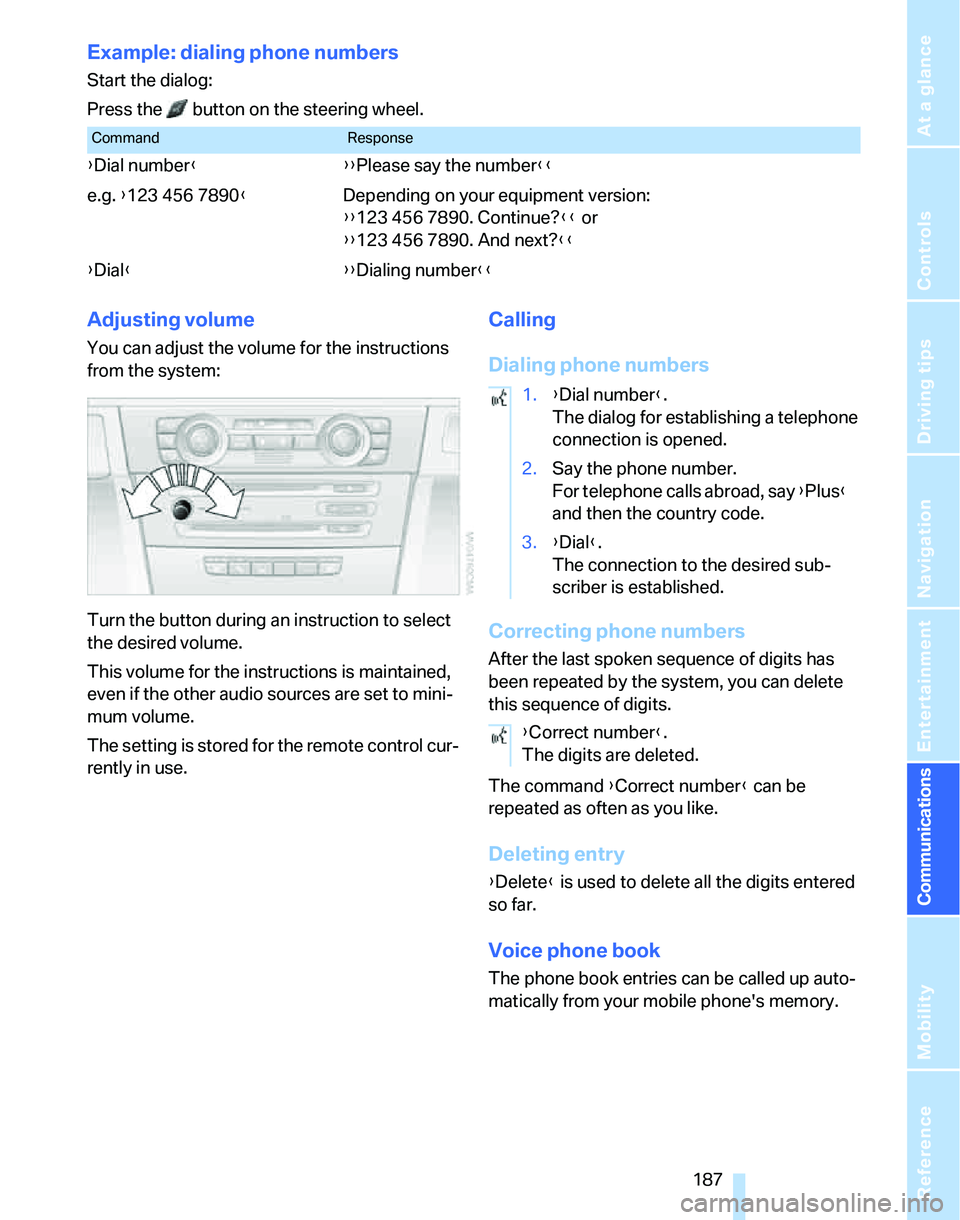
Turn the button during an instruction to select
the desired volume.
This volume for the instructions is maintained,
even if the other audio sources are set to mini-
mum volume.
The setting is stored for the remote control cur-
rently in use.
Calling
Dialing phone numbers
Correcting phone numbers
After the last spoken sequence of digits has
been repeated by the system, you can delete
this sequence of digits.
The command {Correct number} can be
repeated as often as you like.
Deleting entry
{Delete} is used to delete all the digits entered
so far.
Voice phone book
The phone book entries can be called up auto-
matically from your mobile phone's memory.
CommandResponse
{Dial number}{{Please say the number}}
e.g. {123 456 7890}Depending on your equipment version:
{{123 456 7890. Continue?}} or
{{123 456 7890. And next?}}
{Dial}{{Dialing number}}
1.{Dial number}.
The dialog for establishing a telephone
connection is opened.
2.Say the phone number.
For telephone calls abroad, say {Plus}
and then the country code.
3.{Dial}.
The connection to the desired sub-
scriber is established.
{Correct number}.
The digits are deleted.
Page 190 of 268
Telephoning
188
Selecting an entry
The connection to the phone number of the
selected entry is established.
Redialing
The {Redial} command calls up "Redial".
Notes
The commands in English were available
as of this printing. Other languages are
currently in preparation. To operate the mobile
phone via the voice command system, refer to
page22.<
Important for voice commands
For voice commands, bear in mind the follow-
ing:
>Pronounce the commands smoothly and at
normal volume, avoiding excessive empha-
ses and pauses.
>Keep the doors, windows and glass sunroof
closed to prevent interference from outside
noise.
>Avoid ambient noise in the vehicle while
speaking.
Inserting/removing snap-in
adapter
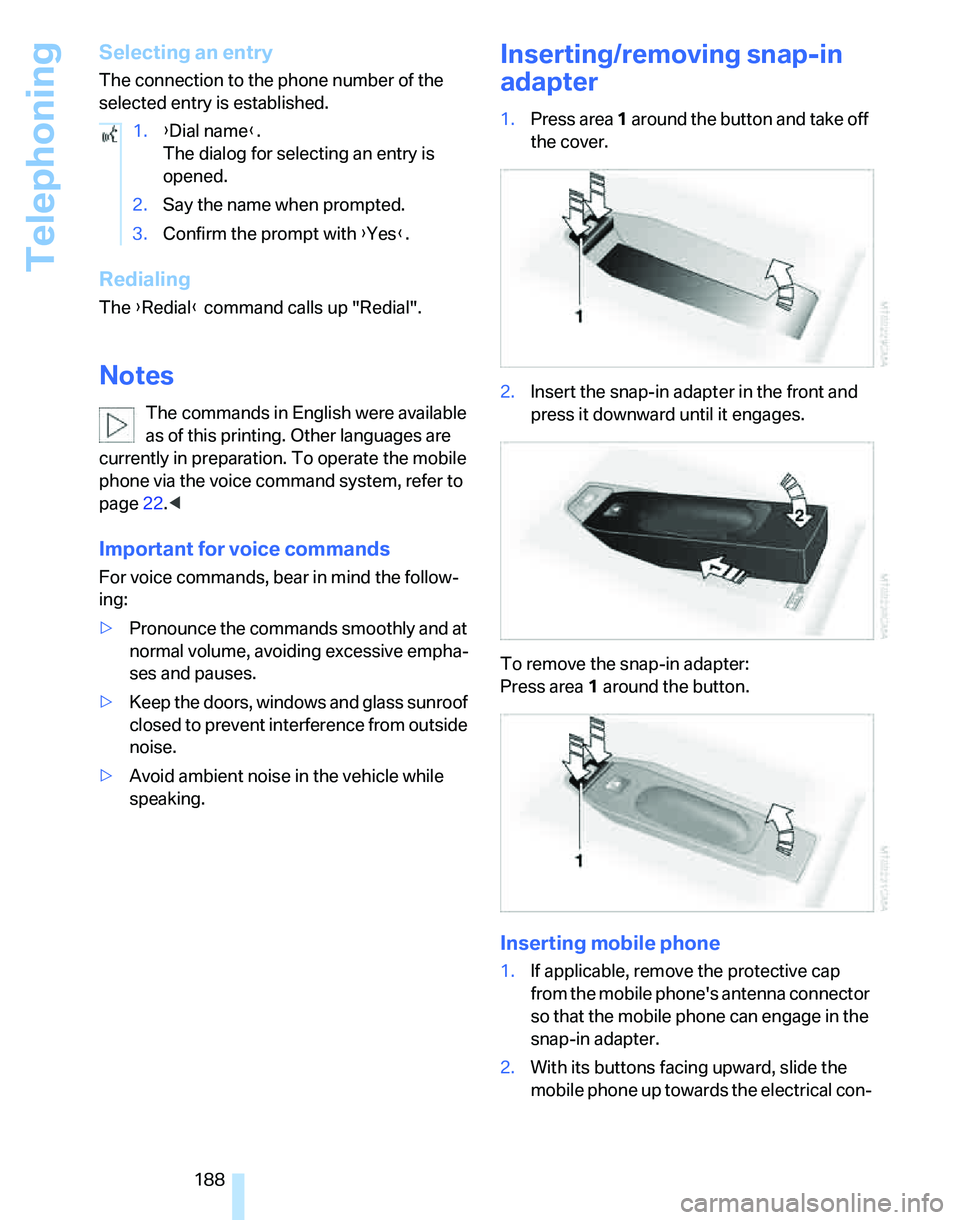
1.Press area 1 around the button and take off
the cover.
2.Insert the snap-in adapter in the front and
press it downward until it engages.
To remove the snap-in adapter:
Press area 1 around the button.
Inserting mobile phone
1.If applicable, remove the protective cap
from the mobile phone's antenna connector
so that the mobile phone can engage in the
snap-in adapter.
2.With its buttons facing upward, slide the
mobile phone up towards the electrical con- 1.{Dial name}.
The dialog for selecting an entry is
opened.
2.Say the name when prompted.
3.Confirm the prompt with {Yes}.
Page 191 of 268
189
Entertainment
Reference
At a glance
Controls
Driving tips Communications
Navigation
Mobility
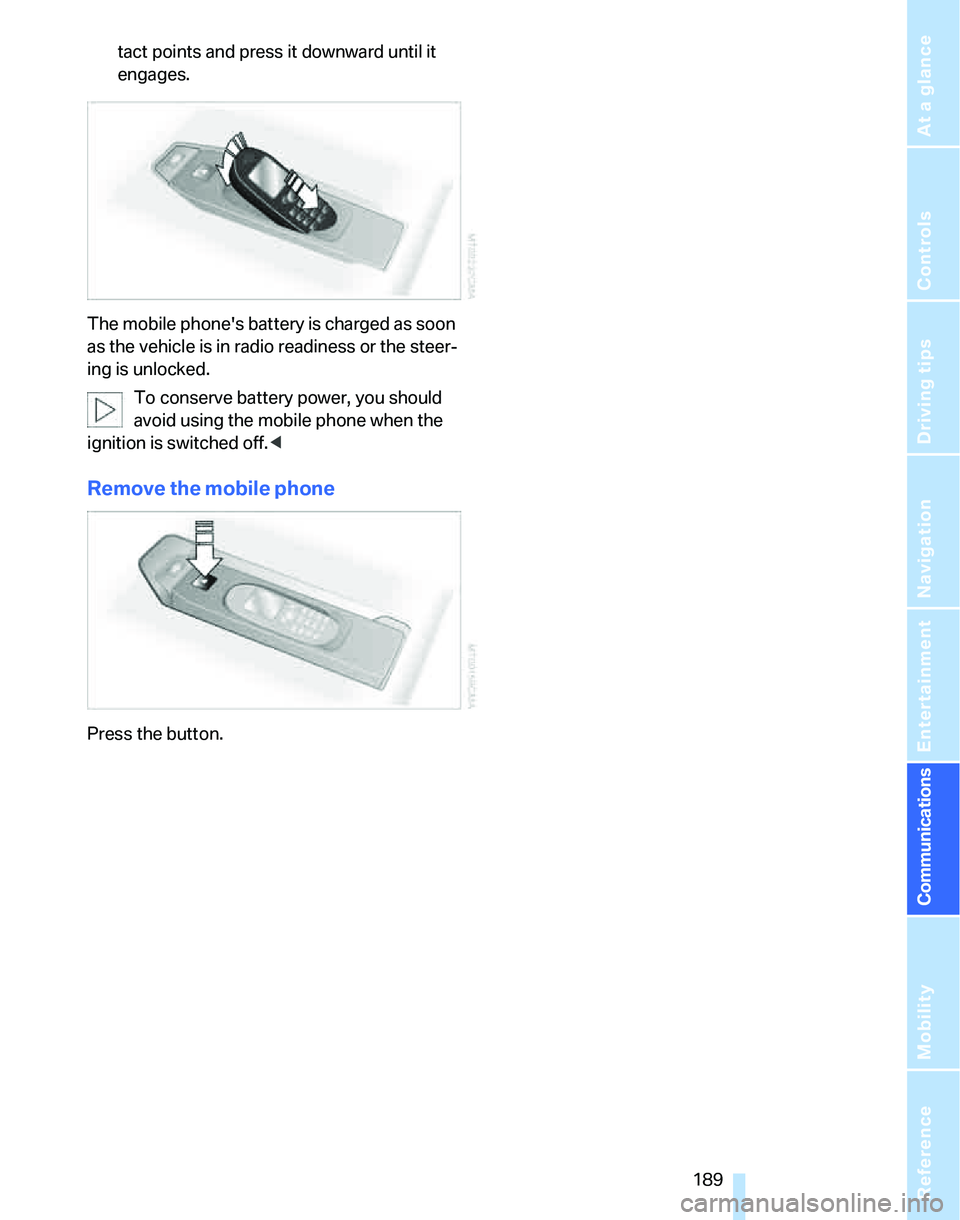
tact points and press it downward until it
engages.
The mobile phone's battery is charged as soon
as the vehicle is in radio readiness or the steer-
ing is unlocked.
To conserve battery power, you should
avoid using the mobile phone when the
ignition is switched off.<
Remove the mobile phone
Press the button.
Page 192 of 268
BMW Assist
190
BMW Assist
BMW Assist provides you with various services.
For example, the position data of your vehicle
can be transmitted to the BMW Assist
Response Center if an emergency call
* has
been initiated.
Many BMW Assist services depend on the indi-
vidually agreed contract.
After your contract has expired, the
BMW Assist system will be deactivated by the
BMW Assist Response Center without you hav-
ing to visit a BMW center. After the BMW Assist
system has been deactivated, no BMW Assist
service will be available. The BMW Assist sys-
tem can be reactivated by a BMW center after a
new contract has been signed.
Requirements
You can use BMW Assist when the following
requirements are met:
>The installed BMW Assist system is logged
onto a mobile phone network. This network
must be capable of transmitting the ser-
vices.
>To transmit position data, the vehicle must
be able to determine the current position.
>A GPS signal must be available in order for
BMW Assist to be activated and updated.
>You have subscribed to BMW Assist with
your BMW center or BMW Assist Response
Center and signed a service contract. Acti-
vation must have been completed.
>BMW Assist is activated, refer to page195.
Offered services
The following services are available via
BMW Assist:
>Emergency Request, refer to page229:
When you press the SOS button, a connec-
tion is established to the BMW Assist
Response Center. The BMW Assist Response Center contacts you and takes
further steps to help you.
>Automatic Collision Notification:
Under certain conditions, a connection is
established to the BMW Assist Response
Center after a serious accident. If possible,
the BMW Assist Response Center then
speaks with you and takes further steps to
help you.
>Enhanced Roadside Assistance:
You can call BMW Roadside Assistance
*
should you require help in the event of a
breakdown. If possible, the vehicle data and
position data are transmitted during this
call.
>Customer Relations:
For all information related to your vehicle,
you can be connected to BMW Customer
Relations.
>TeleService:
Data on your vehicle's service status or
required inspections are transmitted to your
BMW center either automatically before a
service due date or when you request a
BMW service appointment.
>Remote Door Unlock:
Contact BMW Assist Customer Care if your
remote control or key is not available and
you would like to have the vehicle unlocked.
>Stolen Vehicle Recovery:
After you report your vehicle stolen with the
police, call BMW Assist Customer Care to
determine its position.
In addition, optional services can be provided to
you, such as Concierge service or information
on directions, traffic or weather.
Press the SOS button in order to contact the
BMW Assist Response Center, see below.
You can also access the BMW Assist Concierge
services via the internet.
*
Page 195 of 268
193
Entertainment
Reference
At a glance
Controls
Driving tips Communications
Navigation
Mobility
6.Select "Start service" and press the con-
troller.
The service-relevant data are transmitted. Your
BMW center will contact you to arrange a ser-
vice appointment.
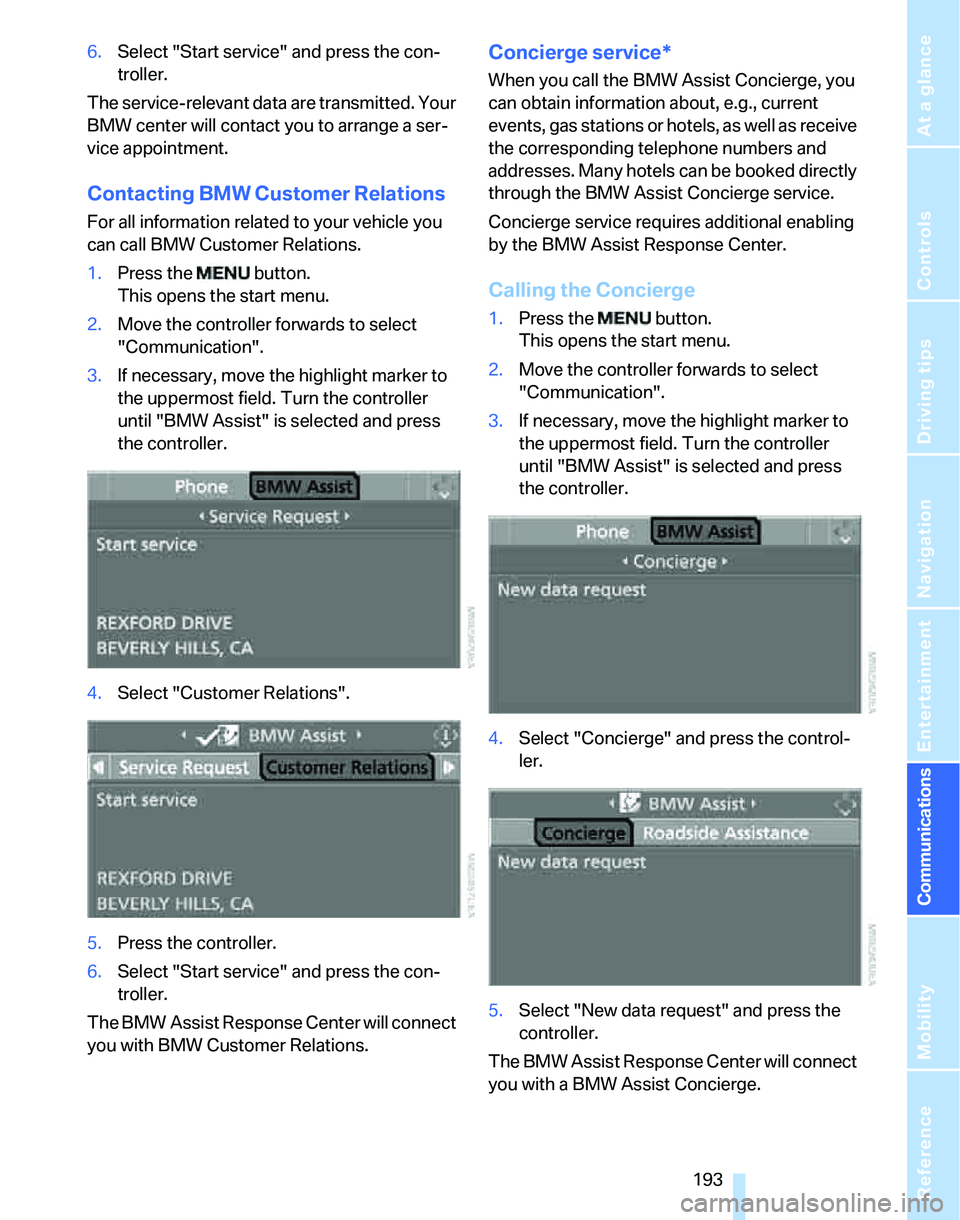
Contacting BMW Customer Relations
For all information related to your vehicle you
can call BMW Customer Relations.
1.Press the button.
This opens the start menu.
2.Move the controller forwards to select
"Communication".
3.If necessary, move the highlight marker to
the uppermost field. Turn the controller
until "BMW Assist" is selected and press
the controller.
4.Select "Customer Relations".
5.Press the controller.
6.Select "Start service" and press the con-
troller.
The BMW Assist Response Center will connect
you with BMW Customer Relations.
Concierge service*
When you call the BMW Assist Concierge, you
can obtain information about, e.g., current
events, gas stations or hotels, as well as receive
the corresponding telephone numbers and
addresses. Many hotels can be booked directly
through the BMW Assist Concierge service.
Concierge service requires additional enabling
by the BMW Assist Response Center.
Calling the Concierge
1.Press the button.
This opens the start menu.
2.Move the controller forwards to select
"Communication".
3.If necessary, move the highlight marker to
the uppermost field. Turn the controller
until "BMW Assist" is selected and press
the controller.
4.Select "Concierge" and press the control-
ler.
5.Select "New data request" and press the
controller.
The BMW Assist Response Center will connect
you with a BMW Assist Concierge.
Page 196 of 268
BMW Assist
194
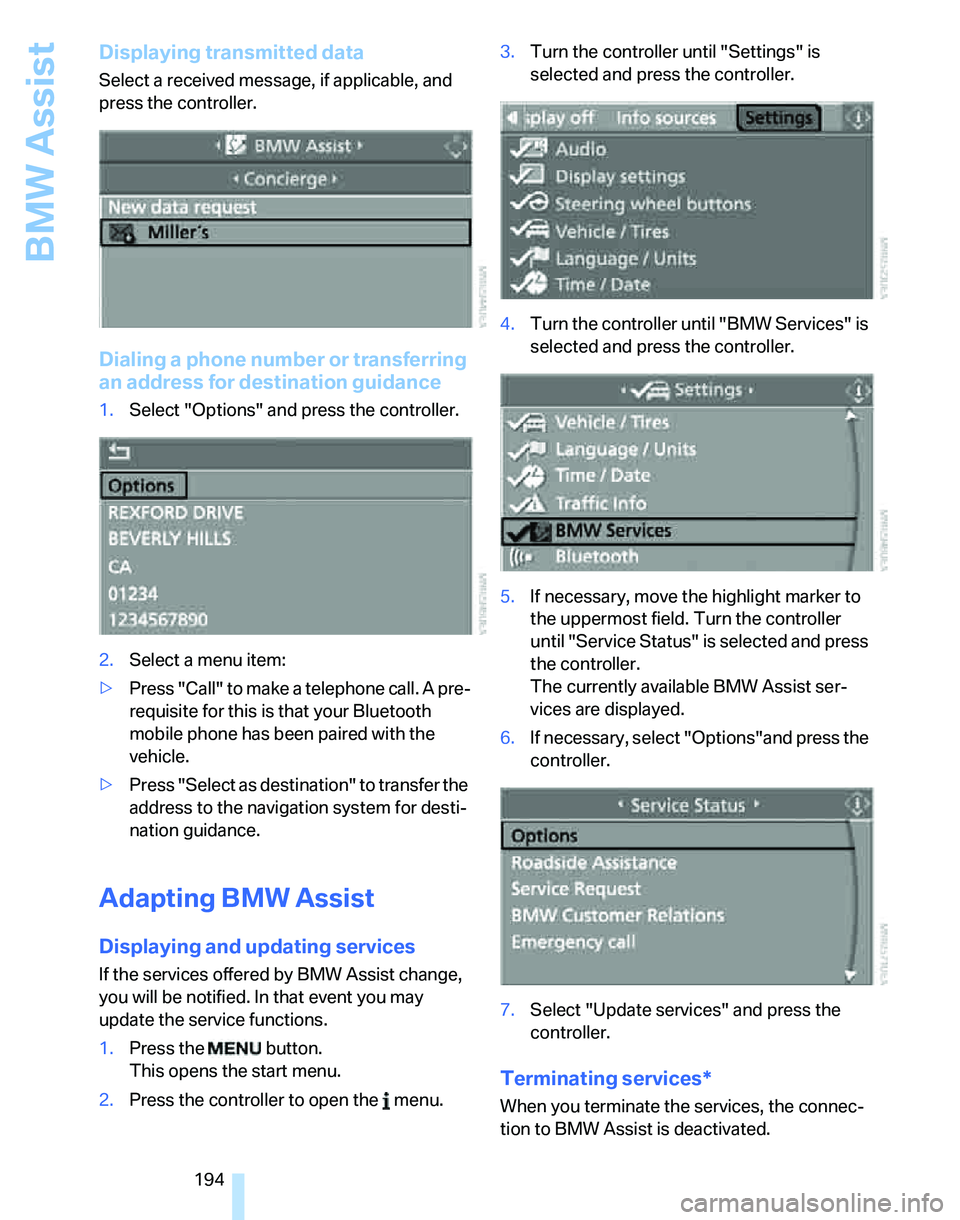
Displaying transmitted data
Select a received message, if applicable, and
press the controller.
Dialing a phone number or transferring
an address for destination guidance
1.Select "Options" and press the controller.
2.Select a menu item:
>Press "Call" to make a telephone call. A pre-
requisite for this is that your Bluetooth
mobile phone has been paired with the
vehicle.
>Press "Select as destination" to transfer the
address to the navigation system for desti-
nation guidance.
Adapting BMW Assist
Displaying and updating services
If the services offered by BMW Assist change,
you will be notified. In that event you may
update the service functions.
1.Press the button.
This opens the start menu.
2.Press the controller to open the menu.3.Turn the controller until "Settings" is
selected and press the controller.
4.Turn the controller until "BMW Services" is
selected and press the controller.
5.If necessary, move the highlight marker to
the uppermost field. Turn the controller
until "Service Status" is selected and press
the controller.
The currently available BMW Assist ser-
vices are displayed.
6.If necessary, select "Options"and press the
controller.
7.Select "Update services" and press the
controller.
Terminating services*
When you terminate the services, the connec-
tion to BMW Assist is deactivated.