Rearview camera BMW 428I CONVERTIBLE 2016 User Guide
[x] Cancel search | Manufacturer: BMW, Model Year: 2016, Model line: 428I CONVERTIBLE, Model: BMW 428I CONVERTIBLE 2016Pages: 247, PDF Size: 5.22 MB
Page 119 of 247
When switching on the system below this
speed, a message is displayed in the instru‐
ment cluster.
The steering wheel begins vibrating gently in
the event of warnings. The time of the warning
may vary depending on the current driving sit‐
uation.
The system does not provide a warning if the
turn signal is set before leaving the lane.
Hints Personal responsibility
The system cannot serve as a substitute
for the driver's personal judgment of the
course of the road and the traffic situation.
In the event of a warning, do not jerk the steer‐
ing wheel, as you may lose control of the vehi‐
cle.◀
At a glance
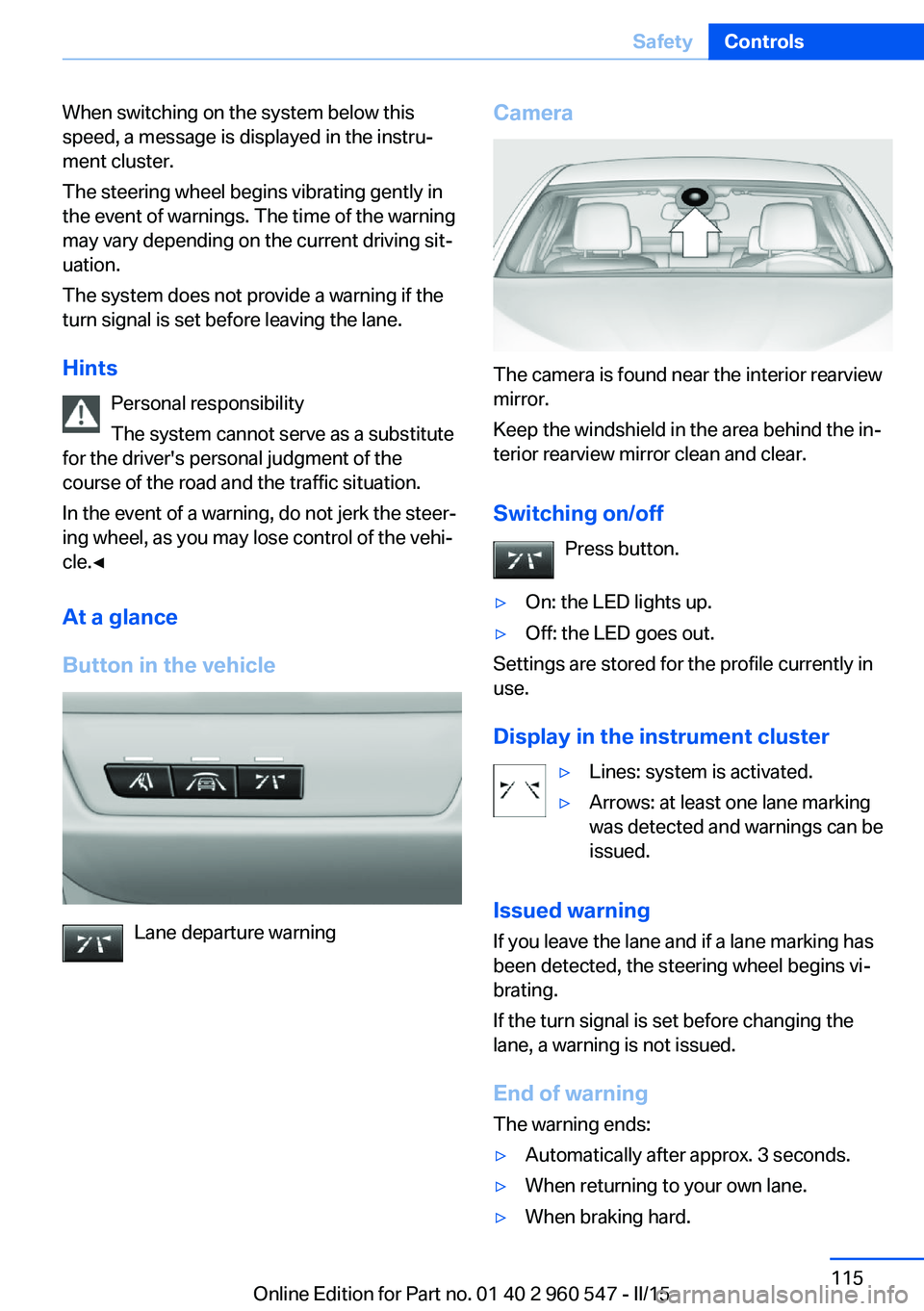
Button in the vehicle
Lane departure warning
Camera
The camera is found near the interior rearview
mirror.
Keep the windshield in the area behind the in‐
terior rearview mirror clean and clear.
Switching on/off Press button.
▷On: the LED lights up.▷Off: the LED goes out.
Settings are stored for the profile currently in
use.
Display in the instrument cluster
▷Lines: system is activated.▷Arrows: at least one lane marking
was detected and warnings can be
issued.
Issued warning
If you leave the lane and if a lane marking has
been detected, the steering wheel begins vi‐
brating.
If the turn signal is set before changing the
lane, a warning is not issued.
End of warning
The warning ends:
▷Automatically after approx. 3 seconds.▷When returning to your own lane.▷When braking hard.Seite 115SafetyControls115
Online Edition for Part no. 01 40 2 960 547 - II/15
Page 120 of 247
▷When using the turn signal.
System limits
The system may not be fully functional in the
following situations:
▷In heavy fog, rain or snowfall.▷In the event of missing, worn, poorly visi‐
ble, merging, diverging, or multiple lane
markings such as in construction areas.▷When lane markings are covered in snow,
ice, dirt or water.▷In tight curves or on narrow lanes.▷When the lane markings are covered by
objects.▷When driving very close to the vehicle in
front of you.▷When driving toward bright lights.▷When the windshield in front of the interior
rearview mirror is fogged over, dirty or cov‐
ered with stickers, etc.▷During calibration of the camera immedi‐
ately after vehicle shipment.
Active Blind Spot Detection
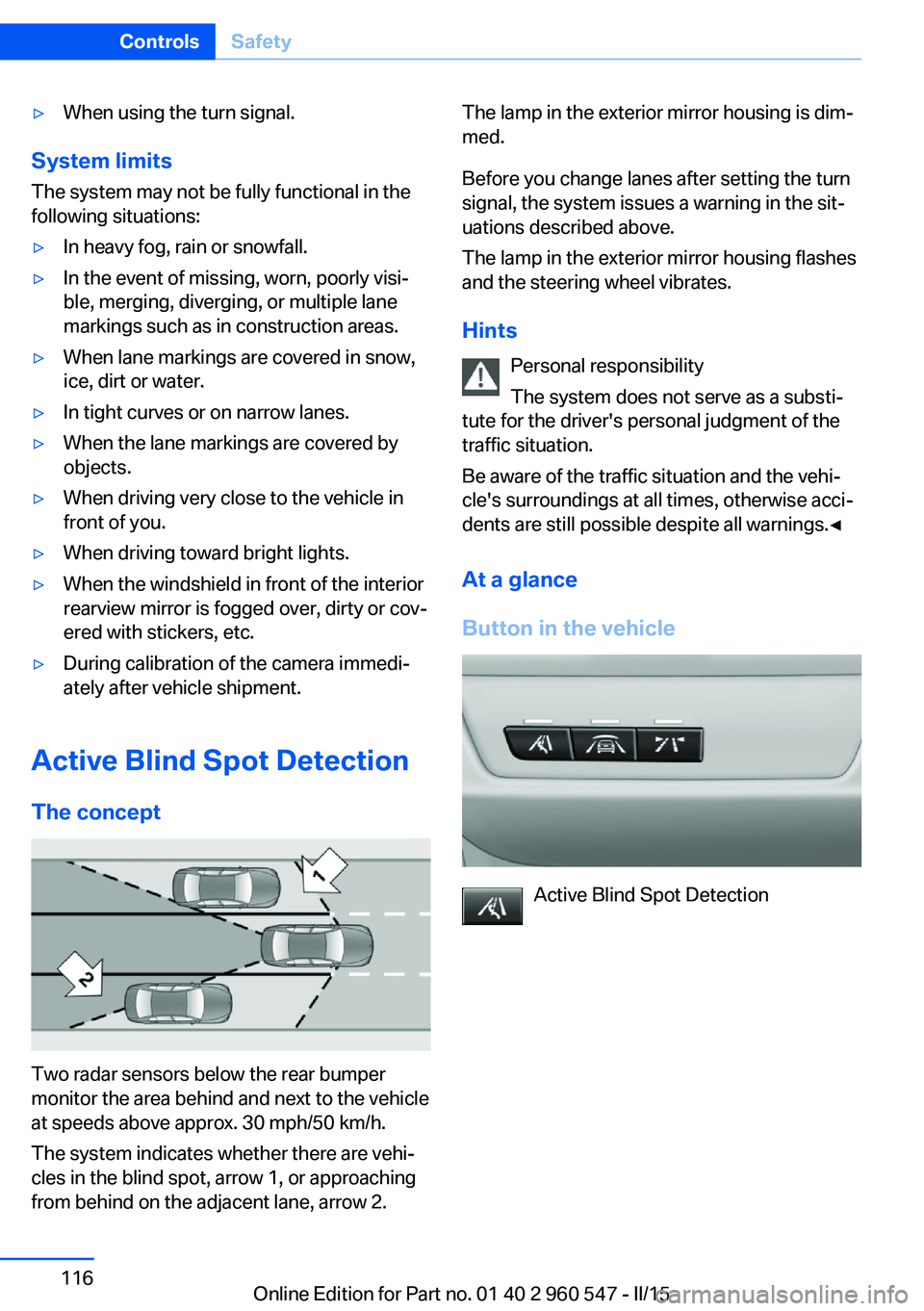
The concept
Two radar sensors below the rear bumper
monitor the area behind and next to the vehicle
at speeds above approx. 30 mph/50 km/h.
The system indicates whether there are vehi‐
cles in the blind spot, arrow 1, or approaching
from behind on the adjacent lane, arrow 2.
The lamp in the exterior mirror housing is dim‐
med.
Before you change lanes after setting the turn
signal, the system issues a warning in the sit‐
uations described above.
The lamp in the exterior mirror housing flashes
and the steering wheel vibrates.
Hints Personal responsibility
The system does not serve as a substi‐
tute for the driver's personal judgment of the
traffic situation.
Be aware of the traffic situation and the vehi‐
cle's surroundings at all times, otherwise acci‐
dents are still possible despite all warnings.◀
At a glance
Button in the vehicle
Active Blind Spot Detection
Seite 116ControlsSafety116
Online Edition for Part no. 01 40 2 960 547 - II/15
Page 138 of 247
Settings are stored for the profile currently in
use.
Visual warning
The approach of the vehicle to an object can
be shown on the Control Display. Objects that
are farther away are already displayed on the
Control Display before a signal sounds.
A display appears as soon as Park Distance
Control (PDC) is activated.
The range of the sensors is represented in the
colors green, yellow and red.
When the image of the rearview camera is dis‐
played, the reel can be made to PDC:
"Rear view camera"
System limits
Limits of ultrasonic measurement
Ultrasonic measuring might not function under
the following circumstances:
▷For small children and animals.▷For persons with certain clothing, e.g.
coats.▷With external interference of the ultra‐
sound, e.g. from passing vehicles or loud
machines.▷When sensors are dirty, iced over, dam‐
aged or out of position.▷Under certain weather conditions such as
high relative humidity, rain, snowfall, ex‐
treme heat or strong wind.▷With tow bars and trailer couplings of other
vehicles.▷With thin or wedge-shaped objects.▷With moving objects.▷With elevated, protruding objects such as
ledges or cargo.▷With objects with corners and sharp edges.▷With objects with a fine surface structure
such as fences.▷For objects with porous surfaces.
Low objects already displayed, e.g., curbs, can
move into the blind area of the sensors before
or after a continuous tone sounds.
False warnings
PDC may issue a warning under the following conditions even though there is no obstacle
within the detection range:
▷In heavy rain.▷When sensors are very dirty or covered
with ice.▷When sensors are covered in snow.▷On rough road surfaces.▷On uneven surfaces, such as speed
bumps.▷In large buildings with right angles and
smooth walls, e.g., in underground ga‐
rages.▷In automatic car washes.▷Through heavy pollution.▷Due to other ultrasound sources, e.g.,
sweeping machines, high pressure steam
cleaners or neon lights.
The malfunction is signaled by a continu‐
ous tone alternating between the front and
rear speakers. As soon as the malfunction
due to other ultrasound sources is no lon‐
ger present, the system is again fully func‐
tional.
Malfunction
A Check Control message is displayed.
The range of the sensors is shown as a shaded
area on the Control Display.
PDC has failed. Have the system checked.
To ensure full functionality:
▷Keep the sensors clean and free of ice.▷dimmedDo not put any stickers on sen‐
sors.Seite 134ControlsDriving comfort134
Online Edition for Part no. 01 40 2 960 547 - II/15
Page 139 of 247
▷When using high-pressure washers, do not
spray the sensors for long periods and
maintain a distance of at least 12 in/30 cm.
Surround View
The concept Surround View comprises various camera as‐
sistance systems that help the driver when
parking, maneuvering, and at complex exits
and intersections.
▷Rearview camera, refer to page 135▷Side View, refer to page 137.▷Top View, refer to page 138.
Rearview camera
The concept The rearview camera provides assistance in
parking and maneuvering backwards. The area
behind the vehicle is shown on the Control
Display.
Hints Check the traffic situation as well
Check the traffic situation around the ve‐
hicle with your own eyes. Otherwise, an acci‐
dent could result from road users or objects
that are not lidtured by the camera.◀
At a glance
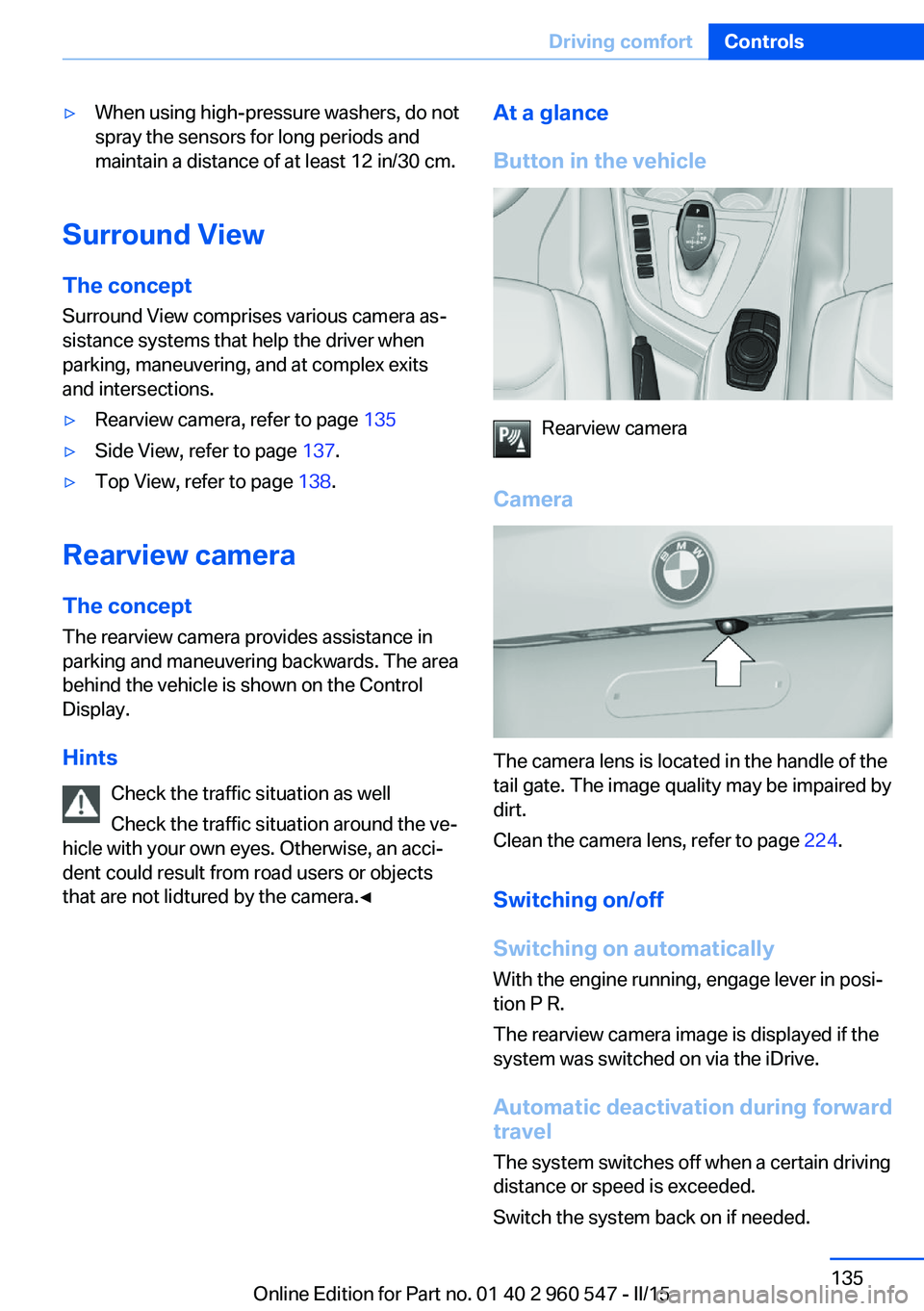
Button in the vehicle
Rearview camera
Camera
The camera lens is located in the handle of the
tail gate. The image quality may be impaired by
dirt.
Clean the camera lens, refer to page 224.
Switching on/off
Switching on automatically With the engine running, engage lever in posi‐
tion P R.
The rearview camera image is displayed if the
system was switched on via the iDrive.
Automatic deactivation during forward
travel
The system switches off when a certain driving
distance or speed is exceeded.
Switch the system back on if needed.
Seite 135Driving comfortControls135
Online Edition for Part no. 01 40 2 960 547 - II/15
Page 140 of 247
Switching on/off manuallyPress button.▷On: the LED lights up.▷Off: the LED goes out.
The PDC is shown on the Control Display.
Switching the view via iDrive With PDC activated or Top View switched on:
"Rear view camera"
The rearview camera image is displayed.
Display on the Control Display
Functional requirement
▷The rearview camera is switched on.▷The trunk lid is fully closed.
Activating assistance functions
More than one assistance function can be ac‐
tive at the same time.
▷Parking aid lines
"Parking aid lines"
Lanes and turning radius are indicated.
▷Obstacle marking
"Obstacle marking"
Spatially-shaped markings are displayed.
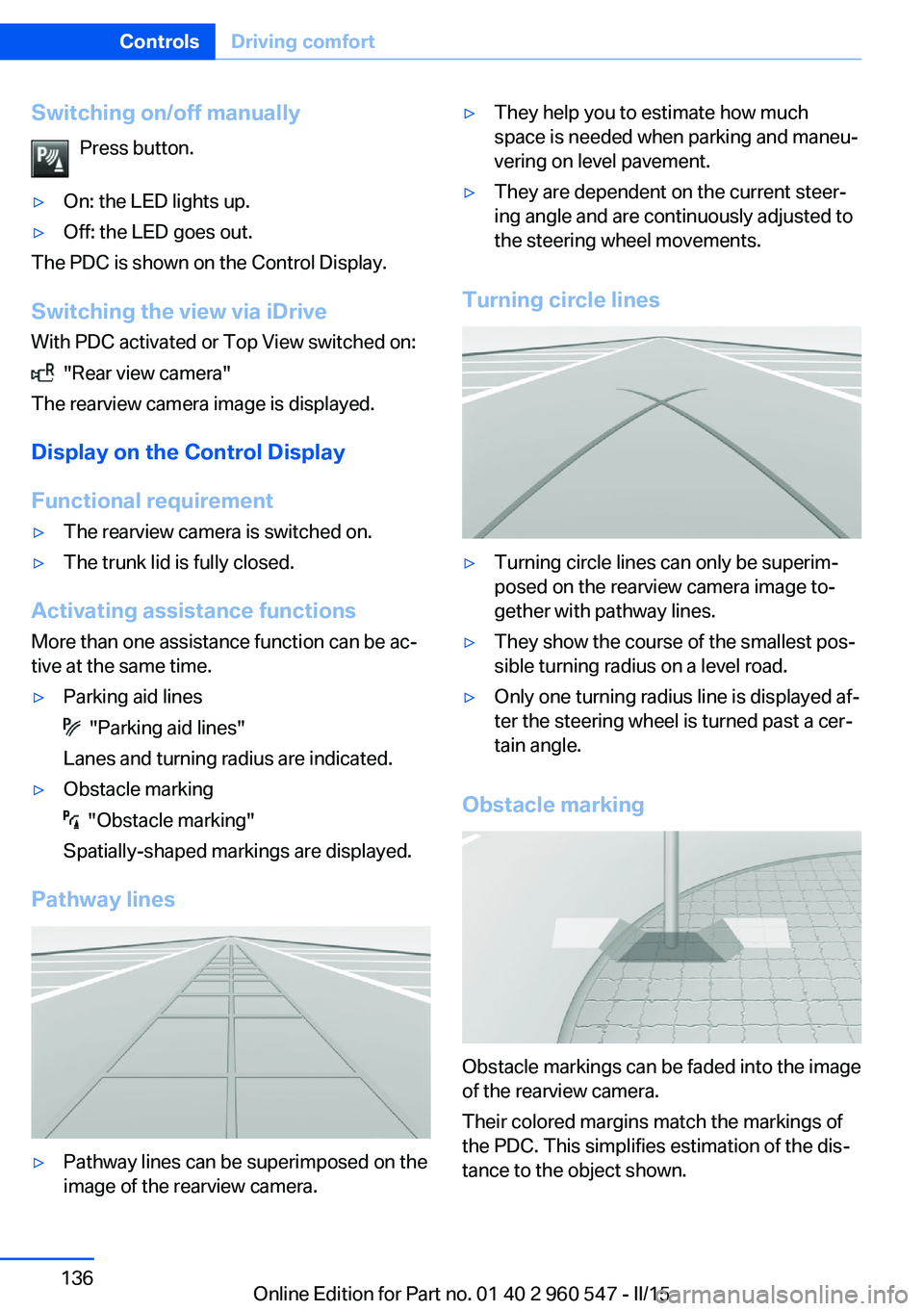
Pathway lines
▷Pathway lines can be superimposed on the
image of the rearview camera.▷They help you to estimate how much
space is needed when parking and maneu‐
vering on level pavement.▷They are dependent on the current steer‐
ing angle and are continuously adjusted to
the steering wheel movements.
Turning circle lines
▷Turning circle lines can only be superim‐
posed on the rearview camera image to‐
gether with pathway lines.▷They show the course of the smallest pos‐
sible turning radius on a level road.▷Only one turning radius line is displayed af‐
ter the steering wheel is turned past a cer‐
tain angle.
Obstacle marking
Obstacle markings can be faded into the image
of the rearview camera.
Their colored margins match the markings of
the PDC. This simplifies estimation of the dis‐
tance to the object shown.
Seite 136ControlsDriving comfort136
Online Edition for Part no. 01 40 2 960 547 - II/15
Page 141 of 247
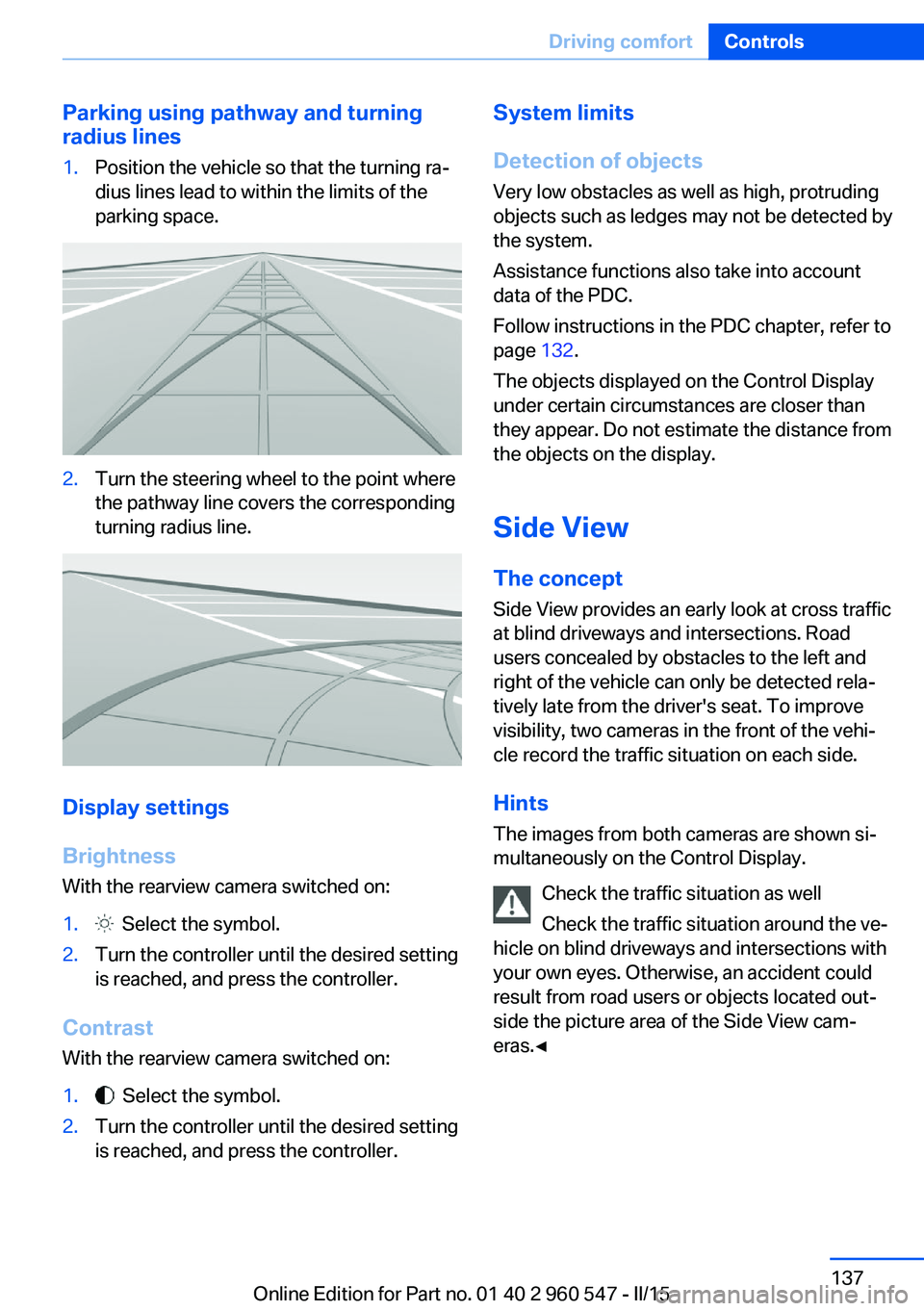
Parking using pathway and turning
radius lines1.Position the vehicle so that the turning ra‐
dius lines lead to within the limits of the
parking space.2.Turn the steering wheel to the point where
the pathway line covers the corresponding
turning radius line.
Display settings
Brightness
With the rearview camera switched on:
1. Select the symbol.2.Turn the controller until the desired setting
is reached, and press the controller.
Contrast
With the rearview camera switched on:
1. Select the symbol.2.Turn the controller until the desired setting
is reached, and press the controller.System limits
Detection of objects
Very low obstacles as well as high, protruding
objects such as ledges may not be detected by
the system.
Assistance functions also take into account
data of the PDC.
Follow instructions in the PDC chapter, refer to
page 132.
The objects displayed on the Control Display
under certain circumstances are closer than
they appear. Do not estimate the distance from
the objects on the display.
Side View The concept Side View provides an early look at cross traffic
at blind driveways and intersections. Road
users concealed by obstacles to the left and
right of the vehicle can only be detected rela‐
tively late from the driver's seat. To improve
visibility, two cameras in the front of the vehi‐
cle record the traffic situation on each side.
Hints
The images from both cameras are shown si‐
multaneously on the Control Display.
Check the traffic situation as well
Check the traffic situation around the ve‐
hicle on blind driveways and intersections with
your own eyes. Otherwise, an accident could
result from road users or objects located out‐
side the picture area of the Side View cam‐
eras.◀Seite 137Driving comfortControls137
Online Edition for Part no. 01 40 2 960 547 - II/15
Page 143 of 247
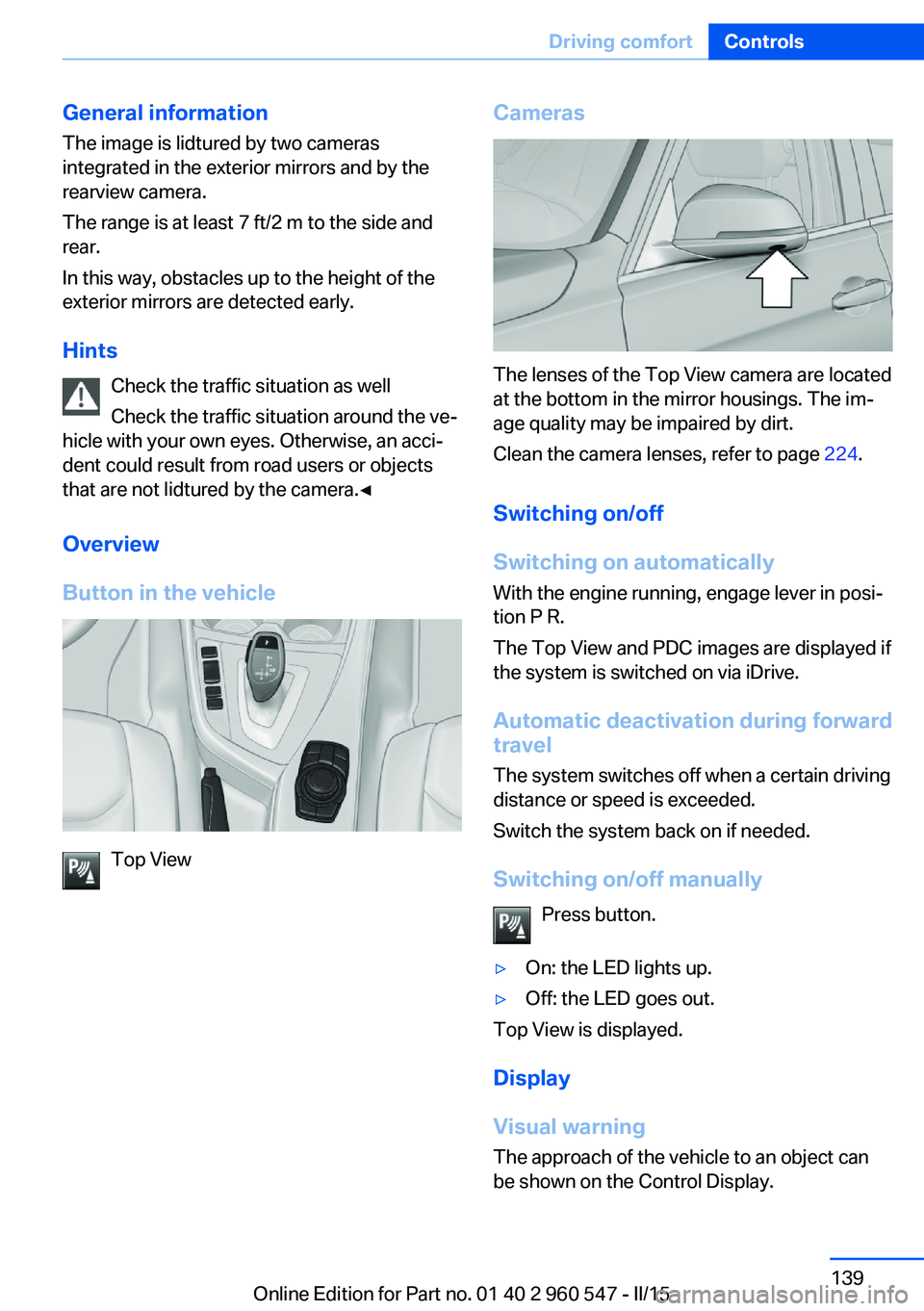
General information
The image is lidtured by two cameras
integrated in the exterior mirrors and by the
rearview camera.
The range is at least 7 ft/2 m to the side and
rear.
In this way, obstacles up to the height of the
exterior mirrors are detected early.
Hints Check the traffic situation as well
Check the traffic situation around the ve‐
hicle with your own eyes. Otherwise, an acci‐
dent could result from road users or objects
that are not lidtured by the camera.◀
Overview
Button in the vehicle
Top View
Cameras
The lenses of the Top View camera are located
at the bottom in the mirror housings. The im‐
age quality may be impaired by dirt.
Clean the camera lenses, refer to page 224.
Switching on/off
Switching on automatically With the engine running, engage lever in posi‐
tion P R.
The Top View and PDC images are displayed if
the system is switched on via iDrive.
Automatic deactivation during forward
travel
The system switches off when a certain driving
distance or speed is exceeded.
Switch the system back on if needed.
Switching on/off manually Press button.
▷On: the LED lights up.▷Off: the LED goes out.
Top View is displayed.
Display
Visual warning
The approach of the vehicle to an object can
be shown on the Control Display.
Seite 139Driving comfortControls139
Online Edition for Part no. 01 40 2 960 547 - II/15
Page 144 of 247
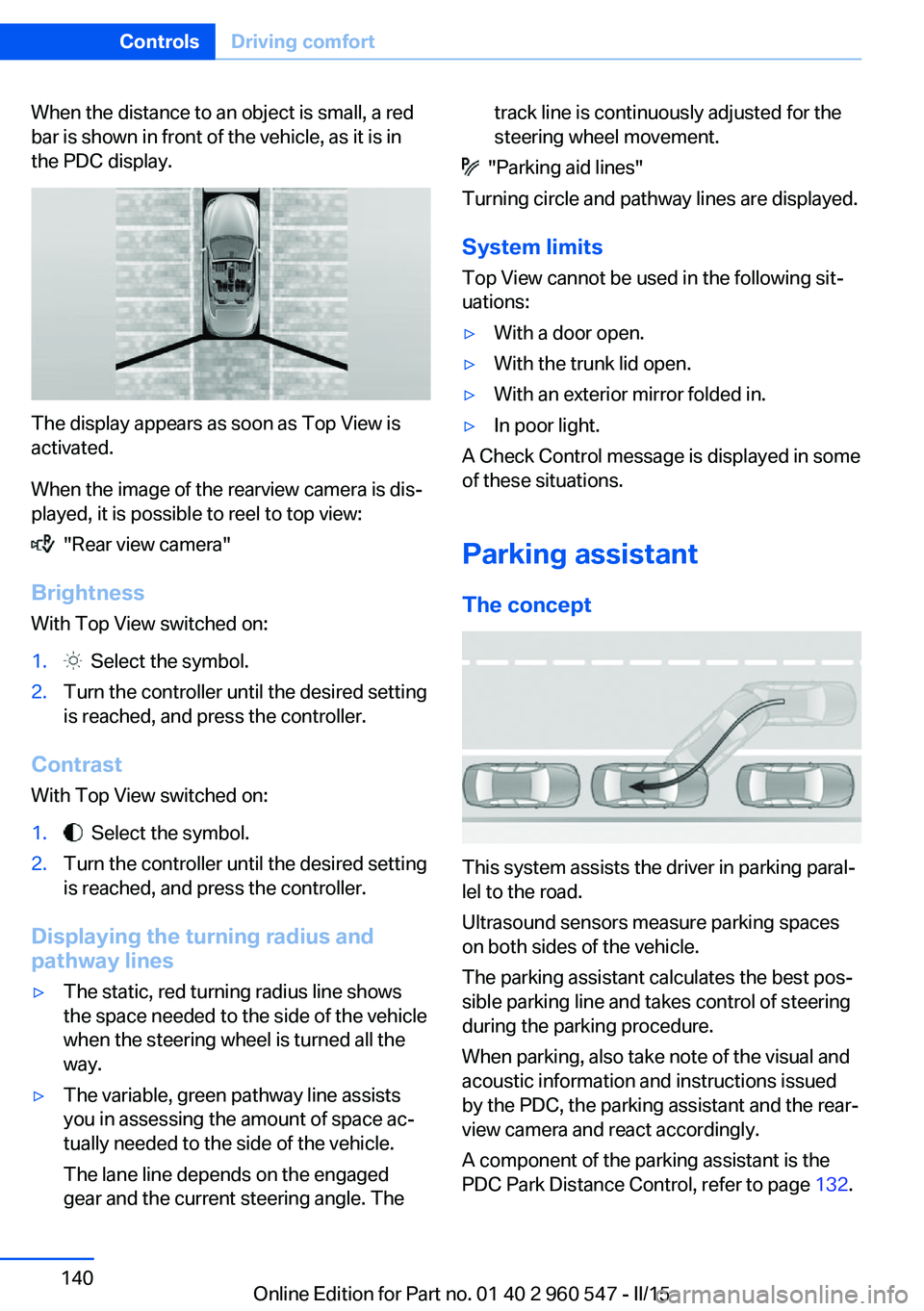
When the distance to an object is small, a red
bar is shown in front of the vehicle, as it is in
the PDC display.
The display appears as soon as Top View is
activated.
When the image of the rearview camera is dis‐
played, it is possible to reel to top view:
"Rear view camera"
Brightness
With Top View switched on:
1. Select the symbol.2.Turn the controller until the desired setting
is reached, and press the controller.
Contrast
With Top View switched on:
1. Select the symbol.2.Turn the controller until the desired setting
is reached, and press the controller.
Displaying the turning radius and
pathway lines
▷The static, red turning radius line shows
the space needed to the side of the vehicle
when the steering wheel is turned all the
way.▷The variable, green pathway line assists
you in assessing the amount of space ac‐
tually needed to the side of the vehicle.
The lane line depends on the engaged
gear and the current steering angle. Thetrack line is continuously adjusted for the
steering wheel movement.
"Parking aid lines"
Turning circle and pathway lines are displayed.
System limits
Top View cannot be used in the following sit‐
uations:
▷With a door open.▷With the trunk lid open.▷With an exterior mirror folded in.▷In poor light.
A Check Control message is displayed in some
of these situations.
Parking assistant The concept
This system assists the driver in parking paral‐
lel to the road.
Ultrasound sensors measure parking spaces
on both sides of the vehicle.
The parking assistant calculates the best pos‐
sible parking line and takes control of steering
during the parking procedure.
When parking, also take note of the visual and
acoustic information and instructions issued
by the PDC, the parking assistant and the rear‐
view camera and react accordingly.
A component of the parking assistant is the
PDC Park Distance Control, refer to page 132.
Seite 140ControlsDriving comfort140
Online Edition for Part no. 01 40 2 960 547 - II/15
Page 237 of 247
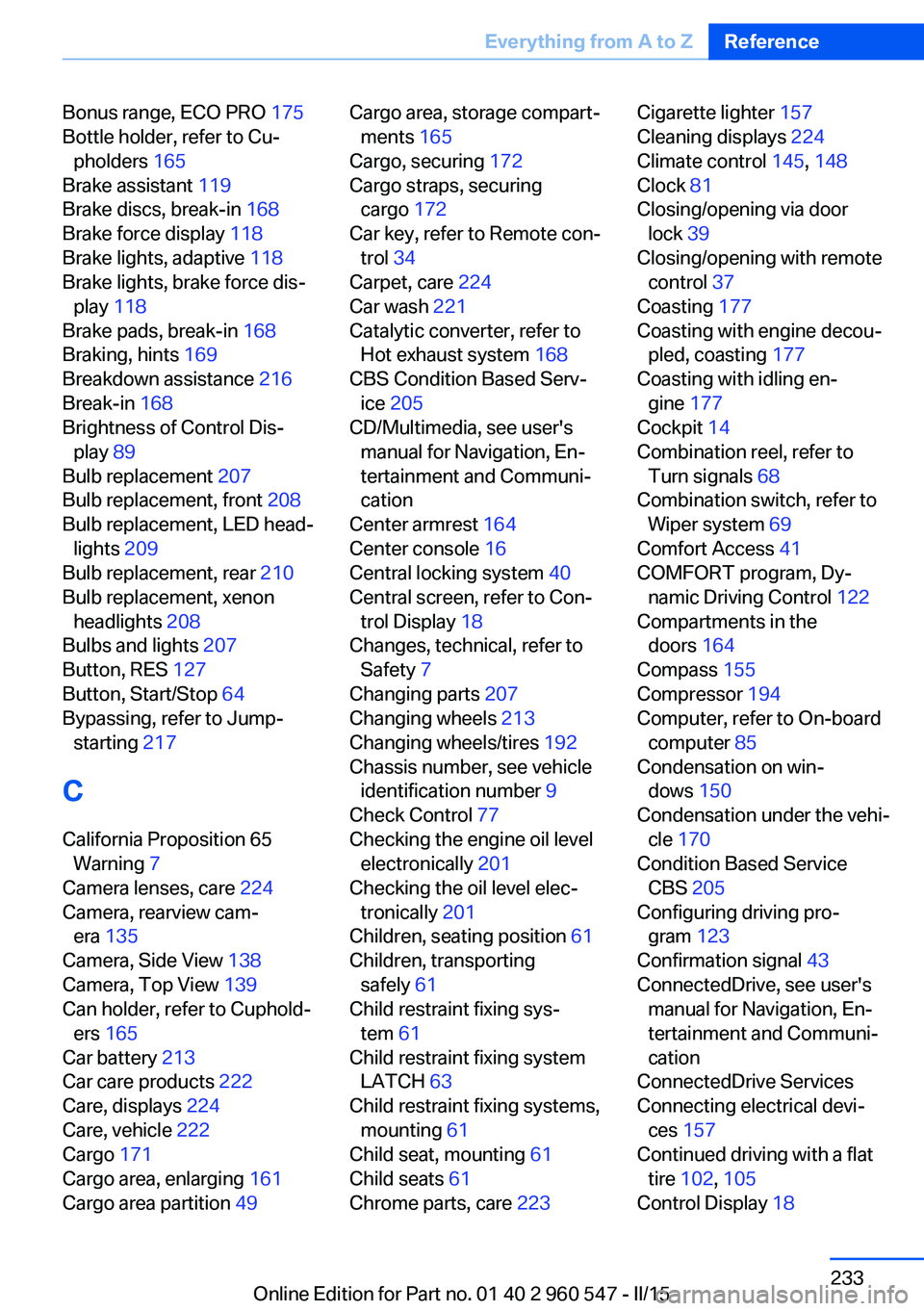
Bonus range, ECO PRO 175
Bottle holder, refer to Cu‐ pholders 165
Brake assistant 119
Brake discs, break-in 168
Brake force display 118
Brake lights, adaptive 118
Brake lights, brake force dis‐ play 118
Brake pads, break-in 168
Braking, hints 169
Breakdown assistance 216
Break-in 168
Brightness of Control Dis‐ play 89
Bulb replacement 207
Bulb replacement, front 208
Bulb replacement, LED head‐ lights 209
Bulb replacement, rear 210
Bulb replacement, xenon headlights 208
Bulbs and lights 207
Button, RES 127
Button, Start/Stop 64
Bypassing, refer to Jump- starting 217
C
California Proposition 65 Warning 7
Camera lenses, care 224
Camera, rearview cam‐ era 135
Camera, Side View 138
Camera, Top View 139
Can holder, refer to Cuphold‐ ers 165
Car battery 213
Car care products 222
Care, displays 224
Care, vehicle 222
Cargo 171
Cargo area, enlarging 161
Cargo area partition 49 Cargo area, storage compart‐
ments 165
Cargo, securing 172
Cargo straps, securing cargo 172
Car key, refer to Remote con‐ trol 34
Carpet, care 224
Car wash 221
Catalytic converter, refer to Hot exhaust system 168
CBS Condition Based Serv‐ ice 205
CD/Multimedia, see user's manual for Navigation, En‐
tertainment and Communi‐
cation
Center armrest 164
Center console 16
Central locking system 40
Central screen, refer to Con‐ trol Display 18
Changes, technical, refer to Safety 7
Changing parts 207
Changing wheels 213
Changing wheels/tires 192
Chassis number, see vehicle identification number 9
Check Control 77
Checking the engine oil level electronically 201
Checking the oil level elec‐ tronically 201
Children, seating position 61
Children, transporting safely 61
Child restraint fixing sys‐ tem 61
Child restraint fixing system LATCH 63
Child restraint fixing systems, mounting 61
Child seat, mounting 61
Child seats 61
Chrome parts, care 223 Cigarette lighter 157
Cleaning displays 224
Climate control 145, 148
Clock 81
Closing/opening via door lock 39
Closing/opening with remote control 37
Coasting 177
Coasting with engine decou‐ pled, coasting 177
Coasting with idling en‐ gine 177
Cockpit 14
Combination reel, refer to Turn signals 68
Combination switch, refer to Wiper system 69
Comfort Access 41
COMFORT program, Dy‐ namic Driving Control 122
Compartments in the doors 164
Compass 155
Compressor 194
Computer, refer to On-board computer 85
Condensation on win‐ dows 150
Condensation under the vehi‐ cle 170
Condition Based Service CBS 205
Configuring driving pro‐ gram 123
Confirmation signal 43
ConnectedDrive, see user's manual for Navigation, En‐
tertainment and Communi‐
cation
ConnectedDrive Services
Connecting electrical devi‐ ces 157
Continued driving with a flat tire 102 , 105
Control Display 18 Seite 233Everything from A to ZReference233
Online Edition for Part no. 01 40 2 960 547 - II/15
Page 241 of 247
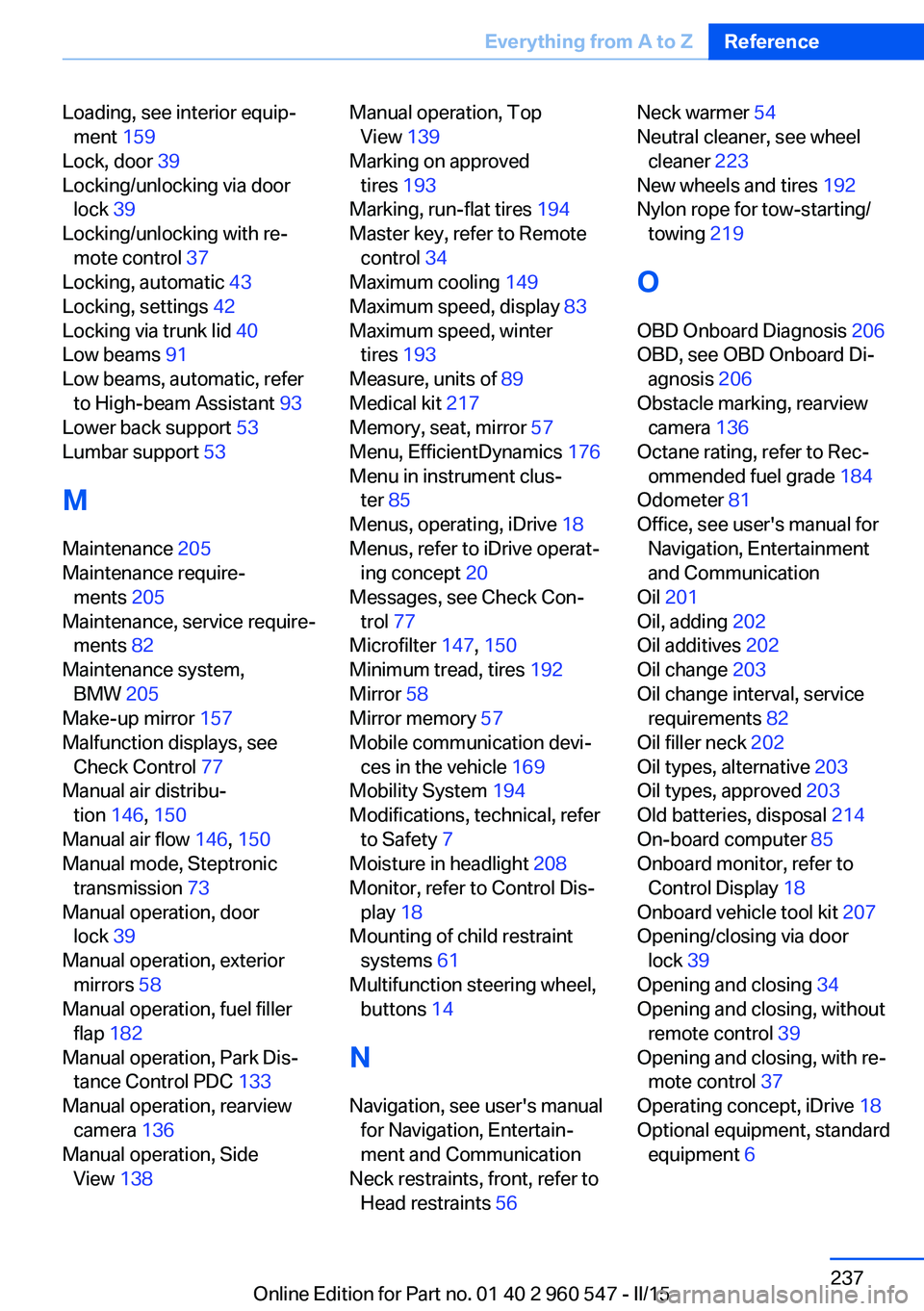
Loading, see interior equip‐ment 159
Lock, door 39
Locking/unlocking via door lock 39
Locking/unlocking with re‐ mote control 37
Locking, automatic 43
Locking, settings 42
Locking via trunk lid 40
Low beams 91
Low beams, automatic, refer to High-beam Assistant 93
Lower back support 53
Lumbar support 53
M
Maintenance 205
Maintenance require‐ ments 205
Maintenance, service require‐ ments 82
Maintenance system, BMW 205
Make-up mirror 157
Malfunction displays, see Check Control 77
Manual air distribu‐ tion 146, 150
Manual air flow 146, 150
Manual mode, Steptronic transmission 73
Manual operation, door lock 39
Manual operation, exterior mirrors 58
Manual operation, fuel filler flap 182
Manual operation, Park Dis‐ tance Control PDC 133
Manual operation, rearview camera 136
Manual operation, Side View 138 Manual operation, Top
View 139
Marking on approved tires 193
Marking, run-flat tires 194
Master key, refer to Remote control 34
Maximum cooling 149
Maximum speed, display 83
Maximum speed, winter tires 193
Measure, units of 89
Medical kit 217
Memory, seat, mirror 57
Menu, EfficientDynamics 176
Menu in instrument clus‐ ter 85
Menus, operating, iDrive 18
Menus, refer to iDrive operat‐ ing concept 20
Messages, see Check Con‐ trol 77
Microfilter 147, 150
Minimum tread, tires 192
Mirror 58
Mirror memory 57
Mobile communication devi‐ ces in the vehicle 169
Mobility System 194
Modifications, technical, refer to Safety 7
Moisture in headlight 208
Monitor, refer to Control Dis‐ play 18
Mounting of child restraint systems 61
Multifunction steering wheel, buttons 14
N
Navigation, see user's manual for Navigation, Entertain‐
ment and Communication
Neck restraints, front, refer to Head restraints 56 Neck warmer 54
Neutral cleaner, see wheel cleaner 223
New wheels and tires 192
Nylon rope for tow-starting/ towing 219
O OBD Onboard Diagnosis 206
OBD, see OBD Onboard Di‐ agnosis 206
Obstacle marking, rearview camera 136
Octane rating, refer to Rec‐ ommended fuel grade 184
Odometer 81
Office, see user's manual for Navigation, Entertainment
and Communication
Oil 201
Oil, adding 202
Oil additives 202
Oil change 203
Oil change interval, service requirements 82
Oil filler neck 202
Oil types, alternative 203
Oil types, approved 203
Old batteries, disposal 214
On-board computer 85
Onboard monitor, refer to Control Display 18
Onboard vehicle tool kit 207
Opening/closing via door lock 39
Opening and closing 34
Opening and closing, without remote control 39
Opening and closing, with re‐ mote control 37
Operating concept, iDrive 18
Optional equipment, standard equipment 6 Seite 237Everything from A to ZReference237
Online Edition for Part no. 01 40 2 960 547 - II/15