audio BMW 5 SERIES 2010 User Guide
[x] Cancel search | Manufacturer: BMW, Model Year: 2010, Model line: 5 SERIES, Model: BMW 5 SERIES 2010Pages: 271, PDF Size: 9.19 MB
Page 169 of 271
Navigation
Entertainment
Driving tips
167Reference
At a glance
Controls
Communications
Mobility
Music collection
Storing music
Music tracks from CDs, DVDs and USB devices
can be stored in the music collection in the vehi-
cle and played from there.
>Audio CD: tracks are converted into a com-
pressed audio format when they are stored.
If available, information on the album, such
as the artist, is stored as well.
>CD/DVD or USB device with compressed
audio files: the entire content of the CD/
DVD or the USB device is stored in the vehi-
cle as an album. After storing, the tracks and
directories can be deleted individually. Files
are only stored in the WMA, MP3, and AAC
formats.
Tracks with DRM copy protection can be
stored in the vehicle but cannot be played
back.
Regularly back up the music data; other-
wise, it could be lost if there is a fault on
the hard disc.<
Music recognition technology and
related data are provided by
Gracenote®. Gracenote® is the industry stan-
dard in music recognition technology and
related content delivery. For more information,
please visit www.gracenote.com.
CD and music-related data from Gracenote,
Inc., copyright © 2000-2009 Gracenote.
Gracenote Software copyright 2000-2009
Gracenote. This product and service may prac-
tice one or more of the following U.S. Patents:
#5,987,525; #6,061,680; #6,154,773,
#6,161,132, #6,230,192, #6,230,207,
#6,240,459, #6,330,593, and other patents
issued or pending. Some services supplied
under license from Open Globe, Inc., for U.S.
Patent: #6,304,523.
Gracenote and CDDB are registered trade
marks of Gracenote. The Gracenote logo, the
logo typeface and the "powered by Gracenote"
logo are trade marks of Gracenote.
Storing from CDs/DVDs
Data can only be stored from CDs/DVDs on the
CD/DVD player.
1.Insert the CD/DVD into the CD/DVD player.
2."CD/Multimedia"
3."CD/DVD"
4. Select the symbol for the CD/DVD
player.
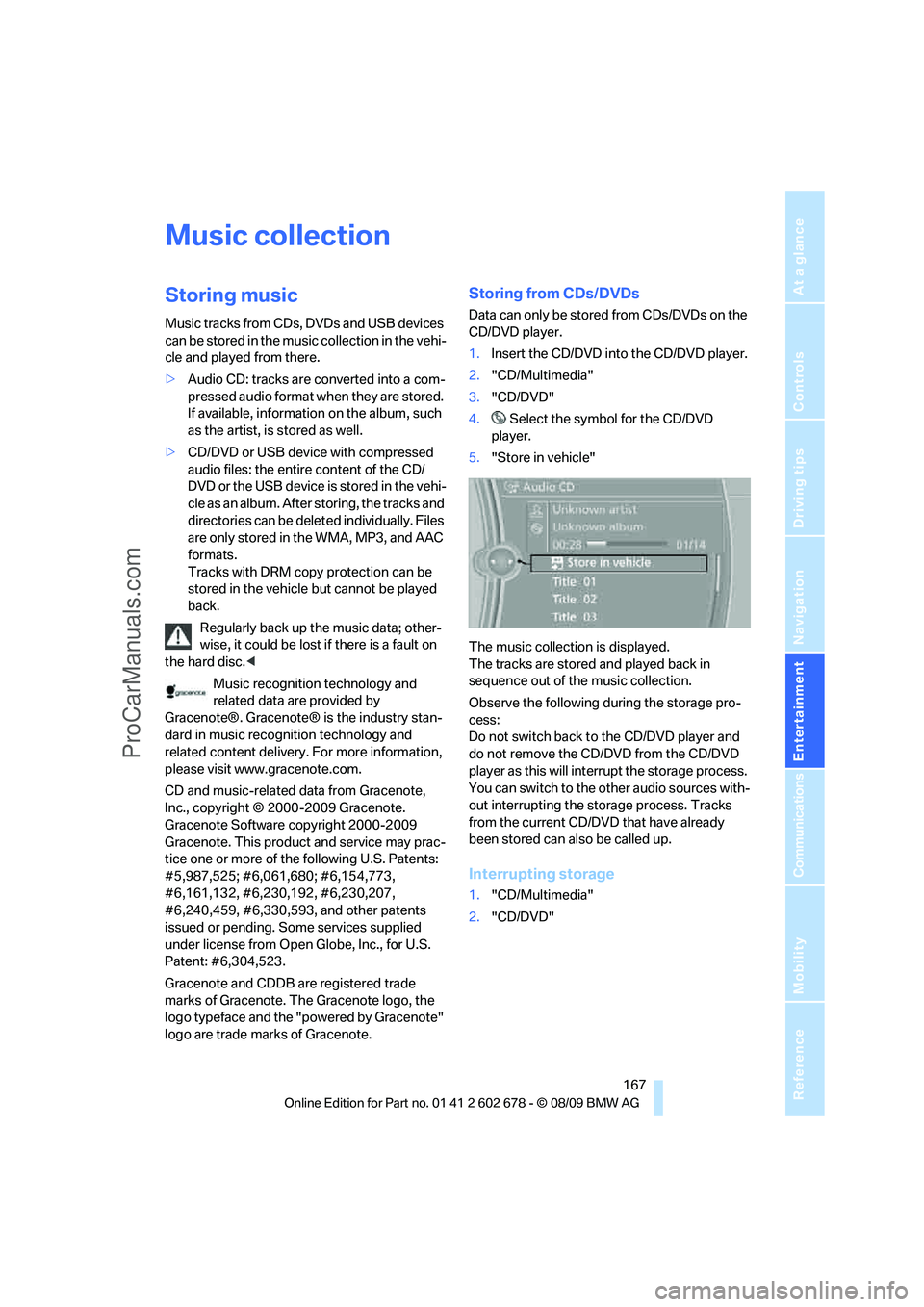
5."Store in vehicle"
The music collection is displayed.
The tracks are stored and played back in
sequence out of the music collection.
Observe the following during the storage pro-
cess:
Do not switch back to the CD/DVD player and
do not remove the CD/DVD from the CD/DVD
player as this will interrupt the storage process.
You can switch to the other audio sources with-
out interrupting the storage process. Tracks
from the current CD/DVD that have already
been stored can also be called up.
Interrupting storage
1."CD/Multimedia"
2."CD/DVD"
ProCarManuals.com
Page 171 of 271
Navigation
Entertainment
Driving tips
169Reference
At a glance
Controls
Communications
Mobility
4.Select the desired category.
5.To select the desired entry:
>Open "A-Z search" and enter the
desired entry.
or
>Select the desired entry from the list.
6.Select additional categories if desired.
The tracks found are listed in alphabetical
order.
Not all categories need to be selected. For
example, to search for all tracks by a certain
artist, call up that artist only. All of the tracks
by that artist are then displayed.
7."Start play"
Restarting the music search
"New search"
Music search by voice*
For instructions on the voice activation system,
refer to page22.
1.Press the button on the steering wheel.
To select a track directly:
Say the voice command and the name of the
desired track in one sentence.
Current playback
The list of tracks that was generated last by the
music search or the album selected last.
1."Current playback"
2.Select the desired track, if necessary.
Top 50
List of the 50 most frequently played tracks.
1."CD/Multimedia"
2."Music collection"
3."Top 50"
4.Select the desired track, if necessary.
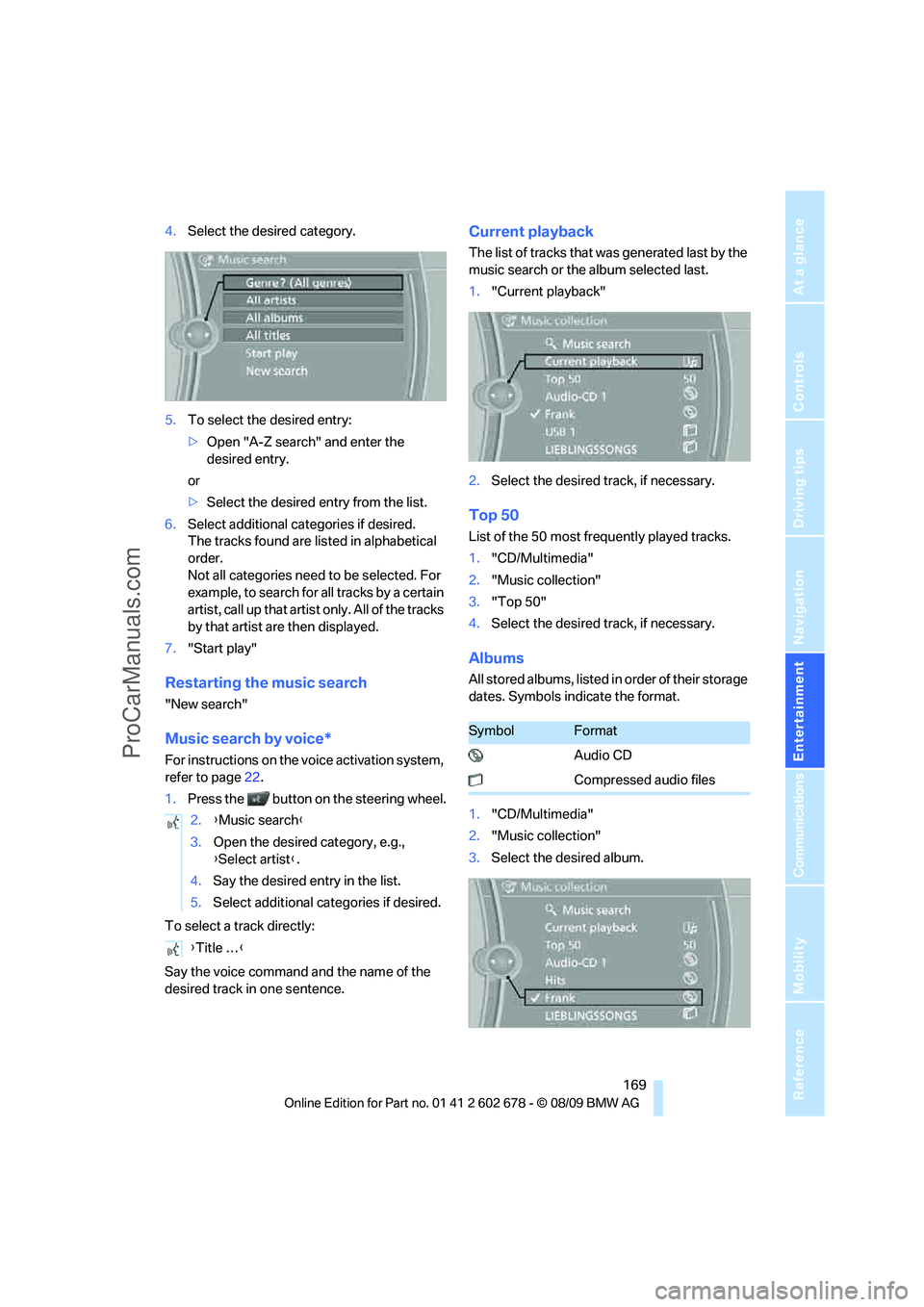
Albums
All stored albums, listed in order of their storage
dates. Symbols indicate the format.
1."CD/Multimedia"
2."Music collection"
3.Select the desired album. 2.{Music search}
3.Open the desired category, e.g.,
{Select artist}.
4.Say the desired entry in the list.
5.Select additional categories if desired.
{Title …}
SymbolFormat
Audio CD
Compressed audio files
ProCarManuals.com
Page 174 of 271
External devices
172
External devices
AUX-IN port
You can connect an external audio device, e.g.,
an MP3 player, and play the sound via the vehi-
cle speakers. The sound can be adjusted via
iDrive.
Connecting
Connection for audio playback:
TRS connector 1/8 in/3.5 mm
To play audio tracks over the car's loudspeaker
system, connect the headset or line-out port of
the external device to the AUX-IN port.
Starting audio playback
Connect the audio device, switch it on and
select a track. Operate the system on the audio
device.
Via iDrive
1."CD/Multimedia"
2.If applicable, "External devices"
3. "AUX front"
Adjusting volume
The volume of the sound output depends on
the audio device. If this volume differs markedly
from the volume of the other audio sources, it is
advisable to adjust the volumes.
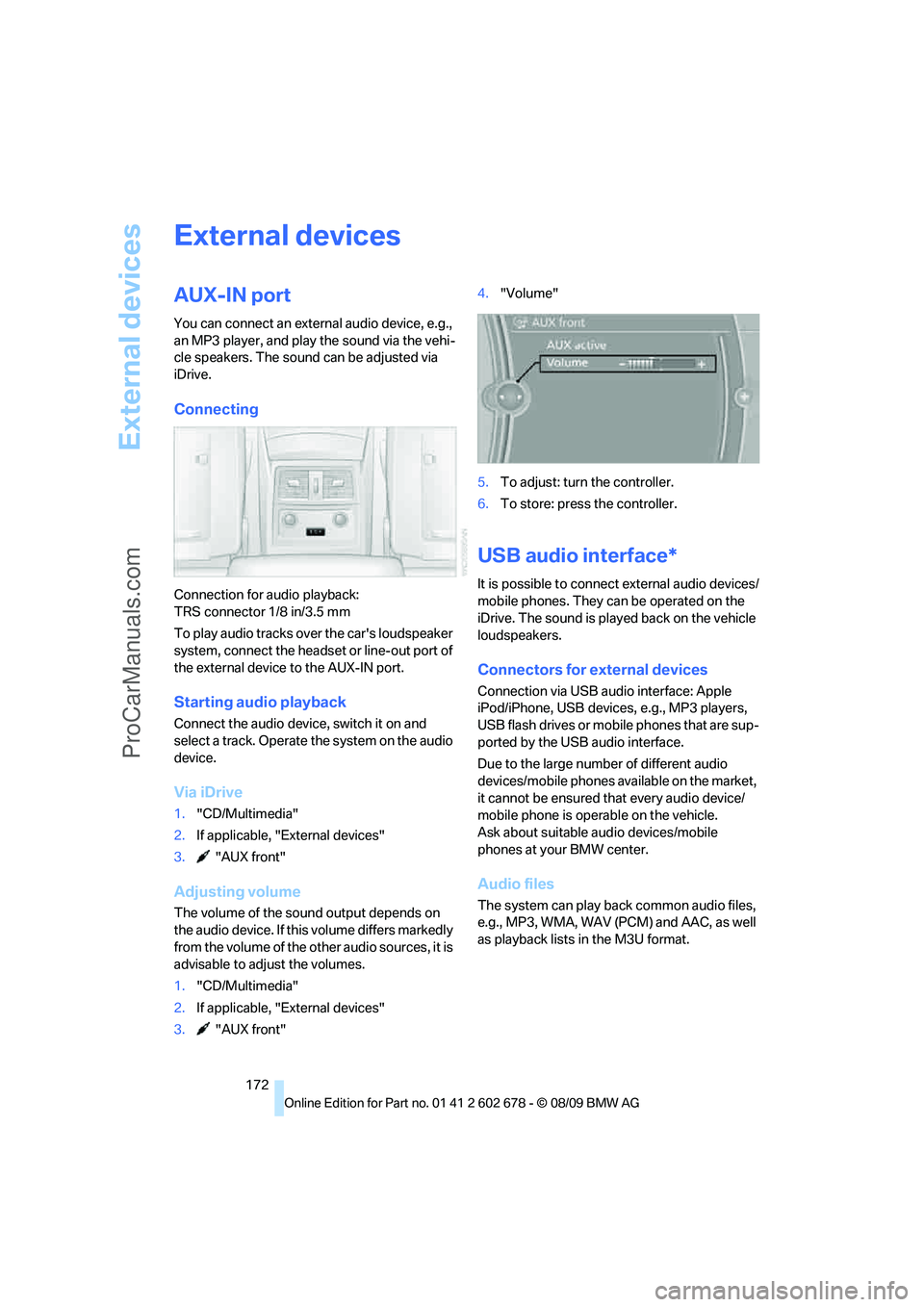
1."CD/Multimedia"
2.If applicable, "External devices"
3. "AUX front"4."Volume"
5.To adjust: turn the controller.
6.To store: press the controller.
USB audio interface*
It is possible to connect external audio devices/
mobile phones. They can be operated on the
iDrive. The sound is played back on the vehicle
loudspeakers.
Connectors for external devices
Connection via USB audio interface: Apple
iPod/iPhone, USB devices, e.g., MP3 players,
USB flash drives or mobile phones that are sup-
ported by the USB audio interface.
Due to the large number of different audio
devices/mobile phones available on the market,
it cannot be ensured that every audio device/
mobile phone is operable on the vehicle.
Ask about suitable audio devices/mobile
phones at your BMW center.
Audio files
The system can play back common audio files,
e.g., MP3, WMA, WAV (PCM) and AAC, as well
as playback lists in the M3U format.
ProCarManuals.com
Page 175 of 271
Navigation
Entertainment
Driving tips
173Reference
At a glance
Controls
Communications
Mobility
Connecting via the USB audio interface
Lift up the center armrest.
Apple iPod/iPhone
To connect the device, use the special cable
adapter for the Apple iPod/iPhone, available
from your BMW center. The cable adapter is
required for a flawless connection.
USB device
To connect the device, use a flexible
adapter cable to protect the USB inter-
face and your USB device against physical
damage.<
Connect the USB device to the USB audio
interface.
After connecting for the first time, the informa-
tion of all tracks (e.g., artist, music genre) and
the playback lists of the USB device are trans-
ferred to the vehicle. This process can take
some time. The time required is dependent on
the USB device and on the number of tracks.
During transmission, the tracks can be called up
via the file directory.
Information from up to four USB devices can be
stored in the vehicle, or a total of about 16,000
tracks.
I f a f i f t h U S B d e v i c e i s c o n n e c t e d o r i f m o r e t h a n
16,000 tracks are stored, information on exist-
ing tracks may be deleted.
Music tracks with integrated Digital
Rights Management (DRM) cannot be
played.<
Starting audio playback
If the audio device has a device name, this will
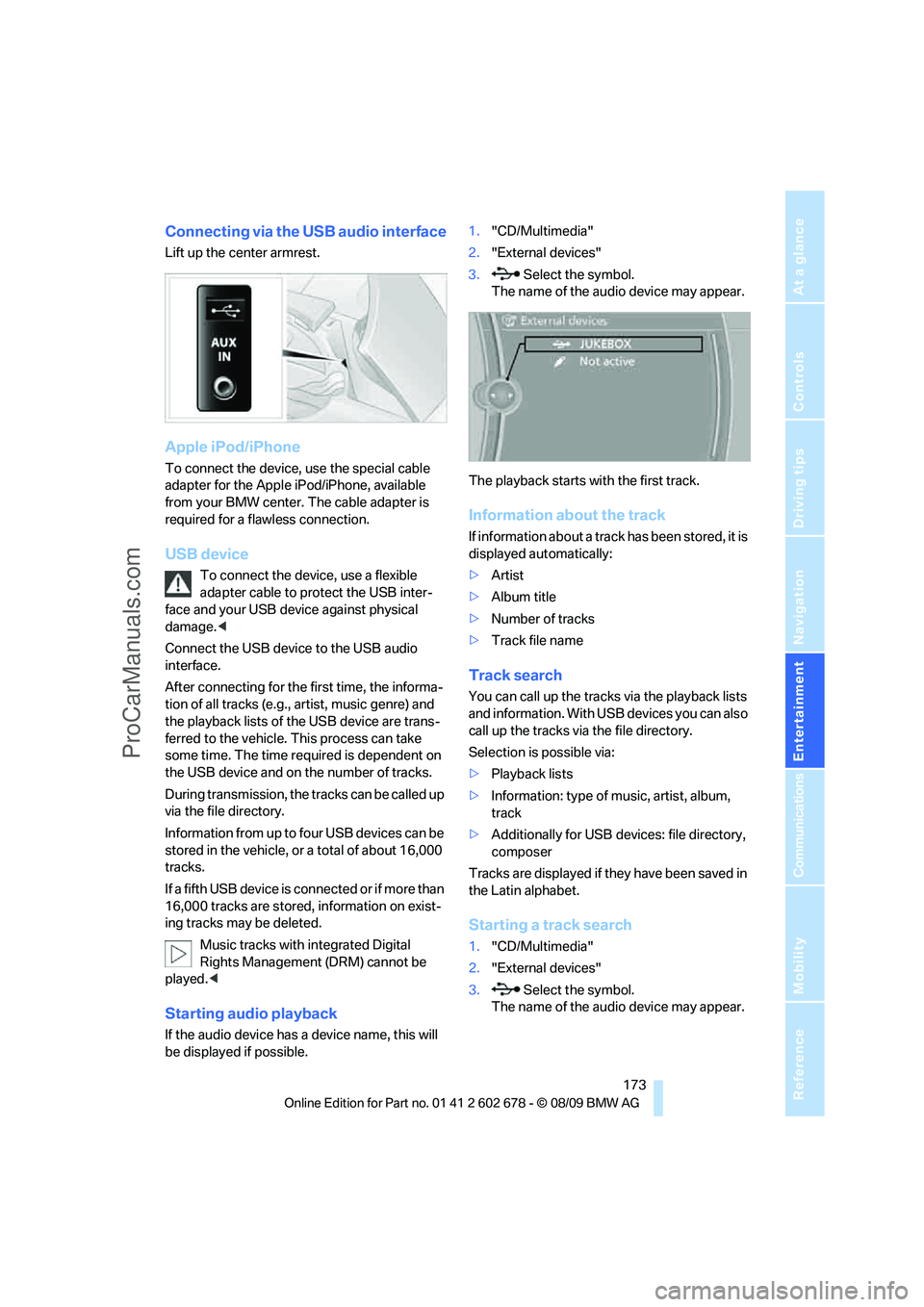
be displayed if possible.1."CD/Multimedia"
2."External devices"
3. Select the symbol.
The name of the audio device may appear.
The playback starts with the first track.
Information about the track
If information about a track has been stored, it is
displayed automatically:
>Artist
>Album title
>Number of tracks
>Track file name
Track search
You can call up the tracks via the playback lists
and information. With USB devices you can also
call up the tracks via the file directory.
Selection is possible via:
>Playback lists
>Information: type of music, artist, album,
track
>Additionally for USB devices: file directory,
composer
Tracks are displayed if they have been saved in
the Latin alphabet.
Starting a track search
1."CD/Multimedia"
2."External devices"
3. Select the symbol.
The name of the audio device may appear.
ProCarManuals.com
Page 176 of 271
External devices
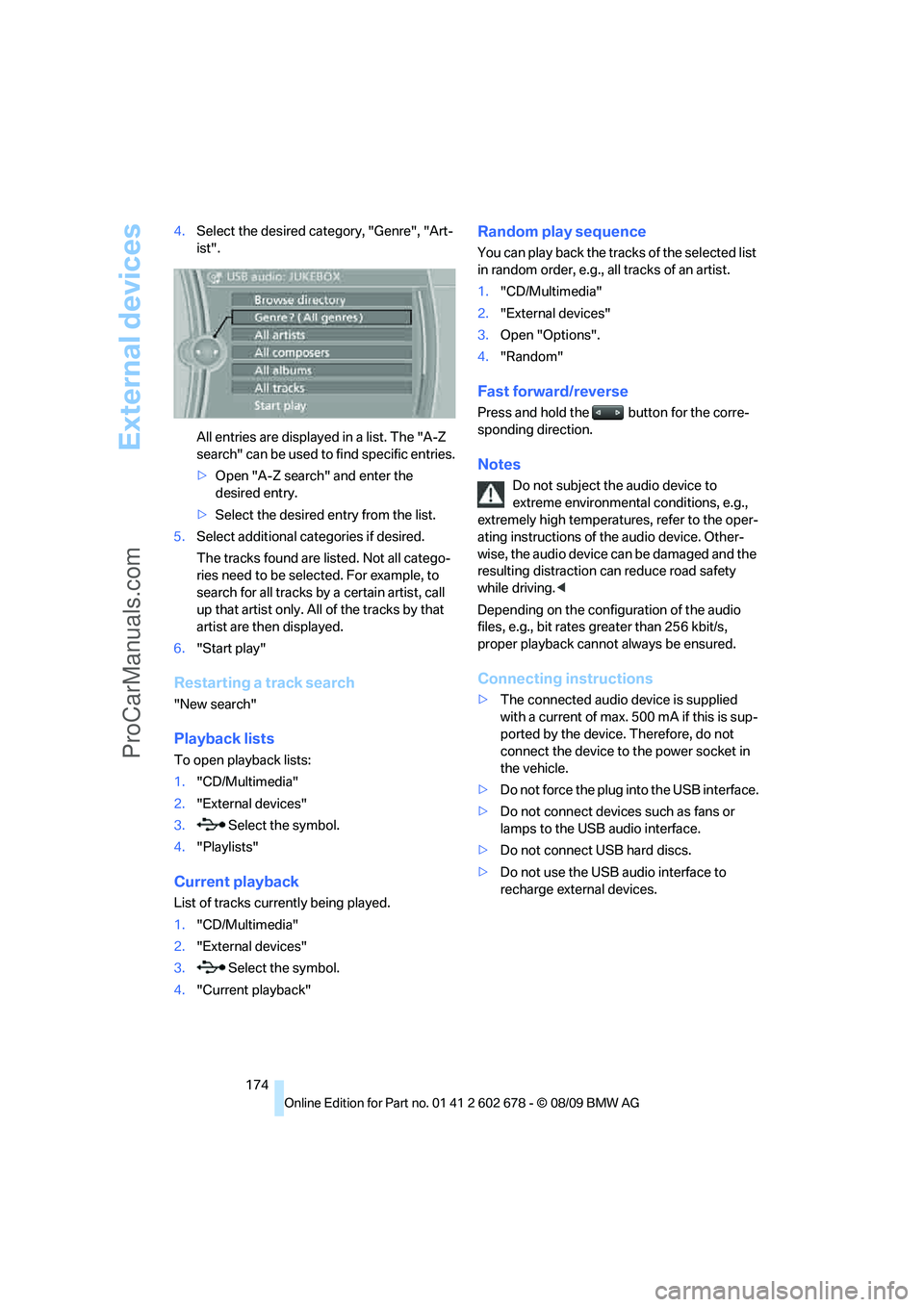
174 4.Select the desired category, "Genre", "Art-
ist".
All entries are displayed in a list. The "A-Z
search" can be used to find specific entries.
>Open "A-Z search" and enter the
desired entry.
>Select the desired entry from the list.
5.Select additional categories if desired.
The tracks found are listed. Not all catego-
ries need to be selected. For example, to
search for all tracks by a certain artist, call
up that artist only. All of the tracks by that
artist are then displayed.
6."Start play"
Restarting a track search
"New search"
Playback lists
To open playback lists:
1."CD/Multimedia"
2."External devices"
3. Select the symbol.
4."Playlists"
Current playback
List of tracks currently being played.
1."CD/Multimedia"
2."External devices"
3. Select the symbol.
4."Current playback"
Random play sequence
You can play back the tracks of the selected list
in random order, e.g., all tracks of an artist.
1."CD/Multimedia"
2."External devices"
3.Open "Options".
4."Random"
Fast forward/reverse
Press and hold the button for the corre-
sponding direction.
Notes
Do not subject the audio device to
extreme environmental conditions, e.g.,
extremely high temperatures, refer to the oper-
ating instructions of the audio device. Other-
wise, the audio device can be damaged and the
resulting distraction can reduce road safety
while driving.<
Depending on the configuration of the audio
files, e.g., bit rates greater than 256 kbit/s,
proper playback cannot always be ensured.
Connecting instructions
>The connected audio device is supplied
with a current of max. 500 mA if this is sup-
ported by the device. Therefore, do not
connect the device to the power socket in
the vehicle.
>Do not force the plug into the USB interface.
>Do not connect devices such as fans or
lamps to the USB audio interface.
>Do not connect USB hard discs.
>Do not use the USB audio interface to
recharge external devices.
ProCarManuals.com
Page 183 of 271
181
Entertainment
Reference
At a glance
Controls
Driving tips Communications
Navigation
Mobility
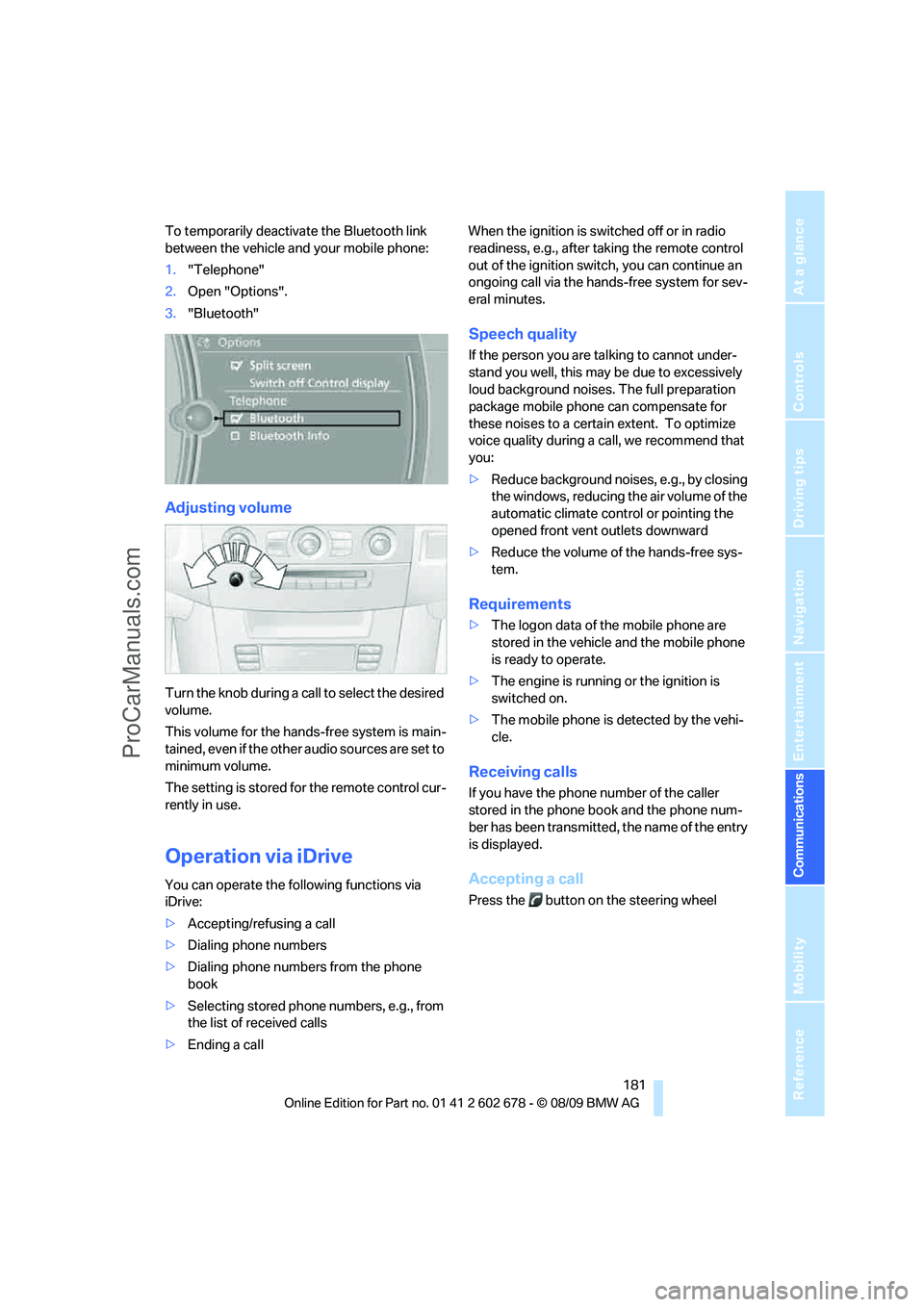
To temporarily deactivate the Bluetooth link
between the vehicle and your mobile phone:
1."Telephone"
2.Open "Options".
3."Bluetooth"
Adjusting volume
Turn the knob during a call to select the desired
volume.
This volume for the hands-free system is main-
tained, even if the other audio sources are set to
minimum volume.
The setting is stored for the remote control cur-
rently in use.
Operation via iDrive
You can operate the following functions via
iDrive:
>Accepting/refusing a call
>Dialing phone numbers
>Dialing phone numbers from the phone
book
>Selecting stored phone numbers, e.g., from
the list of received calls
>Ending a callWhen the ignition is switched off or in radio
readiness, e.g., after taking the remote control
out of the ignition switch, you can continue an
ongoing call via the hands-free system for sev-
eral minutes.
Speech quality
If the person you are talking to cannot under-
stand you well, this may be due to excessively
loud background noises. The full preparation
package mobile phone can compensate for
these noises to a certain extent. To optimize
voice quality during a call, we recommend that
you:
>Reduce background noises, e.g., by closing
the windows, reducing the air volume of the
automatic climate control or pointing the
opened front vent outlets downward
>Reduce the volume of the hands-free sys-
tem.
Requirements
>The logon data of the mobile phone are
stored in the vehicle and the mobile phone
is ready to operate.
>The engine is running or the ignition is
switched on.
>The mobile phone is detected by the vehi-
cle.
Receiving calls
If you have the phone number of the caller
stored in the phone book and the phone num-
ber has been transmitted, the name of the entry
is displayed.
Accepting a call
Press the button on the steering wheel
ProCarManuals.com
Page 188 of 271
Telephone
186 activation system supports you by making
announcements and asking questions.
>{...} Verbal instructions to use with the voice
activation system.
Requirements
The same prerequisites as for operation via
iDrive apply, refer to page181.
Voice commands
Activating voice activation system
1.Briefly press the button on the steering
wheel.
An acoustic signal indicates that you can
say commands.
2.Say the command.
Ending/canceling operation by voice
Briefly press the button on the steering
wheel orIn dialogs where text is spoken, e.g., a name
rather than a command, canceling is only possi-
ble using the button on the steering wheel.
Having possible commands read aloud
The system understands default commands
that must be spoken word for word.
You can have the possible commands spoken
by the system at any point:
The system recognizes digits from zero to nine.
You can say each digit individually or group
them into a sequence to accelerate the input.
Using alternative commands
There are often a number of commands to run a
function, for instance:
Example: Dialing phone numbers
To start the dialog:
Press the button on the steering wheel.
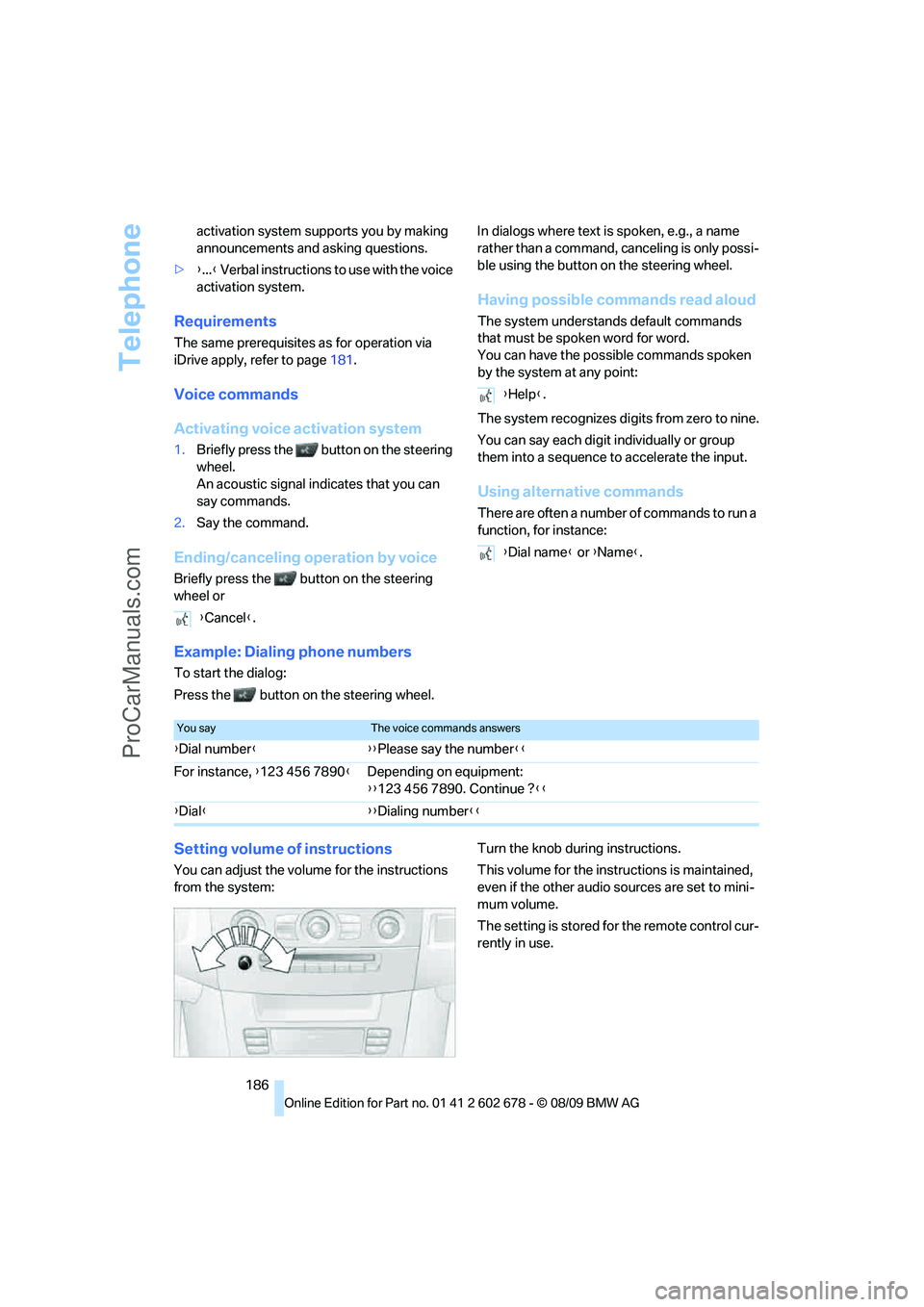
Setting volume of instructions
You can adjust the volume for the instructions
from the system:Turn the knob during instructions.
This volume for the instructions is maintained,
even if the other audio sources are set to mini-
mum volume.
The setting is stored for the remote control cur-
rently in use. {Cancel}.
{Help}.
{Dial name} or {Name}.
You sayThe voice commands answers
{Dial number}{{Please say the number}}
For instance, {123 456 7890}Depending on equipment:
{{123 456 7890. Continue ?}}
{Dial}{{Dialing number}}
ProCarManuals.com
Page 252 of 271
Everything from A to Z
250
Everything from A to Z
Index
A
ABS Antilock Brake
System85
– indicator lamp87
ACC, refer to Active cruise
control66
Accessories6
Accident, refer to Emergency
request231
Acoustic signal, refer to Check
Control79
Activated-charcoal filter for
automatic climate
control108
Activation times of parked car
ventilation, preselecting109
Active backrest width,
adjusting45
Active cruise control66
– indicator lamp70
– radar sensors70
– selecting distance68
– warning lamps70
Active front head restraints47
Active seat50
Active seat ventilation50
Active steering92
– warning lamp93
Adapter for spare key26
Adaptive brake assistant85
Adaptive brake lamps, refer to
Brake force display93
Adaptive Light Control101
Additional connection of
music player in mobile
phone172
Additives
– coolant214
– engine oil, refer to Approved
engine oils213
Address for navigation
– entering133Adjusting interior
temperature106
Adjusting the tone during
audio operation, refer to
Tone control152
Adjusting thigh support44
Airbags93
– indicator/warning lamp95
– indicator lamp for front
passenger airbags94
– sitting safely43
Air distribution
– automatic106
– manual107
Airing, refer to Ventilation108
Air recirculation
– AUC Automatic
recirculated-air control107
– recirculated-air mode107
Air recirculation, refer to
Recirculated-air mode107
Air supply, automatic climate
control105
Air volume107
AKI, refer to Fuel
specifications201
Alarm system35
– avoiding unintentional
alarms36
– interior motion sensor36
– switching off alarm35
– switching off tilt alarm
sensor and interior motion
sensor36
– tilt alarm sensor36
Albums of music
collection169
Alloy wheels218
All-season tires, refer to
Winter tires209
All-wheel drive, refer to
xDrive86Alterations, technical, refer to
For your own safety5
Altering stretch of road143
Antenna for mobile phone178
Antifreeze
– coolant214
– washer fluid65
Anti-theft alarm system, refer
to Alarm system35
Anti-theft system, refer to
Central lokking system27
Approved axle loads, refer to
Weights241
Approved engine oils213
Approved gross vehicle
weight, refer to Weights241
Armrest, refer to Center
armrest
– rear116
Around the center console14
Around the steering wheel10
Arrival time
– refer to Computer76
Ashtray
– front114
– rear115
Assistance systems, refer to
Driving stability control
systems85
AUC Automatic recirculated-
air control107
Audio152
– controls152
– switching on/off152
– tone control152
– volume152
Audio device, external113
ProCarManuals.com
Page 254 of 271
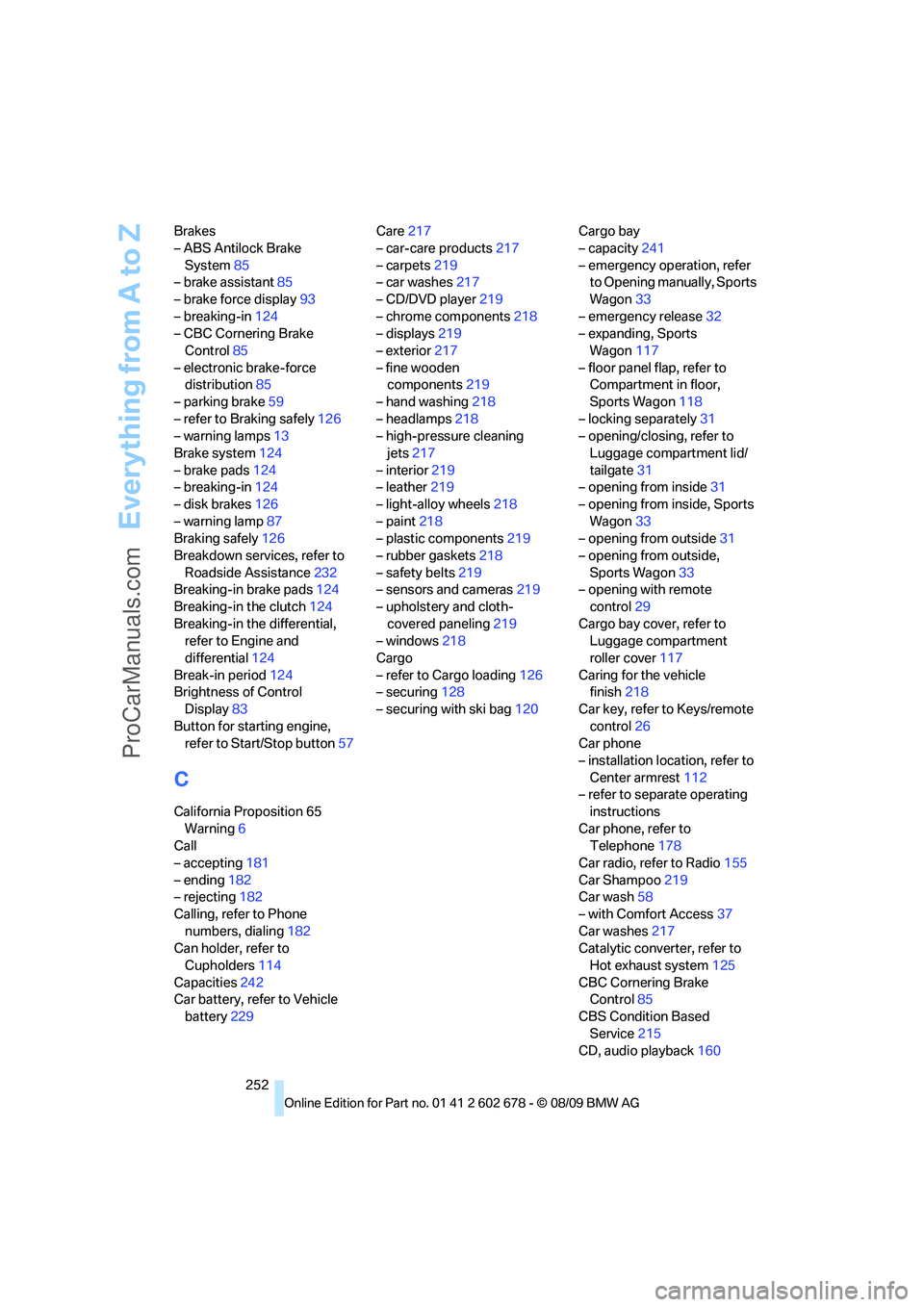
Everything from A to Z
252 Brakes
– ABS Antilock Brake
System85
– brake assistant85
– brake force display93
– breaking-in124
– CBC Cornering Brake
Control85
– electronic brake-force
distribution85
– parking brake59
– refer to Braking safely126
– warning lamps13
Brake system124
– brake pads124
– breaking-in124
– disk brakes126
– warning lamp87
Braking safely126
Breakdown services, refer to
Roadside Assistance232
Breaking-in brake pads124
Breaking-in the clutch124
Breaking-in the differential,
refer to Engine and
differential124
Break-in period124
Brightness of Control
Display83
Button for starting engine,
refer to Start/Stop button57
C
California Proposition 65
Warning6
Call
– accepting181
– ending182
– rejecting182
Calling, refer to Phone
numbers, dialing182
Can holder, refer to
Cupholders114
Capacities242
Car battery, refer to Vehicle
battery229Care217
– car-care products217
– carpets219
– car washes217
– CD/DVD player219
– chrome components218
– displays219
– exterior217
– fine wooden
components219
– hand washing218
– headlamps218
– high-pressure cleaning
jets217
– interior219
– leather219
– light-alloy wheels218
– paint218
– plastic components219
– rubber gaskets218
– safety belts219
– sensors and cameras219
– upholstery and cloth-
covered paneling219
– windows218
Cargo
– refer to Cargo loading126
– securing128
– securing with ski bag120Cargo bay
– capacity241
– emergency operation, refer
to Opening manually, Sports
Wagon33
– emergency release32
– expanding, Sports
Wagon117
– floor panel flap, refer to
Compartment in floor,
Sports Wagon118
– locking separately31
– opening/closing, refer to
Luggage compartment lid/
tailgate31
– opening from inside31
– opening from inside, Sports
Wagon33
– opening from outside
31
– opening from outside,
Sports Wagon33
– opening with remote
control29
Cargo bay cover, refer to
Luggage compartment
roller cover117
Caring for the vehicle
finish218
Car key, refer to Keys/remote
control26
Car phone
– installation location, refer to
Center armrest112
– refer to separate operating
instructions
Car phone, refer to
Telephone178
Car radio, refer to Radio155
Car Shampoo219
Car wash58
– with Comfort Access37
Car washes217
Catalytic converter, refer to
Hot exhaust system125
CBC Cornering Brake
Control85
CBS Condition Based
Service215
CD, audio playback160
ProCarManuals.com
Page 258 of 271
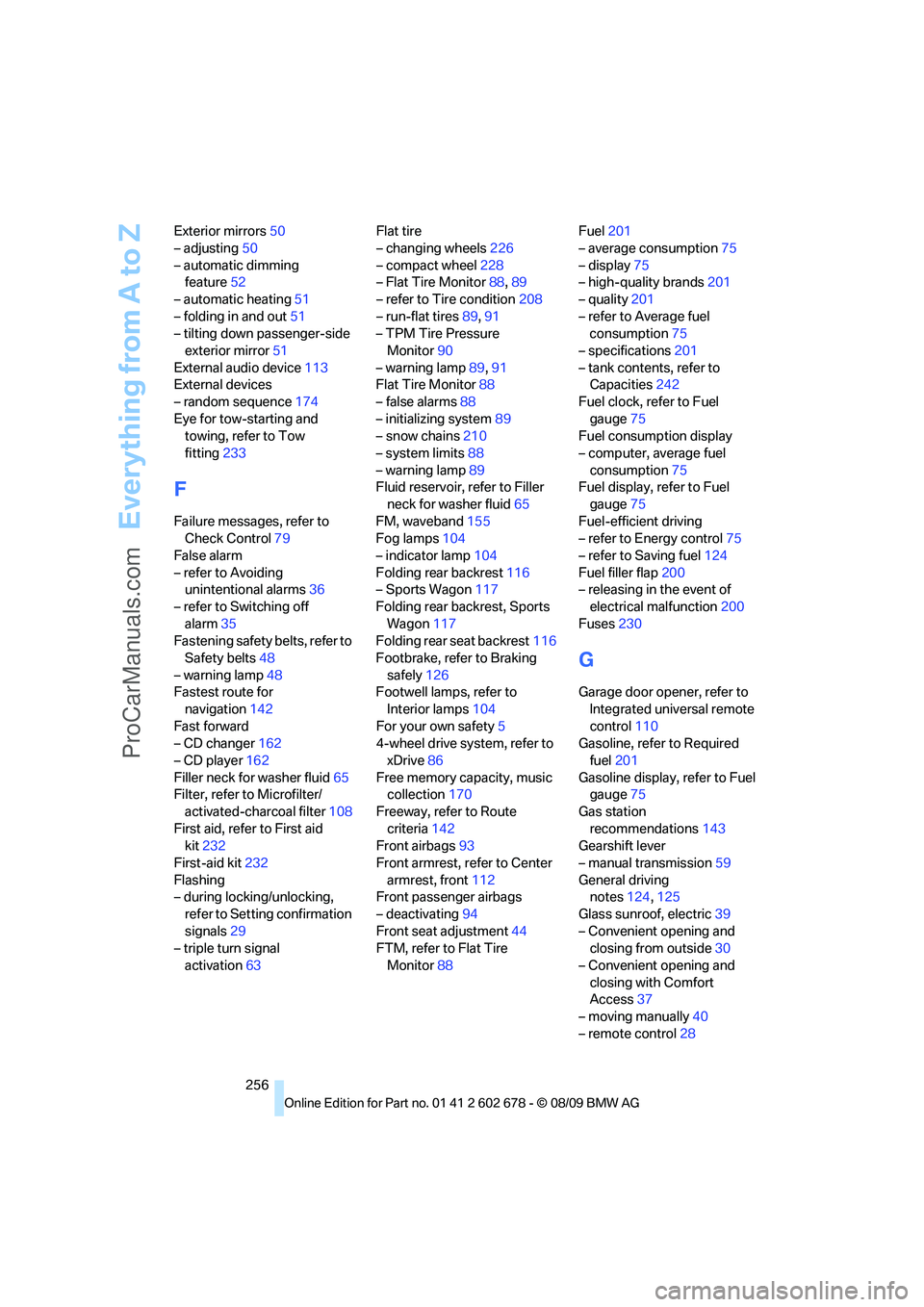
Everything from A to Z
256 Exterior mirrors50
– adjusting50
– automatic dimming
feature52
– automatic heating51
– folding in and out51
– tilting down passenger-side
exterior mirror51
External audio device113
External devices
– random sequence174
Eye for tow-starting and
towing, refer to Tow
fitting233
F
Failure messages, refer to
Check Control79
False alarm
– refer to Avoiding
unintentional alarms36
– refer to Switching off
alarm35
Fastening safety belts, refer to
Safety belts48
– warning lamp48
Fastest route for
navigation142
Fast forward
– CD changer162
– CD player162
Filler neck for washer fluid65
Filter, refer to Microfilter/
activated-charcoal filter108
First aid, refer to First aid
kit232
First-aid kit232
Flashing
– during locking/unlocking,
refer to Setting confirmation
signals29
– triple turn signal
activation63Flat tire
– changing wheels226
– compact wheel228
– Flat Tire Monitor88,89
– refer to Tire condition208
– run-flat tires89,91
– TPM Tire Pressure
Monitor90
– warning lamp89,91
Flat Tire Monitor88
– false alarms88
– initializing system89
– snow chains210
– system limits88
– warning lamp89
Fluid reservoir, refer to Filler
neck for washer fluid65
FM, waveband155
Fog lamps104
– indicator lamp104
Folding rear backrest116
– Sports Wagon117
Folding rear backrest, Sports
Wagon117
Folding rear seat backrest116
Footbrake, refer to Braking
safely126
Footwell lamps, refer to
Interior lamps104
For your own safety5
4-wheel drive system, refer to
xDrive
86
Free memory capacity, music
collection170
Freeway, refer to Route
criteria142
Front airbags93
Front armrest, refer to Center
armrest, front112
Front passenger airbags
– deactivating94
Front seat adjustment44
FTM, refer to Flat Tire
Monitor88Fuel201
– average consumption75
– display75
– high-quality brands201
– quality201
– refer to Average fuel
consumption75
– specifications201
– tank contents, refer to
Capacities242
Fuel clock, refer to Fuel
gauge75
Fuel consumption display
– computer, average fuel
consumption75
Fuel display, refer to Fuel
gauge75
Fuel-efficient driving
– refer to Energy control75
– refer to Saving fuel124
Fuel filler flap200
– releasing in the event of
electrical malfunction200
Fuses230
G
Garage door opener, refer to
Integrated universal remote
control110
Gasoline, refer to Required
fuel201
Gasoline display, refer to Fuel
gauge75
Gas station
recommendations143
Gearshift lever
– manual transmission59
General driving
notes124,125
Glass sunroof, electric39
– Convenient opening and
closing from outside30
– Convenient opening and
closing with Comfort
Access37
– moving manually40
– remote control28
ProCarManuals.com