navigation BMW 525I 2005 User Guide
[x] Cancel search | Manufacturer: BMW, Model Year: 2005, Model line: 525I, Model: BMW 525I 2005Pages: 221, PDF Size: 8.19 MB
Page 21 of 221
Control Center
20
Status information
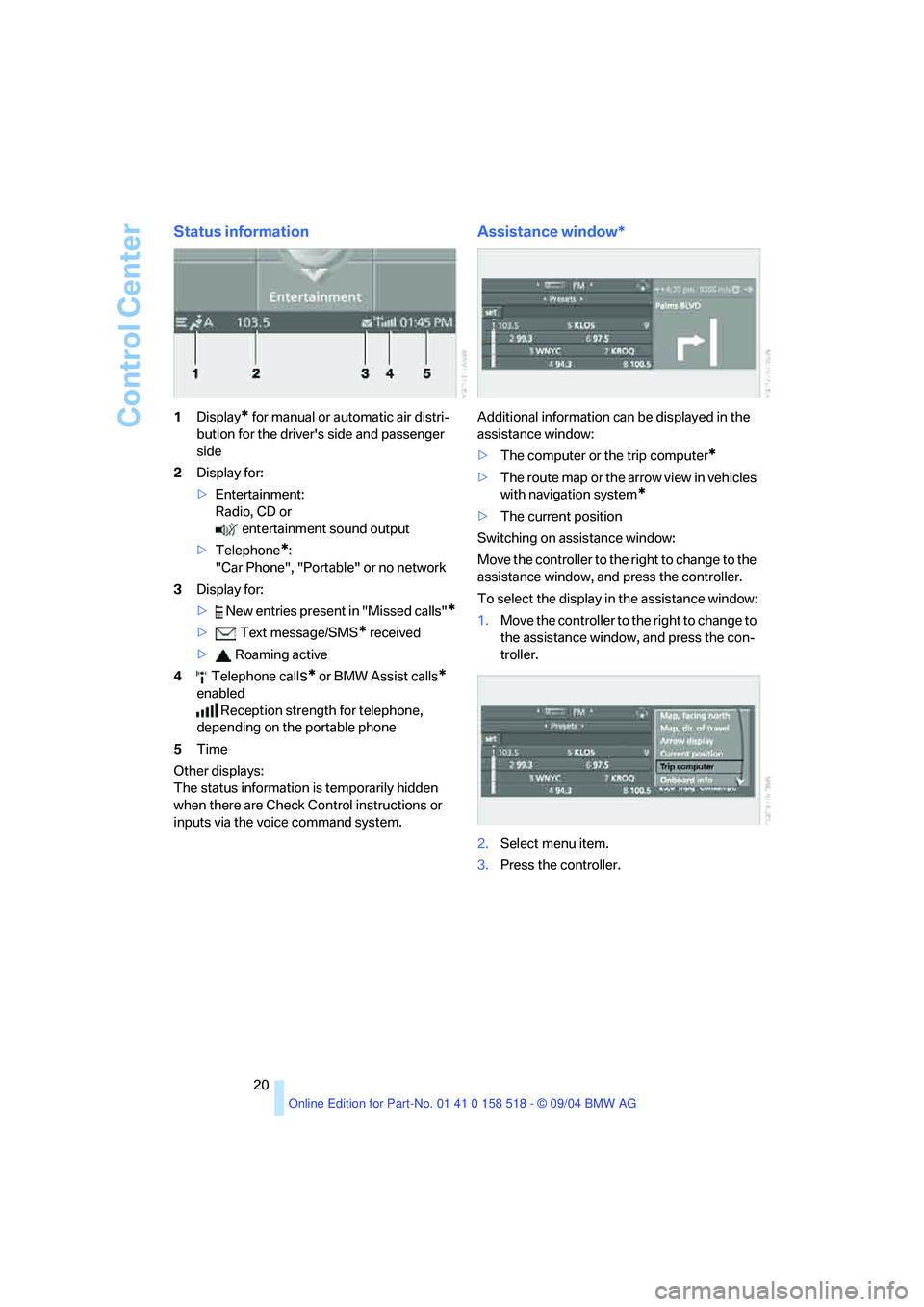
1Display* for manual or automatic air distri-
bution for the driver's side and passenger
side
2Display for:
>Entertainment:
Radio, CD or
entertainment sound output
>Telephone
*:
"Car Phone", "Portable" or no network
3Display for:
> New entries present in "Missed calls"
*
> Text message/SMS* received
> Roaming active
4 Telephone call
s* or BMW Assist calls*
enabled
Reception strength for telephone,
depending on the portable phone
5Time
Other displays:
The status information is temporarily hidden
when there are Check Control instructions or
inputs via the voice command system.
Assistance window*
Additional information can be displayed in the
assistance window:
>The computer or the trip computer
*
>The route map or the arrow view in vehicles
with navigation system
*
>The current position
Switching on assistance window:
Move the controller to the right to change to the
assistance window, and press the controller.
To select the display in the assistance window:
1.Move the controller to the right to change to
the assistance window, and press the con-
troller.
2.Select menu item.
3.Press the controller.
Page 22 of 221
At a glance
21Reference
Controls
Driving tips
Communication
Navigation
Entertainment
Mobility
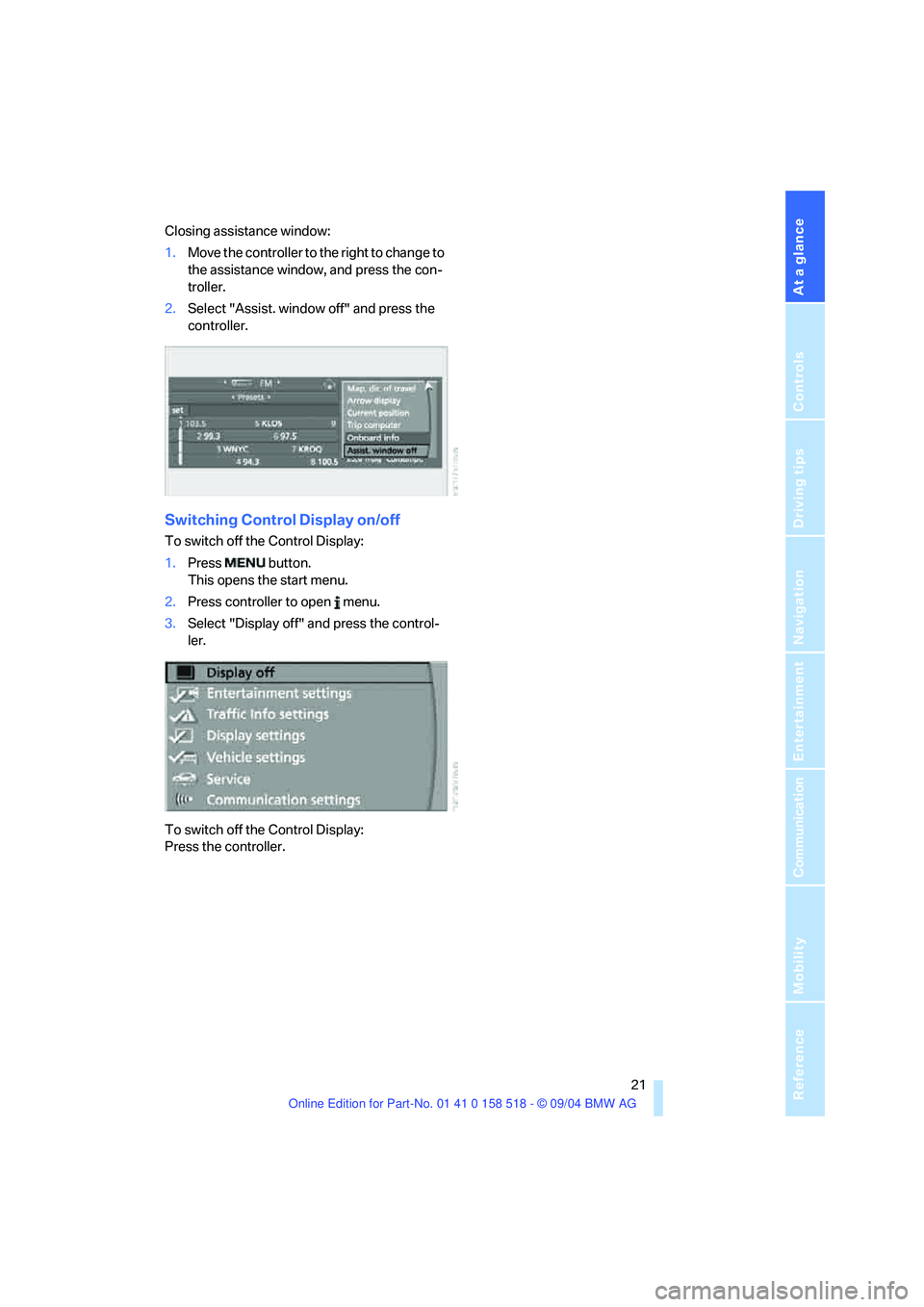
Closing assistance window:
1.Move the controller to the right to change to
the assistance window, and press the con-
troller.
2.Select "Assist. window off" and press the
controller.
Switching Control Display on/off
To switch off the Control Display:
1.Press button.
This opens the start menu.
2.Press controller to open menu.
3.Select "Display off" and press the control-
ler.
To switch off the Control Display:
Press the controller.
Page 24 of 221
At a glance
23Reference
Controls
Driving tips
Communication
Navigation
Entertainment
Mobility
This symbol appears on the Control Display
when you can input additional voice com-
mands.
If no other voice commands are possible, then
operate the equipment using the Control Cen-
ter.
Terminating or canceling voice
command system
Press the button on the steering wheel or
on the center console
or
Voice commands
Having the possible voice commands
read aloud
You can have the system read aloud the possi-
ble voice commands related to the selected
menu item on the Control Display.
For example, if you have selected "CD", the
system will read aloud the possible voice com-
mands for operating the CD player and the CD
changer
*:
Opening help
Using alternative voice commands
There are often a number of commands to run a
function, e.g.:
Calling up functions directly
With short commands you can carry out certain
functions directly, regardless of which menu
item is selected, refer to page199.
Opening the start menu
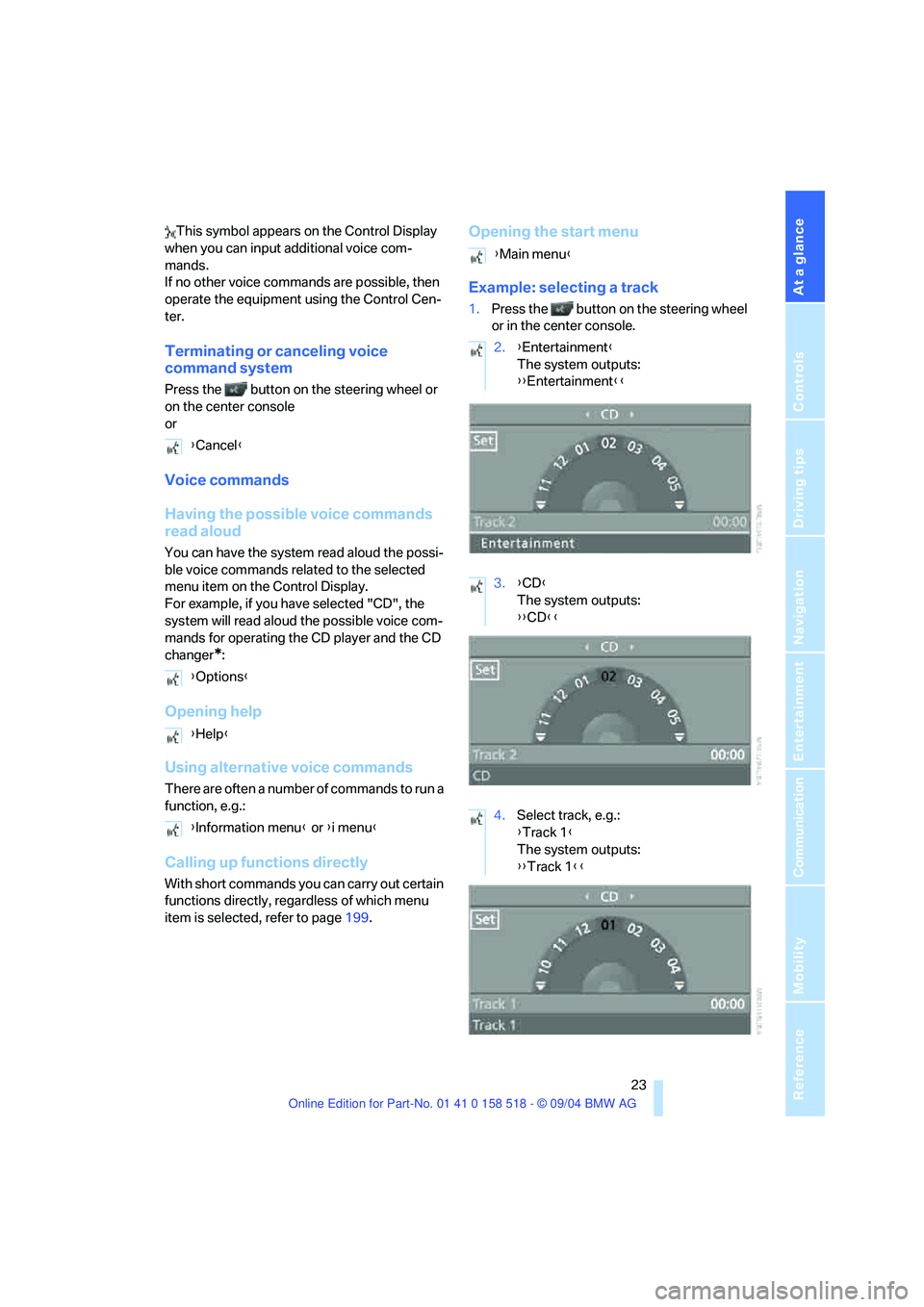
Example: selecting a track
1.Press the button on the steering wheel
or in the center console.
{Cancel}
{Options}
{Help}
{Information menu} or {i menu}
{Main menu}
2.{Entertainment}
The system outputs:
{{Entertainment}}
3.{CD}
The system outputs:
{{CD}}
4.Select track, e.g.:
{Track 1}
The system outputs:
{{Track 1}}
Page 26 of 221

At a glance
25Reference
Controls
Driving tips
Communication
Navigation
Entertainment
Mobility
Page 29 of 221
Opening and closing
28
Opening and closing
The key set
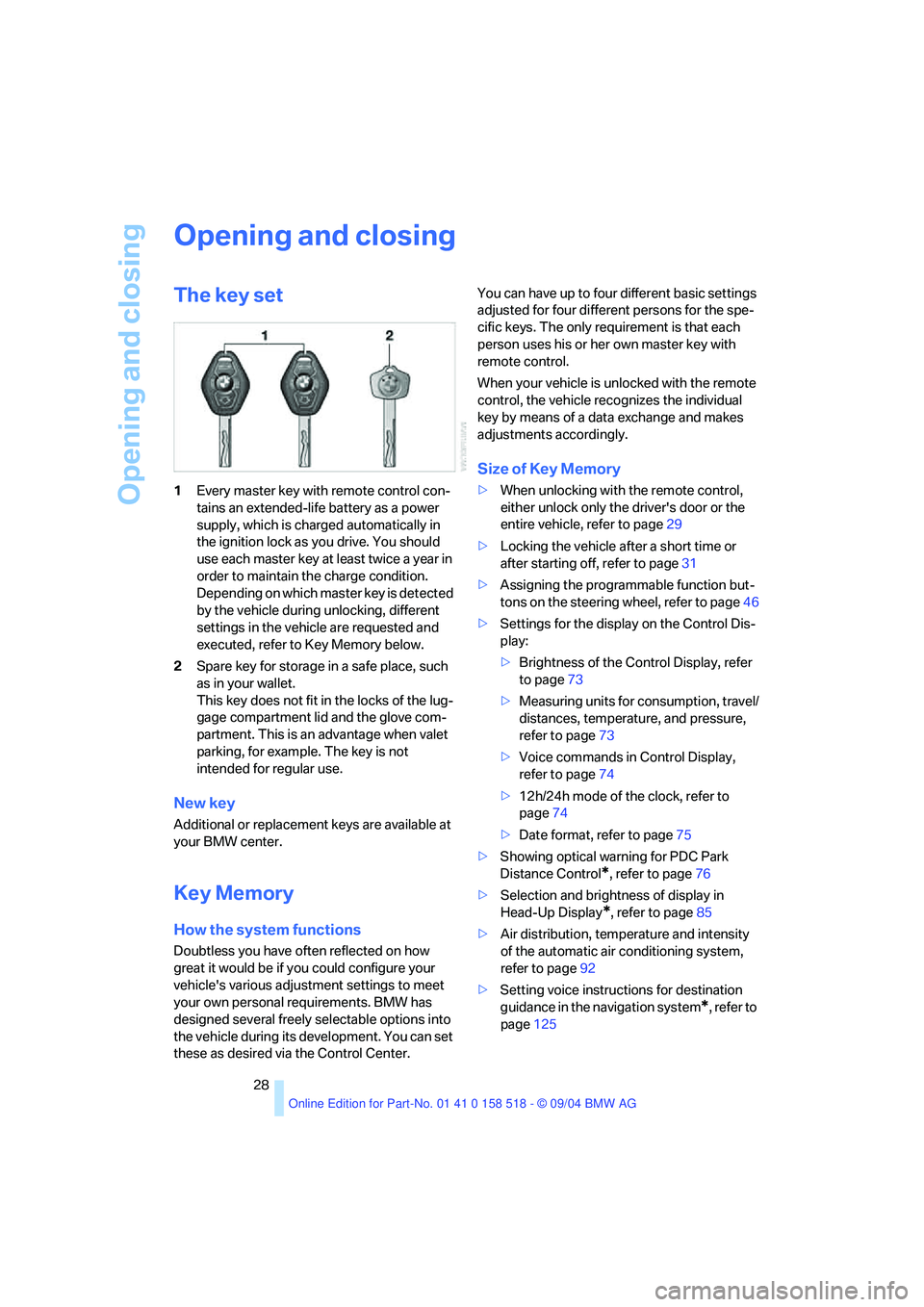
1Every master key with remote control con-
tains an extended-life battery as a power
supply, which is charged automatically in
the ignition lock as you drive. You should
use each master key at least twice a year in
order to maintain the charge condition.
Depending on which master key is detected
by the vehicle during unlocking, different
settings in the vehicle are requested and
executed, refer to Key Memory below.
2Spare key for storage in a safe place, such
as in your wallet.
This key does not fit in the locks of the lug-
gage compartment lid and the glove com-
partment. This is an advantage when valet
parking, for example. The key is not
intended for regular use.
New key
Additional or replacement keys are available at
your BMW center.
Key Memory
How the system functions
Doubtless you have often reflected on how
great it would be if you could configure your
vehicle's various adjustment settings to meet
your own personal requirements. BMW has
designed several freely selectable options into
the vehicle during its development. You can set
these as desired via the Control Center.You can have up to four different basic settings
adjusted for four different persons for the spe-
cific keys. The only requirement is that each
person uses his or her own master key with
remote control.
When your vehicle is unlocked with the remote
control, the vehicle recognizes the individual
key by means of a data exchange and makes
adjustments accordingly.
Size of Key Memory
>When unlocking with the remote control,
either unlock only the driver's door or the
entire vehicle, refer to page29
>Locking the vehicle after a short time or
after starting off, refer to page31
>Assigning the programmable function but-
tons on the steering wheel, refer to page46
>Settings for the display on the Control Dis-
play:
>Brightness of the Control Display, refer
to page73
>Measuring units for consumption, travel/
distances, temperature, and pressure,
refer to page73
>Voice commands in Control Display,
refer to page74
>12h/24h mode of the clock, refer to
page74
>Date format, refer to page75
>Showing optical warning for PDC Park
Distance Control
*, refer to page76
>Selection and brightness of display in
Head-Up Display
*, refer to page85
>Air distribution, temperature and intensity
of the automatic air conditioning system,
refer to page92
>Setting voice instructions for destination
guidance in the navigation system
*, refer to
page125
Page 30 of 221
Controls
29Reference
At a glance
Driving tips
Communication
Navigation
Entertainment
Mobility
In addition, the following, most recently
selected settings are recalled during unlocking:
>Positions of driver's seat, outside mirrors,
and steering wheel, refer to page40
>Audio sources, setting volume and tone,
refer to page133
>Telephone, setting volume, refer to
pages153,159
>Radio, displaying memorized stations, refer
to page140
Central locking system
The concept
The central locking system is ready for opera-
tion whenever the driver's door is closed. The
system simultaneously engages and releases
the locks on the following:
>Doors
>Luggage compartment lid
>Fuel filler door
The central locking system can be operated
from the outside
>via the remote control
>via the door lock
and from inside via the button for the central
locking system.
When actuated from the inside, the fuel filler
door is not locked, refer to page31.
The anti-theft system is automatically activated
whenever you operate the central locking sys-
tem from outside the vehicle. It prevents the
doors from being unlocked using the lock but-
tons or door handles. The alarm system is
armed/disarmed at the same time. The remote
control is also used to switch the interior lamps
on and off.
You can find more detailed information on the
alarm system on page33.
In an accident of sufficient severity, the central
locking system automatically unlocks the vehi-
cle. In addition, the hazard warning flashers and
interior lamps come on.
Opening and closing: from
outside
Using the remote control
Protect the remote control against unau-
thorized use by handing over only the
spare key, for example when using valet park-
ing.<
Because any persons or animals left unat-
tended in a parked vehicle could lock the
doors from the inside, you should always keep
the remote control with you; this precaution
ensures that you will remain able to unlock the
vehicle from the outside at all times.<
Unlocking
Use the button to unlock the vehicle accord-
ing to current settings.
Control Center, for principle details, refer to
page16.
1.Open the menu.
2.Select "Vehicle settings" and press the
controller.
3.Select "Door locks" and press the control-
ler.
4.Select "Central locking" and press the con-
troller.
5.Select "Unlock button" and press the con-
troller.
6.Select a menu item:
>"All doors"
Press the button once to unlock the
entire vehicle.
>"Driver's door only"
Press the button once to unlock only
the driver's door and the fuel filler door.
Press the button twice to unlock the
entire vehicle.
Page 32 of 221
Controls
31Reference
At a glance
Driving tips
Communication
Navigation
Entertainment
Mobility
LX8766E
LX8CAS
Compliance statement:
This device complies with part 15 of the FCC
Rules. Operation is subject to the following two
conditions:
>this device must not cause harmful interfer-
ence, and
>this device must accept any interference
received, including interference that may
cause undesired operation.
Any unauthorized modifications or
changes to these devices could void the
user's authority to operate this equipment.<
Using door lock
One turn of the key in the driver's door lock
unlocks the driver's door only.
Turning the key a second time unlocks all of the
remaining doors, the luggage compartment lid
and the fuel filler door.
Convenience operation
You also have the option of operating the win-
dows and the glass sunroof from the driver's
door lock.
>Opening:
With the door closed, turn the key to the
unlock position and hold it there.
>Closing:
With the door closed, turn the key to the
lock position and hold it there.
Watch during the closing process to be
sure that no one is injured. Releasing the
key stops the operation.<
Manual operation
If an electrical malfunction occurs, you can
unlock or lock the driver's door with the key in
the end positions of the door lock.
Opening and closing: from
inside
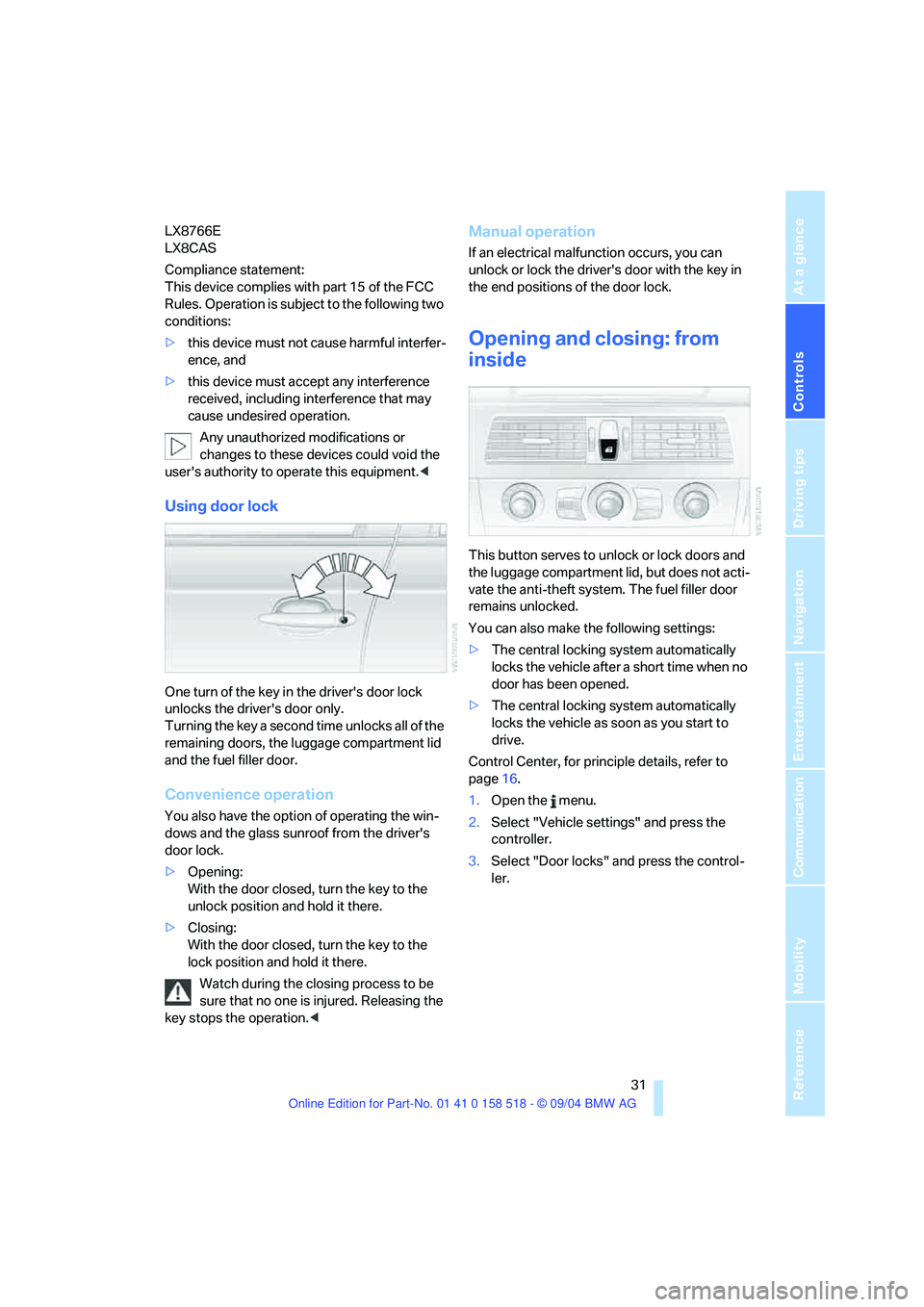
This button serves to unlock or lock doors and
the luggage compartment lid, but does not acti-
vate the anti-theft system. The fuel filler door
remains unlocked.
You can also make the following settings:
>The central locking system automatically
locks the vehicle after a short time when no
door has been opened.
>The central locking system automatically
locks the vehicle as soon as you start to
drive.
Control Center, for principle details, refer to
page16.
1.Open the menu.
2.Select "Vehicle settings" and press the
controller.
3.Select "Door locks" and press the control-
ler.
Page 34 of 221
Controls
33Reference
At a glance
Driving tips
Communication
Navigation
Entertainment
Mobility
Locking separately
Turn the master key with remote control in the
lock of the luggage compartment lid beyond a
resistance point to the right and withdraw it in
the horizontal position.
This locks the luggage compartment lid and
disconnects it from the central locking system.
If you then only hand over the spare key, refer to
page28, no access is possible via the luggage
compartment lid. This is an advantage when
valet parking, for example.
Unlocking again and opening manually
Turn master key toward the left until the resis-
tance point: the luggage compartment lid
opens.
If you use the key to unlock the luggage
compartment lid while the alarm system
is armed, the alarm will be triggered. You should
therefore unlock the vehicle ahead of time.
If the alarm is inadvertently triggered: switch off
the alarm, refer to page34.<
Emergency release
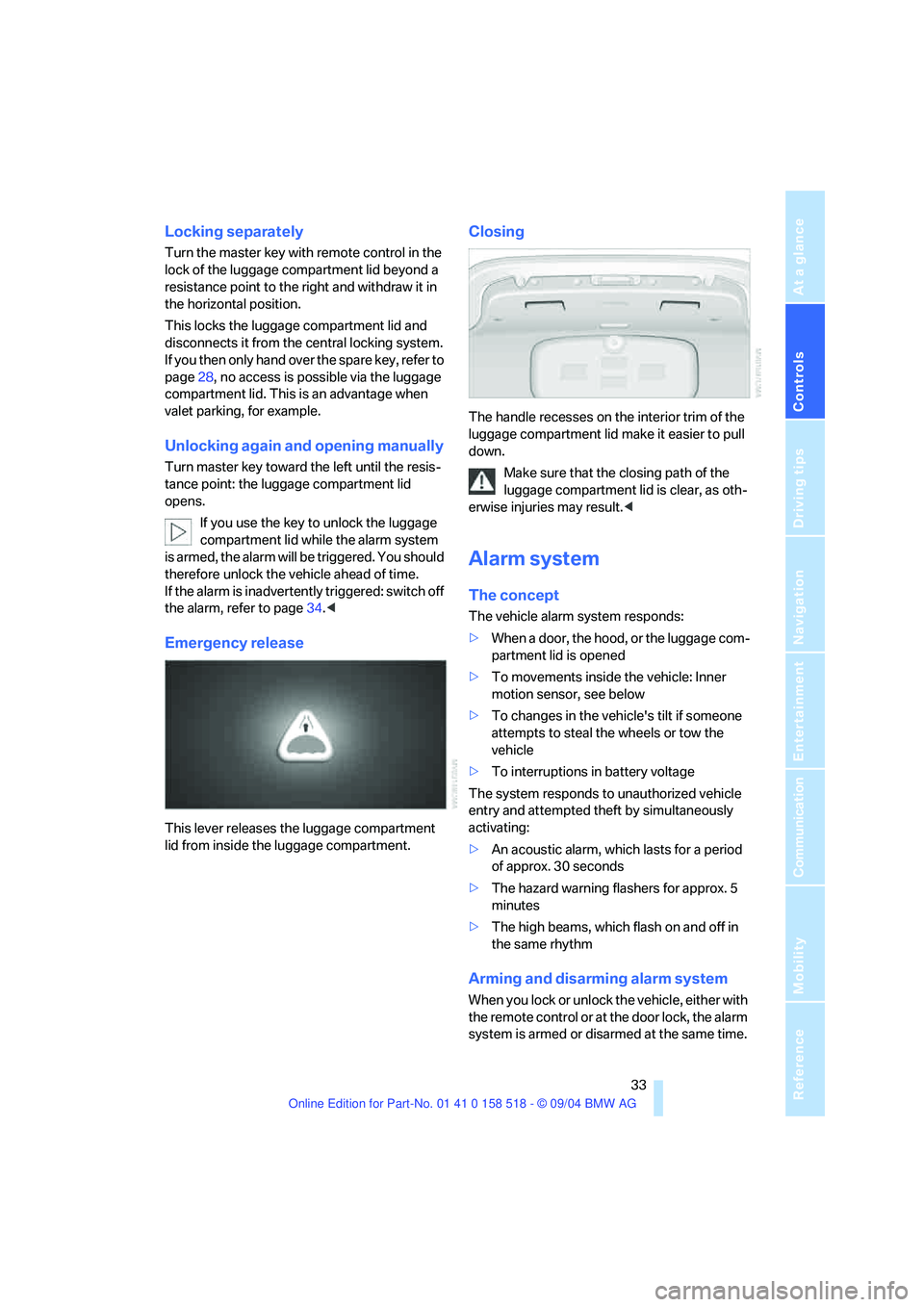
This lever releases the luggage compartment
lid from inside the luggage compartment.
Closing
The handle recesses on the interior trim of the
luggage compartment lid make it easier to pull
down.
Make sure that the closing path of the
luggage compartment lid is clear, as oth-
erwise injuries may result.<
Alarm system
The concept
The vehicle alarm system responds:
>When a door, the hood, or the luggage com-
partment lid is opened
>To movements inside the vehicle: Inner
motion sensor, see below
>To changes in the vehicle's tilt if someone
attempts to steal the wheels or tow the
vehicle
>To interruptions in battery voltage
The system responds to unauthorized vehicle
entry and attempted theft by simultaneously
activating:
>An acoustic alarm, which lasts for a period
of approx. 30 seconds
>The hazard warning flashers for approx. 5
minutes
>The high beams, which flash on and off in
the same rhythm
Arming and disarming alarm system
When you lock or unlock the vehicle, either with
the remote control or at the door lock, the alarm
system is armed or disarmed at the same time.
Page 36 of 221
Controls
35Reference
At a glance
Driving tips
Communication
Navigation
Entertainment
Mobility
Opening and closing windows
Ignition key in position 1, refer to page51:
>Press switch to resistance point:
The window continues to open as long as
you keep the switch pressed.
>Press switch beyond resistance point:
The window opens automatically. Pressing
the switch again stops the opening move-
ment.
You can close the windows in the same manner
by pulling the switch.
After switching off ignition
You can still operate the windows:
>With the Ignition key in position 1 for
approx. 15 minutes
>With the ignition key in position 0 or with the
ignition key removed, for approx. 1 minute,
as long as a front door has not been opened.
For information on using the convenience oper-
ation at the door lock or with the remote control,
refer to page30 or31.
Anti-trapping mechanism
If the closing force rises beyond a predefined
threshold during closing, the system will imme-
diately stop moving the window prior to lower-
ing it slightly.
Despite the anti-trapping mechanism
inspect the window's travel path prior to
closing it, as the safety system might fail to
detect certain kinds of obstructions, such as
thin objects, and the window would continue
closing.
Pulling the switch beyond the resistance point
and holding it limits the response of the anti-trapping mechanism. In this case, if the closing
force exceeds a defined threshold, the window
will only open a few inches/millimeters.
If the switch is pulled past the resistance point
again within approx. 4 seconds, the anti-trap-
ping mechanism will be deactivated.<
Safety switch
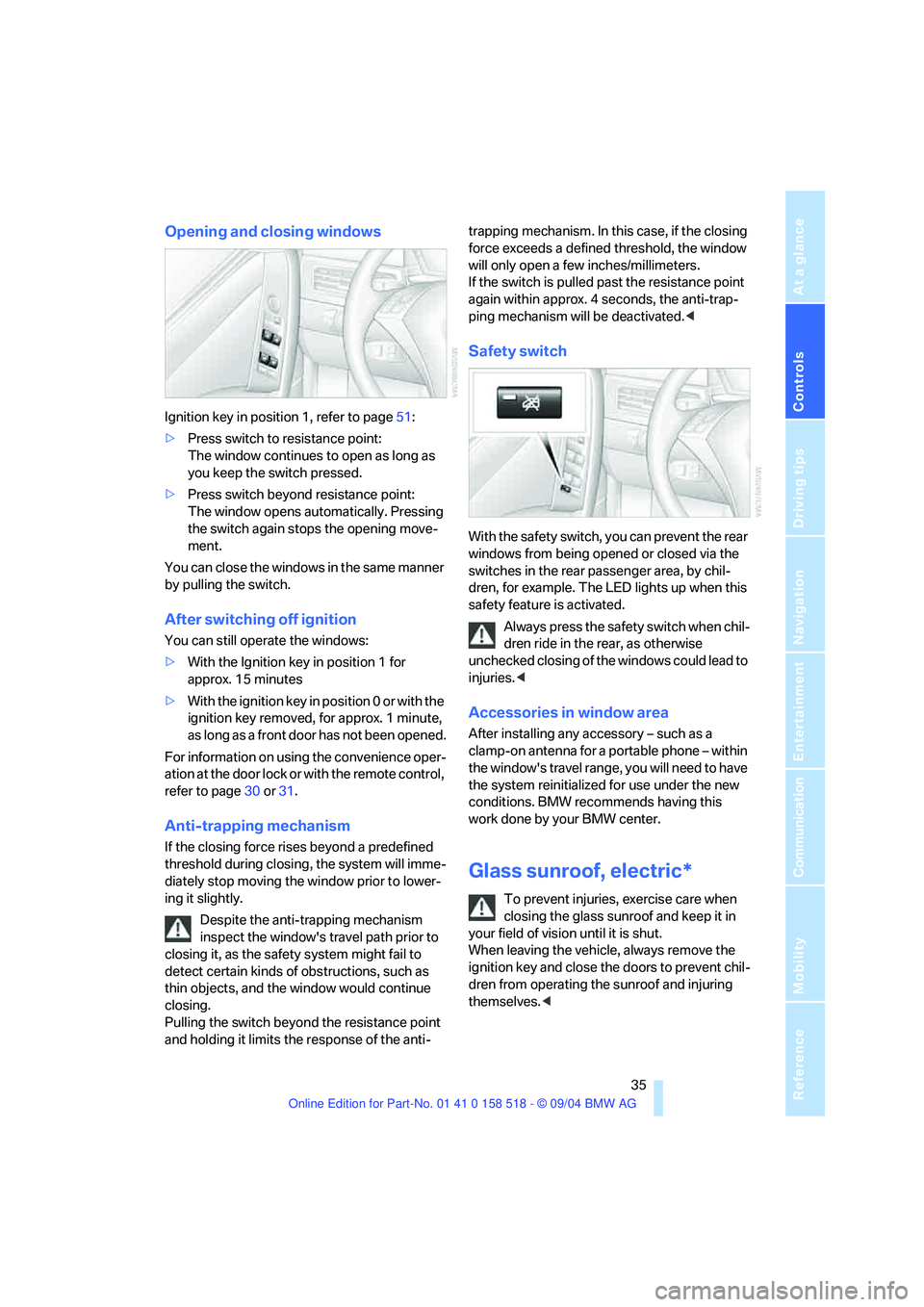
With the safety switch, you can prevent the rear
windows from being opened or closed via the
switches in the rear passenger area, by chil-
dren, for example. The LED lights up when this
safety feature is activated.
Always press the safety switch when chil-
dren ride in the rear, as otherwise
unchecked closing of the windows could lead to
injuries.<
Accessories in window area
After installing any accessory – such as a
clamp-on antenna for a portable phone – within
the window's travel range, you will need to have
the system reinitialized for use under the new
conditions. BMW recommends having this
work done by your BMW center.
Glass sunroof, electric*
To prevent injuries, exercise care when
closing the glass sunroof and keep it in
your field of vision until it is shut.
When leaving the vehicle, always remove the
ignition key and close the doors to prevent chil-
dren from operating the sunroof and injuring
themselves.<
Page 38 of 221
Controls
37Reference
At a glance
Driving tips
Communication
Navigation
Entertainment
Mobility
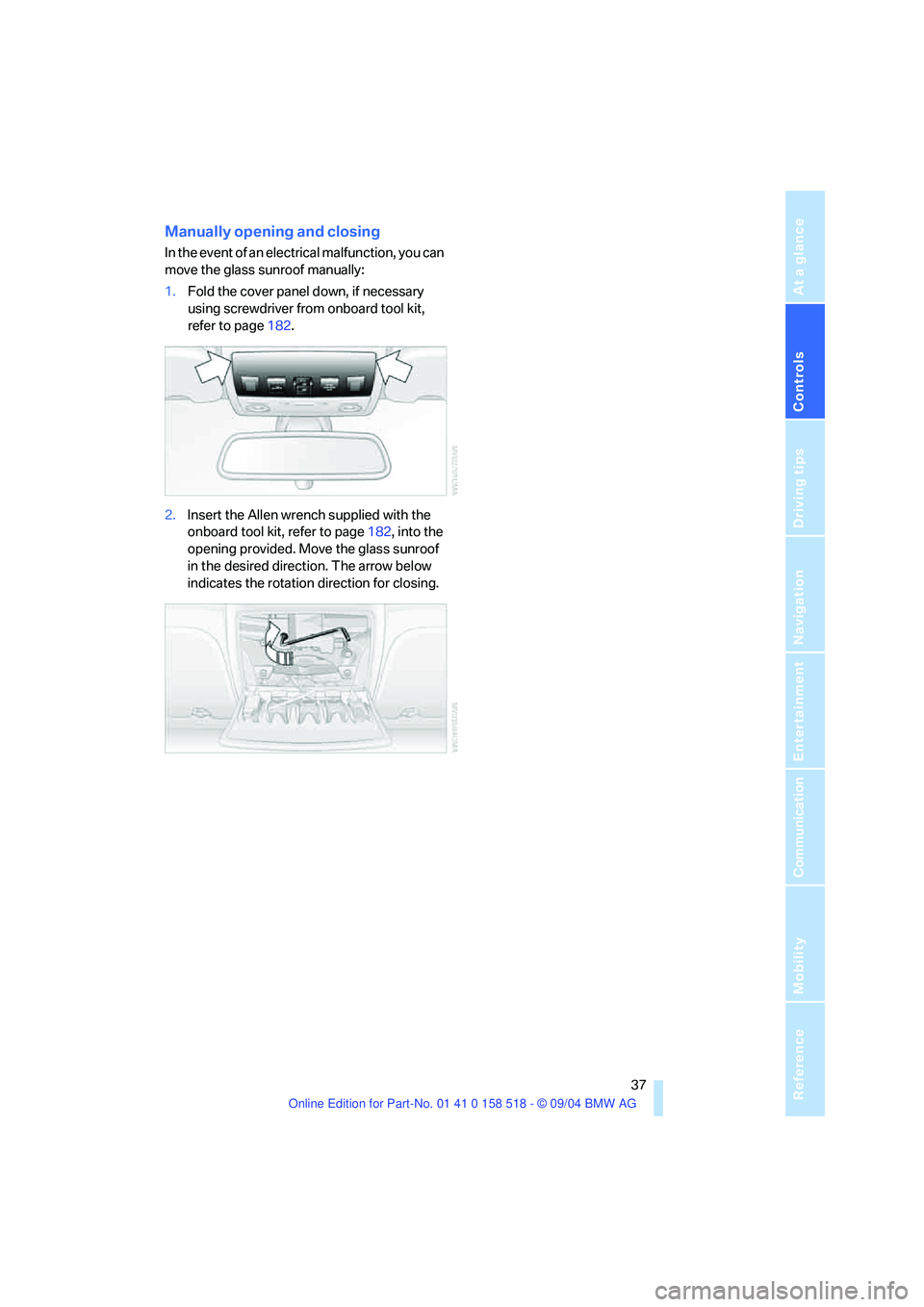
Manually opening and closing
In the event of an electrical malfunction, you can
move the glass sunroof manually:
1.Fold the cover panel down, if necessary
using screwdriver from onboard tool kit,
refer to page182.
2.Insert the Allen wrench supplied with the
onboard tool kit, refer to page182, into the
opening provided. Move the glass sunroof
in the desired direction. The arrow below
indicates the rotation direction for closing.