Drive BMW 528I 2011 F10 Manual Online
[x] Cancel search | Manufacturer: BMW, Model Year: 2011, Model line: 528I, Model: BMW 528I 2011 F10Pages: 304, PDF Size: 10.18 MB
Page 182 of 304
Selecting a track via iDrive
Audio CDs
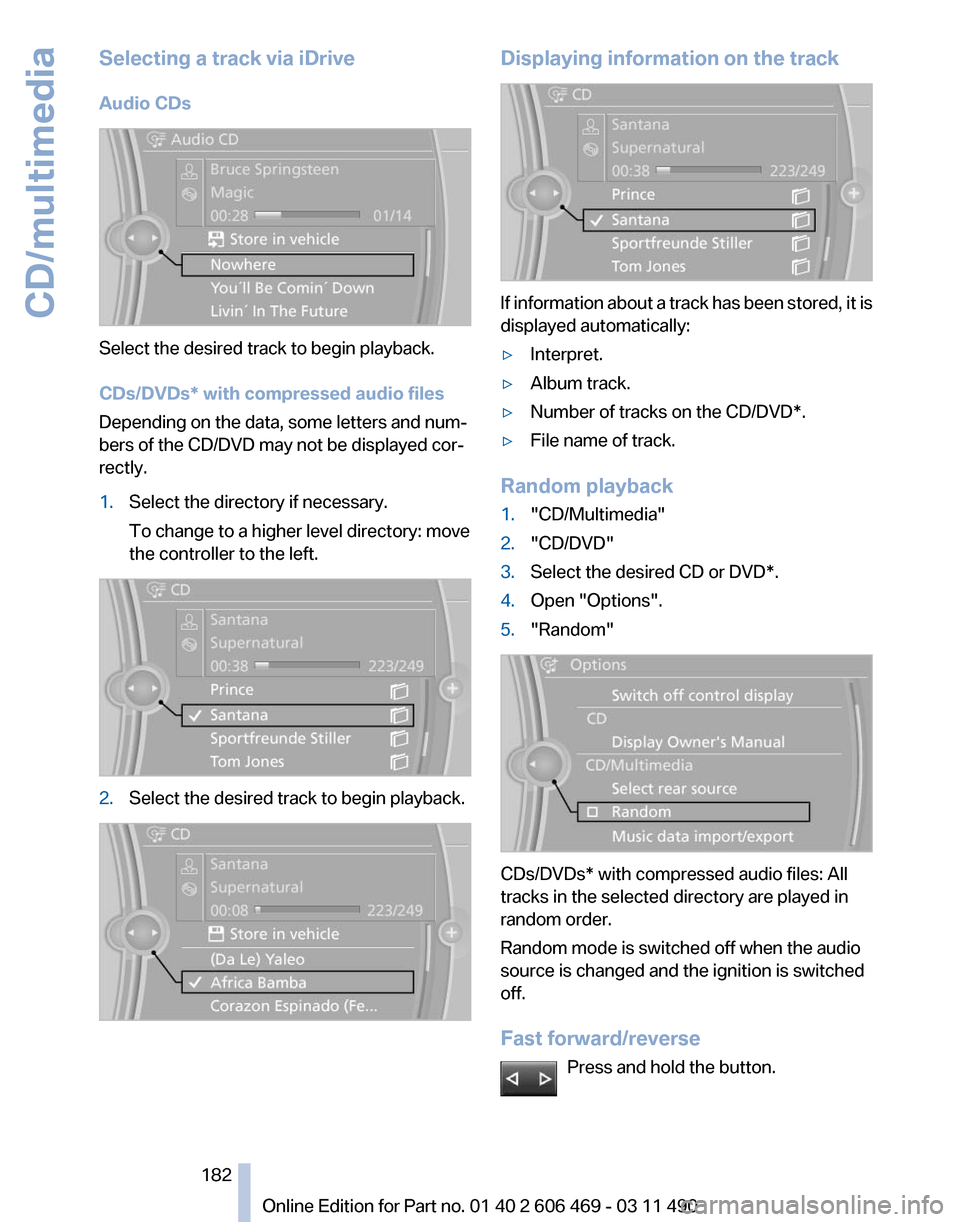
Select the desired track to begin playback.
CDs/DVDs* with compressed audio files
Depending on the data, some letters and num‐
bers of the CD/DVD may not be displayed cor‐
rectly.
1.
Select the directory if necessary.
To change to a higher level directory: move
the controller to the left. 2.
Select the desired track to begin playback. Displaying information on the track
If information about a track has been stored, it is
displayed automatically:
▷
Interpret.
▷ Album track.
▷ Number of tracks on the CD/DVD*.
▷ File name of track.
Random playback
1. "CD/Multimedia"
2. "CD/DVD"
3. Select the desired CD or DVD*.
4. Open "Options".
5. "Random" CDs/DVDs* with compressed audio files: All
tracks in the selected directory are played in
random order.
Random mode is switched off when the audio
source is changed and the ignition is switched
off.
Fast forward/reverse
Press and hold the button. Seite 182
182 Online Edition for Part no. 01 40 2 606 469 - 03 11 490CD/multimedia
Page 186 of 304
The LED on the first empty compartment
flashes.
2. Select another compartment if necessary.
3. Wait for the LEDs on the DVD slot to flash.
4. Insert a single CD or DVD in the middle.
The CD/DVD is drawn in automatically and
placed into the selected compartment.
Sliding in CDs/DVDs
Do not insert the CD/DVD until the LEDs
on
the DVD slot are flashing; otherwise, the CD/
DVD or the DVD changer could be damaged.
Do not continue to push on the CD/DVD; this
may cause it to jam and prevent it from being
able to eject again.◀
Filling all empty DVD compartments
1. Hold the button down.
The LEDs on the empty CD compartments
flash.
2. Wait for the LEDs on the DVD slot to begin
flashing
and then insert each CD or DVD into
the center of the slot.
The CDs/DVDs are drawn in automatically
and placed into the vacant compartments.
Sliding in CDs/DVDs
Do not insert the CD/DVD until the LEDs
on
the DVD slot are flashing; otherwise, the CD/
DVD or the DVD changer could be damaged.
Do not continue to push on the CD/DVD; this
may cause it to jam and prevent it from being
able to eject again.◀
After they are inserted, it may take several mi‐
nutes for the CDs/DVDs to be read in.
Removing a single CD/DVD
1. Press the button.
2. Select the DVD compartment.
The CD/DVD is partially ejected.
3. Remove the CD/DVD. Removing all CDs/DVDs
1.
Hold the button down.
2. Remove the CDs/DVDs.
Malfunctions
If
all LEDs on the DVD changer are flashing rap‐
idly, a malfunction has occurred.
To eliminate the malfunction:
1. Press one of the buttons:
▷ ▷
The CD/DVD last inserted is ejected.
2. Remove the CD/DVD.
The DVD changer is functional again after the
LEDs stop flashing rapidly.
Audio playback*
The audio track of a DVD can be played back
even if video playback is not possible in the ve‐
hicle.
Only
the main film without the previews or extras
can be played back.
Starting playback
A DVD is located in the DVD changer.
1. "CD/Multimedia"
2. "CD/DVD"
3. Select the desired DVD.
Selecting a chapter using the button Press the button repeatedly until the
desired chapter is played.
Selecting a chapter using iDrive
1. "CD/Multimedia"
2. "CD/DVD"
3. Select the desired DVD.
4. Select the desired chapter. Seite 186
186 Online Edition for Part no. 01 40 2 606 469 - 03 11 490
CD/multimedia
Page 189 of 304
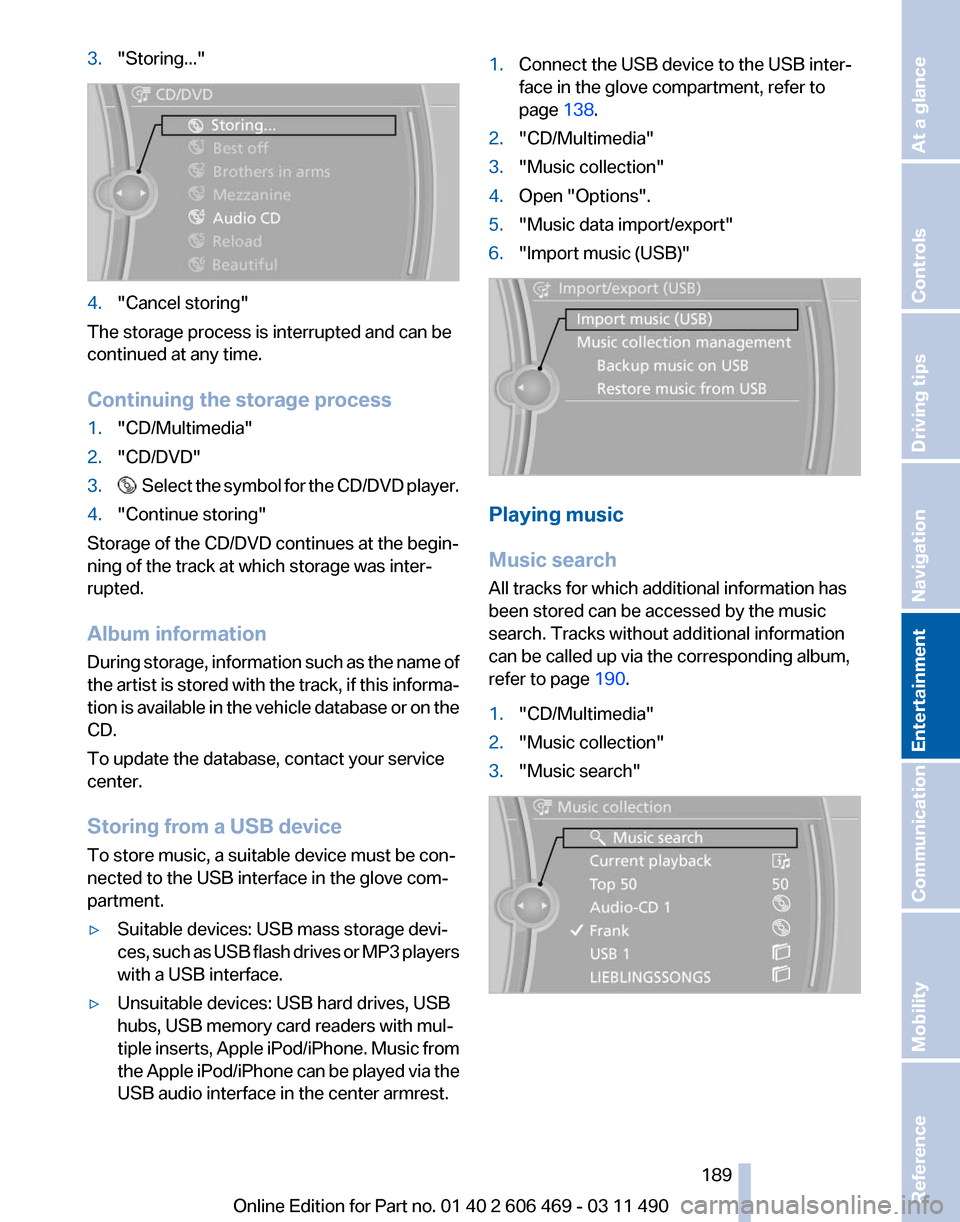
3.
"Storing..." 4.
"Cancel storing"
The storage process is interrupted and can be
continued at any time.
Continuing the storage process
1. "CD/Multimedia"
2. "CD/DVD"
3. Select the symbol for the CD/DVD player.
4. "Continue storing"
Storage of the CD/DVD continues at the begin‐
ning of the track at which storage was inter‐
rupted.
Album information
During
storage, information such as the name of
the artist is stored with the track, if this informa‐
tion is available in the vehicle database or on the
CD.
To update the database, contact your service
center.
Storing from a USB device
To store music, a suitable device must be con‐
nected to the USB interface in the glove com‐
partment.
▷ Suitable devices: USB mass storage devi‐
ces,
such as USB flash drives or MP3 players
with a USB interface.
▷ Unsuitable devices: USB hard drives, USB
hubs, USB memory card readers with mul‐
tiple
inserts, Apple iPod/iPhone. Music from
the Apple iPod/iPhone can be played via the
USB audio interface in the center armrest. 1.
Connect the USB device to the USB inter‐
face in the glove compartment, refer to
page 138.
2. "CD/Multimedia"
3. "Music collection"
4. Open "Options".
5. "Music data import/export"
6. "Import music (USB)" Playing music
Music search
All tracks for which additional information has
been stored can be accessed by the music
search. Tracks without additional information
can be called up via the corresponding album,
refer to page
190.
1. "CD/Multimedia"
2. "Music collection"
3. "Music search" Seite 189
189Online Edition for Part no. 01 40 2 606 469 - 03 11 490
Reference Mobility Communication
Entertainment Navigation Driving tips Controls At a glance
Page 193 of 304
Connecting
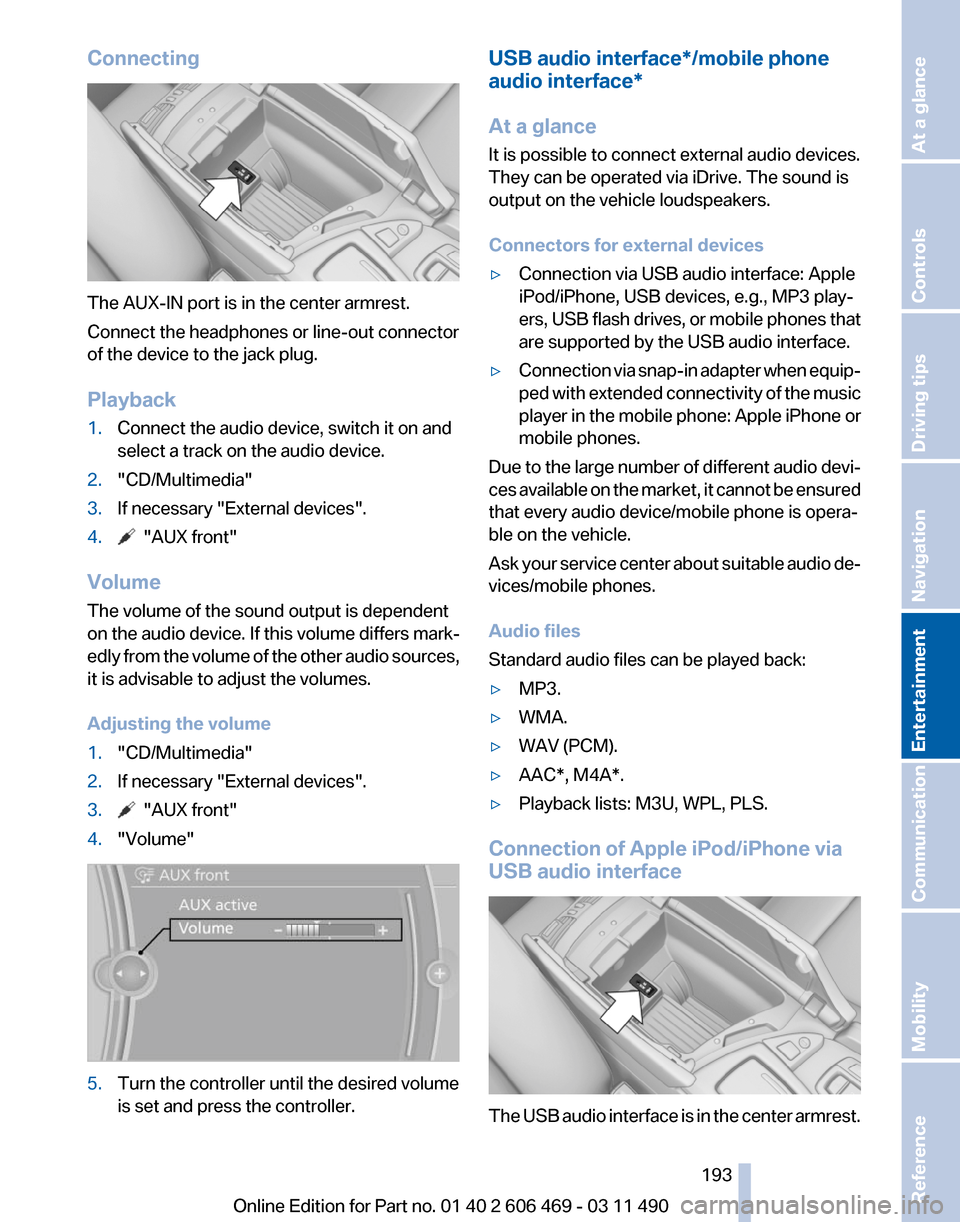
The AUX-IN port is in the center armrest.
Connect the headphones or line-out connector
of the device to the jack plug.
Playback
1.
Connect the audio device, switch it on and
select a track on the audio device.
2. "CD/Multimedia"
3. If necessary "External devices".
4. "AUX front"
Volume
The volume of the sound output is dependent
on the audio device. If this volume differs mark‐
edly
from the volume of the other audio sources,
it is advisable to adjust the volumes.
Adjusting the volume
1. "CD/Multimedia"
2. If necessary "External devices".
3. "AUX front"
4. "Volume" 5.
Turn the controller until the desired volume
is set and press the controller. USB audio interface*/mobile phone
audio interface
*
At a glance
It is possible to connect external audio devices.
They can be operated via iDrive. The sound is
output on the vehicle loudspeakers.
Connectors for external devices
▷ Connection via USB audio interface: Apple
iPod/iPhone, USB devices, e.g., MP3 play‐
ers,
USB flash drives, or mobile phones that
are supported by the USB audio interface.
▷ Connection via snap-in adapter when equip‐
ped
with extended connectivity of the music
player in the mobile phone: Apple iPhone or
mobile phones.
Due to the large number of different audio devi‐
ces
available on the market, it cannot be ensured
that every audio device/mobile phone is opera‐
ble on the vehicle.
Ask your service center about suitable audio de‐
vices/mobile phones.
Audio files
Standard audio files can be played back:
▷ MP3.
▷ WMA.
▷ WAV (PCM).
▷ AAC*, M4A*.
▷ Playback lists: M3U, WPL, PLS.
Connection of Apple iPod/iPhone via
USB audio interface The USB audio interface is in the center armrest.
Seite 193
193Online Edition for Part no. 01 40 2 606 469 - 03 11 490
Reference Mobility Communication
Entertainment Navigation Driving tips Controls At a glance
Page 195 of 304
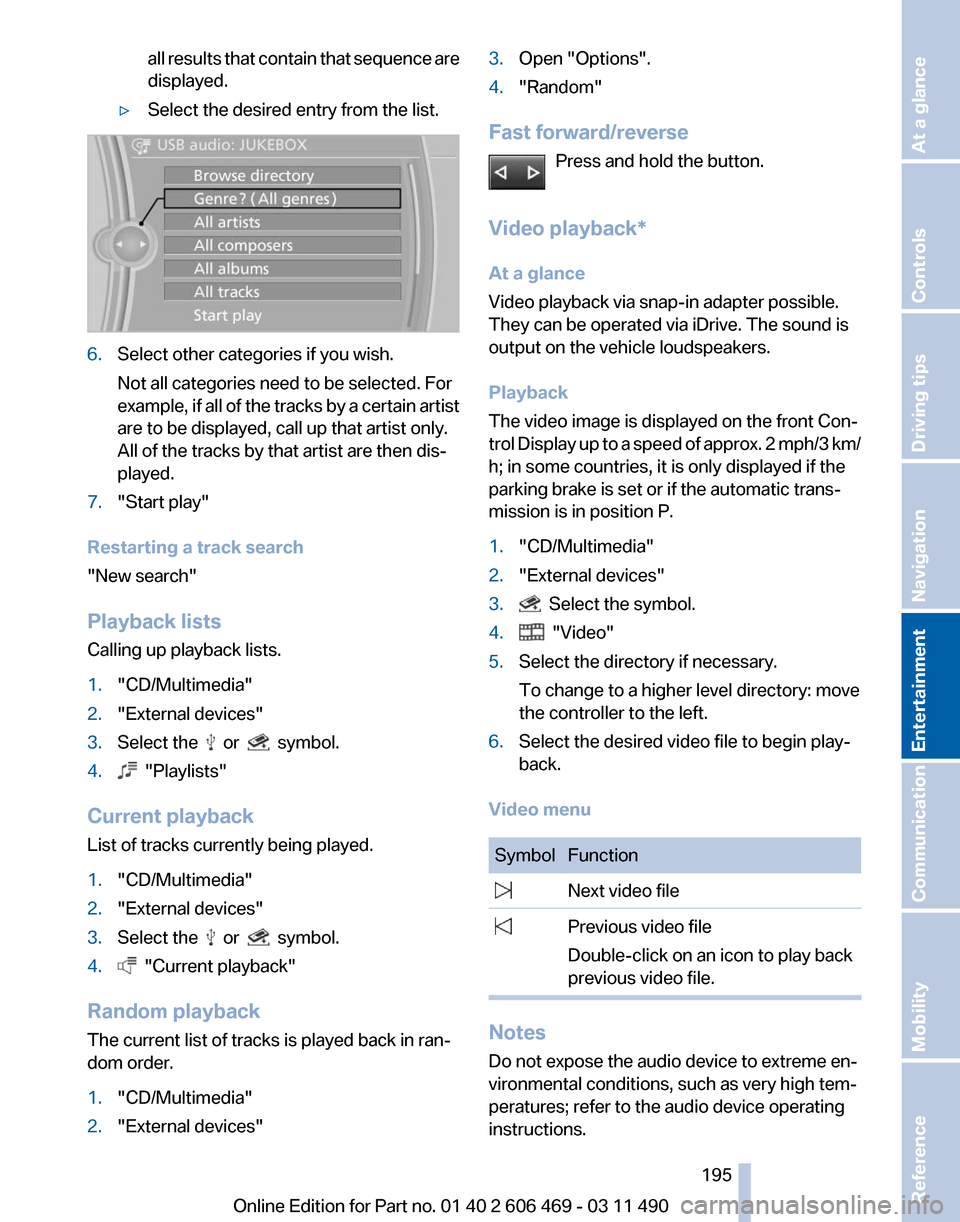
all results that contain that sequence are
displayed.
▷ Select the desired entry from the list. 6.
Select other categories if you wish.
Not all categories need to be selected. For
example,
if all of the tracks by a certain artist
are to be displayed, call up that artist only.
All of the tracks by that artist are then dis‐
played.
7. "Start play"
Restarting a track search
"New search"
Playback lists
Calling up playback lists.
1. "CD/Multimedia"
2. "External devices"
3. Select the or symbol.
4. "Playlists"
Current playback
List of tracks currently being played.
1. "CD/Multimedia"
2. "External devices"
3. Select the or symbol.
4. "Current playback"
Random playback
The current list of tracks is played back in ran‐
dom order.
1. "CD/Multimedia"
2. "External devices" 3.
Open "Options".
4. "Random"
Fast forward/reverse Press and hold the button.
Video playback*
At a glance
Video playback via snap-in adapter possible.
They can be operated via iDrive. The sound is
output on the vehicle loudspeakers.
Playback
The video image is displayed on the front Con‐
trol
Display up to a speed of approx. 2 mph/3 km/
h; in some countries, it is only displayed if the
parking brake is set or if the automatic trans‐
mission is in position P.
1. "CD/Multimedia"
2. "External devices"
3. Select the symbol.
4. "Video"
5. Select the directory if necessary.
To change to a higher level directory: move
the controller to the left.
6. Select the desired video file to begin play‐
back.
Video menu Symbol Function
Next video file
Previous video file
Double-click on an icon to play back
previous video file. Notes
Do not expose the audio device to extreme en‐
vironmental conditions, such as very high tem‐
peratures; refer to the audio device operating
instructions. Seite 195
195Online Edition for Part no. 01 40 2 606 469 - 03 11 490
Reference Mobility Communication
Entertainment Navigation Driving tips Controls At a glance
Page 196 of 304
Depending on the configuration of the audio
files, e.g., bit rates greater than 256 kbit/s, the
files may not play back correctly in each case.
Information on connection
▷
The connected audio device is supplied with
a
max. power of 500 mA if supported by the
device. Therefore, do not additionally con‐
nect the device to a socket in the vehicle;
otherwise, playback may be compromised.
▷ Do not use force when plugging the con‐
nector into the USB interface.
▷ Do not connect devices such as fans or
lamps to the USB audio interface.
▷ Do not connect USB hard drives.
▷ Do not use the USB audio interface to re‐
charge external devices.
Bluetooth audio*
At a glance
▷ Music files on external devices such as audio
devices or mobile phones can be played
back via Bluetooth.
Use of a mobile phone as an audio source,
refer to page 211.
▷ The sound is output on the vehicle loud‐
speakers.
▷ The volume of the sound output is depend‐
ent on the device. If necessary, adjust the
volume on the device.
▷ Up to four external devices can be paired
with the vehicle.
Requirements
▷ The device is suitable. Information under
www.bmwusa.com/bluetooth.
▷ The device is ready for operation.
▷ The ignition is switched on.
▷ Bluetooth is activated on the vehicle, refer to
page 211, and on the device.
▷ Bluetooth presettings must be made on the
device, such as for a connection without confirmation or visibility; refer to the device
operating instructions.
▷ A number with at least four and a maximum
of
16 digits is defined as the Bluetooth pass‐
key. It is only required once for pairing.
Pairing and connecting Pairing a device
To
avoid becoming distracted and posing
an unnecessary hazard both to your own vehi‐
cle's occupants and to other road users, only
pair the device while the vehicle is stationary.◀
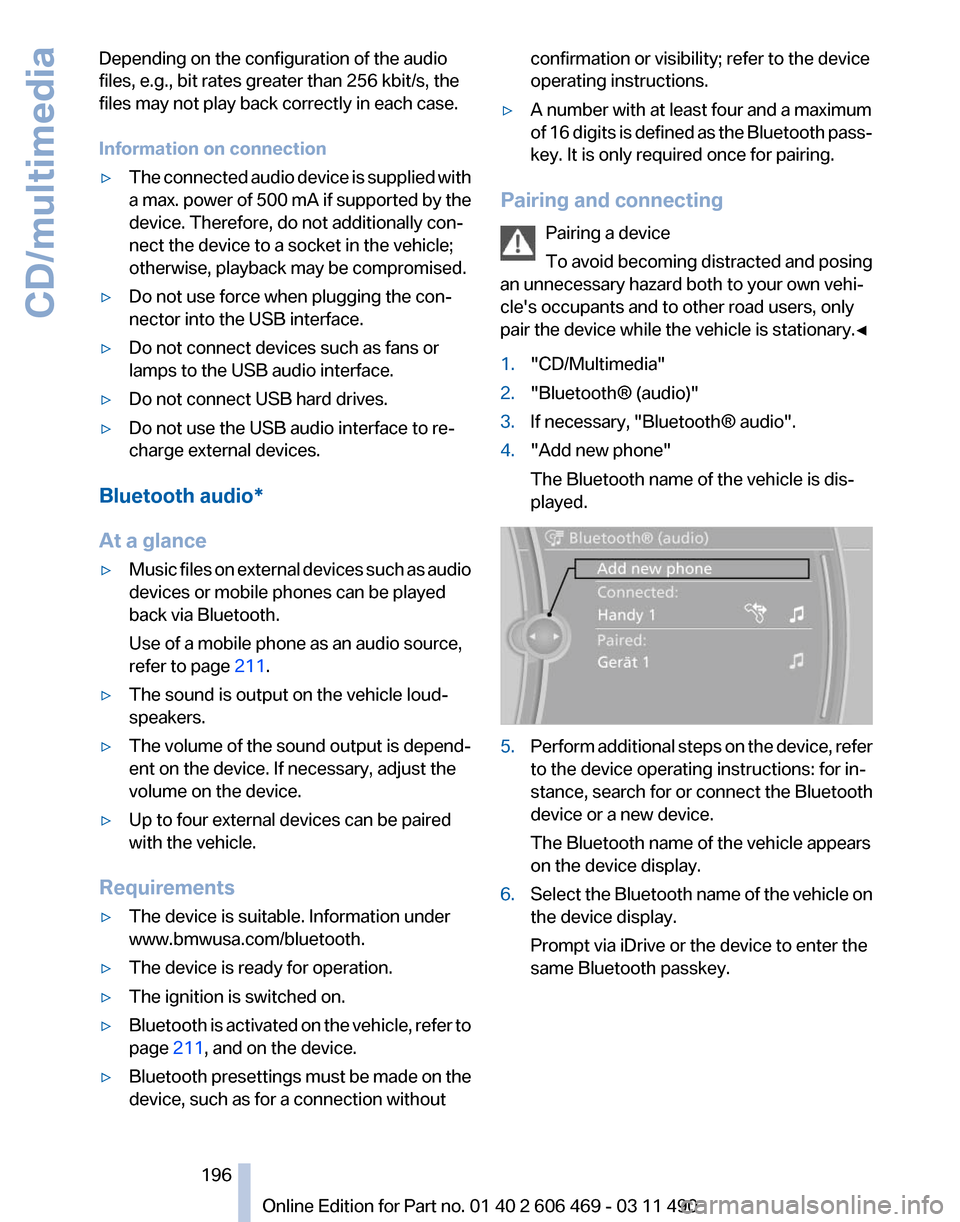
1. "CD/Multimedia"
2. "Bluetooth® (audio)"
3. If necessary, "Bluetooth® audio".
4. "Add new phone"
The Bluetooth name of the vehicle is dis‐
played. 5.
Perform additional steps on the device, refer
to the device operating instructions: for in‐
stance, search for or connect the Bluetooth
device or a new device.
The Bluetooth name of the vehicle appears
on the device display.
6. Select the Bluetooth name of the vehicle on
the device display.
Prompt via iDrive or the device to enter the
same Bluetooth passkey. Seite 196
196 Online Edition for Part no. 01 40 2 606 469 - 03 11 490
CD/multimedia
Page 197 of 304
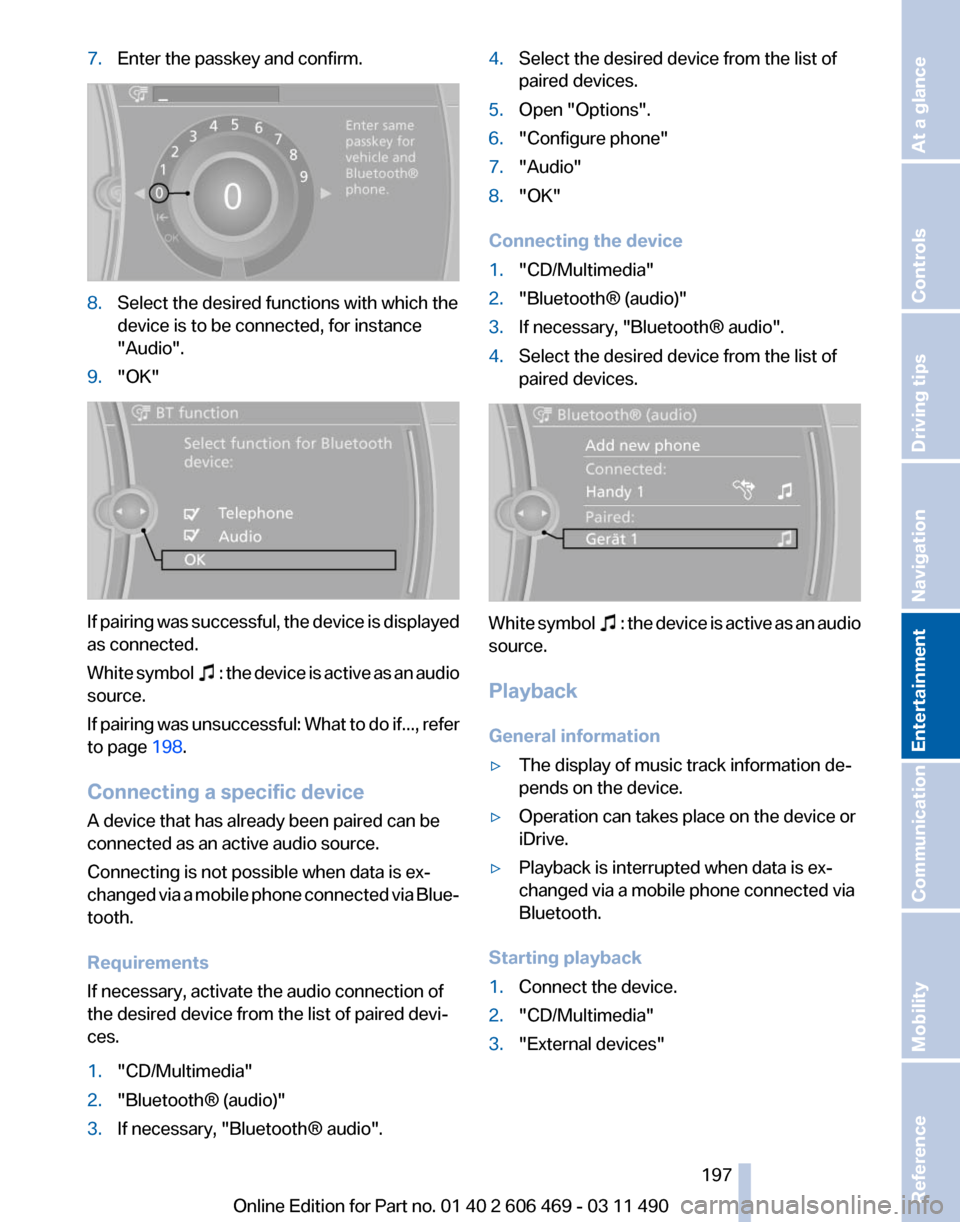
7.
Enter the passkey and confirm. 8.
Select the desired functions with which the
device is to be connected, for instance
"Audio".
9. "OK" If pairing was successful, the device is displayed
as connected.
White
symbol : the device is active as an audio
source.
If
pairing was unsuccessful: What to do if..., refer
to page 198.
Connecting a specific device
A device that has already been paired can be
connected as an active audio source.
Connecting is not possible when data is ex‐
changed via a mobile phone connected via Blue‐
tooth.
Requirements
If necessary, activate the audio connection of
the desired device from the list of paired devi‐
ces.
1. "CD/Multimedia"
2. "Bluetooth® (audio)"
3. If necessary, "Bluetooth® audio". 4.
Select the desired device from the list of
paired devices.
5. Open "Options".
6. "Configure phone"
7. "Audio"
8. "OK"
Connecting the device
1. "CD/Multimedia"
2. "Bluetooth® (audio)"
3. If necessary, "Bluetooth® audio".
4. Select the desired device from the list of
paired devices. White symbol : the device is active as an audio
source.
Playback
General information
▷ The display of music track information de‐
pends on the device.
▷ Operation can takes place on the device or
iDrive.
▷ Playback is interrupted when data is ex‐
changed via a mobile phone connected via
Bluetooth.
Starting playback
1. Connect the device.
2. "CD/Multimedia"
3. "External devices"
Seite 197
197Online Edition for Part no. 01 40 2 606 469 - 03 11 490
Reference Mobility Communication
Entertainment Navigation Driving tips Controls At a glance
Page 198 of 304
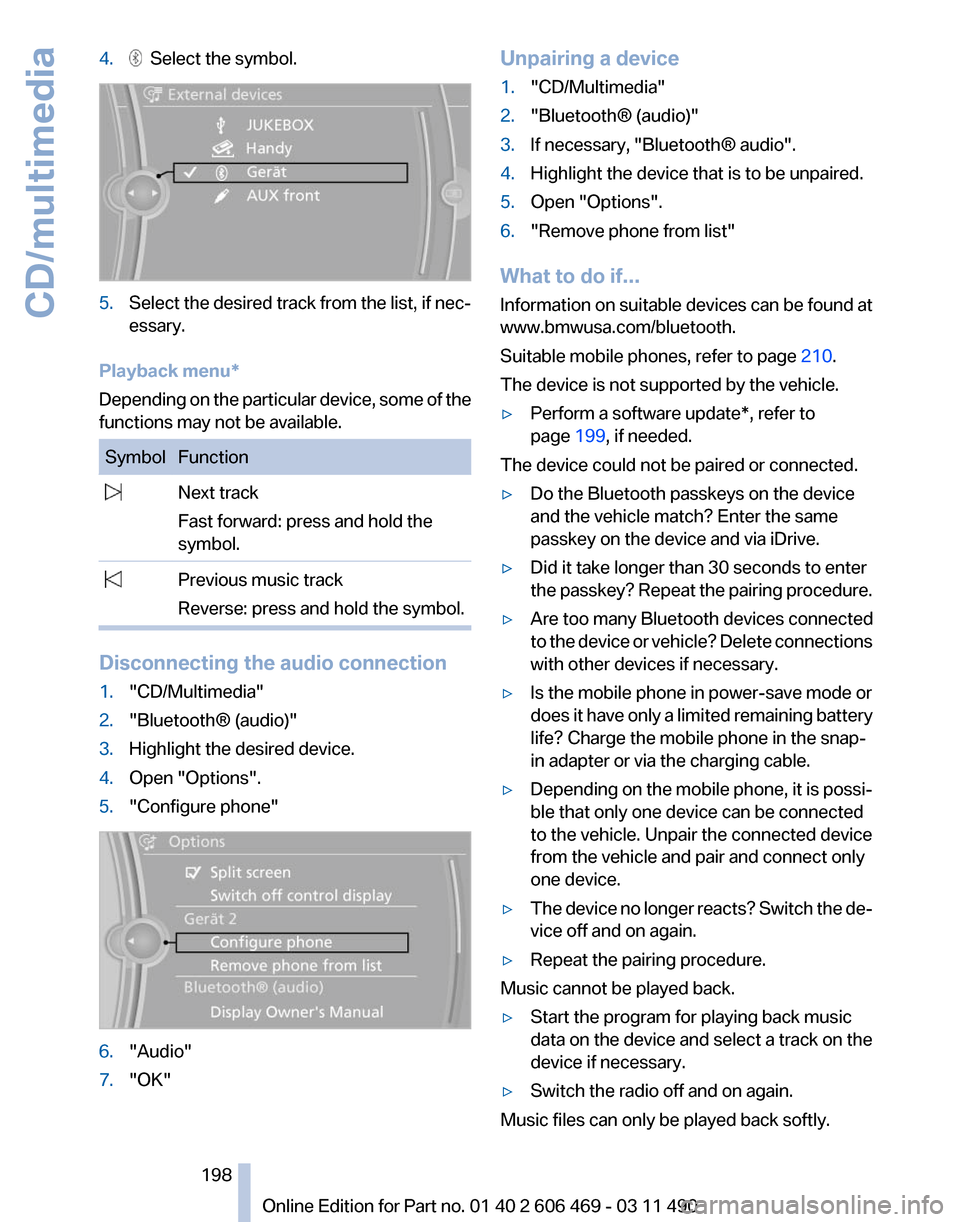
4. Select the symbol.
5.
Select the desired track from the list, if nec‐
essary.
Playback menu*
Depending on the particular device, some of the
functions may not be available. Symbol Function
Next track
Fast forward: press and hold the
symbol. Previous music track
Reverse: press and hold the symbol. Disconnecting the audio connection
1.
"CD/Multimedia"
2. "Bluetooth® (audio)"
3. Highlight the desired device.
4. Open "Options".
5. "Configure phone" 6.
"Audio"
7. "OK" Unpairing a device
1.
"CD/Multimedia"
2. "Bluetooth® (audio)"
3. If necessary, "Bluetooth® audio".
4. Highlight the device that is to be unpaired.
5. Open "Options".
6. "Remove phone from list"
What to do if...
Information
on suitable devices can be found at
www.bmwusa.com/bluetooth.
Suitable mobile phones, refer to page 210.
The device is not supported by the vehicle.
▷ Perform a software update*, refer to
page 199, if needed.
The device could not be paired or connected.
▷ Do the Bluetooth passkeys on the device
and the vehicle match? Enter the same
passkey on the device and via iDrive.
▷ Did it take longer than 30 seconds to enter
the
passkey? Repeat the pairing procedure.
▷ Are too many Bluetooth devices connected
to
the device or vehicle? Delete connections
with other devices if necessary.
▷ Is the mobile phone in power-save mode or
does
it have only a limited remaining battery
life? Charge the mobile phone in the snap-
in adapter or via the charging cable.
▷ Depending on the mobile phone, it is possi‐
ble that only one device can be connected
to the vehicle. Unpair the connected device
from the vehicle and pair and connect only
one device.
▷ The device no longer reacts? Switch the de‐
vice off and on again.
▷ Repeat the pairing procedure.
Music cannot be played back.
▷ Start the program for playing back music
data on the device and select a track on the
device if necessary.
▷ Switch the radio off and on again.
Music files can only be played back softly.
Seite 198
198 Online Edition for Part no. 01 40 2 606 469 - 03 11 490
CD/multimedia
Page 199 of 304
▷
Adjust the volume settings on the device.
Playback is disturbed when buttons are pressed
or by other messages on the device.
▷ Switch off the button tones and other signal
tones on the device.
Playback is interrupted by a telephone call or
traffic bulletin and is not resumed automatically.
▷ Switch the radio off and on again.
Playback is not possible if the mobile phone is
connected
both via Bluetooth Audio and via the
extended connectivity of the music player in the
mobile phone*.
▷ Disconnect one of the two connections; for
example, disconnect the audio connection,
refer to page 198, and restart playback.
If all points in this list have been checked and the
required function is still not available, please
contact the hotline or service center.
Software Update*
The vehicle supports various external devices
depending
on the current software version. With
a software update, the vehicle can support new
cell phones* or new external devices*.
The updating of the software is done via:
▷ USB*.
Updates and related current information is
available at www.bmw.com/update.
▷ TeleService*.
Existing
software can be updated directly via
the vehicle.
Displaying the current version
The currently installed software is displayed.
1. "Settings"
2. "Software update"
3. "Show current version"
SelectDesired version* to displayAdditional in‐
formation*.
Updating software via USB
*
The software may only be updated when the ve‐
hicle is stationary. 1.
Store the file for the software-update in the
main director of a USB flash drive.
2. Insert the USB flash drive into the USB in‐
terface of the USB audio interface in the
center armrest. An update via the USB in‐
terface
in the glove compartment is not pos‐
sible.
3. "Settings"
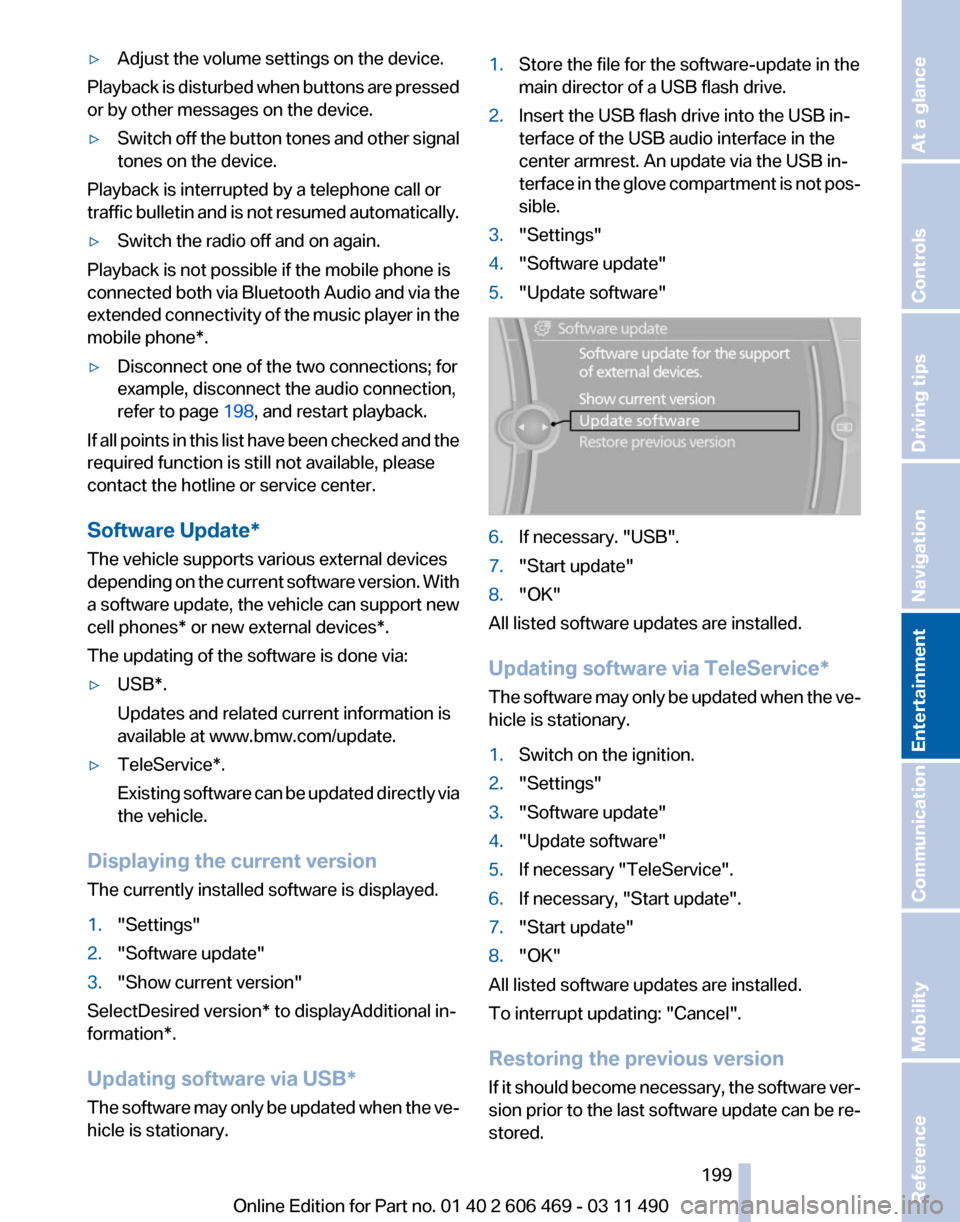
4. "Software update"
5. "Update software" 6.
If necessary. "USB".
7. "Start update"
8. "OK"
All listed software updates are installed.
Updating software via
TeleService*
The software may only be updated when the ve‐
hicle is stationary.
1. Switch on the ignition.
2. "Settings"
3. "Software update"
4. "Update software"
5. If necessary "TeleService".
6. If necessary, "Start update".
7. "Start update"
8. "OK"
All listed software updates are installed.
To interrupt updating:
"Cancel".
Restoring the previous version
If it should become necessary, the software ver‐
sion prior to the last software update can be re‐
stored.
Seite 199
199Online Edition for Part no. 01 40 2 606 469 - 03 11 490
Reference Mobility Communication
Entertainment Navigation Driving tips Controls At a glance
Page 203 of 304
Audio/video playback
Audio
Audio
can be played back via rear entertainment
from any source in the vehicle.
Operation is the same as for the front audio play‐
back, refer to page 181.
Video
Video can be played back in the rear from the
following sources:
▷ DVD changer*.
▷ Rear CD/DVD player.
▷ External device in rear.
If a video image is being played back in the rear,
the rear CD/DVD player cannot be selected in
the front.
Operation
is the same as for the front video play‐
back, refer to page 183.
Radio
When the same radio source is selected in the
front and rear (e.g., FM/AM), the same radio sta‐
tion is played.
Operation is the same as for the front radio, refer
to page 174.
CD/multimedia
CD/DVD
When the same audio source (front CD/DVD
player, rear CD/DVD player, DVD changer) is se‐
lected in the front and rear, the same material is
played.
Operation is the same as for the front CD/DVD,
refer to page 181.
Notes on CDs/DVDs, refer to page 187.
Music collection*
Music can only be stored and data can only be
exported and imported via the front CD/DVD
player or the USB interface in the glove com‐
partment. When music collections are selected in the front
and rear, they are played back separately.
Operation
is the same as for the front music col‐
lection, refer to page 188.
Tone
Only treble and bass can be set in the rear. The
settings are made separately for the left and
right headphones.
Operation is the same as for the front tone, refer
to page 172.
Contacts*
Operation is the same as for the front contacts.
Navigation*
Route planning can be performed separately on
the left and right sides in the rear. Destination
guidance can only be started from the front.
Operation is the same as for the front navigation,
refer to page 154.
Suggesting a destination
A destination or trip can be sent to the front as
a suggestion. The suggestion can be adopted,
stored, or declined in the front. This function is
not available with the following setting: "Driver
control".
1. Enter the destination.
2. "Suggest destination"
BMW Assist*
Operation is the same as for BMW Assist in the
front, refer to page 232.
Adjusting
The following settings are available:
▷ "Rear displays"
▷ "Language/Units": language can be set
globally for all screens.
▷ "Tone"
▷ If necessary. "Climate".
Seite 203
203Online Edition for Part no. 01 40 2 606 469 - 03 11 490
Reference Mobility Communication
Entertainment Navigation Driving tips Controls At a glance