sat nav BMW 535I GRAN TURISMO 2012 Owners Manual
[x] Cancel search | Manufacturer: BMW, Model Year: 2012, Model line: 535I GRAN TURISMO, Model: BMW 535I GRAN TURISMO 2012Pages: 321, PDF Size: 12.7 MB
Page 160 of 321
Objects in the area around the pedalsNo objects in the area around the pedals
Keep floor mats, carpets, and any other
objects out of the area of motion of the pedals;
otherwise, the function of the pedals could be
impeded while driving
Do not place additional floor mats over existing
mats or other objects.
Only use floor mats that have been approved for
the vehicle and can be properly fixed in place.
Ensure that the floor mats are securely fastened
again after they were removed for cleaning, for
example.◀
Driving in wet conditions
When roads are wet or there is heavy rain, briefly
exert gentle pressure on the brake pedal every
few miles.
Ensure that this action does not endanger other
road users.
The heat generated in this process helps dry the
brake discs and pads.
In this way braking efficiency will be available
when you need it.
Hills
Drive long or steep downhill gradients in the gear
in which the least braking is required. Otherwise,
the brake system may overheat, resulting in a
reduction in the brake system efficiency.
You can increase the engine's braking effect by
shifting down in the manual mode of the auto‐
matic transmission, refer to page 75.
Avoid load on the brakes
Avoid placing excessive load on the brake
system. Light but consistent brake pressure can
lead to high temperatures, brake wear and pos‐
sibly even brake failure.◀Do not drive in neutral
Do not drive in neutral or with the engine
stopped, as doing so disables engine braking. In
addition, steering and brake assist is unavailable
with the engine stopped.◀
Brake disc corrosion
Corrosion on the brake discs and contamination
on the brake pads are furthered by:▷Low mileage.▷Extended periods when the vehicle is not
used at all.▷Infrequent use of the brakes.
Corrosion occurs when the minimum pressure
that must be exerted by the pads during brake
applications to clean the discs is not reached.
Should corrosion form on the brake discs, the
brakes will tend to respond with a pulsating ef‐
fect that generally cannot be corrected.
Condensation under the parked vehicle
When using the automatic climate control, con‐
densation water develops that exits underneath
the vehicle.
Therefore, traces of condensed water under the
vehicle are normal.
Seite 160Driving tipsThings to remember when driving160
Online Edition for Part no. 01 40 2 607 855 - 09 11 490
Page 168 of 321
NavigationVehicle equipment
All standard, country-specific and optional
equipment that is offered in the model series is
described in this chapter. Therefore, equipment
is also described that is not available in a vehicle,
e. g., because of the selected optional equip‐
ment or country variant. This also applies for
safety-related functions and systems.
Navigation system
General information
The navigation system can determine the pre‐
cise position of the vehicle, with the aid of sat‐
ellites and vehicle sensors, and can reliably
guide you to every entered destination.
Navigation data are stored in the vehicle and can
be updated.
Entries in stationary vehicle
Enter data only when the vehicle is sta‐
tionary, and always give priority to the applicable
traffic regulations in the event of any contradic‐
tion between traffic and road conditions and the
instructions issued by the navigation system.
Failure to take to this precaution can place you
in violation of the law and put vehicle occupants
and other road users in danger.◀
Starting navigation system1. Press the button on the controller.2."Navigation"
The navigation system can also be ac‐
cessed directly with the button on the con‐
troller.
Destination input
Manual destination entry
General information
The system supports you in entering street
names and house numbers by automatically
completing the entry and providing entry com‐
parisons, refer to page 21.
Stored town/city and street names can be called
up quickly.▷If the existing entries should not be changed,
the entries for the state/province and town/
city can be skipped.▷Destination guidance is started to the town/
city center if no street is entered.
Entering a state/province
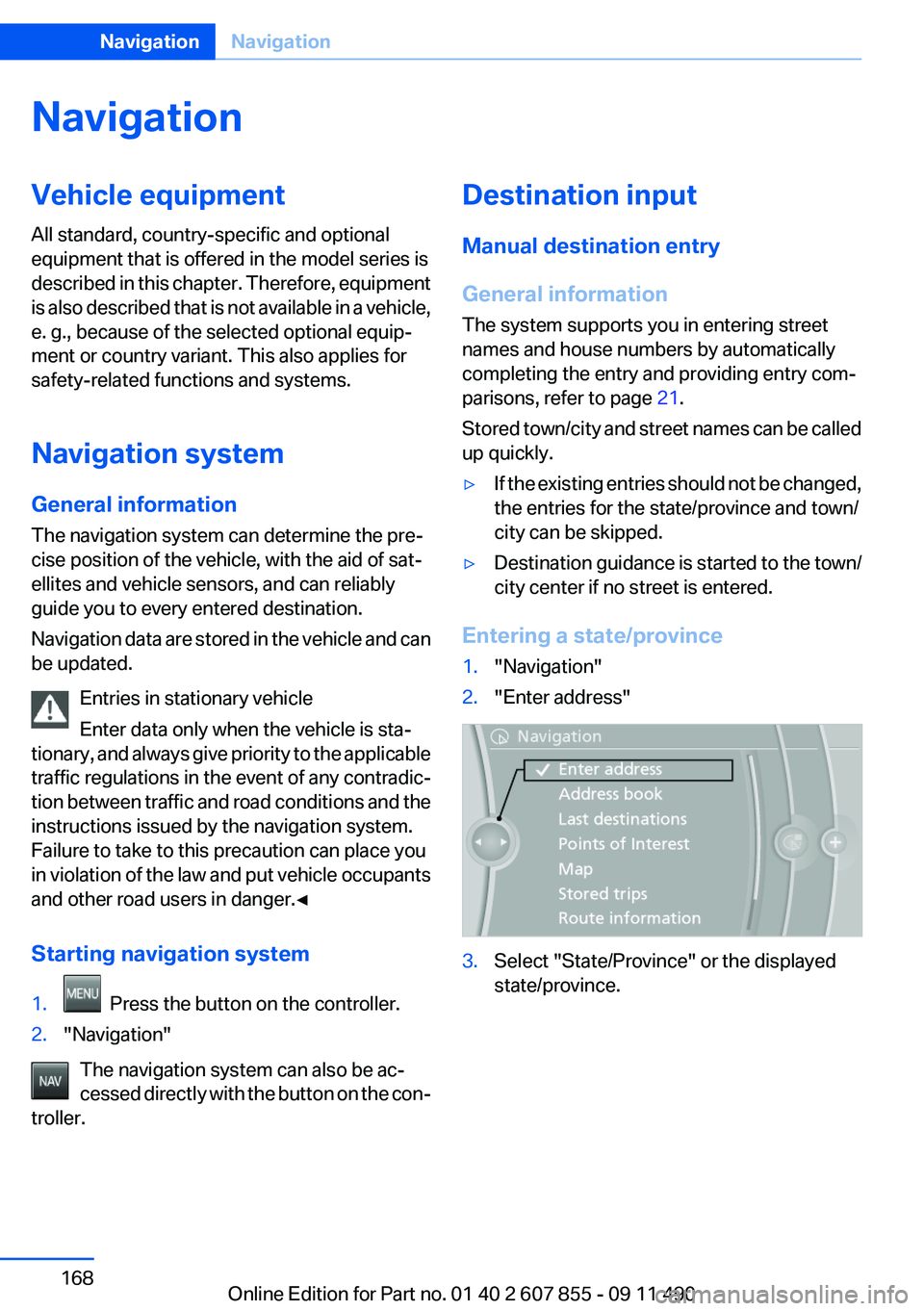
1."Navigation"2."Enter address"3.Select "State/Province" or the displayed
state/province.Seite 168NavigationNavigation168
Online Edition for Part no. 01 40 2 607 855 - 09 11 490
Page 179 of 321
Traffic obstructions
Small triangles along the planned route indicate
route sections with traffic obstructions, depend‐
ing on the map scale. The direction of the trian‐
gles indicates the direction of the obstruction.
The traffic signs indicate the significance of the
obstruction.▷Red traffic sign: the obstruction affects the
planned route or direction.▷Gray traffic sign: the obstruction does not
affect the planned route or direction.
Traffic bulletins, refer to page 180.
Planned route
After destination guidance is started, the plan‐
ned route is displayed on the map.
Status fields
Show/hide: press the controller.
▷Upper status field: time, telephone, and en‐
tertainment details.▷Lower status field: symbol for active desti‐
nation guidance, status of traffic bulletins,
time of arrival, and distance to destination.
Function bar
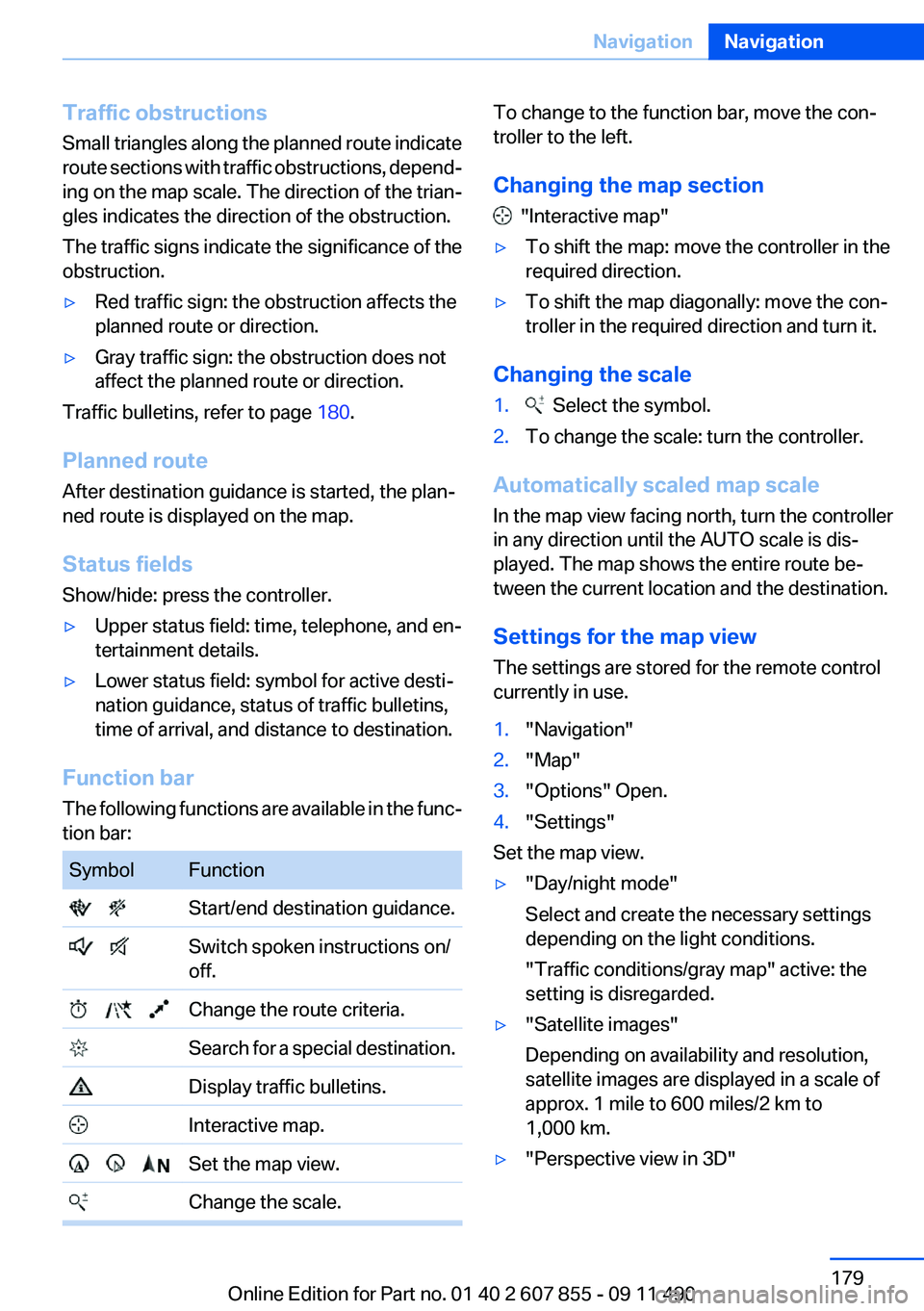
The following functions are available in the func‐
tion bar:
SymbolFunction Start/end destination guidance. Switch spoken instructions on/
off. Change the route criteria. Search for a special destination. Display traffic bulletins. Interactive map. Set the map view. Change the scale.To change to the function bar, move the con‐
troller to the left.
Changing the map section
"Interactive map"
▷To shift the map: move the controller in the
required direction.▷To shift the map diagonally: move the con‐
troller in the required direction and turn it.
Changing the scale
1. Select the symbol.2.To change the scale: turn the controller.
Automatically scaled map scale
In the map view facing north, turn the controller
in any direction until the AUTO scale is dis‐
played. The map shows the entire route be‐
tween the current location and the destination.
Settings for the map view
The settings are stored for the remote control
currently in use.
1."Navigation"2."Map"3."Options" Open.4."Settings"
Set the map view.
▷"Day/night mode"
Select and create the necessary settings
depending on the light conditions.
"Traffic conditions/gray map" active: the
setting is disregarded.▷"Satellite images"
Depending on availability and resolution,
satellite images are displayed in a scale of
approx. 1 mile to 600 miles/2 km to
1,000 km.▷"Perspective view in 3D"Seite 179NavigationNavigation179
Online Edition for Part no. 01 40 2 607 855 - 09 11 490
Page 190 of 321
2.Press the controller.3.Select the substation.
When reception is poor, the substation is muted
for several seconds. If reception is interrupted
for an extended period, it switches back to the
main station.
Weather Band
General information
The availability of the Weather Band and the
number of available channels can vary depend‐
ing on the region.
Switching on the Weather Band
1."Radio"2."Weather band"3.Select the desired channel.
Additional information
Weather Band is a service of the National Oce‐
anic and Atmospheric Administration (NOAA).
Additional information on the Internet:
www.nws.noaa.gov.
Satellite radio
General information
The channels are offered in predefined pack‐
ages. The packages must be enabled by tele‐
phone.
Navigation bar overview
SymbolFunction Change the list view. Select the category. Direct channel entry TimeshiftSymbolFunction Open the My Favorites category/
open a favorite. Manage the favorites. Traffic Jump
The functions of the navigation bar symbols can
also be stored on the programmable memory
buttons, refer to page 20.
Managing a subscription
To be able to enable or unsubscribe from the
channels, you must have reception. It is usually
at its best when you have an unobstructed view
of the sky. The channel name is displayed in the
status line.
Enabling channels
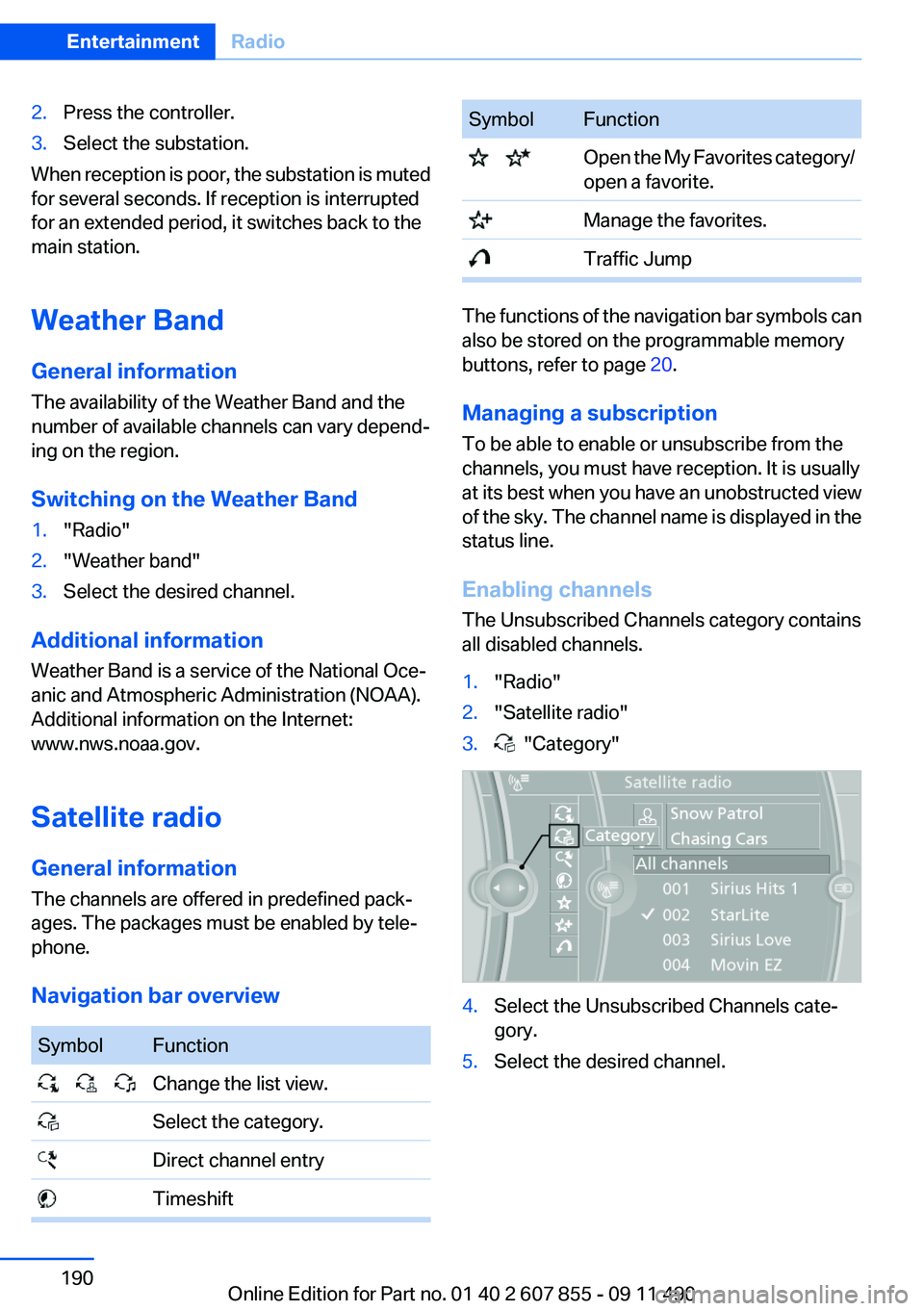
The Unsubscribed Channels category contains
all disabled channels.
1."Radio"2."Satellite radio"3. "Category"4.Select the Unsubscribed Channels cate‐
gory.5.Select the desired channel.Seite 190EntertainmentRadio190
Online Edition for Part no. 01 40 2 607 855 - 09 11 490
Page 192 of 321
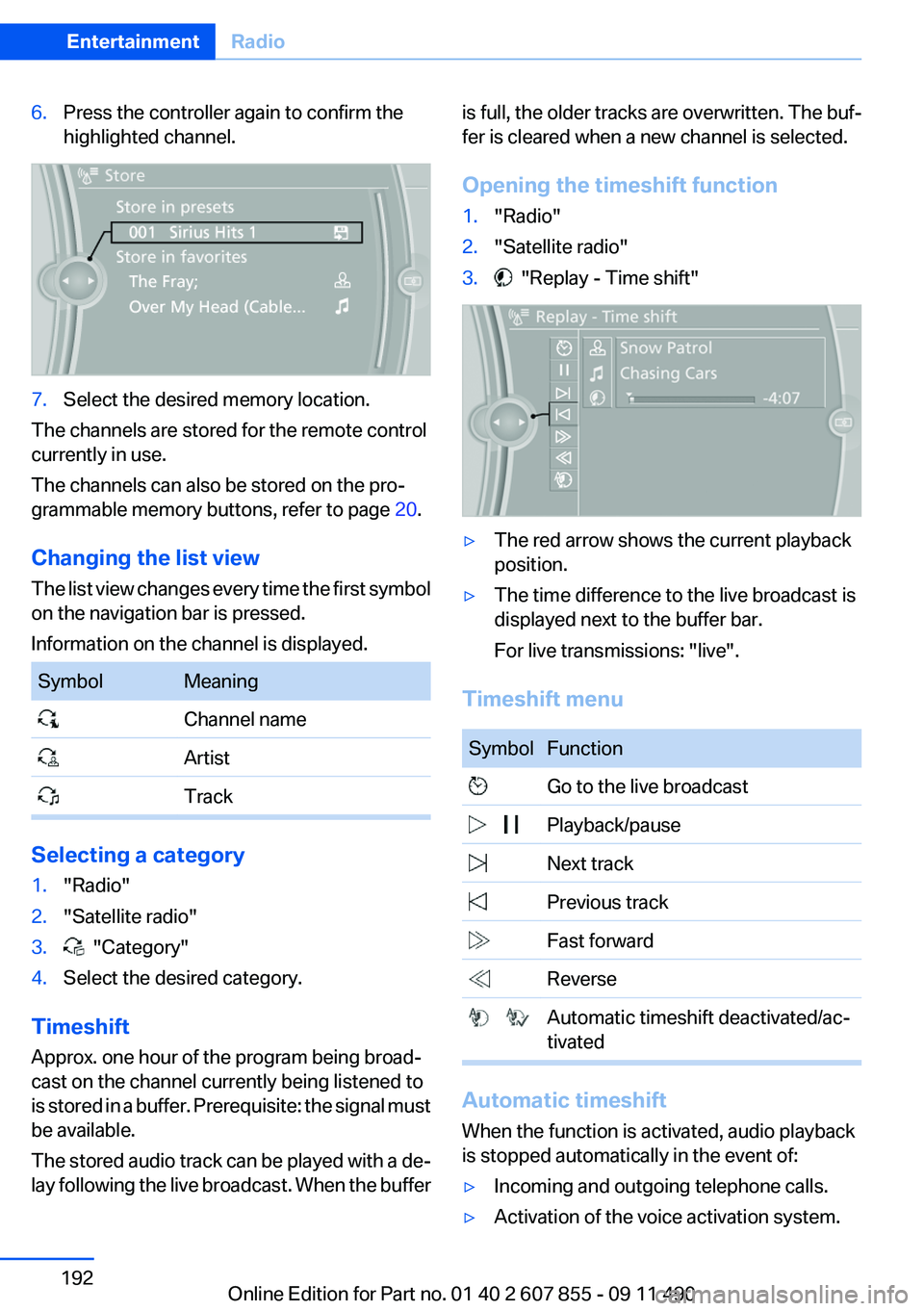
6.Press the controller again to confirm the
highlighted channel.7.Select the desired memory location.
The channels are stored for the remote control
currently in use.
The channels can also be stored on the pro‐
grammable memory buttons, refer to page 20.
Changing the list view
The list view changes every time the first symbol
on the navigation bar is pressed.
Information on the channel is displayed.
SymbolMeaning Channel name Artist Track
Selecting a category
1."Radio"2."Satellite radio"3. "Category"4.Select the desired category.
Timeshift
Approx. one hour of the program being broad‐
cast on the channel currently being listened to
is stored in a buffer. Prerequisite: the signal must
be available.
The stored audio track can be played with a de‐
lay following the live broadcast. When the buffer
is full, the older tracks are overwritten. The buf‐
fer is cleared when a new channel is selected.
Opening the timeshift function1."Radio"2."Satellite radio"3. "Replay - Time shift"▷The red arrow shows the current playback
position.▷The time difference to the live broadcast is
displayed next to the buffer bar.
For live transmissions: "live".
Timeshift menu
SymbolFunction Go to the live broadcast Playback/pause Next track Previous track Fast forward Reverse Automatic timeshift deactivated/ac‐
tivated
Automatic timeshift
When the function is activated, audio playback
is stopped automatically in the event of:
▷Incoming and outgoing telephone calls.▷Activation of the voice activation system.Seite 192EntertainmentRadio192
Online Edition for Part no. 01 40 2 607 855 - 09 11 490
Page 312 of 321
Concierge service 250
Condensation on win‐ dows 137
Condensation under the vehi‐ cle 160
Condition Based Service CBS 276
Confirmation signal 35
Contacts 239, 247
Control Display 16
Control Display, settings 87
Controller 16
Control systems, driving sta‐ bility 106
Convenient opening 34
Coolant 274
Coolant temperature 82
Cooling function 138
Cooling, maximum 138
Cooling system 274
Corrosion on brake discs 160
Cruise control 121
Cruise control, active with Stop & Go 114
Cruising range 82
Cupholder 152
Curb weight 298
Current fuel consumption 83
Current location, storing 170
Customer Relations 252
D
Damage, tires 266
Damping control, dy‐ namic 109
Data, technical 296
Date 82
Daytime running lights 90
Defrosting, refer to Windows, defrosting 137
Destination distance 85
Destination guidance 176
Destination guidance with in‐ termediate destinations 174 Destination input, naviga‐
tion 168
Digital clock 82
Digital radio 189
Dimensions 296
Dimmable exterior mirrors 61
Dimmable interior rearview mirror 61
Direction indicator, refer to Turn signals 72
Display in front wind‐ shield 134
Display lighting, refer to Instru‐ ment lighting 92
Displays 78
Displays, cleaning 292
Disposal, coolant 275
Disposal, vehicle battery 282
Distance control, refer to PDC 123
Distance, selecting for ACC 116
Distance to destination 85
Divided screen view, split screen 20
Door lock, refer to Remote control 30
Doors, Automatic Soft Clos‐ ing 38
Downhill control 108
Drive-off assistant 106
Drive-off assistant, refer to DSC 106
Driving Experience Switch 110
Driving instructions, breaking in 158
Driving notes, general 158
Driving stability control sys‐ tems 106
Driving tips 158
DSC Dynamic Stability Con‐ trol 106
DTC driving dynamics 107
DTC Dynamic Traction Con‐ trol 107 DVD/CD 196
DVD/CD notes 202
DVD/CD player, rear 217
DVD changer 200
DVD settings 199
DVDs, storing 203
DVD, video 198
Dynamic Damping Con‐ trol 109
Dynamic destination guid‐ ance 182
Dynamic Drive 109
Dynamic Stability Control DSC 106
Dynamic Traction Control DTC 107
E
Electronic displays, instru‐ ment cluster 79
Electronic Stability Program ESP, refer to DSC 106
Emergency detection, remote control 31
Emergency release, door lock 37
Emergency release, fuel filler flap 258
Emergency release, parking brake 69
Emergency Request 284
Emergency service, refer to Roadside Assistance 285
Emergency start function, en‐ gine start 31
Emergency unlocking, tail‐ gate 41
Energy Control 83
Energy recovery 83
Engine compartment 271
Engine compartment, working in 271
Engine coolant 274
Engine oil 273
Engine oil, adding 273 Seite 312ReferenceEverything from A to Z312
Online Edition for Part no. 01 40 2 607 855 - 09 11 490
Page 317 of 321
Route section, bypassing 177
RSC Runflat System Compo‐ nent, refer to Run-flat
tires 269
Rubber components, care 291
Run-flat tires 269
S
Safe braking 159
Safety 6
Safety belt reminder 56
Safety belts 56
Safety belts, care 291
Safety switch, windows 45
Safety systems, airbags 94
Satellite radio 190
Saving fuel 164
Scale, changing during navi‐ gation 179
Screen, refer to Control Dis‐ play 16
Screwdriver 278
Screw thread for tow fit‐ ting 288
Search, refer to BMW Search 251
Seat belts, refer to Safety belts 56
Seat heating, front 52
Seat heating, rear 55
Seating position for chil‐ dren 63
Seat, mirror, and steering wheel memory 59
Seats 49
Seats, rear, adjusting 53
Seat ventilation, front 52
Seat ventilation, rear 55
Selection list in instrument cluster 84
Selector lever, automatic transmission 75
Self-leveling suspension, air suspension 110 Self-leveling suspension, mal‐
function 110
Sensors, care 292
Service and warranty 7
Service requirements, Condi‐ tion Based Service CBS 276
Service requirements, dis‐ play 83
Service, Roadside Assis‐ tance 285
Settings on Control Dis‐ play 87
Settings, storing for seat, mir‐ rors, steering wheel 59
Shifting, automatic transmis‐ sion 75
Short commands 300
Shoulder support 51
Side airbags 94
Side View 130
Signaling, horn 12
Signals when unlocking 35
Sitting safely 49
Size 296
Ski and snowboard bag 149
Slide/tilt glass roof 46
Smallest turning circle 297
Smoker's package 145
Snap-in adapter, mobile phone 236
Snow chains 269
Socket 145
Socket, OBD Onboard Diag‐ nostics 277
Software applications, iPhone 254
Software update 215
Spare fuse 283
Special destinations, naviga‐ tion 171
Specified engine oil types 274
Speed, average 85
Speed limit, setting 85
Speed Volume, volume equal‐ ization 187 Split screen 20
Split screen map settings 180
Spoken instructions, naviga‐ tion 178
SPORT+ program, Dynamic Driving Control 111
SPORT program, Dynamic Driving Control 112
Sport program, transmis‐ sion 76
Stability control systems 106
Start/Stop button 67
Start function during malfunc‐ tion 31
Starting aid 285
Starting the engine 68
State/province, selecting for navigation 168
Stations, stored 194
Station, storing 188
Status display, tires 97
Status information, iDrive 19
Status of Owner's Manual 6
Steering, Integral Active Steering 109
Steering wheel, adjusting 62
Steering wheel heating 62
Steering wheel memory 59
Steptronic, automatic trans‐ mission 75
Stopping the engine 68
Storage compartment in the center console 152
Storage compartments 150
Storage compartments, loca‐ tions 150
Storage, tires 268
Storing the vehicle 292
Street, entering for naviga‐ tion 169
Summer tires, tread 266
Supplementary text mes‐ sage 81
Surround View 126
Switch-on times, parked-car ventilation 142 Seite 317Everything from A to ZReference317
Online Edition for Part no. 01 40 2 607 855 - 09 11 490