CD player BMW 6 SERIES 2009 User Guide
[x] Cancel search | Manufacturer: BMW, Model Year: 2009, Model line: 6 SERIES, Model: BMW 6 SERIES 2009Pages: 272, PDF Size: 9.16 MB
Page 177 of 272
Navigation
Entertainment
Driving tips
175Reference
At a glance
Controls
Communications
Mobility
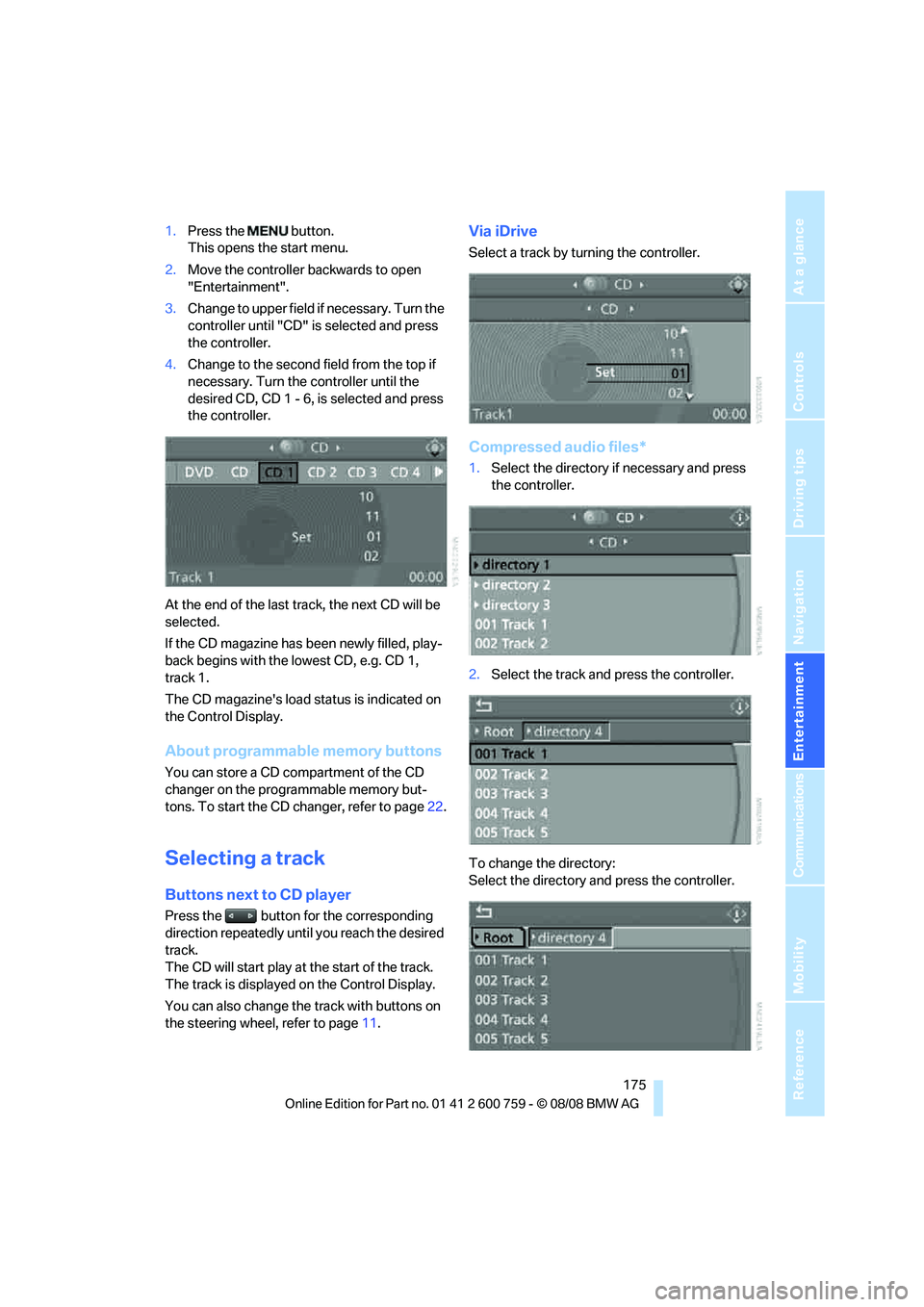
1.Press the button.
This opens the start menu.
2.Move the controller backwards to open
"Entertainment".
3.Change to upper field if necessary. Turn the
controller until "CD" is selected and press
the controller.
4.Change to the second field from the top if
necessary. Turn the controller until the
desired CD, CD 1 - 6, is selected and press
the controller.
At the end of the last track, the next CD will be
selected.
If the CD magazine has been newly filled, play-
back begins with the lowest CD, e.g. CD 1,
track 1.
The CD magazine's load status is indicated on
the Control Display.
About programmable memory buttons
You can store a CD compartment of the CD
changer on the programmable memory but-
tons. To start the CD changer, refer to page22.
Selecting a track
Buttons next to CD player
Press the button for the corresponding
direction repeatedly until you reach the desired
track.
The CD will start play at the start of the track.
The track is displayed on the Control Display.
You can also change the track with buttons on
the steering wheel, refer to page11.
Via iDrive
Select a track by turning the controller.
Compressed audio files*
1.Select the directory if necessary and press
the controller.
2.Select the track and press the controller.
To change the directory:
Select the directory and press the controller.
Page 178 of 272
CD player and CD changer
176 To exit from the menu:
Select the arrow and press the controller.
You can also store a particular track on the pro-
grammable memory buttons, refer to page22.
Displaying information on track*
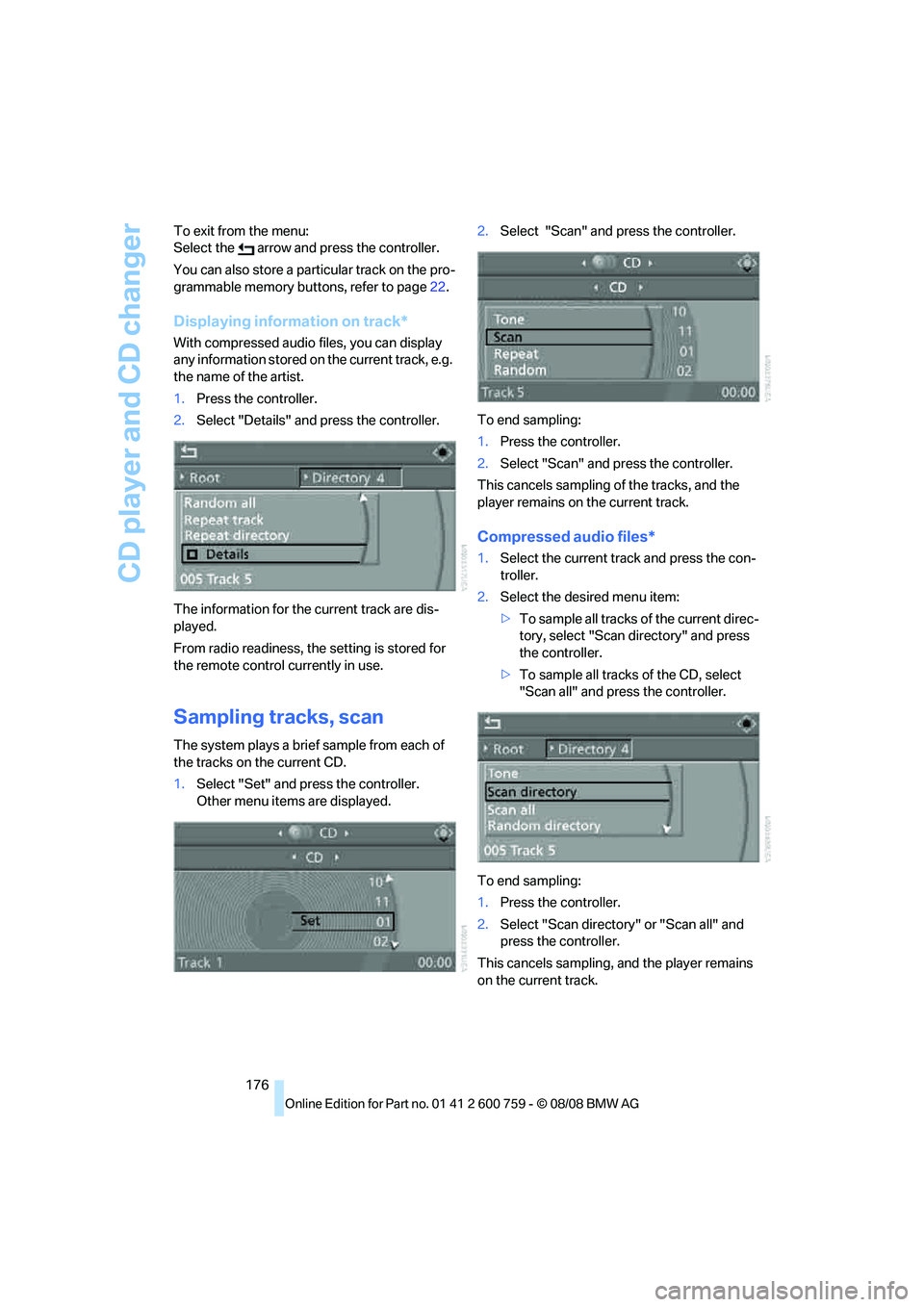
With compressed audio files, you can display
any information stored on the current track, e.g.
the name of the artist.
1.Press the controller.
2.Select "Details" and press the controller.
The information for the current track are dis-
played.
From radio readiness, the setting is stored for
the remote control currently in use.
Sampling tracks, scan
The system plays a brief sample from each of
the tracks on the current CD.
1.Select "Set" and press the controller.
Other menu items are displayed.2.Select "Scan" and press the controller.
To end sampling:
1.Press the controller.
2.Select "Scan" and press the controller.
This cancels sampling of the tracks, and the
player remains on the current track.
Compressed audio files*
1.Select the current track and press the con-
troller.
2.Select the desired menu item:
>To sample all tracks of the current direc-
tory, select "Scan directory" and press
the controller.
>To sample all tracks of the CD, select
"Scan all" and press the controller.
To end sampling:
1.Press the controller.
2.Select "Scan directory" or "Scan all" and
press the controller.
This cancels sampling, and the player remains
on the current track.
Page 180 of 272
CD player and CD changer
178
Compressed audio files*
1.Select the current track and press the con-
troller.
2.Select the desired menu item:
>To play all tracks of the current directory
in random order, select "Random direc-
tory" and press the controller.
>To play all tracks of the CD in random
order, select "Random all" and press the
controller.
To stop random function:
1.Press the controller.
2.Select "Random directory" or "Random all"
and press the controller.
Fast forward/reverse
Buttons next to CD player:
Press and hold the button for the corre-
sponding direction.
CD magazine
The BMW CD changer for six CDs is installed in
the glove compartment.
Removing CD magazine
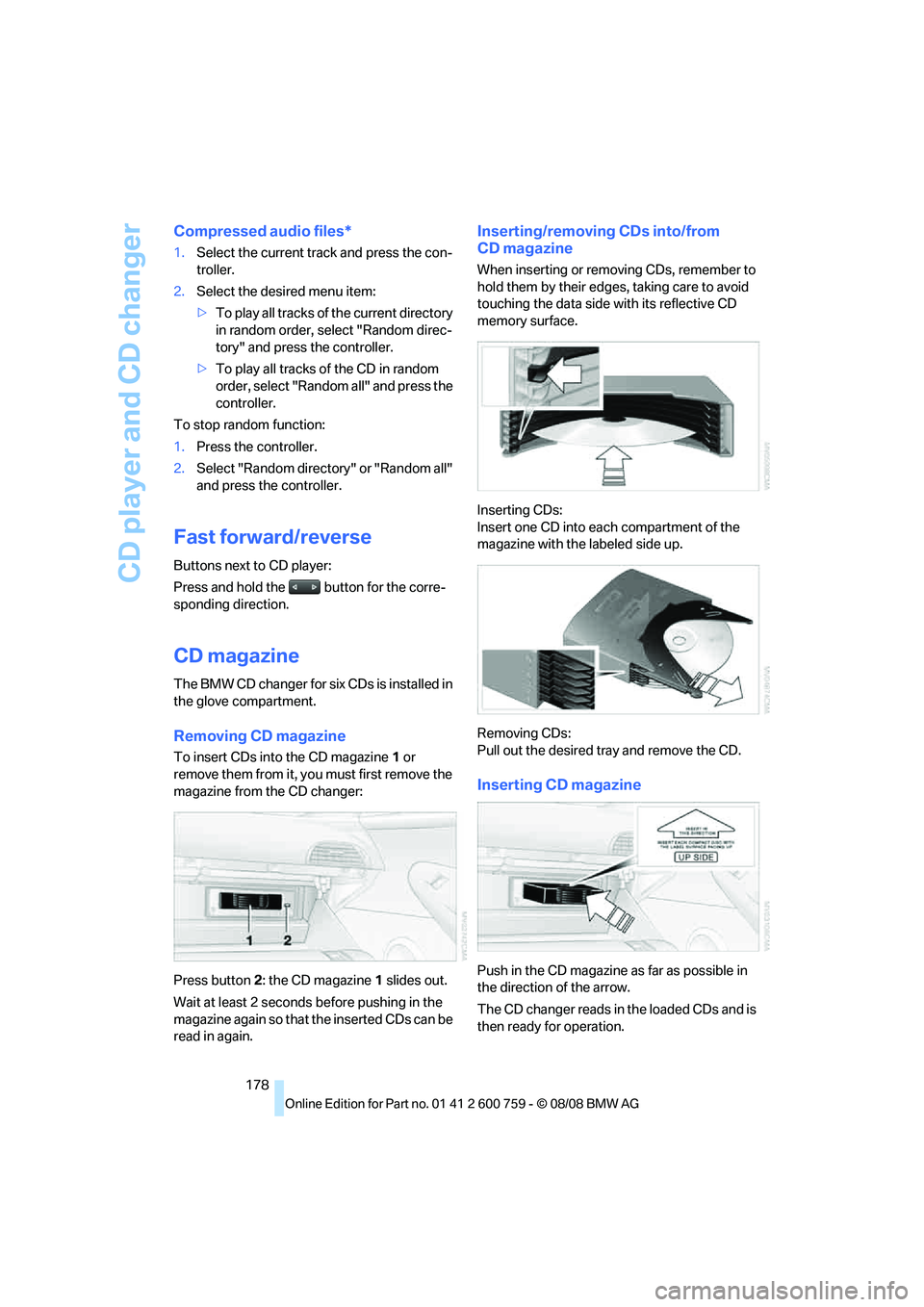
To insert CDs into the CD magazine 1 or
remove them from it, you must first remove the
magazine from the CD changer:
Press button2: the CD magazine1 slides out.
Wait at least 2 seconds before pushing in the
magazine again so that the inserted CDs can be
read in again.
Inserting/removing CDs into/from
CD magazine
When inserting or removing CDs, remember to
hold them by their edges, taking care to avoid
touching the data side with its reflective CD
memory surface.
Inserting CDs:
Insert one CD into each compartment of the
magazine with the labeled side up.
Removing CDs:
Pull out the desired tray and remove the CD.
Inserting CD magazine
Push in the CD magazine as far as possible in
the direction of the arrow.
The CD changer reads in the loaded CDs and is
then ready for operation.
Page 181 of 272
Navigation
Entertainment
Driving tips
179Reference
At a glance
Controls
Communications
Mobility
Notes
BMW CD/DVD players and changers are
officially designated Class 1 laser prod-
ucts. Do not operate if the cover is damaged,
otherwise severe eye damage can result.
Do not use self-recorded CDs/DVDs with labels
applied as these can become detached during
playback due to heat buildup and can cause
irreparable damage to the device.
Only use round CDs/DVDs with a standard
diameter of 4.7 in/12 cm and do not play CDs/
DVDs with an adapter, e.g. CD singles, as other-
wise the CD/DVD or the adapter can jam and
may no longer eject properly.
Do not use a combined CD/DVD, e. g. DVD
Plus,
otherwise the CD/DVD can jam and will no
longer eject.<
General malfunctions
BMW CD/DVD changers and players have been
optimized for performance in vehicles. In some
instances they may be more sensitive to faulty
CDs/DVDs than stationary devices would be.
If a CD/DVD cannot be played, first check
whether it has been inserted correctly.
Humidity
High levels of humidity can lead to condensa-
tion on the CD/DVD or the laser's scan lens and
temporarily prevent playback.
Malfunctions with individual CDs/DVDs
If malfunctions occur only with particular CDs/
DVDs, this can be due to one of the following
causes.
Self-recorded CDs/DVDs
Possible reasons for malfunctions with self-
recorded CDs/DVDs are, e.g. inconsistent data-
creation or recording processes, or poor quality
or high age of the CD/DVD blank.
Only label CDs/DVDs on the upper side with a
pen intended for this purpose.
Damaged CDs/DVDs
Avoid fingerprints, dust, scratches and mois-
ture.
Store CDs/DVDs in a sleeve.
Do not subject CDs/DVDs to temperatures over
1227/506, high levels of humidity or direct
sunlight.
CDs/DVDs with copy protection
CDs/DVDs are often provided with a copy pro-
tection feature by the manufacturer. This can
m e a n t h a t s o m e C D s / D V D s c a n n o t b e p l a y e d o r
can only be played to a limited extent.
Care
If necessary, clean the reflective scanning side
of the CDs/DVDs with a commercially available
cleaning cloth by wiping in straight lines from
the center outward.
Page 182 of 272
AUX-IN connection
180
AUX-IN connection
You can connect an external audio device, e.g.
an MP3 player, and play the sound via the vehi-
cle speakers. The sound can be adjusted via
iDrive.
Connecting
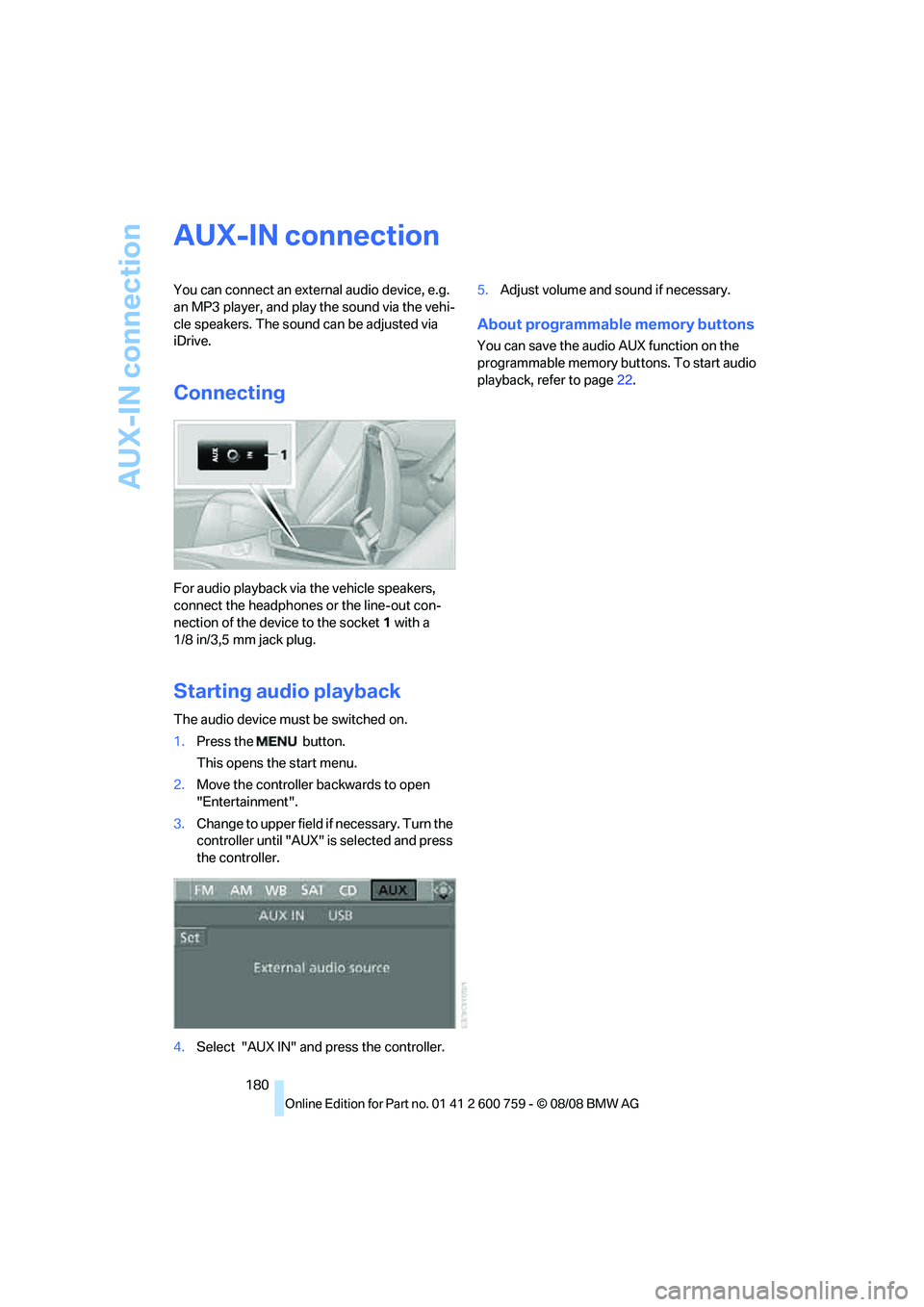
For audio playback via the vehicle speakers,
connect the headphones or the line-out con-
nection of the device to the socket1 with a
1/8 in/3,5 mm jack plug.
Starting audio playback
The audio device must be switched on.
1.Press the button.
This opens the start menu.
2.Move the controller backwards to open
"Entertainment".
3.Change to upper field if necessary. Turn the
controller until "AUX" is selected and press
the controller.
4.Select "AUX IN" and press the controller.5.Adjust volume and sound if necessary.
About programmable memory buttons
You can save the audio AUX function on the
programmable memory buttons. To start audio
playback, refer to page22.
Page 183 of 272
Navigation
Entertainment
Driving tips
181Reference
At a glance
Controls
Communications
Mobility
USB-audio interface/mobile phone audio
interface
You can connect audio devices, e. g. an iPod/
iPhone or a USB device (MP3 player, USB flash
drive), to the USB-audio interface. You can then
operate these via iDrive.
When using an iPhone / mobile phone as a
music player, connect the device to the snap-in
adapter, refer to the separate operating instruc-
tions. Playback is only possible if a device is not
connected to the USB-audio interface.
The system can play back common audio files,
e.g. MP3, WMA, WAV (PCM) and AAC, as well
as playback lists in the M3U format.
Due to the large number of audio devices avail-
able on the market, operation via the vehicle
cannot be ensured for every audio device.
Ask your BMW center which audio devices are
suitable.
Connecting
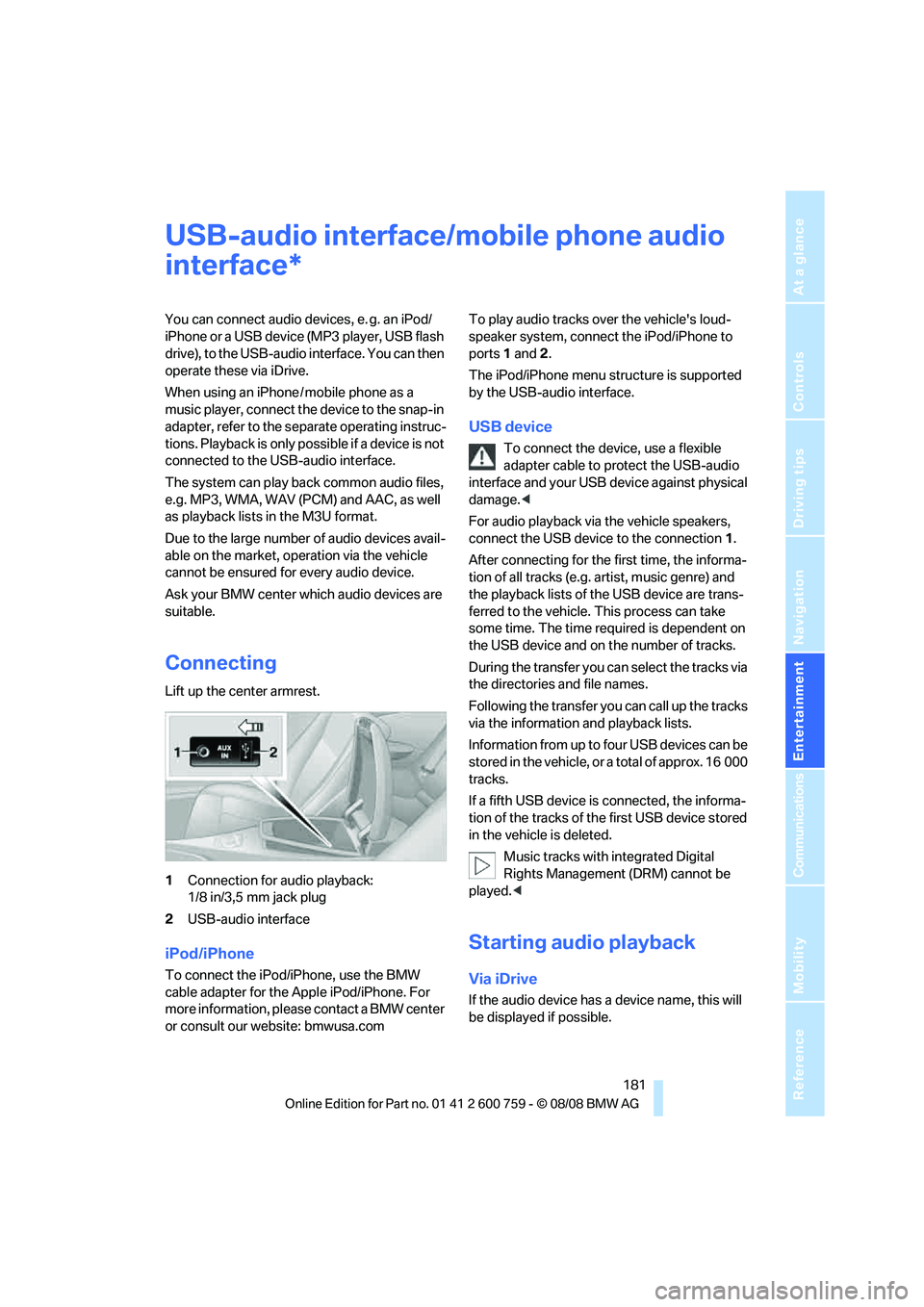
Lift up the center armrest.
1Connection for audio playback:
1/8 in/3,5 mm jack plug
2USB-audio interface
iPod/iPhone
To connect the iPod/iPhone, use the BMW
cable adapter for the Apple iPod/iPhone. For
more information, please contact a BMW center
or consult our website: bmwusa.comTo play audio tracks over the vehicle's loud-
speaker system, connect the iPod/iPhone to
ports 1 and 2.
The iPod/iPhone menu structure is supported
by the USB-audio interface.
USB device
To connect the device, use a flexible
adapter cable to protect the USB-audio
interface and your USB device against physical
damage.<
For audio playback via the vehicle speakers,
connect the USB device to the connection 1.
After connecting for the first time, the informa-
tion of all tracks (e.g. artist, music genre) and
the playback lists of the USB device are trans-
ferred to the vehicle. This process can take
some time. The time required is dependent on
the USB device and on the number of tracks.
During the transfer you can select the tracks via
the directories and file names.
Following the transfer you can call up the tracks
via the information and playback lists.
Information from up to four USB devices can be
stored in the vehicle, or a total of approx. 16 000
tracks.
If a fifth USB device is connected, the informa-
tion of the tracks of the first USB device stored
in the vehicle is deleted.
Music tracks with integrated Digital
Rights Management (DRM) cannot be
played.<
Starting audio playback
Via iDrive
If the audio device has a device name, this will
be displayed if possible.
*
Page 185 of 272
Navigation
Entertainment
Driving tips
183Reference
At a glance
Controls
Communications
Mobility
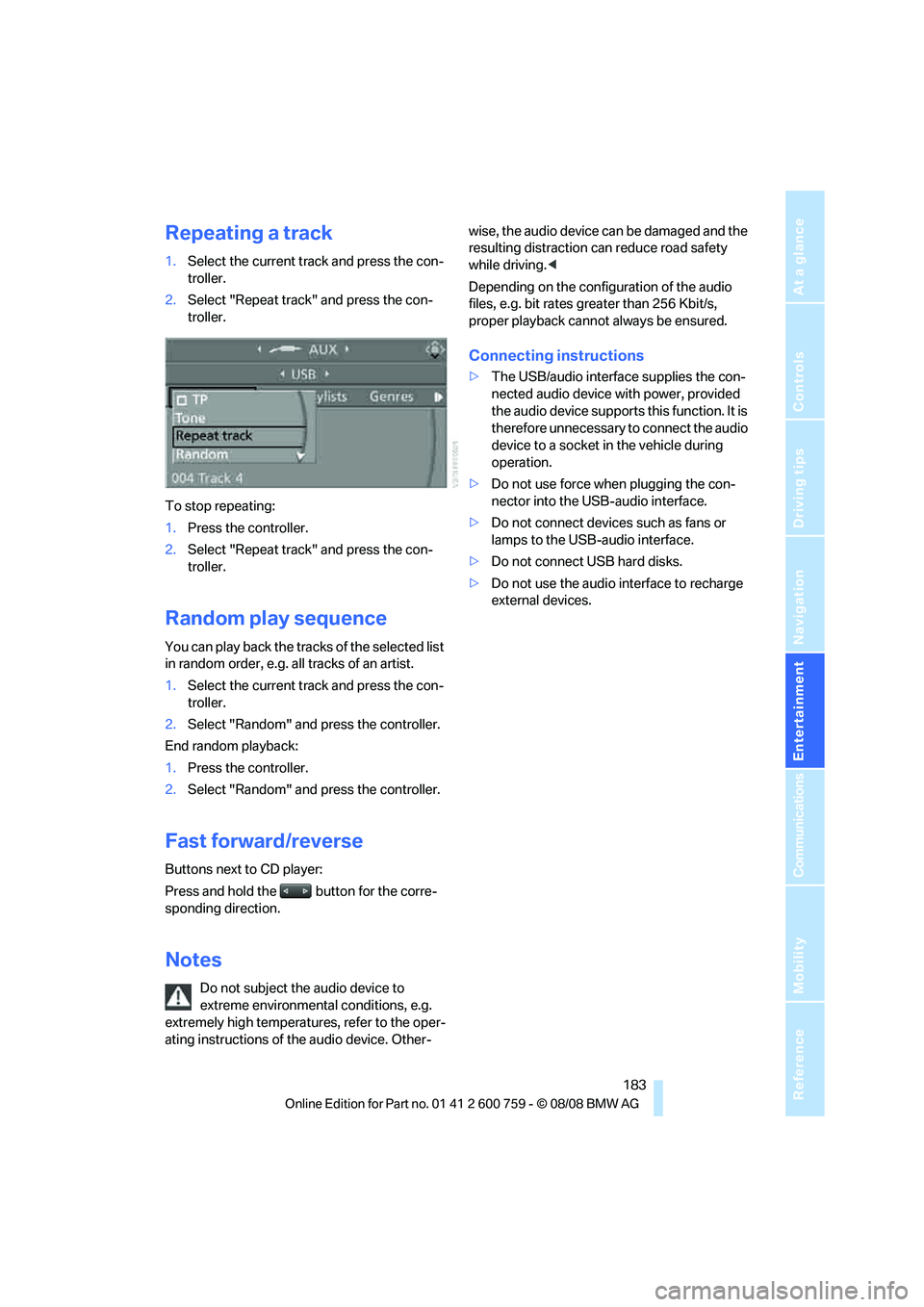
Repeating a track
1.Select the current track and press the con-
troller.
2.Select "Repeat track" and press the con-
troller.
To stop repeating:
1.Press the controller.
2.Select "Repeat track" and press the con-
troller.
Random play sequence
You can play back the tracks of the selected list
in random order, e.g. all tracks of an artist.
1.Select the current track and press the con-
troller.
2.Select "Random" and press the controller.
End random playback:
1.Press the controller.
2.Select "Random" and press the controller.
Fast forward/reverse
Buttons next to CD player:
Press and hold the button for the corre-
sponding direction.
Notes
Do not subject the audio device to
extreme environmental conditions, e.g.
extremely high temperatures, refer to the oper-
ating instructions of the audio device. Other-wise, the audio device can be damaged and the
resulting distraction can reduce road safety
while driving.<
Depending on the configuration of the audio
files, e.g. bit rates greater than 256 Kbit/s,
proper playback cannot always be ensured.
Connecting instructions
>The USB/audio interface supplies the con-
nected audio device with power, provided
the audio device supports this function. It is
therefore unnecessary to connect the audio
device to a socket in the vehicle during
operation.
>Do not use force when plugging the con-
nector into the USB-audio interface.
>Do not connect devices such as fans or
lamps to the USB-audio interface.
>Do not connect USB hard disks.
>Do not use the audio interface to recharge
external devices.
Page 232 of 272
Care
230 trude over the floor mats; otherwise floor mats
can be damaged.
Fluff on new floor mats is a result of the produc-
tion process and can be removed by repeated
vacuuming.
Plastic components inside
Clean the glass cover of the instrument panel,
imitation leather surfaces, lamp lenses, and
matte components with water and, if necessary,
a solvent-free plastic cleaner.
Fine wooden components
Use a damp cloth to clean fine wooden trim
panels and components. Follow up by drying
with a soft cloth.
Safety belts
Do not use cleansers to clean the safety
belts since this can destroy the web-
bing.<
Inside sensors
Clean inside sensors such as those of the high-
beam assistant using a lint-free cloth moist-
ened with glass cleaner.
Displays
Clean displays like the radio or the Control Dis-
play using a display-cleaning cloth or a soft,
nonabrasive lint-free cloth.
Avoid using excessive pressure when
cleaning displays; otherwise, you could
damage them.<
Never use chemical-based cleansers or
household scouring products. Keep all
liquids away from the equipment. Otherwise
corrosion or damage to surfaces or electrical
components can occur.<
CD/DVD player
Do not use cleaning CDs; they can dam-
age parts of the player.<
Storing your vehicle
When storing your vehicle for longer than three
months, please seek the advice of your BMW
center or a workshop that works in accordance
with BMW guidelines.
Page 250 of 272
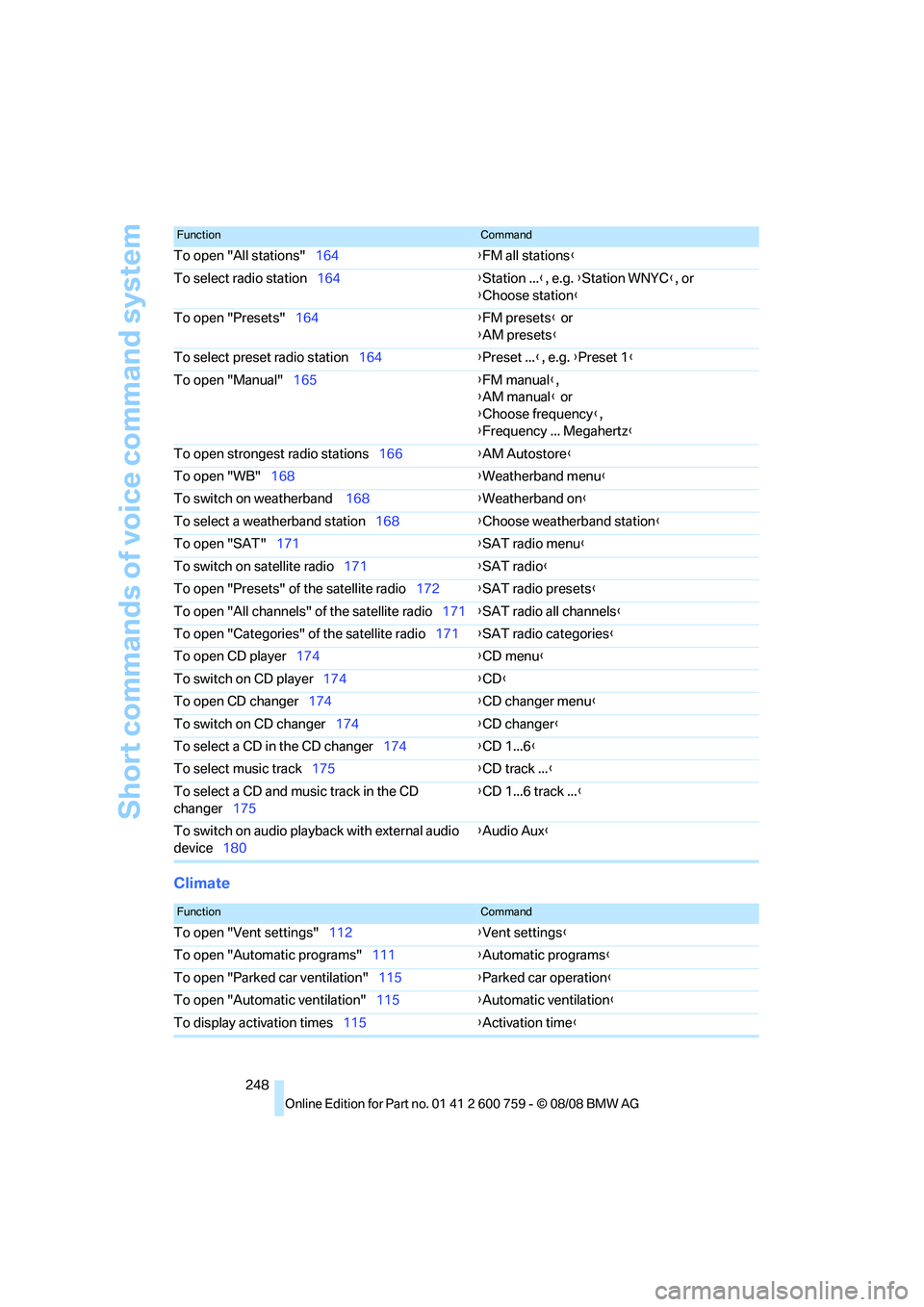
Short commands of voice command system
248
Climate
To open "All stations"164{FM all stations}
To select radio station164{Station ...}, e.g. {Station WNYC}, or
{Choose station}
To open "Presets"164{FM presets} or
{AM presets}
To select preset radio station164{Preset ...}, e.g. {Preset 1}
To open "Manual"165{FM manual},
{AM manual} or
{Choose frequency},
{Frequency ... Megahertz}
To open strongest radio stations166{AM Autostore}
To open "WB"168{Weatherband menu}
To switch on weatherband 168{Weatherband on}
To select a weatherband station168{Choose weatherband station}
To open "SAT"171{SAT radio menu}
To switch on satellite radio171{SAT radio}
To open "Presets" of the satellite radio172{SAT radio presets}
To open "All channels" of the satellite radio171{SAT radio all channels}
To open "Categories" of the satellite radio171{SAT radio categories}
To open CD player174{
CD menu}
To switch on CD player174{CD}
To open CD changer174{CD changer menu}
To switch on CD changer174{CD changer}
To select a CD in the CD changer174{CD 1...6}
To select music track175{CD track ...}
To select a CD and music track in the CD
changer175{CD 1...6 track ...}
To switch on audio playback with external audio
device180{Audio Aux}
FunctionCommand
FunctionCommand
To open "Vent settings"112{Vent settings}
To open "Automatic programs"111{Automatic programs}
To open "Parked car ventilation"115{Parked car operation}
To open "Automatic ventilation"115{Automatic ventilation}
To display activation times115{Activation time}
Page 254 of 272
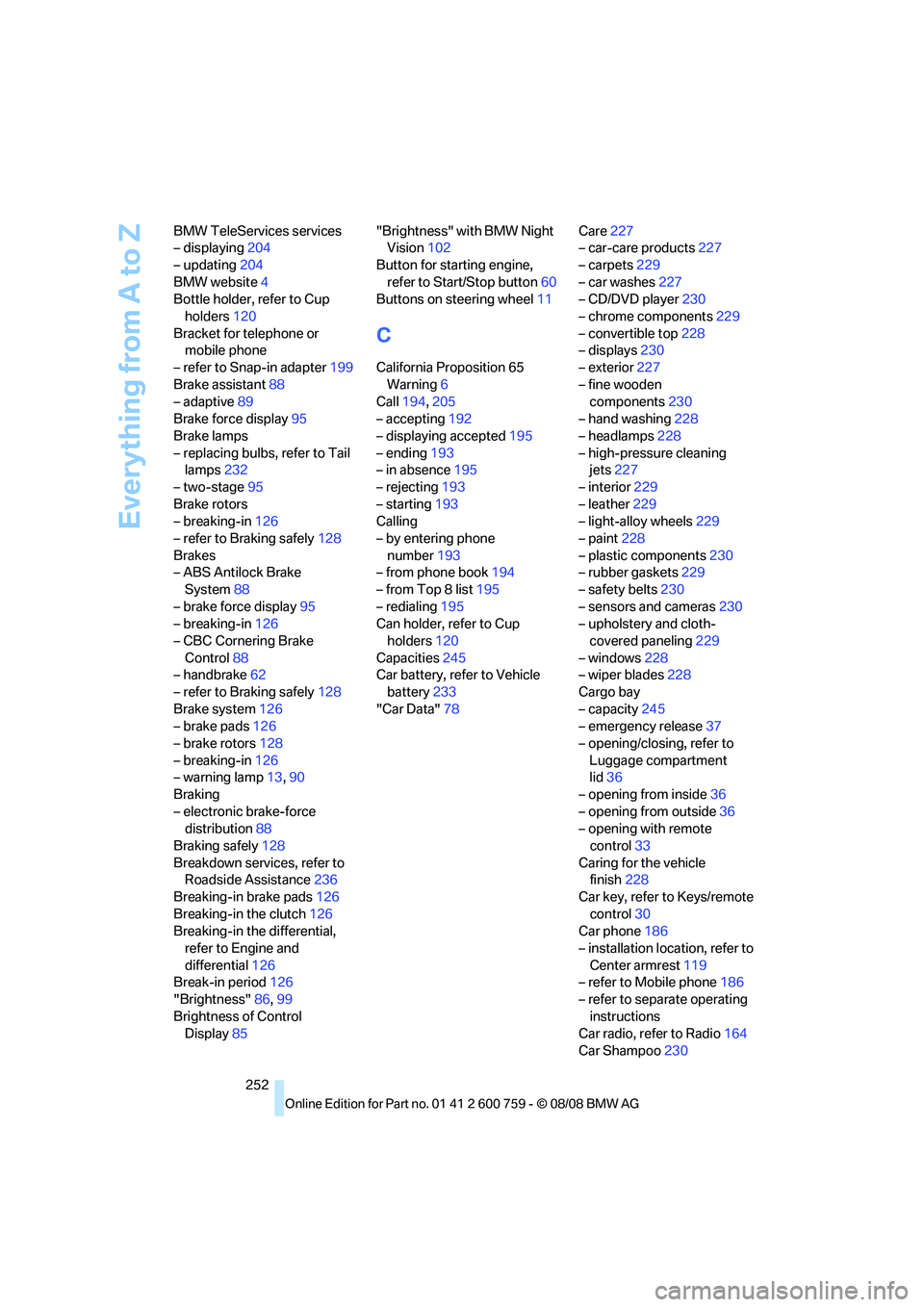
Everything from A to Z
252 BMW TeleServices services
– displaying204
– updating204
BMW website4
Bottle holder, refer to Cup
holders120
Bracket for telephone or
mobile phone
– refer to Snap-in adapter199
Brake assistant88
– adaptive89
Brake force display95
Brake lamps
– replacing bulbs, refer to Tail
lamps232
– two-stage95
Brake rotors
– breaking-in126
– refer to Braking safely128
Brakes
– ABS Antilock Brake
System88
– brake force display95
– breaking-in126
– CBC Cornering Brake
Control88
– handbrake62
– refer to Braking safely128
Brake system126
– brake pads126
– brake rotors128
– breaking-in126
– warning lamp13,90
Braking
– electronic brake-force
distribution88
Braking safely128
Breakdown services, refer to
Roadside Assistance236
Breaking-in brake pads126
Breaking-in the clutch126
Breaking-in the differential,
refer to Engine and
differential126
Break-in period126
"Brightness"86,99
Brightness of Control
Display85"Brightness" with BMW Night
Vision102
Button for starting engine,
refer to Start/Stop button60
Buttons on steering wheel11
C
California Proposition 65
Warning6
Call194,205
– accepting192
– displaying accepted195
– ending193
– in absence195
– rejecting193
– starting193
Calling
– by entering phone
number193
– from phone book194
– from Top 8 list195
– redialing195
Can holder, refer to Cup
holders120
Capacities245
Car battery, refer to Vehicle
battery233
"Car Data"78Care227
– car-care products227
– carpets229
– car washes227
– CD/DVD player230
– chrome components229
– convertible top228
– displays230
– exterior227
– fine wooden
components230
– hand washing228
– headlamps228
– high-pressure cleaning
jets227
– interior229
– leather229
– light-alloy wheels229
– paint228
– plastic components230
– rubber gaskets229
– safety belts230
– sensors and cameras230
– upholstery and cloth-
covered paneling229
– windows228
– wiper blades228
Cargo bay
– capacity245
– emergency release37
– opening/closing, refer to
Luggage compartment
lid36
– opening from inside36
– opening from outside
36
– opening with remote
control33
Caring for the vehicle
finish228
Car key, refer to Keys/remote
control30
Car phone186
– installation location, refer to
Center armrest119
– refer to Mobile phone186
– refer to separate operating
instructions
Car radio, refer to Radio164
Car Shampoo230