tow BMW 645CI COUPE 2004 E63 User Guide
[x] Cancel search | Manufacturer: BMW, Model Year: 2004, Model line: 645CI COUPE, Model: BMW 645CI COUPE 2004 E63Pages: 216, PDF Size: 3.46 MB
Page 90 of 216
A congenial climate
88
A congenial climate
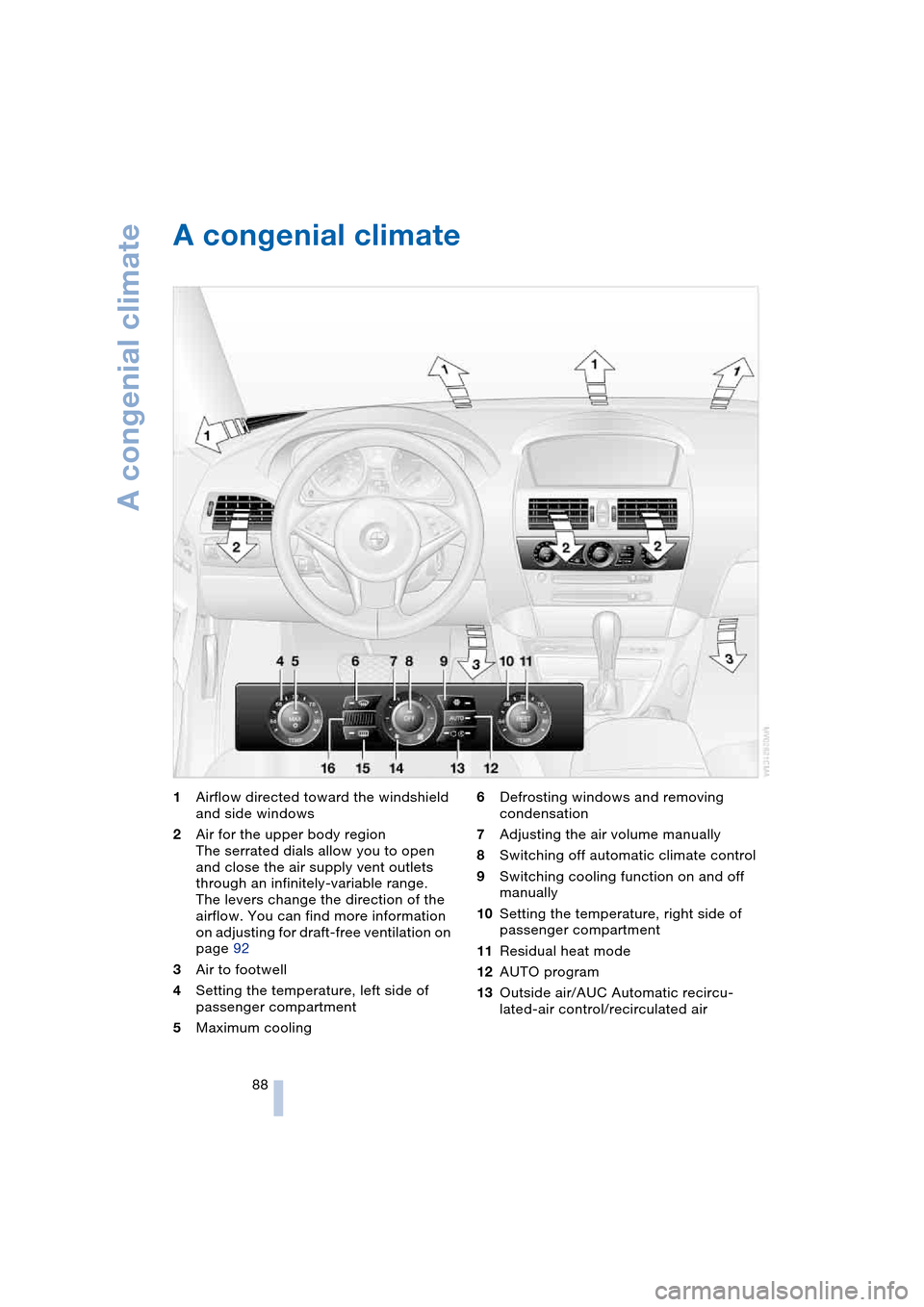
1Airflow directed toward the windshield
and side windows
2Air for the upper body region
The serrated dials allow you to open
and close the air supply vent outlets
through an infinitely-variable range.
The levers change the direction of the
airflow. You can find more information
on adjusting for draft-free ventilation on
page 92
3Air to footwell
4Setting the temperature, left side of
passenger compartment
5Maximum cooling6Defrosting windows and removing
condensation
7Adjusting the air volume manually
8Switching off automatic climate control
9Switching cooling function on and off
manually
10Setting the temperature, right side of
passenger compartment
11Residual heat mode
12AUTO program
13Outside air/AUC Automatic recircu-
lated-air control/recirculated air
Page 91 of 216
Controls
89Reference
At a glance
Driving tips
Communications
Navigation
Entertainment
Mobility
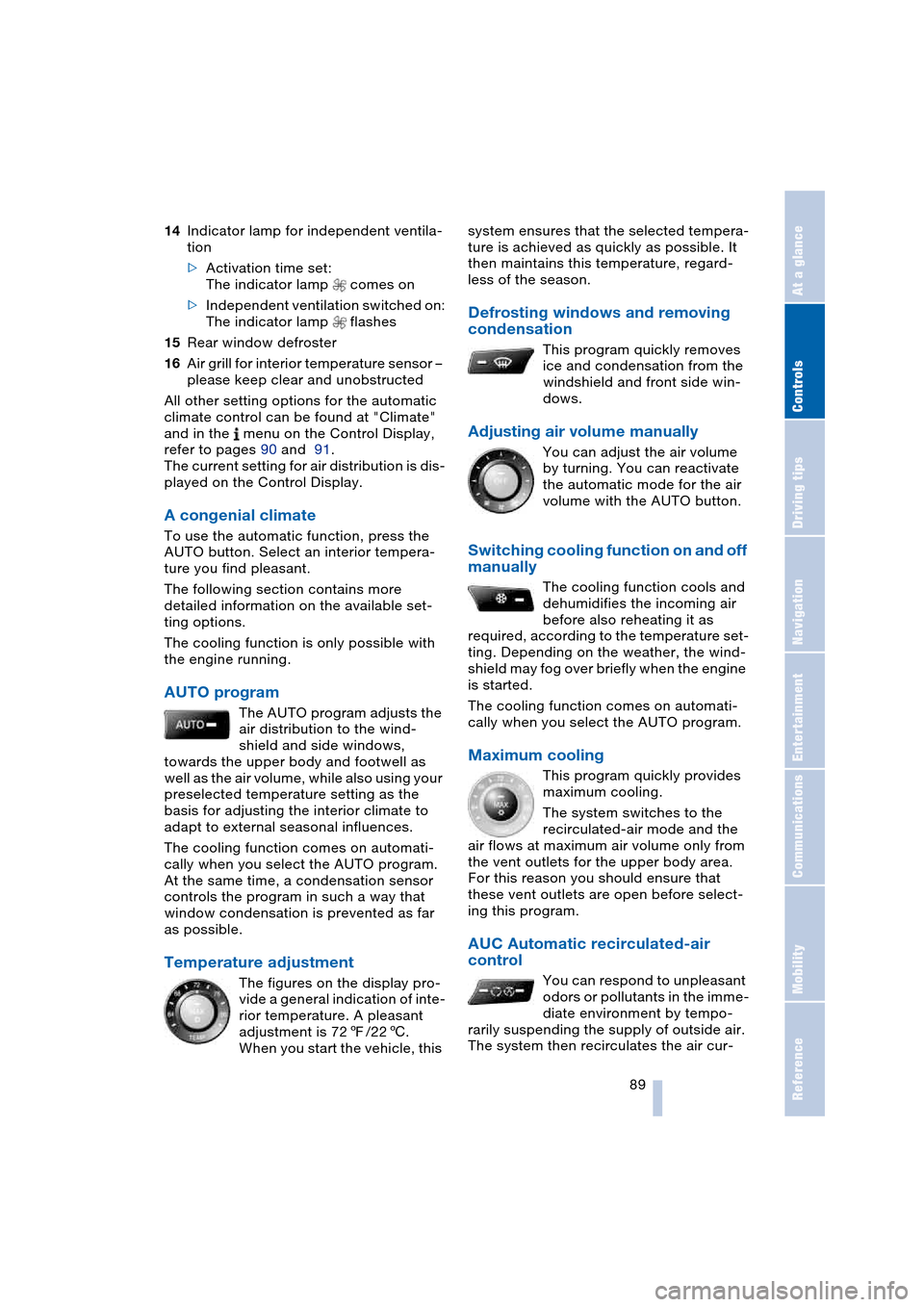
14Indicator lamp for independent ventila-
tion
>Activation time set:
The indicator lamp comes on
>Independent ventilation switched on:
The indicator lamp flashes
15Rear window defroster
16Air grill for interior temperature sensor –
please keep clear and unobstructed
All other setting options for the automatic
climate control can be found at "Climate"
and in the menu on the Control Display,
refer to pages 90 and 91.
The current setting for air distribution is dis-
played on the Control Display.
A congenial climate
To use the automatic function, press the
AUTO button. Select an interior tempera-
ture you find pleasant.
The following section contains more
detailed information on the available set-
ting options.
The cooling function is only possible with
the engine running.
AUTO program
The AUTO program adjusts the
air distribution to the wind-
shield and side windows,
towards the upper body and footwell as
well as the air volume, while also using your
preselected temperature setting as the
basis for adjusting the interior climate to
adapt to external seasonal influences.
The cooling function comes on automati-
cally when you select the AUTO program.
At the same time, a condensation sensor
controls the program in such a way that
window condensation is prevented as far
as possible.
Temperature adjustment
The figures on the display pro-
vide a general indication of inte-
rior temperature. A pleasant
adjustment is 727/226.
When you start the vehicle, this system ensures that the selected tempera-
ture is achieved as quickly as possible. It
then maintains this temperature, regard-
less of the season.
Defrosting windows and removing
condensation
This program quickly removes
ice and condensation from the
windshield and front side win-
dows.
Adjusting air volume manually
You can adjust the air volume
by turning. You can reactivate
the automatic mode for the air
volume with the AUTO button.
Switching cooling function on and off
manually
The cooling function cools and
dehumidifies the incoming air
before also reheating it as
required, according to the temperature set-
ting. Depending on the weather, the wind-
shield may fog over briefly when the engine
is started.
The cooling function comes on automati-
cally when you select the AUTO program.
Maximum cooling
This program quickly provides
maximum cooling.
The system switches to the
recirculated-air mode and the
air flows at maximum air volume only from
the vent outlets for the upper body area.
For this reason you should ensure that
these vent outlets are open before select-
ing this program.
AUC Automatic recirculated-air
control
You can respond to unpleasant
odors or pollutants in the imme-
diate environment by tempo-
rarily suspending the supply of outside air.
The system then recirculates the air cur-
Page 93 of 216
Controls
91Reference
At a glance
Driving tips
Communications
Navigation
Entertainment
Mobility
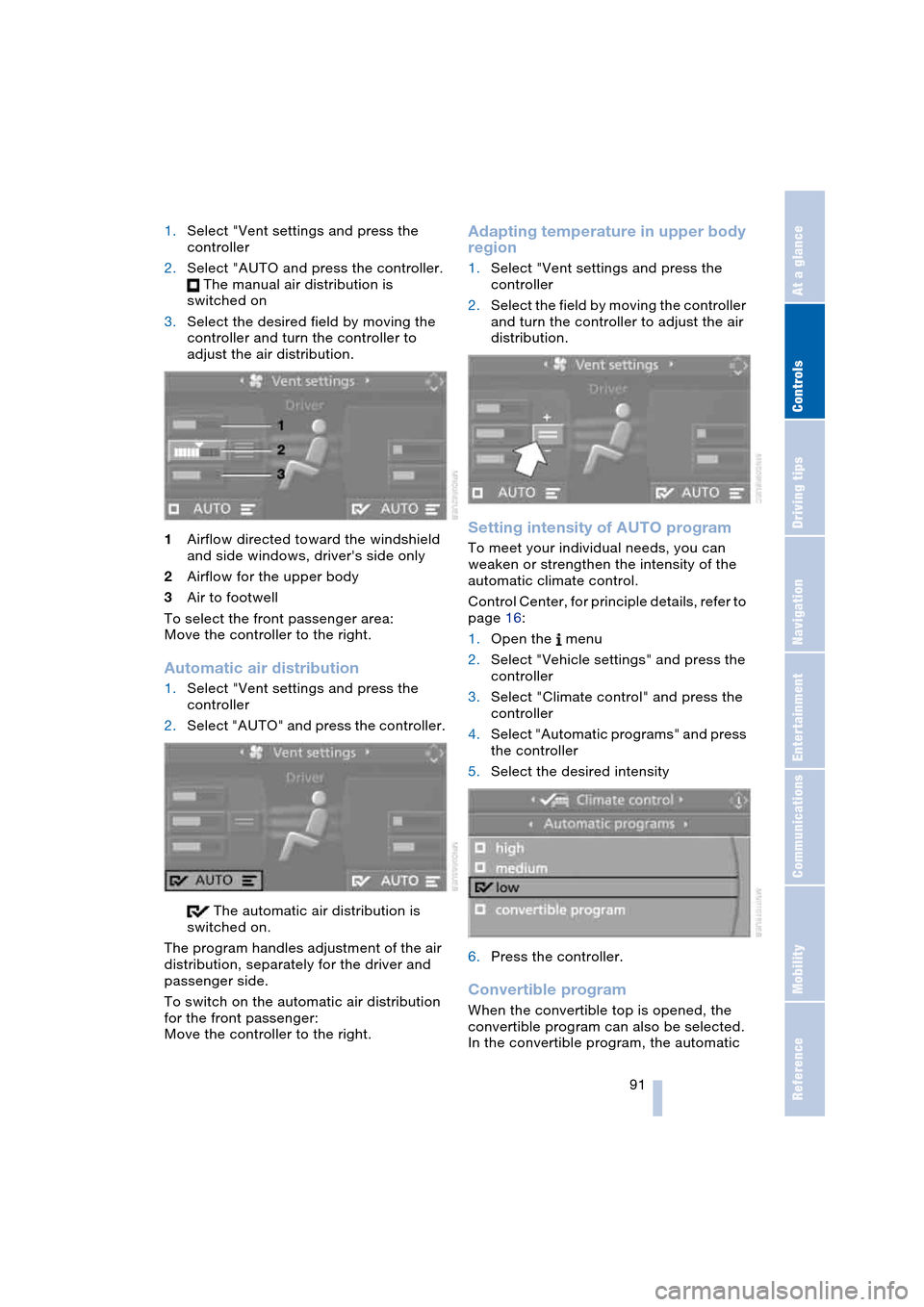
1.Select "Vent settings and press the
controller
2.Select "AUTO and press the controller.
The manual air distribution is
switched on
3.Select the desired field by moving the
controller and turn the controller to
adjust the air distribution.
1Airflow directed toward the windshield
and side windows, driver's side only
2Airflow for the upper body
3Air to footwell
To select the front passenger area:
Move the controller to the right.
Automatic air distribution
1.Select "Vent settings and press the
controller
2.Select "AUTO" and press the controller.
The automatic air distribution is
switched on.
The program handles adjustment of the air
distribution, separately for the driver and
passenger side.
To switch on the automatic air distribution
for the front passenger:
Move the controller to the right.
Adapting temperature in upper body
region
1.Select "Vent settings and press the
controller
2.Select the field by moving the controller
and turn the controller to adjust the air
distribution.
Setting intensity of AUTO program
To meet your individual needs, you can
weaken or strengthen the intensity of the
automatic climate control.
Control Center, for principle details, refer to
page 16:
1.Open the menu
2.Select "Vehicle settings" and press the
controller
3.Select "Climate control" and press the
controller
4.Select "Automatic programs" and press
the controller
5.Select the desired intensity
6.Press the controller.
Convertible program
When the convertible top is opened, the
convertible program can also be selected.
In the convertible program, the automatic
Page 106 of 216
Things to remember when driving
104
Mobile communication devices in
vehicle
BMW advises against using mobile
communication devices, e.g. portable
phones, in the inside of the vehicle without
a direct connection to an external antenna.
Otherwise, the vehicle electronics and
mobile communication device can influ-
ence one another. It is not ensured that the
waves emitted during transmission are led
out of the vehicle interior.<
Cargo loading
To avoid loading the tires beyond
their approved carrying capacity,
never overload the vehicle. Overloading
can lead to overheating and increases the
rate at which damage develops inside the
tires. The ultimate result can assume the
form of a sudden air loss.<
Determining loading limit
1.Locate the following statement on your
vehicle's placard
*:
The combined weight of occu-
pants and cargo should never
exceed XXX lbs. or YYY kg, as other-
wise the vehicle may be damaged and
unstable driving conditions may
result.<
2.Determine the combined weight of the
driver and passengers that will be riding
in your vehicle
3.Subtract the combined weight of the
driver and passengers from XXX lbs. or
YYY kg4.The resulting figure equals the available
amount of cargo and luggage load
capacity.
For example, if the XXX amount equals
1400 lbs. and there will be five 150-lbs.
passengers in your vehicle, the amount
of available cargo and luggage load
capacity is 650 lbs.:
1400 lbs. minus 750 lbs. = 650 lbs.
5.Determine the combined weight of lug-
gage and cargo being loaded on the
vehicle. That weight may not safely
exceed the available cargo and luggage
load capacity calculated in step 4
6.If your vehicle will be towing a trailer,
part of the load from your trailer will be
transferred to your vehicle. Consult the
manual for transporting a trailer to
determine how this may reduce the
available cargo and luggage load
capacity of your vehicle.
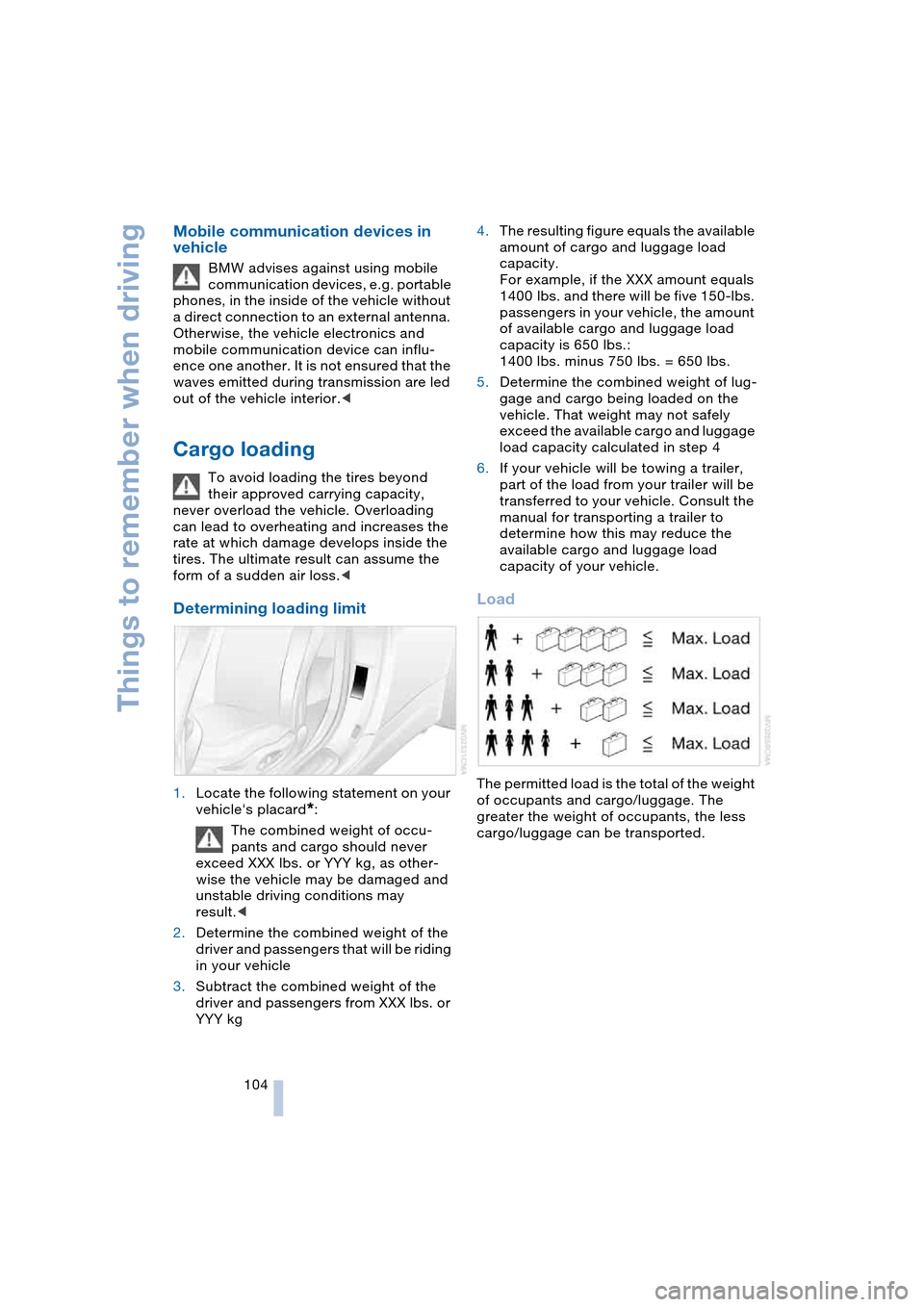
Load
The permitted load is the total of the weight
of occupants and cargo/luggage. The
greater the weight of occupants, the less
cargo/luggage can be transported.
Page 107 of 216
Driving tips
105Reference
At a glance
Controls
Communications
Navigation
Entertainment
Mobility
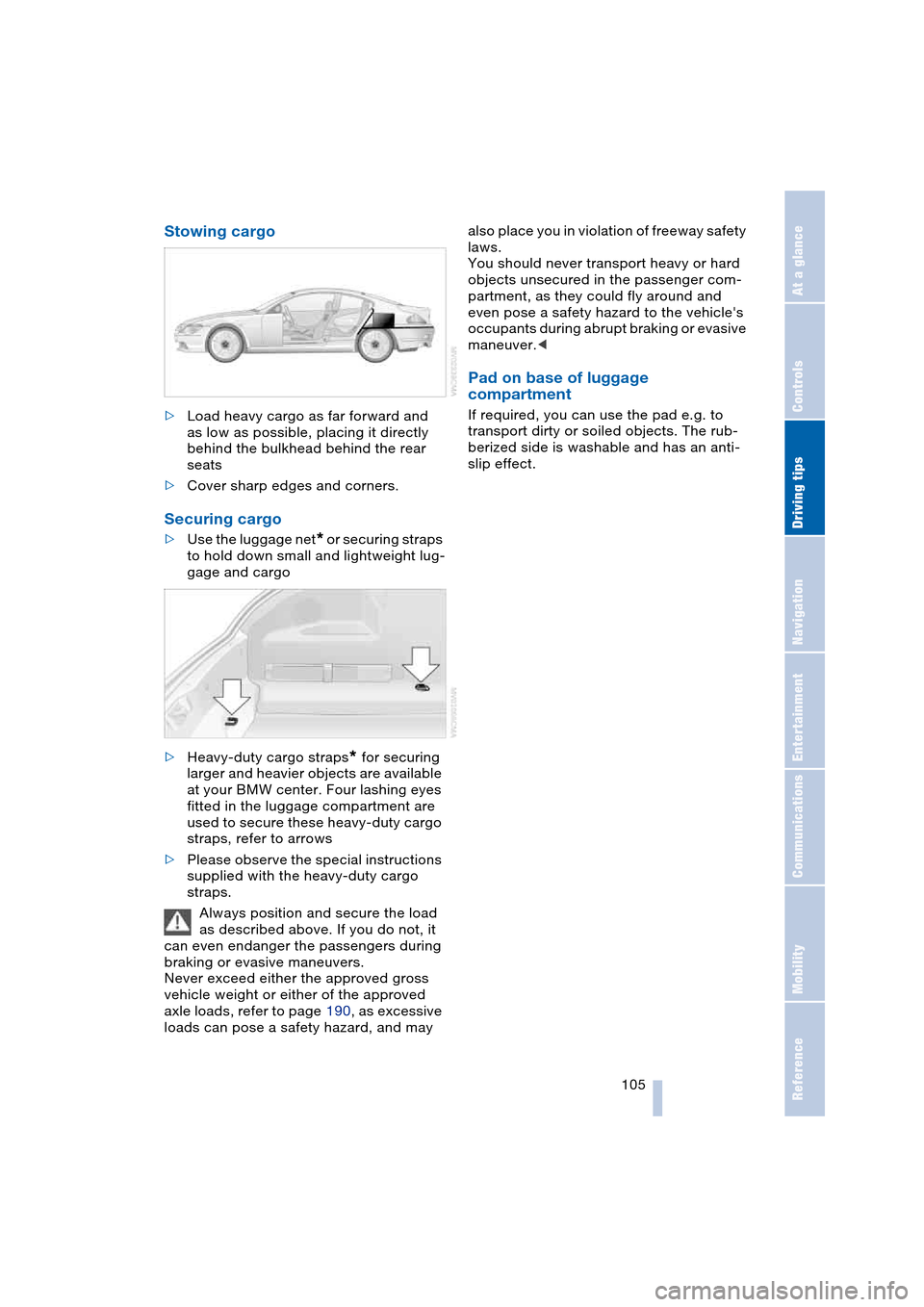
Stowing cargo
>Load heavy cargo as far forward and
as low as possible, placing it directly
behind the bulkhead behind the rear
seats
>Cover sharp edges and corners.
Securing cargo
>Use the luggage net* or securing straps
to hold down small and lightweight lug-
gage and cargo
>Heavy-duty cargo straps
* for securing
larger and heavier objects are available
at your BMW center. Four lashing eyes
fitted in the luggage compartment are
used to secure these heavy-duty cargo
straps, refer to arrows
>Please observe the special instructions
supplied with the heavy-duty cargo
straps.
Always position and secure the load
as described above. If you do not, it
can even endanger the passengers during
braking or evasive maneuvers.
Never exceed either the approved gross
vehicle weight or either of the approved
axle loads, refer to page 190, as excessive
loads can pose a safety hazard, and may also place you in violation of freeway safety
laws.
You should never transport heavy or hard
objects unsecured in the passenger com-
partment, as they could fly around and
even pose a safety hazard to the vehicle's
occupants during abrupt braking or evasive
maneuver.<
Pad on base of luggage
compartment
If required, you can use the pad e.g. to
transport dirty or soiled objects. The rub-
berized side is washable and has an anti-
slip effect.
Page 111 of 216
Navigation
Driving tips
109Reference
At a glance
Controls
Communications
Entertainment
Mobility
Display in assistance
window
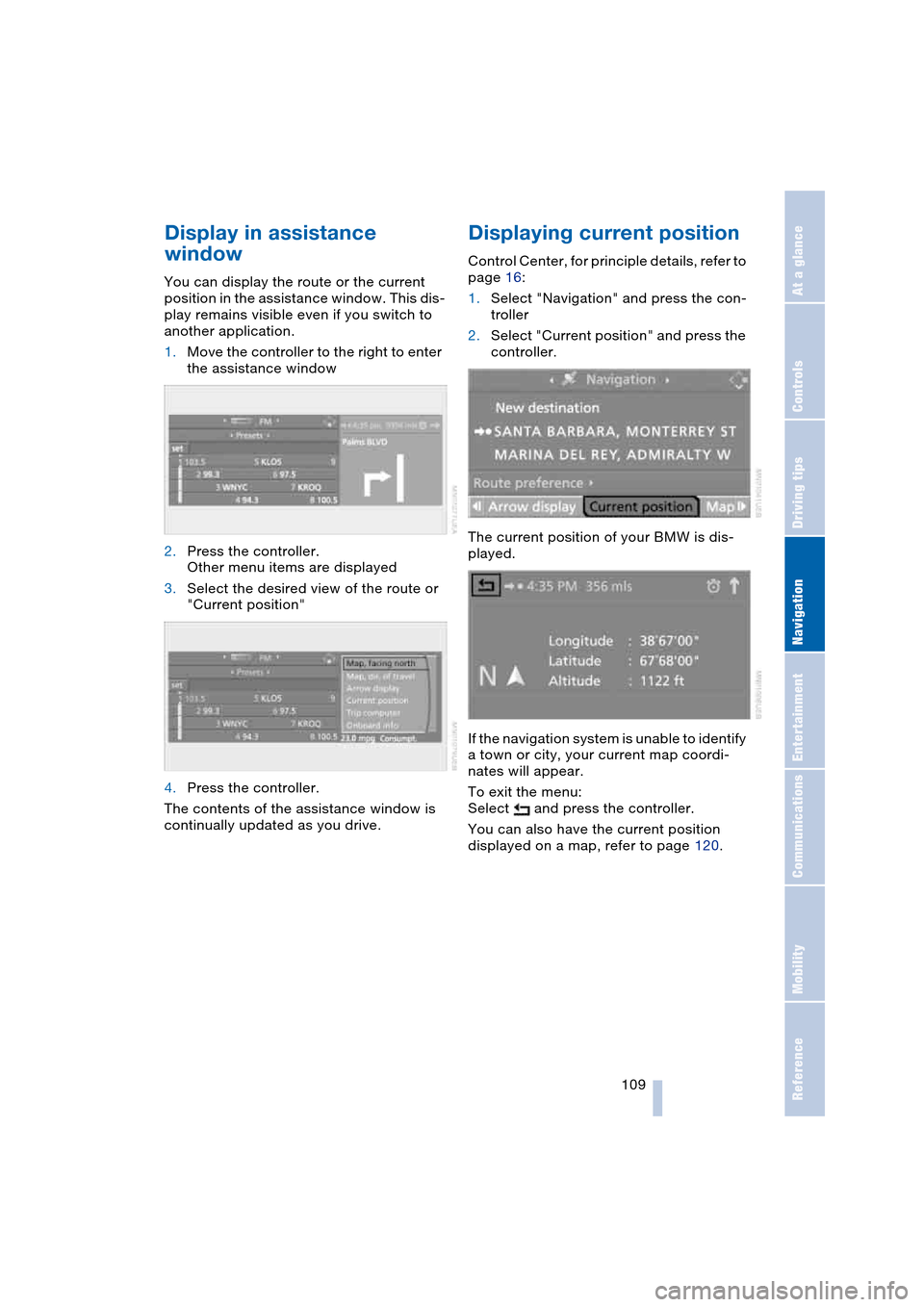
You can display the route or the current
position in the assistance window. This dis-
play remains visible even if you switch to
another application.
1.Move the controller to the right to enter
the assistance window
2.Press the controller.
Other menu items are displayed
3.Select the desired view of the route or
"Current position"
4.Press the controller.
The contents of the assistance window is
continually updated as you drive.
Displaying current position
Control Center, for principle details, refer to
page 16:
1.Select "Navigation" and press the con-
troller
2.Select "Current position" and press the
controller.
The current position of your BMW is dis-
played.
If the navigation system is unable to identify
a town or city, your current map coordi-
nates will appear.
To exit the menu:
Select and press the controller.
You can also have the current position
displayed on a map, refer to page 120.
Page 112 of 216
Destination entry
110
Destination entry
In entering your destination you can select
from among the following options:
>Entering a destination manually, see
below
>Selecting destination using information,
refer to page 113
>Selecting from among recent destina-
tions, refer to Destination list, page 113
>Selecting destination from address
book, refer to page 114.
After selecting your destination you can
proceed to start the destination guidance,
refer to page 118.
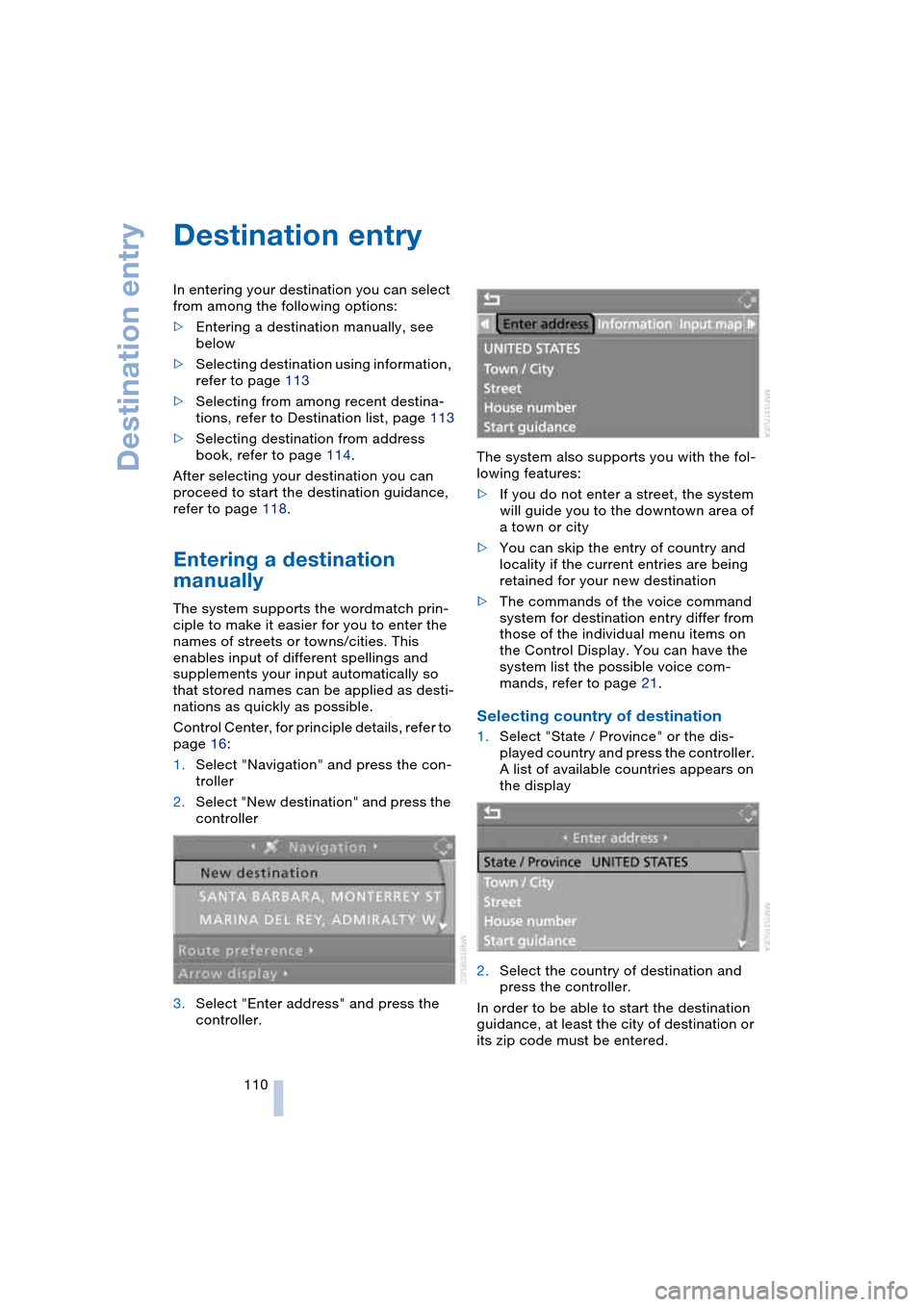
Entering a destination
manually
The system supports the wordmatch prin-
ciple to make it easier for you to enter the
names of streets or towns/cities. This
enables input of different spellings and
supplements your input automatically so
that stored names can be applied as desti-
nations as quickly as possible.
Control Center, for principle details, refer to
page 16:
1.Select "Navigation" and press the con-
troller
2.Select "New destination" and press the
controller
3.Select "Enter address" and press the
controller.The system also supports you with the fol-
lowing features:
>If you do not enter a street, the system
will guide you to the downtown area of
a town or city
>You can skip the entry of country and
locality if the current entries are being
retained for your new destination
>The commands of the voice command
system for destination entry differ from
those of the individual menu items on
the Control Display. You can have the
system list the possible voice com-
mands, refer to page 21.
Selecting country of destination
1.Select "State / Province" or the dis-
played country and press the controller.
A list of available countries appears on
the display
2.Select the country of destination and
press the controller.
In order to be able to start the destination
guidance, at least the city of destination or
its zip code must be entered.
Page 113 of 216
Navigation
Driving tips
111Reference
At a glance
Controls
Communications
Entertainment
Mobility
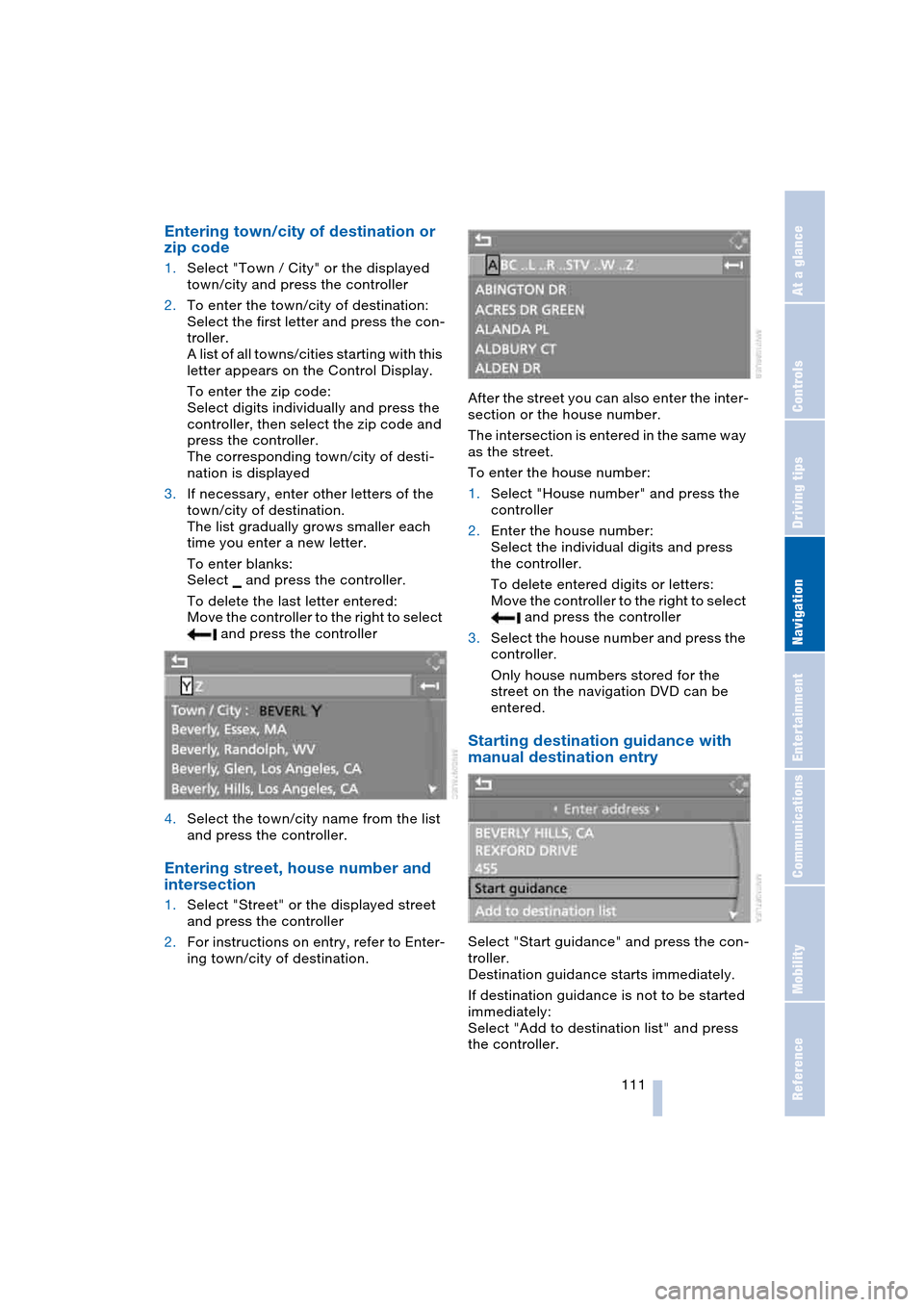
Entering town/city of destination or
zip code
1.Select "Town / City" or the displayed
town/city and press the controller
2.To enter the town/city of destination:
Select the first letter and press the con-
troller.
A list of all towns/cities starting with this
letter appears on the Control Display.
To enter the zip code:
Select digits individually and press the
controller, then select the zip code and
press the controller.
The corresponding town/city of desti-
nation is displayed
3.If necessary, enter other letters of the
town/city of destination.
The list gradually grows smaller each
time you enter a new letter.
To enter blanks:
Select and press the controller.
To delete the last letter entered:
Move the controller to the right to select
and press the controller
4.Select the town/city name from the list
and press the controller.
Entering street, house number and
intersection
1.Select "Street" or the displayed street
and press the controller
2.For instructions on entry, refer to Enter-
ing town/city of destination.After the street you can also enter the inter-
section or the house number.
The intersection is entered in the same way
as the street.
To enter the house number:
1.Select "House number" and press the
controller
2.Enter the house number:
Select the individual digits and press
the controller.
To delete entered digits or letters:
Move the controller to the right to select
and press the controller
3.Select the house number and press the
controller.
Only house numbers stored for the
street on the navigation DVD can be
entered.
Starting destination guidance with
manual destination entry
Select "Start guidance" and press the con-
troller.
Destination guidance starts immediately.
If destination guidance is not to be started
immediately:
Select "Add to destination list" and press
the controller.
Page 114 of 216
Destination entry
112 The destination is saved in the destination
list, refer to page 113.
Selecting destination using
map
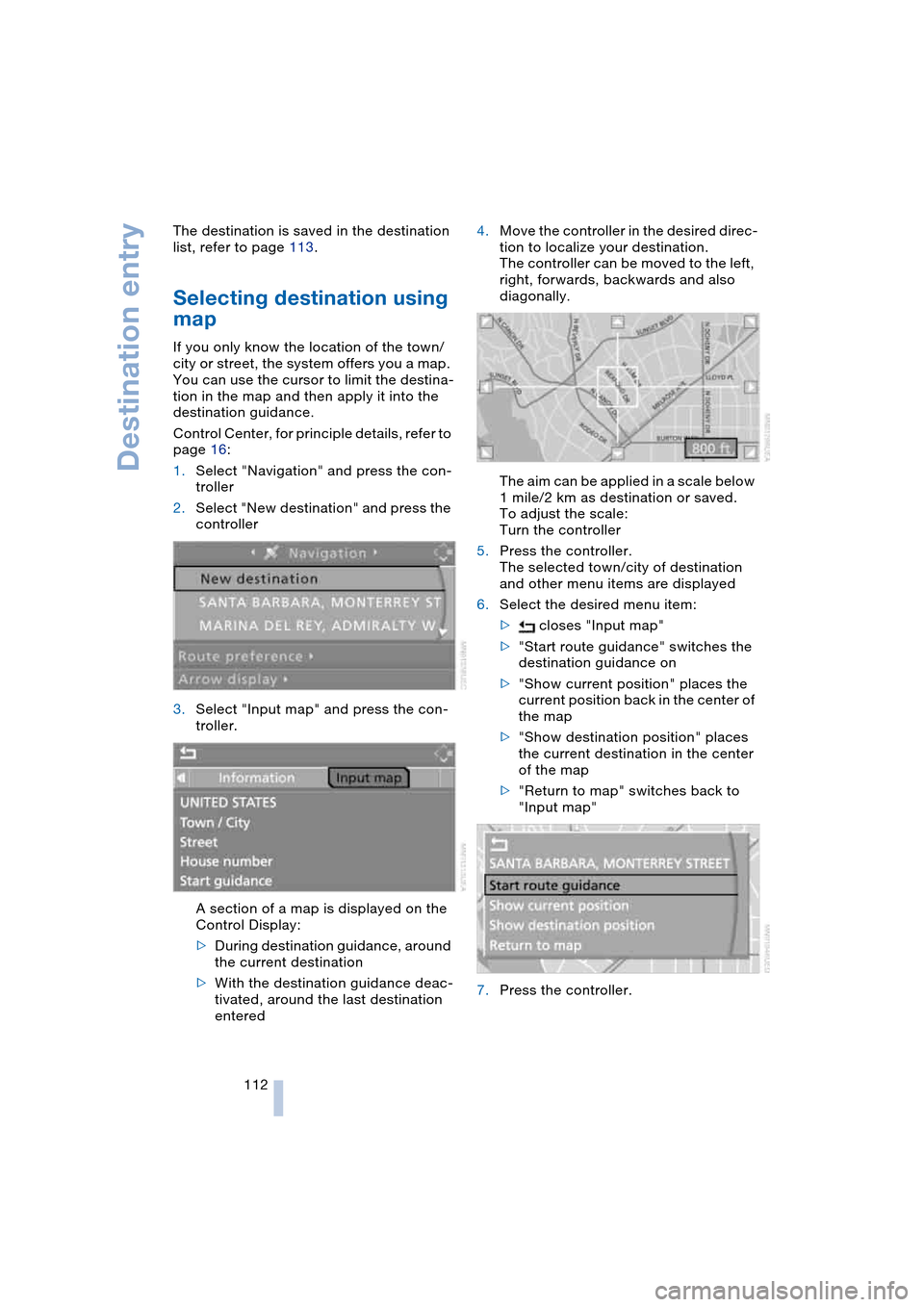
If you only know the location of the town/
city or street, the system offers you a map.
You can use the cursor to limit the destina-
tion in the map and then apply it into the
destination guidance.
Control Center, for principle details, refer to
page 16:
1.Select "Navigation" and press the con-
troller
2.Select "New destination" and press the
controller
3.Select "Input map" and press the con-
troller.
A section of a map is displayed on the
Control Display:
>During destination guidance, around
the current destination
>With the destination guidance deac-
tivated, around the last destination
entered4.Move the controller in the desired direc-
tion to localize your destination.
The controller can be moved to the left,
right, forwards, backwards and also
diagonally.
The aim can be applied in a scale below
1 mile/2 km as destination or saved.
To adjust the scale:
Turn the controller
5.Press the controller.
The selected town/city of destination
and other menu items are displayed
6.Select the desired menu item:
> closes "Input map"
>"Start route guidance" switches the
destination guidance on
>"Show current position" places the
current position back in the center of
the map
>"Show destination position" places
the current destination in the center
of the map
>"Return to map" switches back to
"Input map"
7.Press the controller.
Page 115 of 216
Navigation
Driving tips
113Reference
At a glance
Controls
Communications
Entertainment
Mobility
Selecting destination using
information
You can obtain a display of selected desti-
nations for towns/cities and apply them
into the destination guidance, e. g. hotels,
sights or hospitals.
Control Center, for principle details, refer to
page 16:
1.Select "Navigation" and press the con-
troller
2.Select "New destination" and press the
controller
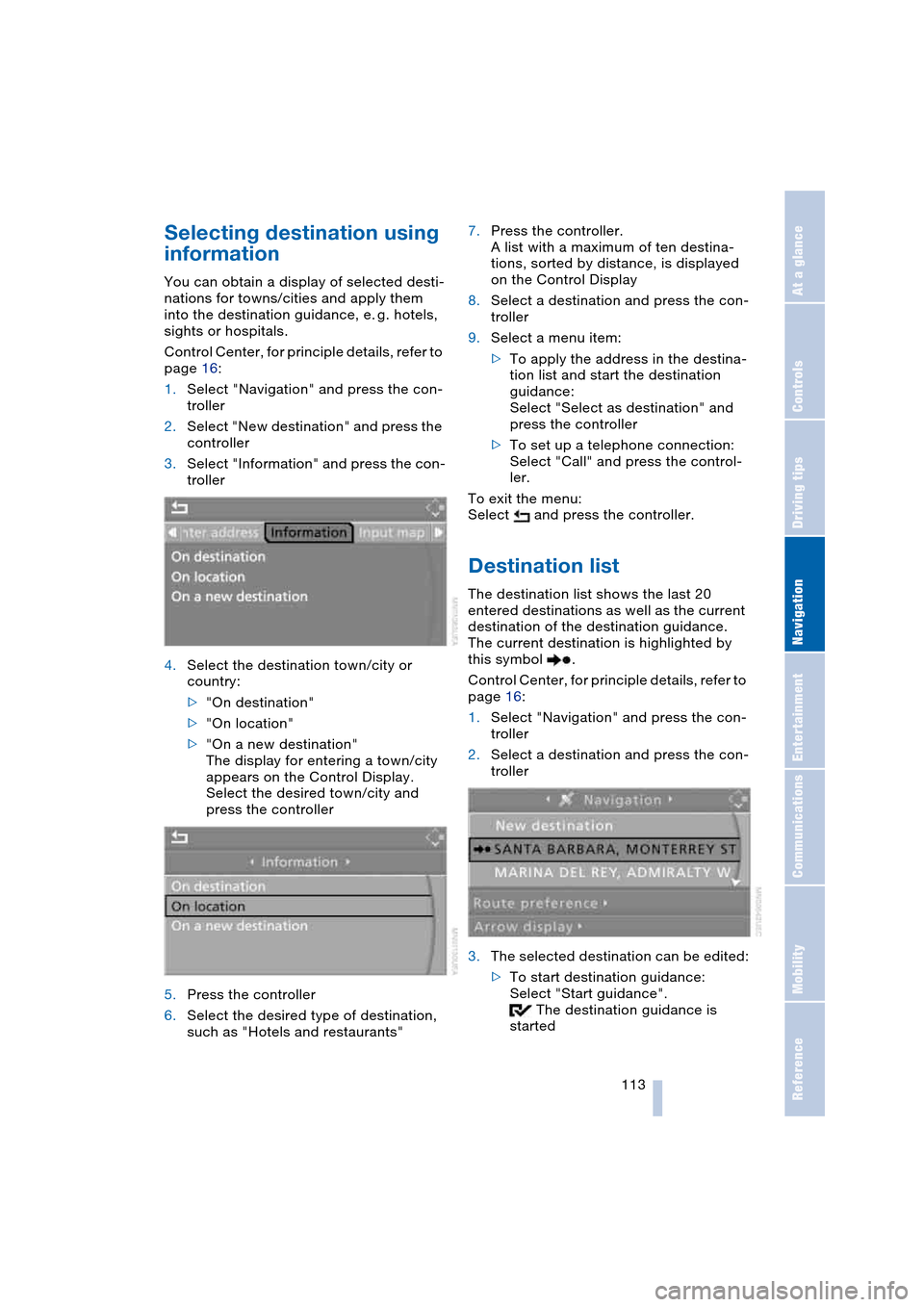
3.Select "Information" and press the con-
troller
4.Select the destination town/city or
country:
>"On destination"
>"On location"
>"On a new destination"
The display for entering a town/city
appears on the Control Display.
Select the desired town/city and
press the controller
5.Press the controller
6.Select the desired type of destination,
such as "Hotels and restaurants"7.Press the controller.
A list with a maximum of ten destina-
tions, sorted by distance, is displayed
on the Control Display
8.Select a destination and press the con-
troller
9.Select a menu item:
>To apply the address in the destina-
tion list and start the destination
guidance:
Select "Select as destination" and
press the controller
>To set up a telephone connection:
Select "Call" and press the control-
ler.
To exit the menu:
Select and press the controller.
Destination list
The destination list shows the last 20
entered destinations as well as the current
destination of the destination guidance.
The current destination is highlighted by
this symbol .
Control Center, for principle details, refer to
page 16:
1.Select "Navigation" and press the con-
troller
2.Select a destination and press the con-
troller
3.The selected destination can be edited:
>To start destination guidance:
Select "Start guidance".
The destination guidance is
started