key BMW 645CI COUPE 2004 E63 Owner's Guide
[x] Cancel search | Manufacturer: BMW, Model Year: 2004, Model line: 645CI COUPE, Model: BMW 645CI COUPE 2004 E63Pages: 216, PDF Size: 3.46 MB
Page 62 of 216
Driving
60
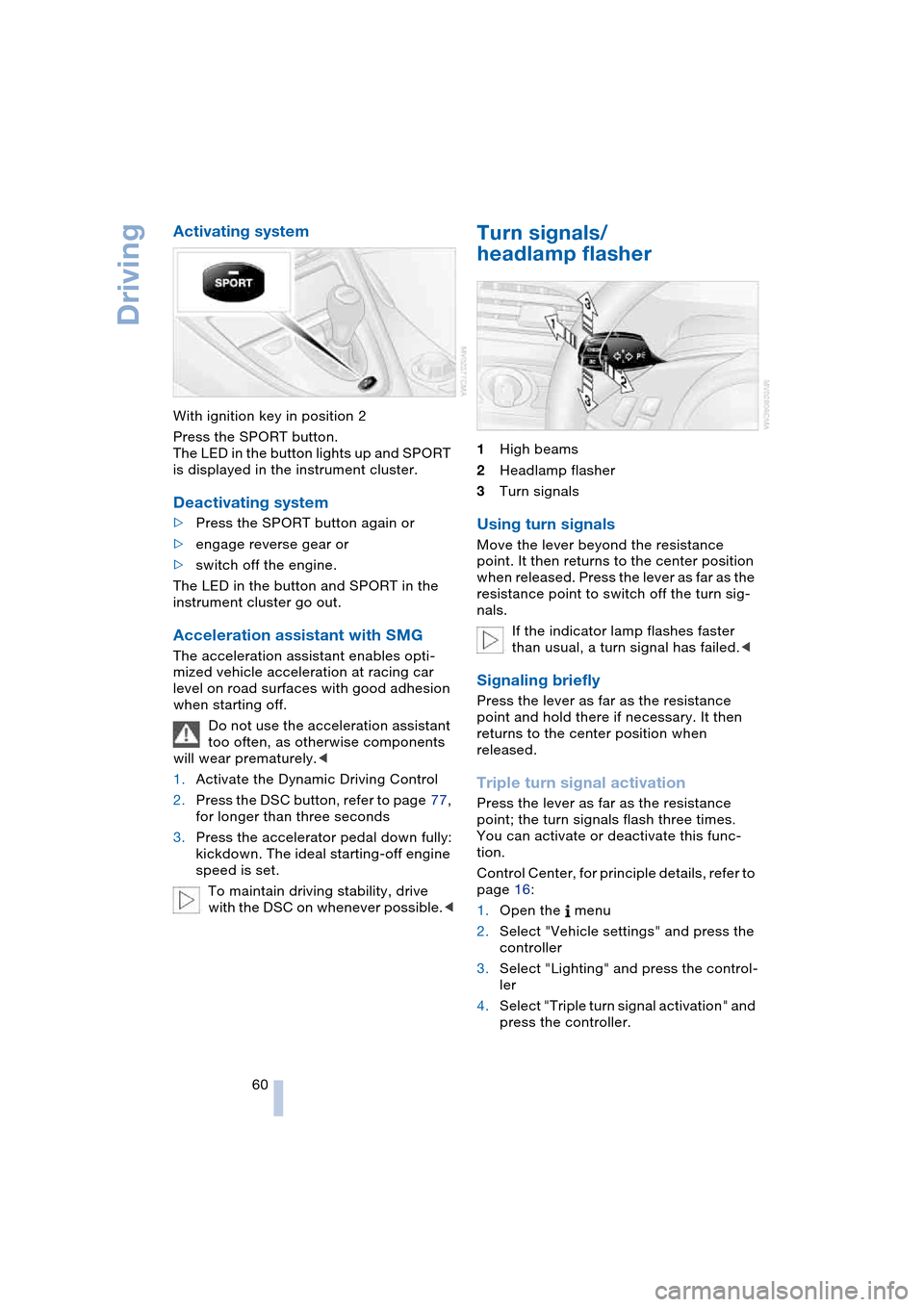
Activating system
With ignition key in position 2
Press the SPORT button.
The LED in the button lights up and SPORT
is displayed in the instrument cluster.
Deactivating system
>Press the SPORT button again or
>engage reverse gear or
>switch off the engine.
The LED in the button and SPORT in the
instrument cluster go out.
Acceleration assistant with SMG
The acceleration assistant enables opti-
mized vehicle acceleration at racing car
level on road surfaces with good adhesion
when starting off.
Do not use the acceleration assistant
too often, as otherwise components
will wear prematurely.<
1.Activate the Dynamic Driving Control
2.Press the DSC button, refer to page 77,
for longer than three seconds
3.Press the accelerator pedal down fully:
kickdown. The ideal starting-off engine
speed is set.
To maintain driving stability, drive
with the DSC on whenever possible.<
Turn signals/
headlamp flasher
1High beams
2Headlamp flasher
3Turn signals
Using turn signals
Move the lever beyond the resistance
point. It then returns to the center position
when released. Press the lever as far as the
resistance point to switch off the turn sig-
nals.
If the indicator lamp flashes faster
than usual, a turn signal has failed.<
Signaling briefly
Press the lever as far as the resistance
point and hold there if necessary. It then
returns to the center position when
released.
Triple turn signal activation
Press the lever as far as the resistance
point; the turn signals flash three times.
You can activate or deactivate this func-
tion.
Control Center, for principle details, refer to
page 16:
1.Open the menu
2.Select "Vehicle settings" and press the
controller
3.Select "Lighting" and press the control-
ler
4.Select "Triple turn signal activation" and
press the controller.
Page 63 of 216
Controls
61Reference
At a glance
Driving tips
Communications
Navigation
Entertainment
Mobility
Triple turn signal activation is acti-
vated.
Wiper system
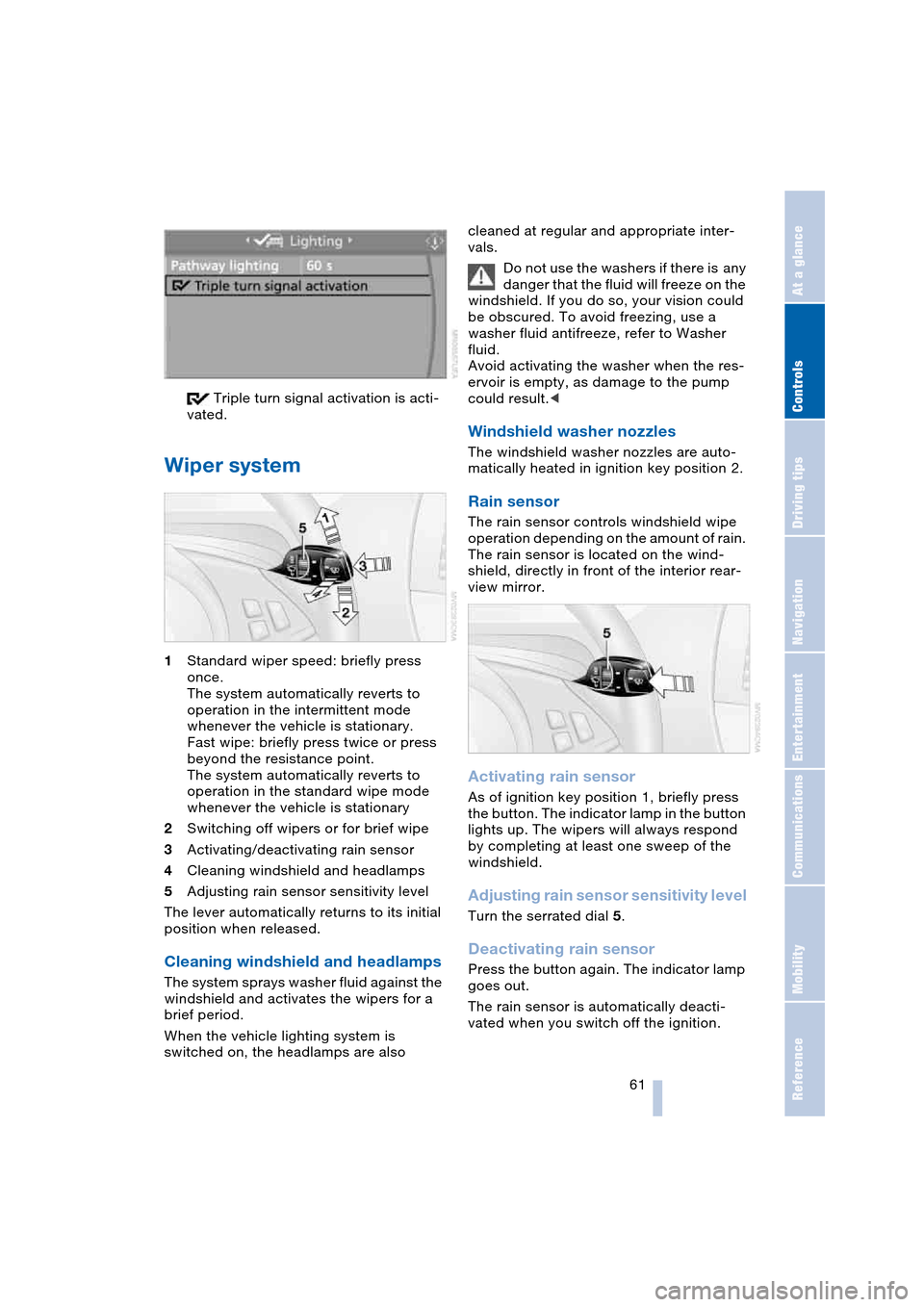
1Standard wiper speed: briefly press
once.
The system automatically reverts to
operation in the intermittent mode
whenever the vehicle is stationary.
Fast wipe: briefly press twice or press
beyond the resistance point.
The system automatically reverts to
operation in the standard wipe mode
whenever the vehicle is stationary
2Switching off wipers or for brief wipe
3Activating/deactivating rain sensor
4Cleaning windshield and headlamps
5Adjusting rain sensor sensitivity level
The lever automatically returns to its initial
position when released.
Cleaning windshield and headlamps
The system sprays washer fluid against the
windshield and activates the wipers for a
brief period.
When the vehicle lighting system is
switched on, the headlamps are also cleaned at regular and appropriate inter-
vals.
Do not use the washers if there is any
danger that the fluid will freeze on the
windshield. If you do so, your vision could
be obscured. To avoid freezing, use a
washer fluid antifreeze, refer to Washer
fluid.
Avoid activating the washer when the res-
ervoir is empty, as damage to the pump
could result.<
Windshield washer nozzles
The windshield washer nozzles are auto-
matically heated in ignition key position 2.
Rain sensor
The rain sensor controls windshield wipe
operation depending on the amount of rain.
The rain sensor is located on the wind-
shield, directly in front of the interior rear-
view mirror.
Activating rain sensor
As of ignition key position 1, briefly press
the button. The indicator lamp in the button
lights up. The wipers will always respond
by completing at least one sweep of the
windshield.
Adjusting rain sensor sensitivity level
Turn the serrated dial 5.
Deactivating rain sensor
Press the button again. The indicator lamp
goes out.
The rain sensor is automatically deacti-
vated when you switch off the ignition.
Page 66 of 216
Everything under control
64
Everything under control
Odometer, outside
temperature display, clock
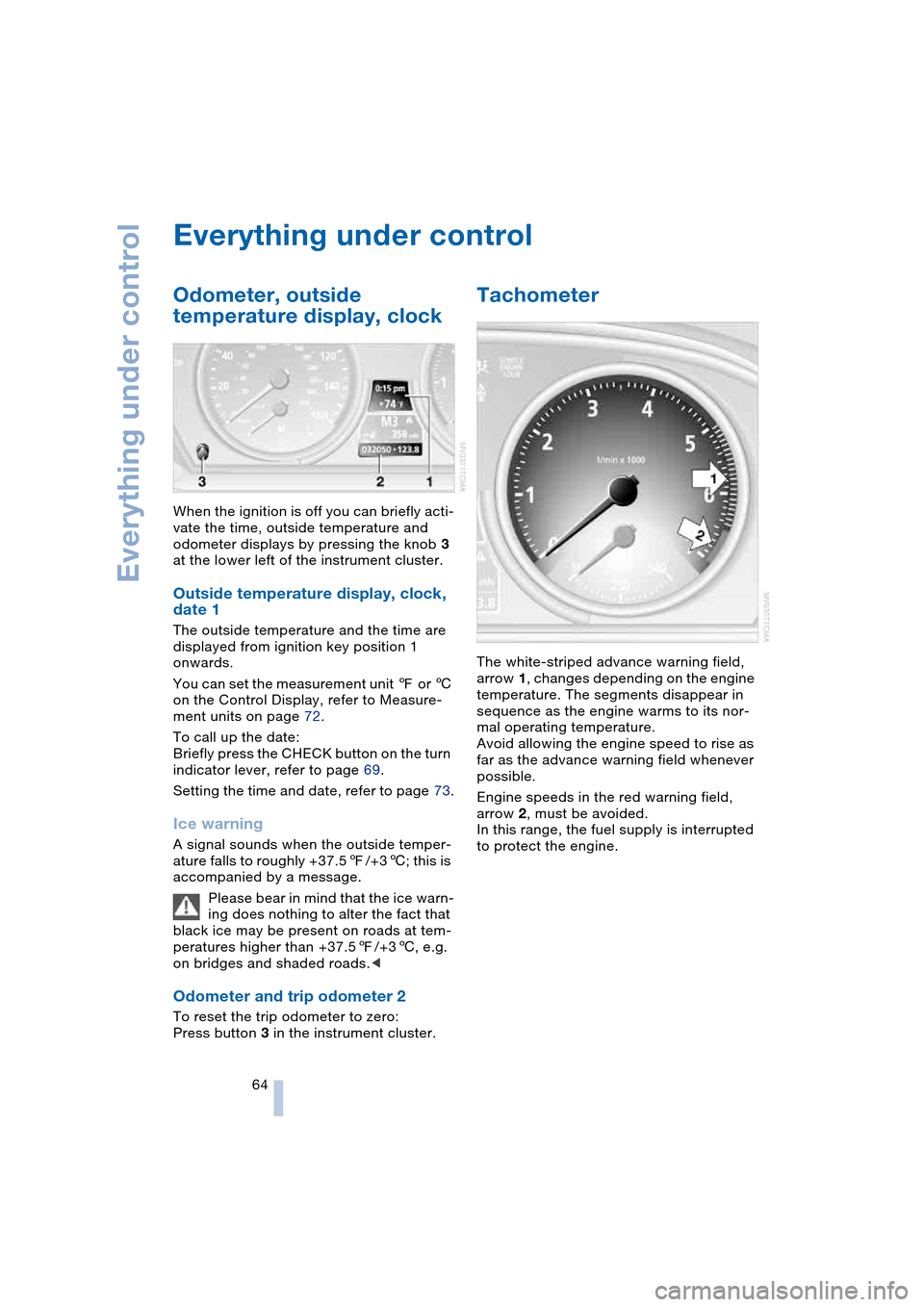
When the ignition is off you can briefly acti-
vate the time, outside temperature and
odometer displays by pressing the knob 3
at the lower left of the instrument cluster.
Outside temperature display, clock,
date 1
The outside temperature and the time are
displayed from ignition key position 1
onwards.
You can set the measurement unit 7 or 6
on the Control Display, refer to Measure-
ment units on page 72.
To call up the date:
Briefly press the CHECK button on the turn
indicator lever, refer to page 69.
Setting the time and date, refer to page 73.
Ice warning
A signal sounds when the outside temper-
ature falls to roughly +37.57/+36; this is
accompanied by a message.
Please bear in mind that the ice warn-
ing does nothing to alter the fact that
black ice may be present on roads at tem-
peratures higher than +37.57/+36, e.g.
on bridges and shaded roads.<
Odometer and trip odometer 2
To reset the trip odometer to zero:
Press button 3 in the instrument cluster.
Tachometer
The white-striped advance warning field,
arrow 1, changes depending on the engine
temperature. The segments disappear in
sequence as the engine warms to its nor-
mal operating temperature.
Avoid allowing the engine speed to rise as
far as the advance warning field whenever
possible.
Engine speeds in the red warning field,
arrow 2, must be avoided.
In this range, the fuel supply is interrupted
to protect the engine.
Page 67 of 216
Controls
65Reference
At a glance
Driving tips
Communications
Navigation
Entertainment
Mobility
Engine oil thermometer
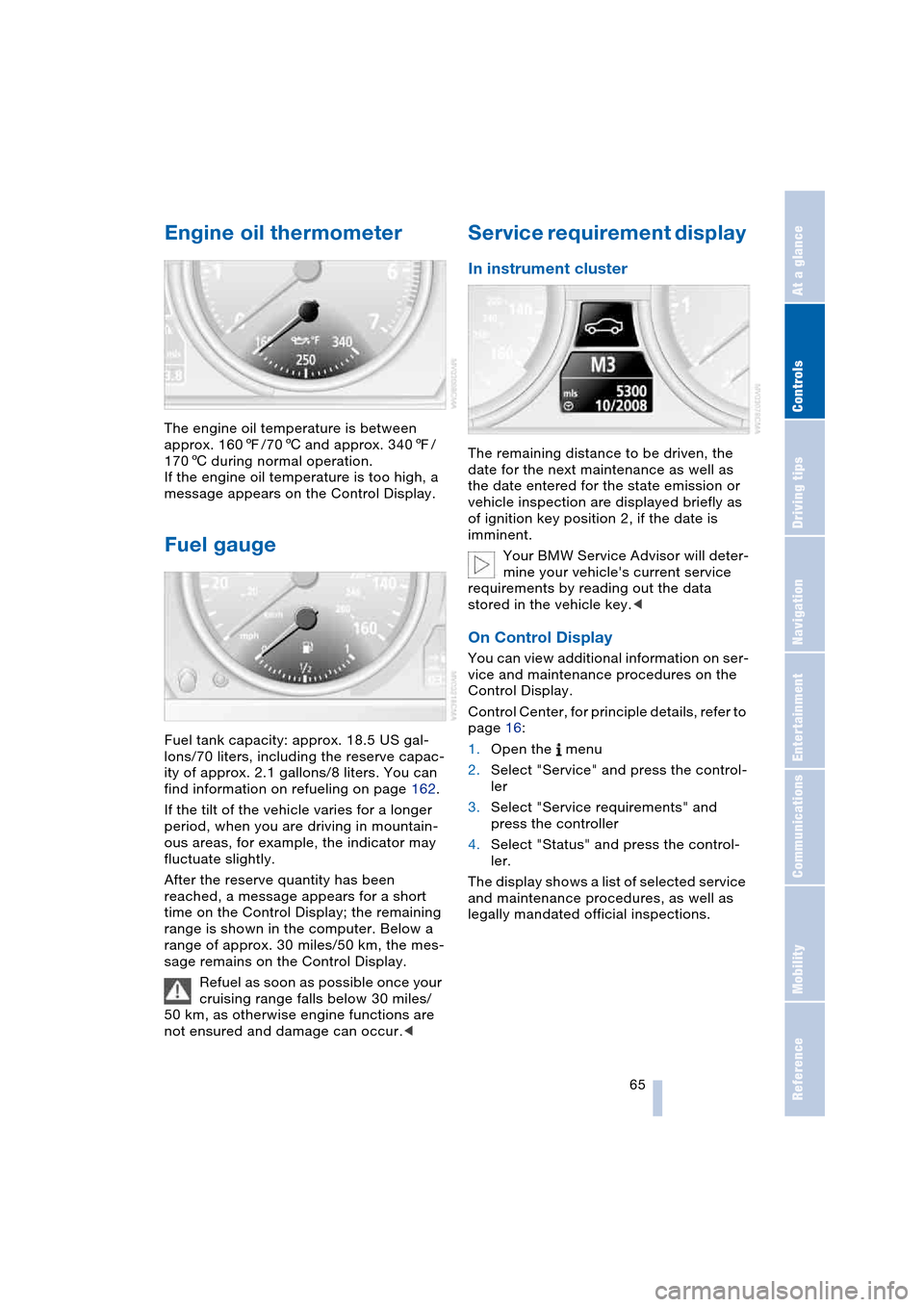
The engine oil temperature is between
approx. 1607/706 and approx. 3407/
1706 during normal operation.
If the engine oil temperature is too high, a
message appears on the Control Display.
Fuel gauge
Fuel tank capacity: approx. 18.5 US gal-
lons/70 liters, including the reserve capac-
ity of approx. 2.1 gallons/8 liters. You can
find information on refueling on page 162.
If the tilt of the vehicle varies for a longer
period, when you are driving in mountain-
ous areas, for example, the indicator may
fluctuate slightly.
After the reserve quantity has been
reached, a message appears for a short
time on the Control Display; the remaining
range is shown in the computer. Below a
range of approx. 30 miles/50 km, the mes-
sage remains on the Control Display.
Refuel as soon as possible once your
cruising range falls below 30 miles/
50 km, as otherwise engine functions are
not ensured and damage can occur.<
Service requirement display
In instrument cluster
The remaining distance to be driven, the
date for the next maintenance as well as
the date entered for the state emission or
vehicle inspection are displayed briefly as
of ignition key position 2, if the date is
imminent.
Your BMW Service Advisor will deter-
mine your vehicle's current service
requirements by reading out the data
stored in the vehicle key.<
On Control Display
You can view additional information on ser-
vice and maintenance procedures on the
Control Display.
Control Center, for principle details, refer to
page 16:
1.Open the menu
2.Select "Service" and press the control-
ler
3.Select "Service requirements" and
press the controller
4.Select "Status" and press the control-
ler.
The display shows a list of selected service
and maintenance procedures, as well as
legally mandated official inspections.
Page 71 of 216
Controls
69Reference
At a glance
Driving tips
Communications
Navigation
Entertainment
Mobility
Computer
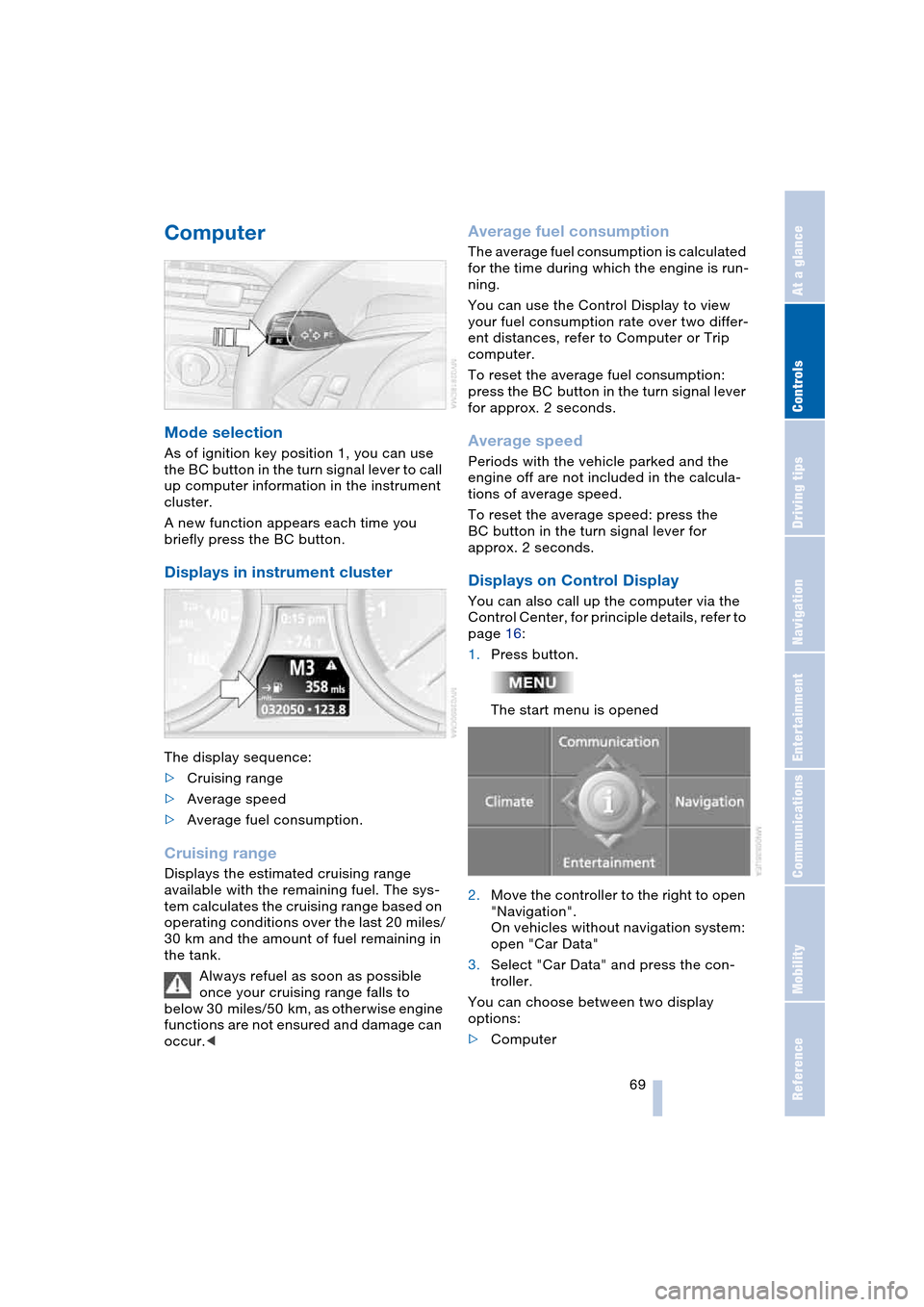
Mode selection
As of ignition key position 1, you can use
the BC button in the turn signal lever to call
up computer information in the instrument
cluster.
A new function appears each time you
briefly press the BC button.
Displays in instrument cluster
The display sequence:
>Cruising range
>Average speed
>Average fuel consumption.
Cruising range
Displays the estimated cruising range
available with the remaining fuel. The sys-
tem calculates the cruising range based on
operating conditions over the last 20 miles/
30 km and the amount of fuel remaining in
the tank.
Always refuel as soon as possible
once your cruising range falls to
below 30 miles/50 km, as otherwise engine
functions are not ensured and damage can
occur.<
Average fuel consumption
The average fuel consumption is calculated
for the time during which the engine is run-
ning.
You can use the Control Display to view
your fuel consumption rate over two differ-
ent distances, refer to Computer or Trip
computer.
To reset the average fuel consumption:
press the BC button in the turn signal lever
for approx. 2 seconds.
Average speed
Periods with the vehicle parked and the
engine off are not included in the calcula-
tions of average speed.
To reset the average speed: press the
BC button in the turn signal lever for
approx. 2 seconds.
Displays on Control Display
You can also call up the computer via the
Control Center, for principle details, refer to
page 16:
1.Press button.
The start menu is opened
2.Move the controller to the right to open
"Navigation".
On vehicles without navigation system:
open "Car Data"
3.Select "Car Data" and press the con-
troller.
You can choose between two display
options:
>Computer
Page 74 of 216
Everything under control
72
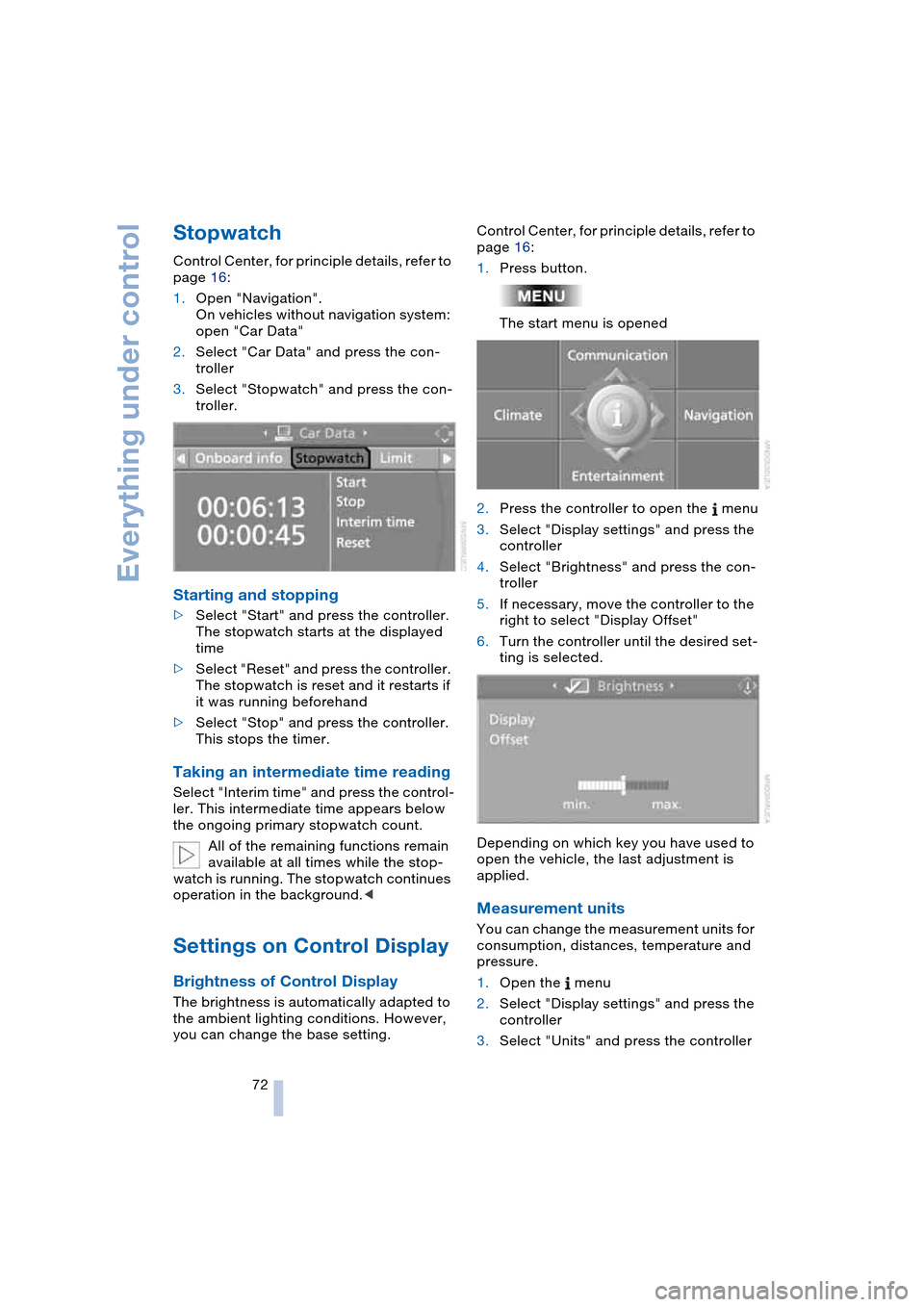
Stopwatch
Control Center, for principle details, refer to
page 16:
1.Open "Navigation".
On vehicles without navigation system:
open "Car Data"
2.Select "Car Data" and press the con-
troller
3.Select "Stopwatch" and press the con-
troller.
Starting and stopping
>Select "Start" and press the controller.
The stopwatch starts at the displayed
time
>Select "Reset" and press the controller.
The stopwatch is reset and it restarts if
it was running beforehand
>Select "Stop" and press the controller.
This stops the timer.
Taking an intermediate time reading
Select "Interim time" and press the control-
ler. This intermediate time appears below
the ongoing primary stopwatch count.
All of the remaining functions remain
available at all times while the stop-
watch is running. The stopwatch continues
operation in the background.<
Settings on Control Display
Brightness of Control Display
The brightness is automatically adapted to
the ambient lighting conditions. However,
you can change the base setting.Control Center, for principle details, refer to
page 16:
1.Press button.
The start menu is opened
2.Press the controller to open the menu
3.Select "Display settings" and press the
controller
4.Select "Brightness" and press the con-
troller
5.If necessary, move the controller to the
right to select "Display Offset"
6.Turn the controller until the desired set-
ting is selected.
Depending on which key you have used to
open the vehicle, the last adjustment is
applied.
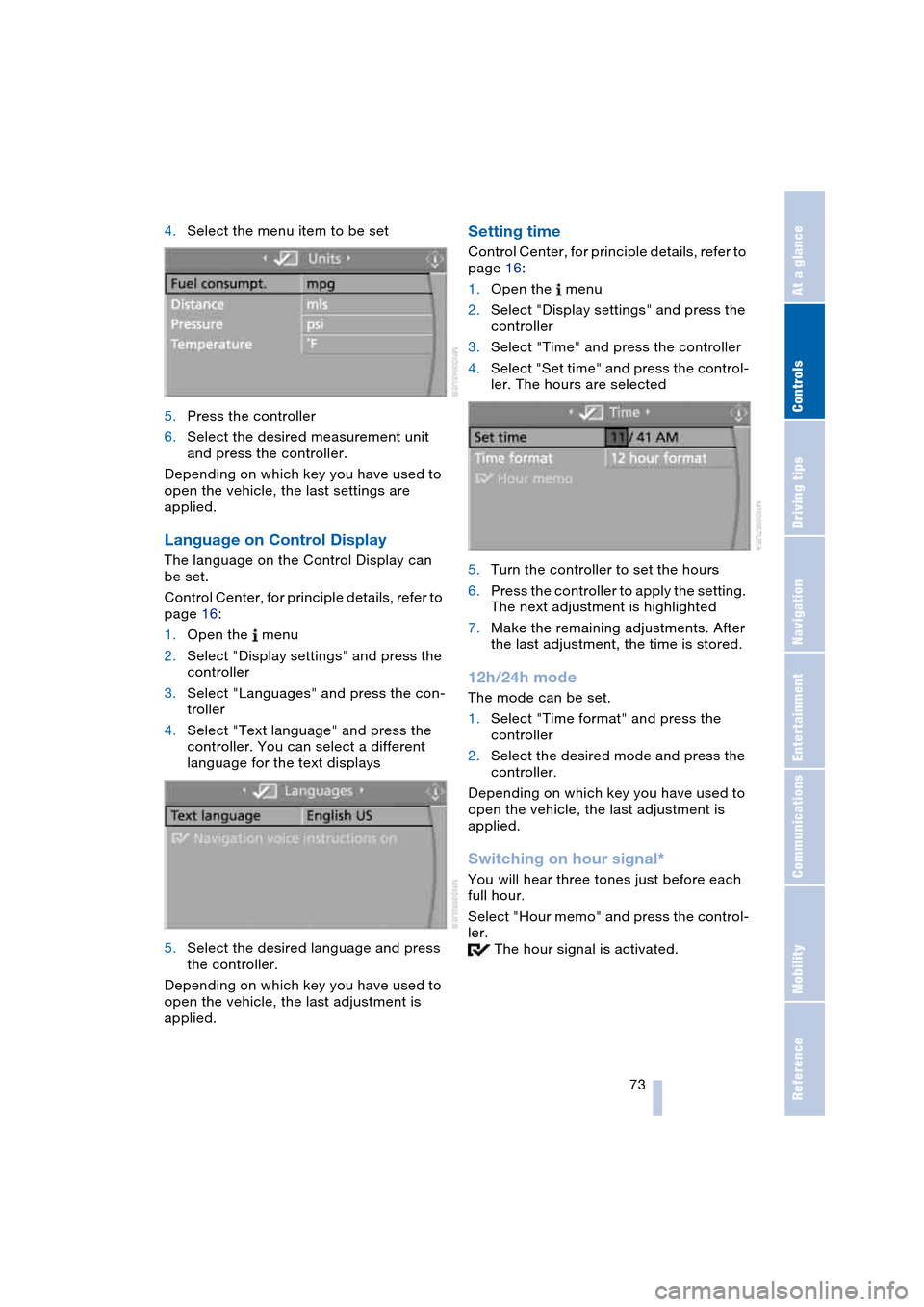
Measurement units
You can change the measurement units for
consumption, distances, temperature and
pressure.
1.Open the menu
2.Select "Display settings" and press the
controller
3.Select "Units" and press the controller
Page 75 of 216
Controls
73Reference
At a glance
Driving tips
Communications
Navigation
Entertainment
Mobility
4.Select the menu item to be set
5.Press the controller
6.Select the desired measurement unit
and press the controller.
Depending on which key you have used to
open the vehicle, the last settings are
applied.
Language on Control Display
The language on the Control Display can
be set.
Control Center, for principle details, refer to
page 16:
1.Open the menu
2.Select "Display settings" and press the
controller
3.Select "Languages" and press the con-
troller
4.Select "Text language" and press the
controller. You can select a different
language for the text displays
5.Select the desired language and press
the controller.
Depending on which key you have used to
open the vehicle, the last adjustment is
applied.
Setting time
Control Center, for principle details, refer to
page 16:
1.Open the menu
2.Select "Display settings" and press the
controller
3.Select "Time" and press the controller
4.Select "Set time" and press the control-
ler. The hours are selected
5.Turn the controller to set the hours
6.Press the controller to apply the setting.
The next adjustment is highlighted
7.Make the remaining adjustments. After
the last adjustment, the time is stored.
12h/24h mode
The mode can be set.
1.Select "Time format" and press the
controller
2.Select the desired mode and press the
controller.
Depending on which key you have used to
open the vehicle, the last adjustment is
applied.
Switching on hour signal*
You will hear three tones just before each
full hour.
Select "Hour memo" and press the control-
ler.
The hour signal is activated.
Page 76 of 216
Everything under control
74
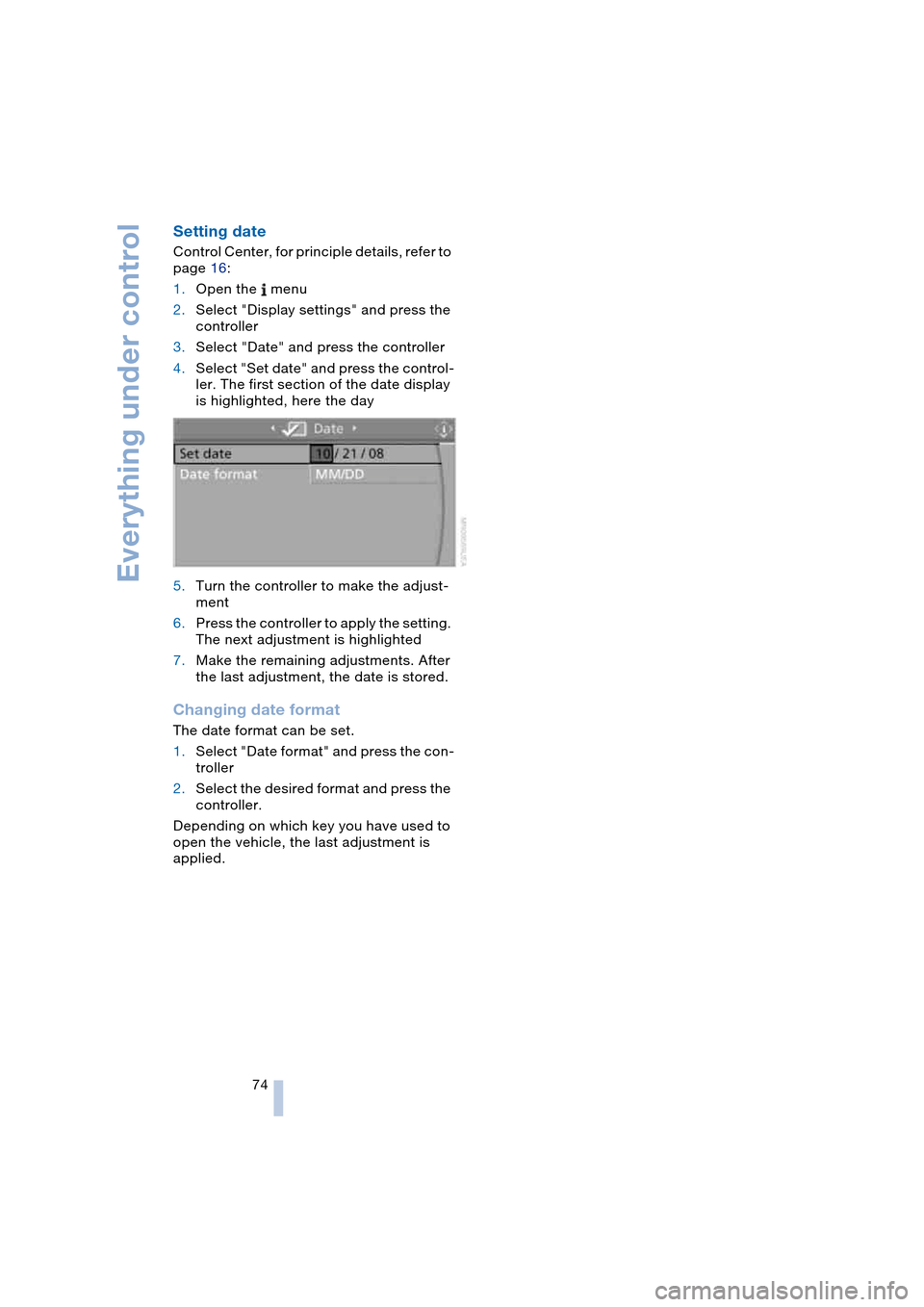
Setting date
Control Center, for principle details, refer to
page 16:
1.Open the menu
2.Select "Display settings" and press the
controller
3.Select "Date" and press the controller
4.Select "Set date" and press the control-
ler. The first section of the date display
is highlighted, here the day
5.Turn the controller to make the adjust-
ment
6.Press the controller to apply the setting.
The next adjustment is highlighted
7.Make the remaining adjustments. After
the last adjustment, the date is stored.
Changing date format
The date format can be set.
1.Select "Date format" and press the con-
troller
2.Select the desired format and press the
controller.
Depending on which key you have used to
open the vehicle, the last adjustment is
applied.
Page 77 of 216
Controls
75Reference
At a glance
Driving tips
Communications
Navigation
Entertainment
Mobility
Technology for comfort, convenience
and safety
PDC Park Distance Control*
The concept
The PDC assists you when you are parking.
Signal tones and a visual display
* indicate
the current distance to an object behind or
in front of your vehicle. To measure the dis-
tance, there are four ultrasonic sensors in
each bumper. The sensors at the front and
at the two rear corners have a range of
approx. 20 in/50 cm; the rear middle sen-
sors have approx. 5 ft/1.50 m.
PDC is a parking aid that can indicate
objects when they are approached
slowly, as is usually the case when parking.
Avoid approaching an object at high speed,
as otherwise the physical circumstances
would mean that the system warning was
too late.<
Automatic mode
In ignition key position 2, the system auto-
matically assumes operational status after
a few seconds each time you engage
reverse gear or selector-lever position R.
Wait this short period before driving.<
The system is automatically deacti-
vated once the vehicle travels approx.
165 ft/50 m or exceeds a speed of roughly
20 mph/30 km/h; the indicator lamp goes
out. You can reactivate the system manu-
ally as needed.
Manual mode
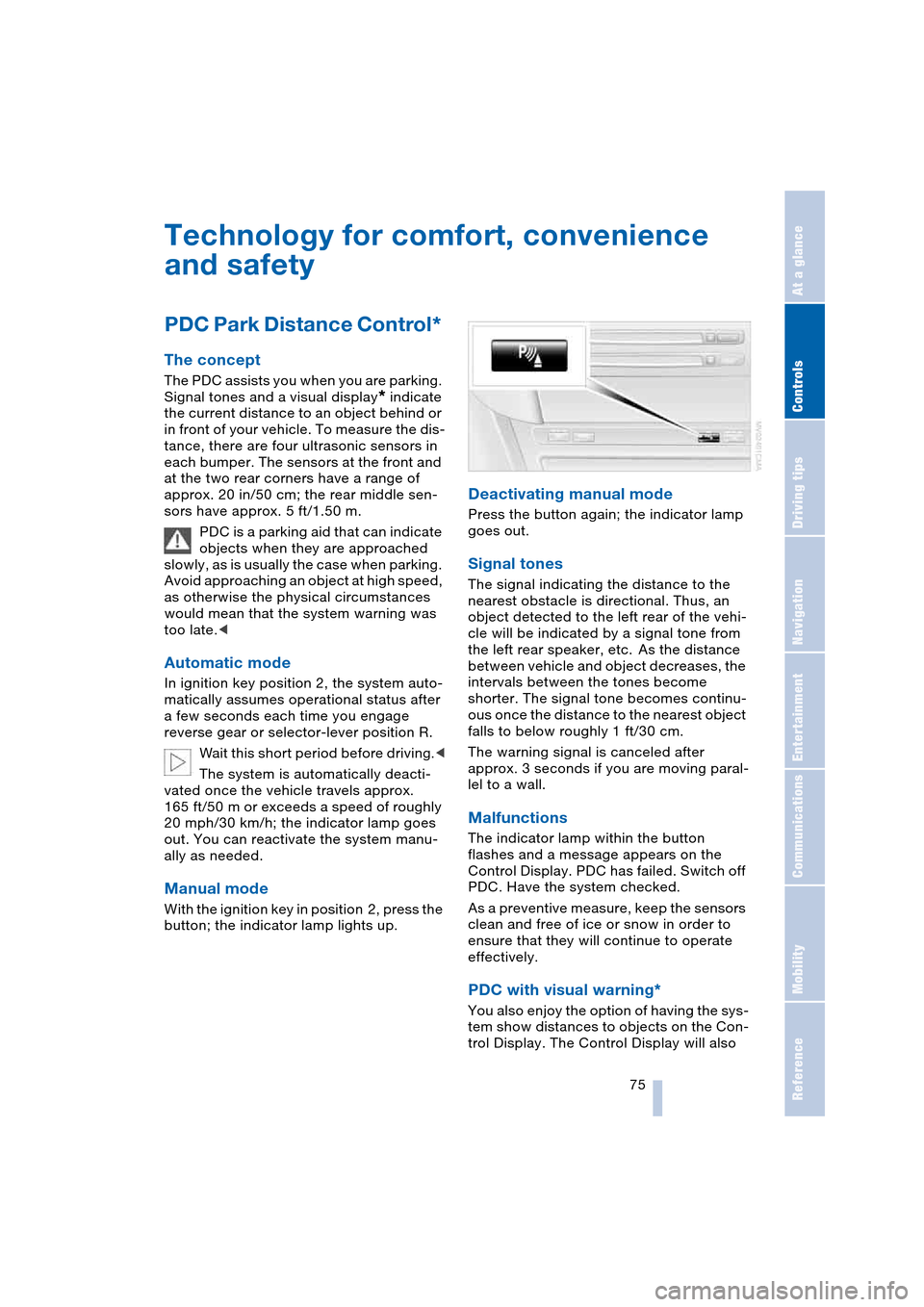
With the ignition key in position 2, press the
button; the indicator lamp lights up.
Deactivating manual mode
Press the button again; the indicator lamp
goes out.
Signal tones
The signal indicating the distance to the
nearest obstacle is directional. Thus, an
object detected to the left rear of the vehi-
cle will be indicated by a signal tone from
the left rear speaker, etc. As the distance
between vehicle and object decreases, the
intervals between the tones become
shorter. The signal tone becomes continu-
ous once the distance to the nearest object
falls to below roughly 1 ft/30 cm.
The warning signal is canceled after
approx. 3 seconds if you are moving paral-
lel to a wall.
Malfunctions
The indicator lamp within the button
flashes and a message appears on the
Control Display. PDC has failed. Switch off
PDC. Have the system checked.
As a preventive measure, keep the sensors
clean and free of ice or snow in order to
ensure that they will continue to operate
effectively.
PDC with visual warning*
You also enjoy the option of having the sys-
tem show distances to objects on the Con-
trol Display. The Control Display will also
Page 78 of 216
Technology for comfort, convenience and safety
76 indicate the presence of objects in green
before they are close enough to generate a
signal tone.
Control Center, for principle details, refer to
page 16:
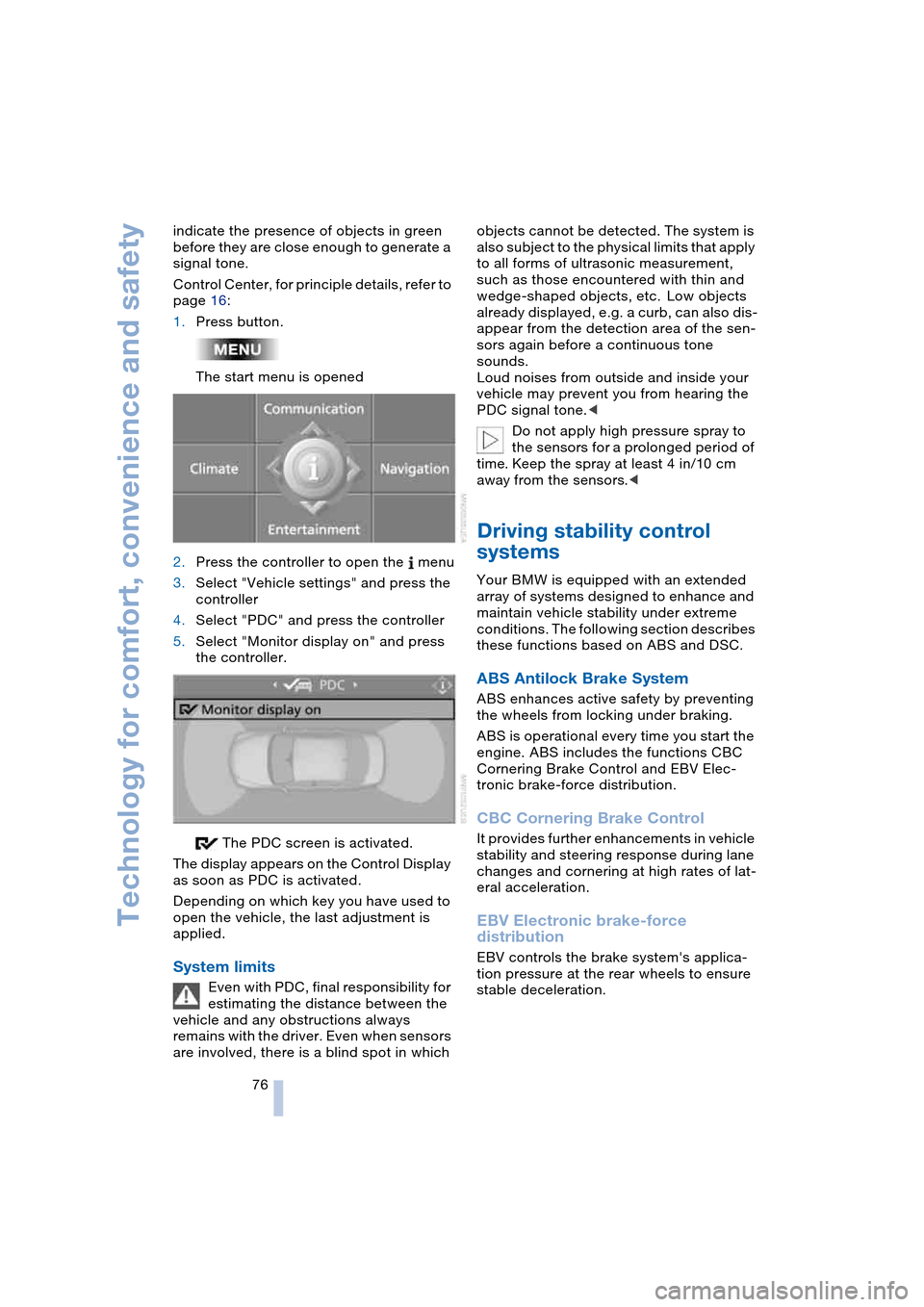
1.Press button.
The start menu is opened
2.Press the controller to open the menu
3.Select "Vehicle settings" and press the
controller
4.Select "PDC" and press the controller
5.Select "Monitor display on" and press
the controller.
The PDC screen is activated.
The display appears on the Control Display
as soon as PDC is activated.
Depending on which key you have used to
open the vehicle, the last adjustment is
applied.
System limits
Even with PDC, final responsibility for
estimating the distance between the
vehicle and any obstructions always
remains with the driver. Even when sensors
are involved, there is a blind spot in which objects cannot be detected. The system is
also subject to the physical limits that apply
to all forms of ultrasonic measurement,
such as those encountered with thin and
wedge-shaped objects, etc. Low objects
already displayed, e.g. a curb, can also dis-
appear from the detection area of the sen-
sors again before a continuous tone
sounds.
Loud noises from outside and inside your
vehicle may prevent you from hearing the
PDC signal tone.<
Do not apply high pressure spray to
the sensors for a prolonged period of
time. Keep the spray at least 4 in/10 cm
away from the sensors.<
Driving stability control
systems
Your BMW is equipped with an extended
array of systems designed to enhance and
maintain vehicle stability under extreme
conditions. The following section describes
these functions based on ABS and DSC.
ABS Antilock Brake System
ABS enhances active safety by preventing
the wheels from locking under braking.
ABS is operational every time you start the
engine. ABS includes the functions CBC
Cornering Brake Control and EBV Elec-
tronic brake-force distribution.
CBC Cornering Brake Control
It provides further enhancements in vehicle
stability and steering response during lane
changes and cornering at high rates of lat-
eral acceleration.
EBV Electronic brake-force
distribution
EBV controls the brake system's applica-
tion pressure at the rear wheels to ensure
stable deceleration.