navigation system BMW 645CI COUPE 2004 E63 Owner's Guide
[x] Cancel search | Manufacturer: BMW, Model Year: 2004, Model line: 645CI COUPE, Model: BMW 645CI COUPE 2004 E63Pages: 216, PDF Size: 3.46 MB
Page 61 of 216
Controls
59Reference
At a glance
Driving tips
Communications
Navigation
Entertainment
Mobility
P Parking
Select only when the vehicle is completely
stationary. The rear wheels are blocked.
R Reverse
Select only when the vehicle is completely
stationary.
N Neutral
E.g. engage in car washes. The vehicle can
roll.
D Drive, automatic position
Position for normal vehicle operation.
All forward gears are available.
Under normal operating conditions, fuel
consumption is lowest when driving in
position D.
Kickdown
The kickdown mode provides maximum
acceleration:
Press the accelerator pedal beyond the
full-throttle resistance point.
M/S manual operation and
Sport program
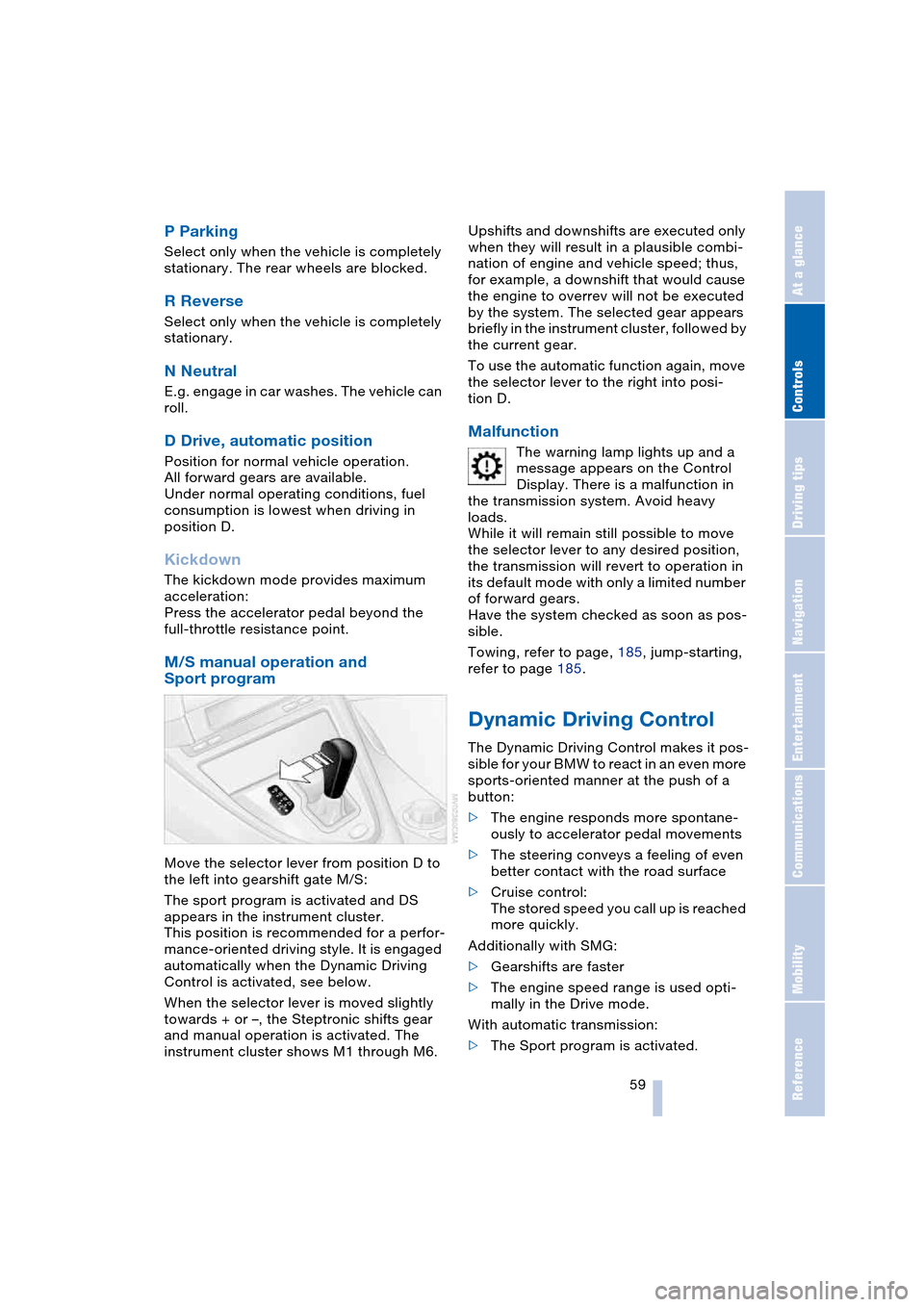
Move the selector lever from position D to
the left into gearshift gate M/S:
The sport program is activated and DS
appears in the instrument cluster.
This position is recommended for a perfor-
mance-oriented driving style. It is engaged
automatically when the Dynamic Driving
Control is activated, see below.
When the selector lever is moved slightly
towards + or –, the Steptronic shifts gear
and manual operation is activated. The
instrument cluster shows M1 through M6.Upshifts and downshifts are executed only
when they will result in a plausible combi-
nation of engine and vehicle speed; thus,
for example, a downshift that would cause
the engine to overrev will not be executed
by the system. The selected gear appears
briefly in the instrument cluster, followed by
the current gear.
To use the automatic function again, move
the selector lever to the right into posi-
tion D.
Malfunction
The warning lamp lights up and a
message appears on the Control
Display. There is a malfunction in
the transmission system. Avoid heavy
loads.
While it will remain still possible to move
the selector lever to any desired position,
the transmission will revert to operation in
its default mode with only a limited number
of forward gears.
Have the system checked as soon as pos-
sible.
Towing, refer to page, 185, jump-starting,
refer to page 185.
Dynamic Driving Control
The Dynamic Driving Control makes it pos-
sible for your BMW to react in an even more
sports-oriented manner at the push of a
button:
>The engine responds more spontane-
ously to accelerator pedal movements
>The steering conveys a feeling of even
better contact with the road surface
>Cruise control:
The stored speed you call up is reached
more quickly.
Additionally with SMG:
>Gearshifts are faster
>The engine speed range is used opti-
mally in the Drive mode.
With automatic transmission:
>The Sport program is activated.
Page 63 of 216
Controls
61Reference
At a glance
Driving tips
Communications
Navigation
Entertainment
Mobility
Triple turn signal activation is acti-
vated.
Wiper system
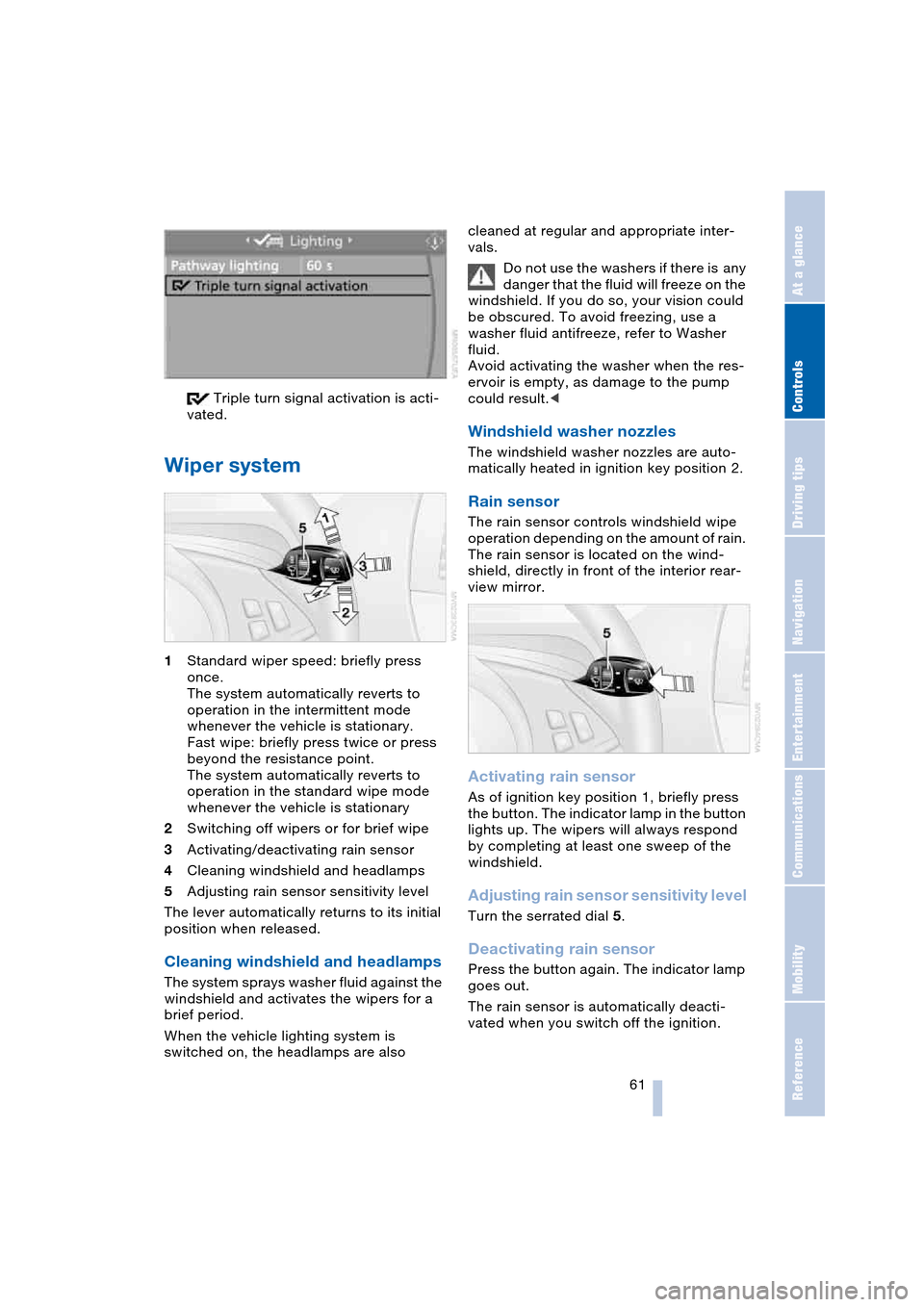
1Standard wiper speed: briefly press
once.
The system automatically reverts to
operation in the intermittent mode
whenever the vehicle is stationary.
Fast wipe: briefly press twice or press
beyond the resistance point.
The system automatically reverts to
operation in the standard wipe mode
whenever the vehicle is stationary
2Switching off wipers or for brief wipe
3Activating/deactivating rain sensor
4Cleaning windshield and headlamps
5Adjusting rain sensor sensitivity level
The lever automatically returns to its initial
position when released.
Cleaning windshield and headlamps
The system sprays washer fluid against the
windshield and activates the wipers for a
brief period.
When the vehicle lighting system is
switched on, the headlamps are also cleaned at regular and appropriate inter-
vals.
Do not use the washers if there is any
danger that the fluid will freeze on the
windshield. If you do so, your vision could
be obscured. To avoid freezing, use a
washer fluid antifreeze, refer to Washer
fluid.
Avoid activating the washer when the res-
ervoir is empty, as damage to the pump
could result.<
Windshield washer nozzles
The windshield washer nozzles are auto-
matically heated in ignition key position 2.
Rain sensor
The rain sensor controls windshield wipe
operation depending on the amount of rain.
The rain sensor is located on the wind-
shield, directly in front of the interior rear-
view mirror.
Activating rain sensor
As of ignition key position 1, briefly press
the button. The indicator lamp in the button
lights up. The wipers will always respond
by completing at least one sweep of the
windshield.
Adjusting rain sensor sensitivity level
Turn the serrated dial 5.
Deactivating rain sensor
Press the button again. The indicator lamp
goes out.
The rain sensor is automatically deacti-
vated when you switch off the ignition.
Page 65 of 216
Controls
63Reference
At a glance
Driving tips
Communications
Navigation
Entertainment
Mobility
In addition, cruise control is interrupted
automatically
>when you apply pressure to the brake
pedal
>when you press down the clutch pedal
or engage position N of the automatic
transmission/SMG
>when DSC comes on.
4Recalling stored speed
Briefly press button 4: the vehicle acceler-
ates to and maintains the stored speed.
Deactivating system
When the ignition is switched off, the sys-
tem is deactivated and the stored speed is
deleted.
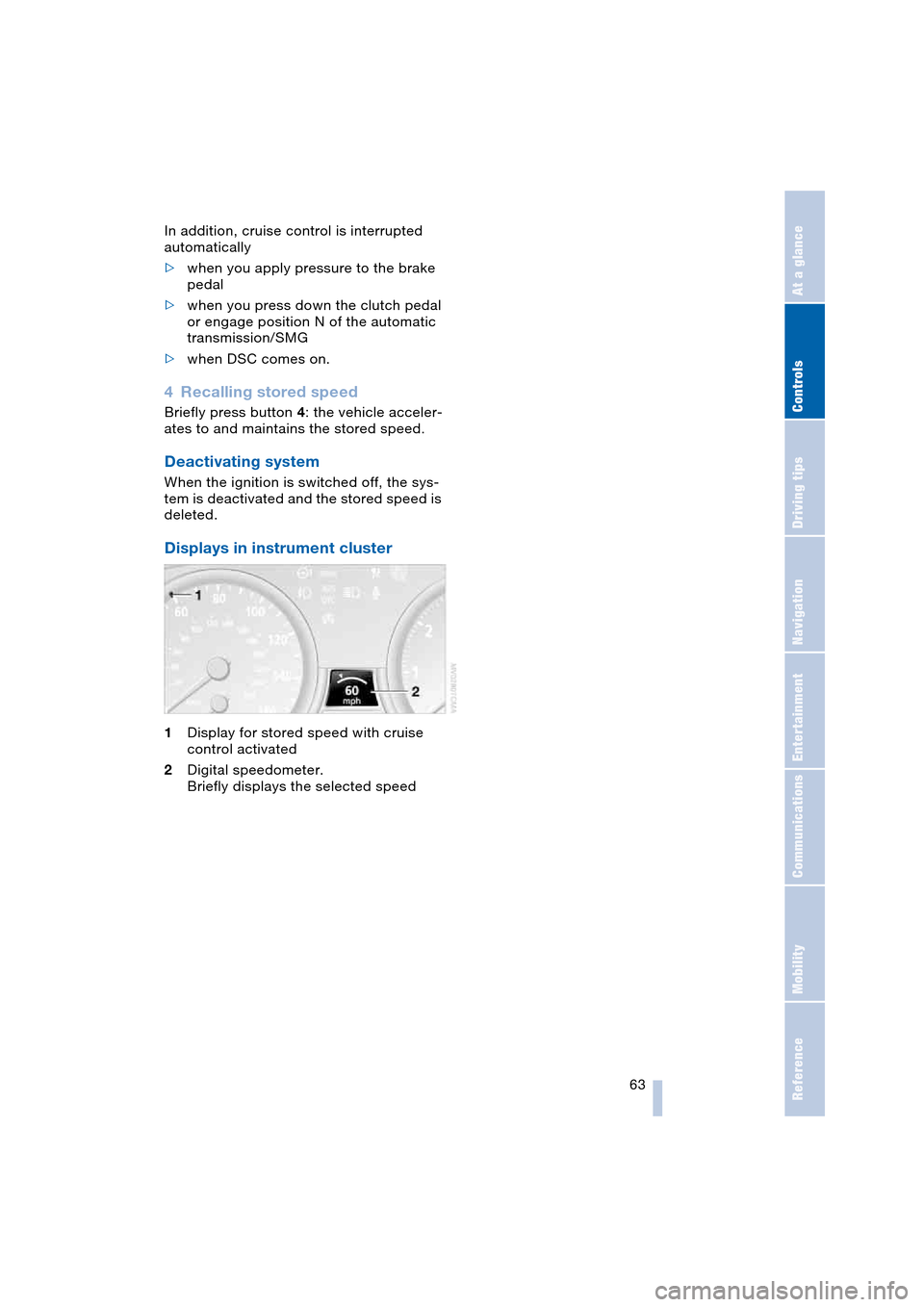
Displays in instrument cluster
1Display for stored speed with cruise
control activated
2Digital speedometer.
Briefly displays the selected speed
Page 69 of 216
Controls
67Reference
At a glance
Driving tips
Communications
Navigation
Entertainment
Mobility
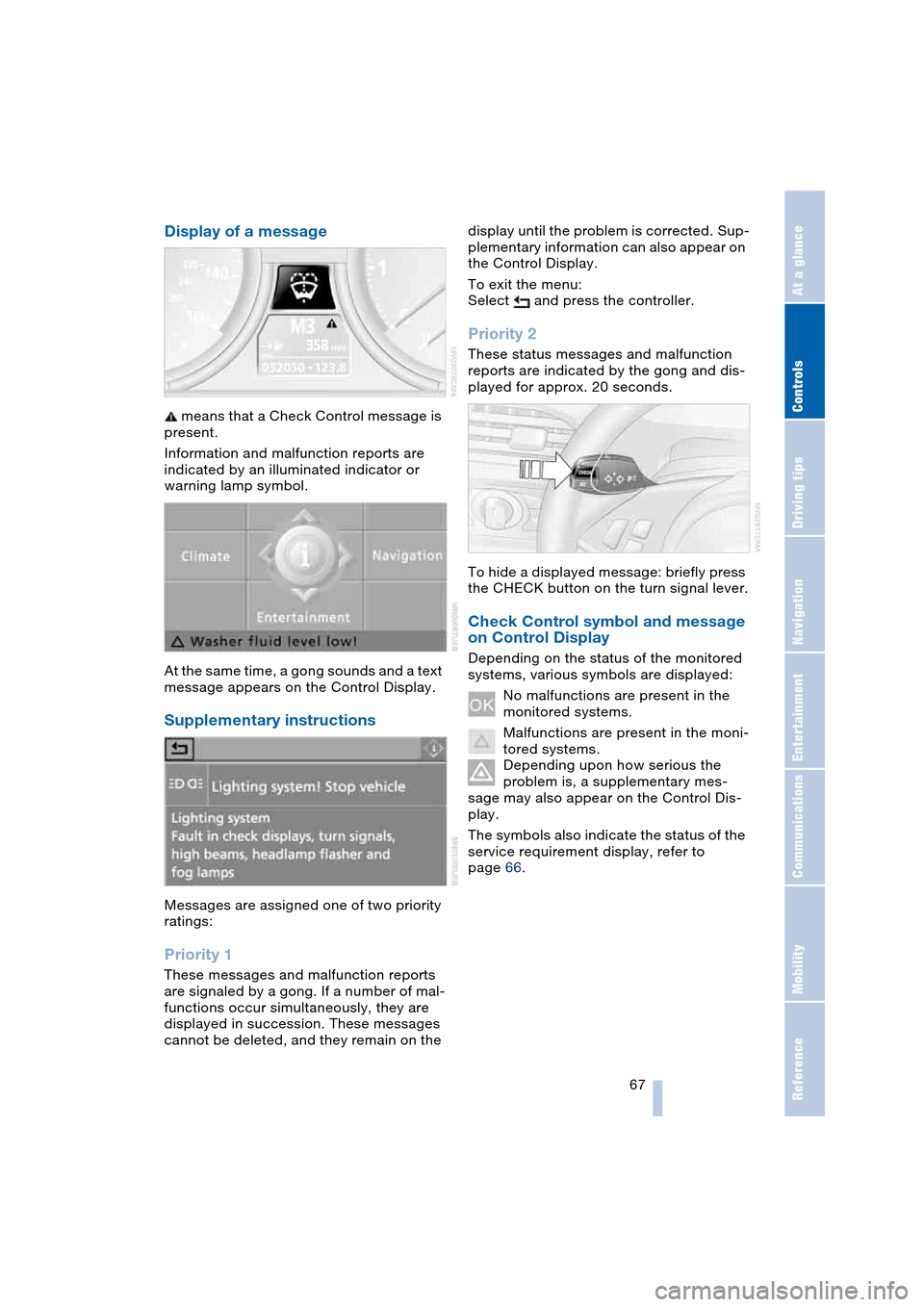
Display of a message
means that a Check Control message is
present.
Information and malfunction reports are
indicated by an illuminated indicator or
warning lamp symbol.
At the same time, a gong sounds and a text
message appears on the Control Display.
Supplementary instructions
Messages are assigned one of two priority
ratings:
Priority 1
These messages and malfunction reports
are signaled by a gong. If a number of mal-
functions occur simultaneously, they are
displayed in succession. These messages
cannot be deleted, and they remain on the display until the problem is corrected. Sup-
plementary information can also appear on
the Control Display.
To exit the menu:
Select and press the controller.
Priority 2
These status messages and malfunction
reports are indicated by the gong and dis-
played for approx. 20 seconds.
To hide a displayed message: briefly press
the CHECK button on the turn signal lever.
Check Control symbol and message
on Control Display
Depending on the status of the monitored
systems, various symbols are displayed:
No malfunctions are present in the
monitored systems.
Malfunctions are present in the moni-
tored systems.
Depending upon how serious the
problem is, a supplementary mes-
sage may also appear on the Control Dis-
play.
The symbols also indicate the status of the
service requirement display, refer to
page 66.
Page 71 of 216
Controls
69Reference
At a glance
Driving tips
Communications
Navigation
Entertainment
Mobility
Computer
Mode selection
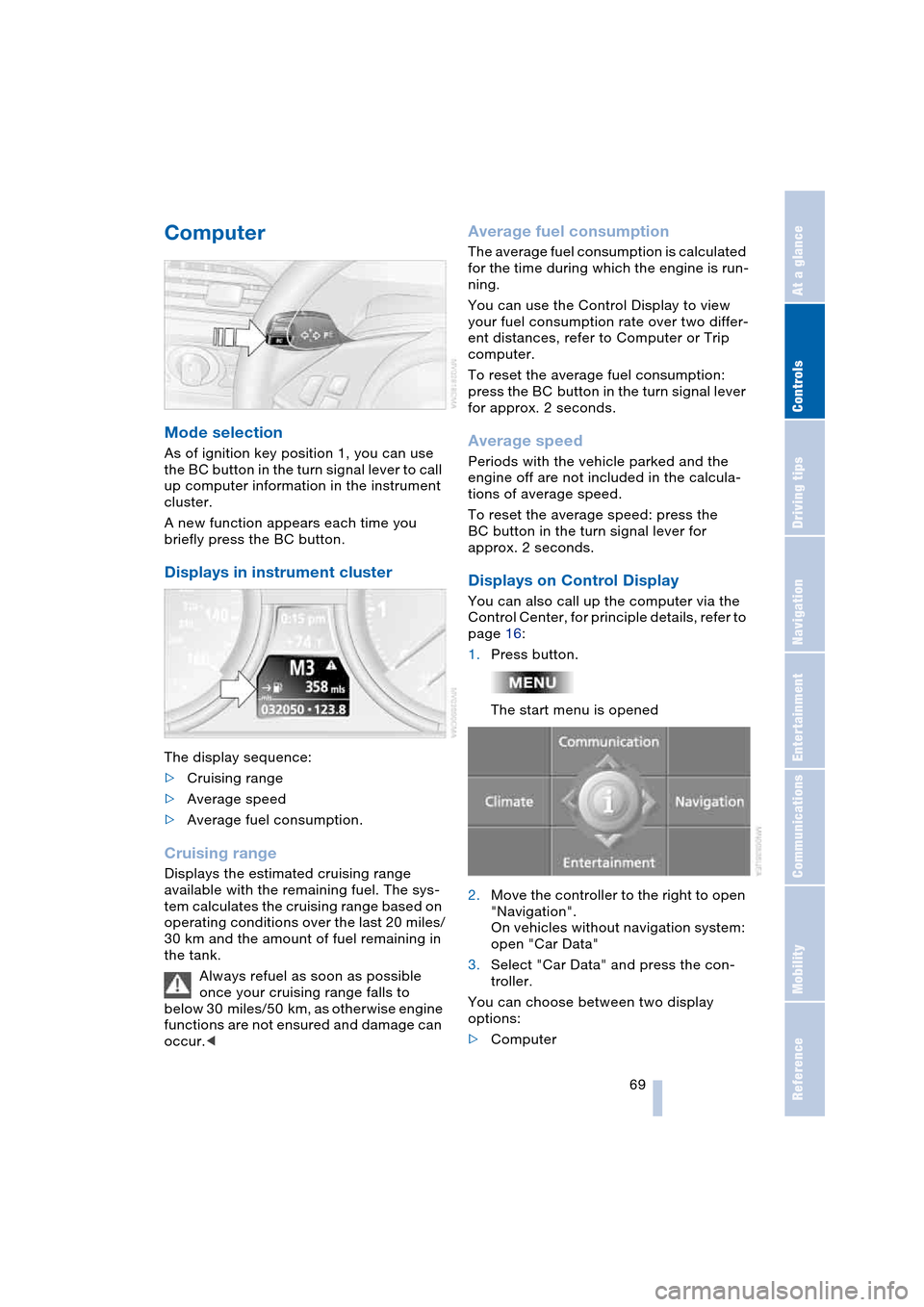
As of ignition key position 1, you can use
the BC button in the turn signal lever to call
up computer information in the instrument
cluster.
A new function appears each time you
briefly press the BC button.
Displays in instrument cluster
The display sequence:
>Cruising range
>Average speed
>Average fuel consumption.
Cruising range
Displays the estimated cruising range
available with the remaining fuel. The sys-
tem calculates the cruising range based on
operating conditions over the last 20 miles/
30 km and the amount of fuel remaining in
the tank.
Always refuel as soon as possible
once your cruising range falls to
below 30 miles/50 km, as otherwise engine
functions are not ensured and damage can
occur.<
Average fuel consumption
The average fuel consumption is calculated
for the time during which the engine is run-
ning.
You can use the Control Display to view
your fuel consumption rate over two differ-
ent distances, refer to Computer or Trip
computer.
To reset the average fuel consumption:
press the BC button in the turn signal lever
for approx. 2 seconds.
Average speed
Periods with the vehicle parked and the
engine off are not included in the calcula-
tions of average speed.
To reset the average speed: press the
BC button in the turn signal lever for
approx. 2 seconds.
Displays on Control Display
You can also call up the computer via the
Control Center, for principle details, refer to
page 16:
1.Press button.
The start menu is opened
2.Move the controller to the right to open
"Navigation".
On vehicles without navigation system:
open "Car Data"
3.Select "Car Data" and press the con-
troller.
You can choose between two display
options:
>Computer
Page 72 of 216
Everything under control
70 >Trip computer,
suitable e.g. for a vacation trip.
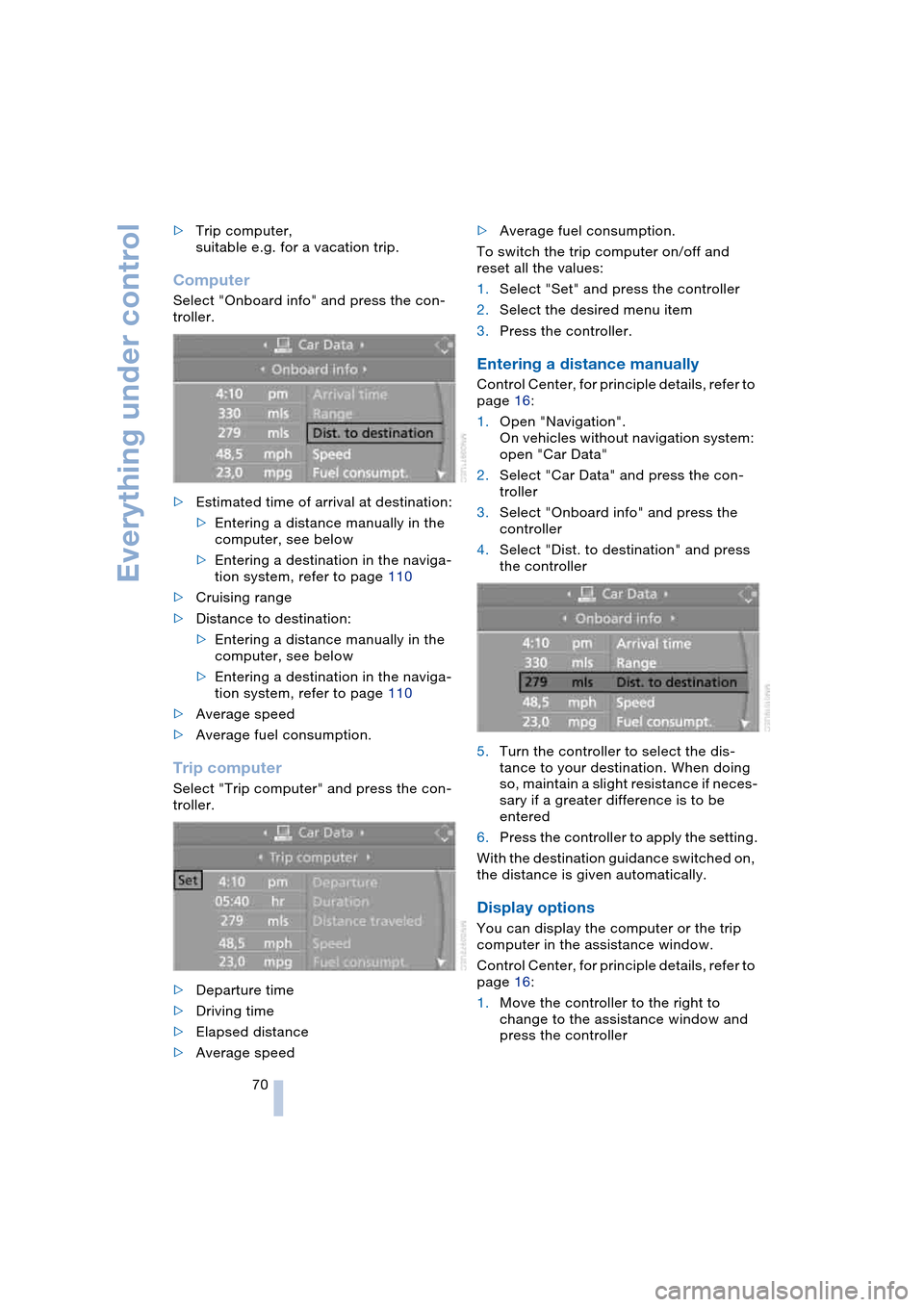
Computer
Select "Onboard info" and press the con-
troller.
>Estimated time of arrival at destination:
>Entering a distance manually in the
computer, see below
>Entering a destination in the naviga-
tion system, refer to page 110
>Cruising range
>Distance to destination:
>Entering a distance manually in the
computer, see below
>Entering a destination in the naviga-
tion system, refer to page 110
>Average speed
>Average fuel consumption.
Trip computer
Select "Trip computer" and press the con-
troller.
>Departure time
>Driving time
>Elapsed distance
>Average speed>Average fuel consumption.
To switch the trip computer on/off and
reset all the values:
1.Select "Set" and press the controller
2.Select the desired menu item
3.Press the controller.
Entering a distance manually
Control Center, for principle details, refer to
page 16:
1.Open "Navigation".
On vehicles without navigation system:
open "Car Data"
2.Select "Car Data" and press the con-
troller
3.Select "Onboard info" and press the
controller
4.Select "Dist. to destination" and press
the controller
5.Turn the controller to select the dis-
tance to your destination. When doing
so, maintain a slight resistance if neces-
sary if a greater difference is to be
entered
6.Press the controller to apply the setting.
With the destination guidance switched on,
the distance is given automatically.
Display options
You can display the computer or the trip
computer in the assistance window.
Control Center, for principle details, refer to
page 16:
1.Move the controller to the right to
change to the assistance window and
press the controller
Page 73 of 216
Controls
71Reference
At a glance
Driving tips
Communications
Navigation
Entertainment
Mobility
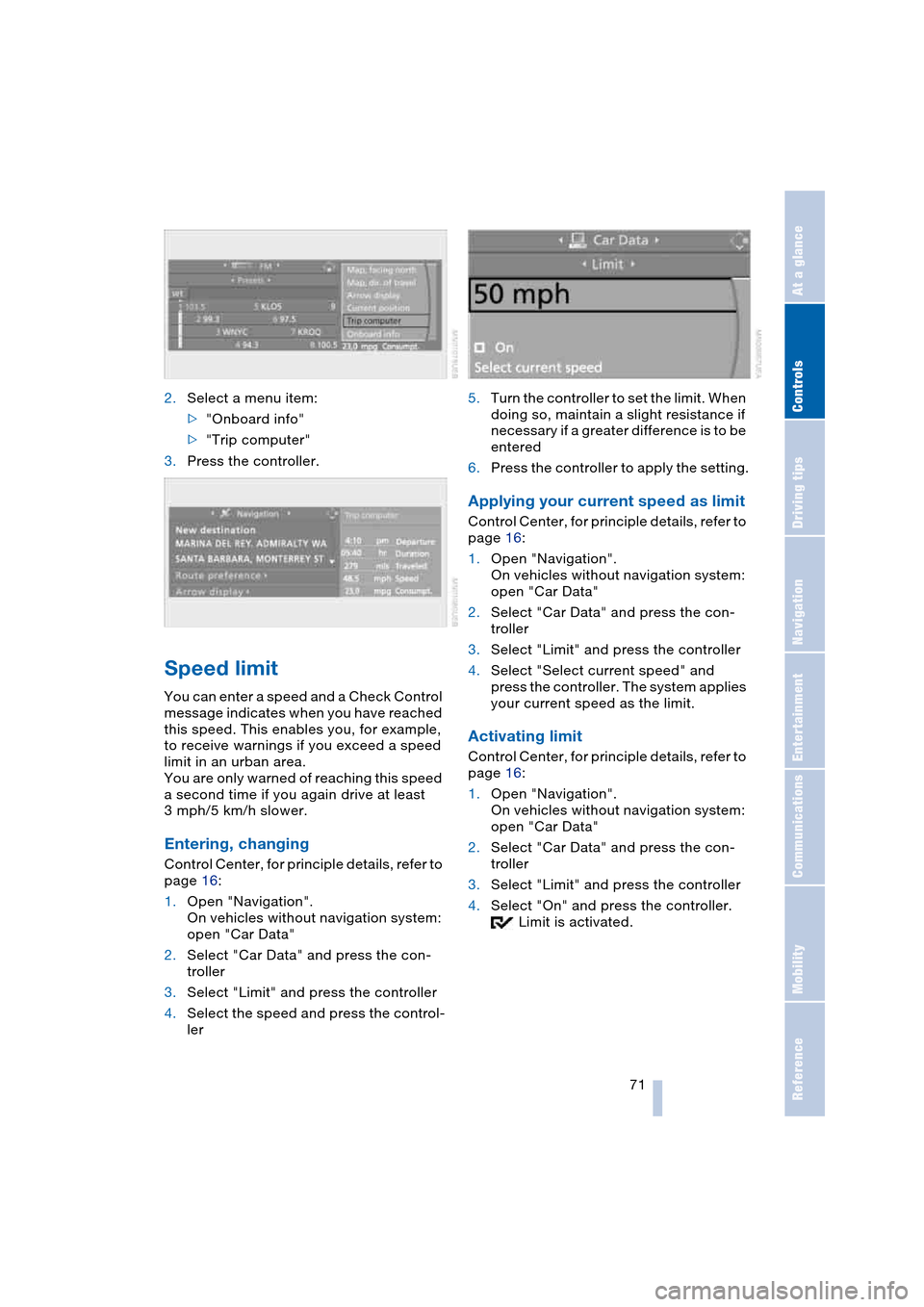
2.Select a menu item:
>"Onboard info"
>"Trip computer"
3.Press the controller.
Speed limit
You can enter a speed and a Check Control
message indicates when you have reached
this speed. This enables you, for example,
to receive warnings if you exceed a speed
limit in an urban area.
You are only warned of reaching this speed
a second time if you again drive at least
3 mph/5 km/h slower.
Entering, changing
Control Center, for principle details, refer to
page 16:
1.Open "Navigation".
On vehicles without navigation system:
open "Car Data"
2.Select "Car Data" and press the con-
troller
3.Select "Limit" and press the controller
4.Select the speed and press the control-
ler5.Turn the controller to set the limit. When
doing so, maintain a slight resistance if
necessary if a greater difference is to be
entered
6.Press the controller to apply the setting.
Applying your current speed as limit
Control Center, for principle details, refer to
page 16:
1.Open "Navigation".
On vehicles without navigation system:
open "Car Data"
2.Select "Car Data" and press the con-
troller
3.Select "Limit" and press the controller
4.Select "Select current speed" and
press the controller. The system applies
your current speed as the limit.
Activating limit
Control Center, for principle details, refer to
page 16:
1.Open "Navigation".
On vehicles without navigation system:
open "Car Data"
2.Select "Car Data" and press the con-
troller
3.Select "Limit" and press the controller
4.Select "On" and press the controller.
Limit is activated.
Page 74 of 216
Everything under control
72
Stopwatch
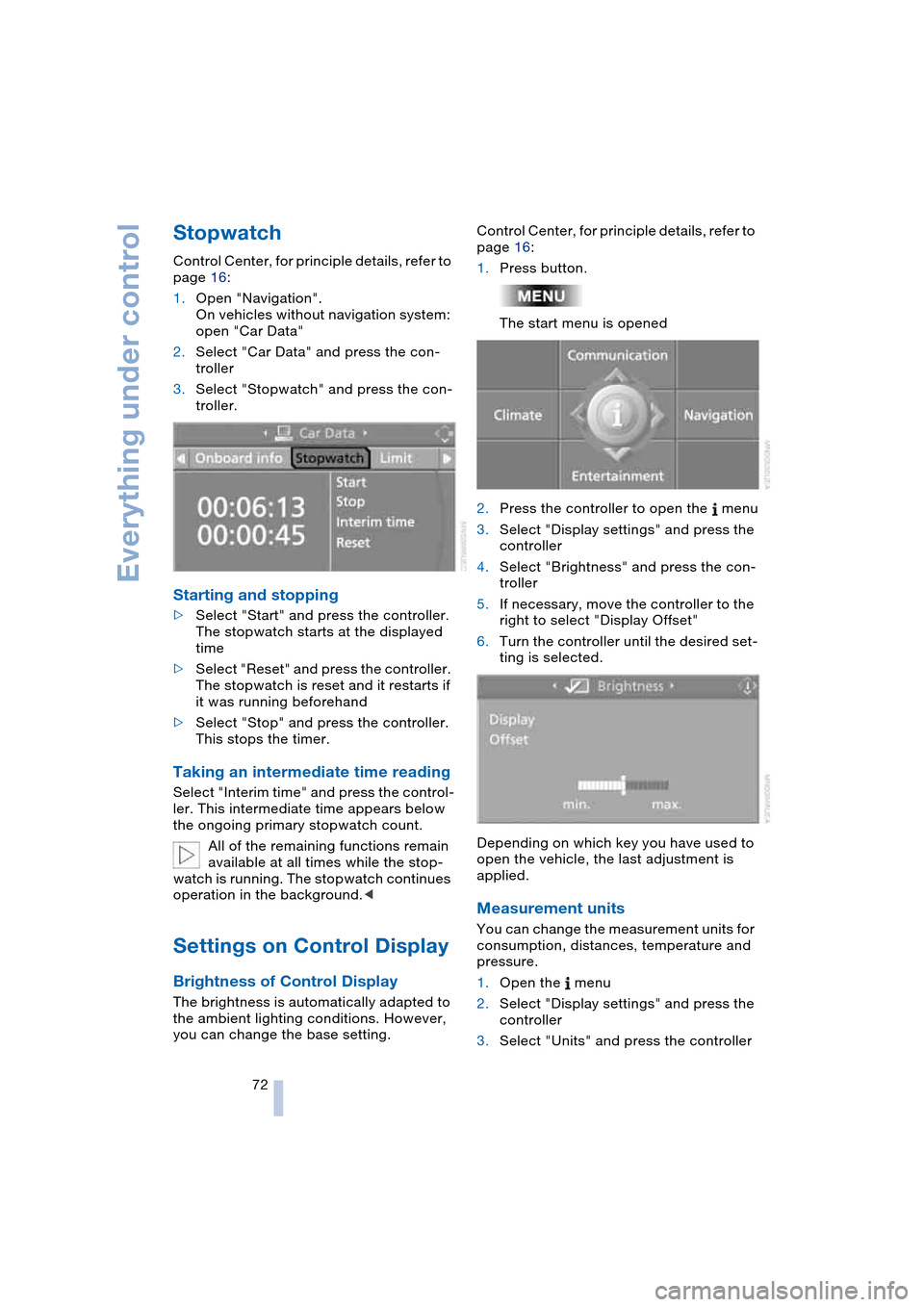
Control Center, for principle details, refer to
page 16:
1.Open "Navigation".
On vehicles without navigation system:
open "Car Data"
2.Select "Car Data" and press the con-
troller
3.Select "Stopwatch" and press the con-
troller.
Starting and stopping
>Select "Start" and press the controller.
The stopwatch starts at the displayed
time
>Select "Reset" and press the controller.
The stopwatch is reset and it restarts if
it was running beforehand
>Select "Stop" and press the controller.
This stops the timer.
Taking an intermediate time reading
Select "Interim time" and press the control-
ler. This intermediate time appears below
the ongoing primary stopwatch count.
All of the remaining functions remain
available at all times while the stop-
watch is running. The stopwatch continues
operation in the background.<
Settings on Control Display
Brightness of Control Display
The brightness is automatically adapted to
the ambient lighting conditions. However,
you can change the base setting.Control Center, for principle details, refer to
page 16:
1.Press button.
The start menu is opened
2.Press the controller to open the menu
3.Select "Display settings" and press the
controller
4.Select "Brightness" and press the con-
troller
5.If necessary, move the controller to the
right to select "Display Offset"
6.Turn the controller until the desired set-
ting is selected.
Depending on which key you have used to
open the vehicle, the last adjustment is
applied.
Measurement units
You can change the measurement units for
consumption, distances, temperature and
pressure.
1.Open the menu
2.Select "Display settings" and press the
controller
3.Select "Units" and press the controller
Page 77 of 216
Controls
75Reference
At a glance
Driving tips
Communications
Navigation
Entertainment
Mobility
Technology for comfort, convenience
and safety
PDC Park Distance Control*
The concept
The PDC assists you when you are parking.
Signal tones and a visual display
* indicate
the current distance to an object behind or
in front of your vehicle. To measure the dis-
tance, there are four ultrasonic sensors in
each bumper. The sensors at the front and
at the two rear corners have a range of
approx. 20 in/50 cm; the rear middle sen-
sors have approx. 5 ft/1.50 m.
PDC is a parking aid that can indicate
objects when they are approached
slowly, as is usually the case when parking.
Avoid approaching an object at high speed,
as otherwise the physical circumstances
would mean that the system warning was
too late.<
Automatic mode
In ignition key position 2, the system auto-
matically assumes operational status after
a few seconds each time you engage
reverse gear or selector-lever position R.
Wait this short period before driving.<
The system is automatically deacti-
vated once the vehicle travels approx.
165 ft/50 m or exceeds a speed of roughly
20 mph/30 km/h; the indicator lamp goes
out. You can reactivate the system manu-
ally as needed.
Manual mode
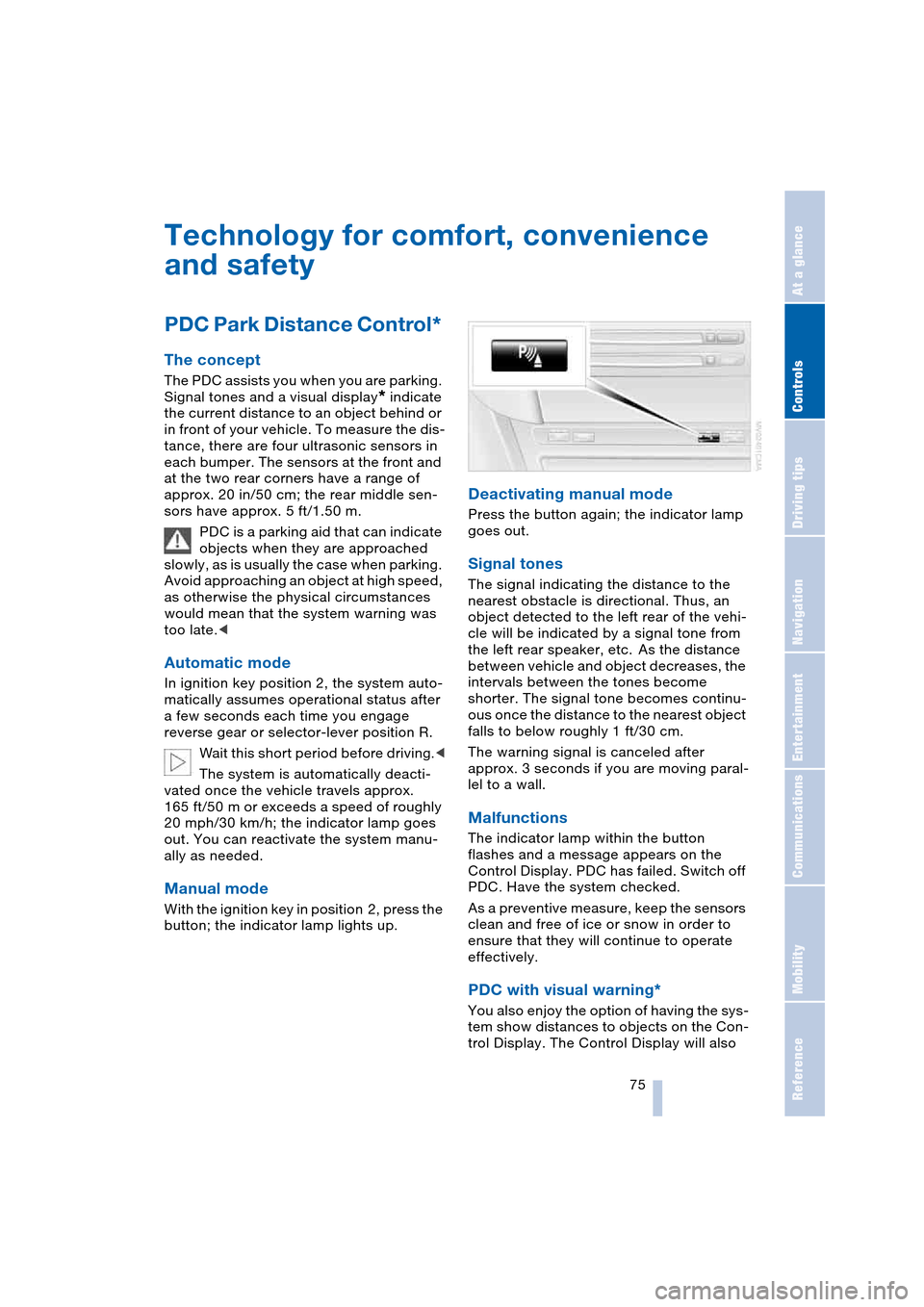
With the ignition key in position 2, press the
button; the indicator lamp lights up.
Deactivating manual mode
Press the button again; the indicator lamp
goes out.
Signal tones
The signal indicating the distance to the
nearest obstacle is directional. Thus, an
object detected to the left rear of the vehi-
cle will be indicated by a signal tone from
the left rear speaker, etc. As the distance
between vehicle and object decreases, the
intervals between the tones become
shorter. The signal tone becomes continu-
ous once the distance to the nearest object
falls to below roughly 1 ft/30 cm.
The warning signal is canceled after
approx. 3 seconds if you are moving paral-
lel to a wall.
Malfunctions
The indicator lamp within the button
flashes and a message appears on the
Control Display. PDC has failed. Switch off
PDC. Have the system checked.
As a preventive measure, keep the sensors
clean and free of ice or snow in order to
ensure that they will continue to operate
effectively.
PDC with visual warning*
You also enjoy the option of having the sys-
tem show distances to objects on the Con-
trol Display. The Control Display will also
Page 79 of 216
Controls
77Reference
At a glance
Driving tips
Communications
Navigation
Entertainment
Mobility
DSC Dynamic Stability Control
DSC optimizes vehicle stability during
acceleration and when starting from a full
stop, as well as optimizing traction. The
system recognizes any tendency for the
vehicle to assume an unstable attitude
such as oversteer or understeer; it then
counteracts this tendency with a combina-
tion of graduated reductions in engine
torque and selective braking intervention at
individual wheels. DSC provides optimal
stability within the limits defined by the
laws of physics.
The DSC is operational every time you start
the engine. DSC includes the functionality
of the DTC Dynamic Traction Control and
DBC Dynamic Brake Control, see below.
Indicator lamp
The indicator lamp goes out soon
after you start the engine.
The indicator lamp flashes:
DSC controls the drive and braking forces.
The indicator lamp stays lit:
DSC has been switched off via the button.
DTC Dynamic Traction Control
In special driving states, e.g. in deep snow,
DTC ensures maximum forward momen-
tum. The gain in forward momentum also
involves a reduction in driving stability.
DTC is active up to approx. 45 mph/
70 km/h, whereas DSC is only effective to
a limited degree.
You may find it useful to briefly activate
DTC under the following special circum-
stances:
>When rocking the vehicle and starting
off in deep snow or on loose road sur-
faces
>When ascending snow-covered hills,
and when driving in deep or on hard-
packed snow
>When driving with snow chains.
Activating DTC
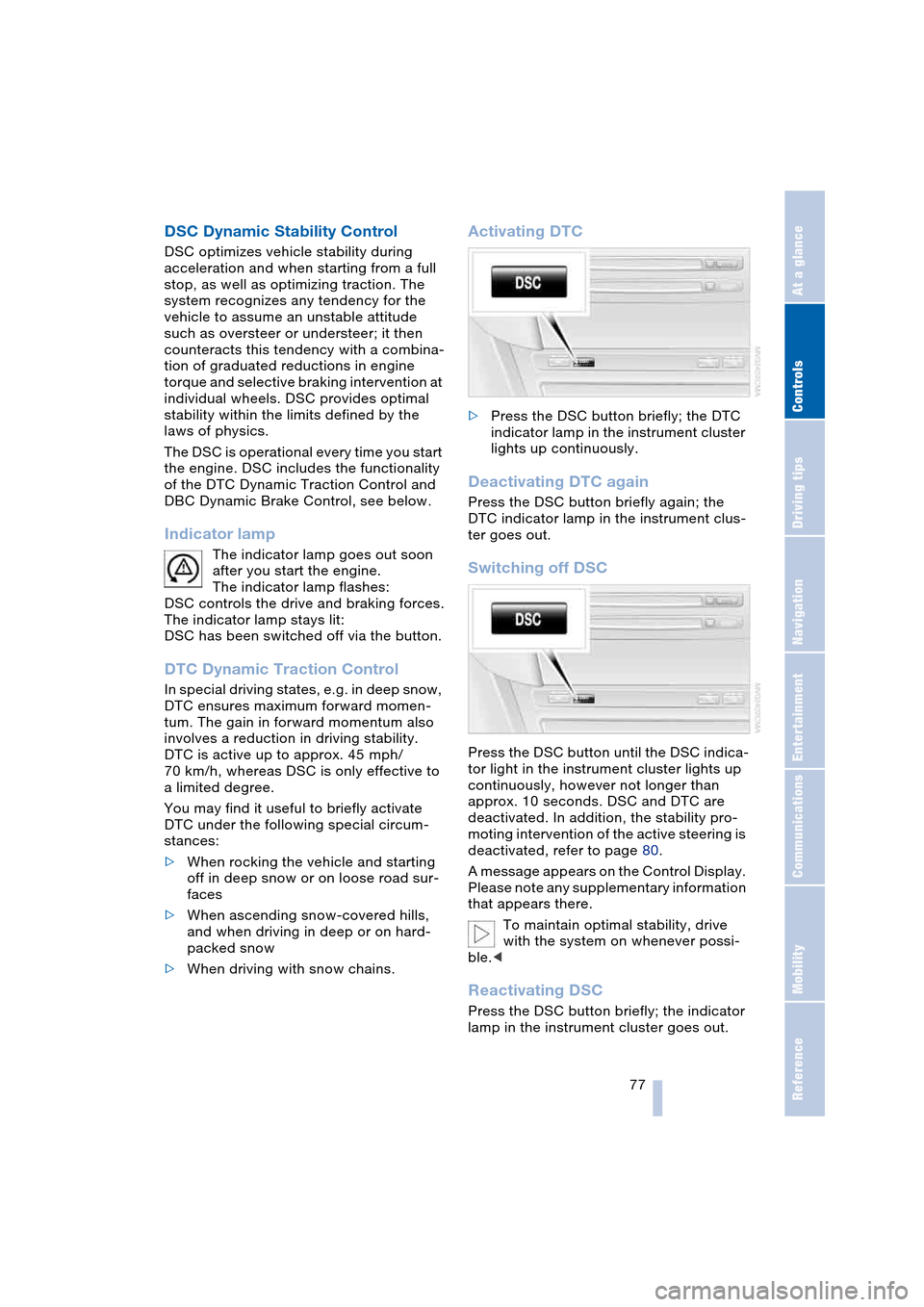
>Press the DSC button briefly; the DTC
indicator lamp in the instrument cluster
lights up continuously.
Deactivating DTC again
Press the DSC button briefly again; the
DTC indicator lamp in the instrument clus-
ter goes out.
Switching off DSC
Press the DSC button until the DSC indica-
tor light in the instrument cluster lights up
continuously, however not longer than
approx. 10 seconds. DSC and DTC are
deactivated. In addition, the stability pro-
moting intervention of the active steering is
deactivated, refer to page 80.
A message appears on the Control Display.
Please note any supplementary information
that appears there.
To maintain optimal stability, drive
with the system on whenever possi-
ble.<
Reactivating DSC
Press the DSC button briefly; the indicator
lamp in the instrument cluster goes out.