navigation BMW 645CI COUPE 2004 E63 Workshop Manual
[x] Cancel search | Manufacturer: BMW, Model Year: 2004, Model line: 645CI COUPE, Model: BMW 645CI COUPE 2004 E63Pages: 216, PDF Size: 3.46 MB
Page 99 of 216
Controls
97Reference
At a glance
Driving tips
Communications
Navigation
Entertainment
Mobility
could cause personal injury to occupants
during braking or evasive maneuvers.<
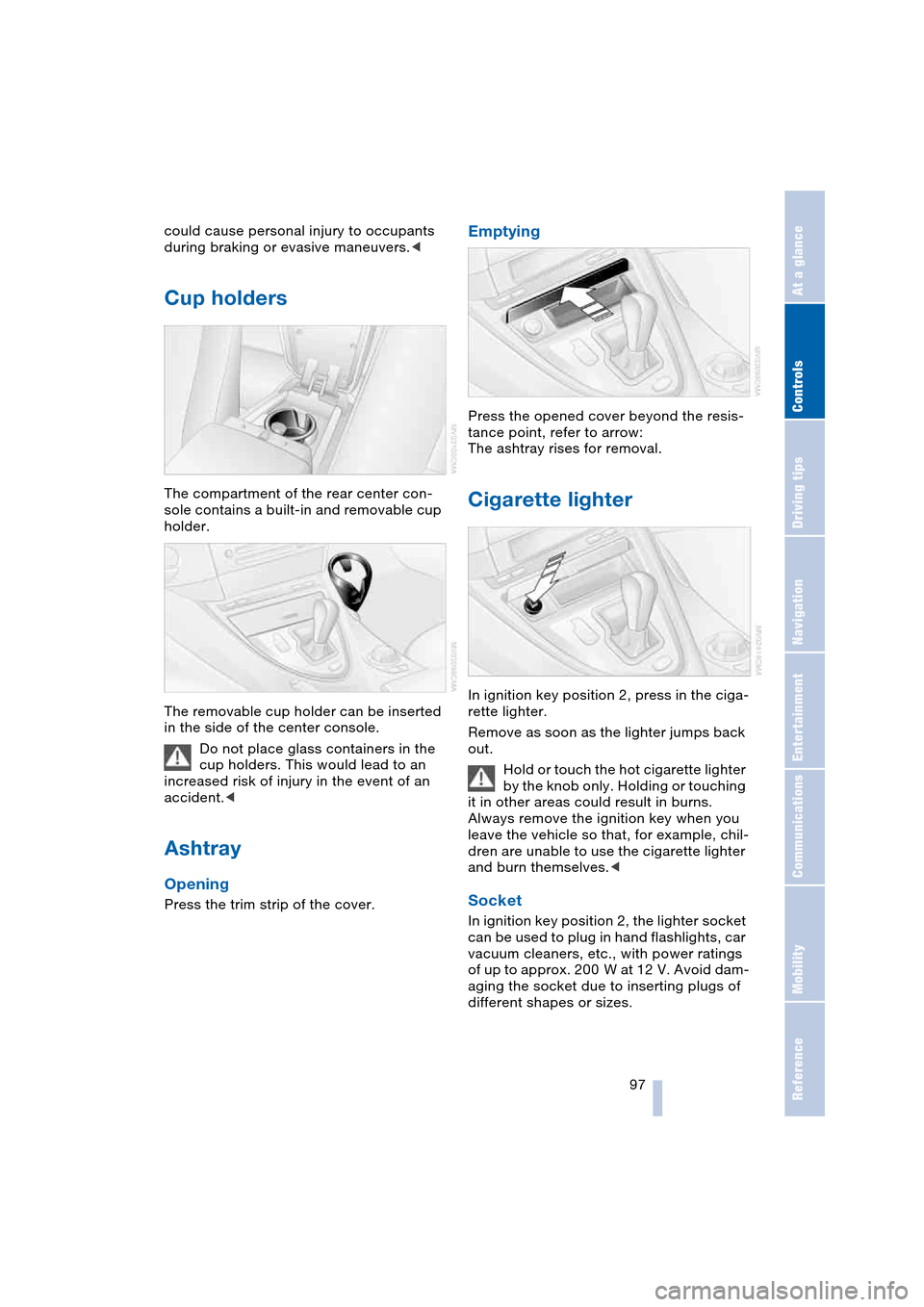
Cup holders
The compartment of the rear center con-
sole contains a built-in and removable cup
holder.
The removable cup holder can be inserted
in the side of the center console.
Do not place glass containers in the
cup holders. This would lead to an
increased risk of injury in the event of an
accident.<
Ashtray
Opening
Press the trim strip of the cover.
Emptying
Press the opened cover beyond the resis-
tance point, refer to arrow:
The ashtray rises for removal.
Cigarette lighter
In ignition key position 2, press in the ciga-
rette lighter.
Remove as soon as the lighter jumps back
out.
Hold or touch the hot cigarette lighter
by the knob only. Holding or touching
it in other areas could result in burns.
Always remove the ignition key when you
leave the vehicle so that, for example, chil-
dren are unable to use the cigarette lighter
and burn themselves.<
Socket
In ignition key position 2, the lighter socket
can be used to plug in hand flashlights, car
vacuum cleaners, etc., with power ratings
of up to approx. 200 W at 12 V. Avoid dam-
aging the socket due to inserting plugs of
different shapes or sizes.
Page 101 of 216
Controls
99Reference
At a glance
Driving tips
Communications
Navigation
Entertainment
Mobility
Page 105 of 216
Driving tips
103Reference
At a glance
Controls
Communications
Navigation
Entertainment
Mobility
road surface. This phenomenon is referred
to as hydroplaning, and is characterized
by a partial or complete loss of contact
between the tires and the road surface, ulti-
mately undermining your ability to steer
and brake the vehicle.<
The risk of hydroplaning increases as the
tread depth of the tires decreases, also
refer to Tire tread on page 167.
Driving through water
Do not drive through water on the
road if it is deeper than 1 ft/30 cm,
and then only at walking speed at the most.
Otherwise, the vehicle's engine, the electri-
cal systems and the transmission may be
damaged.<
Braking safely
Your BMW is equipped with ABS as stan-
dard. The best way to achieve optimized
braking response from the ABS is to apply
maximum pressure to the brake pedal in
situations where this is required: panic
stops. Since the vehicle maintains steering
responsiveness, you can nevertheless
avoid possible obstacles with a minimum
of steering effort.
Pulsation at the brake pedal combines with
sounds from the hydraulic circuits to indi-
cate to the driver that ABS is in its active
mode.
Do not drive with your foot resting on
the brake pedal. Even light but con-
sistent pedal pressure can lead to high
temperatures, brake wear and possibly
even brake failure.<
Driving in wet conditions
While driving in wet conditions and in
heavy rain, it is a good idea to apply light
pressure to the brake pedal every few
miles. Monitor traffic conditions to ensure
that this maneuver does not endanger
other road users. The heat generated in this
process helps dry the pads and rotors to
ensure that full braking efficiency will then
be available when you need it.
Hills
To prevent overheating and thus
reduced efficiency of the brake sys-
tem, downshift to a gear in which only min-
imal brake applications are needed when
descending long or steep downhill
stretches. Even light but consistent pedal
pressure can lead to high temperatures,
brake wear and possibly even brake fail-
ure.<
You can further enhance the engine's brak-
ing effect by selecting a lower gear in the
automatic transmission's manual mode,
downshifting as far as first gear on
extremely steep stretches, refer to
page 59. This strategy helps you avoid
placing excessive loads on the brake sys-
tem.
Never drive with the clutch pressed
or allow the vehicle to coast with the
transmission in Neutral – or with the engine
switched off – there is no engine braking
when the transmission is in Neutral, and no
power assist for brakes and steering when
the engine is not running.
Never allow floor mats, carpets or any other
objects to protrude into the area around the
accelerator and brake pedals and obstruct
their movement.<
Corrosion on brake rotors
When the vehicle is driven only occasion-
ally, during extended periods when the
vehicle is not used at all, and in operating
conditions where brake applications are
less frequent, there is an increased ten-
dency for corrosion to form on rotors, while
contaminants accumulate on the brake
pads. This occurs because the minimum
pressure which must be exerted by the
pads during brake applications to clean the
rotors is not reached.
Should corrosion form on the brake rotors,
the brakes will tend to respond with a pul-
sating effect that even extended applica-
tion will fail to cure.
Page 107 of 216
Driving tips
105Reference
At a glance
Controls
Communications
Navigation
Entertainment
Mobility
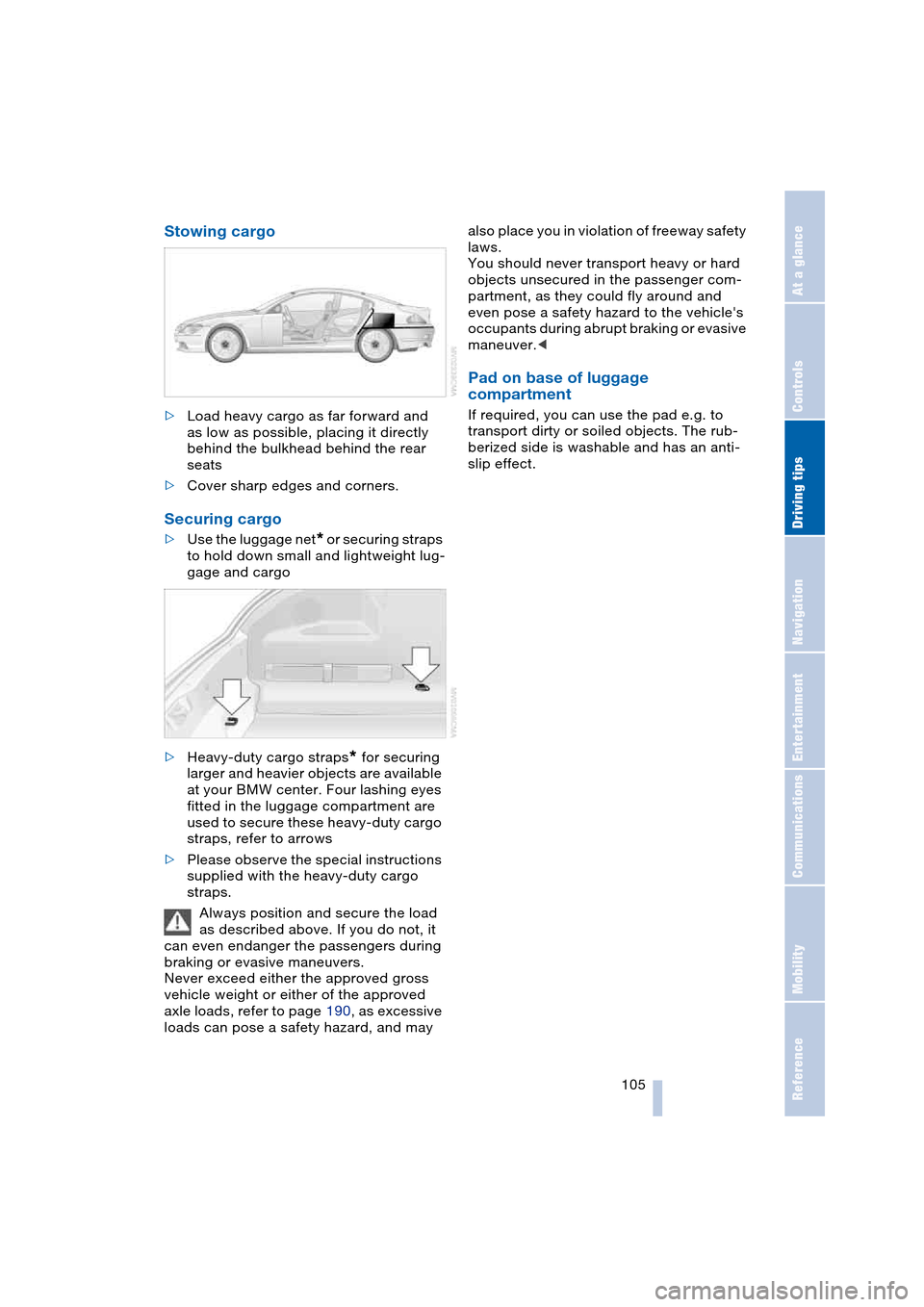
Stowing cargo
>Load heavy cargo as far forward and
as low as possible, placing it directly
behind the bulkhead behind the rear
seats
>Cover sharp edges and corners.
Securing cargo
>Use the luggage net* or securing straps
to hold down small and lightweight lug-
gage and cargo
>Heavy-duty cargo straps
* for securing
larger and heavier objects are available
at your BMW center. Four lashing eyes
fitted in the luggage compartment are
used to secure these heavy-duty cargo
straps, refer to arrows
>Please observe the special instructions
supplied with the heavy-duty cargo
straps.
Always position and secure the load
as described above. If you do not, it
can even endanger the passengers during
braking or evasive maneuvers.
Never exceed either the approved gross
vehicle weight or either of the approved
axle loads, refer to page 190, as excessive
loads can pose a safety hazard, and may also place you in violation of freeway safety
laws.
You should never transport heavy or hard
objects unsecured in the passenger com-
partment, as they could fly around and
even pose a safety hazard to the vehicle's
occupants during abrupt braking or evasive
maneuver.<
Pad on base of luggage
compartment
If required, you can use the pad e.g. to
transport dirty or soiled objects. The rub-
berized side is washable and has an anti-
slip effect.
Page 109 of 216
Navigation
This chapter describes how you can
enter destinations and specify your route
so that your navigation system guides you
reliably to your destination.
Page 110 of 216
Starting navigation system
108
Starting navigation system
Your navigation system can use satellites
to ascertain the precise position of your
vehicle and guide you reliably to any desti-
nation you enter.
Navigation DVD
Special navigation DVDs are required;
these are available from your BMW center.
Inserting navigation DVD
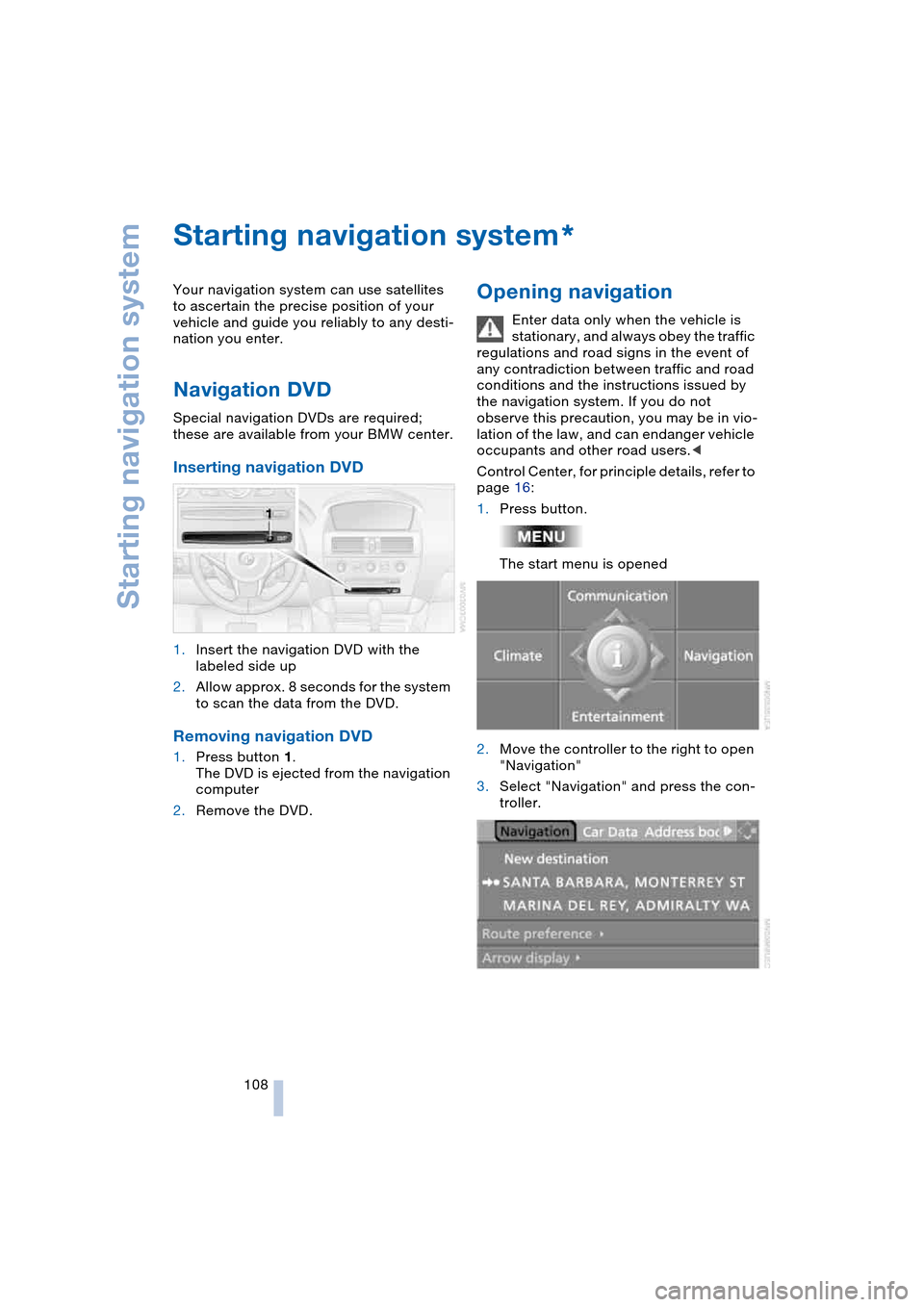
1.Insert the navigation DVD with the
labeled side up
2.Allow approx. 8 seconds for the system
to scan the data from the DVD.
Removing navigation DVD
1.Press button 1.
The DVD is ejected from the navigation
computer
2.Remove the DVD.
Opening navigation
Enter data only when the vehicle is
stationary, and always obey the traffic
regulations and road signs in the event of
any contradiction between traffic and road
conditions and the instructions issued by
the navigation system. If you do not
observe this precaution, you may be in vio-
lation of the law, and can endanger vehicle
occupants and other road users.<
Control Center, for principle details, refer to
page 16:
1.Press button.
The start menu is opened
2.Move the controller to the right to open
"Navigation"
3.Select "Navigation" and press the con-
troller.
*
Page 111 of 216
Navigation
Driving tips
109Reference
At a glance
Controls
Communications
Entertainment
Mobility
Display in assistance
window
You can display the route or the current
position in the assistance window. This dis-
play remains visible even if you switch to
another application.
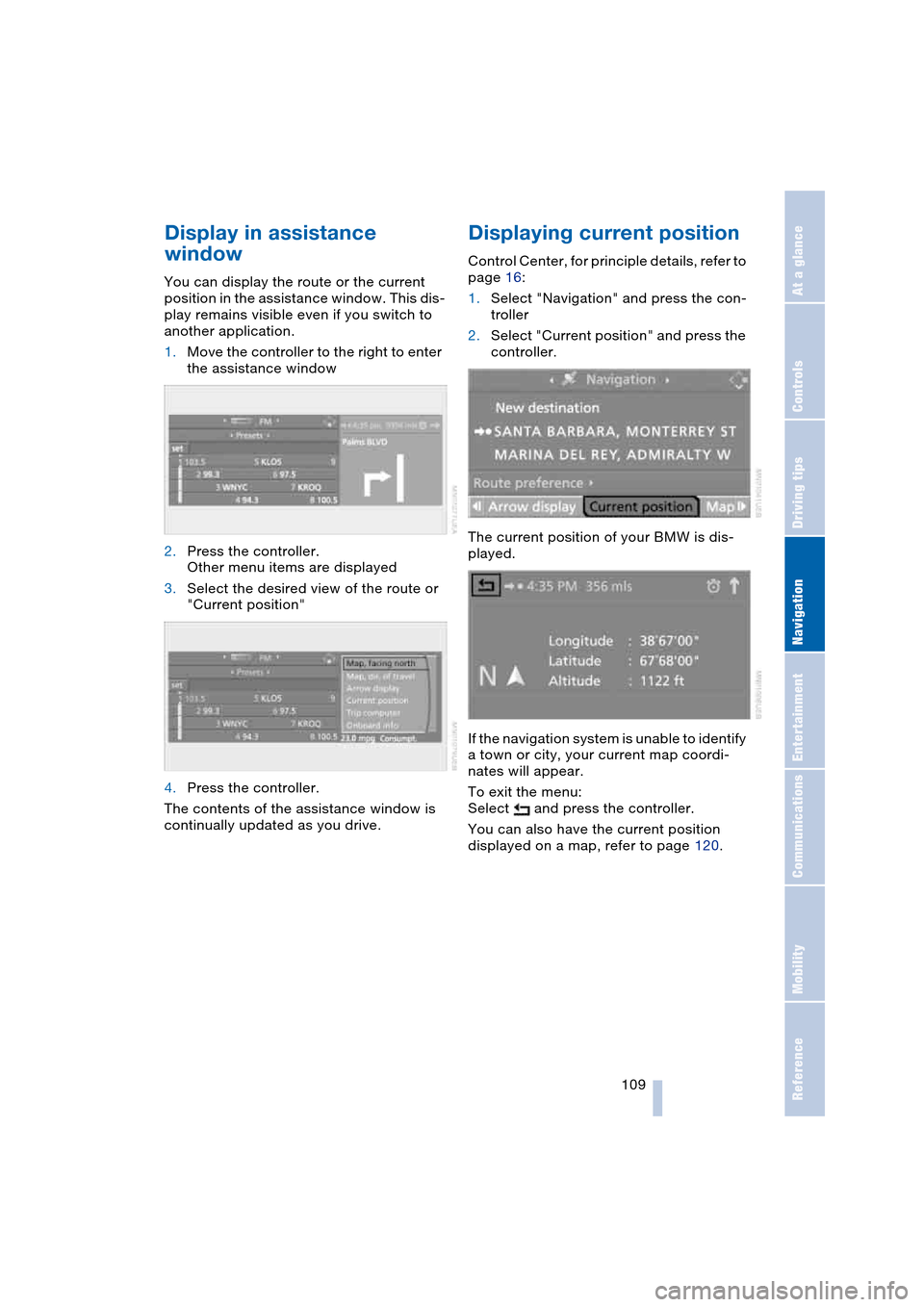
1.Move the controller to the right to enter
the assistance window
2.Press the controller.
Other menu items are displayed
3.Select the desired view of the route or
"Current position"
4.Press the controller.
The contents of the assistance window is
continually updated as you drive.
Displaying current position
Control Center, for principle details, refer to
page 16:
1.Select "Navigation" and press the con-
troller
2.Select "Current position" and press the
controller.
The current position of your BMW is dis-
played.
If the navigation system is unable to identify
a town or city, your current map coordi-
nates will appear.
To exit the menu:
Select and press the controller.
You can also have the current position
displayed on a map, refer to page 120.
Page 112 of 216
Destination entry
110
Destination entry
In entering your destination you can select
from among the following options:
>Entering a destination manually, see
below
>Selecting destination using information,
refer to page 113
>Selecting from among recent destina-
tions, refer to Destination list, page 113
>Selecting destination from address
book, refer to page 114.
After selecting your destination you can
proceed to start the destination guidance,
refer to page 118.
Entering a destination
manually
The system supports the wordmatch prin-
ciple to make it easier for you to enter the
names of streets or towns/cities. This
enables input of different spellings and
supplements your input automatically so
that stored names can be applied as desti-
nations as quickly as possible.
Control Center, for principle details, refer to
page 16:
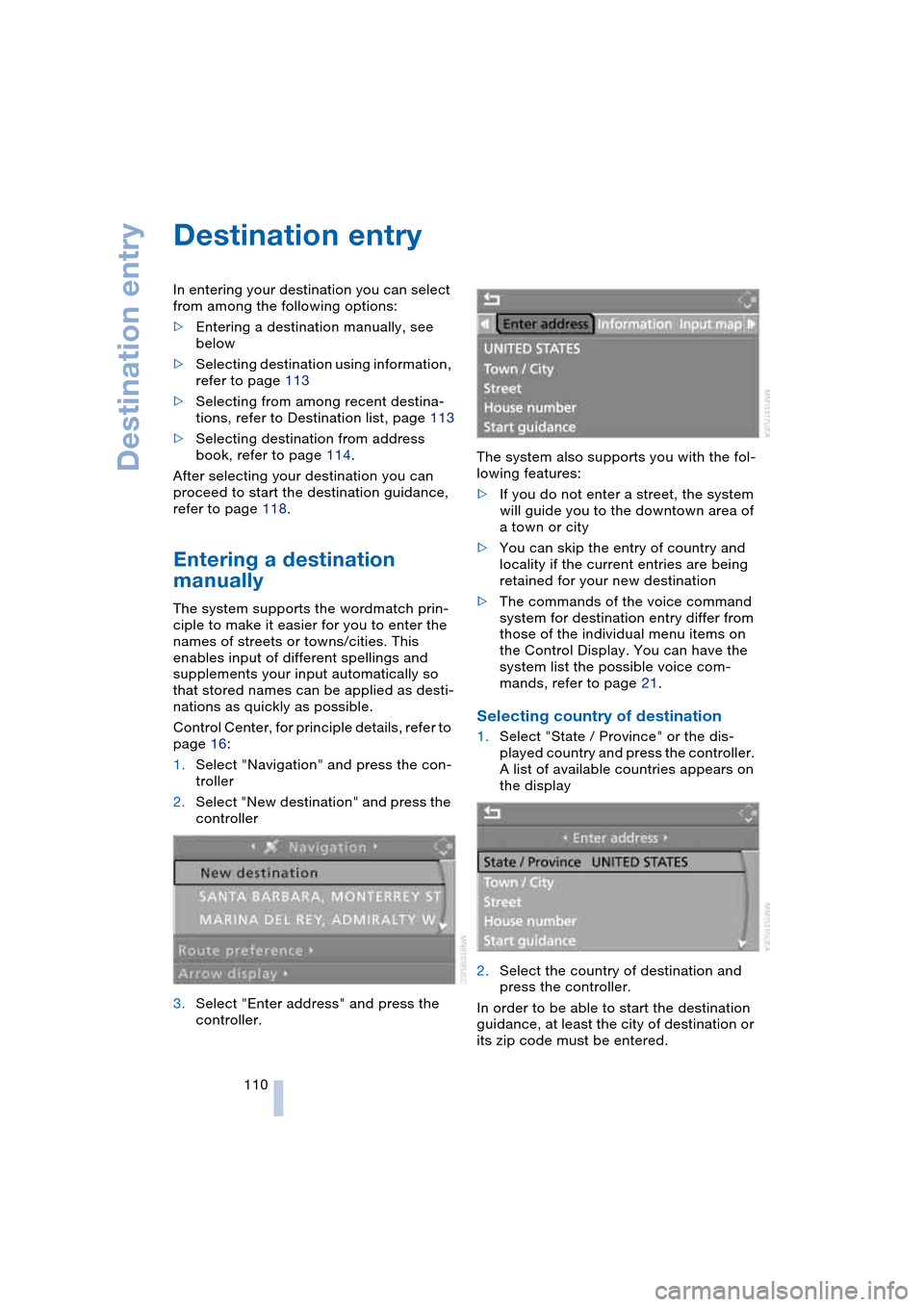
1.Select "Navigation" and press the con-
troller
2.Select "New destination" and press the
controller
3.Select "Enter address" and press the
controller.The system also supports you with the fol-
lowing features:
>If you do not enter a street, the system
will guide you to the downtown area of
a town or city
>You can skip the entry of country and
locality if the current entries are being
retained for your new destination
>The commands of the voice command
system for destination entry differ from
those of the individual menu items on
the Control Display. You can have the
system list the possible voice com-
mands, refer to page 21.
Selecting country of destination
1.Select "State / Province" or the dis-
played country and press the controller.
A list of available countries appears on
the display
2.Select the country of destination and
press the controller.
In order to be able to start the destination
guidance, at least the city of destination or
its zip code must be entered.
Page 113 of 216
Navigation
Driving tips
111Reference
At a glance
Controls
Communications
Entertainment
Mobility
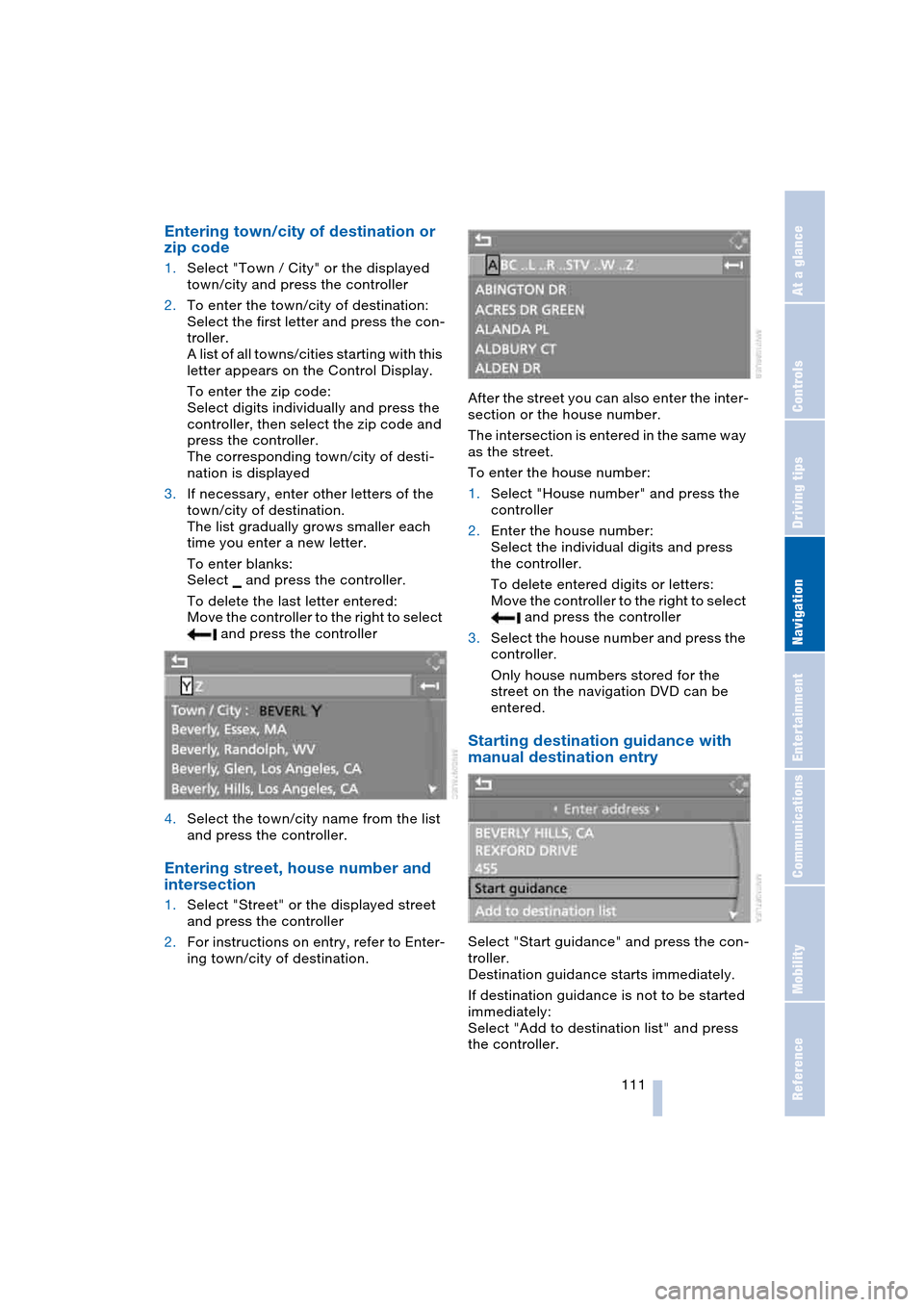
Entering town/city of destination or
zip code
1.Select "Town / City" or the displayed
town/city and press the controller
2.To enter the town/city of destination:
Select the first letter and press the con-
troller.
A list of all towns/cities starting with this
letter appears on the Control Display.
To enter the zip code:
Select digits individually and press the
controller, then select the zip code and
press the controller.
The corresponding town/city of desti-
nation is displayed
3.If necessary, enter other letters of the
town/city of destination.
The list gradually grows smaller each
time you enter a new letter.
To enter blanks:
Select and press the controller.
To delete the last letter entered:
Move the controller to the right to select
and press the controller
4.Select the town/city name from the list
and press the controller.
Entering street, house number and
intersection
1.Select "Street" or the displayed street
and press the controller
2.For instructions on entry, refer to Enter-
ing town/city of destination.After the street you can also enter the inter-
section or the house number.
The intersection is entered in the same way
as the street.
To enter the house number:
1.Select "House number" and press the
controller
2.Enter the house number:
Select the individual digits and press
the controller.
To delete entered digits or letters:
Move the controller to the right to select
and press the controller
3.Select the house number and press the
controller.
Only house numbers stored for the
street on the navigation DVD can be
entered.
Starting destination guidance with
manual destination entry
Select "Start guidance" and press the con-
troller.
Destination guidance starts immediately.
If destination guidance is not to be started
immediately:
Select "Add to destination list" and press
the controller.
Page 114 of 216
Destination entry
112 The destination is saved in the destination
list, refer to page 113.
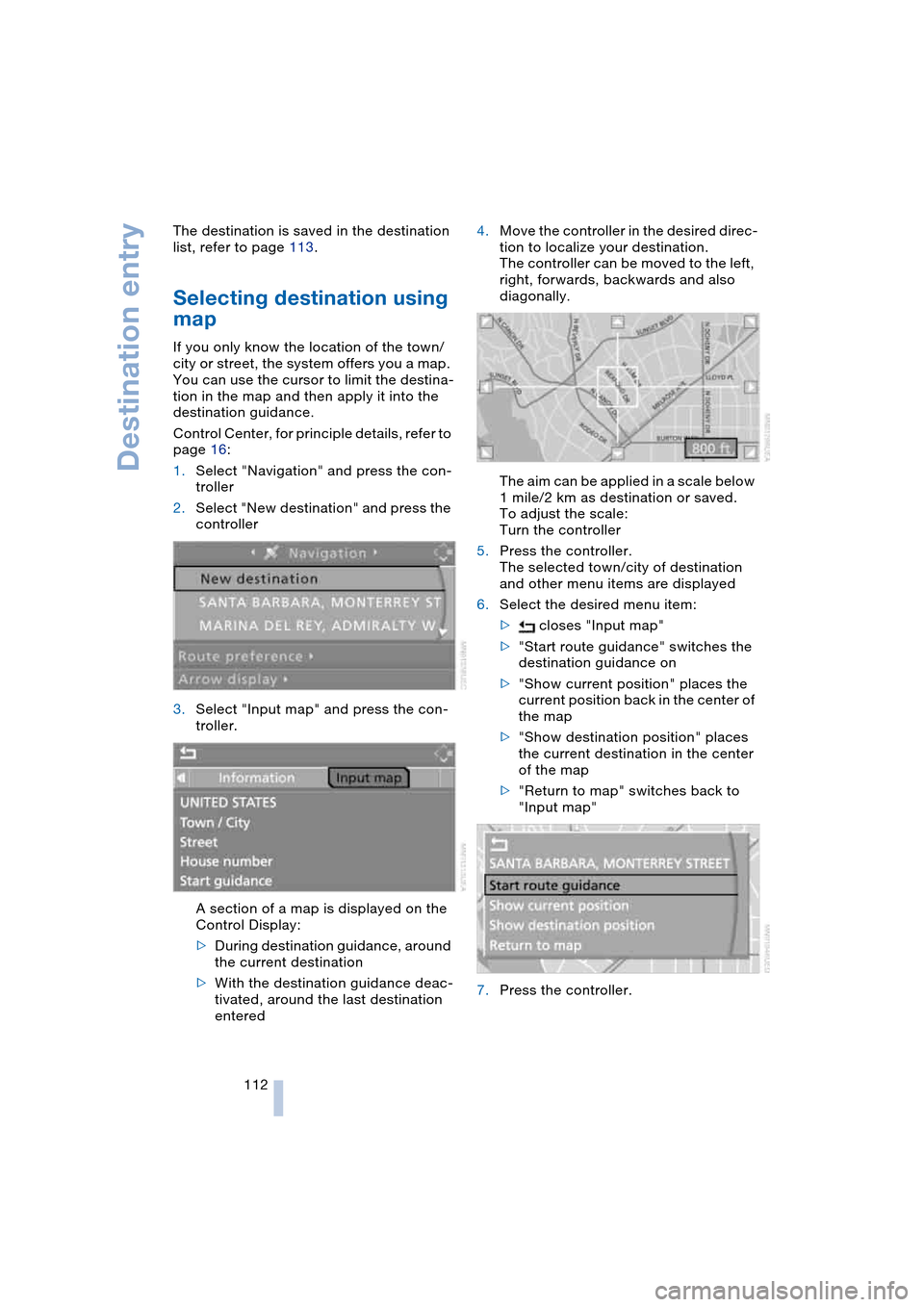
Selecting destination using
map
If you only know the location of the town/
city or street, the system offers you a map.
You can use the cursor to limit the destina-
tion in the map and then apply it into the
destination guidance.
Control Center, for principle details, refer to
page 16:
1.Select "Navigation" and press the con-
troller
2.Select "New destination" and press the
controller
3.Select "Input map" and press the con-
troller.
A section of a map is displayed on the
Control Display:
>During destination guidance, around
the current destination
>With the destination guidance deac-
tivated, around the last destination
entered4.Move the controller in the desired direc-
tion to localize your destination.
The controller can be moved to the left,
right, forwards, backwards and also
diagonally.
The aim can be applied in a scale below
1 mile/2 km as destination or saved.
To adjust the scale:
Turn the controller
5.Press the controller.
The selected town/city of destination
and other menu items are displayed
6.Select the desired menu item:
> closes "Input map"
>"Start route guidance" switches the
destination guidance on
>"Show current position" places the
current position back in the center of
the map
>"Show destination position" places
the current destination in the center
of the map
>"Return to map" switches back to
"Input map"
7.Press the controller.