navigation BMW 645CI COUPE&CONVERTIBLE 2005 Manual Online
[x] Cancel search | Manufacturer: BMW, Model Year: 2005, Model line: 645CI COUPE&CONVERTIBLE, Model: BMW 645CI COUPE&CONVERTIBLE 2005Pages: 217, PDF Size: 7.92 MB
Page 140 of 217
Navigation
Entertainment
Driving tips
139Reference
At a glance
Controls
Communications
Mobility
The stations of the last selection criterion are
displayed again after a short time.
The stations are stored for the remote control
currently in use.
Changing a memory location
Control Center, for principle details, refer to
page16.
1.Select "Presets" and press the controller.
2.Select the desired station.
3.Press the controller.
Other menu items are displayed.
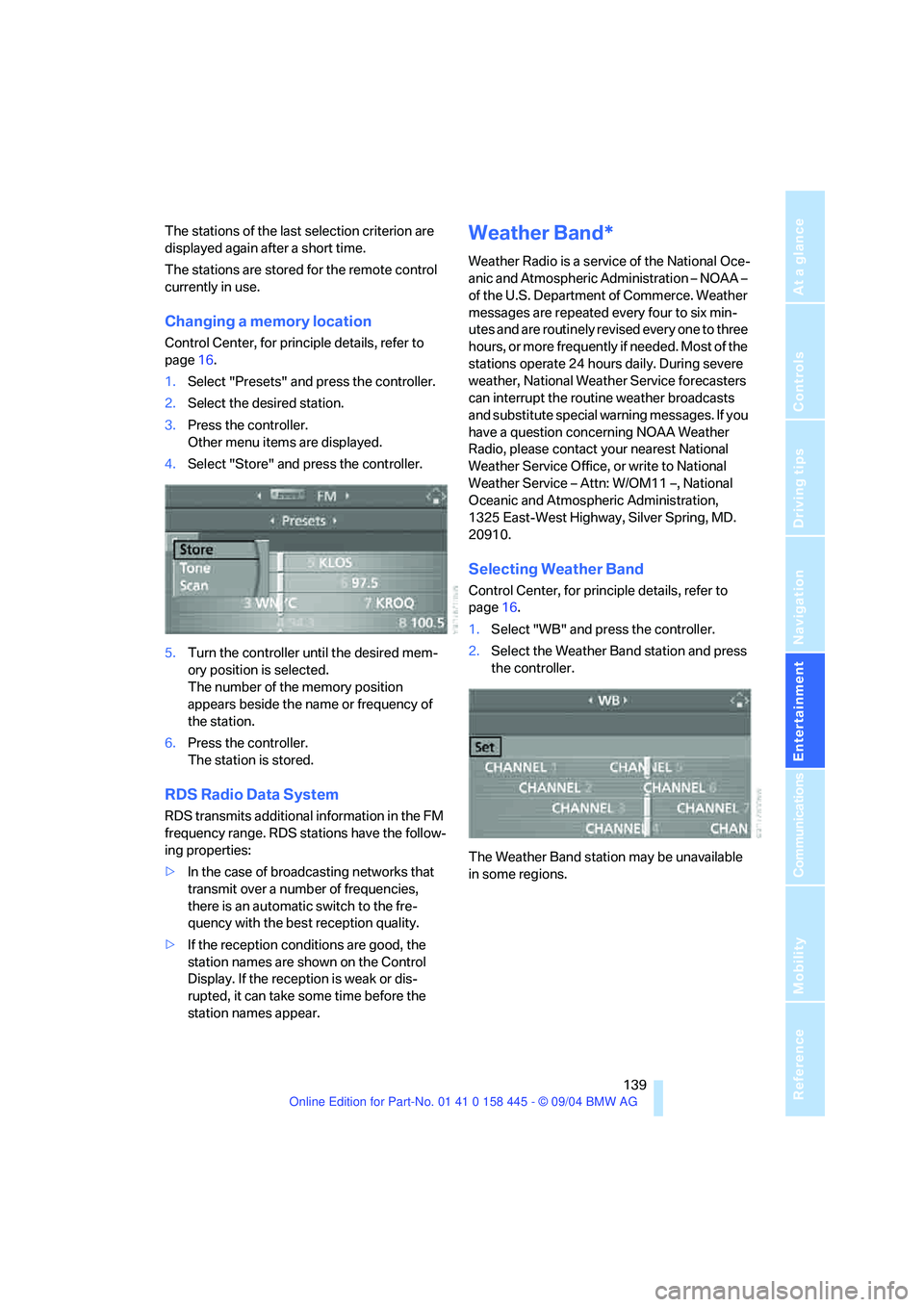
4.Select "Store" and press the controller.
5.Turn the controller until the desired mem-
ory position is selected.
The number of the memory position
appears beside the name or frequency of
the station.
6.Press the controller.
The station is stored.
RDS Radio Data System
RDS transmits additional information in the FM
frequency range. RDS stations have the follow-
ing properties:
>In the case of broadcasting networks that
transmit over a number of frequencies,
there is an automatic switch to the fre-
quency with the best reception quality.
>If the reception conditions are good, the
station names are shown on the Control
Display. If the reception is weak or dis-
rupted, it can take some time before the
station names appear.
Weather Band*
Weather Radio is a service of the National Oce-
anic and Atmospheric Administration – NOAA –
of the U.S. Department of Commerce. Weather
messages are repeated every four to six min-
utes and are routinely revised every one to three
hours, or more frequently if needed. Most of the
stations operate 24 hours daily. During severe
weather, National Weather Service forecasters
can interrupt the routine weather broadcasts
and substitute special warning messages. If you
have a question concerning NOAA Weather
Radio, please contact your nearest National
Weather Service Office, or write to National
Weather Service – Attn: W/OM11 –, National
Oceanic and Atmospheric Administration,
1325 East-West Highway, Silver Spring, MD.
20910.
Selecting Weather Band
Control Center, for principle details, refer to
page16.
1.Select "WB" and press the controller.
2.Select the Weather Band station and press
the controller.
The Weather Band station may be unavailable
in some regions.
Page 142 of 217
Navigation
Entertainment
Driving tips
141Reference
At a glance
Controls
Communications
Mobility
Selecting and storing channel
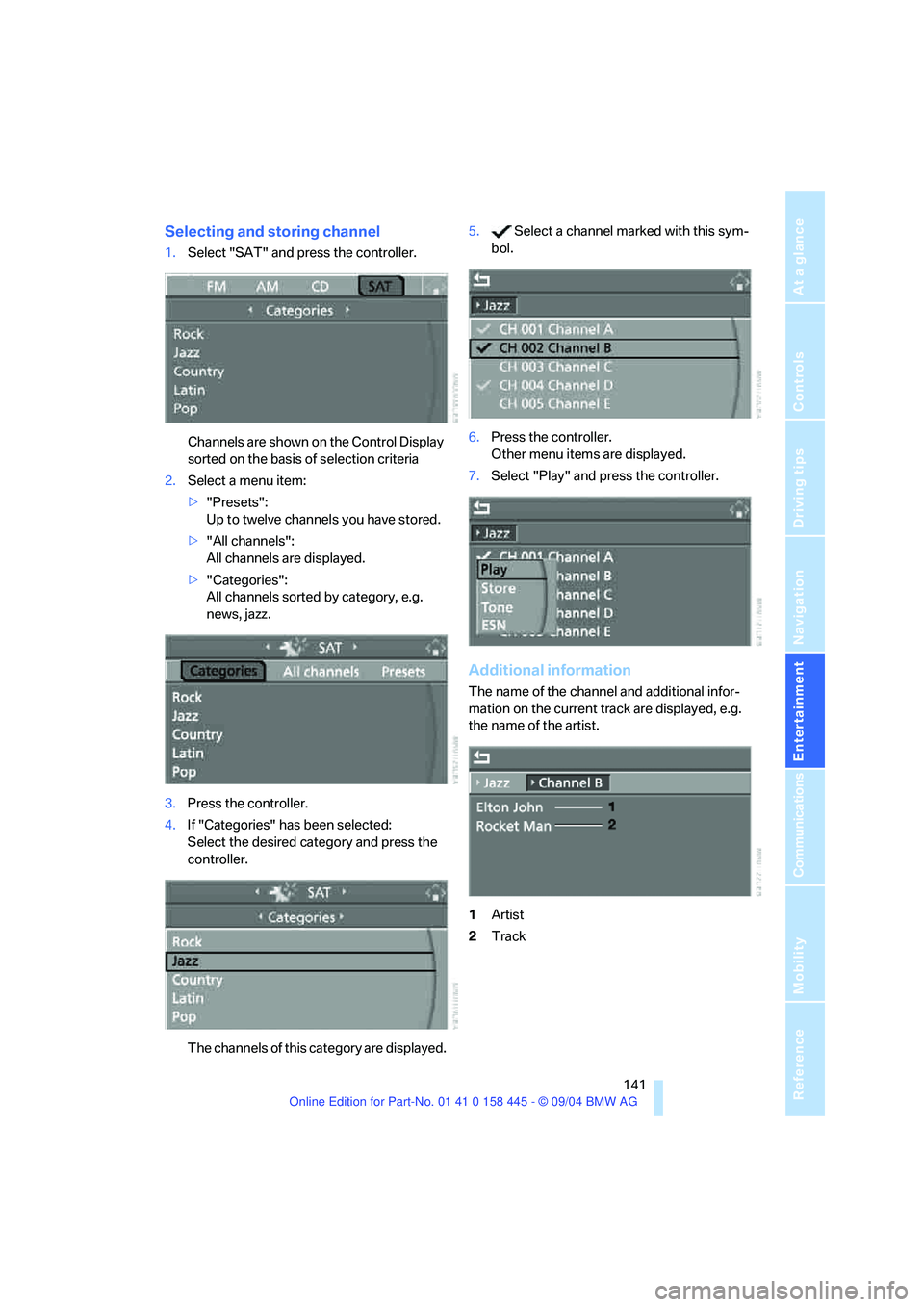
1.Select "SAT" and press the controller.
Channels are shown on the Control Display
sorted on the basis of selection criteria
2.Select a menu item:
>"Presets":
Up to twelve channels you have stored.
>"All channels":
All channels are displayed.
>"Categories":
All channels sorted by category, e.g.
news, jazz.
3.Press the controller.
4.If "Categories" has been selected:
Select the desired category and press the
controller.
The channels of this category are displayed.5. Select a channel marked with this sym-
bol.
6.Press the controller.
Other menu items are displayed.
7.Select "Play" and press the controller.
Additional information
The name of the channel and additional infor-
mation on the current track are displayed, e.g.
the name of the artist.
1Artist
2Track
Page 144 of 217
Navigation
Entertainment
Driving tips
143Reference
At a glance
Controls
Communications
Mobility
CD player and CD changer
Listening to CDs
CD player: starting CD
Equipment with two drives:
The upper drive is for audio CDs.
Insert the CD with the labeled side facing
upward.
Playback starts automatically if the sound out-
put is on.
To start playback when there is already a CD in
the drive:
Control Center, for principle details, refer to
page16.
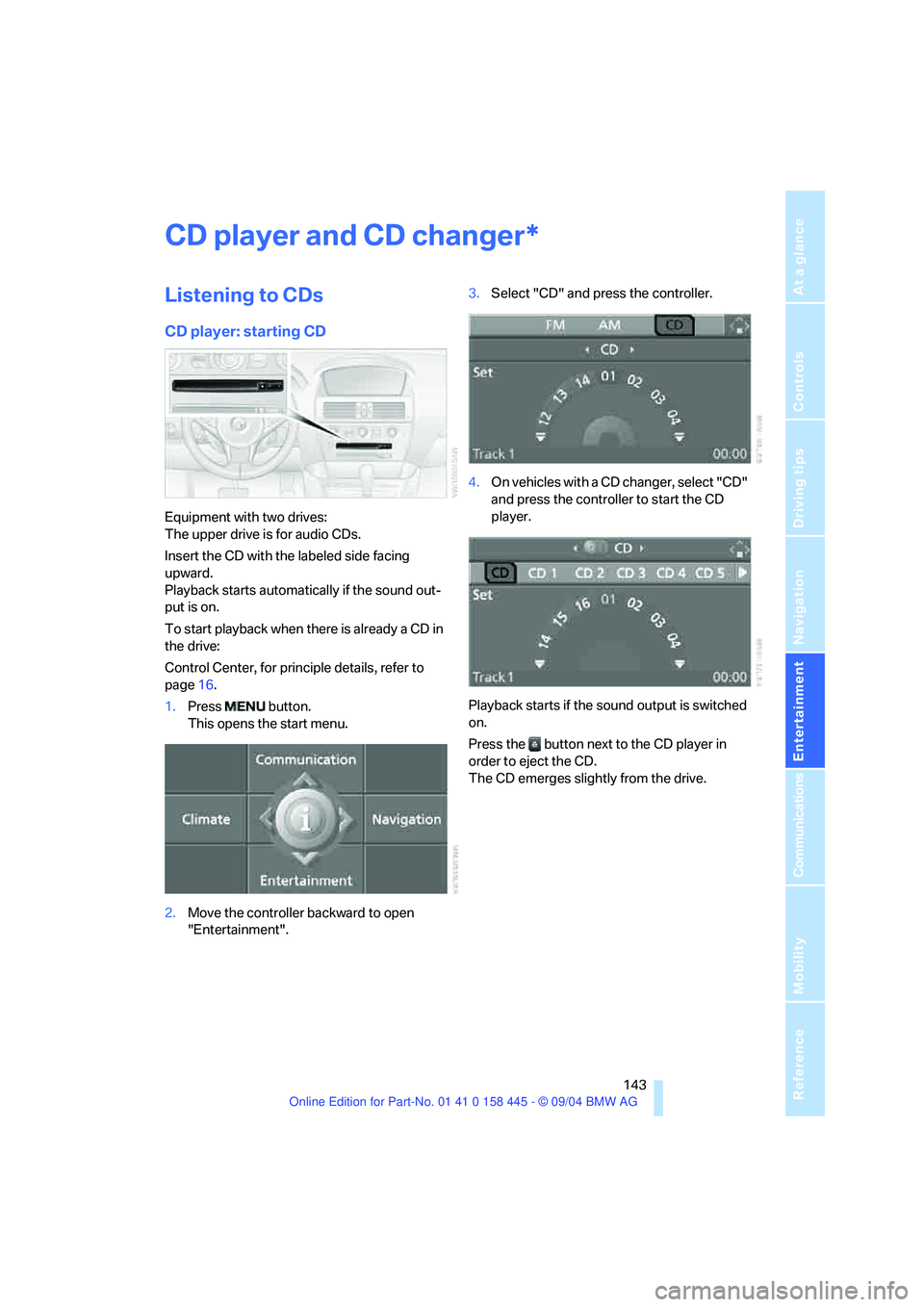
1.Press button.
This opens the start menu.
2.Move the controller backward to open
"Entertainment".3.Select "CD" and press the controller.
4.On vehicles with a CD changer, select "CD"
and press the controller to start the CD
player.
Playback starts if the sound output is switched
on.
Press the button next to the CD player in
order to eject the CD.
The CD emerges slightly from the drive.
*
Page 146 of 217
Navigation
Entertainment
Driving tips
145Reference
At a glance
Controls
Communications
Mobility
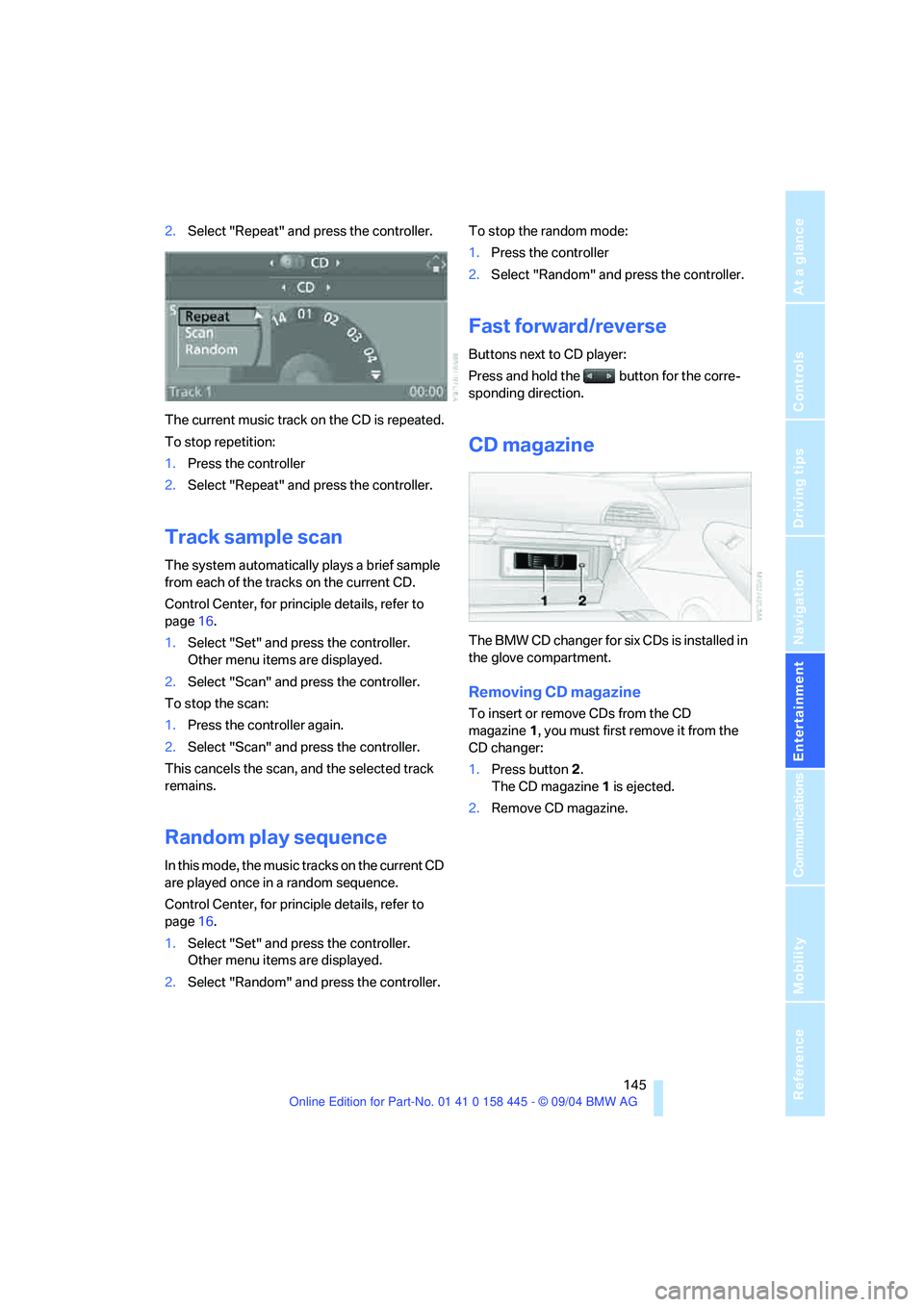
2.Select "Repeat" and press the controller.
The current music track on the CD is repeated.
To stop repetition:
1.Press the controller
2.Select "Repeat" and press the controller.
Track sample scan
The system automatically plays a brief sample
from each of the tracks on the current CD.
Control Center, for principle details, refer to
page16.
1.Select "Set" and press the controller.
Other menu items are displayed.
2.Select "Scan" and press the controller.
To stop the scan:
1.Press the controller again.
2.Select "Scan" and press the controller.
This cancels the scan, and the selected track
remains.
Random play sequence
In this mode, the music tracks on the current CD
are played once in a random sequence.
Control Center, for principle details, refer to
page16.
1.Select "Set" and press the controller.
Other menu items are displayed.
2.Select "Random" and press the controller.To stop the random mode:
1.Press the controller
2.Select "Random" and press the controller.
Fast forward/reverse
Buttons next to CD player:
Press and hold the button for the corre-
sponding direction.
CD magazine
The BMW CD changer for six CDs is installed in
the glove compartment.
Removing CD magazine
To insert or remove CDs from the CD
magazine1, you must first remove it from the
CD changer:
1.Press button 2.
The CD magazine 1 is ejected.
2.Remove CD magazine.
Page 148 of 217
Navigation
Entertainment
Driving tips
147Reference
At a glance
Controls
Communications
Mobility
Page 152 of 217
151
Entertainment
Reference
At a glance
Controls
Driving tips Communications
Navigation
Mobility
your portable phone.
To avoid possible short circuits, after removing
a battery you should never allow it to come into
contact with metallic surfaces of any kind.<
Disposing of used batteries
Return used batteries to a recycling col-
lection point or to your BMW center.<
Care instructions
You can find what you need to know about car-
ing for your portable phone in the Caring for
your vehicle brochure and in the separate porta-
ble phone Owner's Manual.
Operating options
You can operate the portable phone* with:
>The steering wheel, refer to page11
>The Control Center, refer to page152
>Voice commands, refer to page156
Information on operating the portable phone is
contained in the separate Owner's Manual on
the Full Preparation Package Cellphone.
Telephoning with car phone:
BMW Assist calls
You can use the car phone via the hands-free
system for BMW Assist calls.
When the status information "Car Phone" is
displayed in "Communication", only BMW
Assist calls are possible.
Hands-free system
The microphone is located:
>In the Coupe near the interior rearview mir-
ror, refer to page14
>In the Convertible on the steering columnThe hands-free system is activated whenever
you establish or receive a call using:
>The button on the steering wheel
>The Control Center
>Voice commands
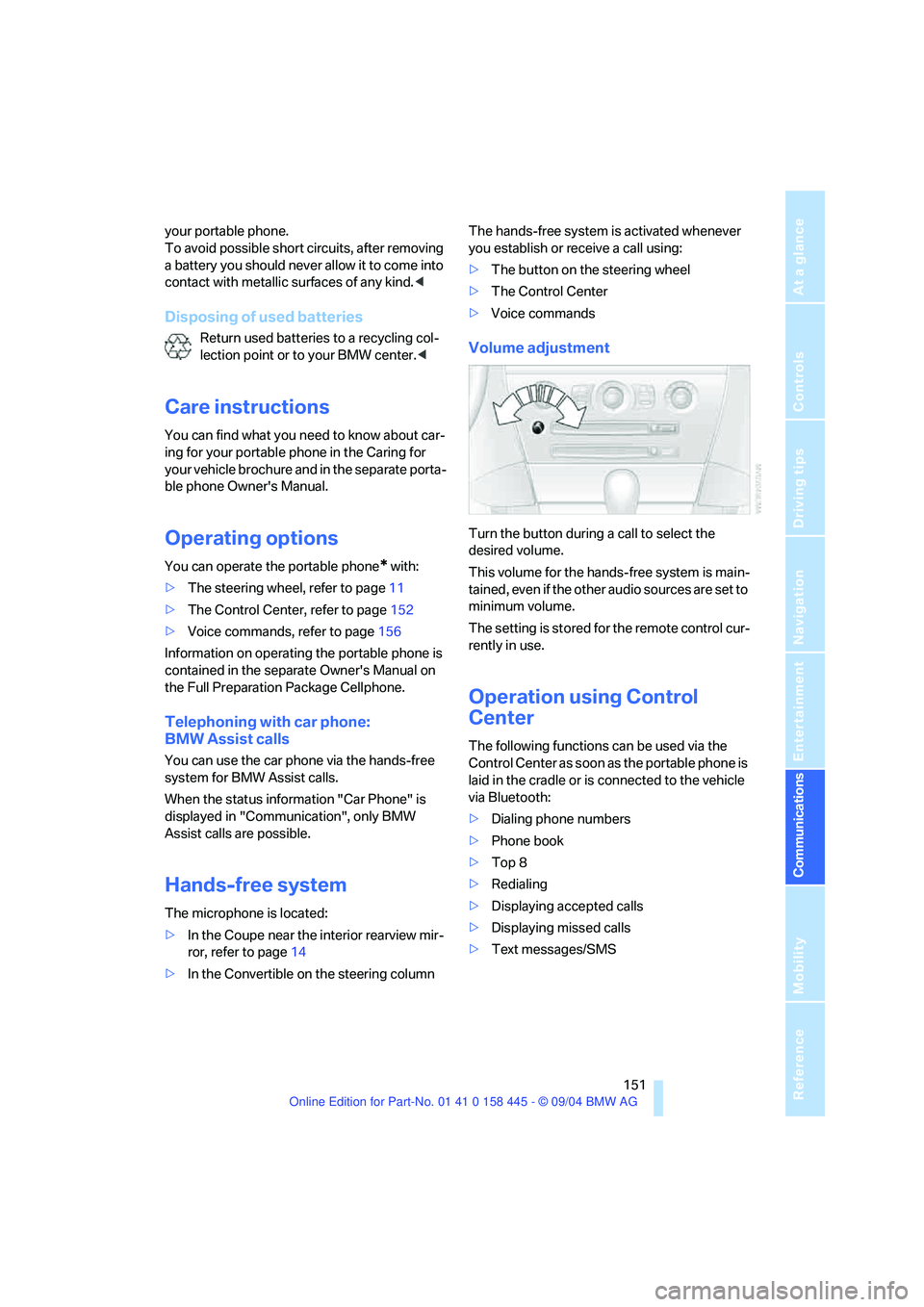
Volume adjustment
Turn the button during a call to select the
desired volume.
This volume for the hands-free system is main-
tained, even if the other audio sources are set to
minimum volume.
The setting is stored for the remote control cur-
rently in use.
Operation using Control
Center
The following functions can be used via the
Control Center as soon as the portable phone is
laid in the cradle or is connected to the vehicle
via Bluetooth:
>Dialing phone numbers
>Phone book
>Top 8
>Redialing
>Displaying accepted calls
>Displaying missed calls
>Text messages/SMS
Page 154 of 217
153
Entertainment
Reference
At a glance
Controls
Driving tips Communications
Navigation
Mobility
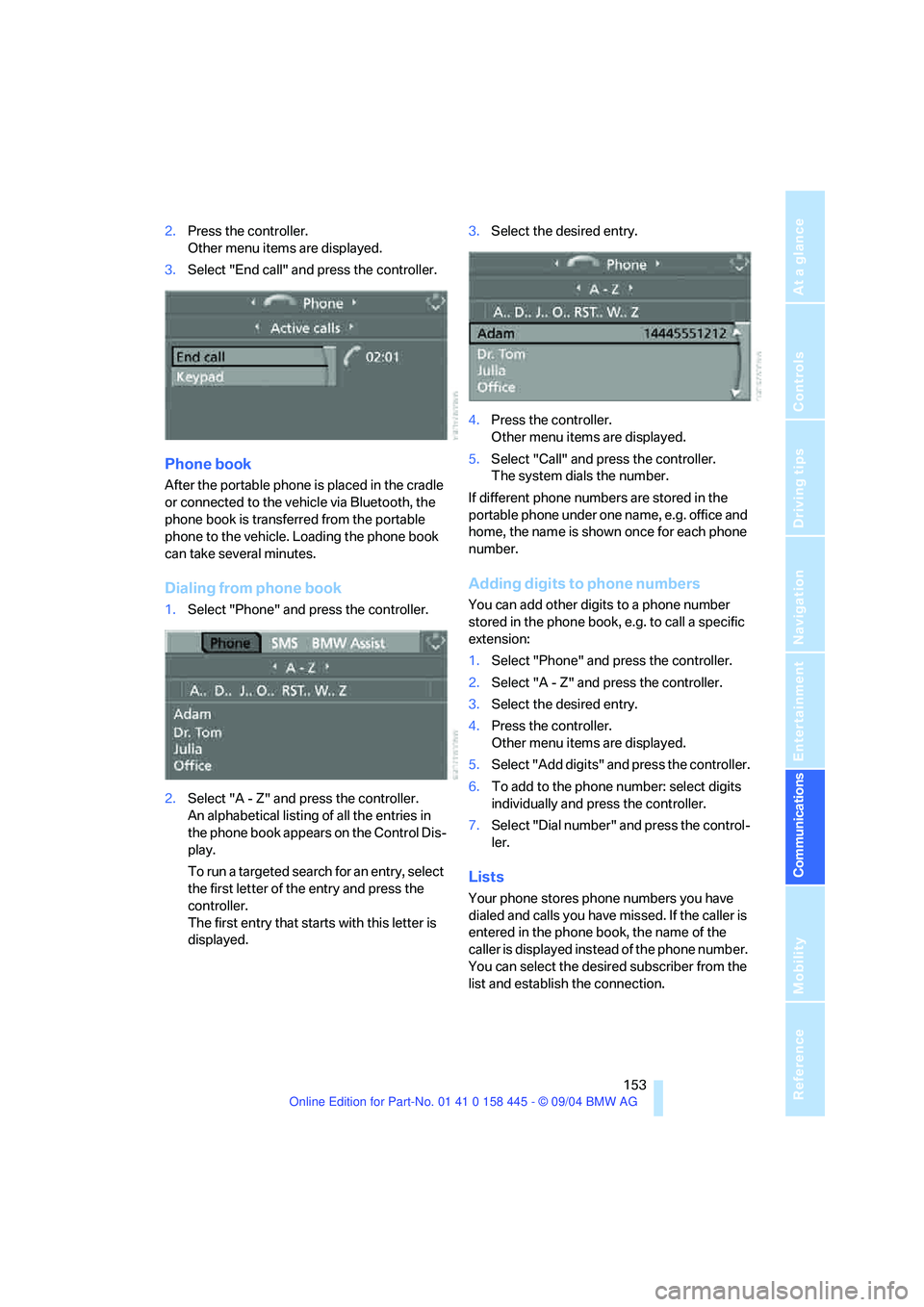
2.Press the controller.
Other menu items are displayed.
3.Select "End call" and press the controller.
Phone book
After the portable phone is placed in the cradle
or connected to the vehicle via Bluetooth, the
phone book is transferred from the portable
phone to the vehicle. Loading the phone book
can take several minutes.
Dialing from phone book
1.Select "Phone" and press the controller.
2.Select "A - Z" and press the controller.
An alphabetical listing of all the entries in
the phone book appears on the Control Dis-
play.
To run a targeted search for an entry, select
the first letter of the entry and press the
controller.
The first entry that starts with this letter is
displayed.3.Select the desired entry.
4.Press the controller.
Other menu items are displayed.
5.Select "Call" and press the controller.
The system dials the number.
If different phone numbers are stored in the
portable phone under one name, e.g. office and
home, the name is shown once for each phone
number.
Adding digits to phone numbers
You can add other digits to a phone number
stored in the phone book, e.g. to call a specific
extension:
1.Select "Phone" and press the controller.
2.Select "A - Z" and press the controller.
3.Select the desired entry.
4.Press the controller.
Other menu items are displayed.
5.Select "Add digits" and press the controller.
6.To add to the phone number: select digits
individually and press the controller.
7.Select "Dial number" and press the control-
ler.
Lists
Your phone stores phone numbers you have
dialed and calls you have missed. If the caller is
entered in the phone book, the name of the
caller is displayed instead of the phone number.
You can select the desired subscriber from the
list and establish the connection.
Page 156 of 217
155
Entertainment
Reference
At a glance
Controls
Driving tips Communications
Navigation
Mobility
3.Select "Delete all numbers" and press the
controller.
The list is deleted.
Touch tone dialing
Touch tone numbers are required for access to
network services or to control devices, e.g.
remote access to an answering machine.
This function can only be used during a call.
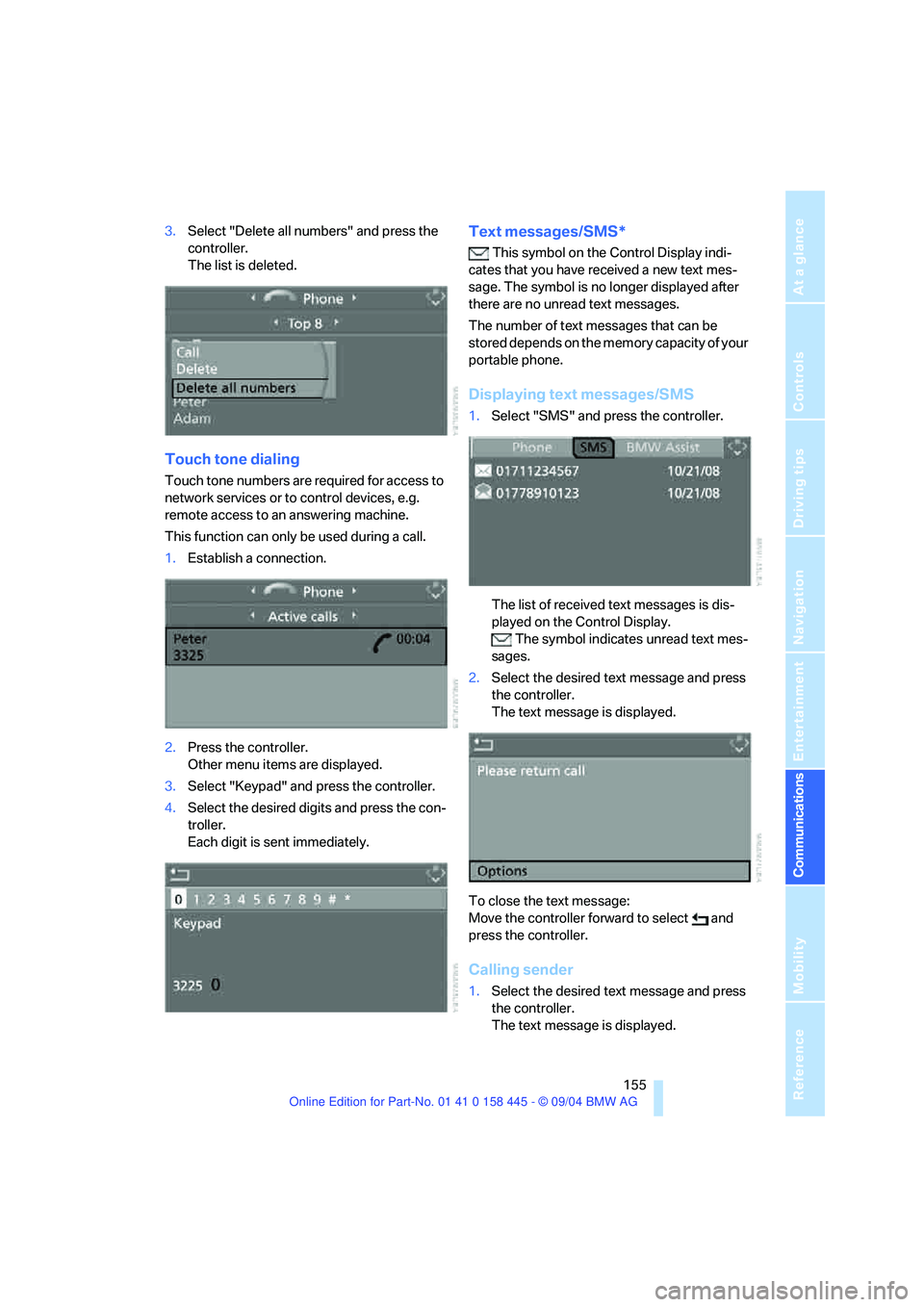
1.Establish a connection.
2.Press the controller.
Other menu items are displayed.
3.Select "Keypad" and press the controller.
4.Select the desired digits and press the con-
troller.
Each digit is sent immediately.
Text messages/SMS*
This symbol on the Control Display indi-
cates that you have received a new text mes-
sage. The symbol is no longer displayed after
there are no unread text messages.
The number of text messages that can be
stored depends on the memory capacity of your
portable phone.
Displaying text messages/SMS
1.Select "SMS" and press the controller.
The list of received text messages is dis-
played on the Control Display.
The symbol indicates unread text mes-
sages.
2.Select the desired text message and press
the controller.
The text message is displayed.
To close the text message:
Move the controller forward to select and
press the controller.
Calling sender
1.Select the desired text message and press
the controller.
The text message is displayed.
Page 158 of 217
157
Entertainment
Reference
At a glance
Controls
Driving tips Communications
Navigation
Mobility
Volume adjustment
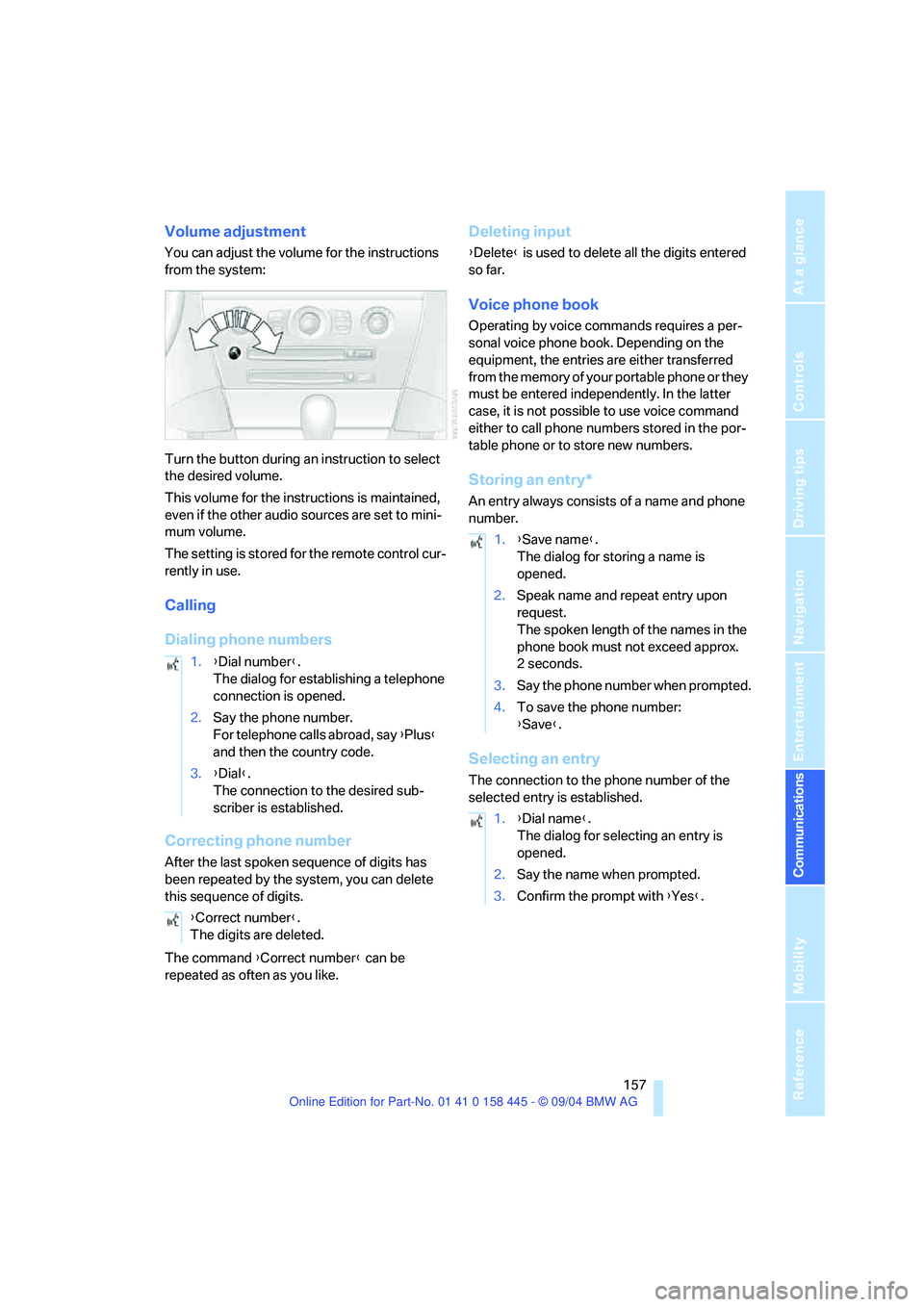
You can adjust the volume for the instructions
from the system:
Turn the button during an instruction to select
the desired volume.
This volume for the instructions is maintained,
even if the other audio sources are set to mini-
mum volume.
The setting is stored for the remote control cur-
rently in use.
Calling
Dialing phone numbers
Correcting phone number
After the last spoken sequence of digits has
been repeated by the system, you can delete
this sequence of digits.
The command {Correct number} can be
repeated as often as you like.
Deleting input
{Delete} is used to delete all the digits entered
so far.
Voice phone book
Operating by voice commands requires a per-
sonal voice phone book. Depending on the
equipment, the entries are either transferred
from the memory of your portable phone or they
must be entered independently. In the latter
case, it is not possible to use voice command
either to call phone numbers stored in the por-
table phone or to store new numbers.
Storing an entry*
An entry always consists of a name and phone
number.
Selecting an entry
The connection to the phone number of the
selected entry is established. 1.{Dial number}.
The dialog for establishing a telephone
connection is opened.
2.Say the phone number.
For telephone calls abroad, say {Plus}
and then the country code.
3.{Dial}.
The connection to the desired sub-
scriber is established.
{Correct number}.
The digits are deleted.
1.{Save name}.
The dialog for storing a name is
opened.
2.Speak name and repeat entry upon
request.
The spoken length of the names in the
phone book must not exceed approx.
2seconds.
3.Say the phone number when prompted.
4.To save the phone number:
{Save}.
1.{Dial name}.
The dialog for selecting an entry is
opened.
2.Say the name when prompted.
3.Confirm the prompt with {Yes}.
Page 160 of 217
159
Entertainment
Reference
At a glance
Controls
Driving tips Communications
Navigation
Mobility
TeleService , BMW Assist
TeleService
TeleService supports you in communicating
with your BMW center. The installed car phone
can be used to transmit data on the service sta-
tus of your vehicle or on legally mandated
inspections directly to your BMW center. These
are the same data which are stored in the mas-
ter key for CBS Condition Based Service. Your
BMW center can then contact you, and you can
make an appointment that suits you while you
are still on the road. Your advantage is that your
BMW center can prepare in advance for the
required maintenance work. The TeleService
functions are country-specific and depend on
the contract: the data on the service status of
your vehicle or on legally mandated inspections
is transmitted on a country-specific basis either
automatically before they fall due or simulta-
neously when you call your BMW center. Your
BMW center will be glad to provide more
detailed information.
BMW Assist
With BMW Assist, other services are available
to you in addition TeleService, e.g. the your
vehicle's position data can be transmitted to the
BMW Assist response center when an emer-
gency call
* has been initiated.
Many functions of BMW Assist depend on the
individually agreed contract. The data transmis-
sion, e.g. of CBS Condition Based Service, is
different in individual countries.
The subscriber agreement must be completed
successfully before using the BMW Assist ser-
vices.
Requirements
The installed car phone is logged on to a porta-
ble telephone network. This network must be
capable of transmitting the services.To transmit position data, the vehicle must be
able to determine the current position. This is
displayed on the Control Display. In order to
enable and update TeleService or BMW Assist,
a GPS signal must be present.
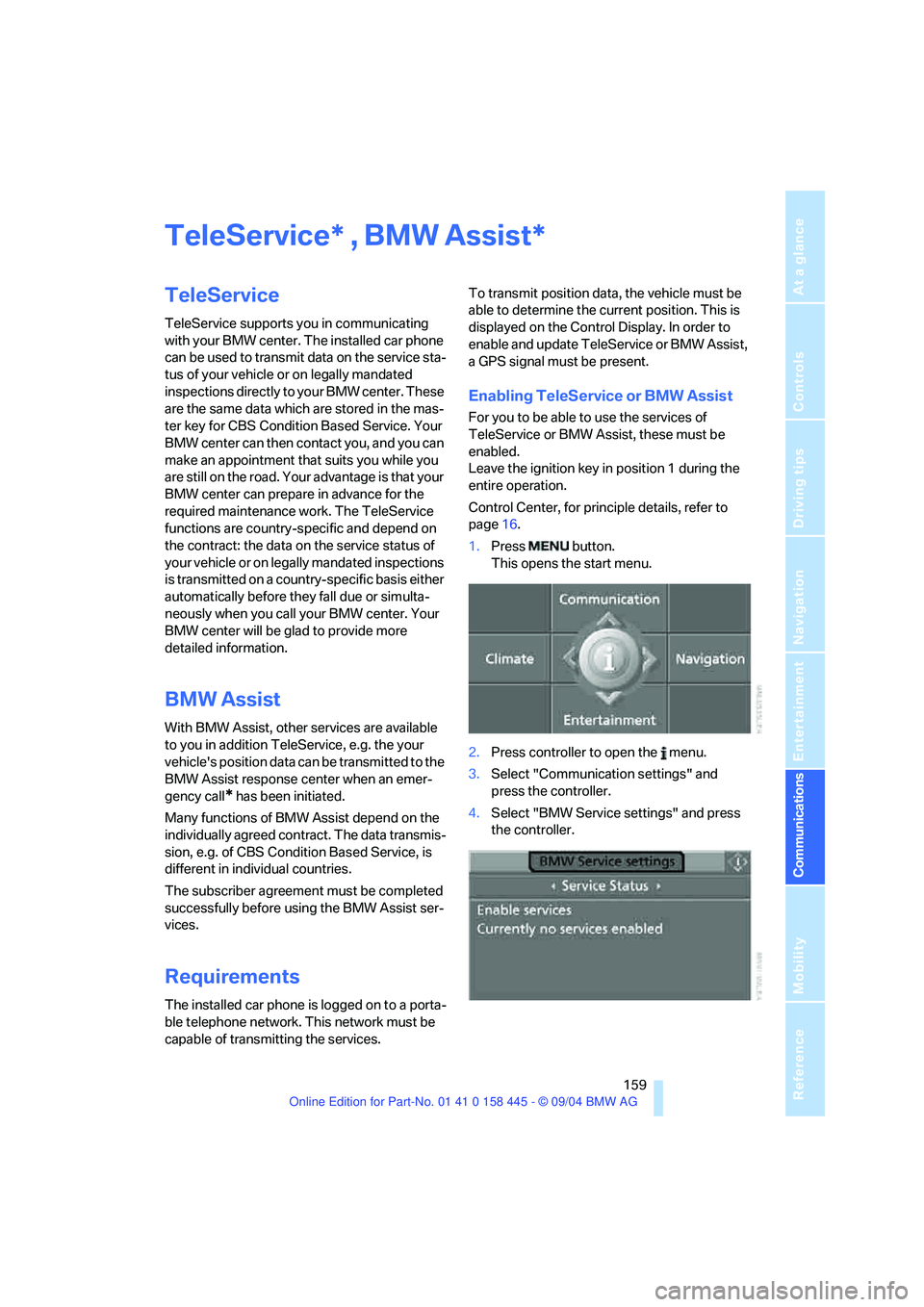
Enabling TeleService or BMW Assist
For you to be able to use the services of
TeleService or BMW Assist, these must be
enabled.
Leave the ignition key in position 1 during the
entire operation.
Control Center, for principle details, refer to
page16.
1.Press button.
This opens the start menu.
2.Press controller to open the menu.
3.Select "Communication settings" and
press the controller.
4.Select "BMW Service settings" and press
the controller.
**