ESP BMW 7 SERIES 2012 Owner's Guide
[x] Cancel search | Manufacturer: BMW, Model Year: 2012, Model line: 7 SERIES, Model: BMW 7 SERIES 2012Pages: 299, PDF Size: 8.49 MB
Page 149 of 299
Attached parts on the vehicle impair the aero‐
dynamics and increase the fuel consumption.
Close the windows and glass sunroof
*
Driving with the glass sunroof and windows
open results in increased air resistance and
raises fuel consumption.
Check the tire inflation pressure
regularly
Check and, if necessary, correct the tire inflation
pressure at least twice a month and before start‐
ing on a long trip.
Low tire inflation pressure increases rolling re‐
sistance and thus raises fuel consumption and
tire wear.
Drive away without delay
Do not wait for the engine to warm up while the
vehicle remains stationary. Start driving right
away, but at moderate engine speeds.
This is the fastest way for the cold engine to
reach its operating temperature.
Look well ahead when driving
Avoid unnecessary acceleration and braking.
By maintaining a suitable distance to the vehicle
driving ahead of you.
Driving smoothly and looking ahead reduces
fuel consumption.
Use coasting conditions
When approaching a red light, take your foot off
the accelerator and let the vehicle coast to a halt.
On a downhill gradient, take your foot off the ac‐
celerator and let the vehicle roll.
The flow of fuel is interrupted while coasting.
Switch off the engine during longer
stops
Switch off the engine during longer stops, e.g.,
at traffic lights, railroad crossings or in traffic
congestion.
Fuel savings are achieved after the vehicle is
switched off for only approx. 4 seconds. Switch off any functions that are not
currently needed
Functions
such as seat heating and the rear win‐
dow defroster require a lot of energy and con‐
sume additional fuel, especially in city and stop-
and-go traffic.
Therefore, switch off these functions if they are
not actually needed.
Have maintenance carried out
Have vehicles maintained regularly to achieve
optimal vehicle economy and operating life.
Have the maintenance carried out by your serv‐
ice center.
Please also note the BMW Maintenance Sys‐
tem.
Seite 149
149Online Edition for Part no. 01 40 2 606 497 - 03 11 490
Reference Mobility Communication Entertainment Navigation
Driving tips Controls At a glance
Page 164 of 299
B. Total Traffic Network traffic data is infor‐
mational only. User assumes all risk of use.
Total Traffic Network, BMW NA, and their
suppliers make no representations about
content, traffic and road conditions, route
usability, or speed.
C. The licensed material is provided to li‐
censee
“as is,” and “where is”. Total Traffic
Network, including, but not limited to, any
and all third party providers of any of the li‐
censed material, expressly disclaims, to the
fullest extent permitted by law, all warranties
or representations with respect to the li‐
censed material (including, without limita‐
tion, that the licensed material will be error-
free, will operate without interruption or that
the traffic data will be accurate), express, im‐
plied or statutory, including, without limita‐
tion, the implied warranties of merchanta‐
bility, non-infringement fitness for a
particular purpose, or those arising from a
course of dealing or usage of trade.
D. Neither Total Traffic Network, Inrix, Inc. or
BMW NA will be liable to you for any indirect,
special, consequential, exemplary, or inci‐
dental damages (including, without limita‐
tion, lost revenues, anticipated revenues, or
profits relating to the same) arising from any
claim relating directly or indirectly to use of
the traffic data, and even if Total Traffic Net‐
work, Inrix, Inc., or BMW NA are aware of the
possibility of such damages. These limita‐
tions apply to all claims, including, without
limitation, claims in contract and tort (such
as negligence, product liability and strict li‐
ability). Some states do not allow the exclu‐
sion or limitation of incidental or consequen‐
tial damages, so those particular limitations
may not apply to you.
▷ The traffic bulletins are indicated on the map
by symbols.
▷ The traffic bulletins for the surrounding area
are stored in a list. The symbol in the function bar of the map
view turns red if there are traffic bulletins
that affect the calculated route. Switching the reception on/off
1.
"Navigation"
2. Open "Options".
3. "Receive Traffic Info"
Open the traffic bulletins
1. "Navigation"
2. "Map"
3. "Traffic Info"
First the traffic bulletins for the calculated
route are displayed.
The traffic bulletins are sorted by their dis‐
tance from the current position of the vehi‐
cle.
4. Select a traffic bulletin. "More information": display additional
information.
5. Scroll to the next or previous traffic bulletin
if required.
Traffic bulletins on the map
"Traffic conditions/gray map"
Active: indication
on the control display is switched to shades of
gray. This enables a better view of the traffic
bulletins. The day/night mode is disregarded in
this setting. Symbols and special destinations
are not displayed.
1. "Navigation"
2. "Map"
3. Open "Options".
4. "Settings"
5. "Traffic conditions/gray map"
Symbols in the map view
Depending on the scale of the map and the lo‐
cation of the traffic obstruction along the route,
the symbols for the traffic obstructions are dis‐
played.
Additional information in the map view
Depending on the map scale, a traffic obstruc‐
tion's
length, direction, and impact are displayed
Seite 164
164 Online Edition for Part no. 01 40 2 606 497 - 03 11 490
Navigation
Page 171 of 299
When surround is activated, multi-channel play‐
back is simulated when a stereo audio track is
played.
Volume
▷
"Speed volume": speed-dependent volume
control.
▷ "PDC": volume of the PDC signal* com‐
pared to the entertainment sound output.
▷ "Gong": volume of the signal, such as the
safety belt reminder, compared to the en‐
tertainment sound output.
▷ "Microphone": volume of the microphone*
during a phone call.
▷ "Loudspeak.":
volume of the loudspeakers*
during a phone call.
The following volumes are only stored for the
respective paired telephone:
"Microphone",
"Loudspeak.".
Adjusting the volume
1. "CD/Multimedia", "Radio" or "Settings"
2. "Tone"
3. "Volume settings"
4. Select the desired volume setting. 5.
To adjust: turn the controller.
6. To store: press the controller.
Resetting the tone settings
1. "CD/Multimedia", "Radio" or "Settings"
2. "Tone"
3. "Reset" Opening the tone settings in
the Options menu
*
1. "CD/Multimedia" or "Radio"
2. If necessary, select additional entries, for ex‐
ample, "FM" or
"CD/DVD".
3. Open "Options".
4. "Tone"
5. Set the desired tone.
Seite 171
171Online Edition for Part no. 01 40 2 606 497 - 03 11 490
Reference Mobility Communication
Entertainment Navigation Driving tips Controls At a glance
Page 187 of 299
3.
"Storing..." 4.
"Cancel storing"
The storage process is interrupted and can be
continued at any time.
Continuing the storage process
1. "CD/Multimedia"
2. "CD/DVD"
3. Select the symbol for the CD/DVD player.
4. "Continue storing"
Storage of the CD/DVD continues at the begin‐
ning of the track at which storage was inter‐
rupted.
Album information
During
storage, information such as the name of
the artist is stored with the track, if this informa‐
tion is available in the vehicle database or on the
CD.
To update the database, contact your service
center.
Storing from a USB device
To store music, a suitable device must be con‐
nected to the USB interface in the glove com‐
partment.
▷ Suitable devices: USB mass storage devi‐
ces,
such as USB flash drives or MP3 players
with a USB interface.
▷ Unsuitable devices: USB hard drives, USB
hubs, USB memory card readers with mul‐
tiple
inserts, Apple iPod/iPhone. Music from
the Apple iPod/iPhone can be played via the
USB audio interface in the center armrest. 1.
Connect the USB device to the USB inter‐
face in the glove compartment, refer to
page 138.
2. "CD/Multimedia"
3. "Music collection"
4. Open "Options".
5. "Music data import/export"
6. "Import music (USB)" Playing music
Music search
All tracks for which additional information has
been stored can be accessed by the music
search. Tracks without additional information
can be called up via the corresponding album,
refer to page
188.
1. "CD/Multimedia"
2. "Music collection"
3. "Music search" Seite 187
187Online Edition for Part no. 01 40 2 606 497 - 03 11 490
Reference Mobility Communication
Entertainment Navigation Driving tips Controls At a glance
Page 198 of 299
The previous version may only be restored when
the vehicle is stationary.
1.
"Settings"
2. "Software update"
3. "Restore previous version"
4. "OK" Double-click.
All listed software updates are removed.
Note
While the software is being updated or a previ‐
ous version is being restoredBMW Assist*, Of‐
fice functions* and the connected devices are
temporarily unavailable. Wait several minutes
for the functions to become available again.
Rear audio remote control*
The concept
The rear audio remote control can be used to
control
the following audio functions in the front:
▷ "Radio"
▷ "CD/Multimedia"
The unit is operated in the same manner as the
corresponding buttons on the
CD/DVD* player.
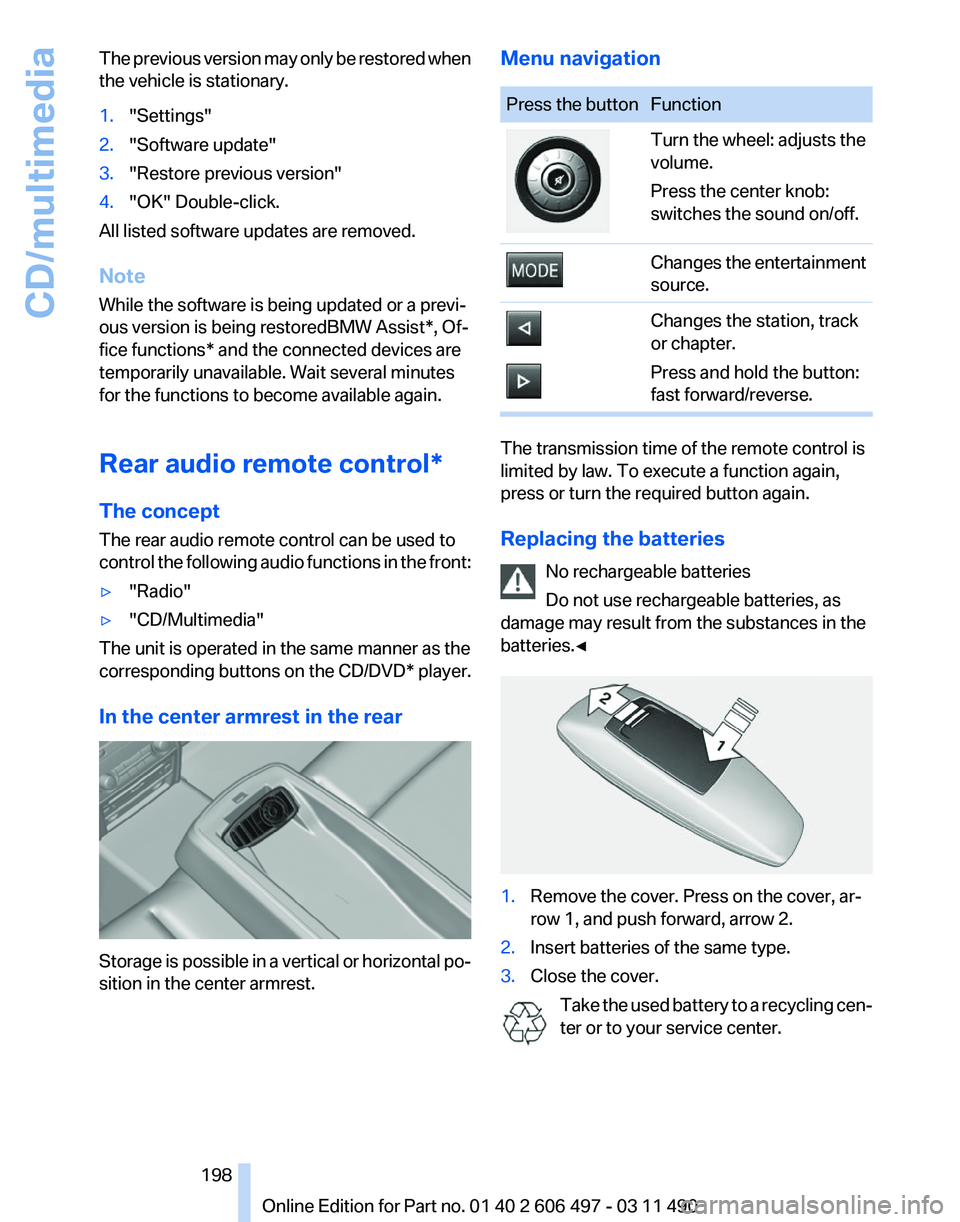
In the center armrest in the rear Storage is possible in a vertical or horizontal po‐
sition in the center armrest. Menu navigation Press the button Function
Turn the wheel: adjusts the
volume.
Press the center knob:
switches the sound on/off.
Changes the entertainment
source.
Changes the station, track
or chapter.
Press and hold the button:
fast forward/reverse.
The transmission time of the remote control is
limited by law. To execute a function again,
press or turn the required button again.
Replacing the batteries
No rechargeable batteries
Do not use rechargeable batteries, as
damage may result from the substances in the
batteries.◀ 1.
Remove the cover. Press on the cover, ar‐
row 1, and push forward, arrow 2.
2. Insert batteries of the same type.
3. Close the cover.
Take the used battery to a recycling cen‐
ter or to your service center. Seite 198
198 Online Edition for Part no. 01 40 2 606 497 - 03 11 490
CD/multimedia
Page 199 of 299
Rear entertainment*
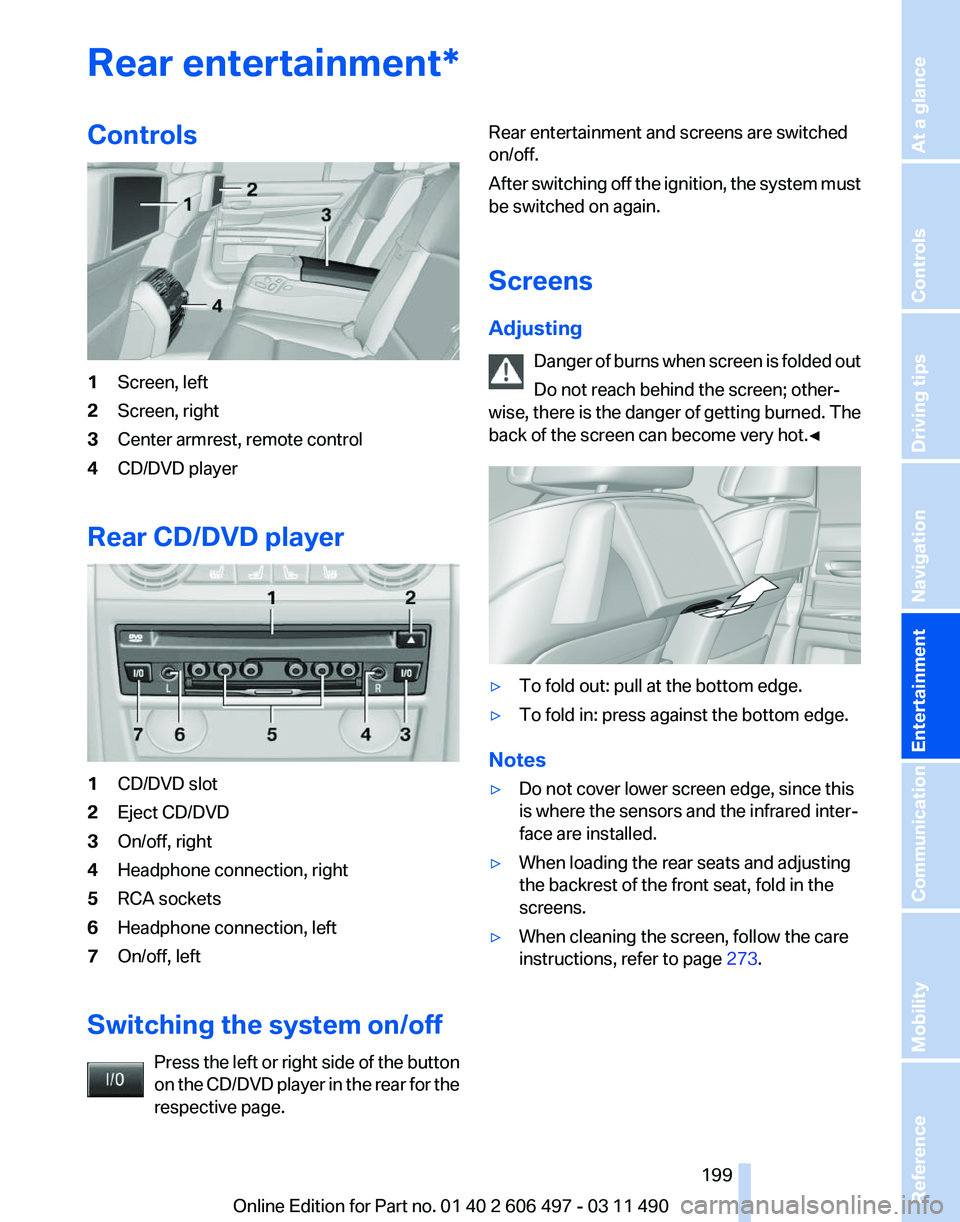
Controls
1
Screen, left
2 Screen, right
3 Center armrest, remote control
4 CD/DVD player
Rear CD/DVD player 1
CD/DVD slot
2 Eject CD/DVD
3 On/off, right
4 Headphone connection, right
5 RCA sockets
6 Headphone connection, left
7 On/off, left
Switching the system on/off Press the left or right side of the button
on the CD/DVD player in the rear for the
respective page. Rear entertainment and screens are switched
on/off.
After
switching off the ignition, the system must
be switched on again.
Screens
Adjusting
Danger of burns when screen is folded out
Do not reach behind the screen; other‐
wise, there is the danger of getting burned. The
back of the screen can become very hot.◀ ▷
To fold out: pull at the bottom edge.
▷ To fold in: press against the bottom edge.
Notes
▷ Do not cover lower screen edge, since this
is where the sensors and the infrared inter‐
face are installed.
▷ When loading the rear seats and adjusting
the backrest of the front seat, fold in the
screens.
▷ When cleaning the screen, follow the care
instructions, refer to page 273. Seite 199
199Online Edition for Part no. 01 40 2 606 497 - 03 11 490
Reference Mobility Communication
Entertainment Navigation Driving tips Controls At a glance
Page 204 of 299
Professional rear entertainment*
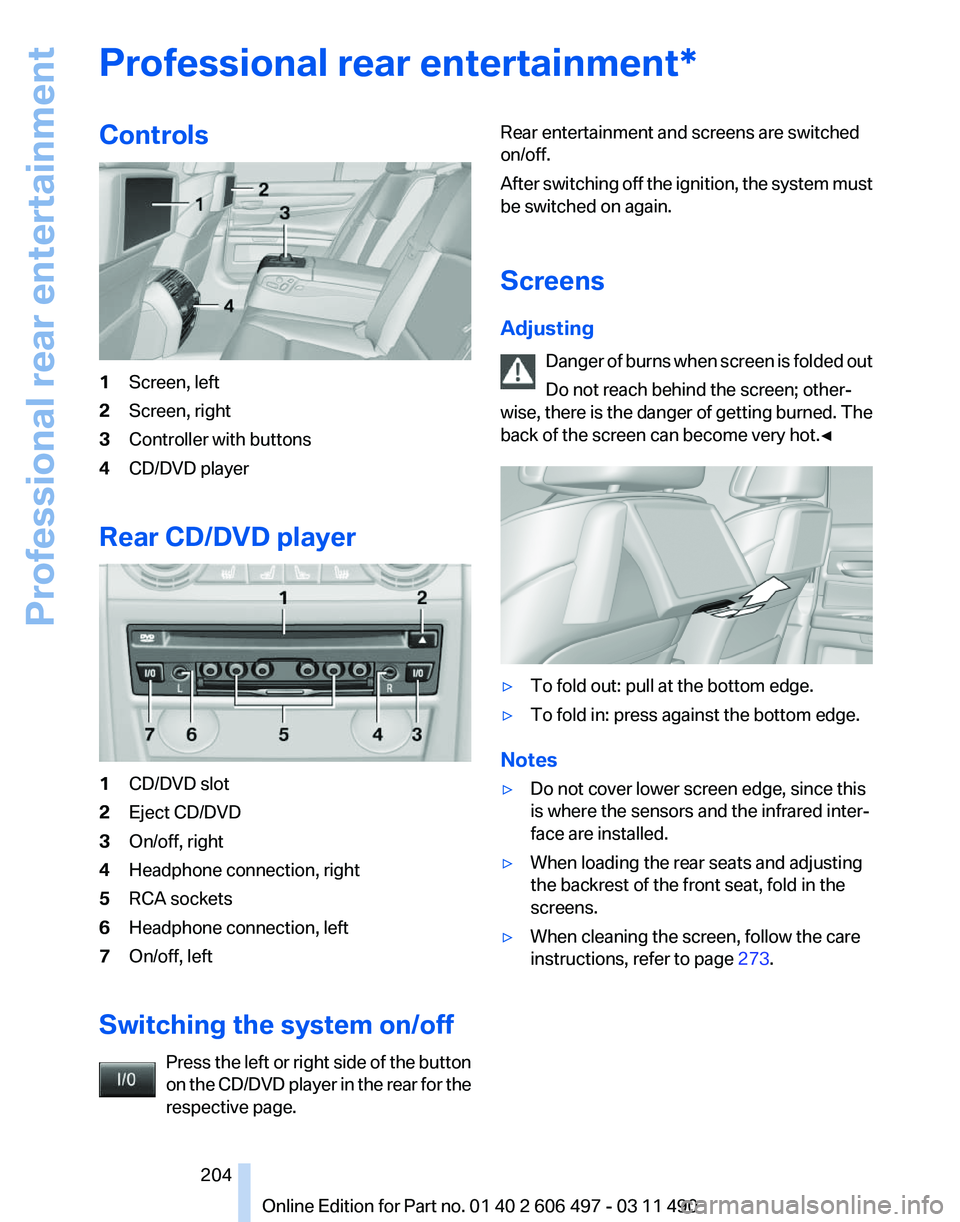
Controls
1
Screen, left
2 Screen, right
3 Controller with buttons
4 CD/DVD player
Rear CD/DVD player 1
CD/DVD slot
2 Eject CD/DVD
3 On/off, right
4 Headphone connection, right
5 RCA sockets
6 Headphone connection, left
7 On/off, left
Switching the system on/off Press the left or right side of the button
on the CD/DVD player in the rear for the
respective page. Rear entertainment and screens are switched
on/off.
After
switching off the ignition, the system must
be switched on again.
Screens
Adjusting
Danger of burns when screen is folded out
Do not reach behind the screen; other‐
wise, there is the danger of getting burned. The
back of the screen can become very hot.◀ ▷
To fold out: pull at the bottom edge.
▷ To fold in: press against the bottom edge.
Notes
▷ Do not cover lower screen edge, since this
is where the sensors and the infrared inter‐
face are installed.
▷ When loading the rear seats and adjusting
the backrest of the front seat, fold in the
screens.
▷ When cleaning the screen, follow the care
instructions, refer to page 273. Seite 204
204 Online Edition for Part no. 01 40 2 606 497 - 03 11 490
Professional rear entertainment
Page 229 of 299
Reading the appointment out loud*
Read the appointment out loud, refer to
page
230.
Tasks
Displaying the task list
Display tasks that are due within the next
90 days.
1. "Office"
2. "Tasks"
Sorting the task list
1. Select the header in the task list. 2.
Select the sorting criterion:
▷"Priority (!)"*
▷ "Subject"
▷ "Due date"
Displaying the task
1. Select the desired task.
2. Scroll in the task if necessary:
▷Turn the controller.
▷ Select the symbol.
Using contact data
Contact data from appointments, e-mails and
notes can be saved or selected*, refer to
page 230.
Reading the task out loud
*
Read the task out loud, refer to page 230.Notes
Displaying notes
1.
"Office"
2. "Notes"
All notes are displayed.
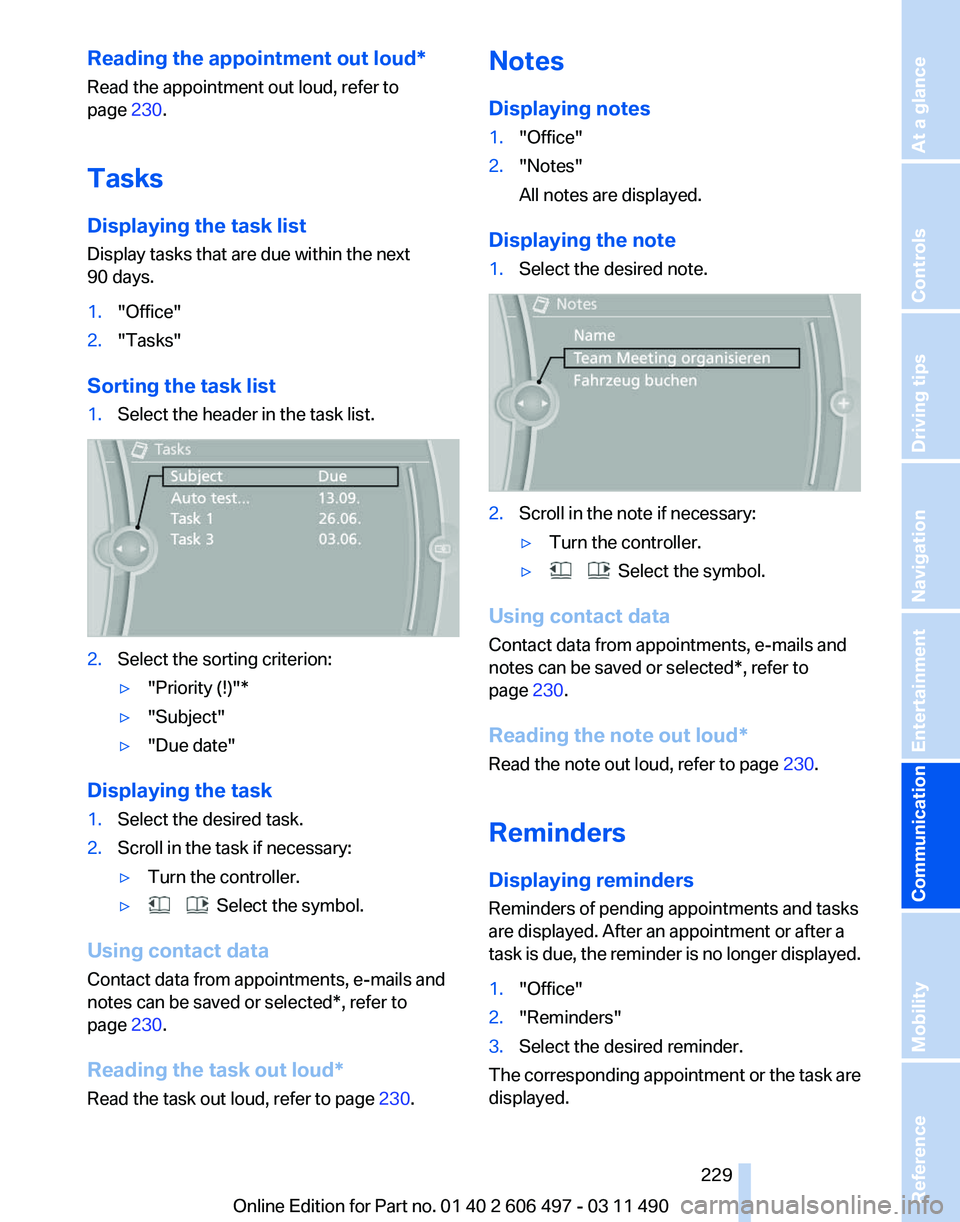
Displaying the note
1. Select the desired note. 2.
Scroll in the note if necessary:
▷Turn the controller.
▷ Select the symbol.
Using contact data
Contact data from appointments, e-mails and
notes can be saved or selected*, refer to
page 230.
Reading the note out loud
*
Read the note out loud, refer to page 230.
Reminders
Displaying reminders
Reminders of pending appointments and tasks
are displayed. After an appointment or after a
task is due, the reminder is no longer displayed.
1. "Office"
2. "Reminders"
3. Select the desired reminder.
The corresponding appointment or the task are
displayed.
Seite 229
229Online Edition for Part no. 01 40 2 606 497 - 03 11 490
Reference Mobility
Communication Entertainment Navigation Driving tips Controls At a glance
Page 234 of 299
BMW ConnectedDrive
BMW Assist*
General information
BMW
Assist provides you with certain services,
e.g., transmission of the position data of your
vehicle to the BMW Assist Response Center if
an Emergency Request* has been initiated.
Many BMW Assist services depend on the indi‐
vidually agreed upon contract.
After your contract has expired, the BMW Assist
system will be deactivated by the BMW Assist
Response Center without your having to visit a
service center. After the BMW Assist system
has been deactivated, no BMW Assist services
will be available. The BMW Assist system can be
reactivated by a service center after you sign a
new contract.
Requirements
▷ The installed BMW Assist system is logged
in to a wireless communications network.
This network must be capable of transmit‐
ting the services.
▷ To transmit position data, the vehicle must
be able to determine the current position.
▷ The BMW Assist service contract was
signed with your service center or with the
BMW Assist Response Center. Enabling
must have been completed.
▷ BMW Assist is activated.
Services offered
▷ Emergency Request: when you press the
SOS button, a connection to the BMW As‐
sist Response Center is established. The
BMW Assist Response Center then speaks
with
you and takes further steps to help you.
▷ Automatic Collision Notification: under cer‐
tain conditions, a connection is established
to
the BMW Assist Response Center after a
serious accident. If possible, the BMW As‐ sist Response Center then speaks with you
and takes further steps to help you.
▷ Enhanced Roadside Assistance: BMW
Roadside Assistance* can be contacted if
assistance
is needed in the event of a break‐
down. If possible, the vehicle and position
data are transmitted in the process.
▷ Customer Relations: connection with Cus‐
tomer Relations for information on all as‐
pects of your vehicle.
▷ TeleService: data on your vehicle's service
status or required inspections are transmit‐
ted to your service center, either automati‐
cally before a service due date or when you
request a BMW service appointment.
▷ Remote Door Unlock: the BMW Assist Re‐
sponse
Center provides assistance if, for ex‐
ample, the remote control is not available
and the vehicle needs to be opened.
▷ Stolen Vehicle Recovery: after you report
that
your vehicle was stolen to the police, the
BMW Assist Response Center can deter‐
mine its position.
▷ In addition to these services, the optional
Convenience Plan offers Concierge service
and information for route planning, traffic,
and weather. A limited number of calls can
be made via the BMW Assist Response
Center with Critical Calling if, for example,
the mobile phone is not available or dis‐
charged.
Press the SOS button to contact the BMW
Assist Response Center.
BMW TeleService*
General information
TeleService
supports communication with your
service center.
▷ Data on the vehicle's service requirements
can
be sent directly to the service center. In
this way, the service center can plan its work
Seite 234
234 Online Edition for Part no. 01 40 2 606 497 - 03 11 490
BMW ConnectedDrive
Page 238 of 299
Automatic Service Request*
The TeleService data necessary for servicing
the
vehicle are automatically sent to your service
partner prior to the service deadline. If possible,
the service partner will contact you and a service
appointment can be arranged.
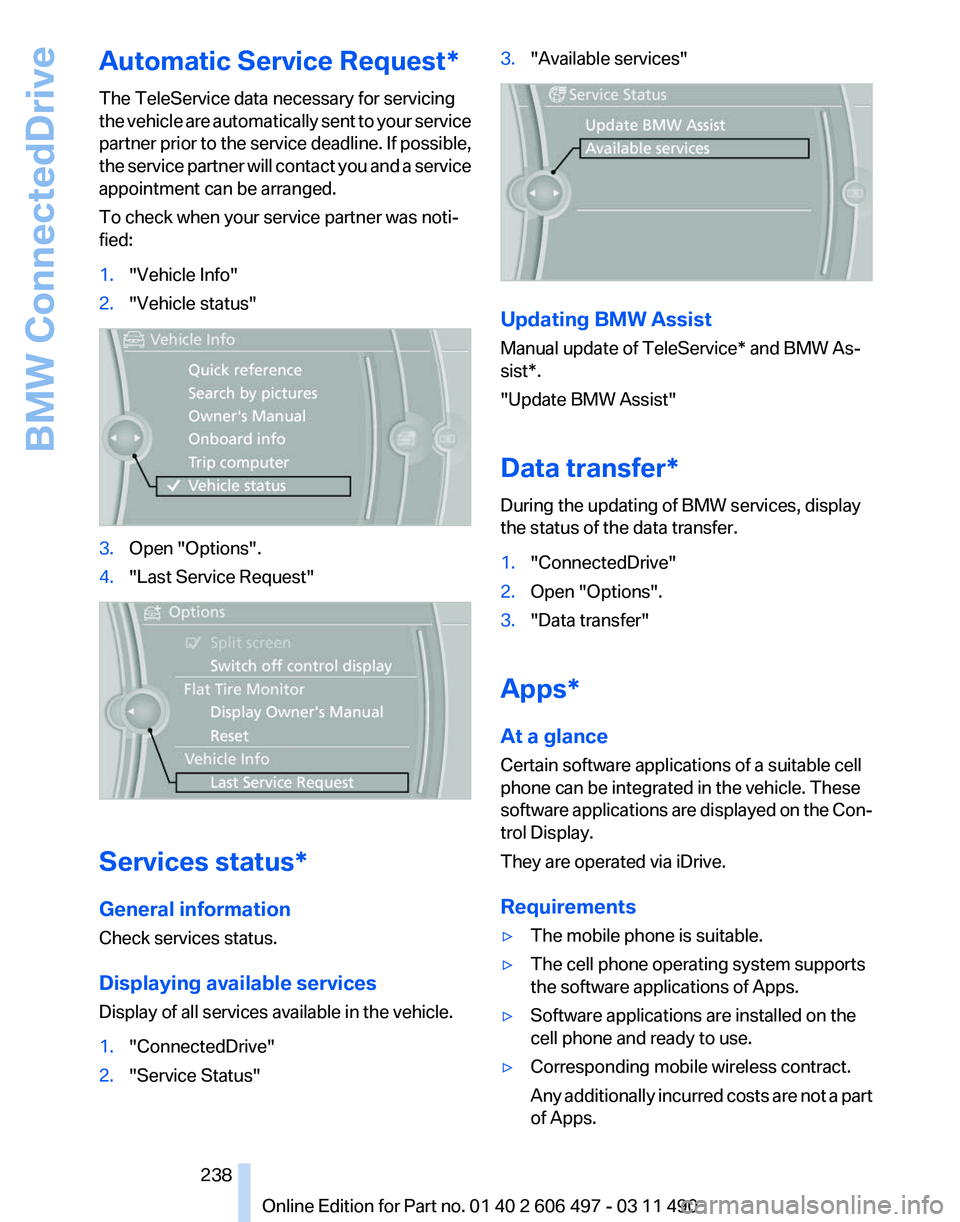
To check when your service partner was noti‐
fied:
1. "Vehicle Info"
2. "Vehicle status" 3.
Open "Options".
4. "Last Service Request" Services status*
General information
Check services status.
Displaying available services
Display of all services available in the vehicle.
1.
"ConnectedDrive"
2. "Service Status" 3.
"Available services" Updating BMW Assist
Manual update of
TeleService* and BMW As‐
sist*.
"Update BMW Assist"
Data transfer*
During the updating of BMW services, display
the status of the data transfer.
1. "ConnectedDrive"
2. Open "Options".
3. "Data transfer"
Apps*
At a glance
Certain software applications of a suitable cell
phone can be integrated in the vehicle. These
software
applications are displayed on the Con‐
trol Display.
They are operated via iDrive.
Requirements
▷ The mobile phone is suitable.
▷ The cell phone operating system supports
the software applications of Apps.
▷ Software applications are installed on the
cell phone and ready to use.
▷ Corresponding mobile wireless contract.
Any
additionally incurred costs are not a part
of Apps.
Seite 238
238 Online Edition for Part no. 01 40 2 606 497 - 03 11 490
BMW ConnectedDrive