reset BMW 7 SERIES 2015 G11 User Guide
[x] Cancel search | Manufacturer: BMW, Model Year: 2015, Model line: 7 SERIES, Model: BMW 7 SERIES 2015 G11Pages: 314, PDF Size: 7.9 MB
Page 124 of 314
▷Total range, arrow 2.
With a low remaining range, a Check Control
message is briefly displayed. With a dynamic
driving style, e.g. taking curves aggressively,
the engine function is not always ensured.
The Check Control message appears continu‐
ously below a range of approx. 30 miles/50 km.
CAUTION
With a range of less than 30 miles/50 km
it is possible that the engine will no longer have
sufficient fuel. Engine functions are no longer
ensured. There is risk of property damage. Re‐
fuel promptly.◀
Average speed and average fuel
consumption
General information
Average speed and average fuel consumption
are calculated for the distance traveled since
the last reset in the onboard computer.
Periods in which the vehicle is parked with the
engine manually stopped are not included in
the calculation of the average speed.
Display
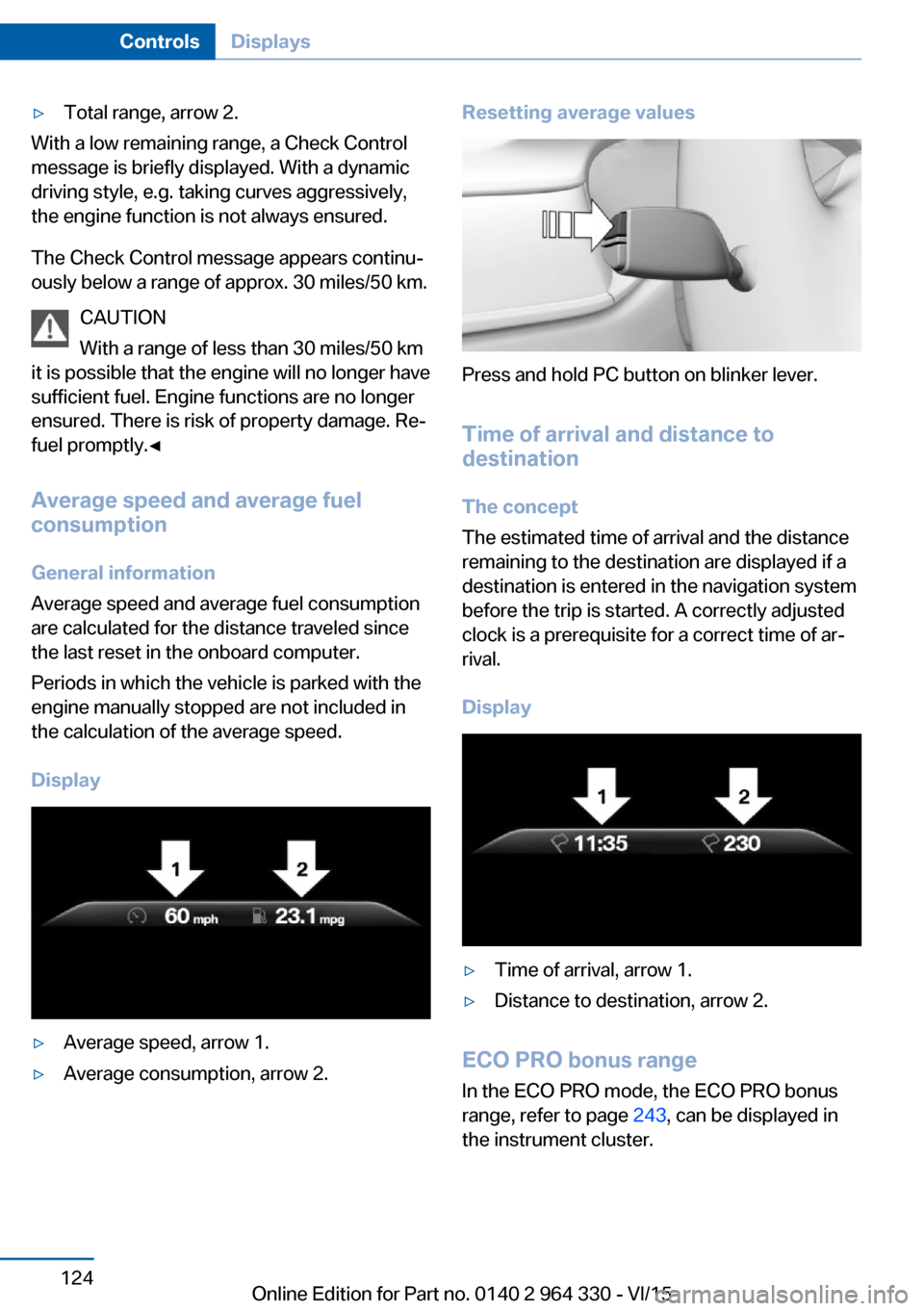
▷Average speed, arrow 1.▷Average consumption, arrow 2.Resetting average values
Press and hold PC button on blinker lever.
Time of arrival and distance to
destination
The concept
The estimated time of arrival and the distance
remaining to the destination are displayed if a
destination is entered in the navigation system
before the trip is started. A correctly adjusted
clock is a prerequisite for a correct time of ar‐
rival.
Display
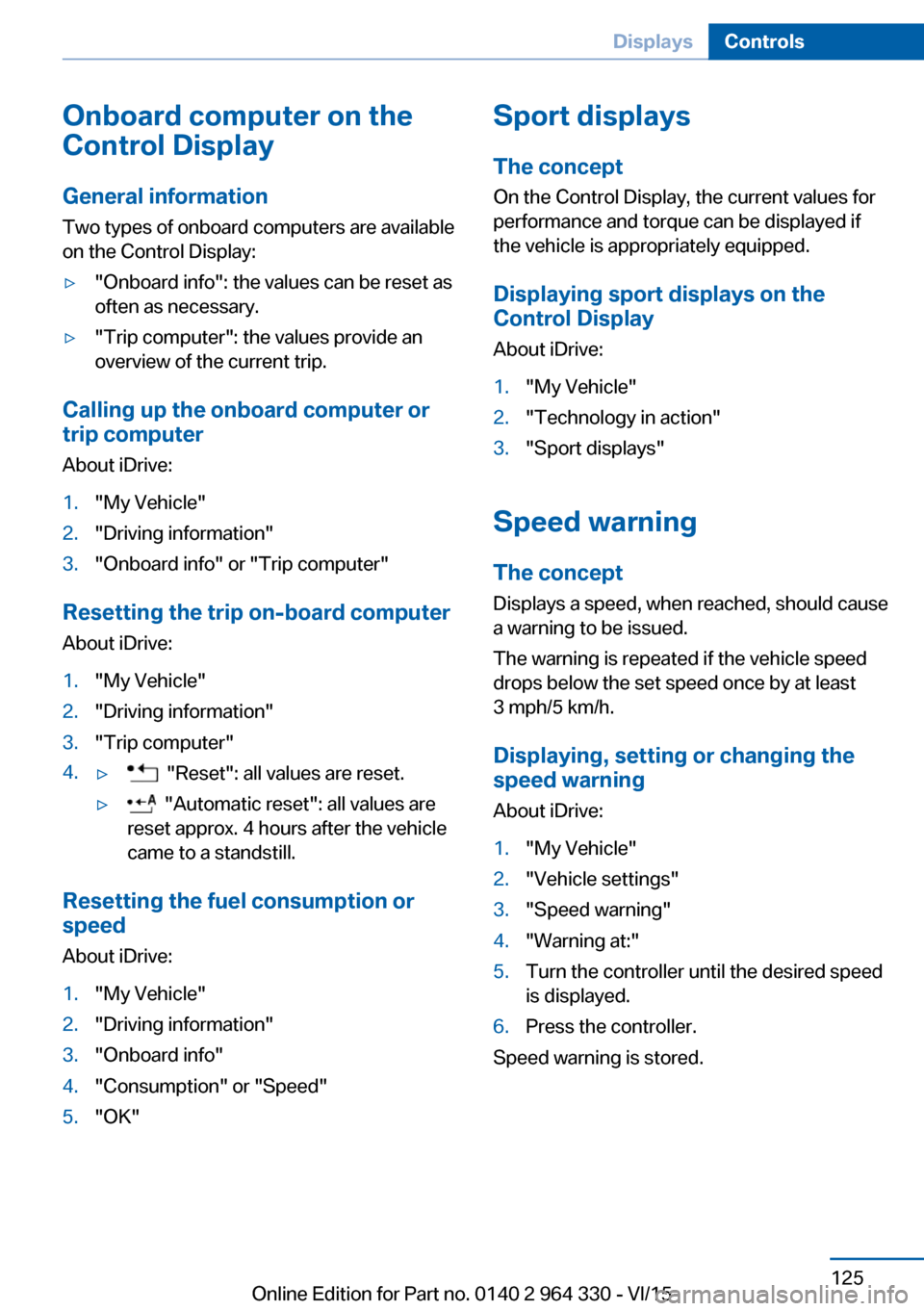
▷Time of arrival, arrow 1.▷Distance to destination, arrow 2.
ECO PRO bonus range In the ECO PRO mode, the ECO PRO bonus
range, refer to page 243, can be displayed in
the instrument cluster.
Seite 124ControlsDisplays124
Online Edition for Part no. 0140 2 964 330 - VI/15
Page 125 of 314
Onboard computer on the
Control Display
General information
Two types of onboard computers are available
on the Control Display:▷"Onboard info": the values can be reset as
often as necessary.▷"Trip computer": the values provide an
overview of the current trip.
Calling up the onboard computer or
trip computer
About iDrive:
1."My Vehicle"2."Driving information"3."Onboard info" or "Trip computer"
Resetting the trip on-board computer
About iDrive:
1."My Vehicle"2."Driving information"3."Trip computer"4.▷ "Reset": all values are reset.▷ "Automatic reset": all values are
reset approx. 4 hours after the vehicle
came to a standstill.
Resetting the fuel consumption or
speed
About iDrive:
1."My Vehicle"2."Driving information"3."Onboard info"4."Consumption" or "Speed"5."OK"Sport displays
The concept
On the Control Display, the current values for
performance and torque can be displayed if
the vehicle is appropriately equipped.
Displaying sport displays on the
Control Display
About iDrive:1."My Vehicle"2."Technology in action"3."Sport displays"
Speed warning
The concept Displays a speed, when reached, should cause
a warning to be issued.
The warning is repeated if the vehicle speed
drops below the set speed once by at least
3 mph/5 km/h.
Displaying, setting or changing the
speed warning
About iDrive:
1."My Vehicle"2."Vehicle settings"3."Speed warning"4."Warning at:"5.Turn the controller until the desired speed
is displayed.6.Press the controller.
Speed warning is stored.
Seite 125DisplaysControls125
Online Edition for Part no. 0140 2 964 330 - VI/15
Page 126 of 314
Activating/deactivating the speed
warning
About iDrive:1."My Vehicle"2."Vehicle settings"3."Speed warning"4."Speed warning"5.Press the controller.
Setting your current speed as the
speed warning
About iDrive:
1."My Vehicle"2."Vehicle settings"3."Speed warning"4."Select current speed"5.Press the controller.
The current vehicle speed is stored as the
speed warning.
Vehicle status
The concept The status can be displayed and actions per‐
formed for several systems.
Opening the vehicle status
About iDrive:
1."My Vehicle"2."Vehicle status"
Information at a glance
▷ "Flat Tire Monitor": Status of the Flat
Tire Monitor, refer to page 269.▷ "Tire Pressure Monitor": Status of the
Tire Pressure Monitor, refer to page 265.▷Reset the Tire Pressure Monitor, refer to
page 265.▷ "Engine oil level"Electronic engine
oil level check, refer to page 273.▷ "Check Control": Display of stored
Check Control messages, refer to
page 117.▷ "Service required"Display of service
requirements, refer to page 119.▷ "Service Request": Service request.
Head-up Display
Overview
The concept
This system projects important information
into the driver's field of vision, e. g., the speed.
The driver can get information without averting
his or her eyes from the road.
Information Follow the instructions for cleaning the Head-
up Display, refer to page 294.
Display visibility The visibility of the displays in the Head-up
Display is influenced by the following factors:
▷Certain sitting positions.▷Objects on the cover of the Head-up Dis‐
play.▷Sunglasses with certain polarization filters.▷Wet roads.▷Unfavorable light conditions.Seite 126ControlsDisplays126
Online Edition for Part no. 0140 2 964 330 - VI/15
Page 153 of 314
Warning sensitivity
The more sensitive the warning settings are,
the more warnings are displayed. However,
there may also be an excess of undesired
warnings.
Active Blind Spot Detection The concept
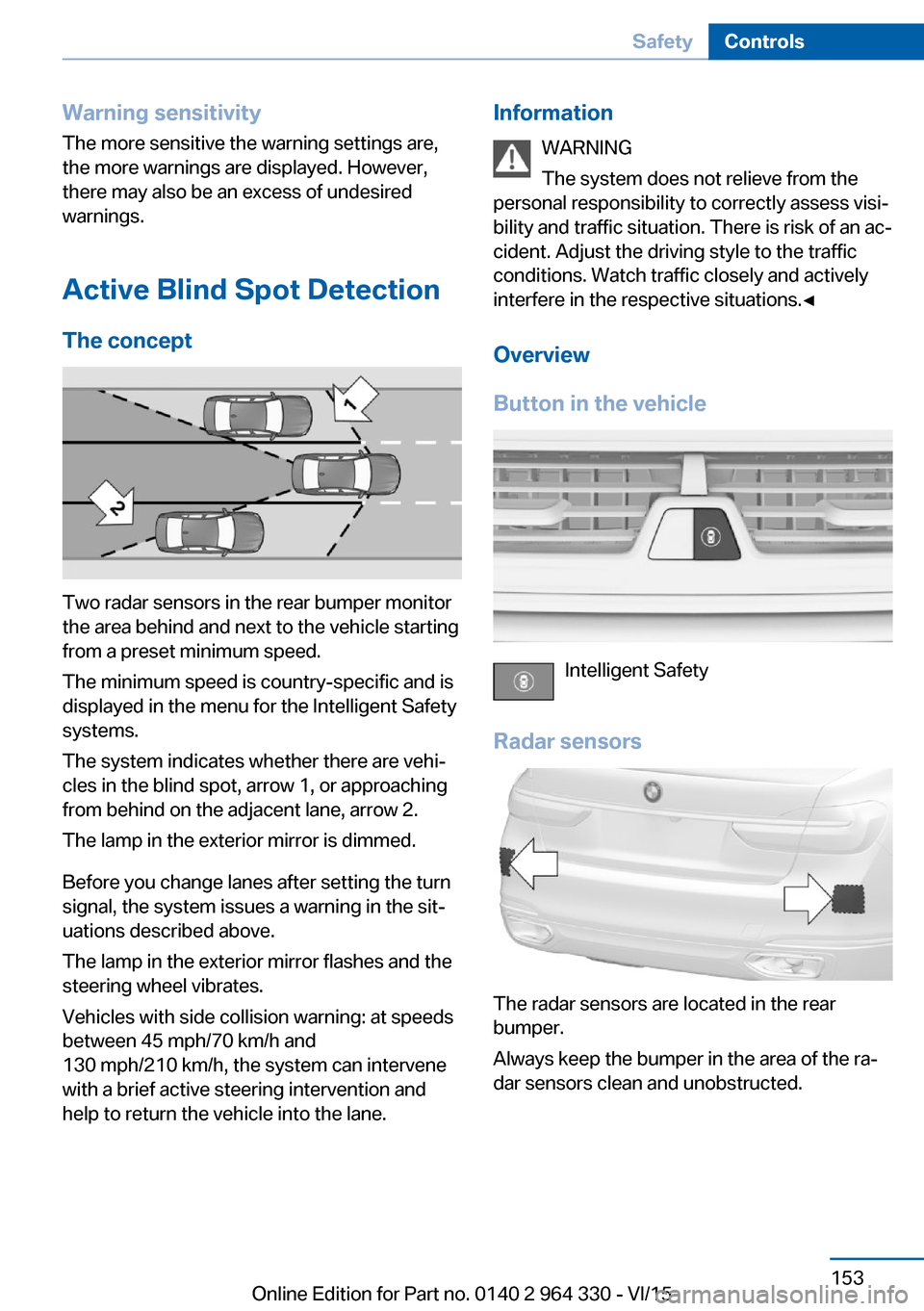
Two radar sensors in the rear bumper monitor
the area behind and next to the vehicle starting
from a preset minimum speed.
The minimum speed is country-specific and is
displayed in the menu for the Intelligent Safety
systems.
The system indicates whether there are vehi‐
cles in the blind spot, arrow 1, or approaching
from behind on the adjacent lane, arrow 2.
The lamp in the exterior mirror is dimmed.
Before you change lanes after setting the turn
signal, the system issues a warning in the sit‐
uations described above.
The lamp in the exterior mirror flashes and the
steering wheel vibrates.
Vehicles with side collision warning: at speeds
between 45 mph/70 km/h and
130 mph/210 km/h, the system can intervene
with a brief active steering intervention and
help to return the vehicle into the lane.
Information
WARNING
The system does not relieve from the
personal responsibility to correctly assess visi‐
bility and traffic situation. There is risk of an ac‐
cident. Adjust the driving style to the traffic
conditions. Watch traffic closely and actively
interfere in the respective situations.◀
Overview
Button in the vehicle
Intelligent Safety
Radar sensors
The radar sensors are located in the rear
bumper.
Always keep the bumper in the area of the ra‐
dar sensors clean and unobstructed.
Seite 153SafetyControls153
Online Edition for Part no. 0140 2 964 330 - VI/15
Page 175 of 314
Weather
In the event of unfavorable weather and light conditions, e. g. if there is rain, snowfall, slush,
fog or glare, this may result in poorer recogni‐
tion of vehicles as well as short-term interrup‐
tions for vehicles that are already detected. Drive attentively, and react to the current trafficsituation. If necessary, intervene actively, e.g.
by braking, steering or evading.
Radar sensor
For US owners only
The transmitter and receiver units comply with
part 15 of the FCC/Federal Communication
Commission regulations. Operation is gov‐
erned by the following:
FCC ID:▷OAYARS3-A
Compliance statement:
This device complies with part 15 of the FCC
Rules. Operation is subject to the following
two conditions:
▷This device may not cause harmful inter‐
ference, and▷this device must accept any interference
received, including interference that may
cause undesired operation.
Any unauthorized modifications or changes to
these devices could void the user's authority to
operate this equipment.
Malfunction
The system cannot be activated if the radar sensor is not aligned correctly. This may be
caused by damage incurred during parking,
e.g.
A Check Control message is displayed if the
system fails.
The function for detecting and responding
when approaching stationary vehicles may be limited in the following situations:
▷During calibration of the camera immedi‐
ately after vehicle delivery.▷If the camera is malfunctioning or dirty. A
Check Control message is displayed.
Cruise control
The concept The system maintains a preset speed via the
buttons on the steering wheel. The system
brakes on downhill gradients if engine braking
is insufficient.
General information
Depending on the driving settings, the features
of the cruise control can change in certain
areas.
The desired speed is also maintained downhill,
but may not be maintained on uphill grades if
engine power is insufficient.
Due to the driving style that minimizes fuel
consumption in ECO PRO drive mode, the ve‐
hicle may drop below the set desired speed in
some situations, e.g. on uphill grades.
Information WARNING
The use of the system can lead to an in‐
creased risk of accidents in the following situa‐
tions:
▷On winding roads.▷In heavy traffic.▷On slippery roads, in fog, snow or rain, or
on a loose road surface.
There is risk of accidents or risk of property
damage. Only use the system if driving at con‐
stant speed is possible.◀
Seite 175Driver assistance systemsControls175
Online Edition for Part no. 0140 2 964 330 - VI/15
Page 242 of 314
▷ECO PRO tips driving instruction, refer to
page 243.▷ECO PRO climate control, refer to
page 242.▷ECO PRO route-ahead assistant driving in‐
struction, refer to page 244.▷ECO PRO coasting driving status, refer to
page 245.▷ECO PRO driving style analysis, refer to
page 246.
Activating ECO PRO
Press button. ECO PRO is displayed
in the instrument cluster.
Configuring ECO PRO INDIVIDUAL
Opening via the Driving Dynamics
Control
1.Activate ECO PRO.2."Configure ECO PRO INDIVIDUAL"
Opening via iDrive
1."My Vehicle"2."Vehicle settings"3."Driving Experience Control"4."Configure ECO PRO INDIVIDUAL"
ECO PRO notes
Activate the ECO PRO limit:
"ECO PRO speed warning"
An ECO PRO tip is displayed if the speed of
the set ECO PRO limit is exceeded.
Adjust the ECO PRO limit speed:
▷"Tip at:"
Activating ECO PRO functions
Adjust, which ECO PRO functions should be
used.
▷"Coasting"▷"ECO PRO seat climate control"▷"ECO PRO climate control"▷"ECO PRO sight"▷"Route-ahead assistant"
Coasting
Fuel-efficiency can be optimized by disengag‐
ing the engine and Coasting with the engine
idling.
ECO PRO seat heating
The output of seat heating and possibly seat
ventilation is reduced on activation of ECO
PRO.
ECO PRO climate control "ECO PRO climate control"
Climate control is set to be fuel-efficient.
By making a slight change to the set tempera‐
ture, or slowly adjusting the rate of heating or
cooling of the car's interior, fuel consumption
can be economized.
The mirror heating is made available when out‐
side temperatures are very cold.
Route-ahead assistant The route-ahead assistant detects and indi‐
cates route sections ahead of the vehicle.
Resetting the settings Reset ECO PRO INDIVIDUAL to the standard
settings:
Select and confirm "Reset to ECO PRO
STANDARD".
Display in the instrument cluster
Display
When ECO PRO mode is activated, the display
switches to a special configuration.
Some of the displays may differ from the dis‐
play in the instrument cluster.
Seite 242Driving tipsSaving fuel242
Online Edition for Part no. 0140 2 964 330 - VI/15
Page 243 of 314
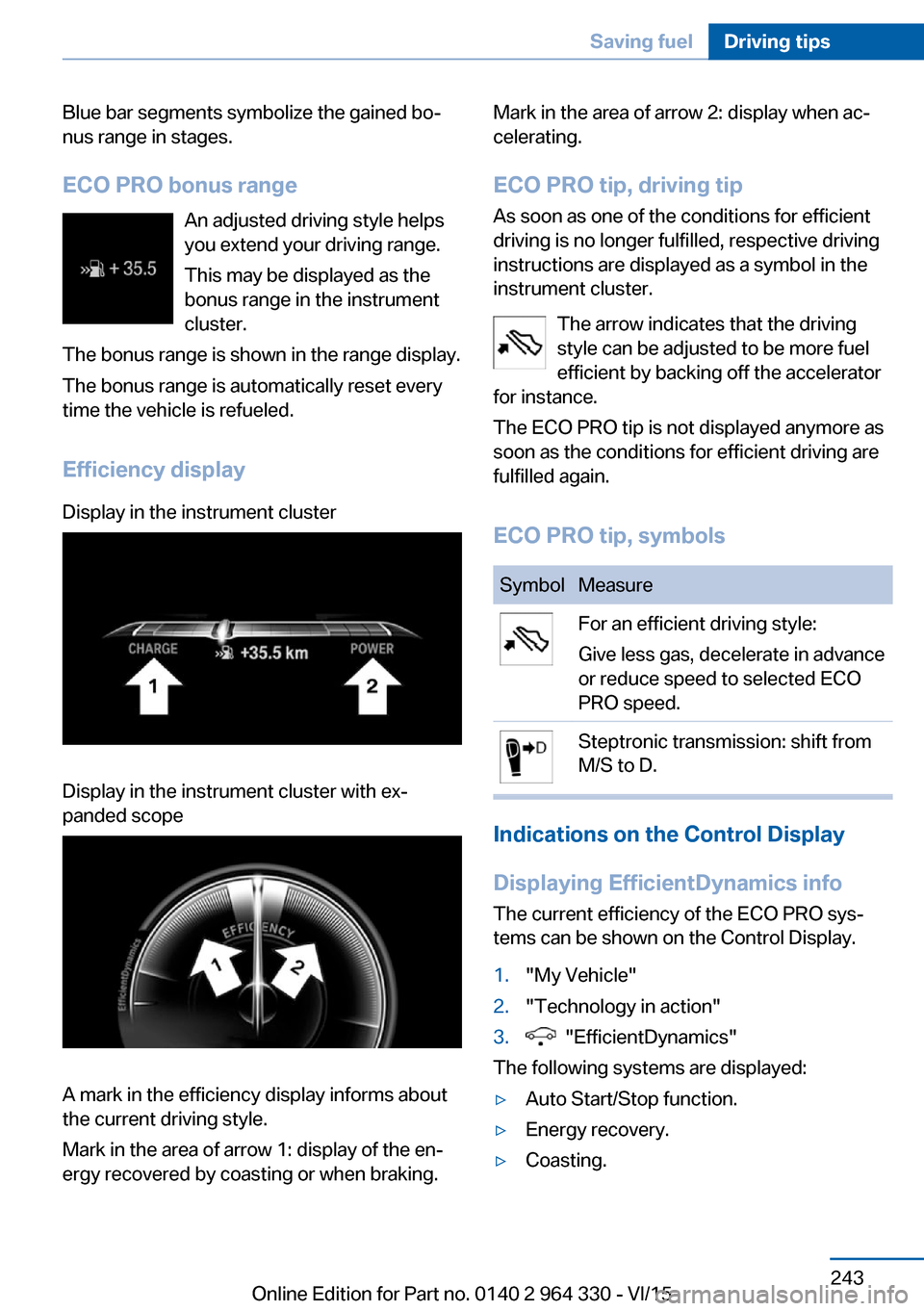
Blue bar segments symbolize the gained bo‐
nus range in stages.
ECO PRO bonus range An adjusted driving style helps
you extend your driving range.
This may be displayed as the
bonus range in the instrument
cluster.
The bonus range is shown in the range display.
The bonus range is automatically reset every
time the vehicle is refueled.
Efficiency displayDisplay in the instrument clusterDisplay in the instrument cluster with ex‐
panded scope
A mark in the efficiency display informs about
the current driving style.
Mark in the area of arrow 1: display of the en‐
ergy recovered by coasting or when braking.
Mark in the area of arrow 2: display when ac‐
celerating.
ECO PRO tip, driving tip
As soon as one of the conditions for efficient
driving is no longer fulfilled, respective driving
instructions are displayed as a symbol in the
instrument cluster.
The arrow indicates that the driving
style can be adjusted to be more fuel
efficient by backing off the accelerator
for instance.
The ECO PRO tip is not displayed anymore as
soon as the conditions for efficient driving are
fulfilled again.
ECO PRO tip, symbolsSymbolMeasureFor an efficient driving style:
Give less gas, decelerate in advance
or reduce speed to selected ECO
PRO speed.Steptronic transmission: shift from
M/S to D.
Indications on the Control Display
Displaying EfficientDynamics info
The current efficiency of the ECO PRO sys‐
tems can be shown on the Control Display.
1."My Vehicle"2."Technology in action"3. "EfficientDynamics"
The following systems are displayed:
▷Auto Start/Stop function.▷Energy recovery.▷Coasting.Seite 243Saving fuelDriving tips243
Online Edition for Part no. 0140 2 964 330 - VI/15
Page 244 of 314
Displaying fuel consumption history
The average consumption on the route
coasted as well as the duration for which the
auto start/stop function switched off the en‐
gine can be displayed.1."My Vehicle"2."Technology in action"3. "EfficientDynamics"
Vertical bars show consumption for the se‐
lected route.
Selecting route length
1. Press button.2.Select desired route length or scaling.
Resetting fuel consumption history
1. Press button.2."Reset consumption history"
Route-ahead assistant
The concept The system helps to conserve fuel and pro‐
motes a proactively driving style. It can detect
certain upcoming sections of the journey
based on the navigation data and alert the
driver to them in good time.
The detected route sections, such as built-up areas or changes of road require the driver to
reduce speed.
General information
This alert is issued even if the upcoming route
section cannot yet be detected while driving.
The alert is displayed until the route section is
reached.
If an alert is received, the vehicle's speed and
its fuel consumption can be reduced by back‐
ing off the accelerator and coasting until the
route section is reached.
Depending on the situation, the system also
uses the engine brake automatically with a
pausing of the coast, refer to page 245, func‐
tion.
Functional requirements
This function is available in ECO PRO mode.
The system depends on the timeliness and
quality of the navigation data.
The navigation data can be updated.
Display
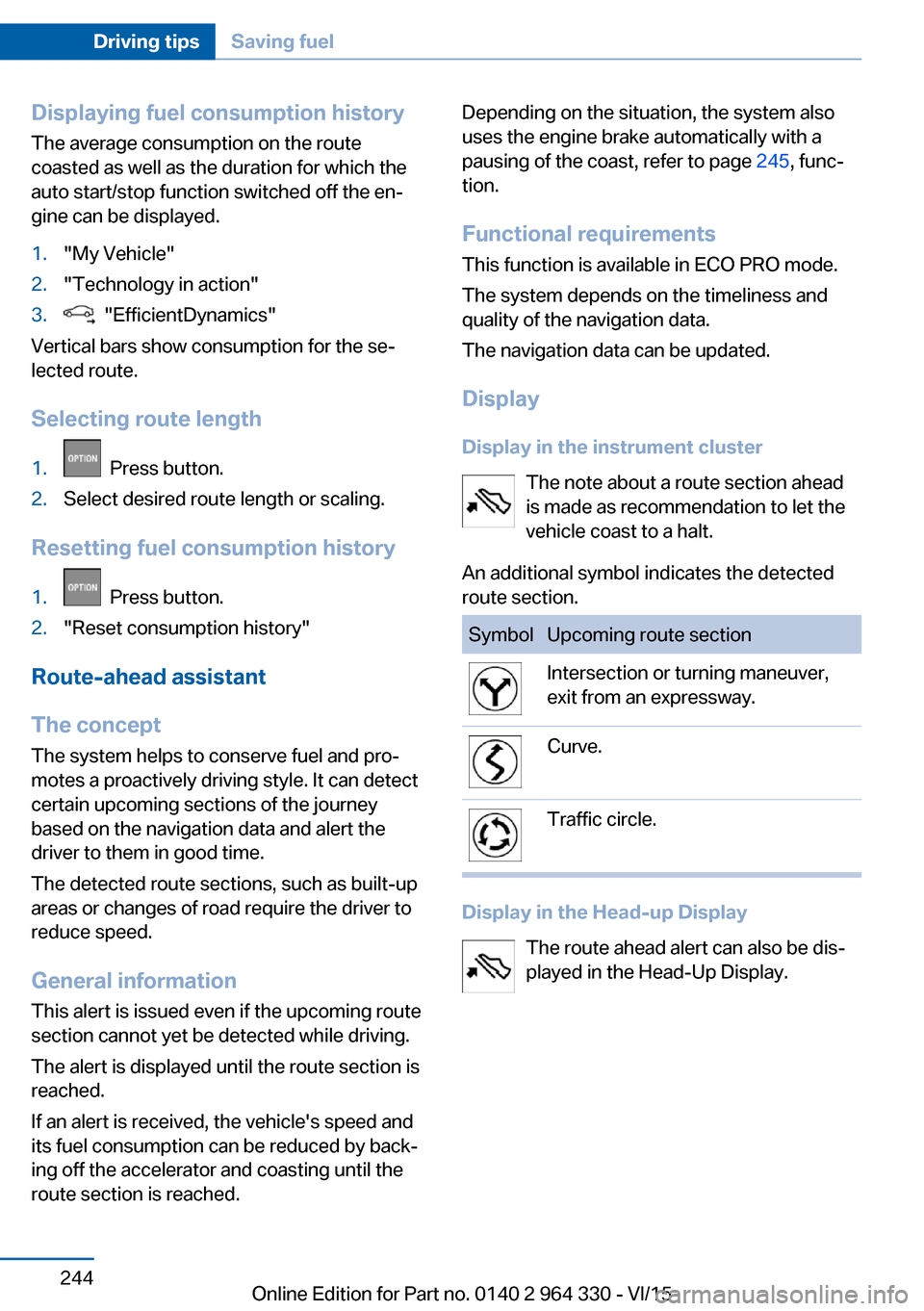
Display in the instrument cluster The note about a route section ahead
is made as recommendation to let the
vehicle coast to a halt.
An additional symbol indicates the detected
route section.SymbolUpcoming route sectionIntersection or turning maneuver,
exit from an expressway.Curve.Traffic circle.
Display in the Head-up Display
The route ahead alert can also be dis‐
played in the Head-Up Display.
Seite 244Driving tipsSaving fuel244
Online Edition for Part no. 0140 2 964 330 - VI/15
Page 254 of 314
Wheels and tiresVehicle features and options
This chapter describes all standard, country-
specific and optional features offered with the
series. It also describes features that are not
necessarily available in your car, e. g., due to
the selected options or country versions. This
also applies to safety-related functions and
systems. The respectively applicable country
provisions must be observed when using the
respective features and systems.
Tire inflation pressure Safety information
The tire characteristics and tire inflation pres‐
sure influence the following:▷The service life of the tires.▷Road safety.▷Driving comfort.
Checking the tire inflation pressure
WARNING
A tire with low or missing tire inflation
pressure impacts handling, such as steering
and braking response. There is risk of an acci‐
dent. Regularly check the tire inflation pres‐
sure, and correct it as needed, e.g. twice a
month and before a long trip.◀
Also check the tire inflation pressure of the
emergency wheel in the trunk regularly, and
correct it as needed.
Tires have a natural, consistent loss of tire in‐
flation pressure.
Tires heat up while driving, and the tire infla‐
tion pressure increases along with the tire's
temperature. The tire inflation pressure speci‐
fications relate to cold tires or tires with the
ambient temperature.
Only check the tire inflation pressure when the
tires are cold. This means after driving no more
than 1.25 miles/2 km or when the vehicle has
been parked for at least 2 hours.
The displays of inflation devices may under-
read by up to 0.1 bar, 2 psi.
For Flat Tire Monitor: after correcting the tire
inflation pressure, reinitialize the Flat Tire
Monitor.
For Tire Pressure Monitor: after correcting the
tire inflation pressure, reset the Tire Pressure
Monitor.
Tire inflation pressure specifications
The tire inflation pressure table, refer to
page 255, contains all tire inflation pressure
specifications for the specified tire sizes at the
ambient temperature. The tire inflation pres‐
sure values apply to tire sizes approved by the
manufacturer of the vehicle for the vehicle
type.
To identify the correct tire inflation pressure,
please note the following:▷Tire sizes of your vehicle.▷Maximum permitted driving speed.
Tire inflation pressures up to
100 mph/160 km/h
For speeds of up to 100 mph/160 km/h and for
optimum driving comfort, note the pressure
values in the tire inflation pressure table, refer
to page 255, and adjust as necessary.
Seite 254MobilityWheels and tires254
Online Edition for Part no. 0140 2 964 330 - VI/15
Page 265 of 314
Functional requirements
The system must have been reset with the
correct tire inflation pressure; otherwise, relia‐
ble signaling of tire inflation pressure loss is
not assured.
Reset the system after each adjustment of the
tire inflation pressure and after every tire or
wheel change.
Always use wheels with TPM electronics to
ensure that the system will operate properly.
Status display
The current status of the Tire Pressure Moni‐
tor TPM can be displayed, e.g., whether or not
the TPM is active.
About iDrive:1."My Vehicle"2."Vehicle status"3. "Tire Pressure Monitor"
The status is displayed.
Status control display Tire and system status are indicated by the
color of the wheels and a text message on the
Control Display.
All wheels green System is active and will issue a warning rela‐
tive to the tire inflation pressures stored during
the last reset.
One to four wheels, yellow
A flat tire or major drop in tire inflation pressure
in the indicated tires.
Wheels, gray
The system cannot detect a flat tire. Reasons
for this may be:
▷The system is being reset.▷Malfunction.Status information
The status control display additionally shows
the current tire inflation pressures and, de‐
pending on the model, tire temperatures. It
shows the actual values read; they may vary depending on driving style or weather condi‐
tions.
Carry out reset Reset the system after each adjustment of the
tire inflation pressure and after every tire or
wheel change.
Via iDrive and in the vehicle:1."My Vehicle"2."Vehicle status"3.Tire Pressure Monitor reset4.Start the engine - do not drive off.5.Reset tire inflation pressure: "Perform
reset".6.Drive away.
The wheels are displayed in gray and the sta‐
tus "Resetting Tire Pressure Monitor…" is dis‐
played.
After driving faster than 19 mph/30 km/h for a
short period, the set tire inflation pressures are
accepted as reference values. The reset is
completed automatically while driving.
After a successfully completed Reset, the
wheels on the Control Display are shown in
green and "Tire Pressure Monitor active. For
recommended pressures, see tire pressure
label." is displayed.
You may interrupt this trip at any time. When
you continue the reset resumes automatically.
Messages
Required tire inflation pressure check
message
A Check Control message is displayed.
Seite 265Wheels and tiresMobility265
Online Edition for Part no. 0140 2 964 330 - VI/15