Phone BMW 7 SERIES 2016 G11 User Guide
[x] Cancel search | Manufacturer: BMW, Model Year: 2016, Model line: 7 SERIES, Model: BMW 7 SERIES 2016 G11Pages: 314, PDF Size: 7.9 MB
Page 44 of 314
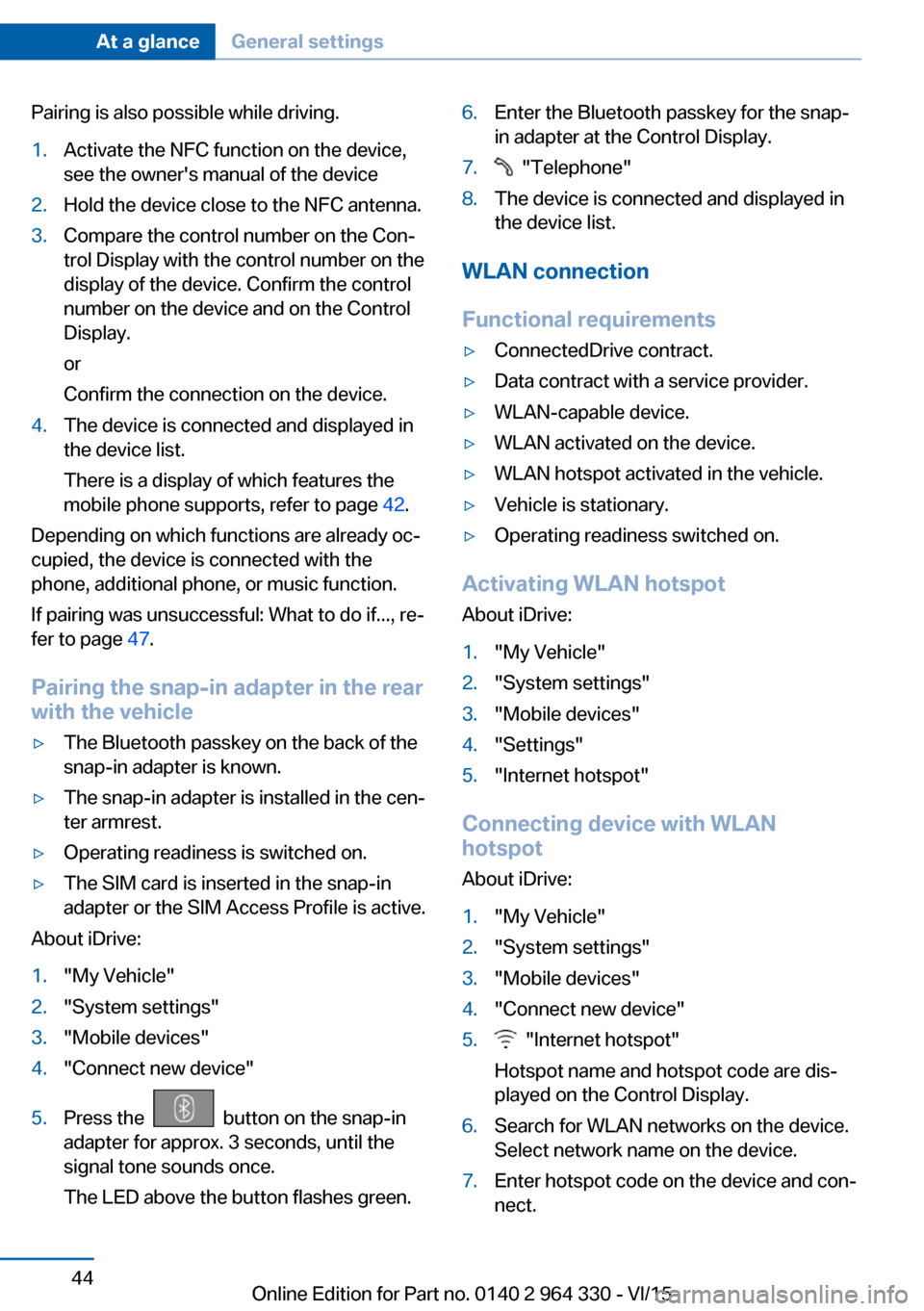
Pairing is also possible while driving.1.Activate the NFC function on the device,
see the owner's manual of the device2.Hold the device close to the NFC antenna.3.Compare the control number on the Con‐
trol Display with the control number on the
display of the device. Confirm the control
number on the device and on the Control
Display.
or
Confirm the connection on the device.4.The device is connected and displayed in
the device list.
There is a display of which features the
mobile phone supports, refer to page 42.
Depending on which functions are already oc‐
cupied, the device is connected with the
phone, additional phone, or music function.
If pairing was unsuccessful: What to do if..., re‐
fer to page 47.
Pairing the snap-in adapter in the rear
with the vehicle
▷The Bluetooth passkey on the back of the
snap-in adapter is known.▷The snap-in adapter is installed in the cen‐
ter armrest.▷Operating readiness is switched on.▷The SIM card is inserted in the snap-in
adapter or the SIM Access Profile is active.
About iDrive:
1."My Vehicle"2."System settings"3."Mobile devices"4."Connect new device"5.Press the button on the snap-in
adapter for approx. 3 seconds, until the
signal tone sounds once.
The LED above the button flashes green.6.Enter the Bluetooth passkey for the snap-
in adapter at the Control Display.7. "Telephone"8.The device is connected and displayed in
the device list.
WLAN connection
Functional requirements
▷ConnectedDrive contract.▷Data contract with a service provider.▷WLAN-capable device.▷WLAN activated on the device.▷WLAN hotspot activated in the vehicle.▷Vehicle is stationary.▷Operating readiness switched on.
Activating WLAN hotspot
About iDrive:
1."My Vehicle"2."System settings"3."Mobile devices"4."Settings"5."Internet hotspot"
Connecting device with WLAN
hotspot
About iDrive:
1."My Vehicle"2."System settings"3."Mobile devices"4."Connect new device"5. "Internet hotspot"
Hotspot name and hotspot code are dis‐
played on the Control Display.6.Search for WLAN networks on the device.
Select network name on the device.7.Enter hotspot code on the device and con‐
nect.Seite 44At a glanceGeneral settings44
Online Edition for Part no. 0140 2 964 330 - VI/15
Page 45 of 314
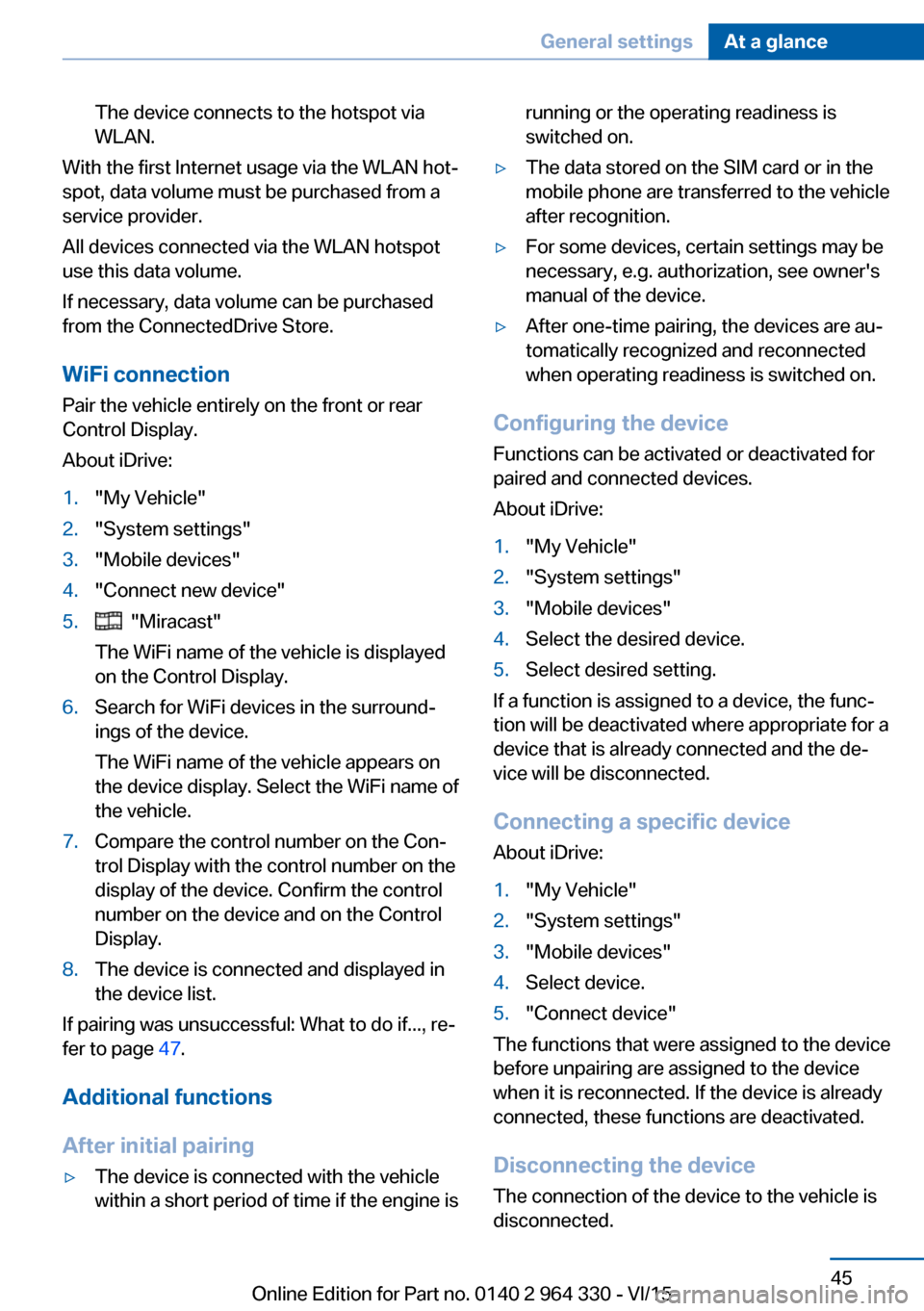
The device connects to the hotspot via
WLAN.
With the first Internet usage via the WLAN hot‐
spot, data volume must be purchased from a
service provider.
All devices connected via the WLAN hotspot
use this data volume.
If necessary, data volume can be purchased
from the ConnectedDrive Store.
WiFi connection Pair the vehicle entirely on the front or rear
Control Display.
About iDrive:
1."My Vehicle"2."System settings"3."Mobile devices"4."Connect new device"5. "Miracast"
The WiFi name of the vehicle is displayed
on the Control Display.6.Search for WiFi devices in the surround‐
ings of the device.
The WiFi name of the vehicle appears on
the device display. Select the WiFi name of
the vehicle.7.Compare the control number on the Con‐
trol Display with the control number on the
display of the device. Confirm the control
number on the device and on the Control
Display.8.The device is connected and displayed in
the device list.
If pairing was unsuccessful: What to do if..., re‐
fer to page 47.
Additional functions
After initial pairing
▷The device is connected with the vehicle
within a short period of time if the engine isrunning or the operating readiness is
switched on.▷The data stored on the SIM card or in the
mobile phone are transferred to the vehicle
after recognition.▷For some devices, certain settings may be
necessary, e.g. authorization, see owner's
manual of the device.▷After one-time pairing, the devices are au‐
tomatically recognized and reconnected
when operating readiness is switched on.
Configuring the device
Functions can be activated or deactivated for
paired and connected devices.
About iDrive:
1."My Vehicle"2."System settings"3."Mobile devices"4.Select the desired device.5.Select desired setting.
If a function is assigned to a device, the func‐
tion will be deactivated where appropriate for a
device that is already connected and the de‐
vice will be disconnected.
Connecting a specific device About iDrive:
1."My Vehicle"2."System settings"3."Mobile devices"4.Select device.5."Connect device"
The functions that were assigned to the device
before unpairing are assigned to the device
when it is reconnected. If the device is already
connected, these functions are deactivated.
Disconnecting the device
The connection of the device to the vehicle is
disconnected.
Seite 45General settingsAt a glance45
Online Edition for Part no. 0140 2 964 330 - VI/15
Page 46 of 314
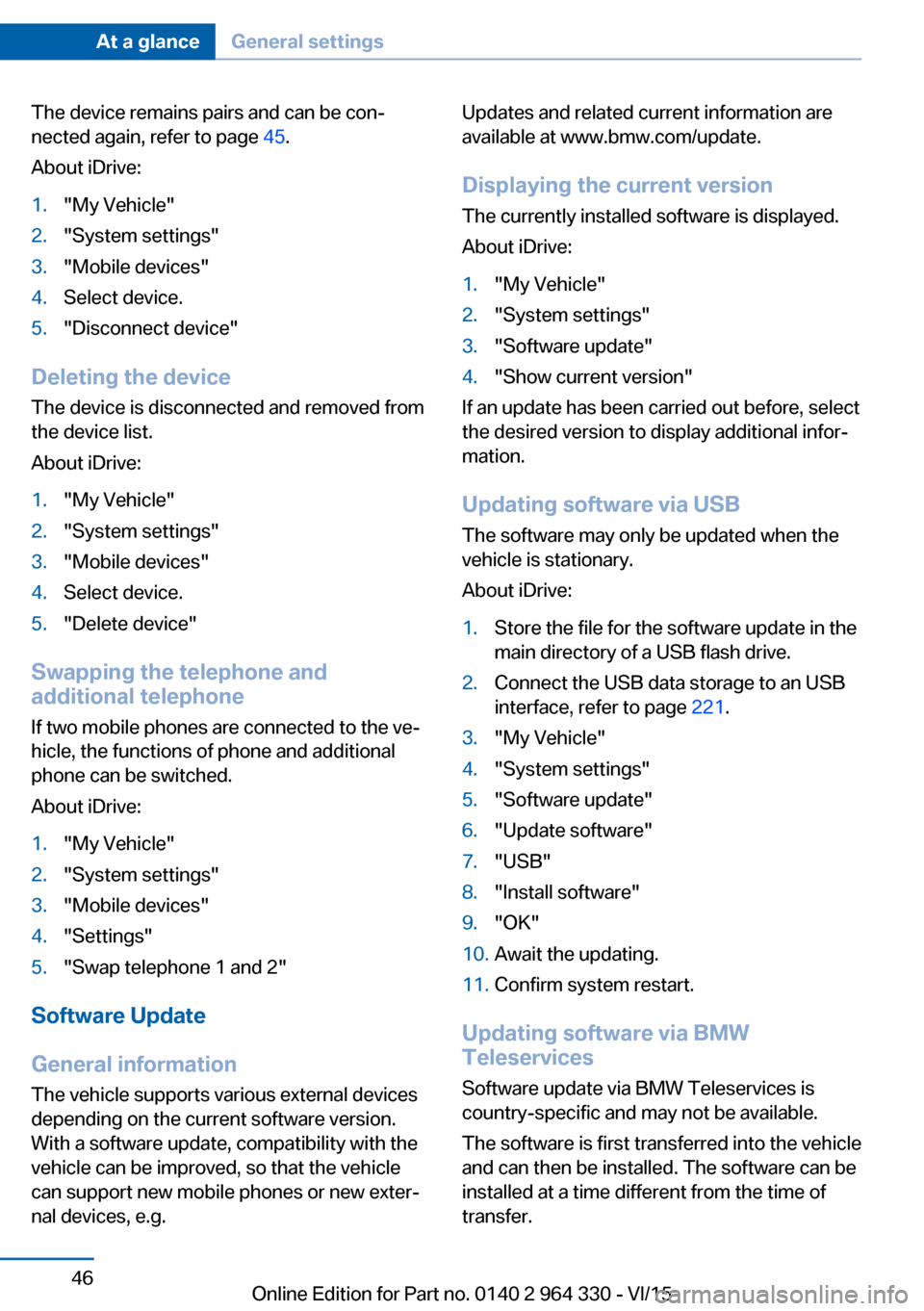
The device remains pairs and can be con‐
nected again, refer to page 45.
About iDrive:1."My Vehicle"2."System settings"3."Mobile devices"4.Select device.5."Disconnect device"
Deleting the device
The device is disconnected and removed from
the device list.
About iDrive:
1."My Vehicle"2."System settings"3."Mobile devices"4.Select device.5."Delete device"
Swapping the telephone and
additional telephone
If two mobile phones are connected to the ve‐
hicle, the functions of phone and additional
phone can be switched.
About iDrive:
1."My Vehicle"2."System settings"3."Mobile devices"4."Settings"5."Swap telephone 1 and 2"
Software Update
General information
The vehicle supports various external devices
depending on the current software version.
With a software update, compatibility with the
vehicle can be improved, so that the vehicle
can support new mobile phones or new exter‐
nal devices, e.g.
Updates and related current information are
available at www.bmw.com/update.
Displaying the current version The currently installed software is displayed.
About iDrive:1."My Vehicle"2."System settings"3."Software update"4."Show current version"
If an update has been carried out before, select
the desired version to display additional infor‐
mation.
Updating software via USB
The software may only be updated when the
vehicle is stationary.
About iDrive:
1.Store the file for the software update in the
main directory of a USB flash drive.2.Connect the USB data storage to an USB
interface, refer to page 221.3."My Vehicle"4."System settings"5."Software update"6."Update software"7."USB"8."Install software"9."OK"10.Await the updating.11.Confirm system restart.
Updating software via BMW
Teleservices
Software update via BMW Teleservices is
country-specific and may not be available.
The software is first transferred into the vehicle
and can then be installed. The software can be
installed at a time different from the time of
transfer.
Seite 46At a glanceGeneral settings46
Online Edition for Part no. 0140 2 964 330 - VI/15
Page 47 of 314
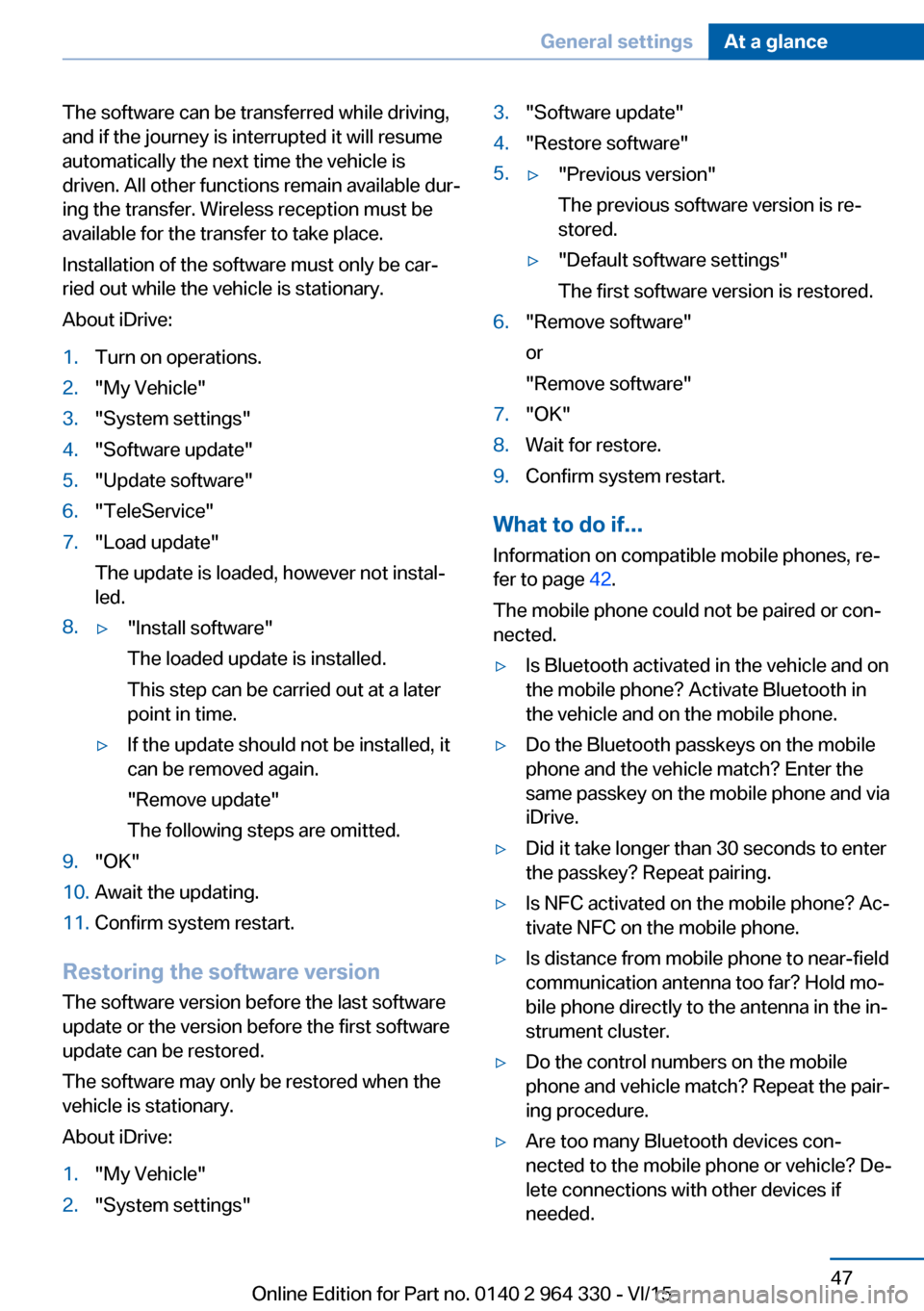
The software can be transferred while driving,
and if the journey is interrupted it will resume
automatically the next time the vehicle is
driven. All other functions remain available dur‐
ing the transfer. Wireless reception must be
available for the transfer to take place.
Installation of the software must only be car‐
ried out while the vehicle is stationary.
About iDrive:1.Turn on operations.2."My Vehicle"3."System settings"4."Software update"5."Update software"6."TeleService"7."Load update"
The update is loaded, however not instal‐
led.8.▷"Install software"
The loaded update is installed.
This step can be carried out at a later
point in time.▷If the update should not be installed, it
can be removed again.
"Remove update"
The following steps are omitted.9."OK"10.Await the updating.11.Confirm system restart.
Restoring the software version
The software version before the last software
update or the version before the first software
update can be restored.
The software may only be restored when the
vehicle is stationary.
About iDrive:
1."My Vehicle"2."System settings"3."Software update"4."Restore software"5.▷"Previous version"
The previous software version is re‐
stored.▷"Default software settings"
The first software version is restored.6."Remove software"
or
"Remove software"7."OK"8.Wait for restore.9.Confirm system restart.
What to do if...
Information on compatible mobile phones, re‐
fer to page 42.
The mobile phone could not be paired or con‐
nected.
▷Is Bluetooth activated in the vehicle and on
the mobile phone? Activate Bluetooth in
the vehicle and on the mobile phone.▷Do the Bluetooth passkeys on the mobile
phone and the vehicle match? Enter the
same passkey on the mobile phone and via
iDrive.▷Did it take longer than 30 seconds to enter
the passkey? Repeat pairing.▷Is NFC activated on the mobile phone? Ac‐
tivate NFC on the mobile phone.▷Is distance from mobile phone to near-field
communication antenna too far? Hold mo‐
bile phone directly to the antenna in the in‐
strument cluster.▷Do the control numbers on the mobile
phone and vehicle match? Repeat the pair‐
ing procedure.▷Are too many Bluetooth devices con‐
nected to the mobile phone or vehicle? De‐
lete connections with other devices if
needed.Seite 47General settingsAt a glance47
Online Edition for Part no. 0140 2 964 330 - VI/15
Page 48 of 314
▷Is Bluetooth audio activated? Deactivate
Bluetooth audio.▷Delete all known Bluetooth connections
from the device list on the mobile phone
prior to pairing. Start new device search.▷Is the mobile phone in power-save mode or
does it have only a limited remaining bat‐
tery life? Charge the mobile phone in the
snap-in adapter, wireless charging storage
or via the charging cable.▷Depending on the mobile phone, it is pos‐
sible that only one mobile phone can be
connected to the vehicle. Unpair the con‐
nected mobile phone from the vehicle and
pair and connect only one mobile phone.
The mobile phone no longer reacts.
▷Switch the mobile phone off and on again.▷Ambient temperatures too high or too low?
Do not subject the mobile phone to ex‐
treme ambient temperatures.
The telephone functions are not available.
▷Configure the mobile phone and connect it
with the telephone or auxiliary phone func‐
tion.
No or not all phone book entries are displayed,
or they are incomplete.
▷Transmission of the phone book entries is
not yet complete.▷It is possible that only the phone book en‐
tries of the mobile phone or the SIM card
are transmitted.▷It may not be possible to display phone
book entries with special characters.▷The number of phone book entries to be
stored is too high.▷Is the data volume of the contact too large,
e.g., due to stored information such as
notes? Reduce the data volume of the con‐
tact.▷Is the mobile phone connected as an audio
source? Configure the mobile phone andconnect it with the telephone or auxiliary
phone function.
The phone connection quality is poor.
▷The strength of the Bluetooth signal on the
mobile phone can be adjusted, depending
on the mobile phone.▷Insert the mobile phone into the snap-in
adapter or place it in the area of the center
console.▷Insert mobile phone into the wireless
charging tray.▷Adjust the volume of the microphone and
loudspeakers separately.
If all points in this list have been checked and
the required function is still not available, con‐
tact the hotline, a dealer’s service center or an‐
other qualified service center or repair shop.
Seite 48At a glanceGeneral settings48
Online Edition for Part no. 0140 2 964 330 - VI/15
Page 62 of 314
Malfunction
Remote control detection by the vehicle can
among others be malfunctioning under the fol‐
lowing circumstances:▷The battery of the remote control is dis‐
charged. Replace the battery, refer to
page 55.▷Interference of the radio connection from
transmission towers or other equipment
with high transmit power.▷Shielding of the remote control due to
metal objects.▷Interference of the radio connection from
mobile phones or other electronic devices
in direct proximity.
Do not transport the remote control together
with metal objects or electronic devices.
In the case of interference, the vehicle can also
be unlocked and locked from the outside with‐
out remote control, refer to page 62.
For US owners only
The transmitter and receiver units comply with
part 15 of the FCC/Federal Communication
Commission regulations. Operation is gov‐
erned by the following:
FCC ID:
▷LX8766S.▷LX8766E.▷LX8CAS.▷LX8CAS2.▷MYTCAS4.
Compliance statement:
This device complies with part 15 of the FCC
Rules. Operation is subject to the following
two conditions:
▷This device may not cause harmful inter‐
ference, and▷this device must accept any interference
received, including interference that may
cause undesired operation.Any unauthorized modifications or changes to
these devices could void the user's authority to
operate this equipment.
Without remote control
From the outside WARNING
For some country-specific variants, un‐
locking from the inside is only possible with
special knowledge.
If people must spend a longer time in the vehi‐
cle while it is very hot or cold outside, there is
risk of injuries or danger to life. Do not lock the
vehicle from the outside when there are people
in it.◀
CAUTION
The door lock is permanently joined with
the door. The door handle can be moved.
When pulling the door handle with the
integrated key inserted, paint or key can be damaged. There is risk of property damage.
Remove the integrated key before pulling the
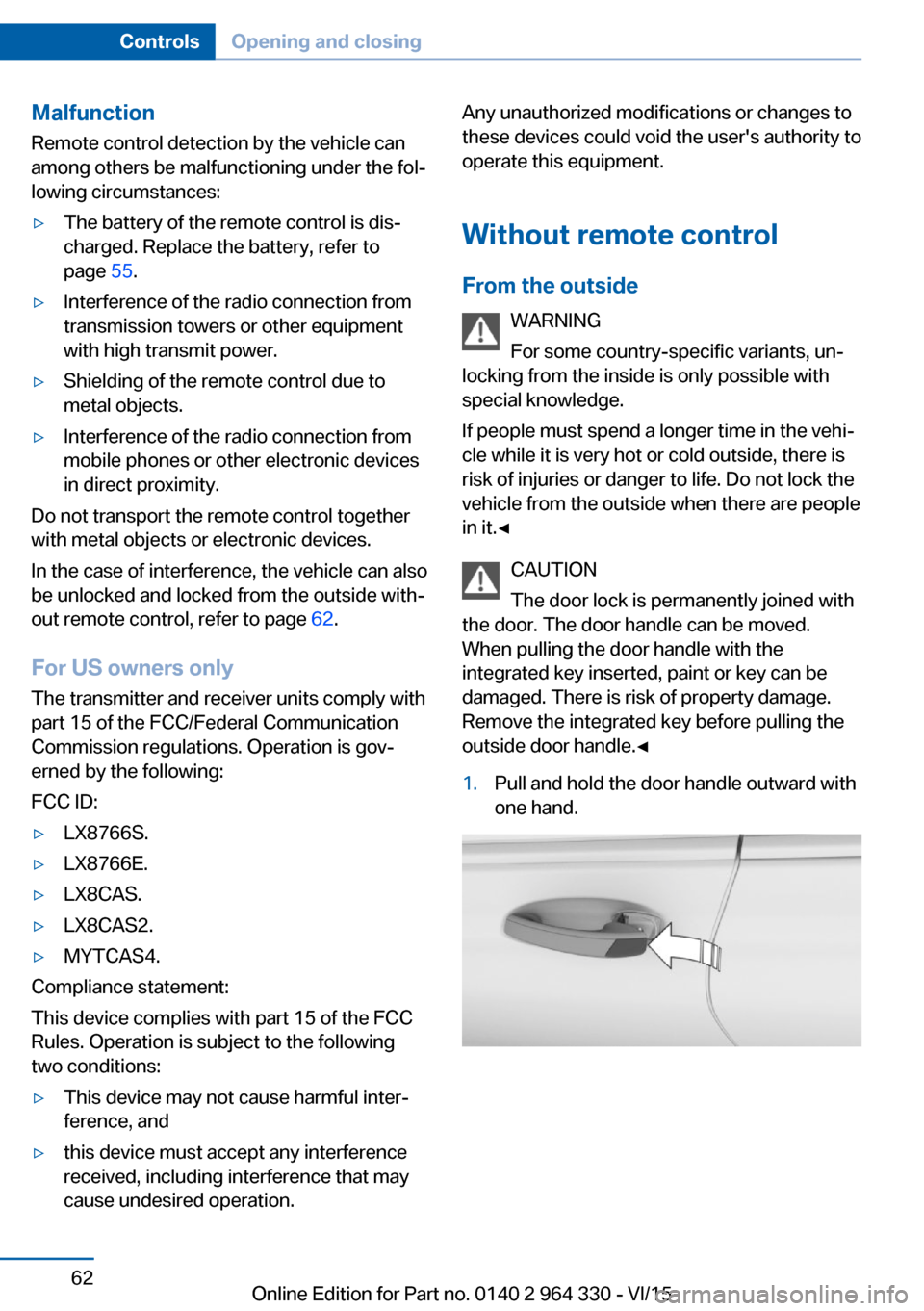
outside door handle.◀1.Pull and hold the door handle outward with
one hand.Seite 62ControlsOpening and closing62
Online Edition for Part no. 0140 2 964 330 - VI/15
Page 67 of 314
If the remote control is in the sensor area, the
tailgate can be closed or opened inadvertently
by an unconscious or alleged recognized foot
movement.
The sensor range reaches approx. 5 ft/1.50 m
behind the area at the rear of the car.
WARNING
Body parts can be jammed when operat‐
ing the tailgate. There is risk of injuries. Make
sure that the area of movement of the tailgate
is clear during opening and closing.◀
CAUTION
During opening, the trunk lid pivots back
and up. There is risk of property damage. Make
sure that the area of movement of the tailgate
is clear during opening and closing.◀
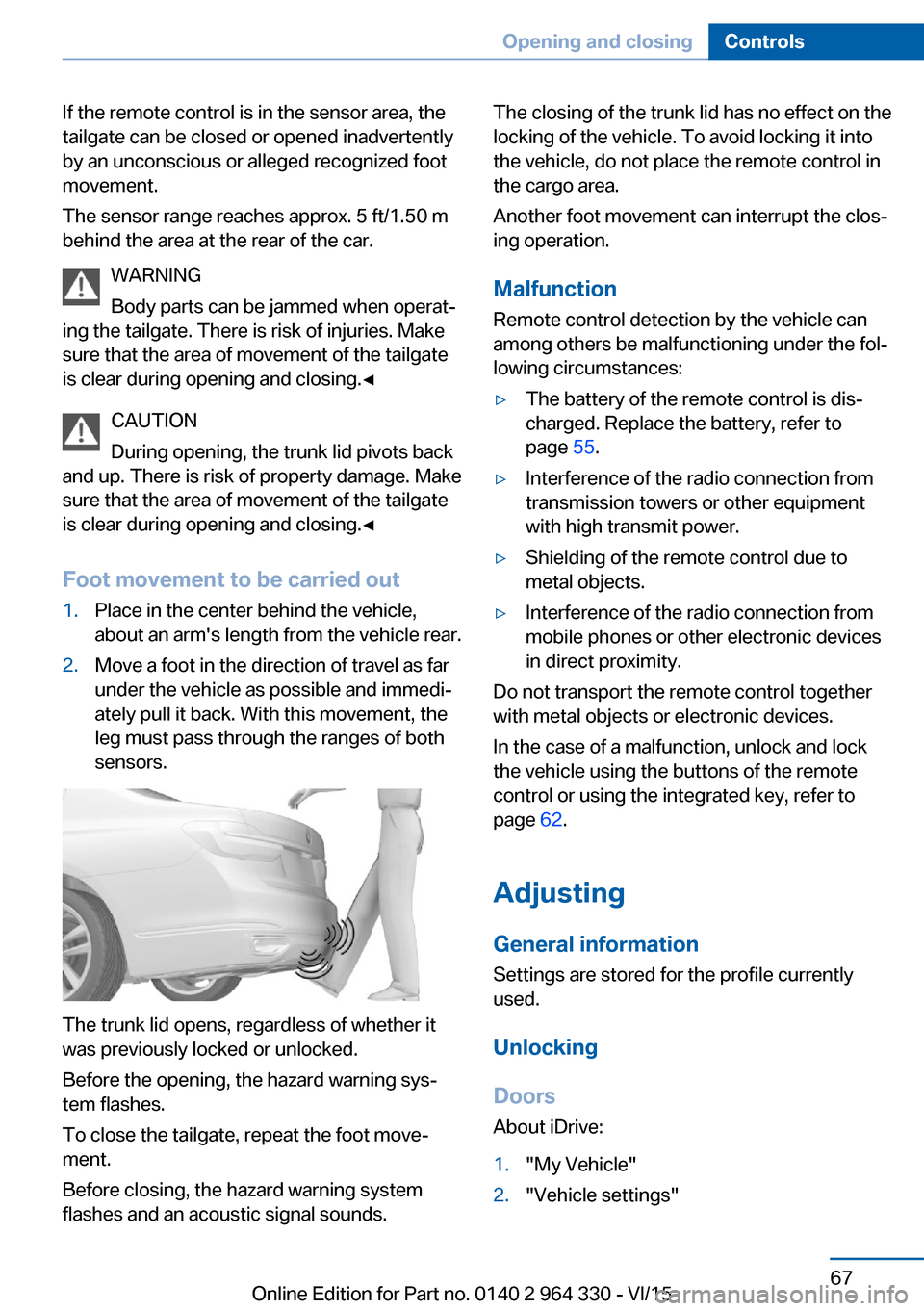
Foot movement to be carried out1.Place in the center behind the vehicle,
about an arm's length from the vehicle rear.2.Move a foot in the direction of travel as far
under the vehicle as possible and immedi‐
ately pull it back. With this movement, the
leg must pass through the ranges of both
sensors.
The trunk lid opens, regardless of whether it
was previously locked or unlocked.
Before the opening, the hazard warning sys‐
tem flashes.
To close the tailgate, repeat the foot move‐
ment.
Before closing, the hazard warning system
flashes and an acoustic signal sounds.
The closing of the trunk lid has no effect on the
locking of the vehicle. To avoid locking it into
the vehicle, do not place the remote control in
the cargo area.
Another foot movement can interrupt the clos‐
ing operation.
Malfunction
Remote control detection by the vehicle can
among others be malfunctioning under the fol‐
lowing circumstances:▷The battery of the remote control is dis‐
charged. Replace the battery, refer to
page 55.▷Interference of the radio connection from
transmission towers or other equipment
with high transmit power.▷Shielding of the remote control due to
metal objects.▷Interference of the radio connection from
mobile phones or other electronic devices
in direct proximity.
Do not transport the remote control together
with metal objects or electronic devices.
In the case of a malfunction, unlock and lock
the vehicle using the buttons of the remote
control or using the integrated key, refer to
page 62.
Adjusting
General information
Settings are stored for the profile currently
used.
Unlocking
Doors About iDrive:
1."My Vehicle"2."Vehicle settings"Seite 67Opening and closingControls67
Online Edition for Part no. 0140 2 964 330 - VI/15
Page 121 of 314
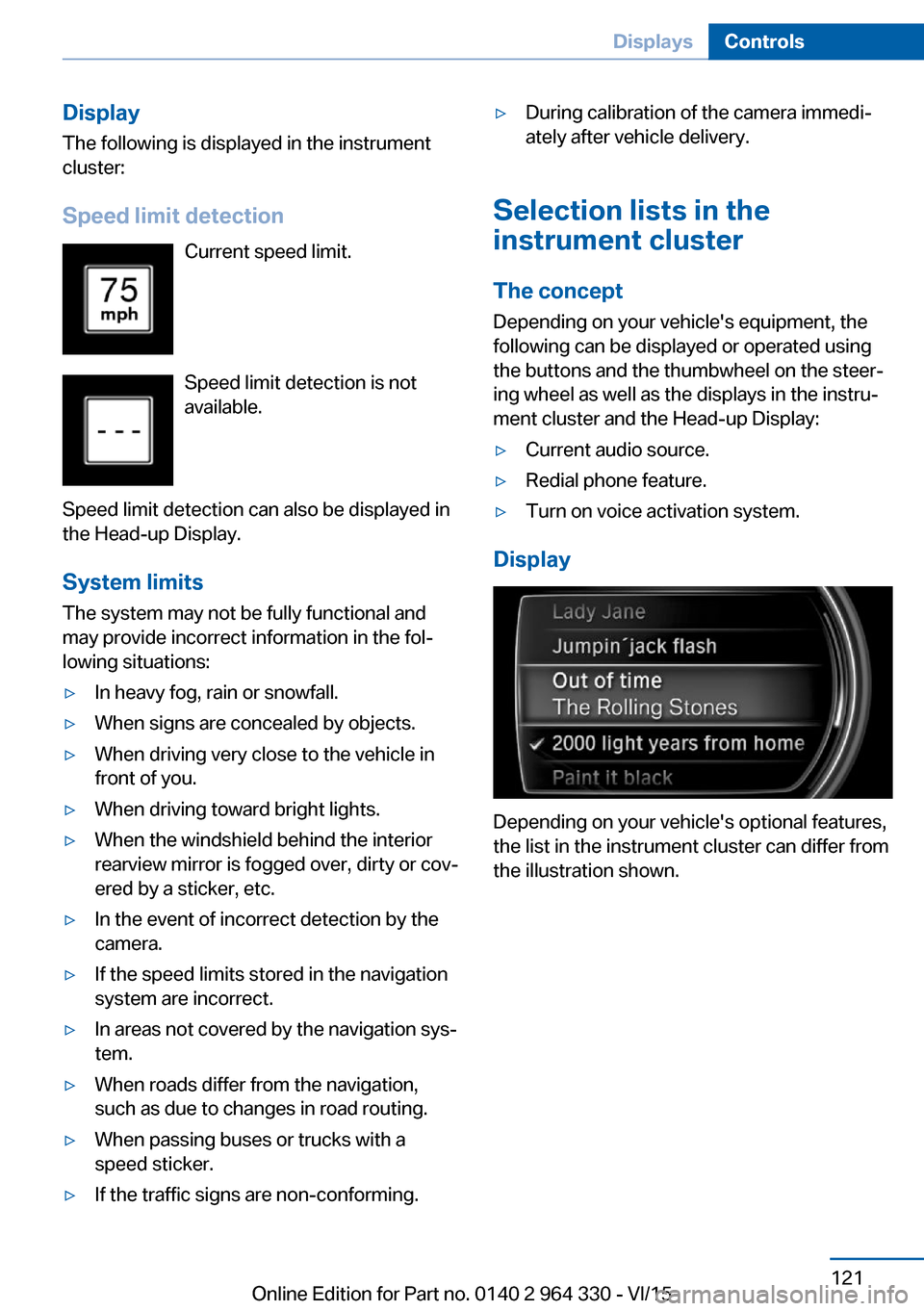
Display
The following is displayed in the instrument
cluster:
Speed limit detection Current speed limit.
Speed limit detection is not
available.
Speed limit detection can also be displayed in
the Head-up Display.
System limits
The system may not be fully functional and
may provide incorrect information in the fol‐
lowing situations:▷In heavy fog, rain or snowfall.▷When signs are concealed by objects.▷When driving very close to the vehicle in
front of you.▷When driving toward bright lights.▷When the windshield behind the interior
rearview mirror is fogged over, dirty or cov‐
ered by a sticker, etc.▷In the event of incorrect detection by the
camera.▷If the speed limits stored in the navigation
system are incorrect.▷In areas not covered by the navigation sys‐
tem.▷When roads differ from the navigation,
such as due to changes in road routing.▷When passing buses or trucks with a
speed sticker.▷If the traffic signs are non-conforming.▷During calibration of the camera immedi‐
ately after vehicle delivery.
Selection lists in the
instrument cluster
The concept Depending on your vehicle's equipment, the
following can be displayed or operated using
the buttons and the thumbwheel on the steer‐
ing wheel as well as the displays in the instru‐
ment cluster and the Head-up Display:
▷Current audio source.▷Redial phone feature.▷Turn on voice activation system.
Display
Depending on your vehicle's optional features,
the list in the instrument cluster can differ from
the illustration shown.
Seite 121DisplaysControls121
Online Edition for Part no. 0140 2 964 330 - VI/15
Page 137 of 314
Ejection MitigationThe head airbag system is designed as an
ejection mitigation countermeasure to reduce
the likelihood of ejections of vehicle occupants
through side windows during rollovers or side
impact events.
Knee airbag The knee airbag supports the legs in a frontal
impact.
Protective action
Airbags are not triggered in every impact situa‐
tion, e.g., in less severe accidents or rear-end
collisions.
Information for optimum effect of the
airbags
WARNING
If the seat position is incorrect or the de‐
ployment area of the airbags is impacted, the
airbag system cannot protect as intended or
cause additional injuries due to triggering.
There is risk of injuries or danger to life. Ob‐
serve the Information for optimum protective
effect of the airbag system.◀▷Keep at a distance from the airbags.▷Always grasp the steering wheel on the
steering wheel rim. Hold your hands at the
3 o'clock and 9 o'clock positions, to keep
the risk of injury to your hands or arms as
low as possible when the airbag is trig‐
gered.▷Make sure that the front passenger is sit‐
ting correctly, i.e., keeps his or her feet and
legs in the floor area.▷Make sure that occupants keep their heads
away from the side airbag.▷There should be no persons, animals or
objects between an airbag and a person.▷Do not use the cover of the front airbag on
the front passenger side as a storage area.▷Dashboard and windshield on the front
passenger side must stay clear - do not at‐
tach adhesive labels or coverings and do
not attach brackets or cables, e. g., for GPS
devices or' mobile phones.▷Do not apply adhesive materials to the air‐
bag cover panels, do not cover them or
modify them in any way.▷Do not place slip covers, seat cushions or
other objects on the front passenger seat
that are not specifically suited for seats
with integrated side airbags.▷Do not hang pieces of clothing, such as
jackets, over the backrests.▷Never modify either the individual compo‐
nents or the wiring in the airbag system.
This also applies to steering wheel covers,
the dashboard, and the seats.▷Do not remove the airbag system.
Even when you follow all instructions very
closely, injury from contact with the airbags
cannot be ruled out in certain situations.
The ignition and inflation noise may lead to
short-term and, in most cases, temporary
hearing impairment in sensitive individuals.
Warnings and information on the airbags are
also found on the sun visors.
Functional readiness of the airbag
system
Information WARNING
Individual components can be hot after
triggering of the airbag system. There is risk of
injuries. Do not touch individual components.◀
WARNING
Improperly executed work can lead to
failure, malfunction or unintentional triggering
of the airbag system. In the case of a malfunc‐
tion, the airbag system could not trigger as in‐
tended in the event of an accident despite re‐
Seite 137SafetyControls137
Online Edition for Part no. 0140 2 964 330 - VI/15
Page 221 of 314
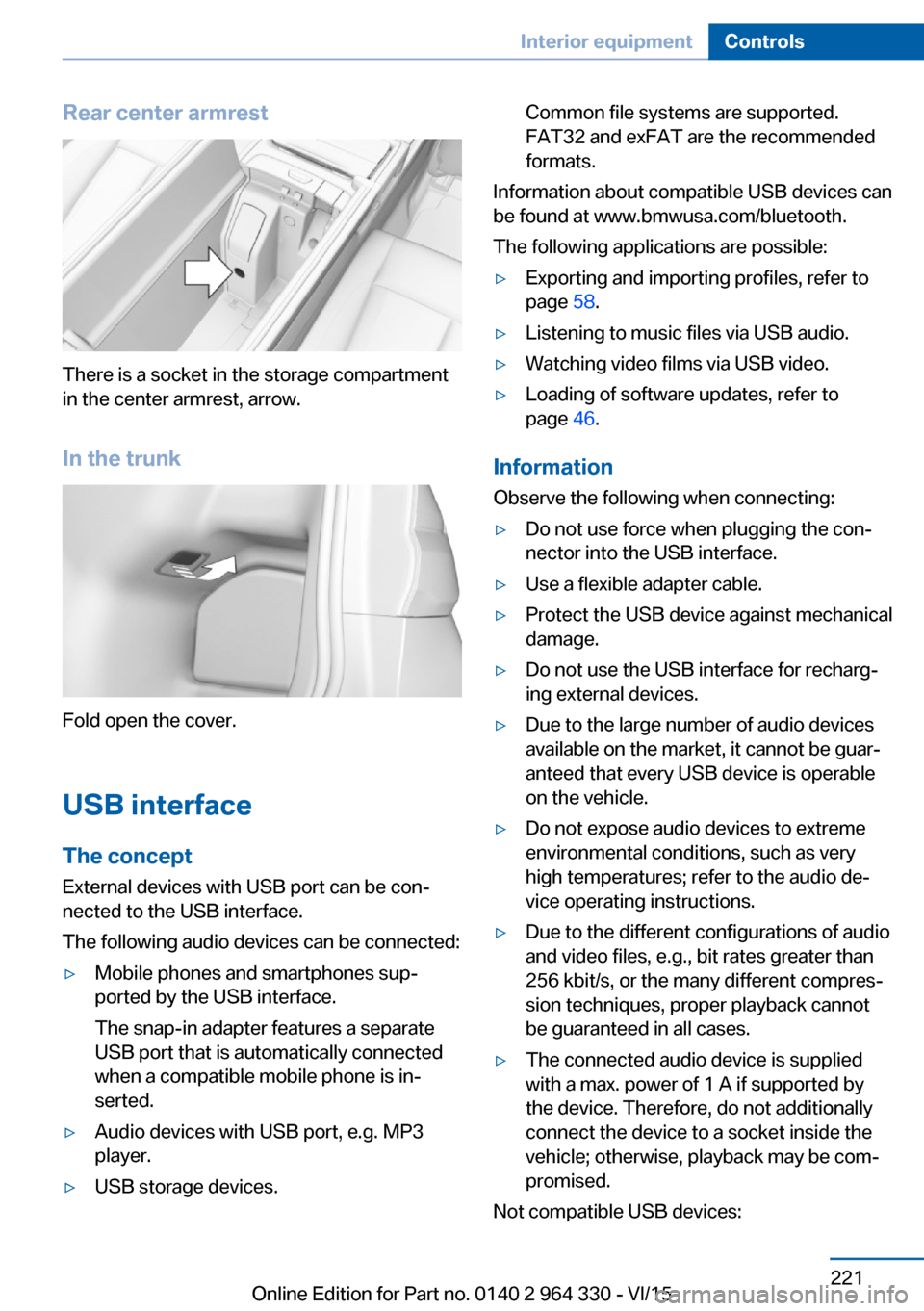
Rear center armrest
There is a socket in the storage compartment
in the center armrest, arrow.
In the trunk
Fold open the cover.
USB interface The concept
External devices with USB port can be con‐
nected to the USB interface.
The following audio devices can be connected:
▷Mobile phones and smartphones sup‐
ported by the USB interface.
The snap-in adapter features a separate
USB port that is automatically connected
when a compatible mobile phone is in‐
serted.▷Audio devices with USB port, e.g. MP3
player.▷USB storage devices.Common file systems are supported.
FAT32 and exFAT are the recommended
formats.
Information about compatible USB devices can
be found at www.bmwusa.com/bluetooth.
The following applications are possible:
▷Exporting and importing profiles, refer to
page 58.▷Listening to music files via USB audio.▷Watching video films via USB video.▷Loading of software updates, refer to
page 46.
Information
Observe the following when connecting:
▷Do not use force when plugging the con‐
nector into the USB interface.▷Use a flexible adapter cable.▷Protect the USB device against mechanical
damage.▷Do not use the USB interface for recharg‐
ing external devices.▷Due to the large number of audio devices
available on the market, it cannot be guar‐
anteed that every USB device is operable
on the vehicle.▷Do not expose audio devices to extreme
environmental conditions, such as very
high temperatures; refer to the audio de‐
vice operating instructions.▷Due to the different configurations of audio
and video files, e.g., bit rates greater than
256 kbit/s, or the many different compres‐
sion techniques, proper playback cannot
be guaranteed in all cases.▷The connected audio device is supplied
with a max. power of 1 A if supported by
the device. Therefore, do not additionally
connect the device to a socket inside the
vehicle; otherwise, playback may be com‐
promised.
Not compatible USB devices:
Seite 221Interior equipmentControls221
Online Edition for Part no. 0140 2 964 330 - VI/15