light BMW 7 SERIES 2016 G12 Manual Online
[x] Cancel search | Manufacturer: BMW, Model Year: 2016, Model line: 7 SERIES, Model: BMW 7 SERIES 2016 G12Pages: 314, PDF Size: 7.9 MB
Page 180 of 314
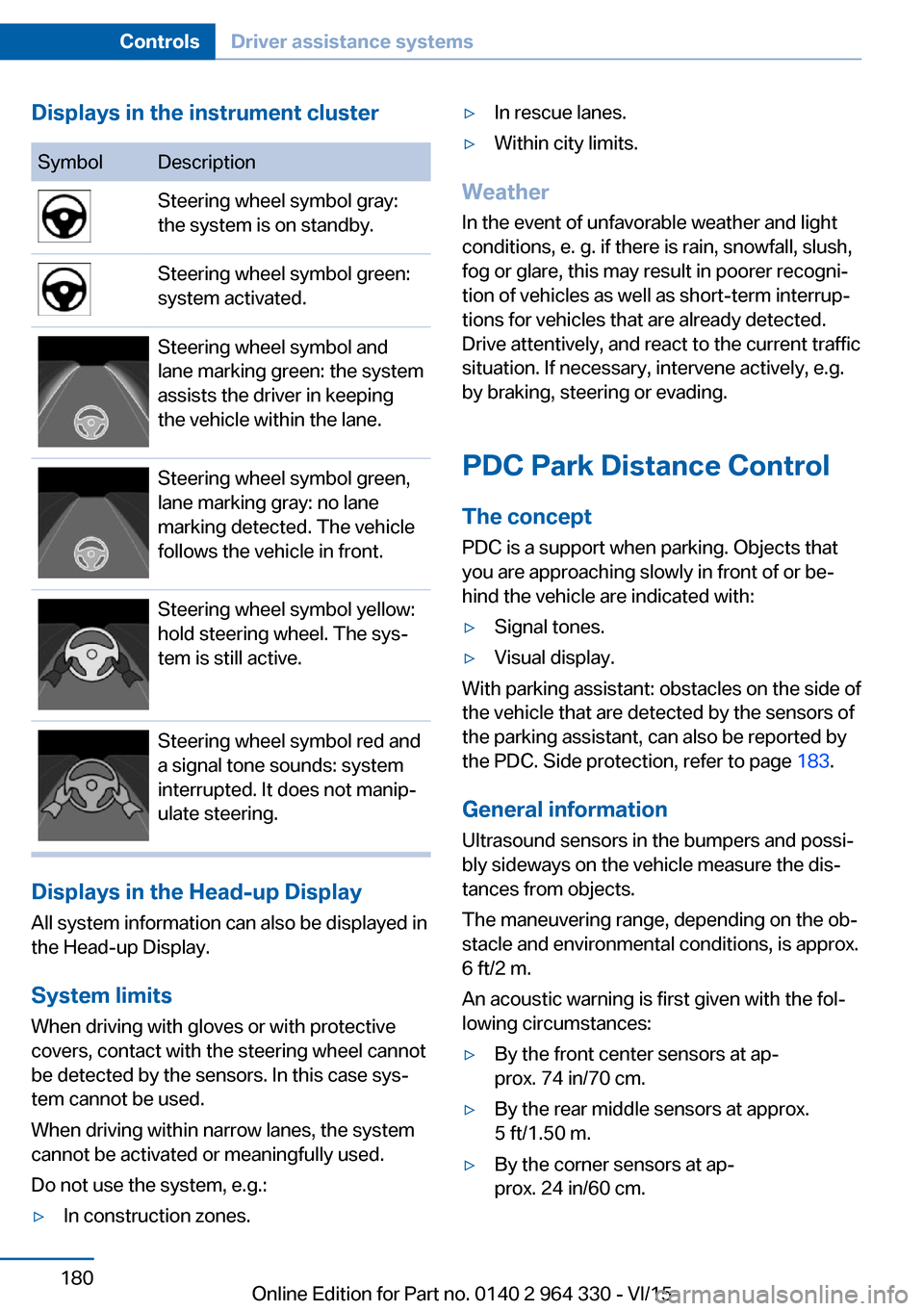
Displays in the instrument clusterSymbolDescriptionSteering wheel symbol gray:
the system is on standby.Steering wheel symbol green:
system activated.Steering wheel symbol and
lane marking green: the system
assists the driver in keeping
the vehicle within the lane.Steering wheel symbol green,
lane marking gray: no lane
marking detected. The vehicle
follows the vehicle in front.Steering wheel symbol yellow:
hold steering wheel. The sys‐
tem is still active.Steering wheel symbol red and
a signal tone sounds: system
interrupted. It does not manip‐
ulate steering.
Displays in the Head-up Display
All system information can also be displayed in
the Head-up Display.
System limits
When driving with gloves or with protective
covers, contact with the steering wheel cannot
be detected by the sensors. In this case sys‐
tem cannot be used.
When driving within narrow lanes, the system
cannot be activated or meaningfully used.
Do not use the system, e.g.:
▷In construction zones.▷In rescue lanes.▷Within city limits.
Weather
In the event of unfavorable weather and light conditions, e. g. if there is rain, snowfall, slush,
fog or glare, this may result in poorer recogni‐
tion of vehicles as well as short-term interrup‐
tions for vehicles that are already detected. Drive attentively, and react to the current trafficsituation. If necessary, intervene actively, e.g.
by braking, steering or evading.
PDC Park Distance Control The conceptPDC is a support when parking. Objects that
you are approaching slowly in front of or be‐
hind the vehicle are indicated with:
▷Signal tones.▷Visual display.
With parking assistant: obstacles on the side of
the vehicle that are detected by the sensors of
the parking assistant, can also be reported by
the PDC. Side protection, refer to page 183.
General information
Ultrasound sensors in the bumpers and possi‐
bly sideways on the vehicle measure the dis‐
tances from objects.
The maneuvering range, depending on the ob‐
stacle and environmental conditions, is approx.
6 ft/2 m.
An acoustic warning is first given with the fol‐
lowing circumstances:
▷By the front center sensors at ap‐
prox. 74 in/70 cm.▷By the rear middle sensors at approx.
5 ft/1.50 m.▷By the corner sensors at ap‐
prox. 24 in/60 cm.Seite 180ControlsDriver assistance systems180
Online Edition for Part no. 0140 2 964 330 - VI/15
Page 182 of 314
Switching on/off manuallyPress button.▷On: the LED lights up.▷Off: the LED goes out.
The rearview camera image is displayed when
the reverse gear is engaged by pressing the
button.
Display
Signal tones When approaching an object, an intermittent
sound indicates the position of the object. E. g.
if an object is detected to the left rear of the
vehicle, a signal tone sounds from the left rear
speaker.
The shorter the distance to the object, the
shorter the intervals.
If the distance to a detected object is less than
approx. 10 in/25 cm, a continuous tone is
sounded.
If there are objects in front of and behind the
vehicle at the same time, with a distance
smaller than approx. 10 in/25 cm, an alternat‐
ing constant tone will sound.
The interval tone and constant tone are
switched off if the selector lever position P is
engaged.
The interval tone is switched off after a short
time when the vehicle is stationary.
Volume
The ratio of the PDC signal tone volume to the
entertainment volume can be adjusted.
About iDrive:
1."My Vehicle"2."System settings"3."Tone"4."Volume settings"5."PDC"6.Set the desired value.
The setting is stored for the drive profile cur‐
rently used.
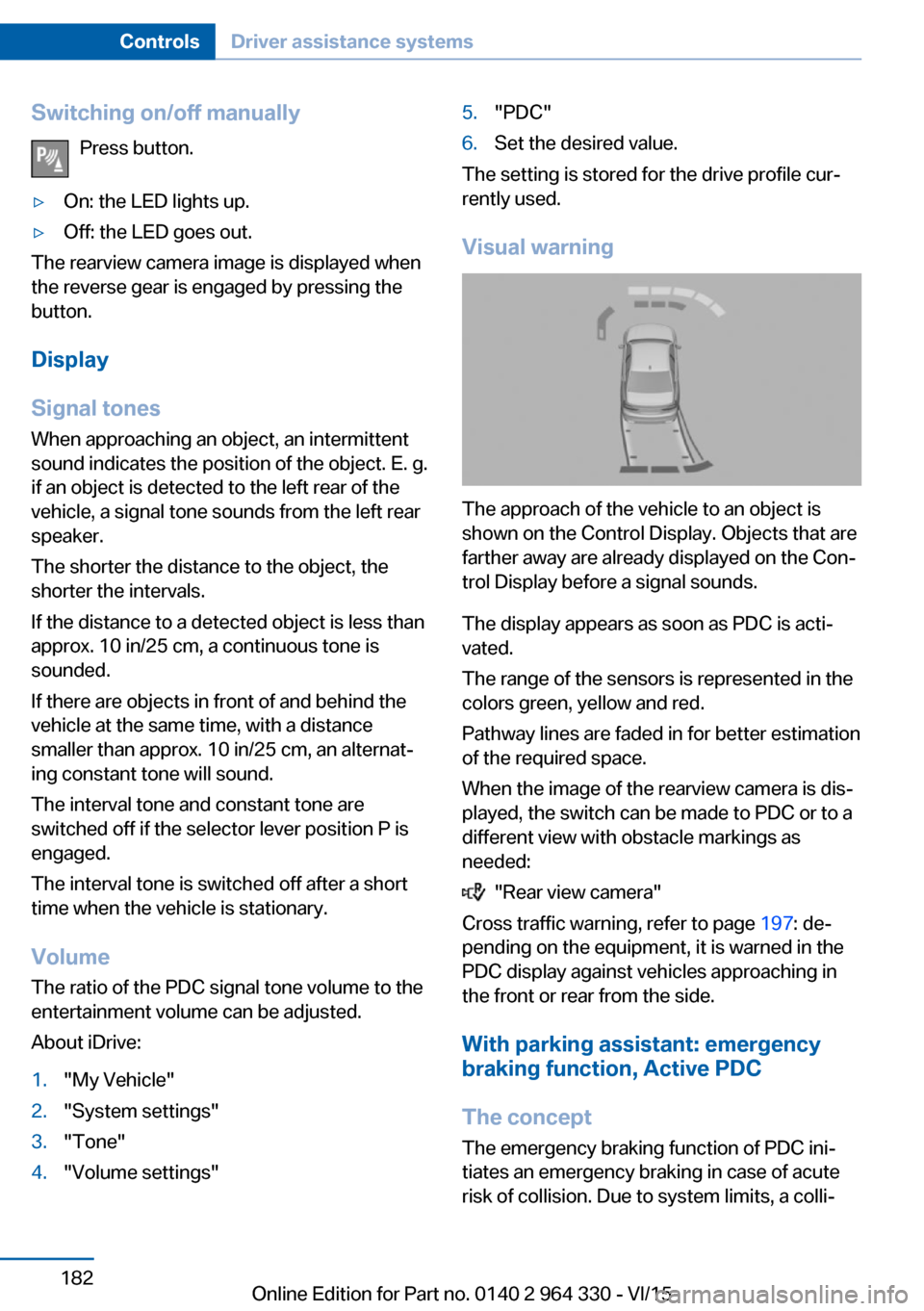
Visual warning
The approach of the vehicle to an object is
shown on the Control Display. Objects that are
farther away are already displayed on the Con‐
trol Display before a signal sounds.
The display appears as soon as PDC is acti‐
vated.
The range of the sensors is represented in the
colors green, yellow and red.
Pathway lines are faded in for better estimation
of the required space.
When the image of the rearview camera is dis‐
played, the switch can be made to PDC or to a
different view with obstacle markings as
needed:
"Rear view camera"
Cross traffic warning, refer to page 197: de‐
pending on the equipment, it is warned in the
PDC display against vehicles approaching in
the front or rear from the side.
With parking assistant: emergency
braking function, Active PDC
The concept The emergency braking function of PDC ini‐
tiates an emergency braking in case of acute
risk of collision. Due to system limits, a colli‐
Seite 182ControlsDriver assistance systems182
Online Edition for Part no. 0140 2 964 330 - VI/15
Page 183 of 314
sion cannot be prevented under all circum‐
stances.
The function is available from walking speed
while backing up or rolling backward.
A press of the gas pedal interrupts the braking
intervention.
After emergency braking to a stop, further
creeping toward an obstacle is possible. To
creep toward the obstacle, lightly press the ac‐
celerator pedal and release it again.
If the accelerator pedal is heavily depressed,
the vehicle drives off as usual. Manual braking
is possible at any time.
General information The system uses the ultrasound sensors of
PDC and parking assistant.
Information WARNING
The system does not relieve from the
personal responsibility to correctly assess the
traffic situation. There is risk of an accident.
Adjust the driving style to the traffic condi‐
tions. Watch traffic and vehicle surroundings
closely and actively interfere in the respective
situations.◀
Activating/deactivating the system About iDrive:1."My Vehicle"2."Vehicle settings"3."Parking"4."Active PDC emergency brake function"5."Active PDC emergency brake function"
The setting is stored for the drive profile cur‐
rently used.
With parking assistant: side
protection
The concept Obstacles on the side of the vehicle are de‐
tected by the sensors of the system. The sys‐
tem warns against these obstacles.
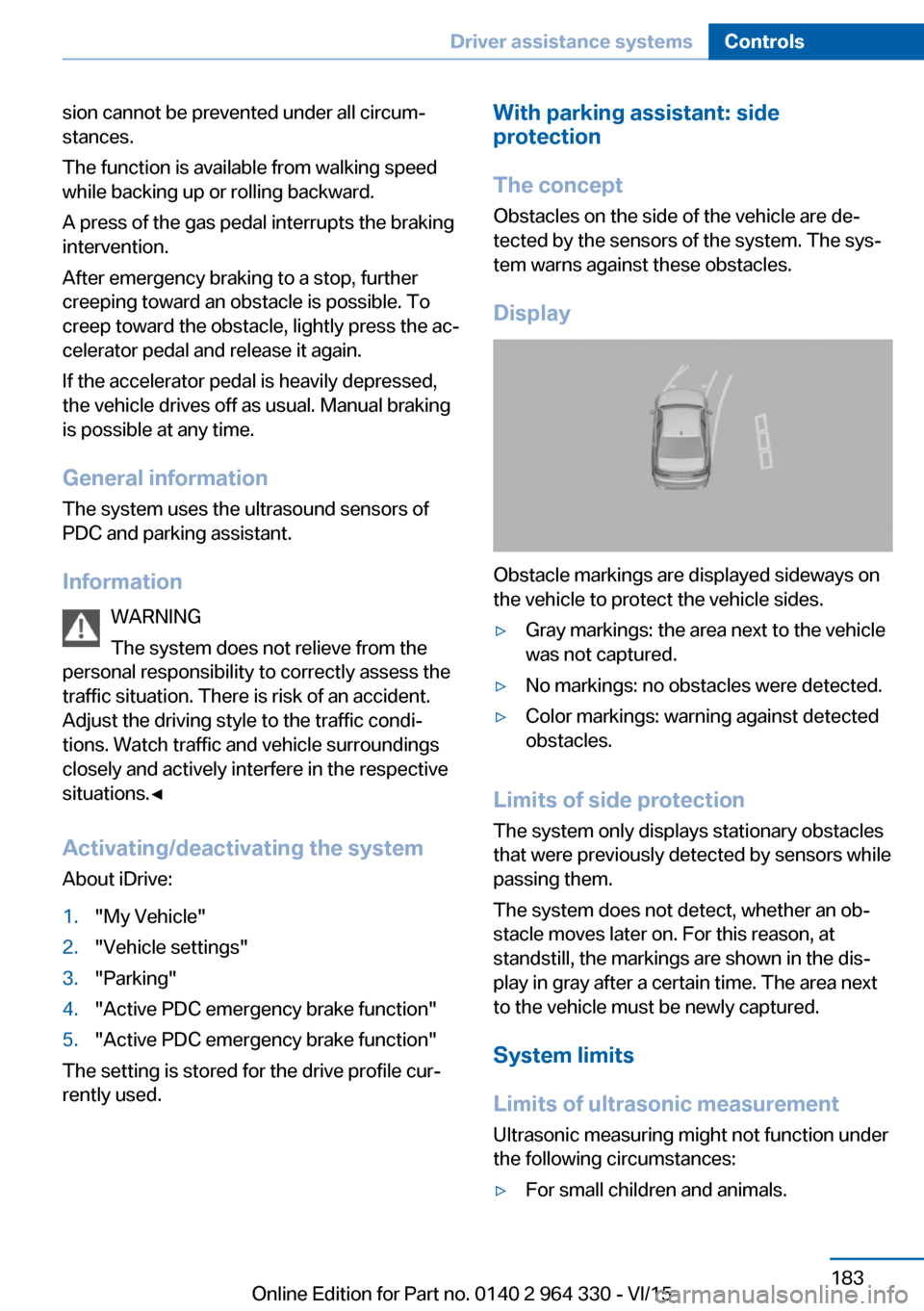
Display
Obstacle markings are displayed sideways on
the vehicle to protect the vehicle sides.
▷Gray markings: the area next to the vehicle
was not captured.▷No markings: no obstacles were detected.▷Color markings: warning against detected
obstacles.
Limits of side protection
The system only displays stationary obstacles
that were previously detected by sensors while passing them.
The system does not detect, whether an ob‐
stacle moves later on. For this reason, at standstill, the markings are shown in the dis‐
play in gray after a certain time. The area next
to the vehicle must be newly captured.
System limits
Limits of ultrasonic measurement Ultrasonic measuring might not function under
the following circumstances:
▷For small children and animals.Seite 183Driver assistance systemsControls183
Online Edition for Part no. 0140 2 964 330 - VI/15
Page 184 of 314
▷For persons with certain clothing, e.g.
coats.▷With external interference of the ultra‐
sound, e.g. from passing vehicles or loud
machines.▷When sensors are dirty, iced over, dam‐
aged or out of position.▷Under certain weather conditions such as
high relative humidity, rain, snowfall, ex‐
treme heat or strong wind.▷With tow bars and trailer couplings of other
vehicles.▷With thin or wedge-shaped objects.▷With moving objects.▷With elevated, protruding objects such as
ledges or cargo.▷With objects with corners and sharp edges.▷With objects with a fine surface structure
such as fences.▷For objects with porous surfaces.
Low objects already displayed, e.g., curbs, can
move into the blind area of the sensors before
or after a continuous tone sounds.
Cargo that extends beyond the perimeter of
the vehicle is not taken into account by the
system.
False warnings
PDC may issue a warning under the following
conditions even though there is no obstacle
within the detection range:
▷In heavy rain.▷When sensors are very dirty or covered
with ice.▷When sensors are covered in snow.▷On rough road surfaces.▷On uneven surfaces, such as speed
bumps.▷In large buildings with right angles and
smooth walls, e.g., in underground ga‐
rages.▷In automatic car washes.▷Through heavy pollution.▷Due to other ultrasound sources, e.g.,
sweeping machines, high pressure steam
cleaners or neon lights.
Malfunction
A Check Control message is displayed.
White symbol is displayed, and the
range of the sensors is dimmed on the
Control Display.
PDC has failed. Have the system checked.
Without Surround View:
rearview camera
The concept The rearview camera provides assistance in
parking and maneuvering backwards. The area
behind the vehicle is shown on the Control
Display.
Information WARNING
The system does not relieve from the
personal responsibility to correctly assess the
traffic situation. There is risk of an accident.
Adjust the driving style to the traffic condi‐
tions. Watch traffic and vehicle surroundings
closely and actively interfere in the respective
situations.◀
Seite 184ControlsDriver assistance systems184
Online Edition for Part no. 0140 2 964 330 - VI/15
Page 185 of 314
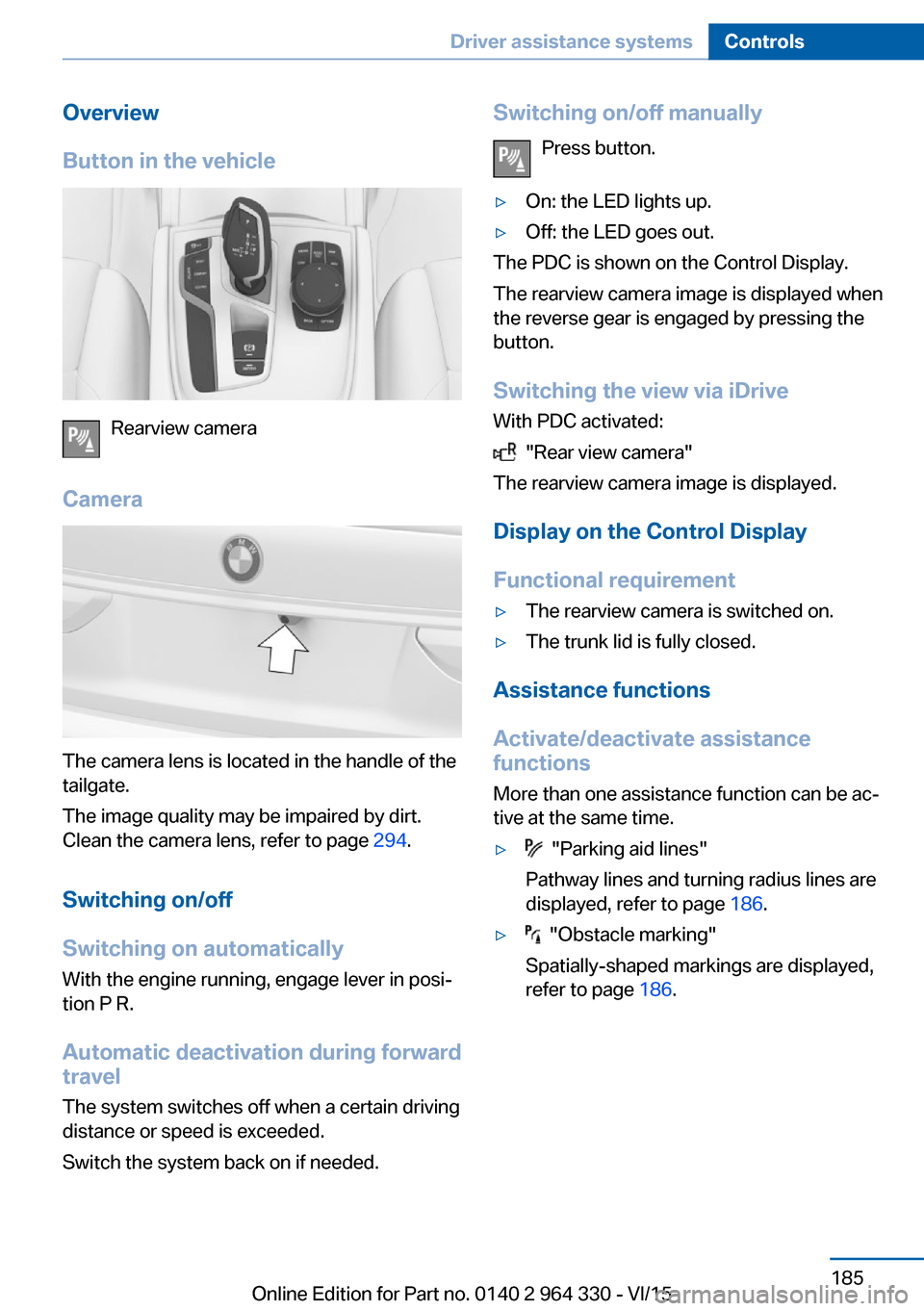
Overview
Button in the vehicle
Rearview camera
Camera
The camera lens is located in the handle of the
tailgate.
The image quality may be impaired by dirt.
Clean the camera lens, refer to page 294.
Switching on/off
Switching on automatically With the engine running, engage lever in posi‐
tion P R.
Automatic deactivation during forward travel
The system switches off when a certain driving
distance or speed is exceeded.
Switch the system back on if needed.
Switching on/off manually
Press button.▷On: the LED lights up.▷Off: the LED goes out.
The PDC is shown on the Control Display.
The rearview camera image is displayed when
the reverse gear is engaged by pressing the
button.
Switching the view via iDrive With PDC activated:
"Rear view camera"
The rearview camera image is displayed.
Display on the Control Display
Functional requirement
▷The rearview camera is switched on.▷The trunk lid is fully closed.
Assistance functions
Activate/deactivate assistance
functions
More than one assistance function can be ac‐
tive at the same time.
▷ "Parking aid lines"
Pathway lines and turning radius lines are
displayed, refer to page 186.▷ "Obstacle marking"
Spatially-shaped markings are displayed,
refer to page 186.Seite 185Driver assistance systemsControls185
Online Edition for Part no. 0140 2 964 330 - VI/15
Page 188 of 314
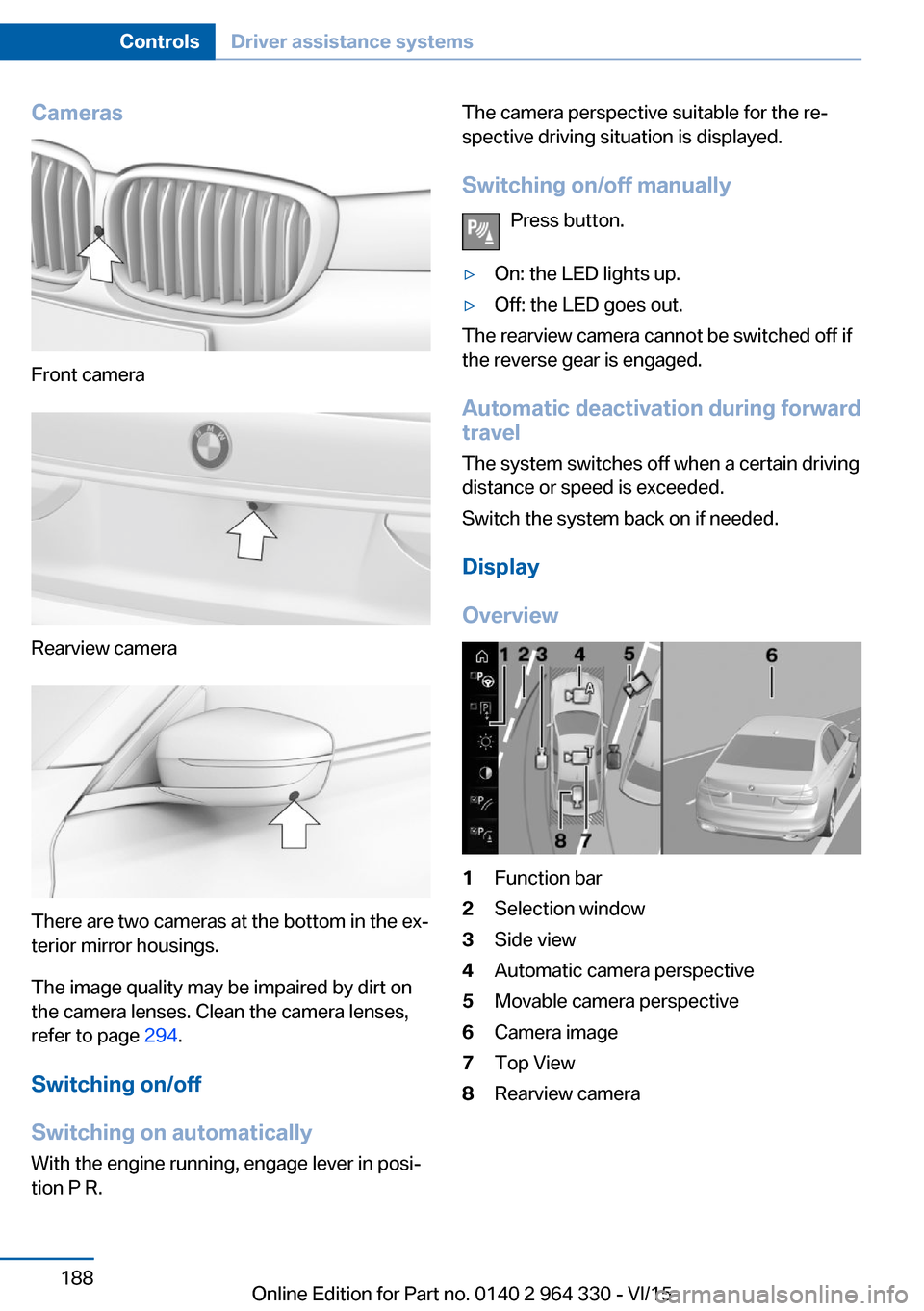
Cameras
Front camera
Rearview camera
There are two cameras at the bottom in the ex‐
terior mirror housings.
The image quality may be impaired by dirt on
the camera lenses. Clean the camera lenses,
refer to page 294.
Switching on/off
Switching on automatically With the engine running, engage lever in posi‐
tion P R.
The camera perspective suitable for the re‐
spective driving situation is displayed.
Switching on/off manually Press button.▷On: the LED lights up.▷Off: the LED goes out.
The rearview camera cannot be switched off if
the reverse gear is engaged.
Automatic deactivation during forward
travel
The system switches off when a certain driving
distance or speed is exceeded.
Switch the system back on if needed.
Display
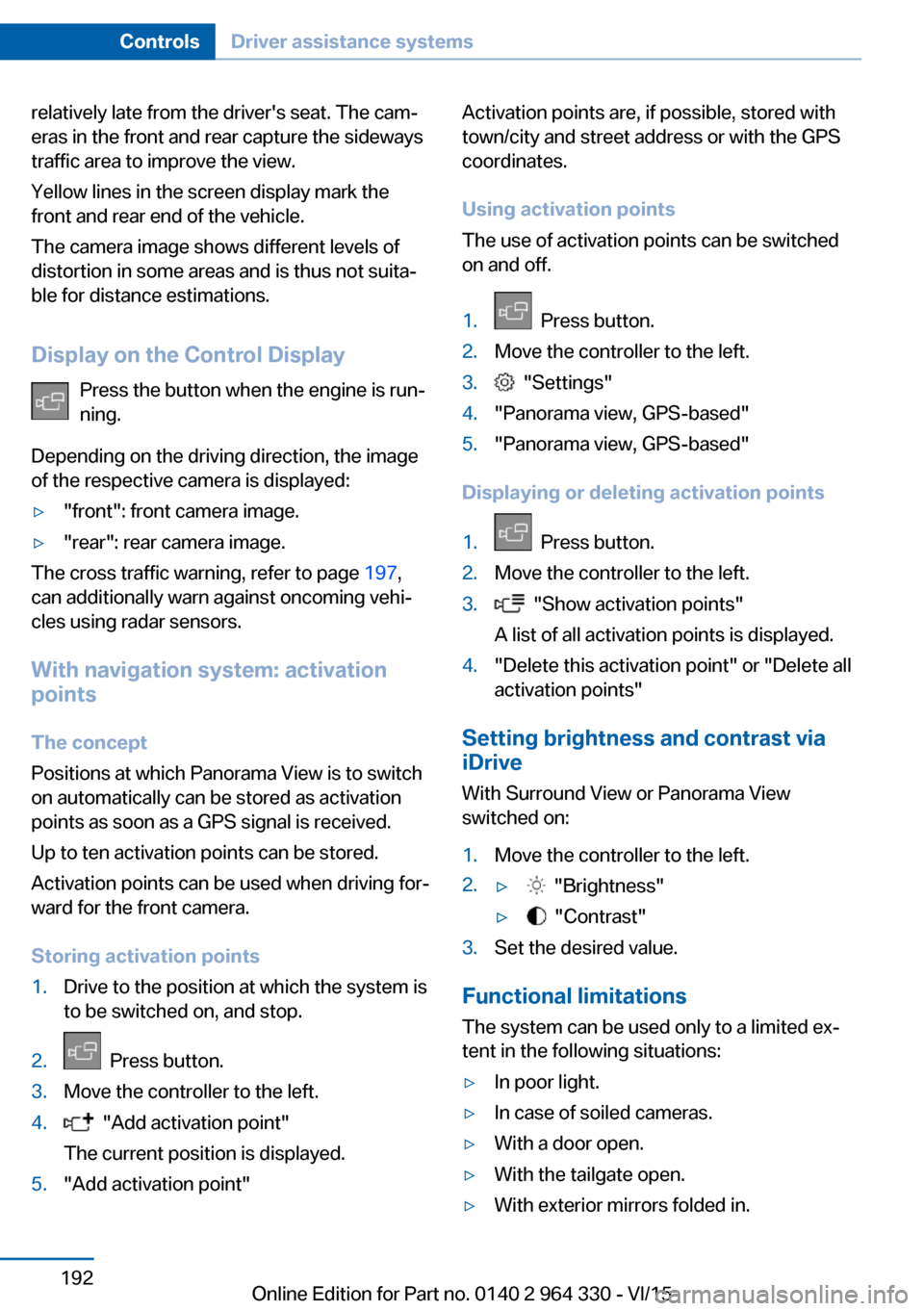
Overview
1Function bar2Selection window3Side view4Automatic camera perspective5Movable camera perspective6Camera image7Top View8Rearview cameraSeite 188ControlsDriver assistance systems188
Online Edition for Part no. 0140 2 964 330 - VI/15
Page 192 of 314
relatively late from the driver's seat. The cam‐
eras in the front and rear capture the sideways
traffic area to improve the view.
Yellow lines in the screen display mark the
front and rear end of the vehicle.
The camera image shows different levels of
distortion in some areas and is thus not suita‐
ble for distance estimations.
Display on the Control Display Press the button when the engine is run‐
ning.
Depending on the driving direction, the image
of the respective camera is displayed:▷"front": front camera image.▷"rear": rear camera image.
The cross traffic warning, refer to page 197,
can additionally warn against oncoming vehi‐
cles using radar sensors.
With navigation system: activation
points
The concept
Positions at which Panorama View is to switch
on automatically can be stored as activation
points as soon as a GPS signal is received.
Up to ten activation points can be stored.
Activation points can be used when driving for‐
ward for the front camera.
Storing activation points
1.Drive to the position at which the system is
to be switched on, and stop.2. Press button.3.Move the controller to the left.4. "Add activation point"
The current position is displayed.5."Add activation point"Activation points are, if possible, stored with
town/city and street address or with the GPS
coordinates.
Using activation points
The use of activation points can be switched
on and off.1. Press button.2.Move the controller to the left.3. "Settings"4."Panorama view, GPS-based"5."Panorama view, GPS-based"
Displaying or deleting activation points
1. Press button.2.Move the controller to the left.3. "Show activation points"
A list of all activation points is displayed.4."Delete this activation point" or "Delete all activation points"
Setting brightness and contrast viaiDrive
With Surround View or Panorama View
switched on:
1.Move the controller to the left.2.▷ "Brightness"▷ "Contrast"3.Set the desired value.
Functional limitations
The system can be used only to a limited ex‐
tent in the following situations:
▷In poor light.▷In case of soiled cameras.▷With a door open.▷With the tailgate open.▷With exterior mirrors folded in.Seite 192ControlsDriver assistance systems192
Online Edition for Part no. 0140 2 964 330 - VI/15
Page 195 of 314
▷Width of gap between two objects: your
vehicle's width plus approx. 2.3 ft/0.7 m up
to maximum 16 ft/5 m.▷Minimum depth: your vehicle's length.
The depth of diagonal parking spaces must
be estimated by the driver. Dur to technical
limitations, the system can approximate
the depth of diagonal parking spaces only.
Regarding the parking procedure
▷Doors and trunk lid closed.▷Parking brake released.▷Driver's safety belt fastened.
Switching on/off
Switching on with the button Press button.
The LED lights up.
The current status of the parking space search
is indicated on the Control Display.
Parking assistant is activated automatically.
Switching on with reverse gear
Shift into reverse.
The current status of the parking space search
is indicated on the Control Display.
To activate:
"Parking Assistant"
Switch off
The system can be deactivated as follows:
▷Press button.
Signal tone for switching suitable
parking spaces on/off
About iDrive:
1."My Vehicle"2."Vehicle settings"3."Parking"4."Parking Assistant"5."Sound if parking space detected"
Settings are stored.
Display on the Control Display
System activated/deactivated
SymbolMeaning Gray: the system is not available.
White: the system is available but
not activated. The system is activated.
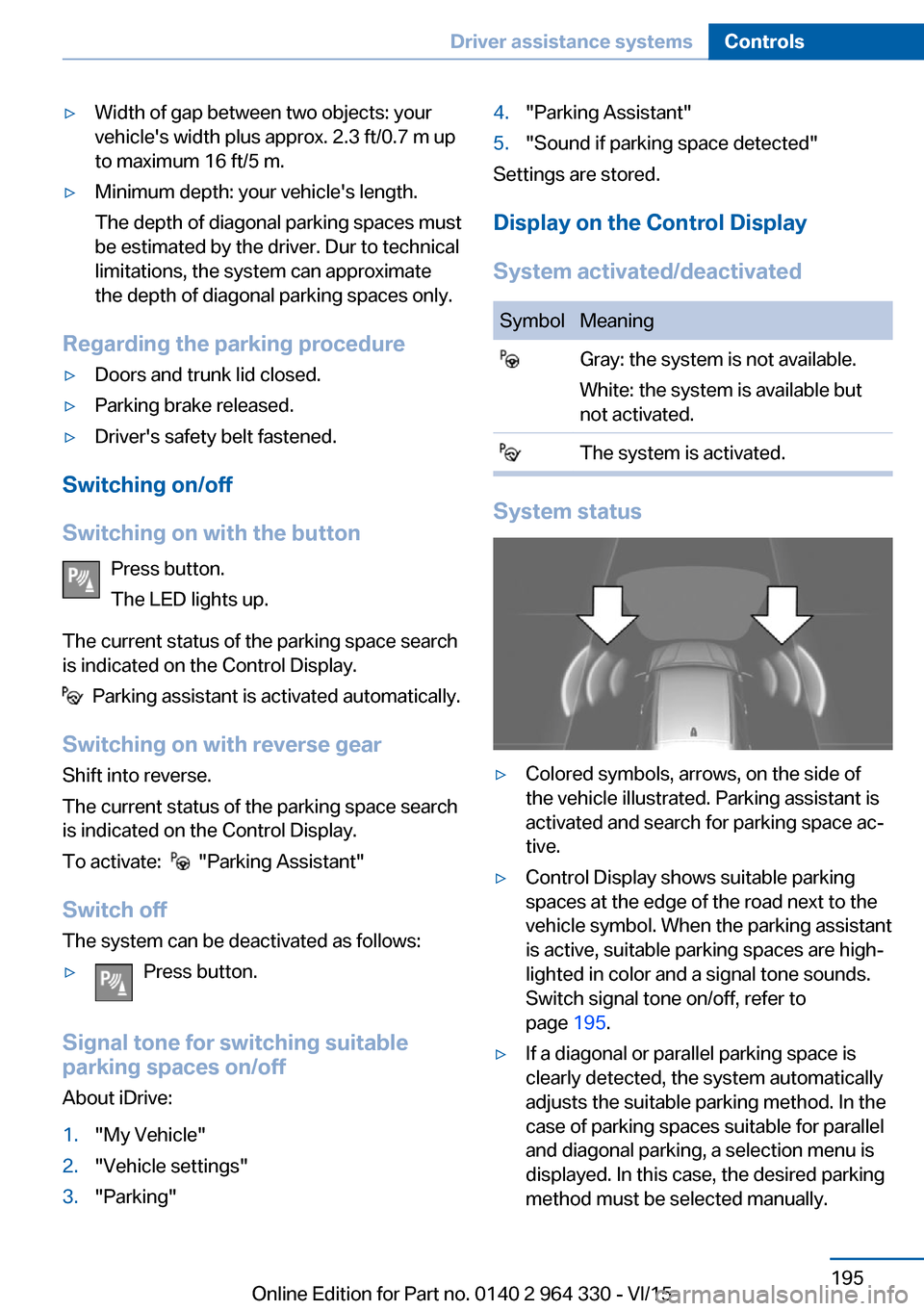
System status
▷Colored symbols, arrows, on the side of
the vehicle illustrated. Parking assistant is
activated and search for parking space ac‐
tive.▷Control Display shows suitable parking
spaces at the edge of the road next to the
vehicle symbol. When the parking assistant
is active, suitable parking spaces are high‐
lighted in color and a signal tone sounds.
Switch signal tone on/off, refer to
page 195.▷If a diagonal or parallel parking space is
clearly detected, the system automatically
adjusts the suitable parking method. In the
case of parking spaces suitable for parallel
and diagonal parking, a selection menu is
displayed. In this case, the desired parking
method must be selected manually.Seite 195Driver assistance systemsControls195
Online Edition for Part no. 0140 2 964 330 - VI/15
Page 197 of 314
Functional limitations
The system may not be fully functional in the
following situations:▷On bumpy road surfaces such as gravel
roads.▷On slippery ground.▷On steep uphill or downhill grades.▷With accumulations of leaves/snow in the
parking space.▷With a mounted emergency wheel.▷In case of changes to an already-measured
parking space.
Limits of ultrasonic measurement
Ultrasonic measuring might not function under
the following circumstances:
▷For small children and animals.▷For persons with certain clothing, e.g.
coats.▷With external interference of the ultra‐
sound, e.g. from passing vehicles or loud
machines.▷When sensors are dirty, iced over, dam‐
aged or out of position.▷Under certain weather conditions such as
high relative humidity, rain, snowfall, ex‐
treme heat or strong wind.▷With tow bars and trailer couplings of other
vehicles.▷With thin or wedge-shaped objects.▷With moving objects.▷With elevated, protruding objects such as
ledges or cargo.▷With objects with corners and sharp edges.▷With objects with a fine surface structure
such as fences.▷For objects with porous surfaces.
Low objects already displayed, e.g., curbs, can
move into the blind area of the sensors before
or after a continuous tone sounds.
Cargo that extends beyond the perimeter of
the vehicle is not taken into account by the
system.
It can happen that parking spaces are detected
that are not suitable or suitable parking spaces
are not detected.
Malfunction
A Check Control message is displayed.
The parking assistant failed. Have the system
checked.
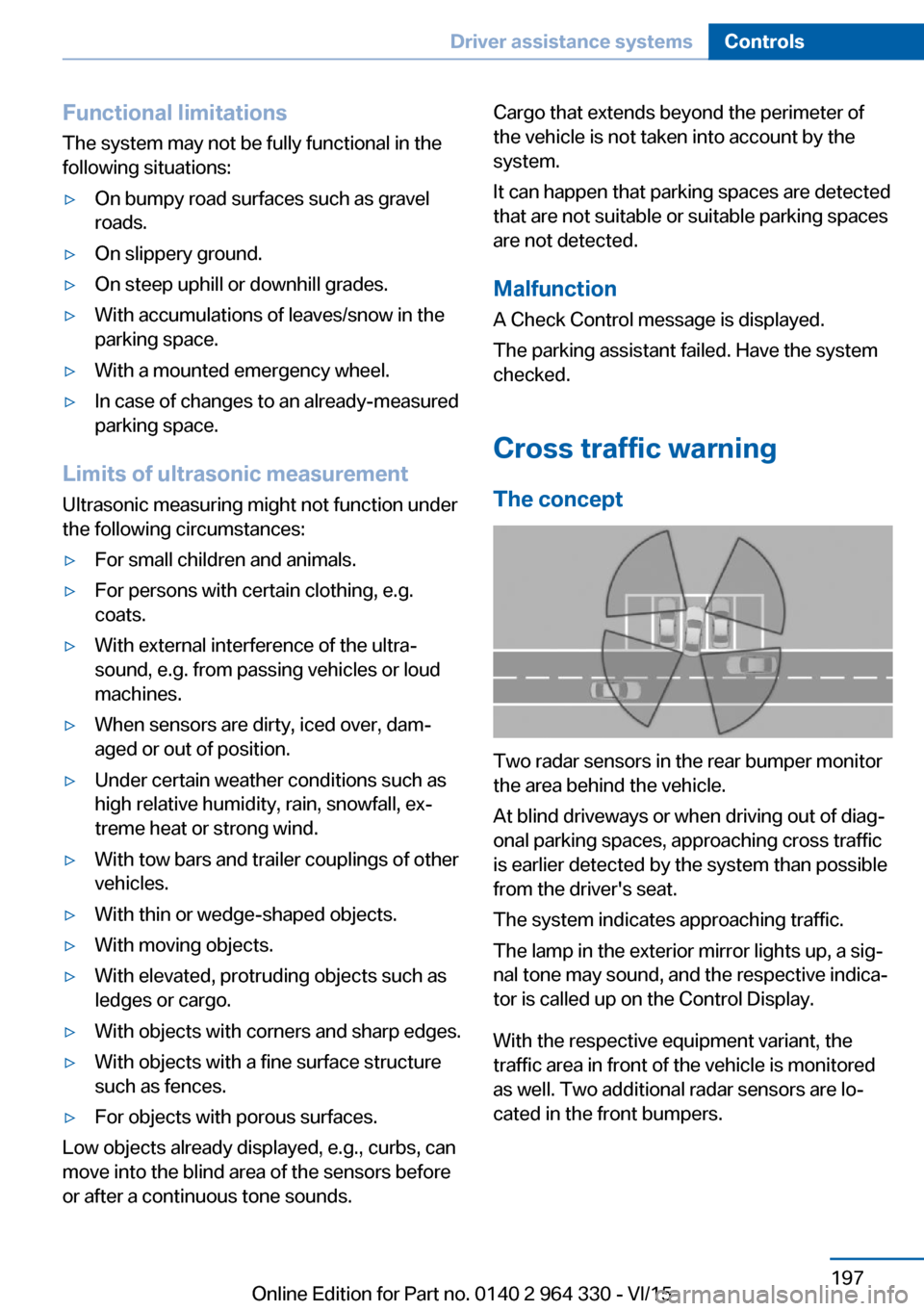
Cross traffic warning The concept
Two radar sensors in the rear bumper monitor
the area behind the vehicle.
At blind driveways or when driving out of diag‐
onal parking spaces, approaching cross traffic
is earlier detected by the system than possible
from the driver's seat.
The system indicates approaching traffic.
The lamp in the exterior mirror lights up, a sig‐
nal tone may sound, and the respective indica‐
tor is called up on the Control Display.
With the respective equipment variant, the
traffic area in front of the vehicle is monitored
as well. Two additional radar sensors are lo‐
cated in the front bumpers.
Seite 197Driver assistance systemsControls197
Online Edition for Part no. 0140 2 964 330 - VI/15
Page 202 of 314
Overview
Camera
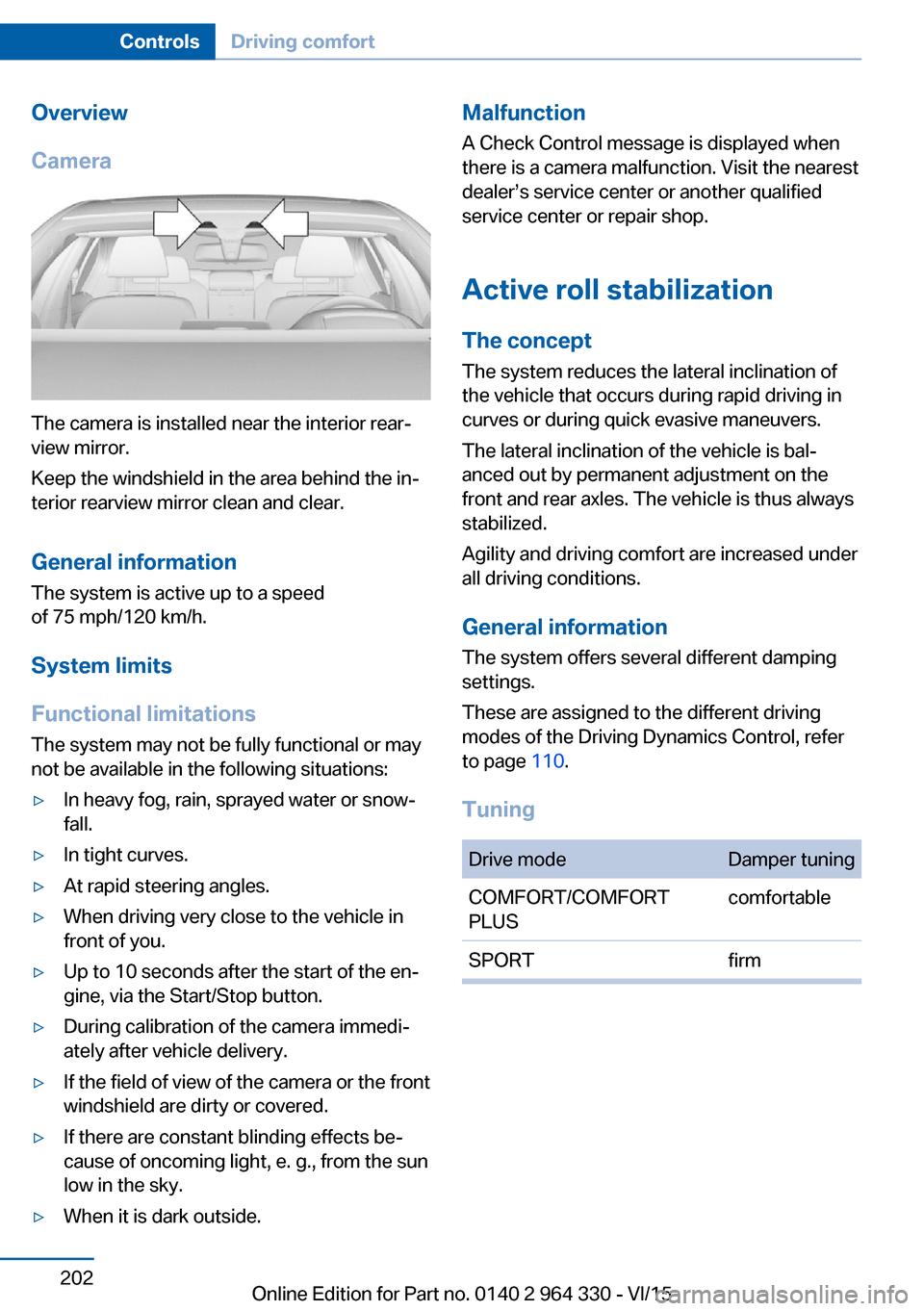
The camera is installed near the interior rear‐
view mirror.
Keep the windshield in the area behind the in‐
terior rearview mirror clean and clear.
General information
The system is active up to a speed
of 75 mph/120 km/h.
System limits
Functional limitations The system may not be fully functional or may
not be available in the following situations:
▷In heavy fog, rain, sprayed water or snow‐
fall.▷In tight curves.▷At rapid steering angles.▷When driving very close to the vehicle in
front of you.▷Up to 10 seconds after the start of the en‐
gine, via the Start/Stop button.▷During calibration of the camera immedi‐
ately after vehicle delivery.▷If the field of view of the camera or the front
windshield are dirty or covered.▷If there are constant blinding effects be‐
cause of oncoming light, e. g., from the sun
low in the sky.▷When it is dark outside.Malfunction
A Check Control message is displayed when
there is a camera malfunction. Visit the nearest
dealer’s service center or another qualified
service center or repair shop.
Active roll stabilization
The concept The system reduces the lateral inclination of
the vehicle that occurs during rapid driving in
curves or during quick evasive maneuvers.
The lateral inclination of the vehicle is bal‐
anced out by permanent adjustment on the
front and rear axles. The vehicle is thus always
stabilized.
Agility and driving comfort are increased under
all driving conditions.
General information
The system offers several different damping
settings.
These are assigned to the different driving
modes of the Driving Dynamics Control, refer
to page 110.
TuningDrive modeDamper tuningCOMFORT/COMFORT
PLUScomfortableSPORTfirmSeite 202ControlsDriving comfort202
Online Edition for Part no. 0140 2 964 330 - VI/15