radio controls BMW 745i 2004 E65 User Guide
[x] Cancel search | Manufacturer: BMW, Model Year: 2004, Model line: 745i, Model: BMW 745i 2004 E65Pages: 232, PDF Size: 5.27 MB
Page 73 of 232
Controls
71Reference
At a glance
Driving tips
Communications
Navigation
Entertainment
Mobility
Deactivating the rain sensor
Briefly press the button again. The indica-
tor lamp goes out.
The rain sensor is automatically deac-
tivated when you switch off the igni-
tion.<
Deactivate the rain sensor when
passing through an automatic car
wash. Failure to do so could result in dam-
age caused by undesired wiper activa-
tion.<
Selecting wiper fold-out position
Important for changing wiper blades, when
folding away from windshield to prevent
blades from sticking when ice forms, etc.
1.Switch off the engine and remove the
remote control from the ignition lock
2.Press the wiper lever up and maintain
pressure for about 3 seconds until the
wipers are roughly vertical: fold-out
position.
After folding the wipers back against the
windshield you will need to reactivate the
wiper system:
1.Switch on the radio mode
2.Apply brief upward pressure to the
wiper lever. The wipers return to their
retracted position and are ready for nor-
mal operation.
To prevent damage to the wipers,
always fold them back against the
windshield before switching on either the
radio mode or the ignition.<
Washer fluid
Washer fluid antifreeze is flammable.
Always keep it well away from sparks
and open flames, and store it in tightly
closed containers well out of the reach of
children. Always observe the instructions
for use provided on the containers.< We recommend that you mix the
washer fluid before adding it to the
reservoir.<
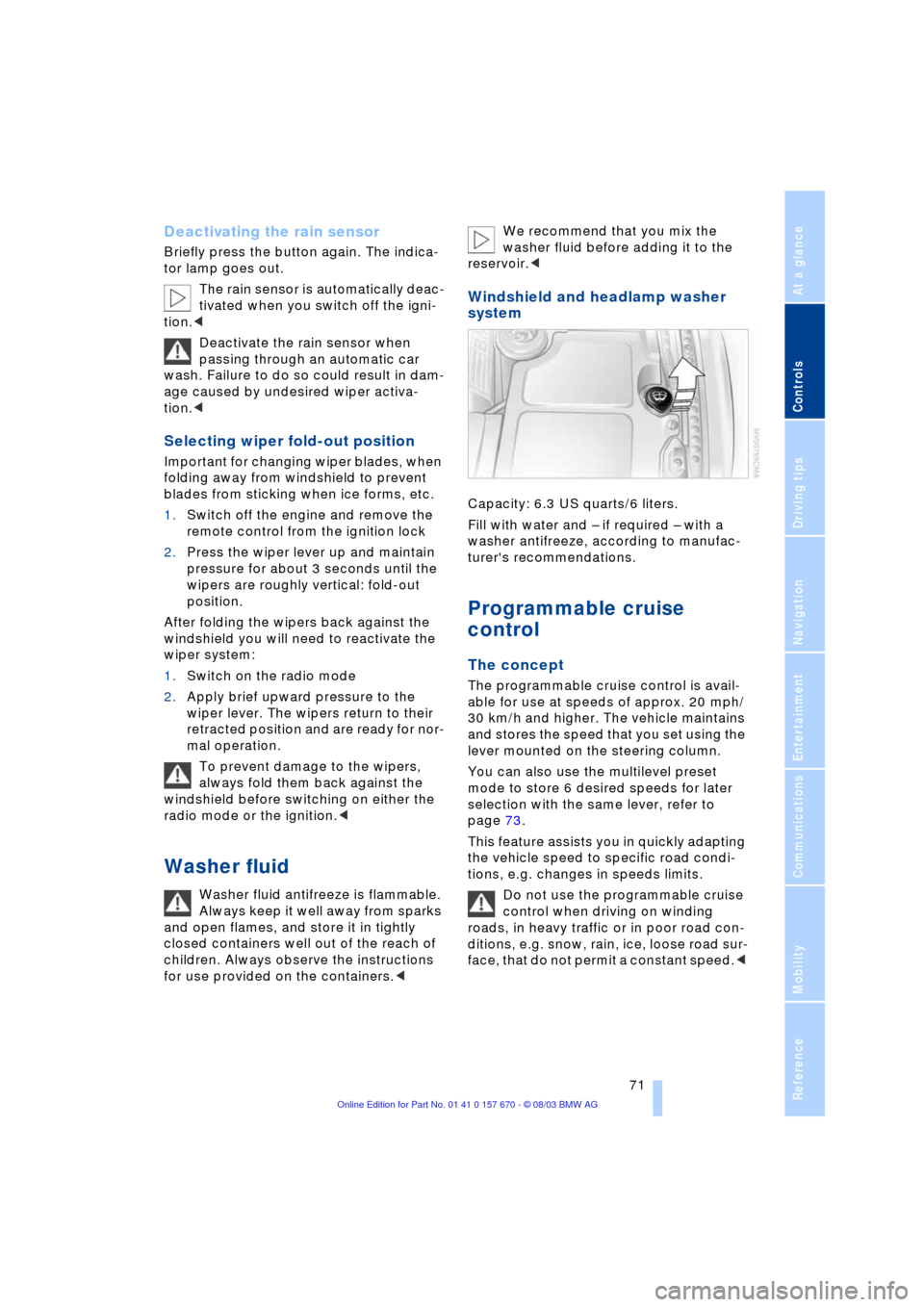
Windshield and headlamp washer
system
Capacity: 6.3 US quarts/6 liters.
Fill with water and Ð if required Ð with a
washer antifreeze, according to manufac-
turer's recommendations.
Programmable cruise
control
The concept
The programmable cruise control is avail-
able for use at speeds of approx. 20 mph/
30 km/h and higher. The vehicle maintains
and stores the speed that you set using the
lever mounted on the steering column.
You can also use the multilevel preset
mode to store 6 desired speeds for later
selection with the same lever, refer to
page 73.
This feature assists you in quickly adapting
the vehicle speed to specific road condi-
tions, e.g. changes in speeds limits.
Do not use the programmable cruise
control when driving on winding
roads, in heavy traffic or in poor road con-
ditions, e.g. snow, rain, ice, loose road sur-
face, that do not permit a constant speed.<
Page 107 of 232
Controls
105Reference
At a glance
Driving tips
Communications
Navigation
Entertainment
Mobility
Residual heat mode
The system uses the warmth
stored in the engine to heat the
interior when the ignition is off,
for instance, while the vehicle
is stopped at a school to pick
up a child.
You can adjust the automatic climate con-
trol's settings when the ignition lock is in
the radio mode. The system blows heated
air into the interior in accordance with the
selected distribution pattern while the igni-
tion is off.
Provided that the engine has warmed
to its normal operating temperature
and the battery is charged, you can use this
function for up to 15 minutes after switch-
ing off the ignition. The LED within the but-
ton lights up to confirm compliance with
both of these conditions.<
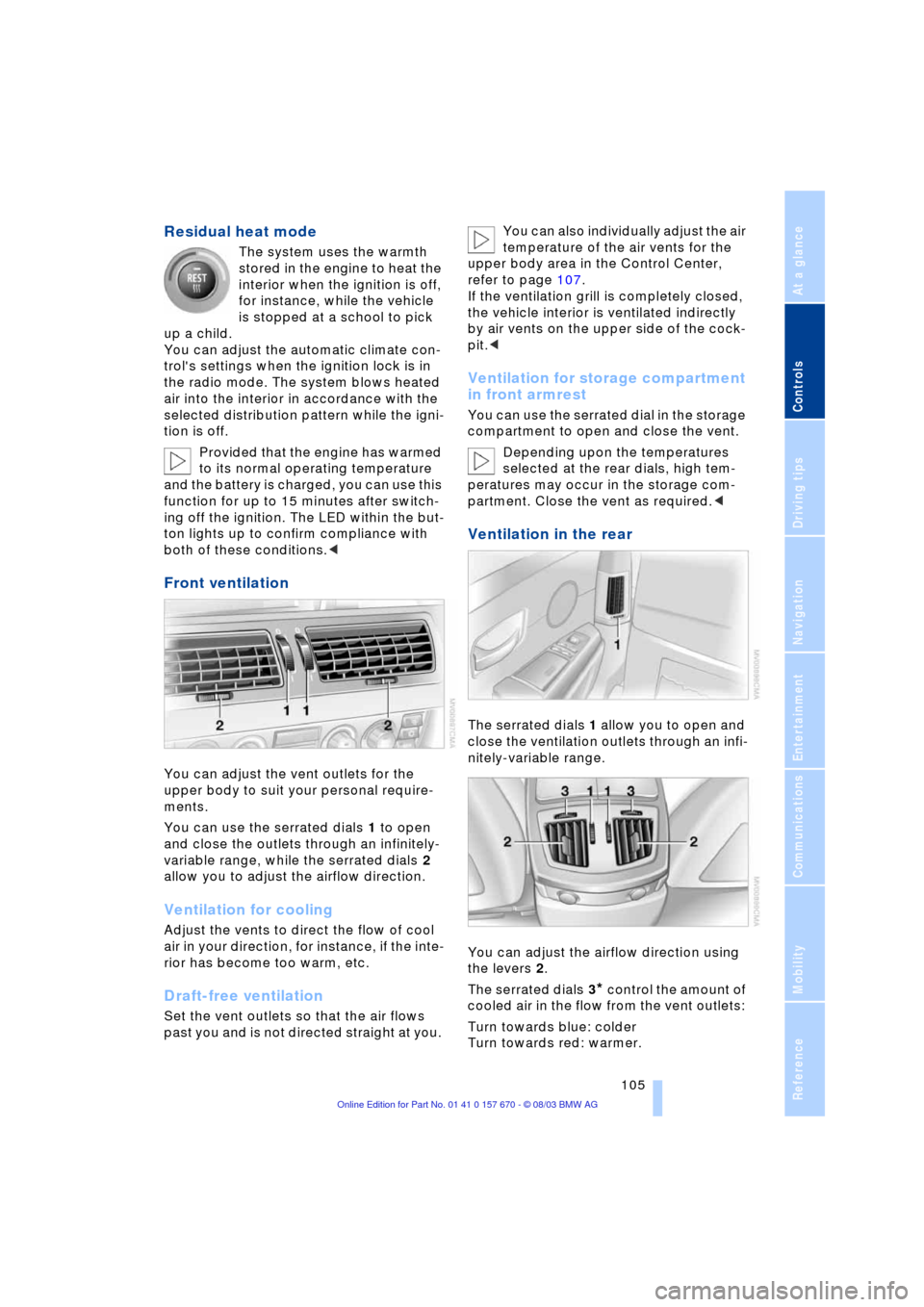
Front ventilation
You can adjust the vent outlets for the
upper body to suit your personal require-
ments.
You can use the serrated dials 1 to open
and close the outlets through an infinitely-
variable range, while the serrated dials 2
allow you to adjust the airflow direction.
Ventilation for cooling
Adjust the vents to direct the flow of cool
air in your direction, for instance, if the inte-
rior has become too warm, etc.
Draft-free ventilation
Set the vent outlets so that the air flows
past you and is not directed straight at you. You can also individually adjust the air
temperature of the air vents for the
upper body area in the Control Center,
refer to page 107.
If the ventilation grill is completely closed,
the vehicle interior is ventilated indirectly
by air vents on the upper side of the cock-
pit.<
Ventilation for storage compartment
in front armrest
You can use the serrated dial in the storage
compartment to open and close the vent.
Depending upon the temperatures
selected at the rear dials, high tem-
peratures may occur in the storage com-
partment. Close the vent as required.<
Ventilation in the rear
The serrated dials 1 allow you to open and
close the ventilation outlets through an infi-
nitely-variable range.
You can adjust the airflow direction using
the levers 2.
The serrated dials 3
* control the amount of
cooled air in the flow from the vent outlets:
Turn towards blue: colder
Turn towards red: warmer.
Page 111 of 232
Controls
109Reference
At a glance
Driving tips
Communications
Navigation
Entertainment
Mobility
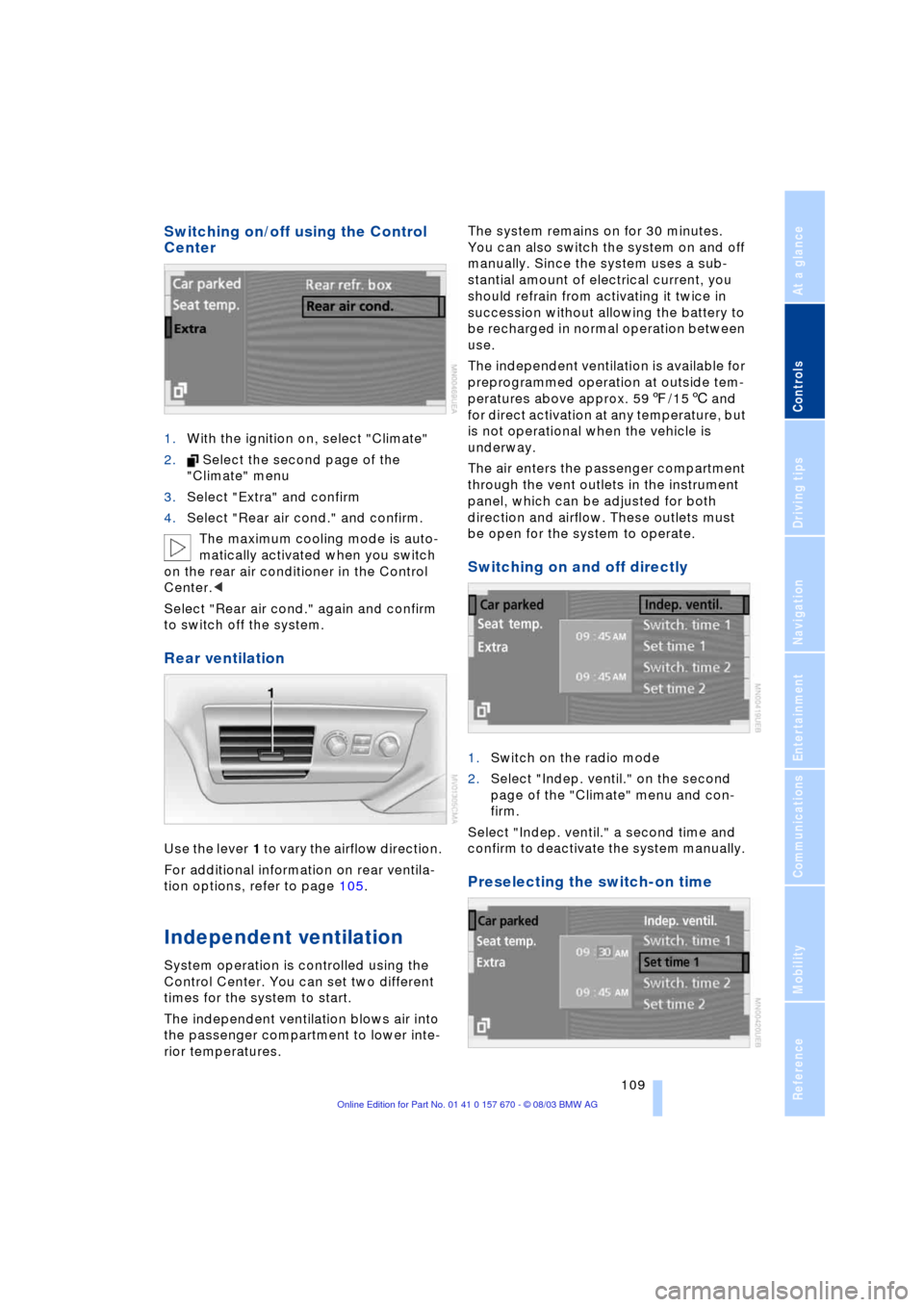
Switching on/off using the Control
Center
1.With the ignition on, select "Climate"
2. Select the second page of the
"Climate" menu
3.Select "Extra" and confirm
4.Select "Rear air cond." and confirm.
The maximum cooling mode is auto-
matically activated when you switch
on the rear air conditioner in the Control
Center.<
Select "Rear air cond." again and confirm
to switch off the system.
Rear ventilation
Use the lever 1 to vary the airflow direction.
For additional information on rear ventila-
tion options, refer to page 105.
Independent ventilation
System operation is controlled using the
Control Center. You can set two different
times for the system to start.
The independent ventilation blows air into
the passenger compartment to lower inte-
rior temperatures.The system remains on for 30 minutes.
You can also switch the system on and off
manually. Since the system uses a sub-
stantial amount of electrical current, you
should refrain from activating it twice in
succession without allowing the battery to
be recharged in normal operation between
use.
The independent ventilation is available for
preprogrammed operation at outside tem-
peratures above approx. 597/156 and
for direct activation at any temperature, but
is not operational when the vehicle is
underway.
The air enters the passenger compartment
through the vent outlets in the instrument
panel, which can be adjusted for both
direction and airflow. These outlets must
be open for the system to operate.
Switching on and off directly
1.Switch on the radio mode
2.Select "Indep. ventil." on the second
page of the "Climate" menu and con-
firm.
Select "Indep. ventil." a second time and
confirm to deactivate the system manually.
Preselecting the switch-on time
Page 115 of 232
Controls
113Reference
At a glance
Driving tips
Communications
Navigation
Entertainment
Mobility
3Rear window blind
4Switching to the other side
The side window blind cannot be
extended unless the side window is
closed. If the window is open, the blind will
rise slightly prior to immediately retracting
to its original position.<
Briefly press the safety switch in the
driver's door, refer to page 42. The
indicator lamp must light up. This precau-
tion prevents children from operating the
sun blinds using the rear switches, etc.
Before using always ensure that the sun
blind's travel path is clear and unob-
structed.
When leaving the vehicle, always remove
the remote control from the ignition lock
and close the doors; this precaution pre-
vents children from using the sun blinds
and injuring themselves, etc.<
Automatically extending and
retracting the sun blinds
You can extend and retract the sun blinds
together by pressing and holding button 3
or the button in the driver's door.
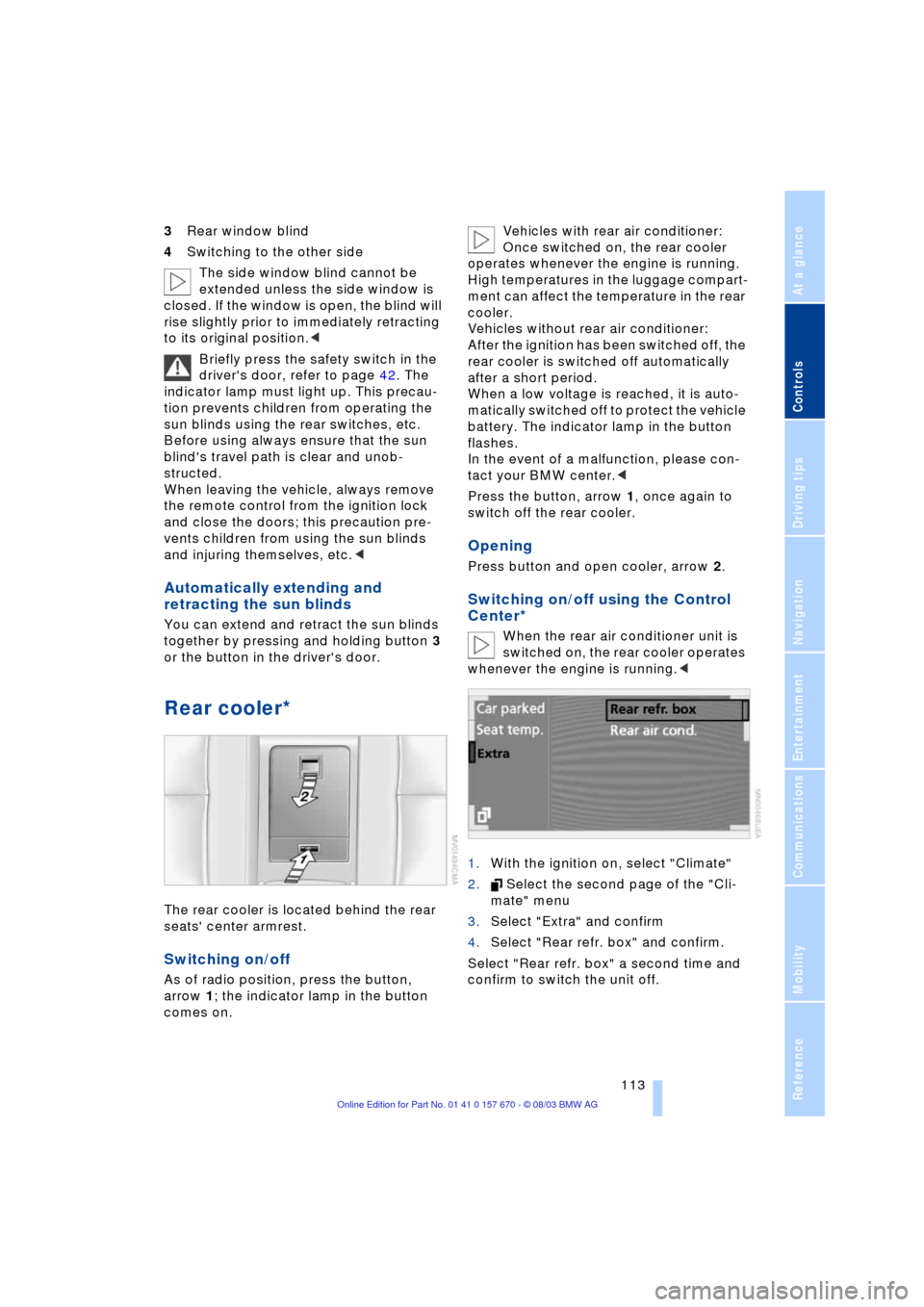
Rear cooler*
The rear cooler is located behind the rear
seats' center armrest.
Switching on/off
As of radio position, press the button,
arrow 1; the indicator lamp in the button
comes on. Vehicles with rear air conditioner:
Once switched on, the rear cooler
operates whenever the engine is running.
High temperatures in the luggage compart-
ment can affect the temperature in the rear
cooler.
Vehicles without rear air conditioner:
After the ignition has been switched off, the
rear cooler is switched off automatically
after a short period.
When a low voltage is reached, it is auto-
matically switched off to protect the vehicle
battery. The indicator lamp in the button
flashes.
In the event of a malfunction, please con-
tact your BMW center.<
Press the button, arrow 1, once again to
switch off the rear cooler.
Opening
Press button and open cooler, arrow 2.
Switching on/off using the Control
Center*
When the rear air conditioner unit is
switched on, the rear cooler operates
whenever the engine is running.<
1.With the ignition on, select "Climate"
2. Select the second page of the "Cli-
mate" menu
3.Select "Extra" and confirm
4.Select "Rear refr. box" and confirm.
Select "Rear refr. box" a second time and
confirm to switch the unit off.
Page 150 of 232
On/off, tone
148
On/off, tone
Controls
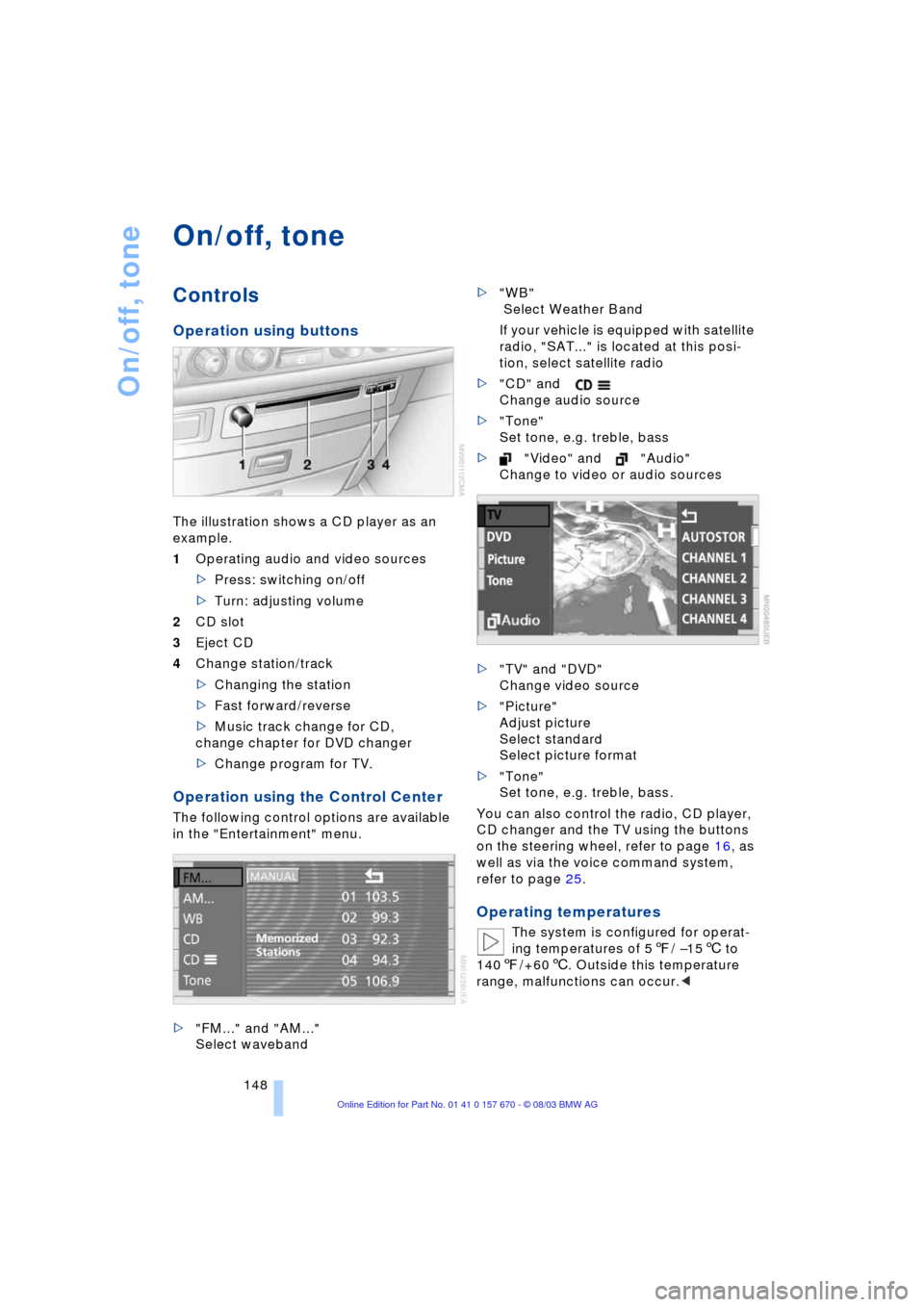
Operation using buttons
The illustration shows a CD player as an
example.
1Operating audio and video sources
>Press: switching on/off
>Turn: adjusting volume
2CD slot
3Eject CD
4Change station/track
>Changing the station
>Fast forward/reverse
>Music track change for CD,
change chapter for DVD changer
>Change program for TV.
Operation using the Control Center
The following control options are available
in the "Entertainment" menu.
>"FM..." and "AM..."
Select waveband>"WB"
Select Weather Band
If your vehicle is equipped with satellite
radio, "SAT..." is located at this posi-
tion, select satellite radio
>"CD" and
Change audio source
>"Tone"
Set tone, e.g. treble, bass
>"Video" and "Audio"
Change to video or audio sources
>"TV" and "DVD"
Change video source
>"Picture"
Adjust picture
Select standard
Select picture format
>"Tone"
Set tone, e.g. treble, bass.
You can also control the radio, CD player,
CD changer and the TV using the buttons
on the steering wheel, refer to page 16, as
well as via the voice command system,
refer to page 25.
Operating temperatures
The system is configured for operat-
ing temperatures of 57/ Ð156 to
1407/+606. Outside this temperature
range, malfunctions can occur.<
Page 151 of 232
Navigation
Entertainment
Driving tips
149Reference
At a glance
Controls
Communications
Mobility
Care instructions
You can find everything you need to know
on this topic by consulting the separate
Caring for your vehicle brochure.
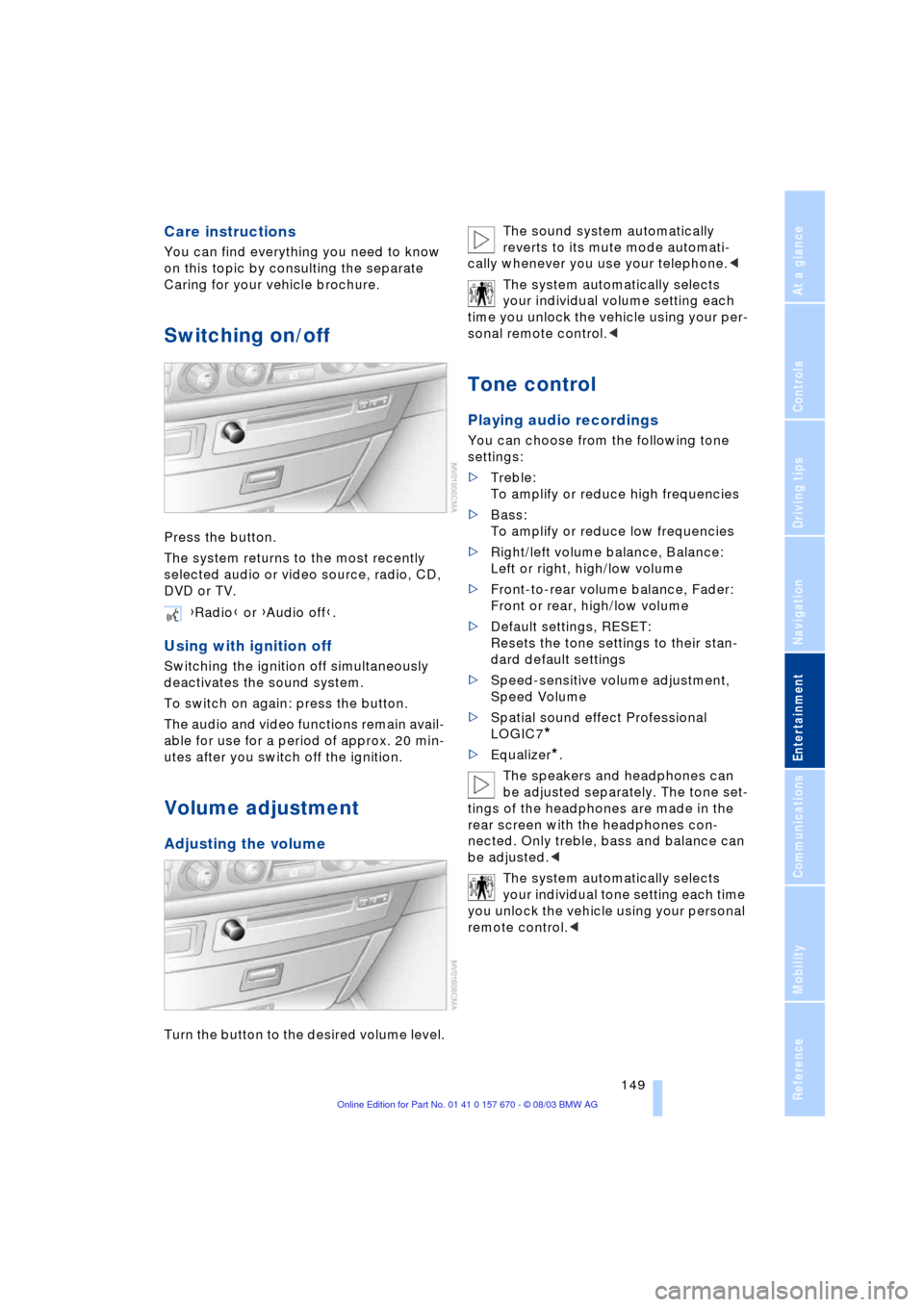
Switching on/off
Press the button.
The system returns to the most recently
selected audio or video source, radio, CD,
DVD or TV.
Using with ignition off
Switching the ignition off simultaneously
deactivates the sound system.
To switch on again: press the button.
The audio and video functions remain avail-
able for use for a period of approx. 20 min-
utes after you switch off the ignition.
Volume adjustment
Adjusting the volume
Turn the button to the desired volume level.The sound system automatically
reverts to its mute mode automati-
cally whenever you use your telephone.<
The system automatically selects
your individual volume setting each
time you unlock the vehicle using your per-
sonal remote control.<
Tone control
Playing audio recordings
You can choose from the following tone
settings:
>Treble:
To amplify or reduce high frequencies
>Bass:
To amplify or reduce low frequencies
>Right/left volume balance, Balance:
Left or right, high/low volume
>Front-to-rear volume balance, Fader:
Front or rear, high/low volume
>Default settings, RESET:
Resets the tone settings to their stan-
dard default settings
>Speed-sensitive volume adjustment,
Speed Volume
>Spatial sound effect Professional
LOGIC7
*
>Equalizer*.
The speakers and headphones can
be adjusted separately. The tone set-
tings of the headphones are made in the
rear screen with the headphones con-
nected. Only treble, bass and balance can
be adjusted.<
The system automatically selects
your individual tone setting each time
you unlock the vehicle using your personal
remote control.< {Radio} or {Audio off}.
Page 155 of 232
Navigation
Entertainment
Driving tips
153Reference
At a glance
Controls
Communications
Mobility
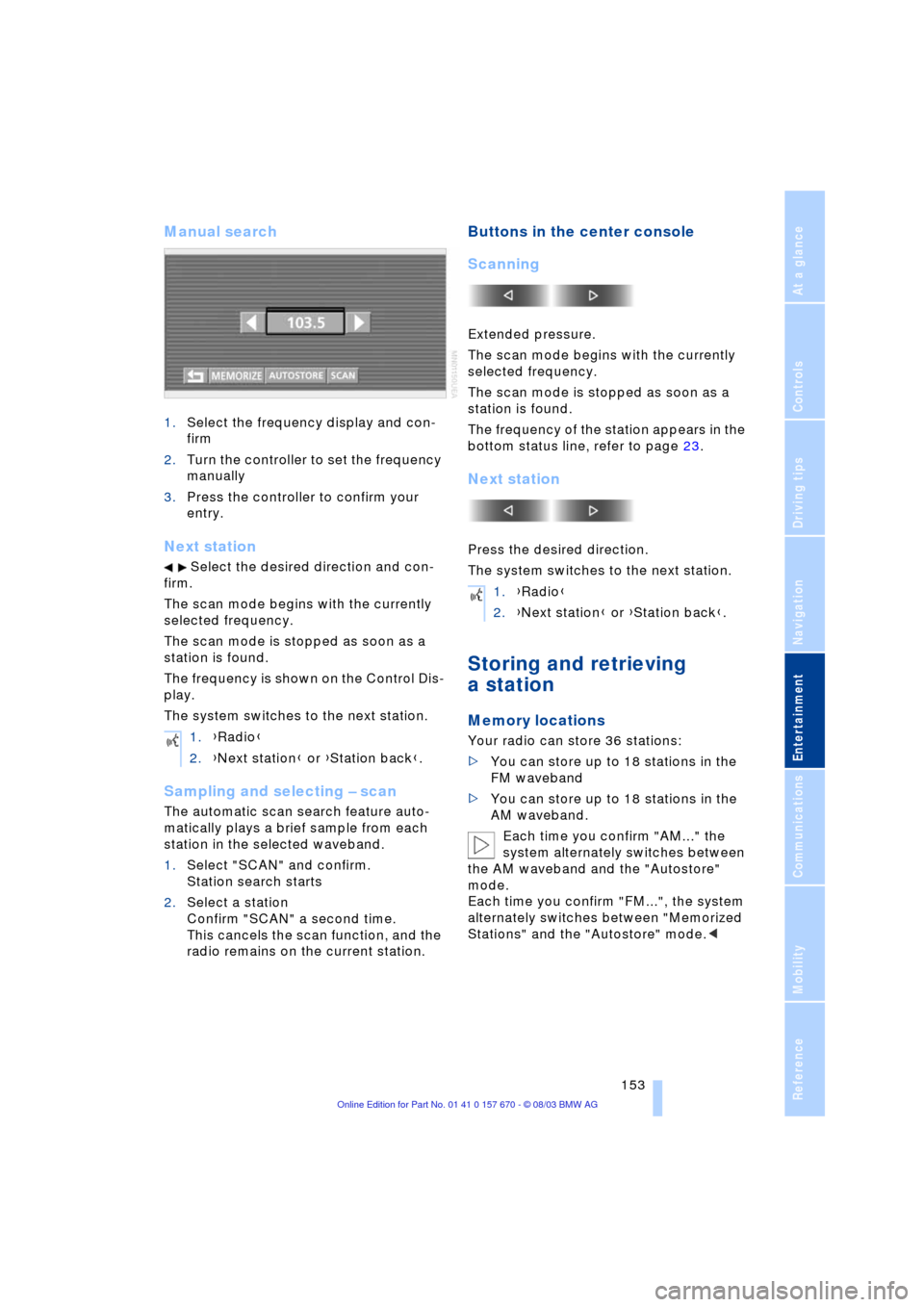
Manual search
1.Select the frequency display and con-
firm
2.Turn the controller to set the frequency
manually
3.Press the controller to confirm your
entry.
Next station
Select the desired direction and con-
firm.
The scan mode begins with the currently
selected frequency.
The scan mode is stopped as soon as a
station is found.
The frequency is shown on the Control Dis-
play.
The system switches to the next station.
Sampling and selecting Ð scan
The automatic scan search feature auto-
matically plays a brief sample from each
station in the selected waveband.
1.Select "SCAN" and confirm.
Station search starts
2.Select a station
Confirm "SCAN" a second time.
This cancels the scan function, and the
radio remains on the current station.
Buttons in the center console
Scanning
Extended pressure.
The scan mode begins with the currently
selected frequency.
The scan mode is stopped as soon as a
station is found.
The frequency of the station appears in the
bottom status line, refer to page 23.
Next station
Press the desired direction.
The system switches to the next station.
Storing and retrieving
a station
Memory locations
Your radio can store 36 stations:
>You can store up to 18 stations in the
FM waveband
>You can store up to 18 stations in the
AM waveband.
Each time you confirm "AM..." the
system alternately switches between
the AM waveband and the "Autostore"
mode.
Each time you confirm "FM...", the system
alternately switches between "Memorized
Stations" and the "Autostore" mode.< 1.{Radio}
2.{Next station} or {Station back}.
1.{Radio}
2.{Next station} or {Station back}.
Page 157 of 232
Navigation
Entertainment
Driving tips
155Reference
At a glance
Controls
Communications
Mobility
Weather Band
Weather Radio is a service of the National
Oceanic and Atmospheric Administration Ð
NOAA Ð of the U.S. Department of Com-
merce. Weather messages are repeated
every four to six minutes and are routinely
revised every one to three hours, or more
frequently if needed. Most of the stations
operate 24 hours daily. During severe
weather, National Weather Service fore-
casters can interrupt the routine weather
broadcasts and substitute special warning
messages. If you have a question concern-
ing NOAA Weather Radio, please contact
your nearest National Weather Service
Office, or write to National Weather Service
Ð Attn: W/OM11 Ð, National Oceanic and
Atmospheric Administration, 1325 East-
West Highway, Silver Spring, MD. 20910.
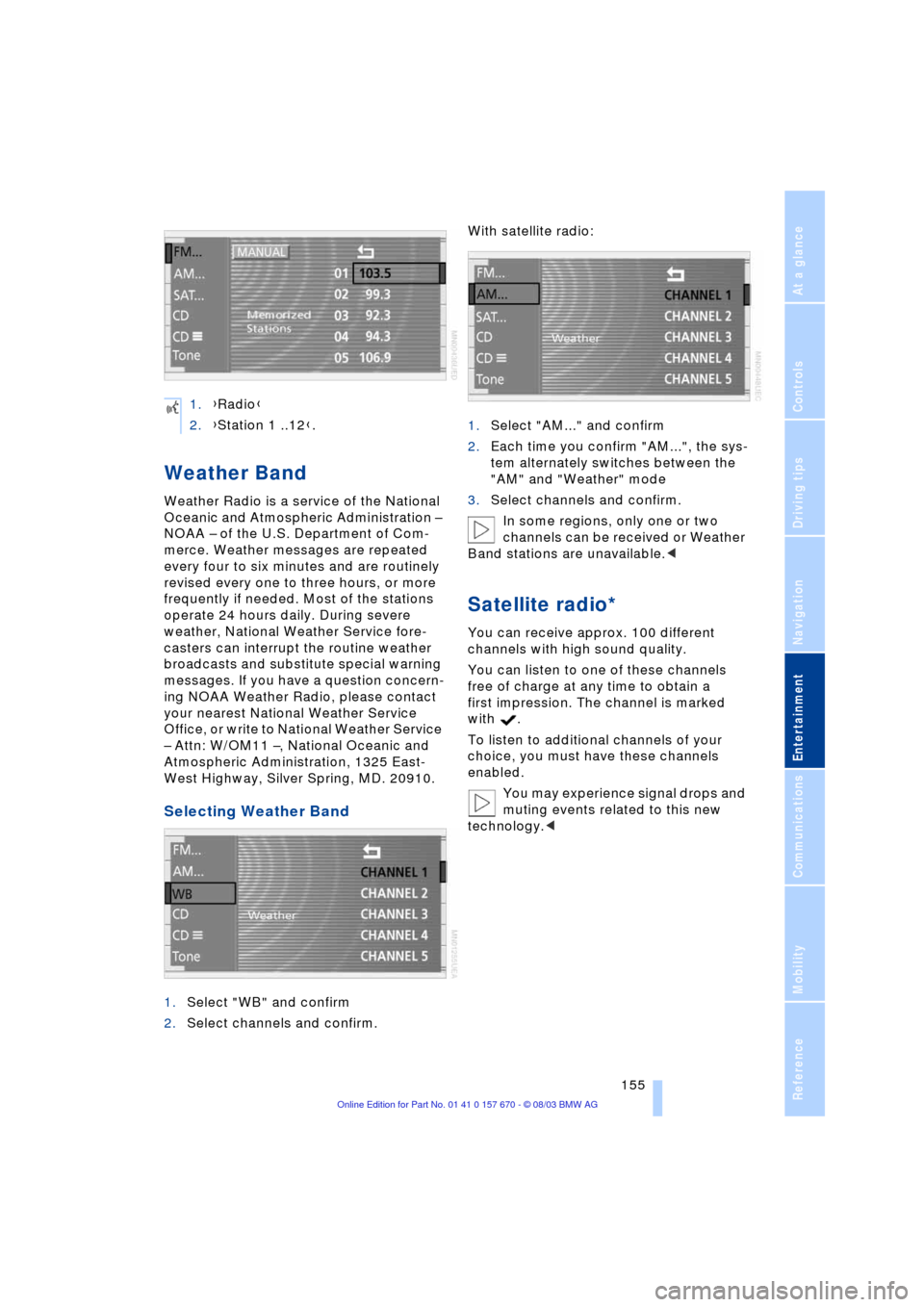
Selecting Weather Band
1.Select "WB" and confirm
2.Select channels and confirm.With satellite radio:
1.Select "AM..." and confirm
2.Each time you confirm "AM...", the sys-
tem alternately switches between the
"AM" and "Weather" mode
3.Select channels and confirm.
In some regions, only one or two
channels can be received or Weather
Band stations are unavailable.<
Satellite radio*
You can receive approx. 100 different
channels with high sound quality.
You can listen to one of these channels
free of charge at any time to obtain a
first impression. The channel is marked
with .
To listen to additional channels of your
choice, you must have these channels
enabled.
You may experience signal drops and
muting events related to this new
technology.< 1.{Radio}
2.{Station 1 ..12}.
Page 159 of 232
Navigation
Entertainment
Driving tips
157Reference
At a glance
Controls
Communications
Mobility
strong sources of radio interference.
Service should resume normally after the
source of signal unavailability has been
cleared.<
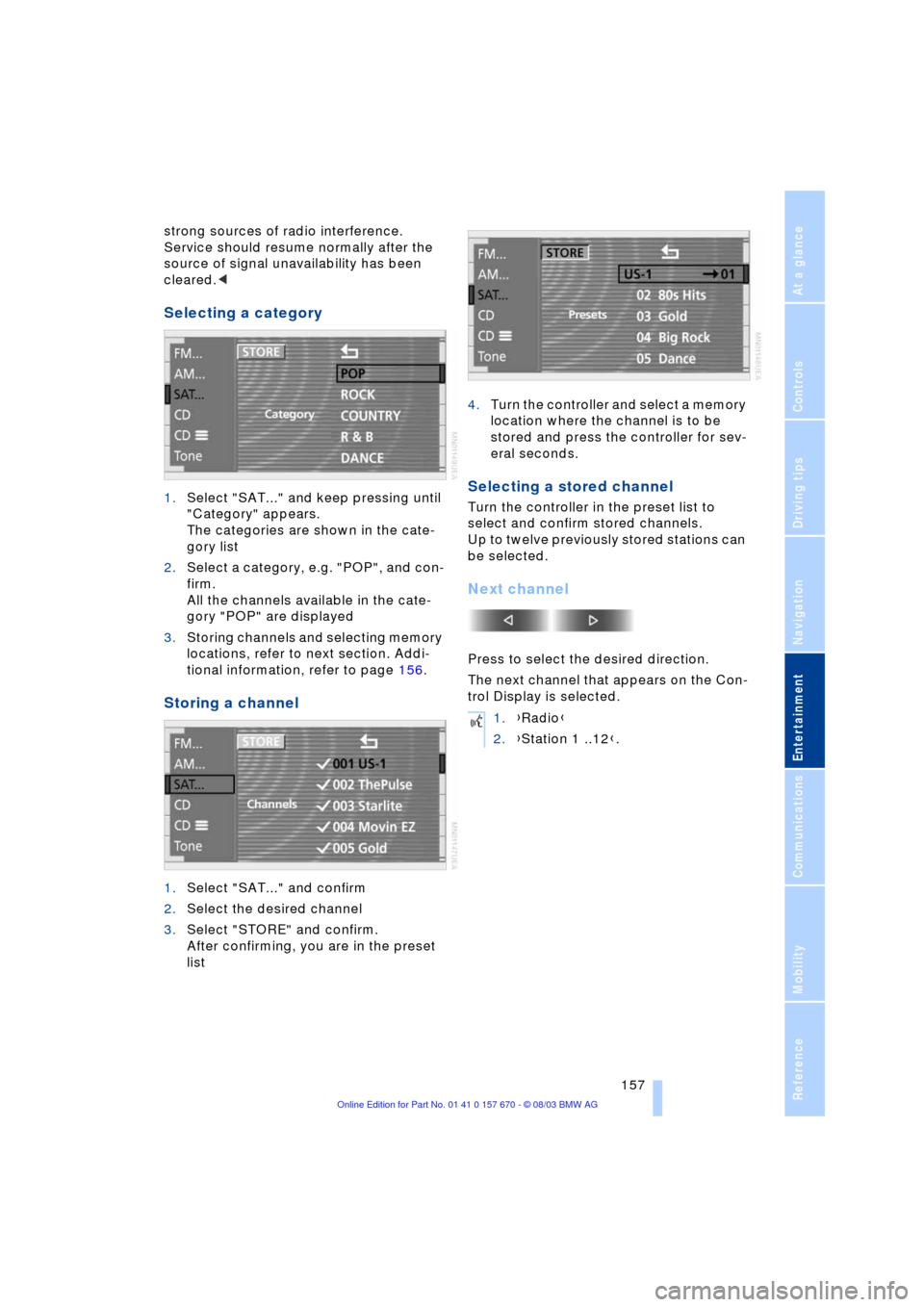
Selecting a category
1.Select "SAT..." and keep pressing until
"Category" appears.
The categories are shown in the cate-
gory list
2.Select a category, e.g. "POP", and con-
firm.
All the channels available in the cate-
gory "POP" are displayed
3.Storing channels and selecting memory
locations, refer to next section. Addi-
tional information, refer to page 156.
Storing a channel
1.Select "SAT..." and confirm
2.Select the desired channel
3.Select "STORE" and confirm.
After confirming, you are in the preset
list4.Turn the controller and select a memory
location where the channel is to be
stored and press the controller for sev-
eral seconds.
Selecting a stored channel
Turn the controller in the preset list to
select and confirm stored channels.
Up to twelve previously stored stations can
be selected.
Next channel
Press to select the desired direction.
The next channel that appears on the Con-
trol Display is selected.
1.{Radio}
2.{Station 1 ..12}.
Page 219 of 232
Reference 217
At a glance
Controls
Driving tips
Communications
Navigation
Entertainment
Mobility
"AUTOSTOR" 163
"Autostore" for radio
mode 154
Average fuel
consumption 85
Average speed 85
"Avoid highway" 137
Avoiding unintentional
alarms 40
"Avoid route" 141
"Avoid sect." 140
"Avoid tolls" 137
"A-Z", telephone 179
B
Backrest adjustment 45, 46
Backrests, refer to
Seats 44
Backup lamps, replacing
bulbs 202
Balance 149
"Balance" for audio
mode 150
Bass 149
"Bass" for audio mode 150
Battery 205
Ð flat 207
Battery switch 205, 206
"BC", refer to Computer 86
Belts 49
Beverage holders 115
Blinds 112
"BMW Assist" 21, 182
BMW Assist 182
"BMW Services" 182
Brake Assistant, refer to
DBC Dynamic Brake
Control 93
Brake fluid 197
Brake force display 96
Brake hydraulic
systems 197
Brake lamps, replacing
bulbs 202
Brake pads 123
Brakes 123
Ð malfunctions 197
Breaking in the vehicle 122Break-in procedures 122
"Brief info" 22
"Brightness"
Ð for TV mode 164
Ð in the Control Center 89
Buttons on the steering
wheel 16
Ð automatic transmission
with Steptronic 66
C
California Proposition 65
Warning 199
Call
Ð ending 179
Calling 179
Ð from phone book 179
Ð from the redial list 180
Ð from the Top 8 list 180
Ð redialing 180
Can holder, refer to
Beverage holders 115
Capacities 215
"Car data" 18, 21
Care, refer to the Caring for
your vehicle brochure
Cargo, securing 125
Cargo area
Ð locking separately 37
Cargo loading 125
Caring for the vehicle finish,
refer to the Caring for
your vehicle brochure
Car phone 175, 178
Ð refer to separate Owner's
Manual
Car radio, refer to
Radio 148
Car wash 122
Ð refer to the Caring for your
vehicle brochure
CBC Cornering Brake
Control 91
CBS Condition Based
Service 198
"CD" 148, 158CD changer 160
Ð adjusting the tone 149
Ð controls 148
Ð fast forward 161
Ð random play 161
Ð reverse 161
Ð sampling 161
Ð Scan 161
Ð selecting CD 161
Ð selecting track 162
Ð skipping tracks 161
Ð switching on 160
Ð volume 149
CD player 158
Ð adjusting the tone 149
Ð controls 148
Ð fast forward 159
Ð random play 158
Ð reverse 159
Ð sampling 158
Ð Scan 158
Ð selecting tracks 158
Ð skipping tracks 158
Ð switching on 158
Ð volume 149
"Center" 107
Center armrest
Ð individual button
assignment 17
Center brake lamp, refer to
Brake lamps 202
Center console, refer to
Comfort features 14
Central locking system 33
Ð button 37
Ð Comfort Access 34
Ð keys 36
Ð remote control 33
"CHANGE" for
navigation 136
Changing a tire 203
Changing language 88
Changing settings on the
Control Display 88
Changing the display
format on the Control
Display 88
Changing units of measure
on the Control Display 88