stop start BMW 750I 2006 User Guide
[x] Cancel search | Manufacturer: BMW, Model Year: 2006, Model line: 750I, Model: BMW 750I 2006Pages: 247, PDF Size: 8.66 MB
Page 92 of 247
Technology for comfort, convenience and safety
90 There are two programs.
With each press of the controller, you can
switch back and forth between "Comfort" and
"Sport".
Comfort program
The Comfort program is suitable for use
throughout the vehicle's entire speed range and
regardless of load.
Sport program
You should select the Sport program for consis-
tently performance-oriented response from
shock absorbers and steering.
FTM Flat Tire Monitor*
The concept
The Flat Tire Monitor keeps track of the infla-
tion pressures in the four mounted tires as you
drive. The system triggers an alert whenever
the inflation pressure drops significantly in rela-
tion to the pressure in another tire.
When a loss of pressure occurs, the rolling
radius changes and with it, the rotational speed
of the wheels. This change is detected and sig-
naled as a flat tire.
Functional requirements
To ensure the reliable signaling of a flat tire, the
system must be initialized at the correct tire
inflation pressure.
The initialization must be repeated after
every correction of the tire inflation pres-
sure and after every tire or wheel change.<
System limits
The Flat Tire Monitor cannot indicate
sudden severe tire damage caused by
outside factors and does not detect a natural,
even pressure drop in all four tires.<
In the following situations, the system could be
delayed or malfunction:
>When the system has not been initialized.>When driving on snow-covered or slippery
road surfaces.
>Sporty driving style: slip in the drive wheels,
high lateral acceleration.
>When driving with snow chains
*.
Initializing system
The initialization is completed during driv-
ing, which can be interrupted at any time.
The initialization automatically continues when
driving resumes. Do not initialize the system
when driving with snow chains
*.<
iDrive, for principle details, refer to page16.
1.Select "Settings".
2.Select "Vehicle" and press the controller.
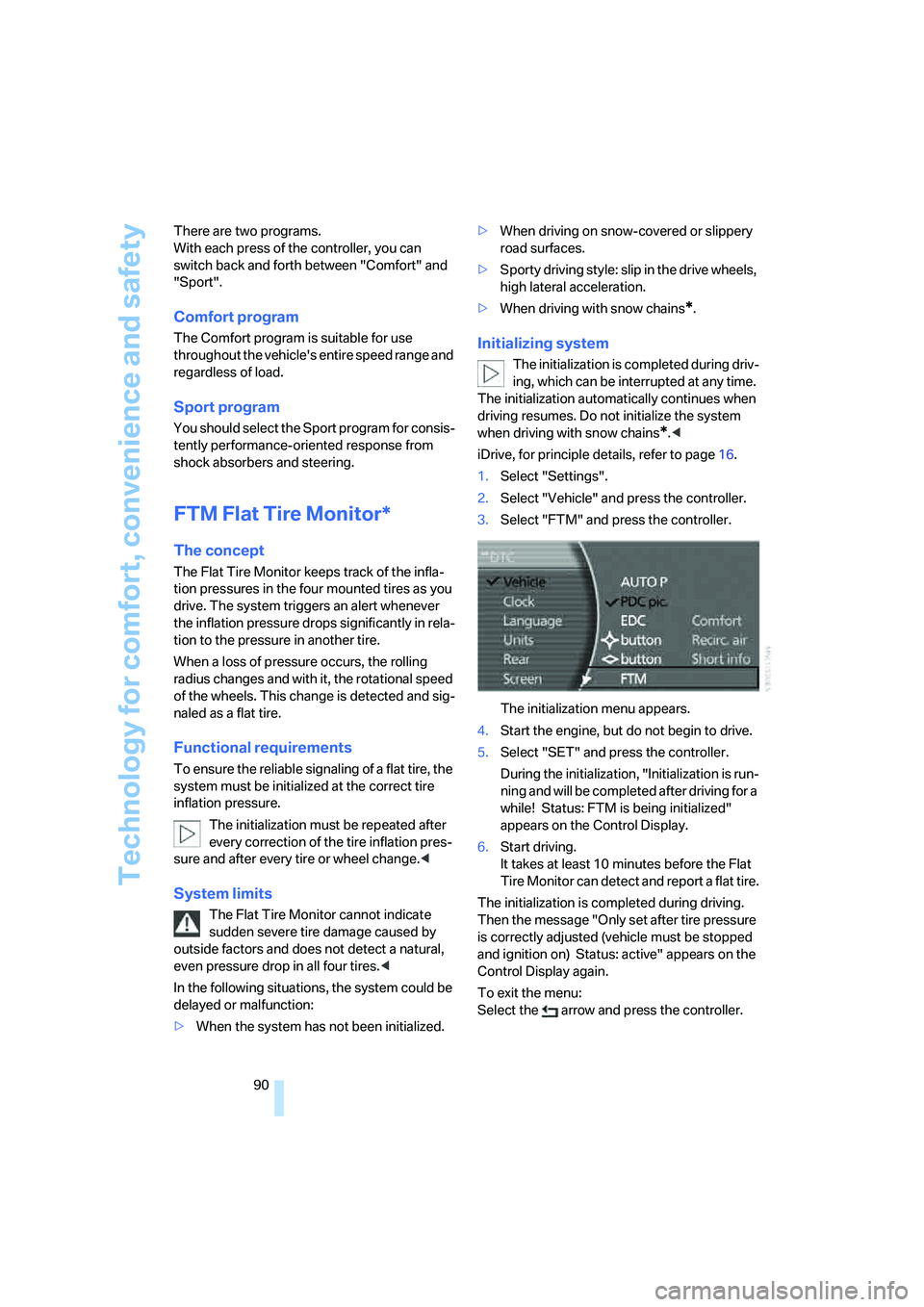
3.Select "FTM" and press the controller.
The initialization menu appears.
4.Start the engine, but do not begin to drive.
5.Select "SET" and press the controller.
During the initialization, "Initialization is run-
ning and will be completed after driving for a
while! Status: FTM is being initialized"
appears on the Control Display.
6.Start driving.
It takes at least 10 minutes before the Flat
Tire Monitor can detect and report a flat tire.
The initialization is completed during driving.
Then the message "Only set after tire pressure
is correctly adjusted (vehicle must be stopped
and ignition on) Status: active" appears on the
Control Display again.
To exit the menu:
Select the arrow and press the controller.
Page 108 of 247
Climate
106 5.Turn the controller to adjust the tempera-
ture:
>Turn toward the left, toward blue: colder
>Turn toward the right, toward red:
warmer
6.Press the controller to save the setting.
Maximum cooling
Maximally cooled air is obtained as
quickly as possible from an outside
temperature above 327/06 and
with the engine running.
The automatic climate control
changes over to the lowest temperature and
switches into the recirculated-air mode. The
maximum air quantity only flows out of the vents
for the upper body, so open these vents for
maximum cooling.
Air volume
You can vary the air volume by
turning. You can reactivate the
automatic air supply mode by
pressing the AUTO button.
Manual air distribution
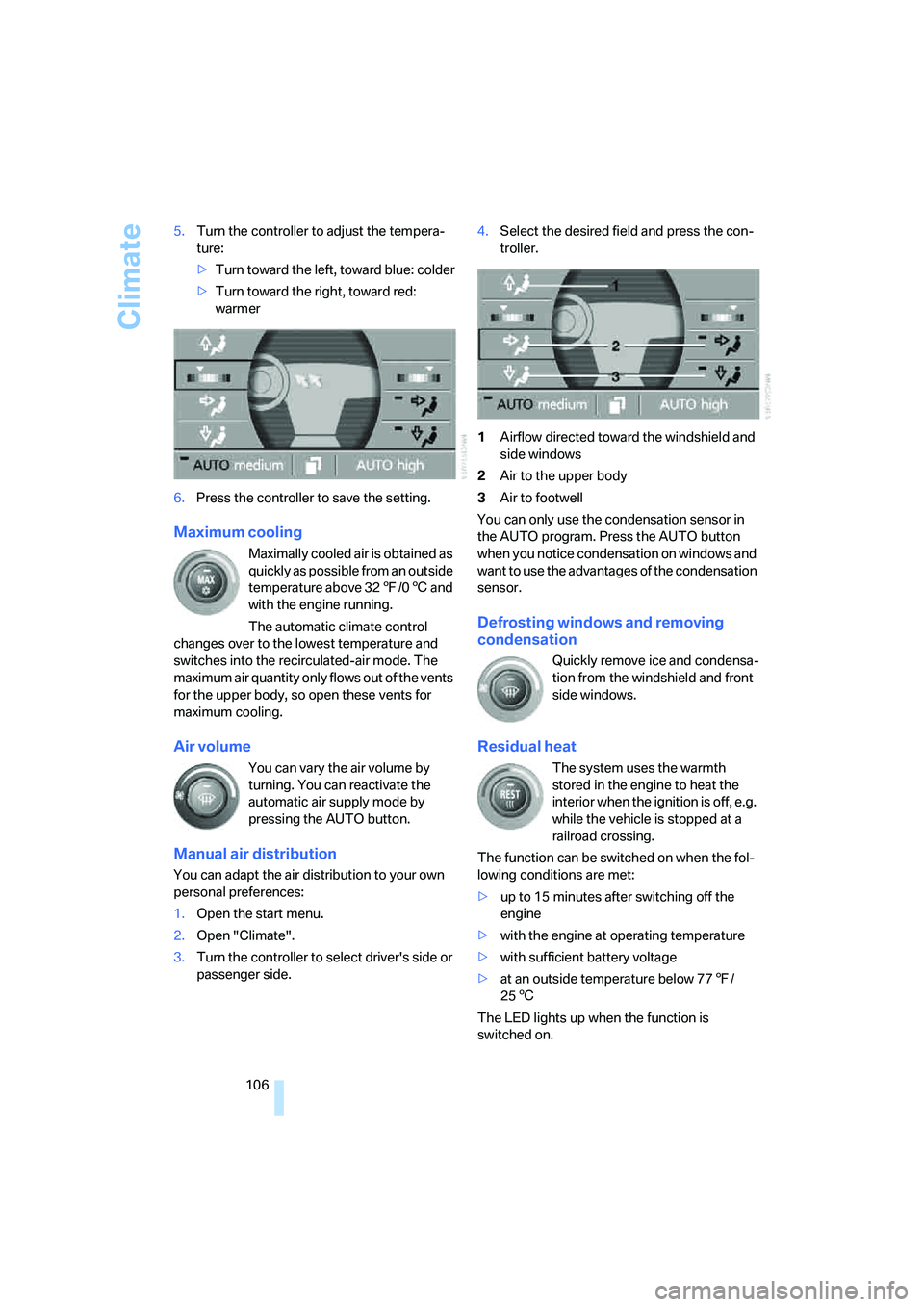
You can adapt the air distribution to your own
personal preferences:
1.Open the start menu.
2.Open "Climate".
3.Turn the controller to select driver's side or
passenger side.4.Select the desired field and press the con-
troller.
1Airflow directed toward the windshield and
side windows
2Air to the upper body
3Air to footwell
You can only use the condensation sensor in
the AUTO program. Press the AUTO button
when you notice condensation on windows and
want to use the advantages of the condensation
sensor.
Defrosting windows and removing
condensation
Quickly remove ice and condensa-
tion from the windshield and front
side windows.
Residual heat
The system uses the warmth
stored in the engine to heat the
interior when the ignition is off, e.g.
while the vehicle is stopped at a
railroad crossing.
The function can be switched on when the fol-
lowing conditions are met:
>up to 15 minutes after switching off the
engine
>with the engine at operating temperature
>with sufficient battery voltage
>at an outside temperature below 777/
256
The LED lights up when the function is
switched on.
Page 150 of 247
What to do if …
148
What to do if …
What to do if …
>a navigation DVD is inserted, but an instruc-
tion to insert the DVD appears on the Con-
trol Display?
The navigation DVD may not be the right
DVD for the navigation system. The DVD is
labeled accordingly.
>you request the current position of your
vehicle, but do not receive a precise dis-
play?
The system is unable to receive enough
GPS signals at your current position due to
obstructions, your position is not yet avail-
able on your navigation DVD, or the system
is in the process of calculating your posi-
tion. Please wait and then try again a little
later.
>the route guidance does not accept a desti-
nation?
The data of the destination is not stored on
the navigation DVD that is loaded. Select a
destination that is as close as possible to
the original.
>the route guidance does not accept an
address without the street?
On the navigation DVD, no downtown area
can be determined for the city or town
entered. Enter any street, or a destination
such as the railway station etc., then start
the route guidance.
>you want to enter an address for the route
guidance, but it is not possible to select the
letters for your desired entry?
The data of the destination is not stored on
the navigation DVD that is loaded. In this
case, the system will not offer you any let-
ters to choose from. Select a destination
that is as close as possible to the original.>the system stops furnishing directions on
which way to turn as you approach intersec-
tions?
You are driving in an area that has not yet
been completely recorded on the naviga-
tion DVD. Instead of an arrow indicating a
turn, you will see an arrow which indicates
the general direction of your planned route.
Or you have left the recommended route
and the system requires a few seconds to
calculate a new recommended route.
>the navigation system does not react to
entries?
If the battery was disconnected, it then
takes up to 10 minutes before the system is
once again operational.
Page 159 of 247
Navigation
Entertainment
Driving tips
157Reference
At a glance
Controls
Communications
Mobility
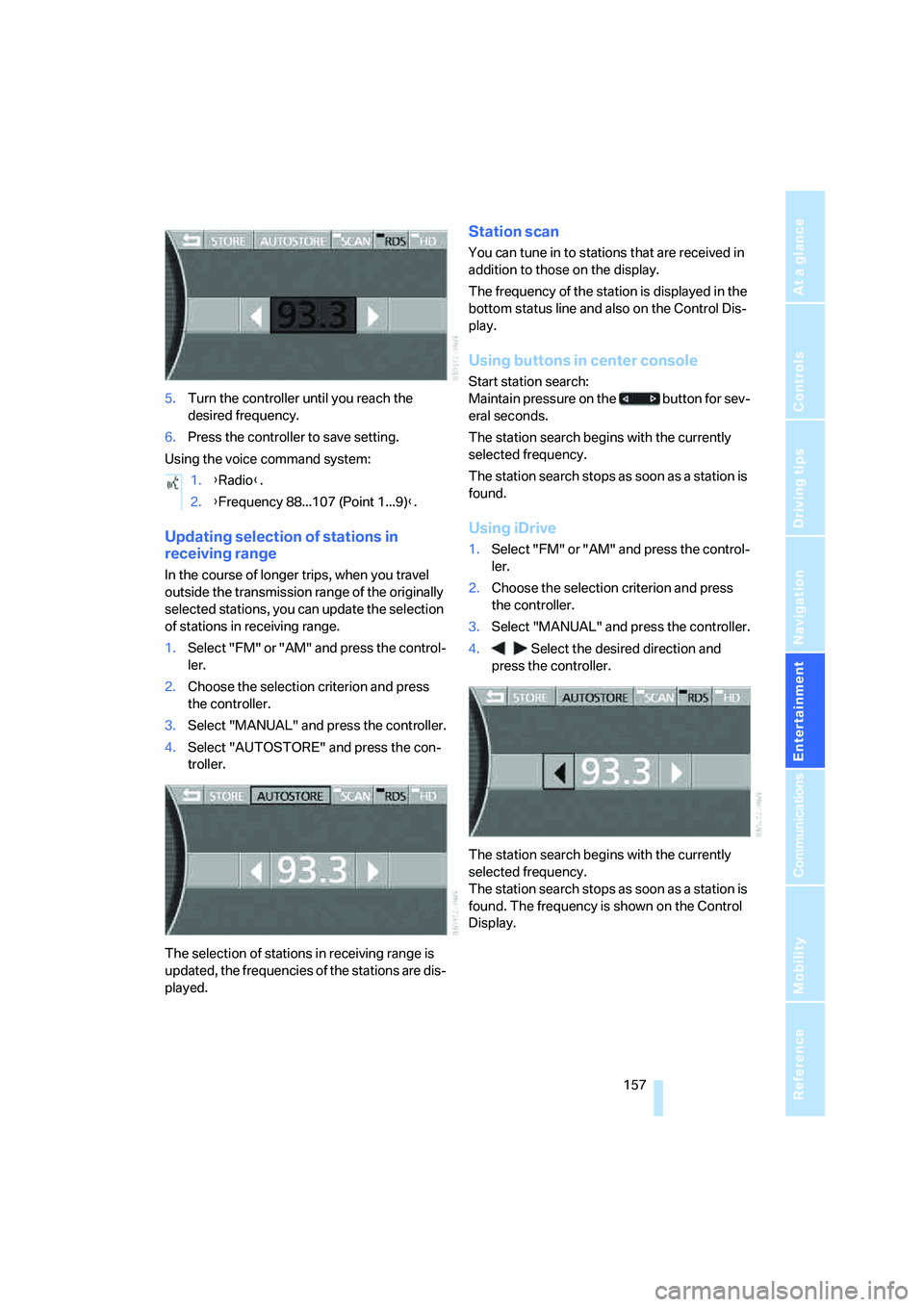
5.Turn the controller until you reach the
desired frequency.
6.Press the controller to save setting.
Using the voice command system:
Updating selection of stations in
receiving range
In the course of longer trips, when you travel
outside the transmission range of the originally
selected stations, you can update the selection
of stations in receiving range.
1.Select "FM" or "AM" and press the control-
ler.
2.Choose the selection criterion and press
the controller.
3.Select "MANUAL" and press the controller.
4.Select "AUTOSTORE" and press the con-
troller.
The selection of stations in receiving range is
updated, the frequencies of the stations are dis-
played.
Station scan
You can tune in to stations that are received in
addition to those on the display.
The frequency of the station is displayed in the
bottom status line and also on the Control Dis-
play.
Using buttons in center console
Start station search:
Maintain pressure on the button for sev-
eral seconds.
The station search begins with the currently
selected frequency.
The station search stops as soon as a station is
found.
Using iDrive
1.Select "FM" or "AM" and press the control-
ler.
2.Choose the selection criterion and press
the controller.
3.Select "MANUAL" and press the controller.
4. Select the desired direction and
press the controller.
The station search begins with the currently
selected frequency.
The station search stops as soon as a station is
found. The frequency is shown on the Control
Display. 1.{Radio}.
2.{Frequency 88...107 (Point 1...9)}.
Page 171 of 247
Navigation
Entertainment
Driving tips
169Reference
At a glance
Controls
Communications
Mobility
3.Press the button to open the start
menu.
4.Move the controller toward "Entertain-
ment".
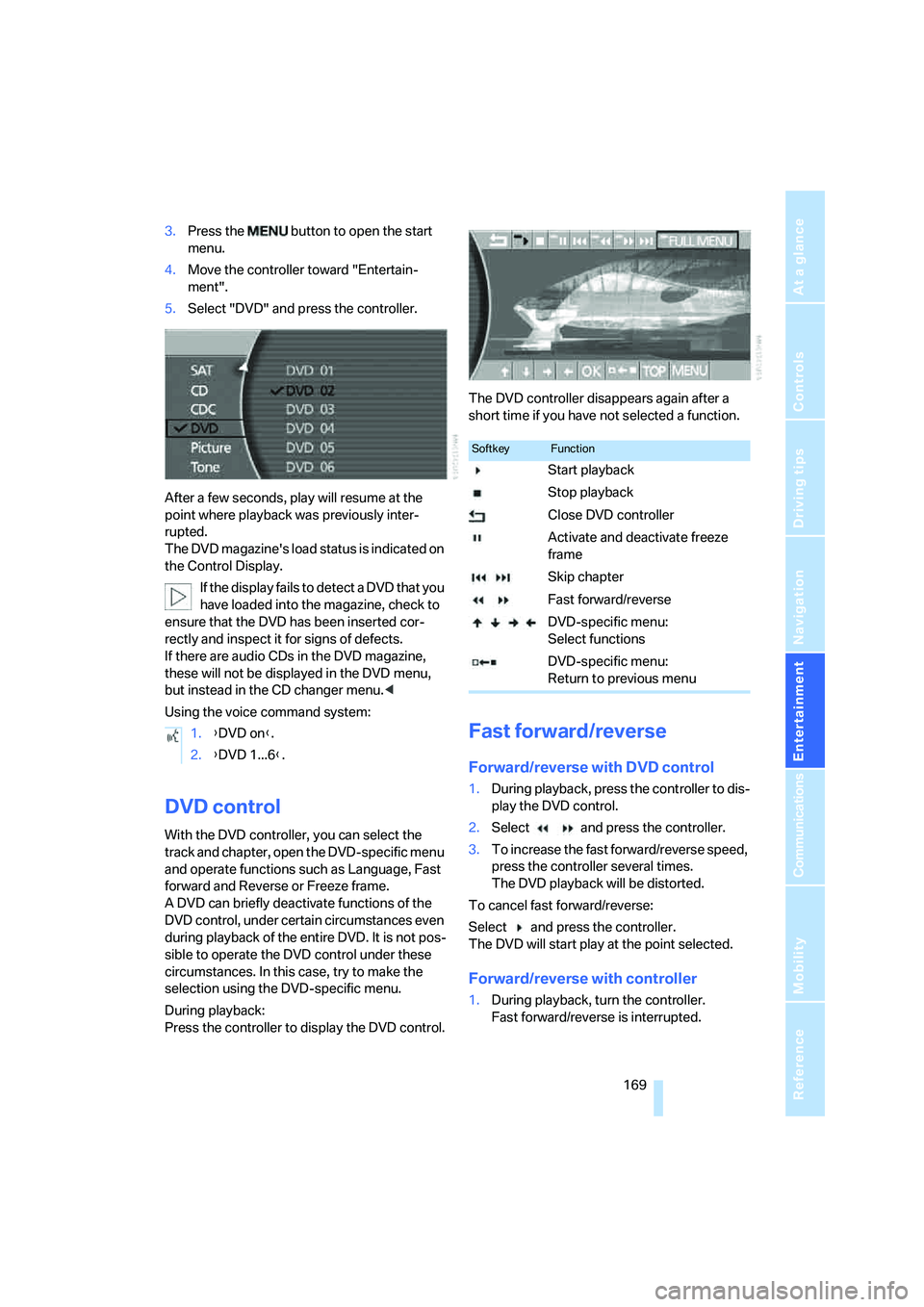
5.Select "DVD" and press the controller.
After a few seconds, play will resume at the
point where playback was previously inter-
rupted.
The DVD magazine's load status is indicated on
the Control Display.
If the display fails to detect a DVD that you
have loaded into the magazine, check to
ensure that the DVD has been inserted cor-
rectly and inspect it for signs of defects.
If there are audio CDs in the DVD magazine,
these will not be displayed in the DVD menu,
but instead in the CD changer menu.<
Using the voice command system:
DVD control
With the DVD controller, you can select the
track and chapter, open the DVD-specific menu
and operate functions such as Language, Fast
forward and Reverse or Freeze frame.
A DVD can briefly deactivate functions of the
DVD control, under certain circumstances even
during playback of the entire DVD. It is not pos-
sible to operate the DVD control under these
circumstances. In this case, try to make the
selection using the DVD-specific menu.
During playback:
Press the controller to display the DVD control.The DVD controller disappears again after a
short time if you have not selected a function.
Fast forward/reverse
Forward/reverse with DVD control
1.During playback, press the controller to dis-
play the DVD control.
2.Select and press the controller.
3.To increase the fast forward/reverse speed,
press the controller several times.
The DVD playback will be distorted.
To cancel fast forward/reverse:
Select and press the controller.
The DVD will start play at the point selected.
Forward/reverse with controller
1.During playback, turn the controller.
Fast forward/reverse is interrupted. 1.{DVD on}.
2.{DVD 1...6}.
SoftkeyFunction
Start playback
Stop playback
Close DVD controller
Activate and deactivate freeze
frame
Skip chapter
Fast forward/reverse
DVD-specific menu:
Select functions
DVD-specific menu:
Return to previous menu
Page 181 of 247
179
Entertainment
Reference
At a glance
Controls
Driving tips Communications
Navigation
Mobility
Getting started
Inserting mobile phone
If you insert or remove the mobile phone during
a call, the call may be interrupted depending on
the mobile phone model.
1.Remove the protective cap from the mobile
phone's antenna connector if necessary, so
that the mobile phone can engage in the
snap-in adapter.
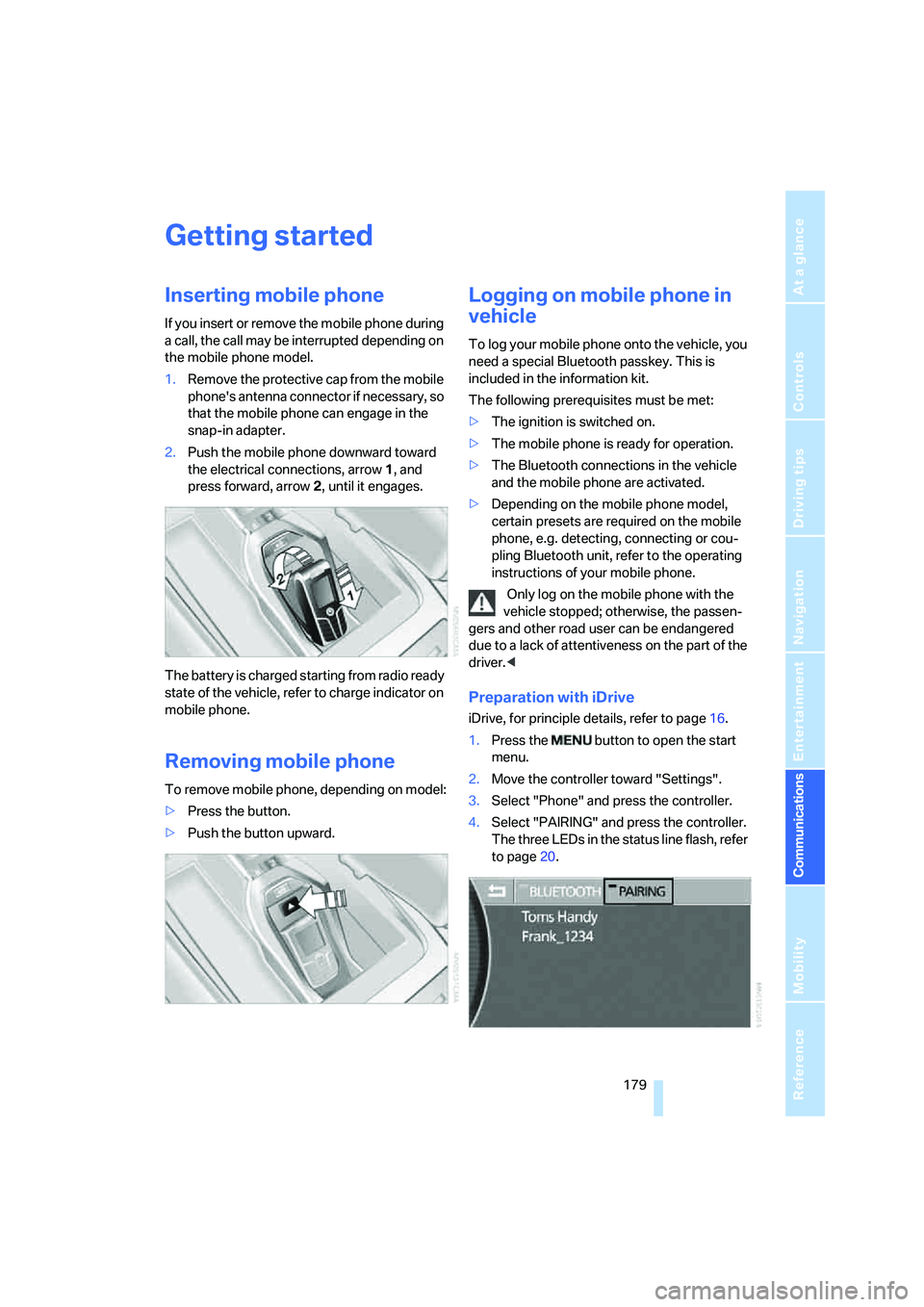
2.Push the mobile phone downward toward
the electrical connections, arrow1, and
press forward, arrow2, until it engages.
The battery is charged starting from radio ready
state of the vehicle, refer to charge indicator on
mobile phone.
Removing mobile phone
To remove mobile phone, depending on model:
>Press the button.
>Push the button upward.
Logging on mobile phone in
vehicle
To log your mobile phone onto the vehicle, you
need a special Bluetooth passkey. This is
included in the information kit.
The following prerequisites must be met:
>The ignition is switched on.
>The mobile phone is ready for operation.
>The Bluetooth connections in the vehicle
and the mobile phone are activated.
>Depending on the mobile phone model,
certain presets are required on the mobile
phone, e.g. detecting, connecting or cou-
pling Bluetooth unit, refer to the operating
instructions of your mobile phone.
Only log on the mobile phone with the
vehicle stopped; otherwise, the passen-
gers and other road user can be endangered
due to a lack of attentiveness on the part of the
driver.<
Preparation with iDrive
iDrive, for principle details, refer to page16.
1.Press the button to open the start
menu.
2.Move the controller toward "Settings".
3.Select "Phone" and press the controller.
4.Select "PAIRING" and press the controller.
The three LEDs in the status line flash, refer
to page20.
Page 204 of 247
Under the hood
202
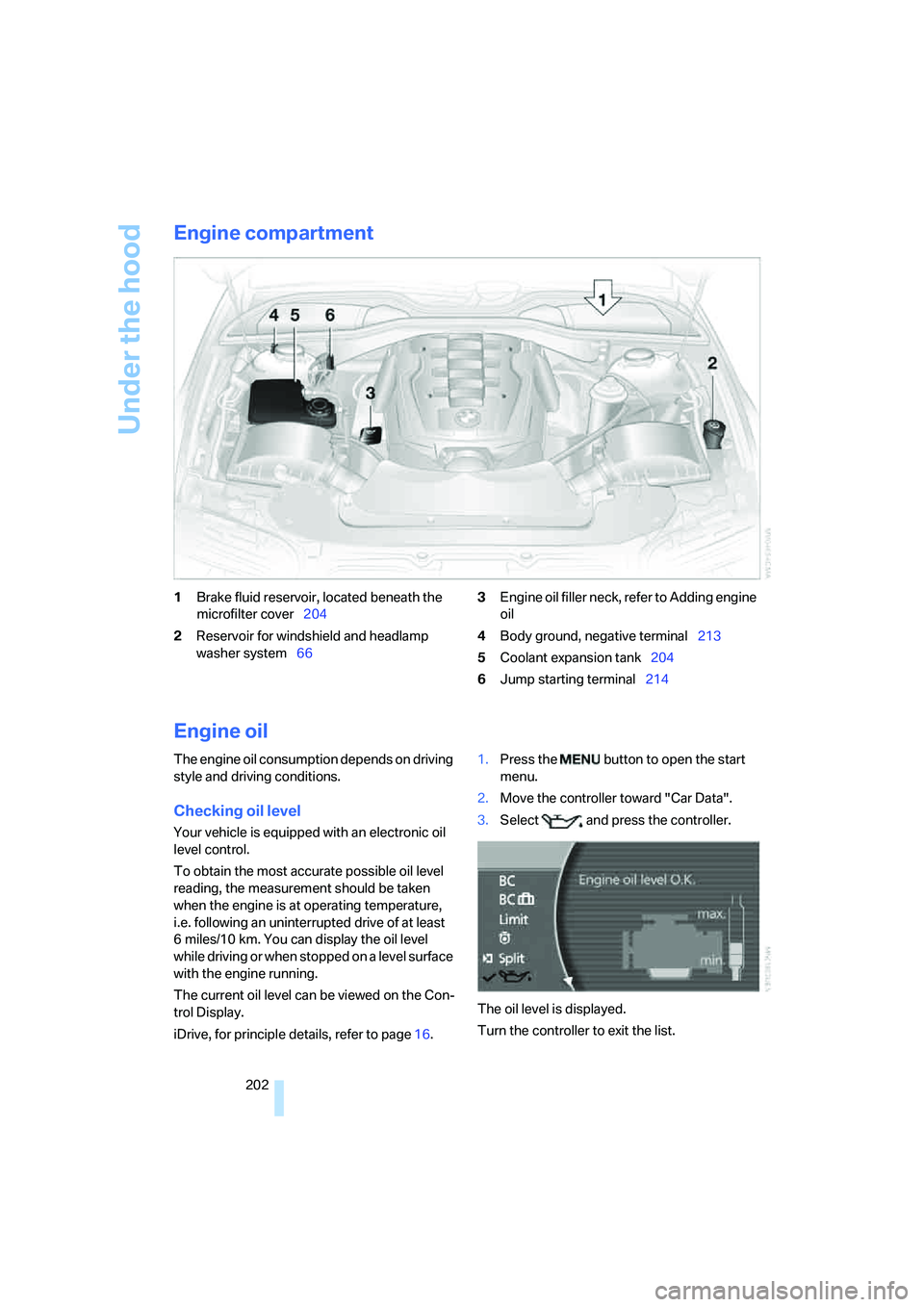
Engine compartment
1Brake fluid reservoir, located beneath the
microfilter cover204
2Reservoir for windshield and headlamp
washer system663Engine oil filler neck, refer to Adding engine
oil
4Body ground, negative terminal213
5Coolant expansion tank204
6Jump starting terminal214
Engine oil
The engine oil consumption depends on driving
style and driving conditions.
Checking oil level
Your vehicle is equipped with an electronic oil
level control.
To obtain the most accurate possible oil level
reading, the measurement should be taken
when the engine is at operating temperature,
i.e. following an uninterrupted drive of at least
6 miles/10 km. You can display the oil level
while driving or when stopped on a level surface
with the engine running.
The current oil level can be viewed on the Con-
trol Display.
iDrive, for principle details, refer to page16.1.Press the button to open the start
menu.
2.Move the controller toward "Car Data".
3.Select and press the controller.
The oil level is displayed.
Turn the controller to exit the list.
Page 216 of 247
Giving and receiving assistance
214 4.Attach one negative/– clamp of the jumper
cable to the negative battery terminal or to
an engine or body ground of the assisting
vehicle.
Your BMW has a special nut that serves as a
body ground or negative terminal, refer to
arrow2.
5.Attach the second negative/– clamp of the
jumper cable to the negative battery termi-
nal or to an engine or body ground on the
vehicle to be started.
Starting engine
1.Start the engine of the assisting vehicle and
allow it to run for several minutes at a fast
idle.
2.Start the engine on the other vehicle in the
usual way.
If the first start attempt is not successful,
wait a few minutes before another attempt
in order to allow the discharged battery to
recharge.
3.Allow the engines to run for several min-
utes.
4.Disconnect the jumper cables again in the
reverse sequence.
If need be, have the battery checked and
recharged.
Never use spray fluids to start the
engine.<
Towing and tow starting
Observe applicable laws and regulations
for tow-starting and towing.<
Do not transport any passengers other
than the driver in a vehicle that is being
towed.<
Using tow fitting
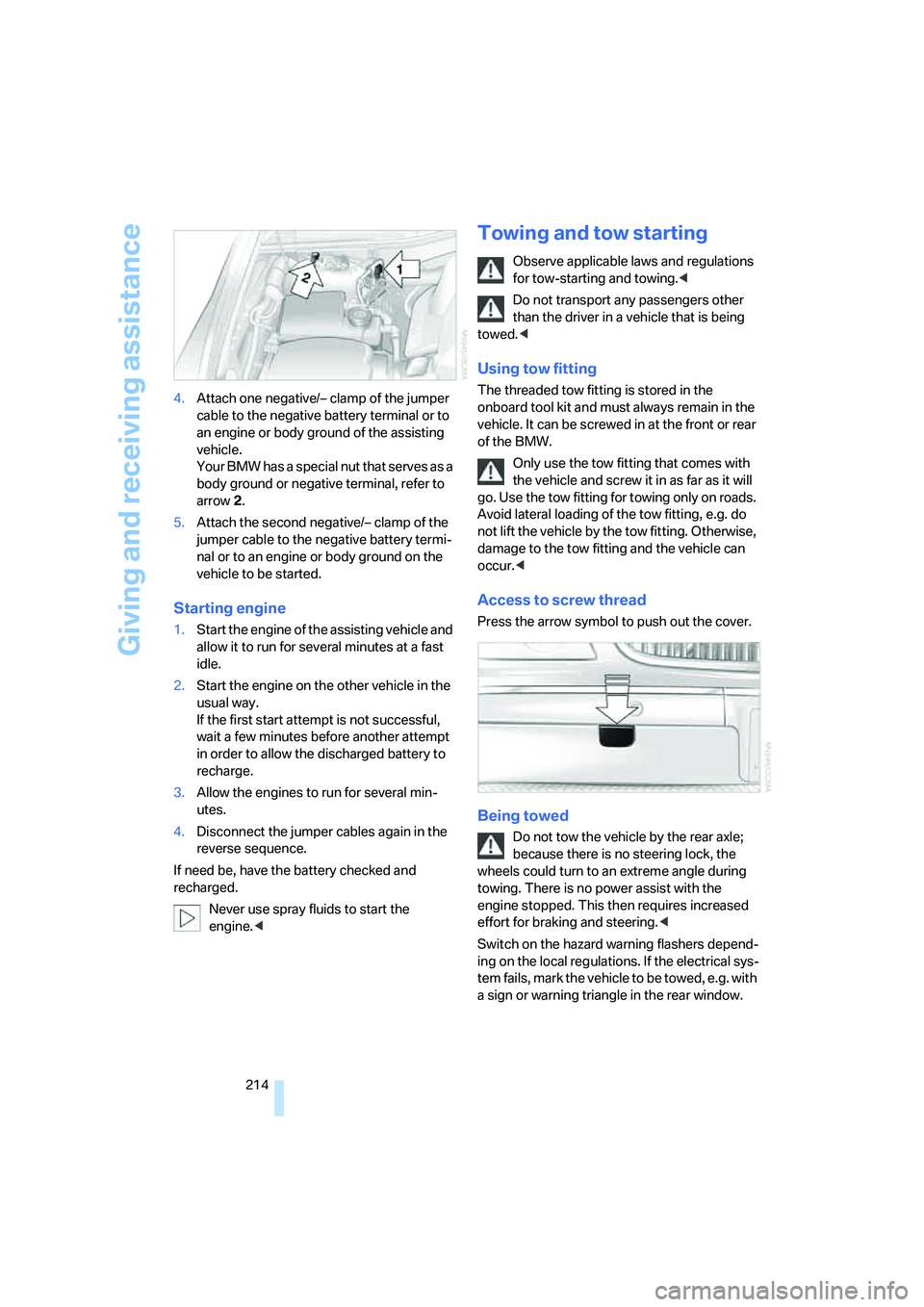
The threaded tow fitting is stored in the
onboard tool kit and must always remain in the
vehicle. It can be screwed in at the front or rear
of the BMW.
Only use the tow fitting that comes with
the vehicle and screw it in as far as it will
go. Use the tow fitting for towing only on roads.
Avoid lateral loading of the tow fitting, e.g. do
not lift the vehicle by the tow fitting. Otherwise,
damage to the tow fitting and the vehicle can
occur.<
Access to screw thread
Press the arrow symbol to push out the cover.
Being towed
Do not tow the vehicle by the rear axle;
because there is no steering lock, the
wheels could turn to an extreme angle during
towing. There is no power assist with the
engine stopped. This then requires increased
effort for braking and steering.<
Switch on the hazard warning flashers depend-
ing on the local regulations. If the electrical sys-
tem fails, mark the vehicle to be towed, e.g. with
a sign or warning triangle in the rear window.
Page 234 of 247
Everything from A to Z
232 Instructions, navigation
system, refer to Route
guidance by voice
instructions145
Instrument cluster, refer to
Info Display12
Instrument lighting101
Instrument panel, refer to
Cockpit10
– all around the steering
wheel10
– comfort features14
Integrated universal remote
control111
Interior lamps102
– switching on with remote
control33
Interior motion sensor38
– switching off38
Interior rearview mirror,
automatic dimming
feature123
Interlock, refer to Switching
off engine58
"INTERM. TIME",
stopwatch83
Interval Display, refer to
Service requirements78
J
Joystick, refer to iDrive16
Jump starting213
K
Keyless-Go, refer to Comfort
Access38
Keyless opening and closing,
refer to Comfort Access38
Key Memory31
Keys30
– adapter for spare key30
– key-related settings, refer to
Key Memory31
Kick-down63
Knock control193
L
Lamps and bulbs207
"Language", settings84
Lashing eyes, refer to
Securing cargo125
"Last", telephone184
"Last dest.", navigation137
LATCH child-restraint fixing
system55
Leather care, refer to Caring
for your vehicle brochure
LEDs light-emitting
diodes207
"Left", seat heating49
Length, refer to
Dimensions219
Level control system89
Light
– refer to High-beam
assistant100
– refer to Parking lamps/low
beams99
– refer to Roadside parking
lamps/low beams100
Light alloy wheels, care and
maintenance, refer to Caring
for your vehicle brochure
Light-emitting diodes
LEDs207
Lighter116
Lighter socket, refer to Power
socket116
Lighting
– of instruments101
– of vehicle99
Light switch99
"Limit"82
Limit, refer to Speed limit82
"Limited", rear seat screen22
Load, refer to Loading124
Loading
– securing cargo125
– vehicle124
"LOC.", navigation140
"Location",
navigation139,146,147Lock buttons in the doors,
refer to Locking34
Locking
– from inside34
– from outside33
Locking without key, refer to
Comfort Access38
Locking without remote
control, refer to Comfort
Access38
"LOGIC7", tone control154
Longlife oils, approved
oils203
Long wave, LW155
– High Definition Radio161
"low", automatic climate
control105
Low beams99
– automatic99
– indicator lamp, defective
lamp80
Lower back support, refer to
Lumbar support
adjustment45
Low-fuel warning light, refer to
Fuel gauge76
Lows, refer to Tone
adjustment153
Lug bolts
– refer to Preparing for a wheel
change210
– tightening torque, refer to
After mounting211
– wrench, refer to What you
will need209
Luggage compartment119
– capacity220
– Comfort Access39
– opening/closing, refer to
Luggage compartment
lid35
– opening from inside36
– opening from outside35
– opening with remote
control33
Page 240 of 247
Everything from A to Z
238 "Settings", activating/deacti-
vating Bluetooth
link179,180
Setting time, refer to Prese-
lecting activation time109
Setting volume, speed-
dependent154
Shifting, for automatic trans-
mission with Steptronic62
Shiftlock, refer to Selecting
transmission range62
Short commands of the voice
command system222
"Shortest route",
navigation142
"Short info", programmable
buttons52
Short wave, SW155
– High Definition Radio161
Shoulder support45
Side airbags94
Side-mounted turn signals,
replacing bulbs208
Side window blind, refer to
Sun blinds112
Signal horn, refer to Horn11
Sitting safely43
– with airbags43
– with head restraint43
– with safety belts43
Ski bag118
Sliding/tilt sunroof, refer to
Glass sunroof, electric41
Smokers' package, refer to
Ashtray115
Snap-in adapter181
Snow chains200
Socket
– for Onboard
Diagnostics206
– for remote control, refer to
Ignition lock57
Soft closure aid
– doors, refer to Automatic
soft closing35
– luggage compartment lid,
refer to Automatic soft
closing36Soft drink can holder, refer to
Cup holders115
SOS, refer to Initiating an
emergency call178
Spare fuses212
Spare key30
– adapter30
Spare tire210
Spare wheel, refer to Spare
tire210
Special oils, refer to Approved
engine oils203
Special washing program,
refer to Caring for your
vehicle brochure
Speed
– average77
– limit82
Speed-dependent
volume154
Speed limit82
Speed limit warning, refer to
Speed limit82
Speedometer12
"Speed Vol.", Speed-
dependent volume
control154
"Split"
– assistance window for
onboard data83
– navigation, refer to Display in
assistance window130
Split screen view, refer to
Assistance window20
"Sport", EDC Electronic
Damper Control90
Sport program
– automatic transmission with
Steptronic63
– EDC Electronic Damper
Control90
Stability control, refer to
Driving stability control
systems87
Star button, refer to
Programming button
function52
"START", BMW Assist188"START / RESET", trip
computer82
Start/Stop button57
Starting, refer to Starting
engine57
Starting difficulties
– jump starting213
– refer to Special starting
conditions58
Starting engine57
"State inspection"79
Stations
– refer to Radio155
– storing for radio158
"Status", BMW
Assist186,187
"Status: Resetting TPM...",
Tire Pressure Monitor92
"Status: Tire low!", Tire
Pressure Monitor92
"Status: TPM active", Tire
Pressure Monitor92
Steering wheel
– adjustment52
– assistance getting in and
out52
– buttons on steering
wheel11
– heating52
– memory46
– programmable button52
– with multi-function
buttons11
Steptronic, refer to Automatic
transmission with
Steptronic63
"STOP", trip computer82
Stopwatch
– starting and stopping83
– taking an intermediate time
reading83
Storage, tires200
Storage compartments115
Storage space, refer to
Luggage compartment119
"STORE", radio158